Toshiba Portege R30-A review – a reliable and affordable business companion
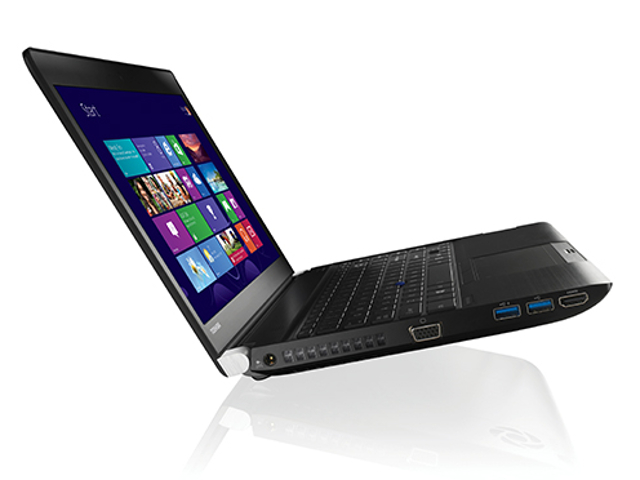 Every now and then a perfectly good device gets lost in time and doesn’t receive the much-deserved attention and that’s the case with the Toshiba Portege R30-A – a reliable little guy that emphasizes on its business-oriented capabilities. It has its drawbacks, just like ever another device on the market, but there are some features that cannot be overlooked and make this device as it is. In short, this device serves as a great business companion if you can only find one in your area, of course. The model is actually more than a year and half old, so don’t get surprised by the outdated hardware.
Anyhow, the notebook offers fairly bulky chassis for a 13.3-inch device but packs a lot of ports that will please the old school users and the ones that will need the usual connections and peripherals nowadays. But we are mostly happy with the build quality and the choice of materials. While the machine falls into the budget category, it doesn’t fail to deliver the much-needed sturdiness and rigidness as this is an essential part of a business-centric machine.
You can check out Amazon.com for more information about available configurations and prices.
Contents
Retail package
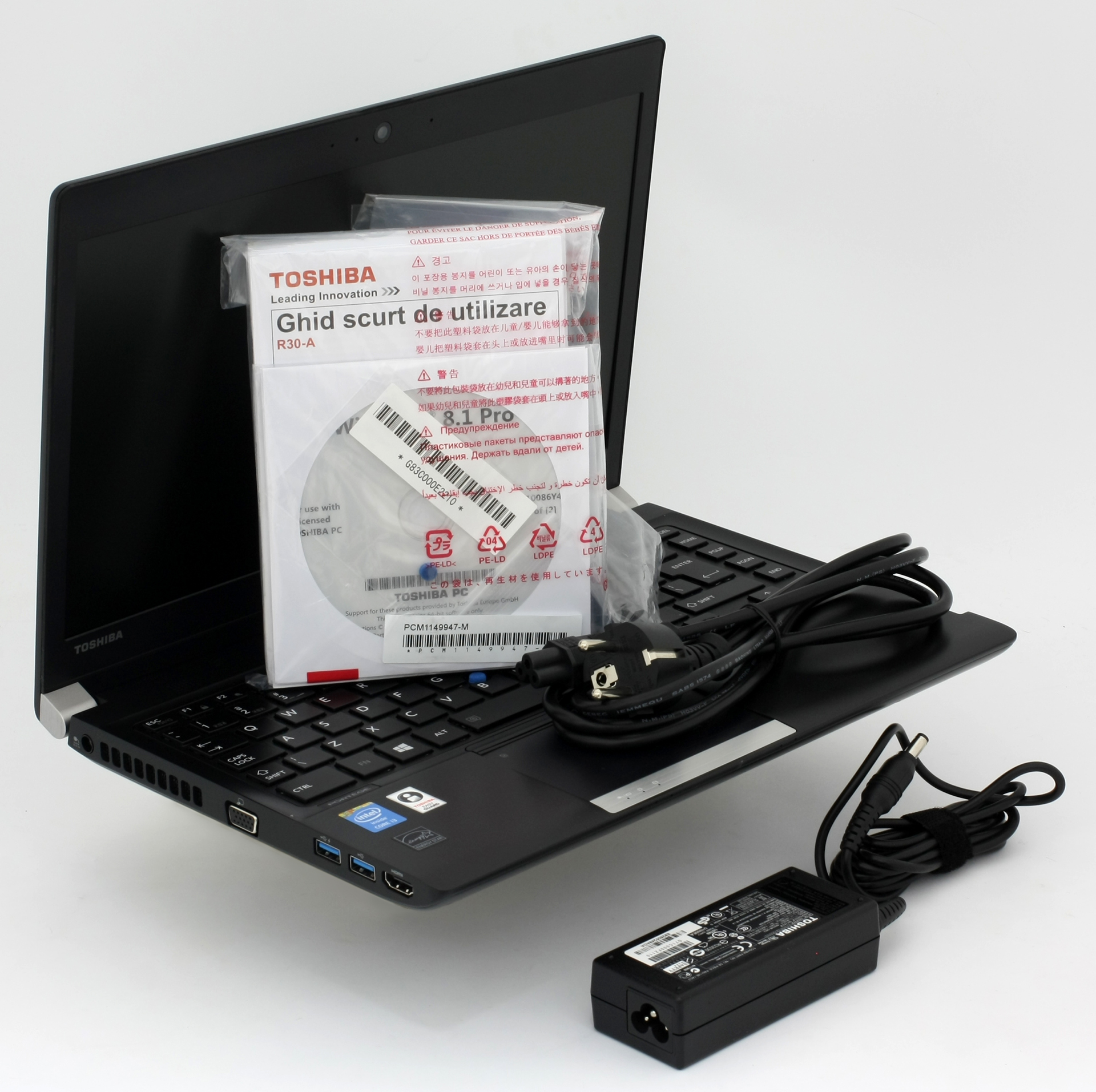
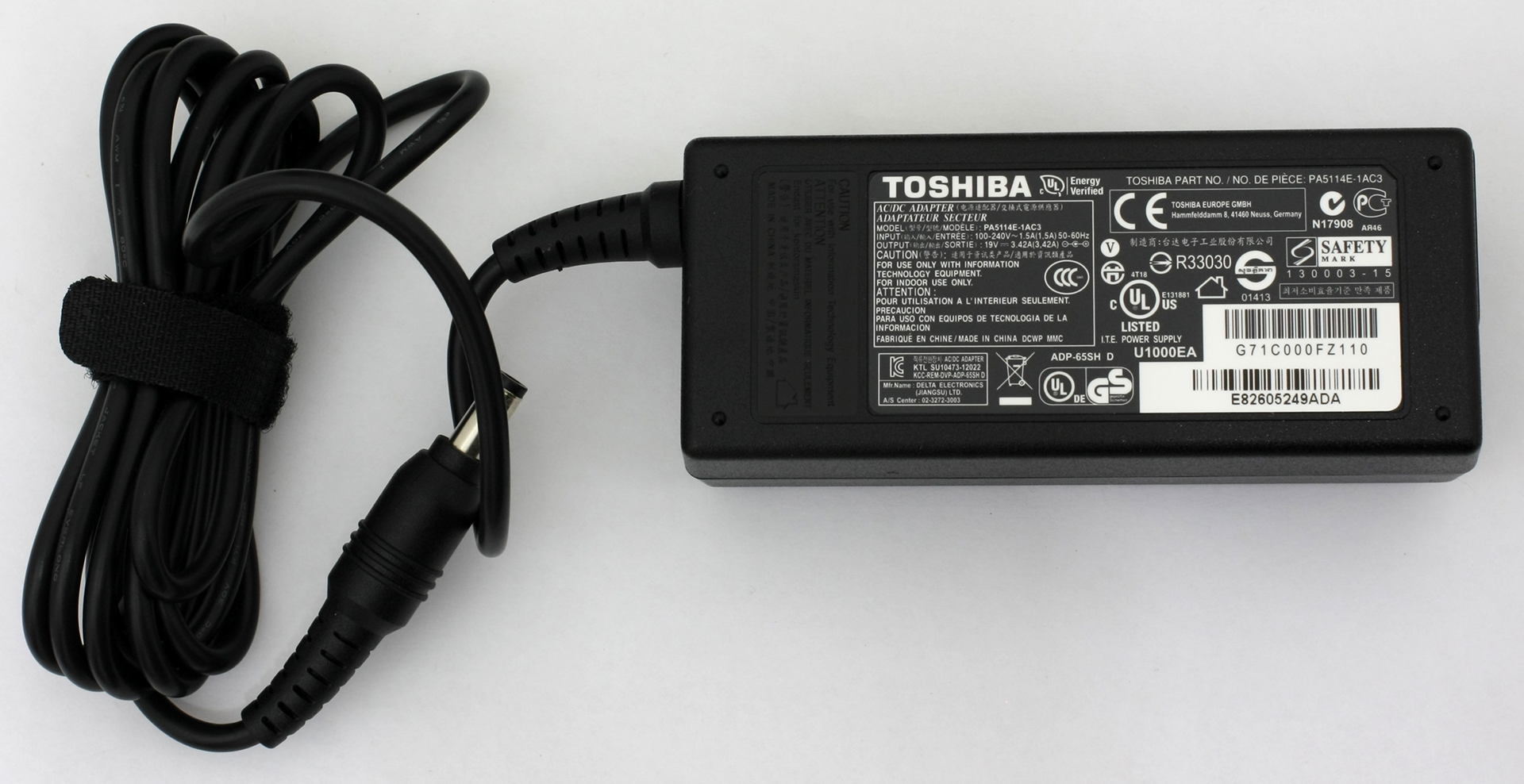
The notebook comes in a small, modest box with all the usual DVDs with drivers, Windows 8.1 Pro (if you need to upgrade from the Windows 7 Professional, which is pre-installed on the system), AC adapter, charging cable, and user manuals.
Design and construction
The whole device is covered in hard plastic with an aluminum-like finish when in reality the case is built around the magnesium alloy aranged in a honeycomb formation for extra stiffness that makes the devices feel way better than some notebooks on the market and keeps the strict design inherent to the business class machines. On the other hand, some users may see the design as boring and old fashioned, but this is a subjective opinion.
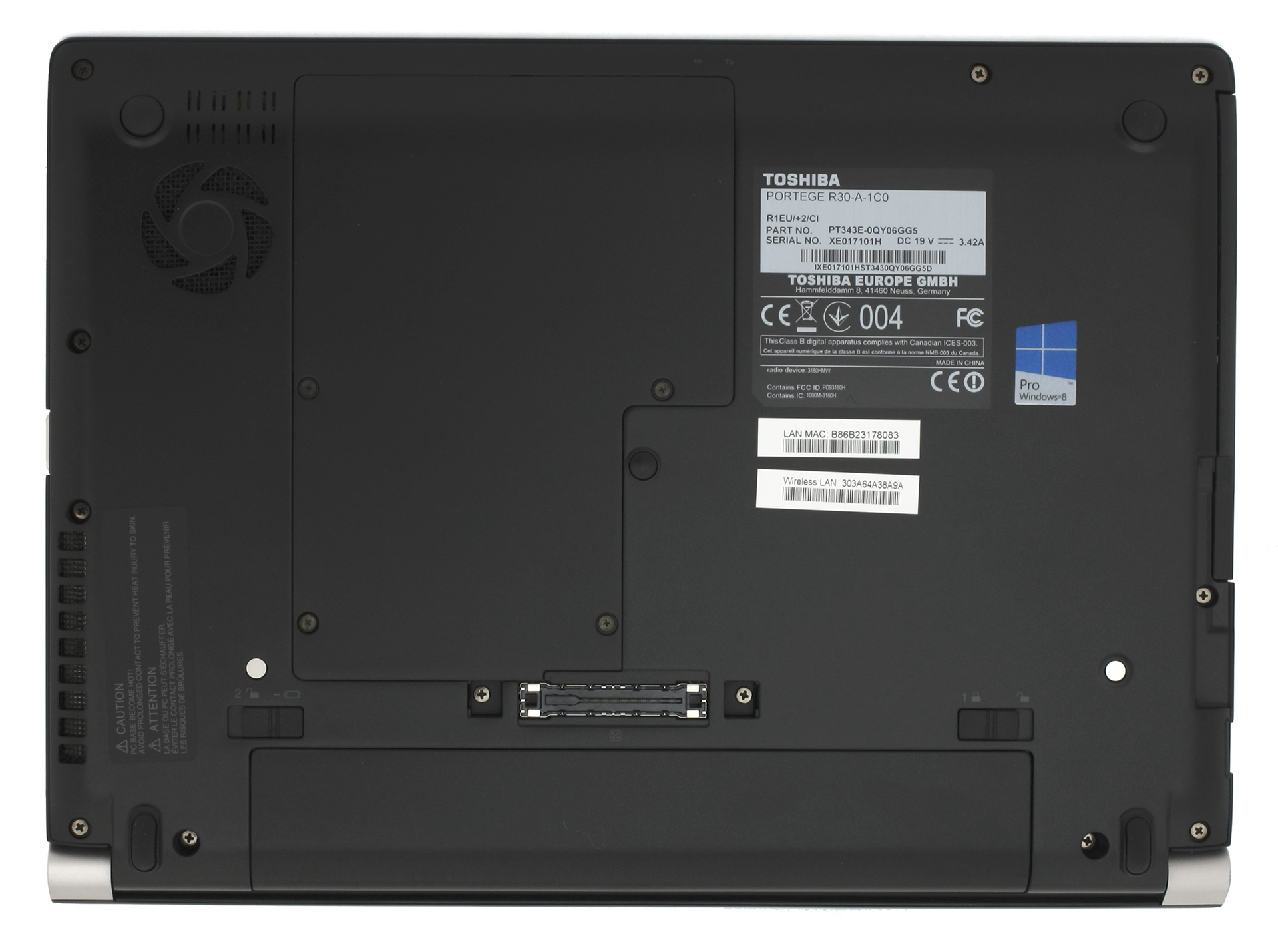
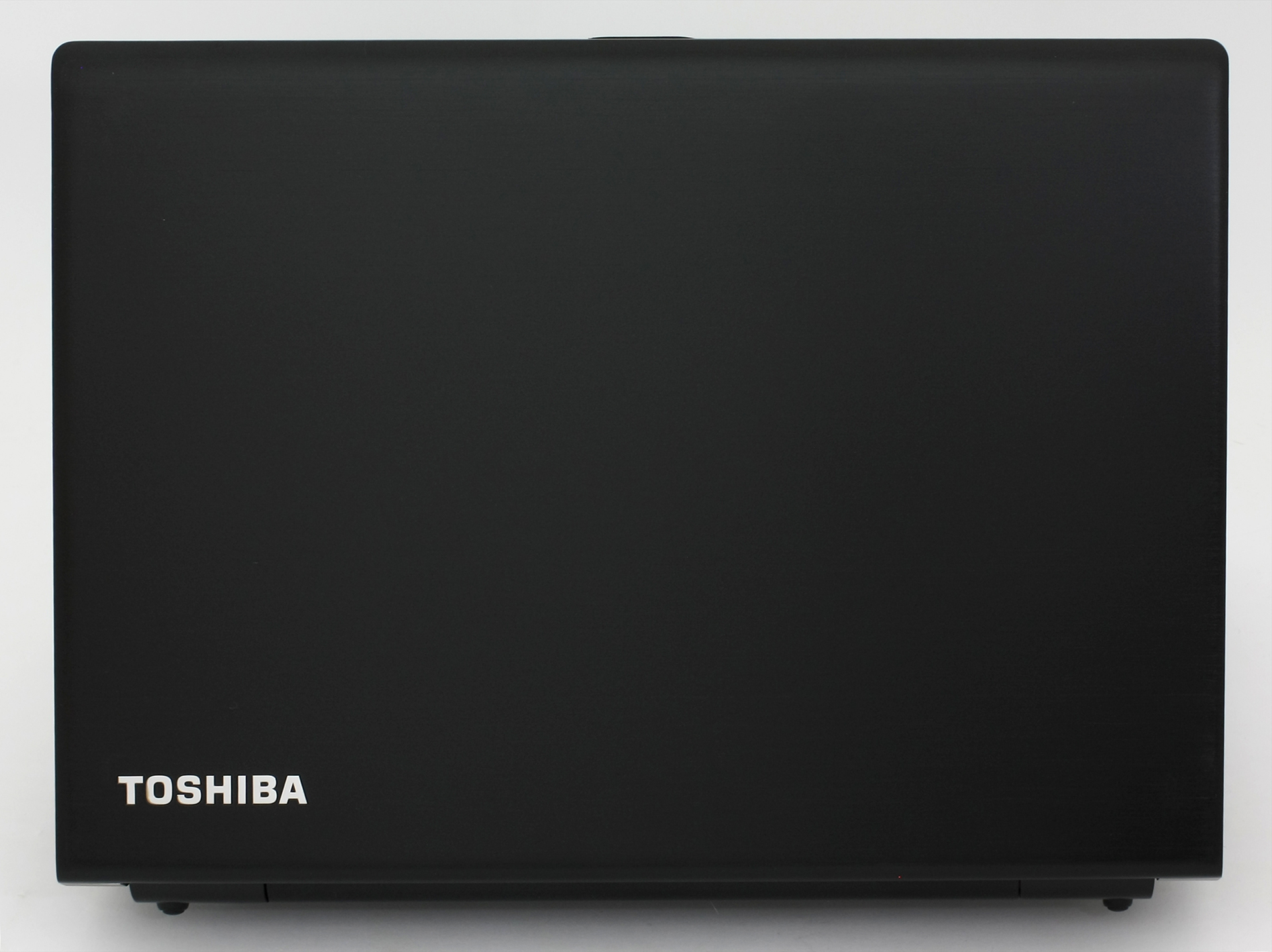
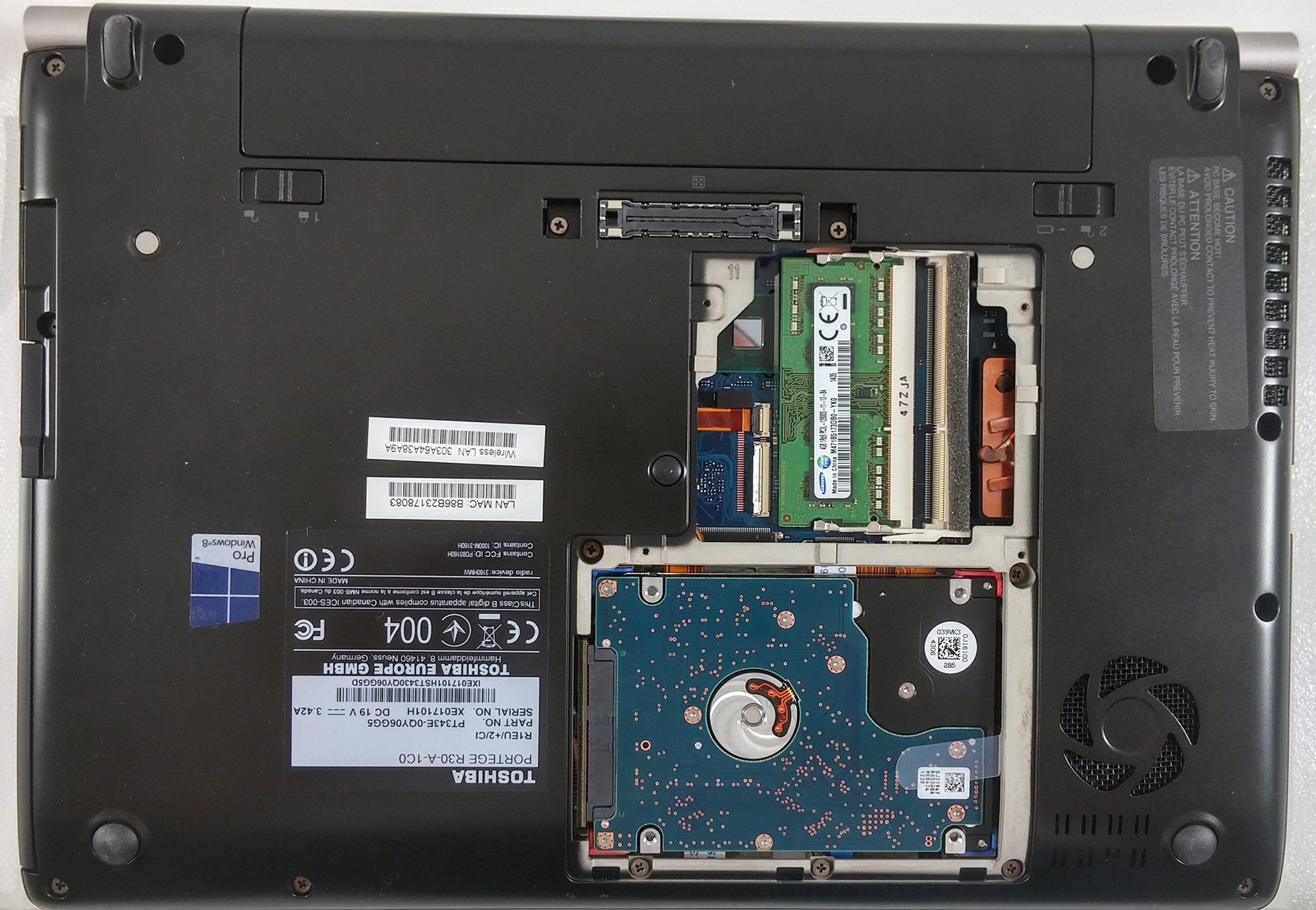
The lid is covered in hard plastic that imitates brushed aluminum. It feels nice and it doesn’t feel all that bouncy. But the hinge is way overtightened and you will always need two hands to open the lid, but seem well-attached and secured. As for the bottom panel, the Portege R30 has a connector for an additional docking station, two levers releasing the battery, which is user-replaceable, a small service cover that hides the usual upgrade options like RAM and 2.5-inch HDD/SSD, and a small vent for extra airflow. The plastic again feels rigid and the bottom panel continues the good build quality.
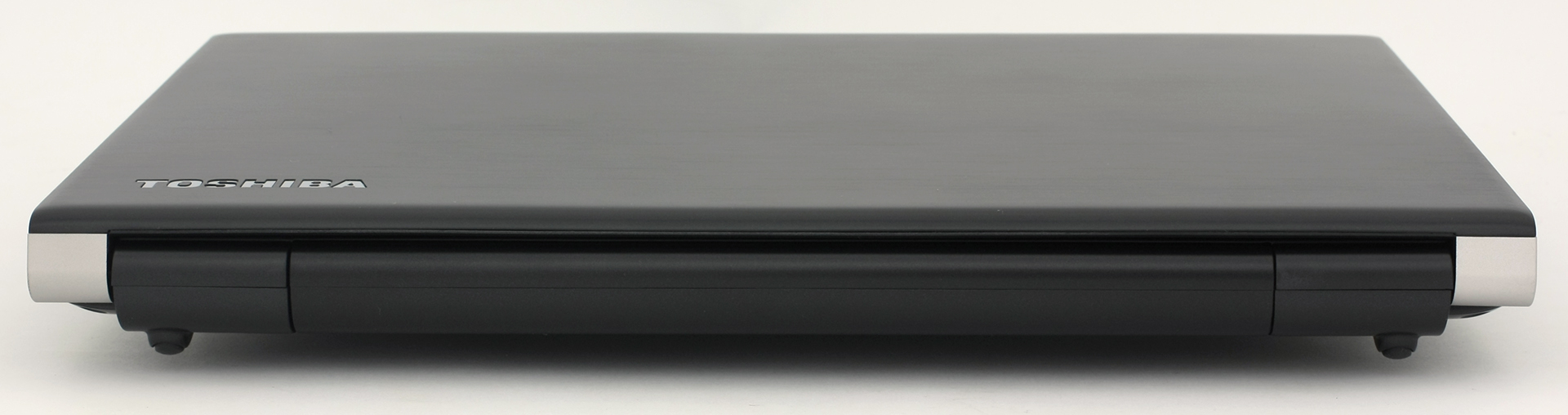
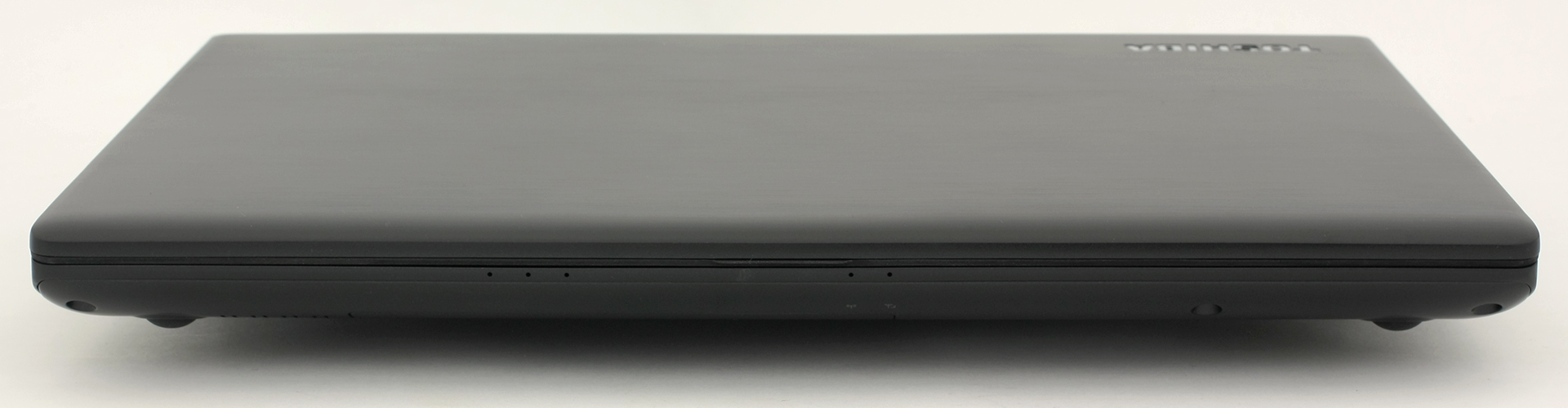
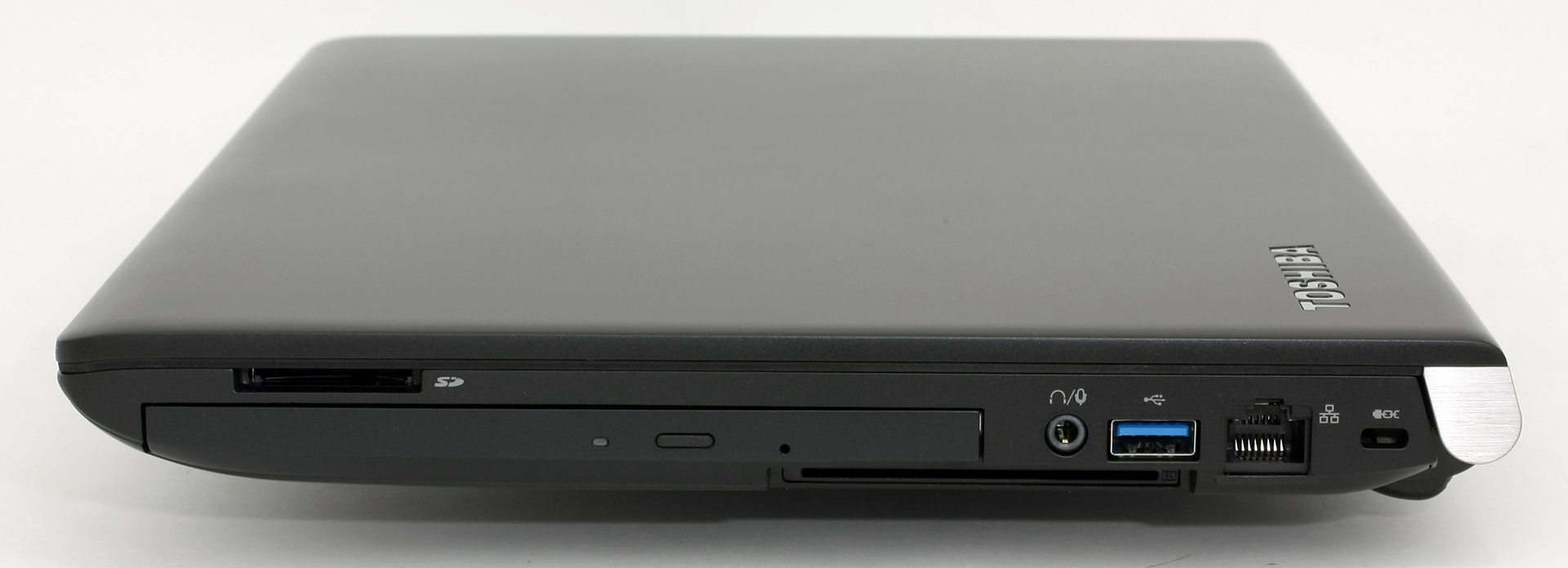
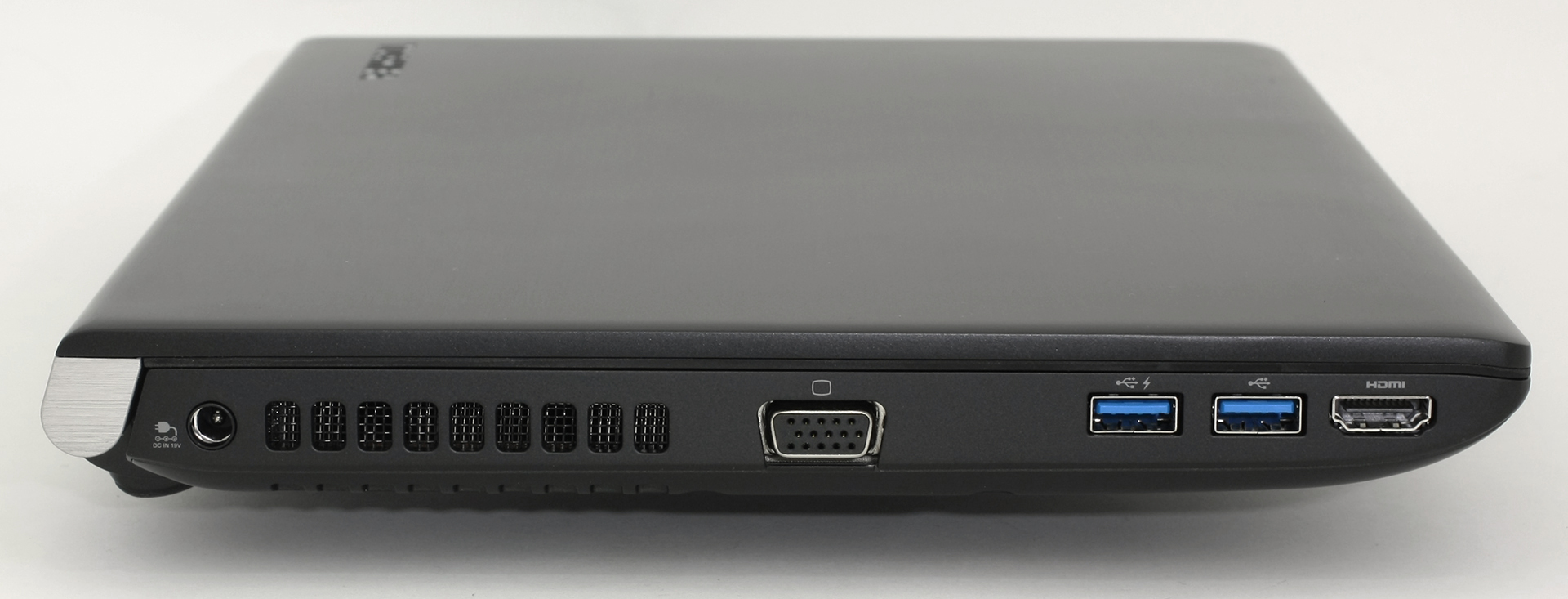
Despite the sturdiness of the notebook you will have to make a sacrifice when it comes to mobility. Well, maybe not a big one, but for a 13-inch device, the Toshiba Portege R30-A has a thick and bulky body and while the manufacturer has listed a thickness of 18.3 mm at the front and 26.6 mm at the back, we can safely say that the actual height is 26.6 mm. There’s only one little curve at the front that measures at 18.3 mm and cannot be considered as a big part of the device. Still, the machine weighs only 1.412 kg, which is absolutely acceptable at this price range and screen diagonal. However, the machine accommodates more than just the bare minimum of ports as we’ve got VGA, 2x USB 3.0, an HDMI port on the left (the DC adapter is there as well) and, of course, the main exhaust vent. The right side packs an SD card reader, optical drive, USB 3.0, 3.5 mm and audio jack. There are plenty of ports to please even the old-school users that still need some of the peripherals. We are also impressed with the three USB 3.0 ports as most competitors pack only two or one of those.
The interior keeps the same design signature as on the outside. We meet again the aforementioned brushed aluminum-like plastic that delivers enough rigidness. We cannot miss mentioning, though, the awkward piece of plastic that’s missing on the right side where the SD card reader is located. While this kind of ruins the design it might prove useful to users that use the SD card reader on regular basis.
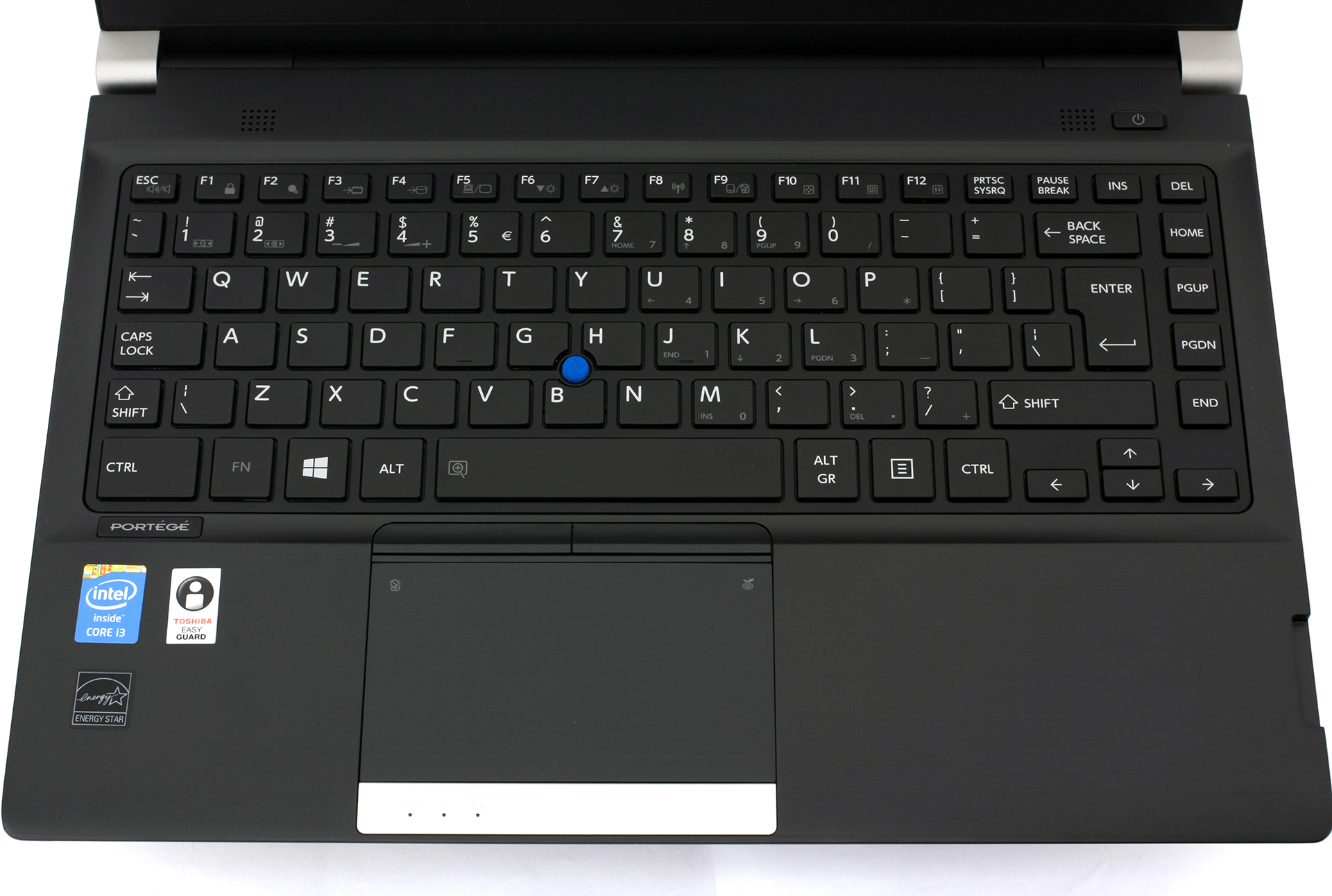
As soon as you open the lid, it’s easy to determine that this notebook is business and work-oriented. The keyboard tray is slightly concaved and the wrist rest area is a little elevated assuring comfortable typing experience. The keys on the keyboard are a bit narrow, but well-spaced, provide long tactile feedback, feel a bit “clicky” and the most common “Fn” shortcuts are close to the “Fn” button itself. Also, the trackpoint is accurate, but the dedicated mouse buttons below the space key provide too short key travel and you can rarely tell if you’ve actually pressing them. However, the touchpad overcompensates for this small design flaw. It’s big enough, it’s accurate and the better part of the area registers left mouse click instead of right. There are also two fast shortcuts located on the left and right upper corner on the touchpad – the left one disables the touchpad while the right one activates the “eco” power mode.
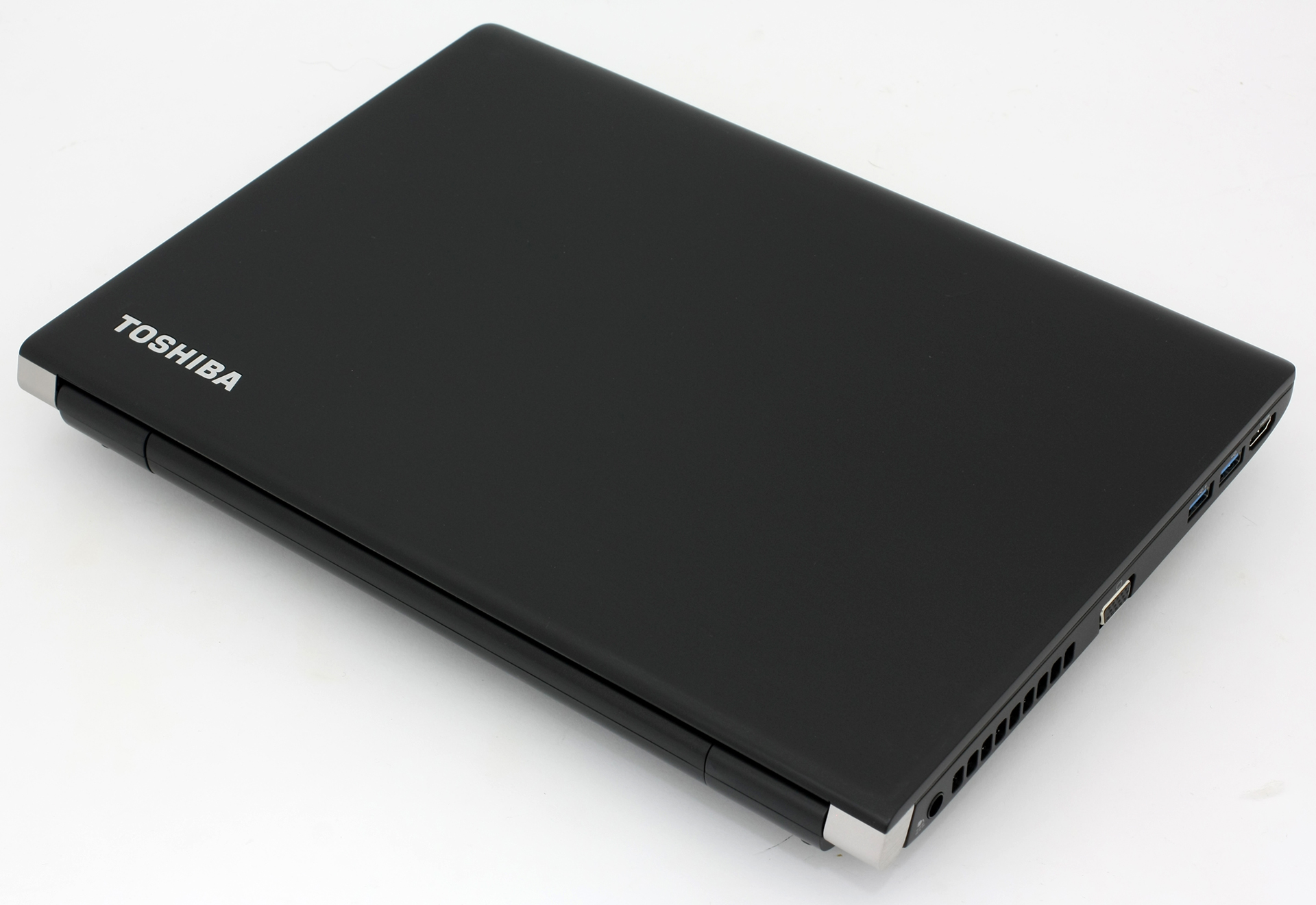
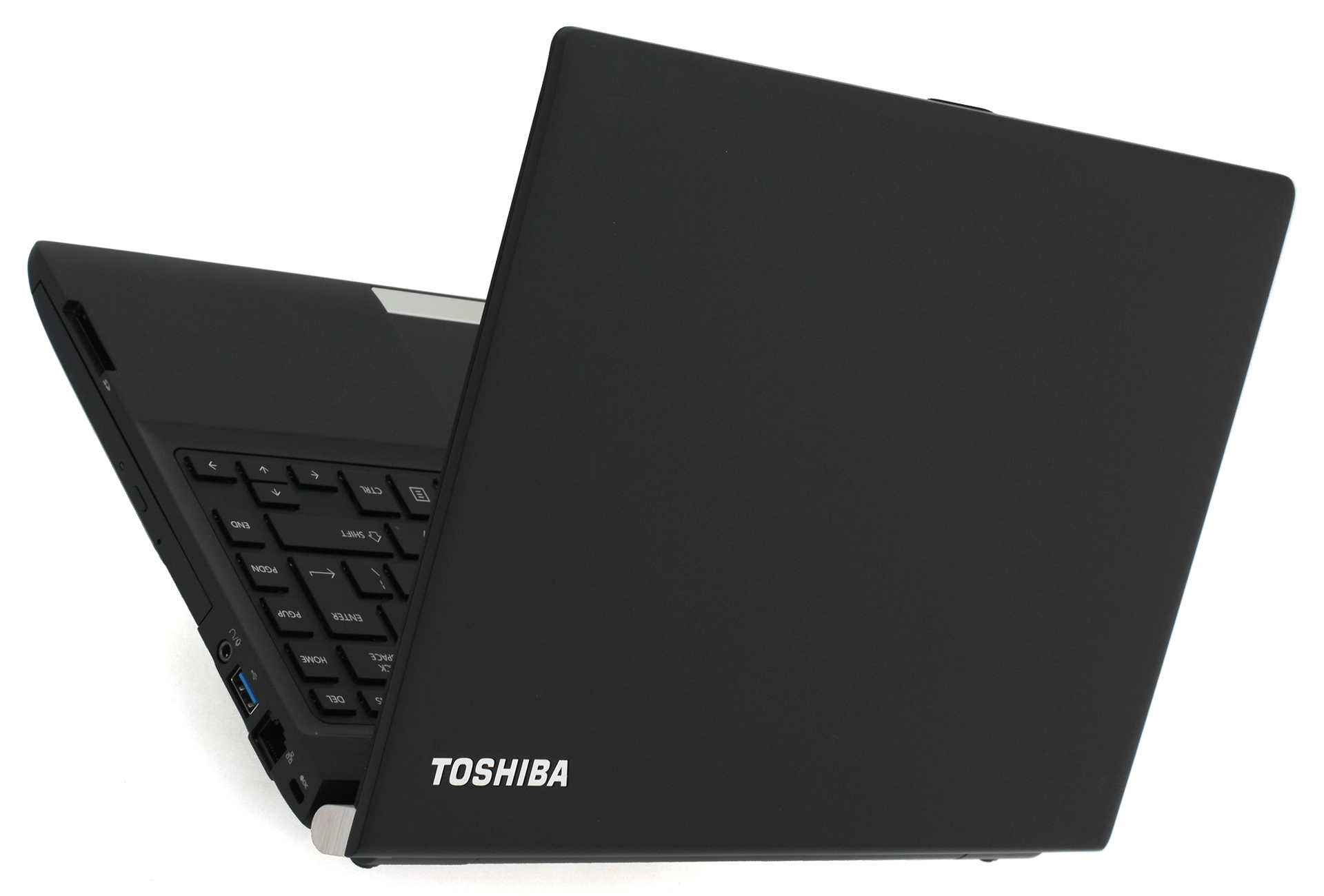
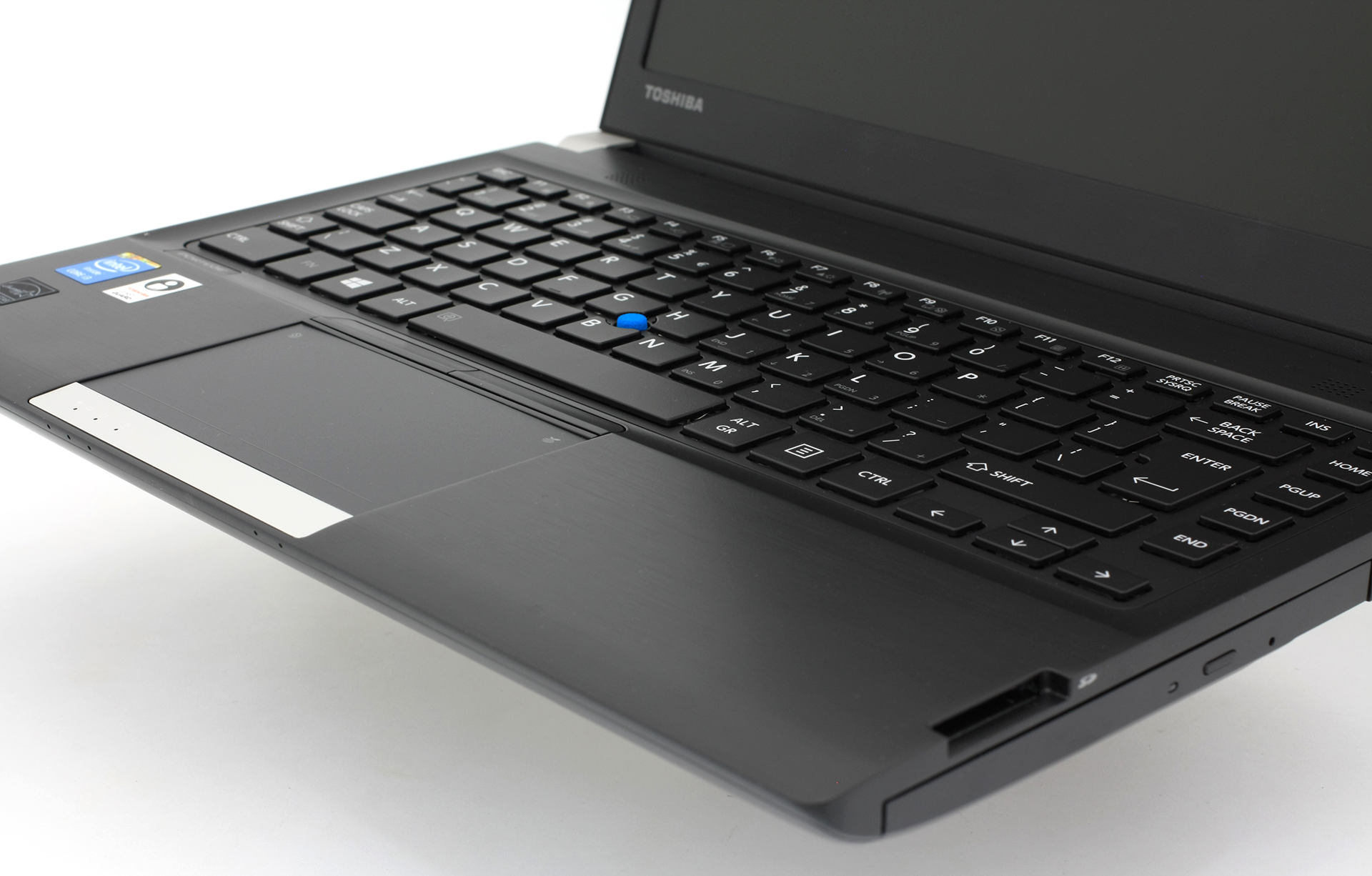
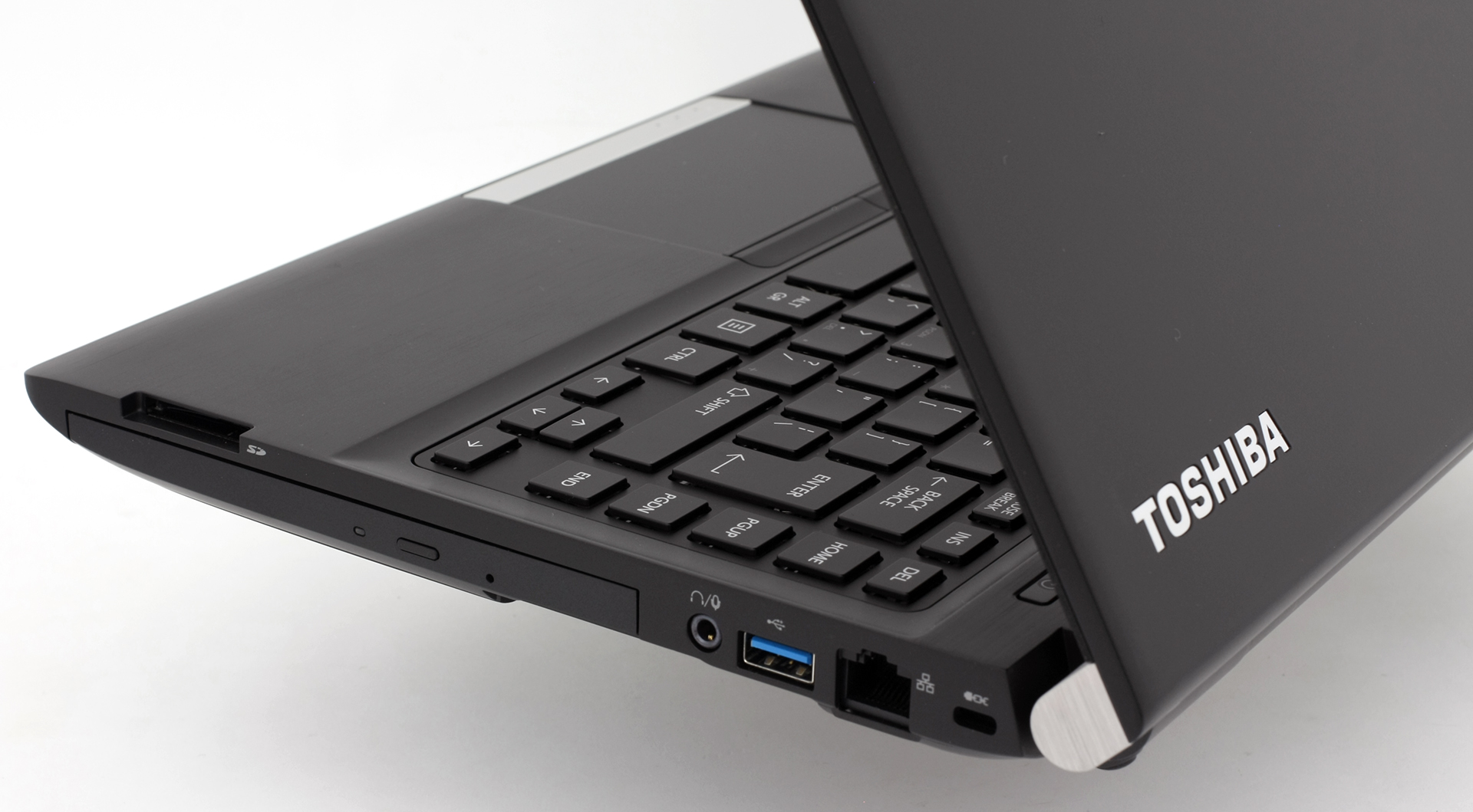
The bottom line is that the notebook doesn’t provide anything too special when it comes to design and it’s quite bulky to be honest, but there are some things that need to be considered. The Portege R30 is part of the business lineup from Toshiba, so it’s main purpose is to serve as a business companion and it does its job really well. It’s light, small (13-inch), has comfortable keyboard with good key travel, flawless touchpad and will be met with open arms from people that travel frequently and need functional input devices on the go. While the magnesium alloy keeps the weight low, the sturdiness suffers, more precisely on the keyboard tray and lid, but this is quite acceptable at this price range, so there’s no room to complain about that.
Disassembly and upgrade options
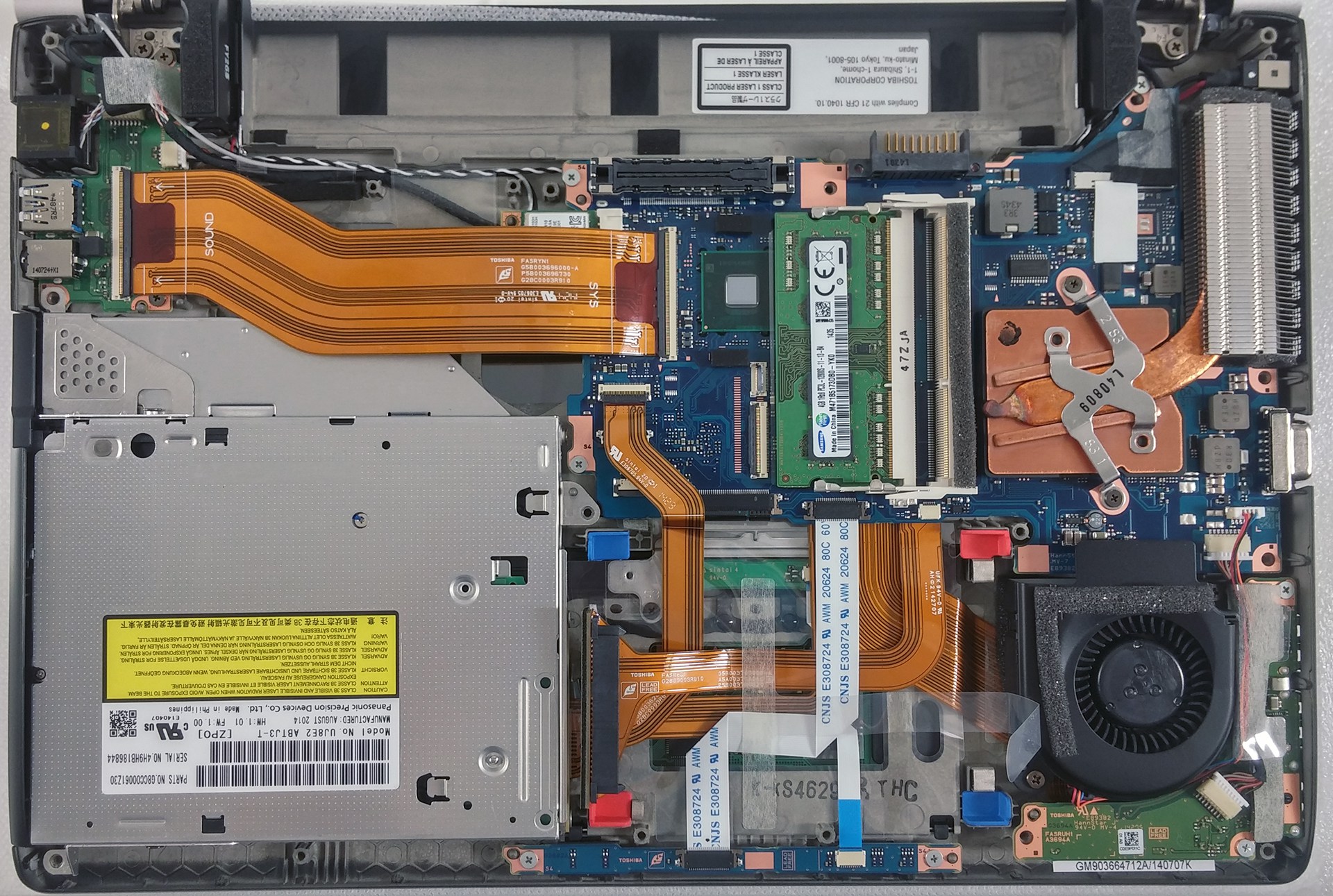
As we expected, the notebook features only a 2.5-inch HDD (or SSD depending on your configuration) and an optical drive that can be swapped with another 2.5-inch device. The M.2 SSD slot is nowhere to be found. There are also 2 RAM slots, which can be accessed by removing the service cover along with the 2.5-inch drive. You can read our full teardown article to find out more about the cooling system as well.
Display and sound
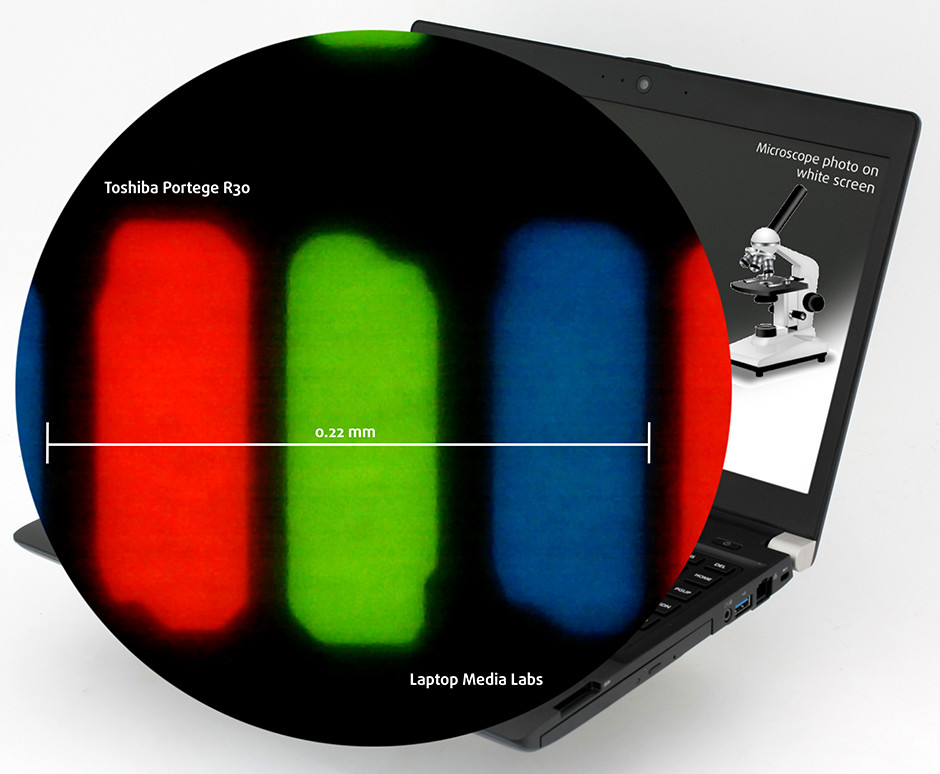
Toshiba Portege R30-A features an HD TN panel (1366×768) with 13.3-inch diagonal, 16:9 aspect ratio and 118 ppi pixel density. The pixel pitch is 0.215 x 0.215 mm. The screen can be considered as retina if viewied from a distance equal or greater than 74 cm.
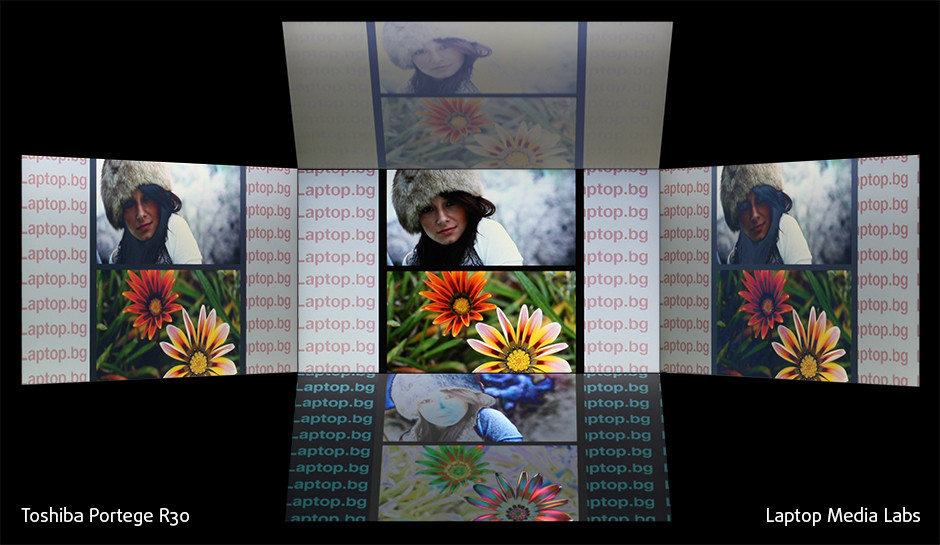
Of course, viewing angles aren’t good since the display uses TN panel. Here’s a 45-degree angle view.
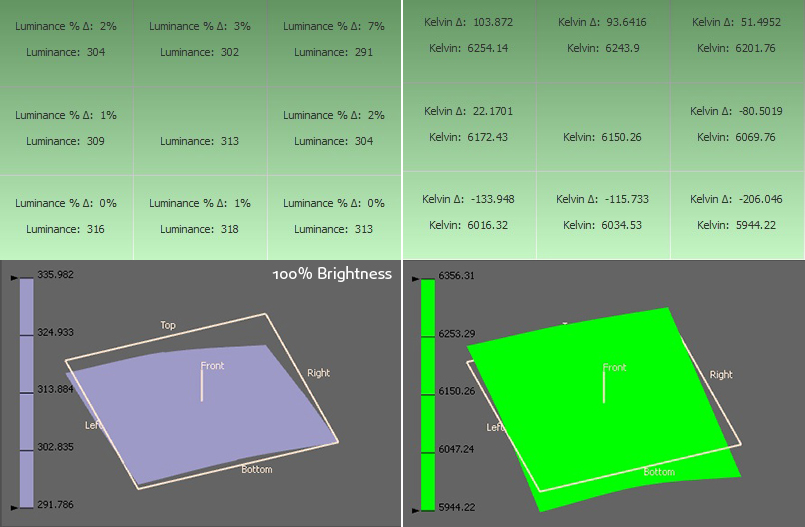
We were able to record a maximum of 308 cd/m2 with only 7% deviation. Also, the average color temperature on the surface of the screen is 6120K, which is pretty close to the optimal 6500K.
Color reproduction
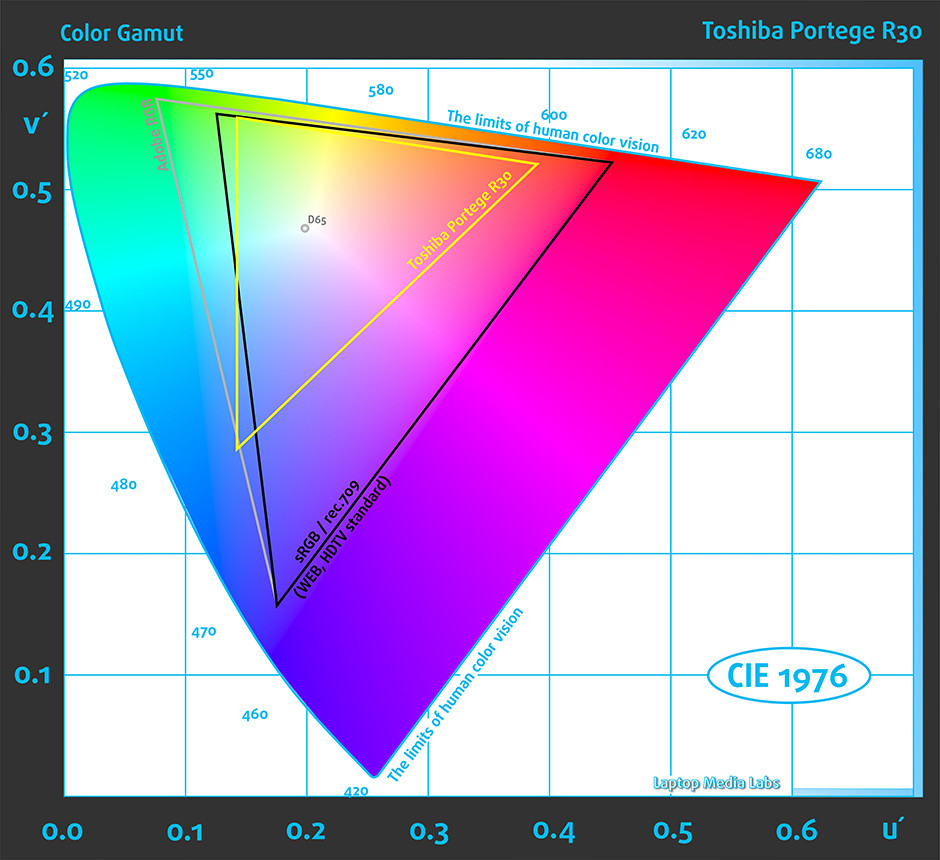
To make sure we are on the same page let’s have a little introduction into the sRGB and Adobe RGB color gamuts. The CIE 1976 Uniform Chromaticity Diagram represents the spectrum of colors visible to the human eye, thus giving you a better perception of color gamut coverage and color accuracy. Inside the black triangle, you will see the standard color gamut (sRGB), used by millions of people in HDTV and on the Web. As for Adobe RGB, it is used to work with professional cameras and monitors when preparing print. Basically, colors inside the black triangle are used by everyone, and so reproducing them accurately is key in a quality display.
The yellow triangle below represents the range of colors the R30 can reproduce. We have 51% sRGB color gamut coverage and while this means we can’t expect vivid colors, it’s enough for your daily work and web browsing.
You can see the two images below that are practically the same as the one above, but this time, you can see the colors that have 100% and 50% saturation before and after calibration.
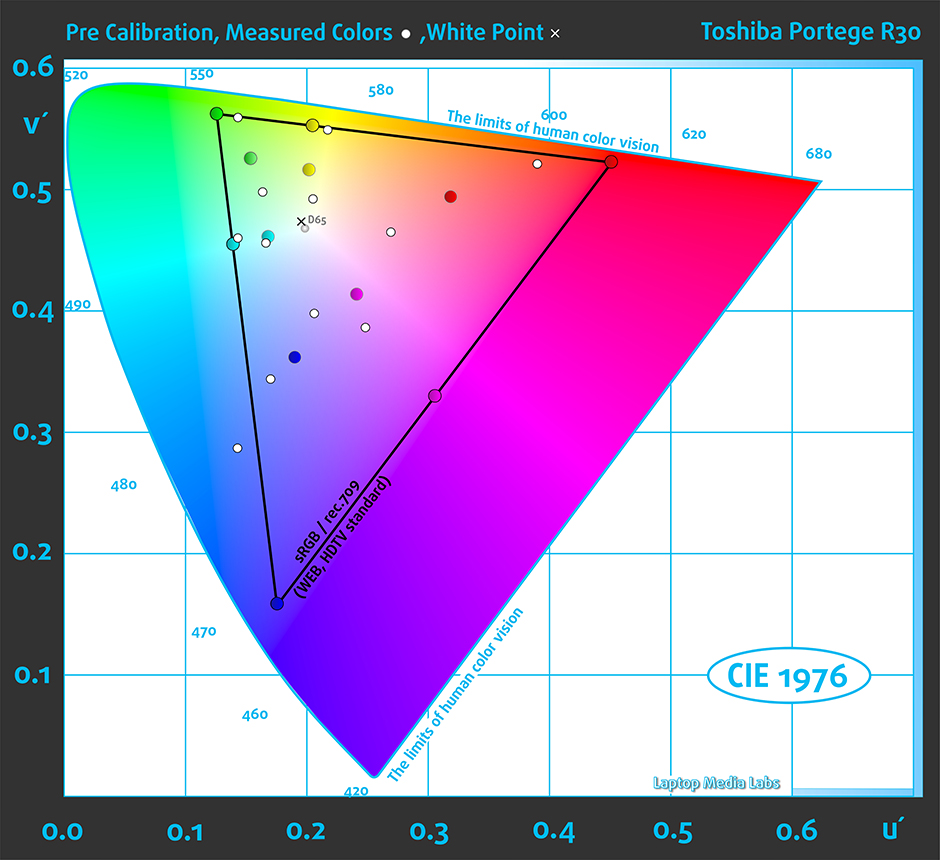
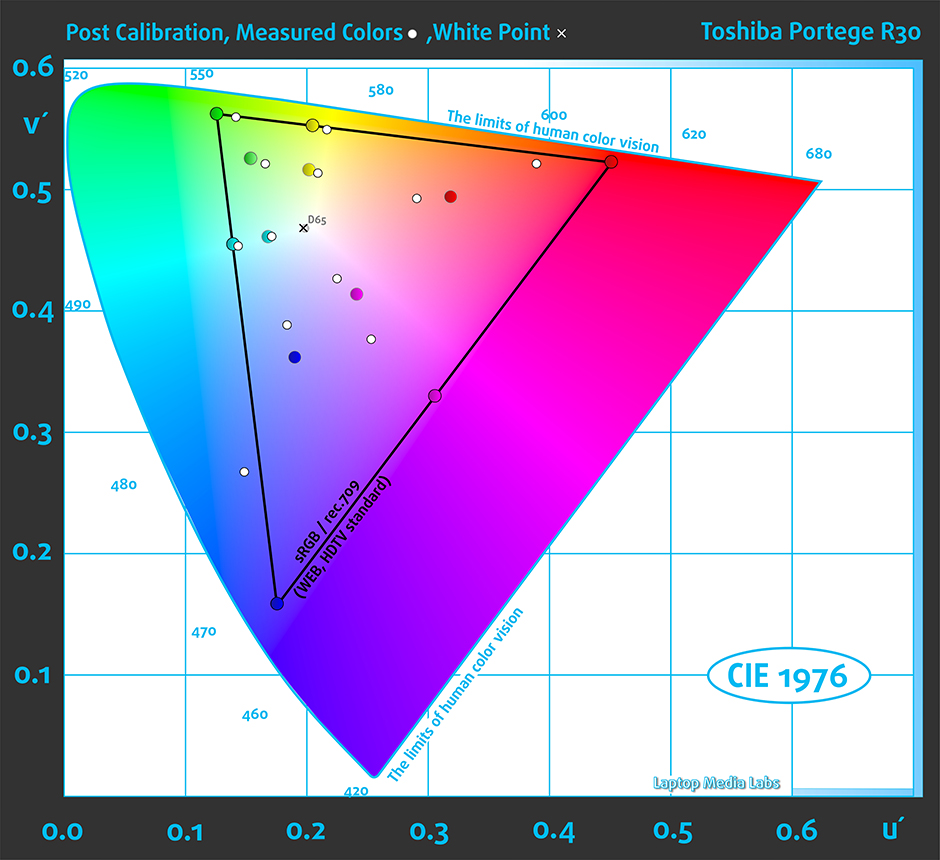
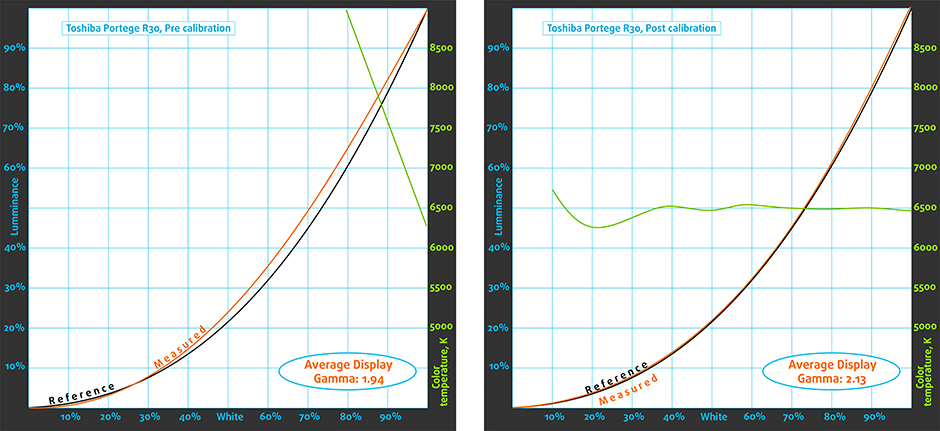
The gamma curve aligns with the optimal 2.2 after calibration.
Using X-Rite 1IDisplay Pro we calibrated the display at 140 cd/m2 screen brightness and 6500K color temperature.
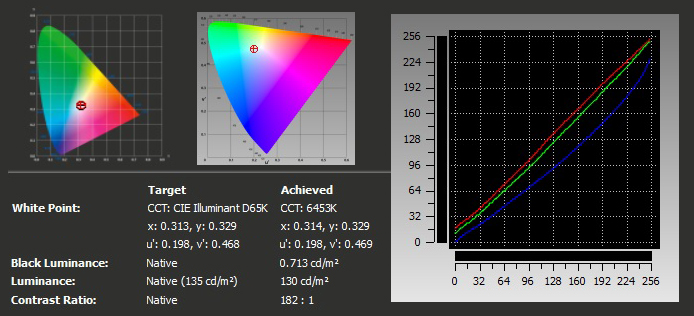
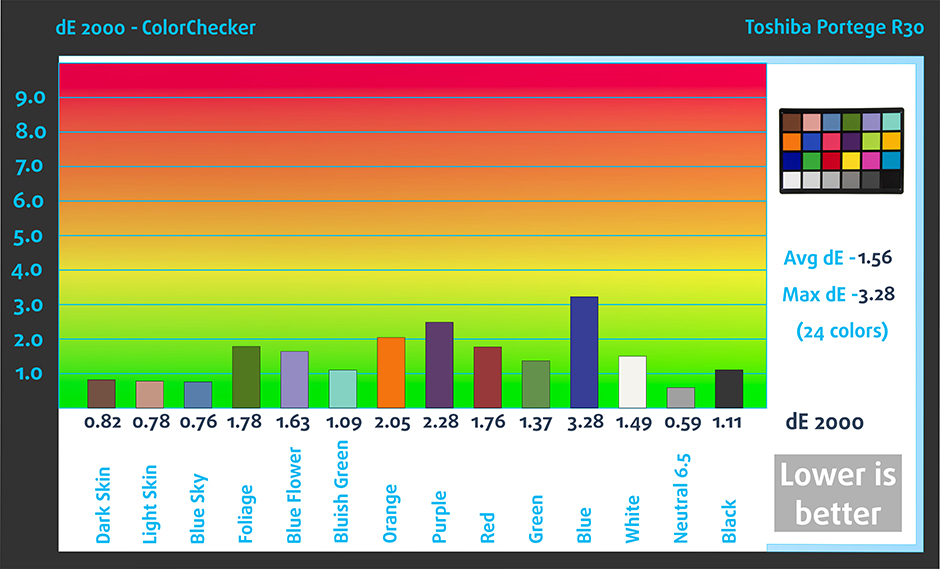
We tested the display using 24 commonly used sample colors like skin tones, grass, blue sky, orange etc. After profiling, the display had an average DeltaE 2000 deviation of 1.56 while the contrast was only 270:1 before and 180:1 after calibration. Unsatisfying results even for a budget business-oriented notebook.
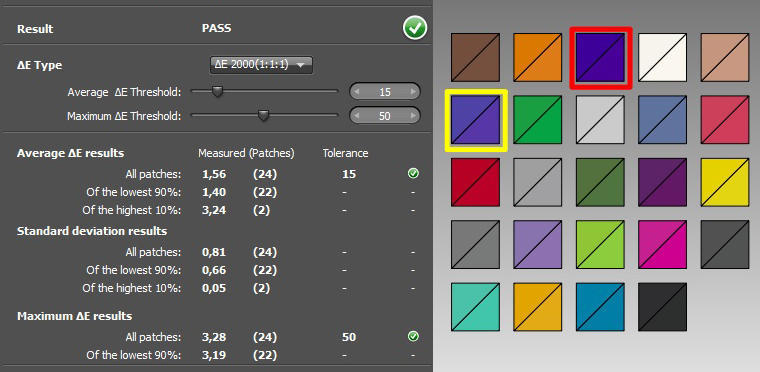
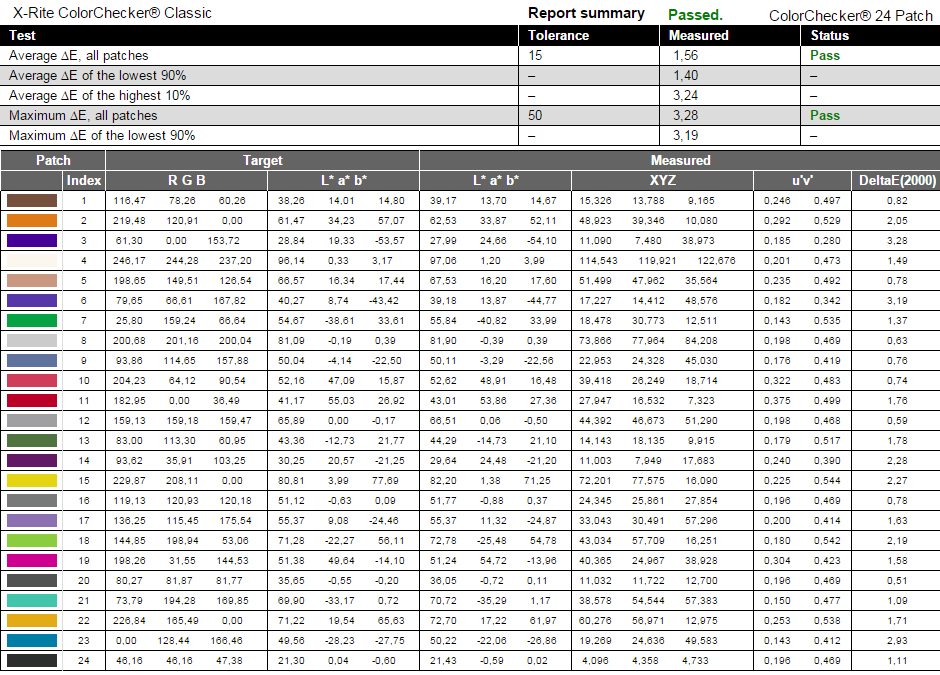
Here’s another batch of colors that we’ve tested.
Pulse-width modulation (PWM, Screen flickering)
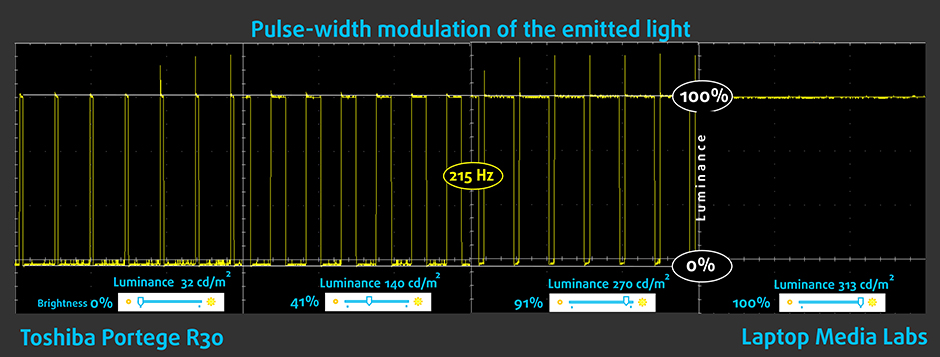
Our oscilloscope detected screen flickering across all brightness levels (except 100%, of course) and the frequency of the emitted light is really low (215 Hz) and it can be considered as aggressive. It will affect most people with sensitive eyes and not only.
Conclusion
Since this is a budget business model, we can’t expect great picture quality but there are some things that are worth mentioning. For example, we have nearly perfect native color temperature and really bright screen that can be useful even in brightly lit rooms and environments. However, the contrast ratio is really low and the sRGB coverage is only 51%. The latter isn’t as important given the price range and the purpose of this notebook. Anyway, we can’t turn a blind eye to the really aggressive PWM with 215 Hz frequency that may cause eye fatigue or even headaches to the more sensitive users.
Screen comparison
Αν υποθέσουμε μια απόσταση 58cm (~23in) μεταξύ του ανθρώπινου ματιού και της οθόνης του φορητού υπολογιστή, τότε η κανονική όραση (20/20) θα απαιτούσε πυκνότητα εικονοστοιχείων τουλάχιστον 150ppi για να ερμηνεύσει μια εικόνα ως απόλυτα λεπτομερή.
| Φορητός Υπολογιστής | Αποτελέσματα | Διαφορά αποτελεσμάτων | Τιμή | Διαφορά τιμής | |
|---|---|---|---|---|---|
| Toshiba Portege R30-A 13.3-inch, 1366 x 768 pixels | 117.83 | ||||
| Acer Aspire E5-572G 15.6-inch, Acer, 1366 x 768 pixels | 100 | -15.13% | |||
| Lenovo Z51-70 15.6-inch, Innolux N156HGE-EAB, 1920 x 1080 pixels | 141.21 | +19.84% | |||
| Acer TravelMate P236 13.3-inch, AU Optronics, 1920 x 1080 pixels | 165.63 | +40.57% | |||
| Lenovo Yoga 500 14.0-inch, N140BGE-EA3, 1366 x 768 pixels | 111.94 | -5% |
Η υψηλότερη φωτεινότητα του πάνελ είναι ζωτικής σημασίας για την οπτική άνεση κατά την εργασία σε εξωτερικούς χώρους ή σε ένα φωτεινό δωμάτιο.
| Φορητός Υπολογιστής | Αποτελέσματα | Διαφορά αποτελεσμάτων | Τιμή | Διαφορά τιμής | |
|---|---|---|---|---|---|
| Toshiba Portege R30-A 13.3-inch, 1366 x 768 pixels | 308 | ||||
| Acer Aspire E5-572G 15.6-inch, Acer, 1366 x 768 pixels | 198 | -35.71% | |||
| Lenovo Z51-70 15.6-inch, Innolux N156HGE-EAB, 1920 x 1080 pixels | 221 | -28.25% | |||
| Acer TravelMate P236 13.3-inch, AU Optronics, 1920 x 1080 pixels | 236 | -23.38% | |||
| Lenovo Yoga 500 14.0-inch, N140BGE-EA3, 1366 x 768 pixels | 185 | -39.94% |
Το Delta E είναι μια μονάδα μέτρησης διαφοράς χρώματος CIE. Οι υψηλότερες τιμές δείχνουν ότι η οθόνη παράγει λιγότερο ακριβή χρώματα. (τα χαμηλότερα αποτελέσματα είναι επιθυμητά).
| Φορητός Υπολογιστής | Αποτελέσματα | Διαφορά αποτελεσμάτων | Τιμή | Διαφορά τιμής | |
|---|---|---|---|---|---|
| Toshiba Portege R30-A 13.3-inch, 1366 x 768 pixels | 1.56 | ||||
| Acer Aspire E5-572G 15.6-inch, Acer, 1366 x 768 pixels | 3.54 | +126.92% | |||
| Lenovo Z51-70 15.6-inch, Innolux N156HGE-EAB, 1920 x 1080 pixels | 1.49 | -4.49% | |||
| Acer TravelMate P236 13.3-inch, AU Optronics, 1920 x 1080 pixels | 3.49 | +123.72% | |||
| Lenovo Yoga 500 14.0-inch, N140BGE-EA3, 1366 x 768 pixels | 1.72 | +10.26% |
Η χρωματική κάλυψη sRGB, που εισήχθη ως πρότυπο για το Web, δείχνει το ποσοστό των χρωμάτων που χρησιμοποιούνται στον Ιστό που μπορεί να εμφανιστεί στην οθόνη της συσκευής που δοκιμάζεται (υψηλότερες τιμές είναι καλύτερες).
| Φορητός Υπολογιστής | Αποτελέσματα | Διαφορά αποτελεσμάτων | Τιμή | Διαφορά τιμής | |
|---|---|---|---|---|---|
| Toshiba Portege R30-A 13.3-inch, 1366 x 768 pixels | 51 | ||||
| Acer Aspire E5-572G 15.6-inch, Acer, 1366 x 768 pixels | 59 | +15.69% | |||
| Lenovo Z51-70 15.6-inch, Innolux N156HGE-EAB, 1920 x 1080 pixels | 49 | -3.92% | |||
| Acer TravelMate P236 13.3-inch, AU Optronics, 1920 x 1080 pixels | 60 | +17.65% | |||
| Lenovo Yoga 500 14.0-inch, N140BGE-EA3, 1366 x 768 pixels | 56 | +9.8% |
Sound
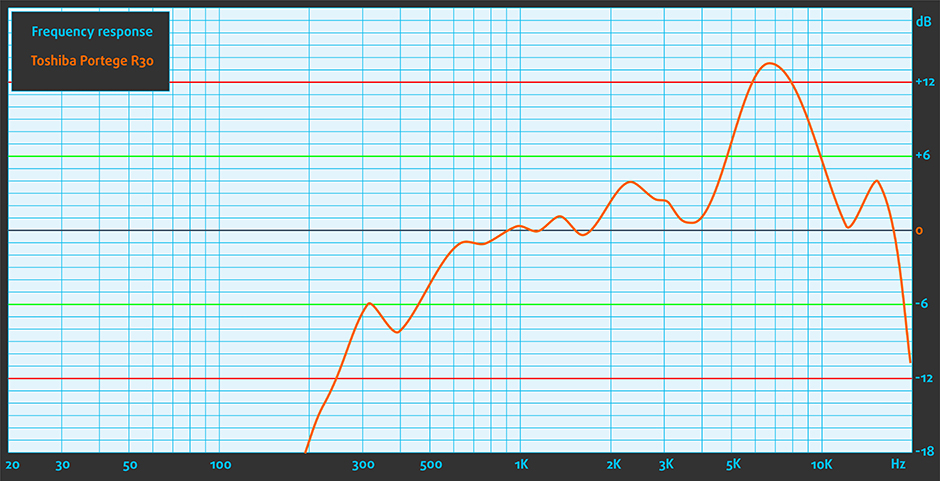
The Portege R30 has stereo loudspeakers with relatively good sound quality. The sound is good at low and mid frequencies but as lower the frequency gets, there are some distortions.
Specs sheet
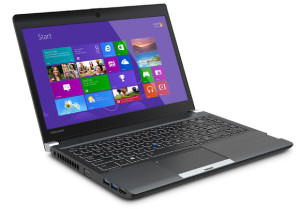
The current specs sheet refers to this particular model – configurations may differ depending on your region.
| CPU | Intel Core i3-4100M (2-core, 2.50 GHz, 3MB cache) |
|---|---|
| RAM | 4GB (1x 4096MB) – DDR3, 1600MHz |
| GPU | Intel HD Graphics 4600 (integrated) |
| HDD/SSD | 500GB HDD (5400 rpm) |
| Display | 13.3-inch (33.78 см) – 1366×768 (HD), matte |
| Optical drive | Double-layer DVD writer |
| Connectivity | LAN 10/100/1000 Мбит/сек, Wi-Fi 802.11ac, Bluetooth 4.0 |
| Features |
|
| Battery | 6-cell 66Wh (5800 mAh) Lithium-Ion batttery |
| Thickness | 26.6 mm (1.05″) |
| Weight | 1.412 kg (3.11 lbs) |
Toshiba Portege R30-A configurations

Software
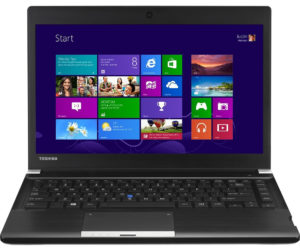
The notebook came with pre-installed Windows 7 Professional (64-bit). If you want to perform a clean install of the OS, we suggest downloading all drivers from the official Toshiba website: http://www.toshiba.eu/innovation/download_drivers_bios.jsp?service=EU
Battery
Just as expected, the notebook came out with pretty good battery runtimes since the system has energy efficient CPU along with tiny 13-inch HD TN panel that’s not a big battery hog at all. Also, the battery is rated at 66Wh which is quite big, especially for a 13-incher. Some 15-inch and 17-inch laptops don’t boast such a big battery. The usual tests are at hand with the usual settings – Wi-Fi turned on, screen brightness set to 120 cd/m2 and power saver mode is on.
Web browsing
In order to simulate real-life conditions, we used our own script to automatically browse through over 70 websites.
Excellent resutl – 494 minutes (8 hours and 34 minutes).
Video playback
For every test of this kind, we use the same video in HD.
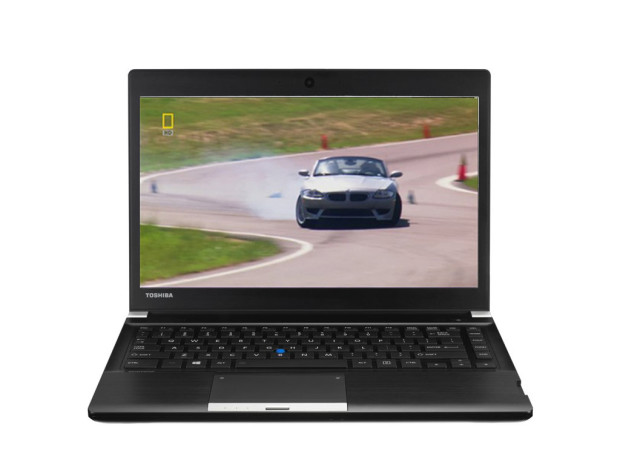
Slightly lower but still a good runtime – 435 minutes (7 hours and 15 minutes).
Gaming
For accurate simulation, we used the Metro Last Light benchmark running on a loop with graphic settings set to minimum.
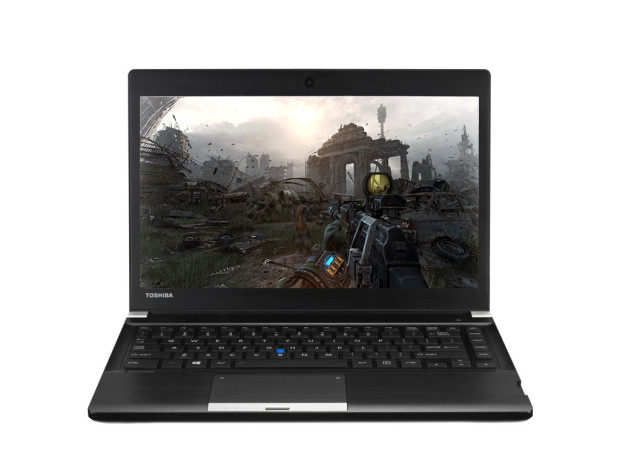
Surprisingly, the result here is also good – 263 minutes (4 hours and 23 minutes).
CPU
 The Intel Core i3-4100M is a mid-class notebook CPU from the Haswell generation making it a chip with 22nm manufacturing process. It’s usually found in notebooks from 2013. Unlike some of the Core i3 CPUs, this one supports the so-called Hyper-Threading technology for better of the CPU cores. However, the chip doesn’t support Turbo Boost frequencies so it works only at 2.5 GHz.
The chip integrates an Intel HD Graphics 4600 GPU with 20 EUs (Execution Units) clocked at 400 MHz and can go up to 1100 MHz. The whole chip is rated at 37W with the iGPU and memory controller.
You can browse through our top CPUs ranking: http://laptopmedia.com/top-laptop-cpu-ranking/
Here you will find other useful information and every notebook we’ve tested with this processor: http://laptopmedia.com/processor/intel-core-i3-4100m/
Fritz
Fritz is a chess benchmark that tests the computing capabilities of the CPU with various chess moves. The Intel Core i3-4100M managed 4.370 million moves per second. By comparison, one of the most powerful PCs, Deep(er) Blue, was able to squeeze out 200 million moves per second. In 1997 Deep(er) Blue even beat the famous Garry Kasparov with 3.5 to 2.5.
GPU
 Intel HD Graphics 4600 is an integrated, GT2 graphics controller in the Core i-series of processors from Intel’s Haswell generation. Announced in early Q2 of 2013, it successfully fends off the low-end dedicated memory graphics by AMD and NVIDIA.
HD 4600 has 20 shader cores, known as ‘unified units’, 8 texture cores and 4 raster cores. They support DirectX 11.1, Pixel Shader 5.0, OpenCL 1.2, OpenGL 4.0, a Quick Sync encoder and a similar 4K video decoder. In addition to having access to system memory, the controller has access to the processor’s third level cache, which dramatically increases its performance.
Intel HD 4600’s base frequency is the same for all unified cores, varying with the power of the CPU in which it is integrated. Starting off at 400MHz, it can go up to 1350, thanks to Turbo Boost functionality. HD 4600 supports up to three individual displays with a max resolution of 4096×4086. Power consumption is lower when compared to NVIDIA and AMD’s discrete solutions. There is also significantly less heat, since the controller is part of the CPU package. For this reason, integrated GT2 controllers are a must-have for the Ultrabook class of portables.
You can browse through our top GPUs ranking: http://laptopmedia.com/top-laptop-graphics-ranking/
Here you will find other useful information and every notebook with this GPU that we’ve tested: http://laptopmedia.com/video-card/intel-hd-graphics-4600/
Temperatures
This two-staged test doesn’t represent real-life usage as it’s virtually impossible to achieve 100% CPU and 100% GPU load under normal circumstances, yet it’s still a good way to determine the stability of the notebook in the long run and evaluate the cooling system.
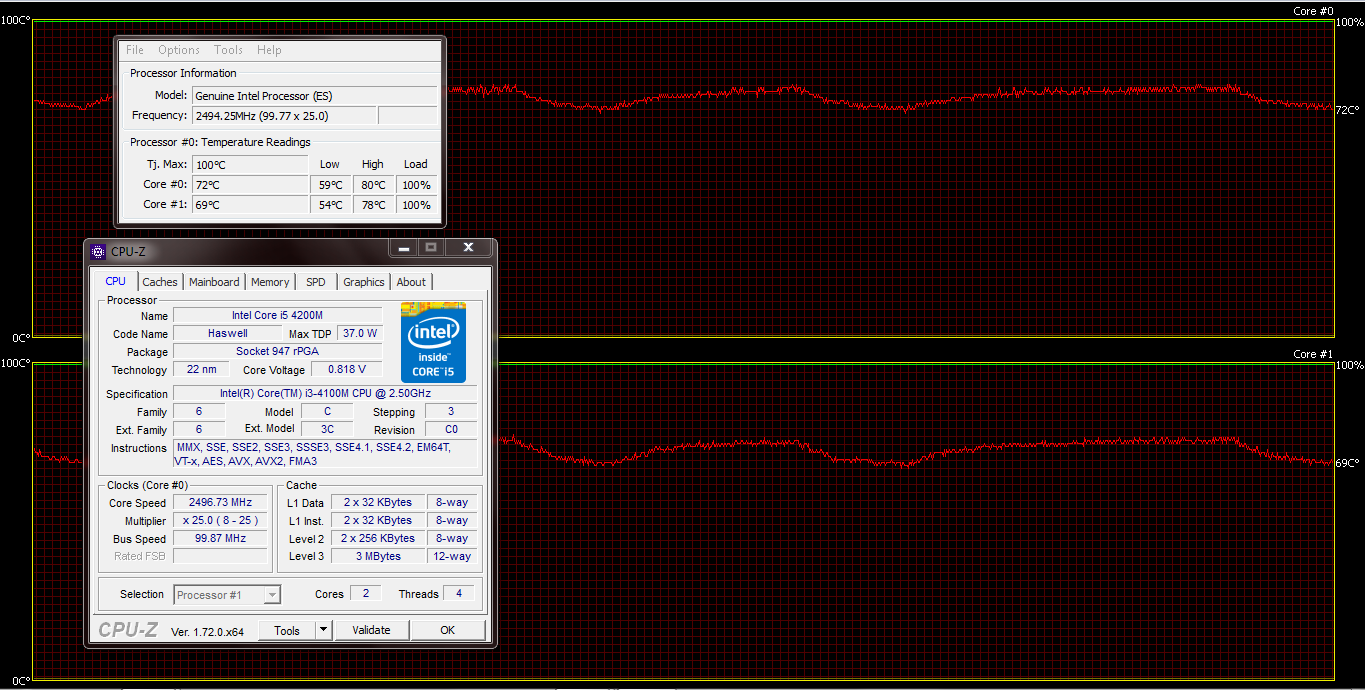
So we start with the 100% CPU load for at least an hour. The results from this test conclude that the CPU’s Turbo Boost frequency was really short and most of the time the silicon ran at 2.5 GHz, which is the base frequency of the chip. Anyway, temperatures were relatively low most of the time peaking at 80 °C. The graph below represents the temperatures (red line) and load (green line).
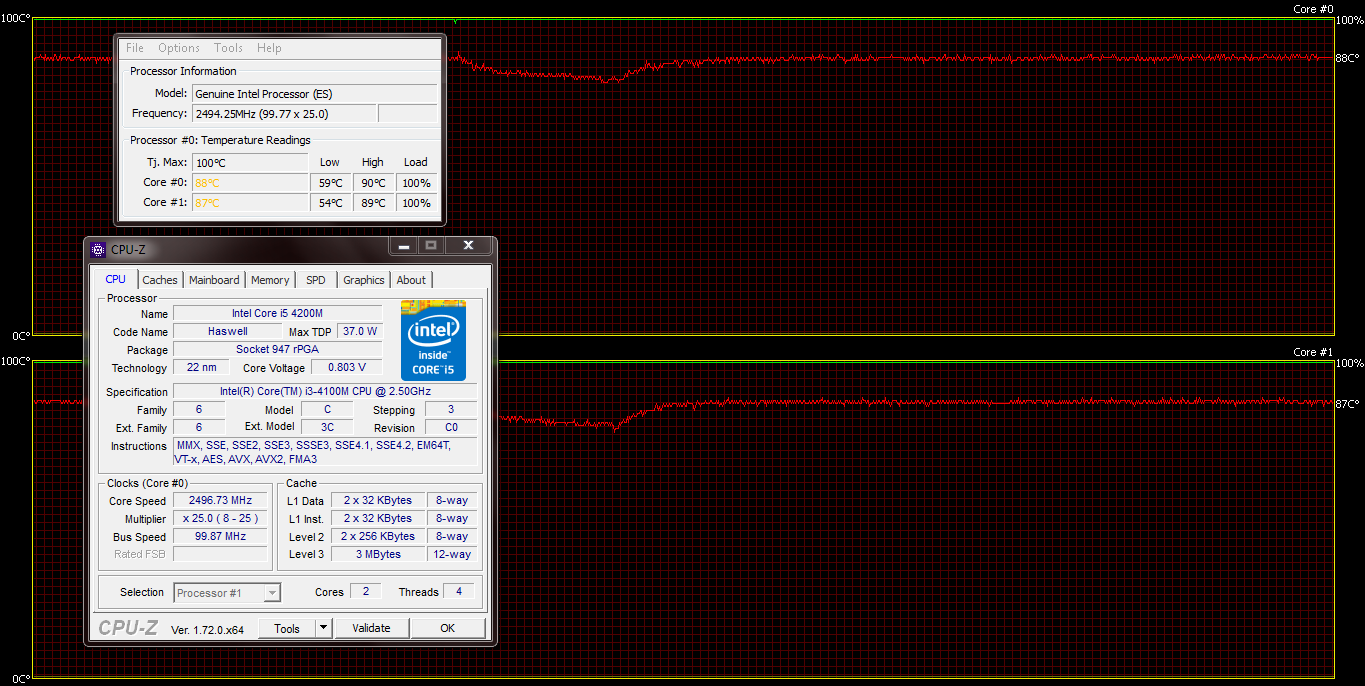
After an hour, we ran the GPU stress test as well and to our surprise, the CPU clocks didn’t go down a bit. Most of the notebooks with integrated graphics we’ve tested, throttle when CPU and GPU intensive tasks are running at the same time, but this is not the case here. The CPU maintained the base frequency of 2.5 GHz and temperatures went as high as 90 °C, which is still far away from the 100 °C mark.
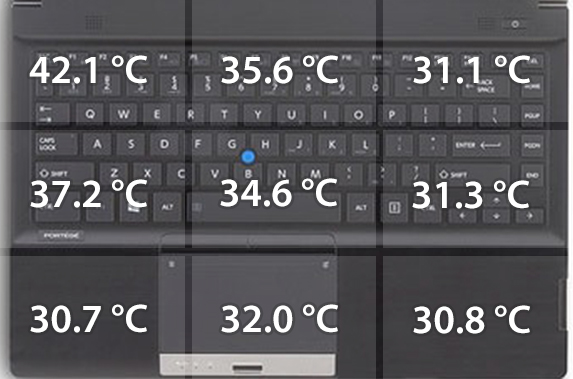
Here’s a heat map below that will give you fairly accurate information about the temperatures on the surface. You might feel slight discomfort on the left side during continues load, since the main exhaust vents are placed there blowing out hot air. Speaking of air, the fan did its job just fine, but was a bit on the noisy side and most importantly, it was spinning relatively fast (and loudly) when idle. So if you aren’t running anything on the notebook the fan still spins resulting in unwanted noise from the vents.
Verdict
The Toshiba Portege R30-A delivers the bare minimum a business notebook should cover and despite the old hardware, the system delivers unmatched performance for the given price thanks to the powerful 37W CPU. The chip can handle even more CPU or graphically intensive tasks with ease. Even though it’s just a 13-inch device, the laptop packs all the needed connectors and even integrates an optical drive. It’s a perfect solution for non-pretentious users that need a mobile business companion. It’s relatively light, a bit thick, but its exceptional rigidness will be applaud by a lot of users.
Also, the machine packs a huge battery that can keep you connected for quite some time. One of the main reasons is the 13.3-inch HD TN screen that’s also pretty bright and can be used even in well-lit environments. On the other hand, there are two downsides – the screen has really low contrast ratio, even for a budget TN panel, and has aggressive screen flickering effect – the PWM is 215 Hz. Working with an external monitor for longer periods of time is advisable.
You can check out Amazon.com for more information about available configurations and prices.
Pros
- Exceptionally solid construction
- Relatively light chassis (1.411 kg)
- Bright screen
- Good performance for the asking price
- Full range of ports and connections
- Good keyboard and touchpad
- Excellent battery runtimes
Cons
- A little bit too thick
- Low screen contrast ratio
- It gets a bit too hot on the left side and below the main exhaust vent (may obstruct normal usage on the lap)
- Noisy fan even when the notebook isn’t uner heavy load
- The screen uses PWM from 0 to 99% brightness
 Author: LaptopMedia Team

![[Μάιος 2026] Παγκόσμια κατάταξη των GPU για φορητούς υπολογιστές με τις καλύτερες πωλήσεις στο Amazon – Η Apple κυριαρχεί με μερίδιο 45% και κατακτά τις 3 πρώτες θέσεις- η RTX 5060 της NVIDIA ηγείται της ομάδας των GPU για εξειδικευμένους υπολογιστές](https://laptopmedia.com/wp-content/uploads/2026/06/Best-Selling-GPUs-GLOBAL-Top-10-400x225.jpg)
![[Μάιος 2026] Παγκόσμια κατάταξη των επεξεργαστών laptop με τις καλύτερες πωλήσεις στο Amazon – Η Apple συντρίβει τον ανταγωνισμό με μερίδιο αγοράς 45,2%, η M5 κυριαρχεί](https://laptopmedia.com/wp-content/uploads/2026/06/Best-Selling-CPUs-GLOBAL-Top-10-400x225.jpg)
![[May 2026] Amazon Germany: Top 7 Best-Selling Gaming Laptops – Lenovo Legion 5i Crowned Champion Amidst Fierce Mid-Range Competition](https://laptopmedia.com/wp-content/uploads/2026/06/Best-Selling-Gaming-Laptops-DE-Top-10-1-400x225.jpg)
![[May 2026] Amazon Italy: Top 10 Best-Selling Laptops – Apple MacBook Neo Reigns Supreme, Premium Models Capture Dominant Revenue Share](https://laptopmedia.com/wp-content/uploads/2026/06/Best-Selling-Laptops-IT-Top-10-400x225.jpg)
![[May 2026] Best-Selling Laptop Brands on Amazon Italy – Apple Dominates Across All Metrics](https://laptopmedia.com/wp-content/uploads/2026/06/IT-Best-Brands-400x225.jpg)
It is very popular on the world as our battery customers from all over the world.
I bought a Toshiba Portege R30 just over 6 years ago for use at home so it barely travelled. Now the motherboard is fried because a bracket came loose and that or the screw likely shorted out the motherboard. Very disappointed and will not buy a Toshiba/Dynabook again