Acer Nitro 17 (AN17-42) review – The “Performance” Mode is its Secret Advantage Over the Competition
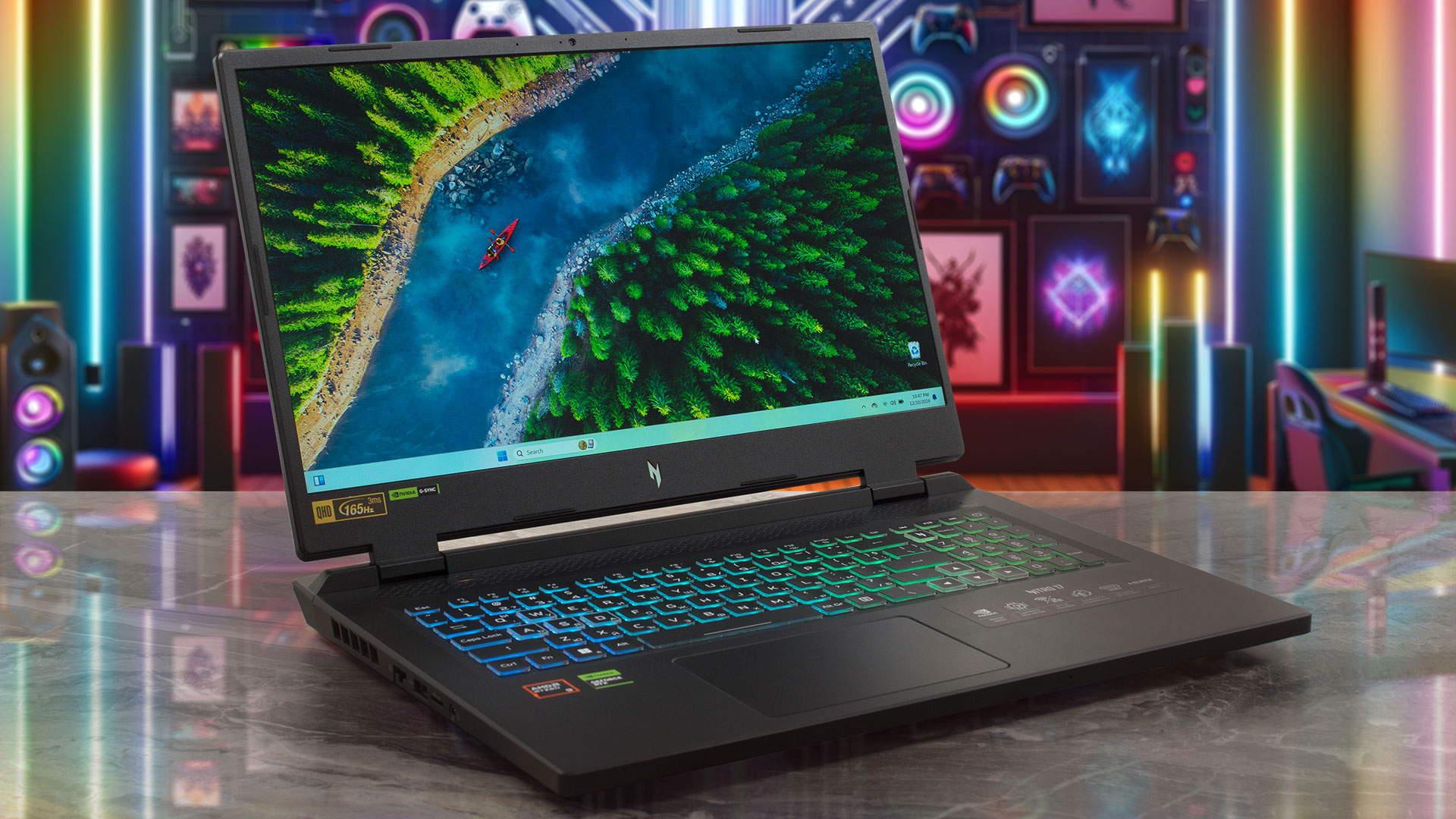 The Nitro 17 (AN17-42) is for people who are on the hunt for a new big gaming laptop but don’t want to spend a whole fortune on it. Features-wise, this Acer creation is a true powerhouse with its 45W Zen 4 Hawk Point-HS CPU options and RTX 4000 GPUs with hefty TGPs. It’s nice to see that the upgradability isn’t hindered despite the lower price tag – you still get a pair of SODIMMs and M.2 slots. On top of that, the port selection is also rich. There are no compromises in terms of extras because goodies such as G-Sync, Nvidia Advanced Optimus, and a MUX switch are on board.
The optional 1440p 165Hz IPS panel is the way to go considering the big 17.3″ form factor. However, if you don’t mind the lower ppi of the base display, you could save some buck by choosing the default 1080p screen which boats the same refresh rate as the other variant.
To boost the processor clocks, Acer has applied liquid metal on the CPU die. This reminds us that you’ll find a sizable 5-heat pipe cooling solution under the bonnet.
You can check the prices and configurations in our Specs System: https://laptopmedia.com/series/acer-nitro-17-an17-42/
Contents
Specs, Drivers, What’s in the box
Acer Nitro 17 (AN17-42) - स्पेक्स

- HDD/SSD
- तक 2000GB SSD
- M.2 स्लॉट
- 2x 2280 M.2 NVMe PCIe 4.0 x4 फोटो देखें
- RAM
- up to 32GB
- OS
- No OS, Windows 11 Home, Windows 11 Pro
- बैटरी
- 90Wh
- बॉडी मटीरियल
- Plastic / Polycarbonate
- आयाम
- 400.2 x 293.25 x 27.9 - 28.9 mm (15.76" x 11.55" x 1.10")
- वजन
- 3.10 kg (6.8 lbs)
- पोर्ट और कनेक्टिविटी
- 1x USB Type-A
- 2.0
- 1x USB Type-A
- 3.2 Gen 2 (10 Gbps)
- 1x USB Type-A
- 3.2 Gen 2 (10 Gbps), Sleep and Charge
- 1x USB Type-C
- 3.2 Gen 2 (10 Gbps), Power Delivery (PD), DisplayPort
- 1x USB Type-C
- 4.0, Power Delivery (PD), DisplayPort
- HDMI
- 2.1
- कार्ड रीडर
- microSD (microSD, microSDHC, microSDXC)
- ईथरनेट लैन
- 10, 100, 1000, 2500 Mbit/s
- वाई-फाई
- Wi-Fi 6E
- ब्लूटूथ
- 5.3
- ऑडियो जैक
- 3.5mm Combo Jack
- विशेषताएँ
- फिंगरप्रिंट रीडर
- वेब कैमरा
- HD with Temporal Noise Reduction
- बैकलिट कीबोर्ड
- माइक्रोफोन
- Dual Microphones with Acer Purified Voice, AI noise reduction
- स्पीकर
- Speaker System optimized by DTS X:Ultra Audio
- ऑप्टिकल ड्राइव
- सुरक्षा लॉक स्लॉट
- Kensington Lock
सभी Acer Nitro 17 (AN17-42) कॉन्फ़िगरेशन
Drivers
All drivers and utilities for this notebook can be found here: https://www.acer.com/us-en/support/product-support/AN17-42/downloads?suggest=Acer_Nitro%2017%20(AN17-42);0
What’s in the box?
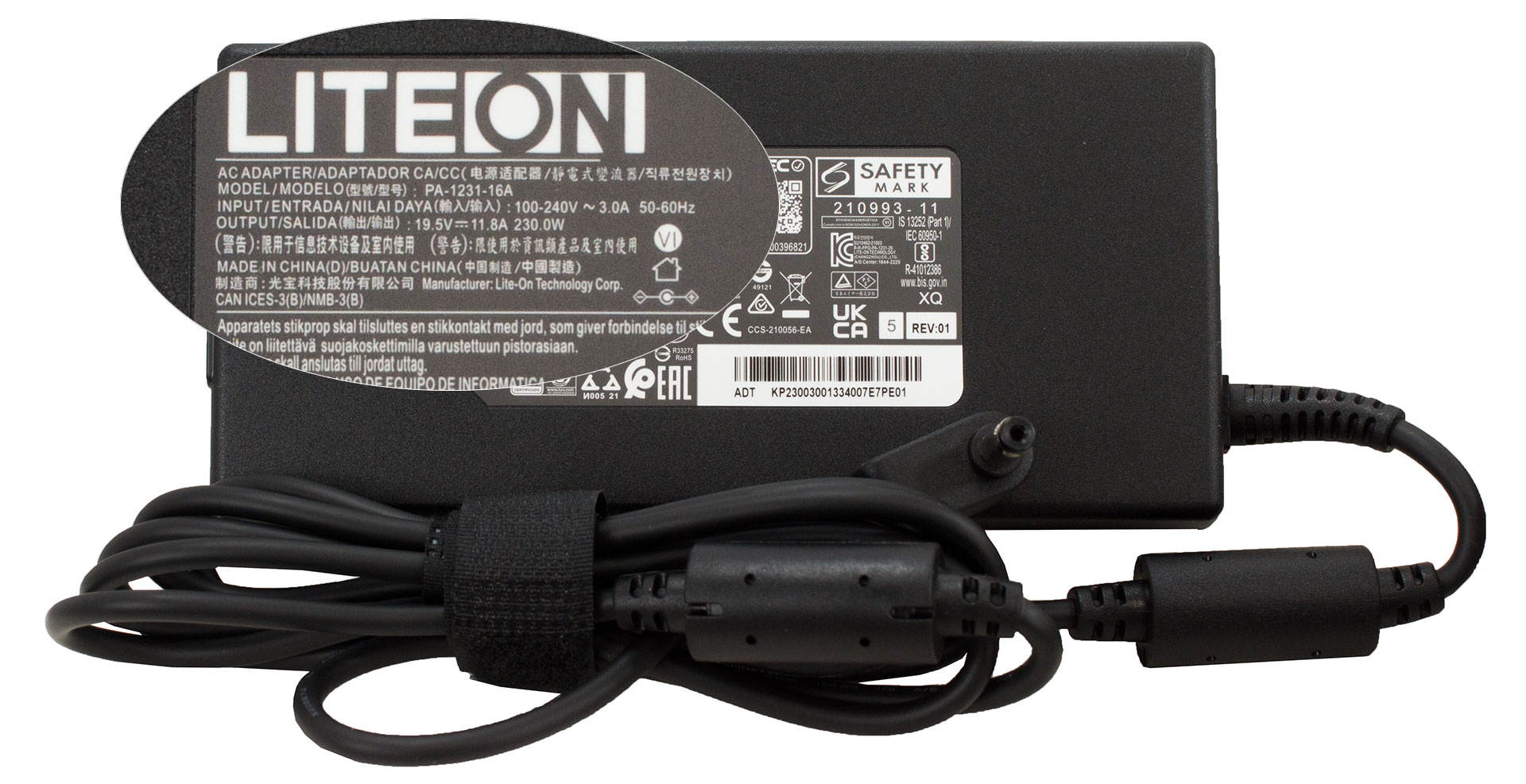
The big sturdy box contains many manuals and a 230W barrel plug charger.
Design and construction
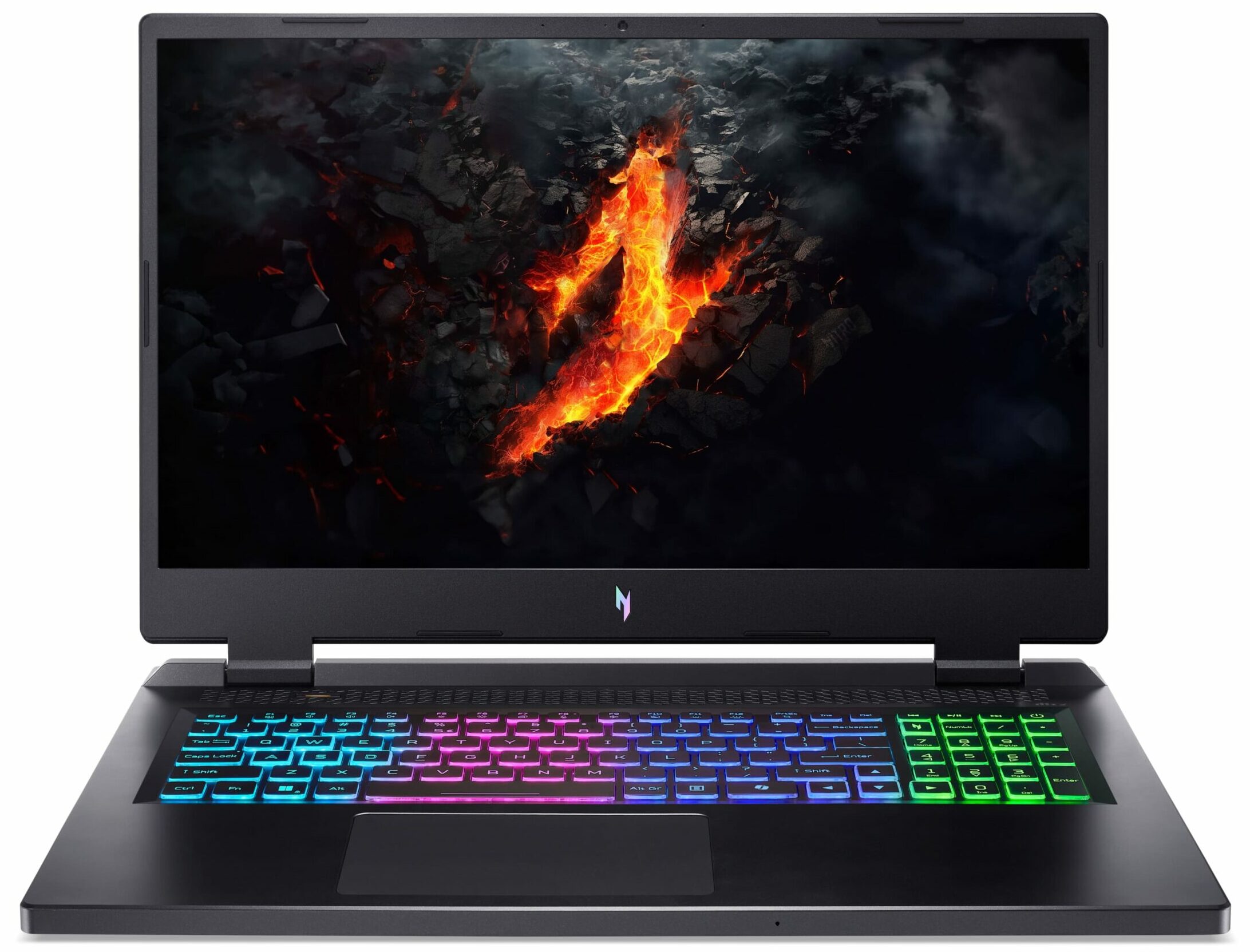
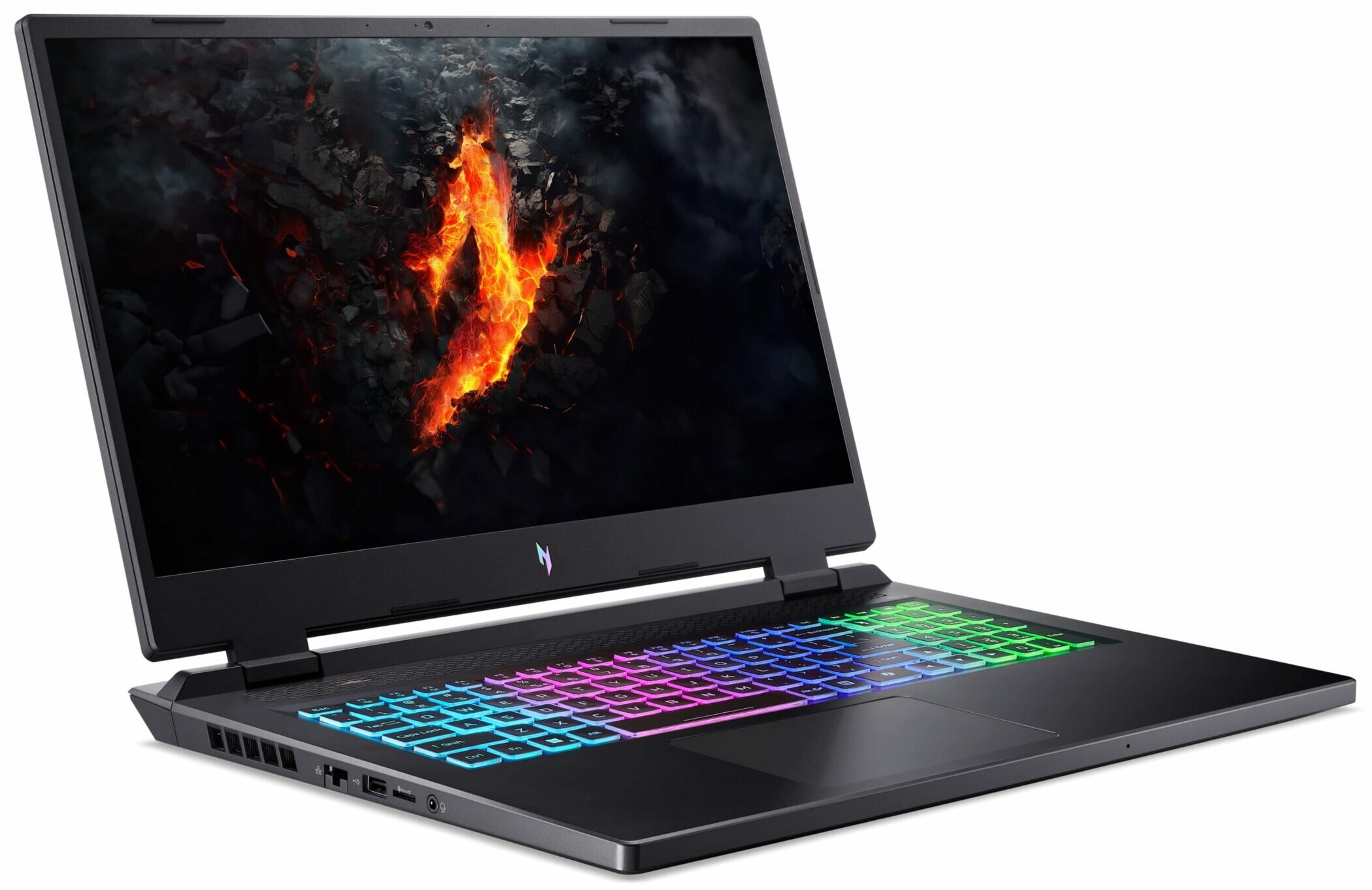
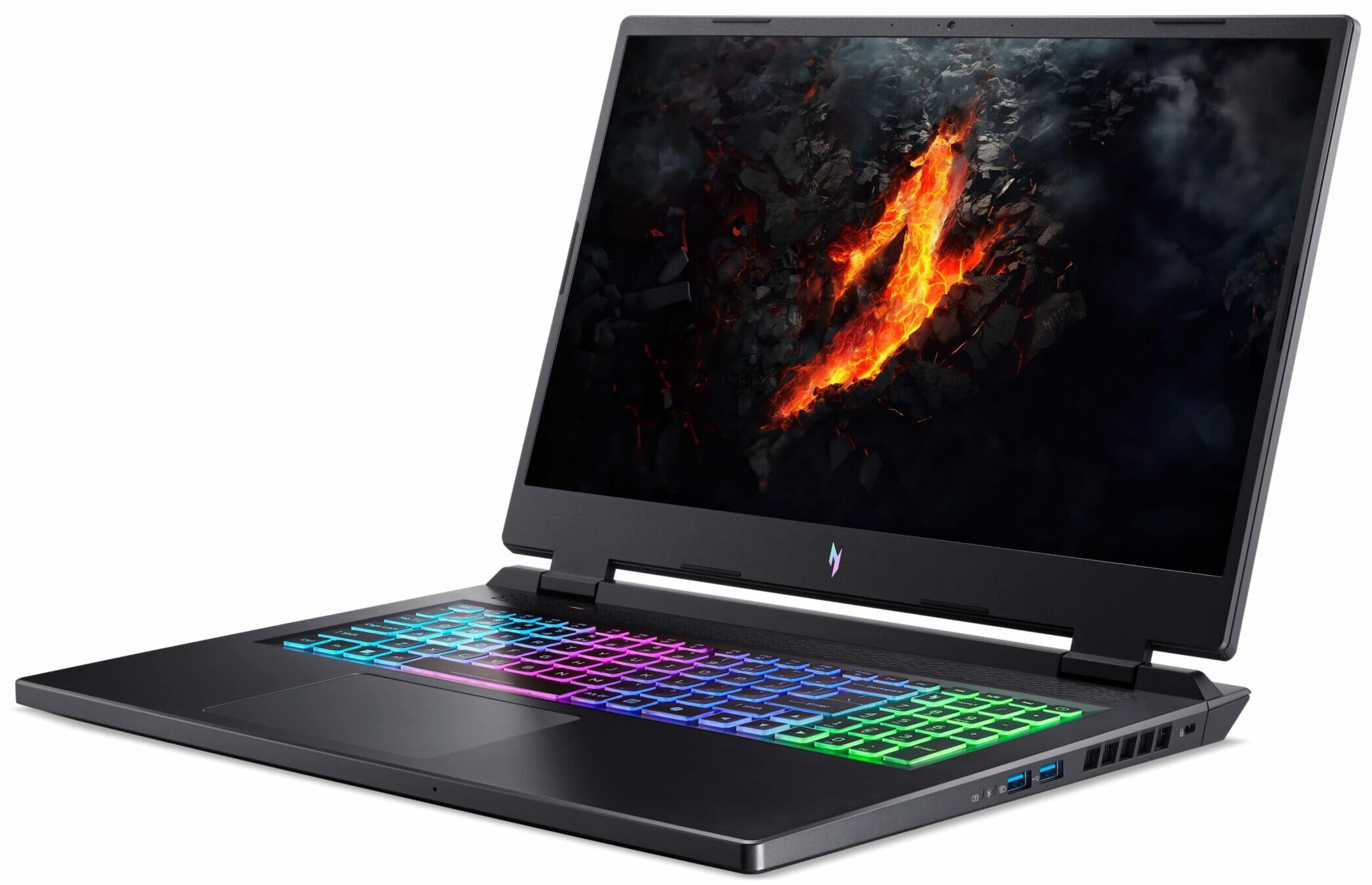
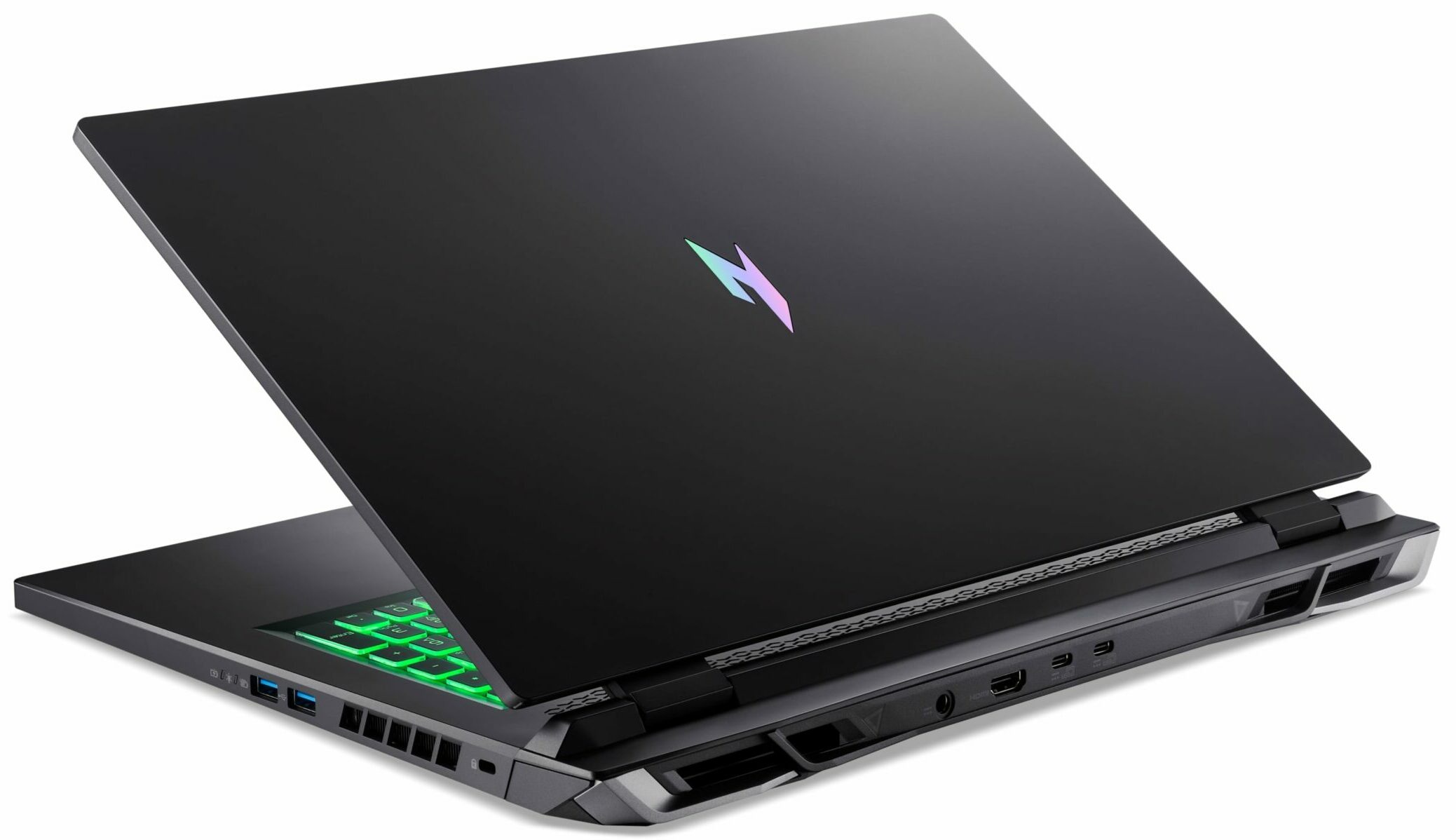
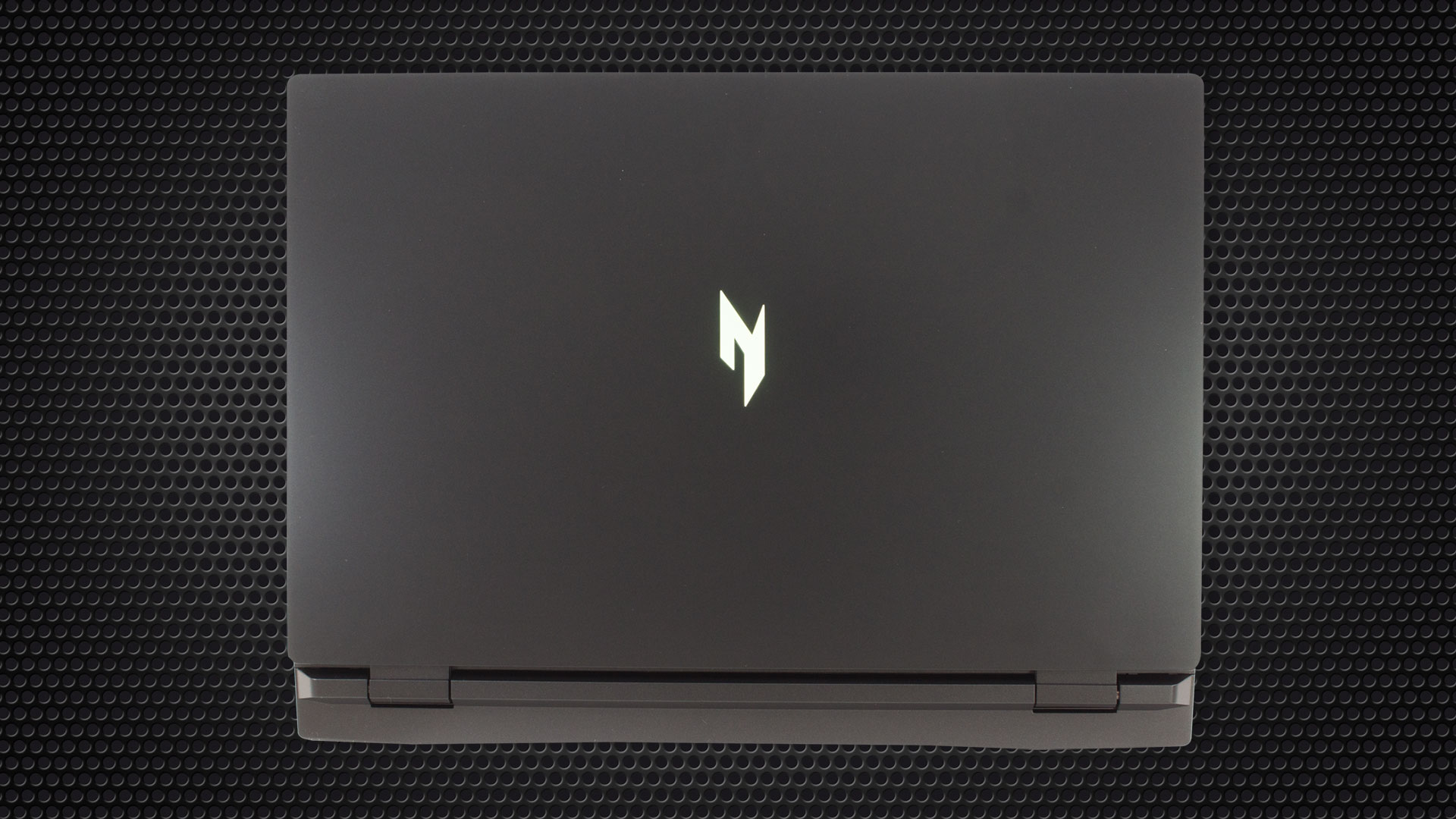
No surprises in terms of design. The Nitro 17 (AN17-42) has a typical look for a modern Acer gaming machine with the new glossy logo on the lid and Lambo-like exhausts on the back. Overall, the fully plastic build is sturdy. You could flex the lid but not too much while the base is solid.
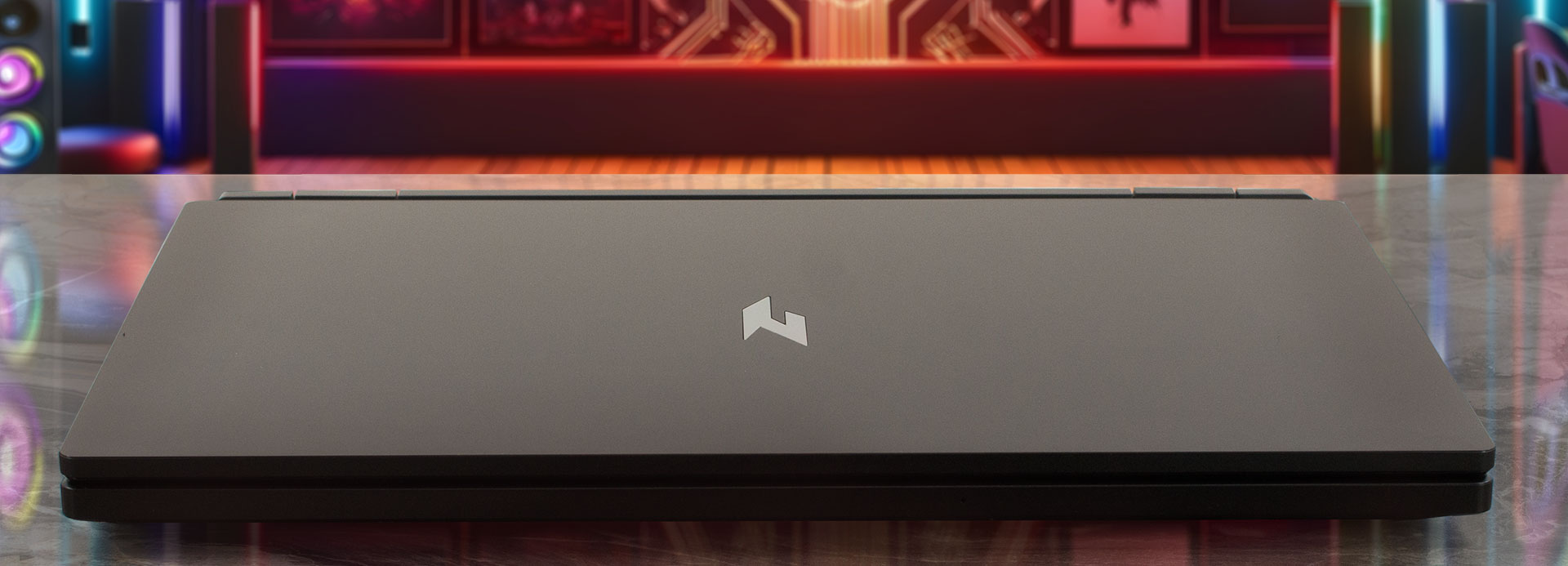
Of course, you can open the device with one hand. Still, while doing so, perhaps you’ll feel that the hinges are a bit stiff and the lid itself is a bit heavy. Since that’s a 17.3-inch machine with powerful hardware and a big thermal system, the weight of 3.10 kg sounds normal. The profile isn’t too thin either – 27.9 – 28.9 mm.

The size of the top and side bezels is okay while the lower one is at least three times thicker. The dual-mic 720p@30FPS Web camera with Temporal Noise Reduction is positioned normally above the screen.
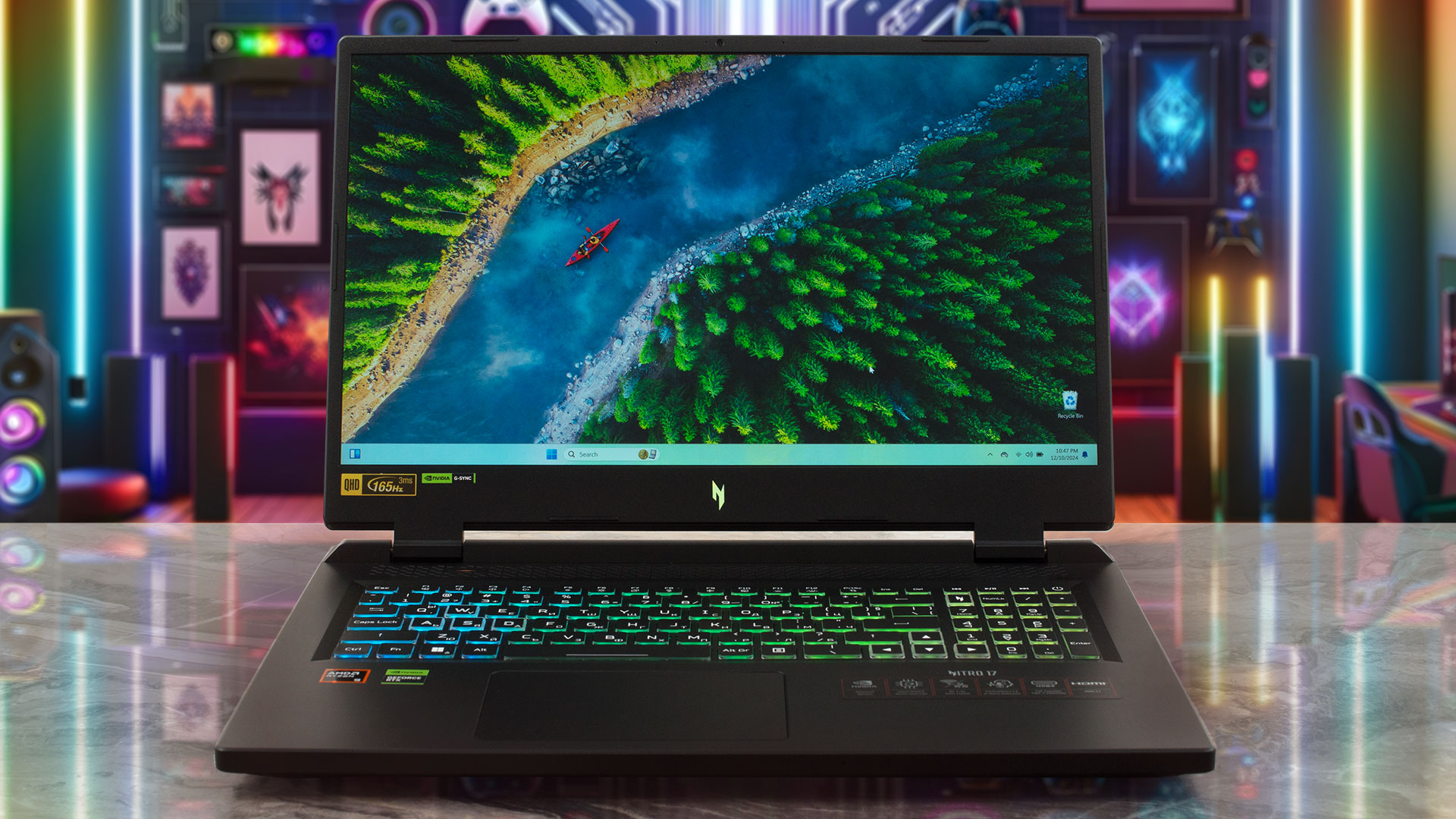
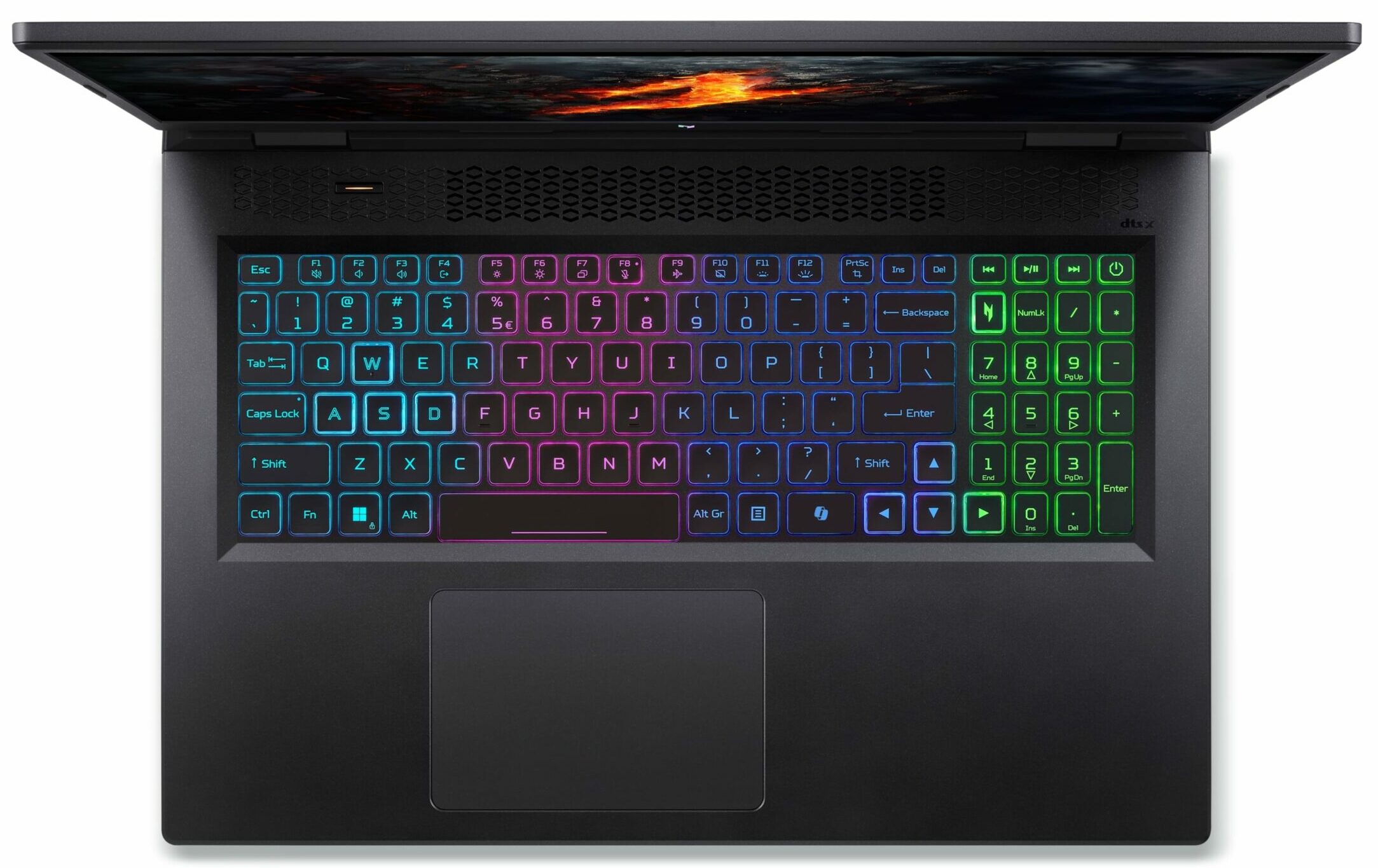
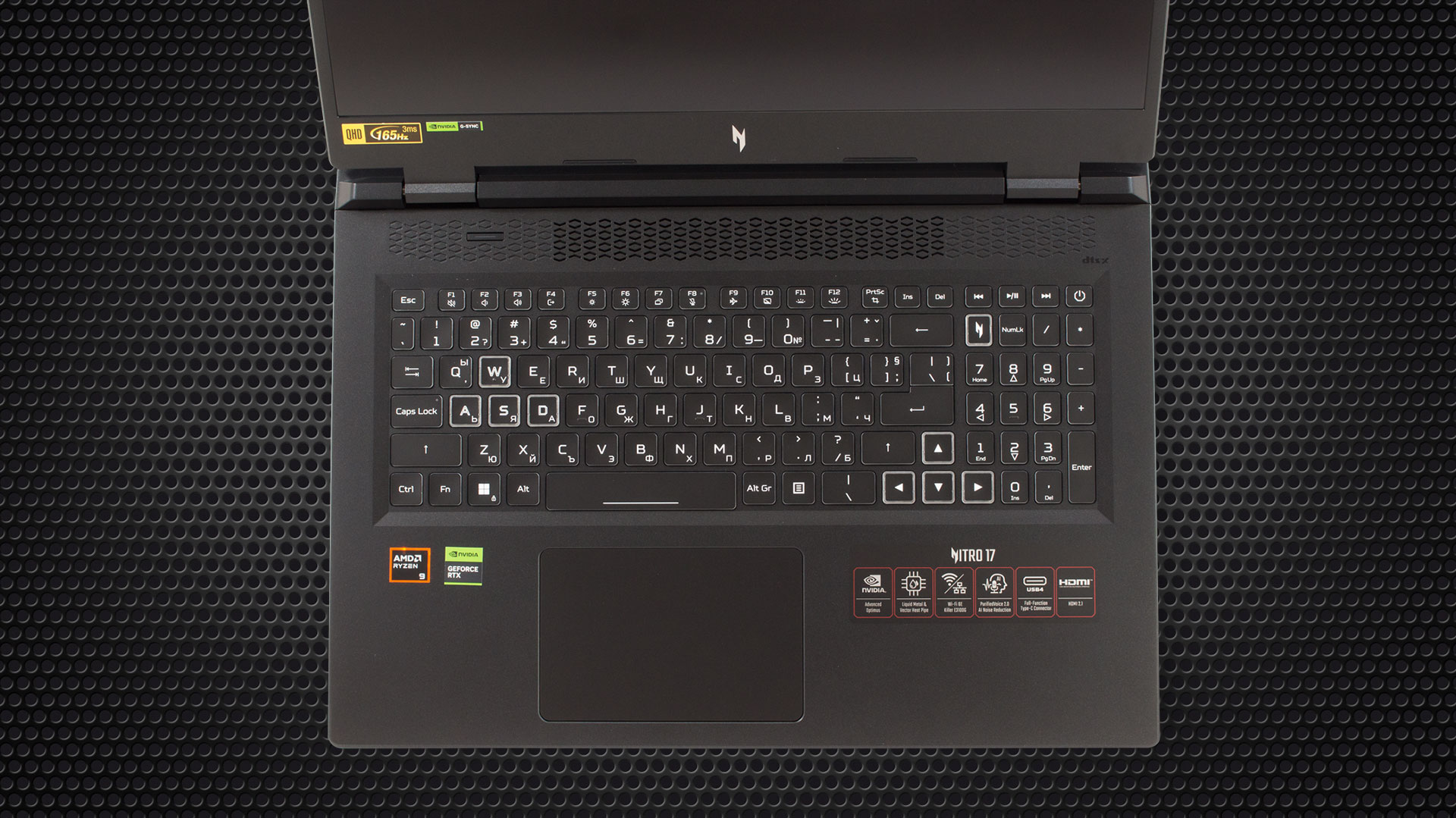
The upper section of the main body houses a long ventilation grill with a Mode key on the left that is for quick access to the power presets (or you can set it to boost the fans to their max speed). The backlit keyboard remains one of the most comfortable ones we’ve seen in a gaming laptop. It has big dished keys with long travel which are suitable for work and gaming. The big Arrows and the large NumPad section are also a nice addition.
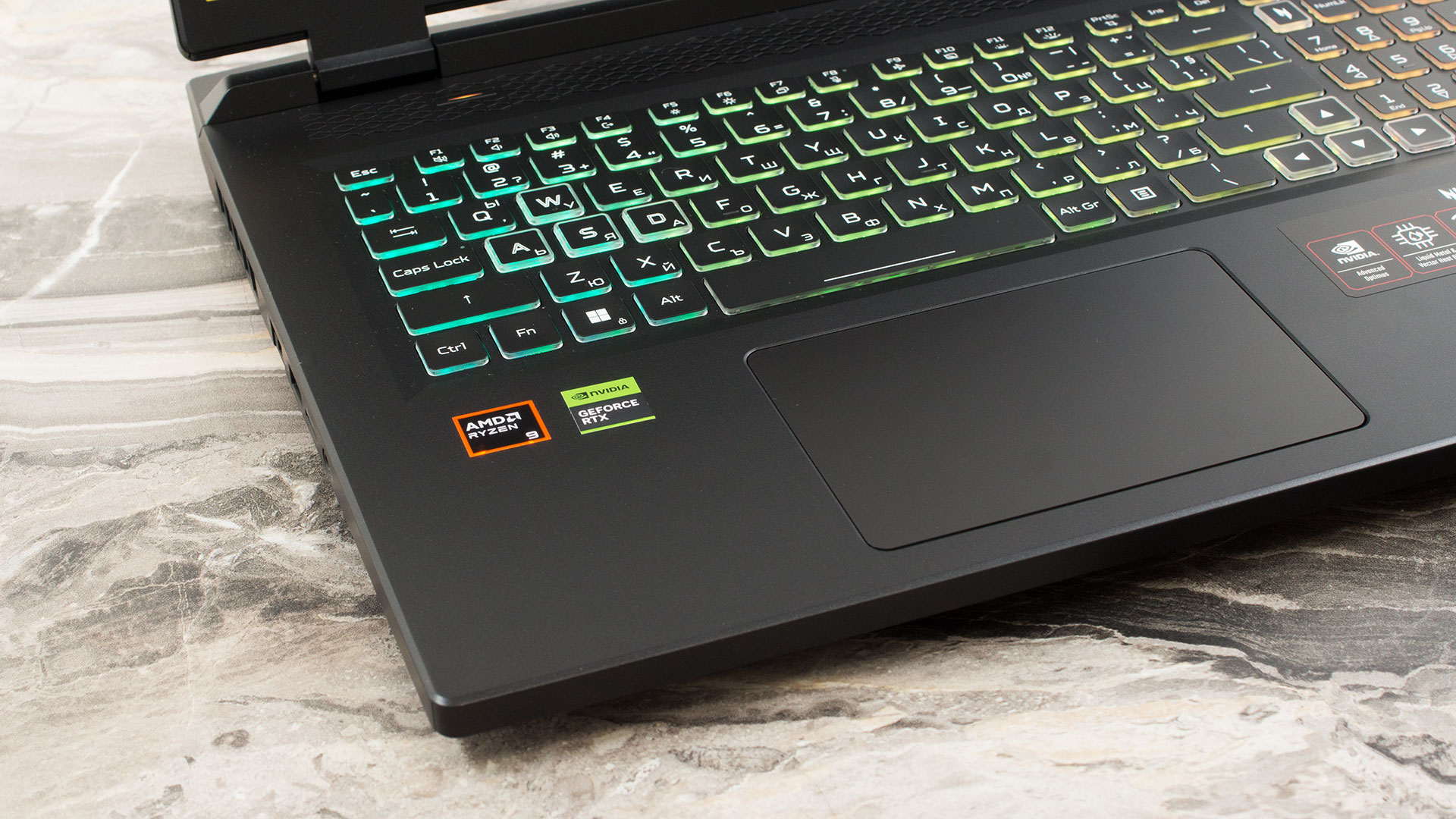

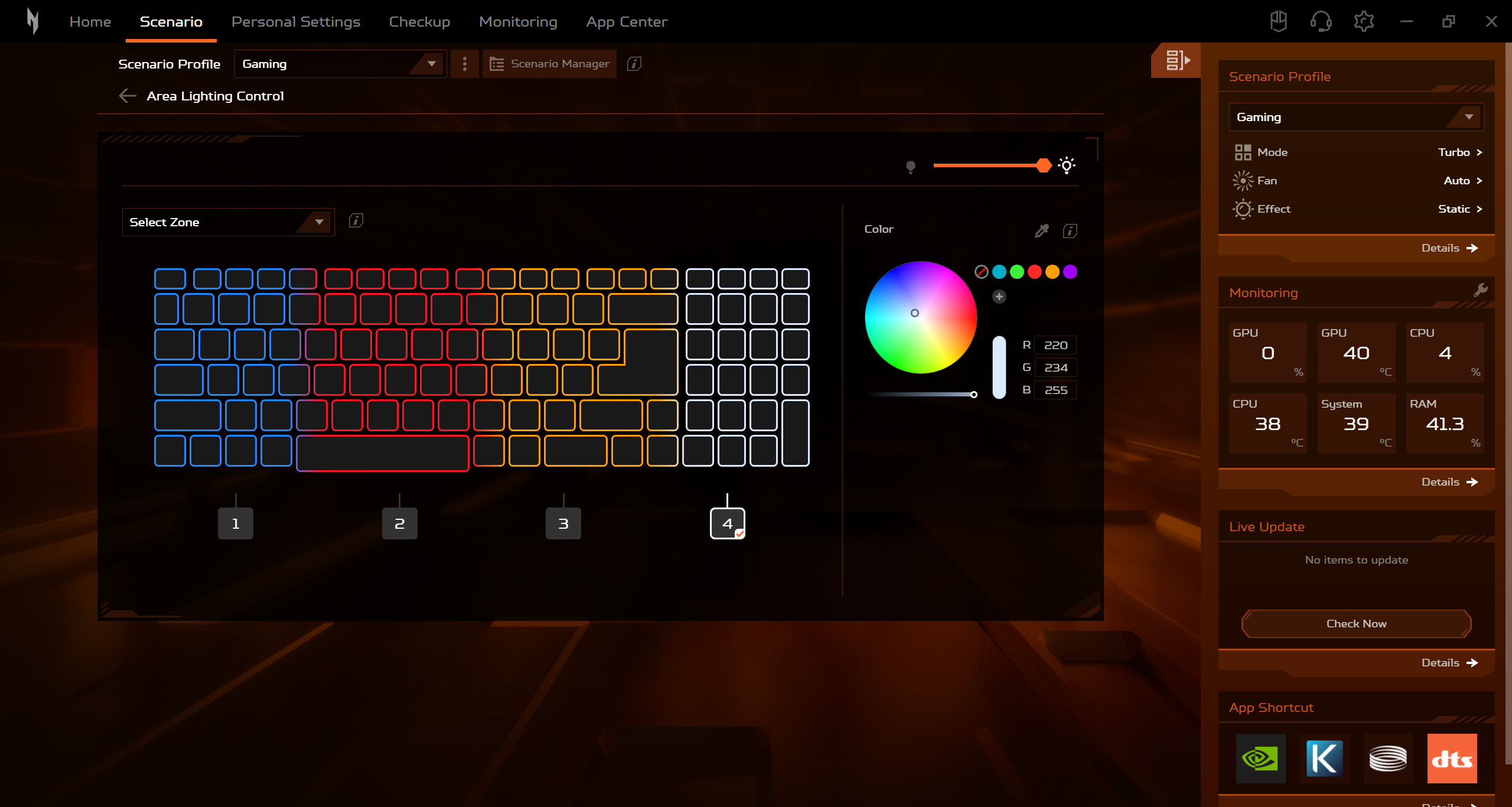
You can tweak the 4-zone RGB illumination with the aid of the Nitro Sence app.
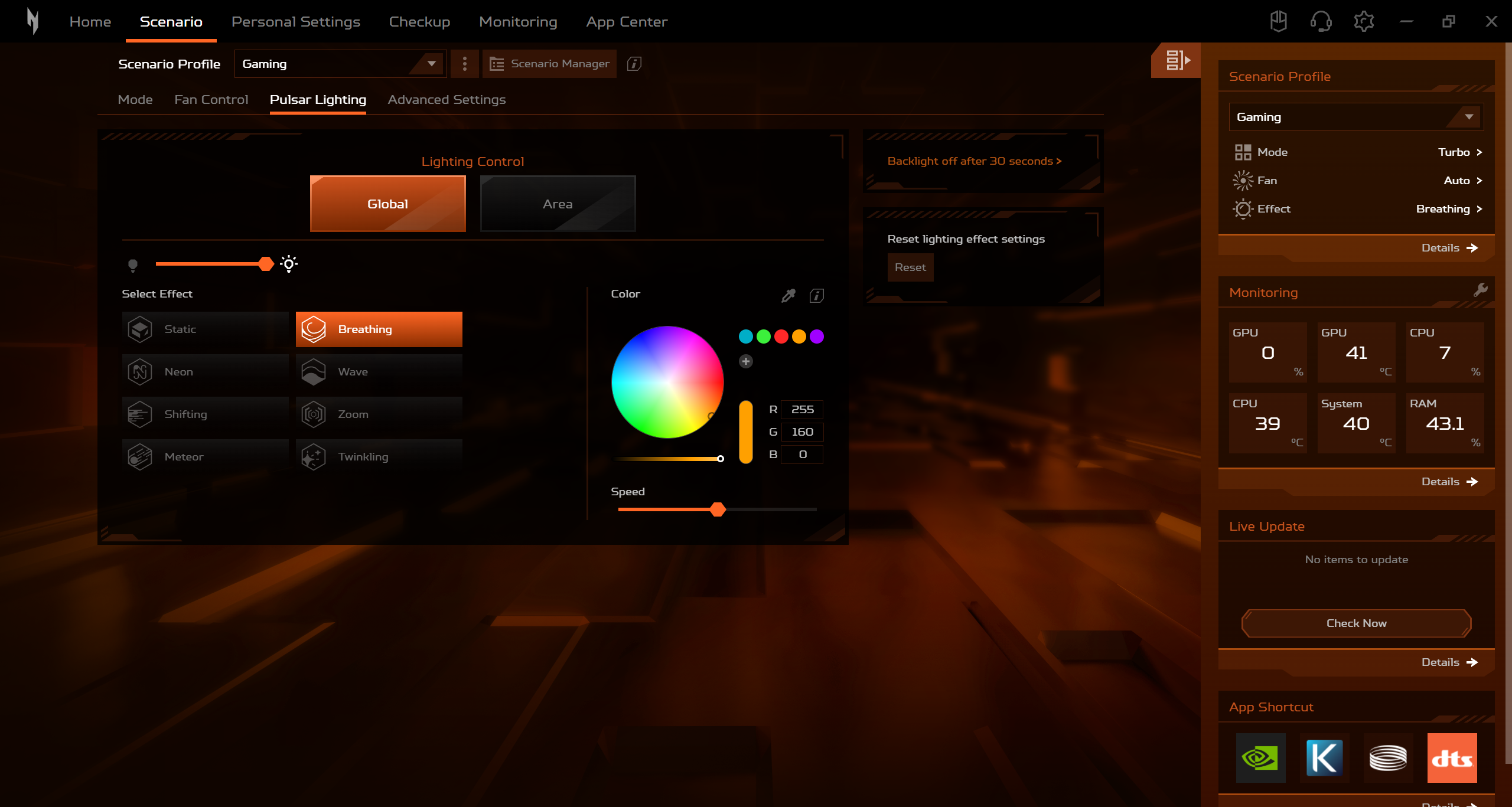
The touchpad is moisture-resistant. It’s not among the biggest units out there but that’s okay for the price class. Aside from the a bit more noisy clicks, the pad’s smoothest and accuracy are actually better than expected!
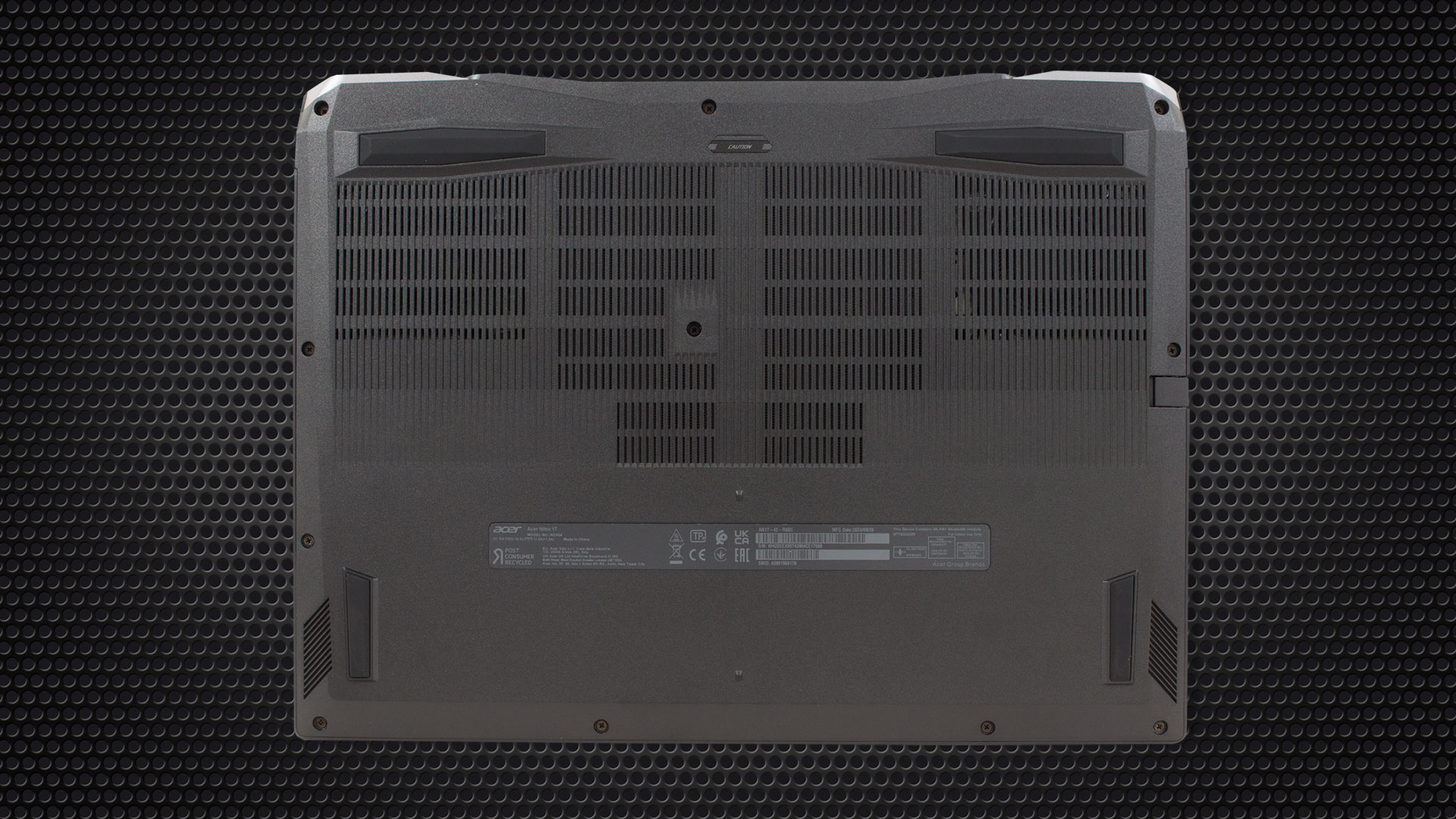
The four feet on the bottom cover provide excellent grip. On the same side, you can spot many ventilation grills and a pair of speaker cutouts. The heat is guided as fast as possible via the two vents on the back and the sides.
Ports
On the left, you get a 2.5 Gbps LAN, a prehistorical USB 2.0 port, a MicroSD card slot, and an Audio combo jack. The rear houses a power plug, an HDMI 2.1 connector, a 40 Gbps USB4 port, and a 10 Gbps USB Type-C 3.2 (Gen. 2) port. The right side is home to a Kensington lock slot, and two USB Type-A 3.2 (Gen. 1) ports (the latter supports a power-off charging function).
Both Type-Cs offer DisplayPort and charging capabilities (DC-in 20 V; 65 W).



Display, Get our Profiles
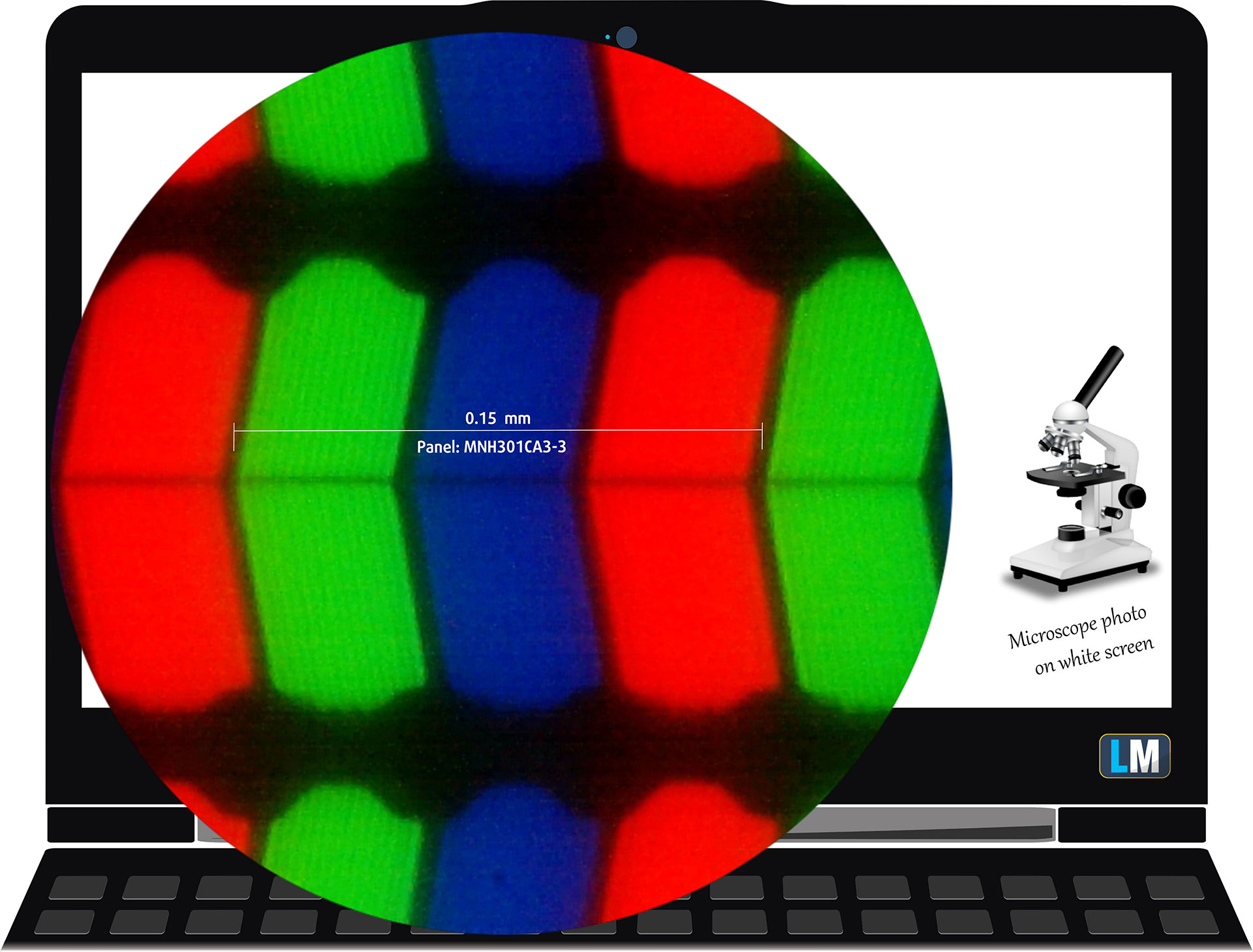
| Acer Nitro 17 (AN17-42) | MNH301CA3-3 (CSW1704) |
| Diagonal | 17.3 inches (43.9 cm) |
| Panel Type | IPS |
| Resolution | 2560 x 1440 pixels |
| Max Refresh Rate | 165 Hz |
| Aspect Ratio | 16:10 |
| Pixel Density | 170 PPI |
| ‘Retina’ Distance | Greater than or equal to 51 cm |
Viewing Angles
Viewing angles are good. We take photos from different angles to evaluate the quality.
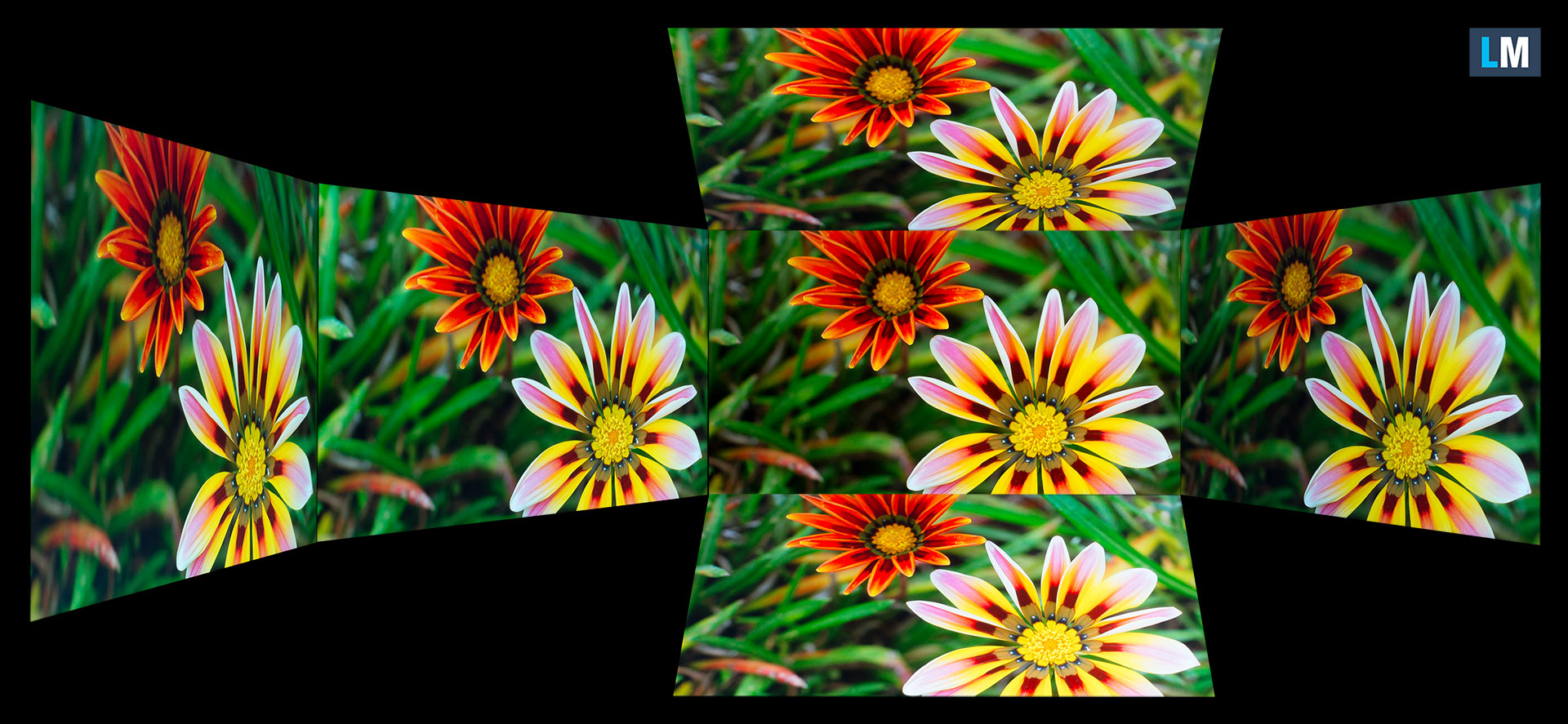
Also, a video with locked focus and exposure.
Color Coverage
The whole “sail-shaped” map below (Fig. 1) consists of all the colors we can see, while the black crooked line shows all the colors from real-world scenes and nature around us.
Then, we’ve drawn some of the most important and interesting color spaces, compared to the colors the panel of Acer Nitro 17 (AN17-42) can show:
Standard/For Web: sRGB – widely used color space for most consumer devices, ideal for Web design and development
For Print: AdobeRGB – used in professional photo editing, graphic design, and print
For Photographers/Video Editors: DCI-P3 – used in high-end film production, post-production, and digital cinema
Premium HDR: Rec.2020 – the widest consumer ITU color standard, covering a massive 75.8% of the visible spectrum, a benchmark for premium HDR content
Acer Nitro 17 (AN17-42): the yellow dashed triangle (– – – – – –) represents the range of colors this monitor can display.
In our tests, we calculated the total color coverage of the monitor at 98% of the sRGB color gamut and 95% of the DCI-P3 color gamut.
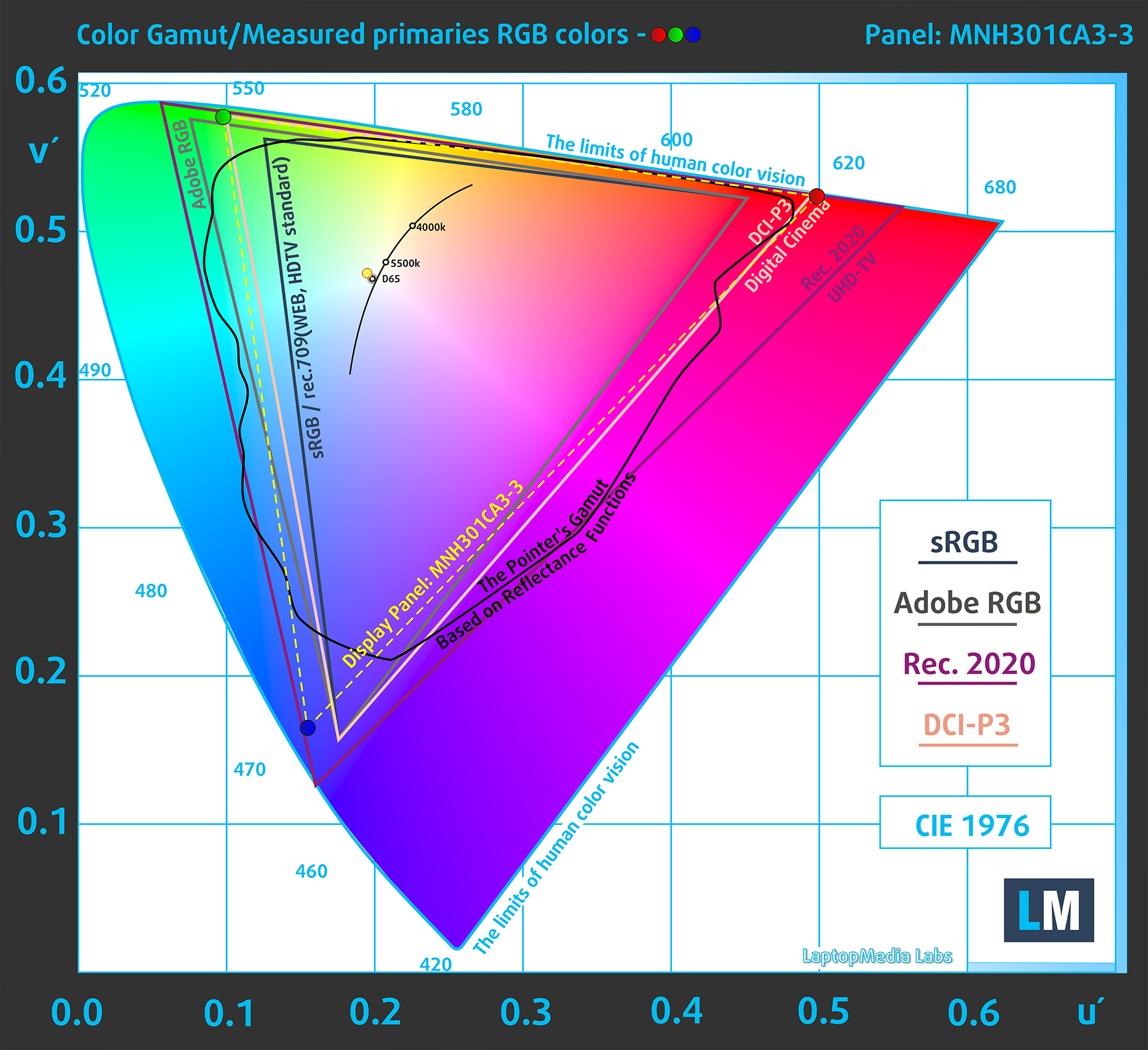
(Fig.1) Acer Nitro 17 (AN17-42) covers 95% of the DCI-P3 gamut
Brightness and Contrast
The maximum brightness in SDR mode is 296 cd/m² in the center of the screen and 282 cd/m² averaged across the surface with a maximum deviation of 12%.
The Correlated Color Temperature (CCT) on a white screen at maximum brightness is 6420K.
The contrast ratio is 1320:1.

Uniformity: Luminance, Contrast, and Color Deviation
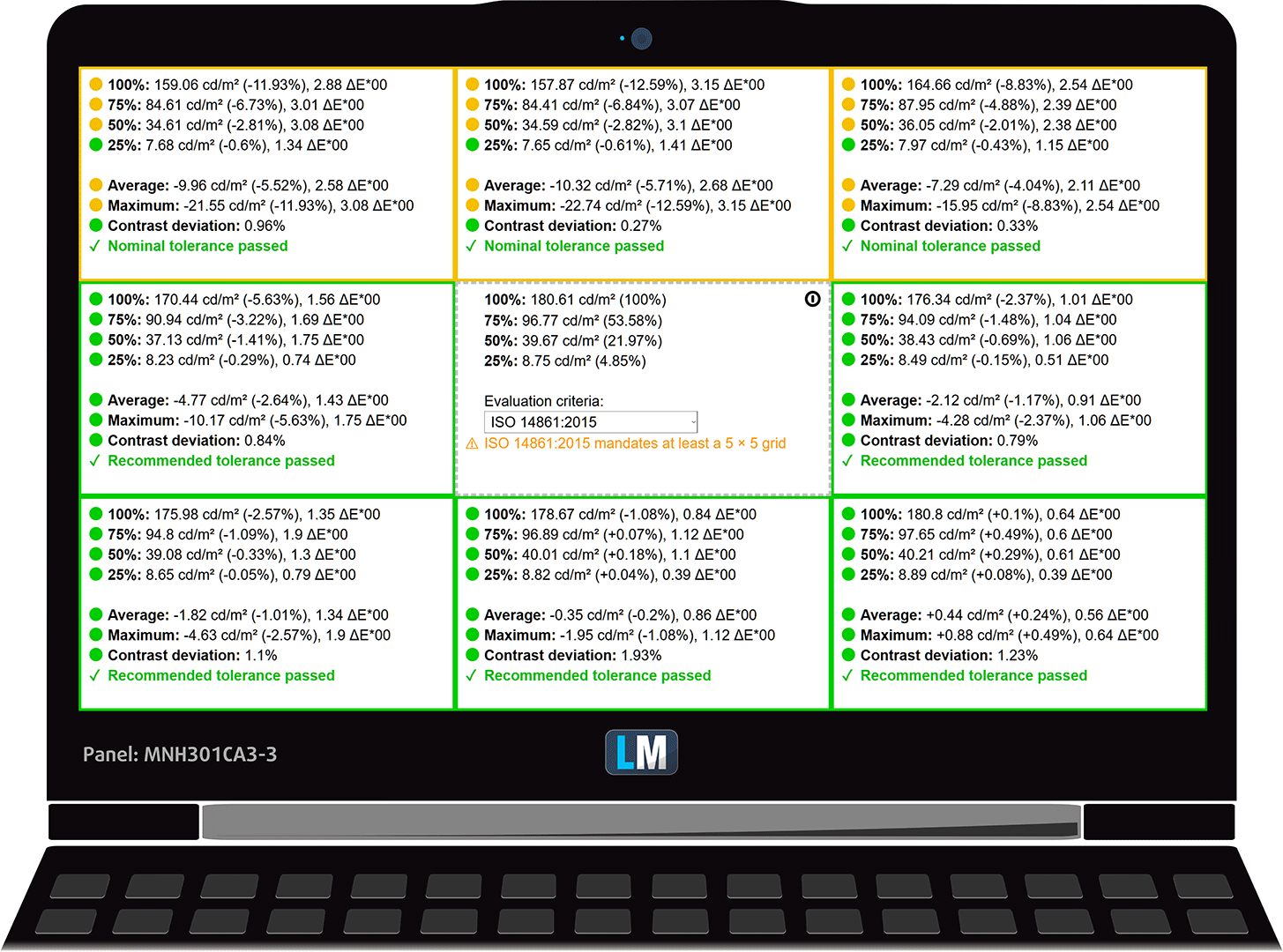
The figure below shows the results from our uniformity test across different sections of the screen. It’s measured at 181 nits (Windows slider = 66%) — a brightness level we consider typical for standard working conditions.
DeltaE values below 4.0 are acceptable for regular users. For those working with colors, screens with DeltaE values no higher than 2.0 are recommended.
Color Accuracy
Let’s check the difference between real colors and those you’ll see on the Acer Nitro 17 (AN17-42). We measure that distance in DeltaE – the higher the number, the more different they look.
Values below 4.0 are acceptable for regular users, while values below 2.0 are suitable for color-sensitive work. A value below 1.0 means the difference is indistinguishable to the naked eye.
For the next graph, we’ve selected 24 common colors, including dark/light skin, blue sky, green grass, etc.
Before our calibration of the Acer Nitro 17 (AN17-42), the Average color accuracy was 2.5 dE (Fig. 2), and with our Design and Office Work profile, it lowered to 1.4 dE (Fig. 3).
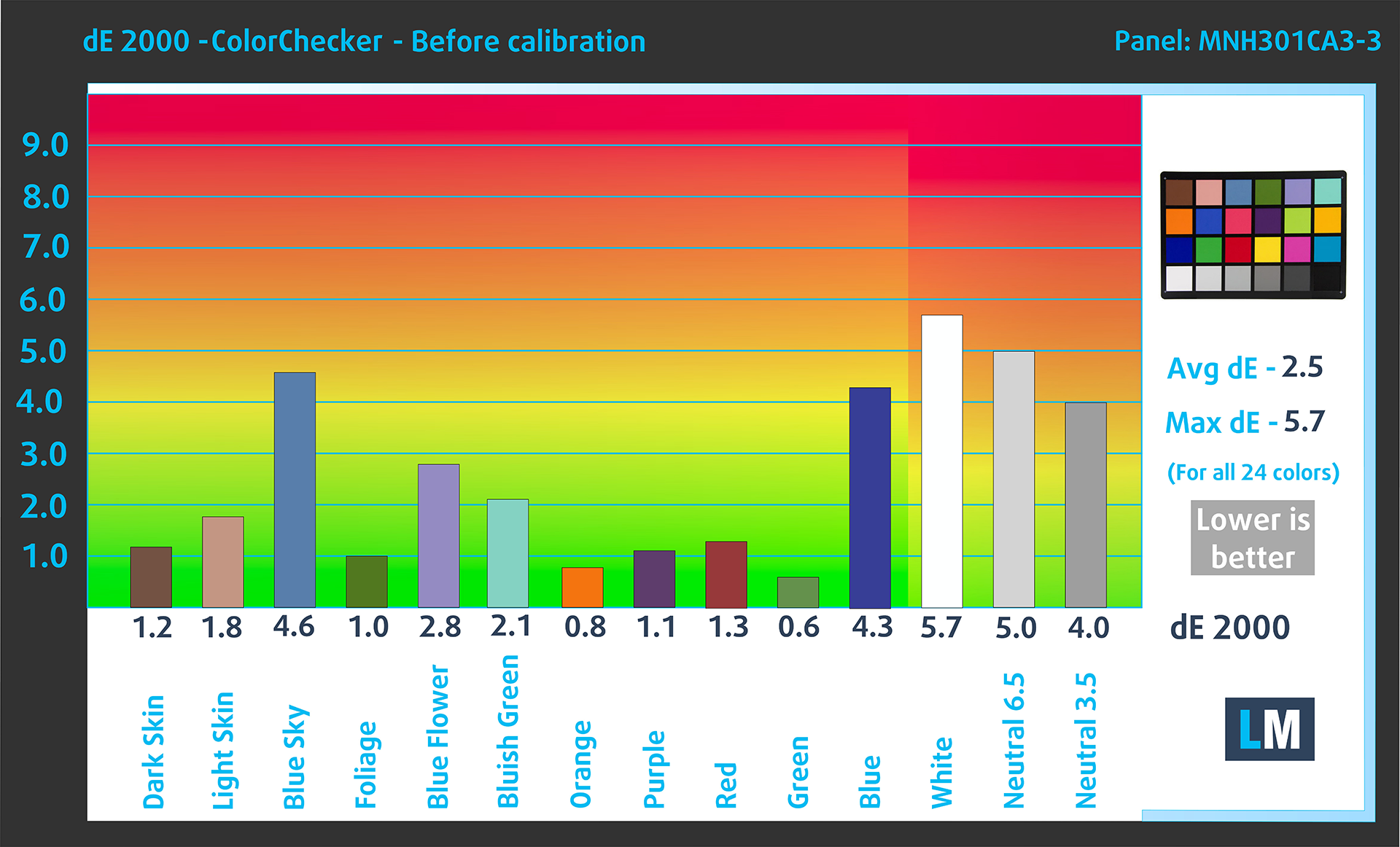
(Fig. 2) Acer Nitro 17 (AN17-42) in its factory condition
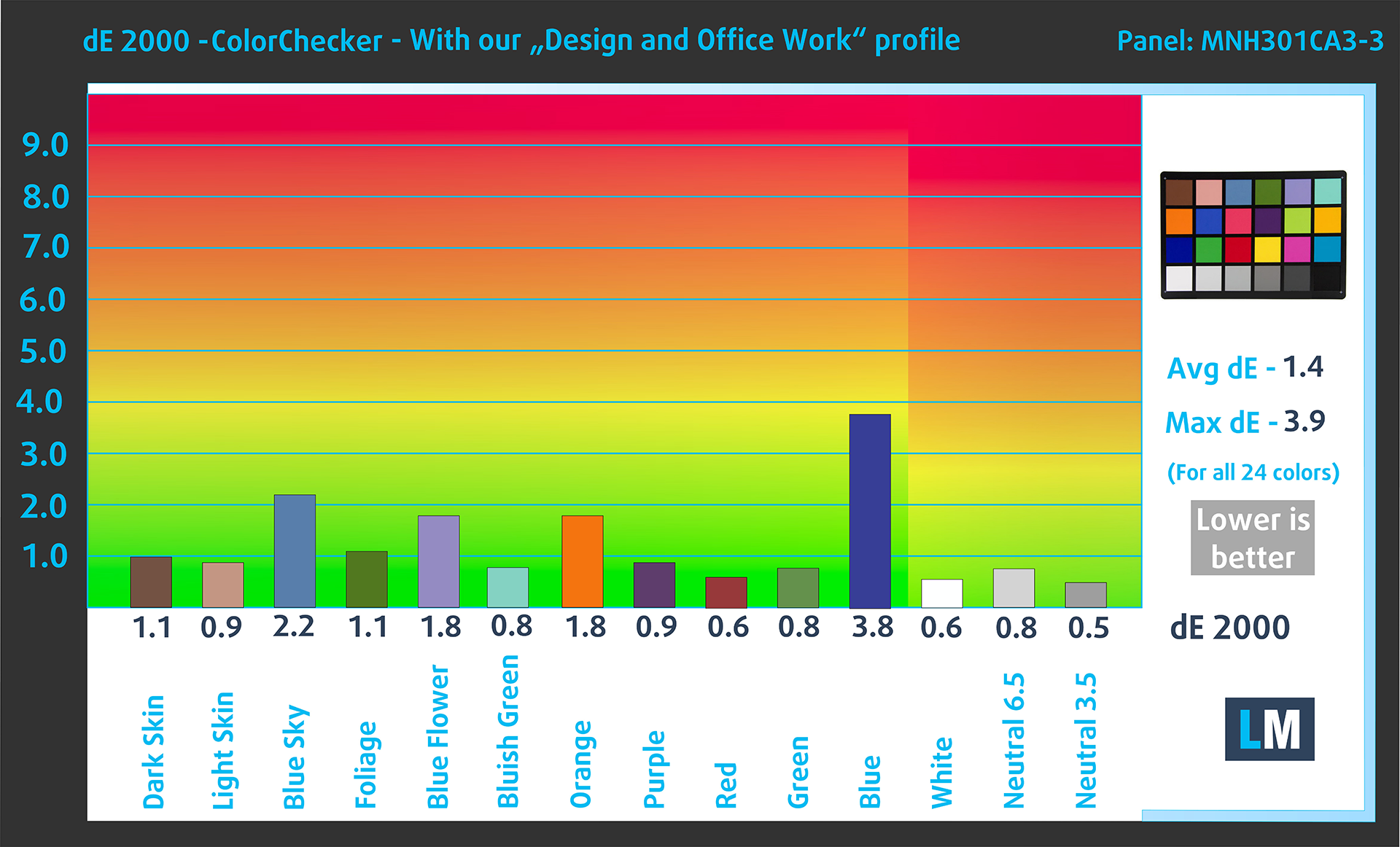
(Fig. 3) Acer Nitro 17 (AN17-42) with our display profile
Comparison in the Display P3 color space.
Here’s an illustration of what the Design and Office Work profile aims to deliver:
Left: No Profile | Drag the slider to see the difference | Right: Design & Gaming Profile


Visibility in dark scenes
Have you ever watched a movie with dark scenes where you could barely see anything? This often happens because many display panels struggle to differentiate the darkest nuances, making them appear the same.
The next figure illustrates how well the display reproduces these dark nuances. The left side of the image shows the display with stock settings, and the right side shows it with our Gaming and movies profile activated.
On the horizontal axis are the grayscale levels, and on the vertical axis – the corresponding display brightness.
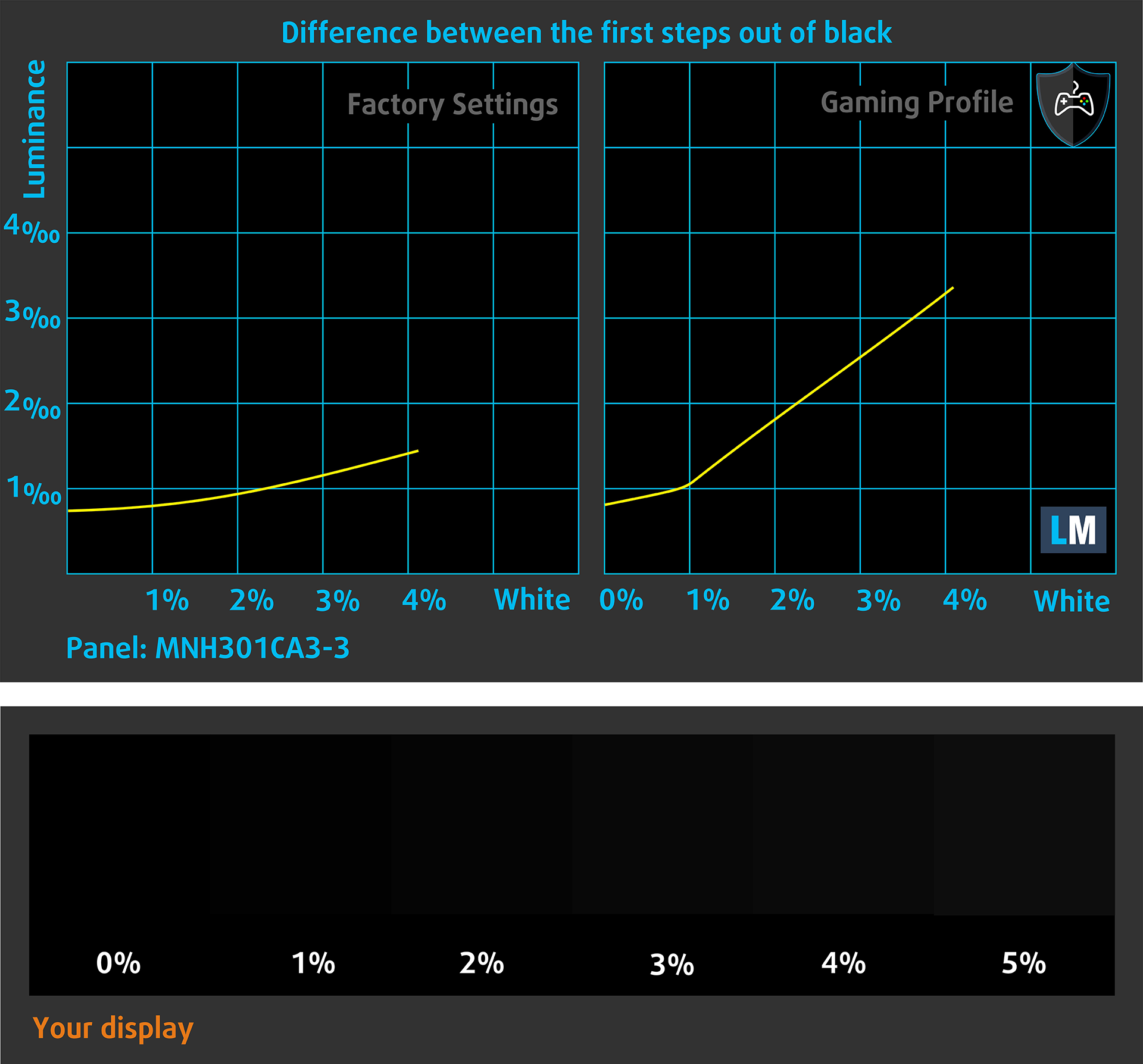
You can also check how your display handles the darkest nuances but keep in mind that this also depends on the settings of your current display and the surrounding light conditions.
Response time (Gaming capabilities)
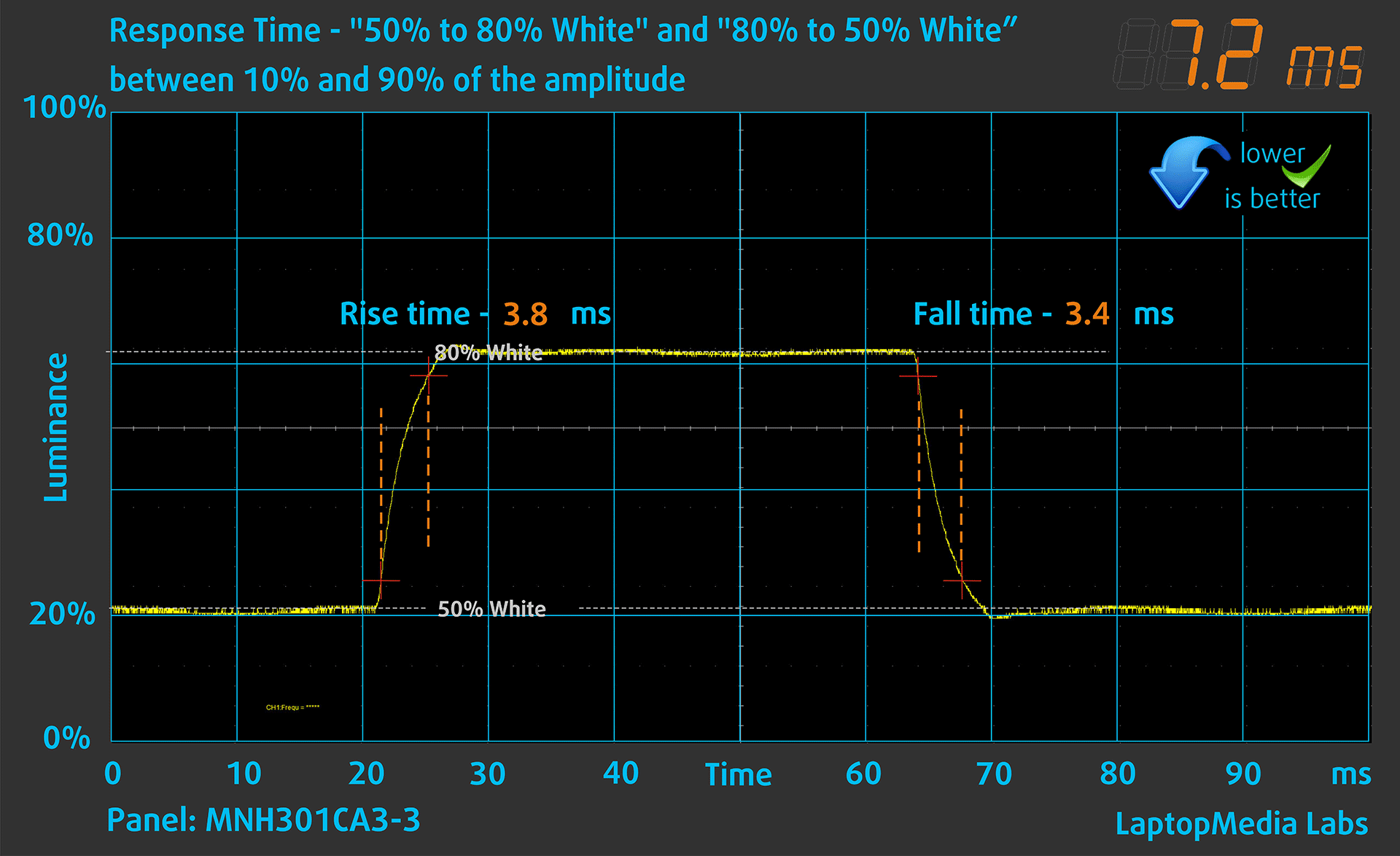
We test the reaction time of the pixels with the usual “black-to-white” and “white-to-black” method from 10% to 90% and vice versa.
We recorded Fall Time + Rise Time = 8.2 ms. Short pixel response time is a prerequisite for a smooth picture in dynamic scenes.
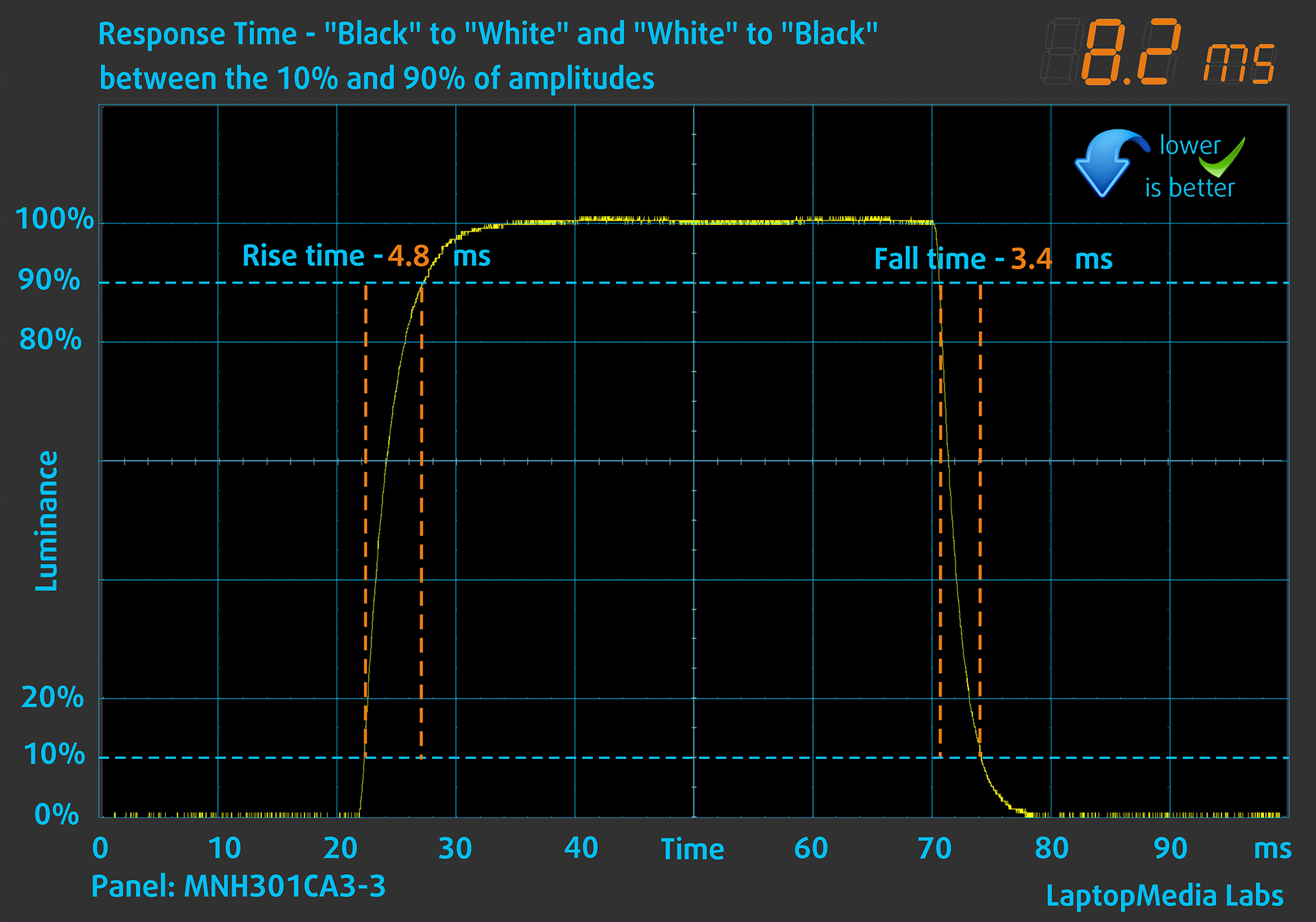
After that, we test the reaction time of the pixels with the usual “Gray-to-Gray” method from 50% White to 80% White and vice versa between 10% and 90% of the amplitude.
Health Impact: PWM (Screen flickering)
Some use PWM to regulate their brightness, which means that instead of reducing the light intensity, they pulse or flicker. Our brain merges the image, so it appears darker, but this strains both it and our vision, especially when the frequency of the pulses is low. You can read more about that in our dedicated article on PWM.
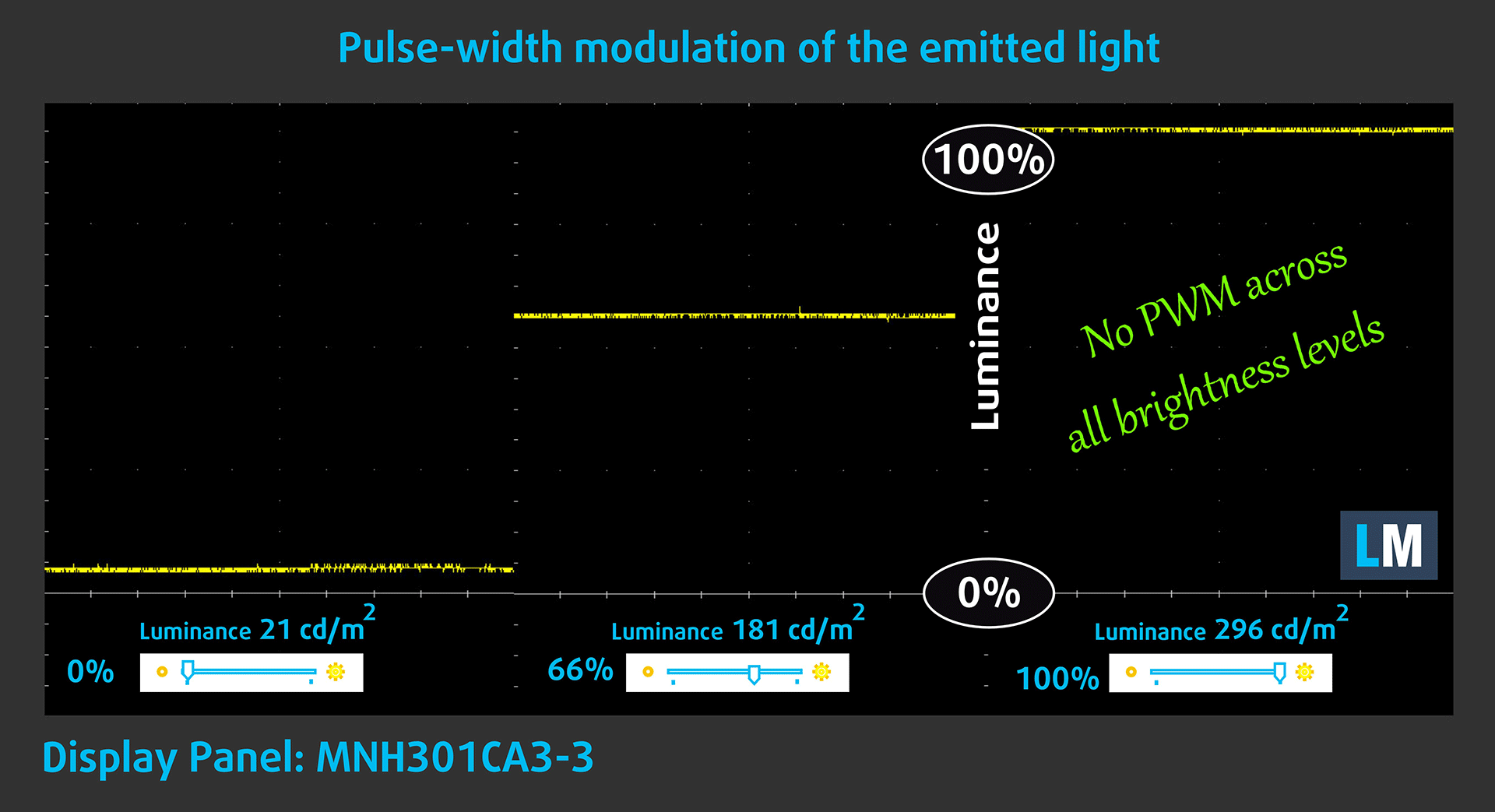
In the graph below, you see the intensity of light at different brightness levels—on the vertical axis is the brightness of the emitted light, and on the horizontal axis—time.
The light from the backlight of the Acer Nitro 17 (AN17-42) display is not pulse-width modulated, providing visual comfort in the discussed aspect.
Health Impact: Blue light emissions
Installing our Health-Guard profile not only eliminates harmful PWM when the laptop uses it to control brightness but also reduces harmful Blue Light emissions while keeping the colors of the screen perceptually accurate.
If you’re not familiar with the Blue light, the TL;DR version is – emissions that negatively affect your eyes, skin, and your whole body. You can find more information about that in our dedicated article on Blue Light.
Health Impact: Screen Reflectance
Glossy-coated displays can cause eye fatigue in high ambient light conditions due to reflections. We measure the level of screen reflection with the display turned off, at a 60° angle.
The reflectance of the Nitro 17 (AN17-42)’s screen is 50.6 GU.
High Gloss: >70 GU
Medium Gloss: 30 – 70 GU
Low Gloss: <30 GU
Get our profiles
Since our profiles are tailored for each individual display model, this article and its respective profile package are meant for Acer Nitro 17 (AN17-42) configurations with MNH301CA3-3 (CSW1704), 2560 x 1440, IPS panel.
*Should you have problems with downloading the purchased file, try using a different browser to open the link you’ll receive via e-mail. If the download target is a .php file instead of an archive, change the file extension to .zip or contact us at [email protected].
Read more about the profiles HERE.
कुशल और स्वास्थ्य के अनुकूल प्रोफाइल प्राप्त करने के अलावा, LaptopMedia के उत्पादों को खरीदकर आप हमारी प्रयोगशालाओं के विकास का भी समर्थन करते हैं, जहाँ हम सबसे वस्तुनिष्ठ समीक्षाएँ प्रस्तुत करने के लिए उपकरणों का परीक्षण करते हैं।
Design and Office
Design and Office प्रोफ़ाइल प्रदर्शन रंगों को वास्तविकता के जितना संभव हो उतना करीब बनाती है।न केवल पेशेवरों के लिए बल्कि रोजमर्रा के उपयोगकर्ताओं के लिए भी आदर्श, यह आपके पैनल पर सटीक रंग पुनरुत्पादन के लिए न्यूनतम DeltaE के साथ sRGB मानकों (D65 व्हाइट पॉइंट, sRGB गामा) को पूरा करता है।

गेमिंग और मूवीज़
क्या आपने कभी ऐसी फिल्म देखी है जहाँ, अंधेरे दृश्यों के दौरान, आप मुश्किल से कुछ भी देख पाते हैं? कई डिस्प्ले डार्क टोन को ठीक से अलग करने में विफल रहते हैं। हमारा गेमिंग और मूवीज़ प्रोफ़ाइल मानव धारणा के अनुरूप गामा वक्र का उपयोग करके, HDR तकनीक की तरह, कम-रोशनी के प्रदर्शन को बढ़ाता है - तेज़ प्रतिक्रियाओं और स्पष्ट दृश्यों की तलाश करने वाले गेमर्स के लिए आदर्श।

Health-Guard
हमारा Health-Guard प्रोफ़ाइल PWM फ़्लिकरिंग को समाप्त करके, तनाव और थकान को कम करके, और हानिकारक ब्लू लाइट एक्सपोज़र को कम करके आपकी आँखों की सुरक्षा करता है जो नींद और स्वास्थ्य को बाधित कर सकता है। यह स्क्रीन उपयोग के दौरान आराम और सुरक्षा के लिए सॉफ़्टवेयर डिमिंग और मानव धारणा के अनुरूप गामा वक्र का उपयोग करता है।
33% छूट के साथ सभी प्रोफाइल प्राप्त करें!

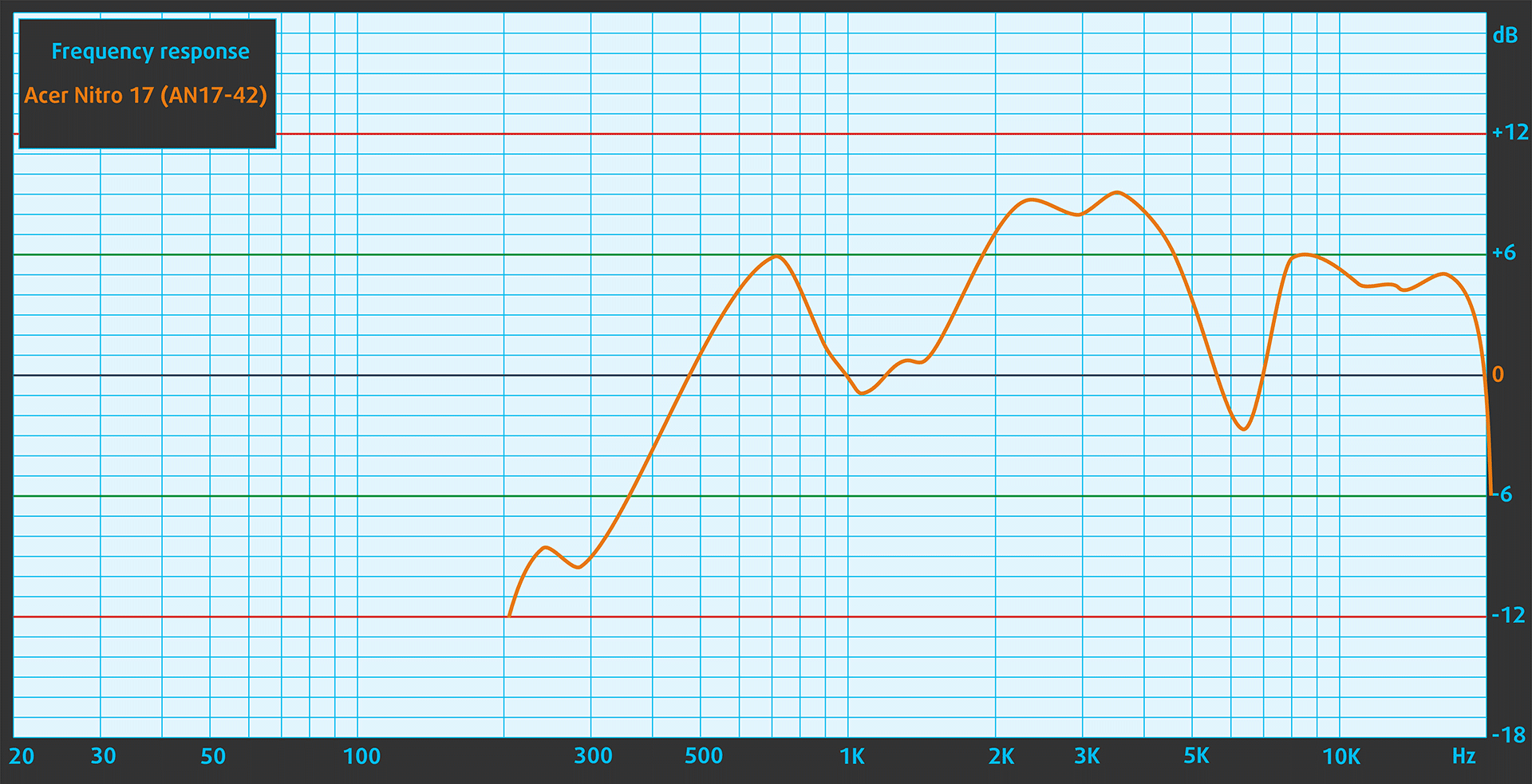
Sound
Subjectively, the sound quality of the Acer Nitro 17 (AN17-42) is good. The low, mid, and high frequencies are clear.
Performance: CPU, GPU, Storage
All benchmarks and tests were conducted with the “Turbo” and “NVIDIA GPU-only” modes activated in the NitroSense app. Also, the “Best Performance” mode is applied in the Windows “Power & Battery” menu.


CPU options
This gaming device is offered with AMD Ryzen 5 8645HS, Ryzen 7 8845HS, or Ryzen 9 8945HS.
Our laptop has a Ryzen 9 chip.
Single-core प्रदर्शन ऑपरेटिंग सिस्टम में सुचारू संचालन और प्रतिक्रिया सुनिश्चित करता है, जिससे एक बेहतर उपयोगकर्ता अनुभव मिलता है।
परिणाम Geekbench 6 Single-Core टेस्ट से हैं (उच्चतर बेहतर है)
Multi-core प्रदर्शन जटिल और मांग वाले कार्यों, जैसे वीडियो संपादन, CAD, और वैज्ञानिक सिमुलेशन को संभालने के लिए आवश्यक है।
परिणाम Geekbench 6 Multi-Core टेस्ट से हैं (उच्चतर बेहतर है)
यहां, हम एक वास्तविक-विश्व 3D रेंडरिंग कार्य का उपयोग करके CPU के प्रदर्शन का मूल्यांकन करते हैं, जटिल संगणनाओं और रेंडरिंग वर्कलोड को कुशलतापूर्वक संभालने की इसकी क्षमता का आकलन करते हैं।
परिणाम Cinebench 2024 Multi-Core टेस्ट से हैं (उच्चतर बेहतर है)
GPU options
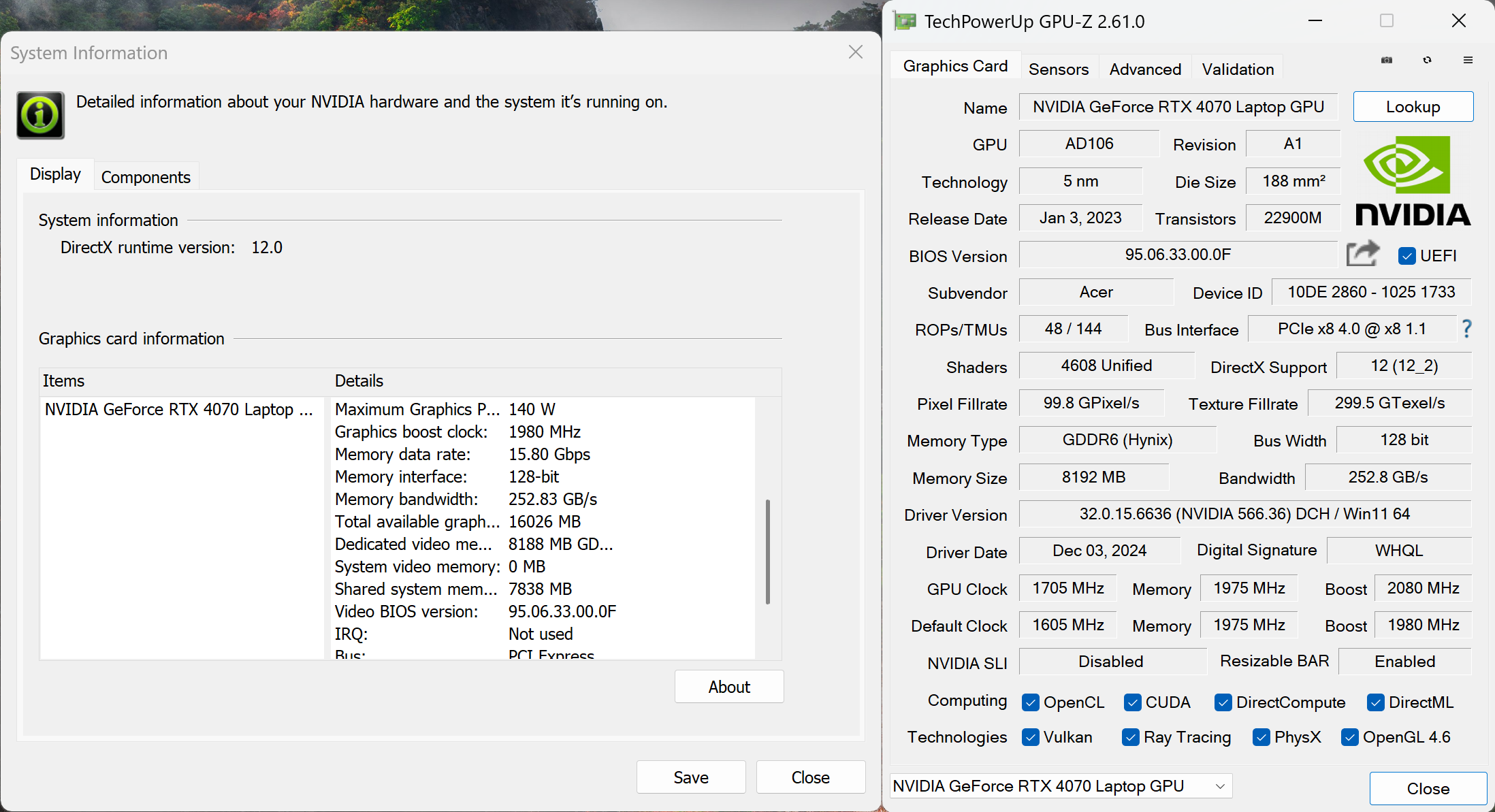
You can choose from a Geforce RTX 4050, a GeForce RTX 4060, and a 140W GeForce RTX 4070.
The machine that we bought has an RTX 4070.
परिणाम 3DMark Time Spy (Graphics) से हैं। उच्चतर बेहतर है।
परिणाम 3DMark Wild Life Extreme Unlimited से हैं। उच्चतर बेहतर है।
Gaming tests

| Metro Exodus | Full HD, Low (Check settings) | Full HD, High (Check settings) | Full HD, Extreme (Check settings) |
|---|---|---|---|
| Average FPS | 170 fps | 103 fps | 51 fps |

| Borderlands 3 | Full HD, V.Low (Check settings) | Full HD, Medium (Check settings) | Full HD, High (Check settings) | Full HD, Badass (Check settings) |
|---|---|---|---|---|
| Average FPS | 148 fps | 135 fps | 121 fps | 104 fps |

| Far Cry 6 | Full HD, Low (Check settings) | Full HD, High (Check settings) | Full HD, Ultra (Check settings) |
|---|---|---|---|
| Average FPS | 142 fps | 115 fps | 107 fps |

| Gears 5 | Full HD, Low (Check settings) | Full HD, Medium (Check settings) | Full HD, High (Check settings) | Full HD, Ultra (Check settings) |
|---|---|---|---|---|
| Average FPS | 165 fps | 160 fps | 156 fps | 144 fps |
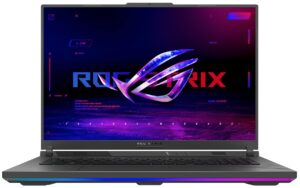
Compared to the ROG Strix G18 G814 with the same 140W RTX 4070, the gaming performance of the Nitro 17 (AN17-42) is lower, especially if you set the visual quality below Utra details. Perhaps that’s due to the single-channel memory of the Acer machine while the ASUS contender has two RAM sticks installed alongside the high-end Intel Core i9-14900HX which comprises more cores than the Ryzen 9 8945HS.
Storage performance
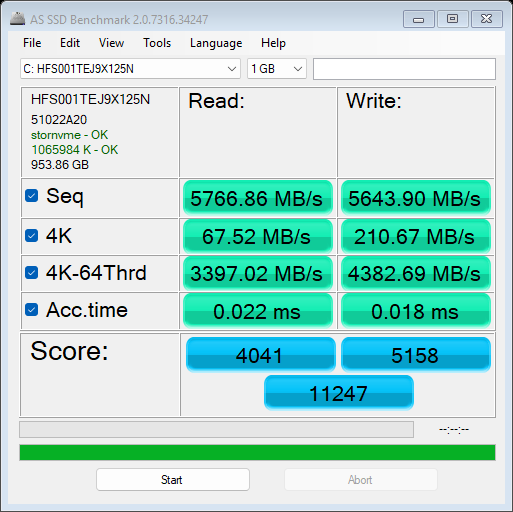
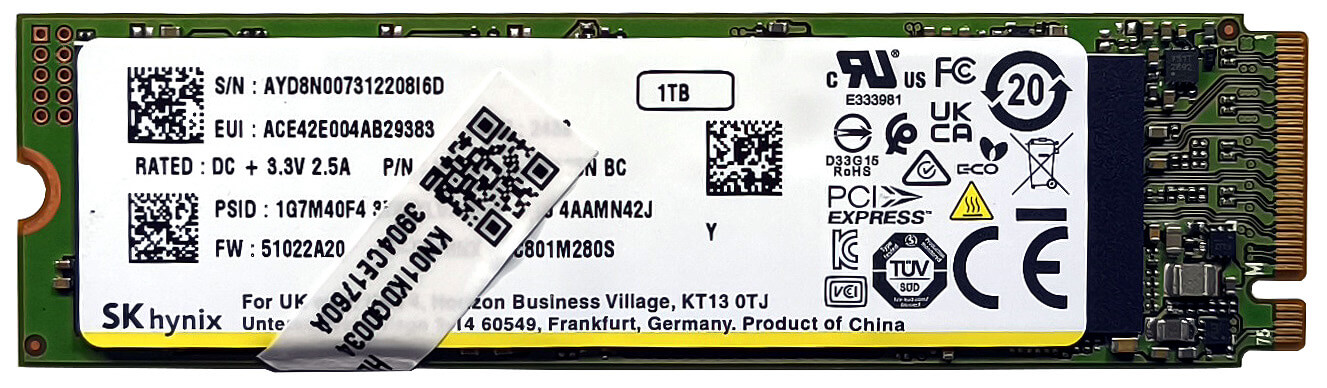
Our notebook has a 1TB SK Hynix HFS001TEJ9X125N. This is an impressively fast NVMe which isn’t optimally cooled since its thermal during long sustained write and read loads are above the 70°C mark.
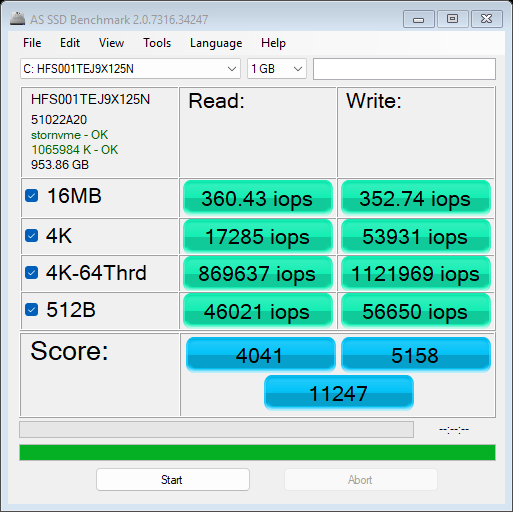
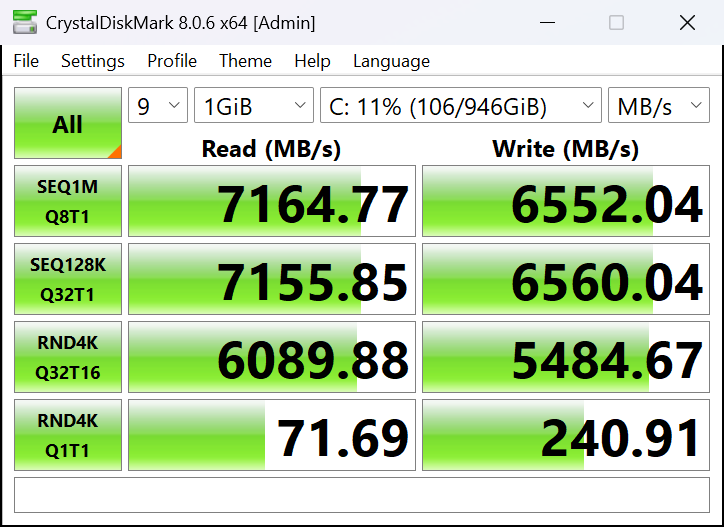

[eBook Guide + Tools] How to MAX OUT Your Laptop
You can make your laptop Faster. LaptopMedia has tested thousands of models in the last 15 years, and we have yet to see a notebook that couldn't be made more powerful through modifications.
That's why we decided to bundle everything we know about how to achieve this in an Easy-to-Follow, Step-by-Step, and Laboratory-Tested, all in one project.
Read more about it here:
[eBook Guide + Tools] How to MAX OUT Your Laptop
🛠️ GPU Modifications: vBIOS, Overclocking, Undervolting
⚙️ Building Fast/Reliable RAID configuration
💻 Hardware upgrade tips for best results
🖼 Display enhancing
💾 OS Optimization for best performance
Temperatures and comfort, Battery Life, Performance presets comparison
Max CPU load
In this test we use 100% on the CPU cores, monitoring their frequencies and chip temperature. The first column shows a computer’s reaction to a short load (2-10 seconds), the second column simulates a serious task (between 15 and 30 seconds), and the third column is a good indicator of how good the laptop is for long loads such as video rendering.
Average core frequency; CPU temp.; Package Power
| AMD Ryzen 9 8945HS (45W TDP) | 0:02 – 0:10 sec | 0:15 – 0:30 sec | 10:00 – 15:00 min |
|---|---|---|---|
| Acer Nitro 17 (AN17-42) | 4.55 GHz @ 55°C @ 64W | 5.06 GHz @ 64°C @ 69W | 4.96 GHz @ 70°C @ 67W |
The official AMD base clock of the Ryzen 9 8945HS is 4GHz. As you can see from the table above, the CPU here has no problem maintaining a ~5GHz frequency even in long loads which is impressive!
Real-life gaming
| NVIDIA GeForce RTX 4070 | GPU frequency/ Core temp (after 2 min) | GPU frequency/ Core temp (after 30 min) |
|---|---|---|
| Acer Nitro 17 (AN17-42) | 2625 MHz @ 70°C @ 126W | 2625 MHz @ 72°C @ 126W |
| ASUS ROG Strix G18 G814 “Turbo” preset | 2550 MHz @ 74°C @ 132W | 2550 MHz @ 75°C @ 132W |
| ASUS ROG Strix G18 G814 “Performance” preset | 2384 MHz @ 73°C @ 119W | 2377 MHz @ 75°C @ 119W |
| ASUS ROG Zephyrus G16 GA605 | 2277 MHz @ 79°C @ 105W | 2258 MHz @ 82°C @ 105W |
| ASUS ProArt P16 (H7606) | 2284 MHz @ 74°C @ 105W | 2270 MHz @ 76°C @ 105W |
| HP OMEN Transcend 16 (16-u0000) | 2490 MHz @ 83°C @ 130W | 2280 MHz @ 83°C @ 109W |
| Acer Predator Helios Neo 14 (PHN14-51) | 2595 MHz @ 79°C @ 124W | 2514 MHz @ 84°C @ 124W |
| Acer Predator Triton Neo 16 (PTN16-51) | 2383 MHz @ 73°C @ 110W | 2363 MHz @ 78°C @ 110W |
| Acer Nitro 16 (AN16-42) | 2640 MHz @ 70°C @ 125W | 2640 MHz @ 72°C @ 125W |
| Alienware m16 R2 | 2440 MHz @ 78°C @ 120W | 2427 MHz @ 84°C @ 119W |
| MSI Stealth 14 AI Studio A1V | 2048 MHz @ 78°C @ 90W | 1981 MHz @ 85°C @ 89W |
| Acer Predator Helios Neo 16 (PHN16-72) | 2535 MHz @ 80°C @ 139W | 2503 MHz @ 86°C @ 139W |
| MSI Sword 16 HX B14V | 2373 MHz @ 73°C @ 115W | 2372 MHz @ 73°C @ 115W |
| MSI Sword 17 HX B14V | 2395 MHz @ 73°C @ 114W | 2388 MHz @ 75°C @ 114W |
| Alienware m18 R2 | 2550 MHz @ 68°C @ 132W | 2550 MHz @ 72°C @ 133W |
| Lenovo Legion Slim 5 (16″, Gen 9) | 2580 MHz @ 81°C @ 130W | 2580 MHz @ 86°C @ 132W |
| Acer Predator Helios Neo 18 (PHN18-71) | 2610 MHz @ 77°C @ 131W | 2610 MHz @ 82°C @ 134W |
| Lenovo Legion Pro 5i (16″, Gen 9) | 2535 MHz @ 74°C @ 129W | 2535 MHz @ 75°C @ 130W |
| Acer Nitro 17 (AN17-41) “Turbo” preset | 2535 MHz @ 66°C @ 121W | 2535 MHz @ 67°C @ 122W |
| Acer Nitro 17 (AN17-41) “Performance” preset | 2475 MHz @ 72°C @ 123W | 2475 MHz @ 73°C @ 123W |
The GeForce RTX 4070 sustains a 2625MHz core clock during prolonged gaming sessions. This is 75MHz higher compared to the result of the much more expensive ROG Strix G18 G814 with the same GPU.
Gaming comfort
The Acer Nitro Sense software offers different power and fan modes. The max fan speed is around 6000 RPM which sounds noisy but not in an extreme way (which is kind of a nice surprise). The fans are rotating with ~ 2200 RPM in “Turbo” mode when using the machine for light tasks.
 Max fan speed
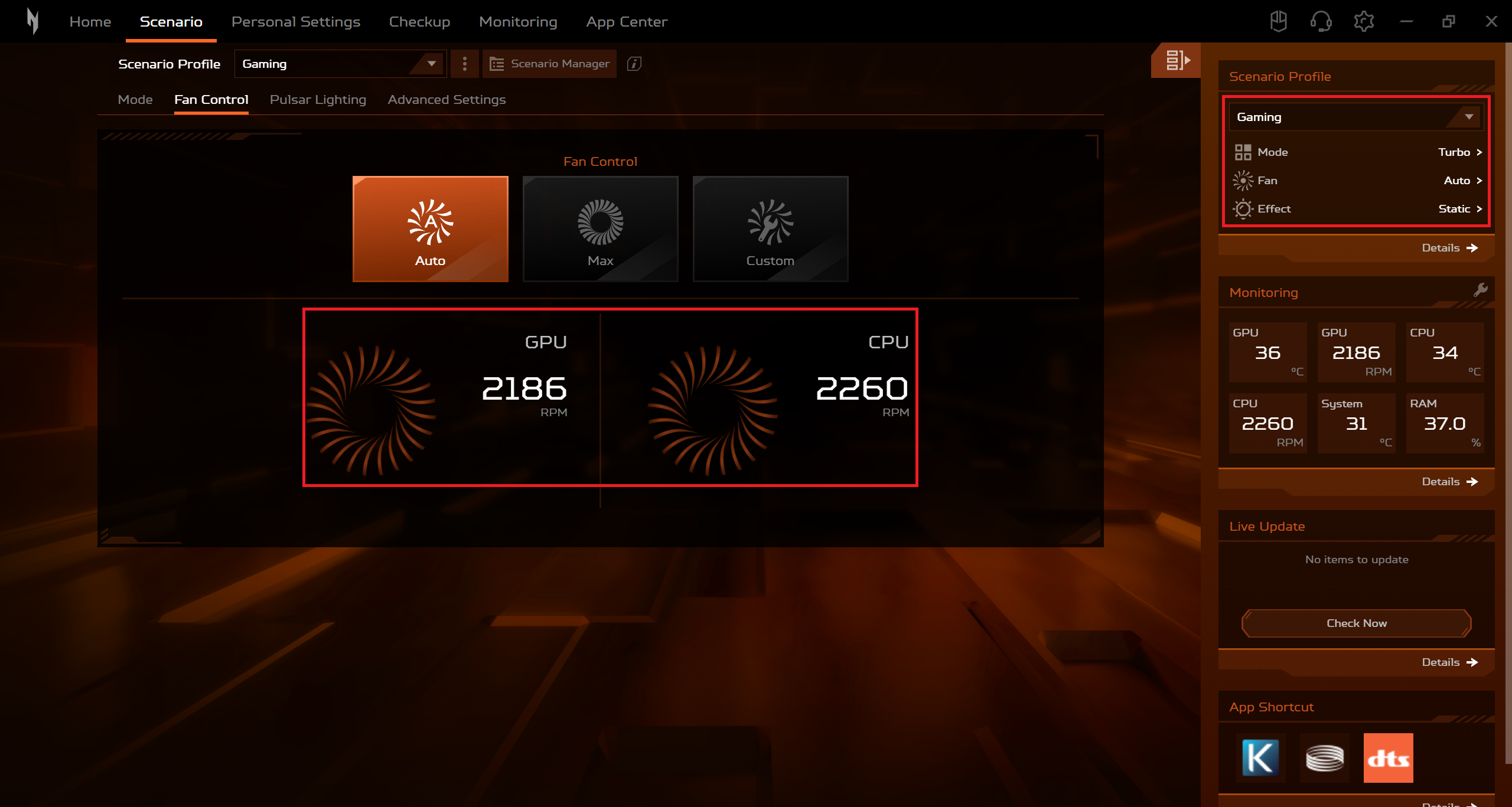 Idle fan speed
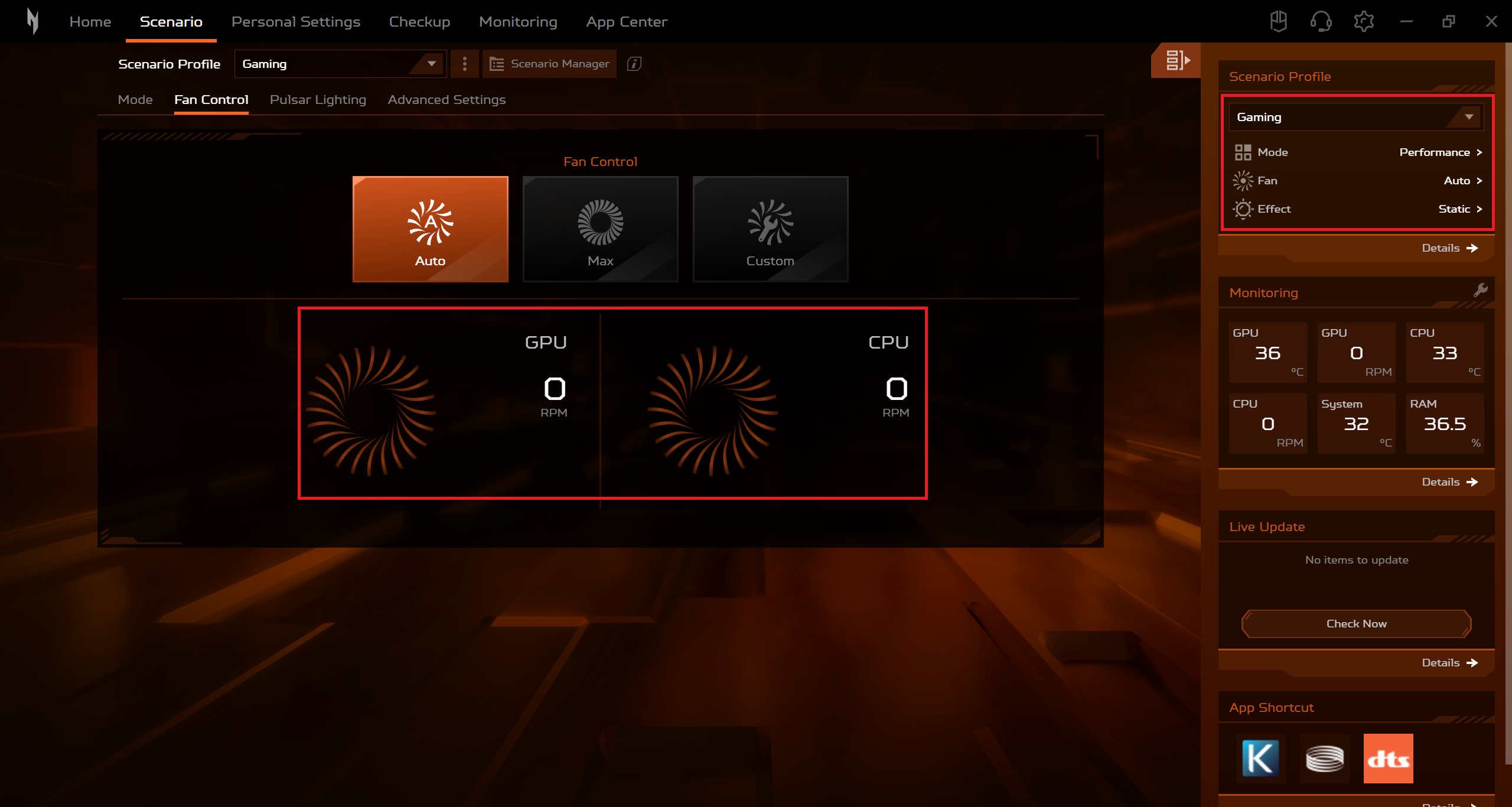
Even in “Performance” mode, the fans are completely turned off if the device is in an idle state.
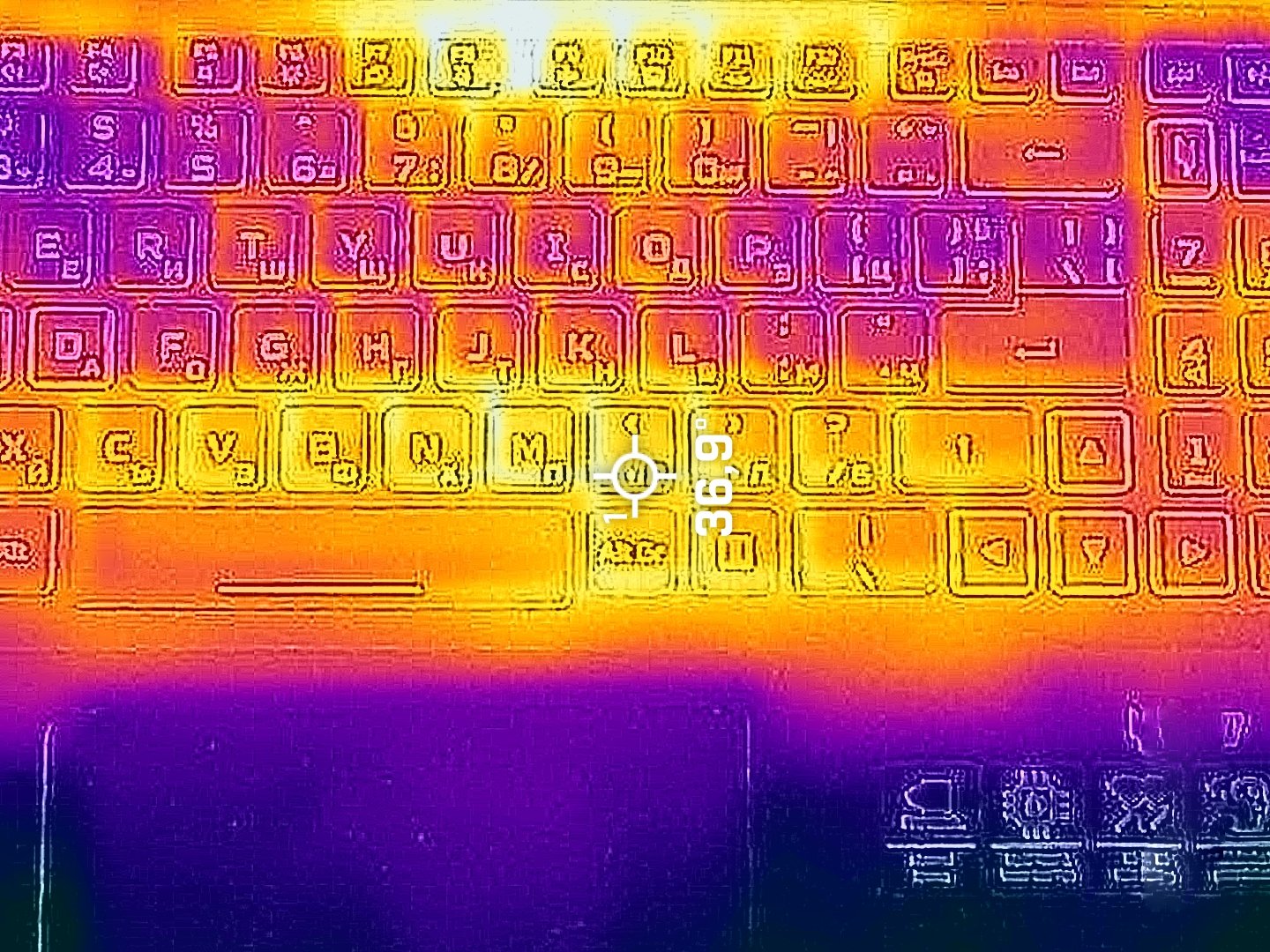
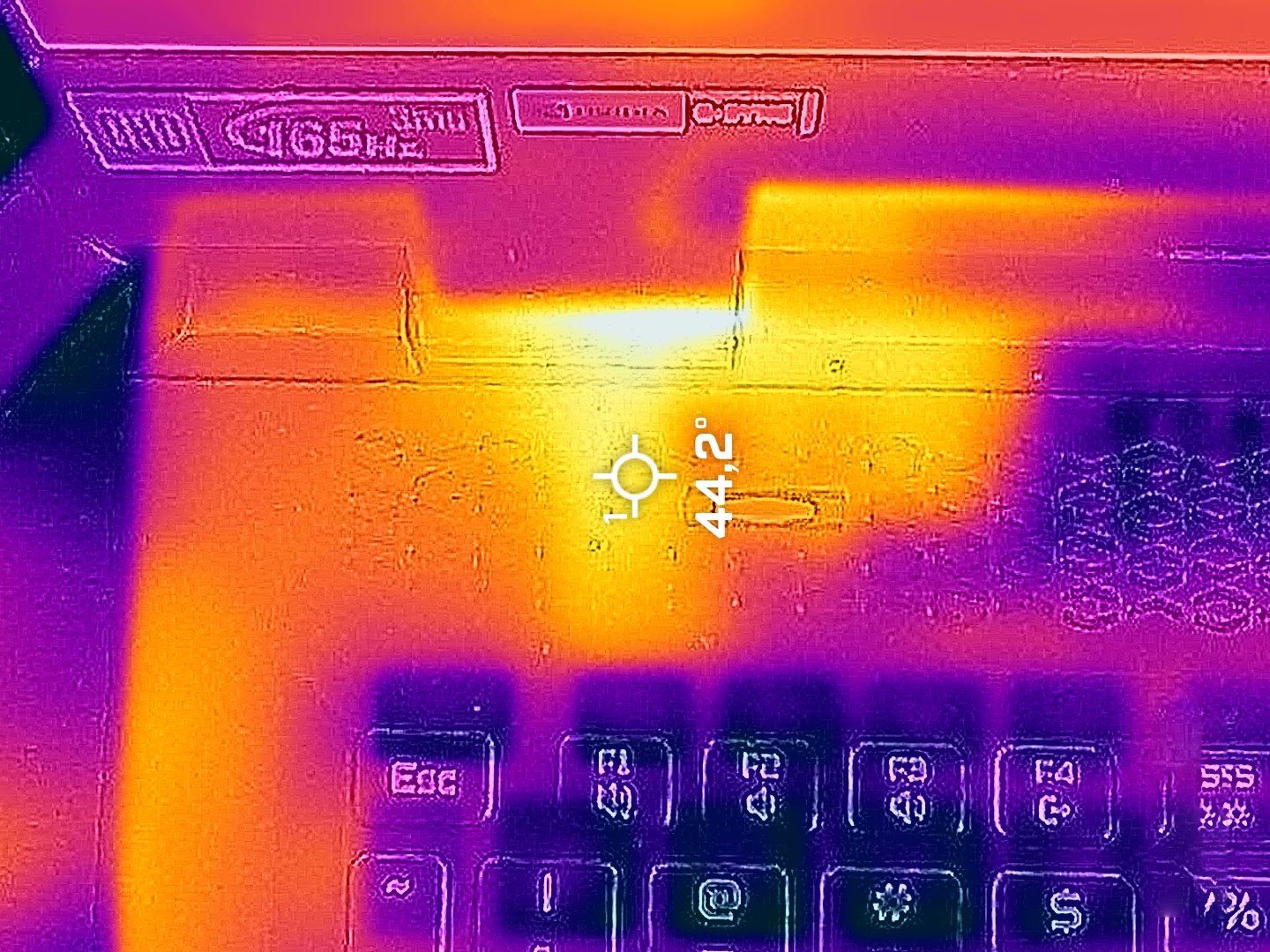
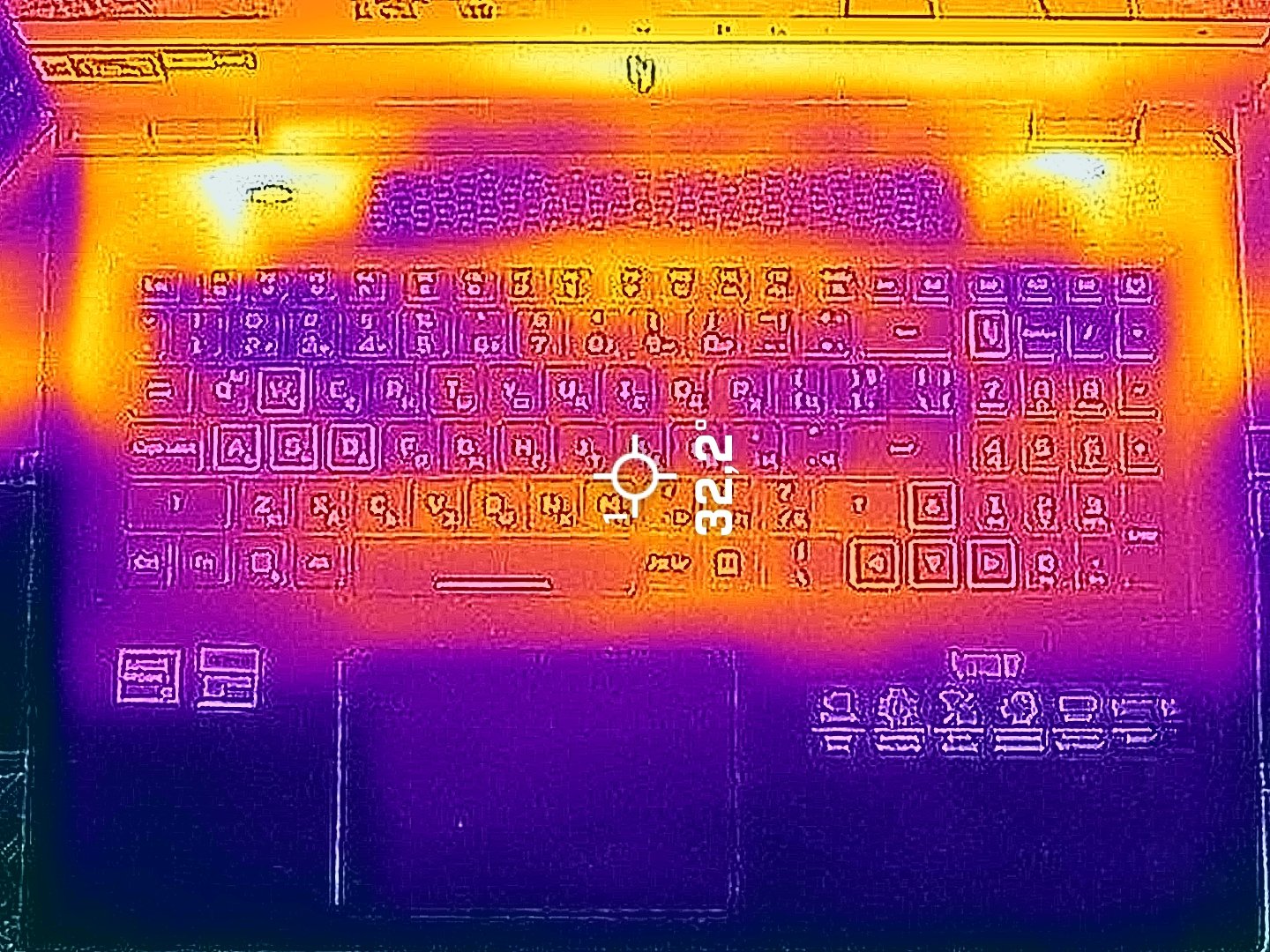
The fans suck air through the keyboard deck and that’s why the external temperatures during gaming are great! The hotspot on the board reaches just 37°C!
The fans are maxed out in “Turbo” mode when the CPU is loaded at max. However, applying the “Performance” mode doesn’t lead to a power hit since the CPU clock remains unchanged (~5GHz)! In addition, the fans are more relaxed.
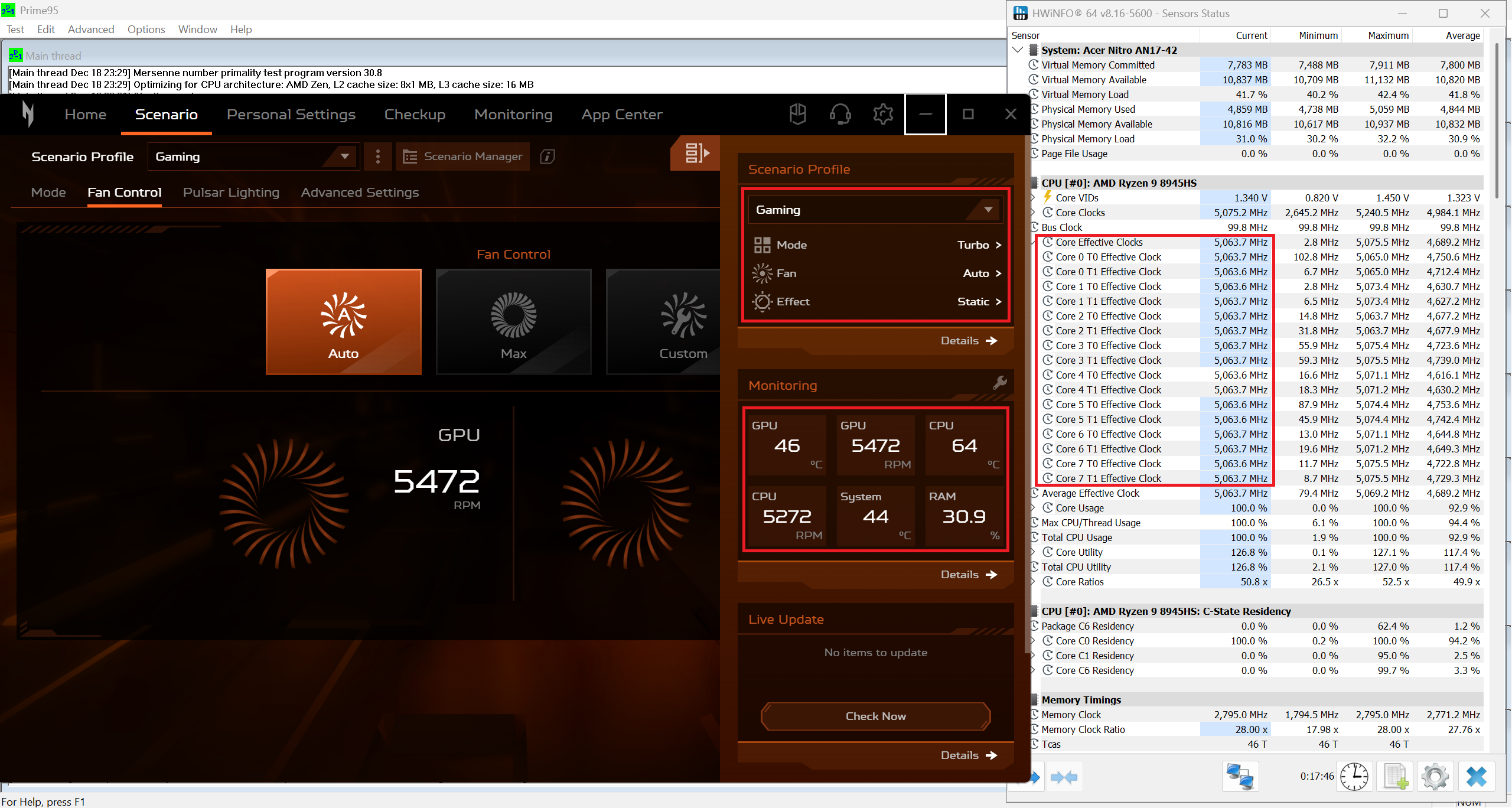 Max CPU Load “Turbo”
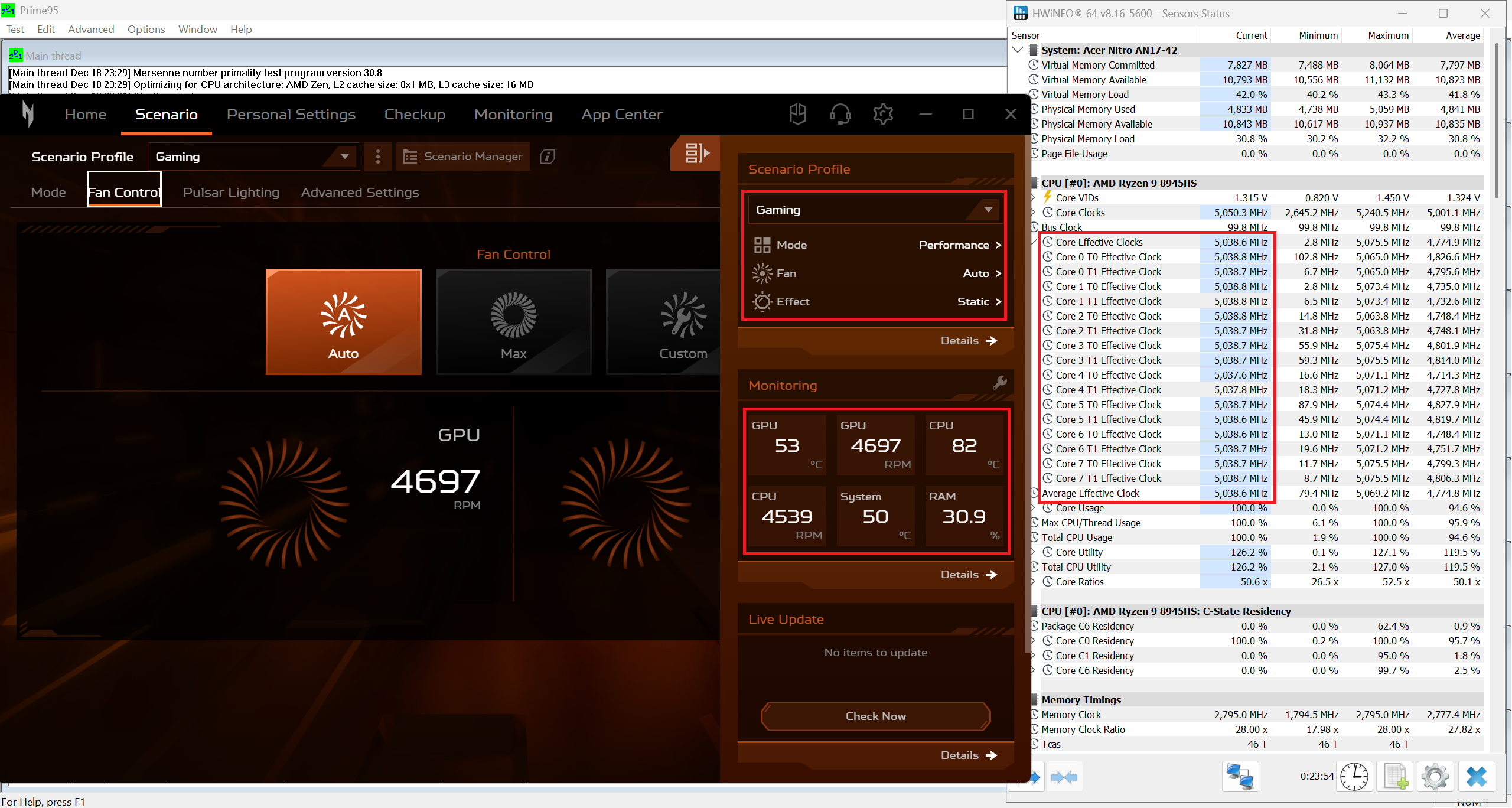 Max CPU Load “Performance”
We observe the same scenario when using the machine for gaming. The GPU TGP is around 120W in both “Performance” and “Turbo” presets. The latter boasts a slightly higher core clock.
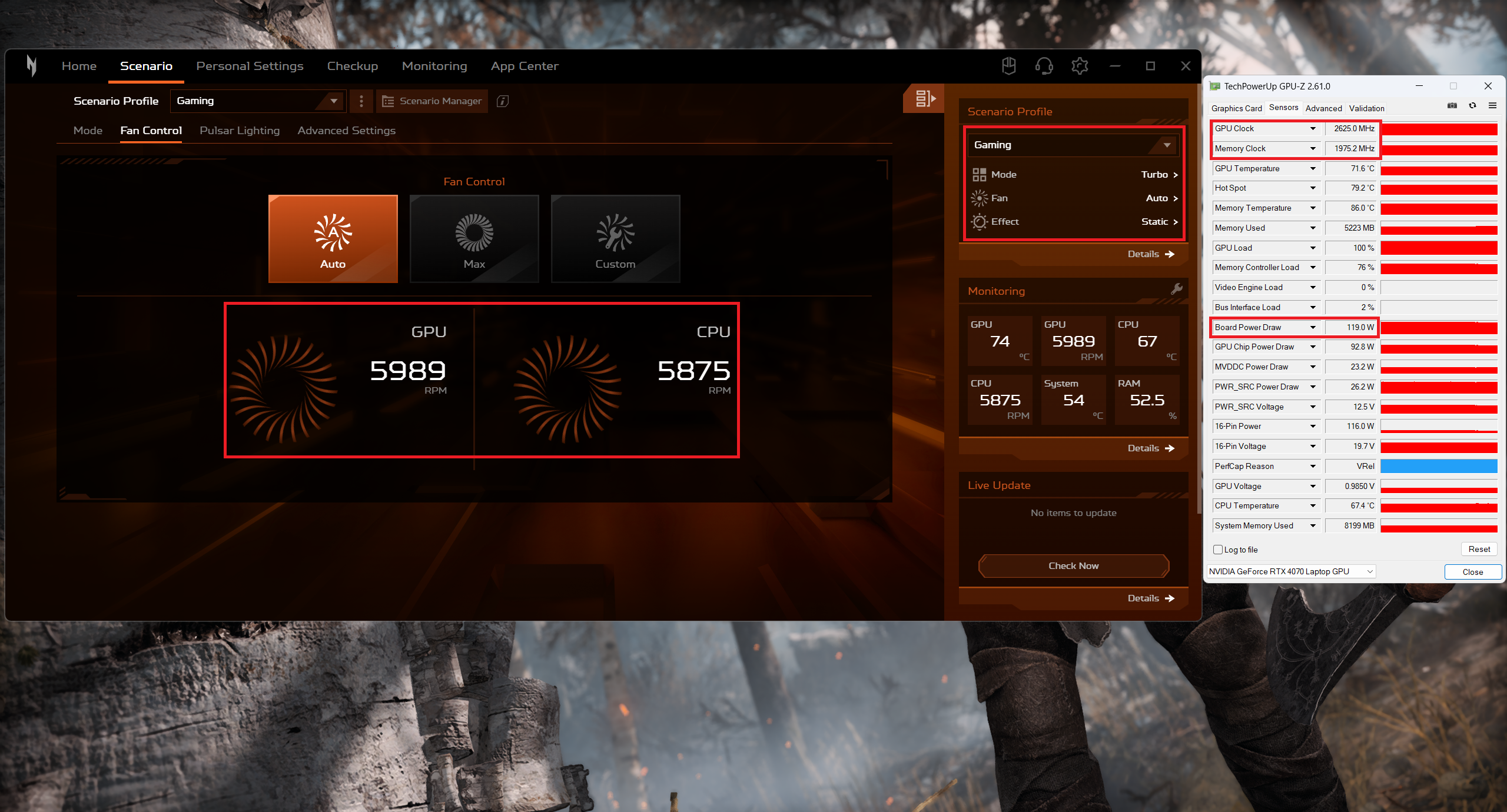 Gaming “Turbo”
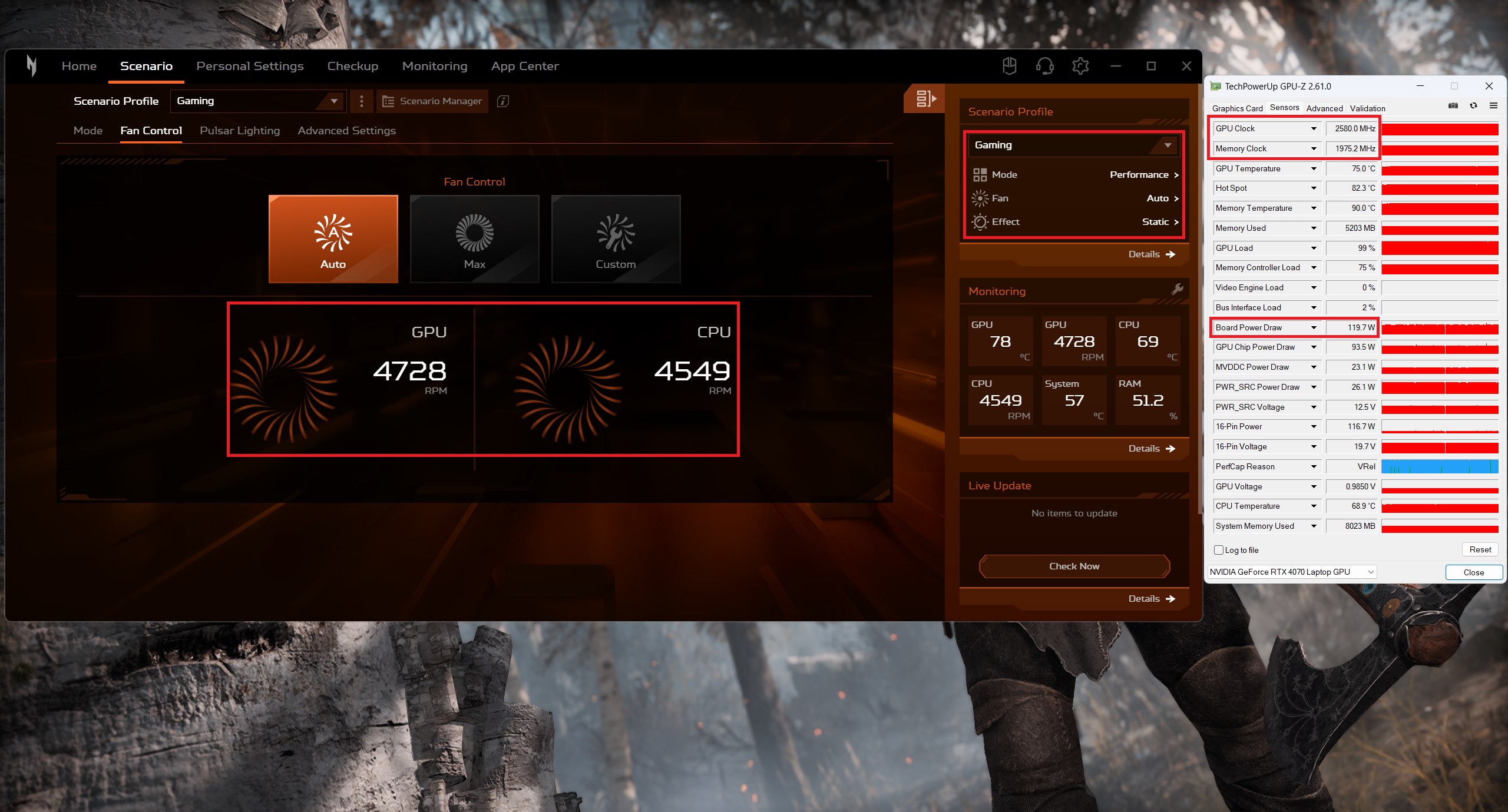 Gaming “Performance”
Battery Life
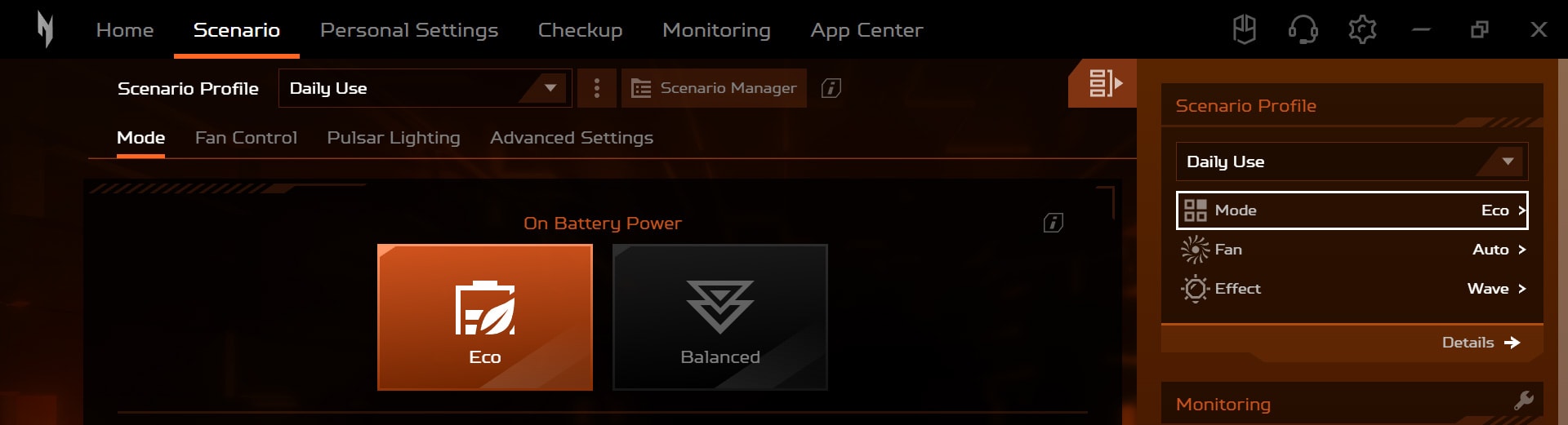
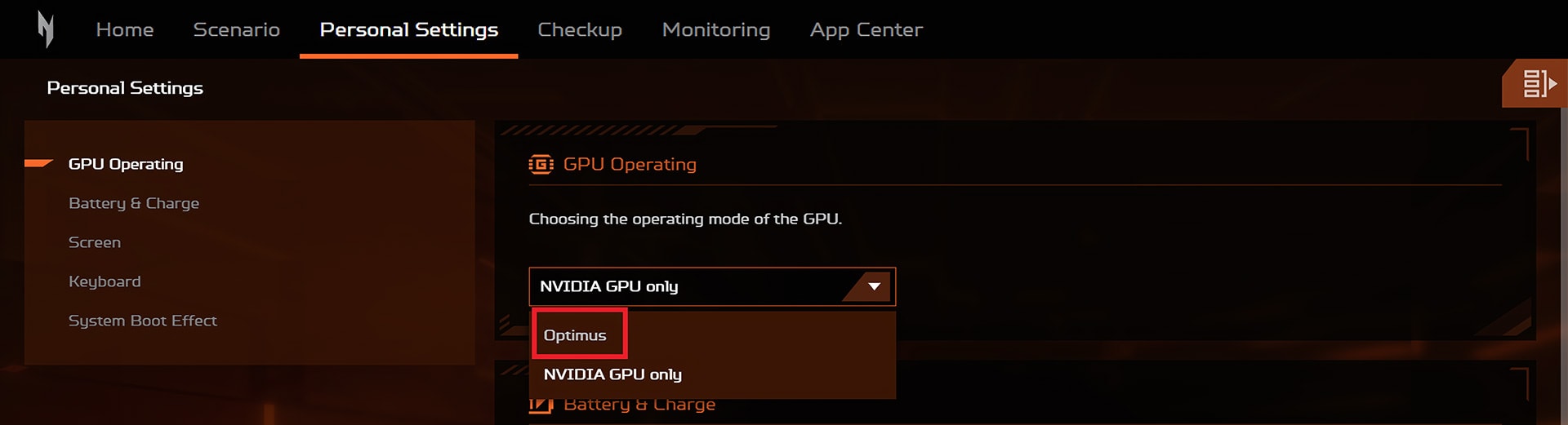
Now, we conduct the battery tests with the Windows Best Power Efficiency setting turned on, screen brightness adjusted to 180 nits and all other programs turned off except for the one we are testing the notebook with. This laptop’s 90Wh battery lasts for around 6 hours and 18 minutes of video playback. Оur test was conducted with the “Eco” and “Optimus” modes applied in the Acer Nitro Sense app.
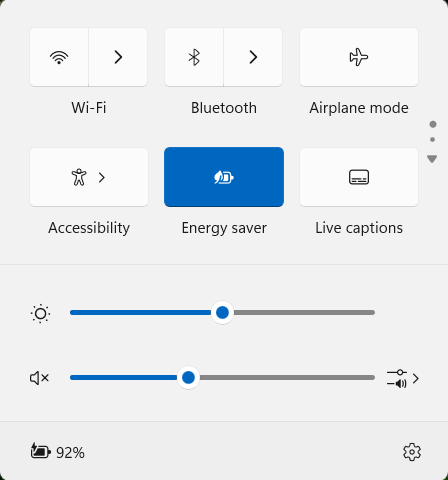
Also, the “Energy Saver” preset is activated in the Windows “Power & Battery” menu.
चमक: 180 nits; डिस्प्ले मोड: SDR
पूर्ण डिस्चार्ज का समय: उच्चतर बेहतर है


Disassembly, Upgrade options, and Maintenance
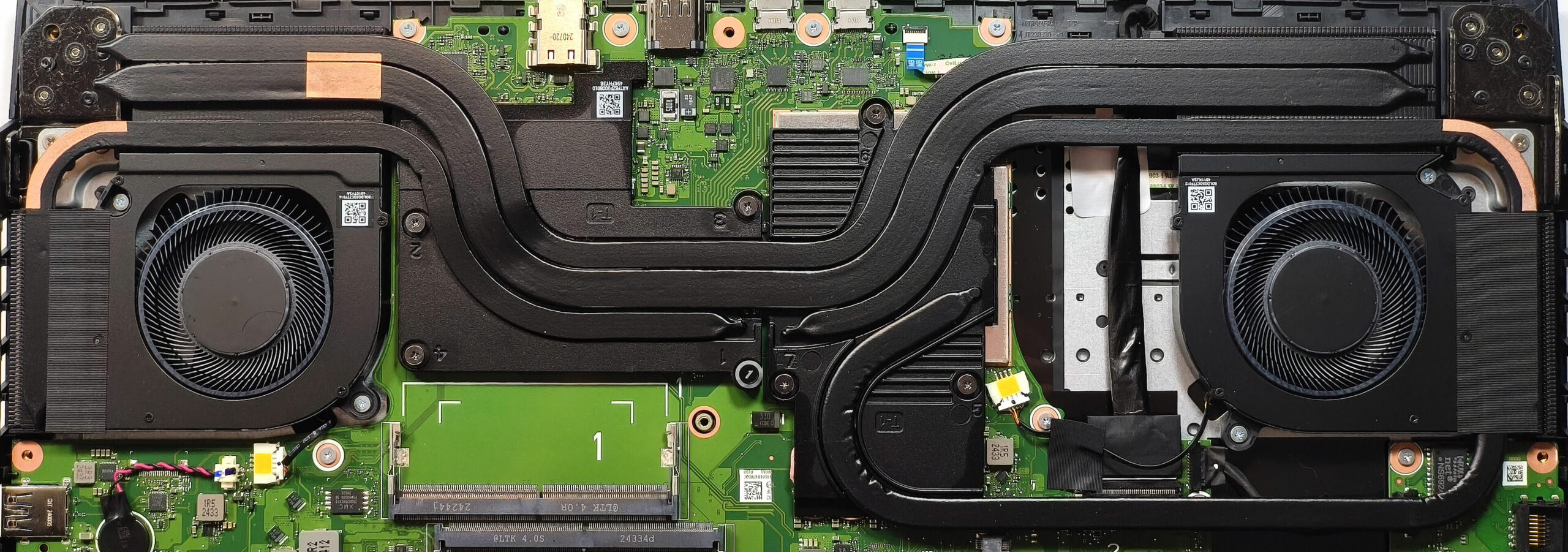
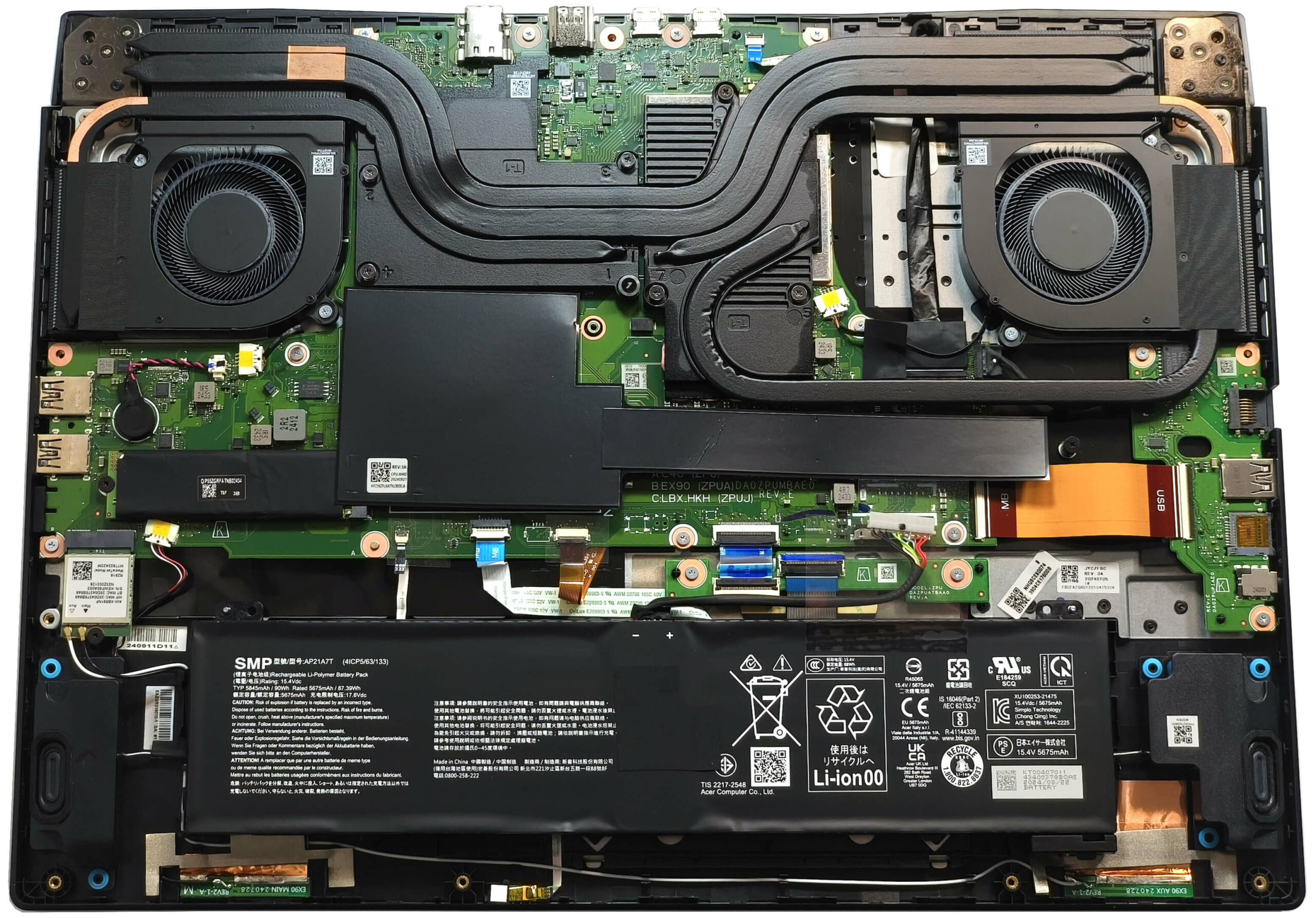
If you want to open this big gaming laptop, you have to undo 11 Phillips-head screws. Hold the pair of plastic vents on the back and pop the rear of the panel. The easiest method is to pop the exhausts individually using both hands to gently separate the bottom cover until it reaches the level of the LAN connector. Then, pry the rest of the sides as well as the front with a thin plastic tool.
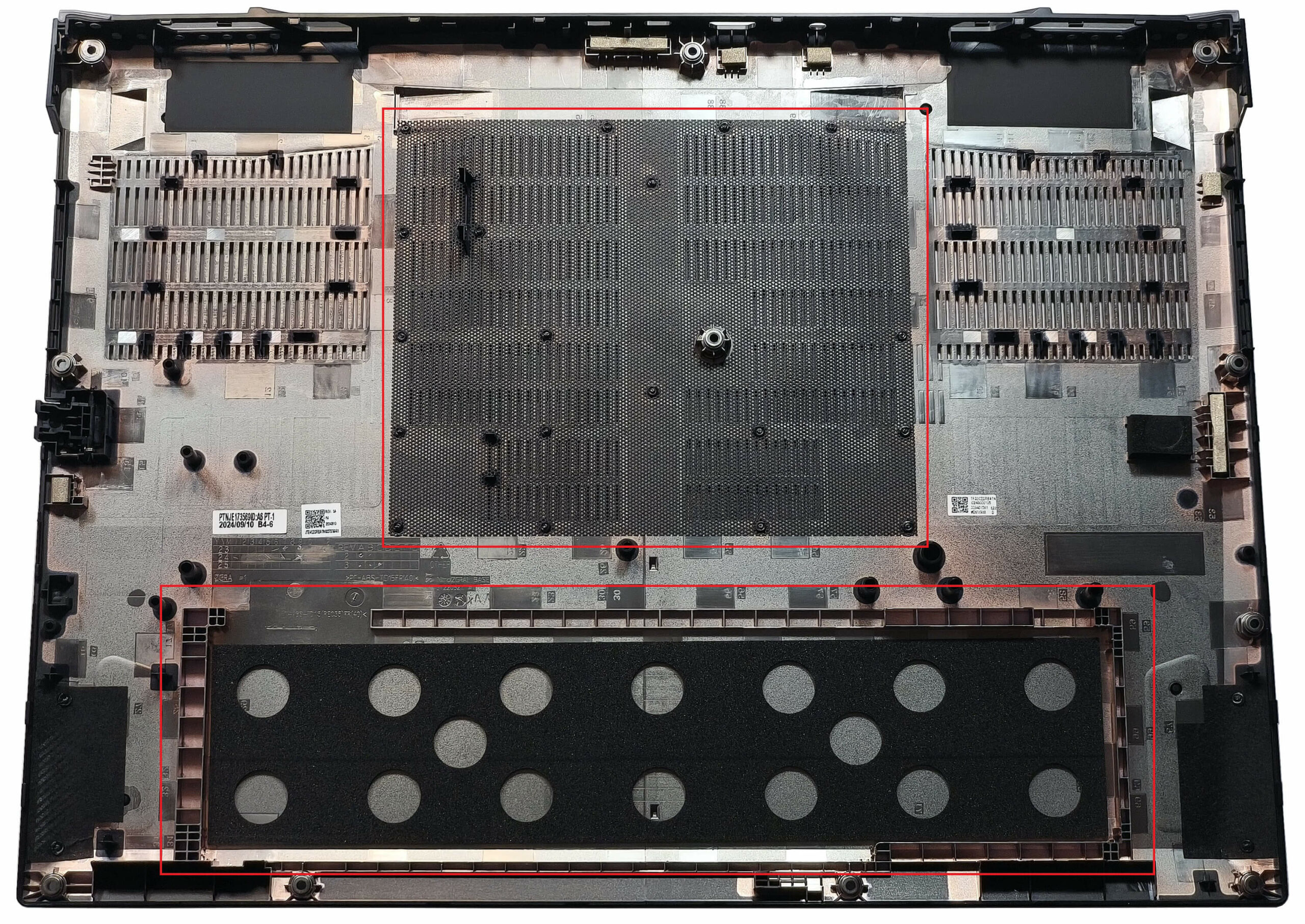
The battery isn’t secured to the chassis with screws because there is a dedicated socket for it on the inside of the bottom panel alongside a large dust filter for the two central grills.
The battery is a 90Wh model. To take it out, pull down the connector towards the unit and lift the battery away from the base. The capacity is enough for around 6 hours and 18 minutes of video playback.
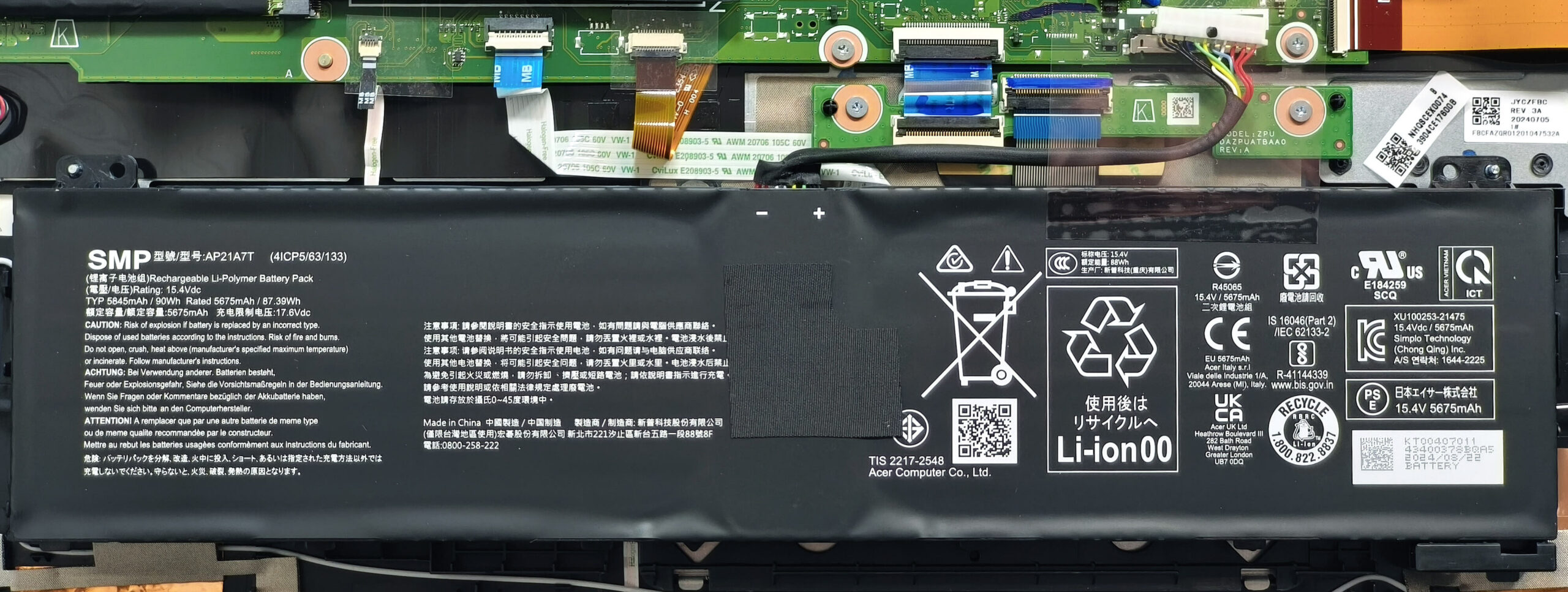
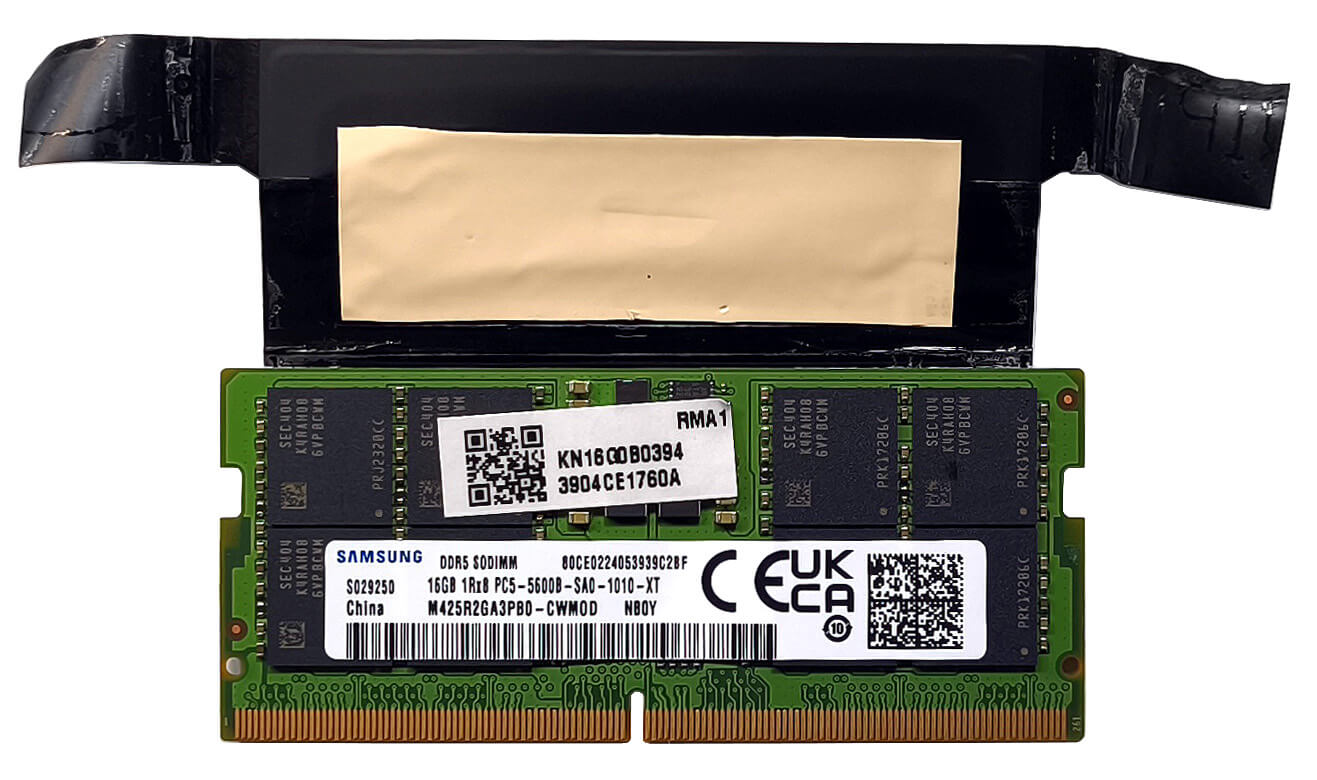
The RAM section, the right SSD slot, and the system NVMe are covered with heat shields.
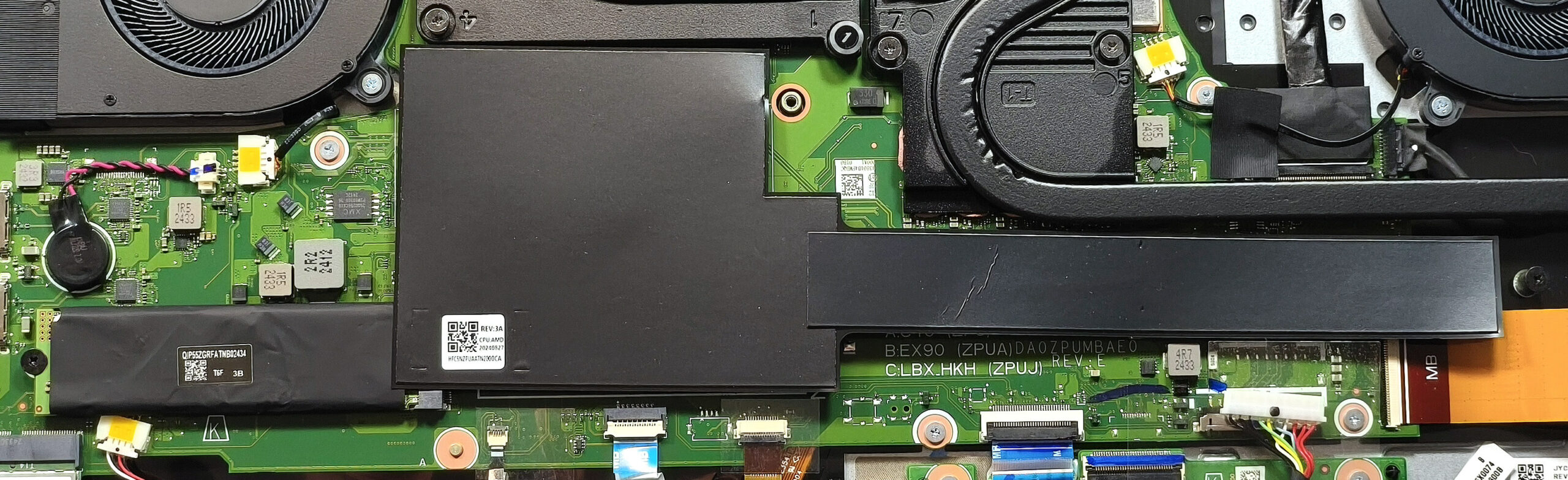
According to Acer, the two SODIMMs are compatible with up to 32GB of DDR5-5600MHz memory in dual-channel mode. However, since the CPU can support up to 256GB, this laptop likely wouldn’t have issues running a larger amount of memory than the official manufacturer’s specified limit. Here, the preinstalled RAM stick is wrapped in a heat shield that houses a cooling pad from below.
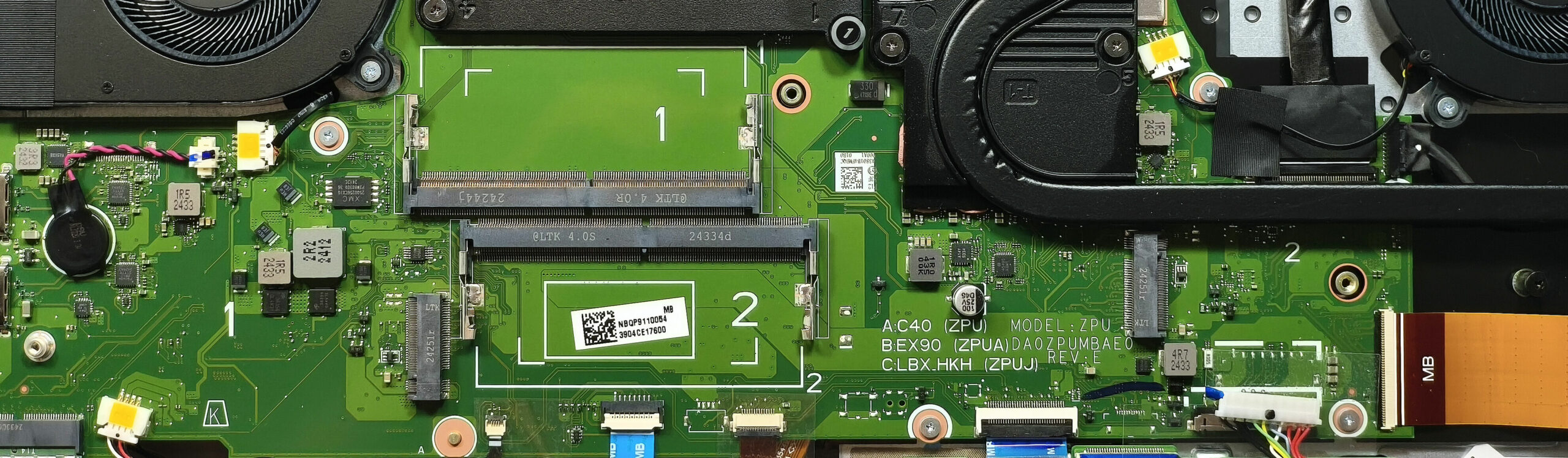
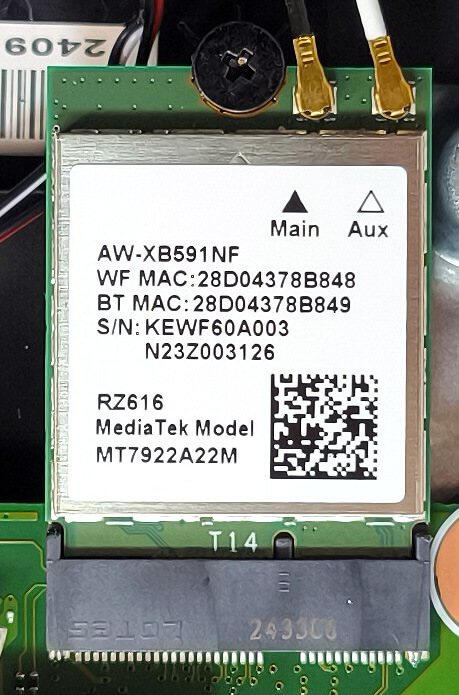
You get a pair of M.2 slots for 2280 Gen 4 SSDs. The Wi-Fi 6E card can be seen close to the left NVMe slot.
The two-fan cooling is hefty and it comprises liquid metal on the CPU die and rectangular vector heat pipes that offer wider contact surfaces for better heat transfer. A pair of heat pipes is shared between the processor and the graphics card plus one additional pipe for the CPU and two more for the video card. We can also see four heat sinks and two large metal plates that cover the chips, the taller one is on the GPU side.
Verdict
 We can conclude that the Nitro 17 (AN17-42) is one of the best gaming devices in its class. The main reason for that is the great “Performance” mode which offers a lower fan noise and the same CPU clocks and GPU TGP compared to the “Turbo” presets. Also, the fans don’t spin that aggressively which results in good comfort during gaming since the keyboard barely gets warm.
The optional 1440p 165Hz display (MNH301CA3-3 (CSW1704)) is pretty capable for the budget class. It’s a PWM-free unit with 98% sRGB coverage and very good color accuracy thanks to our “Design and Office Work” profile. Also, the pixel response time of 8ms is pretty good for an IPS screen. The screen’s max brightness is very close to the 300-nit mark, which should be sufficient for most uses
The Acer Nitro 17 is a great offer because of its superb keyboard, adequate comfort, snappy IPS panel, and potent cooling.
You can check the prices and configurations in our Specs System: https://laptopmedia.com/series/acer-nitro-17-an17-42/
Pros
- Good overall performance for the class
- PWM-free (CSW1704)
- 165Hz refresh rate + wide viewing angles (CSW1704)
- 1440p resolution and 98% sRGB coverage (CSW1704)
- Very good color accuracy when our “Design and Office Work” profile is applied (CSW1704)
- Fast pixel response times for an IPS panel (8ms) (CSW1704)
- MUX switch
- G-Sync + Nvidia Advanced Optimus
- 5x USB ports + 2.5 Gbps LAN + HDMI 2.1
- MicroSD card slot
- Great 4-zone RGB backlit keyboard
- Solid base
- The Ryzen 9 8945HS sustains ~ 5GHz even in long loads in “Turbo” mode
- The RTX 4070 boosts to 2625 MHz during gaming in “Turbo” mode
- Great “Performance” preset with the same CPU frequency and GPU TGP as the “Turbo” presets + lower noise
- The keyboard barely gets warm
- Fast SSD (SK Hynix HFS001TEJ9X125N)
- 2x SODIMMs + 2x 2280 Gen 4 M.2 slots
- Good sound quality
- Well priced machine
- Acceptable battery life given the high-res panel and the powerful hardware (~ 6 hours of videos)
- Capable cooling system
Cons
- 1x USB 2.o port
- High noise in “Turbo” mode
 Author: Nikolay Palaozov
 Author: eng. Kroum NikolovHead of Engineering at LaptopMedia.com, inventor and innovator with 40+ years of experience in electronics and high technology.
शीर्ष 100 गेमिंग लैपटॉप


शीर्ष लैपटॉप रेटिंग
मुख्य बातें और देखें
![[May 2026] Global Ranking of Best-Selling Laptop GPUs on Amazon – Apple Dominates with 45% Share, Sweeps Top 3 Spots; NVIDIA’s RTX 5060 Leads the Dedicated GPU Pack](https://laptopmedia.com/wp-content/uploads/2026/06/Best-Selling-GPUs-GLOBAL-Top-10-400x225.jpg)
[May 2026] Global Ranking of Best-Selling Laptop GPUs on Amazon – Apple Dominates with 45% Share, Sweeps Top 3 Spots; NVIDIA’s RTX 5060 Leads the Dedicated GPU Pack
जून 04, 2026![[May 2026] Global Ranking of Best-Selling Laptop CPUs on Amazon – Apple Crushes Competition with 45.2% Market Share, M5 Dominates](https://laptopmedia.com/wp-content/uploads/2026/06/Best-Selling-CPUs-GLOBAL-Top-10-400x225.jpg)
[May 2026] Global Ranking of Best-Selling Laptop CPUs on Amazon – Apple Crushes Competition with 45.2% Market Share, M5 Dominates
जून 04, 2026![[May 2026] Amazon Germany: Top 7 Best-Selling Gaming Laptops – Lenovo Legion 5i Crowned Champion Amidst Fierce Mid-Range Competition](https://laptopmedia.com/wp-content/uploads/2026/06/Best-Selling-Gaming-Laptops-DE-Top-10-1-400x225.jpg)
[May 2026] Amazon Germany: Top 7 Best-Selling Gaming Laptops – Lenovo Legion 5i Crowned Champion Amidst Fierce Mid-Range Competition
जून 03, 2026![[May 2026] Amazon Italy: Top 10 Best-Selling Laptops – Apple MacBook Neo Reigns Supreme, Premium Models Capture Dominant Revenue Share](https://laptopmedia.com/wp-content/uploads/2026/06/Best-Selling-Laptops-IT-Top-10-400x225.jpg)
[May 2026] Amazon Italy: Top 10 Best-Selling Laptops – Apple MacBook Neo Reigns Supreme, Premium Models Capture Dominant Revenue Share
जून 03, 2026![[May 2026] Best-Selling Laptop Brands on Amazon Italy – Apple Dominates Across All Metrics](https://laptopmedia.com/wp-content/uploads/2026/06/IT-Best-Brands-400x225.jpg)
[May 2026] Best-Selling Laptop Brands on Amazon Italy – Apple Dominates Across All Metrics
जून 03, 2026
समीक्षाएं और देखें
Dell 15 (DC15250) review – Practical Office Laptop with Big Configuration Traps
जून 05, 2026MSI Cyborg 17 B13W review – Big Screen, Low RTX Power
जून 02, 2026Apple MacBook Air 15.3″ (M5) – The Best 15-Inch Laptop for Everyday Use?
मई 30, 2026ASUS ROG Zephyrus G14 (GA403, Ryzen AI 300) review – RTX 5070 Ti, OLED, and True Portability
मई 27, 2026ASUS Vivobook 18 (M1807) review – Huge Screen, Big Battery, Real Compromises
मई 23, 2026