HP Pavilion Plus 16 (ab0000) review – A Capable Contender with Caveats
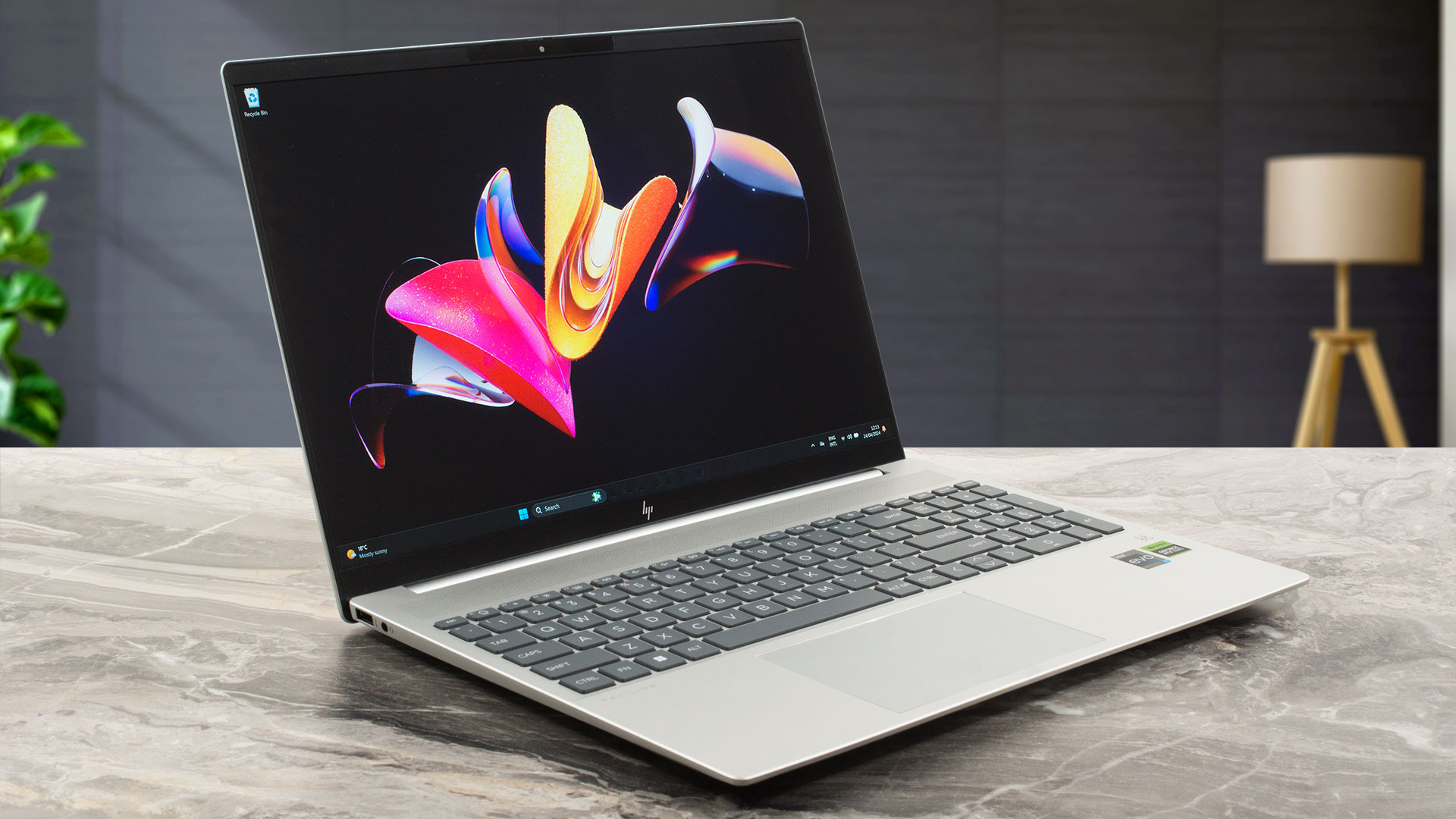 What about a laptop that looks like an office machine but can be used as an entry-level gaming device or even for content creation? The HP Pavilion Plus 16 (ab0000) falls right into this category. In addition, this is a powerful but thin notebook with a 45W Intel Raptor Lake CPU under the bonnet. Moreover, you can configure the gadget with an optional GeForce RTX 3050 with a 6GB VRAM buffer.
There aren’t too many display options for the series, actually, you’re stuck with just one screen model. That’s fine because we are talking about a 120Hz 16:10 1600p IPS panel. This one supports a Variable Refresh Rate function which in theory should lead to an enhanced battery life when the charger isn’t plugged in.
This 16-incher isn’t hefty in terms of dimensions and that’s why the upgradability isn’t great (yes, the RAM is soldered). On the other hand, the port selection is good as well as the connectivity – Wi-Fi 6E + Bluetooth 5.3. You also get some goodies such as an IR Web camera, a backlit keyboard, and audio by B&O.
You can check the prices and configurations in our Specs System: https://laptopmedia.com/series/hp-pavilion-plus-16-16t-ab0000-ab1000/

Contents
Specs, Drivers, What’s in the box
HP Pavilion Plus 16 (16t-ab0000, ab1000) - Specificații


- HDD/SSD
- până la 2048GB SSD
- Slot M.2
- 1x 2280 M.2 NVMe PCIe 4.0 x4 Vezi foto
- RAM
- up to 32GB
- SO
- Windows 11 Home, Windows 11 Pro
- Material Carcasă
- Plastic / Polycarbonate, Aluminum
- Dimensiuni
- 357.12 x 253.49 x 17.7 mm (14.06" x 9.98" x 0.70")
- Greutate
- 1.89 kg (4.2 lbs)
- Porturi și conectivitate
- 1x USB Type-A
- 3.2 Gen 1 (5 Gbps)
- 1x USB Type-A
- 3.2 Gen 2 (10 Gbps)
- 1x USB Type-C
- 3.2 Gen 2 (10 Gbps), Power Delivery (PD), DisplayPort, Sleep and Charge
- 1x USB Type-C
- 4.0, Thunderbolt 4, Power Delivery (PD), DisplayPort, Sleep and Charge
- HDMI
- 2.1
- Cititor de carduri
- Wi-Fi
- Wi-Fi 6E
- Bluetooth
- 5.3
- Mufă audio
- 3.5mm Combo Jack
- Caracteristici
- Cititor de amprente
- Cameră web
- 5MP IR with Temporal Noise Reduction
- Tastatură iluminată
- optional
- Microfon
- Dual Array Digital Microphones
- Difuzoare
- Dual Speakers, HP Audio Boost, Bang & Olufsen
- Unitate optică
- Slot blocare securitate
Toate HP Pavilion Plus 16 (16t-ab0000, ab1000) configurații
Drivers
All drivers and utilities for this notebook can be found here: https://support.hp.com/us-en/drivers/hp-pavilion-plus-16-inch-laptop-pc-16-ab0000/2101718070
What’s in the box?
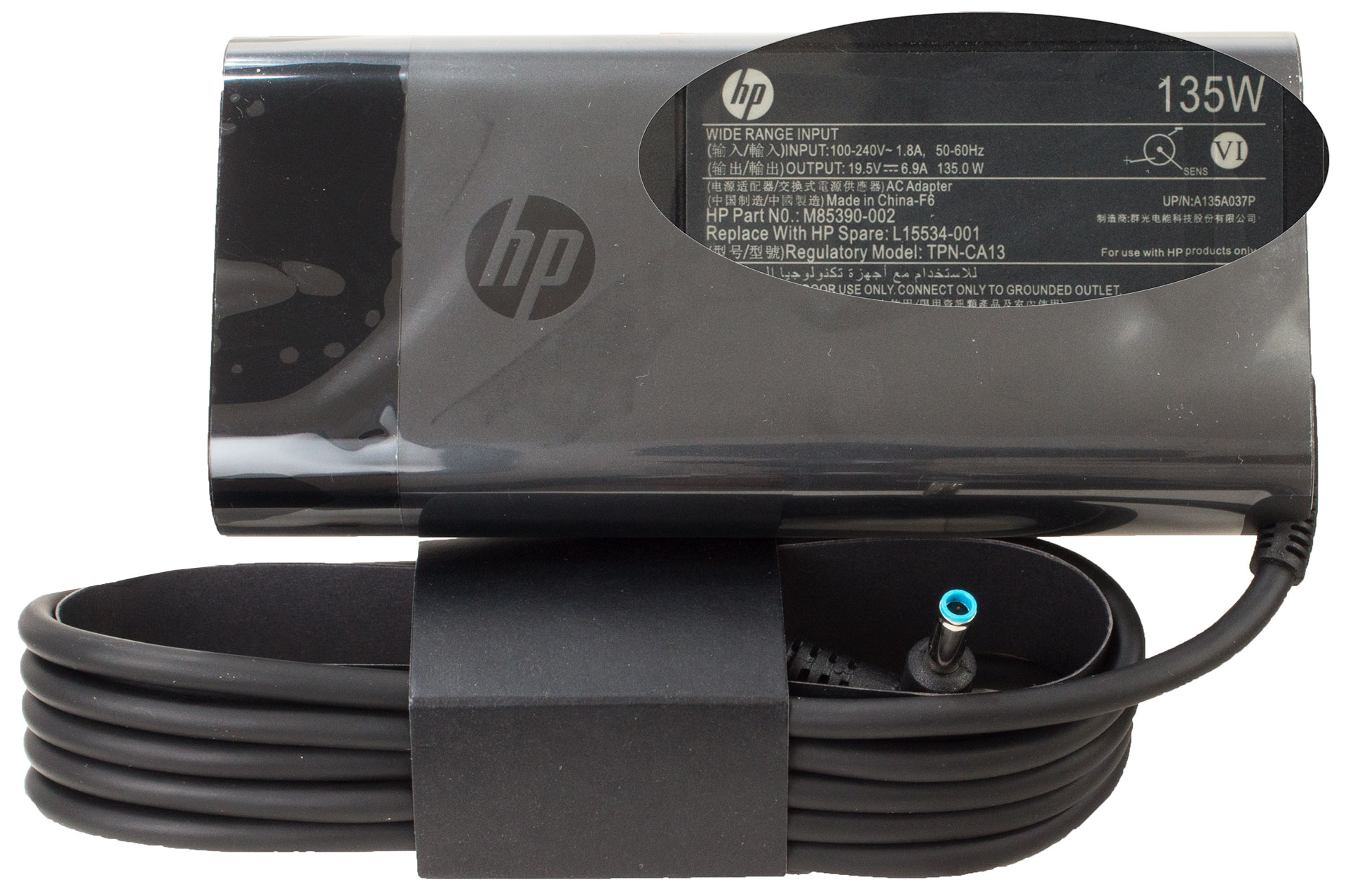
Inside the box, you get some manuals and a 90W or a 135W barrel plug adapter (depending on the CPU and GPU configuration).
Design and construction
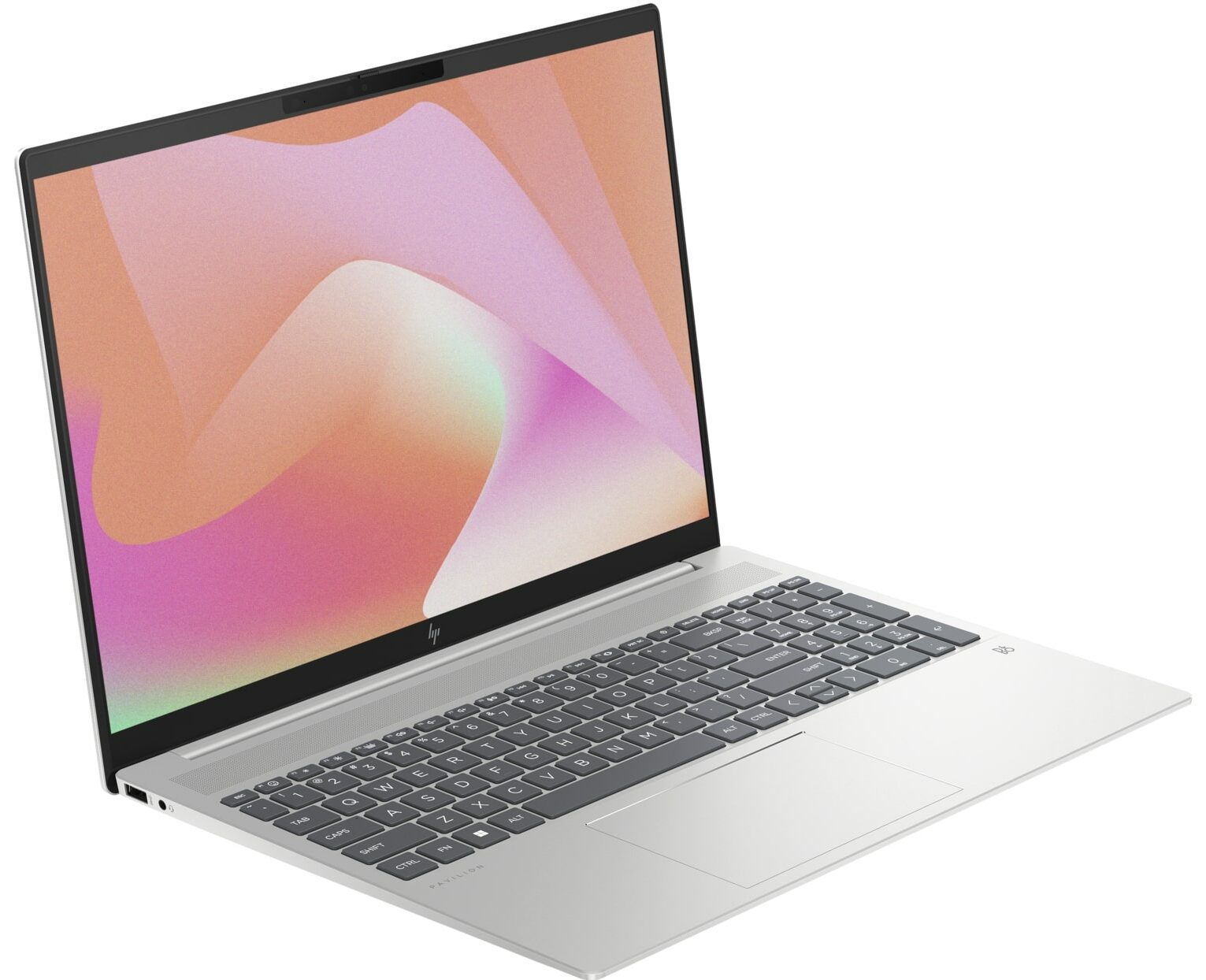
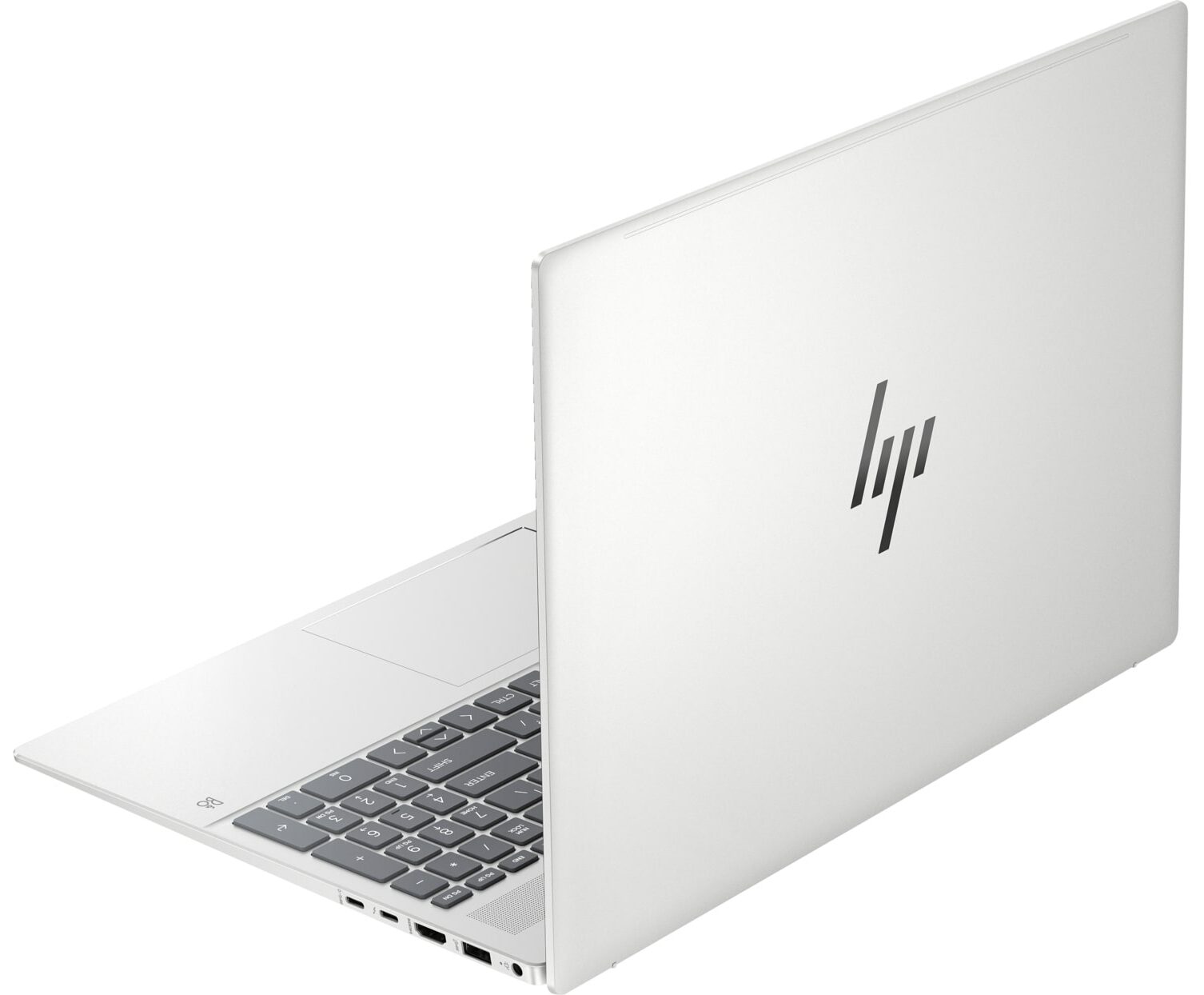
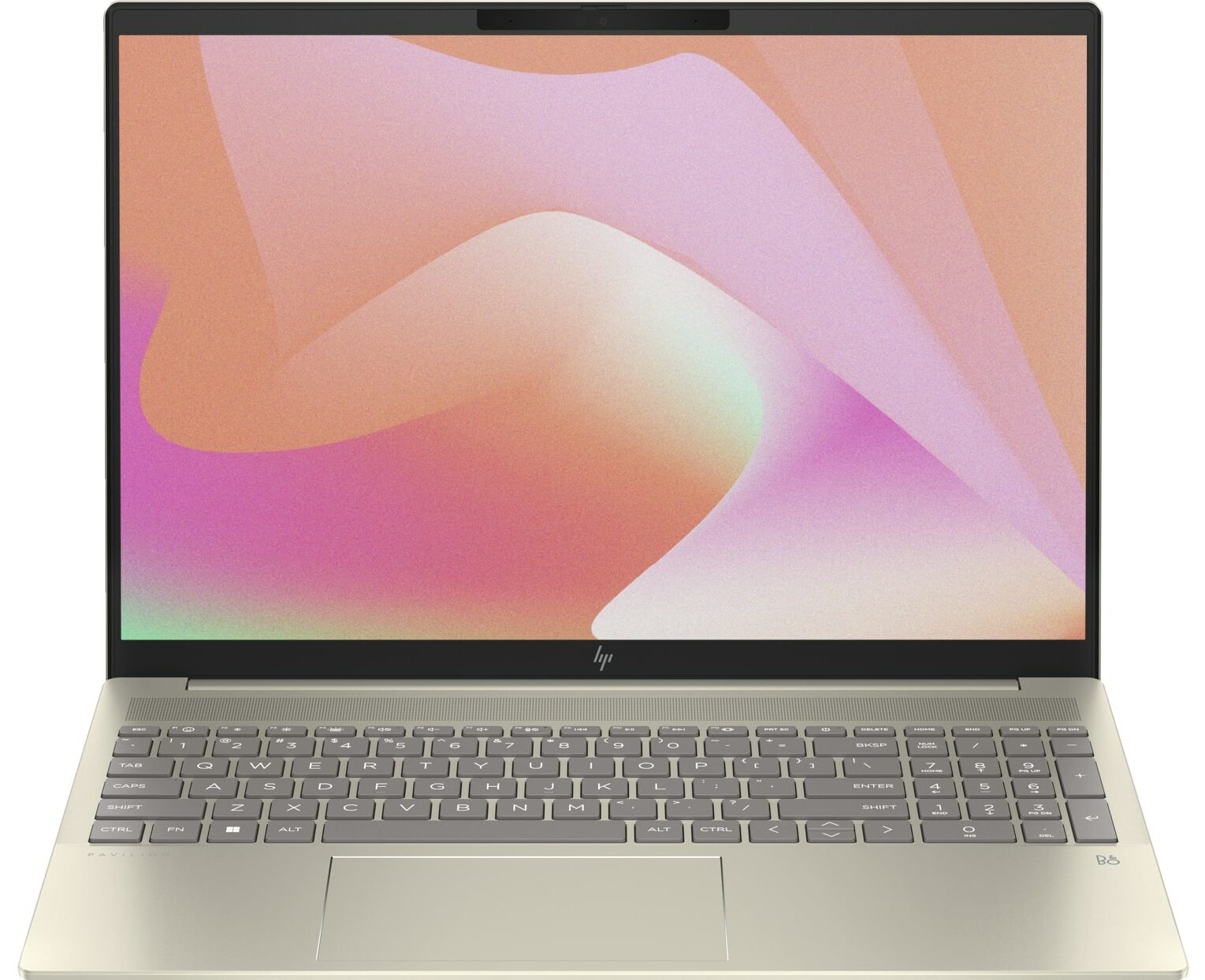
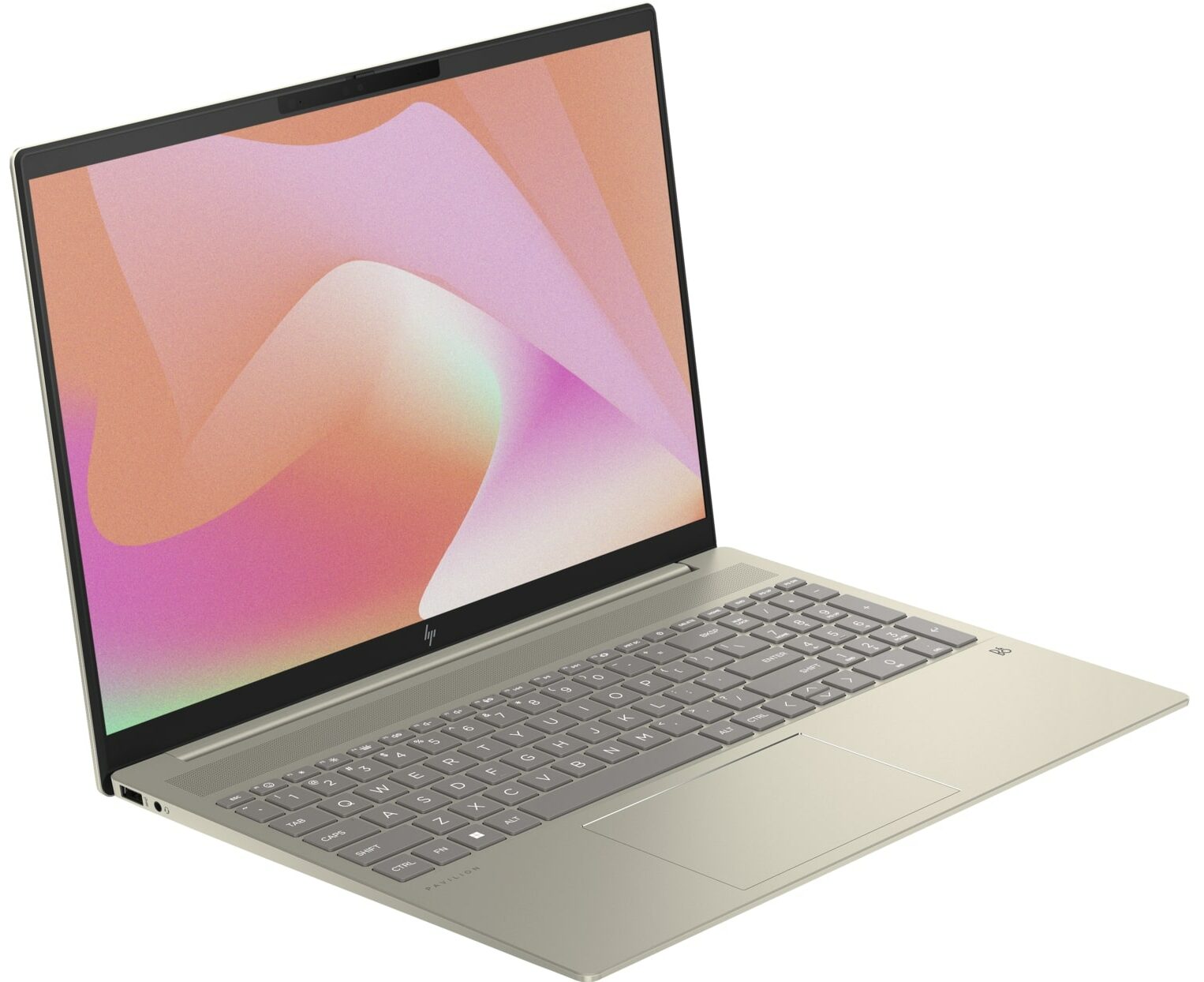
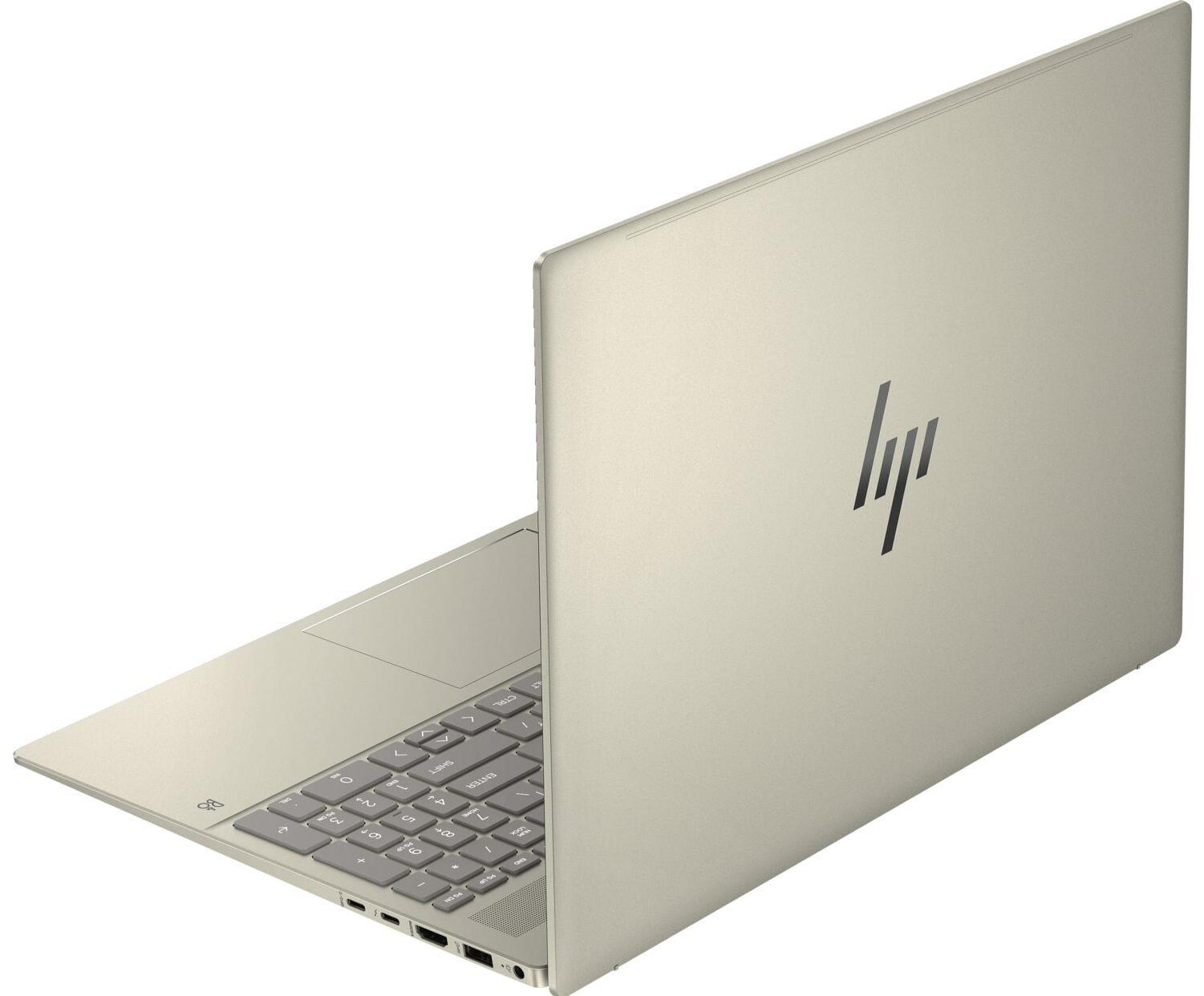
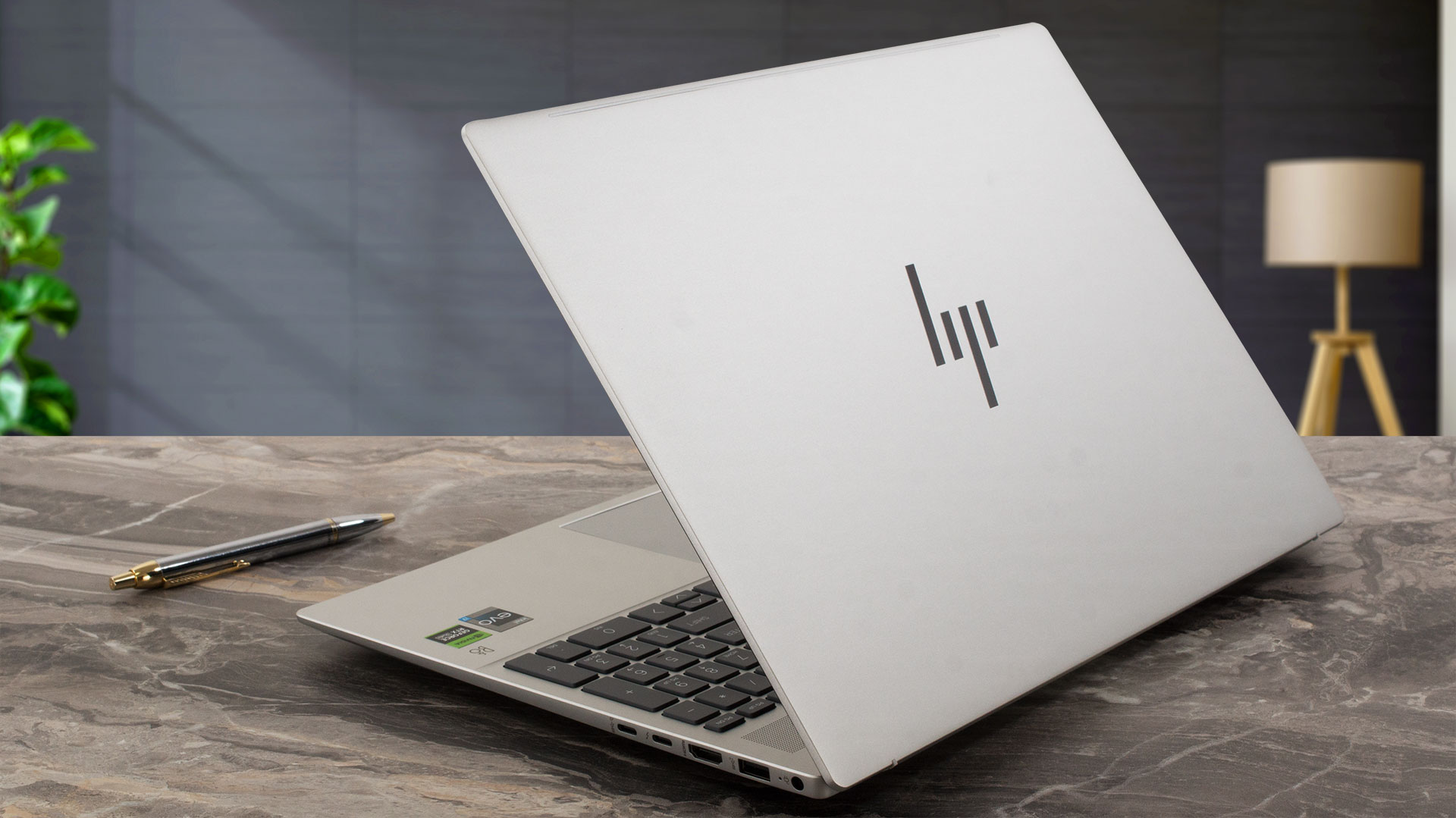
The HP Pavilion Plus 16 (ab0000) looks like a typical business device with its clean design and minimal branding on the chassis. The matte finish doesn’t attract a lot of fingerprints. The aluminum lid is a bit spongy in both closed and opened positions. The base is more rigid, we spot a bit of flex above the touchpad and below the Arrow keys but this shouldn’t be a problem during normal usage because the keyboard deck remains stable under harsh typing.
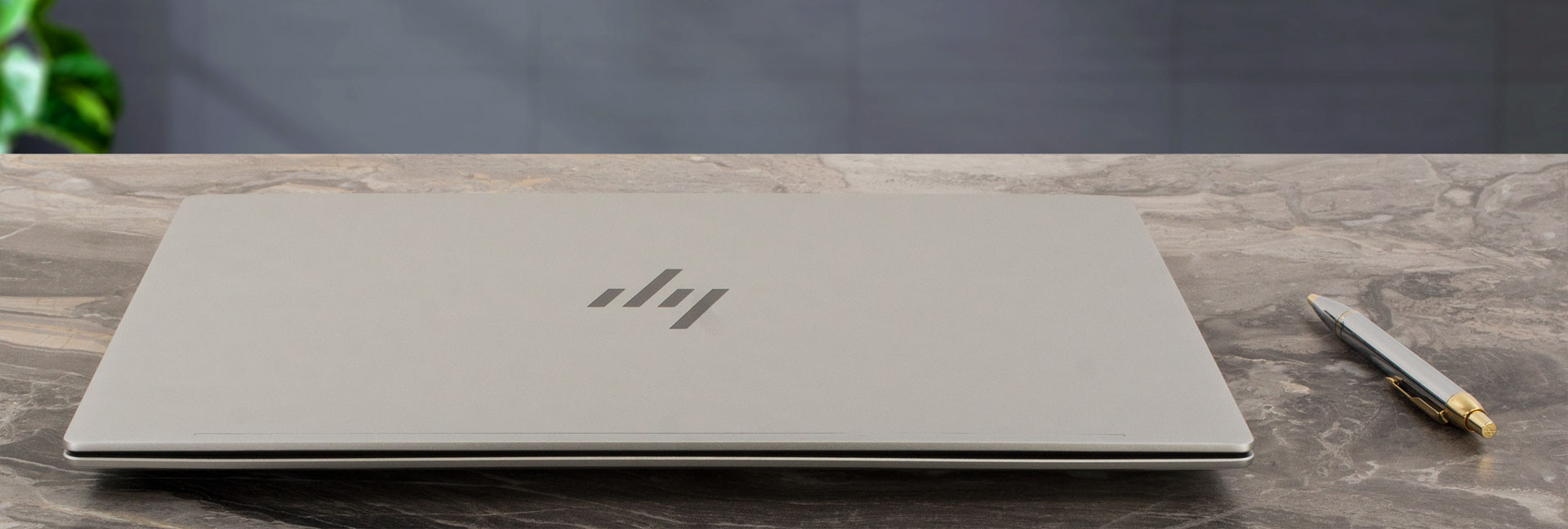
The lid feels light and it opens easily with a single hand. This device may be powerful, but it’s not a porker at all. It weighs 1.89 kilos and the profile thickness is 17.7 mm – pretty good given the 16-inch form factor.
The side bezels around the display are thin while the other two are a bit more thicker.
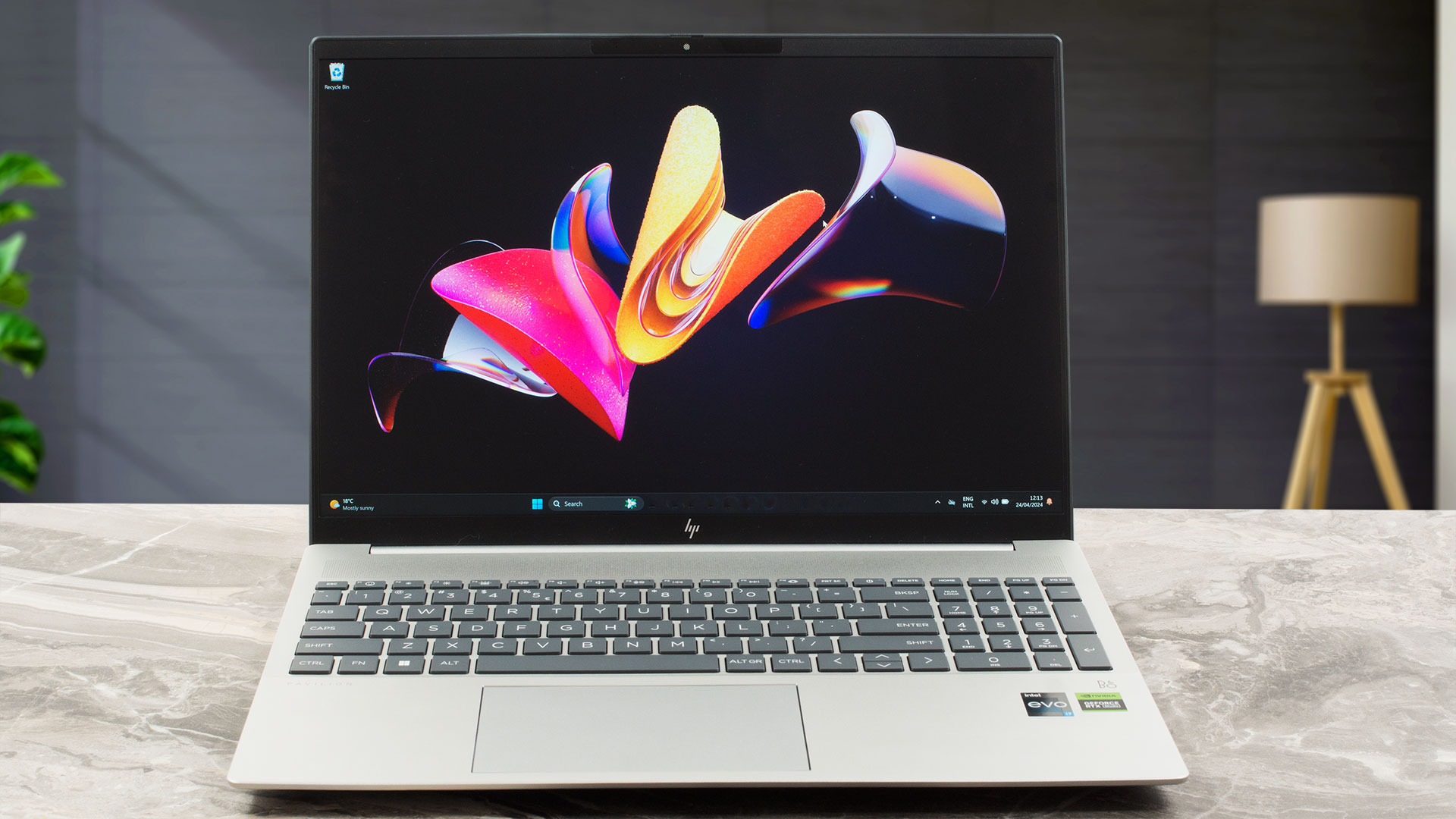
The 5MP IR Web camera with temporal noise reduction and privacy shutter is placed above the display.
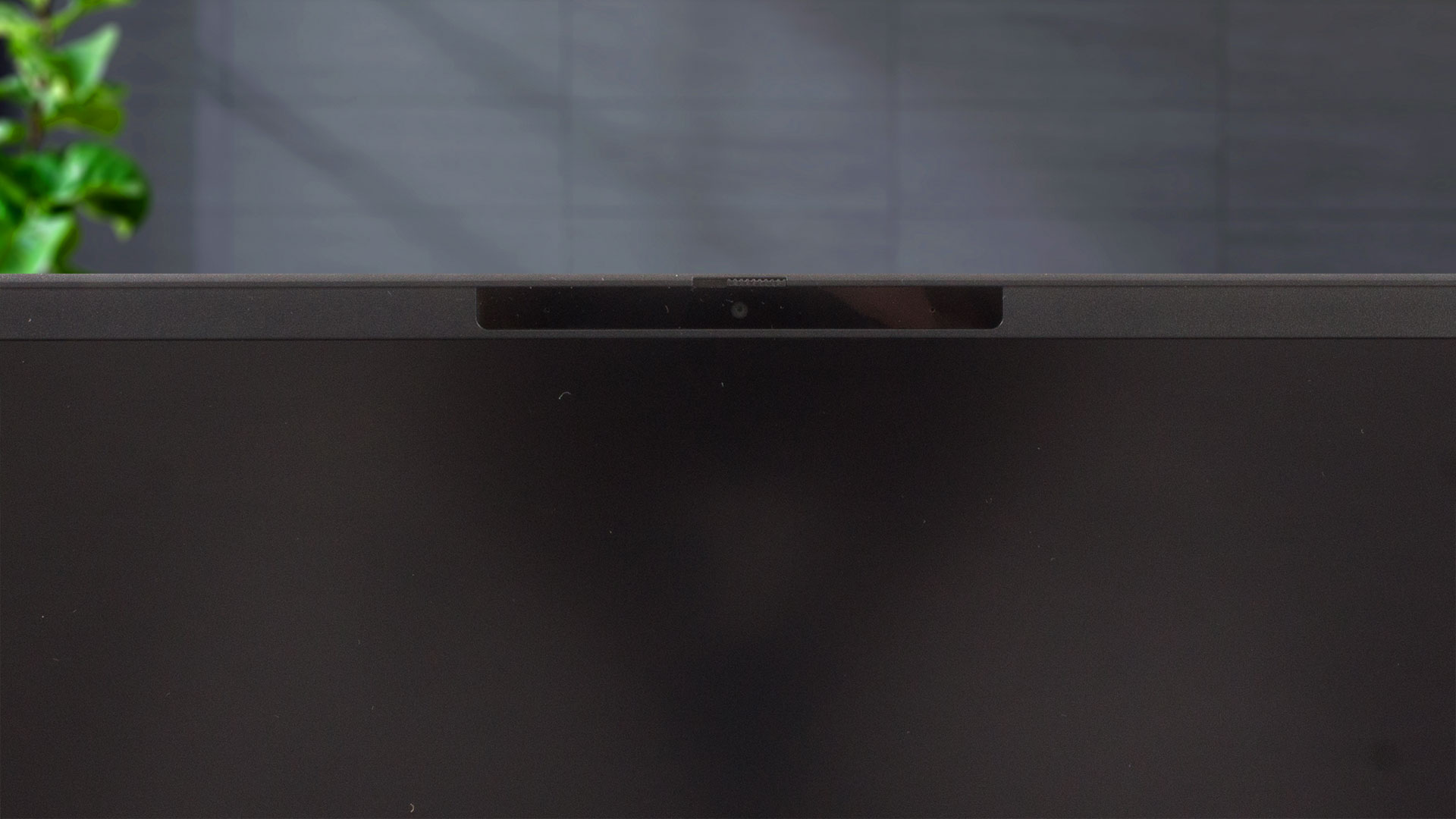
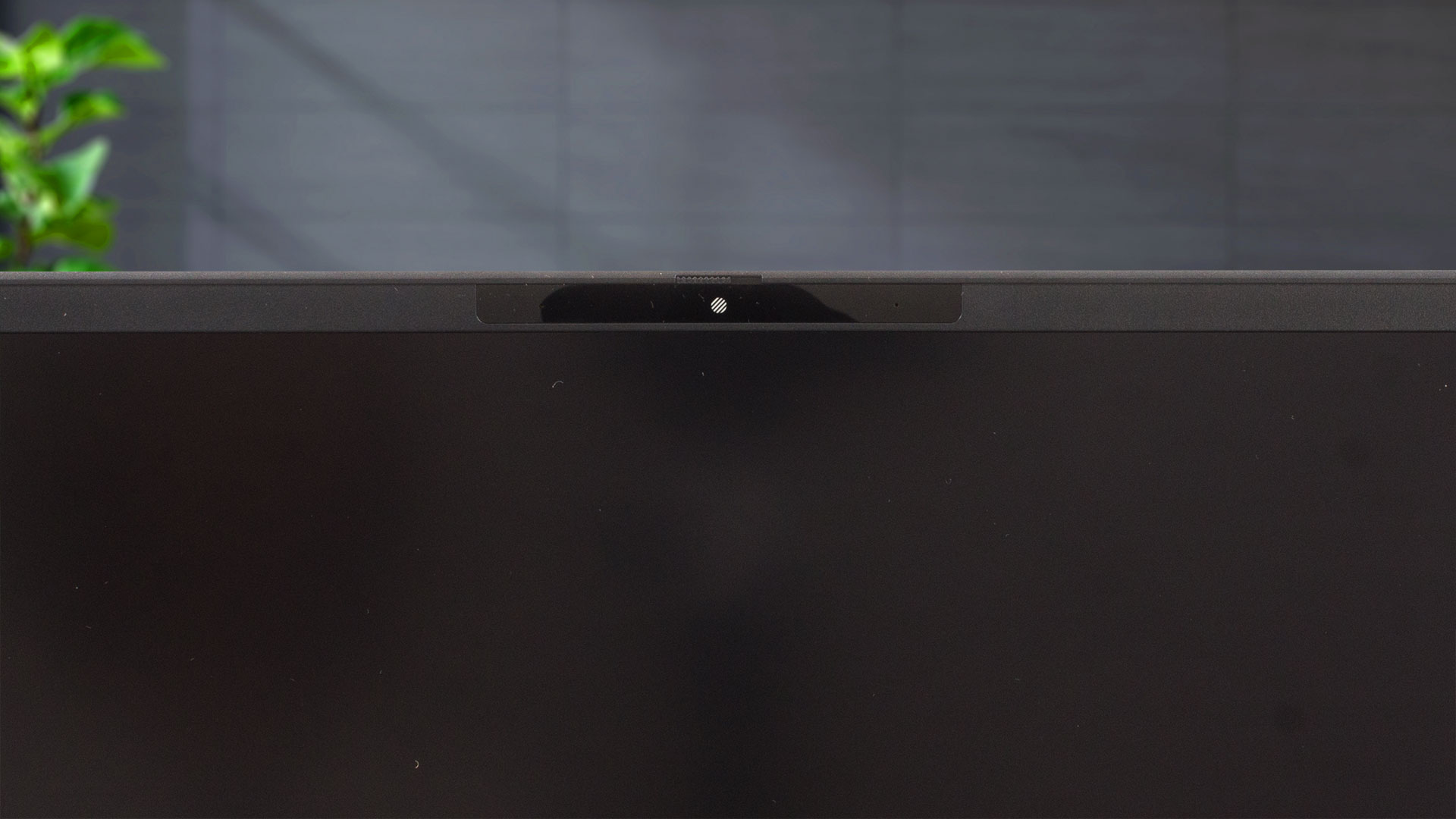
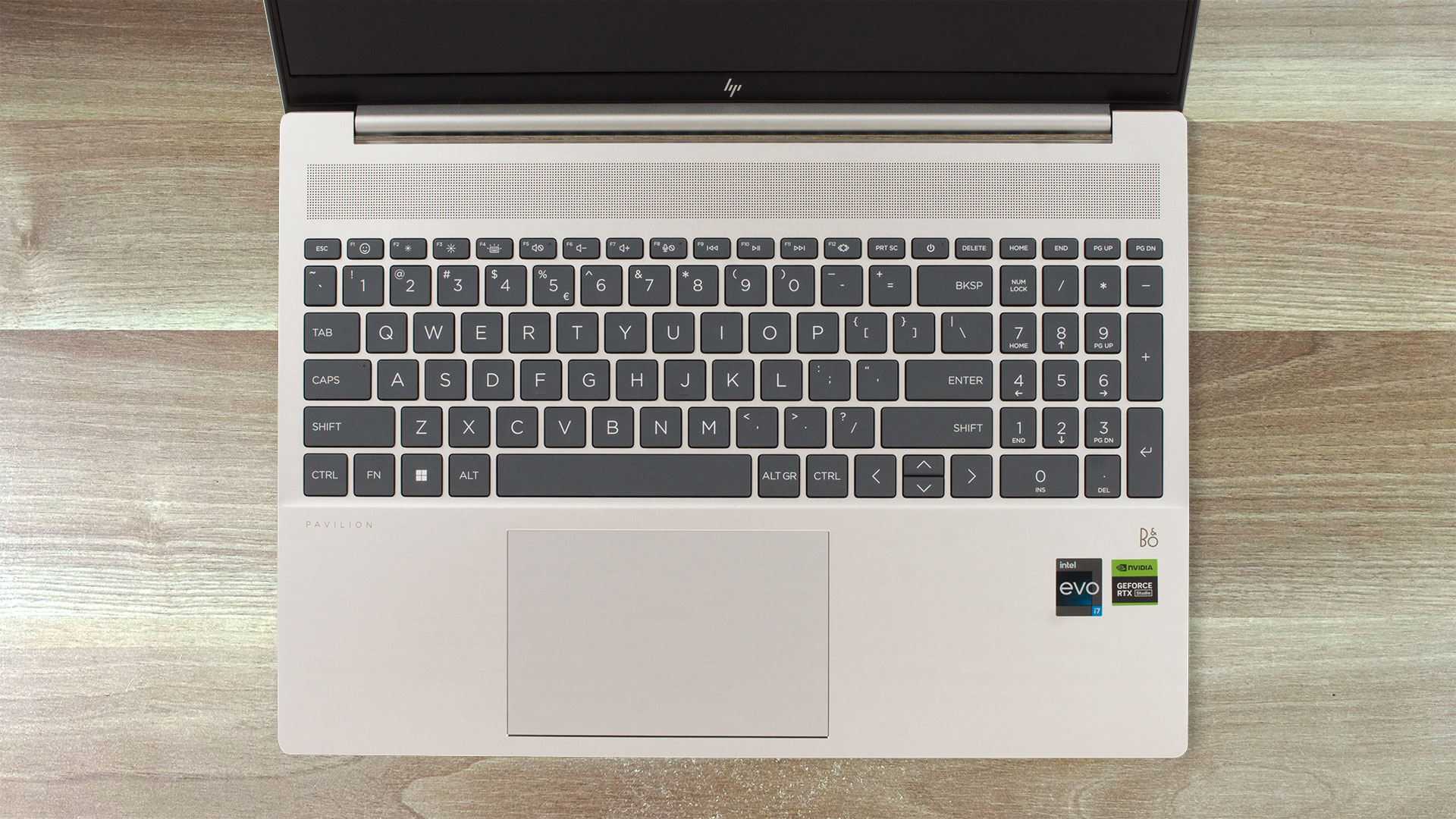
The backlit full-sized keyboard is comfortable for typing thanks to the large, well-spaced keycaps. The key travel and the feedback are on point. We are happy to see a NumPad section. The only can of the board are the half-sized “Up” and “Down” arrow keys which are hard to press during work. The grill above the board is for heat dissipation. The touchpad is very smooth and accurate. Still, its clicks can be a bit noisy for some users.
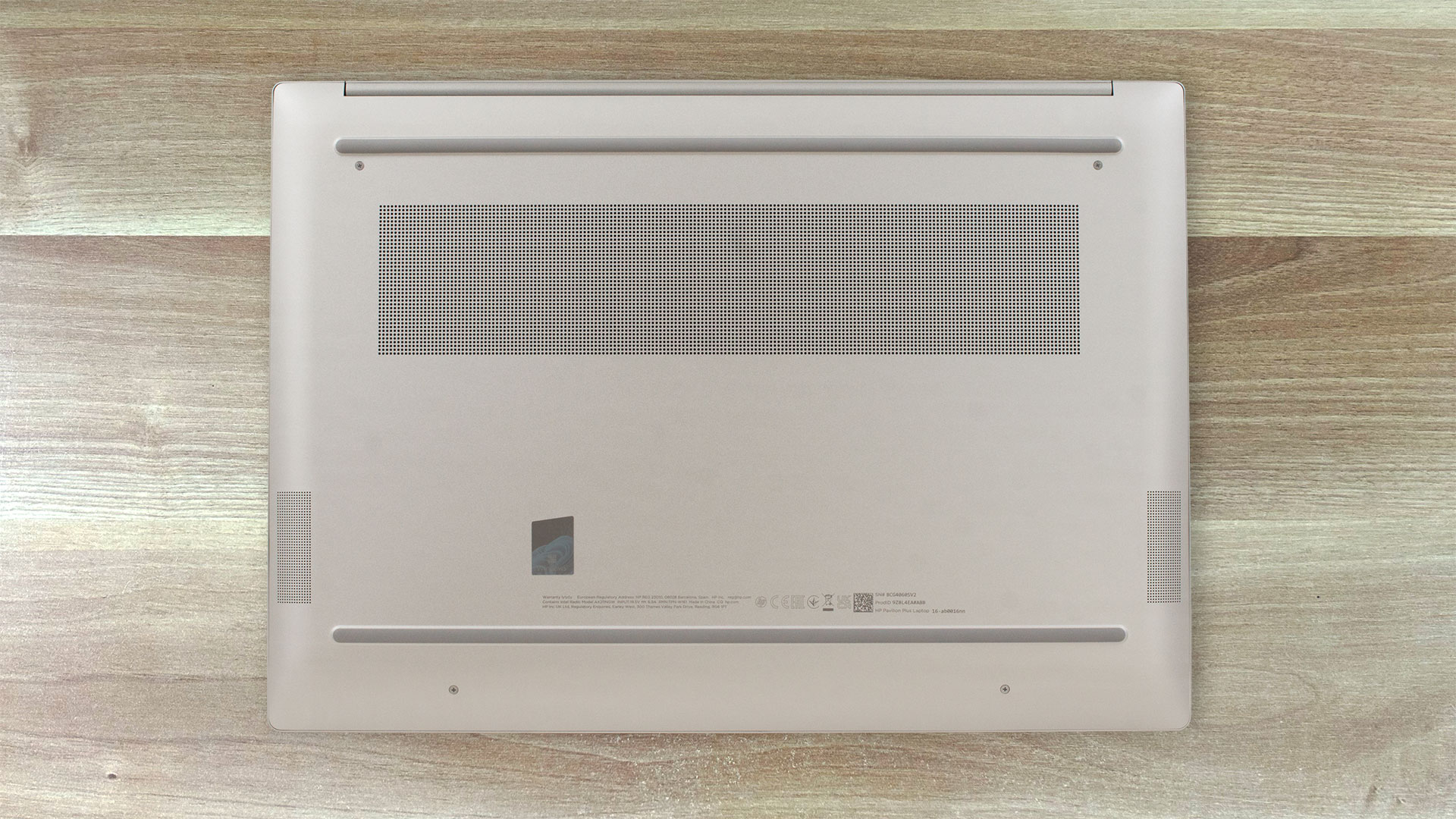
The bottom place houses two long rubber feet, a ventilation grill, and two speaker cutouts. The hot air is pushed through a vent on the back and that’s why some amount of heat makes its way to the display during heavy CPU loads.

Ports
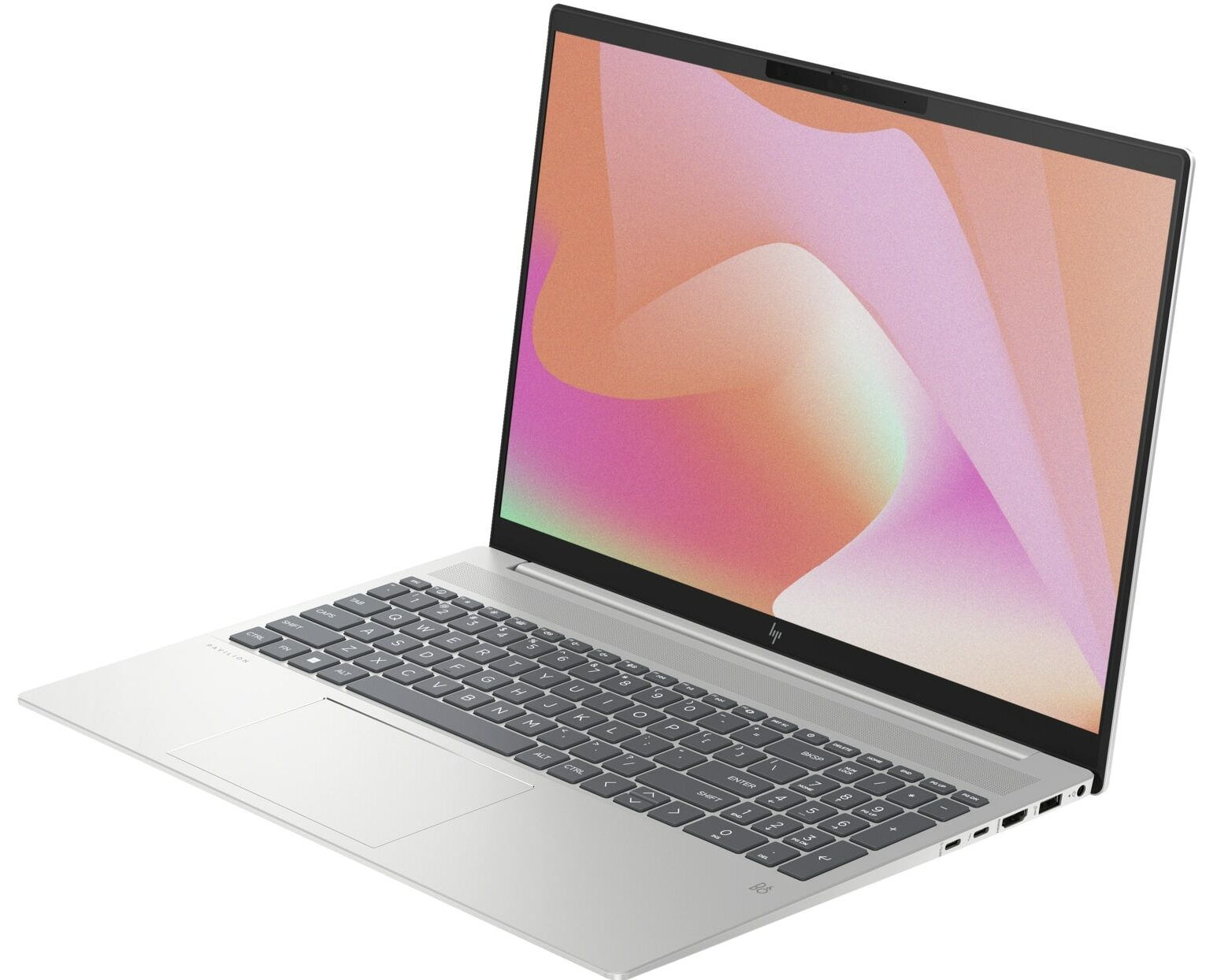
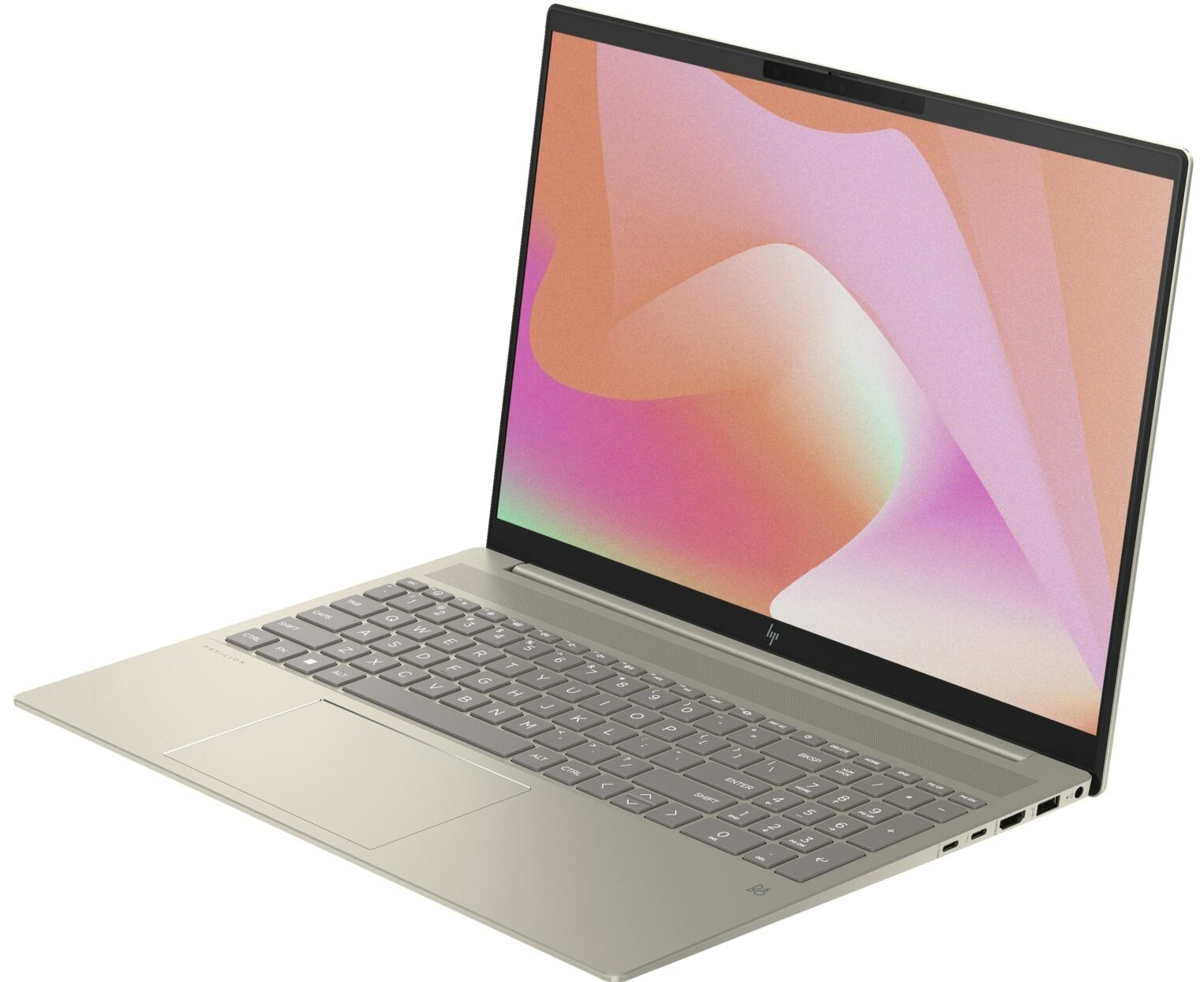
On the left side, there is a USB Type-A 3.2 (Gen. 1) port that can be used for charging and an Audio combo jack. On the right, you get a power plug, a USB Type-A 3.2 (Gen. 2) port with charging capabilities, an HDMI 2.1, a 40 Gbps Thunderbolt 4 port, and a USB Type-C 3.2 (Gen. 2) port. Both Type-Cs support USB Power Delivery, DisplayPort 1.4, and HP Sleep and Charge functionality.


Display and Sound Quality, Get our Profiles
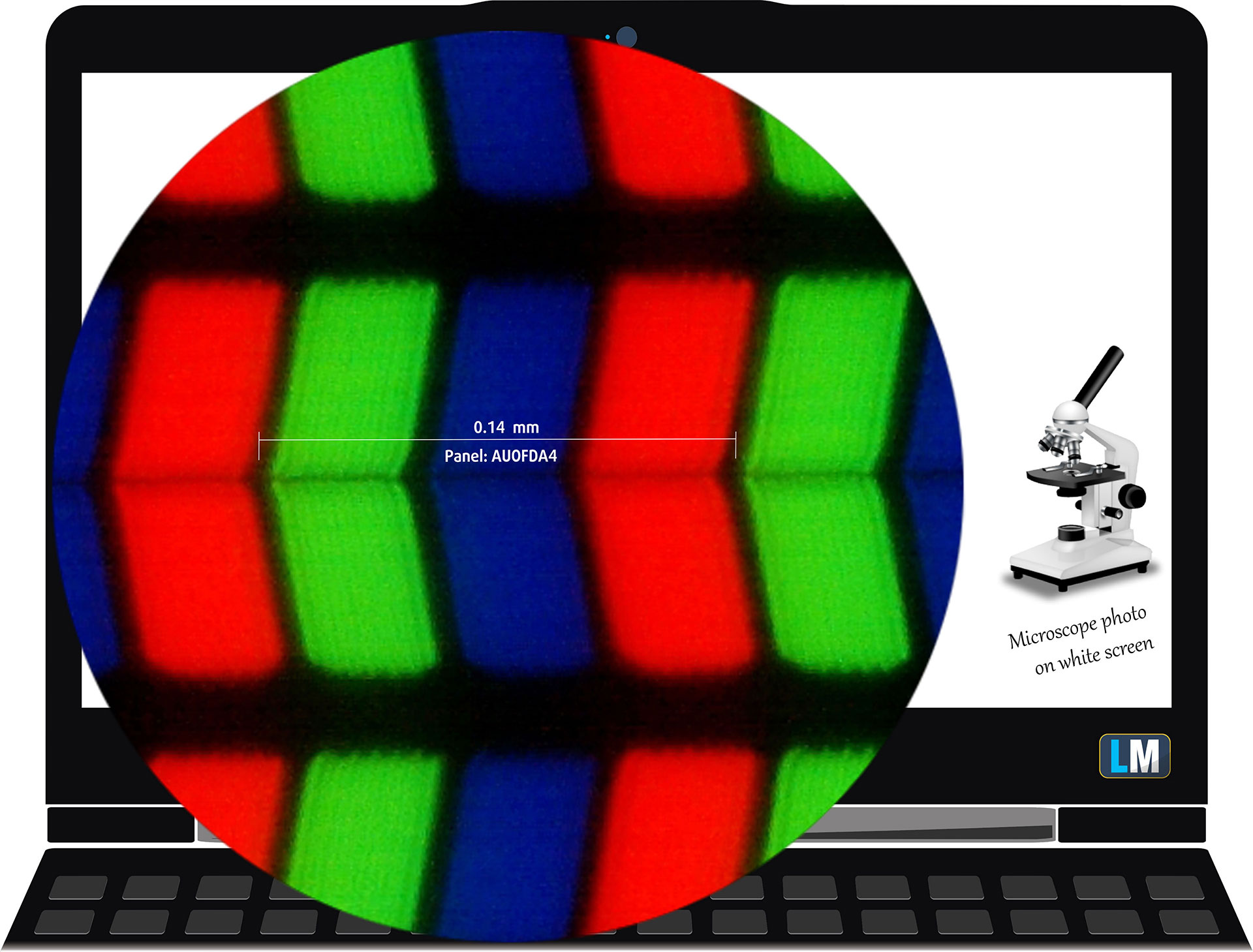
HP Pavilion Plus 16 (ab0000) is equipped with a WQXGA (Wide Quad Extended Graphics Array) panel, model number AUO AUOFDA4. It comes with a 120Hz refresh rate. Its diagonal is 16.0″ (40.6 cm), and the resolution – 2560 x 1600p. Additionally, the screen ratio is 16:10, the pixel density – 189 ppi, and their pitch – 0.13 x 0.13 mm. The screen can be considered Retina when viewed from at least 46 cm (from this distance, the average human eye can’t see the individual pixels).
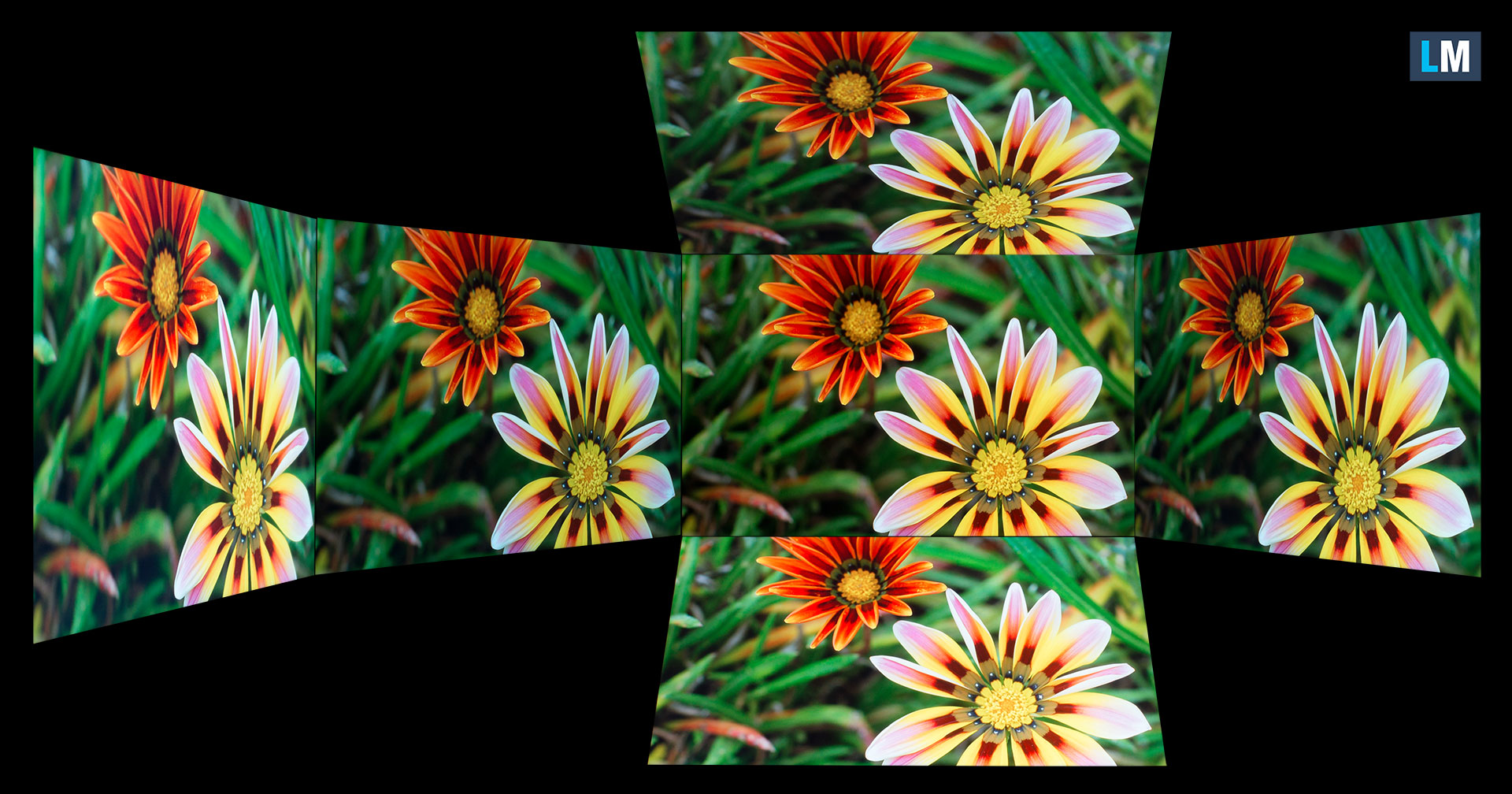
Viewing angles are good. We offer images at different angles to evaluate the quality.
Also, a video with locked focus and exposure.
The maximum measured brightness is 414 nits (cd/m2) in the middle of the screen and 411 nits (cd/m2) average across the surface with a maximum deviation of 5%. The Correlated Color Temperature on a white screen and at maximum brightness is 6080K.
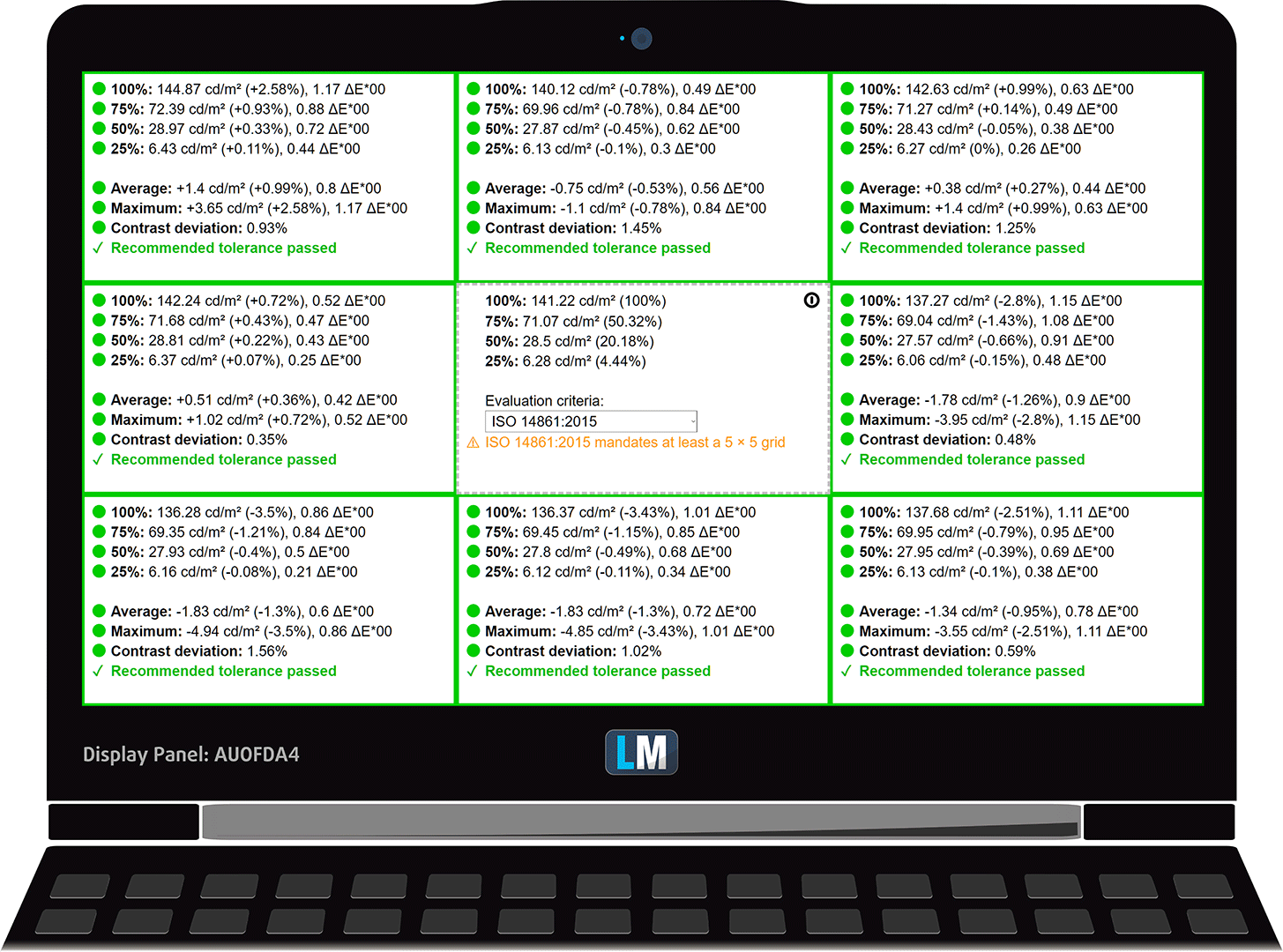
In the illustration below you can see how the display performs from a uniformity perspective. The illustration below shows how matters are for operational brightness levels (approximately 140 nits) – in this particular case at 46% Brightness (White level = 141 cd/m2, Black level = 0.11 cd/m2).
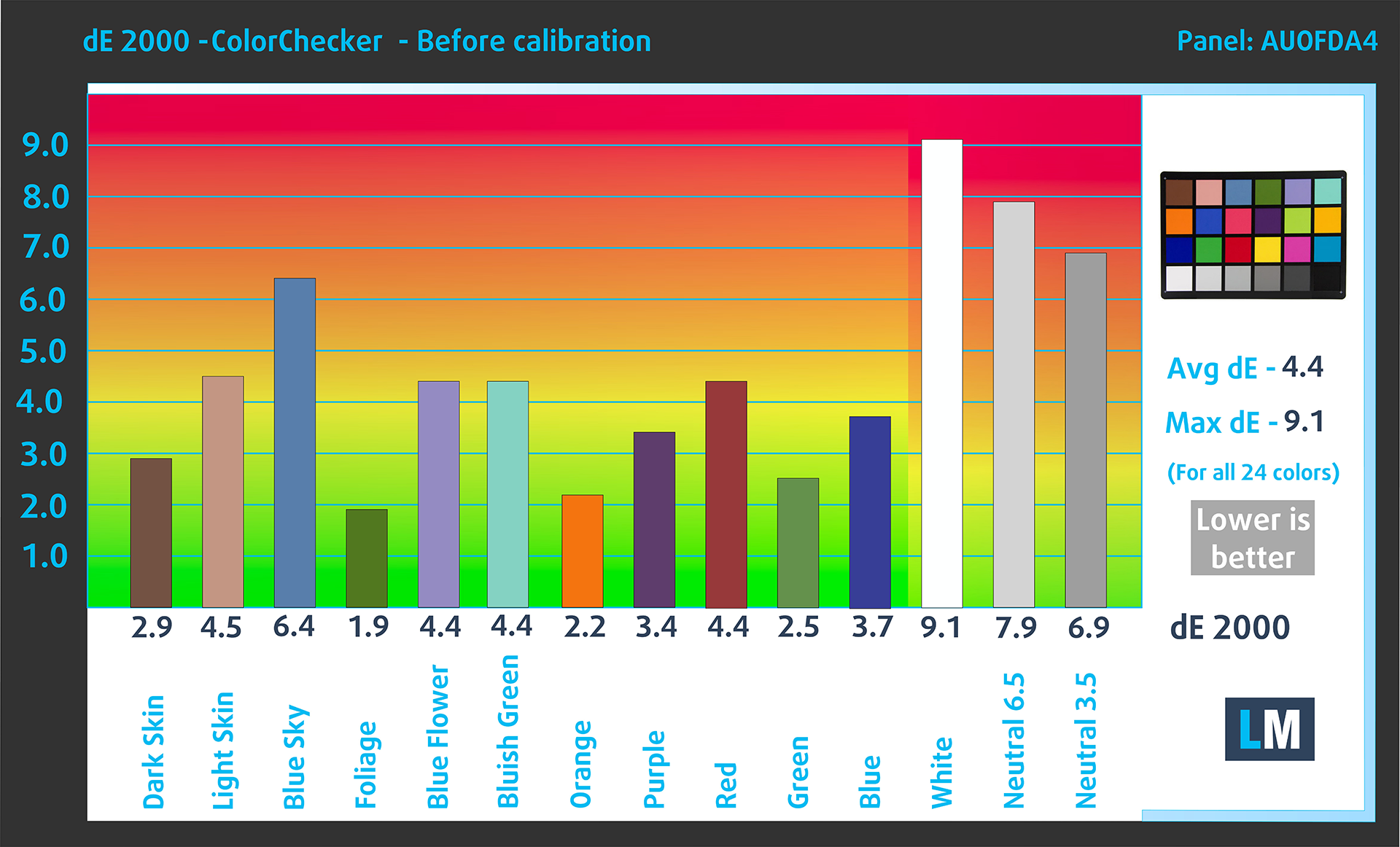
Values of dE2000 over 4.0 should not occur, and this parameter is one of the first you should check if you intend to use the laptop for color-sensitive work (a maximum tolerance of 2.0 ). The contrast ratio is good – 1250:1.
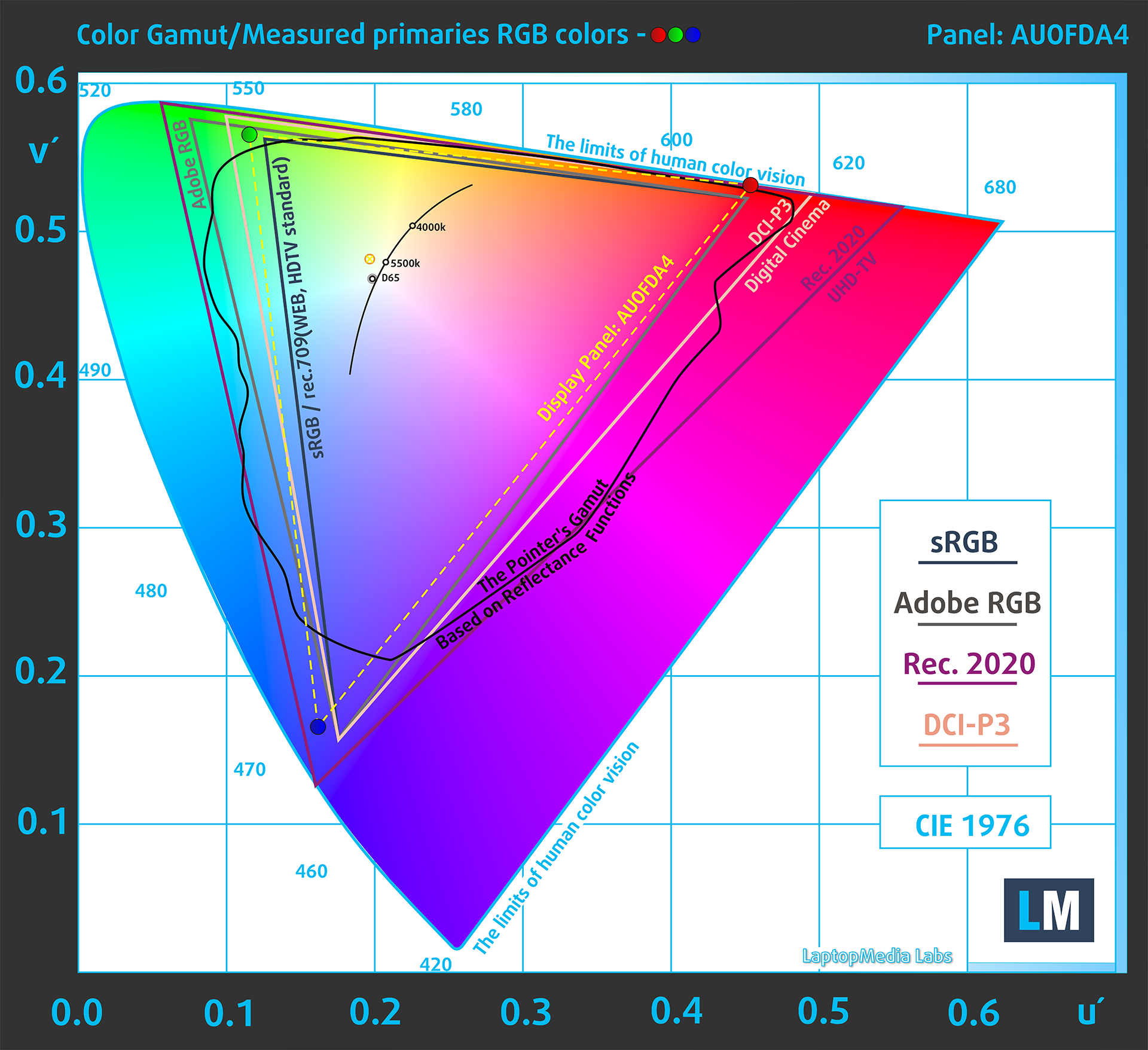
To make sure we are on the same page, we would like to give you a little introduction to the sRGB color gamut and the Adobe RGB. To start, there’s the CIE 1976 Uniform Chromaticity Diagram that represents the visible specter of colors by the human eye, giving you a better perception of the color gamut coverage and the color accuracy.
Inside the black triangle, you will see the standard color gamut (sRGB) that is being used by millions of people on HDTV and on the web. As for the Adobe RGB, this is used in professional cameras, monitors, etc for printing. Basically, colors inside the black triangle are used by everyone and this is the essential part of the color quality and color accuracy of a mainstream notebook.
Still, we’ve included other color spaces like the famous DCI-P3 standard used by movie studios, as well as the digital UHD Rec.2020 standard. Rec.2020, however, is still a thing of the future and it’s difficult for today’s displays to cover that well. We’ve also included the so-called Michael Pointer gamut, or Pointer’s gamut, which represents the colors that naturally occur around us every day.
The yellow dotted line shows HP Pavilion Plus 16 (ab0000)’s color gamut coverage.
Its display covers 95% of the sRGB/ITU-R BT.709 (web/HDTV standard) in CIE1976 and 79% of DCI-P3, ensuring a super vibrant and attractive picture.
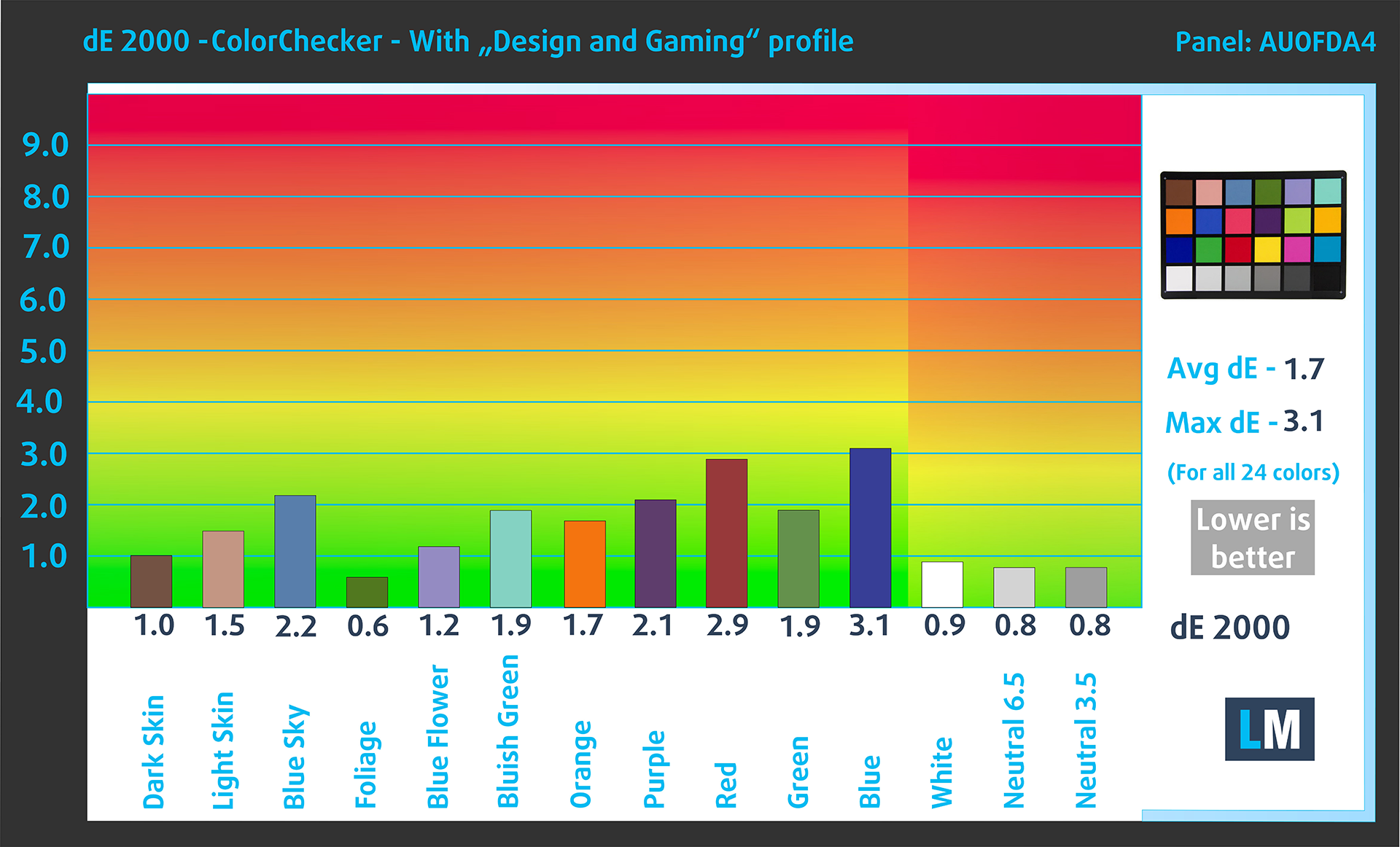
Our “Design and Gaming” profile delivers optimal color temperature (6500K) at 140 cd/m2 luminance and sRGB gamma mode.
We tested the accuracy of the display with 24 commonly used colors like light and dark human skin, blue sky, green grass, orange, etc. You can check out the results at factory condition and also, with the “Design and Gaming” profile.
Below you can compare the scores of the HP Pavilion Plus 16 (ab0000) with the default settings (left), and with the “Gaming and Web design” profile (right), compared to the DCI-P3 color space.
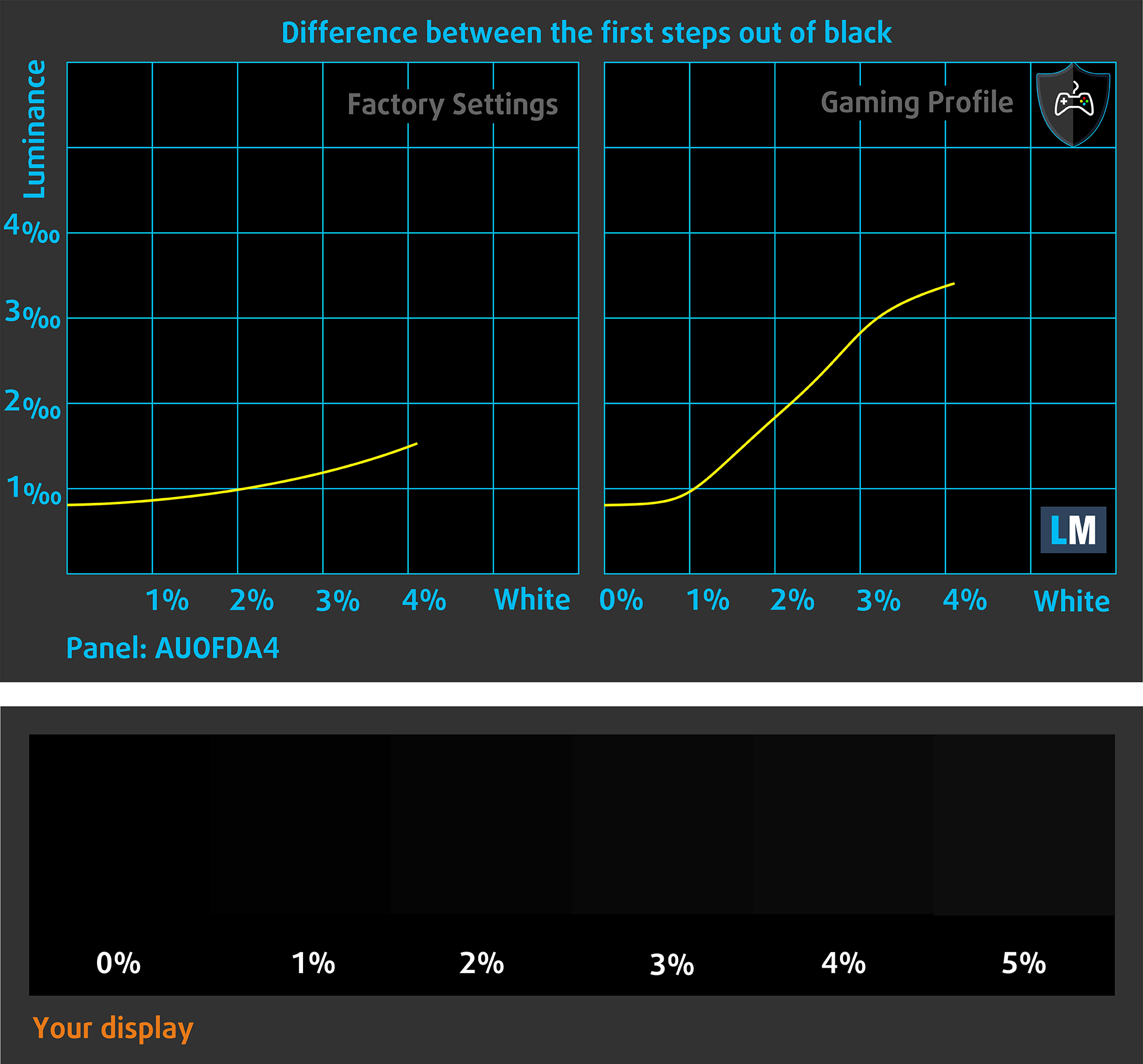
The next figure shows how well the display is able to reproduce really dark parts of an image, which is essential when watching movies or playing games in low ambient light.
The left side of the image represents the display with stock settings, while the right one is with the “Gaming and Web Design” profile activated. On the horizontal axis, you will find the grayscale, and on the vertical axis – the luminance of the display. On the two graphs below you can easily check for yourself how your display handles the darkest nuances but keep in mind that this also depends on the settings of your current display, the calibration, the viewing angle, and the surrounding light conditions.
Response time (Gaming capabilities)
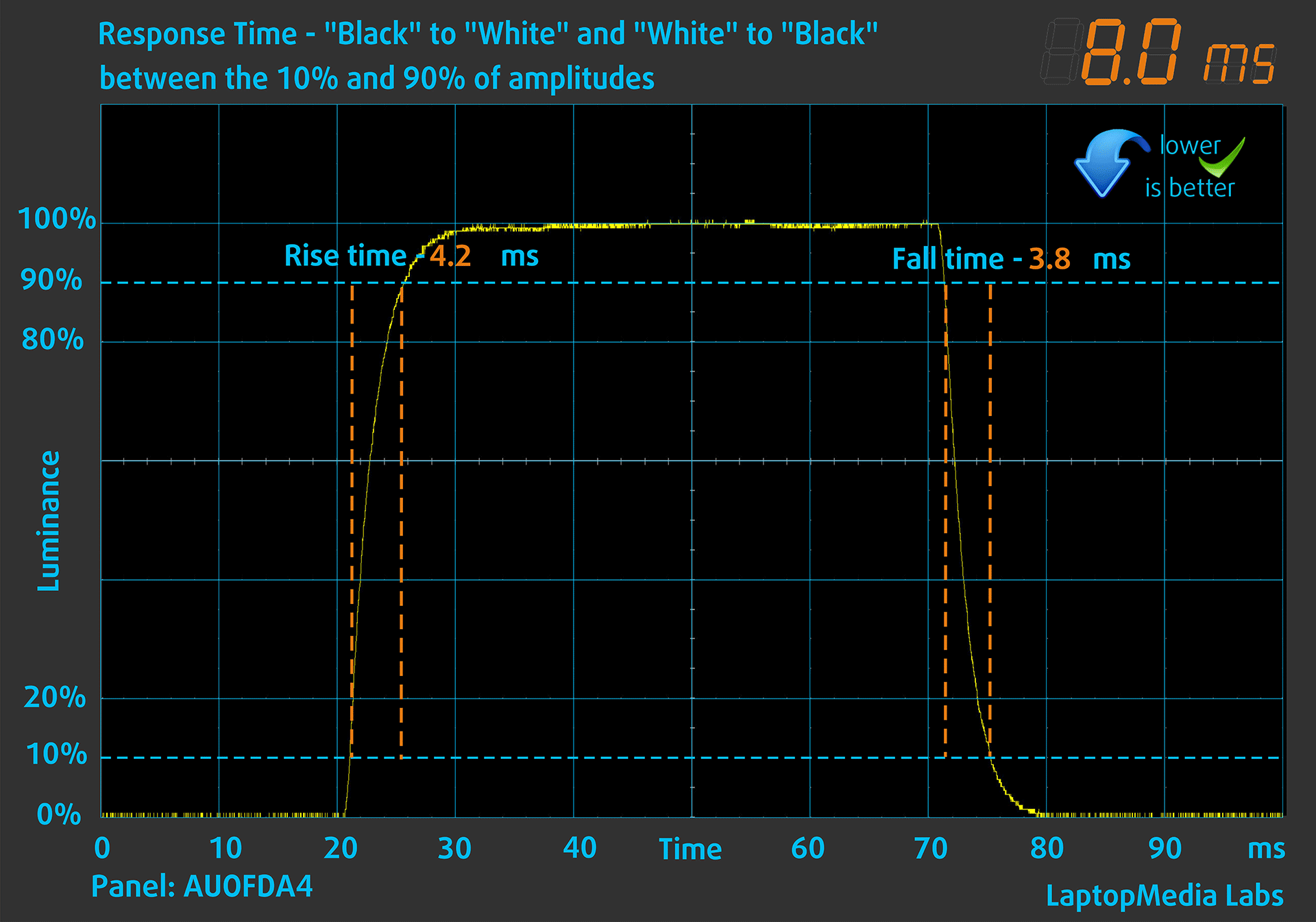
We test the reaction time of the pixels with the usual “black-to-white” and “white-to-black” method from 10% to 90% and vice versa.
We recorded Fall Time + Rise Time = 8.0 ms. Short pixel response time is a prerequisite for a smooth picture in dynamic scenes. Gamers should be happy.
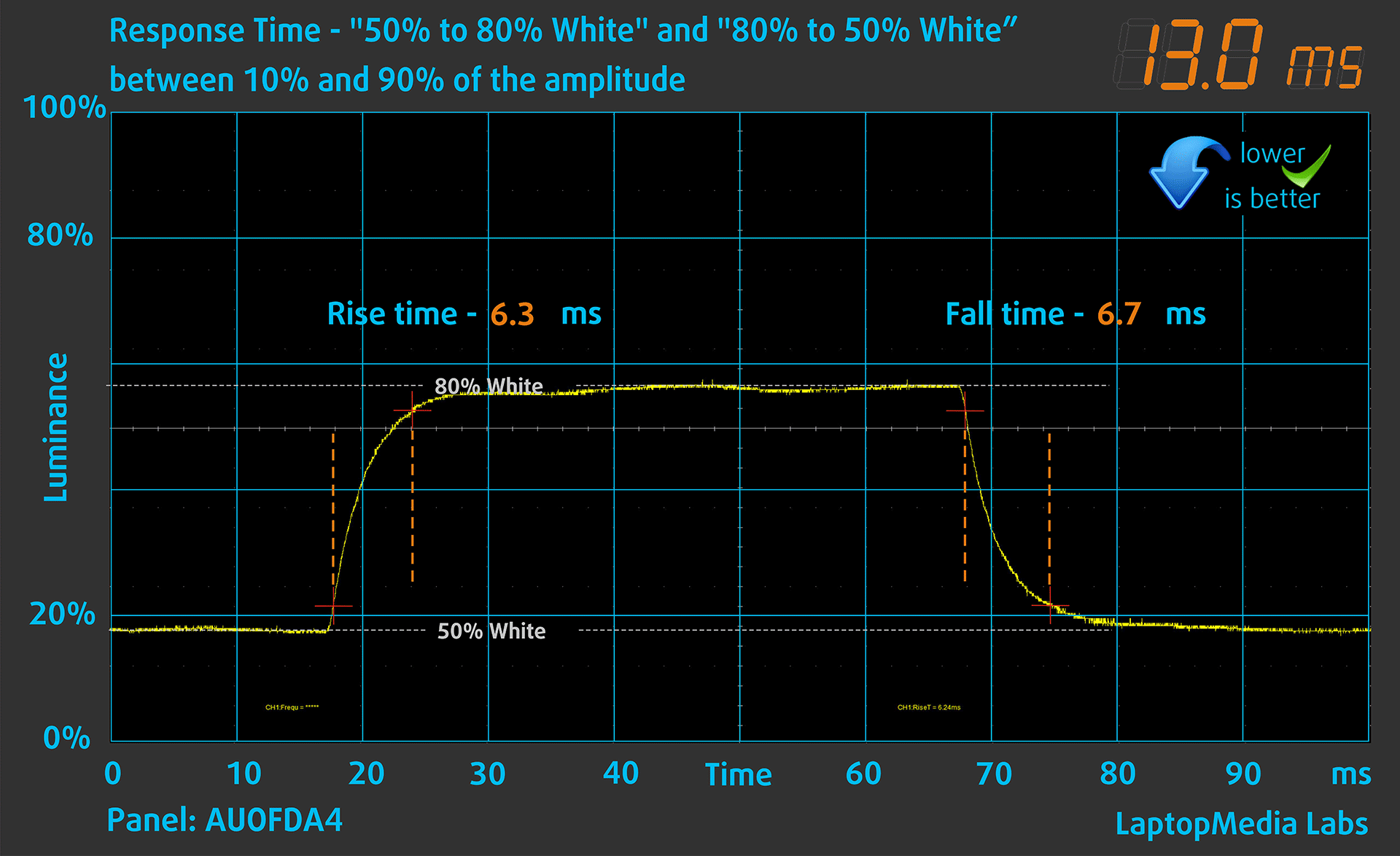
After that, we test the reaction time of the pixels with the usual “Gray-to-Gray” method from 50% White to 80% White and vice versa between 10% and 90% of the amplitude.
Health Impact: PWM (Screen flickering)
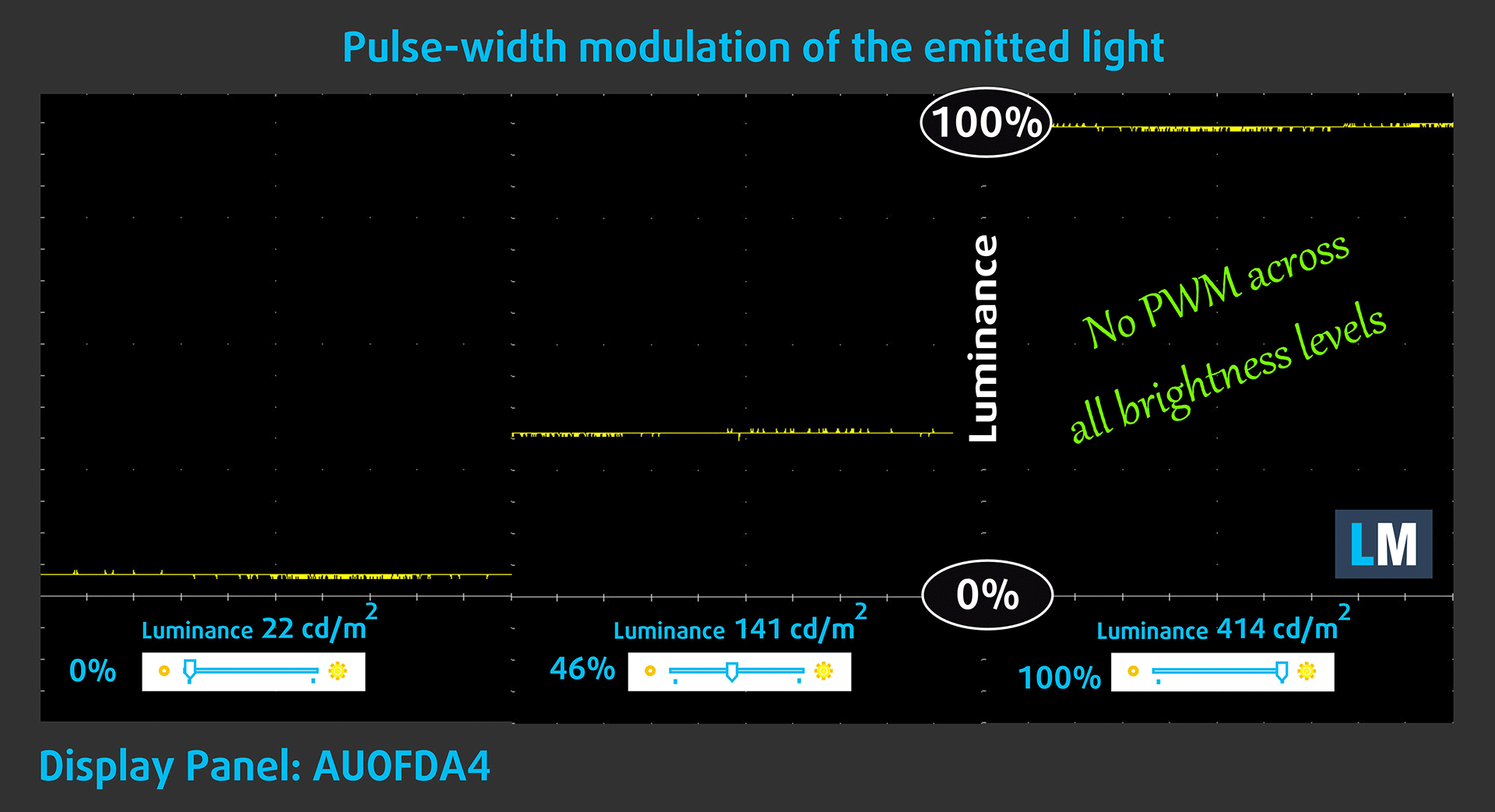
Pulse-width modulation (PWM) is an easy way to control monitor brightness. When you lower the brightness, the light intensity of the backlight is not lowered, but instead turned off and on by the electronics with a frequency indistinguishable to the human eye. In these light impulses, the light/no-light time ratio varies, while brightness remains unchanged, which is harmful to your eyes. You can read more about that in our dedicated article on PWM.
HP Pavilion Plus 16 (ab0000)’s display doesn’t flicker at any brightness level. This makes the screen pretty comfortable for long periods of use.
Health Impact: Blue light emissions
Installing our Health-Guard profile not only eliminates PWM but also reduces the harmful Blue Light emissions while keeping the colors of the screen perceptually accurate. If you’re not familiar with the Blue light, the TL;DR version is – emissions that negatively affect your eyes, skin, and your whole body. You can find more information about that in our dedicated article on Blue Light.
Health Impact: Gloss-level measurement
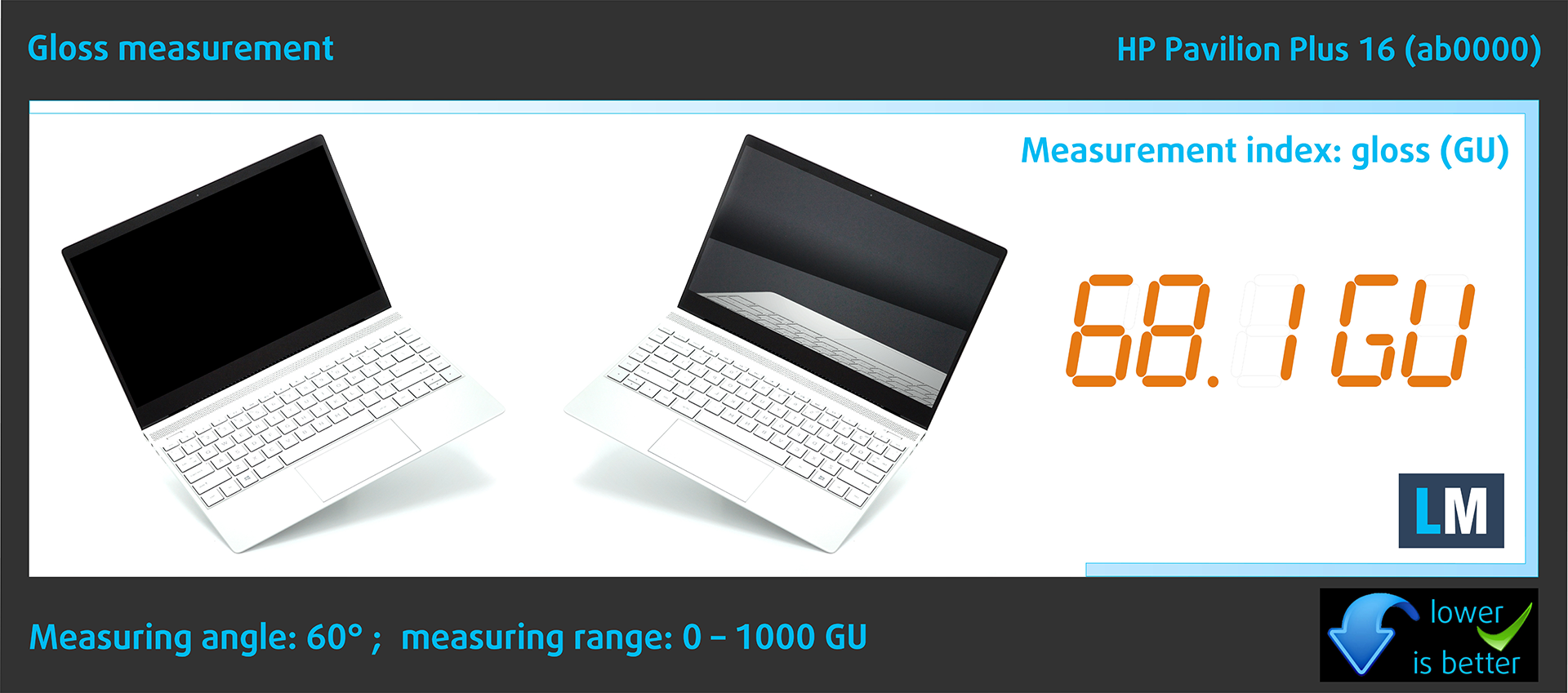
Glossy-coated displays are sometimes inconvenient in high ambient light conditions. We show the level of reflection on the screen for the respective laptop when the display is turned off and the measurement angle is 60° (in this case, the result is 68.1 GU).
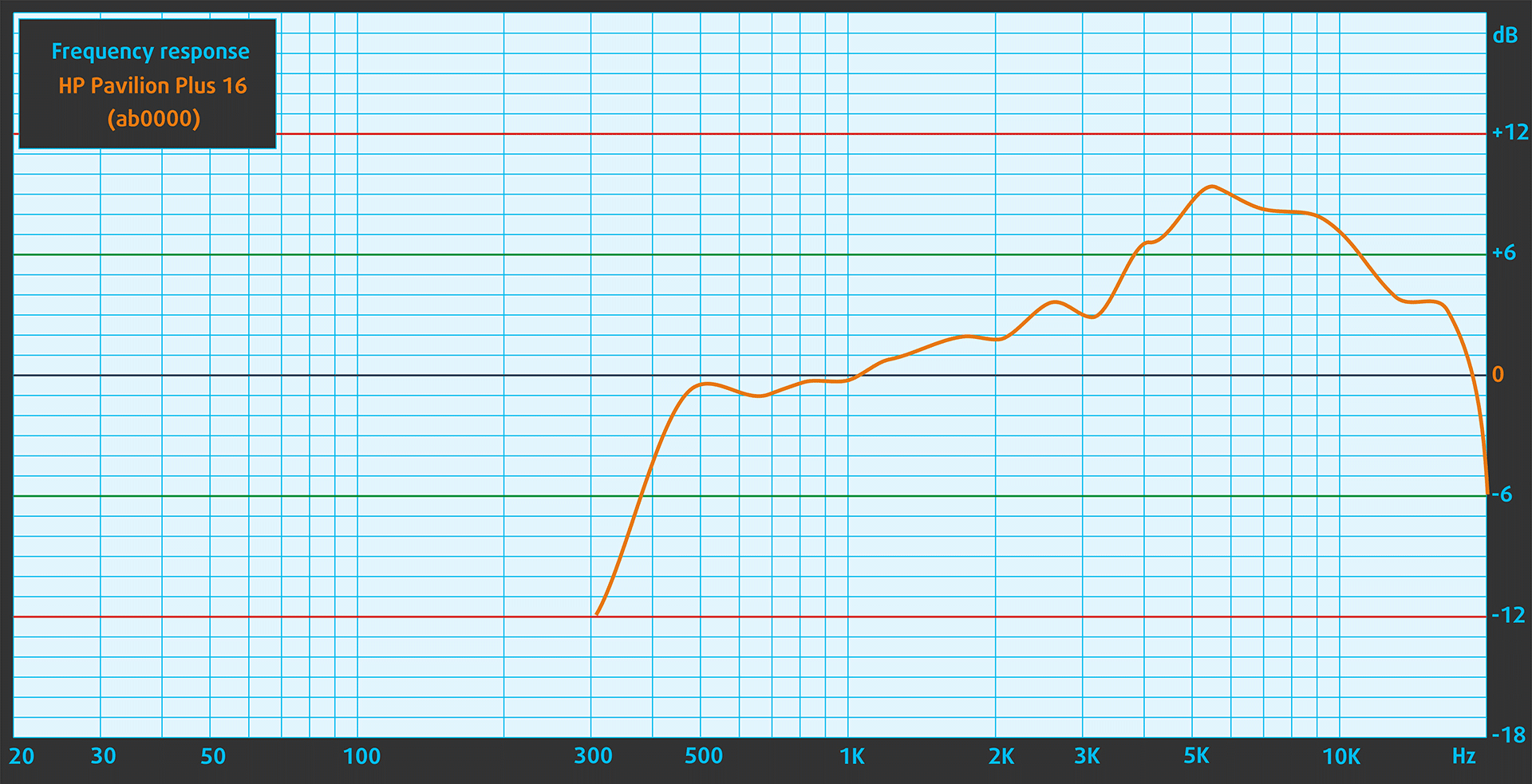
Sound
HP Pavilion Plus 16 (ab0000)’s speakers produce a sound of very good quality. Its low, mid, and high tones are clear of deviations.
Buy our profiles
Since our profiles are tailored for each individual display model, this article and its respective profile package are meant for HP Pavilion Plus 16 (ab0000) configurations with 16.0″ AUO AUOFDA4 (2560 x 1600) IPS.
*Should you have problems with downloading the purchased file, try using a different browser to open the link you’ll receive via e-mail. If the download target is a .php file instead of an archive, change the file extension to .zip or contact us at [email protected].
Read more about the profiles HERE.
Pe lângă primirea de profiluri eficiente și prietenoase cu sănătatea, prin cumpărarea produselor LaptopMedia sprijiniți și dezvoltarea laboratoarelor noastre, unde testăm dispozitive pentru a produce cele mai obiective recenzii posibile.

Office Work
Office Work ar trebui folosit în principal de utilizatorii care petrec cea mai mare parte a timpului uitându-se la texte, tabele sau pur și simplu navigând. Acest profil urmărește să ofere o distincție și o claritate mai bună prin menținerea unei curbe gamma plate (2.20), a temperaturii native a culorii și a culorilor perceptiv exacte.

Design and Gaming
Acest profil se adresează designerilor care lucrează profesional cu culorile, precum și pentru jocuri și filme. Design and Gaming duce panourile de afișaj la limitele lor, făcându-le cât mai precise posibil în standardul sRGB IEC61966-2-1 pentru Web și HDTV, la punctul de alb D65.

Health-Guard
Health-Guard elimină modulația dăunătoare a lățimii impulsului (PWM) și reduce lumina albastră negativă care ne afectează ochii și corpul. Deoarece este personalizat pentru fiecare panou, reușește să mențină culorile perceptiv exacte. Health-Guard simulează hârtia, astfel încât presiunea asupra ochilor este redusă considerabil.
Obține toate cele 3 profiluri cu 33% reducere

Performance: CPU, GPU, Storage
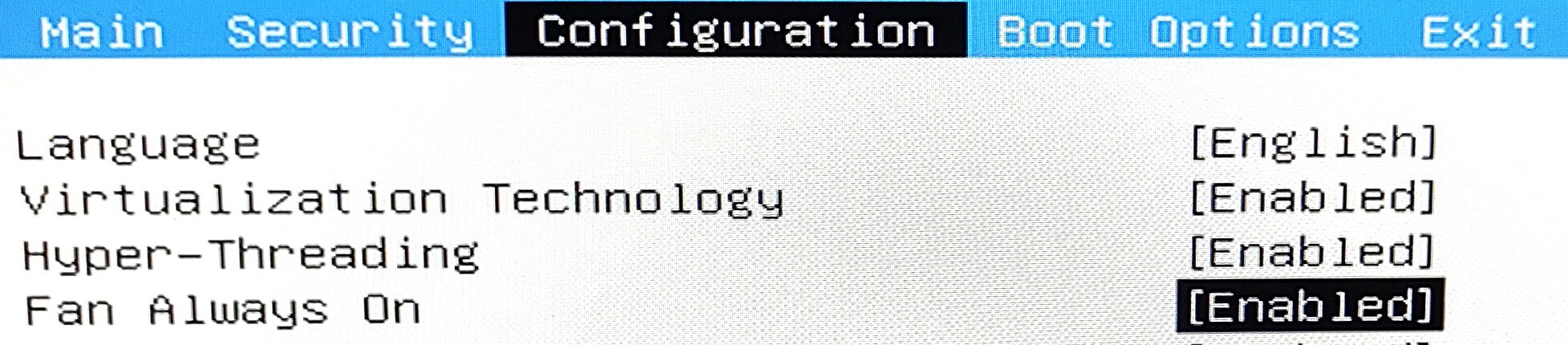
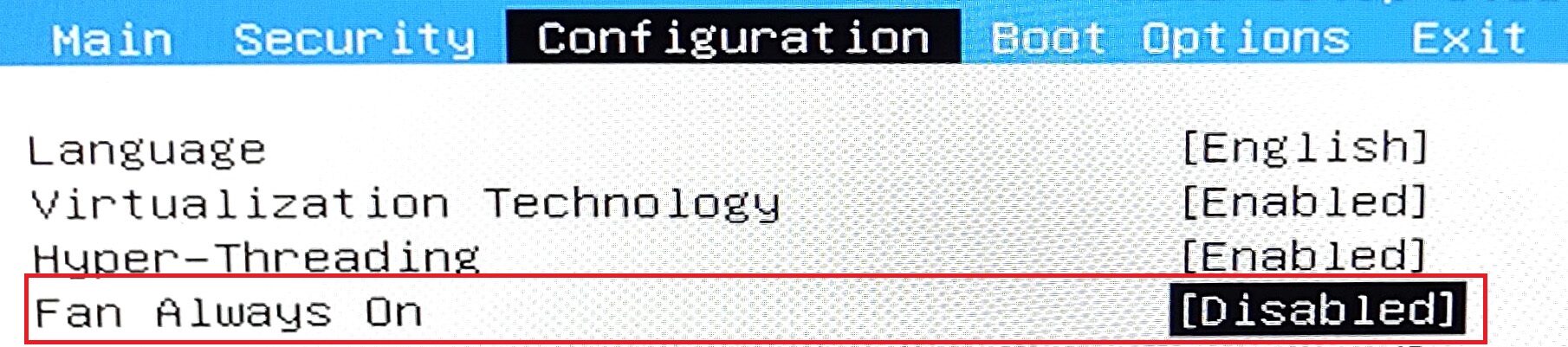
All benchmarks and tests were conducted with the “Performance” profile activated in the MyHP app. The “Best performance” preset is applied in the Windows “Power & Battery” menu and the “Fan always on” function is enabled in the BIOS.


CPU options
The CPU options for the series are the Intel Core i5-13500H and Intel Core i7-13700H.
Aici, evaluăm performanța procesorului folosind o sarcină de randare 3D reală, analizând capacitatea sa de a gestiona eficient calcule complexe și sarcini de randare.
Rezultatele sunt de la testul Cinebench 2024 Multi-Core (un scor mai mare este mai bun)
GPU options
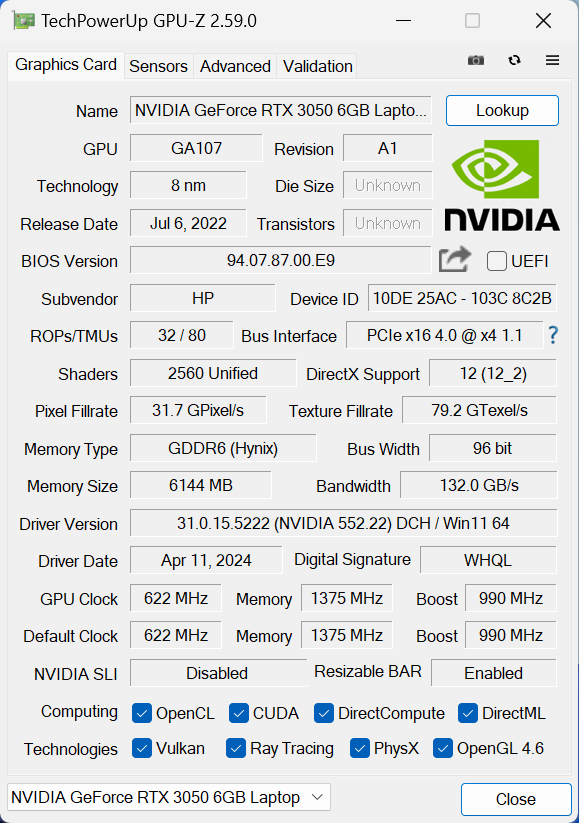
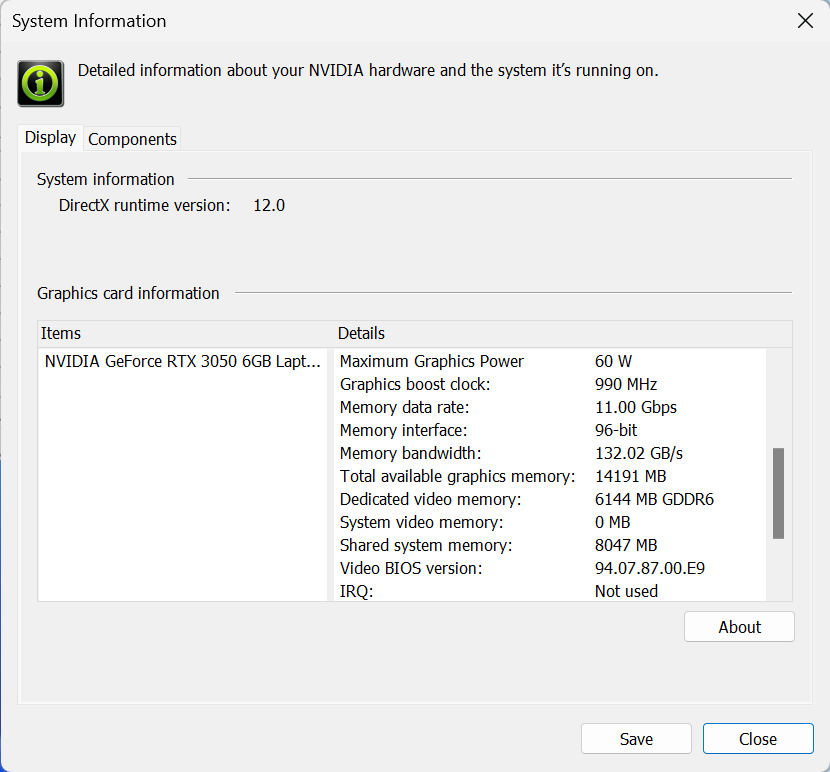
If the iGPU is too underpowered for your needs, you can get a device with the optional NVIDIA GeForce RTX 3050 (Laptop, 60W, 6GB).
Rezultatele sunt de la 3DMark Time Spy (Grafică). Un scor mai mare este mai bun.
Rezultatele sunt de la benchmark-ul 3DMark Fire Strike (Grafică) (un scor mai mare este mai bun)
Rezultatele sunt de la 3DMark Wild Life Extreme Unlimited. Un scor mai mare este mai bun.
Rezultatele sunt de la benchmark-ul Unigine Superposition (un scor mai mare este mai bun)
Gaming tests

| Metro Exodus | Full HD, Low (Check settings) | Full HD, High (Check settings) | Full HD, Extreme (Check settings) |
|---|---|---|---|
| Average FPS | 102 fps | 45 fps | 20 fps |

| Borderlands 3 | Full HD, V.Low (Check settings) | Full HD, Medium (Check settings) | Full HD, High (Check settings) | Full HD, Badass (Check settings) |
|---|---|---|---|---|
| Average FPS | 133 fps | 91 fps | 60 fps | 46 fps |

| Far Cry 6 | Full HD, Low (Check settings) | Full HD, High (Check settings) | Full HD, Ultra (Check settings) |
|---|---|---|---|
| Average FPS | 91 fps | 67 fps | 58 fps |

| Gears 5 | Full HD, Low (Check settings) | Full HD, Medium (Check settings) | Full HD, High (Check settings) | Full HD, Ultra (Check settings) |
|---|---|---|---|---|
| Average FPS | 148 fps | 97 fps | 79 fps | 62 fps |
The 6GB version of the GeForce RTX 3050 is still fine for 1080p gaming on up to High details.
Storage performance
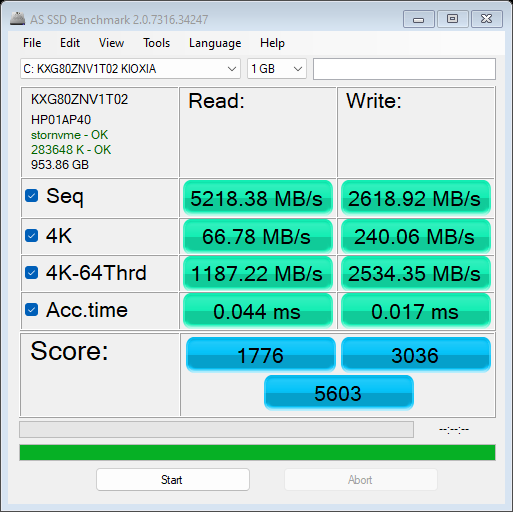
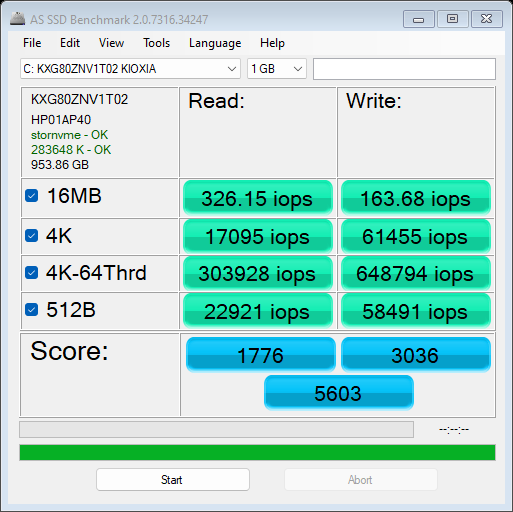
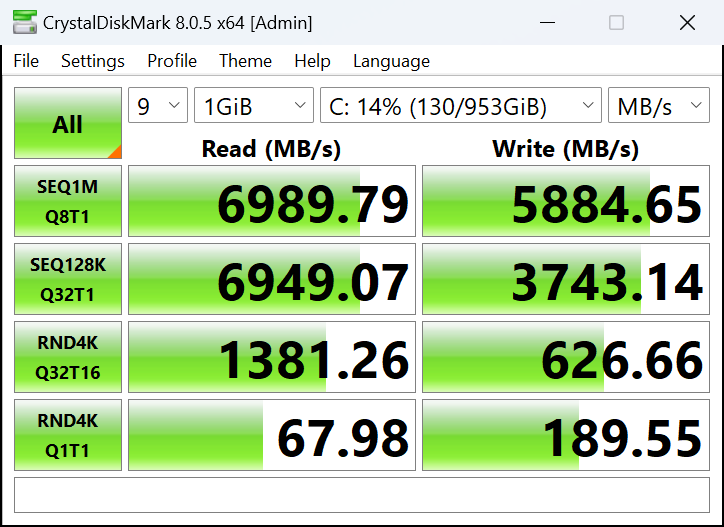
This laptop is equipped with a 1TB KIOXIA KXG80ZNV1T02. The benchmark scores of this Gen 4 NVMe are high, just like its temperatures under load (76°C).

[eBook Guide + Tools] How to MAX OUT Your Laptop
You can make your laptop Faster. LaptopMedia has tested thousands of models in the last 15 years, and we have yet to see a notebook that couldn't be made more powerful through modifications.
That's why we decided to bundle everything we know about how to achieve this in an Easy-to-Follow, Step-by-Step, and Laboratory-Tested, all in one project.
Read more about it here:
[eBook Guide + Tools] How to MAX OUT Your Laptop
🛠️ GPU Modifications: vBIOS, Overclocking, Undervolting
⚙️ Building Fast/Reliable RAID configuration
💻 Hardware upgrade tips for best results
🖼 Display enhancing
💾 OS Optimization for best performance
Temperatures and comfort, Battery Life
Max CPU load
In this test we use 100% on the CPU cores, monitoring their frequencies and chip temperature. The first column shows a computer’s reaction to a short load (2-10 seconds), the second column simulates a serious task (between 15 and 30 seconds), and the third column is a good indicator of how good the laptop is for long loads such as video rendering.
Average P-core frequency; Average E-core frequency; CPU temp.; Package Power
| Intel Core i7-13700H (45W TDP) | 0:02 – 0:10 sec | 0:15 – 0:30 sec | 10:00 – 15:00 min |
|---|---|---|---|
| HP Pavilion Plus 16 (ab0000) | 2.89 GHz @ 2.05 GHz @ 63°C @ 61W | 2.89 GHz @ 2.06 GHz @ 73°C @ 61W | 2.73 GHz @ 1.98 GHz @ 81°C @ 55W |
| HP Victus 16 (16-r0000) | 4.11 GHz @ 3.13 GHz @ 82°C @ 115W | 3.91 GHz @ 3.12 GHz @ 92°C @ 113W | 2.34 GHz @ 2.57 GHz @ 71°C @ 67W |
| ASUS TUF Gaming F15 (FX507, 2023) | 2.81 GHz @ 2.64 GHz @ 61°C @ 70W | 2.82 GHz @ 2.65 GHz @ 68°C @ 70W | 2.29 GHz @ 1.75 GHz @ 57°C @ 35W |
| Acer Predator Triton 14 (PT14-51) | 3.59 GHz @ 2.84 GHz @ 72°C @ 105W | 3.57 GHz @ 2.86 GHz @ 85°C @ 104W | 3.30 GHz @ 2.56 GHz @ 94°C @ 85W |
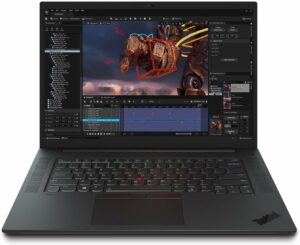
| Lenovo ThinkPad P1 Gen 6 | 3.71 GHz @ 2.18 GHz @ 91°C @ 107W | 3.41 GHz @ 2.22 GHz @ 93°C @ 91W | 3.07 GHz @ 2.12 GHz @ 88°C @ 72W |
| Lenovo ThinkBook 16p Gen 4 | 3.94 GHz @ 3.04 GHz @ 75°C @ 114W | 3.88 GHz @ 3.03 GHz @ 85°C @ 110W | 2.88 GHz @ 2.95 GHz @ 83°C @ 95W |
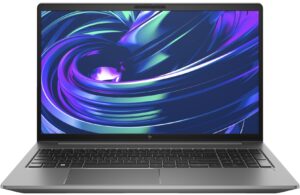
| HP ZBook Power G10 | 2.93 GHz @ 2.16 GHz @ 62°C @ 54W | 2.98 GHz @ 2.14GHz @ 68°C @ 54W | 2.46 GHz @ 1.99 GHz @ 79°C @ 45W |
| HP ZBook Studio 16 G10 | 3.50 GHz @ 2.91 GHz @ 72°C @ 88W | 3.49 GHz @ 2.88 GHz @ 87°C @ 88W | 2.96 GHz @ 2.45 GHz @ 81°C @ 60W |
| Dell XPS 15 9530 | 3.28 GHz @ 2.57 GHz @ 94°C @ 85W | 2.95 GHz @ 2.20 GHz @ 95°C @ 65W | 2.51 GHz @ 1.90 GHz @ 82°C @ 45W |
| MSI Stealth 16 Studio (A13V) | 3.77 GHz @ 2.34 GHz @ 87°C @ 101W | 3.61 GHz @ 2.32 GHz @ 87°C @ 91W | 3.62 GHz @ 2.43 GHz @ 87°C @ 92W |
| Acer Nitro 17 (AN17-51) “Turbo” preset | 3.91 GHz @ 2.93 GHz @ 66°C @ 115W | 3.90 GHz @ 2.93 GHz @ 76°C @ 115W | 3.70 GHz @ 2.85 GHz @ 76°C @ 100W |
| Acer Nitro 17 (AN17-51) “Performance” preset | 3.92 GHz @ 2.95 GHz @ 70°C @ 115W | 3.89 GHz @ 2.93 GHz @ 81°C @ 115W | 3.34 GHz @ 2.61 GHz @ 74°C @ 80W |
| Acer Nitro 16 (AN16-51) | 3.08 GHz @ 3.10 GHz @ 68°C @ 115W | 3.59 GHz @ 3.04 GHz @ 79°C @ 115W | 3.53 GHz @ 2.94 GHz @ 81°C @ 100W |
| Acer Swift X 14 (SFX14-71G) | 1.36 GHz @ 3.23 GHz @ 80°C @ 80W | 0.40 GHz @ 1.95 GHz @ 54°C @ 20W | 0.60 GHz @ 3.16 GHz @ 83°C @ 50W |
| Acer Swift Go 14 (SFG14-71) | 3.13 GHz @ 2.34 GHz @ 75°C @ 67W | 3.08 GHz @ 2.32 GHz @ 91°C @ 66W | 2.46 GHz @ 1.83 GHz @ 89°C @ 43W |
| MSI Pulse 15 (B13V) | 3.70 GHz @ 2.36 GHz @ 86°C @ 96W | 3.52 GHz @ 2.37 GHz @ 87°C @ 89W | 3.23 GHz @ 2.54 GHz @ 77°C @ 87W |
| MSI Vector GP77 | 3.86 GHz @ 3.08 GHz @ 89°C @ 135W | 3.75 GHz @ 3.10 GHz @ 94°C @ 128W | 3.24 GHz @ 3.00 GHz @ 81°C @ 90W |
The clocks in short and medium loads of Core i7-13700H inside this HP laptop aren’t impressive even in “Performance” mode. Interestingly, in long stress, the frequencies are acceptable and even higher compared to some other laptops that we have tested with the same chip like the ASUS TUF Gaming F15 (FX507, 2023) or HP ZBook Power G10. If you apply the “Balanced” preset, the fans will be a bit more tamed as well as the frequencies in prorogued loads (~2.57GHz for the P cores and 1.79GHz for the E cores).
Real-life gaming
| NVIDIA GeForce RTX 3050 6GB | GPU frequency/ Core temp (after 2 min) | GPU frequency/ Core temp (after 30 min) |
|---|---|---|
| HP Pavilion Plus 16 (ab0000) | 1583 MHz @ 76°C @ 60W | 1577 MHz @ 77°C @ 60W |
| Lenovo IdeaPad Pro 5i (14″, Gen 8) | 1444 MHz @ 72°C @ 56W | 1502 MHz @ 72°C @ 60W |
| Acer Nitro V 15 (ANV15-51) | 1819 MHz @ 63°C @ 63W | 1816 MHz @ 64°C @ 63W |
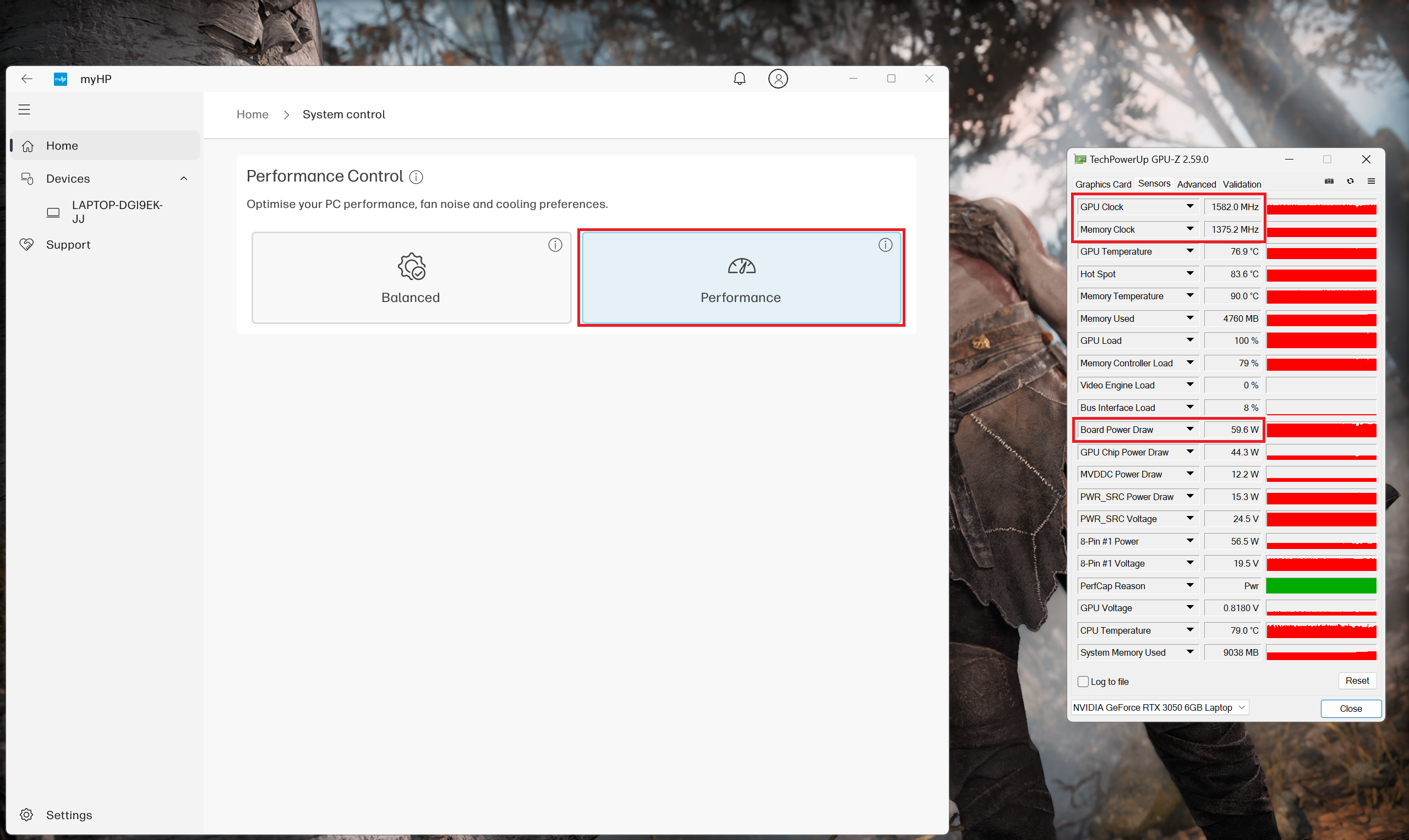
The 6GB GeForce RTX 3050 is mentioned as a 60W version in the NVIDIA Control panel and yes, the chip here can sustain this power limit after half an hour of gaming. Sure, the Acer Nitro V 15 (ANV15-51) with the same GPU is doing a better job in this section but this is a heavier and thicker gaming laptop with notably louder fans than the HP Pavilion Plus 16 (ab0000).
Gaming comfort
You can find the two power presets in the MyHP app. During heavy loads in “Performance” mode, the two fans are audible but not noisy. In this scenario, the keyboard doesn’t feel too hot to the touch so you can use the machine comfortably while editing or converting videos.

During gaming, you can rely on a 60W GPU TGP when the “Performance” profile is applied. If you switch down to “Balanced” mode this will result in a 50W power limit and lower fan noise which is actually fine because the gaming performance remains acceptable.
 Gaming “Performance”
Battery
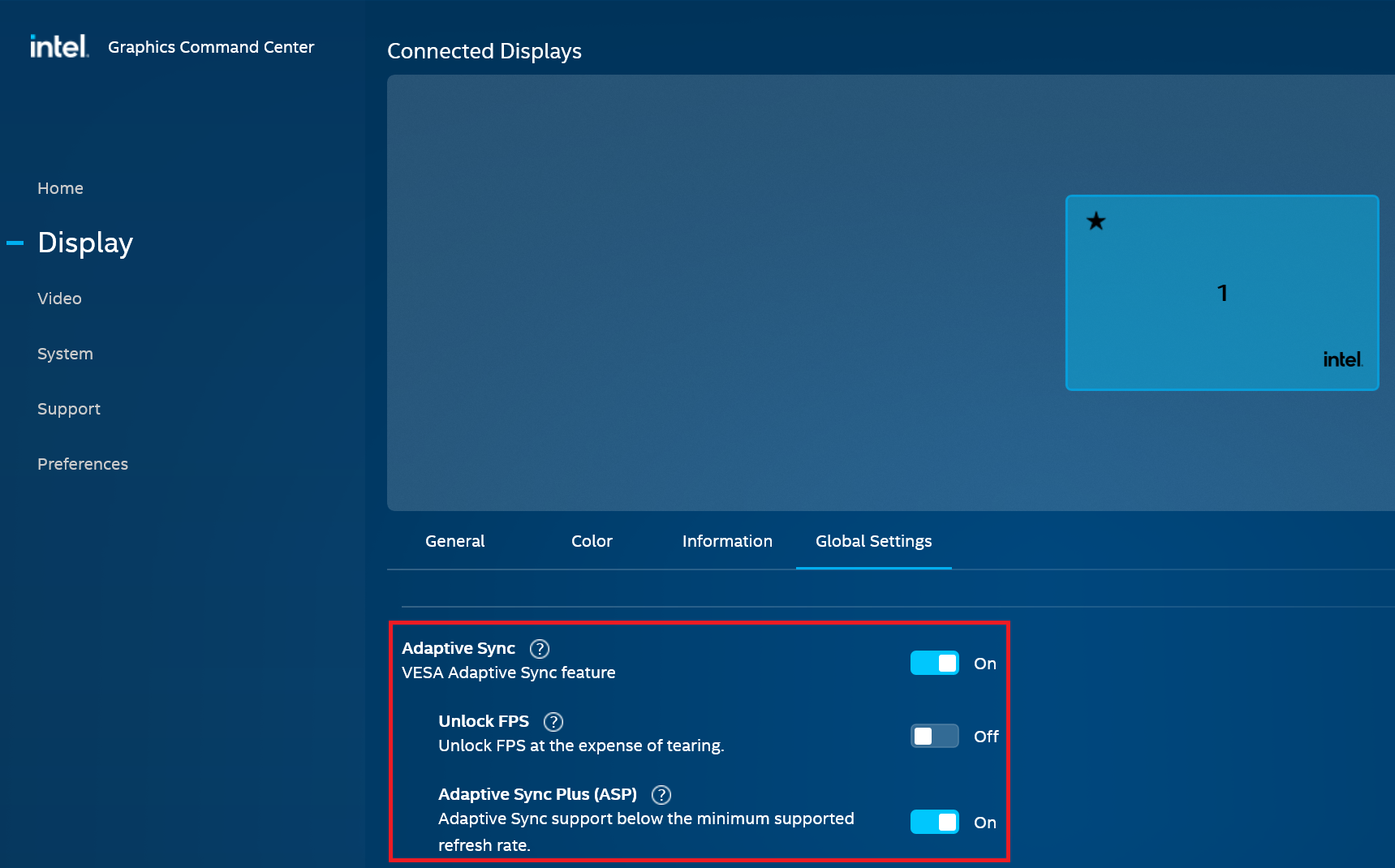
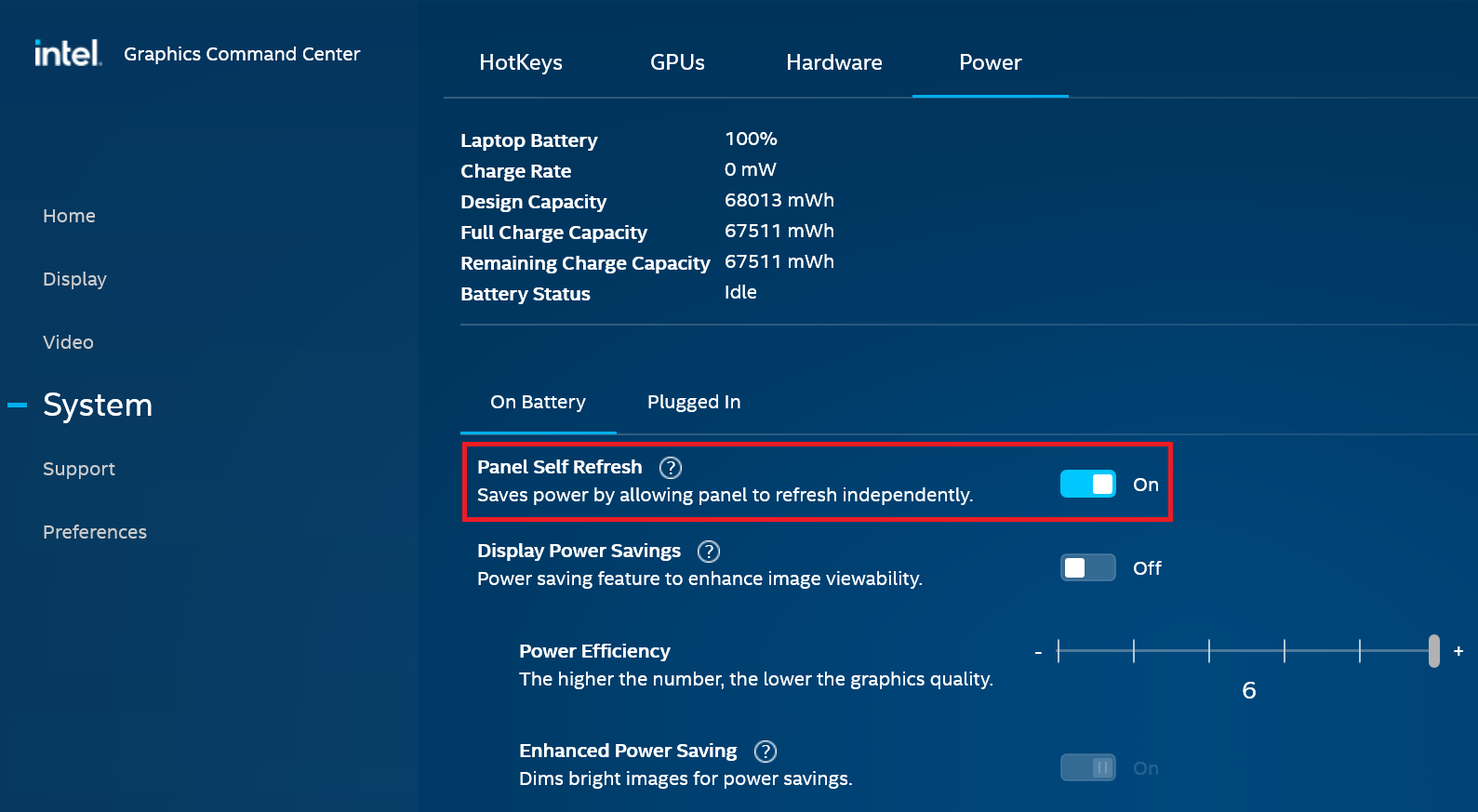
Now, we conduct the battery tests with the Windows Balanced setting turned on, screen brightness adjusted to 120 nits and all other programs turned off except for the one we are testing the notebook with. This laptop’s 68Wh battery pack lasts for around 10 hours of Web browsing or 12 hours and 30 minutes of video playback. To achieve that, you have to select the “Balanced” preset in the MyHP app and apply the “Balanced” preset in the Windows “Power & Battery” menu. The “Fan always on” function is disabled in the BIOS. The Adaptive Sync Plus and the Panel Self refresh options are activated in the Intel Control Panel.


The Adaptive Sync Plus and the Panel Self Refresh options are activated in the Intel Control Panel.
Luminozitate: 180 nits; Mod Afișaj: SDR
Timp până la Descărcare Completă: Mai mare este mai bun
Pentru a simula condiții reale, am folosit propriul nostru script pentru navigarea automată pe web prin peste 70 de site-uri.
Disassembly, Upgrade options, and Maintenance
To gain access to the internals, you have to undo 4 Phillips-head screws. Slightly raise the panel close to one of the top two corners and fully pry the whole zone behind the hinge cover. Then, use a lever tool to lift the backside close to the top edges. Push harder to pop the two sections. Now it’s time to pry the sides and the front with a thin plastic tool.
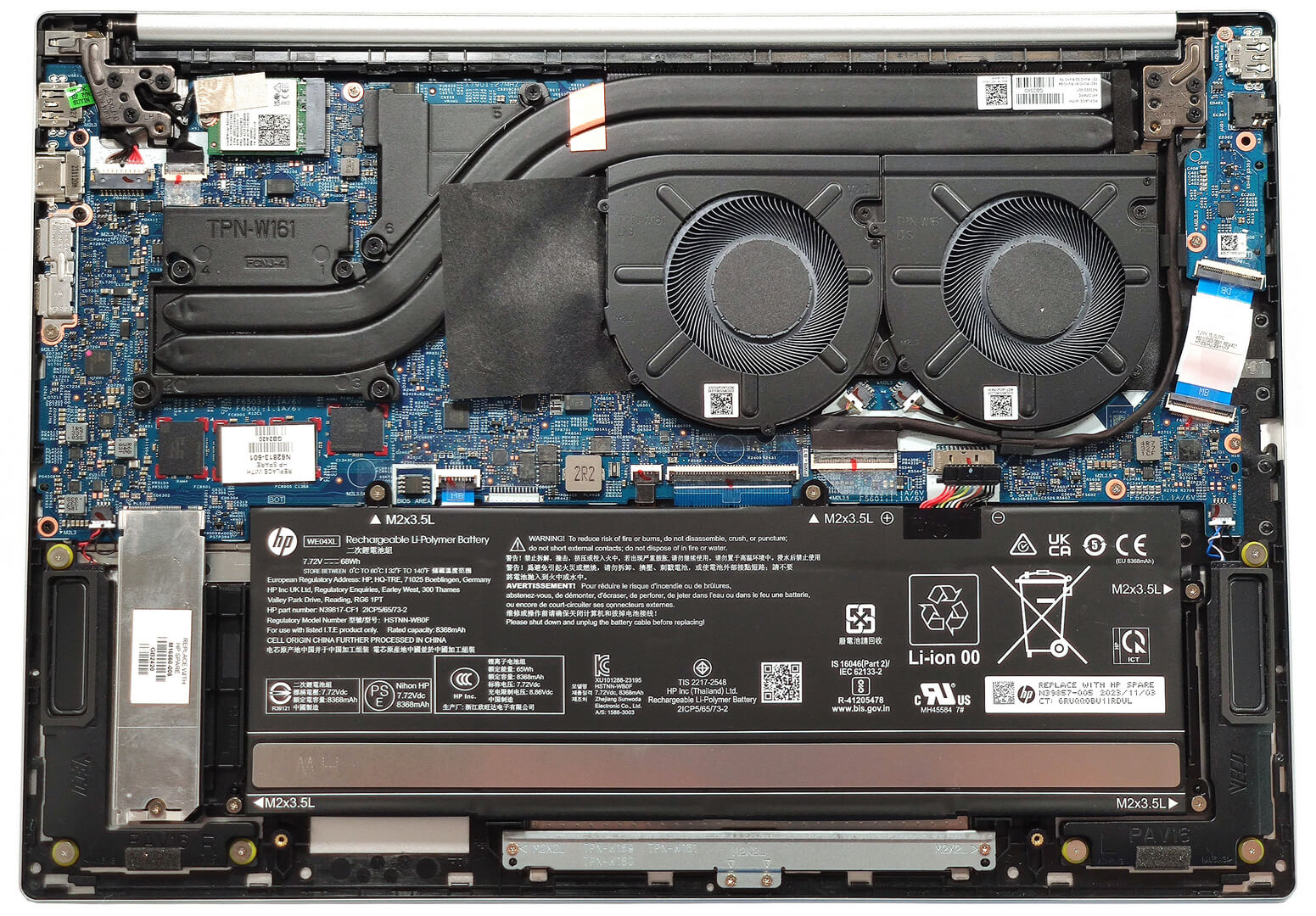
Here’s how the bottom plate looks on the inside.
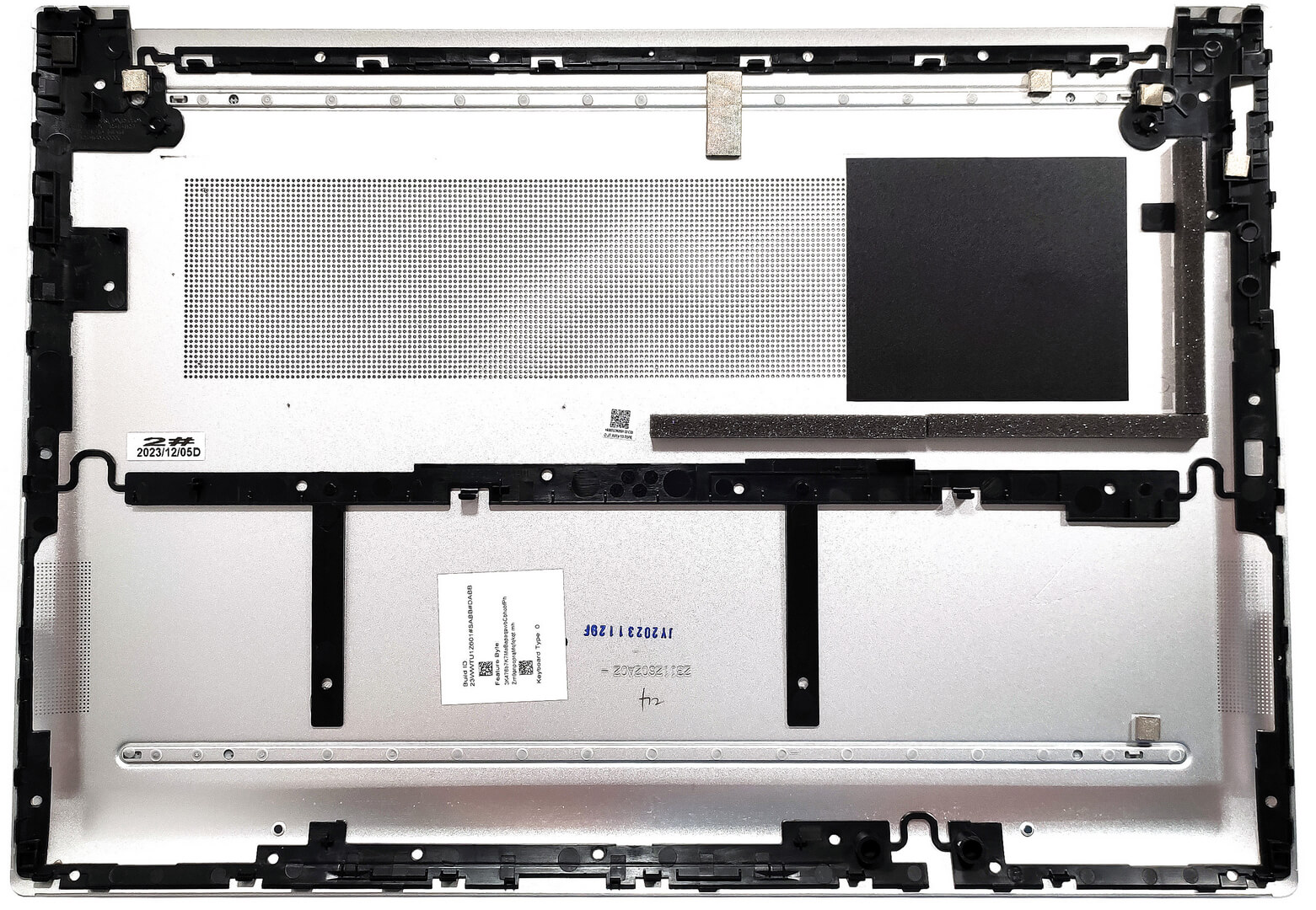
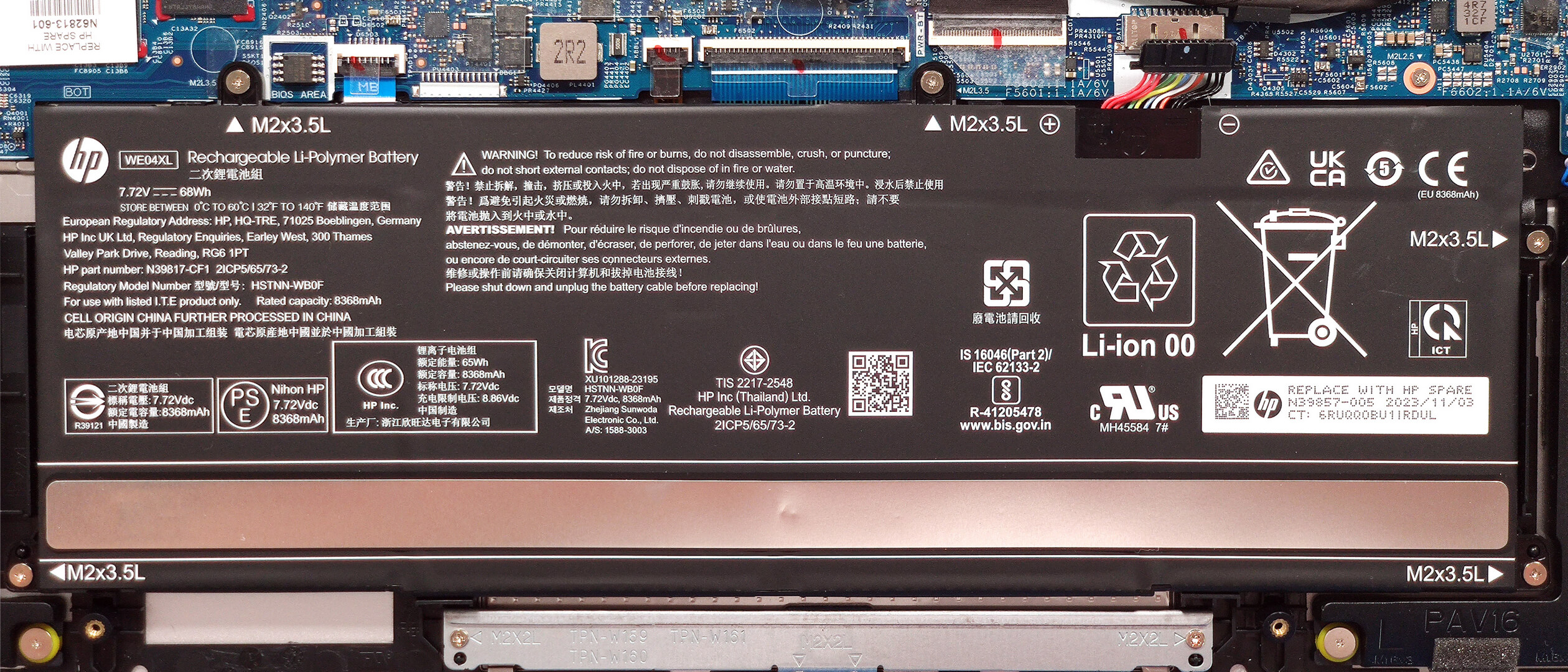
This device has a 68Wh battery. To take it out, detach the connector from the motherboard, and undo the 5 Phillips-head screws that keep the unit in place. The capacity is enough for around 10 hours of Web browsing or 12 hours and 30 minutes of video playback.
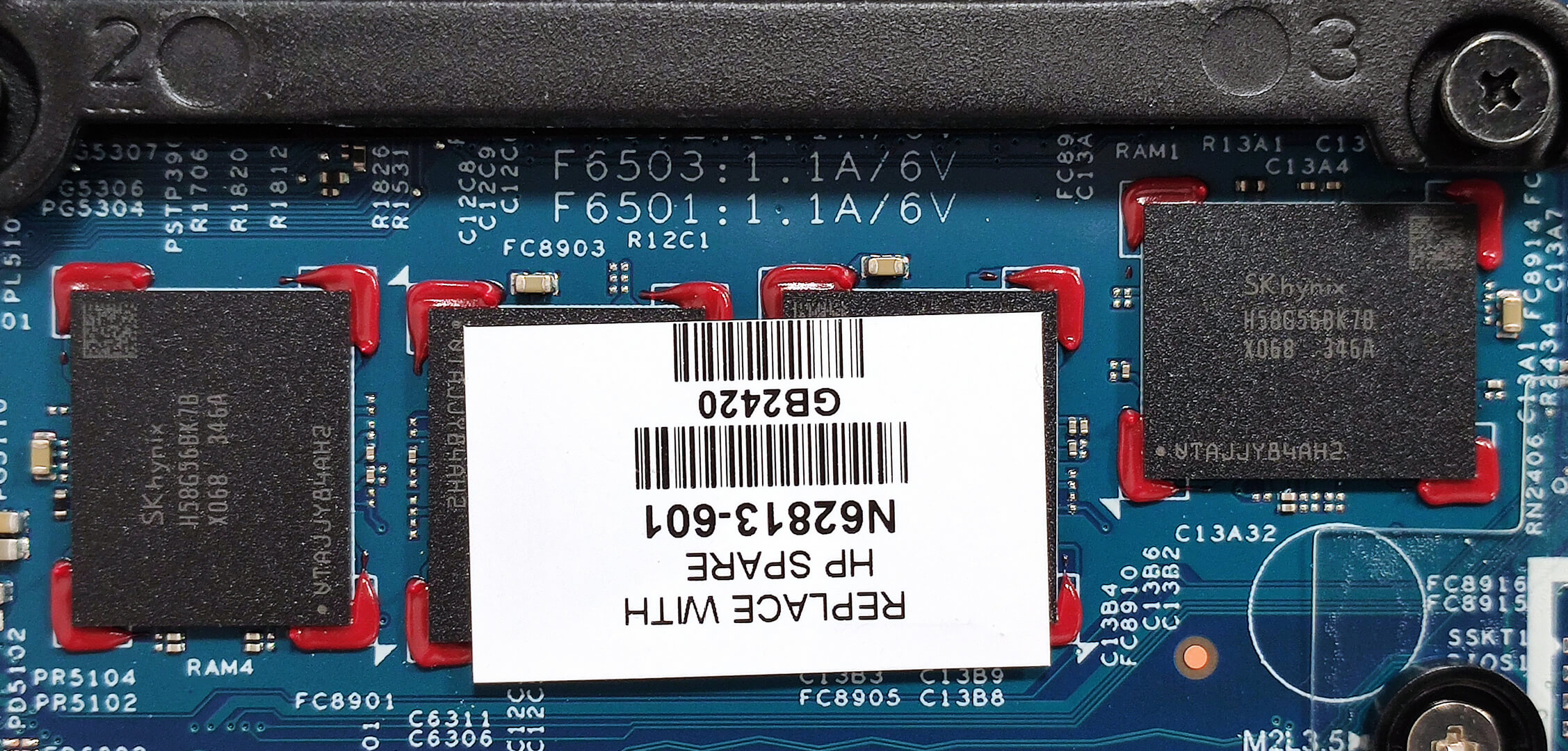
Sadly, the RAM is soldered. You can rely on 16GB of LPDDR5x-5200 MHz memory in dual-channel mode.
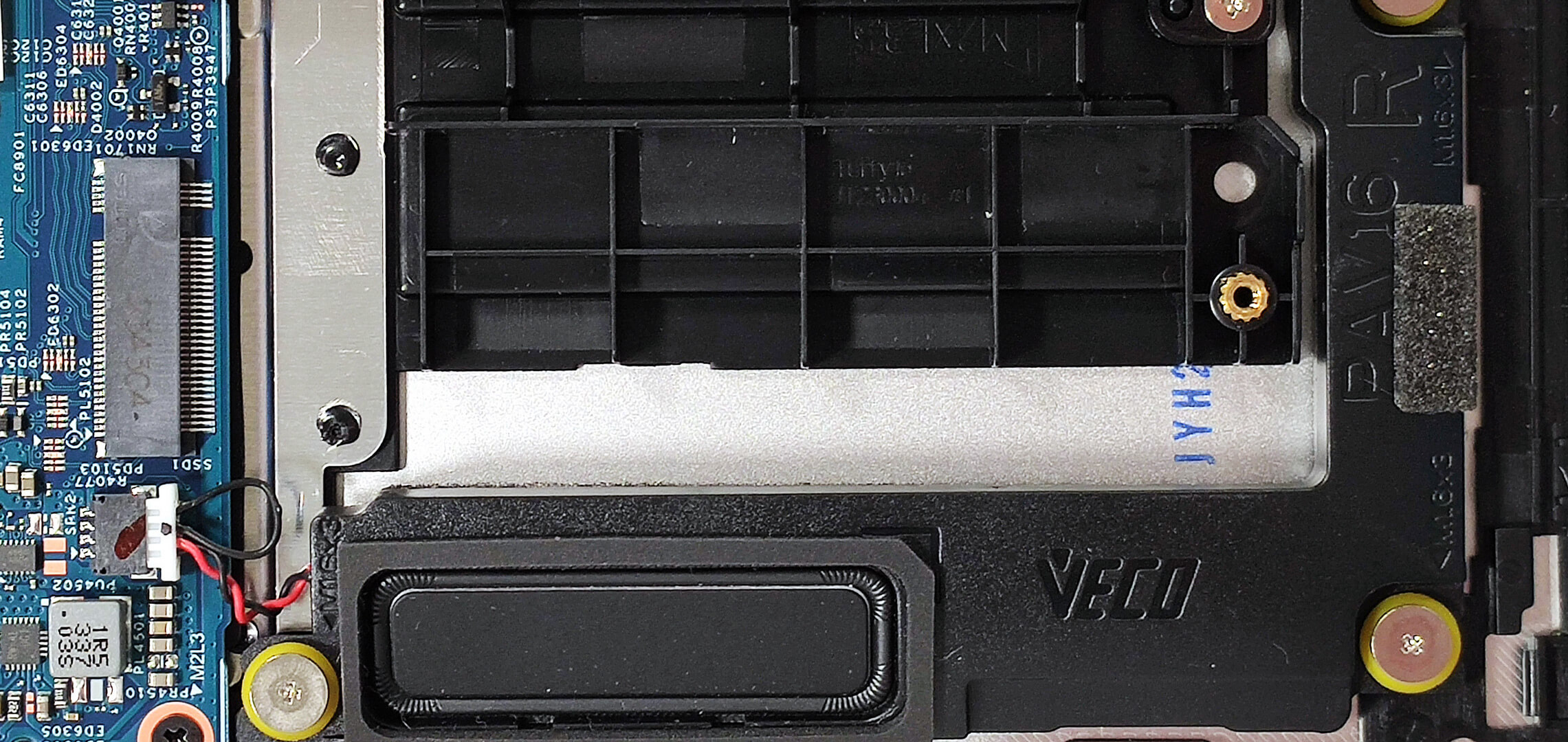
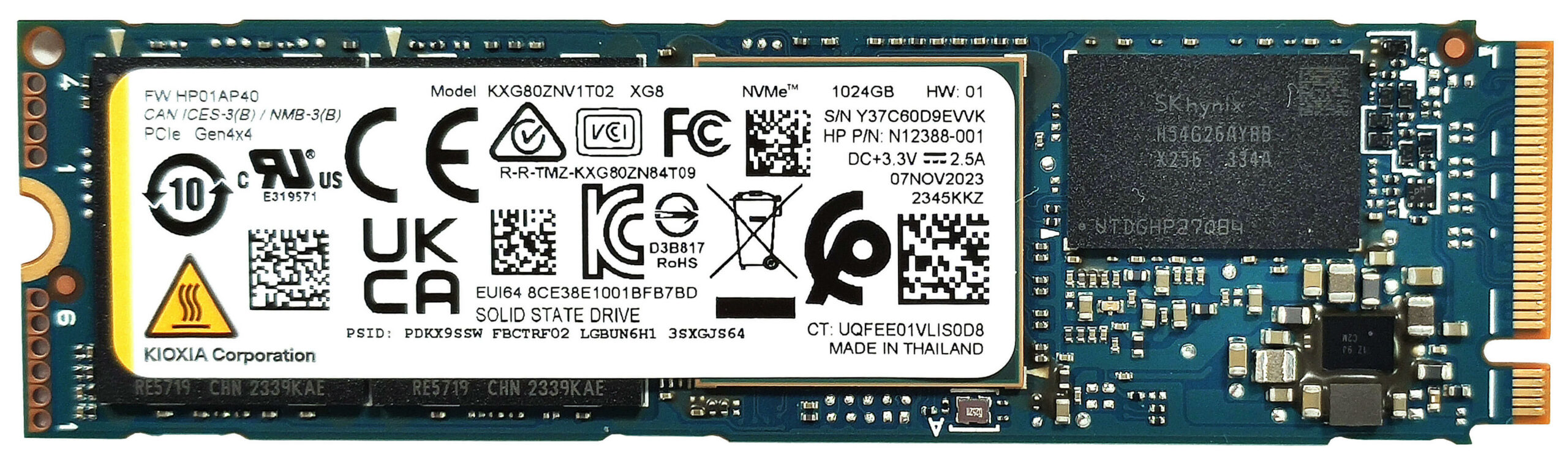
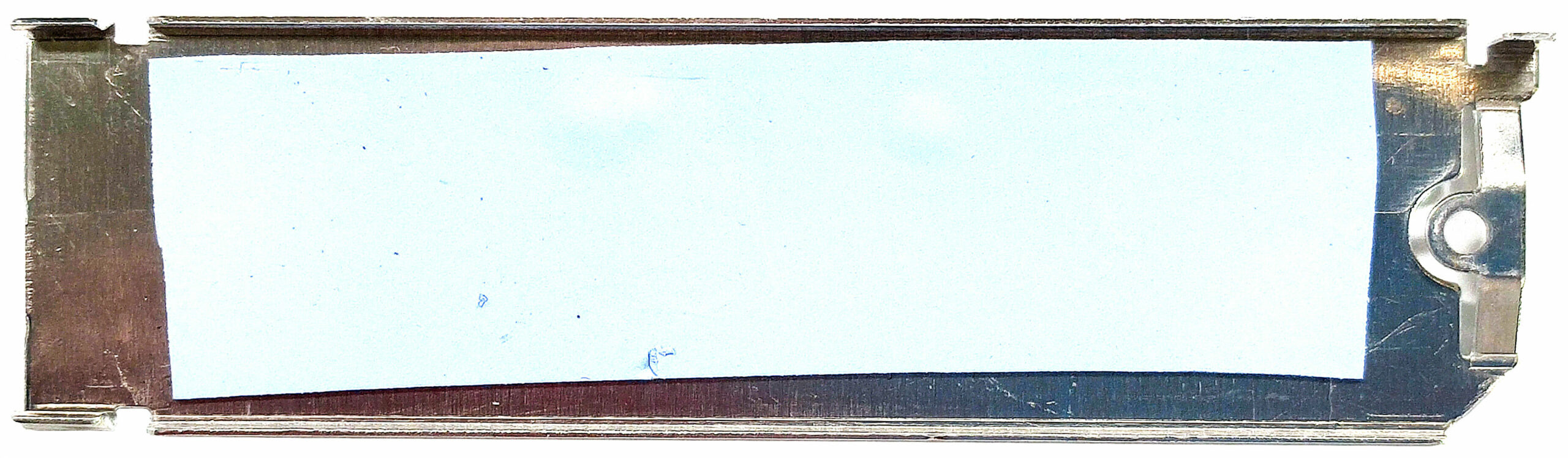
Storage-wise, there is just one M.2 slot for 2280 Gen 4 SSDs. The SSD here is covered by a metal plate that is fixed to the base with a single screw. The shroud has a long thermal pad on the inside.
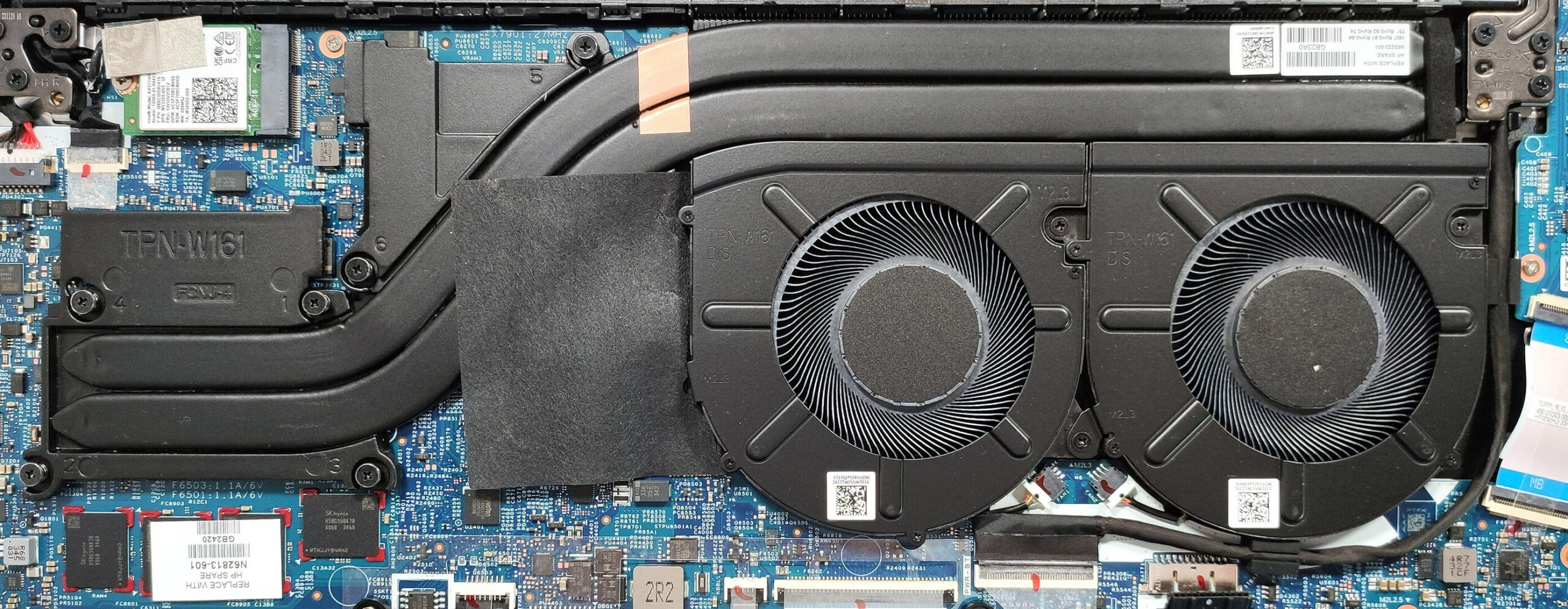
The cooling looks good for such a thin laptop. It comprises two large fans, a pair of long heat pipes, one sizable top-mounted heat sink, and two heat spreaders.
Verdict
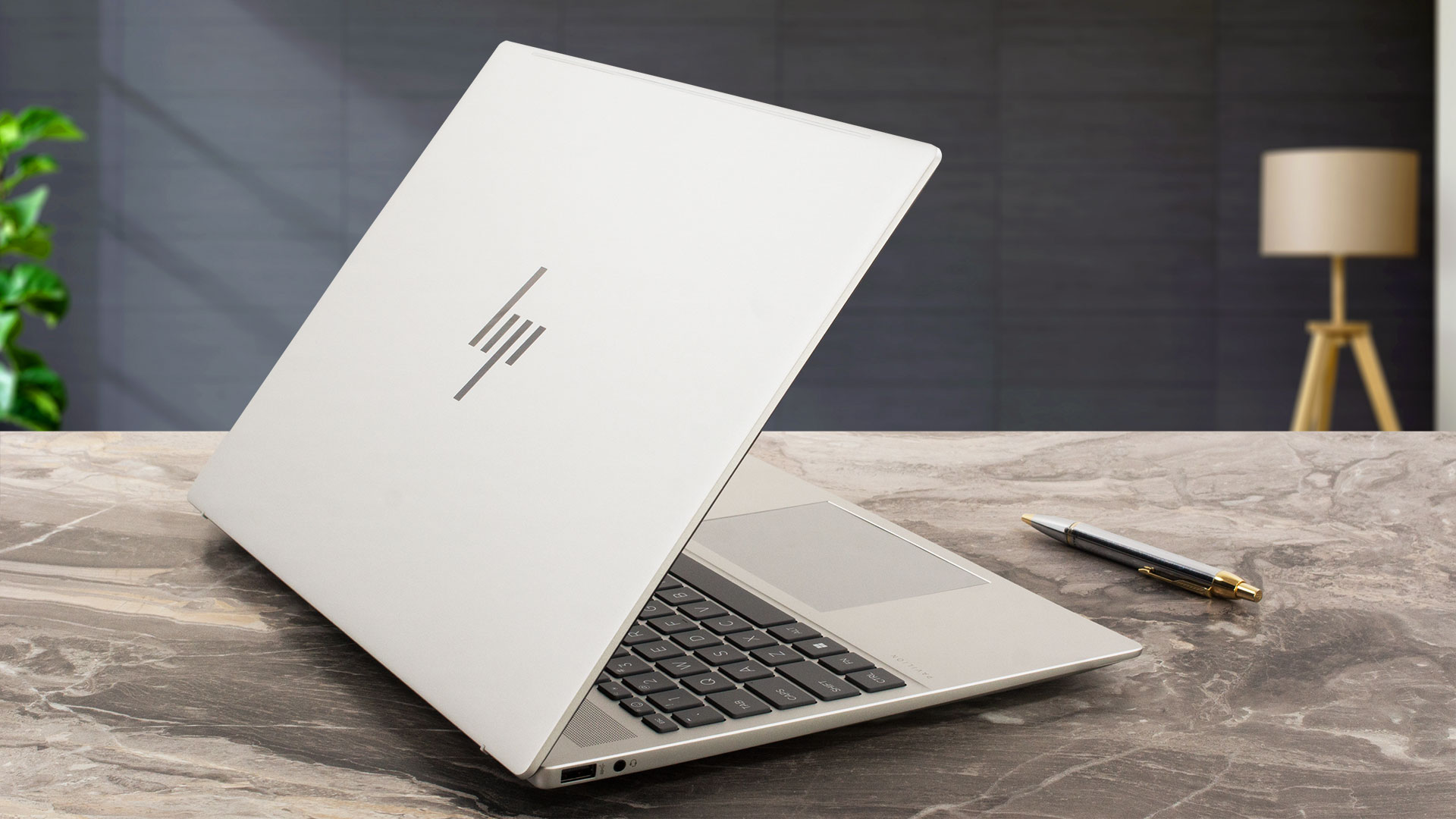 If you are looking to buy a powerful machine that isn’t heavy, the HP Pavilion Plus 16 (ab0000) seems like a good choice. The device is light and thin for a 16-incher, and it has a pretty hefty cooling solution under the bonnet. This leads to adequate CPU clocks during long loads and to decent noise levels as well. The comfort during full system stress in “Performance” is good – the fans aren’t too loud and the keyboard doesn’t feel scorching hot to the touch. Oops, the NVMe gets toasty during benchmarking, despite the metal plate with a thermal pad on top of the SSD. On the other hand, the unit is snappy.
The keyboard is good. It offers a backlight, a NumPad, and long key travel combined with clicky feedback. The touchpad is decently sized and it has a pleasantly smooth surface. Expectedly for such a thin device, the upgradability isn’t great at all – soldered RAM and just one M.2 Gen 4 slot. Still, the port selection is modern with its two Type-Cs that support DisplayPort and charging. However, the lack of extras such as an SD card slot or a fingerprint reader is a bit strange given the price tag of the laptop.
The 16:10 IPS display (AUO AUOFDA4) is the star of the show here. This unit boasts wide viewing angles, 414 nits max brightness, and 95% RGB coverage. The out-of-the-box color accuracy is nothing to write home about but thanks to our “Design and Gaming” profile, the screen can show an average dE score of 1.7 which is a good result compared to the 4.4 default value.
The battery life is good considering the high-res display and the potent hardware – around 10 hours of Web browsing or 12 hours of videos on a single charge. Not bad for a 68Wh unit – perhaps the Intel Evo certification also helps in this situation. Overall, the HP Pavilion Plus 16 (ab0000) is a light and thin 16-ich machine with a PWM-free IPS display, long battery life, and comfortable input devices.
You can check the prices and configurations in our Specs System: https://laptopmedia.com/series/hp-pavilion-plus-16-16t-ab0000-ab1000/
Pros
- Clean design
- Low weight and a thin profile for a 16-incher (1.89 kg / 17.7 mm)
- Impressively big cooling system for such a profile height
- Adequate CPU and GPU frequencies in long loads
- Wide viewing angles and a high max brightness of 414 nits (AUOFDA4)
- Snappy pixel response times (8 ms) for an IPS panel (AUOFDA4)
- PWM-free (AUOFDA4)
- 95% sRGB coverage + good color representation with our “Design and Gaming” profile (AUOFDA4)
- Very good input devices
- Up-to-date port selection
- The fans aren’t noisy in “Performance” mode
- The optional 6GB GeForce RTX 3050 is still fine for gaming on Medium or High details
- Long battery battery life given the 1600p display and the powerful hardware
- Has a 5MP IR Web camera with a privacy shutter
- Snappy NVMe
Cons
- Spongy lid
- So-so CPU clocks in short and medium loads
- Lacks a fingerprint reader
- Soldered memory and just one M.2 slot
- The SSD gets hot during benchmarking
 Author: Nikolay Palaozov
 Author: eng. Kroum NikolovHead of Engineering at LaptopMedia.com, inventor and innovator with 40+ years of experience in electronics and high technology.
TOP 100 LAPTOPURI DE GAMING


Top Evaluări Laptopuri
Repere vezi mai multe
![[Mai 2026] Clasamentul global al celor mai bine vândute GPU-uri pentru laptopuri pe Amazon – Apple domină cu o cotă de 45%, ocupă primele 3 locuri; RTX 5060 de la NVIDIA conduce în topul GPU-urilor dedicate](https://laptopmedia.com/wp-content/uploads/2026/06/Best-Selling-GPUs-GLOBAL-Top-10-400x225.jpg)
[Mai 2026] Clasamentul global al celor mai bine vândute GPU-uri pentru laptopuri pe Amazon – Apple domină cu o cotă de 45%, ocupă primele 3 locuri; RTX 5060 de la NVIDIA conduce în topul GPU-urilor dedicate
Iun 04, 2026![[Mai 2026] Clasamentul global al celor mai bine vândute procesoare pentru laptopuri pe Amazon – Apple zdrobește concurența cu o cotă de piață de 45,2%, M5 domină](https://laptopmedia.com/wp-content/uploads/2026/06/Best-Selling-CPUs-GLOBAL-Top-10-400x225.jpg)
[Mai 2026] Clasamentul global al celor mai bine vândute procesoare pentru laptopuri pe Amazon – Apple zdrobește concurența cu o cotă de piață de 45,2%, M5 domină
Iun 04, 2026![[May 2026] Amazon Germany: Top 7 Best-Selling Gaming Laptops – Lenovo Legion 5i Crowned Champion Amidst Fierce Mid-Range Competition](https://laptopmedia.com/wp-content/uploads/2026/06/Best-Selling-Gaming-Laptops-DE-Top-10-1-400x225.jpg)
[May 2026] Amazon Germany: Top 7 Best-Selling Gaming Laptops – Lenovo Legion 5i Crowned Champion Amidst Fierce Mid-Range Competition
Iun 03, 2026![[May 2026] Amazon Italy: Top 10 Best-Selling Laptops – Apple MacBook Neo Reigns Supreme, Premium Models Capture Dominant Revenue Share](https://laptopmedia.com/wp-content/uploads/2026/06/Best-Selling-Laptops-IT-Top-10-400x225.jpg)
[May 2026] Amazon Italy: Top 10 Best-Selling Laptops – Apple MacBook Neo Reigns Supreme, Premium Models Capture Dominant Revenue Share
Iun 03, 2026![[May 2026] Best-Selling Laptop Brands on Amazon Italy – Apple Dominates Across All Metrics](https://laptopmedia.com/wp-content/uploads/2026/06/IT-Best-Brands-400x225.jpg)
[May 2026] Best-Selling Laptop Brands on Amazon Italy – Apple Dominates Across All Metrics
Iun 03, 2026
Recenzii vezi mai multe
MSI Cyborg 17 B13W review – Ecran mare, putere RTX redusă
Iun 02, 2026Apple MacBook Air 15.3″ (M5) – Cel mai bun laptop de 15 inchi pentru utilizare zilnică?
Mai 30, 2026ASUS ROG Zephyrus G14 (GA403, Ryzen AI 300) recenzie – RTX 5070 Ti, OLED și portabilitate reală
Mai 27, 2026ASUS Vivobook 18 (M1807) review – Ecran uriaș, baterie mare, compromisuri reale
Mai 23, 2026Recenzie Apple MacBook Neo – MacBook-ul de 599 de dolari care a schimbat jocul entry-level
Mai 21, 2026
Good review cuh