How to open Lenovo Legion Pro 5 (16″, Gen 10) – disassembly and upgrade options
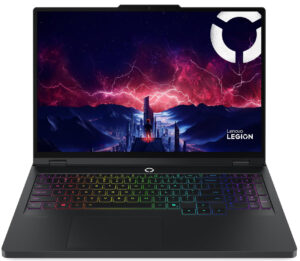
Step 1: Opening the Lenovo Legion Pro 5 (16″, Gen 10)
- Power off the laptop and place it on a soft, clean surface.
- Remove the 10 screws securing the bottom panel.
- Use a thin plastic pry tool to release the clips around the edges. Work carefully so the tool doesn’t dip too far into the chassis and touch internal components.
- Lift the bottom cover away from the base.
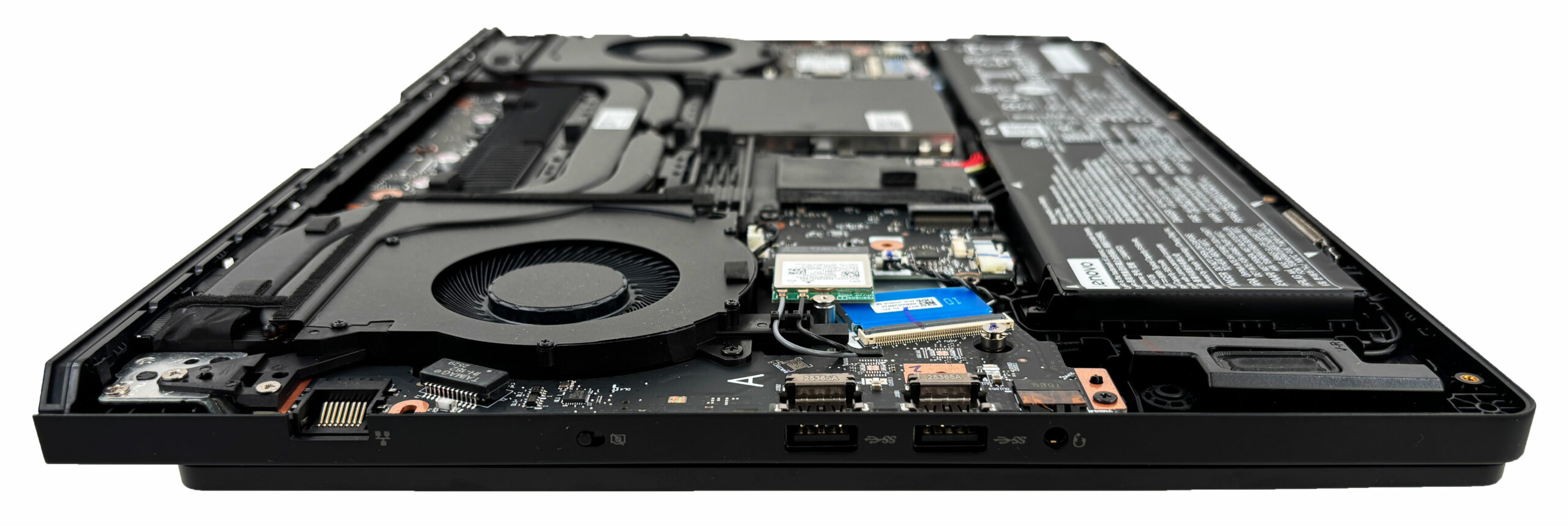
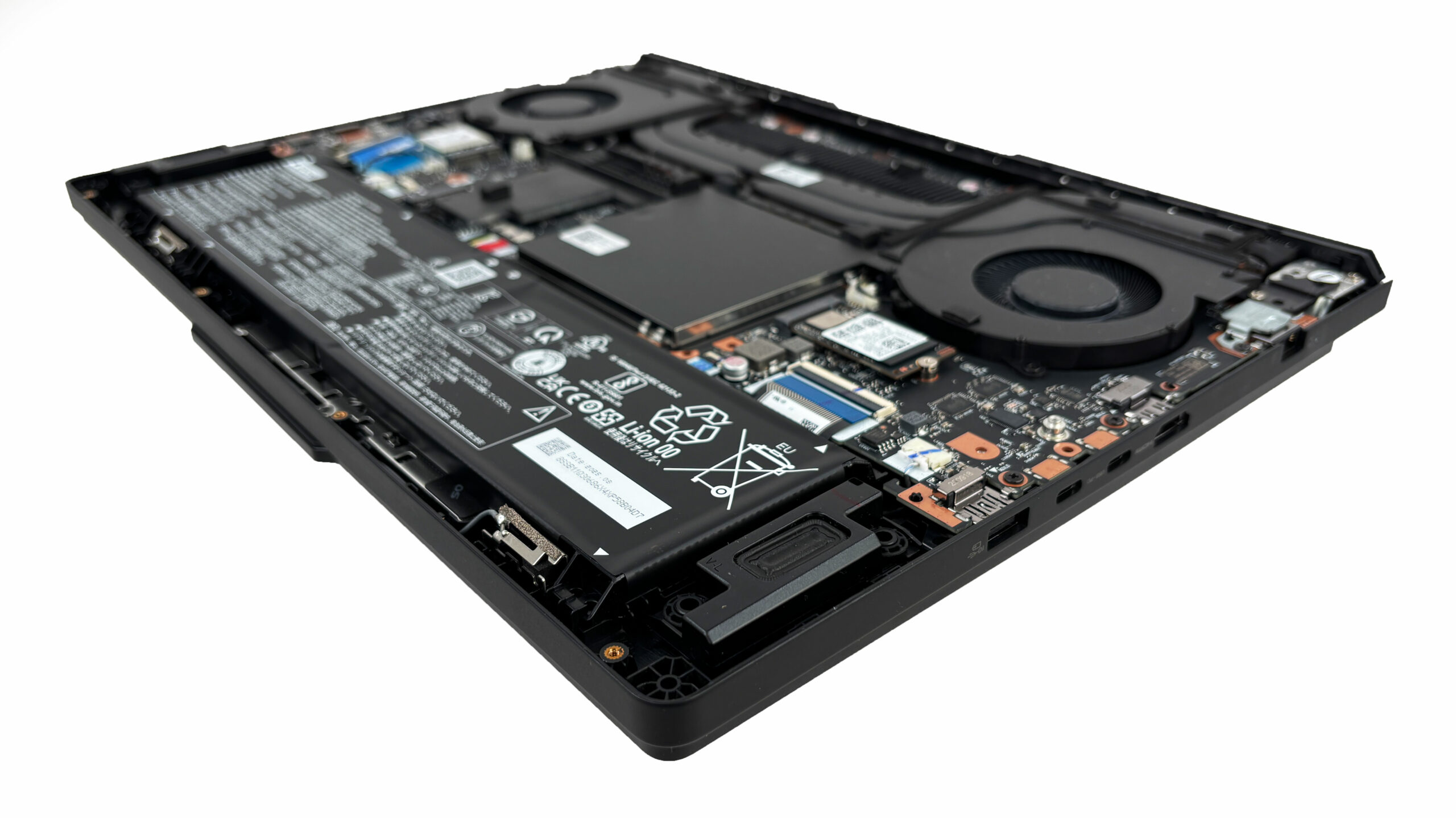
More info: Once inside, the layout is well organized, with clearly separated cooling, memory, storage, wireless, and battery zones.
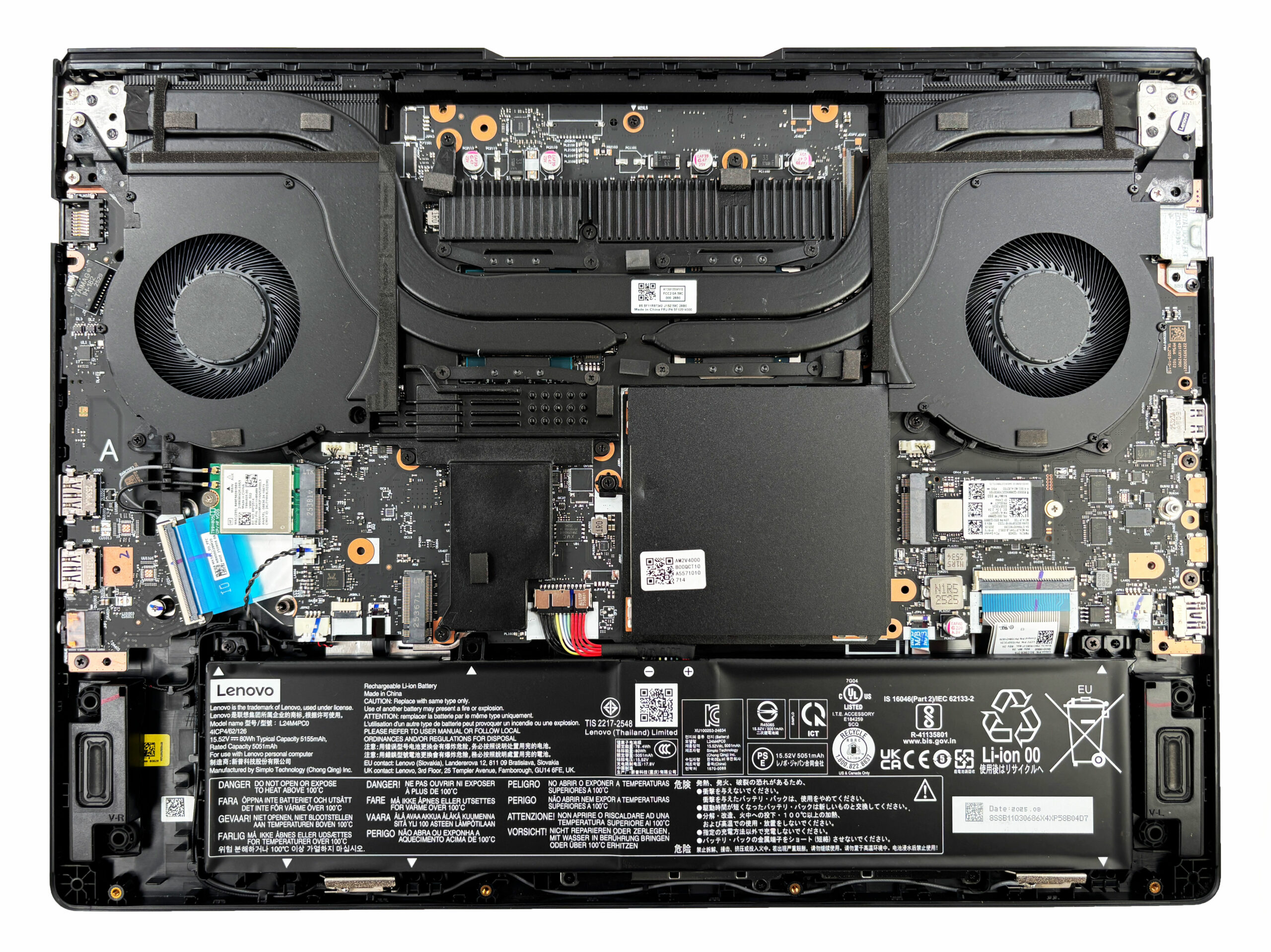
Step 2: Battery Removal
- Disconnect the battery cable from the motherboard before working on any internal component.
- Undo the screws securing the 80Wh battery pack.
- Lift the battery out of the chassis.
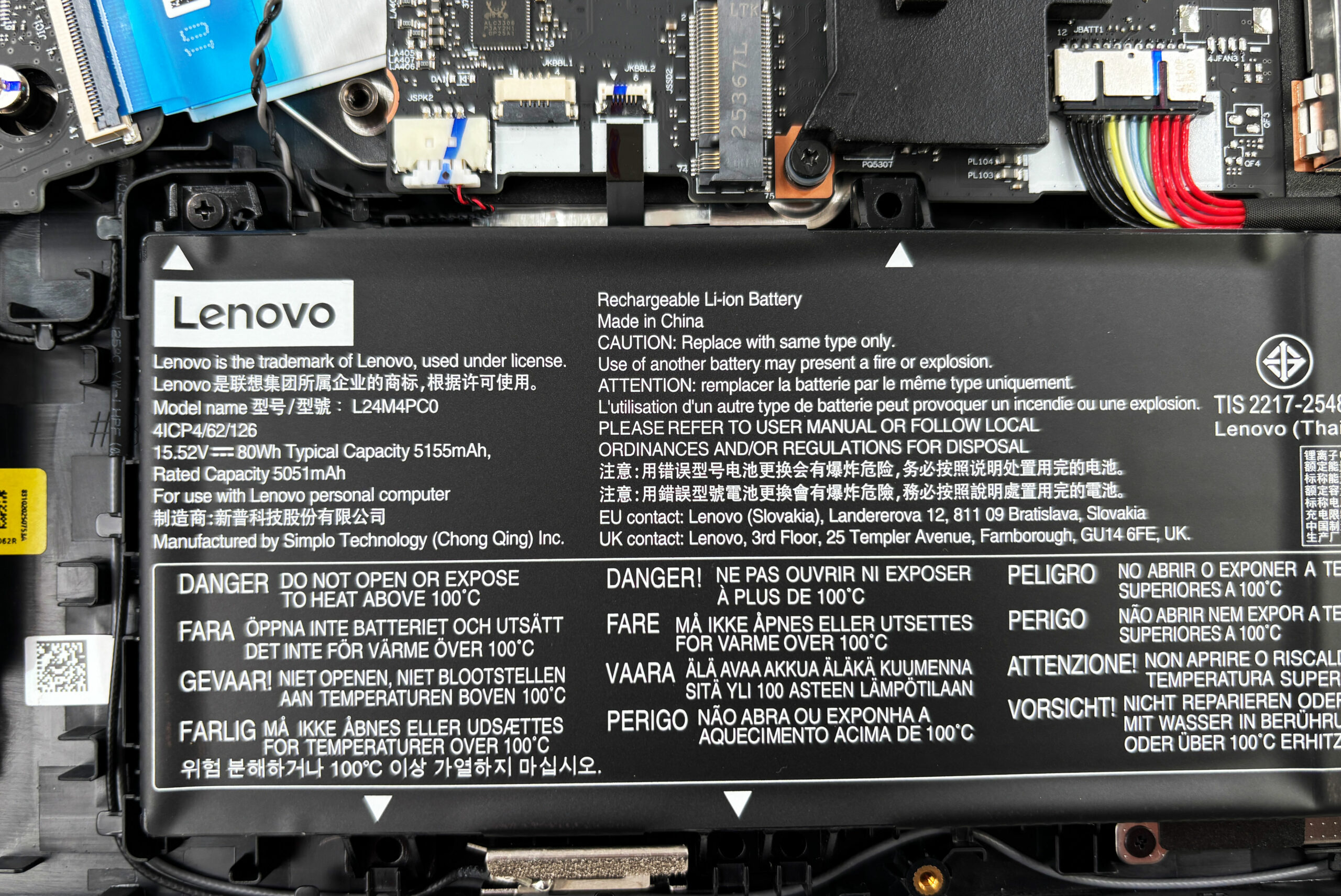
More info: The battery is an 80Wh unit rated at 15.52V. It is screw-mounted rather than glued in place, which makes future replacement much easier. Lenovo also supports Super Rapid Charge on this platform.
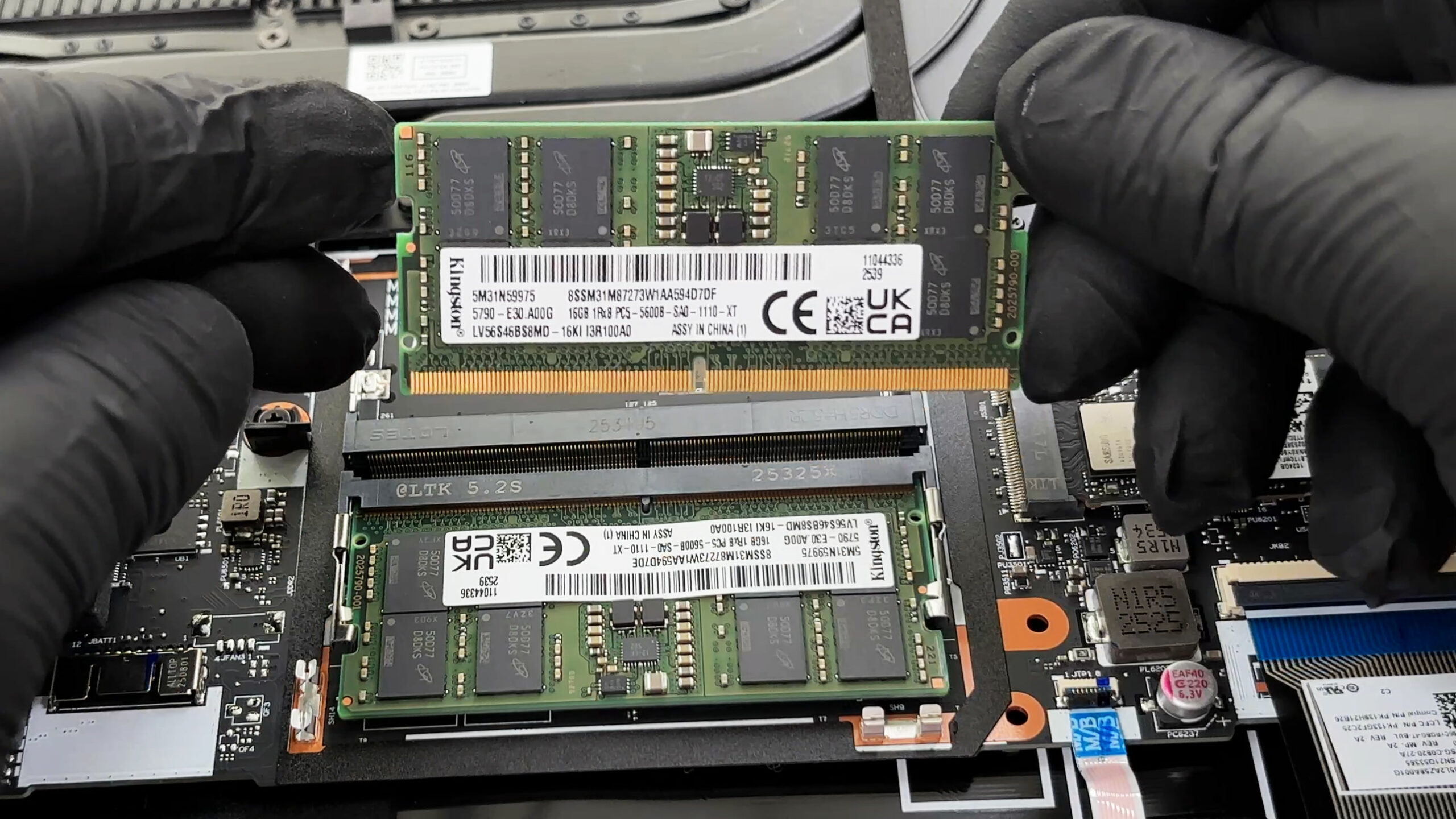
Memory Upgrade
- The RAM is located under the EMI shield in the center of the motherboard.
- Carefully remove the shield to access the two DDR5 SO-DIMM slots.
- Our unit is equipped with two Kingston 16GB DDR5 modules.
- Officially, Lenovo lists support for up to 32GB DDR5-5200 in dual-channel mode.
- To upgrade the memory, insert the new module at an angle, then press it down until the side clips lock it in place.
You can buy DDR5 RAM modules here: Buy from Amazon.ca (#CommissionsEarned)
Storage Upgrade
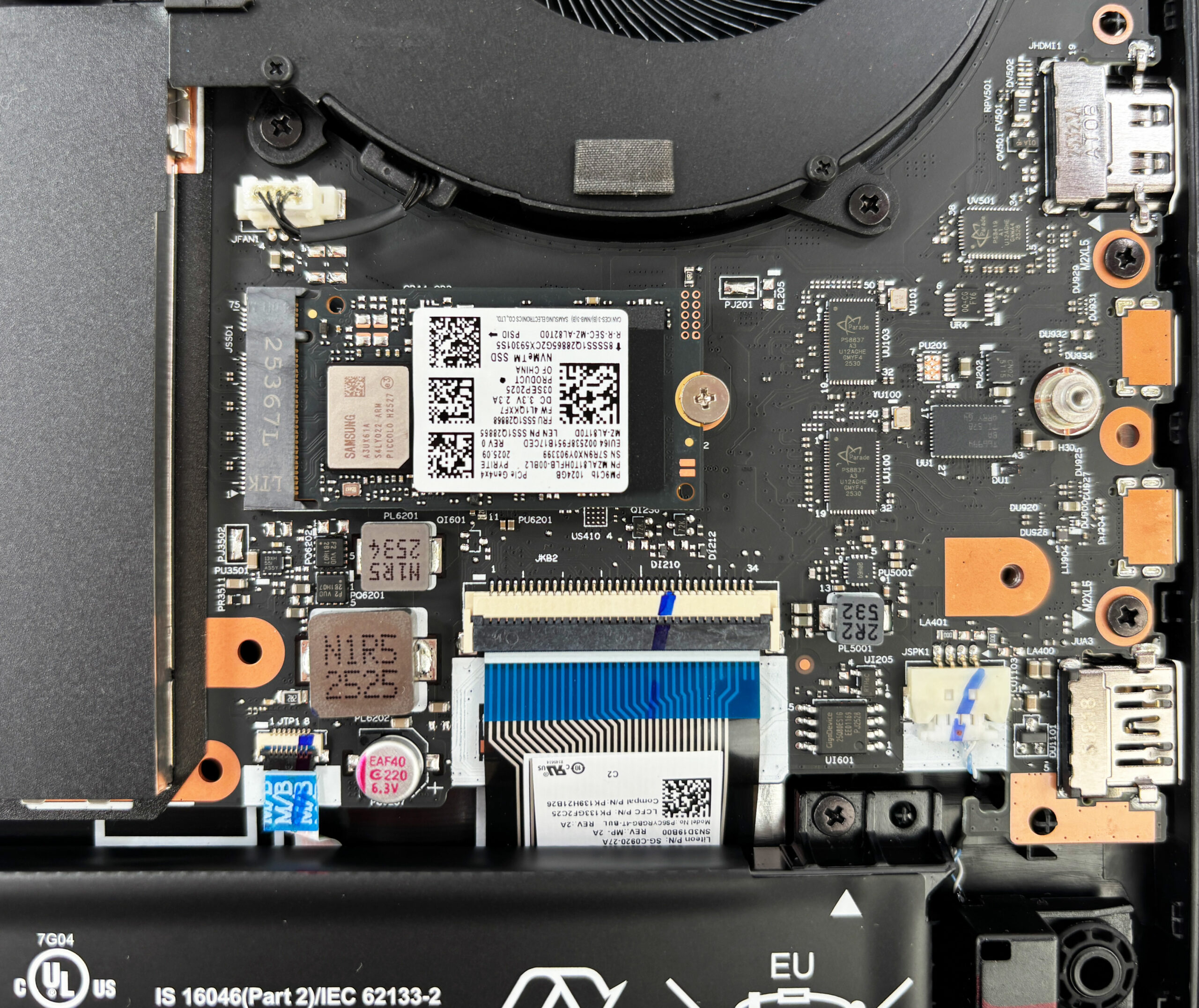
- The laptop offers two M.2 slots for SSDs.
- In our configuration, the primary drive is a Samsung PM9C1b 1TB NVMe SSD running over PCIe 4.0 x4.
- The second slot is free and ready for expansion.
- Lenovo officially lists support for up to two M.2 2242 SSDs, up to 1TB each in standard configurations.
- In practice, the chassis can also accommodate 2280-sized drives and capacities above 1TB per slot.
You can buy Gen 4 M.2 SSDs here: Buy from Amazon.ca (#CommissionsEarned)
Hint: Don’t forget to check out our Top M.2 SSDs Performance Rankings for insights on the best storage options available.
Step 3: Cooling System Overview
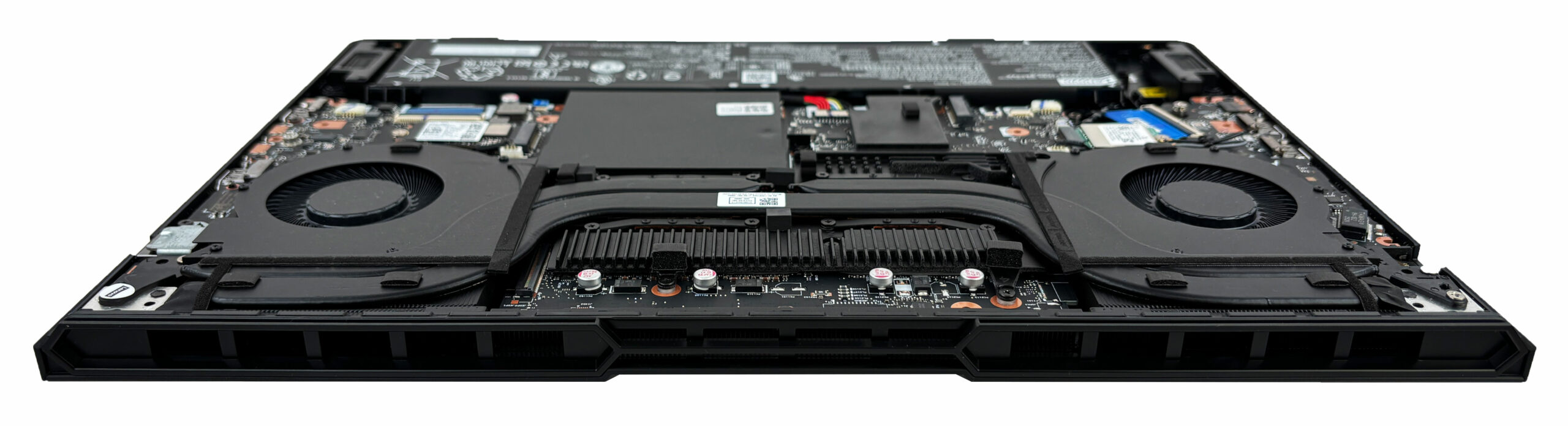
- The cooling system uses two fans, multiple heat pipes, and a large rear fin stack connected to a wide rear exhaust.
- There is also additional venting on the sides, which helps the laptop handle sustained performance loads.
- This is a strong thermal design for a 16-inch gaming machine, while still keeping service access straightforward.
More info: The wireless card is replaceable and uses a standard M.2 form factor with two antenna leads. Depending on the configuration, the laptop may come with either Wi-Fi 6 + Bluetooth 5.2 or Wi-Fi 7 + Bluetooth 5.4.
More info: RAM, both SSD slots, the Wi-Fi card, and the battery are user-replaceable. The CPU and GPU are soldered to the motherboard.
Lenovo Legion Pro 5 (16", Gen 10) in-depth review
The Lenovo Legion Pro 5 (16", Gen 10) arrives with a singular purpose: to deliver the absolute best gaming performance in its class, wrapped in a chassis that means business. It doesn't rely on flashy gimmicks or overly aggressive styling; instead, it lets its benchmarks do the talking. And talk they do - in our testing, this unassuming machine shattered expectations, clocking in as the fastest RTX 5060 laptop we have ever reviewed. But this relentless pursuit of speed comes with a significant compromise that tethers it to the wall. Is record-breaking performance enough to make you overloo[...]
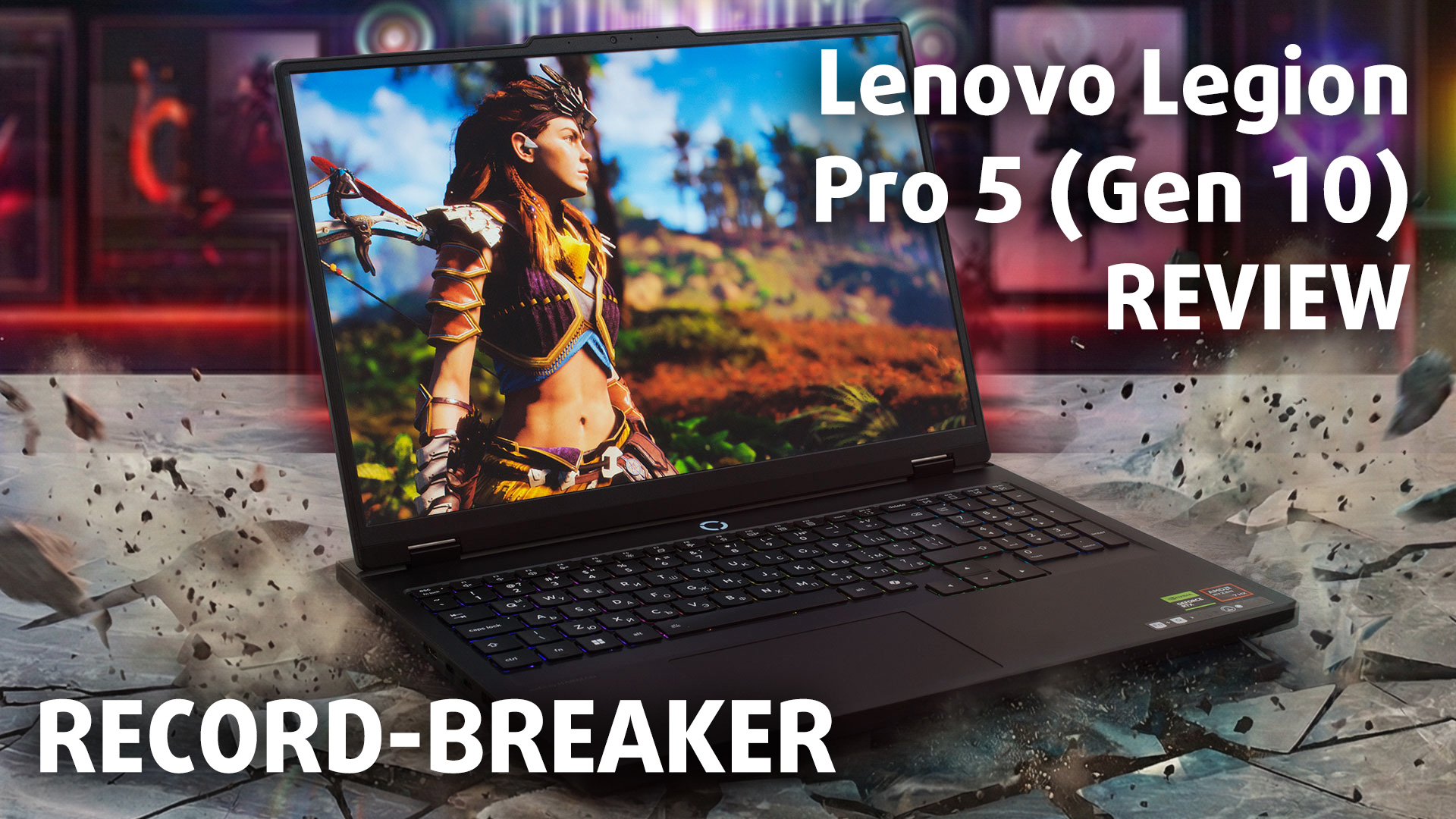
Pros
- Record-breaking GPU performance (fastest RTX 5060 tested)
- Excellent thermal management for the GPU
- Great display options, including a stunning OLED panel
- Fantastic upgradeability with two RAM and two 2280 M.2 slots
- Comfortable keyboard with full-sized arrow keys
- PWM-free screen is great for eye comfort
Cons
- Extremely poor battery life (under 3 hours)
- CPU runs hot under sustained heavy load
 Author: Dimitar Stalev

![[May 2026] Global Ranking of Best-Selling Laptop GPUs on Amazon – Apple Dominates with 45% Share, Sweeps Top 3 Spots; NVIDIA’s RTX 5060 Leads the Dedicated GPU Pack](https://laptopmedia.com/wp-content/uploads/2026/06/Best-Selling-GPUs-GLOBAL-Top-10-400x225.jpg)
![[May 2026] Global Ranking of Best-Selling Laptop CPUs on Amazon – Apple Crushes Competition with 45.2% Market Share, M5 Dominates](https://laptopmedia.com/wp-content/uploads/2026/06/Best-Selling-CPUs-GLOBAL-Top-10-400x225.jpg)
![[May 2026] Amazon Germany: Top 7 Best-Selling Gaming Laptops – Lenovo Legion 5i Crowned Champion Amidst Fierce Mid-Range Competition](https://laptopmedia.com/wp-content/uploads/2026/06/Best-Selling-Gaming-Laptops-DE-Top-10-1-400x225.jpg)
![[May 2026] Amazon Italy: Top 10 Best-Selling Laptops – Apple MacBook Neo Reigns Supreme, Premium Models Capture Dominant Revenue Share](https://laptopmedia.com/wp-content/uploads/2026/06/Best-Selling-Laptops-IT-Top-10-400x225.jpg)
![[May 2026] Best-Selling Laptop Brands on Amazon Italy – Apple Dominates Across All Metrics](https://laptopmedia.com/wp-content/uploads/2026/06/IT-Best-Brands-400x225.jpg)