How to open Lenovo Legion 5i (15″, 15IRHX10, Gen 10) – disassembly and upgrade options
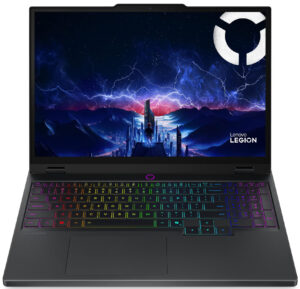
Step 1: Opening the Lenovo Legion 5i (15″, 15IRHX10, Gen 10)
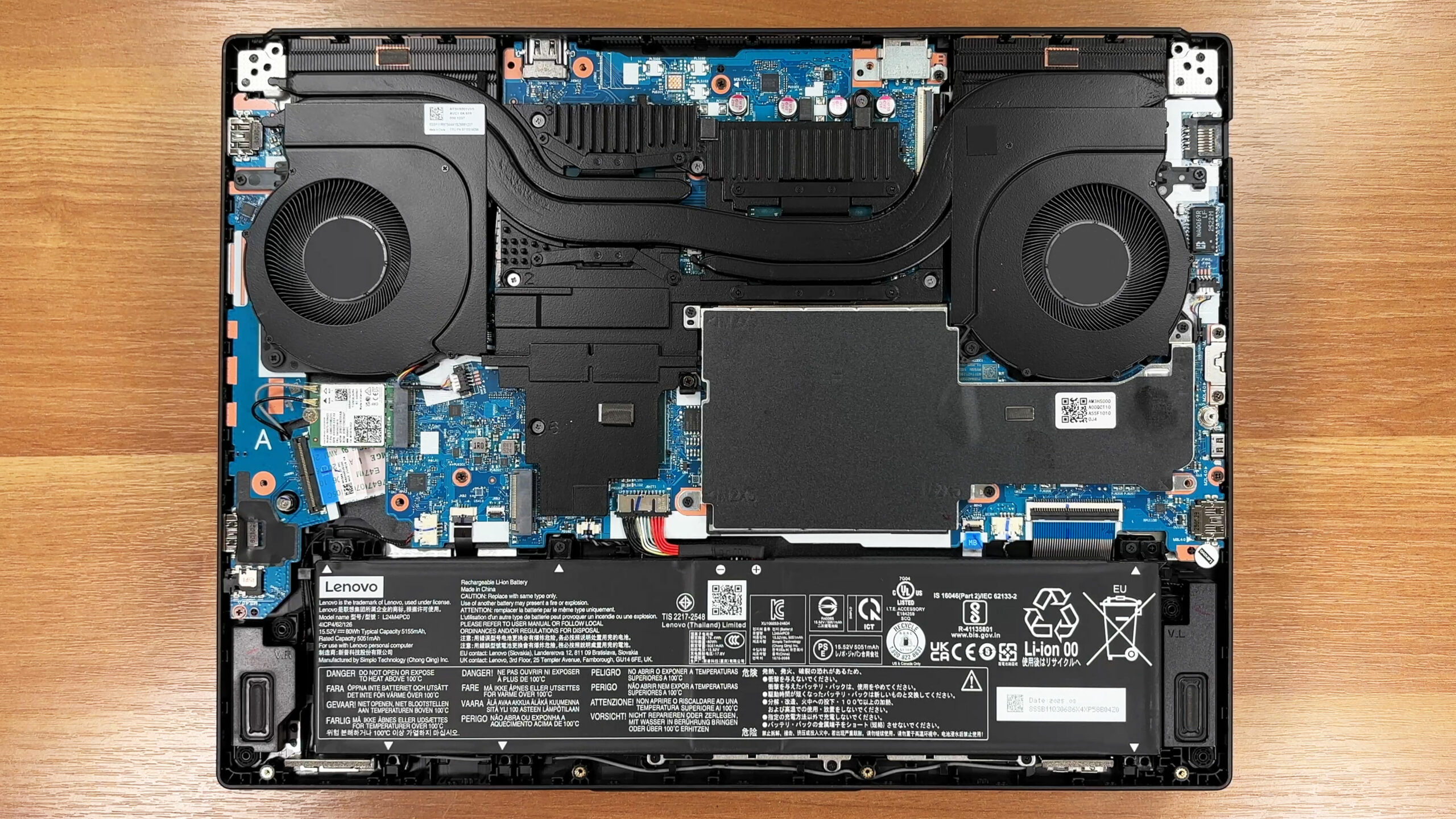
- Power off the laptop and place it on a soft, clean surface.
- Undo the 10 screws securing the bottom panel. Keep in mind that 4 of them are shorter, so it is a good idea to note their original positions before reassembly.
- Use a thin plastic pry tool to carefully release the clips around the edges of the panel.
- Lift the cover away from the chassis to access the internals.
More info: The internal layout is clean and practical, with the battery at the front, a shielded service area in the middle, and the cooling system covering the upper half of the motherboard.
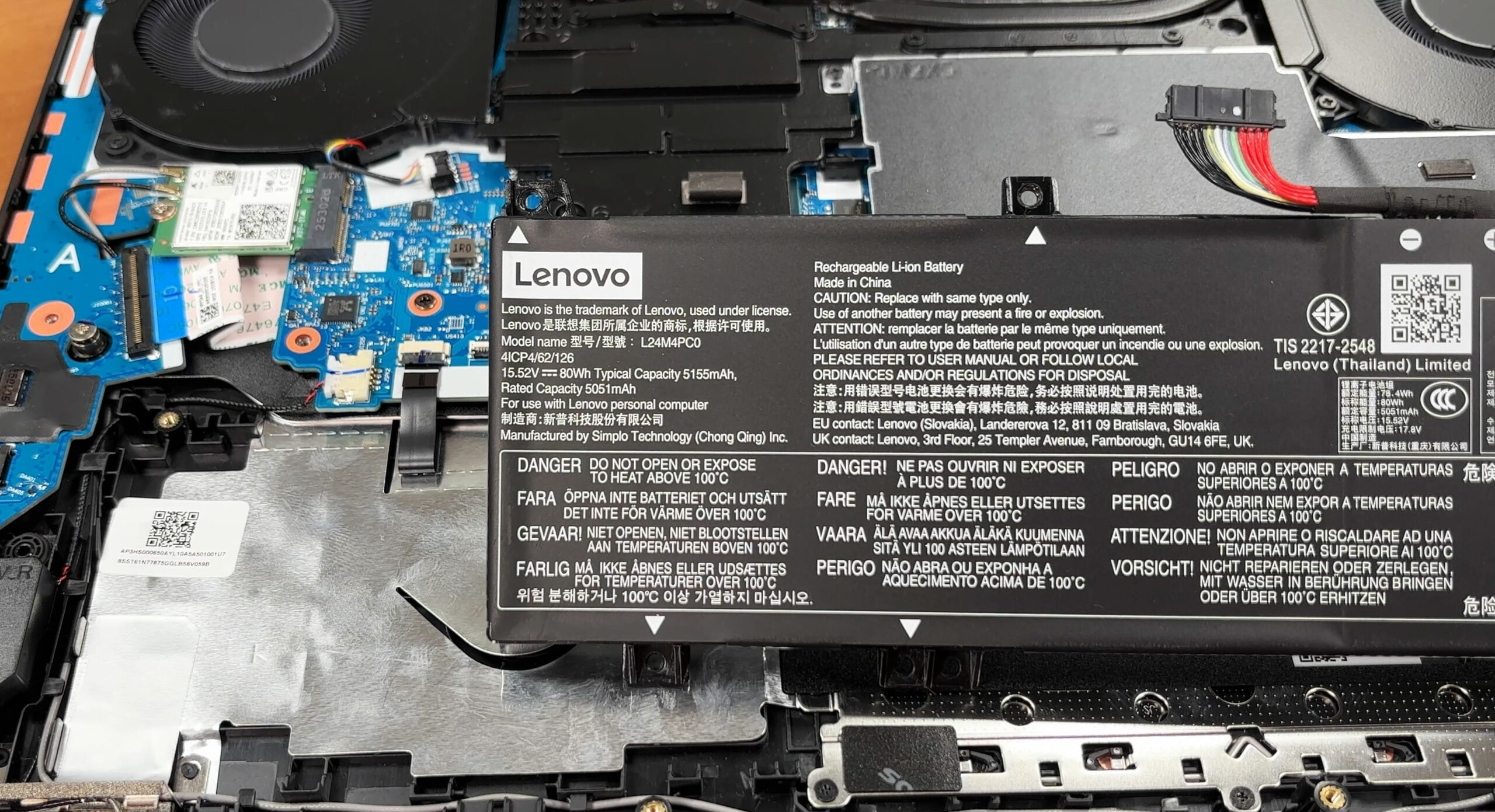
Step 2: Battery Removal
- Disconnect the battery cable from the motherboard before touching any other internal component.
- Undo the mounting screws that secure the 80Wh battery pack in place.
- Lift the battery out of the chassis carefully.
More info: The 80Wh battery is user-replaceable, which is a welcome advantage for long-term maintenance.
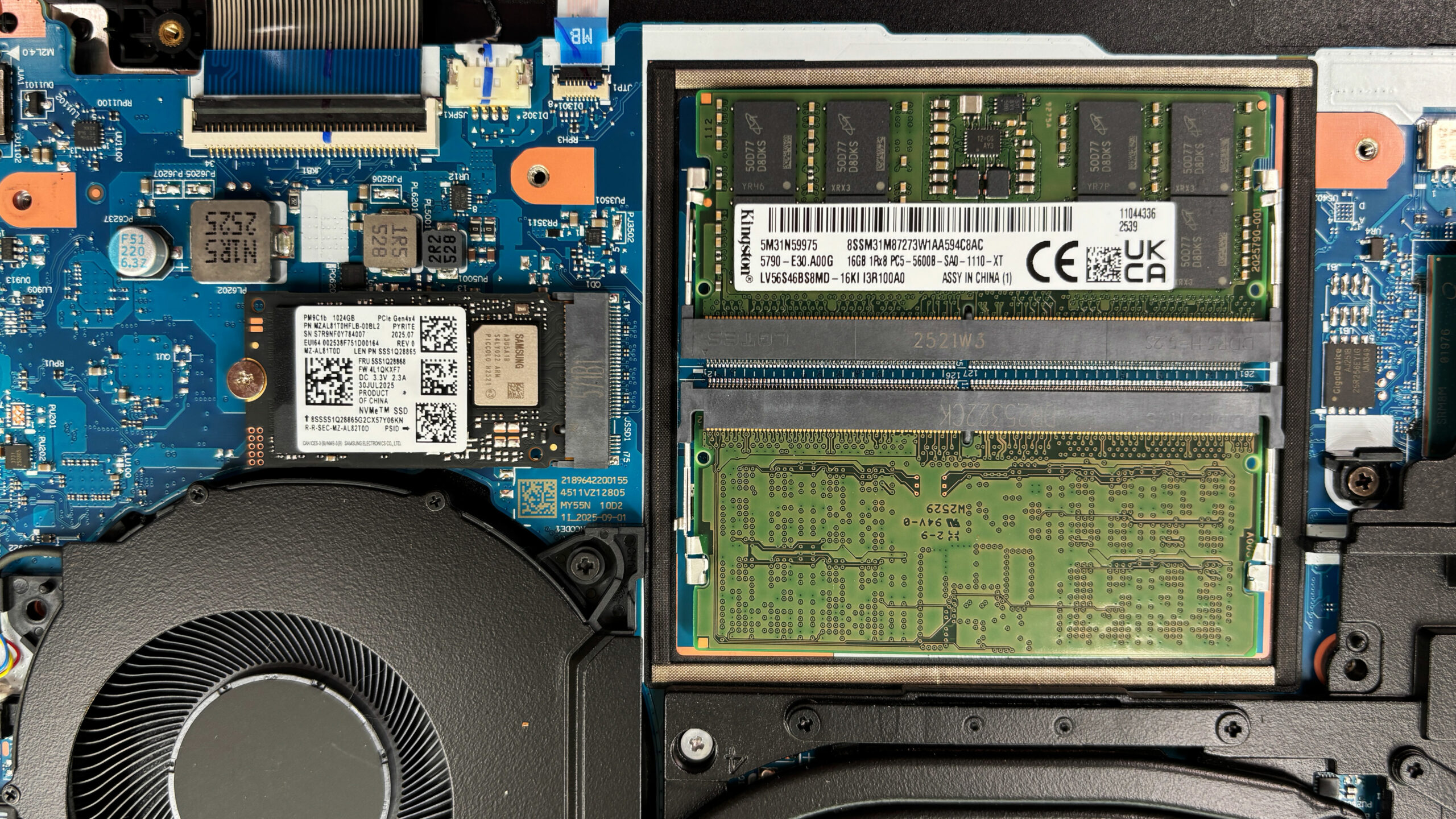
Memory Upgrade
- The memory is placed under the central EMI shield.
- Remove the shield carefully to access the two standard SO-DIMM slots.
- Both memory modules are replaceable. Our unit is equipped with 2x16GB DDR5-5600 RAM for a total of 32GB.
- If you upgrade the memory, align the notch of each module correctly, insert it at an angle, and press it down until the side clips lock it in place.
You can buy DDR5 RAM modules here: Buy from Flipkart.com
Storage Upgrade
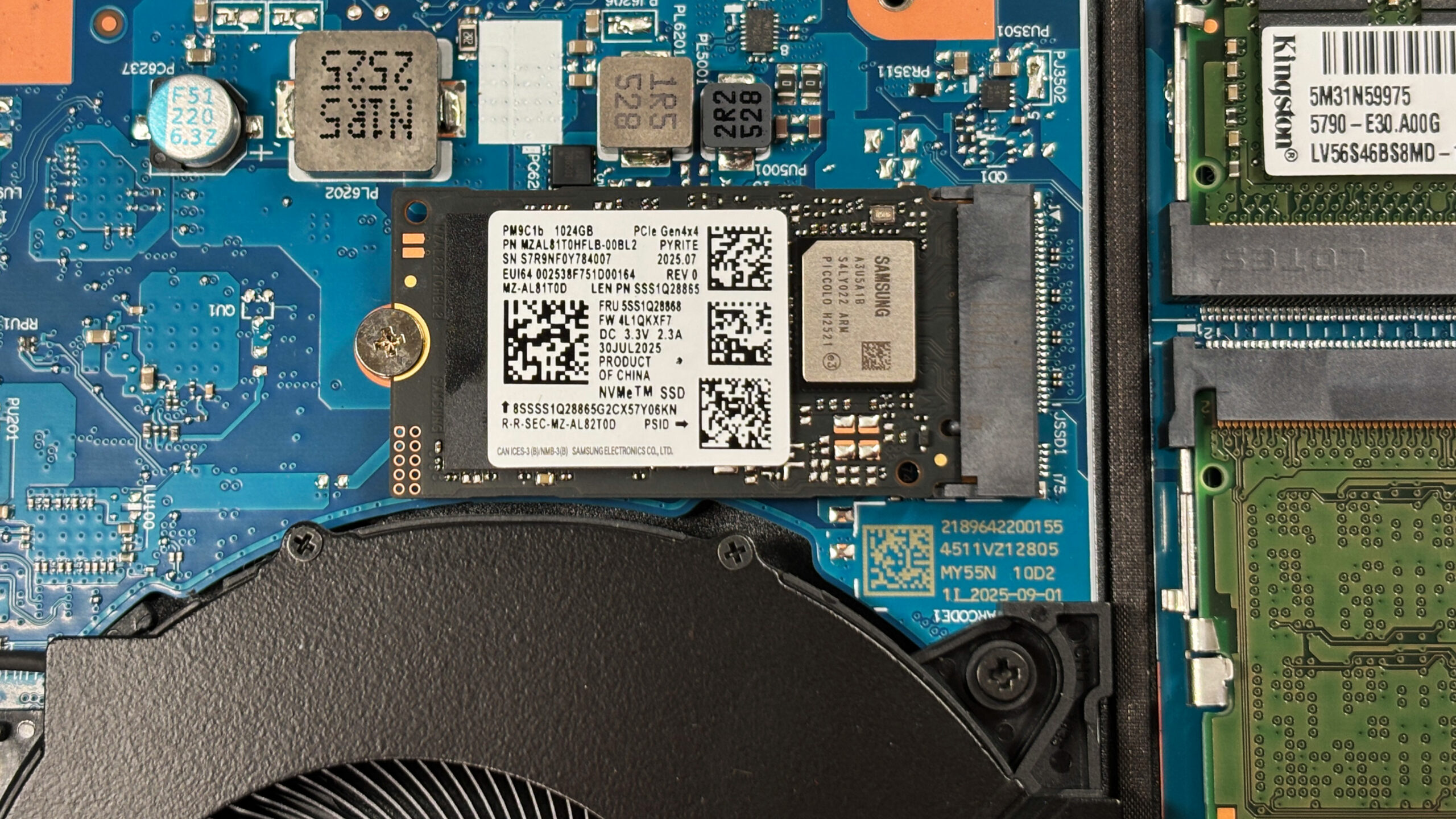
- The laptop has two M.2 slots for NVMe SSDs.
- Our configuration includes a Samsung PM9C1b 1TB PCIe Gen 4 SSD in the primary slot.
- The second M.2 slot is free, which makes future storage expansion straightforward.
- If you replace or add a drive, make sure the SSD is secured properly and any shielding or thermal interface material is returned to its original position.
Hint: Don’t forget to check out our Top M.2 SSDs Performance Rankings for insights on the best storage options available. You can buy Gen 4 M.2 SSDs here: Buy from Flipkart.com
Step 3: Cooling System Overview
- The cooling system uses two fans, shared heat pipes, and multiple heat sinks.
- Hot air is exhausted through the rear and side vents, which is a solid setup for a performance-focused 15-inch gaming machine.
- The cooling assembly can be cleaned after removing the bottom cover, but deeper servicing such as repasting requires removing the full heatsink assembly.
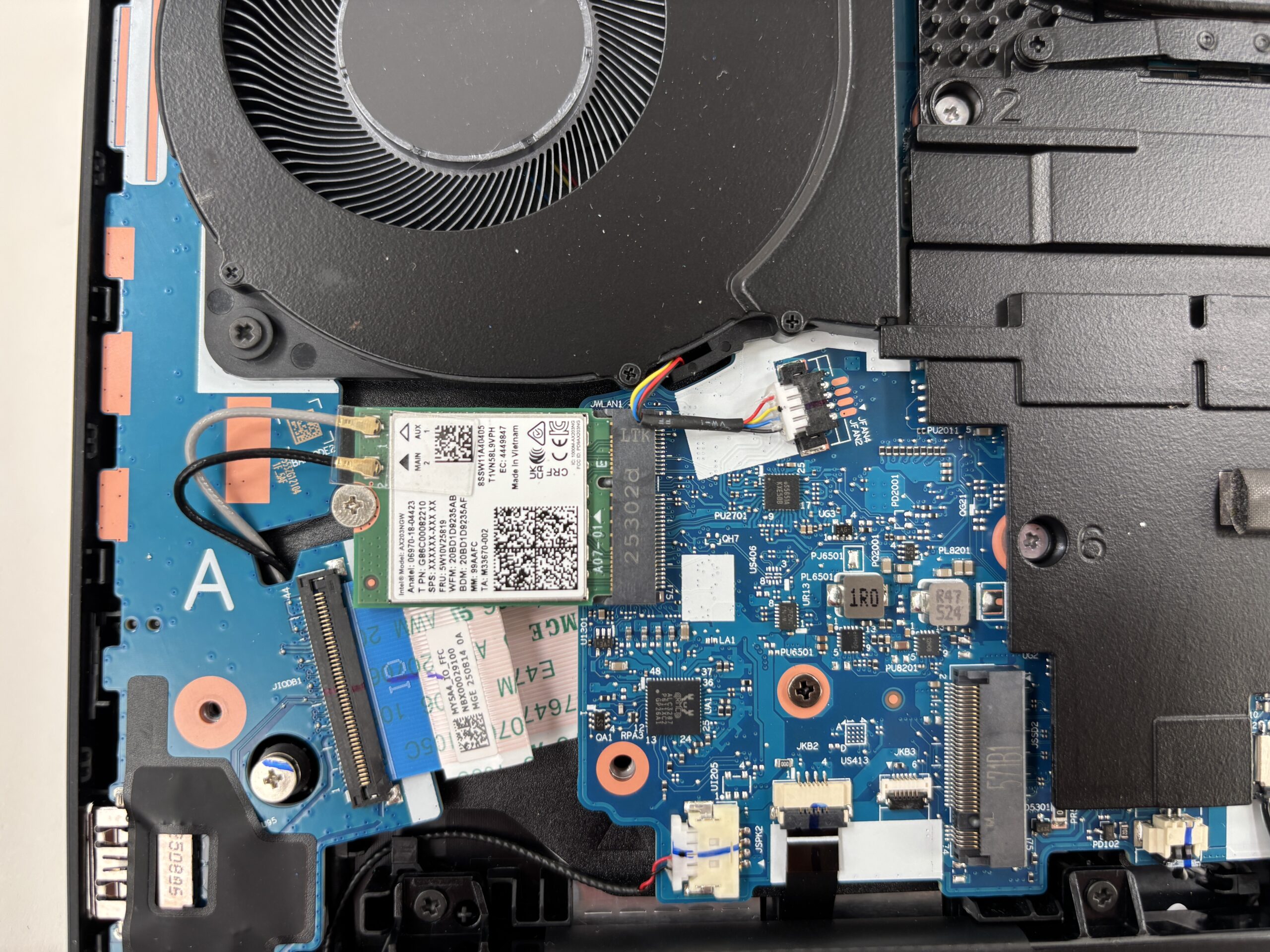
More info: The Wi-Fi card is socketed rather than soldered. Our unit uses an Intel AX203 module with Wi-Fi 6 and Bluetooth 5.2, while some configurations in the series may come with newer Wi-Fi 7 hardware.
Lenovo Legion 5i (15", 15IRHX10, Gen 10) गहन समीक्षा
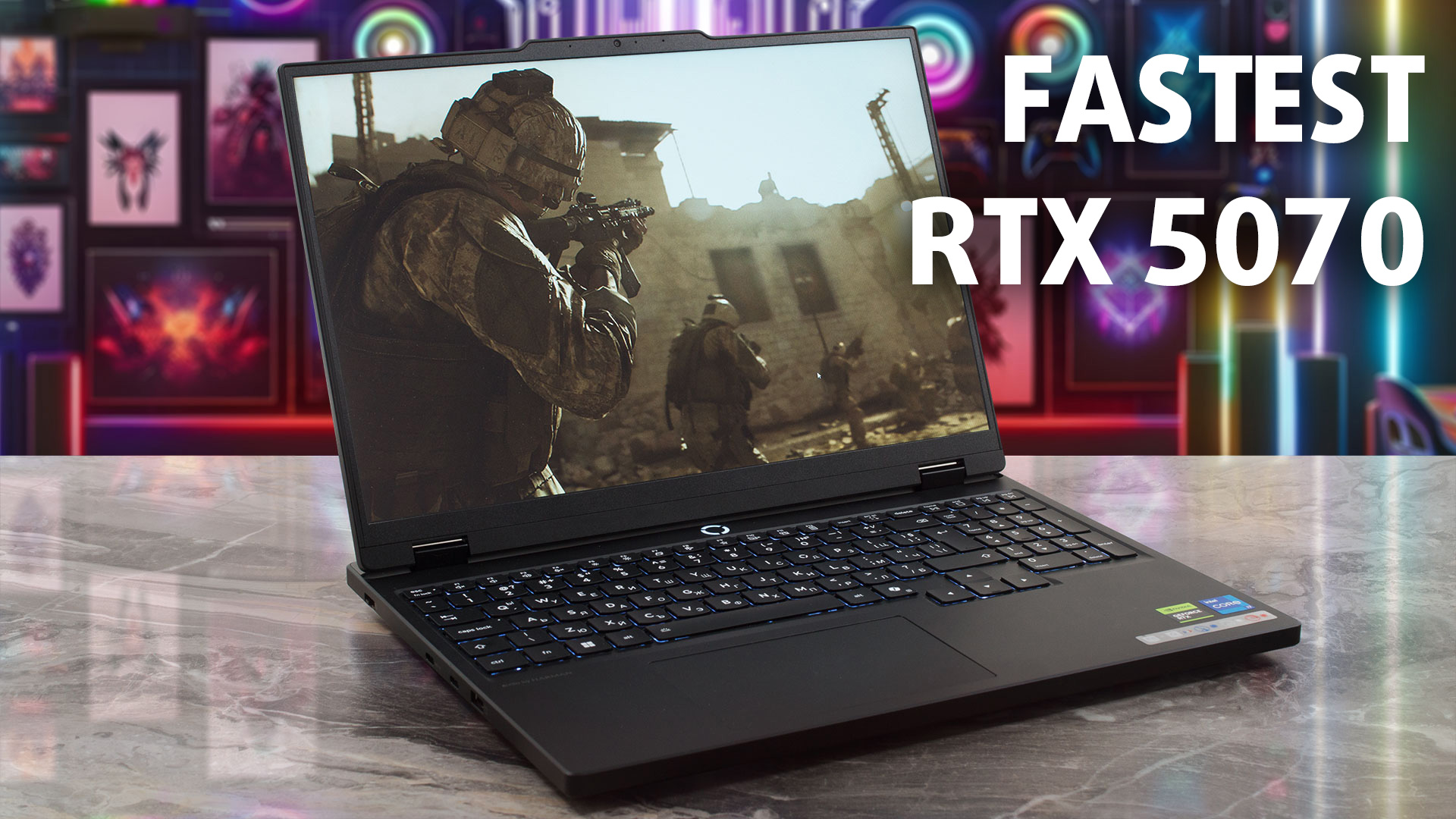
The Lenovo Legion 5i (15", Gen 10) looks like a refined productivity machine that would blend perfectly into any office. But don't let the modest exterior fool you; beneath the hood lies a ferocious gaming engine. In our testing, this laptop didn't just perform well - it shattered expectations, clocking in as the fastest RTX 5070 laptop we have ever reviewed. However, this unchecked power comes with a significant trade-off that tethers it to the wall. Is raw, record-breaking speed enough to justify the compromise in endurance?You can check the prices and configurations in our Specs Sys[...]
पक्ष
- Chart-topping GPU performance (fastest RTX 5070 clocks tested)
- Excellent thermal management for the GPU
- Great keyboard layout with full-sized arrow keys
- PWM-free display with potential for high color accuracy
- Fantastic upgradeability with two RAM and two M.2 slots
- Robust build quality and professional design
विपक्ष
- Very poor battery life (approx. 3 hours)
- No biometric login options
 Author: Dimitar Stalev

![[May 2026] Global Ranking of Best-Selling Laptop GPUs on Amazon – Apple Dominates with 45% Share, Sweeps Top 3 Spots; NVIDIA’s RTX 5060 Leads the Dedicated GPU Pack](https://laptopmedia.com/wp-content/uploads/2026/06/Best-Selling-GPUs-GLOBAL-Top-10-400x225.jpg)
![[May 2026] Global Ranking of Best-Selling Laptop CPUs on Amazon – Apple Crushes Competition with 45.2% Market Share, M5 Dominates](https://laptopmedia.com/wp-content/uploads/2026/06/Best-Selling-CPUs-GLOBAL-Top-10-400x225.jpg)
![[May 2026] Amazon Germany: Top 7 Best-Selling Gaming Laptops – Lenovo Legion 5i Crowned Champion Amidst Fierce Mid-Range Competition](https://laptopmedia.com/wp-content/uploads/2026/06/Best-Selling-Gaming-Laptops-DE-Top-10-1-400x225.jpg)
![[May 2026] Amazon Italy: Top 10 Best-Selling Laptops – Apple MacBook Neo Reigns Supreme, Premium Models Capture Dominant Revenue Share](https://laptopmedia.com/wp-content/uploads/2026/06/Best-Selling-Laptops-IT-Top-10-400x225.jpg)
![[May 2026] Best-Selling Laptop Brands on Amazon Italy – Apple Dominates Across All Metrics](https://laptopmedia.com/wp-content/uploads/2026/06/IT-Best-Brands-400x225.jpg)