How to open Acer Nitro 17 (AN17-42) – disassembly and upgrade options

Opening the Acer Nitro 17
Hint: Ensure the laptop is powered off and unplugged before starting.
- Undo the 11 Phillips-head screws securing the bottom panel to the chassis.
- Hold the pair of plastic vents at the back and pop the rear of the panel.
- Pop the exhausts individually, gently separating the bottom cover until it reaches the level of the LAN connector.
- Use a thin plastic tool to pry the sides and the front to fully release the bottom panel.
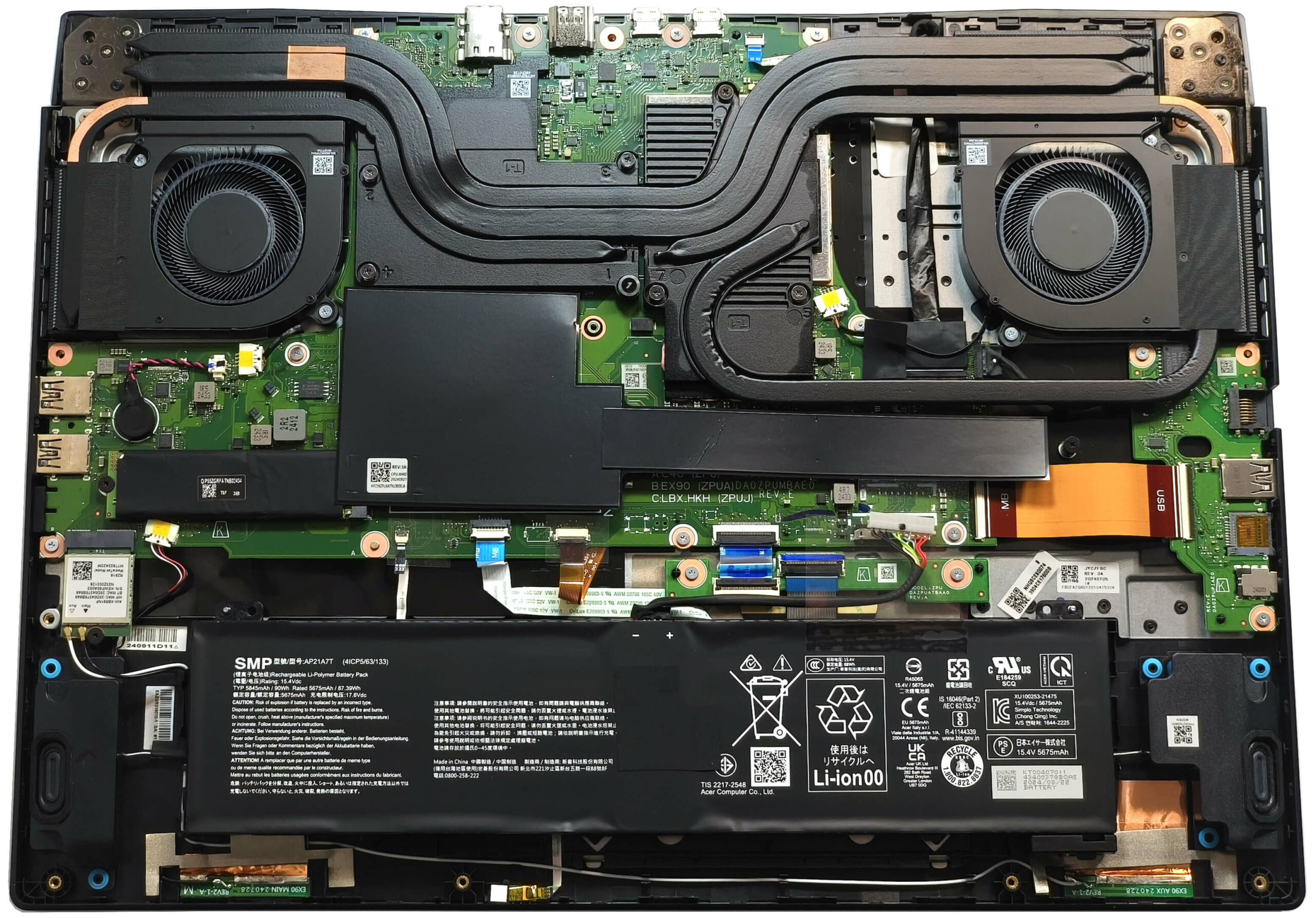
More info: The inside of the bottom panel features a dedicated socket for the battery and a large dust filter for the two central grills, ensuring better airflow and reduced dust accumulation.
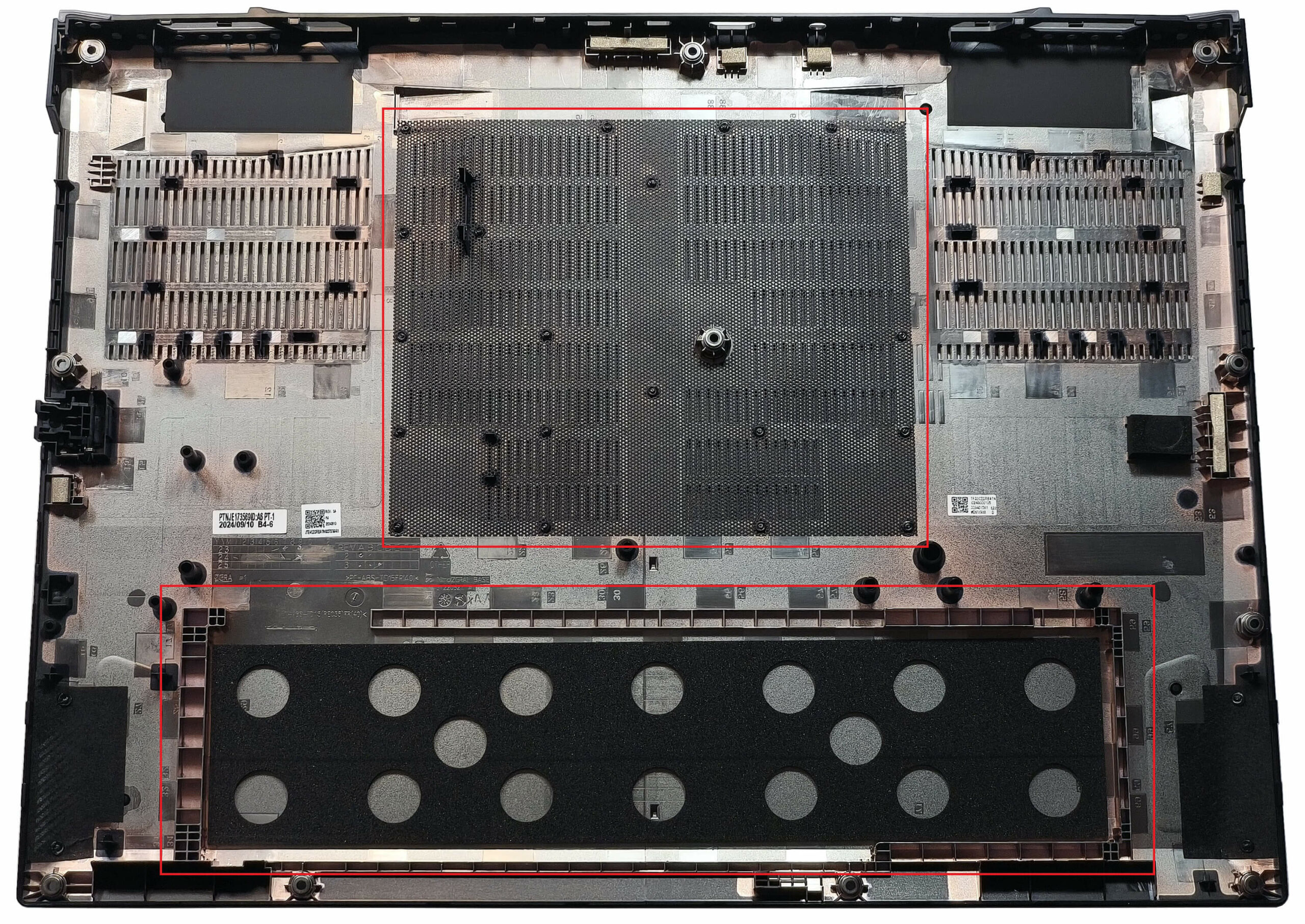
Battery Removal
Caution: Handle the battery with care to avoid damage or electrical hazards.
- Disconnect the battery by pulling the connector down towards the battery.
- Carefully lift the 90Wh battery away from the base of the laptop.
More info: The 90Wh battery provides approximately 6 hours and 18 minutes of video playback, making it suitable for extended gaming sessions or productivity tasks.
You can find compatible batteries here: Buy from Flipkart.com
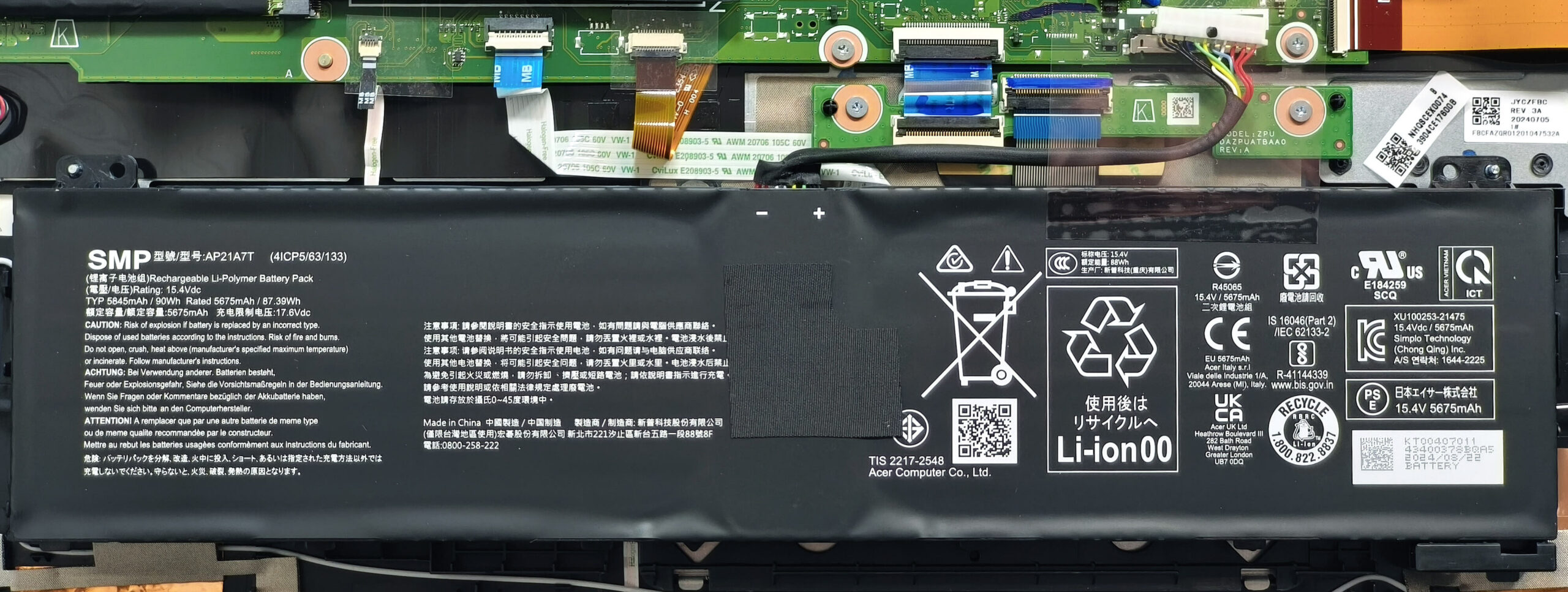
Memory Upgrade
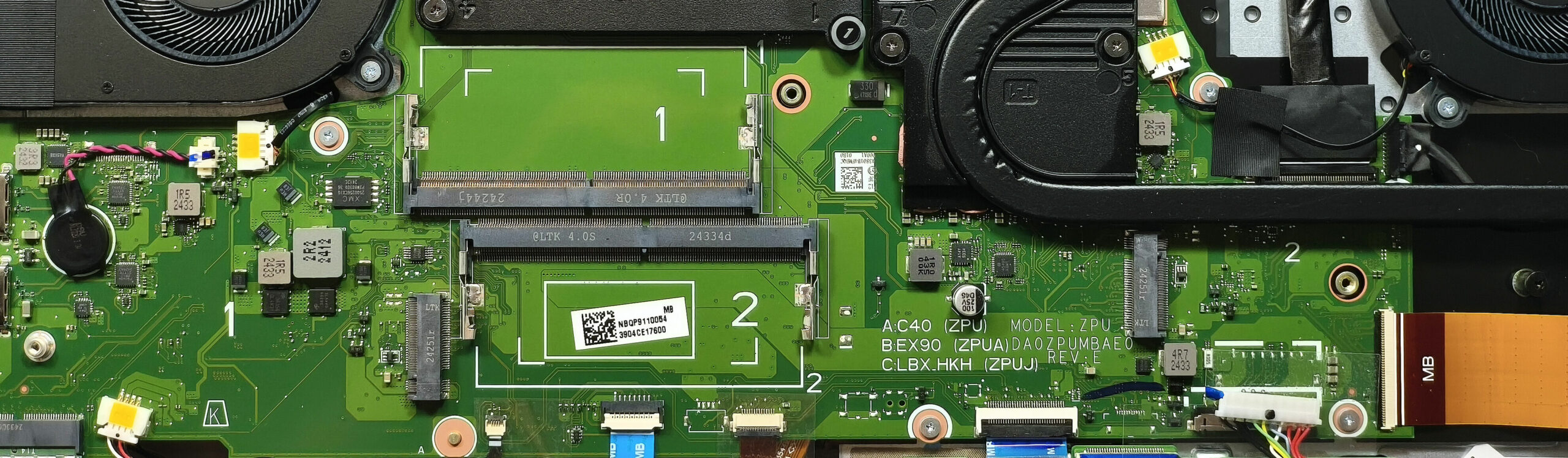
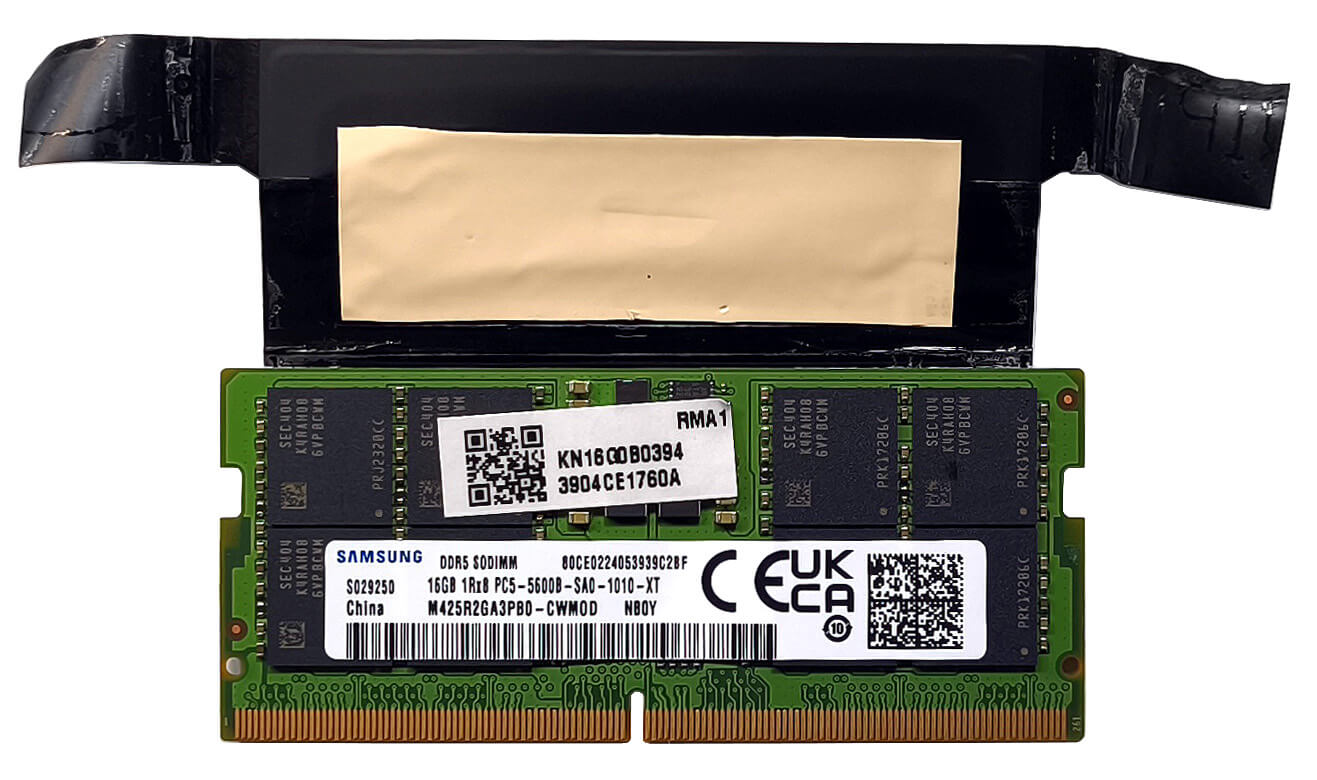
Note: The memory slots are user-upgradeable and come with heat shields.
- Locate the two SODIMM slots, which are compatible with DDR5-5600MHz RAM in dual-channel mode.
- Install up to 32GB of RAM per Acer’s specifications, or consider higher capacities (up to 256GB) based on the CPU’s capability.
- The preinstalled RAM stick is wrapped in a heat shield with a cooling pad on the bottom for thermal efficiency.
More info: Ensure that the RAM is securely installed and matches your system’s requirements for optimal performance.
You can find compatible RAM here: Buy from Flipkart.com
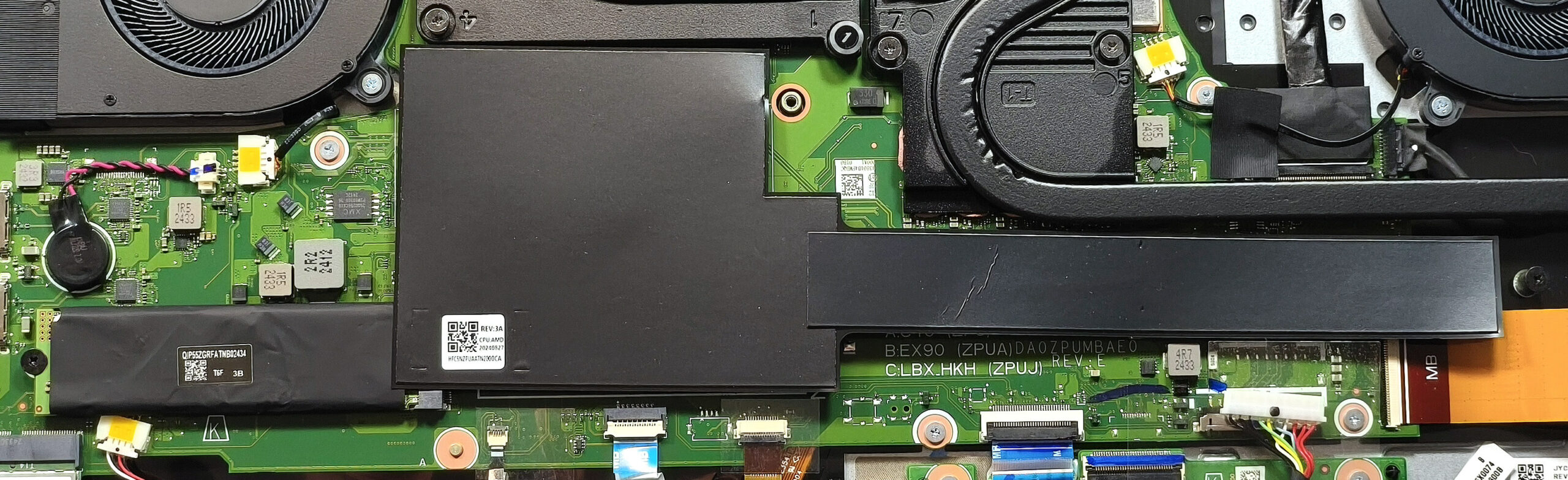
Storage Upgrade
Hint: Handle SSD components carefully to avoid damage or data loss.
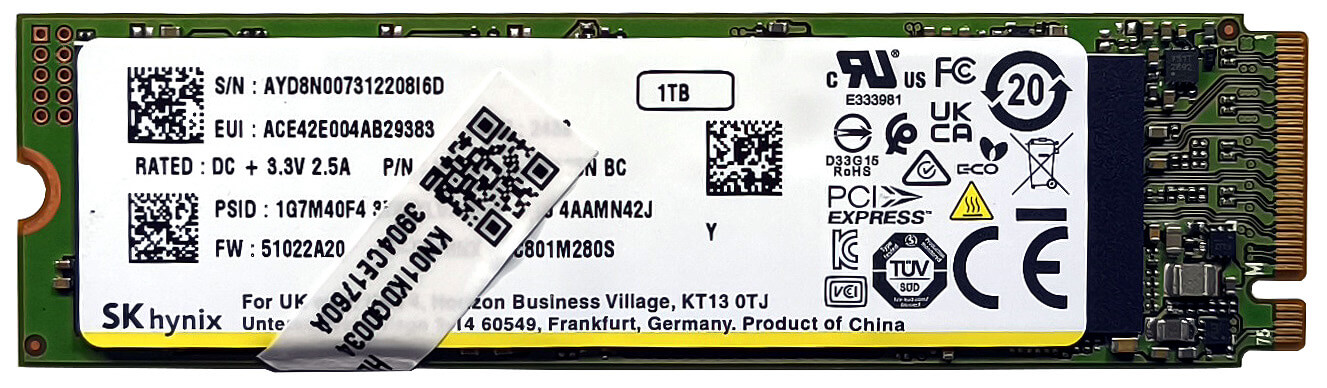
- Locate the two M.2 slots compatible with 2280 Gen 4 SSDs.
- The system NVMe and the right SSD slot are covered with heat shields. Remove these shields carefully to access the slots.
- Install the SSDs at a slight angle, ensuring they are fully seated, and replace the heat shields to maintain optimal thermal performance.
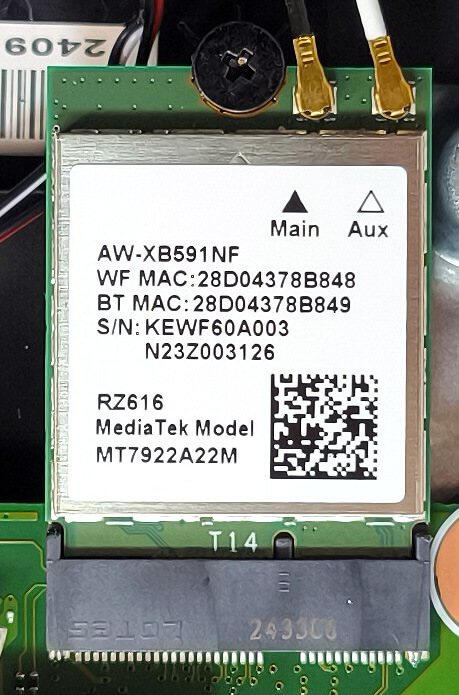
More info: The Wi-Fi 6E card is positioned close to the left NVMe slot, ensuring streamlined connectivity upgrades.
You can find compatible SSDs here: Buy from Flipkart.com
Connectivity Options
More info: The Wi-Fi 6E card can be seen close to the left NVMe slot.
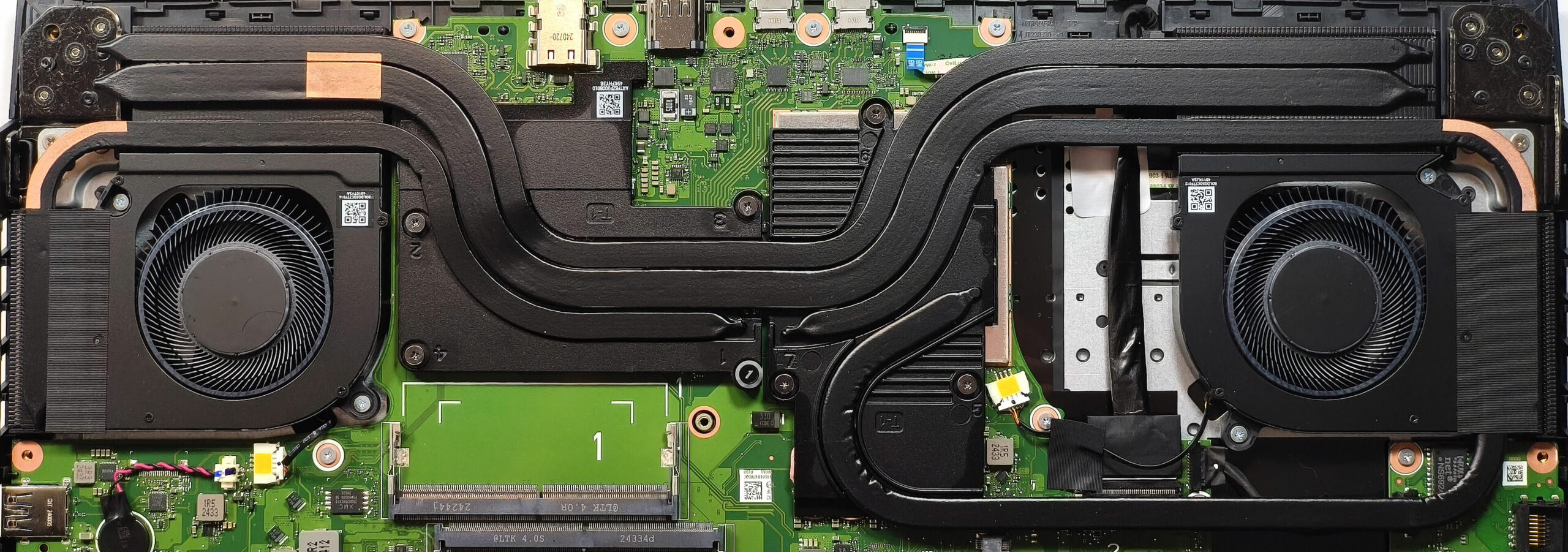
Cooling System Overview
More info: The Acer Nitro 17 features a robust cooling system designed for high-performance gaming and intensive workloads.
- Two large fans provide efficient airflow.
- Liquid metal is applied on the CPU die for enhanced thermal conductivity.
- Rectangular vector heat pipes offer wider contact surfaces, improving heat transfer efficiency.
- A pair of heat pipes is shared between the CPU and GPU, with one additional pipe for the CPU and two more dedicated to the GPU.
- Four heat sinks and two large metal plates, with the taller one covering the GPU, ensure comprehensive thermal management.
Tip: Regularly clean the fans, heat pipes, and heat sinks to maintain optimal cooling performance and system longevity.
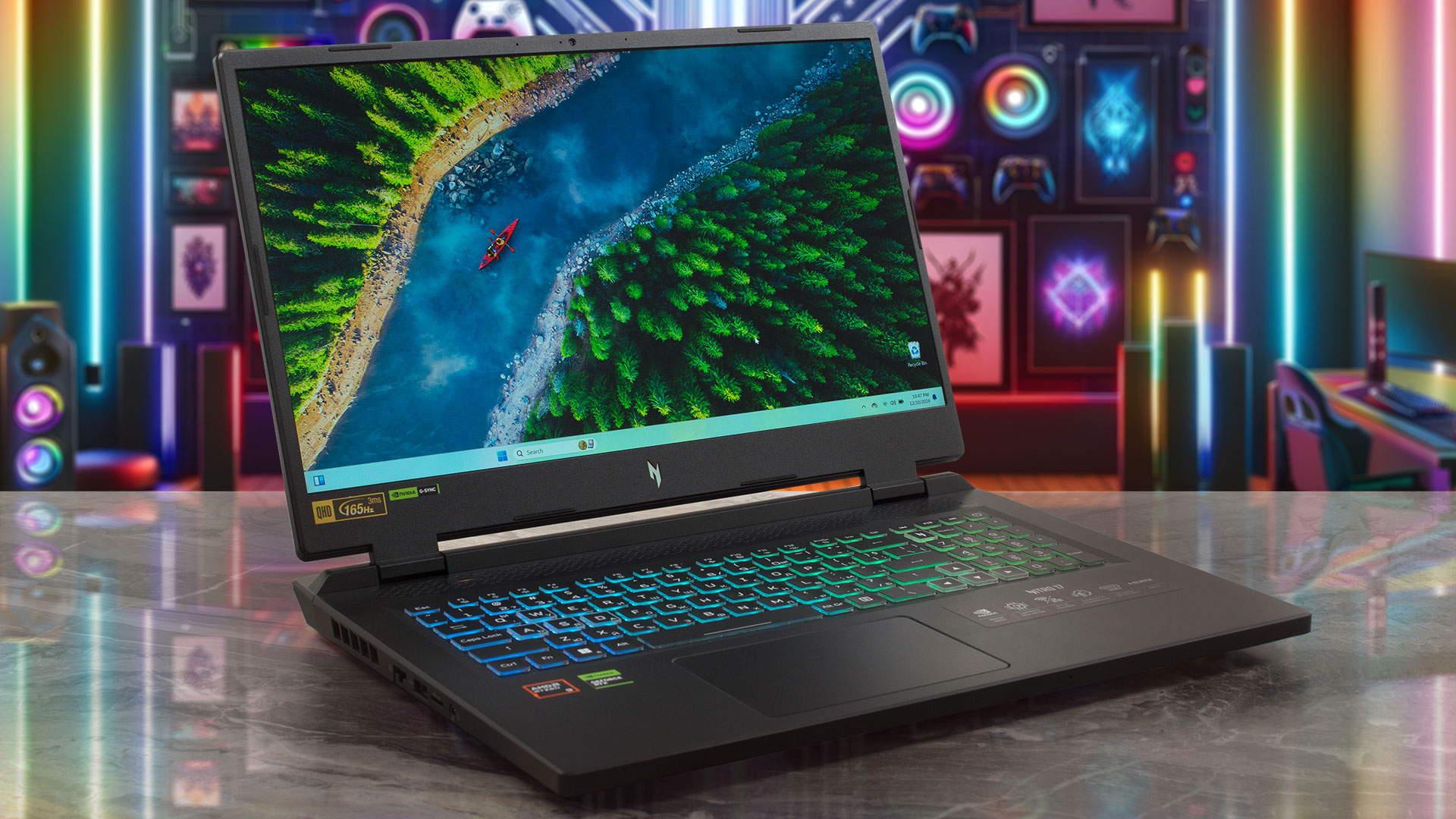
Acer Nitro 17 (AN17-42) गहन समीक्षा
The Nitro 17 (AN17-42) is for people who are on the hunt for a new big gaming laptop but don't want to spend a whole fortune on it. Features-wise, this Acer creation is a true powerhouse with its 45W Zen 4 Hawk Point-HS CPU options and RTX 4000 GPUs with hefty TGPs. It's nice to see that the upgradability isn't hindered despite the lower price tag - you still get a pair of SODIMMs and M.2 slots. On top of that, the port selection is also rich. There are no compromises in terms of extras because goodies such as G-Sync, Nvidia Advanced Optimus, and a MUX switch are on board. The optional 1440p [...]
पक्ष
- Good overall performance for the class
- PWM-free (CSW1704)
- 165Hz refresh rate + wide viewing angles (CSW1704)
- 1440p resolution and 98% sRGB coverage (CSW1704)
- Very good color accuracy when our "Design and Office Work" profile is applied (CSW1704)
- Fast pixel response times for an IPS panel (8ms) (CSW1704)
- MUX switch
- G-Sync + Nvidia Advanced Optimus
- 5x USB ports + 2.5 Gbps LAN + HDMI 2.1
- MicroSD card slot
- Great 4-zone RGB backlit keyboard
- Solid base
- The Ryzen 9 8945HS sustains ~ 5GHz even in long loads in "Turbo" mode
- The RTX 4070 boosts to 2625 MHz during gaming in "Turbo" mode
- Great "Performance" preset with the same CPU frequency and GPU TGP as the "Turbo" presets + lower noise
- The keyboard barely gets warm
- Fast SSD (SK Hynix HFS001TEJ9X125N)
- 2x SODIMMs + 2x 2280 Gen 4 M.2 slots
- Good sound quality
- Well priced machine
- Acceptable battery life given the high-res panel and the powerful hardware (~ 6 hours of videos)
- Capable cooling system
विपक्ष
- 1x USB 2.o port
- High noise in "Turbo" mode
 Author: Dimitar Stalev

![[June 2026] Best-Selling Laptop Brands on Amazon Global – Apple’s Unrivaled Dominance in Units and Revenue](https://laptopmedia.com/wp-content/uploads/2026/07/GLOBAL-Best-Brands-400x225.jpg)
![[June 2026] Amazon Global: Top 10 Best-Selling Laptops – Apple’s New MacBook Neo Storms to #1, Reshaping the Market with Affordability](https://laptopmedia.com/wp-content/uploads/2026/07/Best-Selling-Laptops-GLOBAL-Top-10-400x225.jpg)
![[June 2026] Amazon Global: Top 10 Best-Selling Gaming Laptops – Acer’s Nitro V 16S AI Dominates Sales, While ASUS Leads Overall Revenue](https://laptopmedia.com/wp-content/uploads/2026/07/Best-Selling-Gaming-Laptops-GLOBAL-Top-10-400x225.jpg)
![[June 2026] Global Ranking of Best-Selling Laptop GPUs on Amazon – NVIDIA RTX 5060 is the Top-Selling Dedicated GPU](https://laptopmedia.com/wp-content/uploads/2026/07/Best-Selling-GPUs-GLOBAL-Top-10-400x225.jpg)
![[June 2026] Global Ranking of Best-Selling Laptop CPUs on Amazon – Apple M5 Dominates, AMD Ryzen 7 260 Gets Solid Premium Share](https://laptopmedia.com/wp-content/uploads/2026/07/Best-Selling-CPUs-GLOBAL-Top-10-400x225.jpg)