Inside ASUS VivoBook S15 S532 – disassembly and upgrade options
ASUS VivoBook S15 S532 is not a huge hardware change from its predecessor. However, on the outside, it looks edgier and more let’s say – premium. However, how does it look on the inside? Is it looking more into the future, or it is just a copy of the VivoBook S15 S530.
Check out all ASUS VivoBook S15 S532 prices and configurations in our Specs System, or read our In-Depth review.
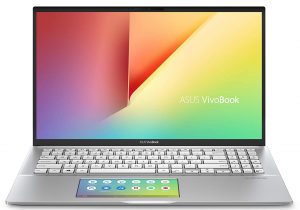
1. Remove the bottom plate
Its bottom plate is held in place by 10 Phillips head screws. After removing them we found it kind of difficult to pop the panel up since its clips are pretty strong. However, with careful prying with our plastic pry tool, we managed to dig inside.
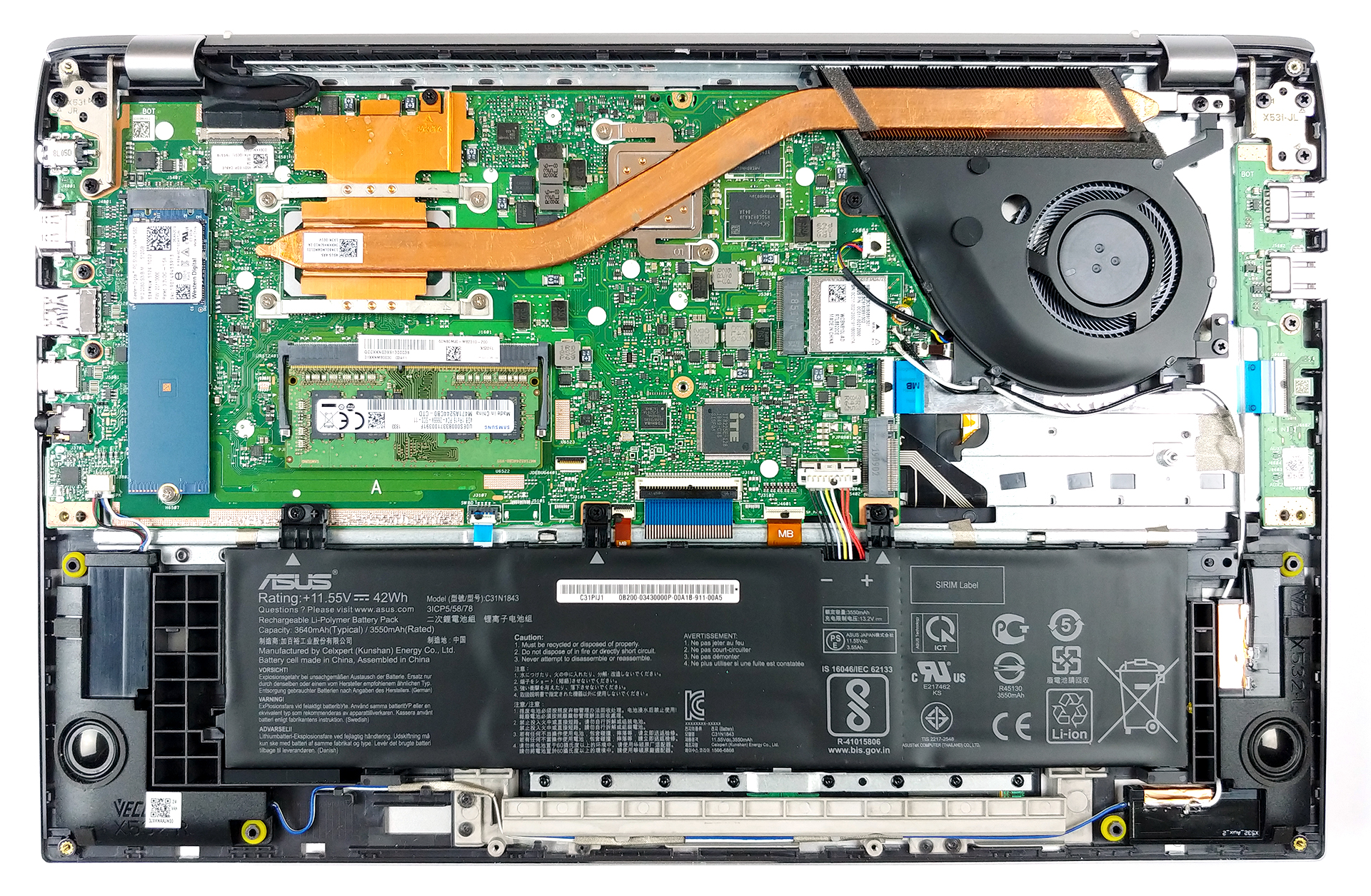
2. Battery
ASUS has not given the VivoBook S15 S532 a huge battery, indeed. It has a 42Wh capacity and if you want to see how it performs, check our in-depth review. In order to remove the battery, itself, you need to remove the three screws and then disconnect the connector from the motherboard.

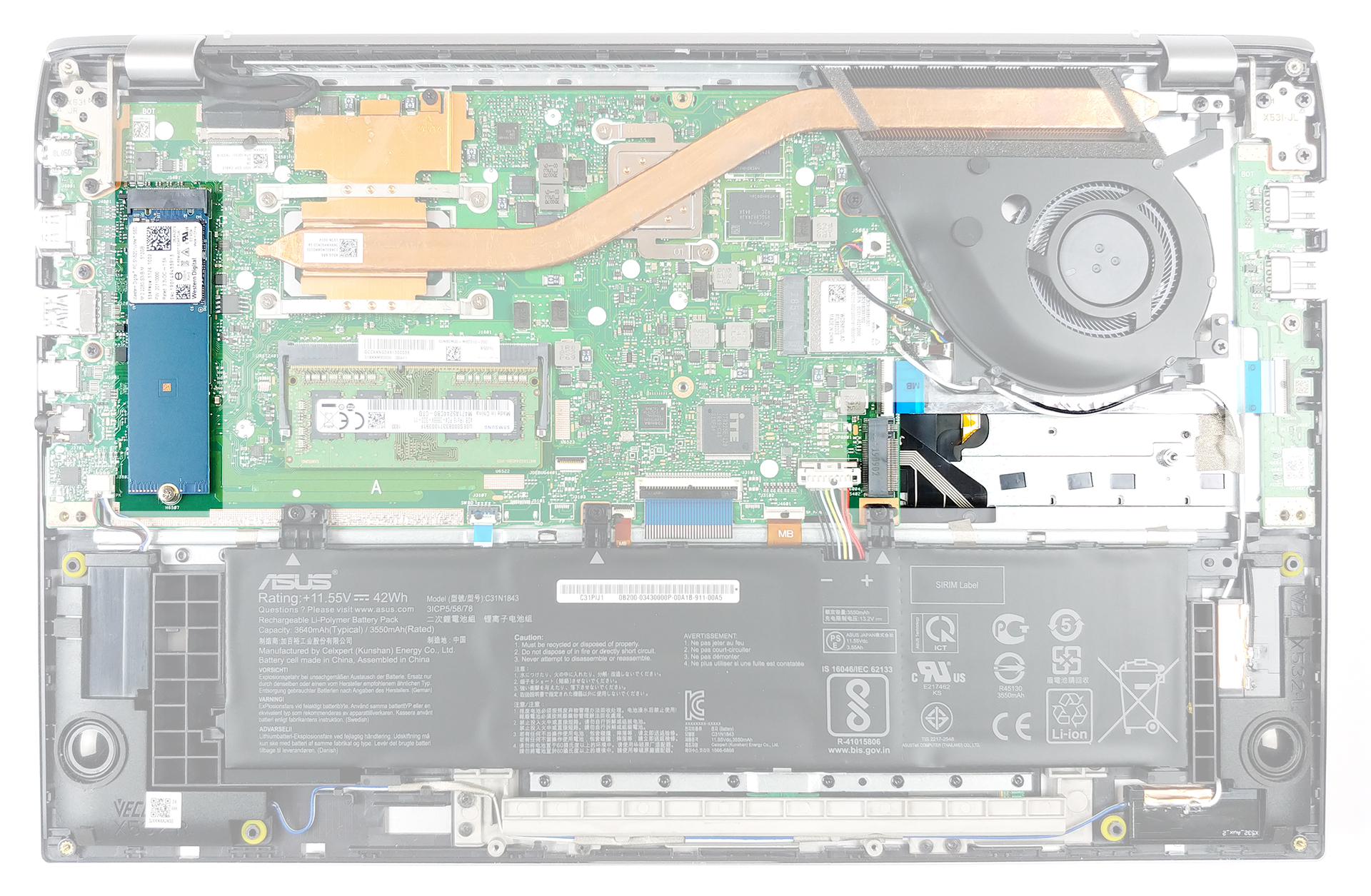
3. Storage
As you can see from the image below, we have highlighted the location of the storage devices. Obviously, there is no SATA slot to be seen, however, there are two M.2 slots for sweet sweet fast storage.
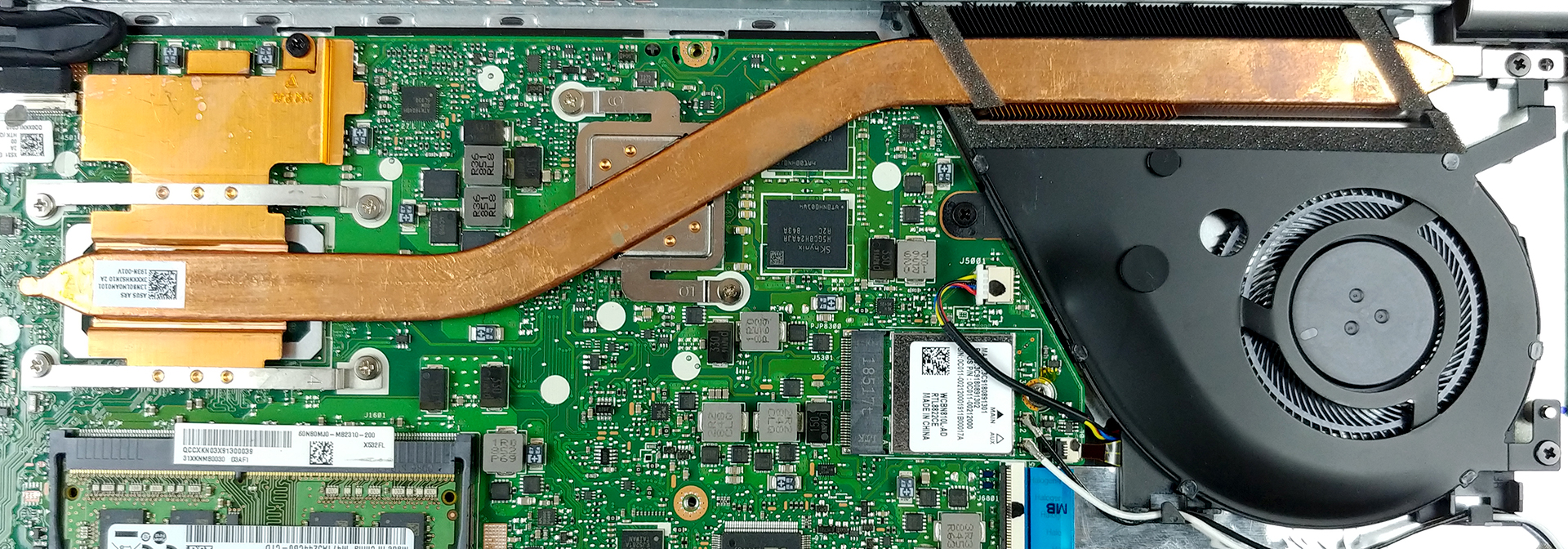
4. Cooling and memory
Weirdly, the cooling consists of only one heat pipe. Yes, it is a rather bulky one, but it also manages the heat of two processors – the CPU and the GPU. We expect it to be poorer than a two-fan or a dual-heat pipe design, however, we are dealing with a very energy efficient hardware. Just below the CPU, by the way, you can see the RAM DIMM.
Check out all ASUS VivoBook S15 S532 prices and configurations in our Specs System, or read our In-Depth review.
 Author: Alex Iliev

![[2026年8月] Amazon Global:ノートPC売上ランキングトップ10――Appleの「MacBook Neo」がチャートを席巻する一方、低価格帯および中価格帯のWindowsノートPCは販売台数をめぐって熾烈な争いを繰り広げている](https://laptopmedia.com/wp-content/uploads/2026/09/Best-Selling-Laptops-GLOBAL-Top-10-400x225.jpg)
![[2026年8月] Amazonグローバルにおけるノートパソコンのベストセラーブランド――売上高ではAppleが首位、機種の豊富さではHPがトップ](https://laptopmedia.com/wp-content/uploads/2026/09/GLOBAL-Best-Brands-400x225.jpg)
![[2026年8月] Amazon Global:ゲーム用ノートPC売上ランキングトップ10――HP Victus 15が首位を獲得、手頃な価格帯のモデルがランキングを席巻](https://laptopmedia.com/wp-content/uploads/2026/09/Best-Selling-Gaming-Laptops-GLOBAL-Top-10-400x225.jpg)
![[2026年8月] Amazon.co.jpで最も売れているノートパソコンブランド――Appleが販売台数の好調を背景に、市場シェアと売上高で首位を独占](https://laptopmedia.com/wp-content/uploads/2026/09/CO.JP-Best-Brands-1-400x225.jpg)
![[August 2026] Best-Selling Laptop Brands on Amazon USA – Apple Dominates Market Revenue and Volume Despite Lower Model Diversity](https://laptopmedia.com/wp-content/uploads/2026/09/COM-Best-Brands-1-400x225.jpg)

This second nvme dont work.
same for me, is there any option for make it works?
Hi,
The second M.2 port works but it’s SATA, not NVMe.
I’ve installed a 1TB WD Blue 3D NAND M.2 2280 SATA http://www.westerndigital.com/products/internal-drives/wd-blue-3d-nand-sata-ssd in my brand new VivoBook S15 S532FL and it works no problemo.
Cheers
You have right my friend! The second SSD slot is for M.2 2280 SATA 3 SSD. Not for NVMe!!!!! I’ve installed Western Digital Blue 3D Nand M.2 1TB (WDS100T2B0B) and works perfectly! Thanks for your help!
what read/write speeds do you get?
Same for me but I was able to get a 16GB DIMM module to work for a total of 20GB
Terry, your laptop has 4 GB RAM soldered. You purchased a 16 GB of RAM. Your computer sees a total of 20 GB of RAM?
I have 8 GB of RAM (4 GB solidered + 4 GB 1Rx16 PC4-2666v). I want to max out the RAM at 16 GB. They don’t make a 12 GB stick. So my options are 8 GB or 16 GB RAM. My laptop can only see max of 16 GB total. If I buy the 16 GB RAM, would my laptop recognize the upgrade?
same issue here. can i insert 16gb to make it to 20gb? did anyone try and make it?
I bought a 32gb stick of Samsung 2666mhz ddr 4 from Amazon and the computer read it perfectly and uses it with no issues.
Can Confirm i Put a Samsung DDR4 SODIMM 2666 32GB RAM Card in and it now shows my computer as having 40GB Ram (32GB From RAM Card + 8 Onboard on the MB) My Model is the ASUS VivoBook S15 X532FL ASUS is very confusing in regards to model numbers and sub model numbers. Mine is listed as the ASUS VivoBook S15 S532FL but in reality when running DXDIAG it actually shows it is listed as “ASUS VivoBook S15 X532FL”. Regardless, the 32GB Ram upgrade will show and it will utilize all 32GB installed + 4GB/8GB Onboard w/ MB (different… 続きを読む »
Can Confirm i Put a Samsung DDR4 SODIMM 2666 32GB RAM Card in and it now shows my computer as having 40GB Ram (32GB From RAM Card + 8 Onboard on the MB) My Model is the ASUS VivoBook S15 X532FL ASUS is very confusing in regards to model numbers and sub model numbers. Mine is listed as the ASUS VivoBook S15 S532FL but in reality when running DXDIAG it actually shows it is listed as “ASUS VivoBook S15 X532FL”. Regardless, the 32GB Ram upgrade will show and it will utilize all 32GB installed + 4GB/8GB Onboard w/ MB (different… 続きを読む »
The second m.2 port is just physically there but not useable! I have bougth one of this laptop because I read here and one other site that it has 2 m.2 slots for storage, but this is misinformation. Please inform yourself correctly next time, before you do a review with false informations.
Hi,
The second M.2 port works but it’s SATA, not NVMe.
I’ve installed a 1TB WD Blue 3D NAND M.2 2280 SATA http://www.westerndigital.com/products/internal-drives/wd-blue-3d-nand-sata-ssd in my brand new VivoBook S15 S532FL and it works no problemo.
Cheers
Where is the cmos battery located?
whats the best screw driver to use
what is the model, and where i can buy a replacement for the screenpad?
the touch screen works, but it doesnt display image anymore.