How to open HP ZBook Firefly 14 G10 – disassembly and upgrade options
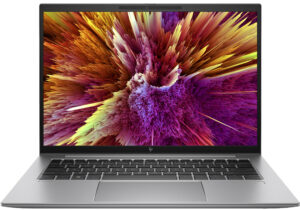
Step 1: Accessing the Internal Components
- Ensure the HP ZBook Firefly 14 G10 is powered off and placed on a soft, clean surface to prevent scratches or damage.
- Remove the 5 captive Phillips-head screws from the laptop’s bottom panel.
- Use a pry tool to gently lift the bottom panel off, starting from the back.
Hint: Be gentle when prying to avoid damaging the internal clips or the laptop casing.
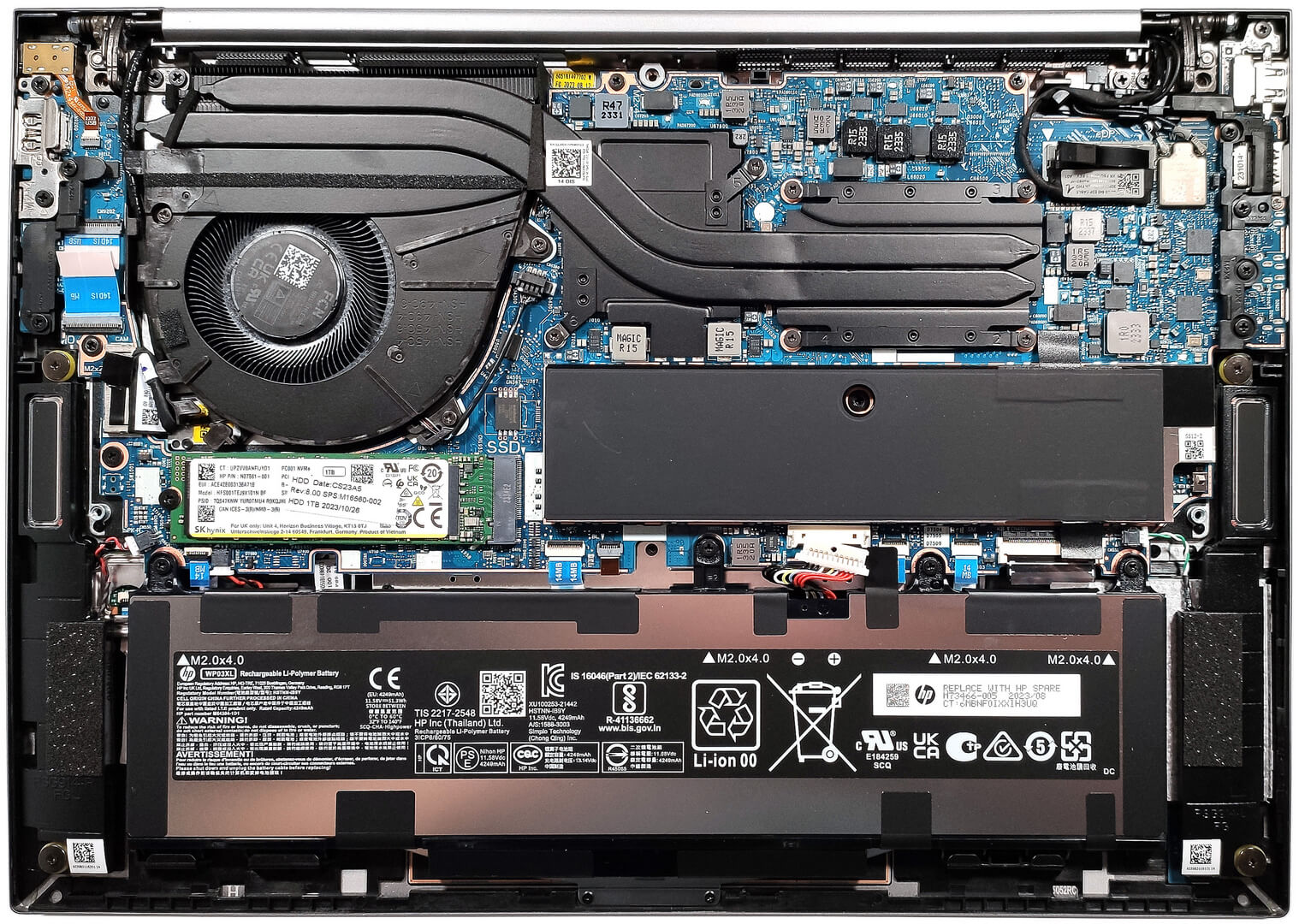
Step 2: Removing the Battery
- Disconnect the battery by unplugging its connector from the motherboard.
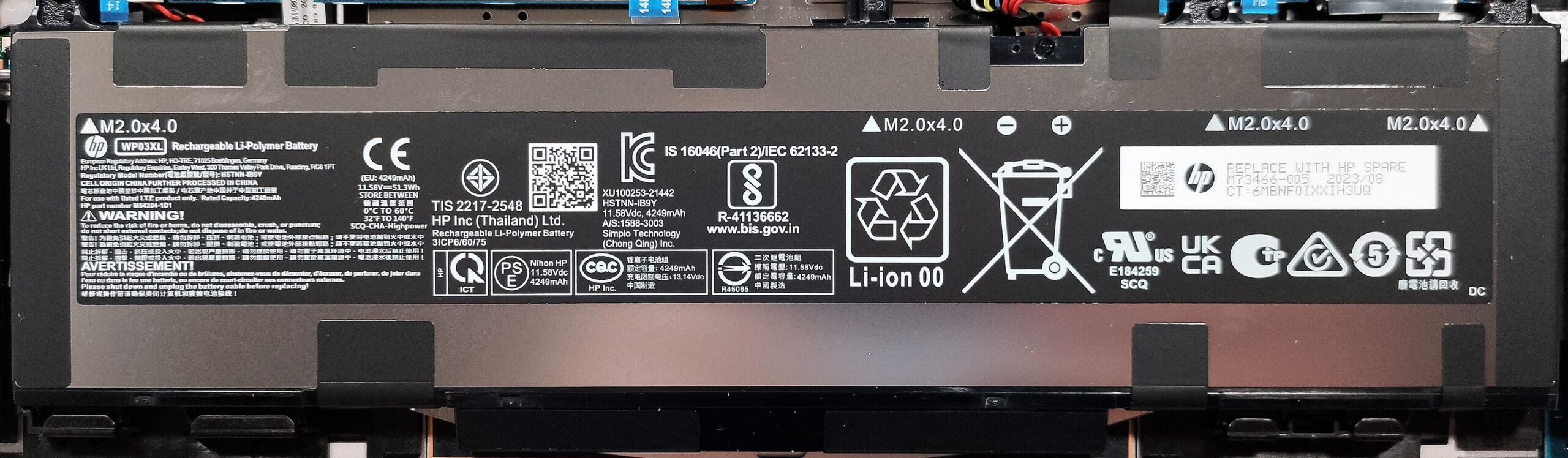
- Remove the four Phillips-head screws securing the battery to the laptop’s chassis, then remove the 51Wh battery from the device.
Caution: Handle the battery and its connector with care to avoid any damage.
More info: The 51Wh battery offers up to 16 hours and 40 minutes of web browsing or 10 hours of video playback, providing excellent battery life for extended use.
Memory Upgrade
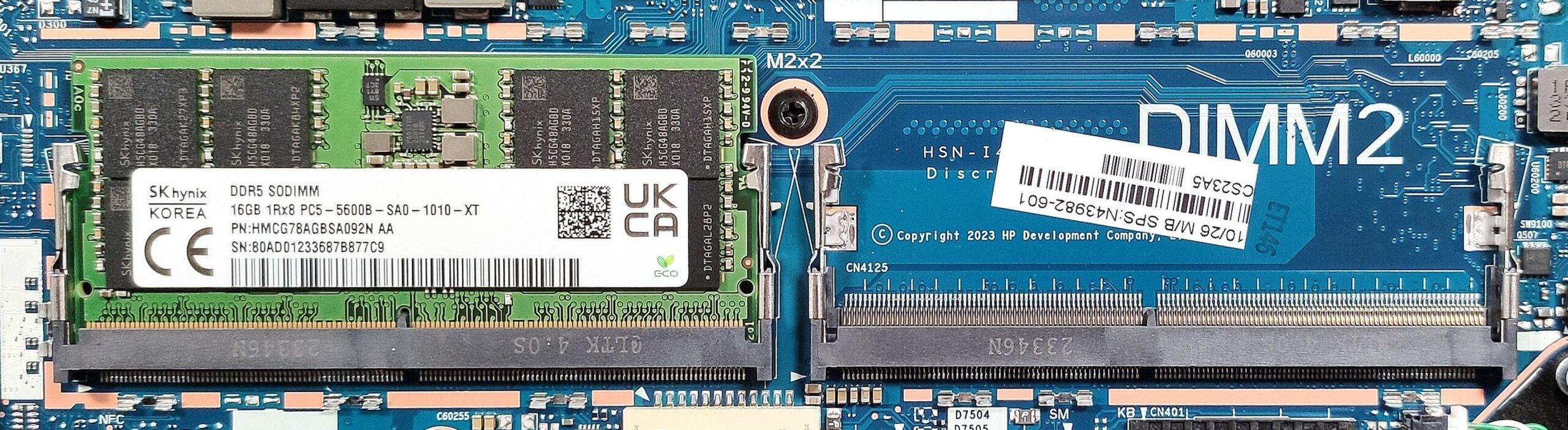
- Locate the metal shroud covering the SODIMM slots.
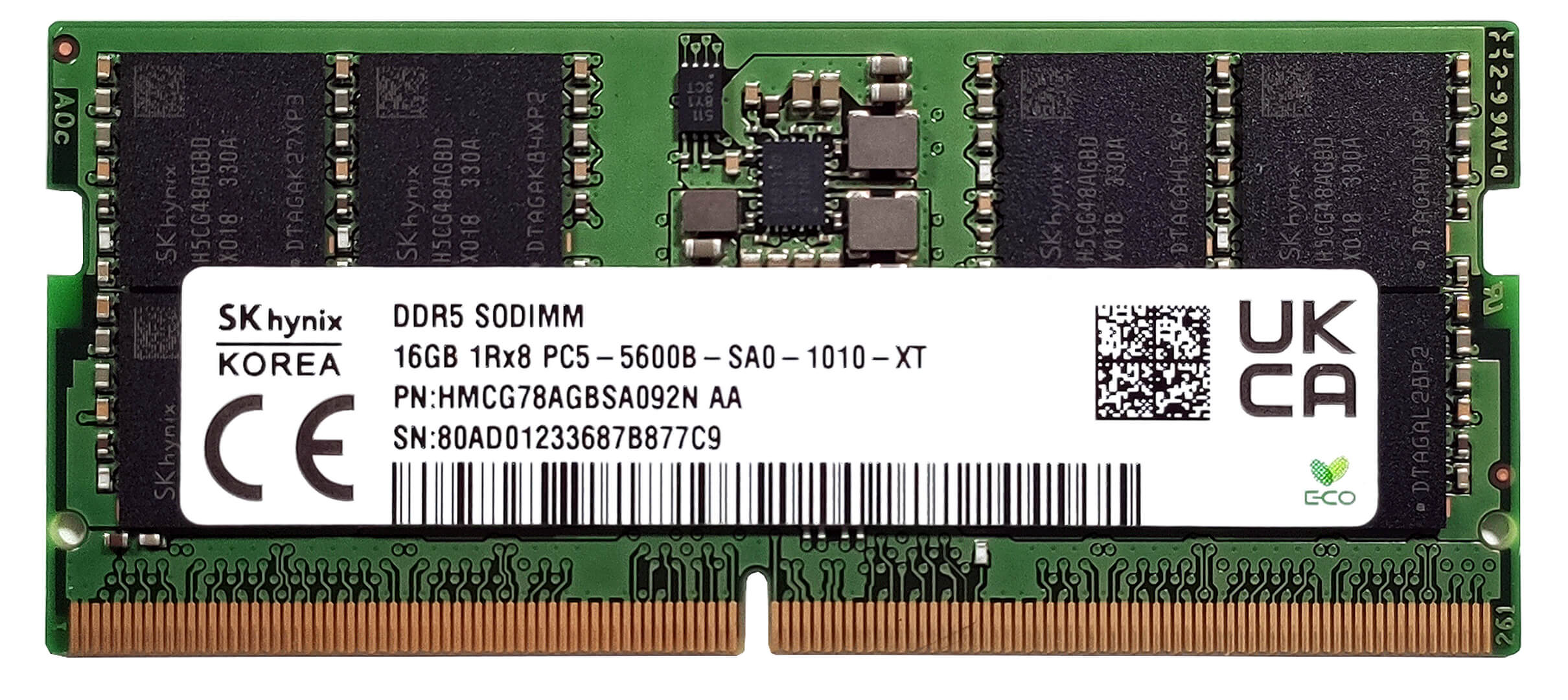
- Upgrade or install up to 64GB of DDR5-5200MHz or 4800MHz RAM in dual-channel mode to enhance the laptop’s multitasking and processing capabilities.
Note: While the RAM sticks are rated at 5600MHz, they operate at a 5200MHz clock due to system limitations.
You can buy DDR5 RAM modules here: Cumpărați de pe Amazon.com (#CommissionsEarned)


Storage Upgrade
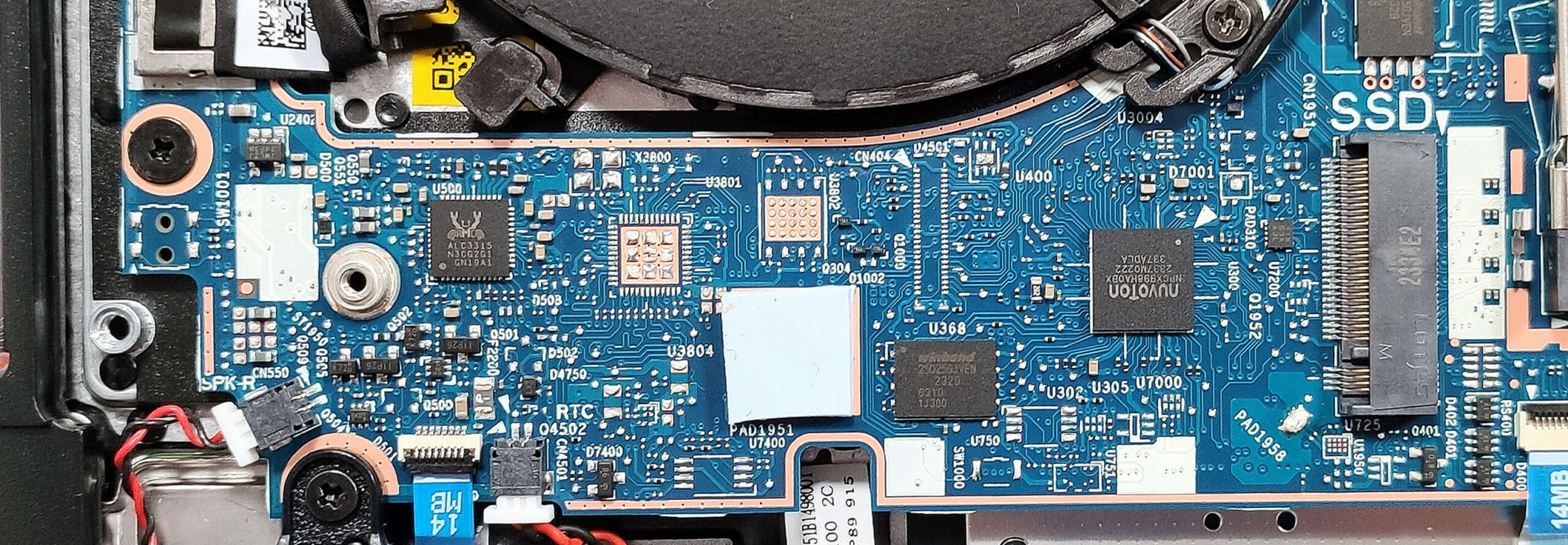
- Identify the single M.2 slot that supports 2280 Gen 4 SSDs for high-speed storage solutions.
- Consider upgrading the storage with a Gen 4 NVMe SSD to increase storage capacity or improve system responsiveness and load times.
More info: A small thermal pad beneath the preinstalled NVMe helps to manage heat, ensuring sustained performance.
You can buy Gen 4 M.2 SSD modules here: Cumpărați de pe Amazon.com (#CommissionsEarned)

Step 3: Examining the Cooling System
- Review the cooling system, which includes a single fan, a duo of heat pipes, one heat sink, and two heat spreaders, designed to efficiently manage the thermal output of the laptop.
More info: Despite its unassuming appearance, this cooling solution is effectively configured to ensure the laptop maintains optimal performance levels during extensive usage, crucial for professional workloads.

 Author: Anna Iorgova

![[Iunie 2026] Cele mai vândute mărci de laptopuri pe Amazon Global – Dominația de neegalat a Apple în ceea ce privește numărul de unități vândute și veniturile](https://laptopmedia.com/wp-content/uploads/2026/07/GLOBAL-Best-Brands-400x225.jpg)
![[Iunie 2026] Amazon Global: Top 10 cele mai vândute laptopuri – Noul MacBook Neo de la Apple se clasează pe locul 1, redefinind piața prin prețul accesibil](https://laptopmedia.com/wp-content/uploads/2026/07/Best-Selling-Laptops-GLOBAL-Top-10-400x225.jpg)
![[Iunie 2026] Amazon Global: Top 10 cele mai bine vândute laptopuri pentru jocuri – Modelul Nitro V 16S AI de la Acer domină vânzările, în timp ce ASUS conduce în ceea ce privește veniturile totale](https://laptopmedia.com/wp-content/uploads/2026/07/Best-Selling-Gaming-Laptops-GLOBAL-Top-10-400x225.jpg)
![[Iunie 2026] Clasamentul global al celor mai bine vândute plăci grafice pentru laptopuri pe Amazon – NVIDIA RTX 5060 este cea mai bine vândută placă grafică dedicată](https://laptopmedia.com/wp-content/uploads/2026/07/Best-Selling-GPUs-GLOBAL-Top-10-400x225.jpg)
![[Iunie 2026] Clasamentul global al celor mai bine vândute procesoare pentru laptopuri de pe Amazon – Apple M5 domină, iar AMD Ryzen 7 260 înregistrează o cotă solidă în segmentul premium](https://laptopmedia.com/wp-content/uploads/2026/07/Best-Selling-CPUs-GLOBAL-Top-10-400x225.jpg)