How to open Lenovo ThinkPad X13 Gen 4 (Intel) – disassembly and upgrade options
#CommissionsEarned

Step 1: Accessing the Internal Components
- Ensure the Lenovo ThinkPad X13 Gen 4 (Intel) is powered off and placed on a safe, soft surface to prevent damage.
- Undo the 5 captive Phillips-head screws on the back of the laptop. These screws will remain attached to the bottom panel, preventing loss.
- Use a plastic tool to pry the bottom panel off, starting from the top corners and working your way towards the back, then lift the panel by holding it at the zones behind the hinges.
Hint: Approach the prying process gently to avoid damaging the clips or the laptop casing.
Step 2: Removing the Battery
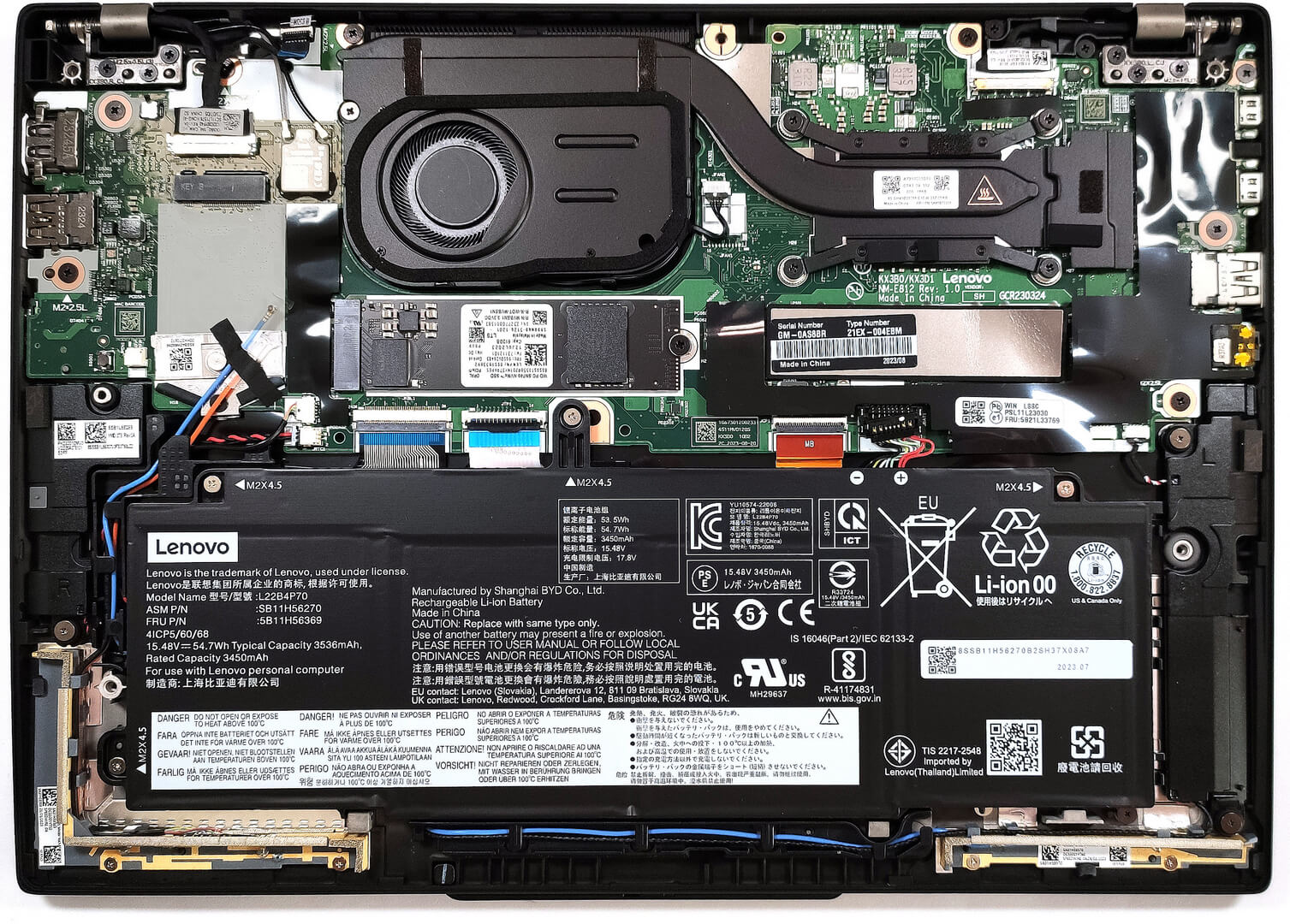
- Disconnect the battery by pulling out its connector from the motherboard.
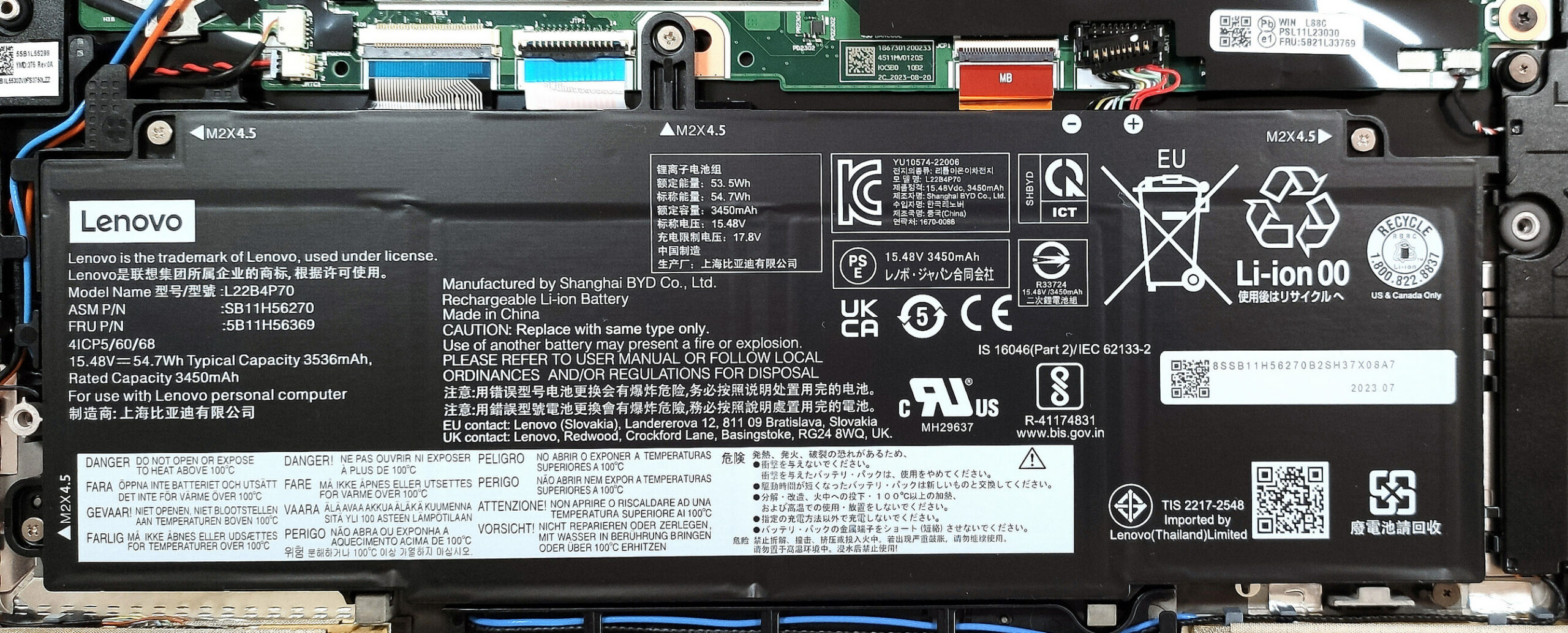
- Remove the four Phillips-head screws fixing the battery to the chassis, then lift the 54.7Wh battery away from the device.
Caution: Handle the battery and its connector with care to avoid any damage.
More info: The optional 54.7Wh battery provides up to 16 hours and 40 minutes of web browsing or video playback. There are also configurations with 41Wh batteries.
Memory and Storage
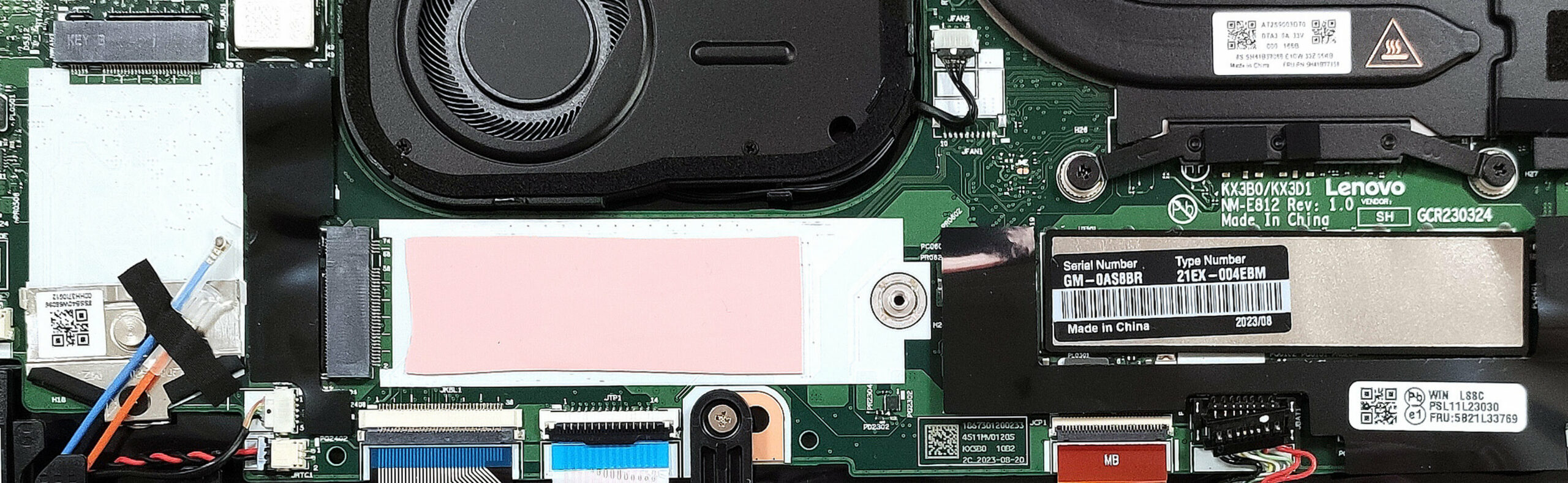
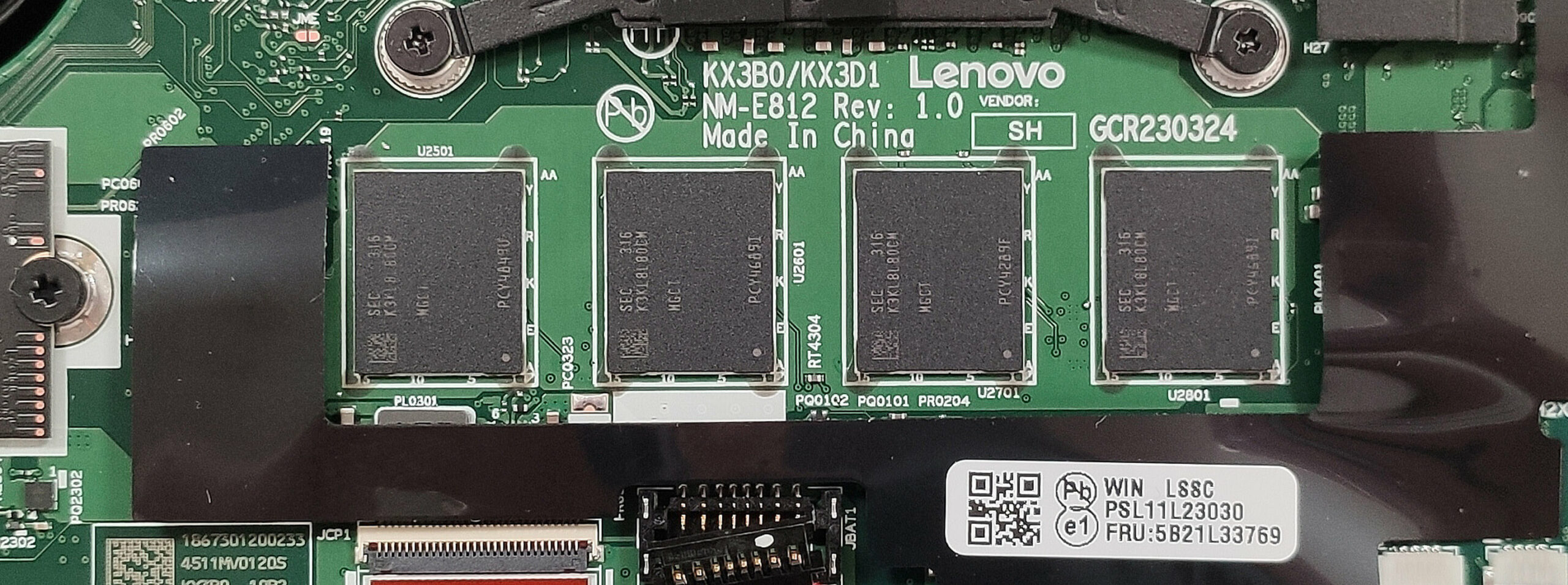
- The laptop comes with soldered memory, offering up to 32GB of LPDDR5-4800MHz RAM in dual-channel mode, ensuring high performance for various tasks.
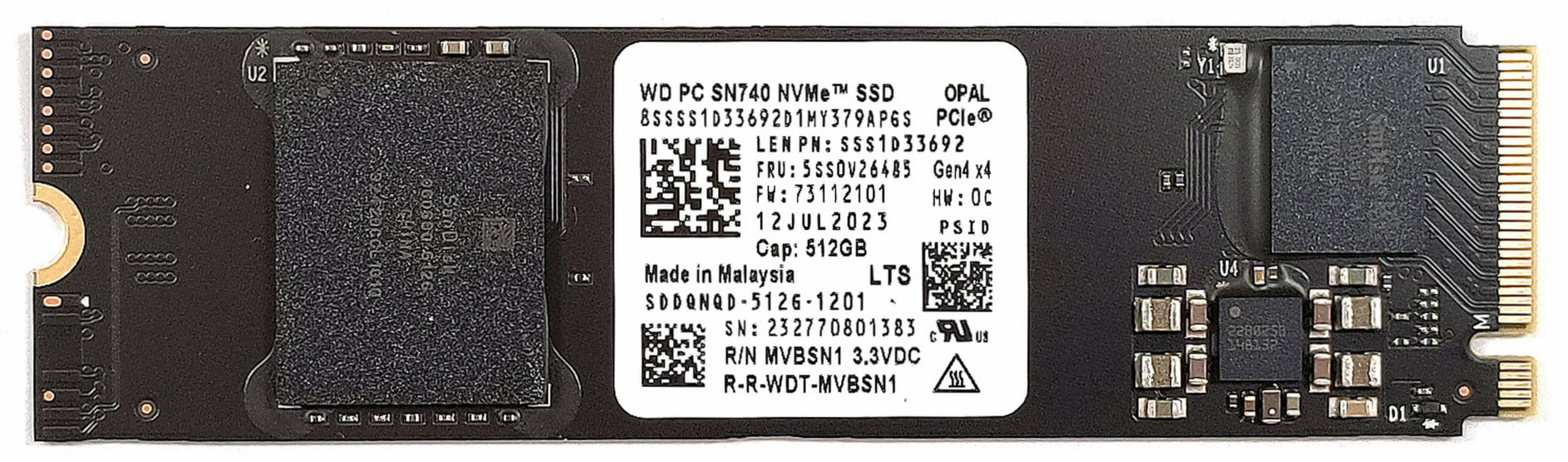
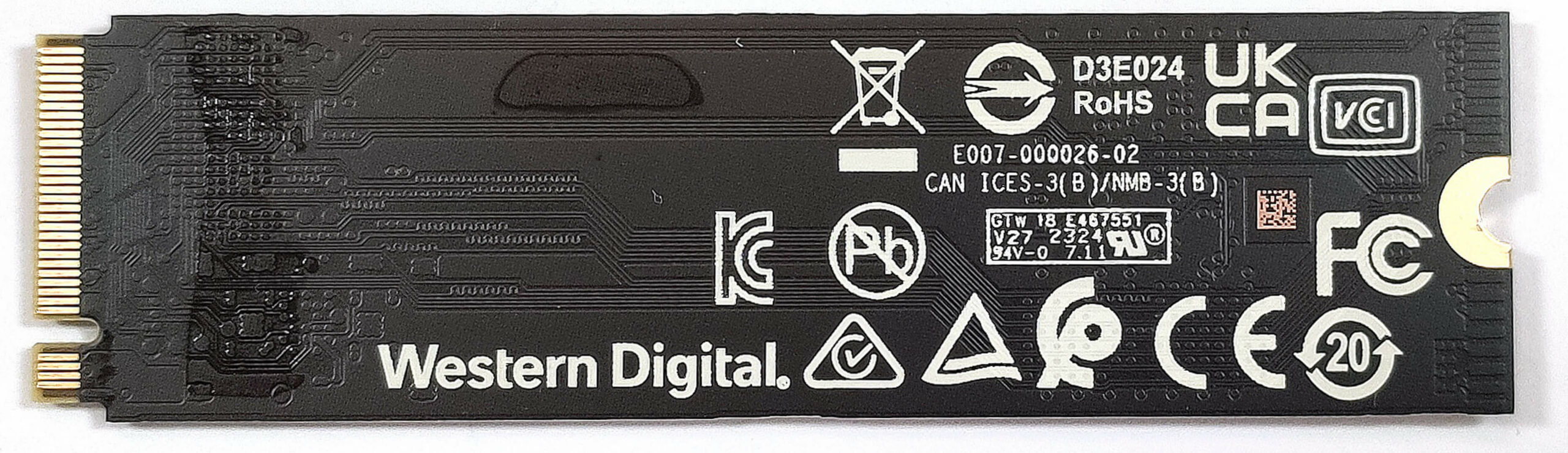
- For storage expansion or upgrades, locate the single M.2 slot compatible with 2280 Gen 4 SSDs, and note the thin thermal pad placed below the SSD for cooling.
More info: Next to the NVMe slot, you’ll find a WWAN slot for optional 4G or 5G connectivity modules.
You can buy Gen 4 M.2 SSD modules here: Cumpărați de pe Amazon.com (#CommissionsEarned)
Step 3: Examining the Cooling System
- Review the cooling system, which includes one fan, a single heat spreader, a top-mounted heatsink, and another heat spreader, designed to efficiently manage the thermal output of the laptop.
More info: While the cooling system is described as basic, it’s adequately designed to ensure optimal thermal management for the ThinkPad X13 Gen 4 (Intel)’s hardware configuration.

#CommissionsEarned
 Author: Anna Iorgova
Abonează-te
0 Comments


![[August 2026] Clasamentul global al celor mai bine vândute plăci grafice pentru laptopuri de pe Amazon – Apple domină clasamentul, iar modelul RTX 5060 de la NVIDIA ocupă primul loc în clasamentul dedicat](https://laptopmedia.com/wp-content/uploads/2026/09/Best-Selling-GPUs-GLOBAL-Top-10-400x225.jpg)
![[August 2026] Clasamentul global al celor mai bine vândute procesoare pentru laptopuri de pe Amazon – Apple domină atât segmentul economic, cât și cel premium: A18 Pro și M5 surclasează Intel și AMD în august 2026](https://laptopmedia.com/wp-content/uploads/2026/09/Best-Selling-CPUs-GLOBAL-Top-10-400x225.jpg)
![[August 2026] Amazon Global: Top 10 cele mai vândute laptopuri – Apple MacBook Neo domină clasamentul, în timp ce laptopurile Windows din gama economică și de mijloc se luptă pentru volumul vânzărilor](https://laptopmedia.com/wp-content/uploads/2026/09/Best-Selling-Laptops-GLOBAL-Top-10-400x225.jpg)
![[August 2026] Cele mai vândute mărci de laptopuri pe Amazon Global – Apple domină în ceea ce privește veniturile, în timp ce HP se află pe primul loc în ceea ce privește varietatea de modele](https://laptopmedia.com/wp-content/uploads/2026/09/GLOBAL-Best-Brands-400x225.jpg)
![[August 2026] Amazon Global: Top 10 cele mai bine vândute laptopuri pentru jocuri – HP Victus 15 ocupă primul loc, în timp ce modelele accesibile domină clasamentul](https://laptopmedia.com/wp-content/uploads/2026/09/Best-Selling-Gaming-Laptops-GLOBAL-Top-10-400x225.jpg)