MSI Vector GP78 HX (13V) review – offers great build quality, fast display, and exceptional performance
Temperatures and comfort, Battery Life
Max CPU load
In this test we use 100% on the CPU cores, monitoring their frequencies and chip temperature. The first column shows a computer’s reaction to a short load (2-10 seconds), the second column simulates a serious task (between 15 and 30 seconds), and the third column is a good indicator of how good the laptop is for long loads such as video rendering.
Average P-core frequency; Average E-core frequency; CPU temp.; Package Power
| Intel Core i9-13980HX (55W TDP) | 0:02 – 0:10 sec | 0:15 – 0:30 sec | 10:00 – 15:00 min |
|---|---|---|---|
| MSI Vector GP78 HX (13V) “Extreme Performance” preset | 4.61 GHz @ 2.58 GHz @ 77°C @ 220W | 4.45 GHz @ 2.52 GHz @ 83°C @ 203W | 3.86 GHz @ 2.41 GHz @ 83°C @ 148W |
| MSI Vector GP78 HX (13V) “Balanced” preset | 4.48 GHz @ 2.51 GHz @ 78°C @ 215W | 4.34 GHz @ 2.49 GHz @ 82°C @ 195W | 3.77 GHz @ 2.35 GHz @ 83°C @ 139W |
| ASUS ROG Strix SCAR 18 (G834, 2023) | 3.53 GHz @ 2.96 GHz @ 76°C @ 147W | 3.46 GHz @ 2.91 GHz @ 82°C @ 142W | 3.35 GHz @ 2.81 GHz @ 84°C @ 133W |
The Core i9-13980HX is a monster of a CPU with 24 cores and 32 threads. Still, the cooling of the MSI Vector GP78 HX (13V) is doing a great job. The CPU can sustain impressively high clocks under any kind of load no matter if you are applying the “Extreme” or the “Balanced” preset. Since the latter offers lower noise levels and almost the same frequencies and power limits during heavy stress, it’s the right choice for CPU-intensive tasks. Let’s face it, ~4.60 GHz and ~4.50 GHz P cores clock in short and medium loads leads to extremely snappy performance regardless of what is your task in front of the display.
Real-life gaming
| NVIDIA GeForce RTX 4090 | GPU frequency/ Core temp (after 2 min) | GPU frequency/ Core temp (after 30 min) |
|---|---|---|
| MSI Vector GP78 HX (13V) “Extreme Performance” preset | 1955 MHz @ 71°C @ 168W | 1950 MHz @ 73°C @ 168W |
| MSI Vector GP78 HX (13V) “Balanced” preset | 1719 MHz @ 70°C @ 155W | 1705 MHz @ 74°C @ 154W |
The GeForce RTX 4090 can maintain 1950 MHz and 168W TGP which is really close to the official maximum value of 175W in “Extreme” mode. Again, the “Balanced” mode is truly worth its name – we can see 154W and ~1700 MHz after 30 minutes of gaming while the noise is noticeably lower.
Comfort during full load
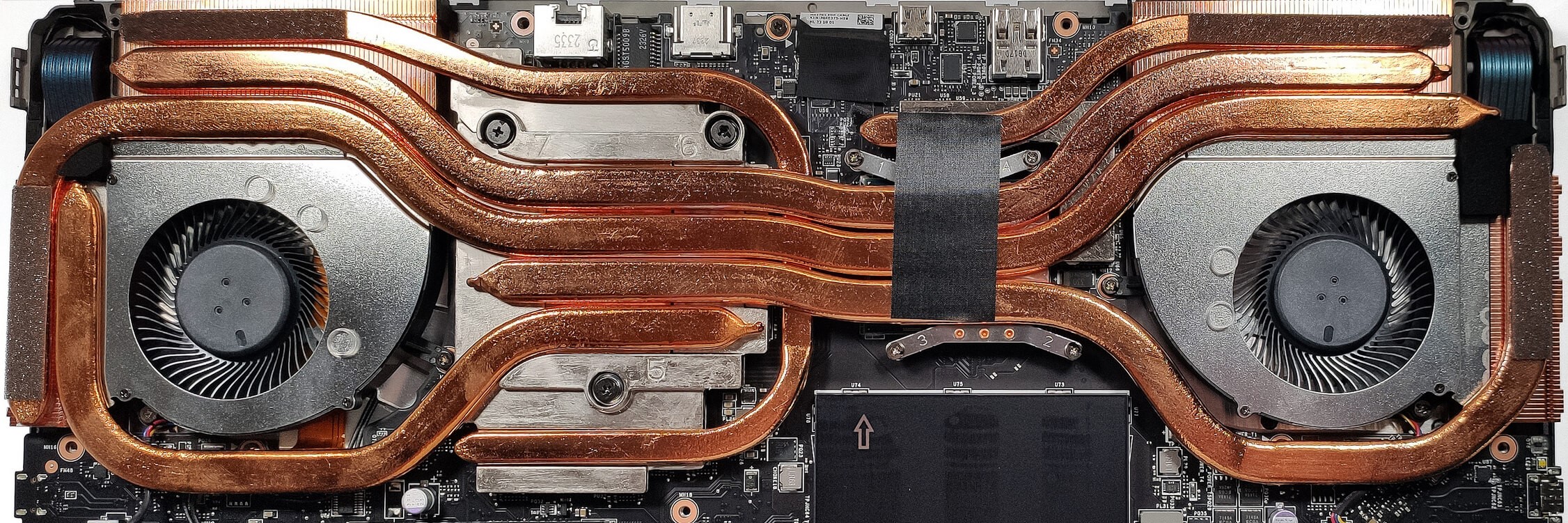
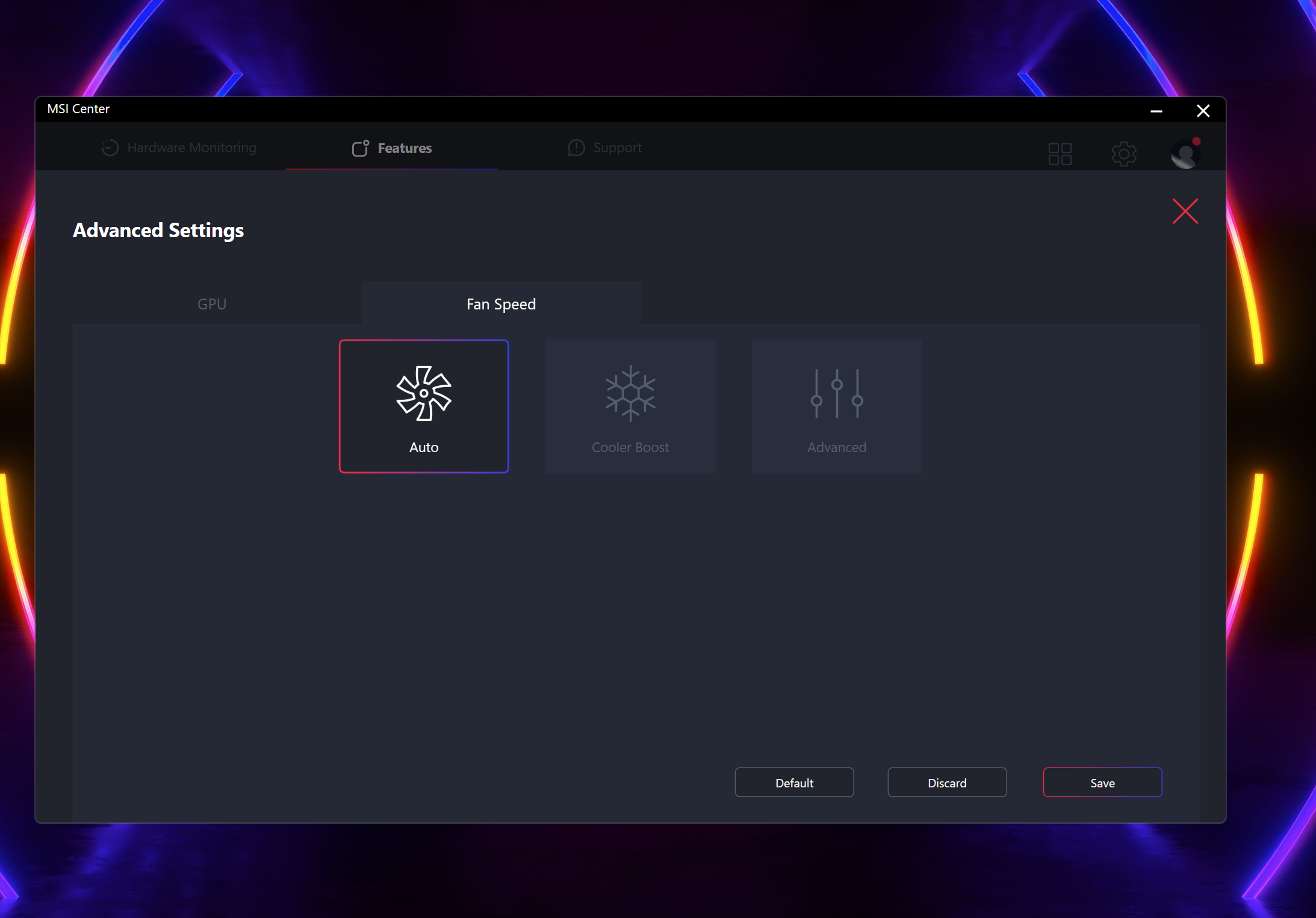
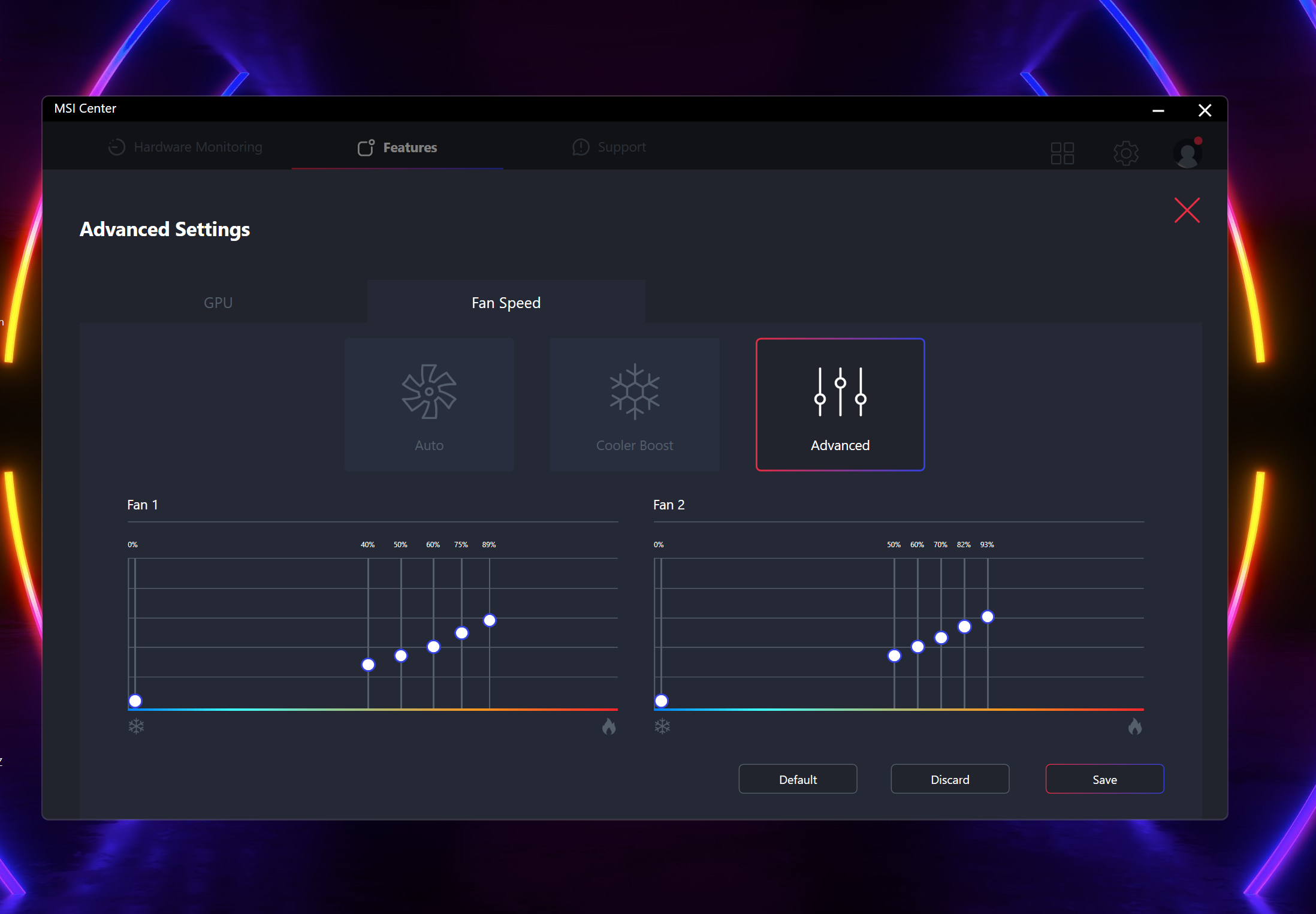
The laptop is super loud in “Extreme Performance” mode. The other presets offer less noise combined with lower CPU and GPU clocks. Still, you can set a custom fan curve which is a handy option for the enthusiasts. If you are lazy enough, you can use the AI-based “Smart Auto” mode that will optimize the performance of the machine depending on the load. The keyboard gets a bit warm in the center but that’s comfortable enough for work or gaming.
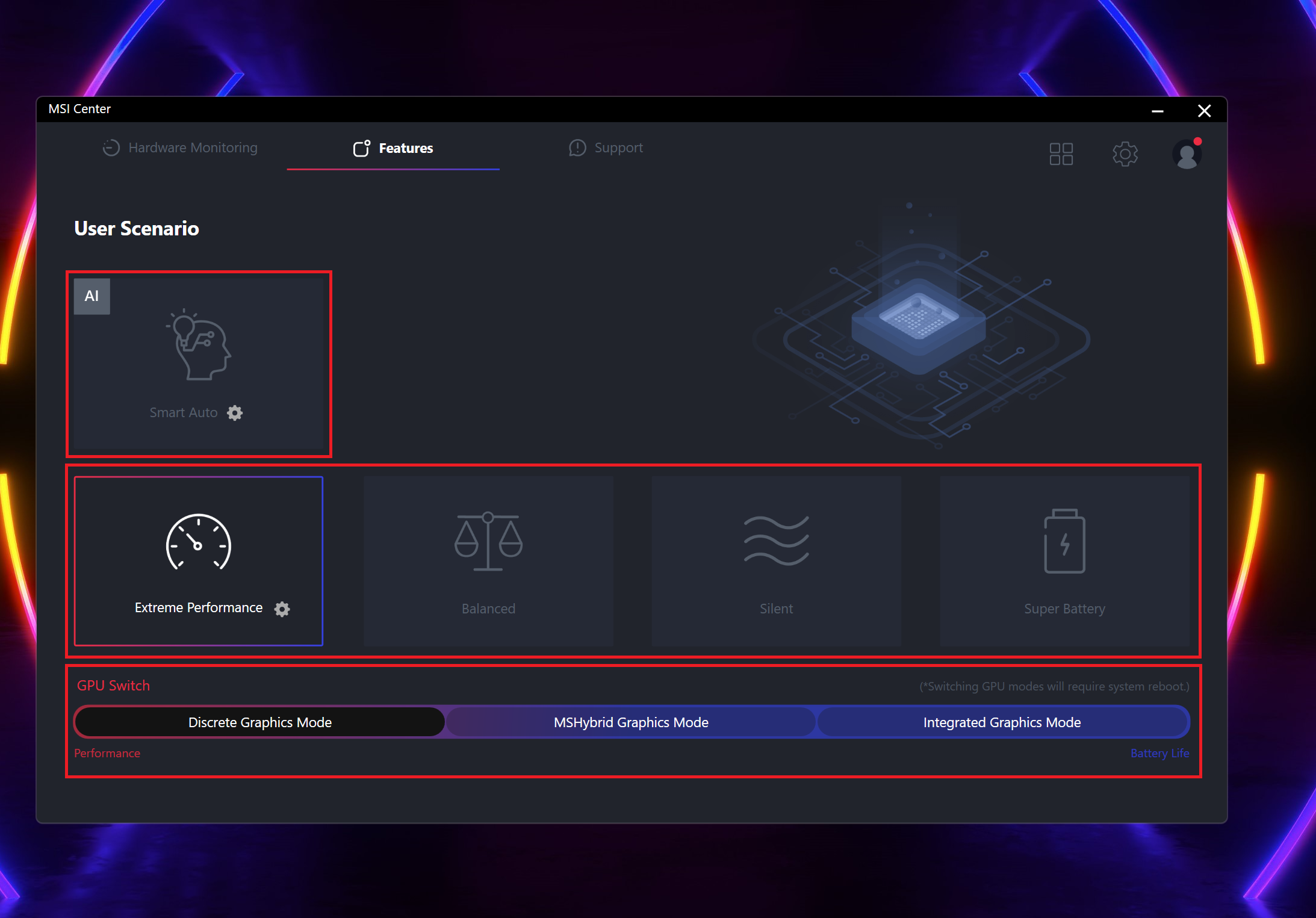
Let’s take a look at the fan speeds when the processor is stressed at max. In “Extreme” mode, we got ~6000 RPM and ~4200 RPM for the CPU and GPU fan and ~4500 RPM and 4200 RPM in the “Balanced” scenario.
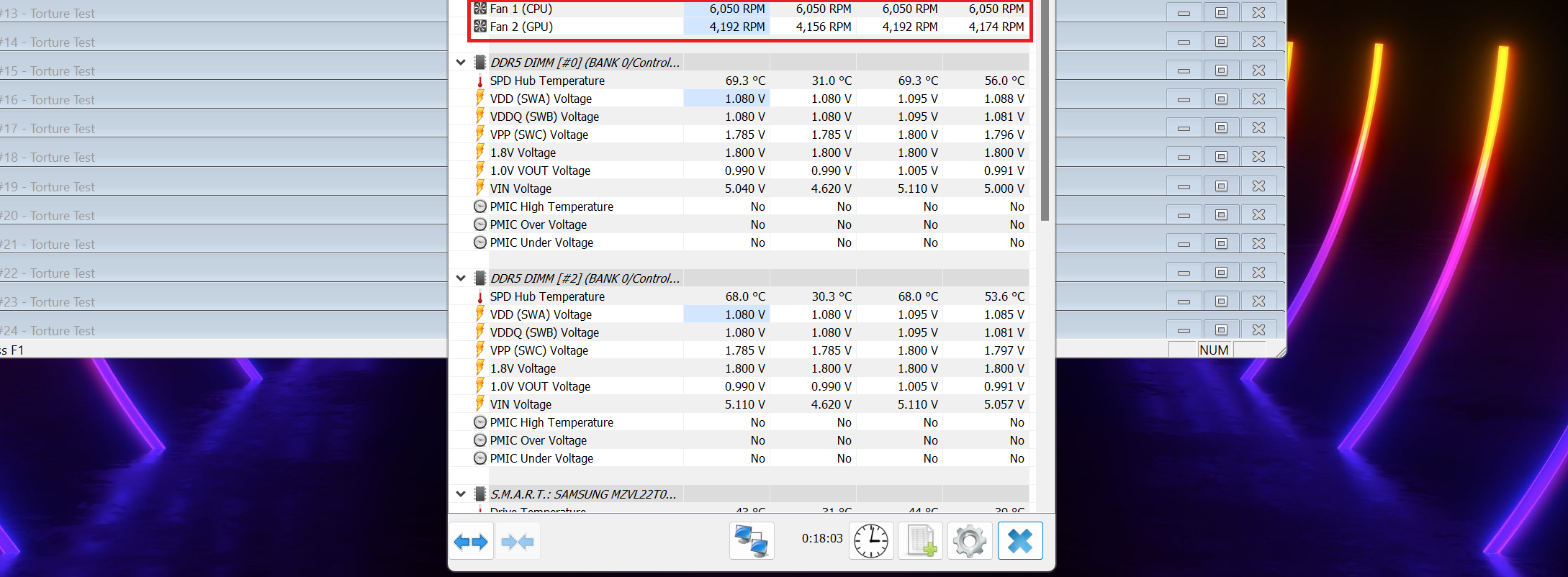 Extreme Performance
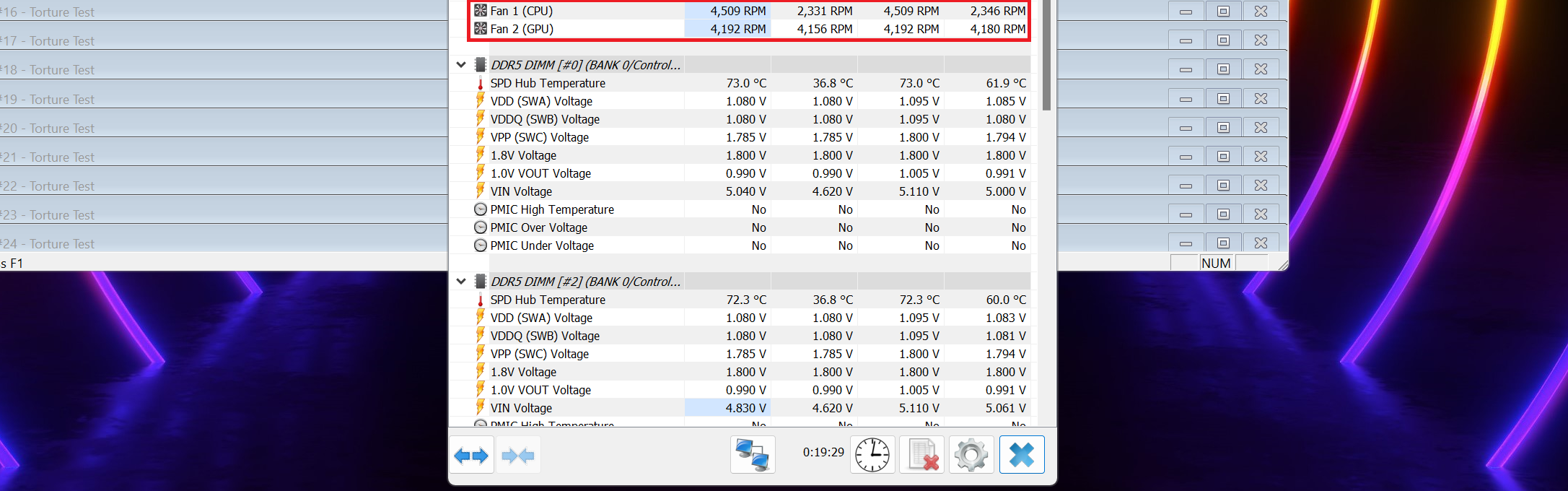 Balanced
The situation is different during gaming. The fans are spinning with 6000 RPM in “Extreme” mode (which is very, very noisy) and with ~4300 RPM in “Balanced” mode. Interestingly, the “Silent” preset has a lot of potential. The combination of 3000 RPM fan speed ~140W TGP is good – the noise is low and the performance is still high. With a bit of GPU undervolting plus overclocking, you can extract even more graphics power. The “Super Battery” isn’t optimal for gaming since the TGP is fluctuating hard.
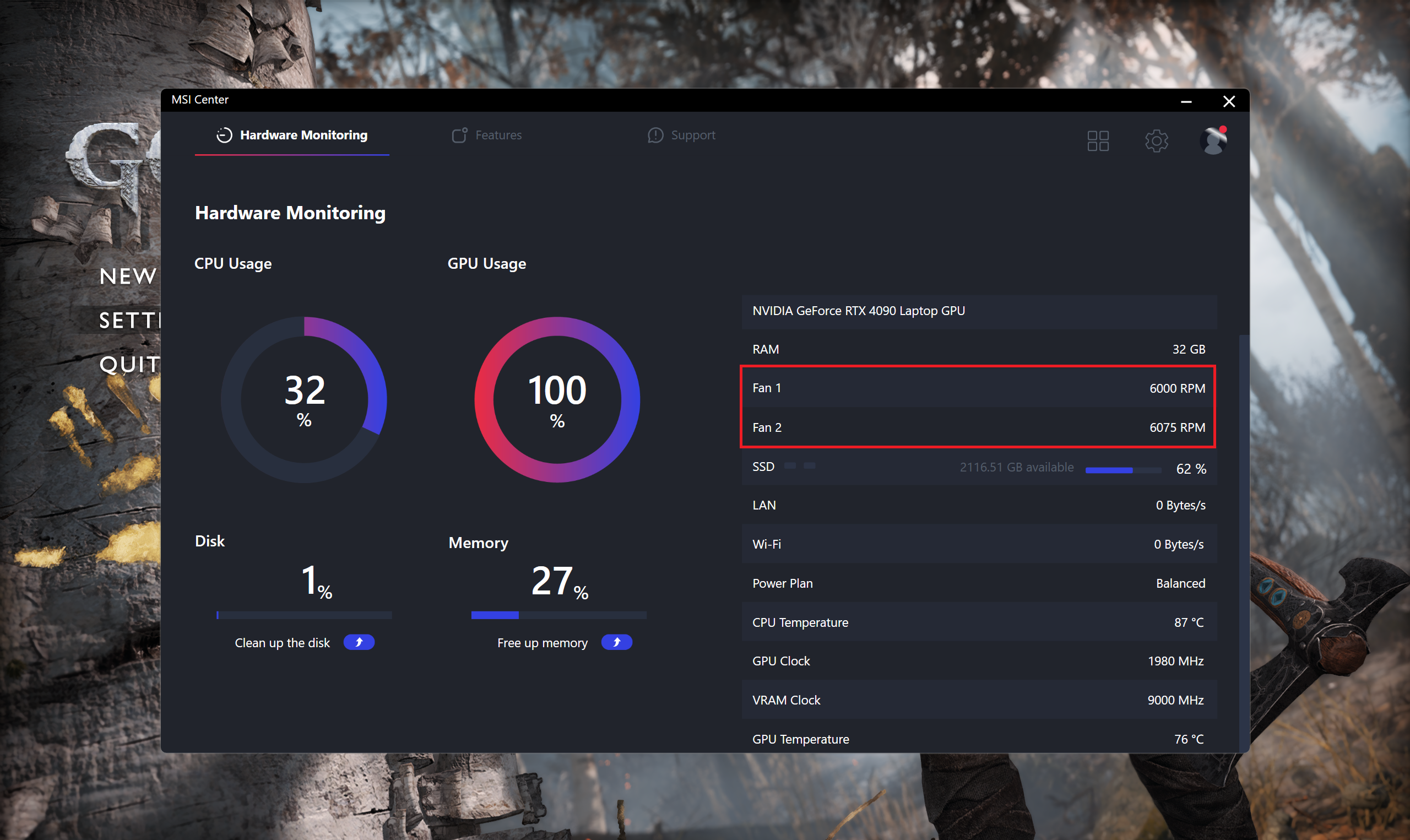
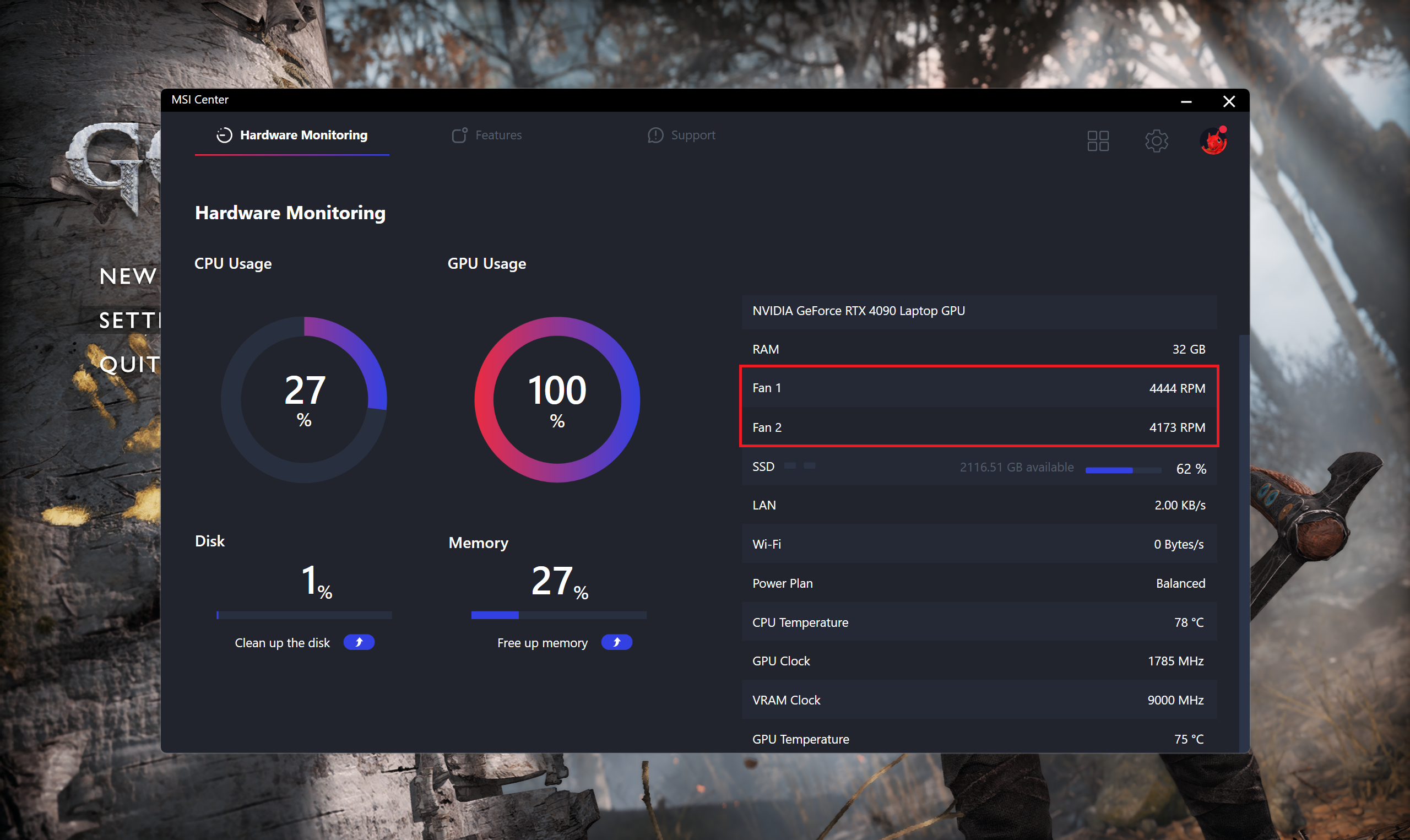
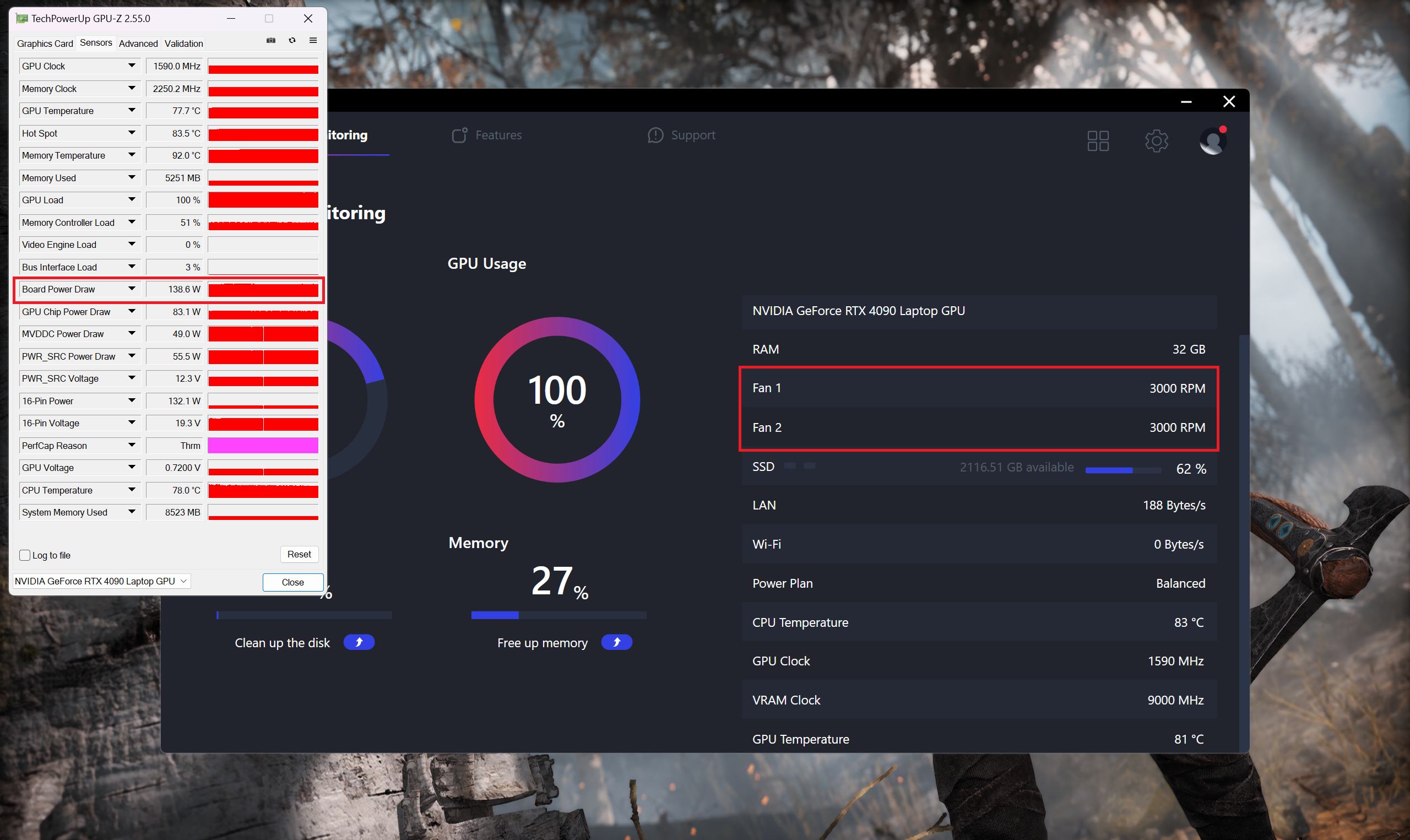
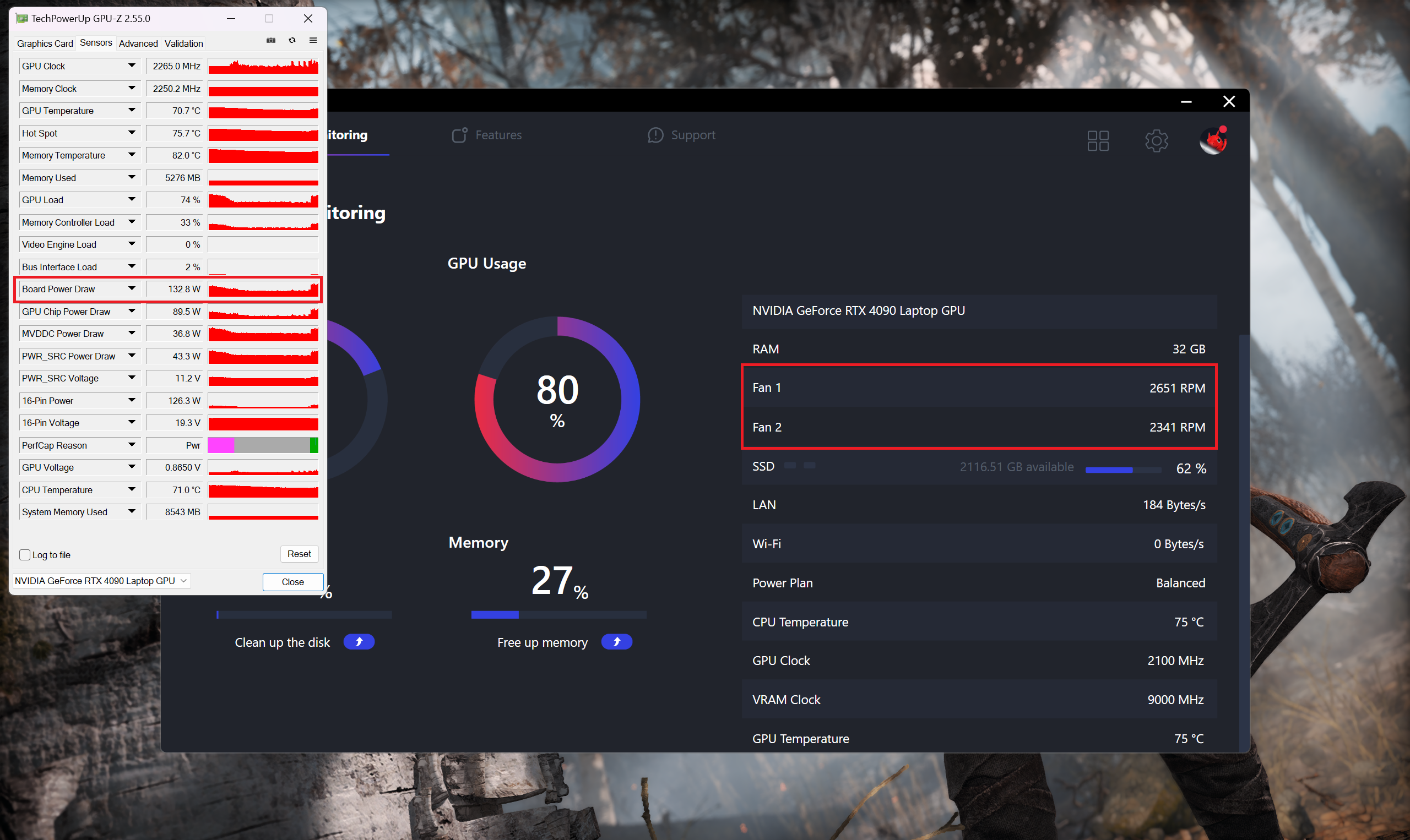
When you activate the Cooler Boost function, this will ramp the fans to their maximum speed of around 6000 RPM. Interestingly, this is the same speed that can be observed in “Extreme” mode during gaming with the fans set to “Auto”. In idle, the CPU fan is spinning with ~2400 RPM no matter the preset, and the GPU fan is turned off until the graphic chip hits 50°C.
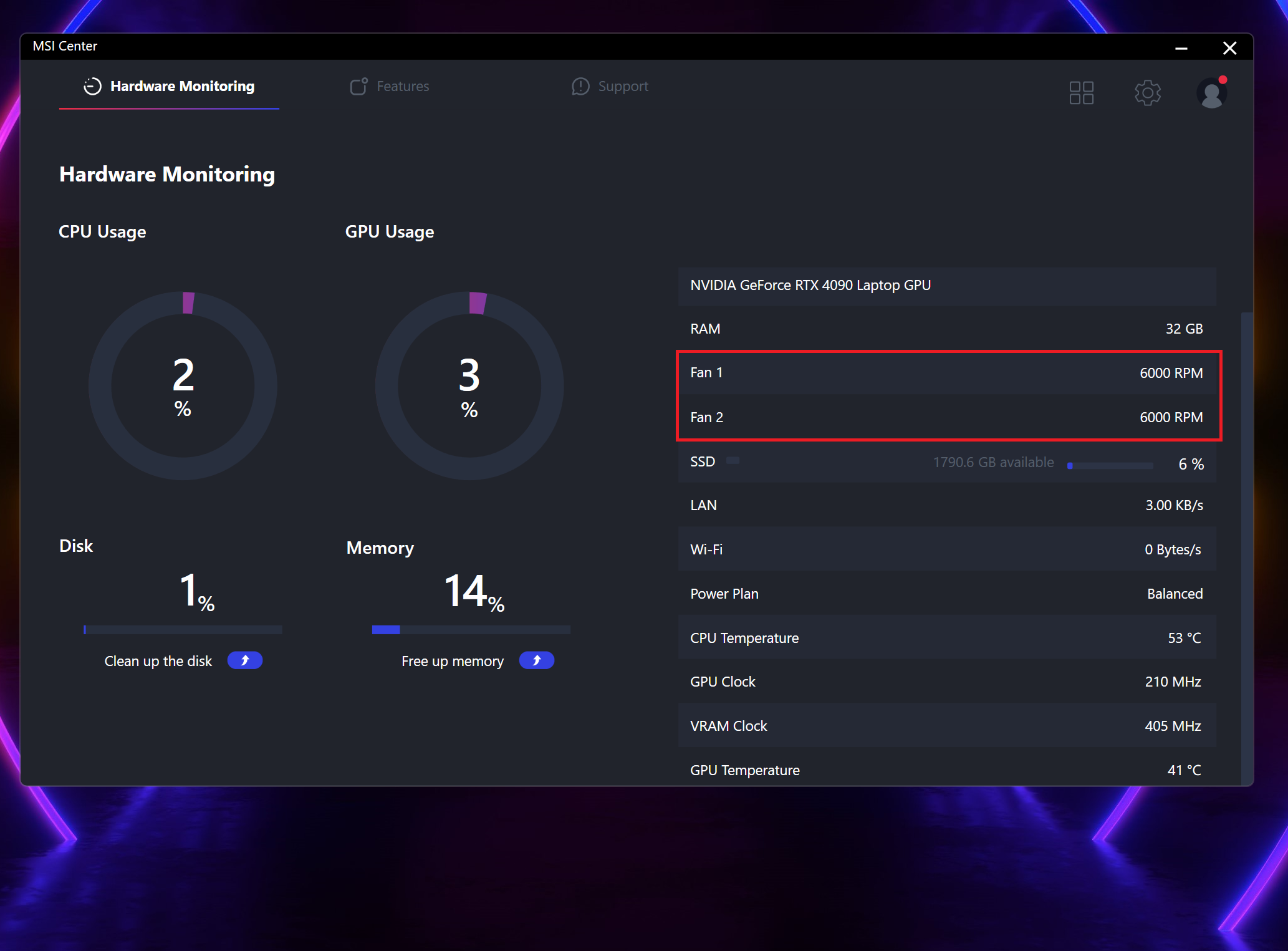 Cooler Boost
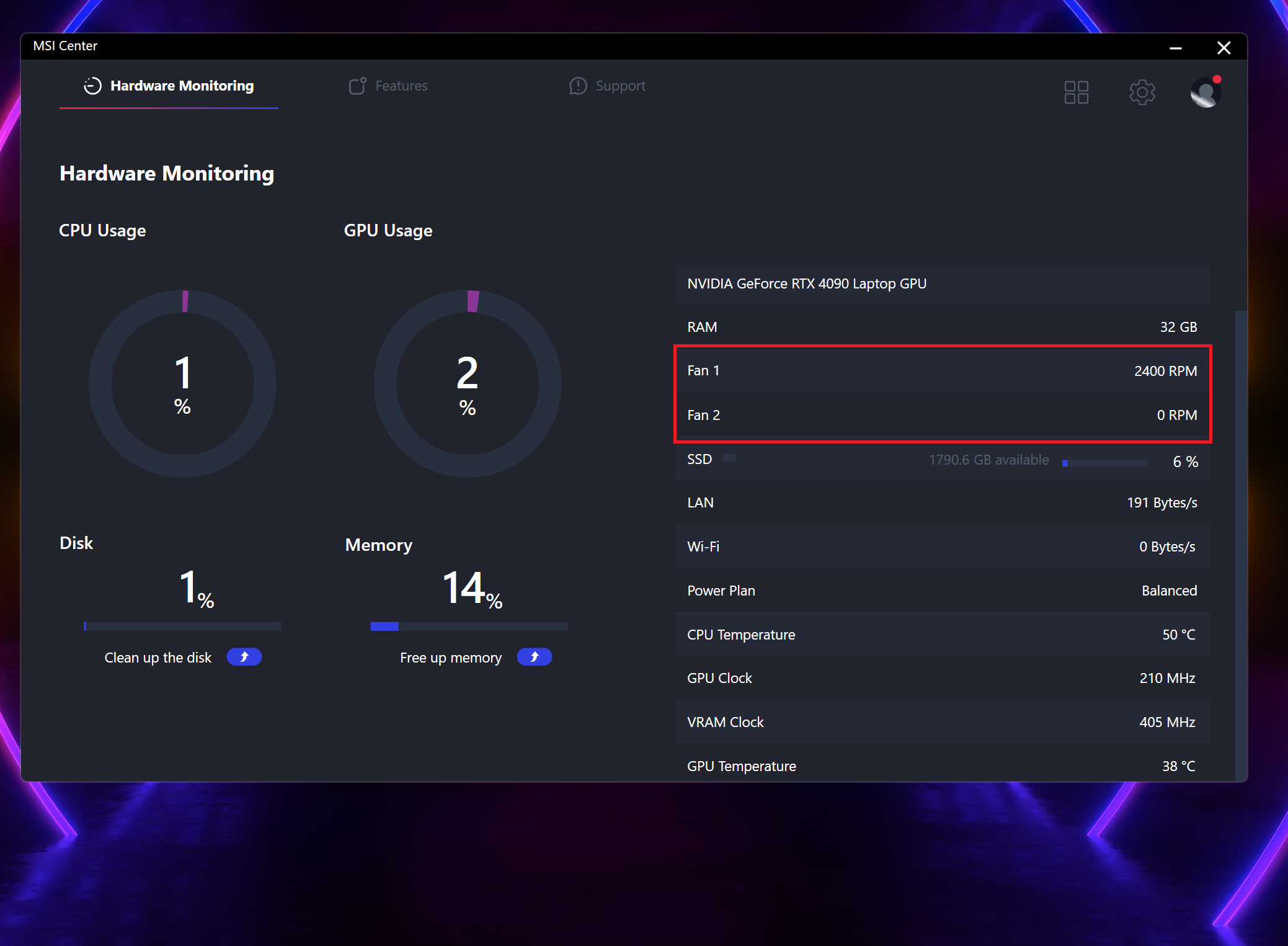 Idle
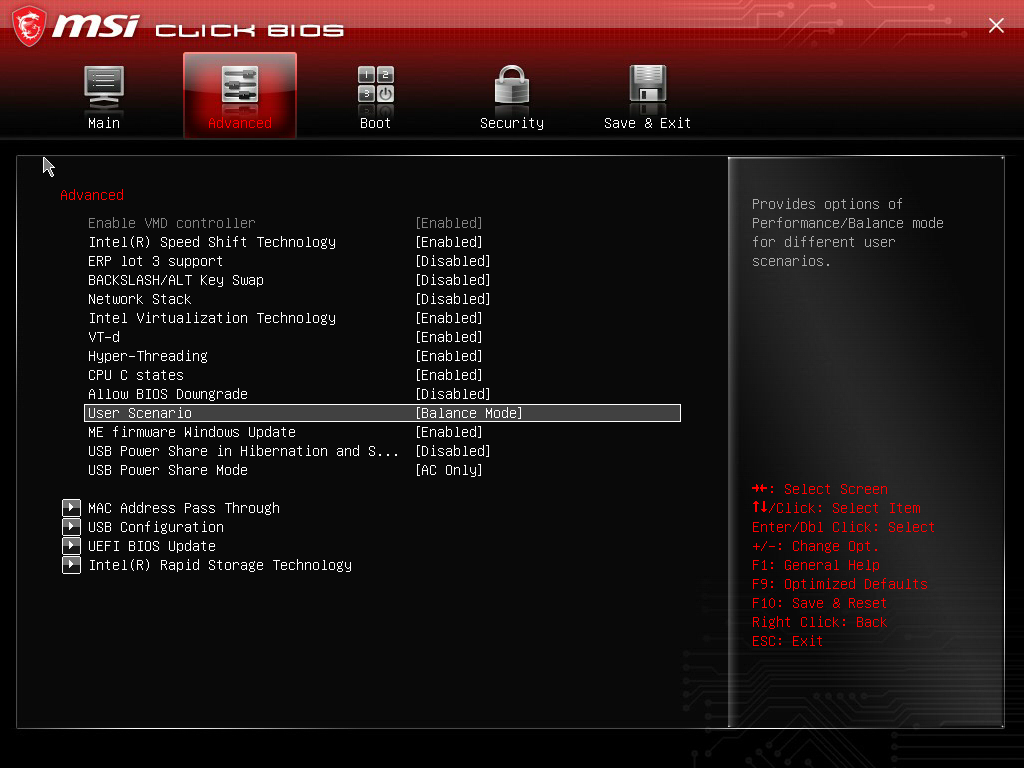
IdleYou can have a look at the main menu of the BIOS.
Battery
Now, we conduct the battery tests with the Windows Better performance setting turned on, screen brightness adjusted to 120 nits and all other programs turned off except for the one we are testing the notebook with. This laptop’s 90Wh battery lasts for 5 hours and 33 minutes of Web browsing, or 4 hours and 32 minutes of video playback.
Luminozitate: 180 nits; Mod Afișaj: SDR
Timp până la Descărcare Completă: Mai mare este mai bun
Pentru a simula condiții reale, am folosit propriul nostru script pentru navigarea automată pe web prin peste 70 de site-uri.
 Author: Nikolay Palaozov
 Author: eng. Kroum NikolovHead of Engineering at LaptopMedia.com, inventor and innovator with 40+ years of experience in electronics and high technology.

![[August 2026] Clasamentul global al celor mai bine vândute plăci grafice pentru laptopuri de pe Amazon – Apple domină clasamentul, iar modelul RTX 5060 de la NVIDIA ocupă primul loc în clasamentul dedicat](https://laptopmedia.com/wp-content/uploads/2026/09/Best-Selling-GPUs-GLOBAL-Top-10-400x225.jpg)
![[August 2026] Clasamentul global al celor mai bine vândute procesoare pentru laptopuri de pe Amazon – Apple domină atât segmentul economic, cât și cel premium: A18 Pro și M5 surclasează Intel și AMD în august 2026](https://laptopmedia.com/wp-content/uploads/2026/09/Best-Selling-CPUs-GLOBAL-Top-10-400x225.jpg)
![[August 2026] Amazon Global: Top 10 cele mai vândute laptopuri – Apple MacBook Neo domină clasamentul, în timp ce laptopurile Windows din gama economică și de mijloc se luptă pentru volumul vânzărilor](https://laptopmedia.com/wp-content/uploads/2026/09/Best-Selling-Laptops-GLOBAL-Top-10-400x225.jpg)
![[August 2026] Cele mai vândute mărci de laptopuri pe Amazon Global – Apple domină în ceea ce privește veniturile, în timp ce HP se află pe primul loc în ceea ce privește varietatea de modele](https://laptopmedia.com/wp-content/uploads/2026/09/GLOBAL-Best-Brands-400x225.jpg)
![[August 2026] Amazon Global: Top 10 cele mai bine vândute laptopuri pentru jocuri – HP Victus 15 ocupă primul loc, în timp ce modelele accesibile domină clasamentul](https://laptopmedia.com/wp-content/uploads/2026/09/Best-Selling-Gaming-Laptops-GLOBAL-Top-10-400x225.jpg)
Bonjour, pouvez vous donner une explication quand au démontage du clavier ? Merci infiniment d’avance !!!
이 테스트는 구체적으로 어떻게 진행 되었나요?
스트레스테스트 프로그램, 온도 모니터링 프로그램, 팬설정이 궁금합니다.
제 노트북은 ptm7950및 언더볼팅을 적용하고도 파이어스트라이크 CPU 온도가 94도를 찍습니다.
How did this test specifically go?
I’m curious about the stress test program, temperature monitoring program, and fan settings.
My laptop has a firestrike CPU temperature of 94 degrees even with ptm7950 and undervolting.
gp78hx 13v