Lenovo ThinkPad P14s Gen 3 review
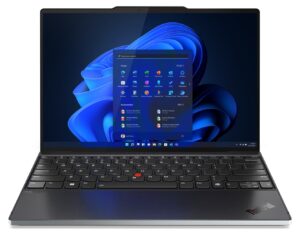
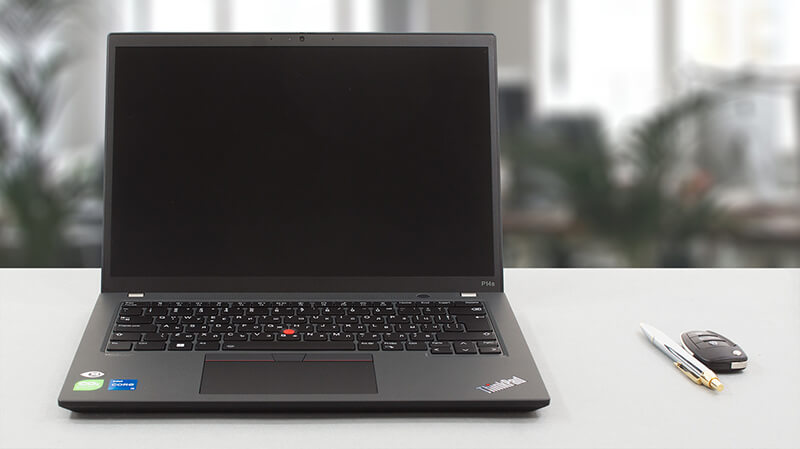 Thanks to laptops like the Dell XPS, mobile workstations get a bit more attention than before. Lenovo ThinkPad P14s Gen 3 is not among the most popular devices on the market, but it is special in its own kind.
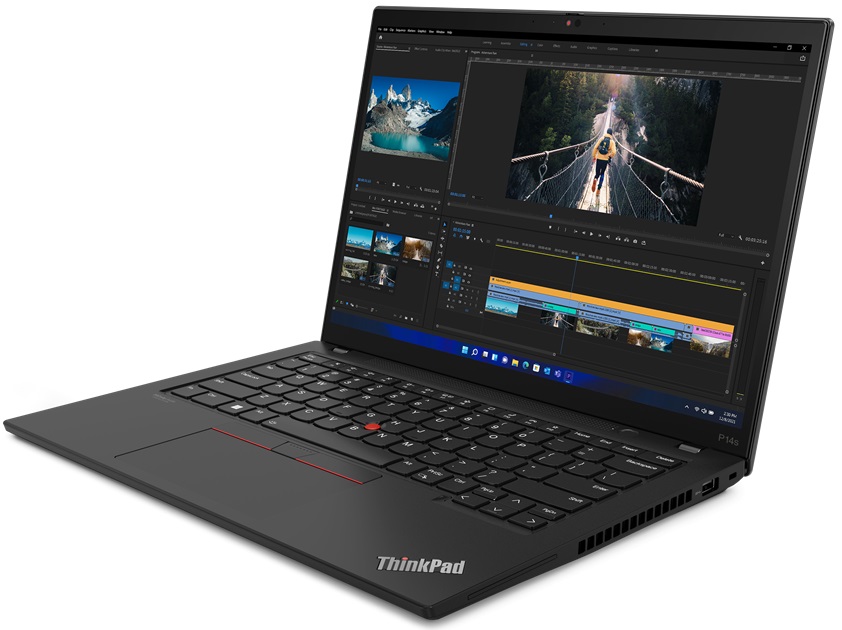
You see, it looks like an ordinary business laptop. More so because of its ThinkPad heritage – testified by the pretty boring boxy design. However, Lenovo has paired it with Alder Lake-P series processors, and an optional NVIDIA T550 graphics card.
If you are into this stuff, you should know the T550. However, if you are not acquaintanced with workstations, you will be thinking “what the hell is this?”.
Your confusion is purely understandable, as the graphics card doesn’t bear anything particular in its name that would denote its workstation-esque capabilities. In the past, NVIDIA used to put the “Quadro” name so one would know.
Nowadays, it changed to a single letter before a number. In this case, the letter T means that this GPU is part of the Turing architecture. Before you get too excited, no – it doesn’t have ray tracing support. Look at it more like a GTX 1650 Max-Q for professionals.
In addition, the ThinkPad P14s Gen 3’s display options are so many, that we have to write a separate article explaining all you can get. Instead, we’re going to tell you about the base option, and the top-tier level. Well, the former sports a 1200p resolution, and that’s pretty much it, while the latter features a super high 2400p resolution, HDR 400 support, Pantone factory-calibrated colors, and more. Both of them are IPS panels by the way.
You can check the prices and configurations in our Specs System: https://laptopmedia.com/series/lenovo-thinkpad-p14s-gen-3/
Contents
Specs Sheet
Lenovo ThinkPad P14s Gen 3 (Intel) - Özellikler

- HDD/SSD
- kadar 2000GB SSD
- M.2 Yuvası
- 1x 2280 PCIe NVMe 4.0 x4 Fotoğrafı gör
- RAM
- up to 48GB
- İS
- Windows 11 Pro, Windows 10 Pro, Windows 11 Home
- Pil
- 52.5Wh, 39.3Wh, 39.3Wh, 3-cell, 39.3Wh , 57Wh, 52.5Wh, 4-cell, 39.3Wh, 3-cell , 52.5Wh, 3-cell, 52.5Wh, 51Wh, 4-cell
- Gövde Malzemesi
- Plastic / Polycarbonate, Aluminum, Carbon, Glass Fiber
- Boyutlar
- 317.7 x 227.36 x 17.9 - 17.95 mm (12.51" x 8.95" x 0.70")
- Ağırlık
- 1.24 kg (2.7 lbs)
- Portlar ve bağlantı
- 1x USB Type-A
- 3.2 Gen 1 (5 Gbps)
- 1x USB Type-A
- 3.2 Gen 1 (5 Gbps), Sleep and Charge
- 2x USB Type-C
- 4.0, Thunderbolt 4, Power Delivery (PD), DisplayPort
- HDMI
- 2.0
- Kart Okuyucu
- Ethernet LAN
- 10, 100, 1000 Mbit/s
- Wi-Fi
- 802.11ax
- Bluetooth
- 5.1
- Ses jakı
- 3.5mm Combo Jack
- Özellikler
- Parmak izi okuyucu
- optional
- Web kamerası
- HD / FHD / IR with privacy shutter, fixed focus
- Arkadan aydınlatmalı klavye
- optional
- Mikrofon
- Dual Microphone Array, far-field, Dolby Voice
- Hoparlörler
- Stereo Speakers with Dolby Audio
- Optik sürücü
- Güvenlik Kilidi yuvası
- Kensington Lock
Tümü Lenovo ThinkPad P14s Gen 3 (Intel) yapılandırmalar
What’s in the box?
Inside the package, we saw some paperwork, and a 100W USB Type-C charger (or a 65W if you don’t get the dedicated GPU option).

Design and construction
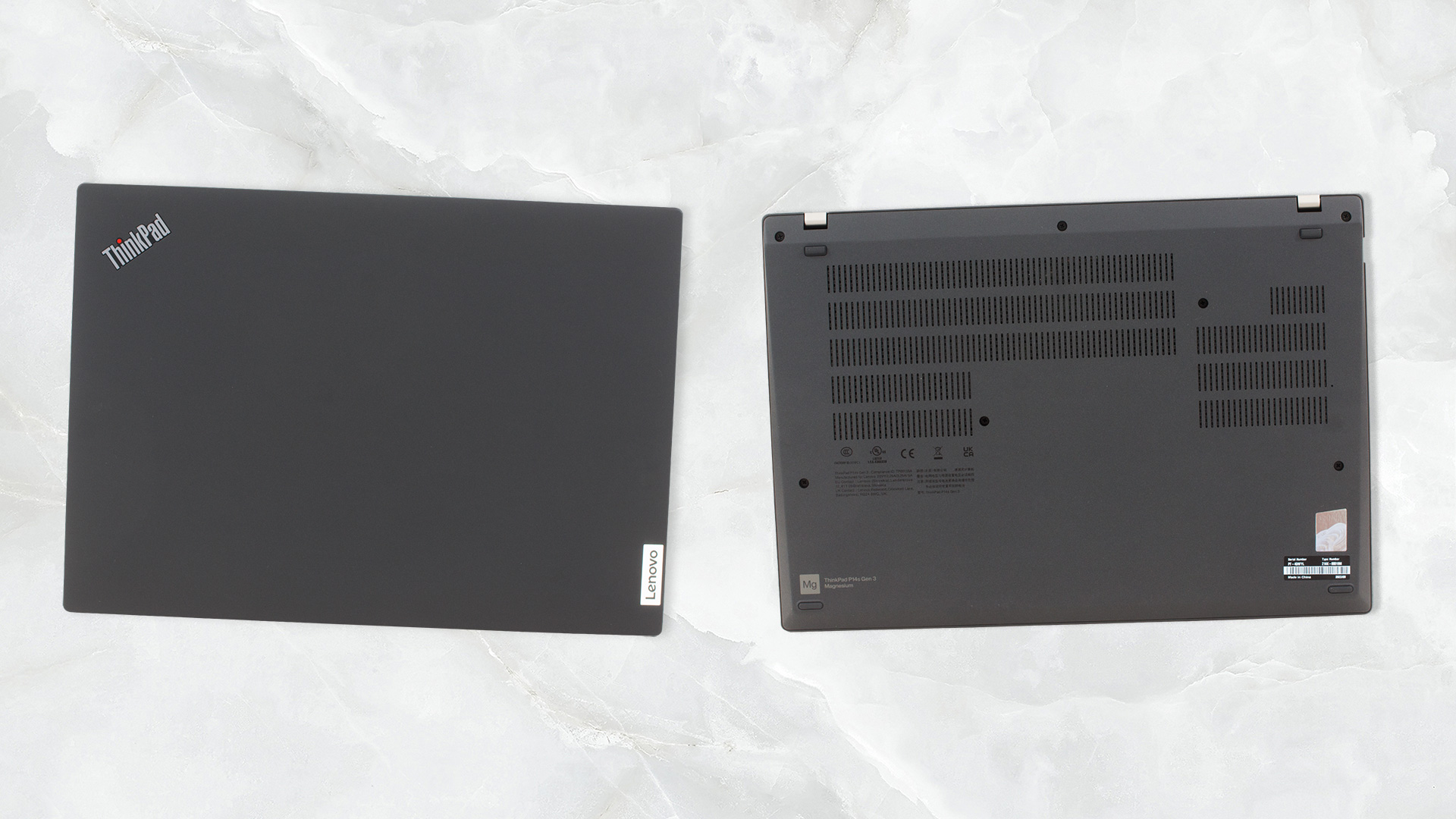
To confuse its potential customers, Lenovo has made this device with different body panel options. The grey cover unit has an aluminum lid and a plastic base. Then, the black unit with a dedicated GPU features an Aluminum base and a combo of glass-fiber-reinforced plastic, and carbon-fiber-reinforced plastic.
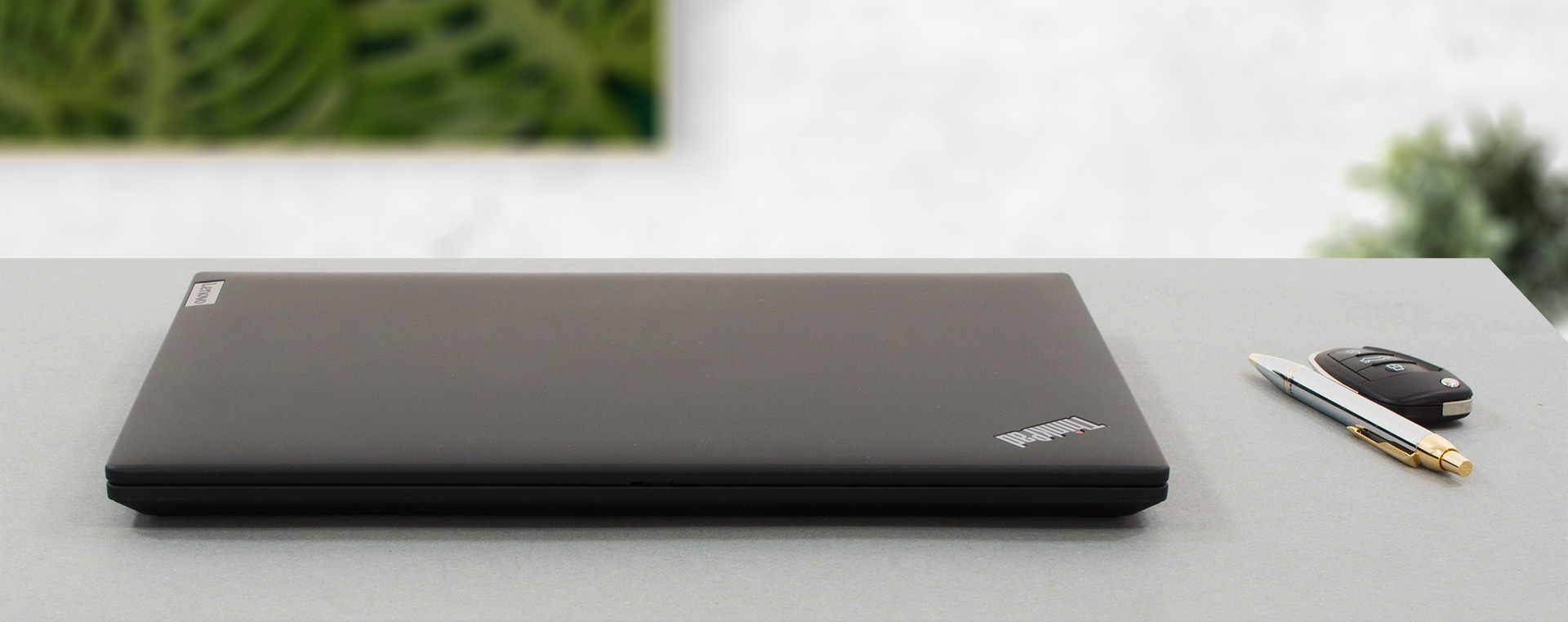
To make it even more puzzling, our model says that it uses magnesium on its bottom panel. Anyway, the laptop has a profile of nearly 18mm and weighs 1.24 kilos, which is fantastic for a mobile workstation. It is pretty strong too, with almost no flex from either the lid or the base.
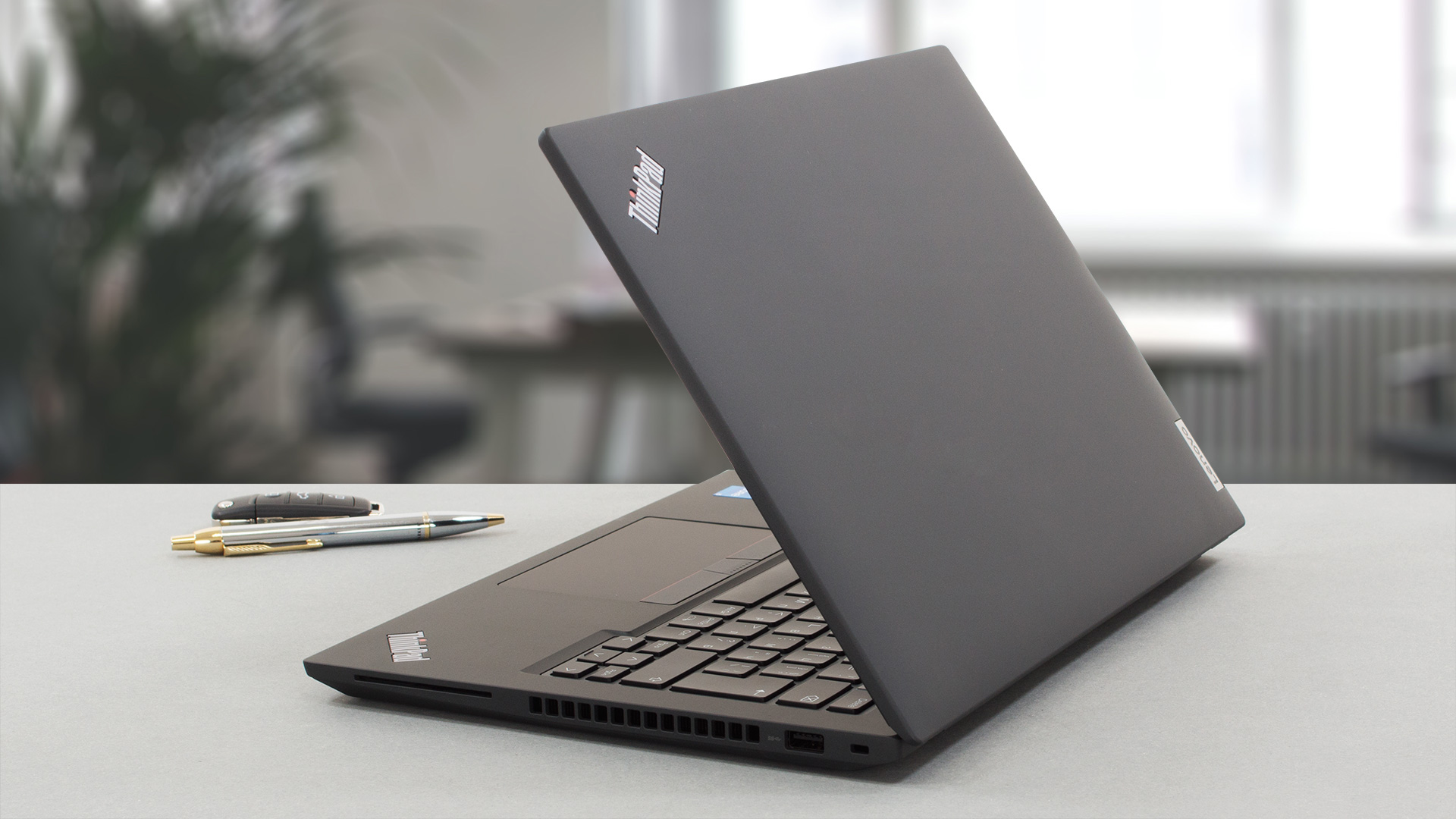
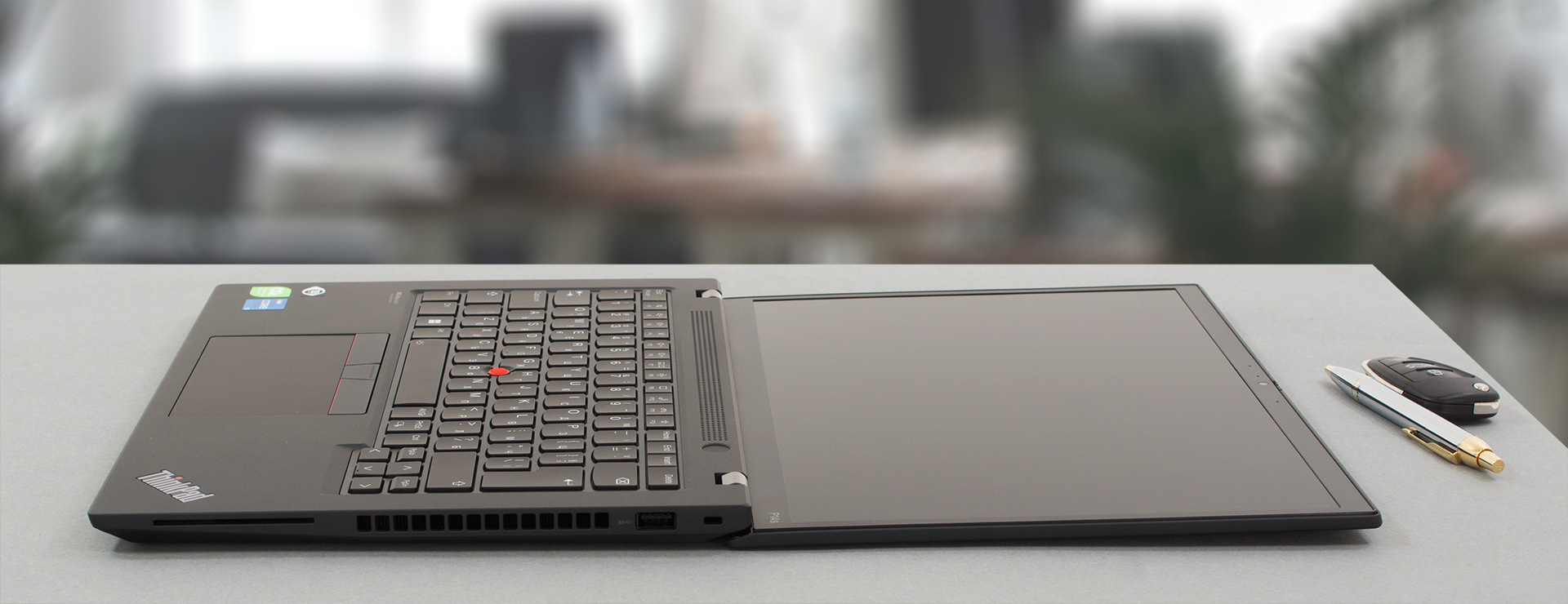
Speaking of the lid, you won’t be able to open it with a single hand, as the hinges are a bit stiff. Also, the top and bottom bezels are considerably thicker than the side ones. On the bright side, the top one houses the HD (or Full HD) Web camera, which has a privacy shutter and can be coupled with an IR face recognition scanner.
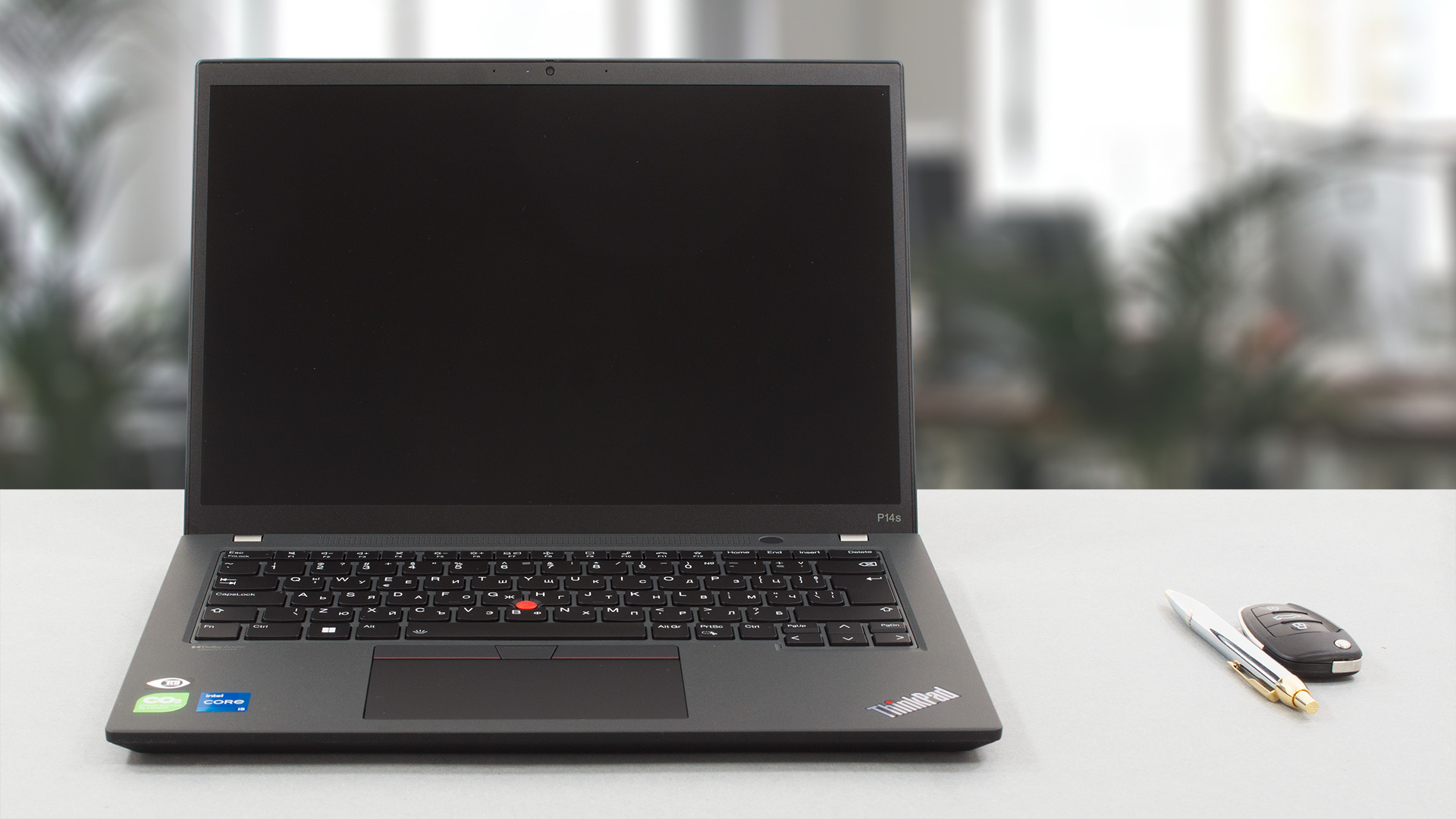
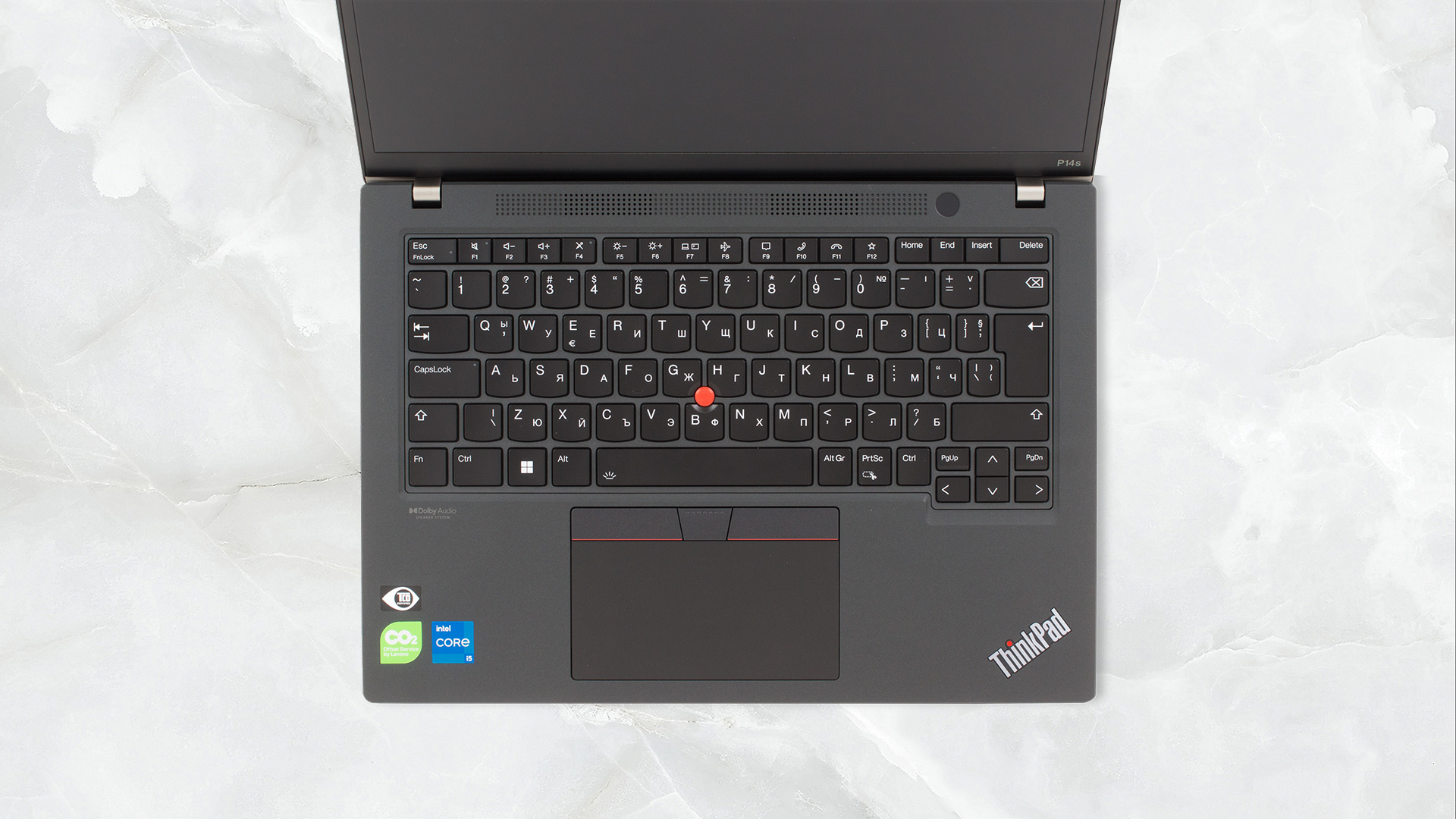
Although it doesn’t flex much, the base is a bit bendy when you press in the middle of the keyboard. On the other hand, the unit is extremely comfortable for typing. It is spill-resistant and has a backlight.

Also, it comes with an optional fingerprint reader, embedded in the power button. Respectively, it is placed right next to the speaker grill, overlooking the keyboard. As you can see, the laptop features a TrackPoint. It works in unison with the trio of buttons above the touchpad.
By the way, the touchpad has a size of 61 by 115 mm. Its surface is made out of Mylar, which is very smooth in this case. However, we found it a bit slow to respond.
Now, if you take a look at the bottom panel, you will see the ventilation grill. There, the fan draws cool air before it exhausts it through the vent on the right side of the machine.
Ports
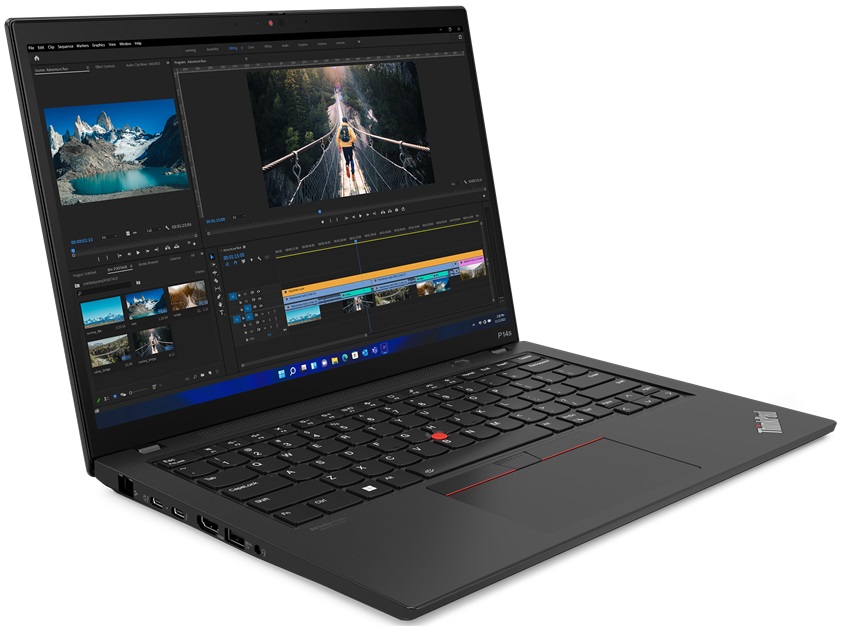
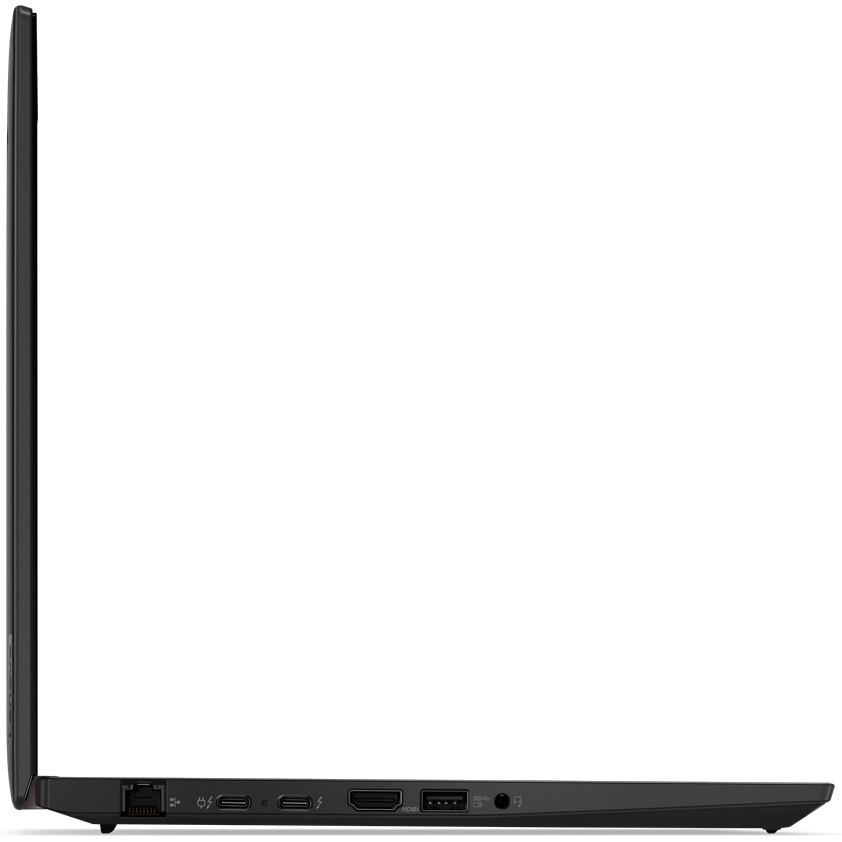
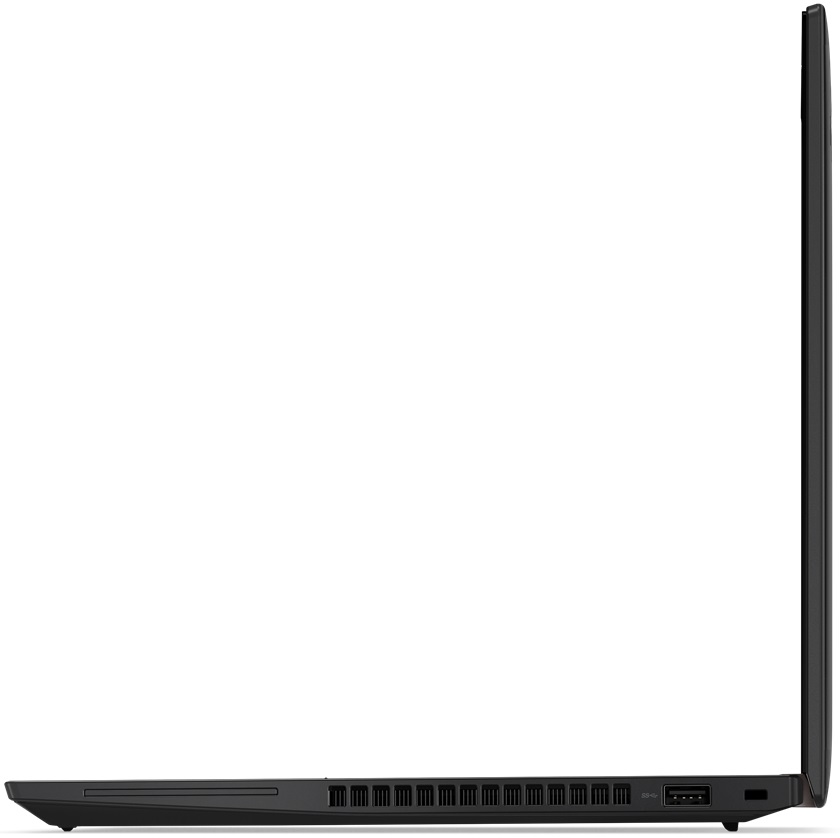
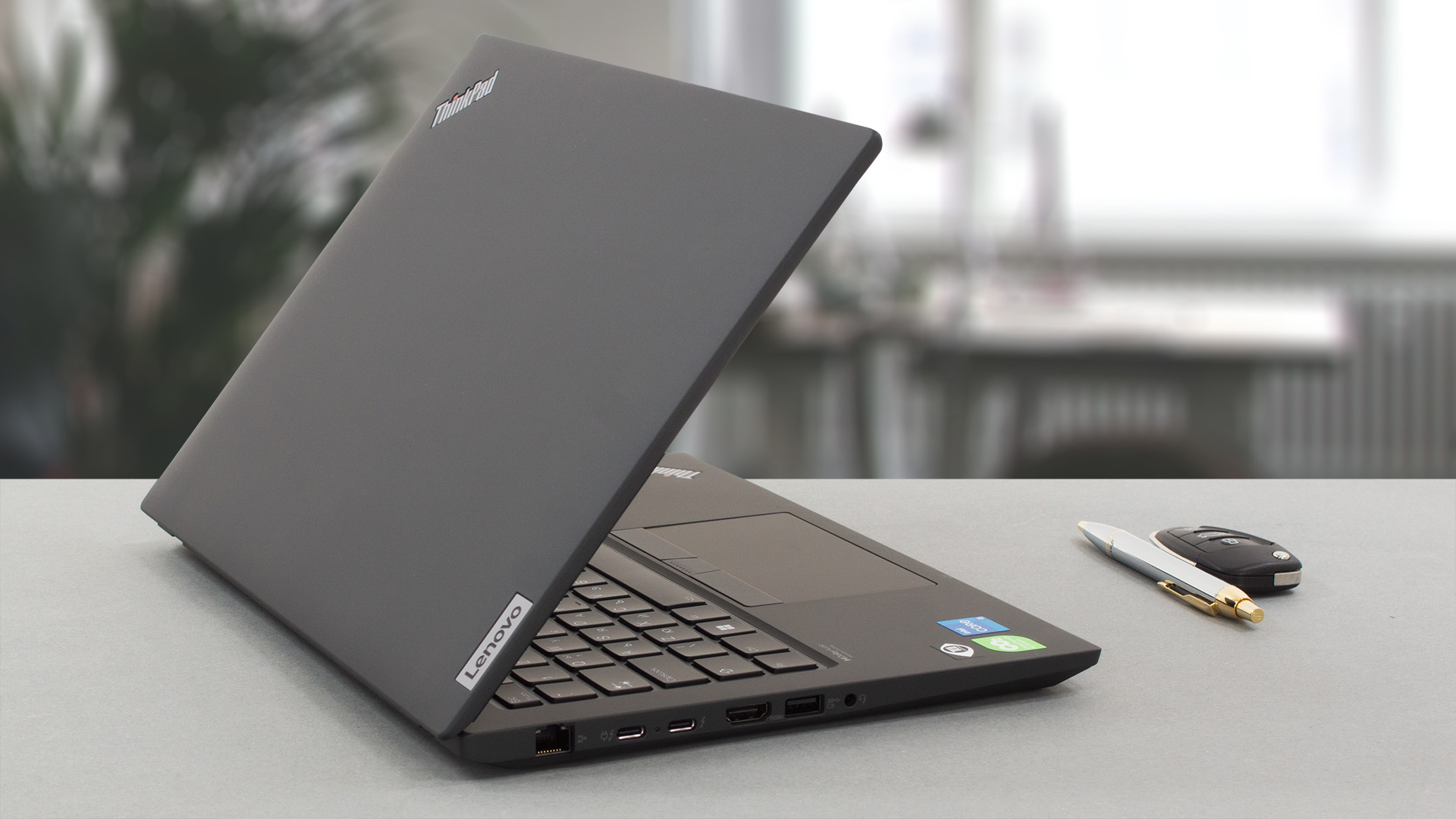
On the left side of the laptop, there is a LAN port, two Thunderbolt 4 connectors, an HDMI 2.1 connector, a USB Type-A 3.2 (Gen. 1) port, and an Audio jack. And on the right, there is a security slot, a USB Type-A 3.2 (Gen. 1) port, and an optional Smart Card reader. There is also a SIM card tray, found on the back of the machine.



Disassembly, upgrade options, and maintenance
To get inside this device, you only need to undo 7 captive Phillips-head screws. Then, pry the bottom panel with a plastic tool and remove it from the chassis.
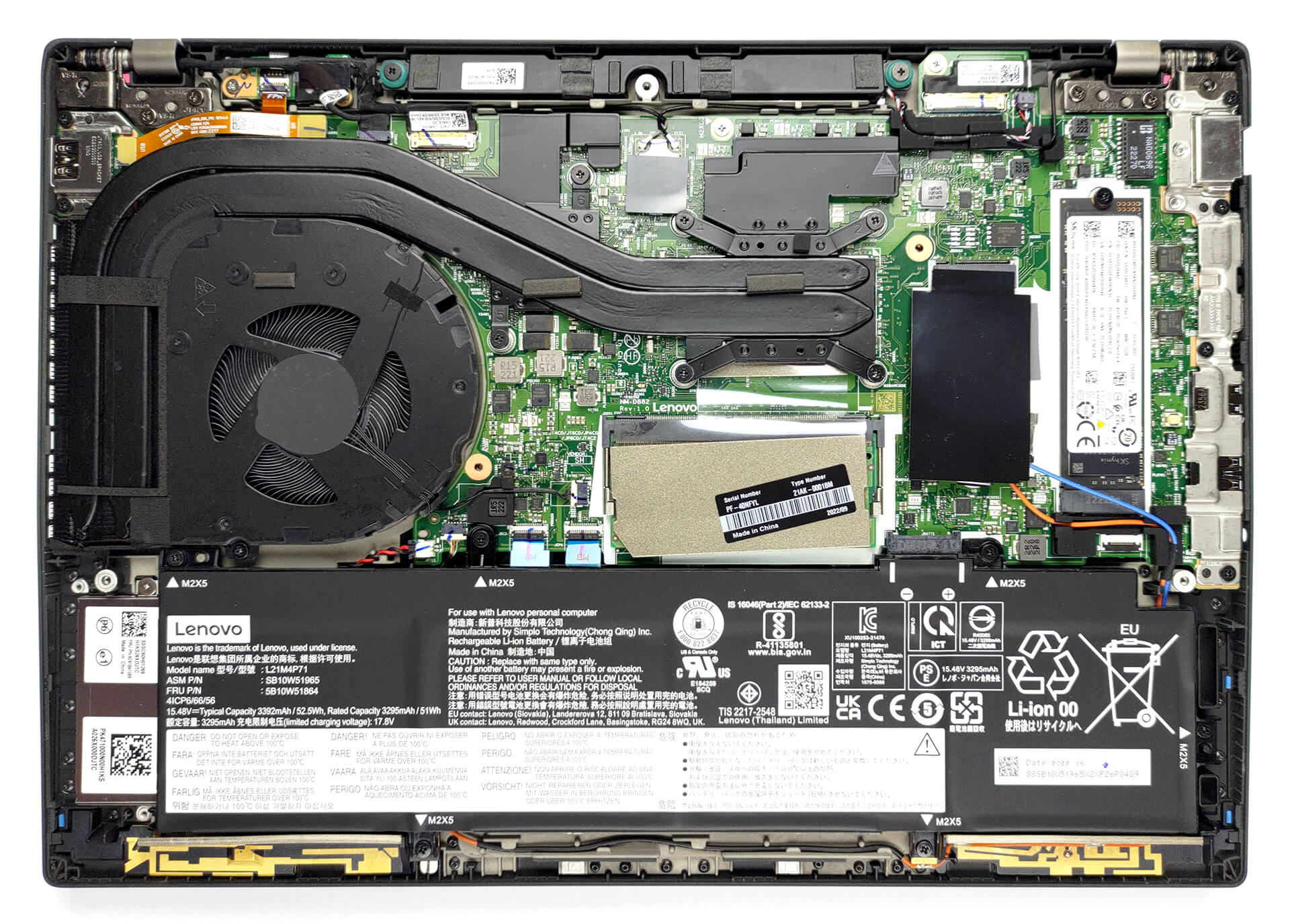
Battery-wise, you get a 52.5Wh unit. It lasts for nearly 12 hours of Web browsing, or about 7 hours of video playback. To take it out of the chassis, you need to undo six Phillips-head screws.
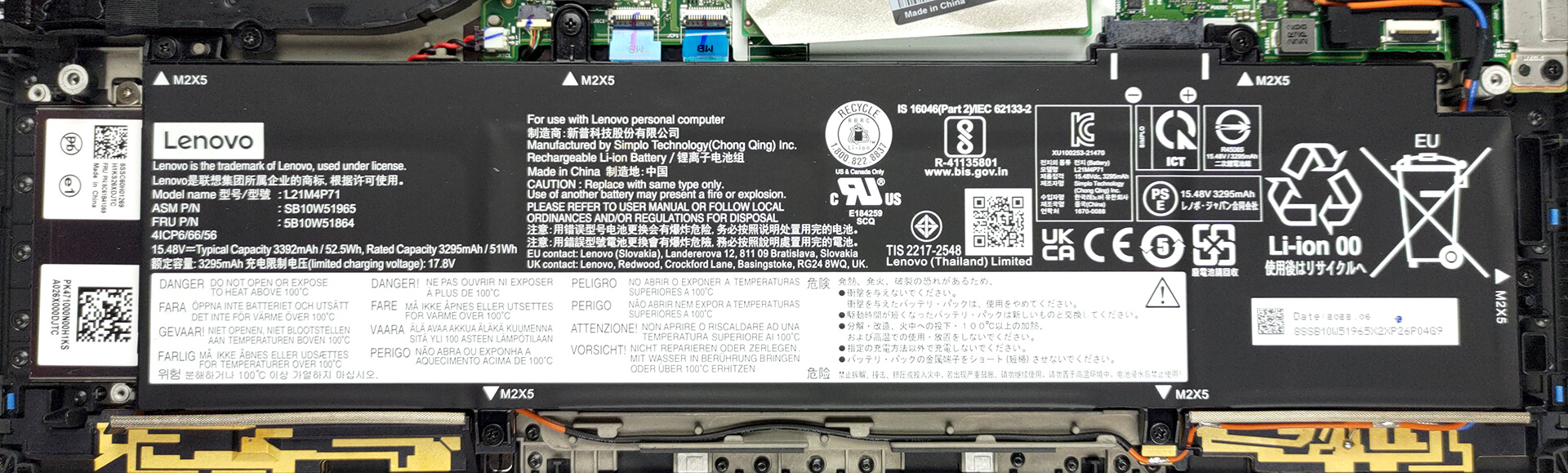
Here, we see one SODIMM slot, which works with DDR4 RAM sticks. Furthermore, there are either 8 or 16GB of memory soldered to the motherboard. As for the storage, you get one M.2 PCIe x4 slot, which supports Gen 4 SSDs.
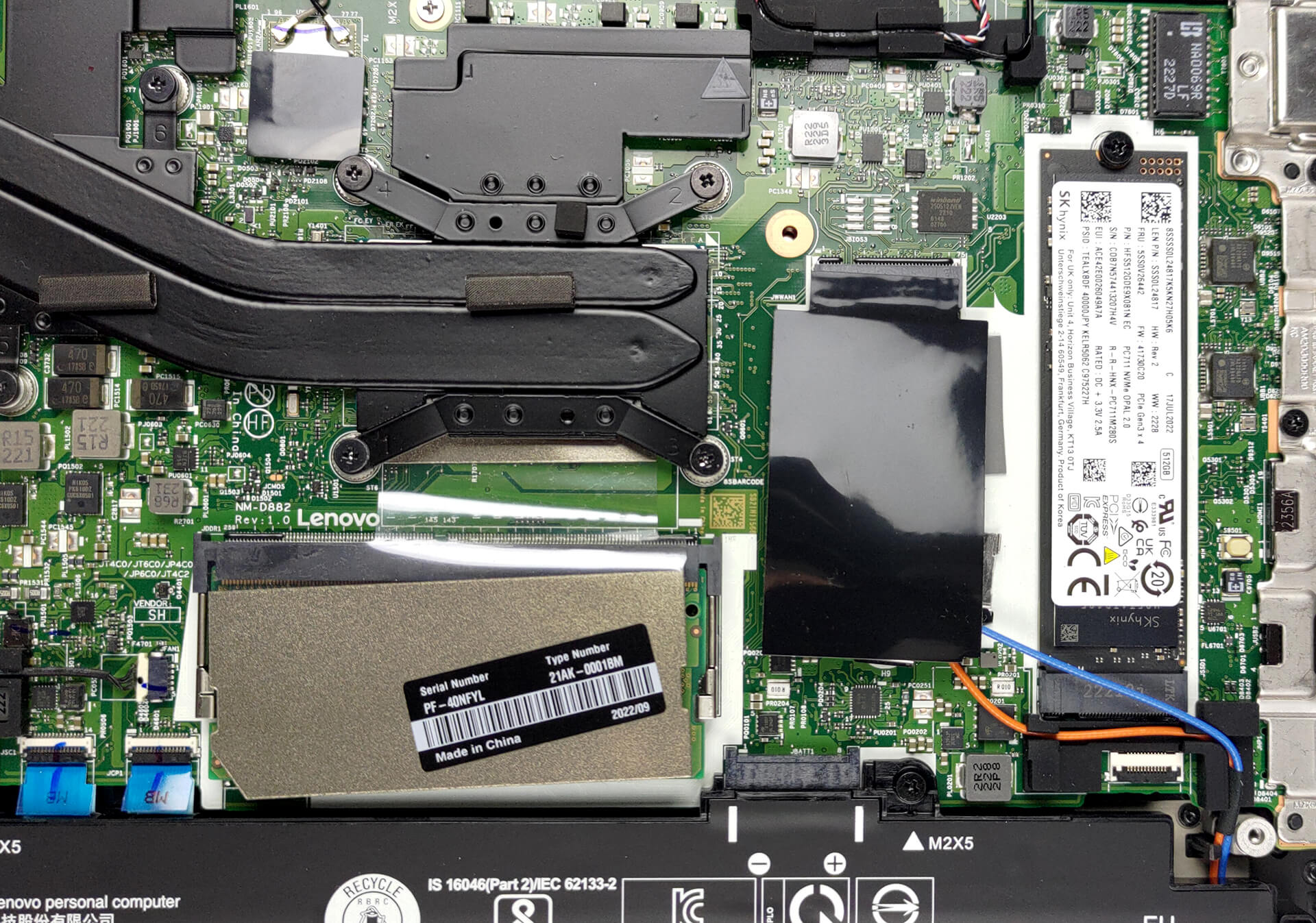
The cooling inside features two heat pipes taking care of the CPU and the GPU. In addition, there is a big fan, and a couple of heat spreaders for the VRMs and the graphics memory.

Display quality
Lenovo ThinkPad P14s Gen 3 uses a WUXGA IPS touchscreen panel, model number AUO B140UAN03.2 (LEN403D). Its diagonal is 14″ (35.6 cm), and the resolution – 1920 x 1200. Additionally, the screen ratio is 16:10, the pixel density – 162 ppi, and their pitch – 0.16 x 0.16 mm. The screen can be considered Retina when viewed from at least 53 cm (from this distance, the average human eye can’t see the individual pixels).

Viewing angles are comfortable. We have provided images at 45 degrees to evaluate quality.

Also, a video with locked focus and exposure.
The maximum measured brightness is 355 nits (cd/m2) in the middle of the screen and 326 nits (cd/m2) average across the surface with a maximum deviation of 13%. The Correlated Color Temperature on a white screen and at maximum brightness is 6480K (average) – close to the 6500K optimum for sRGB.
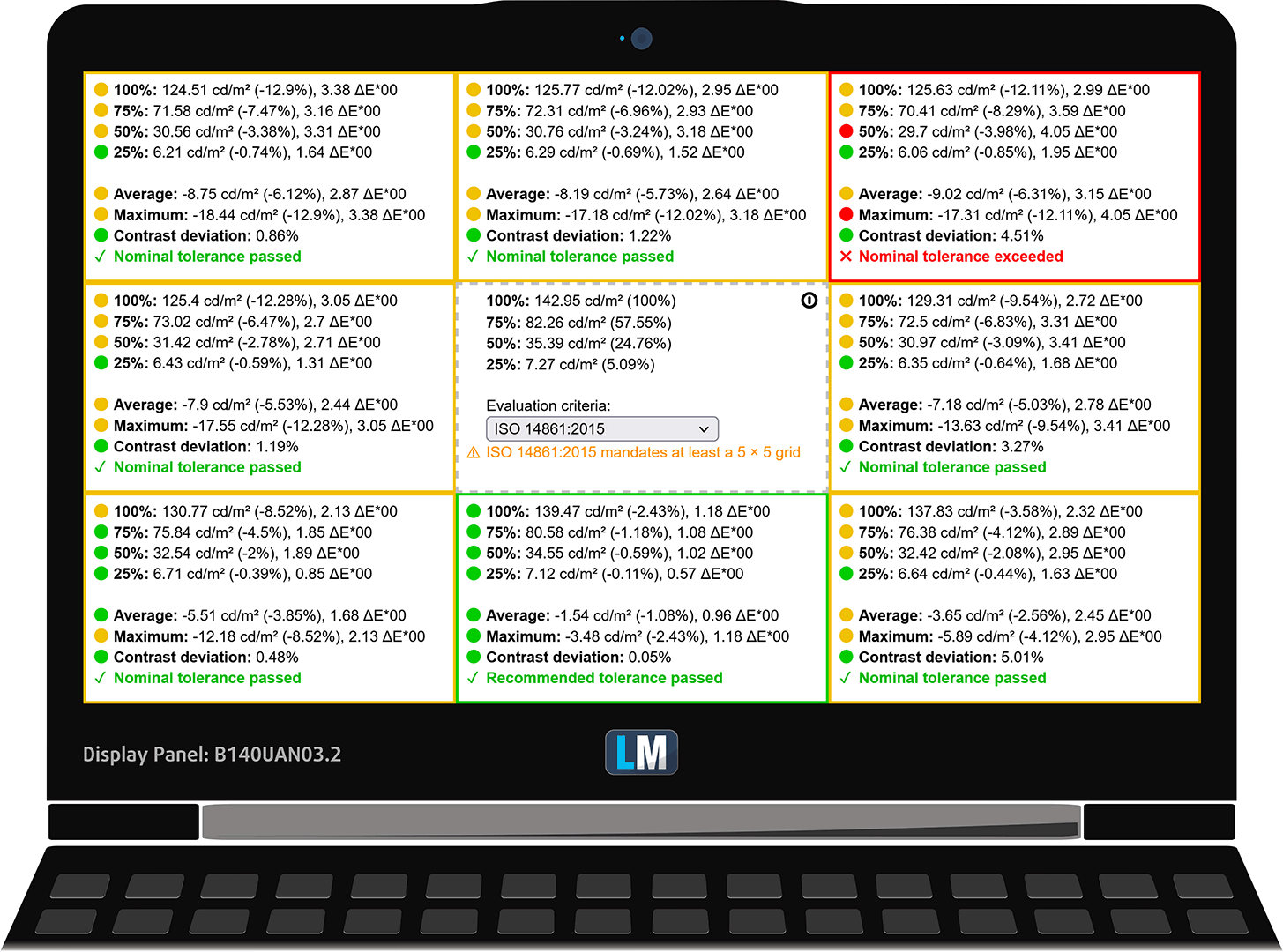
In the illustration below you can see how the display performs from a uniformity perspective. The illustration below shows how matters are for operational brightness levels (approximately 140 nits) – in this particular case at 68% Brightness (White level = 143 cd/m2, Black level = 0.11 cd/m2).
Values of dE2000 over 4.0 should not occur, and this parameter is one of the first you should check if you intend to use the laptop for color-sensitive work (a maximum tolerance of 2.0 ). The contrast ratio is good – 1320:1.
To make sure we are on the same page, we would like to give you a little introduction to the sRGB color gamut and the Adobe RGB. To start, there’s the CIE 1976 Uniform Chromaticity Diagram that represents the visible specter of colors by the human eye, giving you a better perception of the color gamut coverage and the color accuracy.
Inside the black triangle, you will see the standard color gamut (sRGB) that is being used by millions of people on HDTV and on the web. As for Adobe RGB, this is used in professional cameras, monitors, etc for printing. Basically, colors inside the black triangle are used by everyone and this is the essential part of the color quality and color accuracy of a mainstream notebook.
Still, we’ve included other color spaces like the famous DCI-P3 standard used by movie studios, as well as the digital UHD Rec.2020 standard. Rec.2020, however, is still a thing of the future and it’s difficult for today’s displays to cover that well. We’ve also included the so-called Michael Pointer gamut, or Pointer’s gamut, which represents the colors that naturally occur around us every day.
The yellow dotted line shows Lenovo ThinkPad P14s Gen 3’s color gamut coverage.
Its display covers 56% of the sRGB/ITU-R BT.709 (web/HDTV standard) in CIE1976.

Our “Design and Gaming” profile delivers optimal color temperature (6500K) at 140 cd/m2 luminance and sRGB gamma mode.
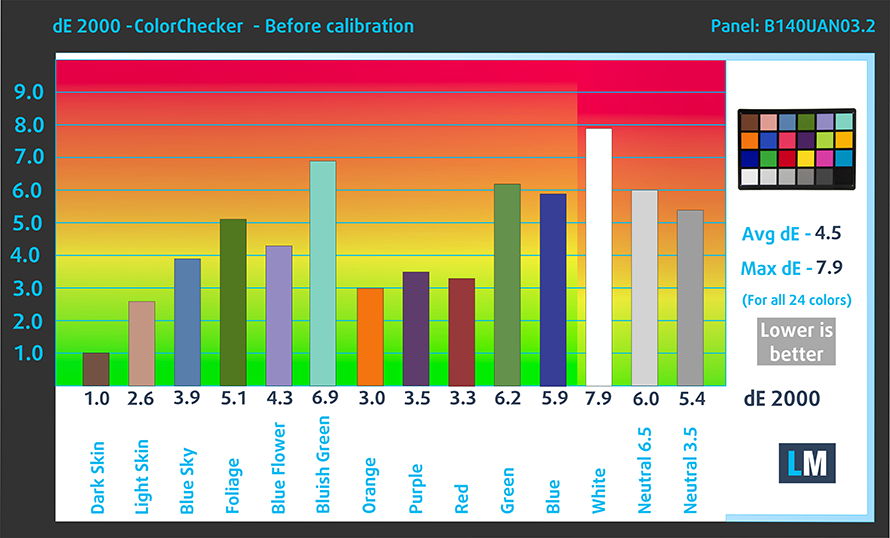
We tested the accuracy of the display with 24 commonly used colors like light and dark human skin, blue sky, green grass, orange, etc. You can check out the results at factory condition and also, with the “Design and Gaming” profile.
Below you can compare the scores of Lenovo ThinkPad P14s Gen 3 with the default settings (left), and with the “Gaming and Web design” profile (right).

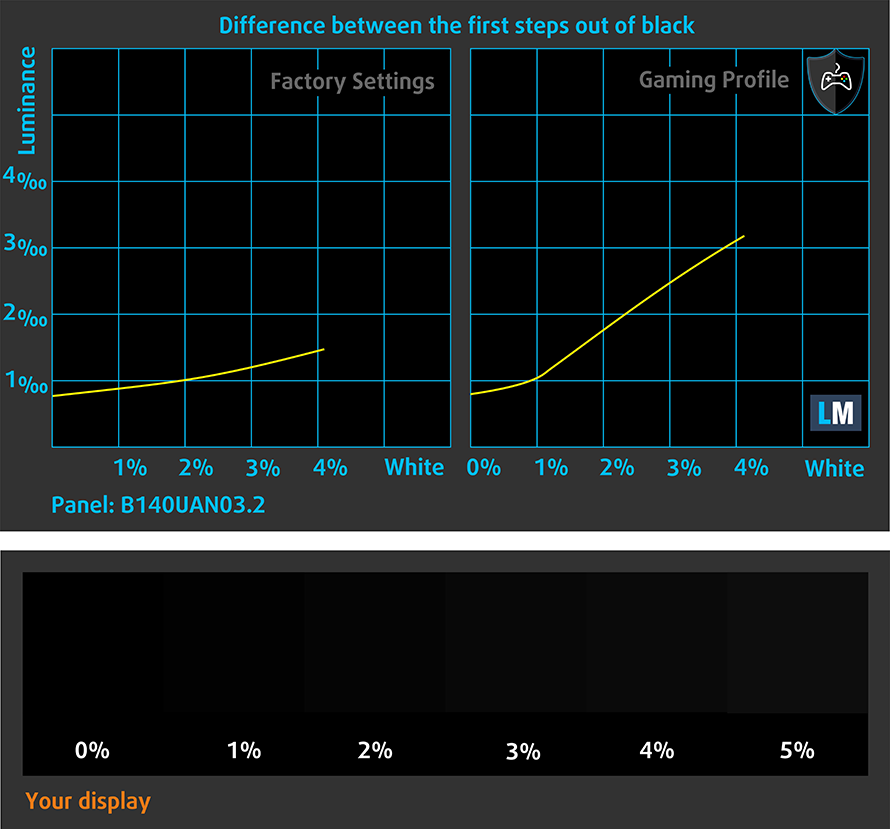
The next figure shows how well the display is able to reproduce really dark parts of an image, which is essential when watching movies or playing games in low ambient light.
The left side of the image represents the display with stock settings, while the right one is with the “Gaming and Web Design” profile activated. On the horizontal axis, you will find the grayscale, and on the vertical axis – the luminance of the display. On the two graphs below you can easily check for yourself how your display handles the darkest nuances but keep in mind that this also depends on the settings of your current display, the calibration, the viewing angle, and the surrounding light conditions.
Response time (Gaming capabilities)
We test the reaction time of the pixels with the usual “black-to-white” and “white-to-black” method from 10% to 90% and vice versa.
We recorded Fall Time + Rise Time = 19 ms.

After that, we test the reaction time of the pixels with the usual “Gray-to-Gray” method from 50% White to 80% White and vice versa between 10% and 90% of the amplitude.

Health impact – PWM / Blue Light
PWM (Screen flickering)
Pulse-width modulation (PWM) is an easy way to control monitor brightness. When you lower the brightness, the light intensity of the backlight is not lowered, but instead turned off and on by the electronics with a frequency indistinguishable to the human eye. In these light impulses, the light/no-light time ratio varies, while brightness remains unchanged, which is harmful to your eyes. You can read more about that in our dedicated article on PWM.
Lenovo ThinkPad P14s Gen 3’s backlight doesn’t use PWM for brightness adjustment. This makes it comfortable for long periods of use.

Blue light emissions
Installing our Health-Guard profile not only eliminates PWM but also reduces the harmful Blue Light emissions while keeping the colors of the screen perceptually accurate. If you’re not familiar with the Blue light, the TL;DR version is – emissions that negatively affect your eyes, skin, and your whole body. You can find more information about that in our dedicated article on Blue Light.
Gloss level measurement
Glossy-coated displays are sometimes inconvenient in high ambient light conditions. We show the level of reflection on the screen for the respective laptop when the display is turned off and the measurement angle is 60° (in this case, the result is 65.3 GU).

Buy our profiles
Since our profiles are tailored for each individual display model, this article and its respective profile package are meant for Lenovo ThinkPad P14s Gen 3 configurations with 14.0″ AUO B140UAN03.2 (LEN403D) (FHD, 1920 × 1200) IPS.
*Should you have problems with downloading the purchased file, try using a different browser to open the link you’ll receive via e-mail. If the download target is a .php file instead of an archive, change the file extension to .zip or contact us at [email protected].
Read more about the profiles HERE.
Verimli ve sağlık dostu profiller almanın yanı sıra, LaptopMedia'nın ürünlerini satın alarak, mümkün olan en objektif incelemeleri üretmek için cihazları test ettiğimiz laboratuvarlarımızın gelişimini de desteklemiş olursunuz.

Ofis Çalışması
Ofis Çalışması, çoğunlukla metinlere, tablolara bakan veya sadece gezinen kullanıcılar tarafından kullanılmalıdır. Bu profil, düz bir gama eğrisi (2.20), doğal renk sıcaklığı ve algısal olarak doğru renkler tutarak daha iyi ayırt edilebilirlik ve netlik sunmayı amaçlamaktadır.

Tasarım ve Oyun
Bu profil, renklerle profesyonel olarak çalışan tasarımcılara ve aynı zamanda oyunlara ve filmlere yöneliktir. Tasarım ve Oyun, ekran panellerini sınırlarına kadar zorlayarak Web ve HDTV için sRGB IEC61966-2-1 standardında, D65 beyaz noktasında mümkün olduğunca doğru olmalarını sağlar.

Health-Guard
Health-Guard, zararlı Darbe Genişlik Modülasyonunu (PWM) ortadan kaldırır ve gözlerimizi ve vücudumuzu etkileyen negatif Mavi Işığı azaltır. Her panel için özel olarak uyarlandığından, renkleri algısal olarak doğru tutmayı başarır. Health-Guard kağıdı simüle eder, böylece gözlerdeki baskı büyük ölçüde azalır.
3 profili de %33 indirimle alın

Sound
Lenovo ThinkPad P14s Gen 3’s stereo speaker setup produces a sound of decent quality. While the low, mid, and high tones are all clear of deviations, we definitely miss the dynamic and depth in the sound.

Drivers
All drivers and utilities for this notebook can be found here: https://pcsupport.lenovo.com/us/en/products/laptops-and-netbooks/thinkpad-p-series-laptops/thinkpad-p14s-gen-3-type-21ak-21al/downloads/driver-list
Battery
Now, we conduct the battery tests with the Windows Better performance setting turned on, screen brightness adjusted to 120 nits, and all other programs turned off except for the one we are testing the notebook with. This device is equipped with a 52.5Wh battery pack. It lasts for 11 hours and 40 minutes of Web browsing, or 6 hours and 51 minutes of video playback.
Parlaklık: 180 nit; Ekran Modu: SDR
Tam Deşarj Süresi: Yüksek Olan Daha İyidir
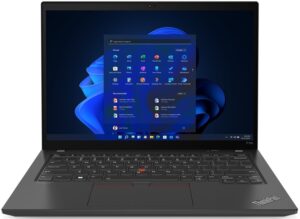
Gerçek hayat koşullarını simüle etmek için 70'ten fazla web sitesinde otomatik web taraması için kendi komut dosyamızı kullandık.
CPU options
Lenovo offers this machine with the Core i5-1240P, Core i5-1250P, Core i7-1260P, Core i7-1270P, or Core i7-1280P.
Sonuçlar Cinebench R23 CPU testinden alınmıştır (puan ne kadar yüksek olursa o kadar iyidir)
GPU options
Here, the dedicated graphics card option is the NVIDIA T550 with 4GB of GDDR6 VRAM. Should you not need that, you can settle for the Iris Xe Graphics. Keep in mind, that if you don’t use dual-channel memory, the integrated GPU will run as the inferior UHD Graphics.
Sonuçlar 3DMark Time Spy (Grafik) testindendir. Yüksek olan daha iyidir.
Sonuçlar 3DMark Fire Strike (Grafik) benchmark testindendir (puan ne kadar yüksek olursa o kadar iyidir)
Sonuçlar 3DMark Wild Life Extreme Unlimited testindendir. Yüksek olan daha iyidir.
Sonuçlar Unigine Superposition benchmark testindendir (puan ne kadar yüksek olursa o kadar iyidir)
Lenovo ThinkPad P14s Gen 3 (Intel) GPU varyantları
Burada piyasadaki [seri] modellerinde bulunan GPU'lar arasında yaklaşık bir karşılaştırma görebilirsiniz. Bu şekilde, hangi [seri] modelinin paranızın karşılığını en iyi şekilde verdiğine kendiniz karar verebilirsiniz.
Not: Grafik, en ucuz farklı GPU konfigürasyonlarını gösterir, bu nedenle dizüstü bilgisayarın adına / GPU'suna tıklayarak bu dizüstü bilgisayarların diğer özelliklerinin neler olduğunu kontrol etmelisiniz.
Sonuçlar 3DMark Time Spy (Grafik) testindendir. Yüksek olan daha iyidir.
Sonuçlar 3DMark: Fire Strike (Grafik) benchmark testindendir (puan ne kadar yüksek olursa o kadar iyidir)
Sonuçlar 3DMark: Wild Life (Grafik) benchmark testinden alınmıştır (puan ne kadar yüksek olursa o kadar iyidir)
Sonuçlar Unigine Superposition benchmark testindendir (puan ne kadar yüksek olursa o kadar iyidir)
Gaming tests


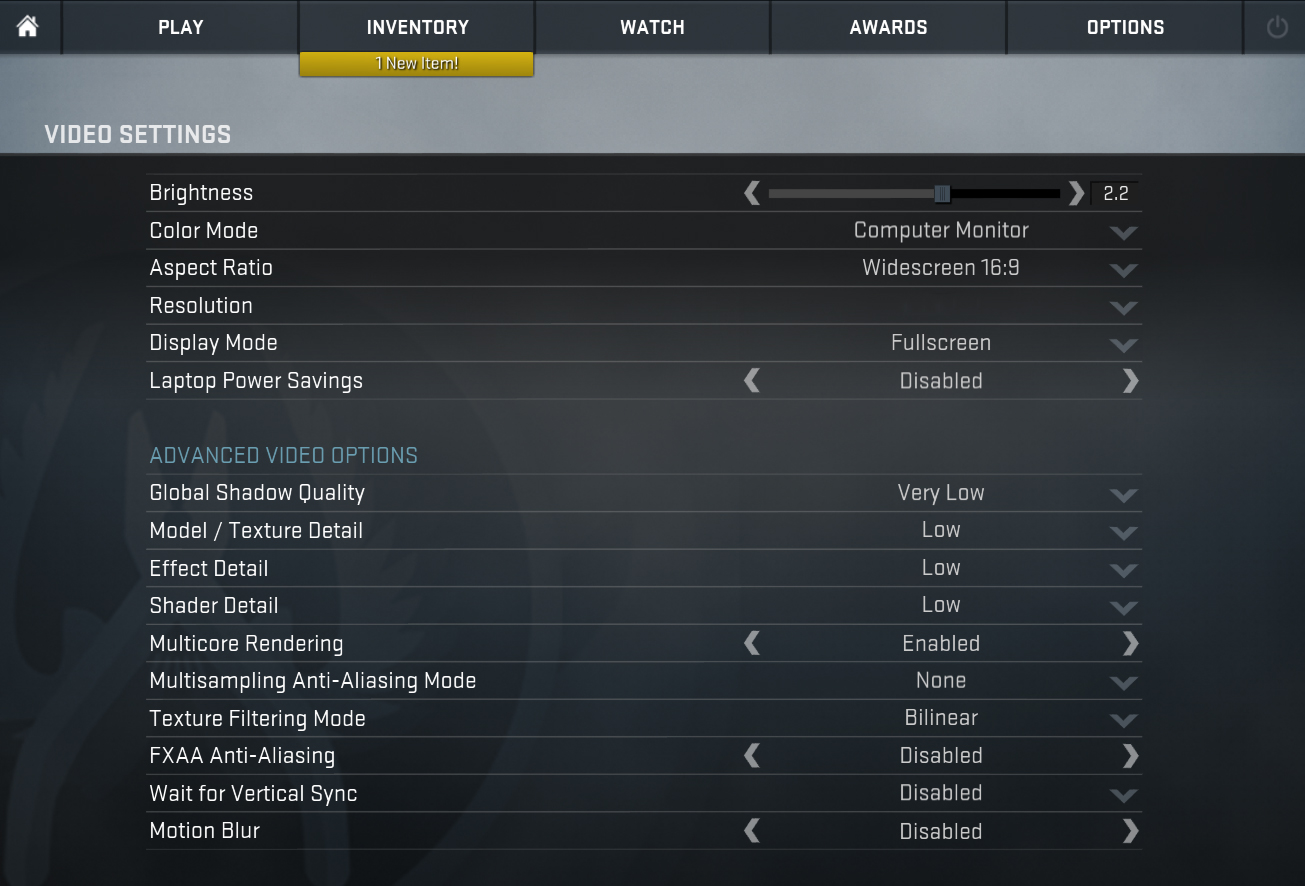
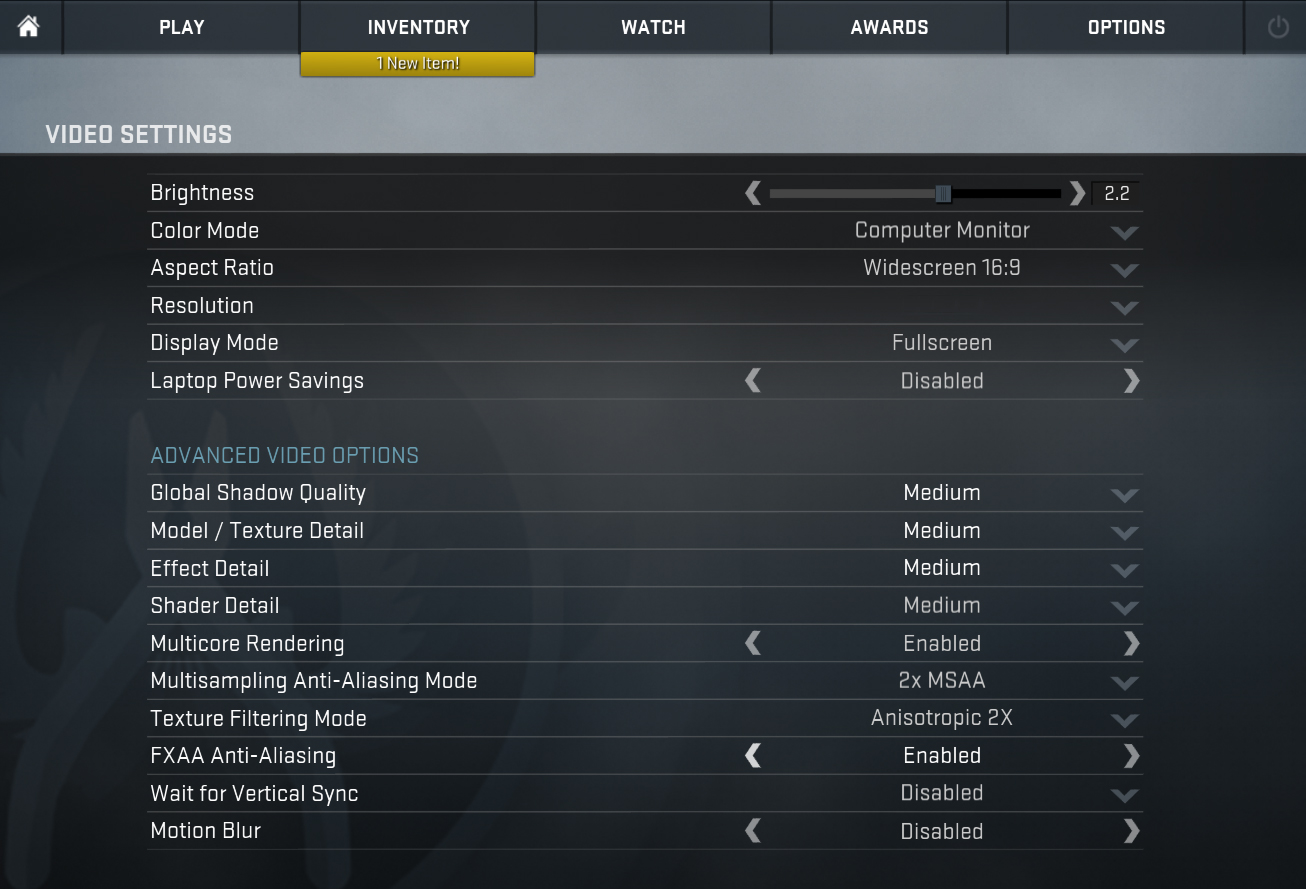
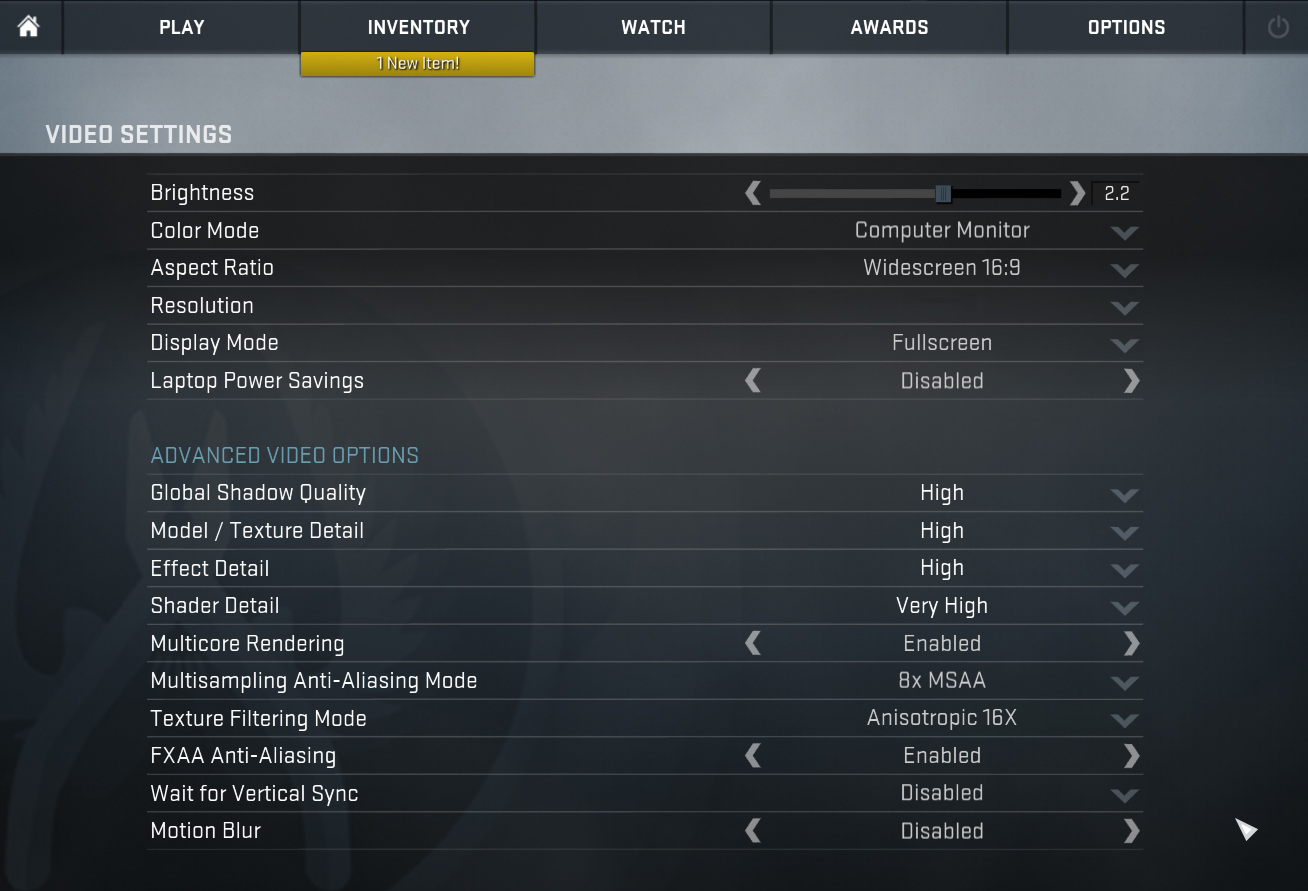
| CS:GO | HD 1080p, Low (Check settings) | HD 1080p, Medium (Check settings) | HD 1080p, MAX (Check settings) |
|---|---|---|---|
| Average FPS | 267 fps | 209 fps | 135 fps |

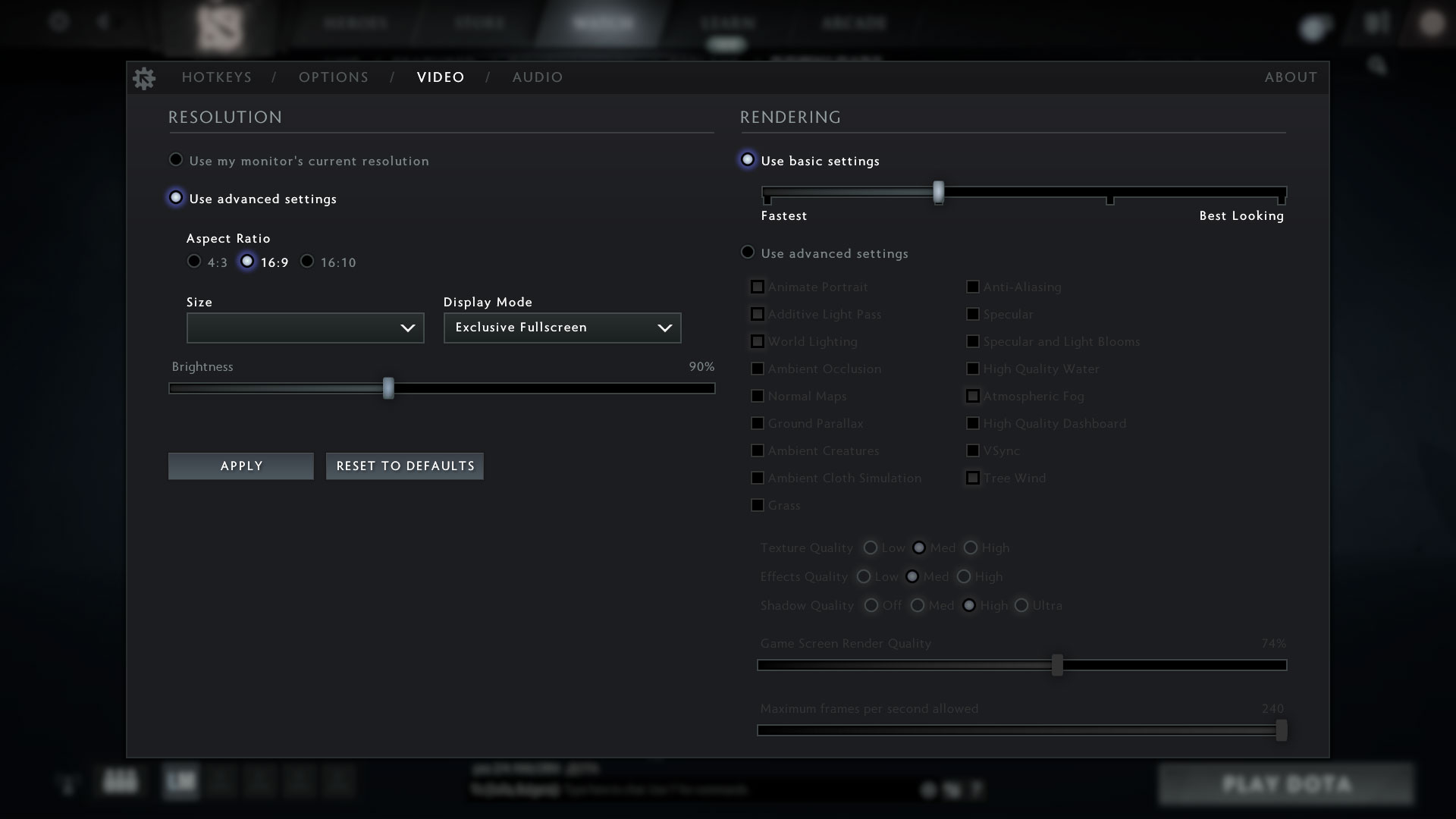
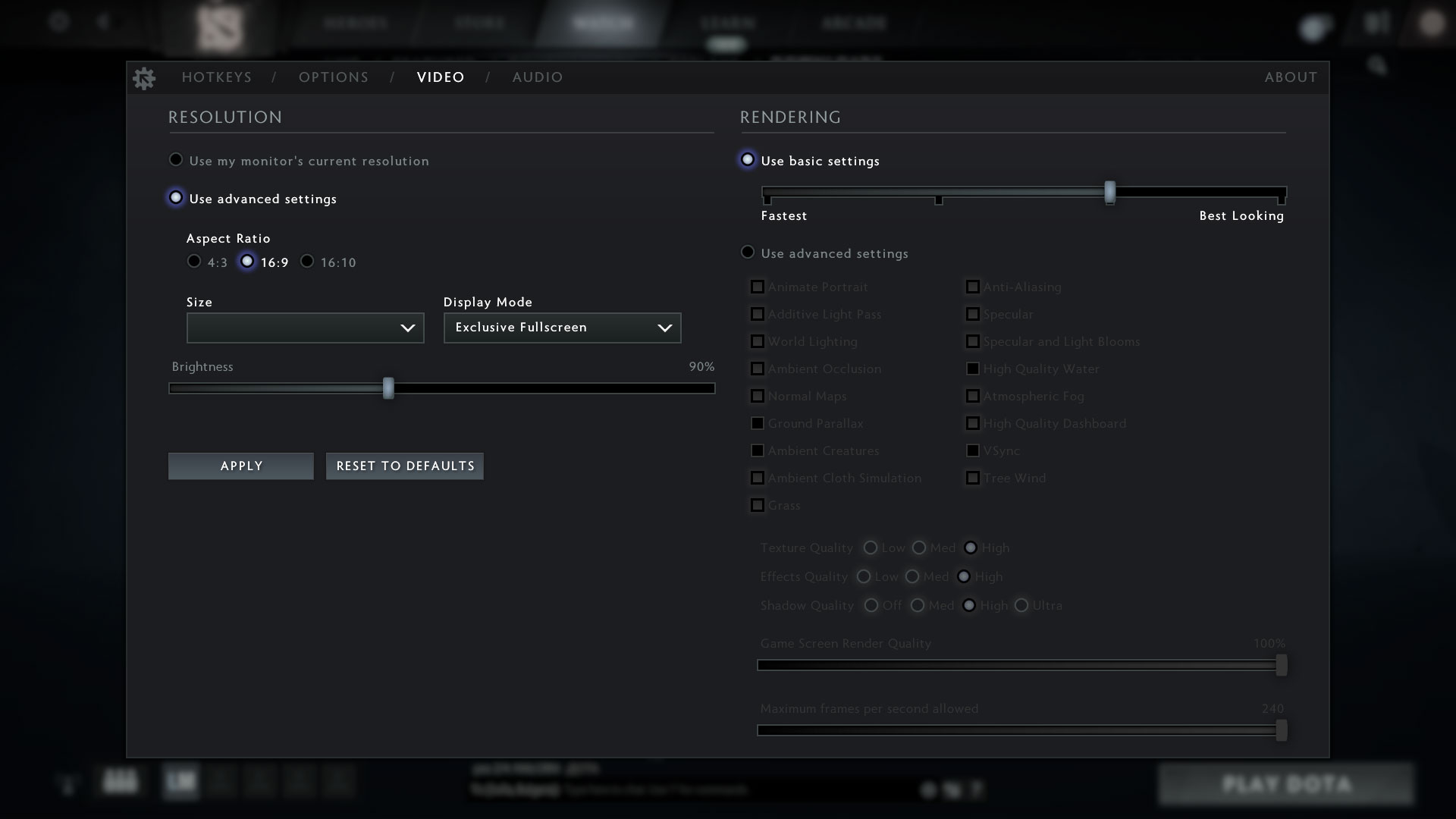
| DOTA 2 | HD 1080p, Low (Check settings) | HD 1080p, Normal (Check settings) | HD 1080p, High (Check settings) |
|---|---|---|---|
| Average FPS | 161 fps | 138 fps | 107 fps |
Temperatures and comfort
Max CPU load
In this test we use 100% on the CPU cores, monitoring their frequencies and chip temperature. The first column shows a computer’s reaction to a short load (2-10 seconds), the second column simulates a serious task (between 15 and 30 seconds), and the third column is a good indicator of how good the laptop is for long loads such as video rendering.
Average P-core frequency; Average E-core frequency; CPU temp.; Package Power
| Intel Core i5-1240P (28W TDP) | 0:02 – 0:10 sec | 0:15 – 0:30 sec | 10:00 – 15:00 min |
|---|---|---|---|
| Lenovo ThinkPad P14s Gen 3 | 2.65 GHz @ 2.40 GHz @ 71°C @ 51W | 2.56 GHz @ 2.25 GHz @ 81°C @ 48W | 1.85 GHz @ 1.64 GHz @ 66°C @ 29W |
| Acer Swift 3 (SF314-512) | 3.11 GHz @ 2.68 GHz @ 72°C @ 63W | 2.64 GHz @ 2.36 GHz @ 77°C @ 48W | 2.16 GHz @ 1.82 GHz @ 75°C @ 34W |
| ASUS Zenbook 14 OLED (UX3402) | 2.47 GHz @ 2.17 GHz @ 65°C @ 43W | 2.44 GHz @ 2.17 GHz @ 83°C @ 43W | 1.96 GHz @ 1.75 GHz @ 75°C @ 30W |
| MSI Prestige 14 (A12M) | 3.18 GHz @ 2.46 GHz @ 71°C @ 64W | 2.22 GHz @ 1.97 GHz @ 73°C @ 37W | 1.79 GHz @ 1.69 GHz @ 81°C @ 31W |
| Lenovo Yoga 7i (14″, 2022) | 3.30 GHz @ 2.56 GHz @ 76°C @ 64W | 2.95 GHz @ 2.38 GHz @ 90°C @ 53W | 2.13 GHz @ 1.82 GHz @ 68°C @ 31W |
To be completely honest, we were a bit disappointed by the computational performance. Although it runs at manageable temperatures, the laptop prefers to save some headroom.
Real-life gaming
| NVIDIA T550 | GPU frequency/ Core temp (after 2 min) | GPU frequency/ Core temp (after 30 min) | GPU frequency/ Core temp (Max Fan) |
|---|---|---|---|
| Lenovo ThinkPad P14s Gen 3 | 1445 MHz @ 66°C @ 30W | 1417 MHz @ 70°C @ 30W | – |
| Dell Precision 15 3570 | 1413 MHz @ 73°C @ 30W | 1420 MHz @ 73°C @ 30W | – |
Surprisingly or not, the 14-inch ThinkPad P14s Gen 3 shows the same clock speeds as the larger Dell Precision 15 3570. Moreover, this happens at 3°C lower temperatures.
Comfort during combined load
Here, we experience a sizeable amount of noise during extreme workloads. On the other hand, a single fan just can’t make the same noise as two found inside a gaming machine. Plus, the external hotspot was not too warm.

Verdict
 Are you willing to pay a premium for a 14-inch mobile workstation? In a world, where 16-inch devices are getting more and more common. Well, this all depends on your workload and personal preference. The ThinkPad P14s Gen 3 can’t be considered the most powerful laptop out there. It cripples its CPU to make room for the graphics card.
A card that is not too fast either – the NVIDIA T550 in this case has a TGP of 30W and yes, its 4GB of GDDR6 memory will make a difference, when compared with an integrated GPU. However, it’s not nearly as fast as the RTX A-series of professional graphics cards. And obviously, it lacks ray tracing support.
Lenovo ThinkPad P14s Gen 3’s IPS panel has a 1920x1200p resolution, comfortable viewing angles, and a good contrast ratio. In addition, it doesn’t use PWM for brightness adjustment. However, the narrow color coverage (56% of sRGB), makes the image appear pretty unattractive.
By the way, the battery life is a bit weird. If you are only browsing the Web – it should last you for nearly 12 hours. However, watching videos drains it in less than 7 hours. Quite the difference in our opinion.
But hey, how many 14-inch laptops in 2022 can boast such an extensive I/O? There are two Thunderbolt 4 connectors, a LAN port, an HDMI 2.1 connector, two fast USB Type-As, and even a SIM card tray. Now, it is a bit unfortunate that there is no SD card reader of any kind, and the WWAN connectivity is only “limited” to 4G.
The port selection is good on the inside too, with one SODIMM slot for memory expansion, and one M.2 PCIe x4 slot for Gen 4 SSDs. Of course, the keyboard is as good as it gets. However, we can’t say the same about the touchpad. Despite the fact that they are front-firing, the speakers are not stellar too.
Thankfully, the build quality is on point, and you get an option for a fingerprint reader, an IR face recognition scanner, a privacy shutter, and a Full HD Web camera.
Once again, throwing more money at Lenovo will result in a better series, which is not what you sign up for. The device is solid – it will save itself when you throw a glass of water on top of it, but it would be good to have fewer options (and more stuff coming by default).
You can check the prices and configurations in our Specs System: https://laptopmedia.com/series/lenovo-thinkpad-p14s-gen-3/
Pros
- No PWM (AUO B140UAN03.2 (LEN403D))
- The spill-resistant keyboard is great for typing
- Wi-Fi 6 and LTE support plus optional super-fast fingerprint reader and IR face recognition systems
- Well-populated I/O with 2x Thunderbolt 4 ports
- Decent battery life
Cons
- 56% sRGB coverage (AUO B140UAN03.2 (LEN403D))
- The price gets very high when you go for the highest specs
- The touchpad is not very responsive
 Author: Alex Iliev
 Author: eng. Kroum NikolovHead of Engineering at LaptopMedia.com, inventor and innovator with 40+ years of experience in electronics and high technology.

![[Mayıs 2026] Amazon’da En Çok Satan Dizüstü Bilgisayar GPU’larının Küresel Sıralaması – Apple %45 Payla İlk 3 Sırayı Kaptı; NVIDIA’nın RTX 5060’ı Özel GPU Paketinde Lider](https://laptopmedia.com/wp-content/uploads/2026/06/Best-Selling-GPUs-GLOBAL-Top-10-400x225.jpg)
![[Mayıs 2026] Amazon’da En Çok Satan Dizüstü Bilgisayar CPU’larının Küresel Sıralaması – Apple %45,2 Pazar Payı ile Rekabeti Ezip Geçiyor, M5 Hakim](https://laptopmedia.com/wp-content/uploads/2026/06/Best-Selling-CPUs-GLOBAL-Top-10-400x225.jpg)
![[May 2026] Amazon Germany: Top 7 Best-Selling Gaming Laptops – Lenovo Legion 5i Crowned Champion Amidst Fierce Mid-Range Competition](https://laptopmedia.com/wp-content/uploads/2026/06/Best-Selling-Gaming-Laptops-DE-Top-10-1-400x225.jpg)
![[May 2026] Amazon Italy: Top 10 Best-Selling Laptops – Apple MacBook Neo Reigns Supreme, Premium Models Capture Dominant Revenue Share](https://laptopmedia.com/wp-content/uploads/2026/06/Best-Selling-Laptops-IT-Top-10-400x225.jpg)
![[May 2026] Best-Selling Laptop Brands on Amazon Italy – Apple Dominates Across All Metrics](https://laptopmedia.com/wp-content/uploads/2026/06/IT-Best-Brands-400x225.jpg)

I bought a P14s gen 3 with Intel CPU and I am not satisfied at all. The fan works nonstop with a lot of noise. I sent my laptop to Lenovo’s official store and they replace the motherboard completely + fan but still have the same problem.
If you want to buy it, do some research about the fan problem.
Check the problem here:
https://forums.lenovo.com/t5/ThinkPad-P-and-W-Series-Mobile-Workstations/P14s-Gen-3-fan-noise/m-p/5165785