How to open Alienware 16 Aurora (AC16250) – disassembly and upgrade options

Before you start: Shut the laptop down completely, unplug the charger, and hold the power button for a few seconds to discharge residual power. Use a plastic pry tool, and keep track of screw lengths for reassembly.
Opening the bottom panel
- Remove the screws securing the bottom cover.
- Work a thin plastic pick around the perimeter to release the clips, then lift the panel away.
- Take extra care near the rear edge where the cooling fin stacks sit close to the openings—avoid sliding the tool too deep to prevent bending the fins.
- Once the cover is off, disconnect the battery first before touching the SSD, RAM, or Wi-Fi module.
Internal layout overview
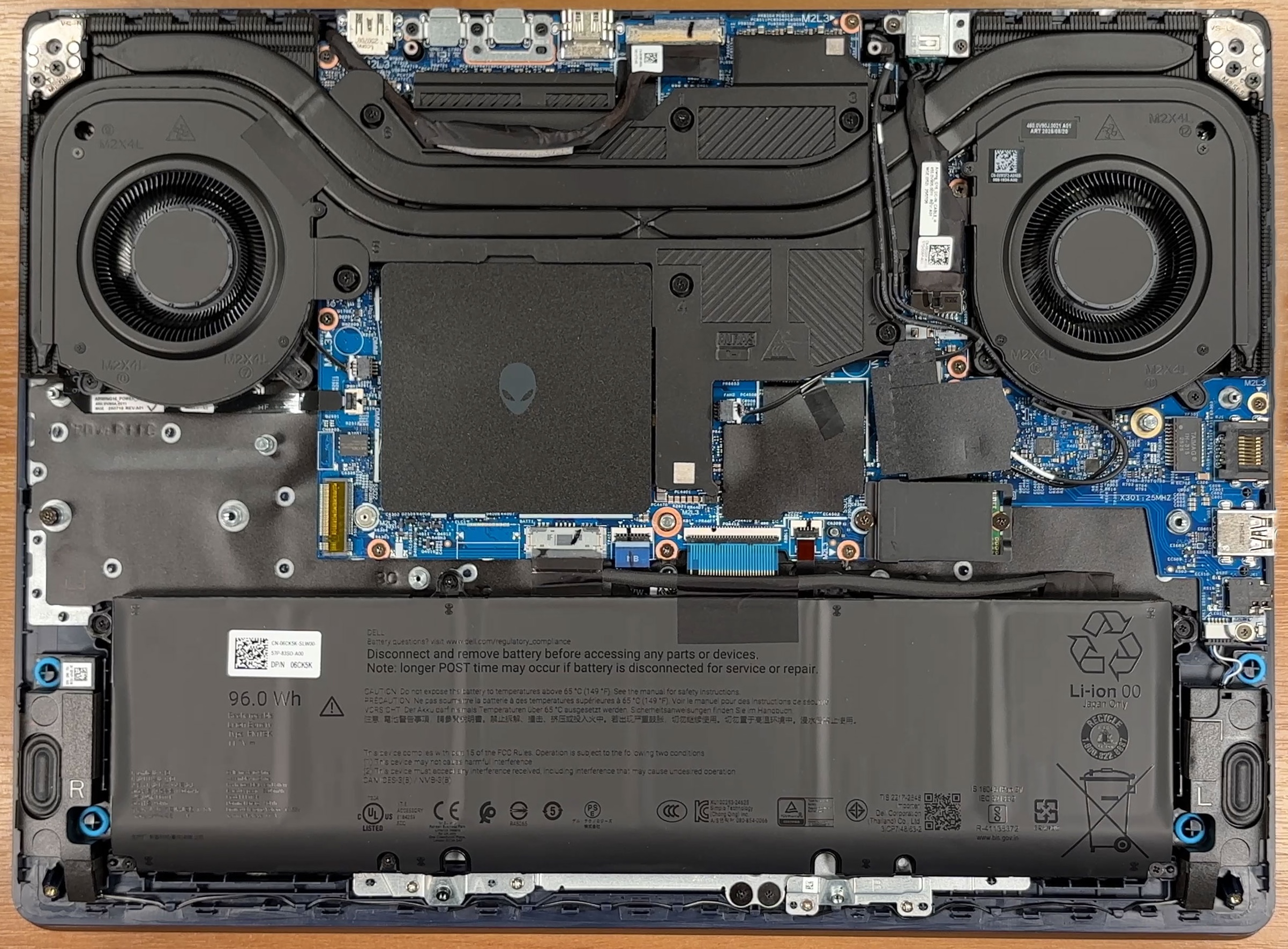
- The layout is clean and service-friendly: the battery runs along the front edge, the dual cooling fans occupy the top half, and the main upgrade points are clustered around the center/right side.
- Most serviceable components are reachable without removing the motherboard.
Cooling system
- Cooling is handled by a dual-fan setup with large fin stacks and multiple heat pipes spanning the top half of the chassis.
- The heatsink radiators sit close to the rear edge, so routine dust cleaning is easy once the bottom cover is off.
- Fan removal is typically straightforward (screws + connector), while a full repaste requires removing the entire heatsink assembly.
Battery
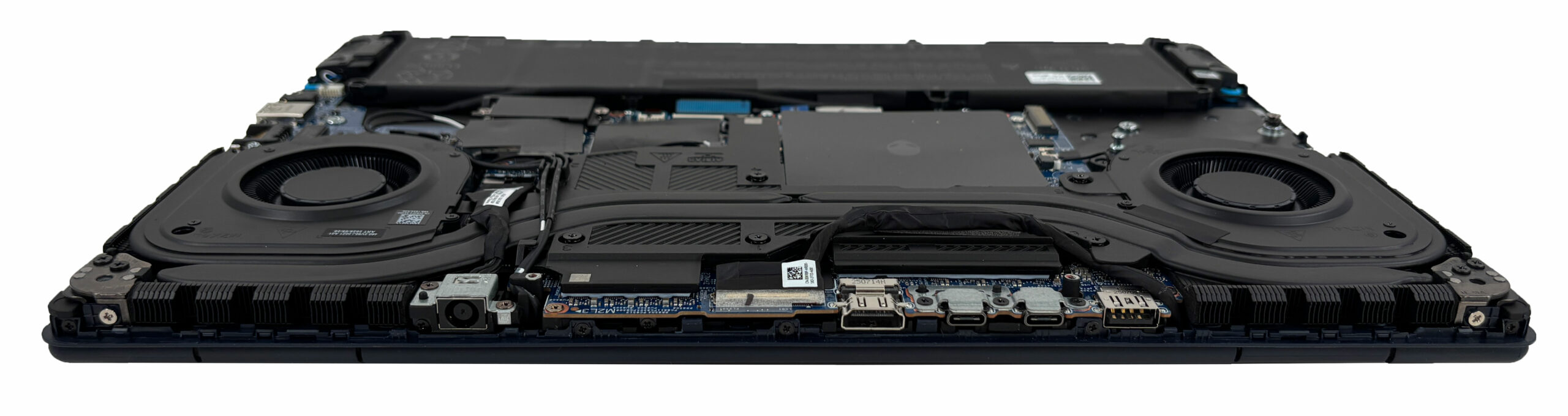
- The laptop uses a 96 Wh, 6-cell lithium-ion battery.
- The pack is screw-mounted and uses a plug-style connector with a locking mechanism, so removal is straightforward once the lock is released.
- As always, disconnecting the battery first is the safest step before any upgrades.
Storage upgrade
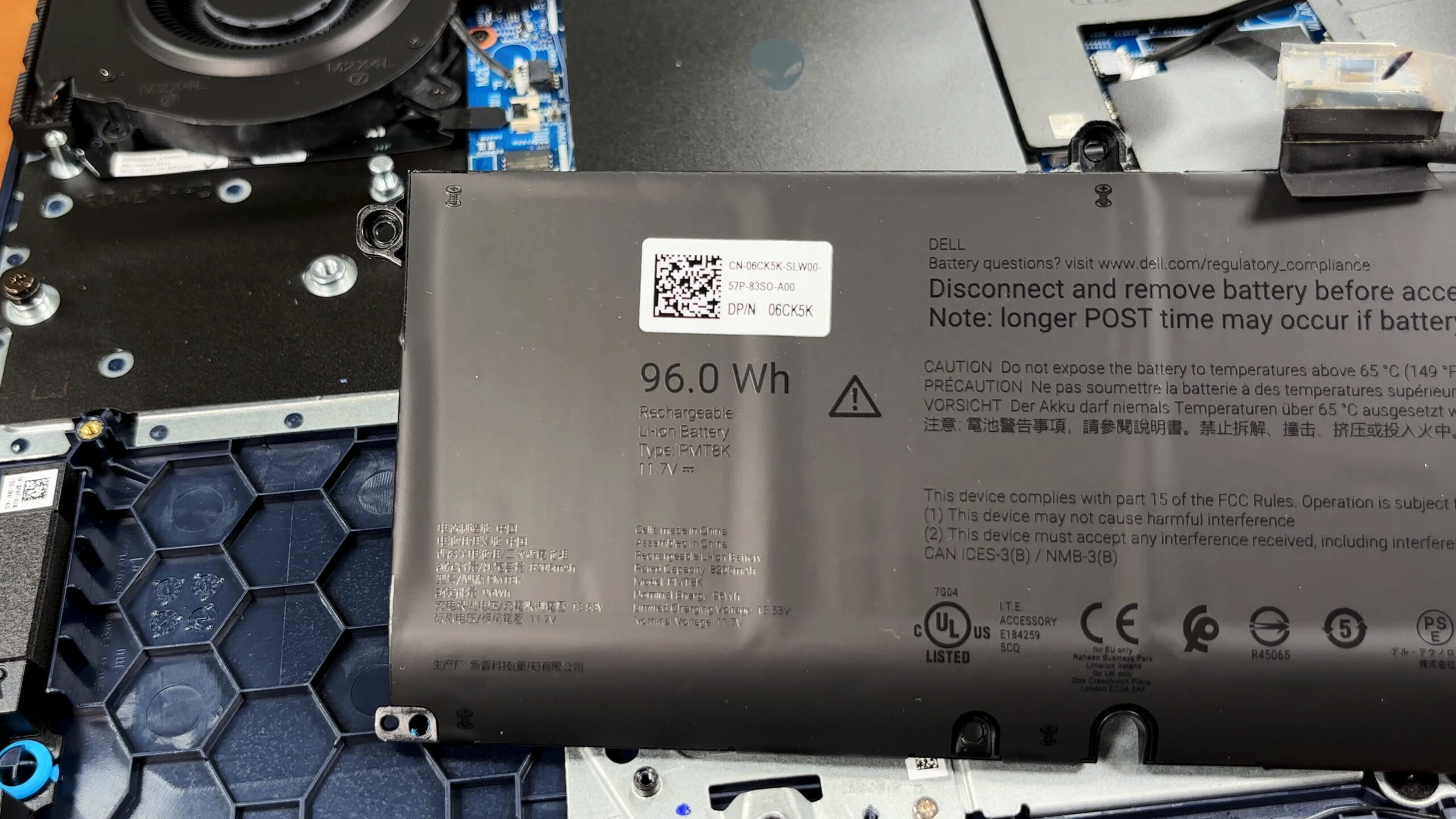
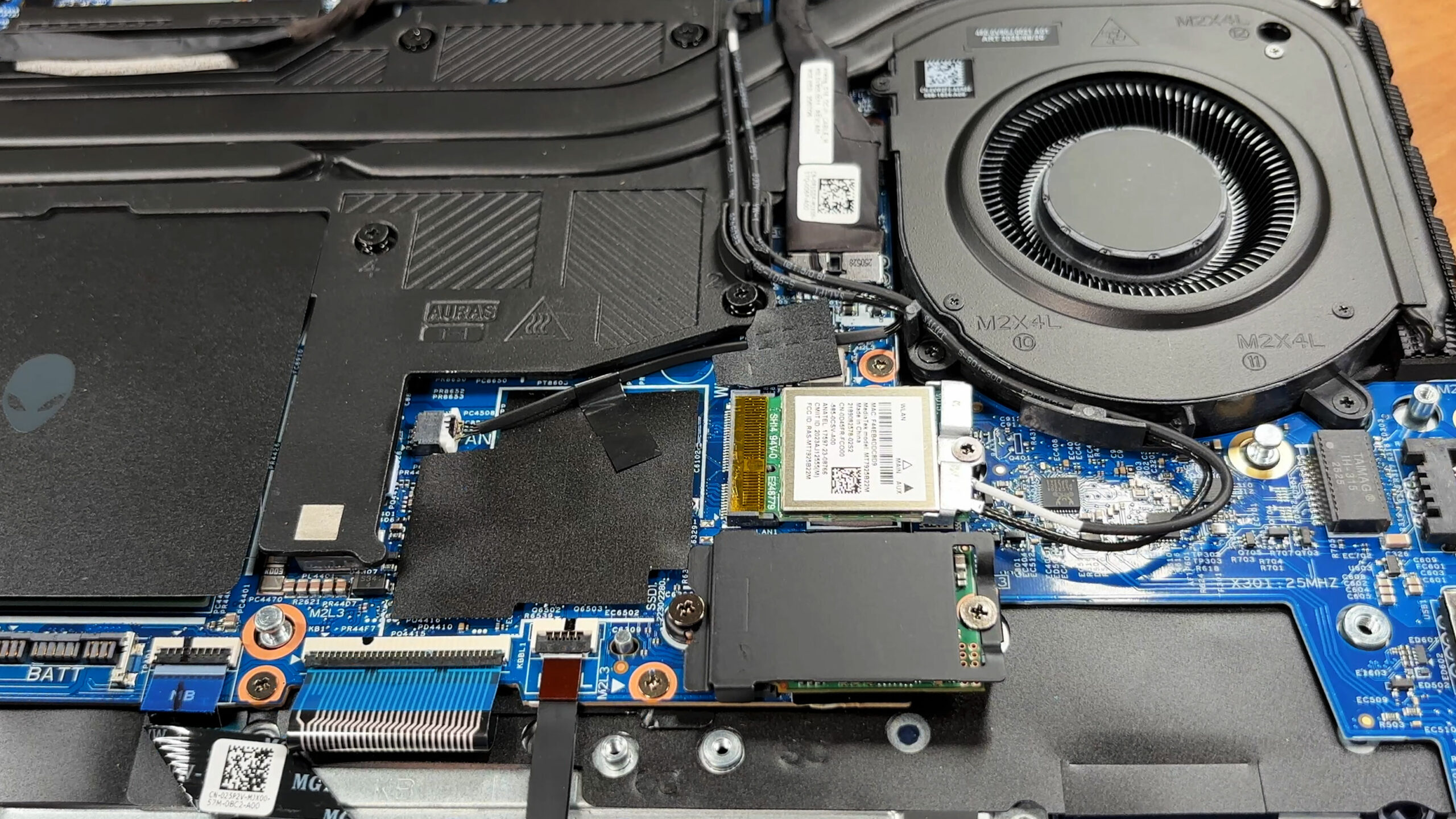
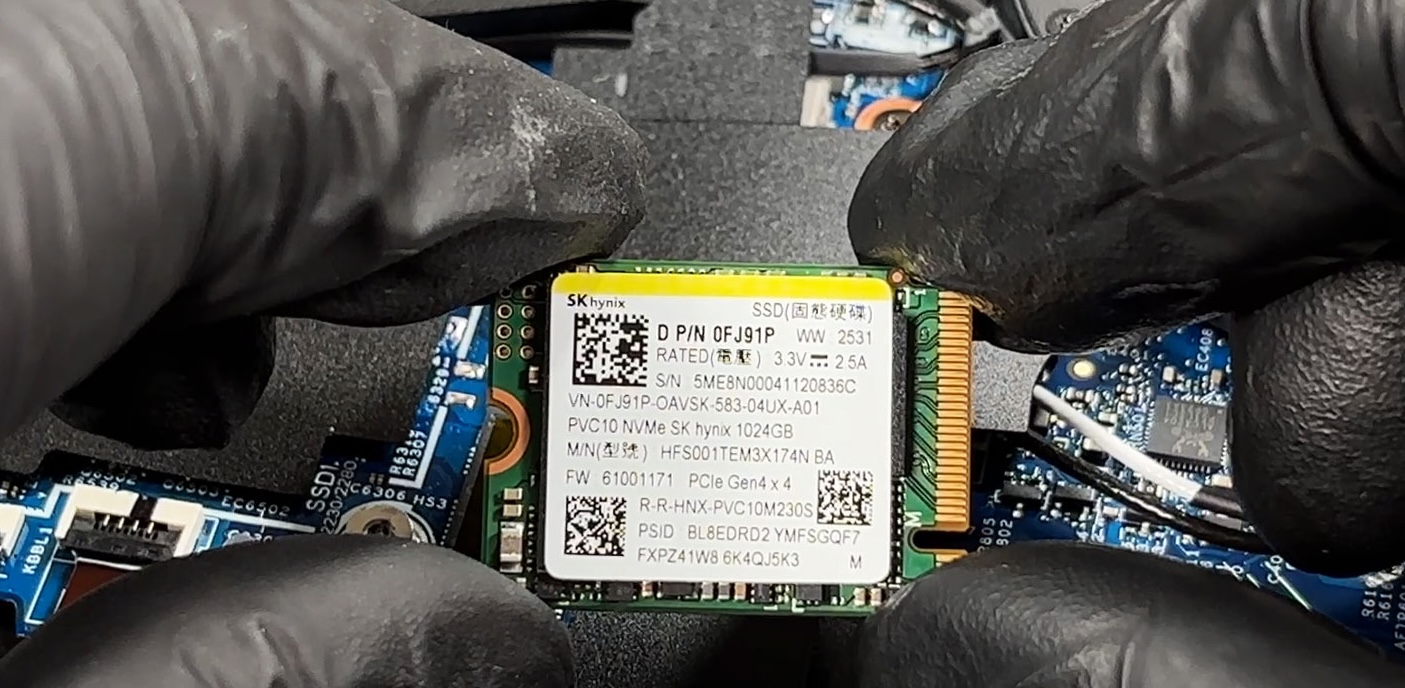
- Storage is handled by two M.2 2230 slots wired for PCIe 4.0 x4 NVMe.
- This is a convenient two-drive layout, but it is limited to the shorter 2230 form factor (2280 drives will not fit).
- One slot is populated in our configuration, while the second is free for expansion. Dell’s official spec lists support of up to 1 TB per slot.
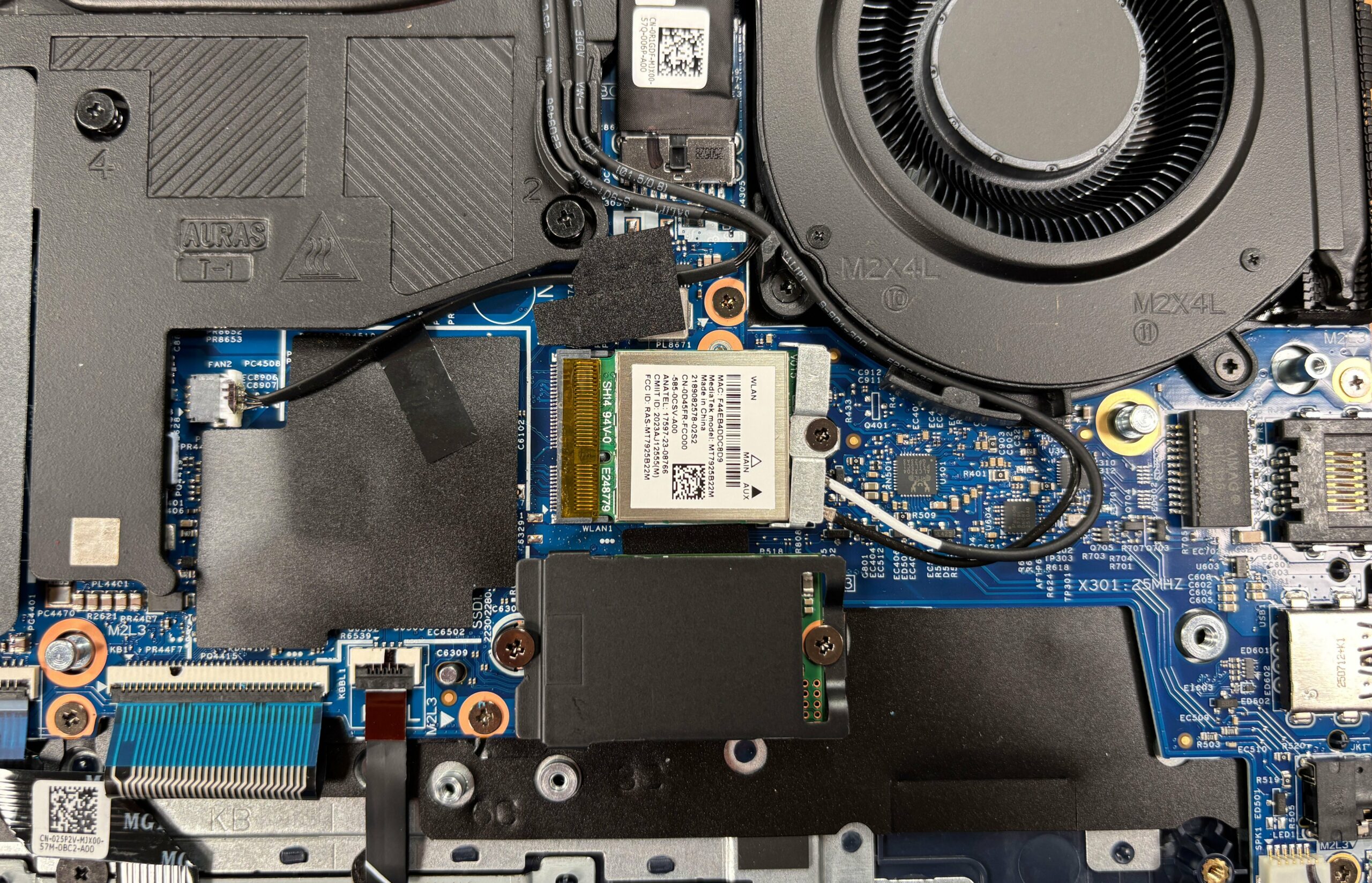
- The primary SSD is covered by an EMI shield that also acts as a heat spreader, paired with a thermal pad—reinstall it exactly as found to keep temperatures stable.
- Our unit ships with an SK hynix 1 TB NVMe drive.
Hint: Because this chassis uses 2230 drives, double-check the SSD length before buying. Many “M.2 NVMe” listings default to 2280.
You can buy compatible drives here: Buy from Amazon.com.au (#CommissionsEarned)
Memory upgrade
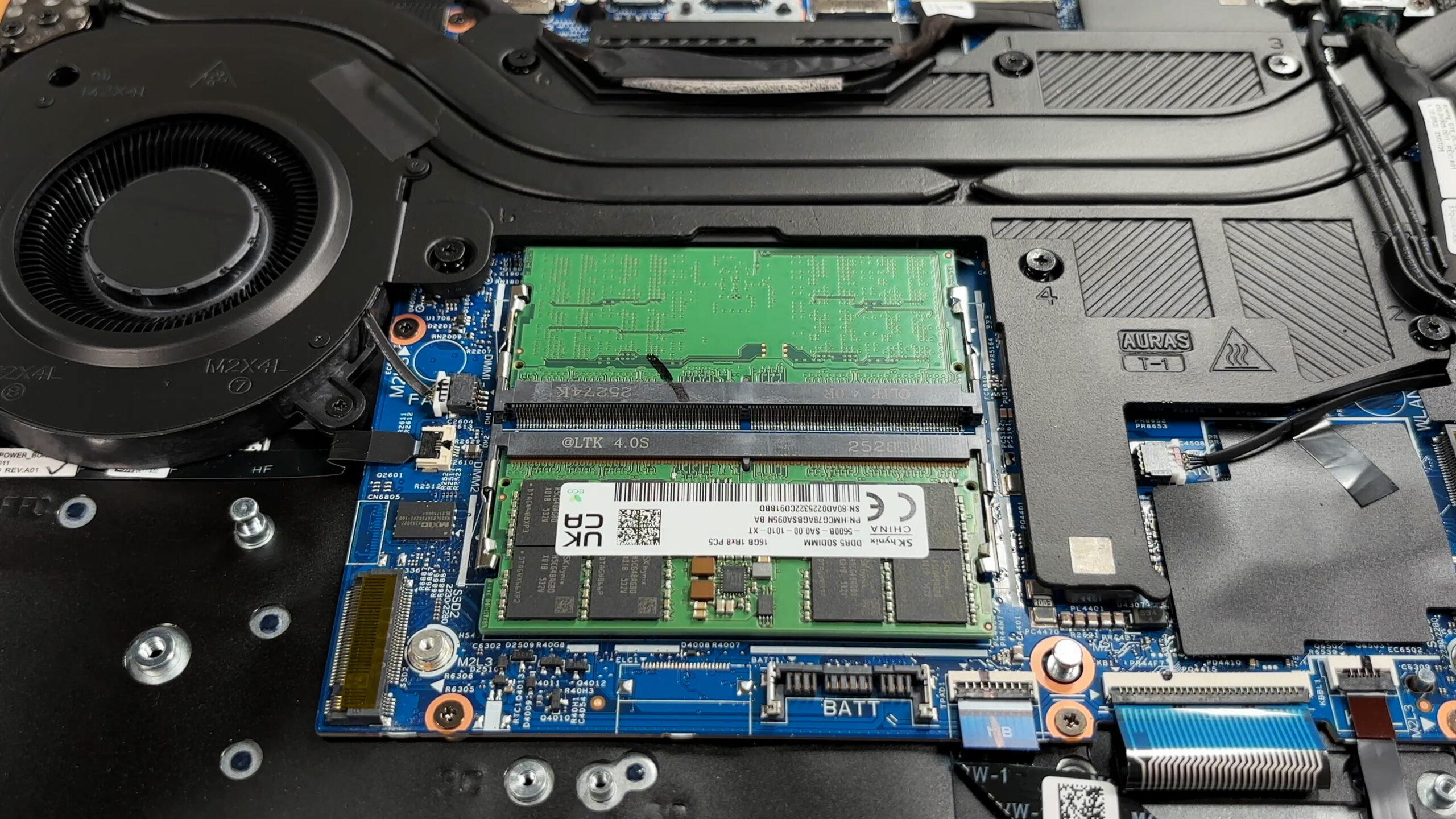
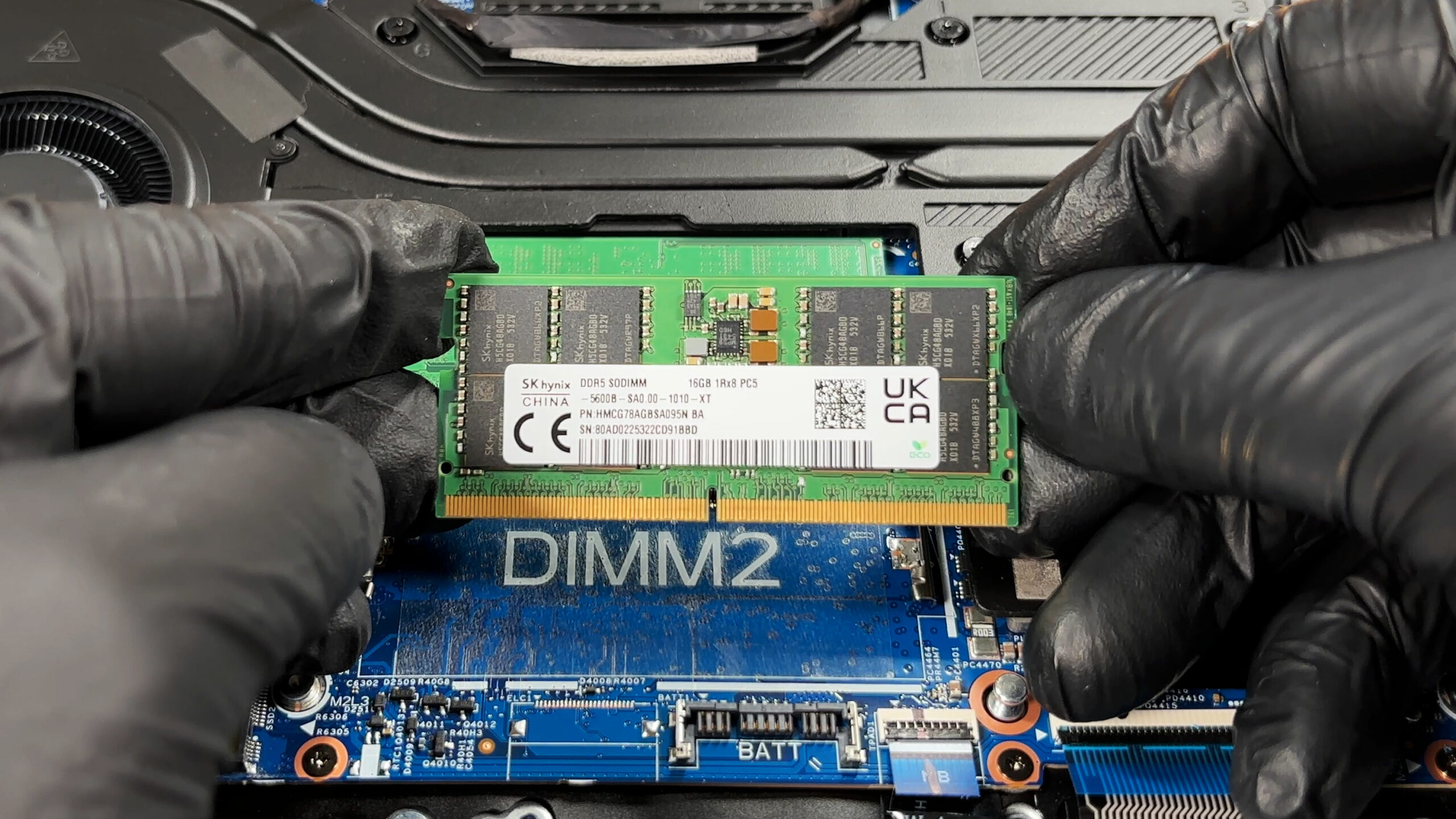
- Memory is upgradeable via two DDR5 SO-DIMM slots (no soldered RAM on this model).
- Depending on configuration, the platform runs DDR5-5600 or DDR5-5200; our reviewed unit uses DDR5-5600 modules.
- Dell’s official maximum for this model is 32 GB total, so plan the final capacity accordingly.
Wireless card
- Wireless is handled by a replaceable MediaTek MT7925B22M module with two antenna leads.
- It is secured by a single screw and can be swapped for troubleshooting or replacement.
- When removing/reseating antenna leads, pop them straight up and press them straight down to avoid damaging the connectors.
Other serviceable parts
- The speakers, both fans, the battery, both SSDs, and the Wi-Fi module are serviceable once the bottom cover is removed.
- The CPU and GPU are board-level components and are not upgradeable.
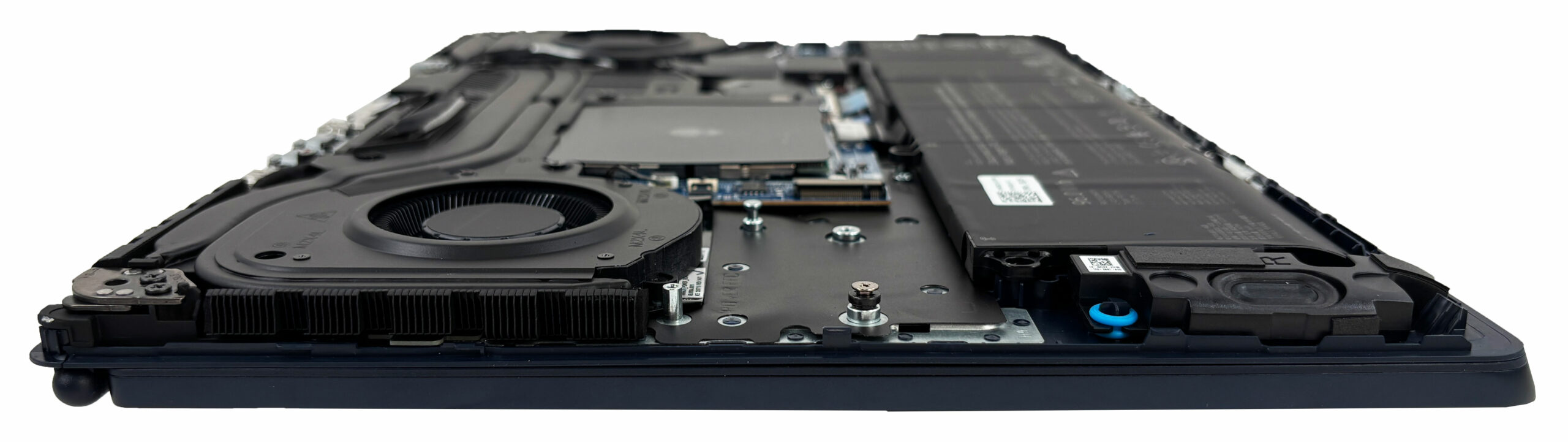
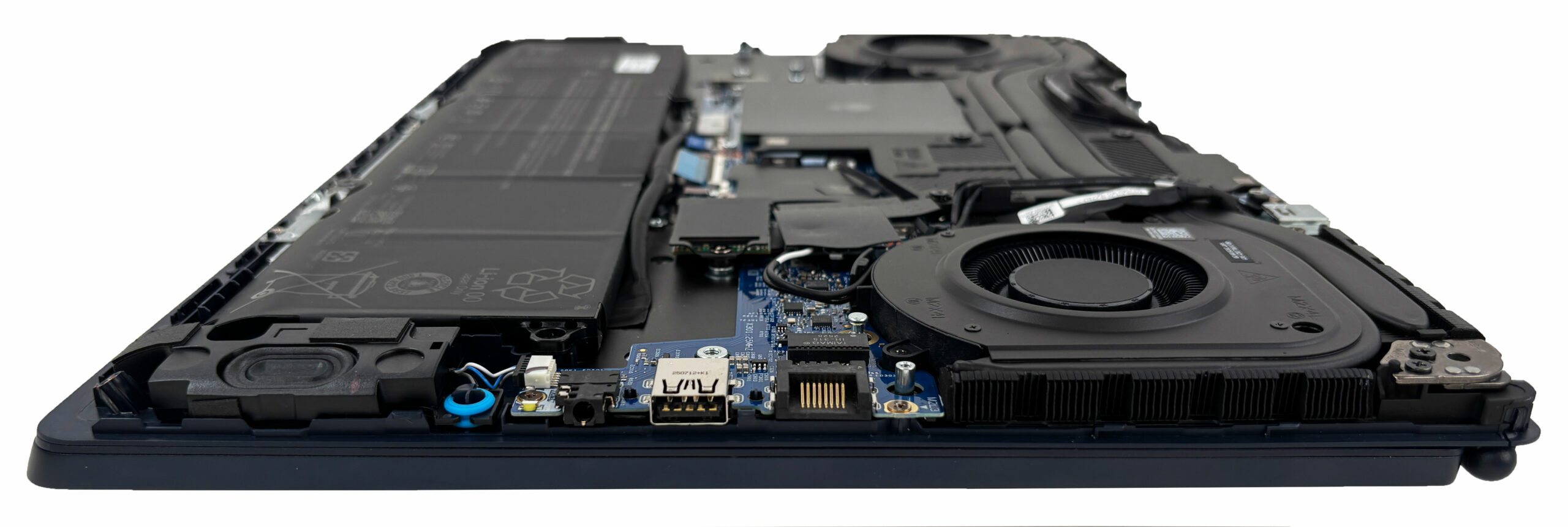
Summary: The Alienware 16 Aurora (AC16250) offers enthusiast-friendly service access with two SO-DIMM slots, two NVMe bays (in 2230 format), a replaceable Wi-Fi card, and a screw-mounted 96 Wh battery, while the main limitation is the requirement for short 2230 SSDs and the official 32 GB RAM ceiling.
Alienware 16 Aurora (AC16250) in-depth review
The Alienware 16 Aurora (AC16250) arrives with a mission to redefine what an Alienware laptop can be. Shedding the aggressive, sci-fi aesthetic of its predecessors, it opts for a sleek, understated "Interstellar Indigo" design that could almost pass for a business workstation. It promises a refined experience with a beautiful screen and exceptional battery life for a gaming machine. But in its quest for elegance, has it sacrificed too much of the raw power that defines the Alienware brand? We found a laptop of stark contradictions: one that excels in endurance and build quality but stumble[...]

Pros
- Excellent battery life for a gaming laptop (7.5+ hours)
- Great color-accurate, PWM-free QHD+ display
- Sturdy build quality with magnesium alloy frame
- Two user-accessible RAM slots
- Rear port layout for clean cable management
- Sleek, understated design suitable for work
Cons
- CPU runs extremely hot (99°C) under load
- Lowest RTX 5070 performance in its class
- Storage limited to small M.2 2230 SSDs
- No physical privacy shutter or biometric login
- Half-height arrow keys
 Author: Dimitar Stalev

![[May 2026] Global Ranking of Best-Selling Laptop GPUs on Amazon – Apple Dominates with 45% Share, Sweeps Top 3 Spots; NVIDIA’s RTX 5060 Leads the Dedicated GPU Pack](https://laptopmedia.com/wp-content/uploads/2026/06/Best-Selling-GPUs-GLOBAL-Top-10-400x225.jpg)
![[May 2026] Global Ranking of Best-Selling Laptop CPUs on Amazon – Apple Crushes Competition with 45.2% Market Share, M5 Dominates](https://laptopmedia.com/wp-content/uploads/2026/06/Best-Selling-CPUs-GLOBAL-Top-10-400x225.jpg)
![[May 2026] Amazon Germany: Top 7 Best-Selling Gaming Laptops – Lenovo Legion 5i Crowned Champion Amidst Fierce Mid-Range Competition](https://laptopmedia.com/wp-content/uploads/2026/06/Best-Selling-Gaming-Laptops-DE-Top-10-1-400x225.jpg)
![[May 2026] Amazon Italy: Top 10 Best-Selling Laptops – Apple MacBook Neo Reigns Supreme, Premium Models Capture Dominant Revenue Share](https://laptopmedia.com/wp-content/uploads/2026/06/Best-Selling-Laptops-IT-Top-10-400x225.jpg)
![[May 2026] Best-Selling Laptop Brands on Amazon Italy – Apple Dominates Across All Metrics](https://laptopmedia.com/wp-content/uploads/2026/06/IT-Best-Brands-400x225.jpg)