How to open ASUS ROG Strix SCAR 16 G634 (2024) – disassembly and upgrade options

Opening the Device
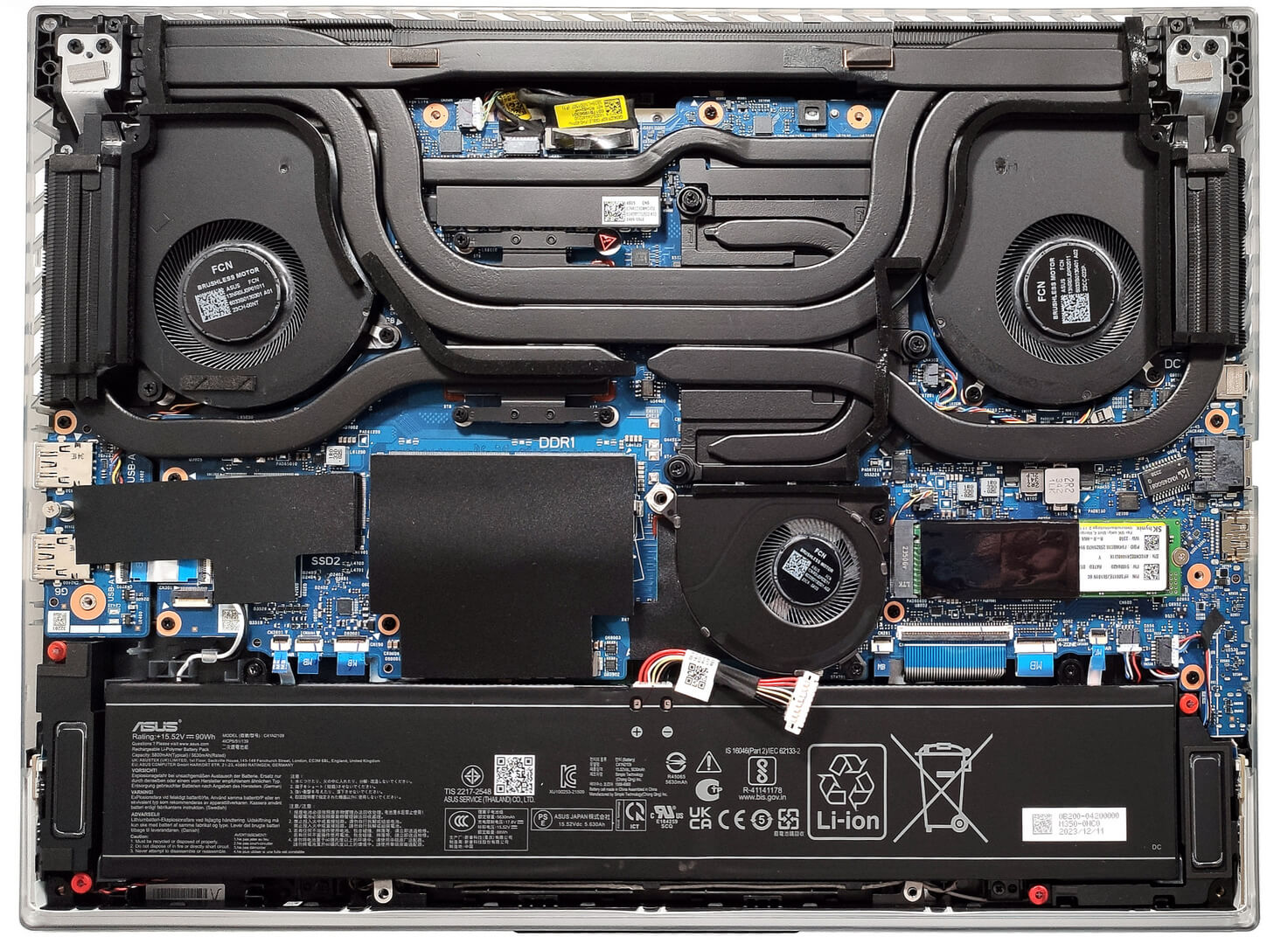
- Undo the 11 Philips-head screws securing the bottom panel. Note that the screw in the front right corner is captive and will slightly raise the panel up.
- Start prying the front with a thin plastic tool or a lever tool.
- Raise the two front corners a bit higher to pop the sides slightly past the end of the LED stripe.
- Fully pry the sides and the back to remove the bottom panel.
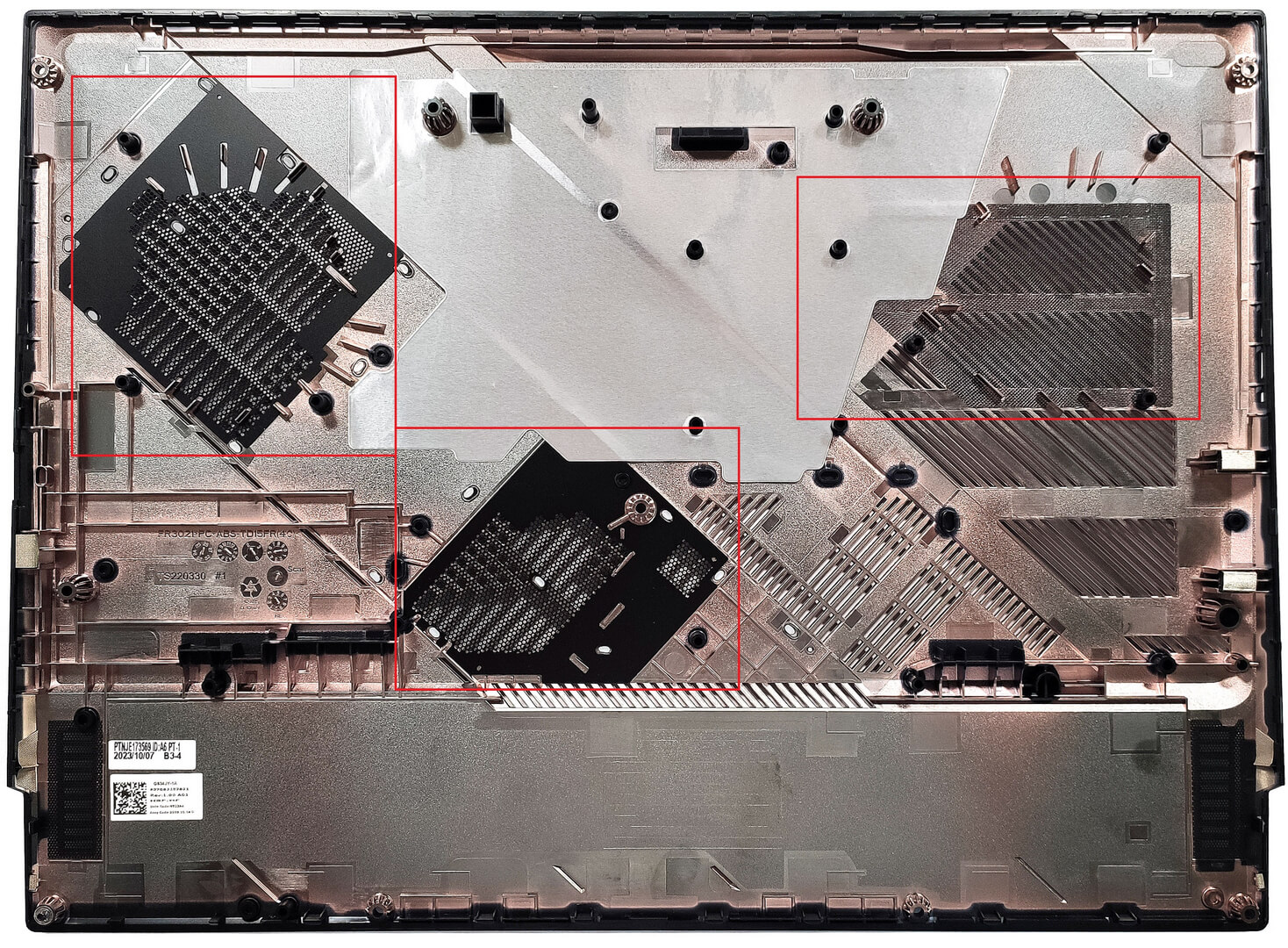
More info: On the inside of the bottom panel, there are many plastic elements for greater internal structural support and dust filters for the three fans.
Battery Removal
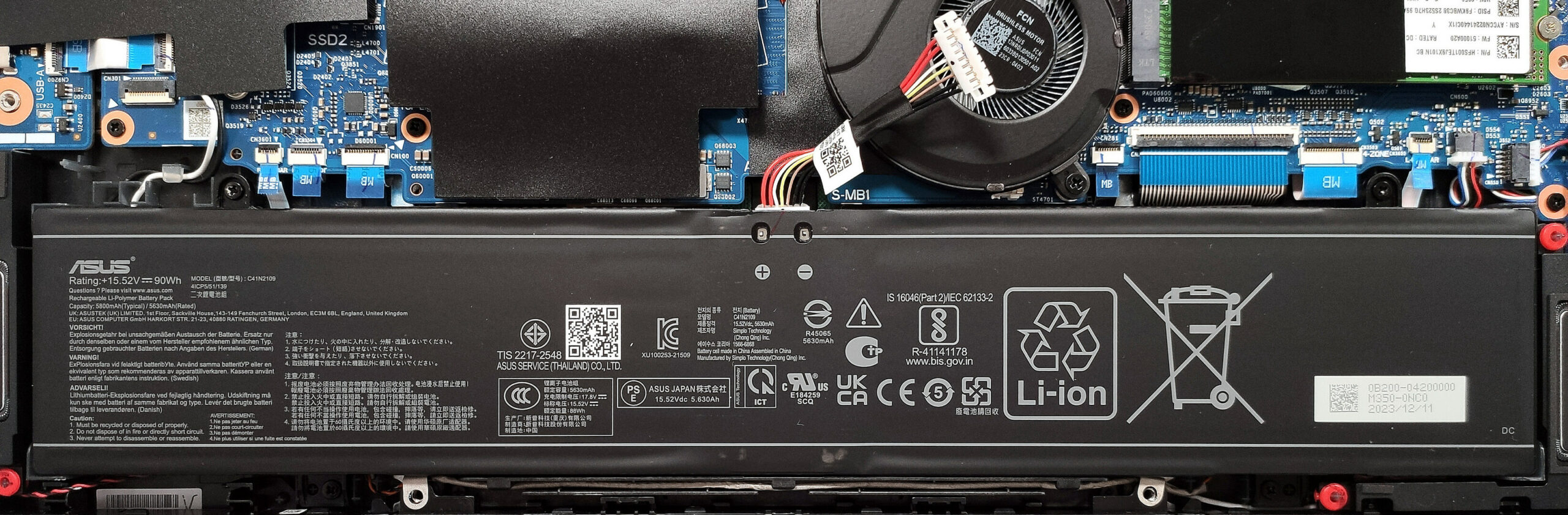
- Locate the battery connector positioned below the lower fan.
- Undo the two Philips-head screws securing the connector. Wear gloves to avoid short circuits.
- Unplug the battery connector from the motherboard.
- Undo the 4 Philips-head screws securing the battery.
- Lift the battery to remove it from the device.
Note: The device uses a 90Wh battery, providing approximately 7 hours of video playback.
Memory Upgrade
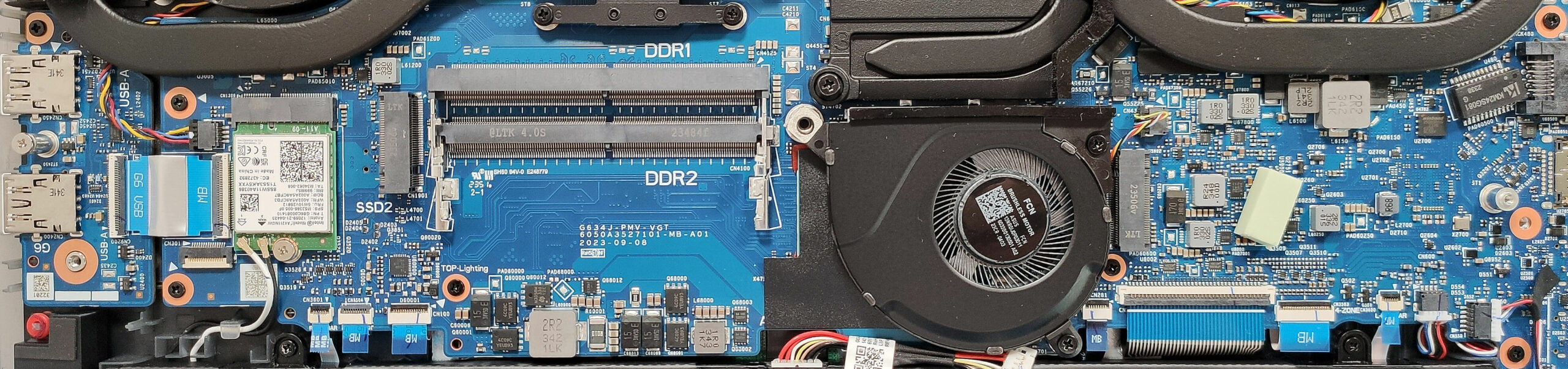
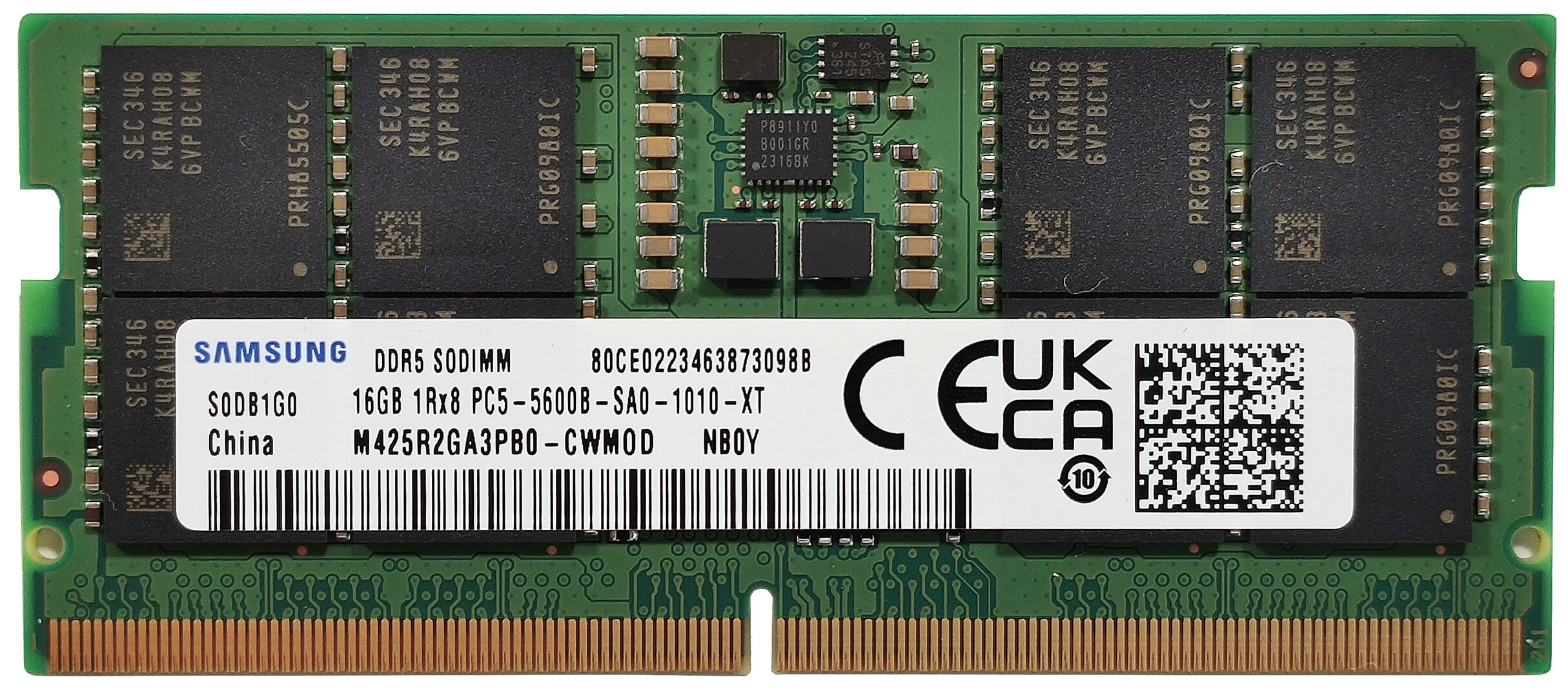
- Locate the memory area covered with foil.
- Remove the foil to access the SODIMM slots.
- According to ASUS, the two SODIMMs can handle up to 64GB of DDR5-5600MHz RAM in dual-channel mode. The CPU can support up to 192GB, so the laptop likely wouldn’t have issues running more than the official manufacturer’s specified limit.
Note: There are no thermal pads for the memory modules, which is unusual given the laptop’s price.
You can buy compatible RAM modules here: Buy from Amazon.ca (#CommissionsEarned)
Storage Upgrade
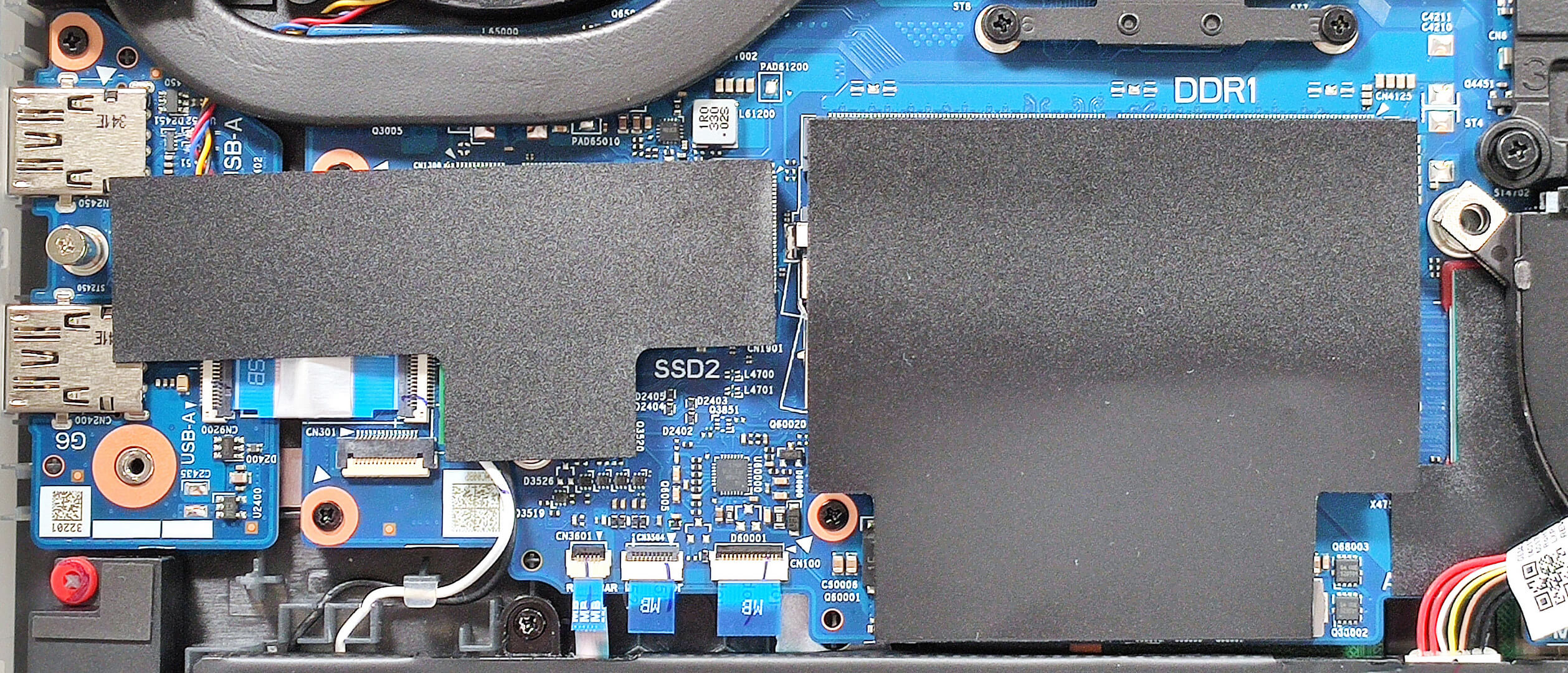
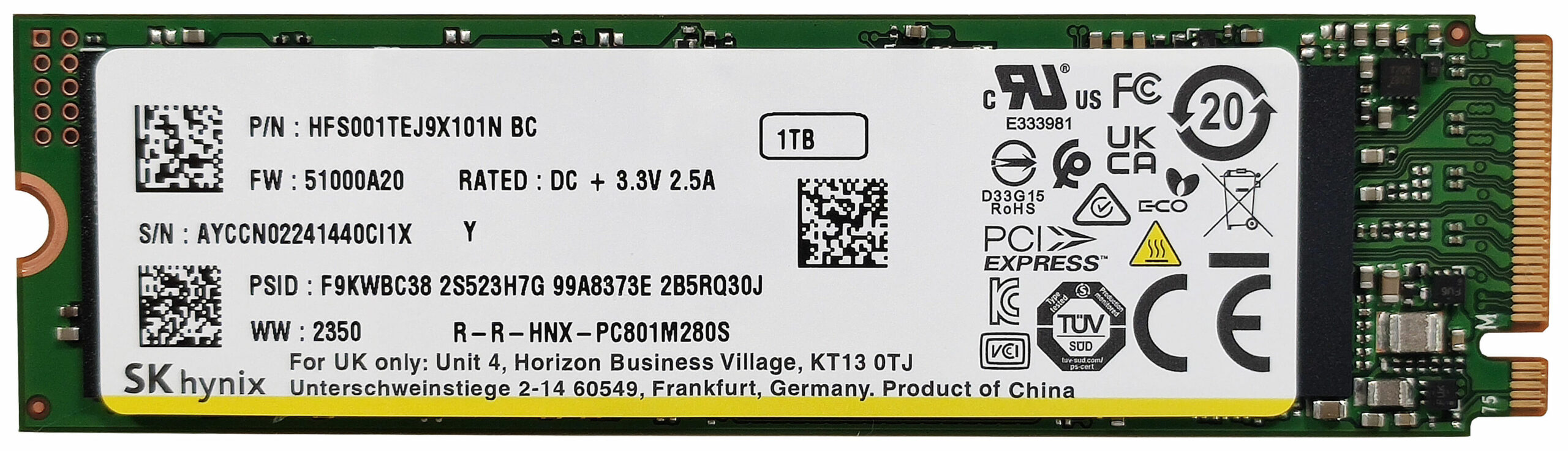
- Locate the two M.2 slots compatible with Gen 4 SSDs.
- Remove the foil covering the left SSD slot.
- Remove the preinstalled SSD and the tiny cooling pad below it, if present.
- Install the new SSD in the slot. RAID 0 is supported.
Hint: Don’t forget to check out our Top M.2 SSDs Performance Rankings for insights on the best storage options available.
You can buy compatible SSDs here: Buy from Amazon.ca (#CommissionsEarned)
Wi-Fi Card
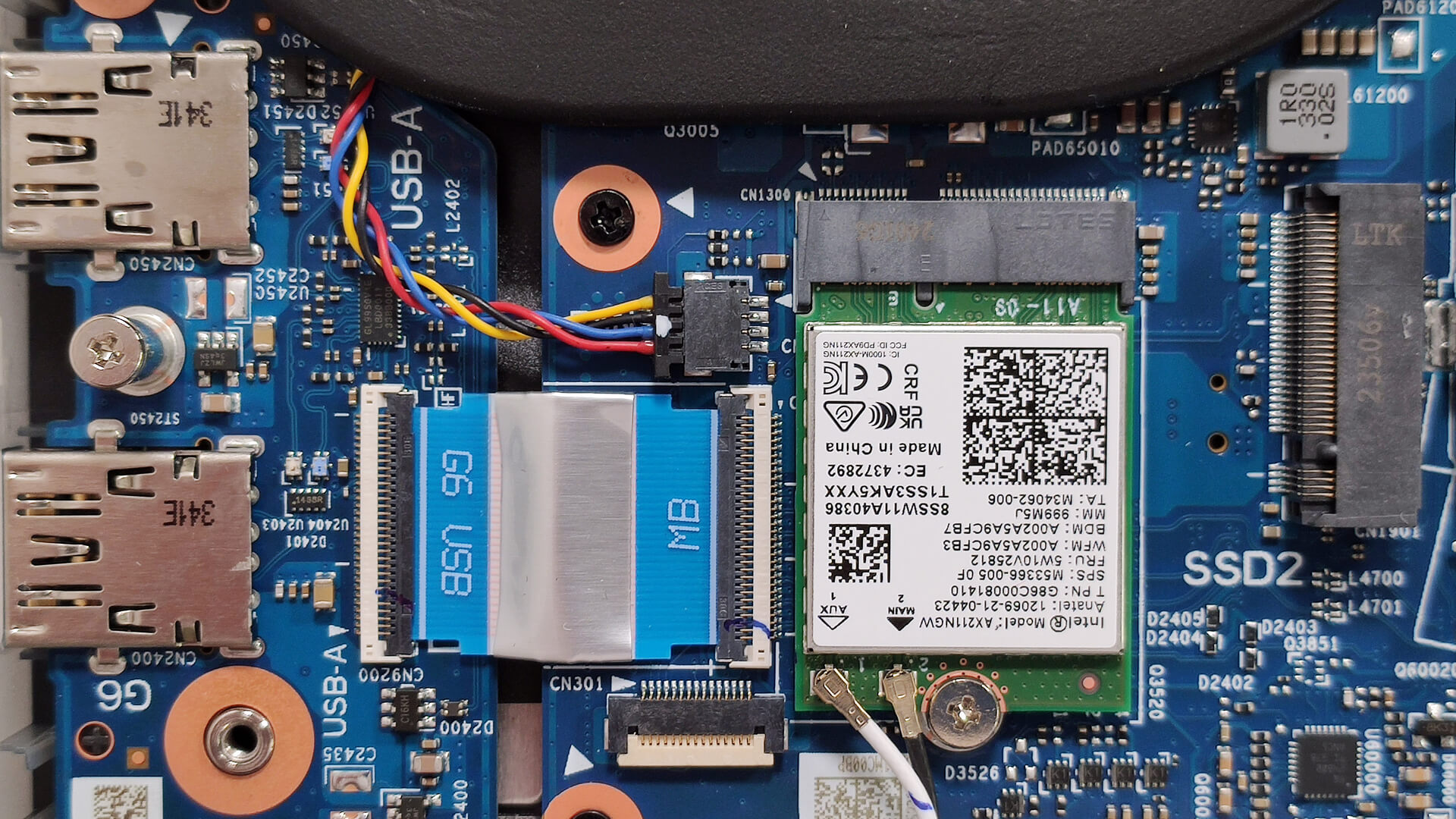
- The Wi-Fi card is positioned in front of the left NVMe slot. This can cause potential connection problems when an SSD is installed.
Cooling System Overview
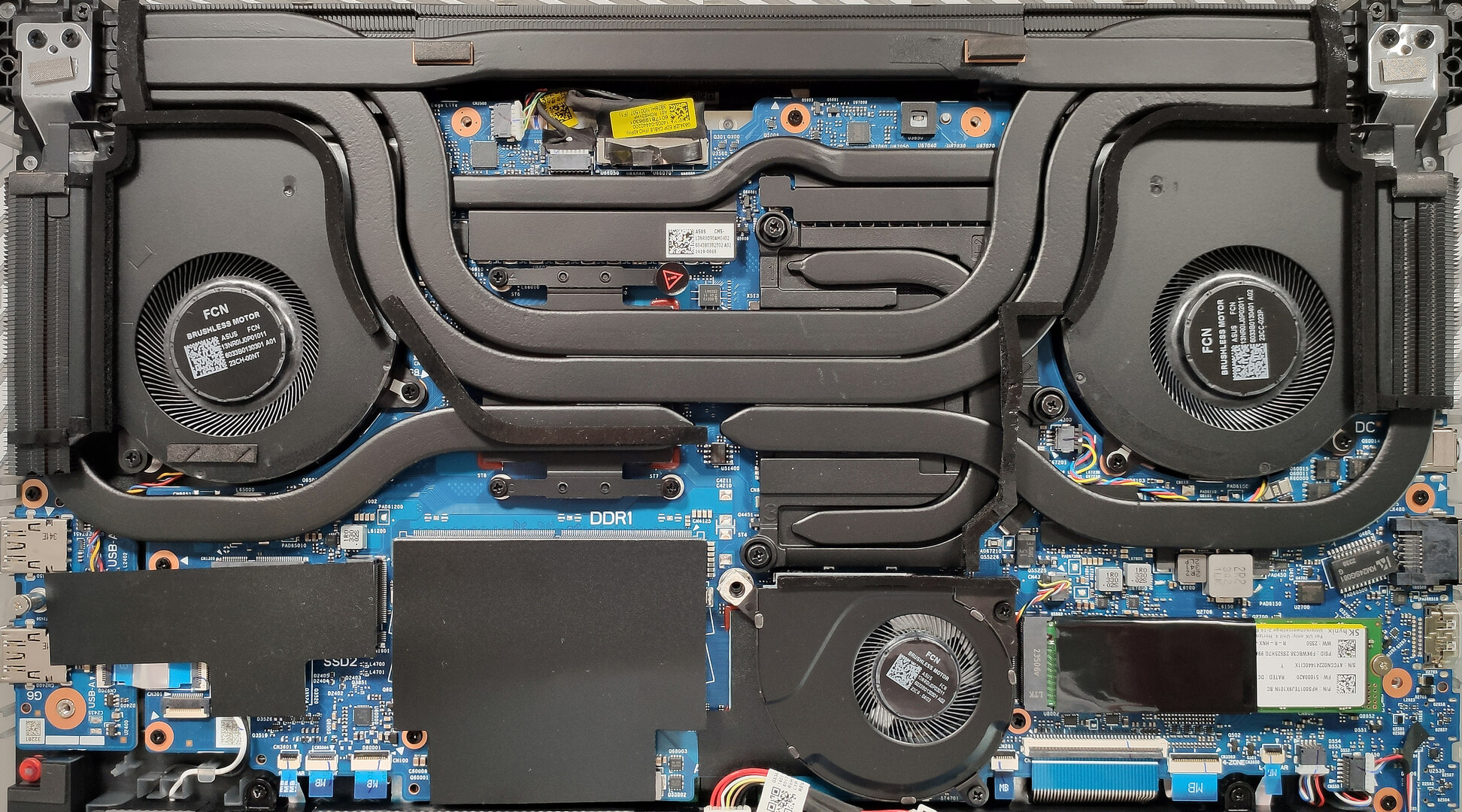
- The thermal system includes three fans: two orthodoxly placed and the third one on top of the chipset.
- Three heat pipes are shared between the processor and the graphics card, with one additional heat pipe for each chip.
- The smaller U-shaped pipe is placed on the metal plate above the GPU and also cools its VRMs and memory modules.
- There are three top-mounted heat sinks and two on the sides of the fans.
- The small seventh heat pipe connects the metal plate for the GPU and the heat spreader for the GPU.
- ASUS has preapplied liquid metal on both CPU and GPU dies for enhanced cooling performance.
Note: The thermal system is large and designed to provide efficient heat management for the high-performance components of the laptop.
ASUS ROG Strix SCAR 16 (G634, 2024) in-depth review
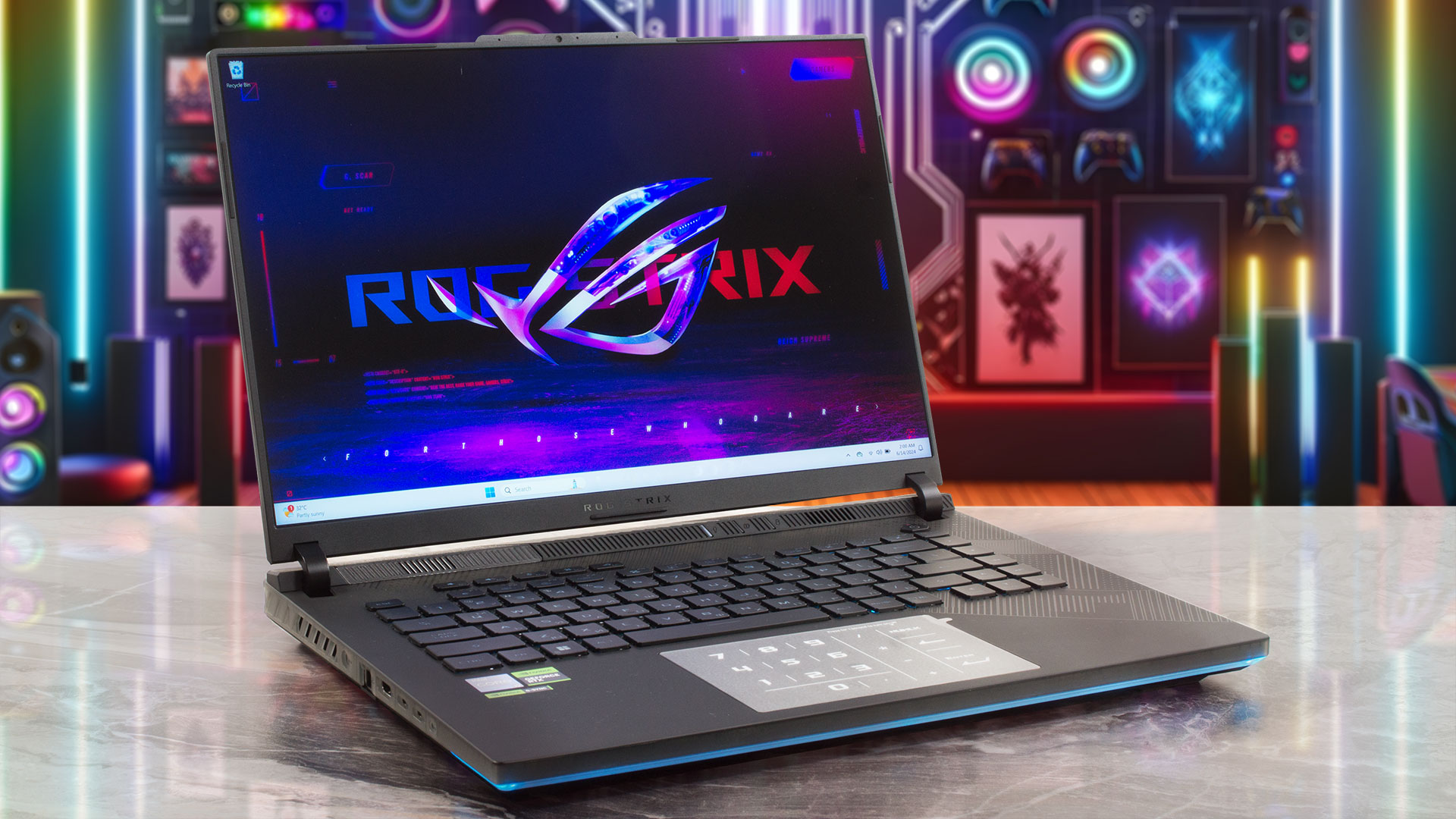
The ASUS ROG Strix SCAR 16 G634 (2024) is a powerful 16-incher that offers virtually the same hardware as its 18-inch sibling, the G834. This means a 32-thread Core i9-14900HX and the full-powered (175W) versions of the GeForce RTX 4080 or 4090. That sounds like a pretty potent combination, especially for such a form factor. Still, ASUS was able to fit an enormous cooling that looks practically identical to the one of the 18-inch "cousin". Conductonaut Extreme liquid metal has been applied on both CPU and GPU dies.There is just one display variant for this Strix series and that's the so-ca[...]
Pros
- Good upgrade options
- Performs at the levels of the 18-inch version
- High CPU frequencies and power limits during heavy loads in "Turbo" mode (3.40 GHz P-core clock + 141W)
- Great "Performance" preset - lower fan noise combined with 2.9 GHz P-core clock + 160W GPU TGP
- G-Sync + MUX Switch + NVIDIA Advanced Optimus
- Good port selection
- Full DCI-P3 coverage + accurate color with our "Design and Gaming" profile (BOE0C24)
- 240Hz refresh rate and 1600p resolution (BOE0C24)
- High max brightness of 546 nits in SDR and 1330 nits in HDR mode (BOE0C24)
- The Armoury crate app offers tons of customization options
- Comfortable and quiet RGB backlit keyboard + accurate touchpad
- Decent battery life given the powerful hardware (~7 hours of video playback)
- The fans aren't too noisy even in "Turbo mode"
- Many customizable RGBs
- Metal lid + stable base
- Huge cooling solution with a third fan over the chipset
- CPU undervolt option in the BIOS
Cons
- Hefty (22.6 - 30.4 mm / 2.65 kg)
- Lacks Wi-Fi 7, Gen 5 SSD slot, thermals pad for the memory, and bigger pads for the NVMe
- The battery connector is placed below the third fan
- Plastic base
- PWM usage (BOE0C24)
 Author: Severin Kolakov

![[June 2026] Best-Selling Laptop Brands on Amazon Global – Apple’s Unrivaled Dominance in Units and Revenue](https://laptopmedia.com/wp-content/uploads/2026/07/GLOBAL-Best-Brands-400x225.jpg)
![[June 2026] Amazon Global: Top 10 Best-Selling Laptops – Apple’s New MacBook Neo Storms to #1, Reshaping the Market with Affordability](https://laptopmedia.com/wp-content/uploads/2026/07/Best-Selling-Laptops-GLOBAL-Top-10-400x225.jpg)
![[June 2026] Amazon Global: Top 10 Best-Selling Gaming Laptops – Acer’s Nitro V 16S AI Dominates Sales, While ASUS Leads Overall Revenue](https://laptopmedia.com/wp-content/uploads/2026/07/Best-Selling-Gaming-Laptops-GLOBAL-Top-10-400x225.jpg)
![[June 2026] Global Ranking of Best-Selling Laptop GPUs on Amazon – NVIDIA RTX 5060 is the Top-Selling Dedicated GPU](https://laptopmedia.com/wp-content/uploads/2026/07/Best-Selling-GPUs-GLOBAL-Top-10-400x225.jpg)
![[June 2026] Global Ranking of Best-Selling Laptop CPUs on Amazon – Apple M5 Dominates, AMD Ryzen 7 260 Gets Solid Premium Share](https://laptopmedia.com/wp-content/uploads/2026/07/Best-Selling-CPUs-GLOBAL-Top-10-400x225.jpg)