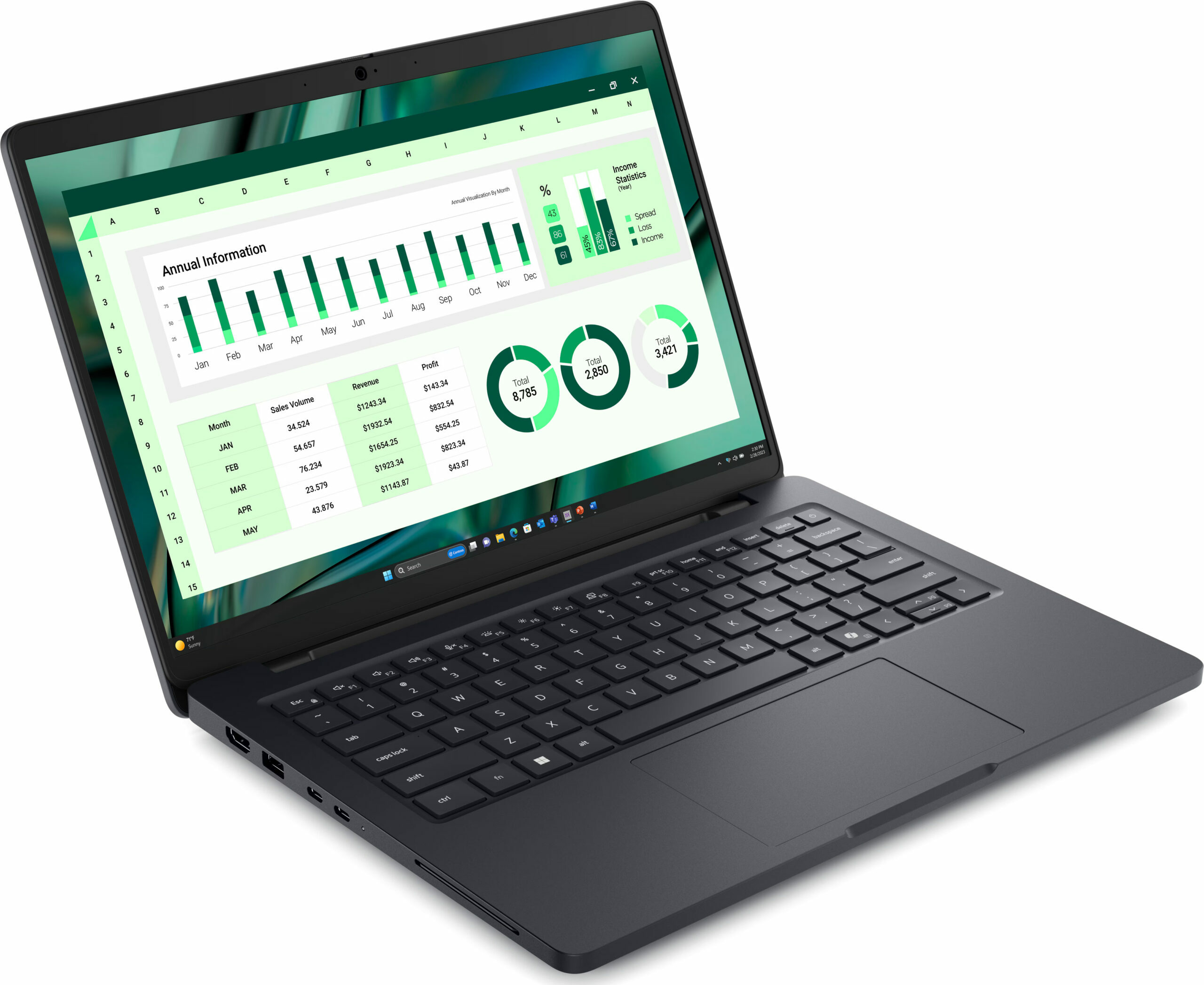
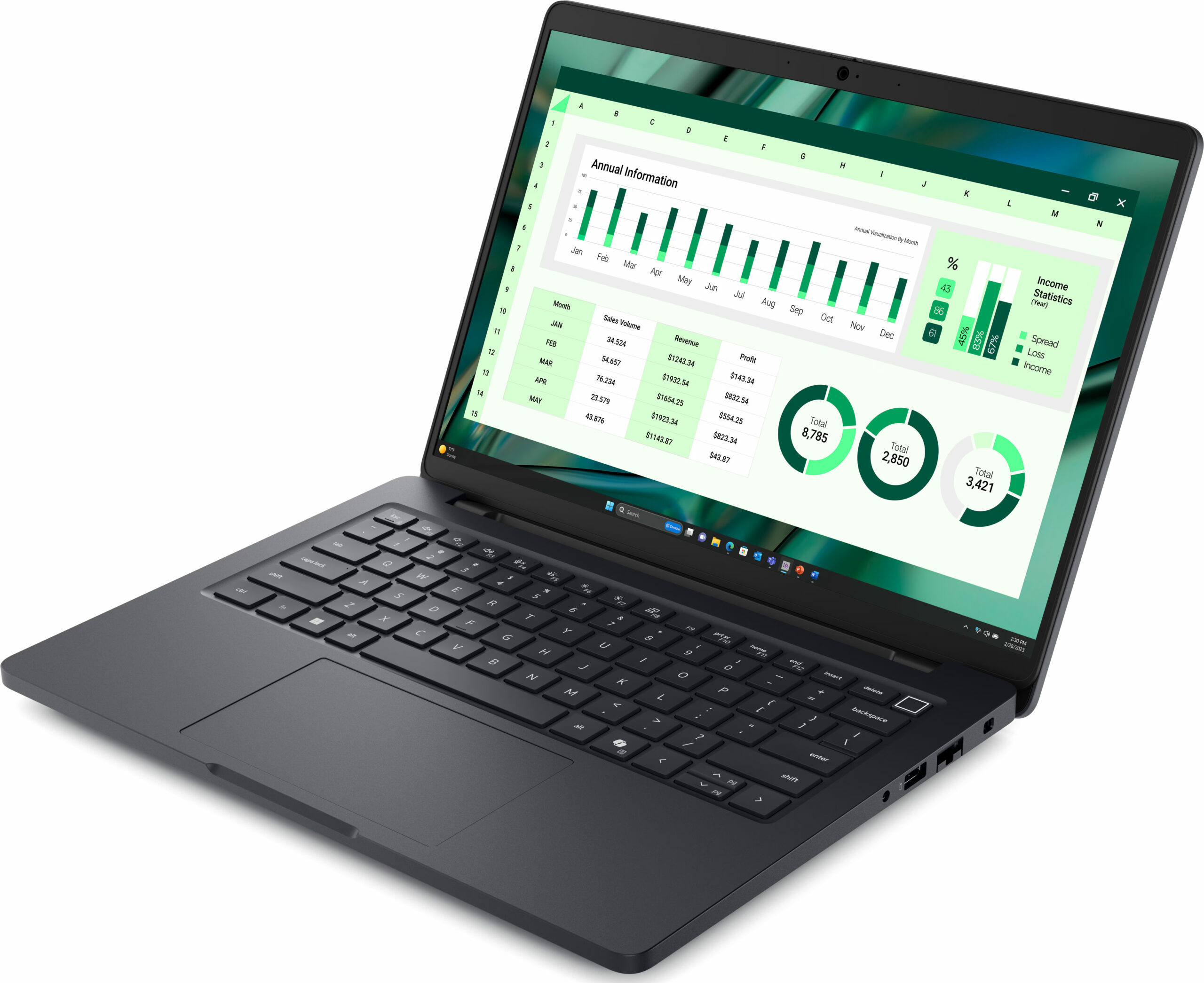
Dell Pro Max 14
- Date Published: 20 Jul 2025
- Intel Core Ultra 5 235H
- Intel Arc 140T
- 14.0”, WUXGA (1920 x 1200), IPS
- 2000GB SSD
- 64GB RAM
- 1.83 kg (4 lbs)
Dell Pro Max 14 (MC14250) in-depth review
This looks like a quiet corporate laptop, but push it hard and the Dell Pro Max 14 starts to behave like something much more serious. In our tests, this compact 14-inch machine delivered excellent sustained CPU performance, stayed impressively cool under long heavy loads, and still kept the [...]
Read the full review
Review
Dell Pro Max 14 in-depth review
This looks like a quiet corporate laptop, but push it hard and the Dell Pro Max 14 starts to behave like something much more serious. In our tests, this compact 14-inch machine delivered excellent sustained CPU performance, stayed impressively cool under long heavy loads, and still kept the practical business features many modern laptops have abandoned - Ethernet, Thunderbolt 4, USB-A, and upgradeable LPCAMM2 memory.But there is a catch, and it can completely change the buying decision. The Pro Max 14 is extremely configuration-dependent. Choose it well, and you get a powerful, serviceable professional laptop with strong battery life and great connectivity. Choose the base display like the one in our configuration, and you get a panel that is fine for office work, but not good enough f[...]
Read the full reviewPros
- Excellent sustained CPU performance for heavy workloads
- Very good thermal control under load
- Removable LPCAMM2 memory with up to 64GB configuration options
- Accessible battery, SSD, Wi-Fi card, and cooling system
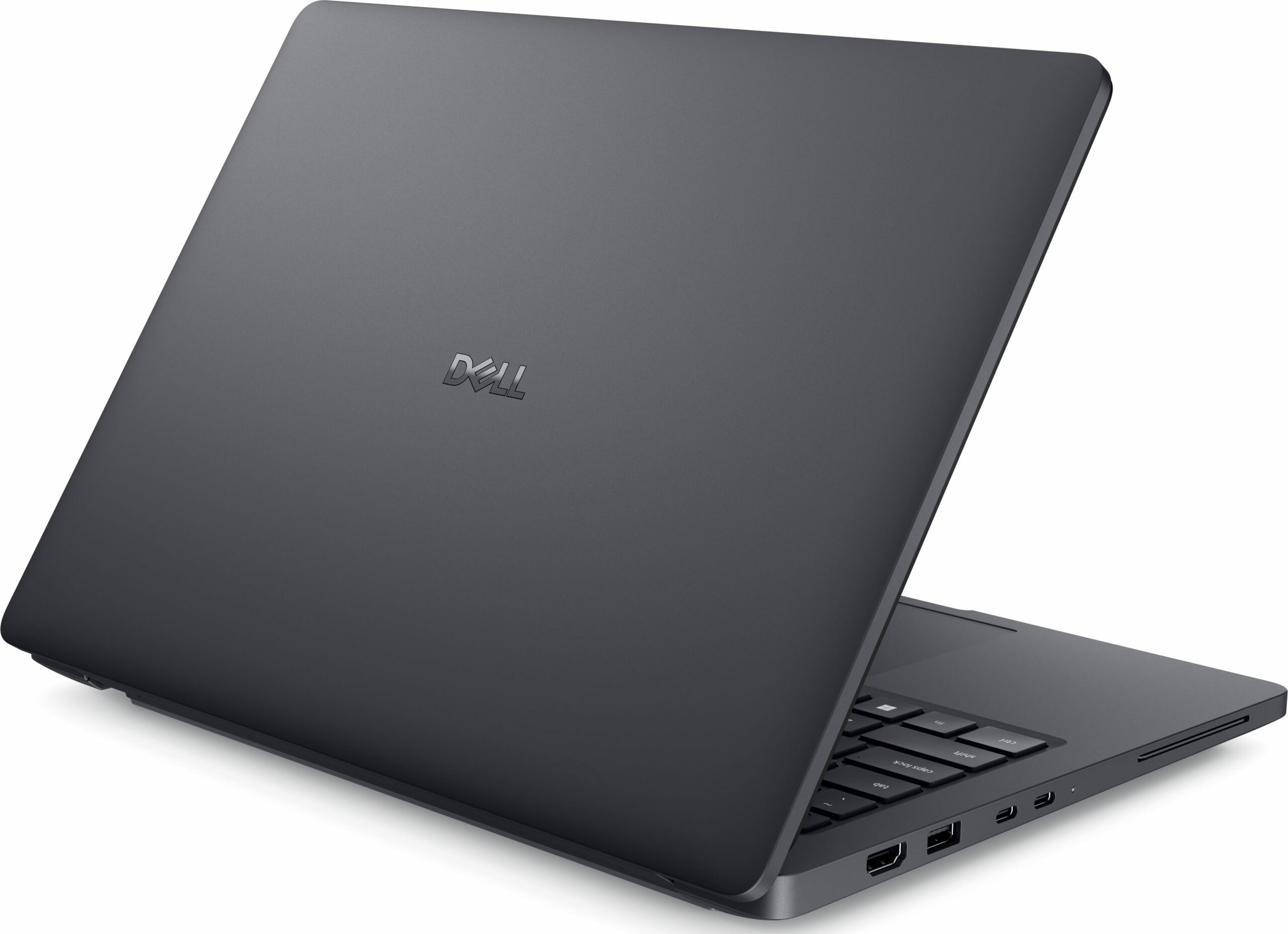
- Strong port selection with Thunderbolt 4, HDMI, USB-A, and RJ-45 Ethernet
- PWM-free display
- Strong battery life for an H-series 14-inch laptop
- Surprisingly capable Intel Arc 140T integrated graphics
Cons
- Only one M.2 slot, so storage upgrades require replacing the existing SSD
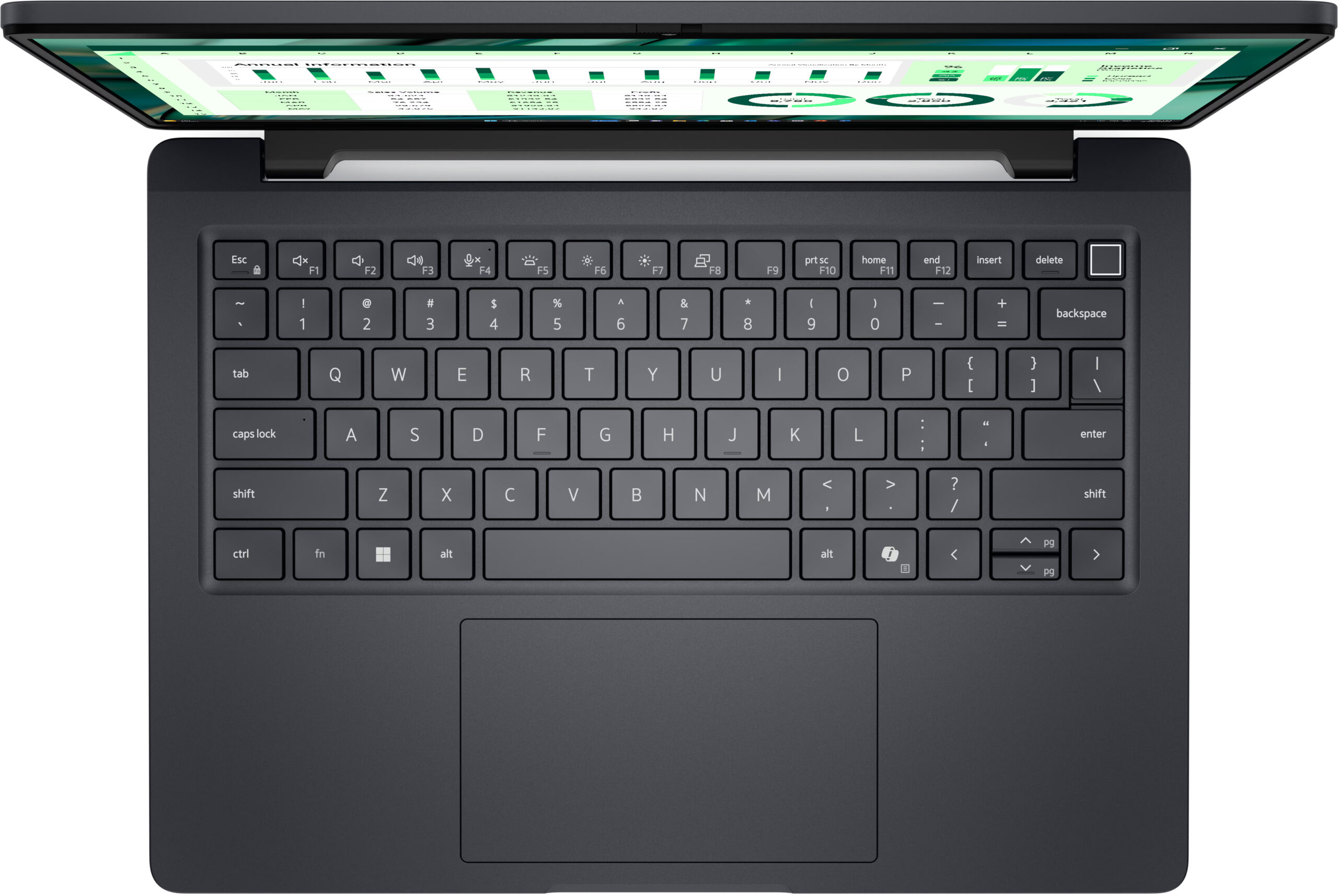
- No SD or microSD card reader
- Fans are slightly audible even at idle in the performance-focused profile
- Touchpad click on our unit feels less crisp and refined than expected
- Base 45% NTSC display option has very limited color coverage
- LPCAMM2 is upgradeable, but not as common or inexpensive as SO-DIMM memory
Disassembly, maintenance and upgrade options
Step 1: Removing the bottom panelPower off the laptop and place it on a soft, clean surface. Loosen the 10 captive screws securing the bottom panel. They remain attached to the cover after loosening. Use a thin plastic pry tool to carefully release the clips around the perimeter. Keep the tool shallow while prying to avoid touching internal components. Lift the bottom cover away from the chassis.More info: The internal design is service-oriented, with the battery, SSD, LPCAMM2 memory, Wi-Fi card, and cooling system all accessible after removing the b[...]
Read more




