ASUS Zenbook S 14 UX5406 review – All-Day Power, All-Night Entertainment
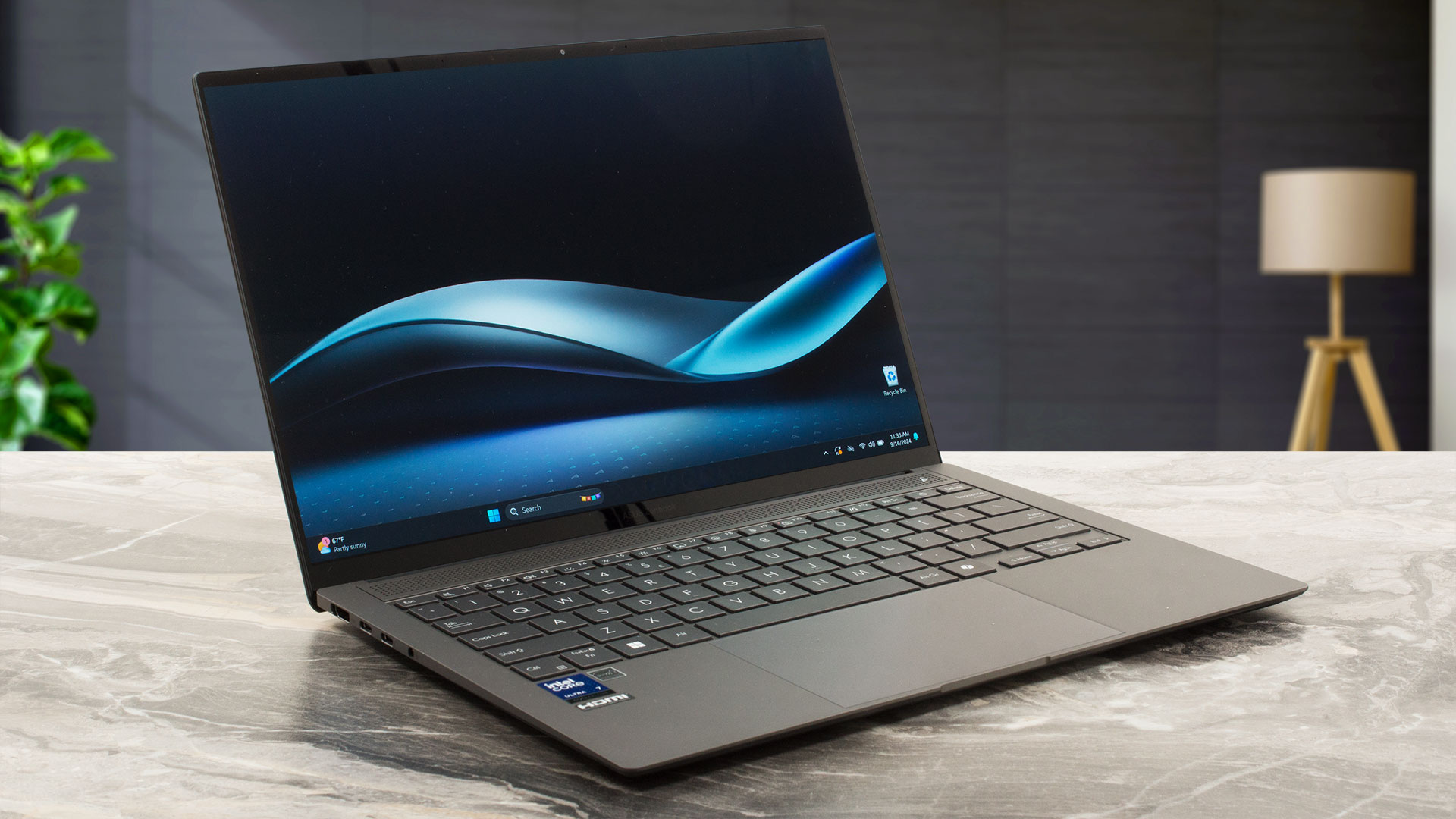 The ASUS Zenbook S 14 UX5406 is not just an ultra-thin well-crafted laptop. The new Intel Lunar Lake CPUs power it (these are also known as Intel Core Ultra 200V or Core Ultra (Series 2)). You can choose from three chips with 17W base power and the top dog is a 30W model. The main focus here isn’t top-of-the-line performance, this time it’s all about efficiency and power management. Here, Intel ditches Hyper-Threading and that’s why you get four P cores (Lion Cove) and the same amount of LP E cores (Skymont). Intel’s Thread Director firmware hints to the OS about which and how many cores are best suited for each task and load. The LPDDR5x memory is placed onto the CPU which reduces latency and frees some space on the motherboard allowing the manufacturers to create even thinner devices. This ASUS laptop can be ordered with up to 32GB of memory in dual-channel mode.
The AI capabilities of the new-gen processors are also improved thanks to the supercharged NPU with up to 48 TOPS (trillion operations per second). The Intel Arc GPU with the new Xe2 architecture also brings XeSS supersampling technology to the table to increase the FPS in demanding titles. The iGPU boasts 8x next-gen Xe cores with AI acceleration (that results in 67 TOPS) and eight ray-tracing units.
The UX5406 successfully qualifies for an MS Copliot+ PC since it has at least 16GB RAM, a big and snappy Gen 4 NVMe, and a mighty NPU. The port selection is as modern as it gets and we can spot a Type-A port which is great for compatibility with peripherals devices that are based on this standard. But that’s not all. This small fella has a 3K (2880 x 1800) OLED display with a 120Hz refresh rate and HDR support. The panel is offered with or without touch functionality. For connectivity, you can rely on the latest and greatest Wi-Fi 7 + Bluetooth 5.4. The security department is represented by a fTPM 2.0, Microsoft Pluton security processor, and an IR Web camera.
The chassis may be slim, but ASUS has found a way to fit inside a 0.7 mm vapor chamber cooling with two fans. The cooling system is easily removable, allowing for simple application of new thermal paste to the CPU die.
You can check the prices and configurations in our Specs System: https://laptopmedia.com/series/asus-zenbook-s-14-ux5406/
Contents
Specs, Drivers, What’s in the box
ASUS Zenbook S 14 (UX5406) - Specs
- HDD/SSD
- up to 8000GB SSD
- M.2 Slot
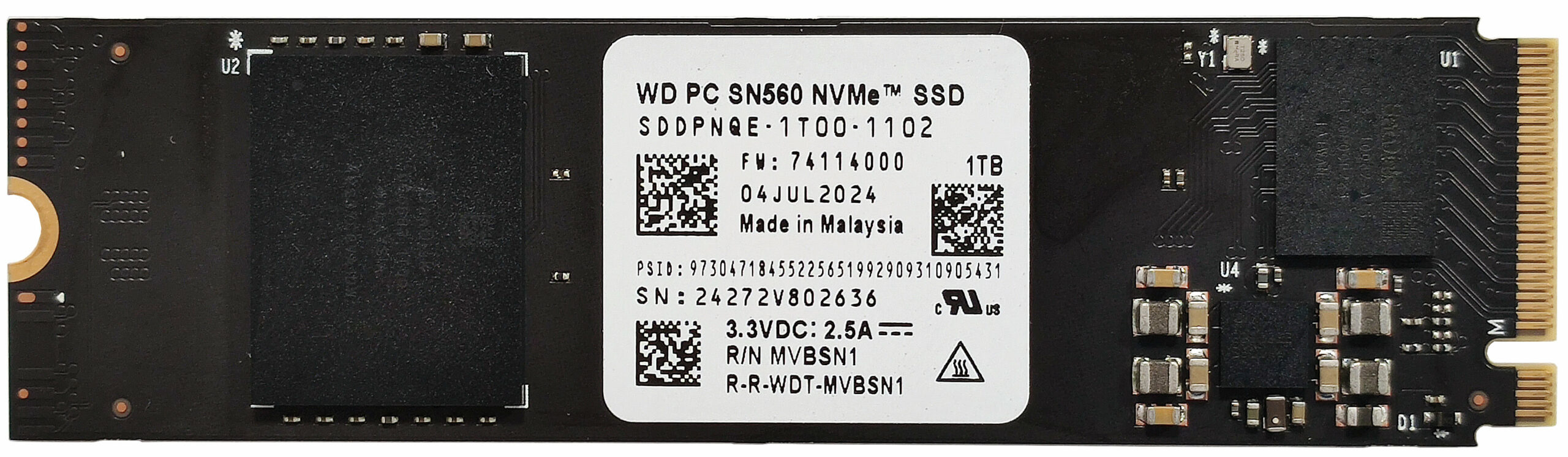
- 1x 2280 M.2 NVMe PCIe 4.0 x4 See photo
- RAM
- up to 32GB
- OS
- Windows 11 Home, Windows 11 Pro, Windows 11
- Battery
- 72Wh
- Body material
- Aluminum
- Dimensions
- 310.3 x 214.7 x 11.9 - 12.9 mm (12.22" x 8.45" x 0.47")
- Weight
- 1.20 kg (2.6 lbs)
- Ports and connectivity
- 1x USB Type-A
- 3.2 Gen 2 (10 Gbps)
- 2x USB Type-C
- Thunderbolt 4, Power Delivery (PD), DisplayPort
- HDMI
- 2.1
- Card reader
- Ethernet LAN
- Wi-Fi
- Wi-Fi 7
- Bluetooth
- 5.4
- Audio jack
- 3.5mm Combo Jack
- Features
- Fingerprint reader
- optional
- Web camera
- FHD IR with support for Windows Hello Face Authentication
- Backlit keyboard
- Microphone
- Array Microphone
- Speakers
- 4x Stereo Speakers, Smart Amp, harman/kardon
- Optical drive
- Security Lock slot
All ASUS Zenbook S 14 (UX5406) configurations
Drivers
All drivers and utilities for this notebook can be found here: https://www.asus.com/laptops/for-home/zenbook/asus-zenbook-s-14-ux5406/helpdesk_download?model2Name=UX5406SA
What’s in the box?
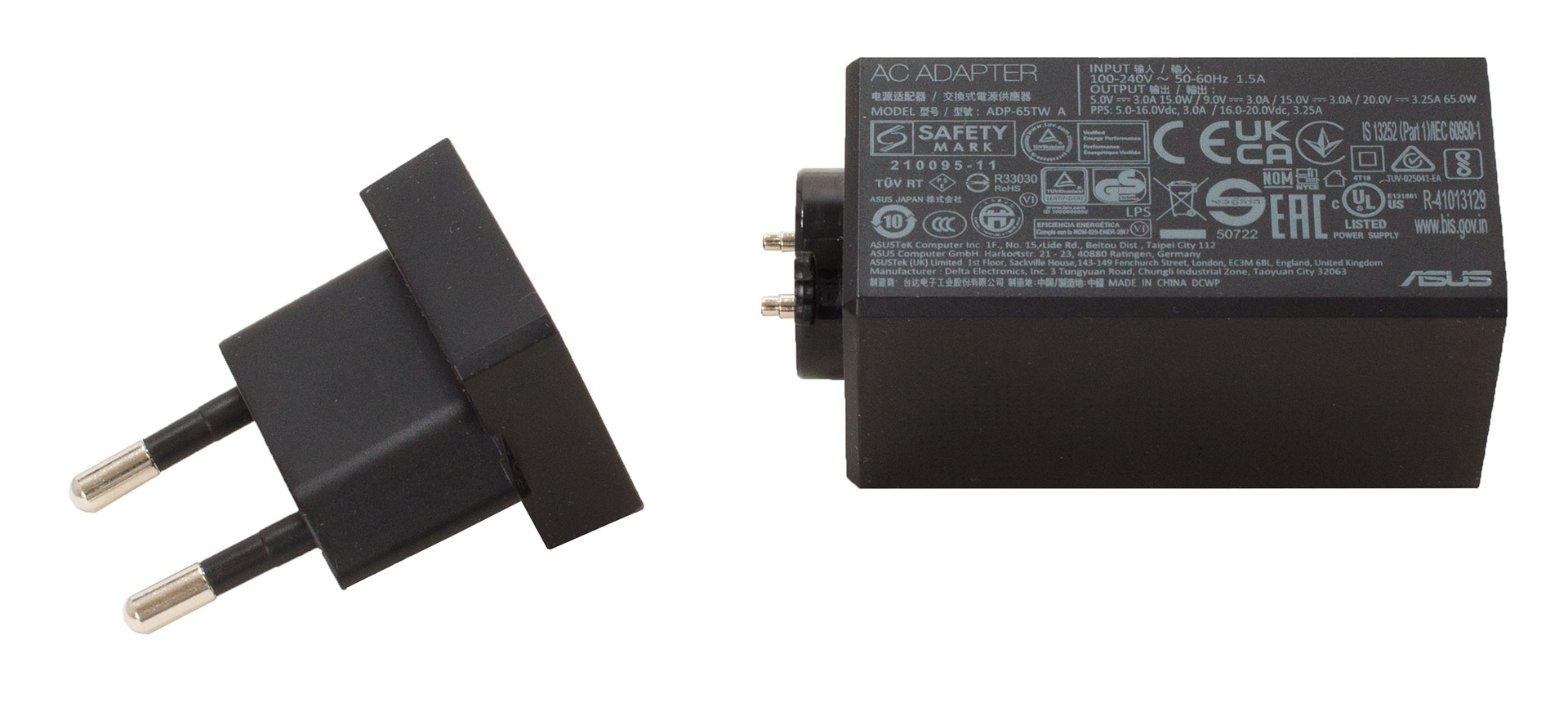
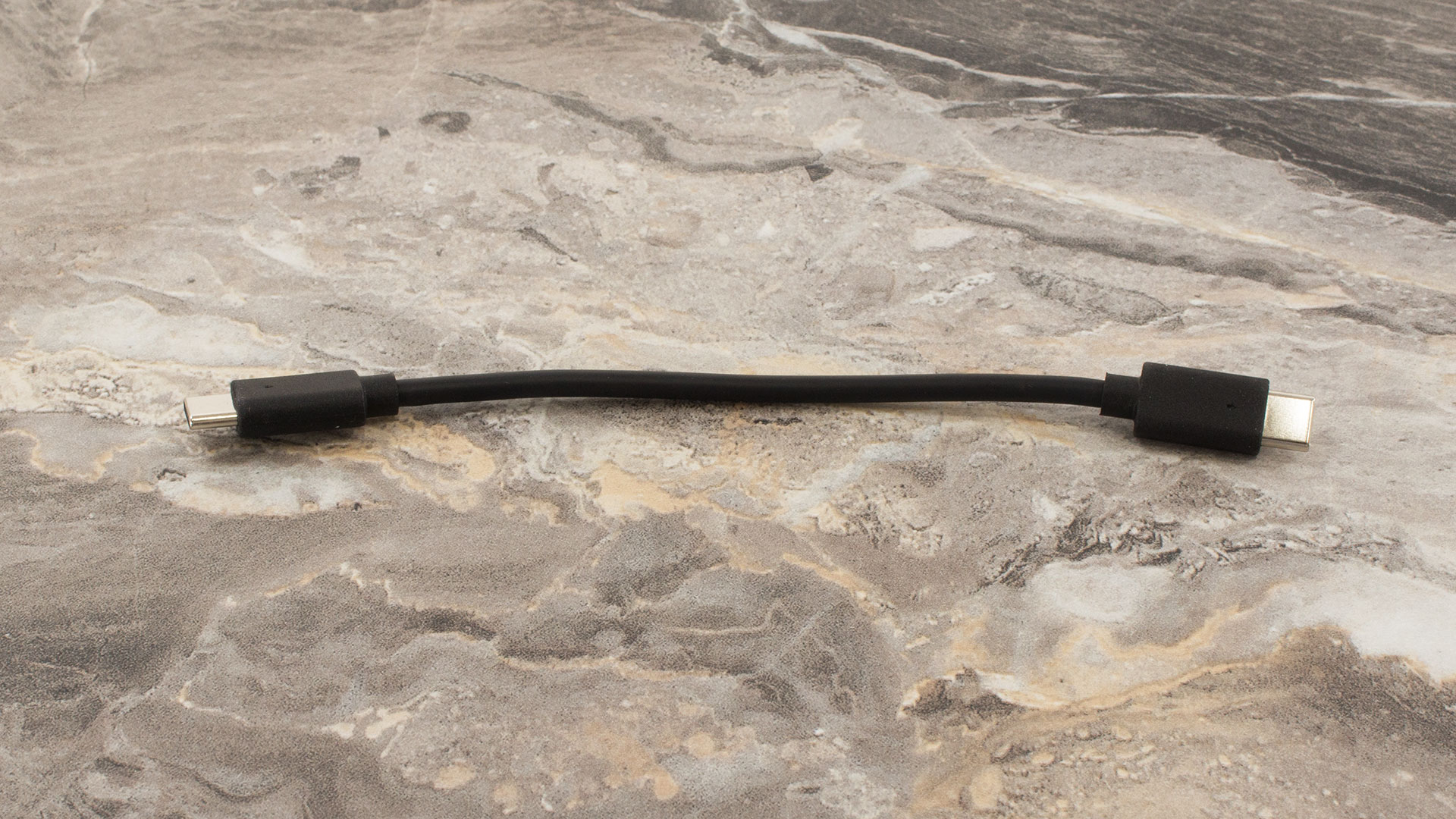
The box contains a 65W Type-C adapter and the laptop itself.
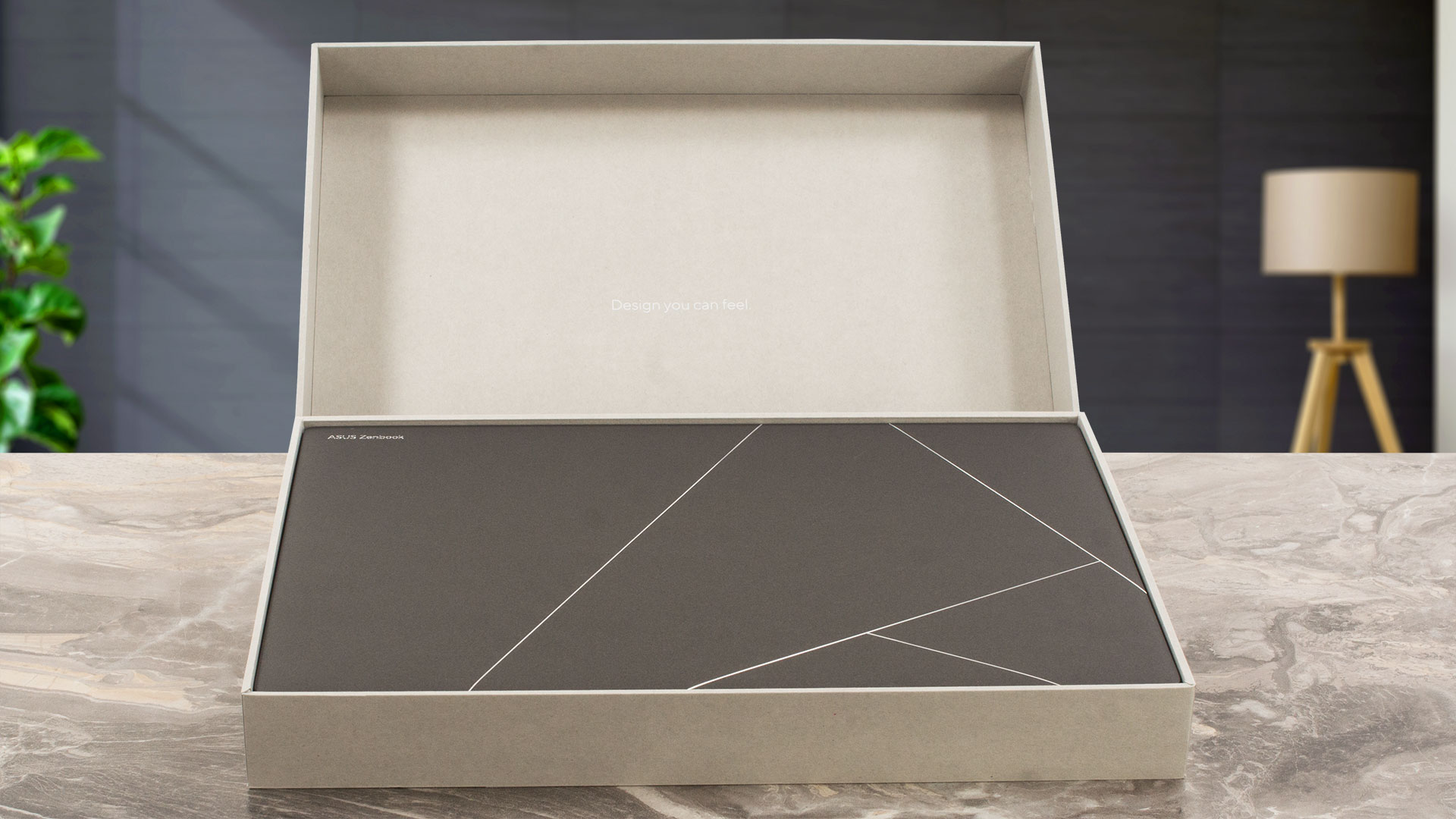
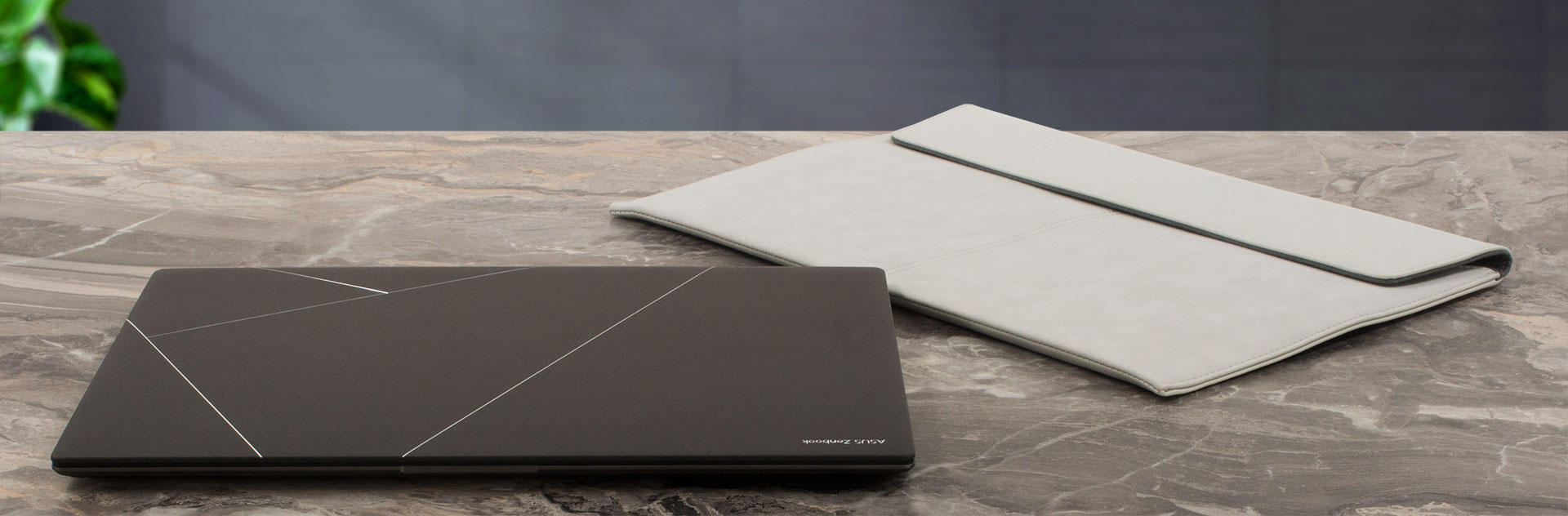
The sleeve, the ASUS Pen SA203H-MPP2.0, and the USB-A to RJ45 LAN adapter are optional accessories.
Design and construction
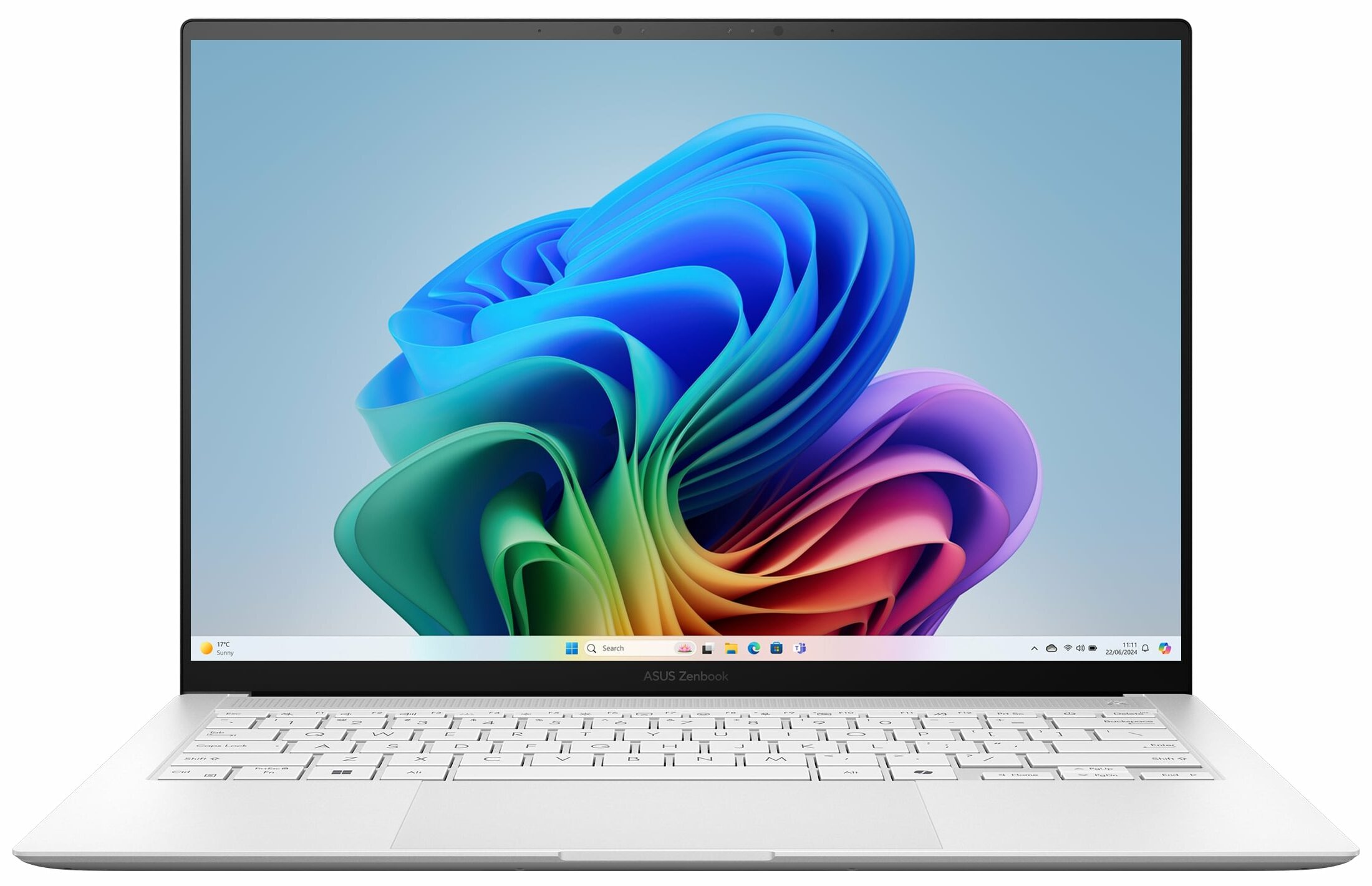
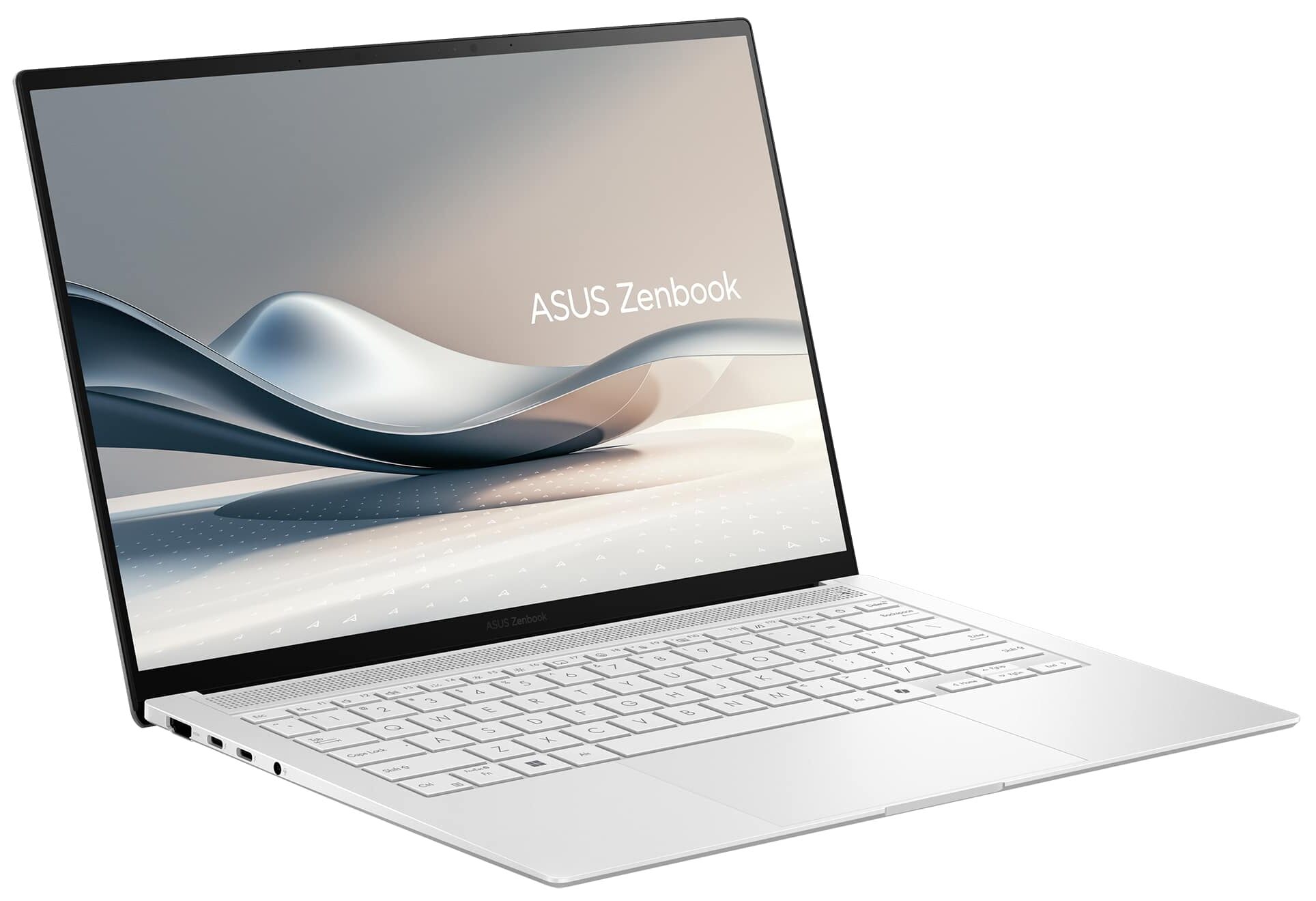
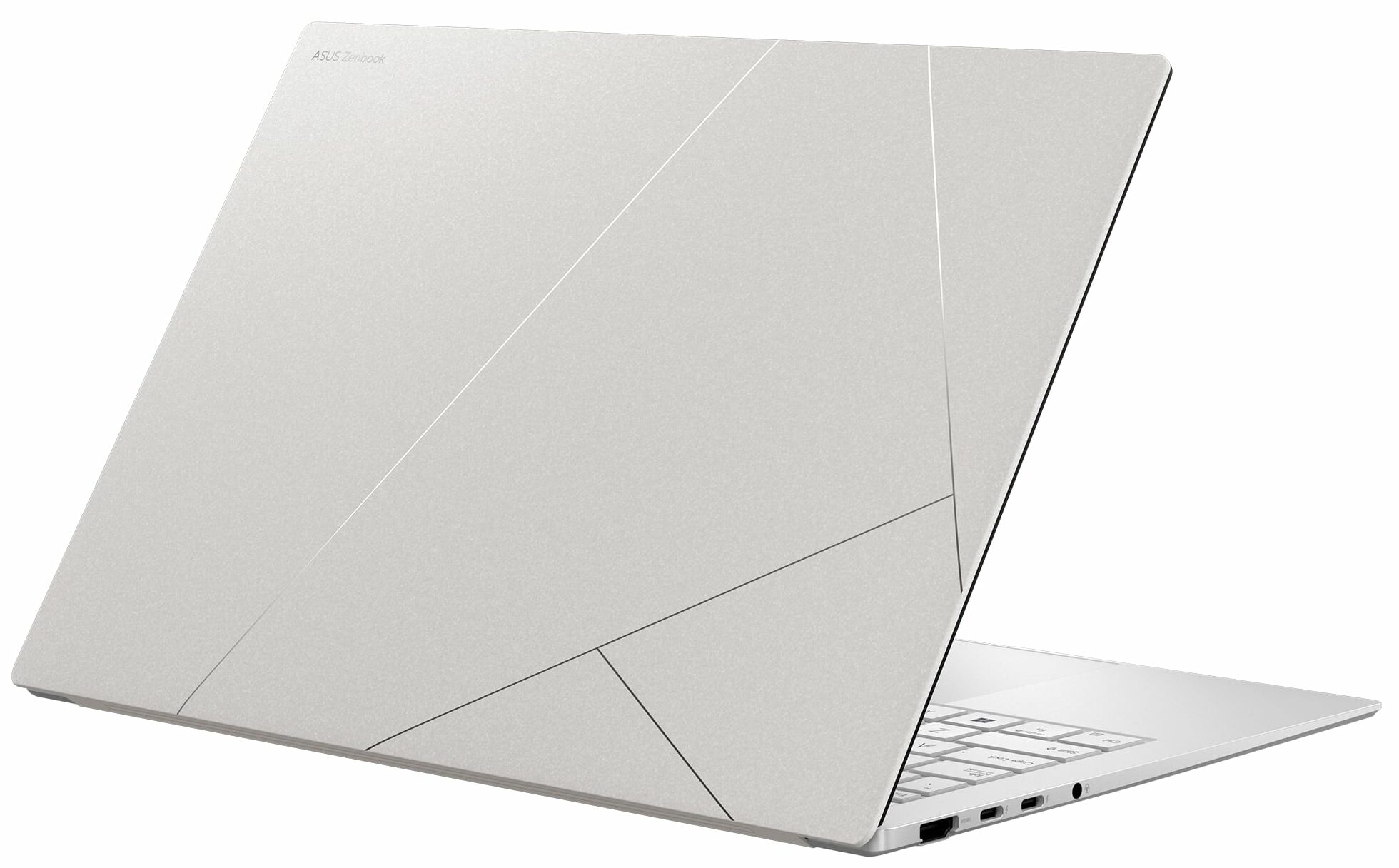
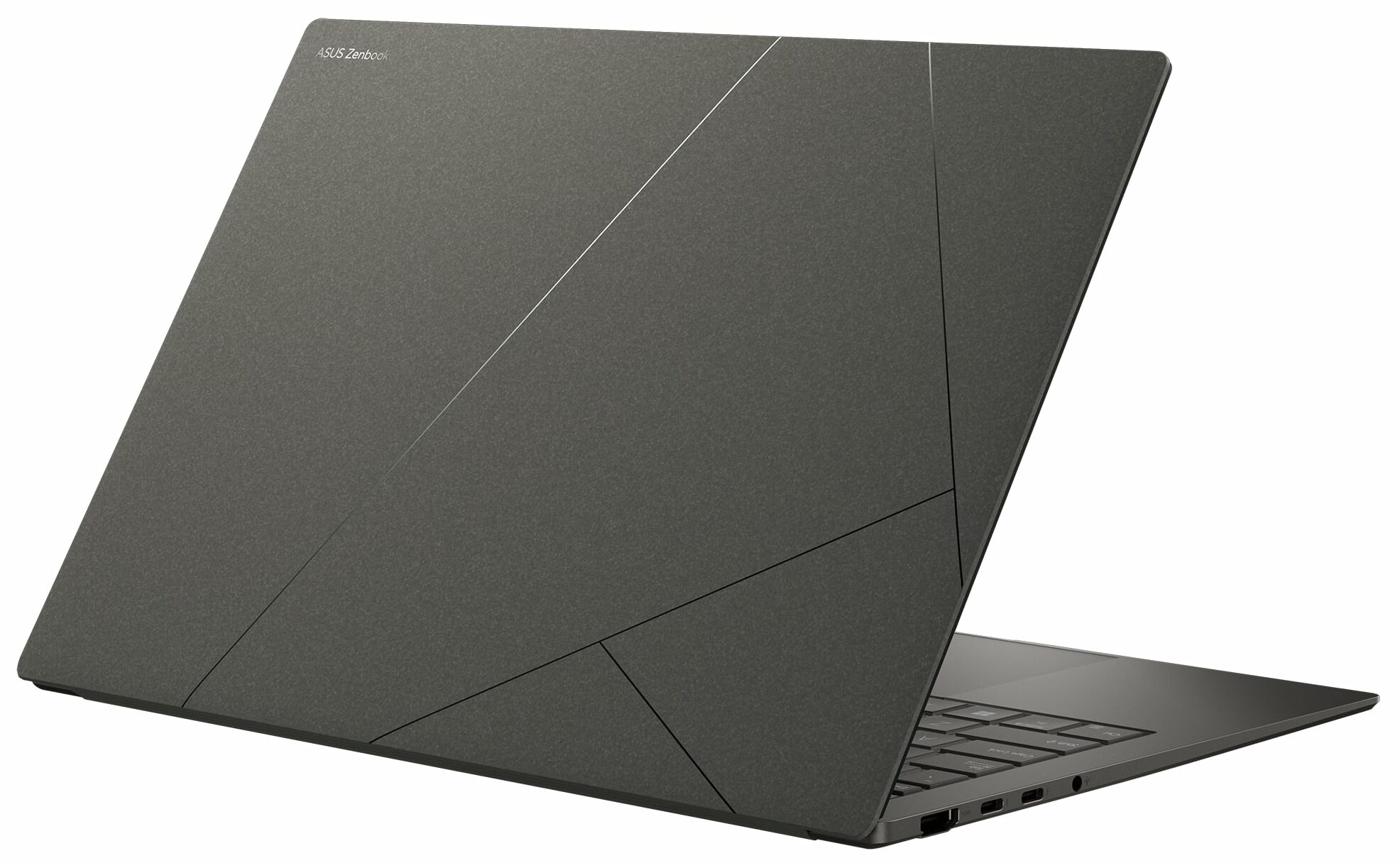
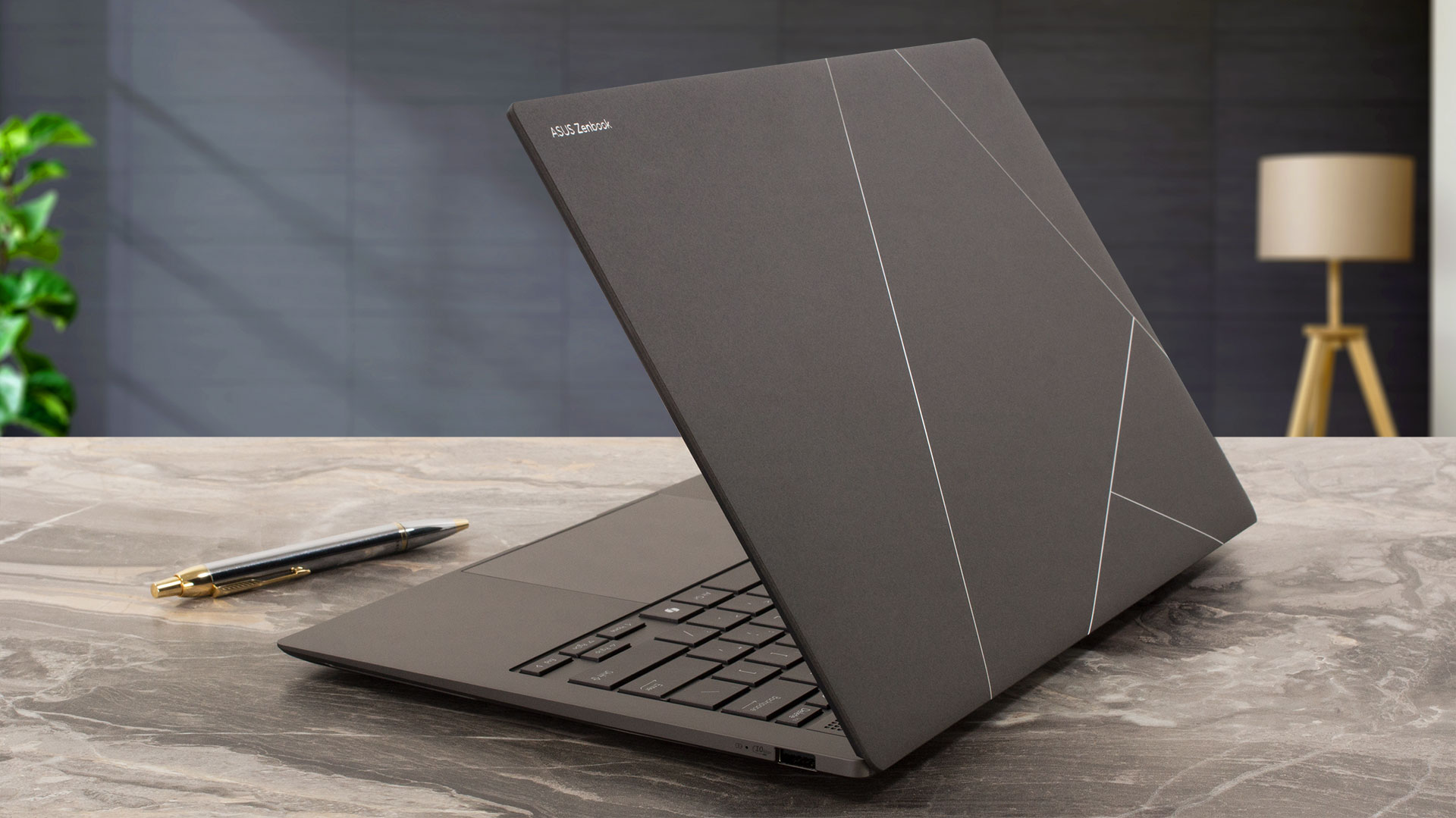
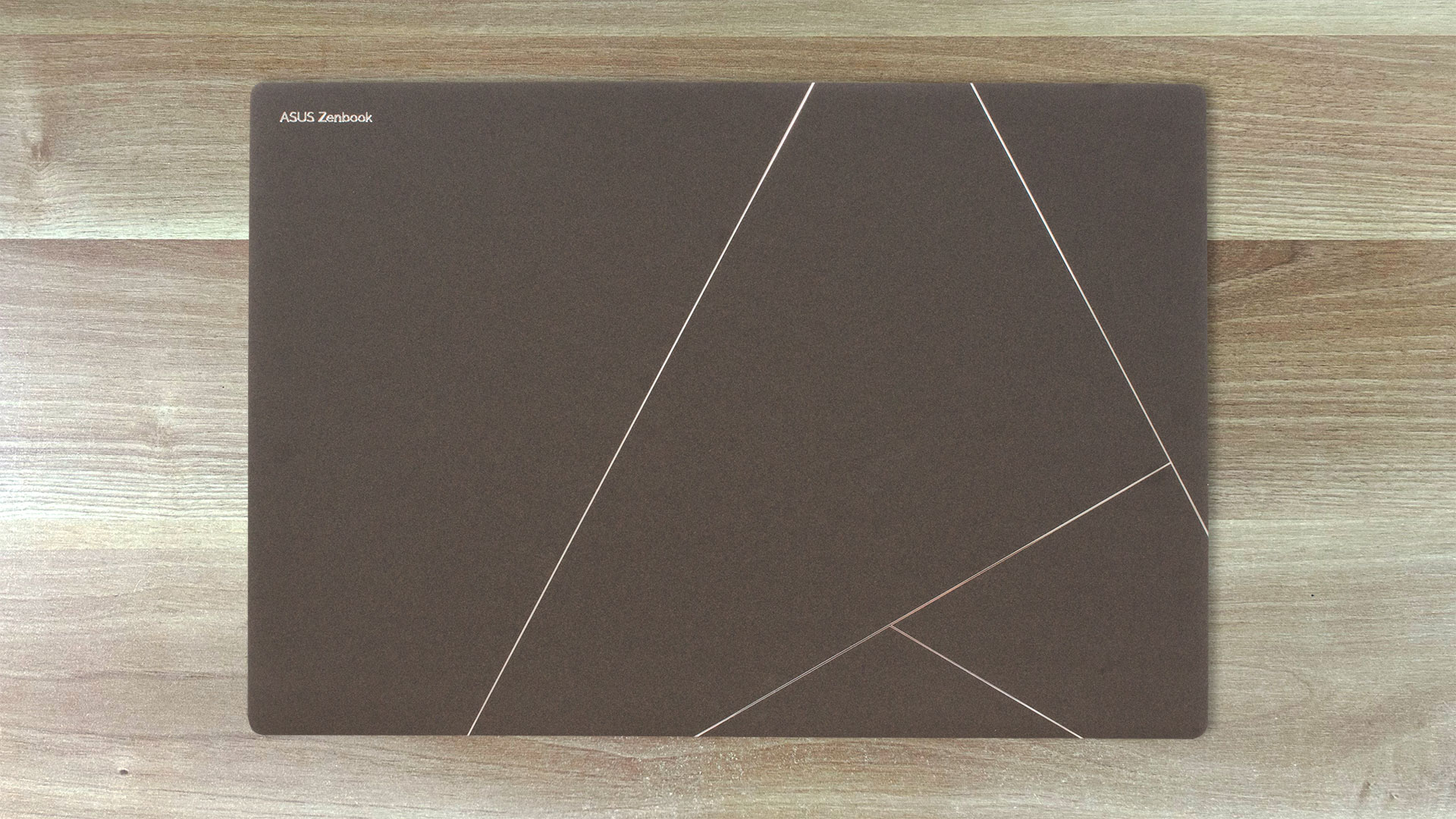
The Zenbook S 14 UX5406 features the same clean and minimalistic design as its bigger AMD-based UM5606 sibling. Here we have a laptop in a Zumaia Gray color but you can find this gadget also in Scandinavian White. The lid is made of “Ceraluminum” which is a mixture of ceramic and aluminum. In real life, it translates into great rigidity which is mindblowing given how thin this unit is. The metal base is also solid.
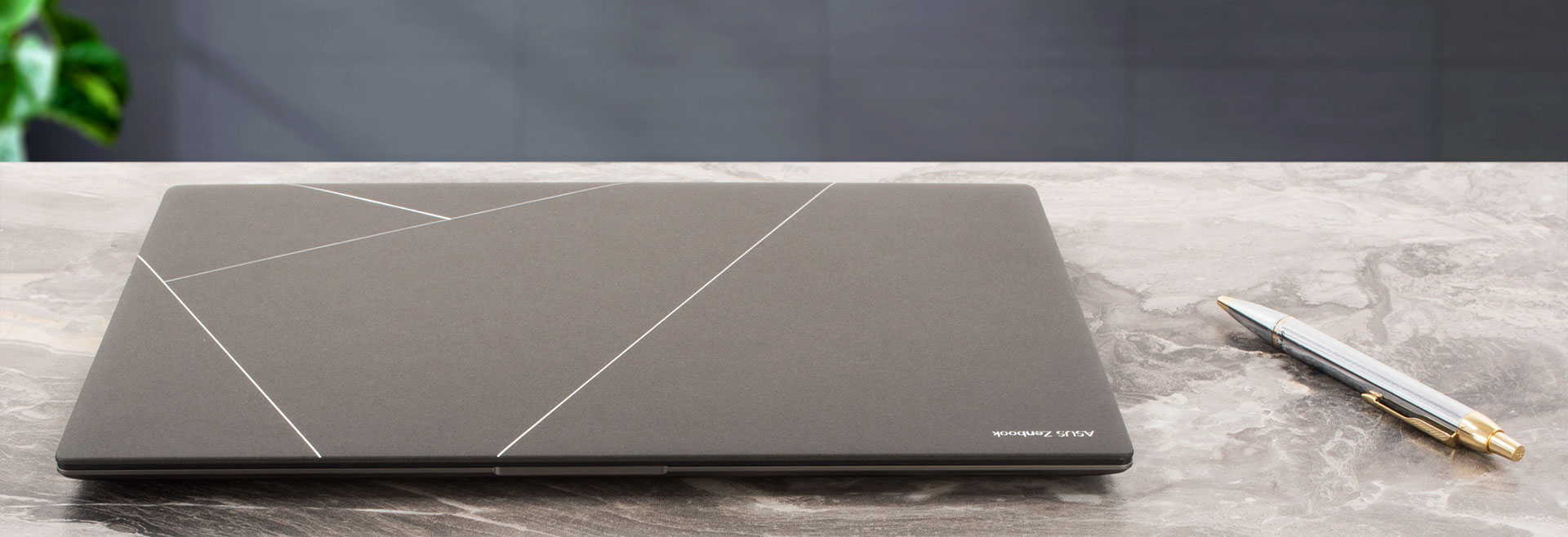
The lid also opens super smoothly with just one hand. The chassis finish feels premium to the touch and it is almost smudge-proof. The profile height is just 11.9 – 12.9 mm. The overall portability is great since this device stops the scales at 1.20 kilos.
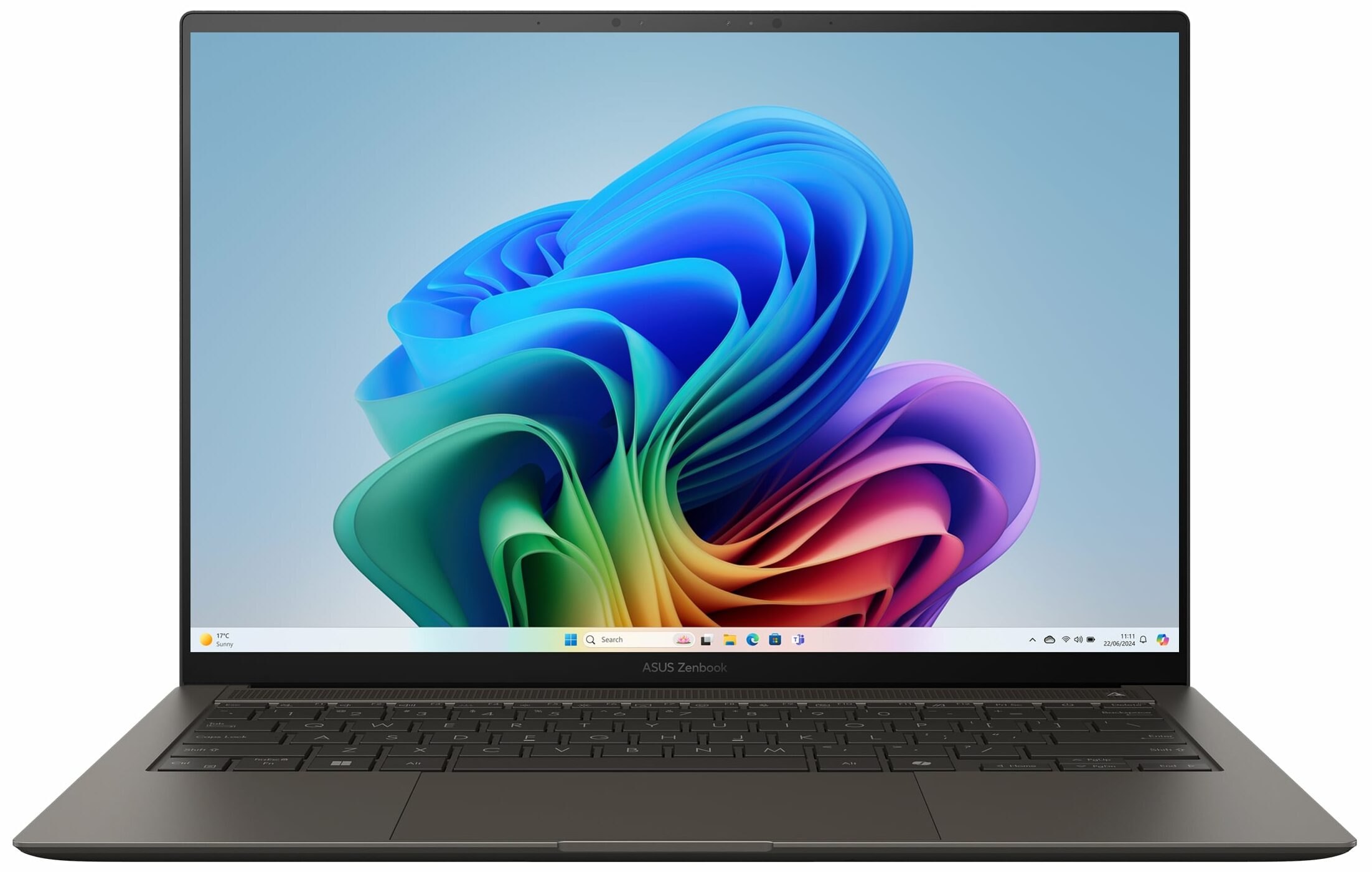
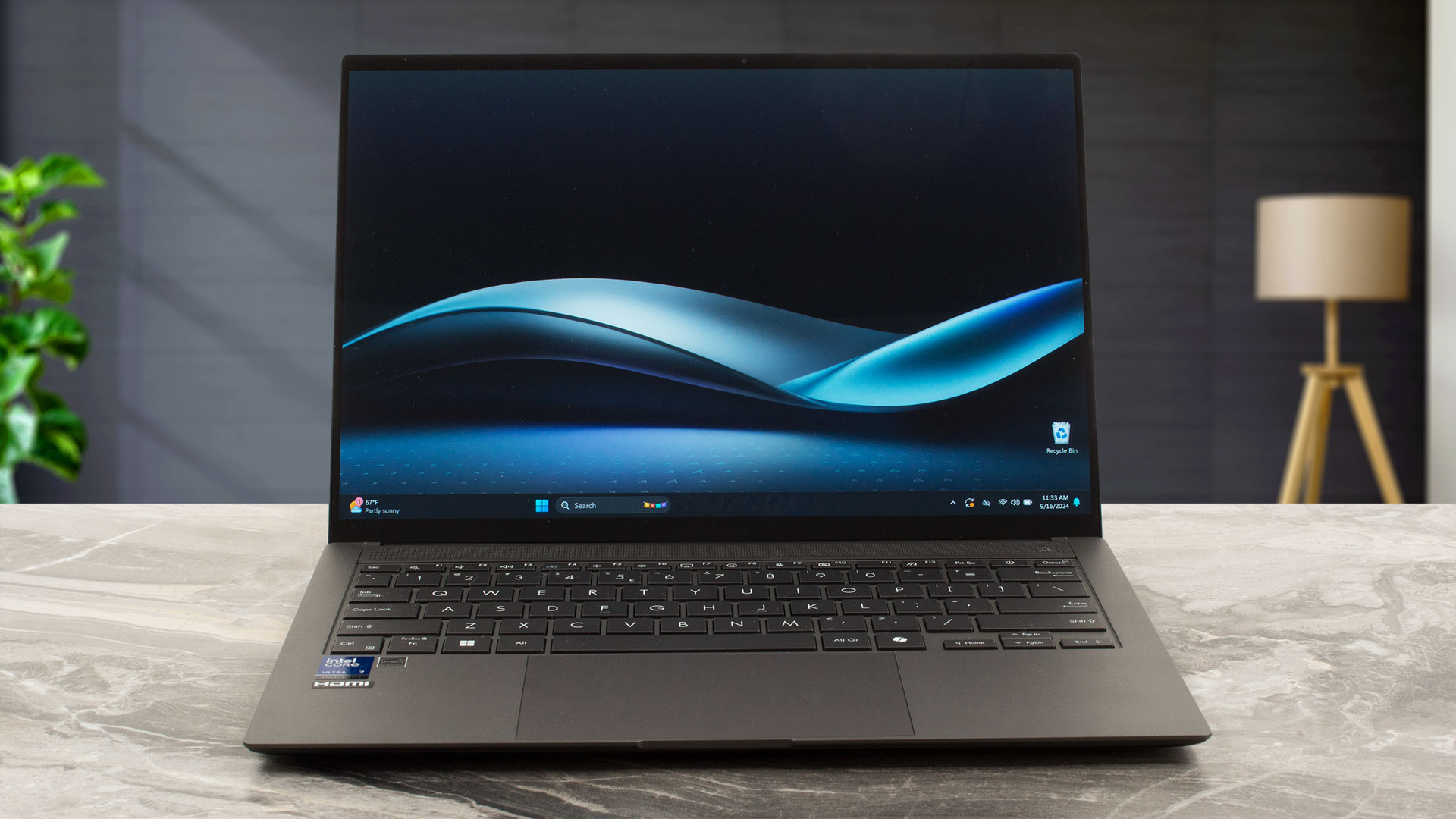
The bezels that surround the color-accurate OLED display are narrow which leads to a modern look. The 1080p IR Web camera on top can dim the display when you aren’t looking at it or lock the PC when you are away from it.
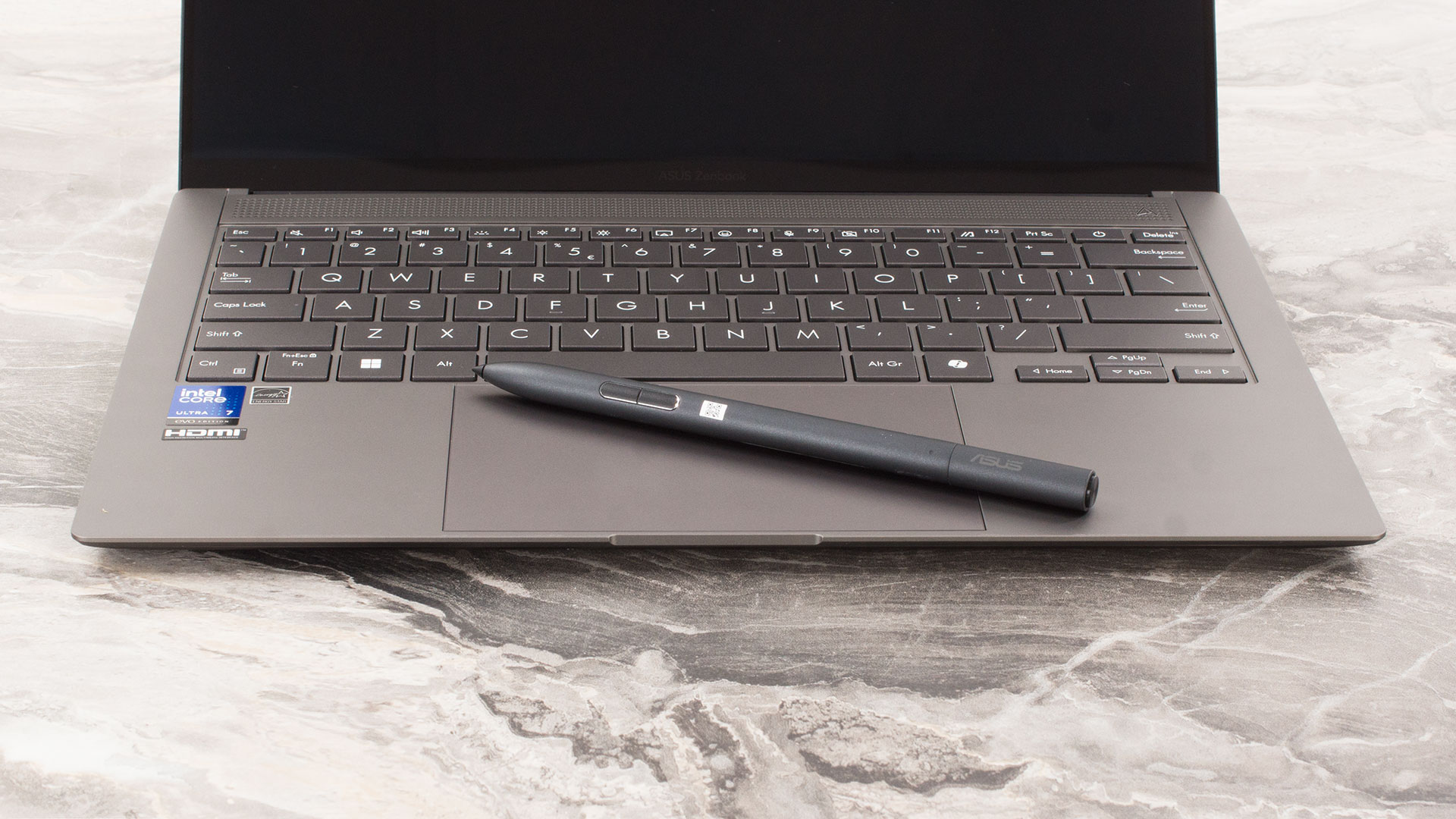
Our notebook has a touchscreen and that’s why the ASUS Pen is included in the box. The stylus works as intended, it glides with ease when you want to unleash your creativity by sketching or drawing something on the screen.
The max angle of the opening is pretty limited but it’s enough for normal work.
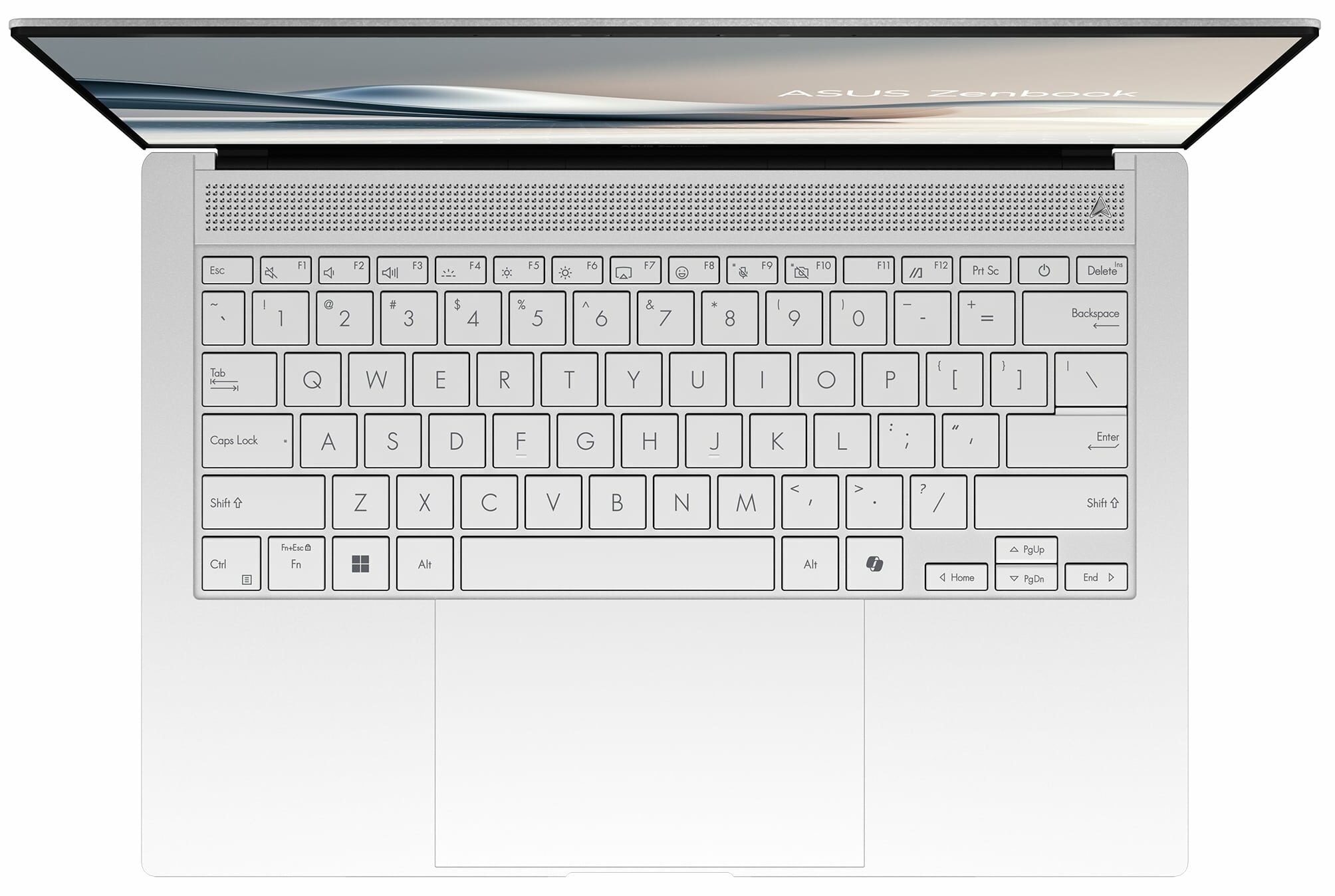
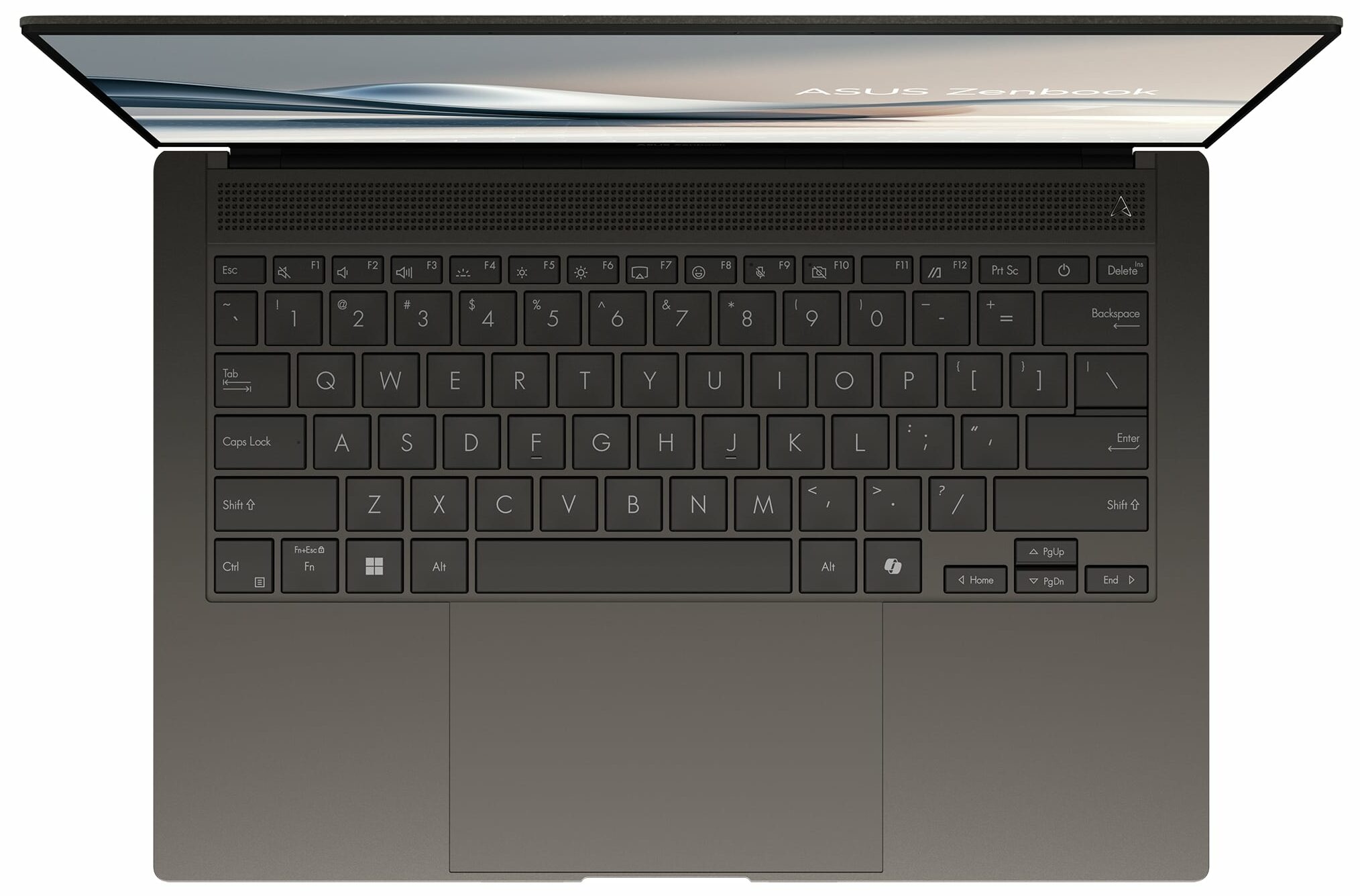
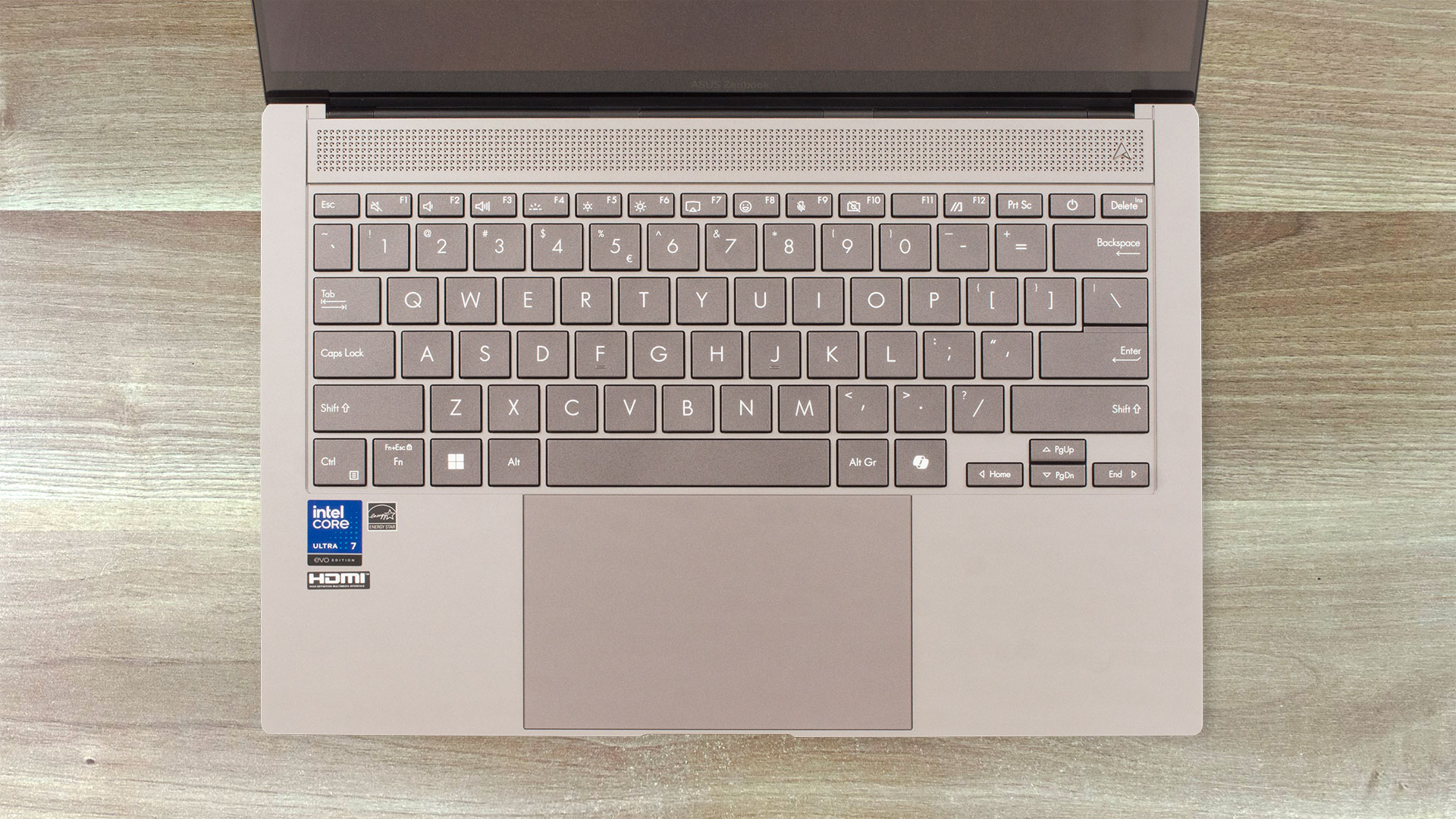
On the main body, we can spot a top grill with a geometric design and a 2715 CNC-machined cooling vent that enhances the cooling efficiency (or at least ASUS states so). The backlit keyboard is almost perfect for a laptop in this category. Despite the slim design, the keyboard offers a comfortable typing experience with keys that have a satisfying travel distance of 1.1 millimeters alongside nice feedback.
The so-called ErgoSense touchpad is pretty big (127.0 x 79.17 mm) and it also has a hydrophobic and anti-fingerprint coating. Smart Gestures are onboard allowing quick control for adjusting brightness, volume, and video playback. The pad is superb, its accuracy and smoothness are one of the best we’ve seen in a small laptop.
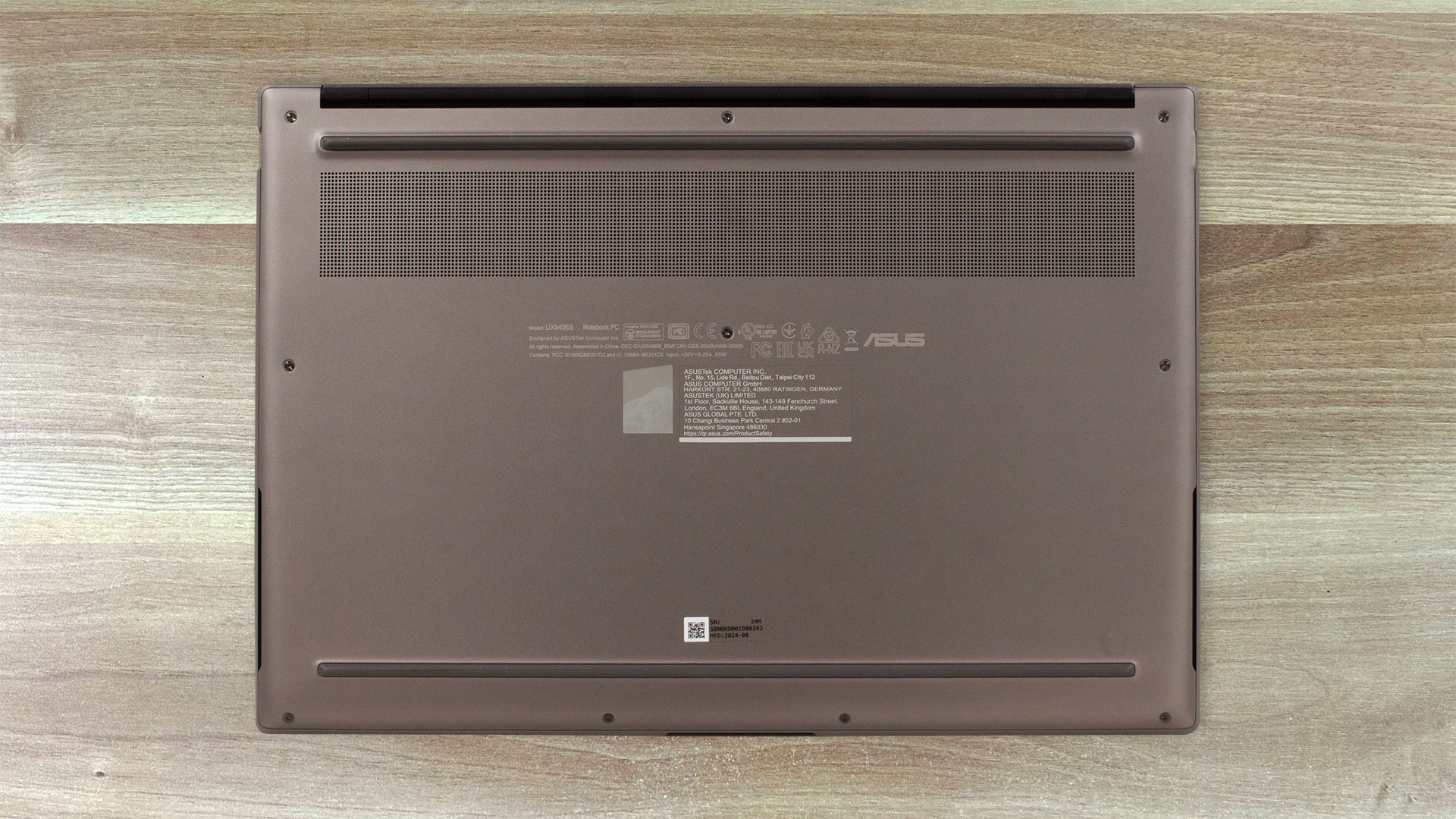
The bottom plate houses a decently sized ventilation grill, two long rubber feet, and two tall speaker cutouts. The hot air is pushed through two vents on the rear. The hinge cover on the back blocks the hot air from reaching the panel during heavy CPU loads.
Ports
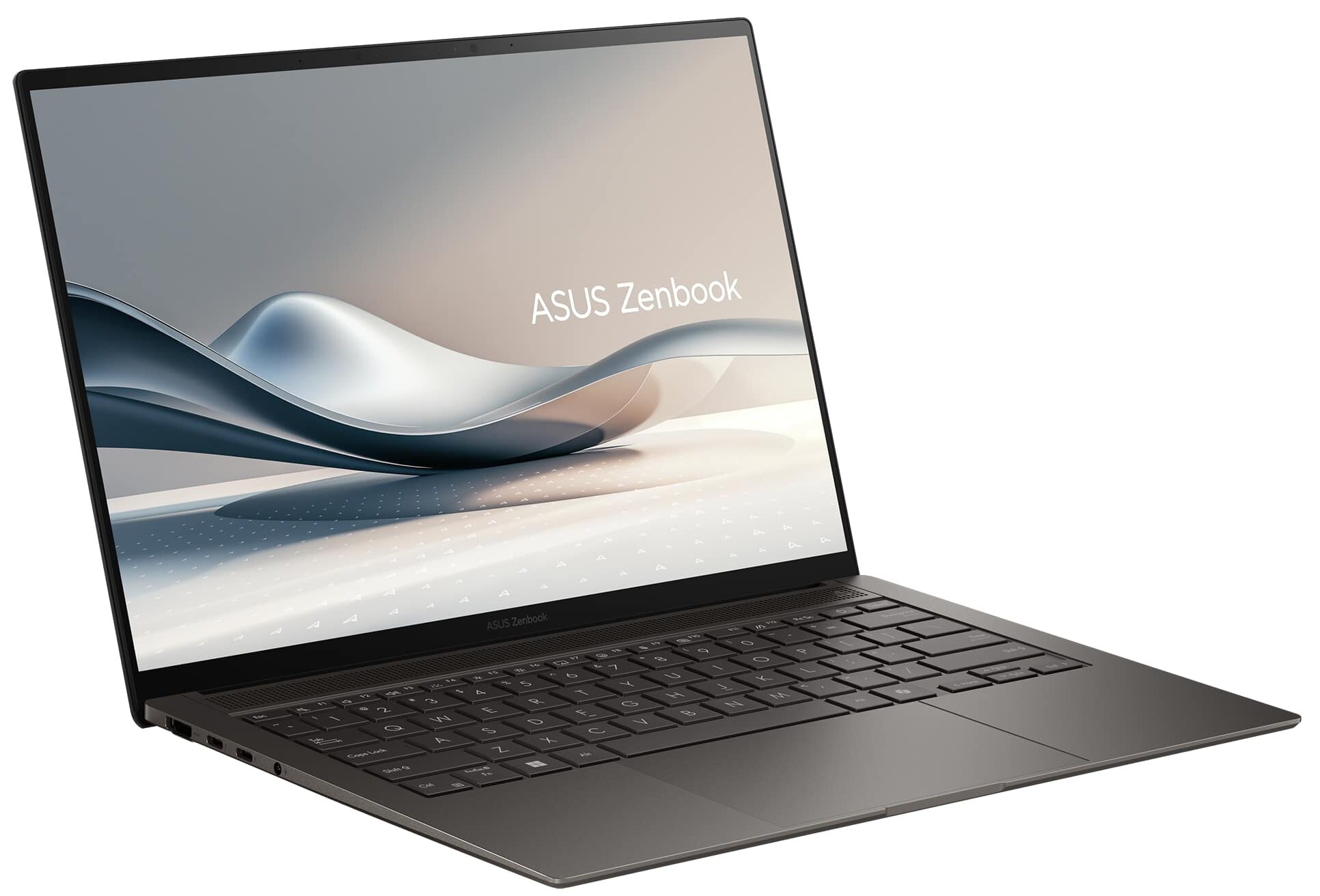
On the left side, you get an HDMI 2.1 TMDS, two 40 Gbps USB4 ports with DisplayPort and PowerDelivery capabilities, and an Audio combo jack. We can spot a 10 Gbps USB Type-A 3.2 (Gen. 2) port on the right.


Display and Sound Quality, Get our Profiles
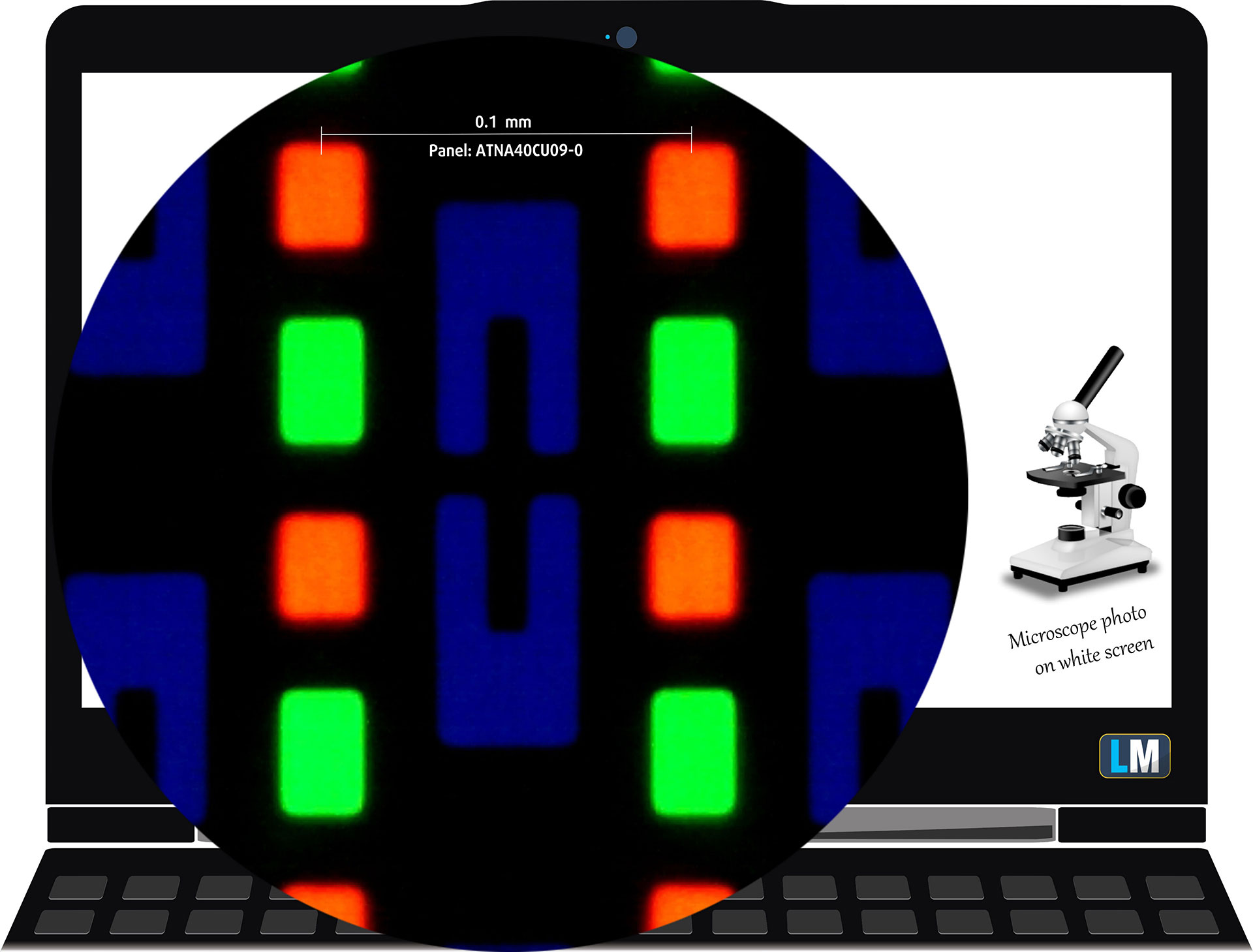
| ASUS ZenBook S14 | ATNA40CU09-0 (SDC419D) |
| Diagonal | 14.0 inches (35.6 cm) |
| Panel Type | OLED Touch |
| Resolution | 2880 x 1800 pixels |
| Max Refresh Rate | 120 Hz |
| Aspect Ratio | 16:10 |
| Pixel Density | 243 PPI |
| ‘Retina’ Distance | Greater than or equal to 36 cm |
Viewing Angles
Viewing angles are good. We take photos from different angles to evaluate the quality.
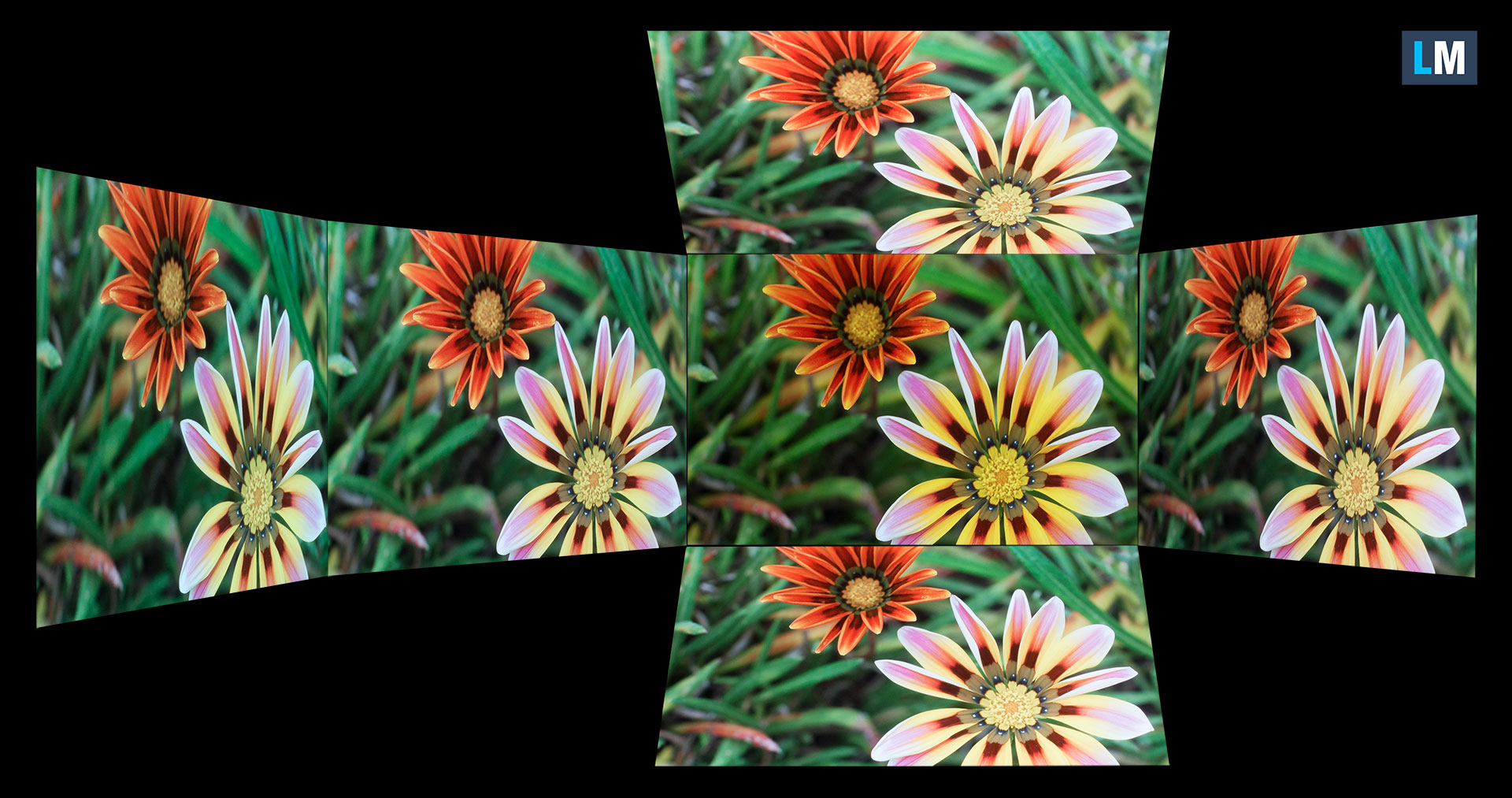
Also, a video with locked focus and exposure.
Color Coverage
The whole “sail-shaped” map below (Fig. 1) consists of all the colors we can see, while the black crooked line shows all the colors from real-world scenes and nature around us.
Then, we’ve drawn some of the most important and interesting color spaces, compared to the colors the panel of ASUS ZenBook S14 can show:
Standard/For Web: sRGB – widely used color space for most consumer devices, ideal for Web design and development
For Print: AdobeRGB – used in professional photo editing, graphic design, and print
For Photographers/Video Editors: DCI-P3 – used in high-end film production, post-production, and digital cinema
Premium HDR: Rec.2020 – the widest consumer ITU color standard, covering a massive 75.8% of the visible spectrum, a benchmark for premium HDR content
ASUS ZenBook S14: the yellow dashed triangle (– – – – – –) represents the range of colors this monitor can display.
In our tests, we calculated the total color coverage of the monitor at 100% of the sRGB color gamut and 100% of the DCI-P3 color gamut.
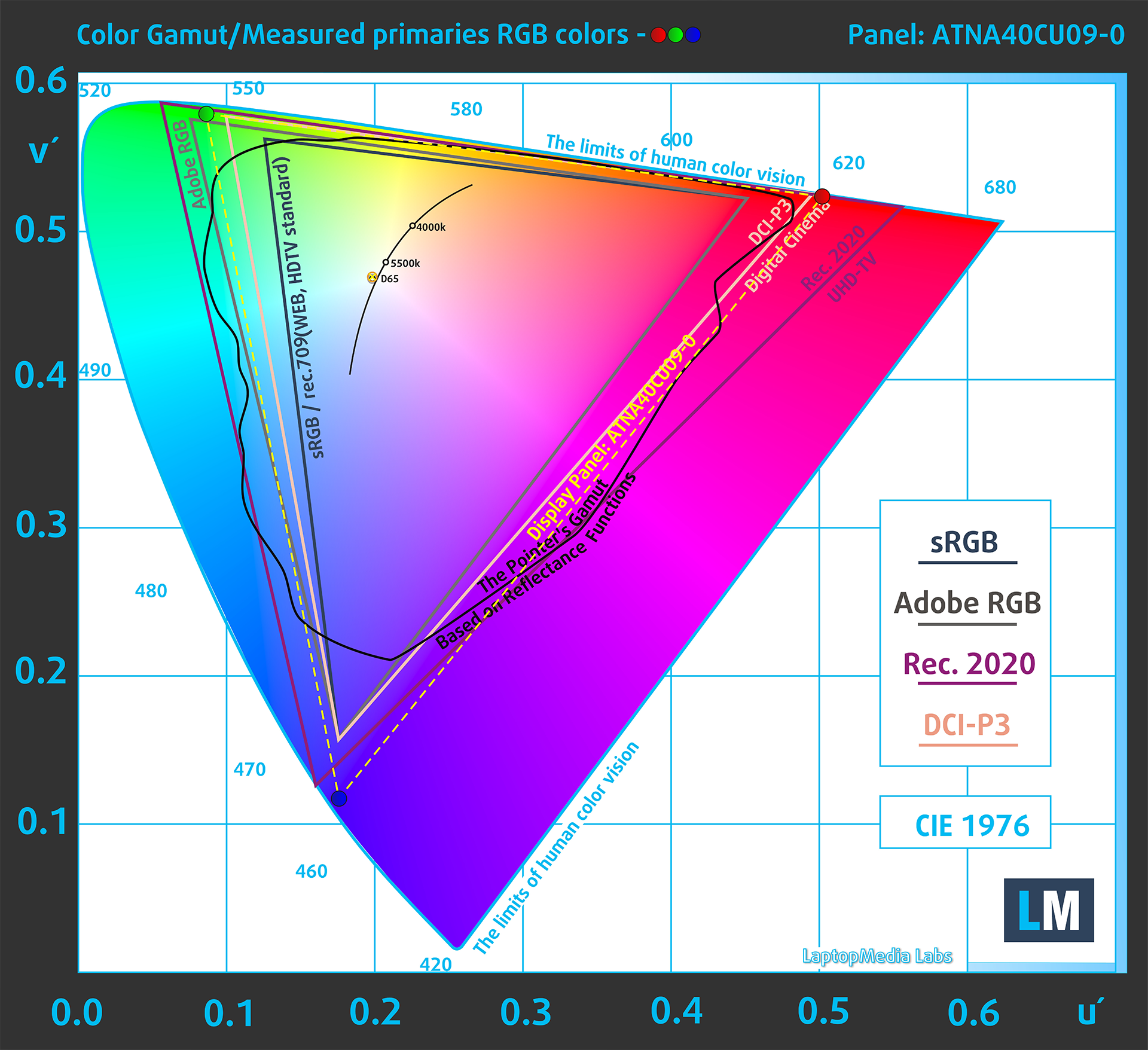
(Fig.1) ASUS ZenBook S14 covers 100% of the DCI-P3 gamut
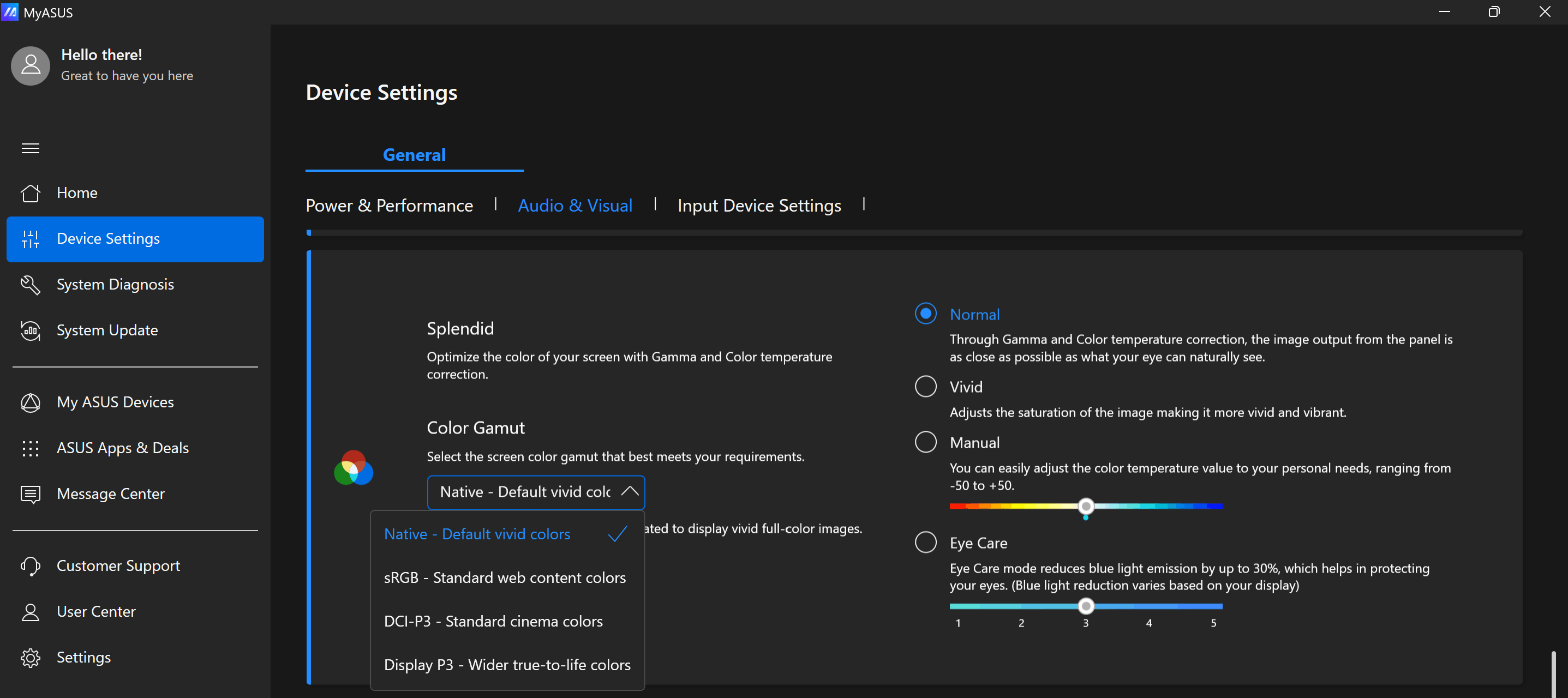
The “MyASUS” app emulates Display P3 and sRGB color spaces.
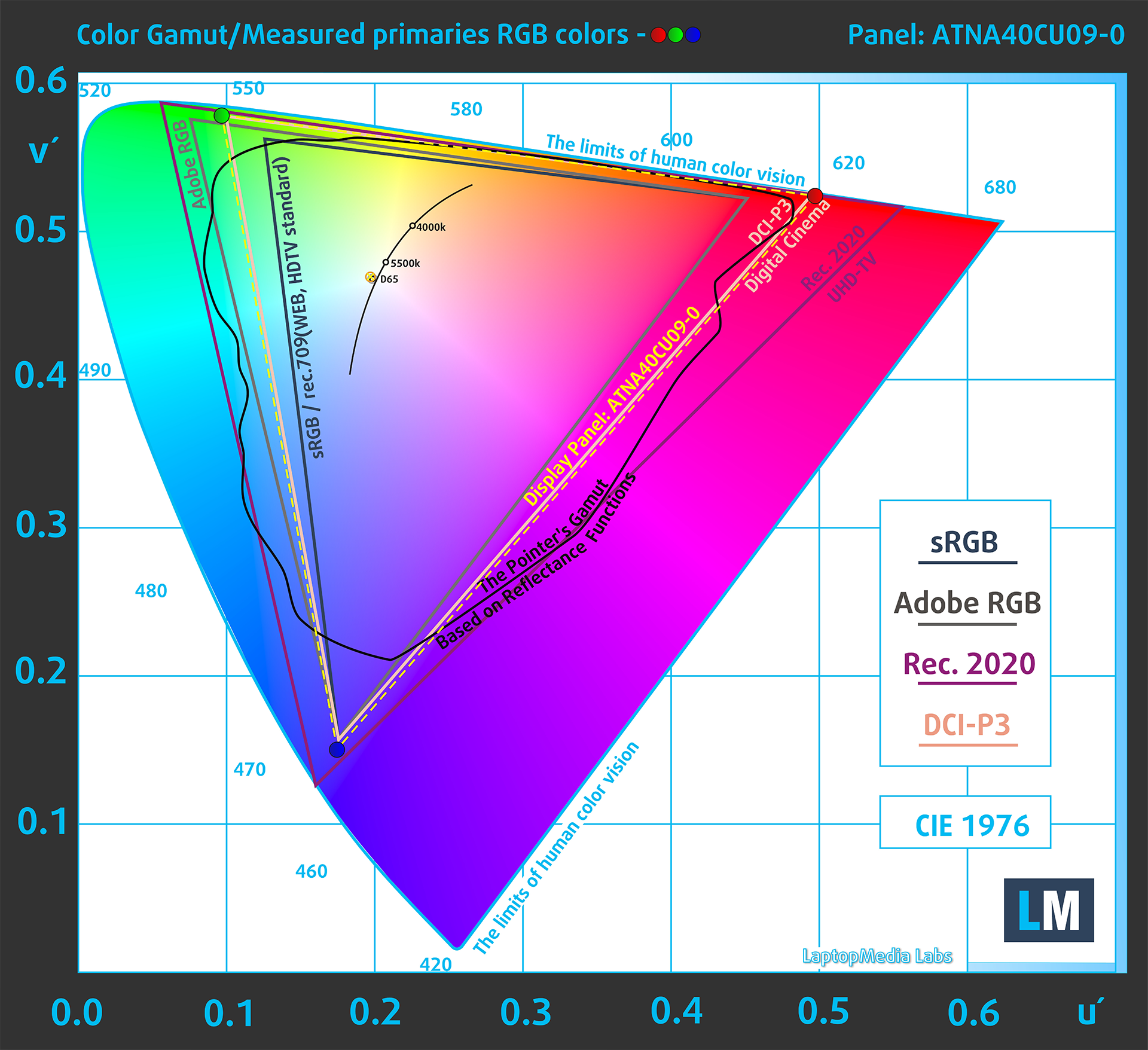
(Fig.2) Display P3
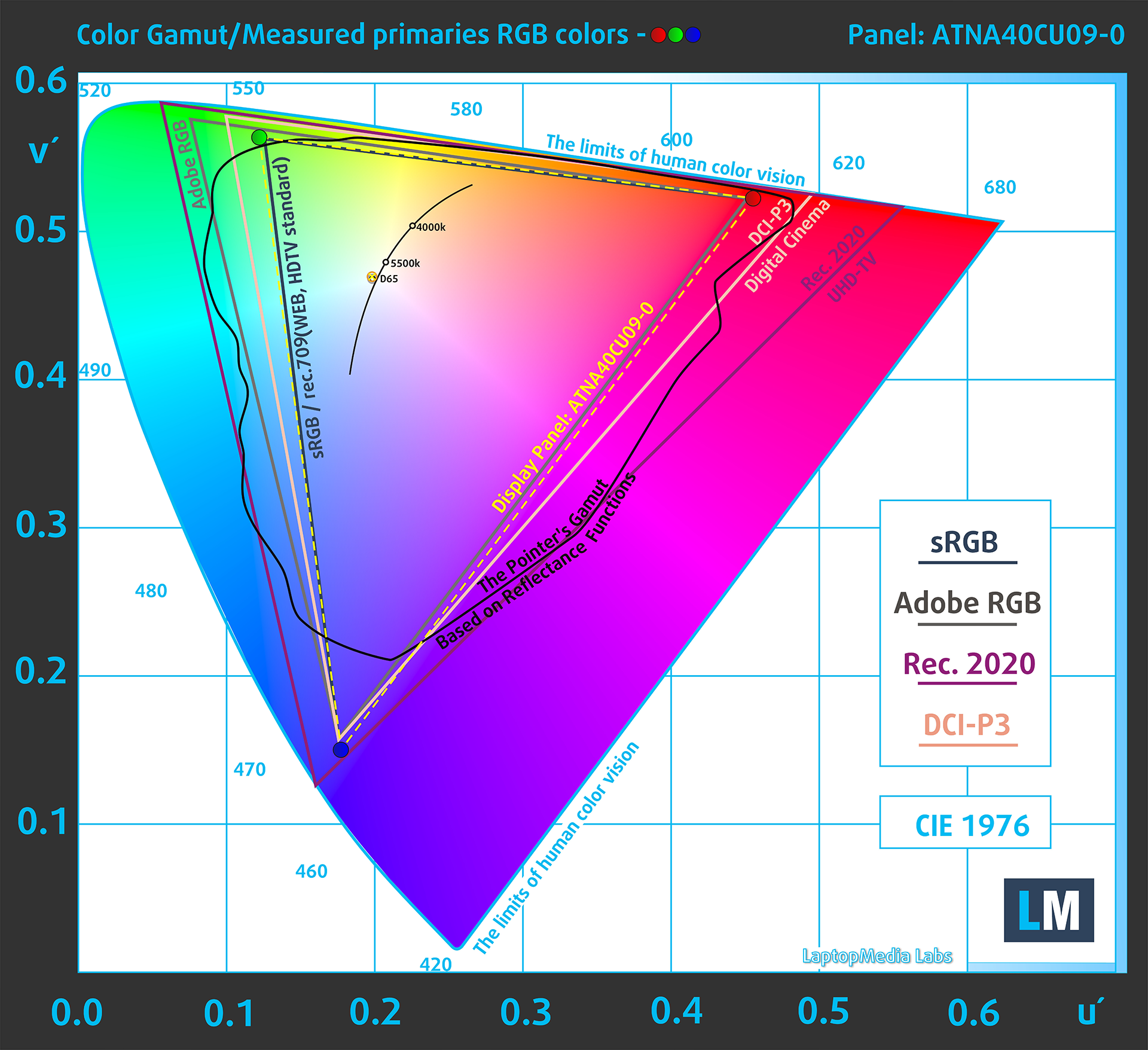
(Fig.3) sRGB
Brightness and Contrast
The maximum brightness in HDR mode is 591 cd/m² at 8% white fill and 583 cd/m² on a full white screen.
The maximum brightness in SDR mode is 364 cd/m² in the center of the screen and 364 cd/m² averaged across the surface with a maximum deviation of 1%.
The Correlated Color Temperature (CCT) on a white screen at maximum brightness is 6480K (“Native-Default, Normal” mode in “MyASUS” app).
The contrast ratio of OLED panels is excellent because the pixels turn off completely when displaying black.
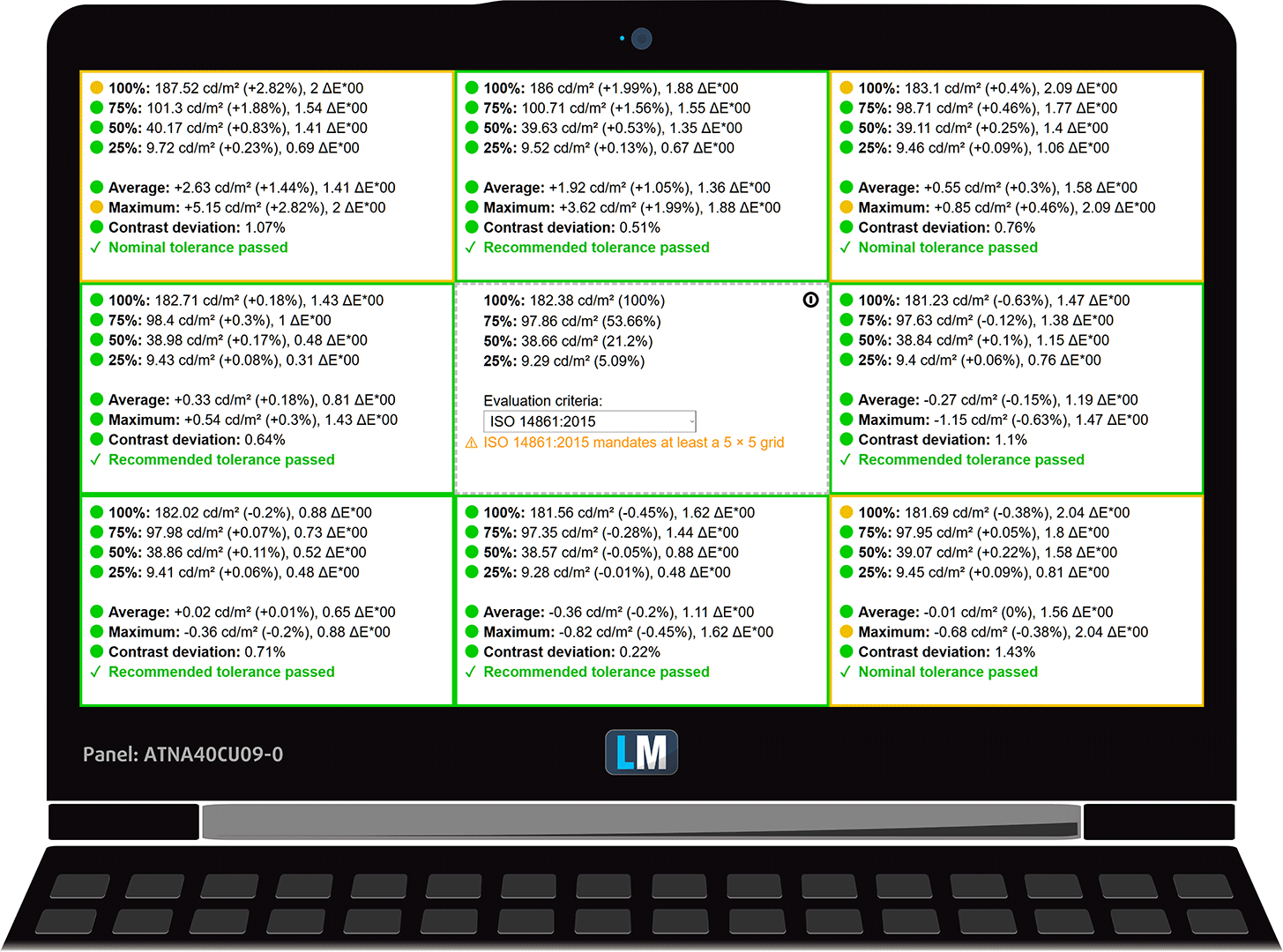
Uniformity: Luminance, Contrast, and Color Deviation
The figure below shows the results from our uniformity test across different sections of the screen. It’s measured at 182 nits (Windows slider = 74%) — a brightness level we consider typical for standard working conditions.
DeltaE values below 4.0 are acceptable for regular users. For those working with colors, screens with DeltaE values no higher than 2.0 are recommended.
Color Accuracy
Let’s check the difference between real colors and those you’ll see on the ASUS ZenBook S14. We measure that distance in DeltaE – the higher the number, the more different they look.
Values below 4.0 are acceptable for regular users, while values below 2.0 are suitable for color-sensitive work. A value below 1.0 means the difference is indistinguishable to the naked eye.
For the next graph, we’ve selected 24 common colors, including dark/light skin, blue sky, green grass, etc.
Below are the results of the ASUS ZenBook S14 in its factory condition (HDR off) compared to Display P3 and sRGB color spaces.
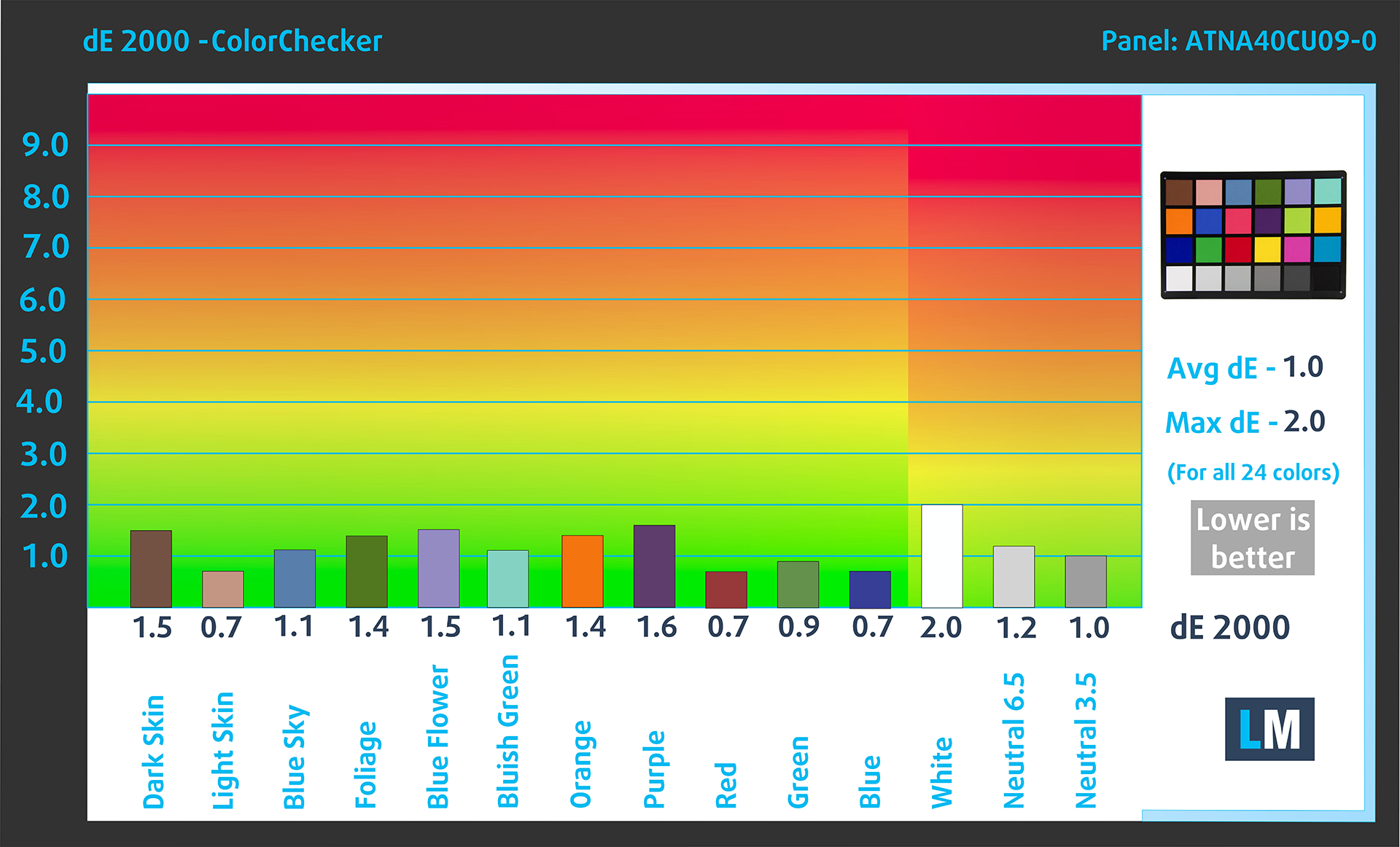
(Fig. 4) ASUS ZenBook S14 in Display P2
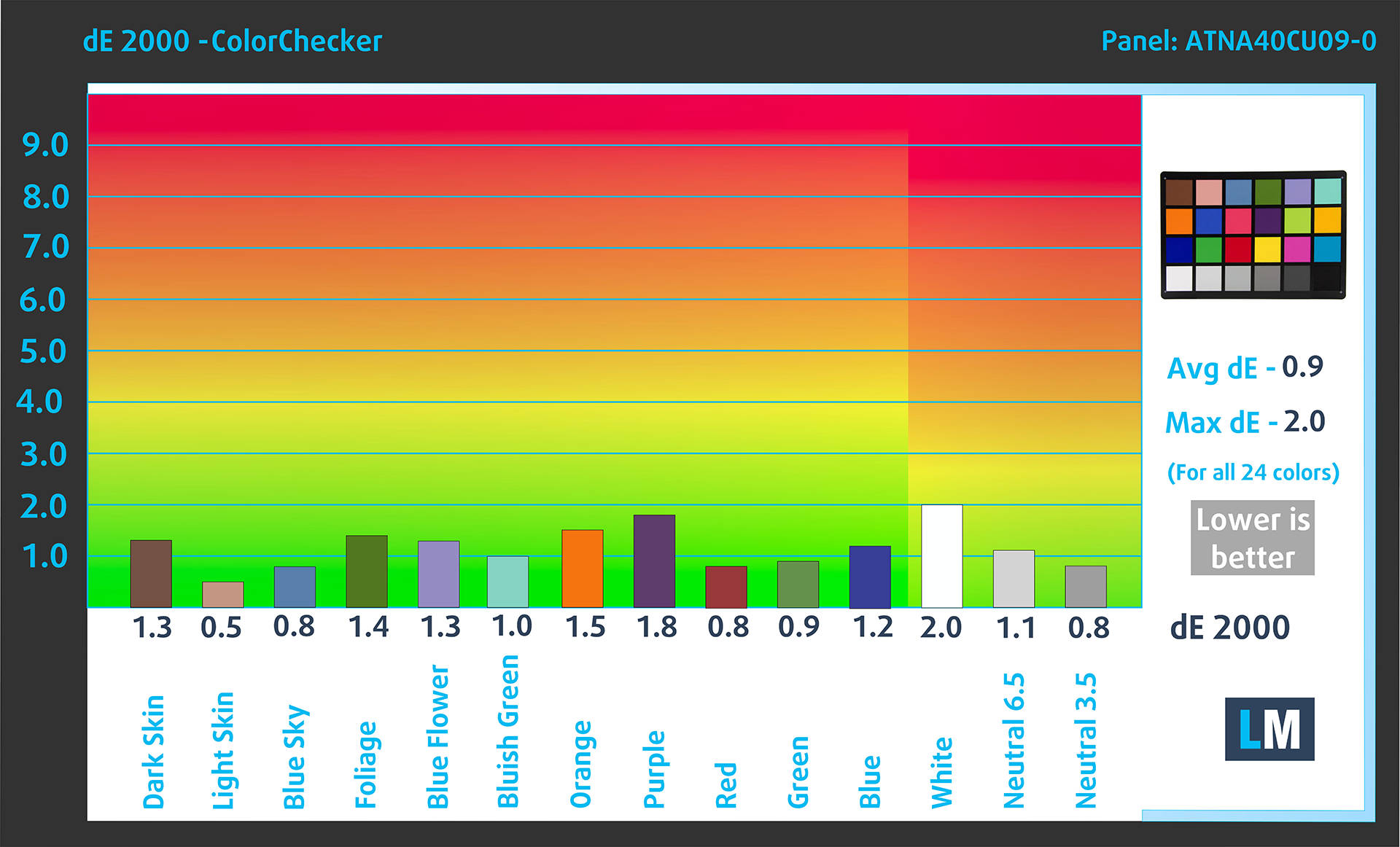
(Fig. 5) ASUS ZenBook S14 in sRGB
Visibility in dark scenes
Have you ever watched a movie with dark scenes where you could barely see anything? This often happens because many display panels struggle to differentiate the darkest nuances, making them appear the same.
The next figure illustrates how well the display reproduces these dark nuances. The left side of the image shows the display with stock settings, and the right side shows it with our Design and Gaming profile activated.
On the horizontal axis are the grayscale levels, and on the vertical axis – the corresponding display brightness.
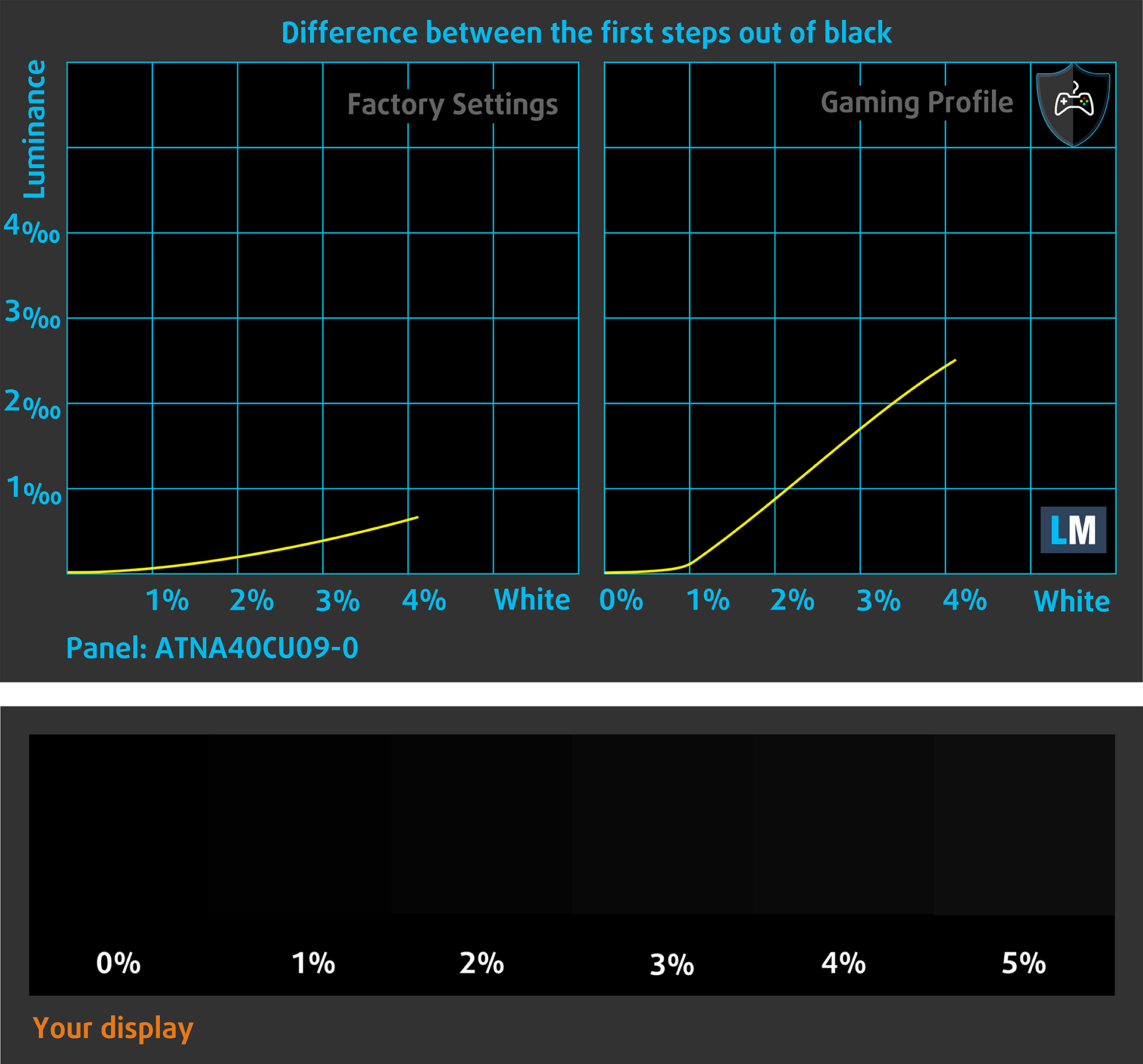
You can also check how your display handles the darkest nuances but keep in mind that this also depends on the settings of your current display and the surrounding light conditions.
Health Impact: PWM (Screen flickering)
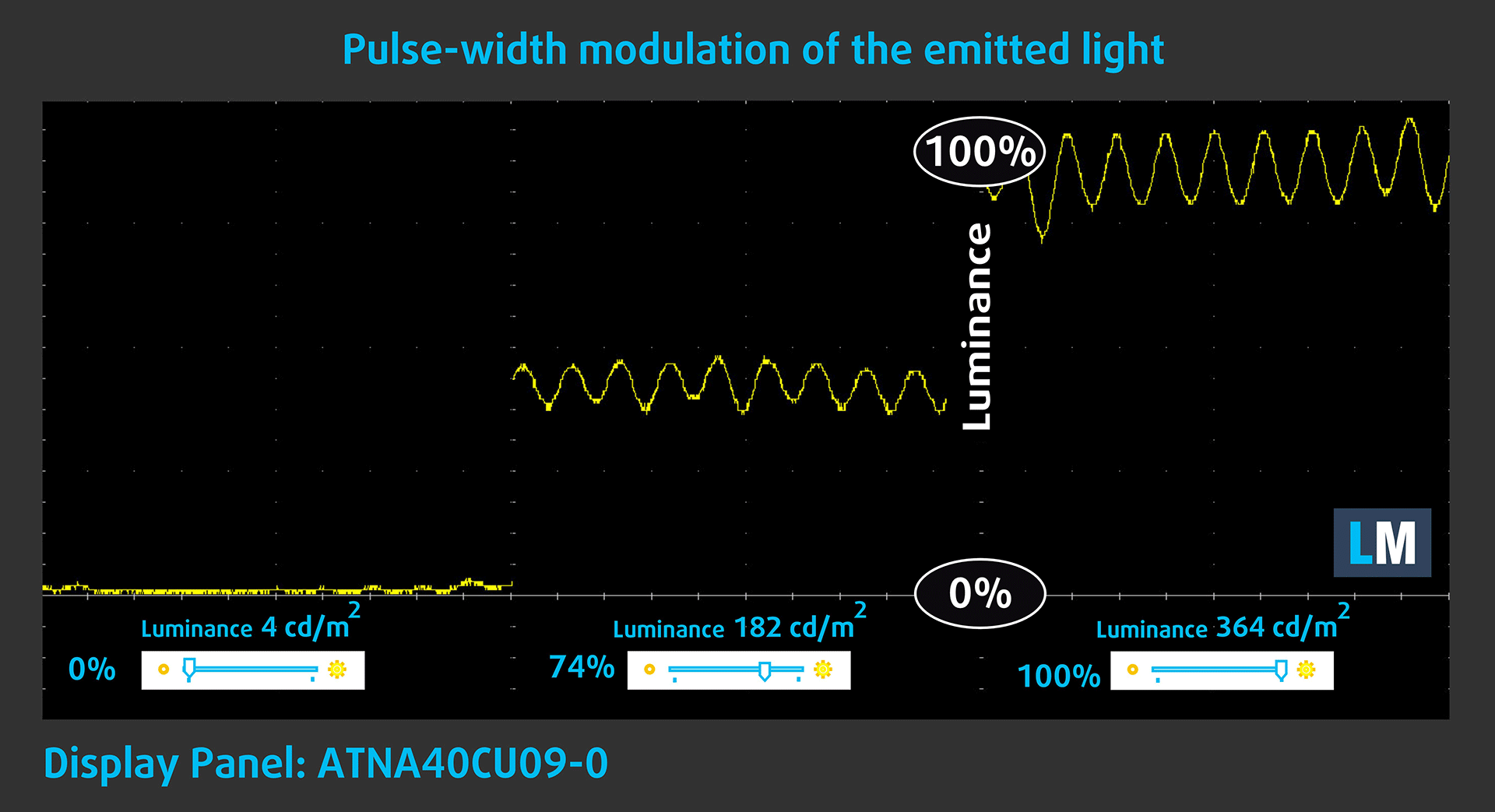
Some use PWM to regulate their brightness, which means that instead of reducing the light intensity, they pulse or flicker. Our brain merges the image, so it appears darker, but this strains both it and our vision, especially when the frequency of the pulses is low. You can read more about that in our dedicated article on PWM.
In the graph below, you see the intensity of light at different brightness levels—on the vertical axis is the brightness of the emitted light, and on the horizontal axis—time.
The luminance of the ASUS ZenBook S14 display pulsates with a limited amplitude. There is no visible PWM throughout the entire Brightness range. Therefore, we consider the display to be sufficiently comfortable for vision in the considered aspect.
Health Impact: Blue light emissions
Installing our Health-Guard profile reduces harmful Blue Light emissions while keeping the colors of the screen perceptually accurate.
If you’re not familiar with the Blue light, the TL;DR version is – emissions that negatively affect your eyes, skin, and your whole body. You can find more information about that in our dedicated article on Blue Light.
Health Impact: Screen Reflectance
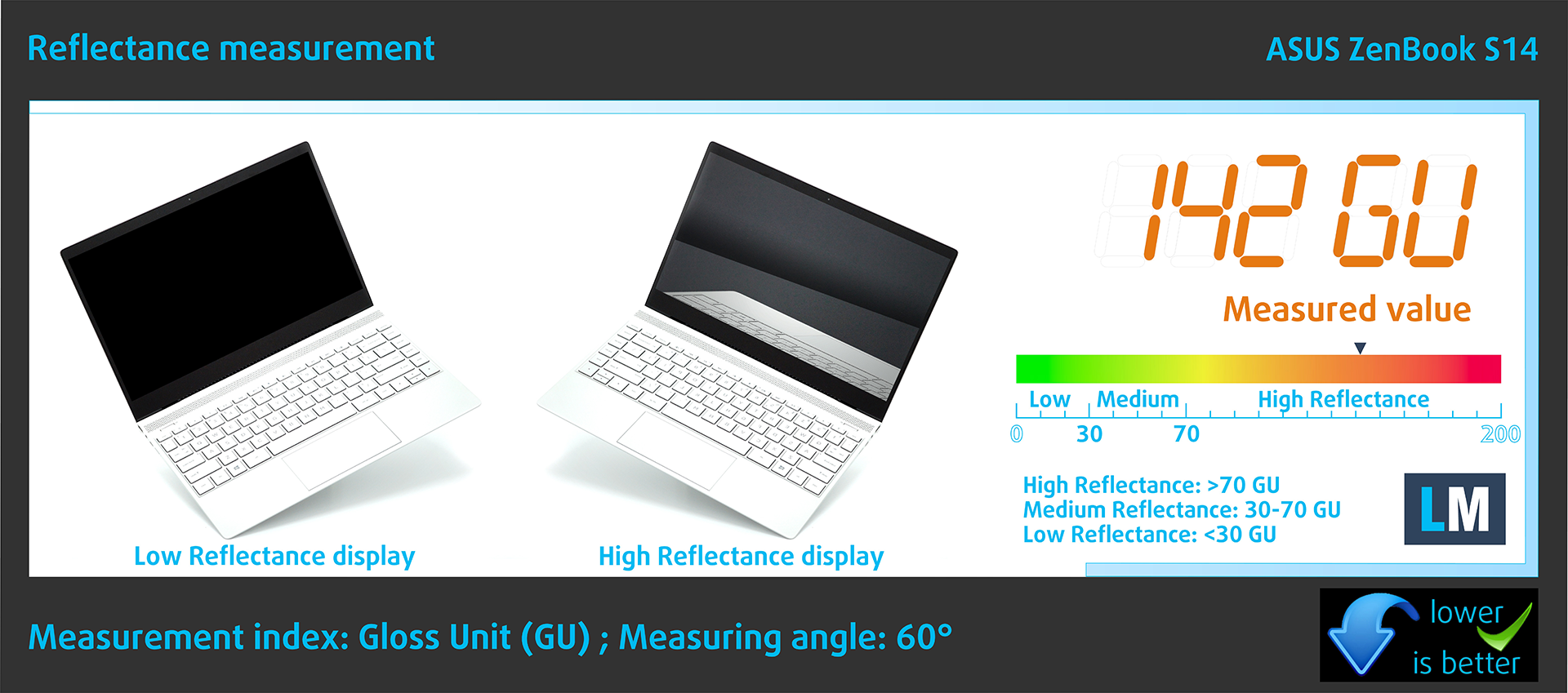
Glossy-coated displays can cause eye fatigue in high ambient light conditions due to reflections. We measure the level of screen reflection with the display turned off, at a 60° angle.
The reflectance of the ASUS screen is 142 GU.
High Gloss: >70 GU
Medium Gloss: 30 – 70 GU
Low Gloss: <30 GU
Get our profiles
Since our profiles are tailored for each individual display model, this article and its respective profile package are meant for ASUS ZenBook S14 configurations with ATNA40CU09-0 (SDC419D), 2880 х 1800, OLED panel.
*Should you have problems with downloading the purchased file, try using a different browser to open the link you’ll receive via e-mail. If the download target is a .php file instead of an archive, change the file extension to .zip or contact us at [email protected].
Read more about the profiles HERE.
In addition to receiving efficient and health-friendly profiles, by buying LaptopMedia's products you also support the development of our labs, where we test devices in order to produce the most objective reviews possible.

Office Work
Office Work should be used mostly by users who spend most of the time looking at pieces of text, tables or just surfing. This profile aims to deliver better distinctness and clarity by keeping a flat gamma curve (2.20), native color temperature and perceptually accurate colors.
Design and Gaming
This profile is aimed at designers who work with colors professionally, and for games and movies as well. Design and Gaming takes display panels to their limits, making them as accurate as possible in the sRGB IEC61966-2-1 standard for Web and HDTV, at white point D65.

Health-Guard
Health-Guard eliminates the harmful Pulse-Width Modulation (PWM) and reduces the negative Blue Light which affects our eyes and body. Since it’s custom tailored for every panel, it manages to keep the colors perceptually accurate. Health-Guard simulates paper so the pressure on the eyes is greatly reduced.
Get all 3 profiles with 33% discount

Sound
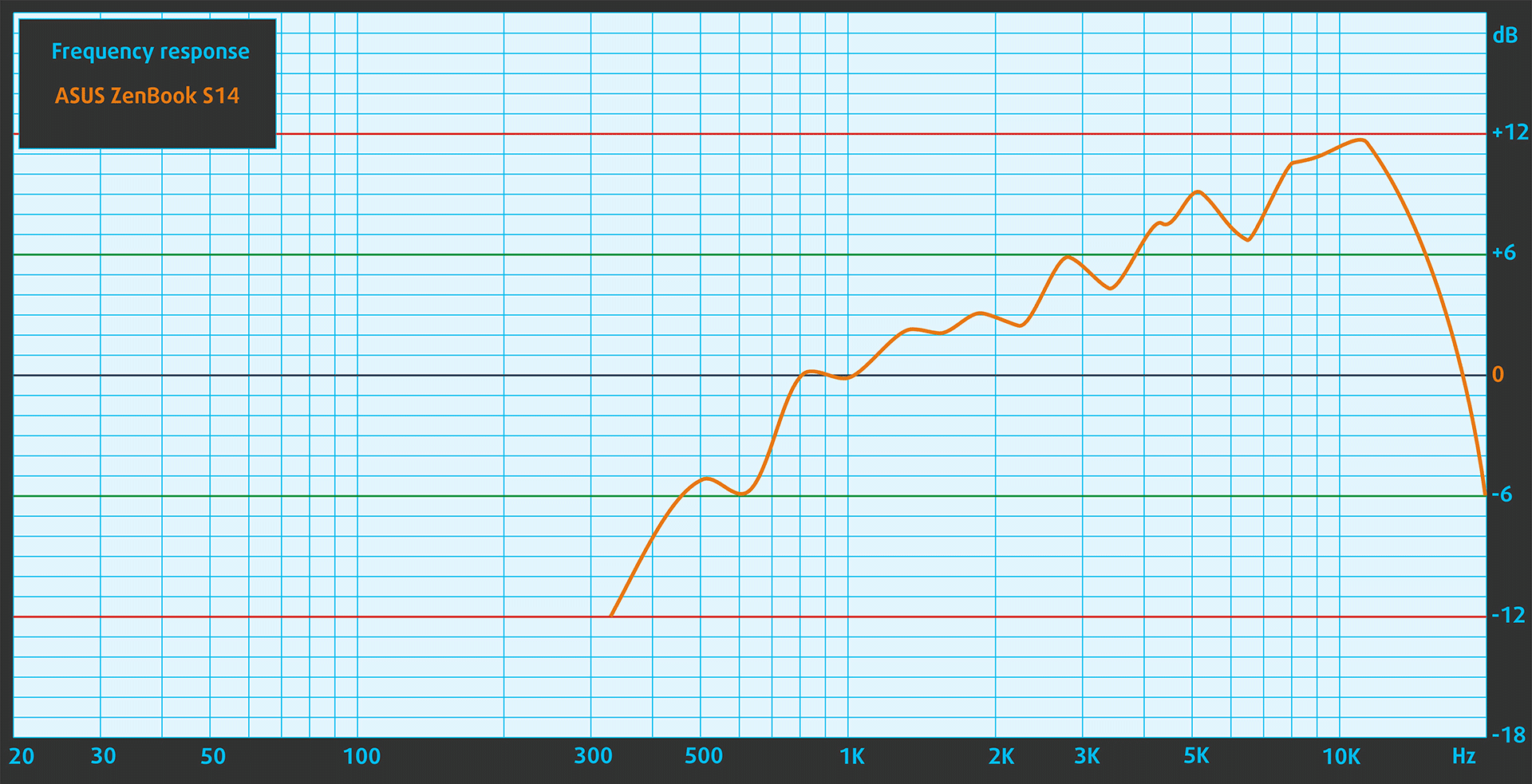
The ASUS ZenBook S14’s speakers are of very good quality. The low, mid, and high frequencies are clear.
Performance: CPU, GPU, Storage
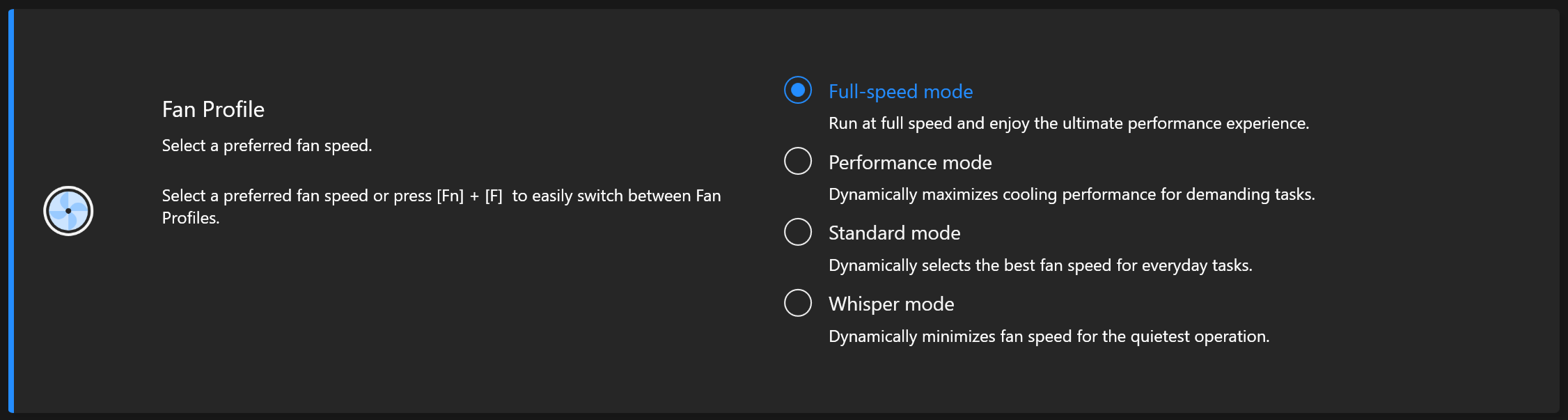
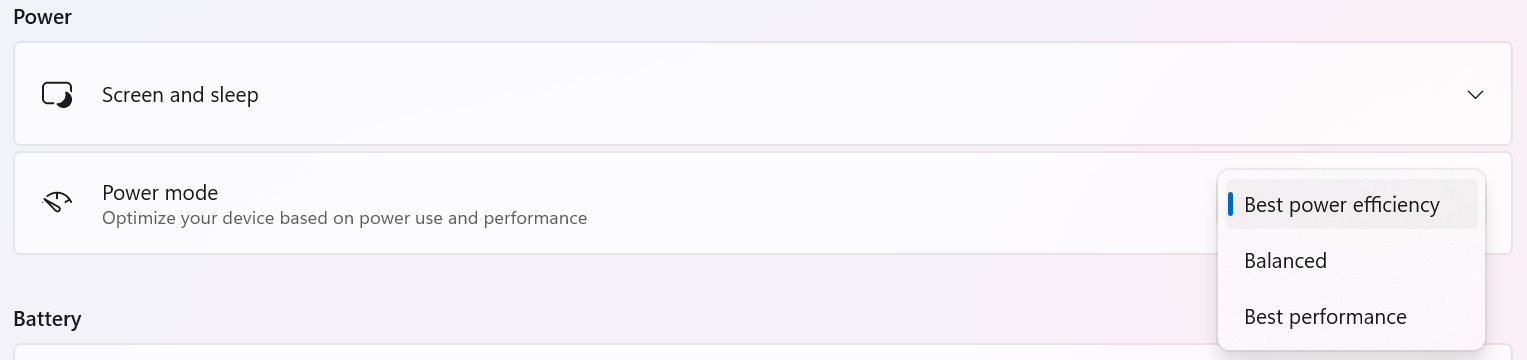
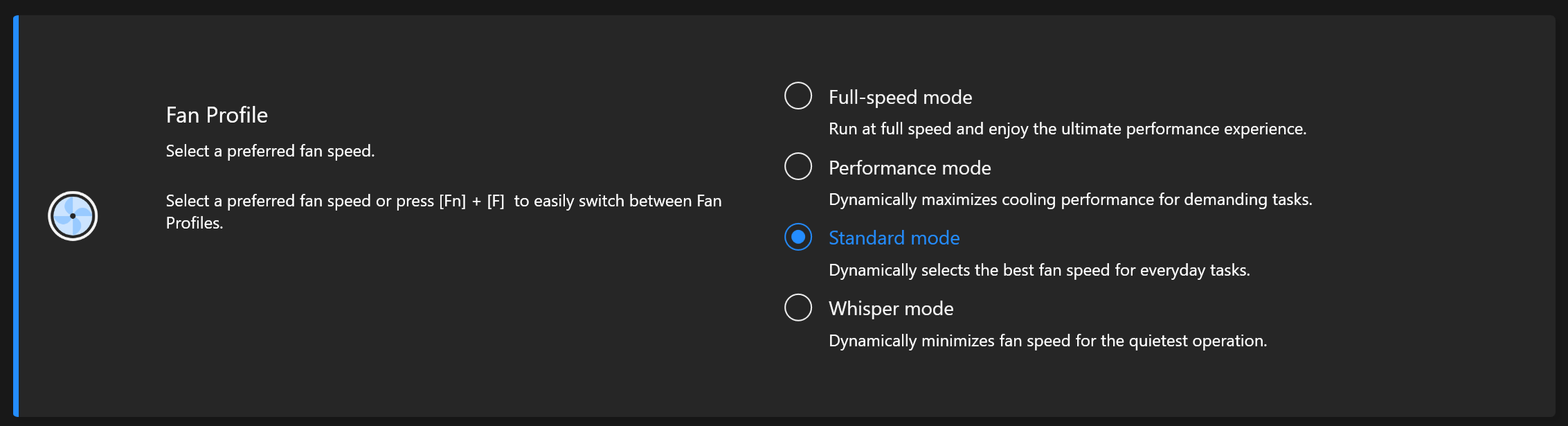
All benchmarks and tests were conducted with the “Best Performance” preset activated in the Windows “Power & Battery” menu. Also, the “Full-speed mode” for the fan is applied in the “MyASUS” software.

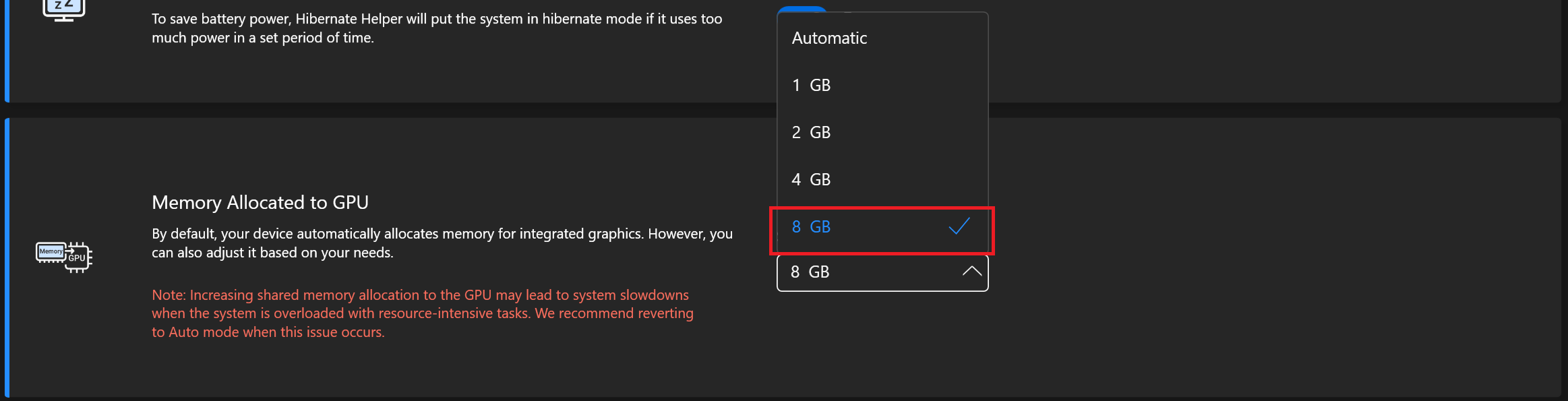
The “Memory Allocated to GPU” is set to 8GB because our laptop has 32GB of RAM which is a lot.
CPU options
This machine is offered with Intel Core Ultra 5 226V, Core Ultra 7 256V, Core Ultra 7 258V, and Core Ultra 9 288V.
The laptop that we have has a 258V chip.
Single-core performance ensures smooth operation and responsiveness in operating systems, providing a better user experience.
Results are from the Geekbench 6 Single-Core test (higher is better)
Multi-core performance is essential for handling complex and demanding tasks, such as Video editing, CAD, and Scientific simulations.
Results are from the Geekbench 6 Multi-Core test (higher is better)
Here, we evaluate the CPU's performance using a real-world 3D rendering task, assessing its ability to handle complex computations and rendering workloads efficiently.
Results are from the Cinebench 2024 Multi-Core test (higher is better)
GPU options
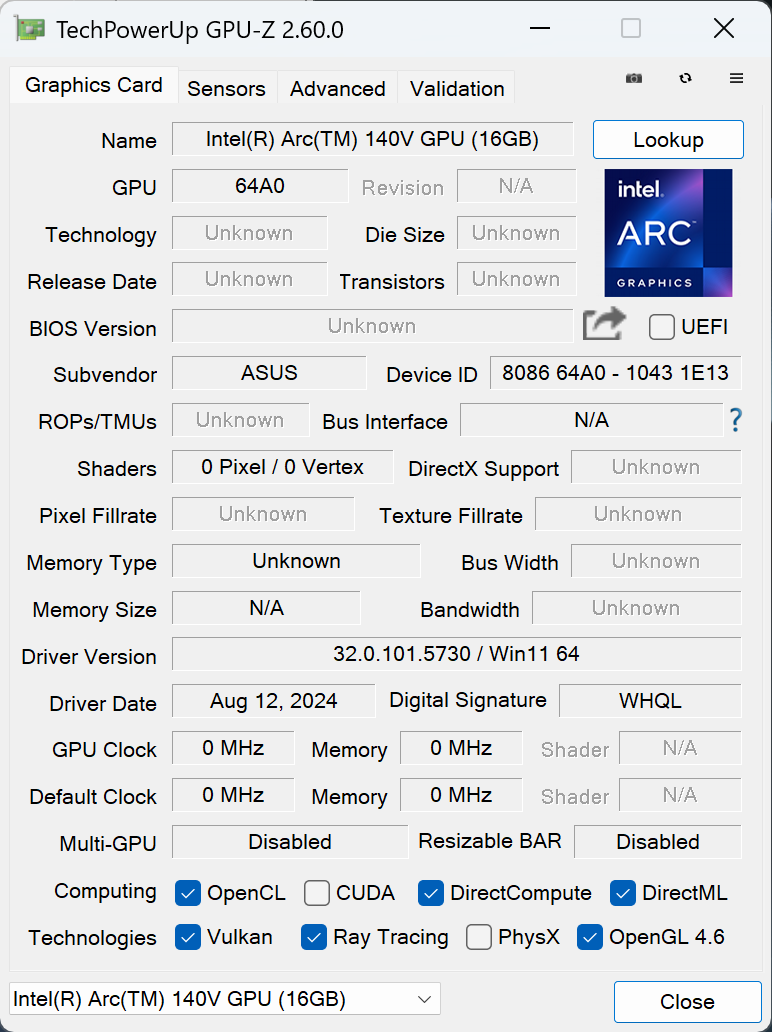
All machines of this ASUS series are iGPU-only devices.
Our notebook has the Intel Arc Graphics 140V.
The results are from 3DMark Time Spy (Graphics). Higher is better.
The results are from 3DMark Wild Life Extreme Unlimited. Higher is better.
Gaming tests

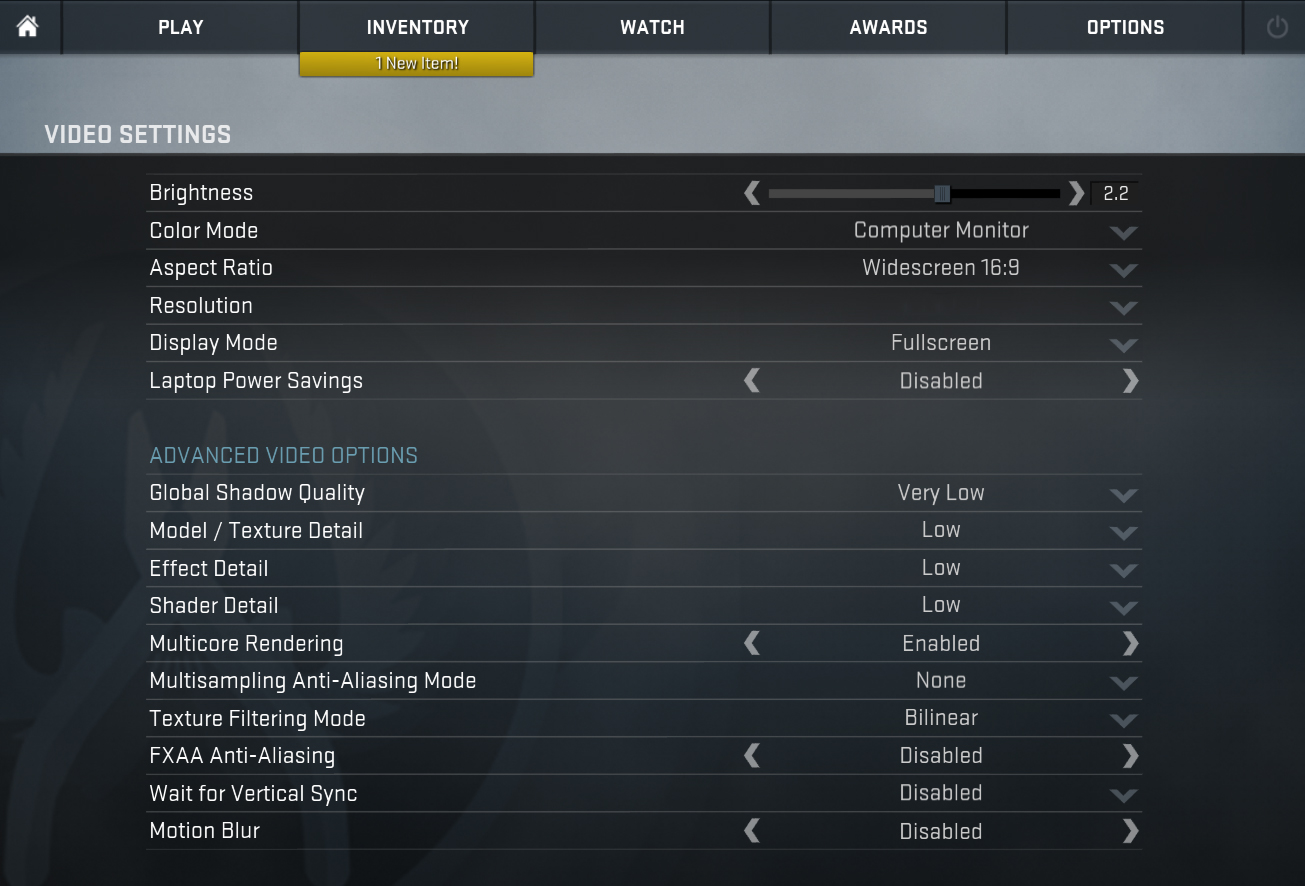
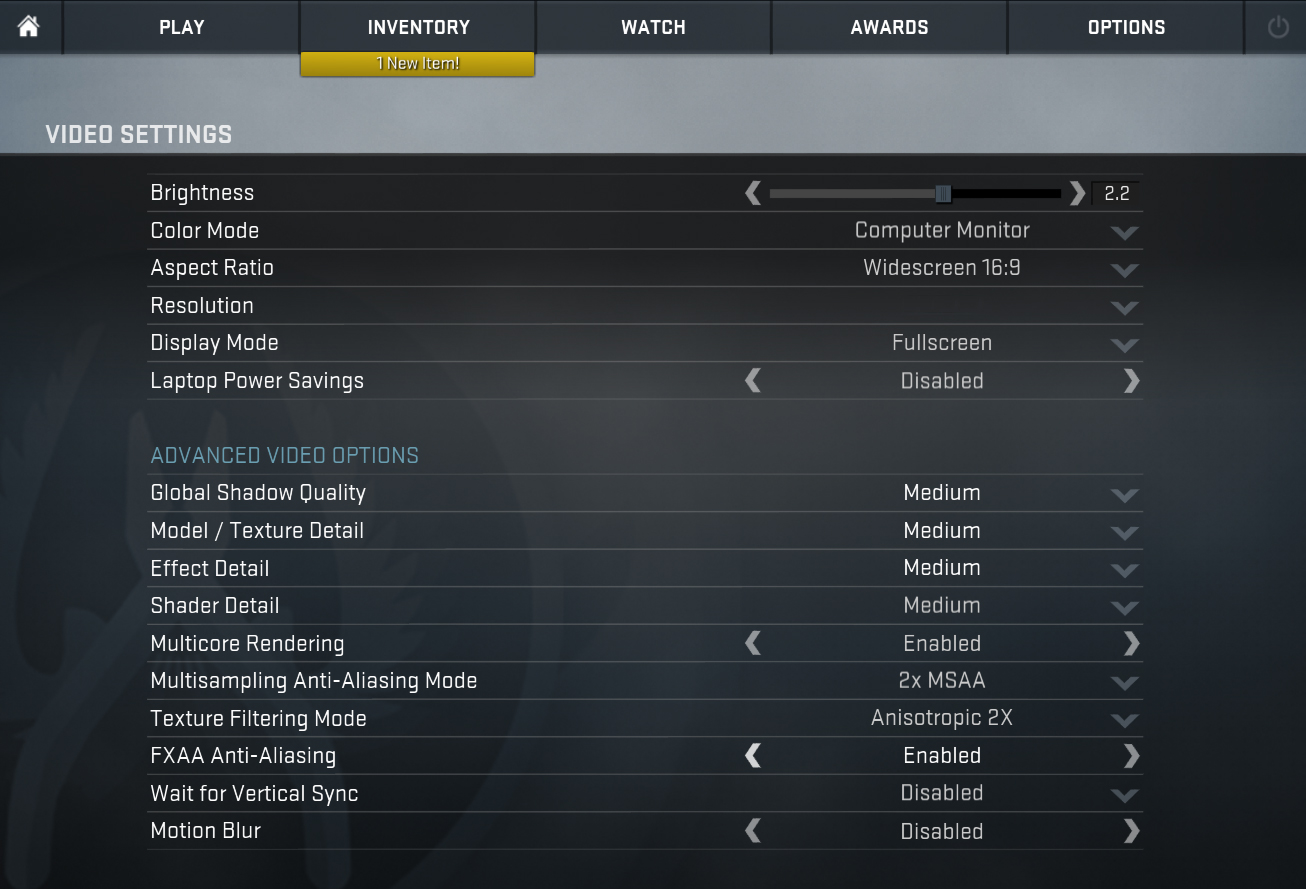
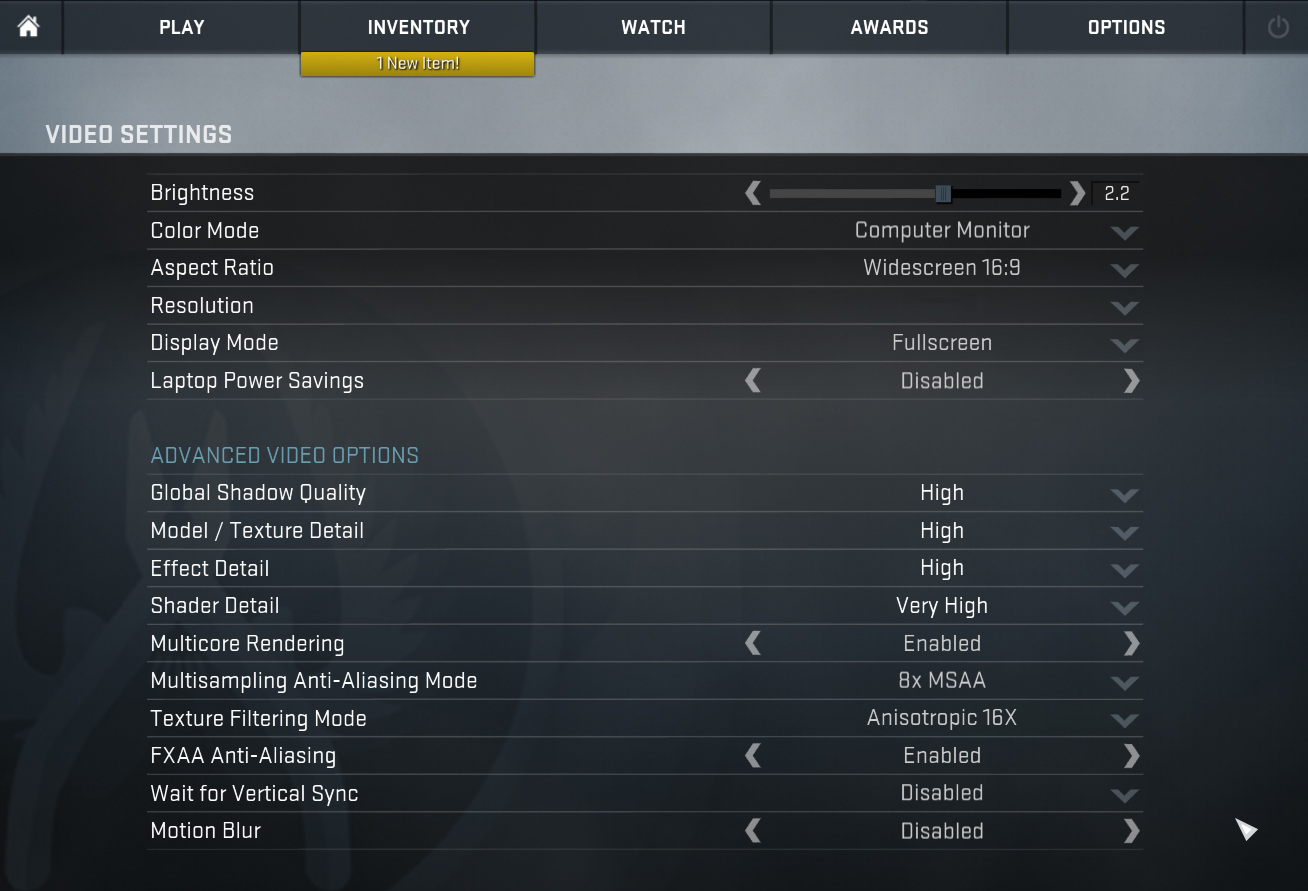
| CS:GO | HD 1080p, Low (Check settings) | HD 1080p, Medium (Check settings) | HD 1080p, MAX (Check settings) |
|---|---|---|---|
| Average FPS | 207 fps | 184 fps | 126 fps |

| Metro Exodus | Full HD, Low (Check settings) | Full HD, High (Check settings) | Full HD, Extreme (Check settings) |
|---|---|---|---|
| Average FPS | 58 fps | 29 fps | 15 fps |

| Borderlands 3 | Full HD, V.Low (Check settings) | Full HD, Medium (Check settings) | Full HD, High (Check settings) | Full HD, Badass (Check settings) |
|---|---|---|---|---|
| Average FPS | 77 fps | 55 fps | 36 fps | 28 fps |

| Far Cry 6 | Full HD, Low (Check settings) | Full HD, High (Check settings) | Full HD, Ultra (Check settings) |
|---|---|---|---|
| Average FPS | 70 fps | 51 fps | 41 fps |

| Gears 5 | Full HD, Low (Check settings) | Full HD, Medium (Check settings) | Full HD, High (Check settings) | Full HD, Ultra (Check settings) |
|---|---|---|---|---|
| Average FPS | 81 fps | 55 fps | 41 fps | 31 fps |

| Assassin’s Creed Valhalla | Full HD, Low (Check settings) | Full HD, Medium (Check settings) | Full HD, High (Check settings) | Full HD, Ultra (Check settings) |
|---|---|---|---|---|
| Average FPS | 61 fps | 51 fps | 39 fps | 33 fps |
Compared to the AMD Radeon 890M in the much bigger ASUS Zenbook S 16 (UM5606), the Intel Arc Graphics 140V isn’t too far behind (or at least in most cases) when it comes to gaming performance.
[eBook Guide + Tools] How to MAX OUT Your Laptop
You can make your laptop Faster. LaptopMedia has tested thousands of models in the last 15 years, and we have yet to see a notebook that couldn't be made more powerful through modifications.
That's why we decided to bundle everything we know about how to achieve this in an Easy-to-Follow, Step-by-Step, and Laboratory-Tested, all in one project.
Read more about it here:
[eBook Guide + Tools] How to MAX OUT Your Laptop
🛠️ GPU Modifications: vBIOS, Overclocking, Undervolting
⚙️ Building Fast/Reliable RAID configuration
💻 Hardware upgrade tips for best results
🖼 Display enhancing
💾 OS Optimization for best performance
Storage performance
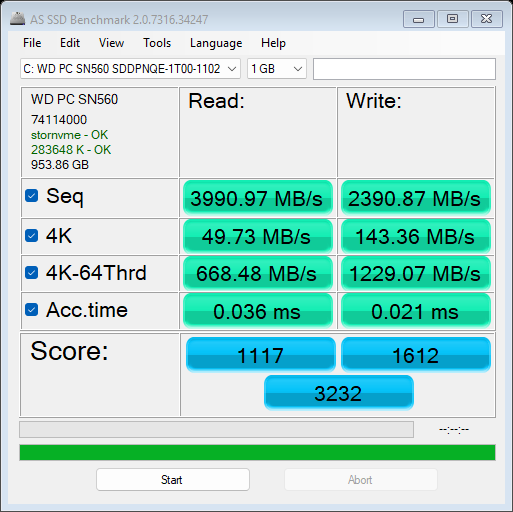
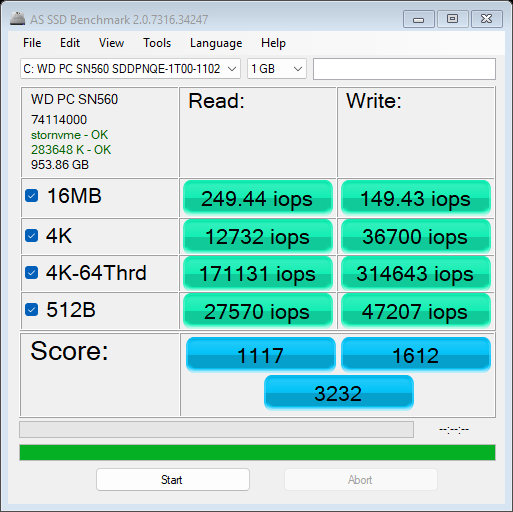
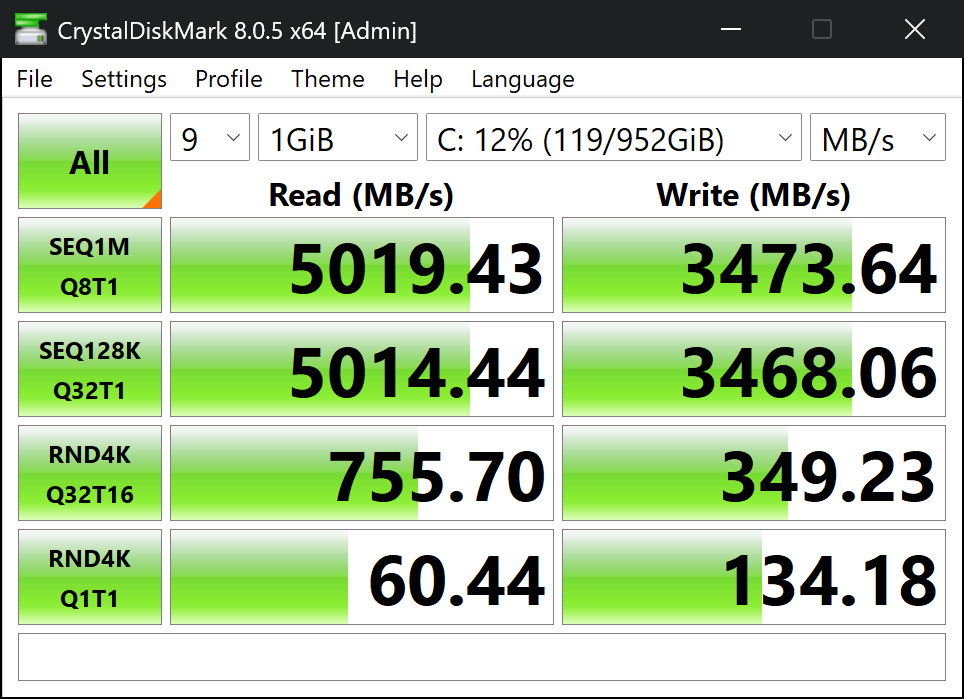
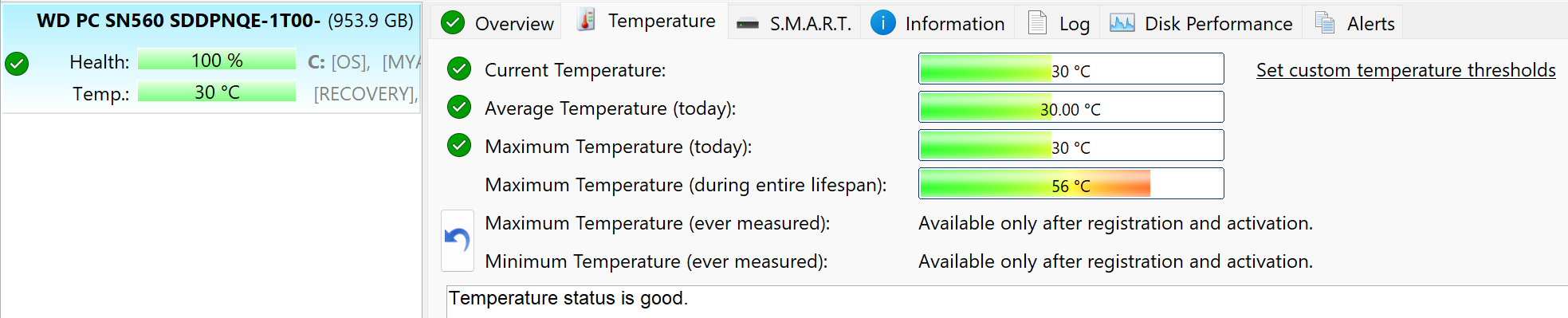
Our notebook has a 1TB WD PC SN560 SDDPNQE-1T00-1102. This drive is well-cooled, reaching just 56°C during benchmarking.
Temperatures and comfort, Battery Life
Max CPU load
In this test we use 100% on the CPU cores, monitoring their frequencies and chip temperature. The first column shows a computer’s reaction to a short load (2-10 seconds), the second column simulates a serious task (between 15 and 30 seconds), and the third column is a good indicator of how good the laptop is for long loads such as video rendering.
Average P-core frequency; Average LP E-core frequency; CPU temp.; Package Power
| Intel Core Ultra 7 258V (17W Base Power) | 0:02 – 0:10 sec | 0:15 – 0:30 sec | 10:00 – 15:00 min |
|---|---|---|---|
| ASUS Zenbook S 14 UX5406 | 2.70 GHz @ 3.35 GHz @ 95°C @ 35W | 2.26 GHz @ 3.03 GHz @ 96°C @ 29W | 2.02 GHz @ 2.83 GHz @ 96°C @ 25W |
The official Intel base clock for the Core Ultra 7 258V is 2.20 GHz for the P and LP E cores. The chip here has no problems maintaining higher frequencies in short and medium loads. In longer stress, the P core boosts drop down to ~2.00 Ghz but the E cores can sustain around 2.80 GHz which doesn’t sound bad at all for a super thin 14-incher.
Comfort during full load
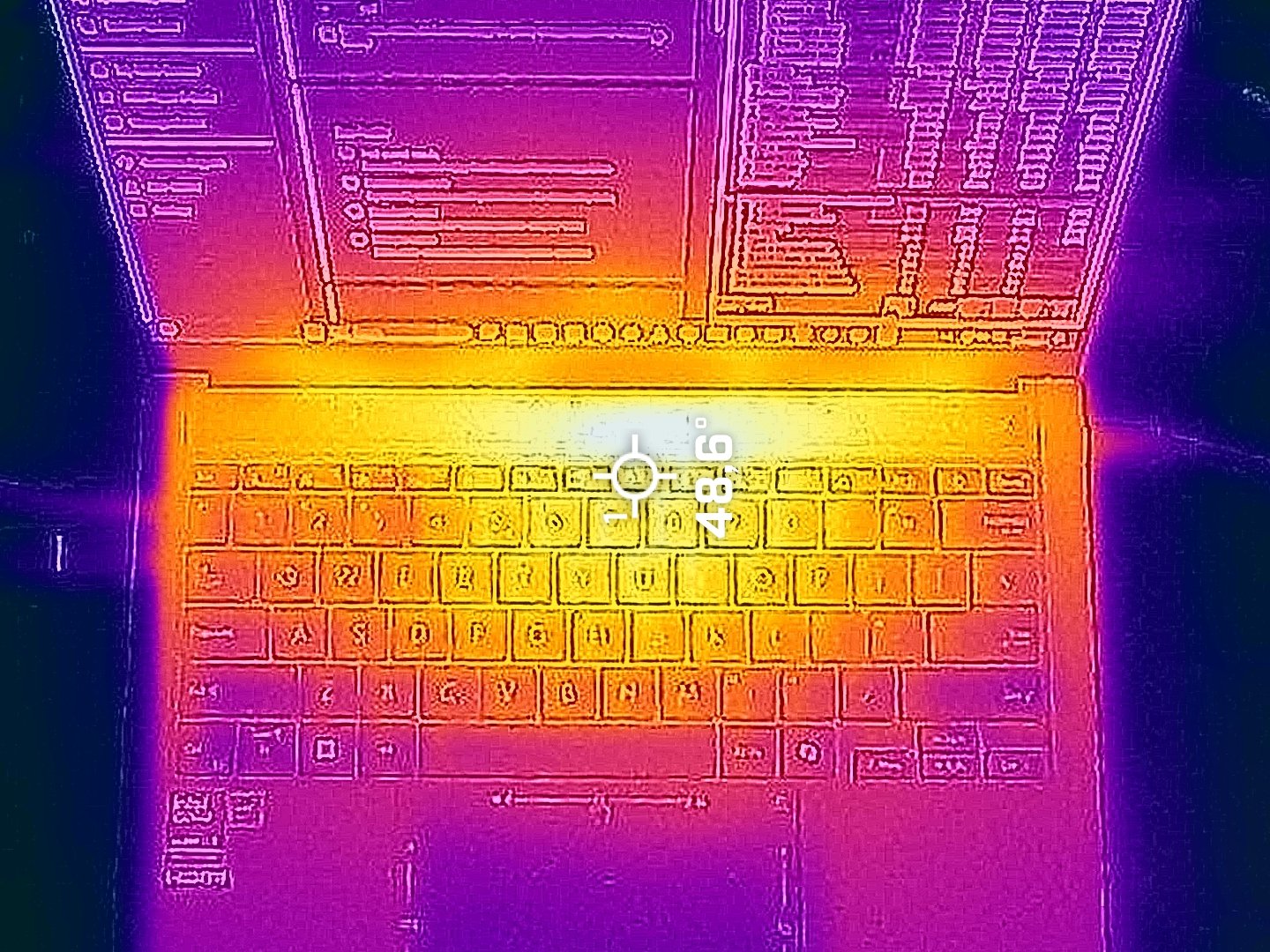
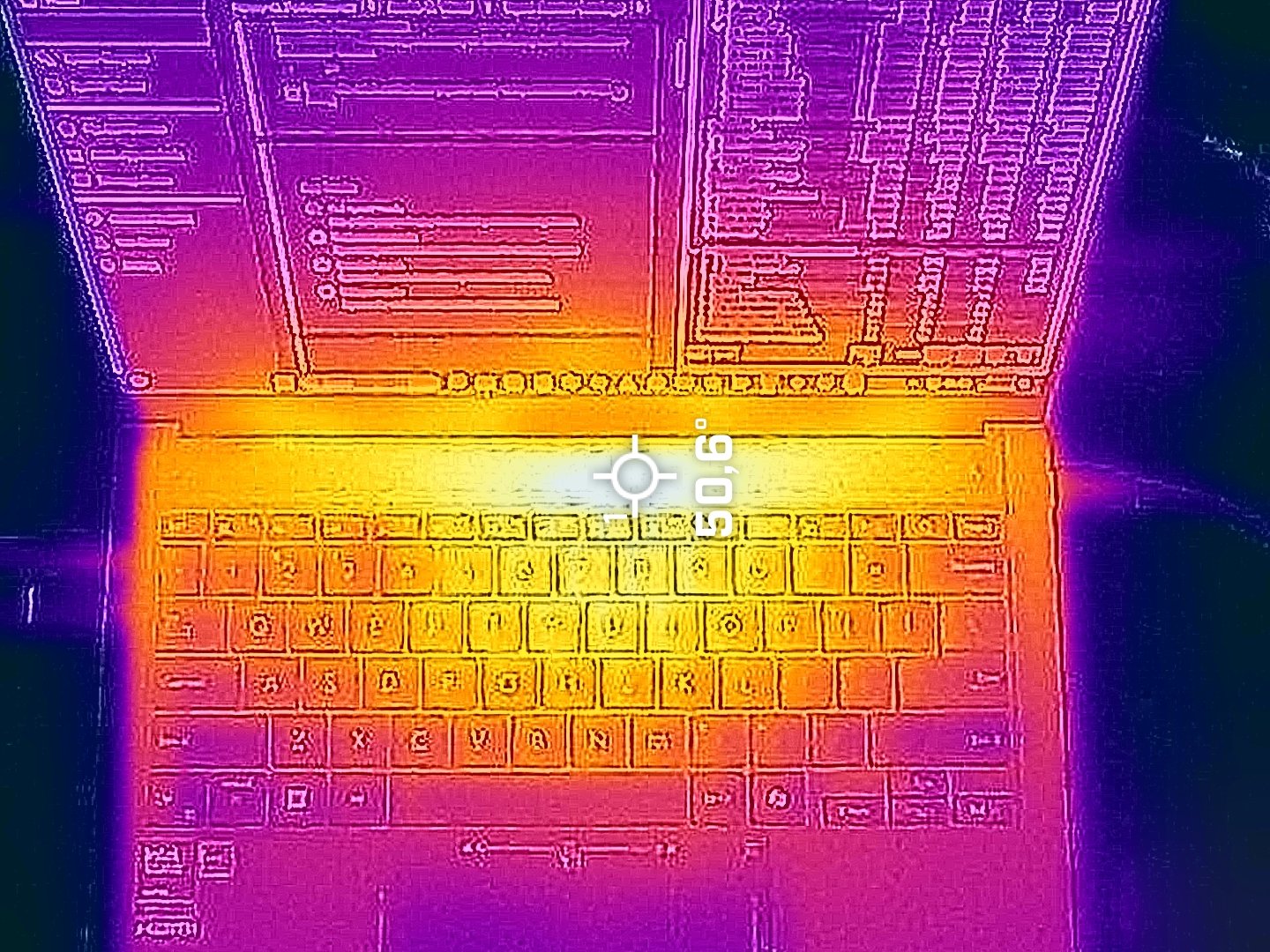
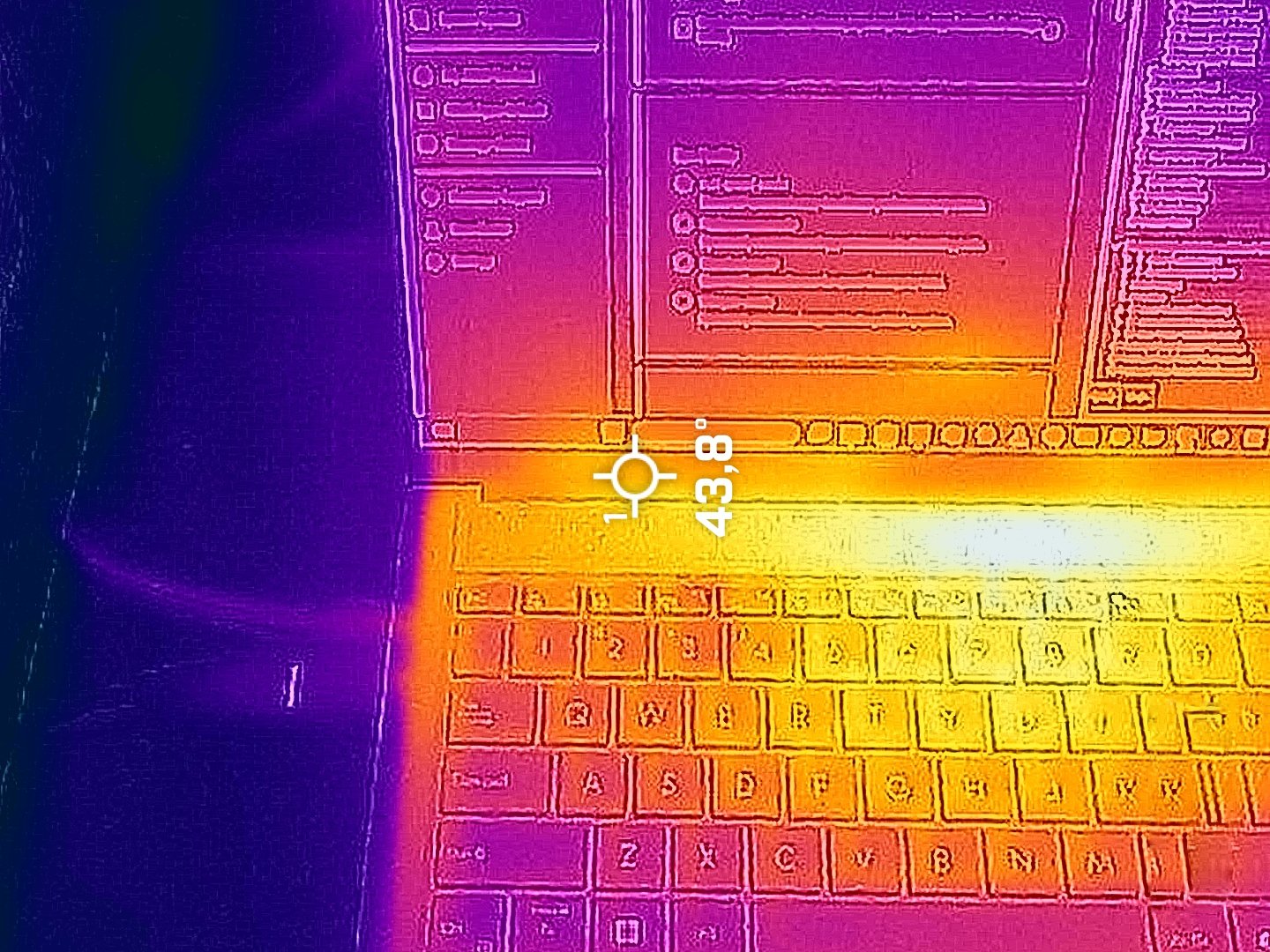
During max CPU stress in “Full-speed mode”, the two fans aren’t too noisy. At the same time, the hot spot on the keyboard reaches ~ 49°C, and the vent above it hits 51°C. The bottom bezel of the display is warmed up to around 44°C. Overall, nothing to worry about.
The fan profiles can be found in the MyASUS app.
You can expect almost the same clock speed in “Full-speed mode” and “Performance mode”. The frequencies of the “Standard” and the “Whisper” presets are lower but that’s because the fans are notably tamed.
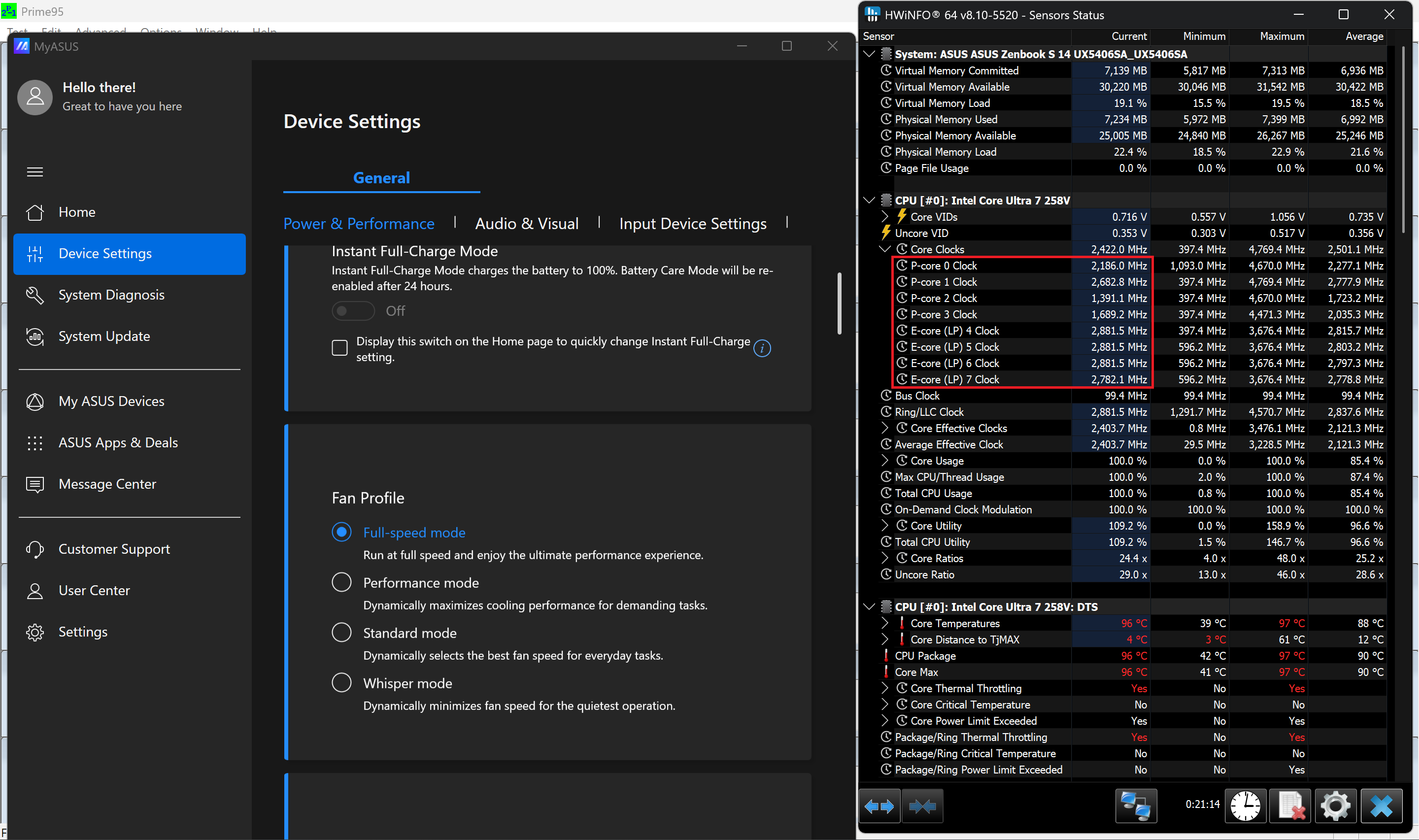 “Full-speed mode”
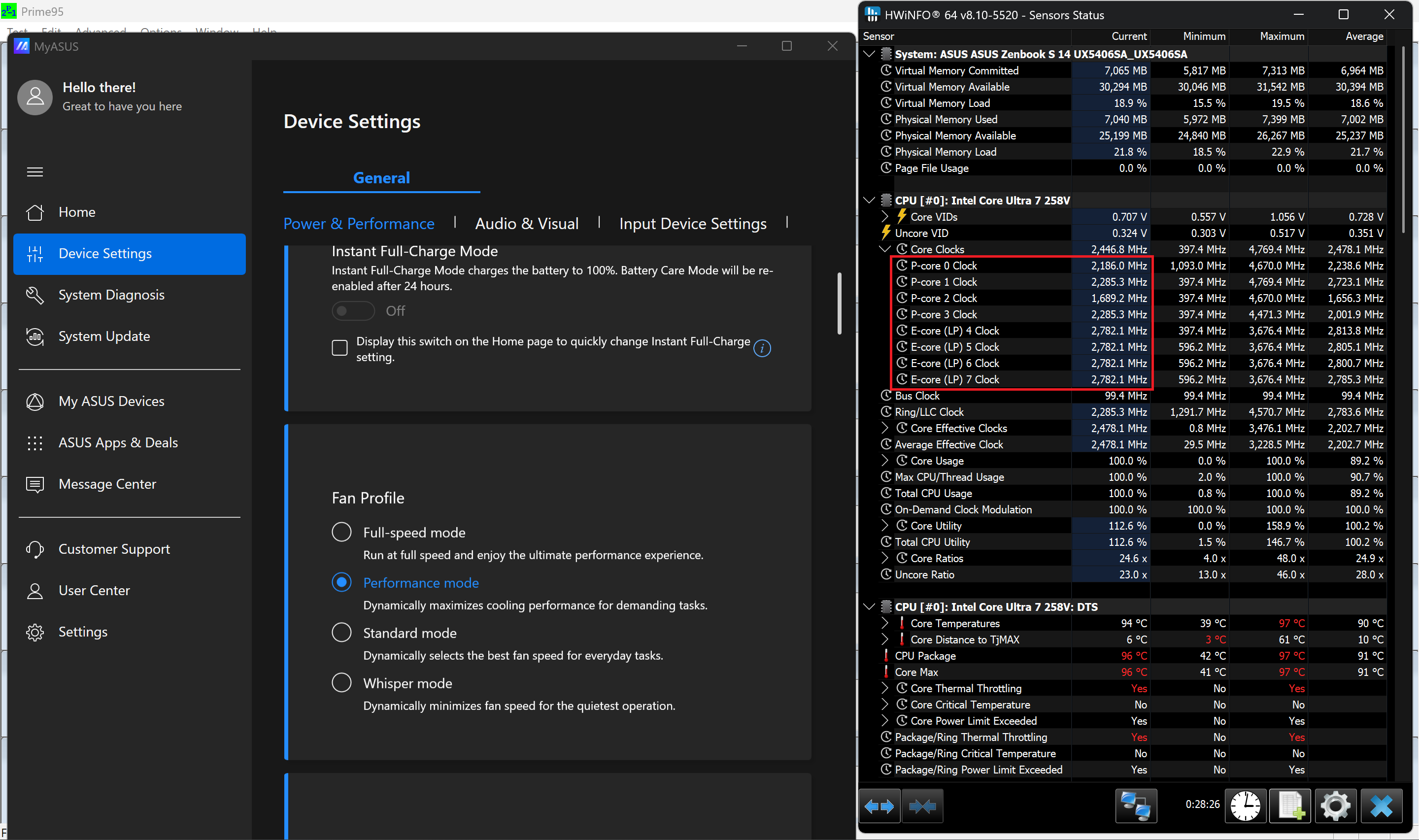 “Performance mode”
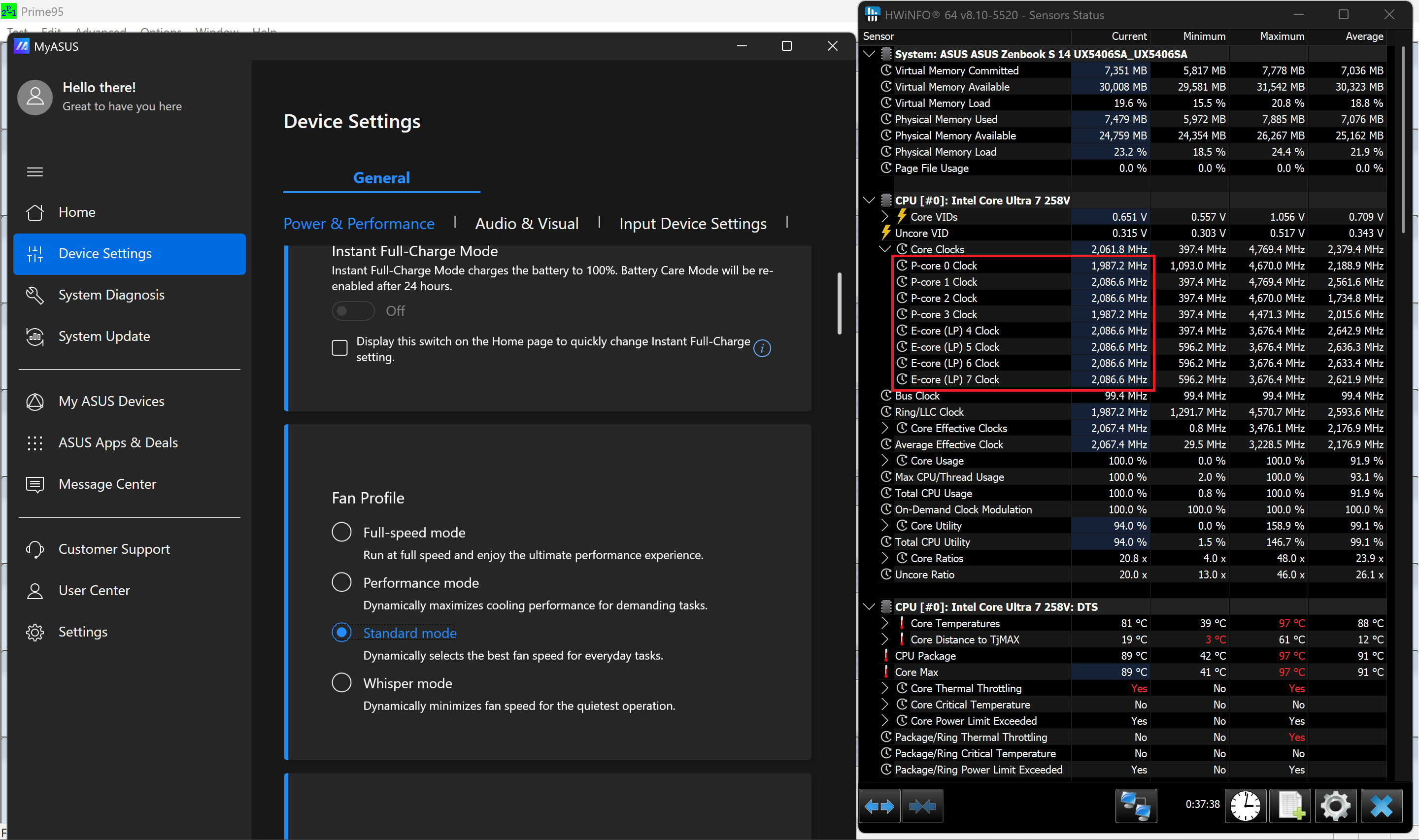 “Standard mode”
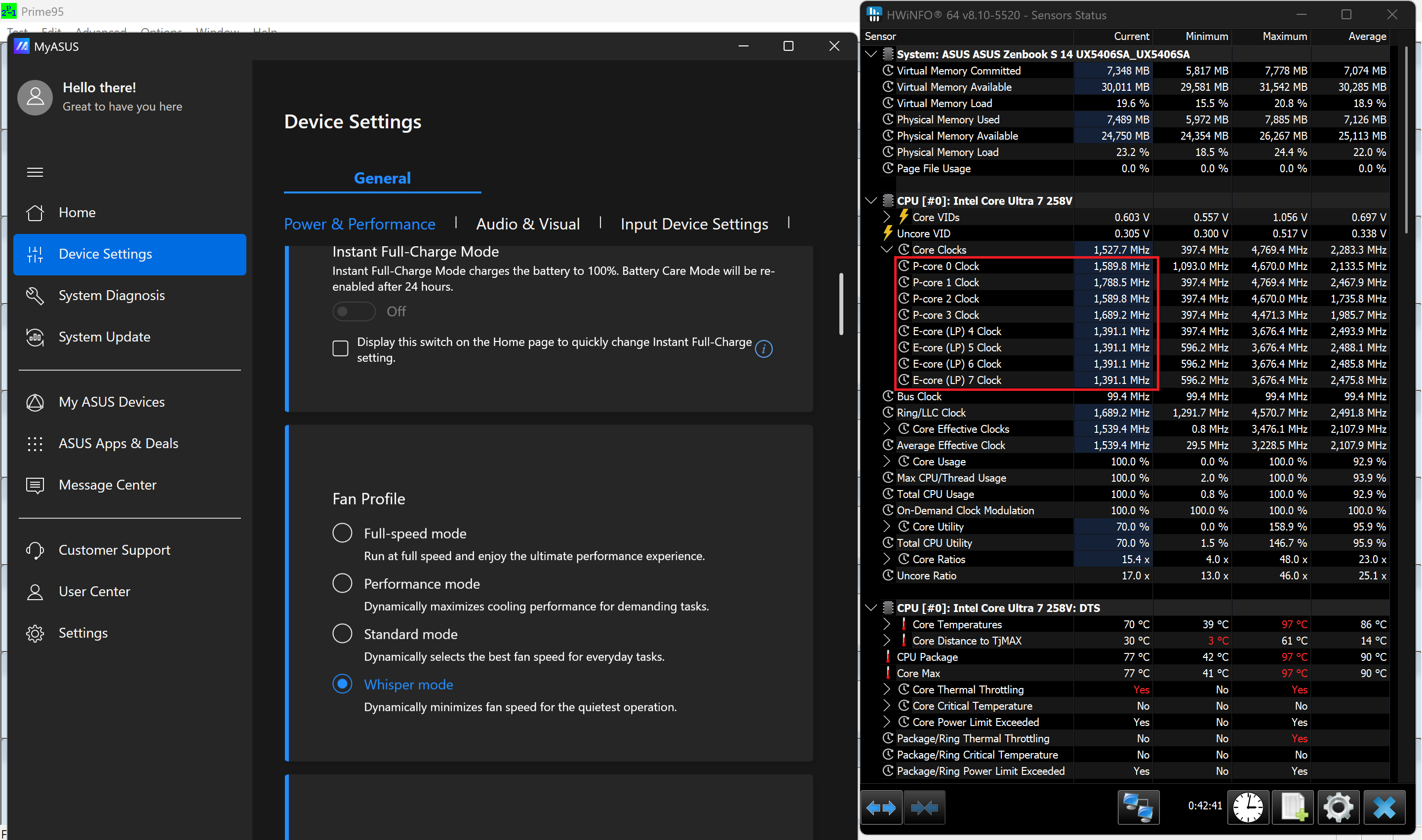 “Whisper mode”
Battery
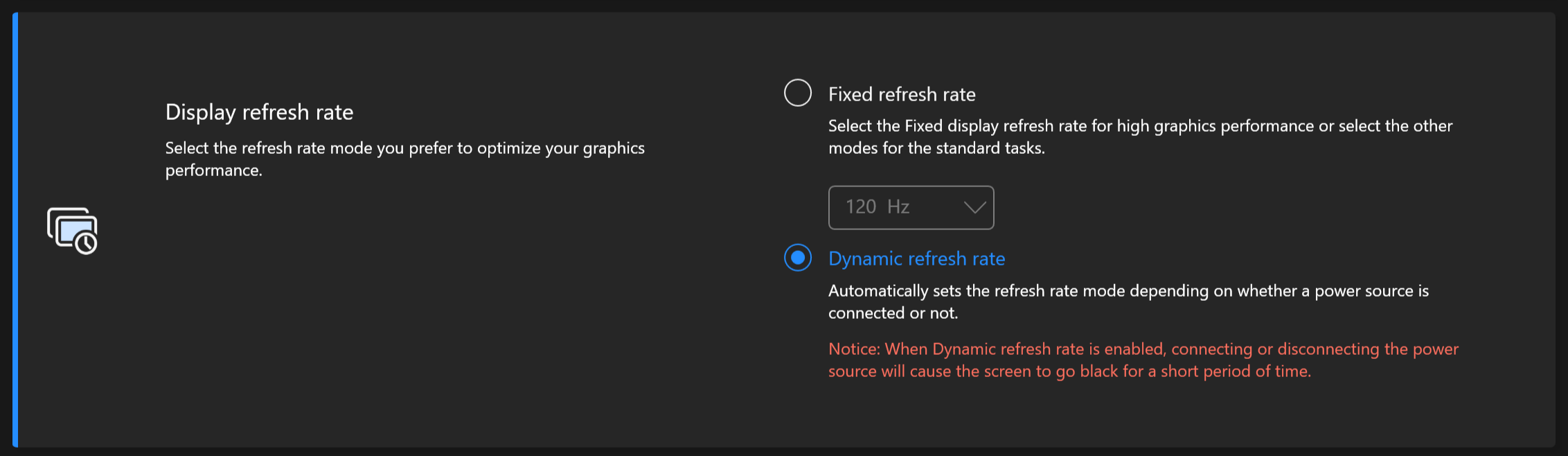
Now, we conduct the battery tests with the Windows’ Power Efficiency setting turned on, screen brightness adjusted to 180 nits and all other programs turned off except for the one we are testing the notebook with. The 72Wh battery pack lasts for around 16 hours of video playback. That’s a great result considering the high-res OLED screen. To achieve that, you have to apply the “Best Power Efficiency” preset in the Windows “Power & Battery” menu, select the “Standard” fan mode, and use the “Dynamic refresh rate” option in the MyASUS app.
Brightness: 180 nits; Display Mode: SDR
Time to Full Discharge: Higher is Better

Disassembly, Upgrade options, and Maintenance
To open this thin notebook, you have to undo 10 Torx-head screws. If you are brave enough, the easiest way to pop the bottom is to start from the cutouts.
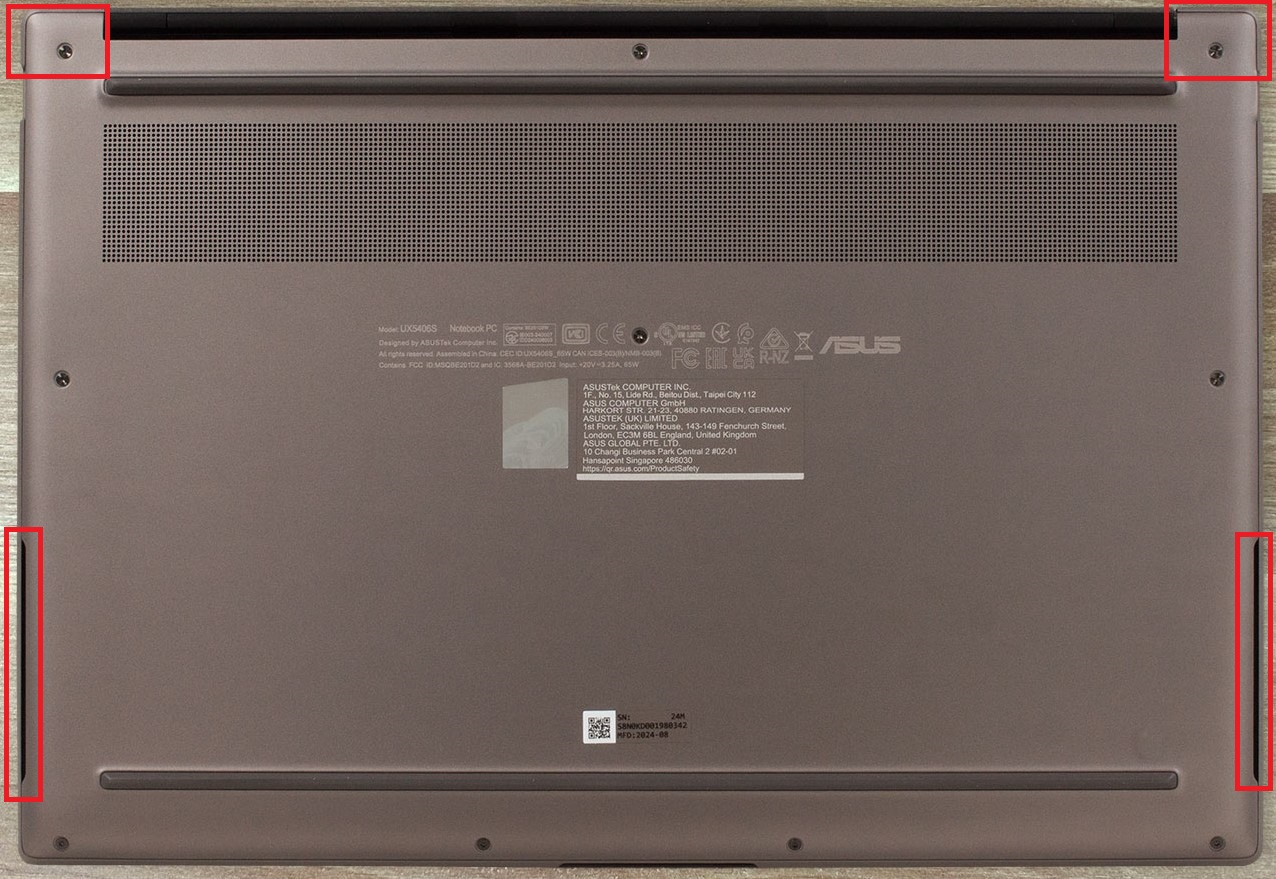
Don’t insert the plastic tool horizontally because you’ll damage the speakers. Insert a thin plastic tool at a 45-degree angle, its top side should point at the inside of the bottom panel. Insert the tool as deep as possible and lift it up. This will pop half of the plate. Then, pop the rest of the sides and work your way around the back and the front.
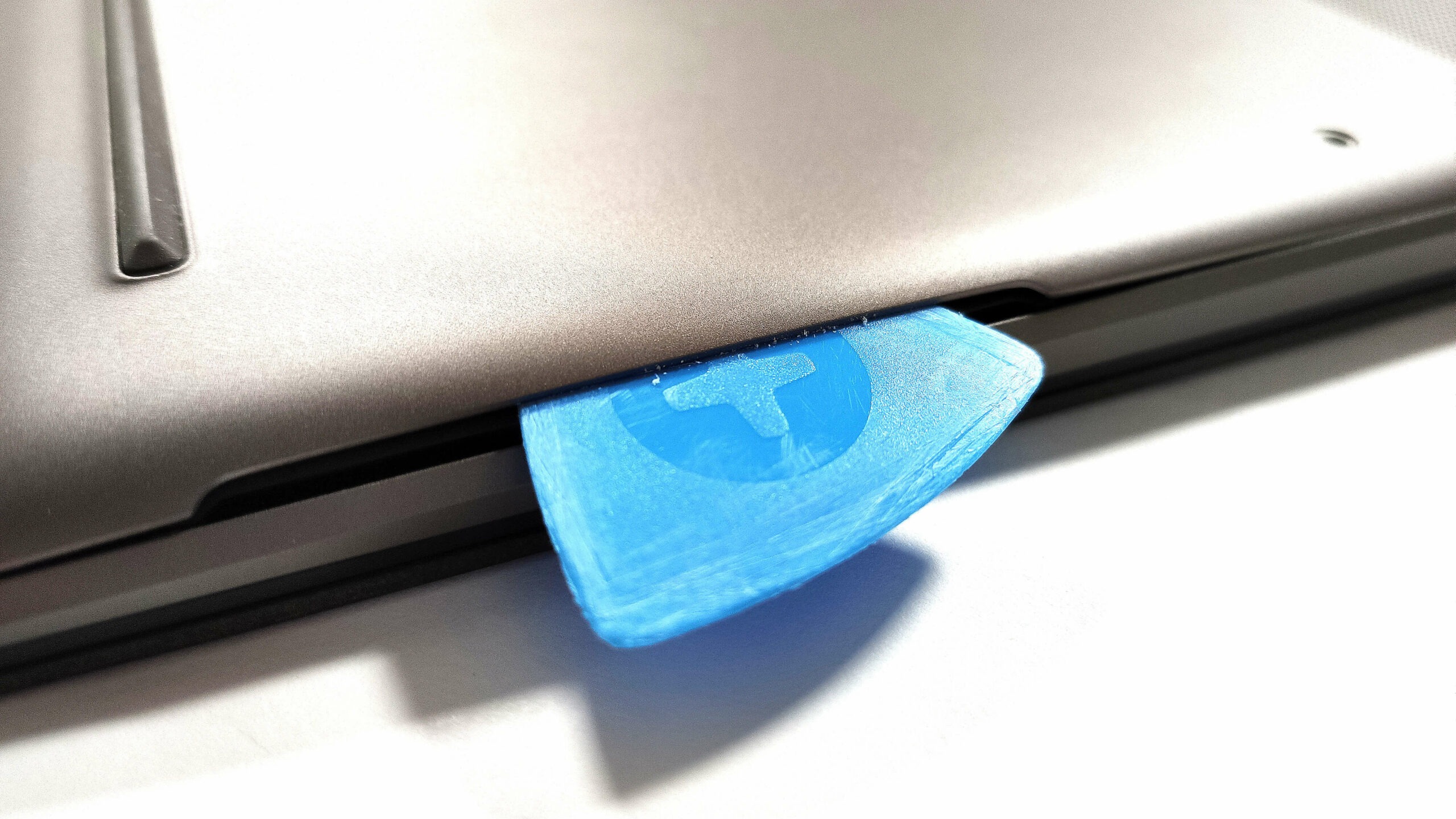
The other possible method is to pry the top two edges but you have to push hard because the internal clips are super stiff. After that, you must pop the back, sides, and front.
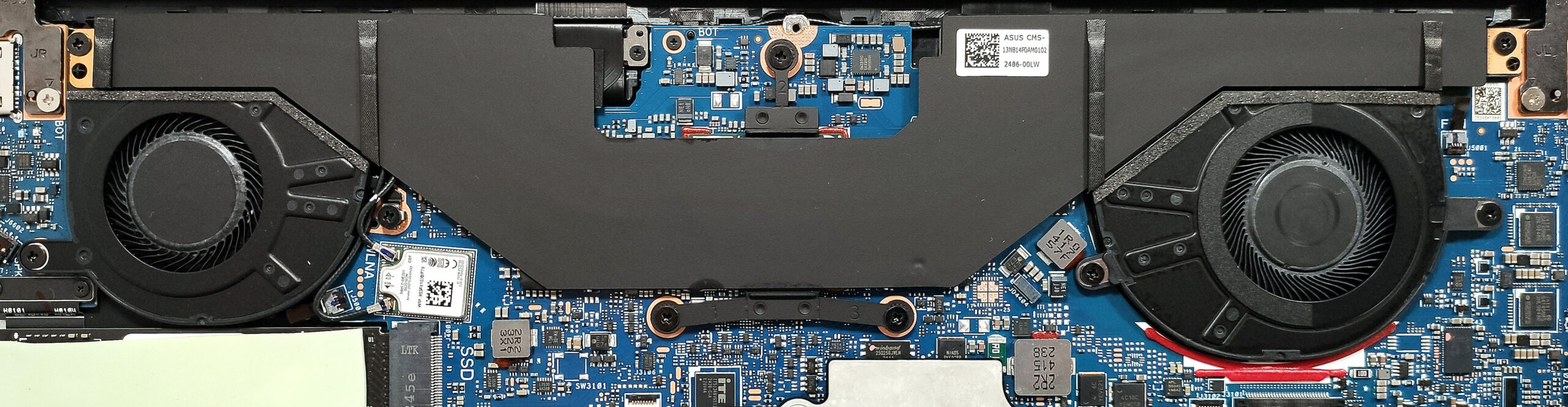
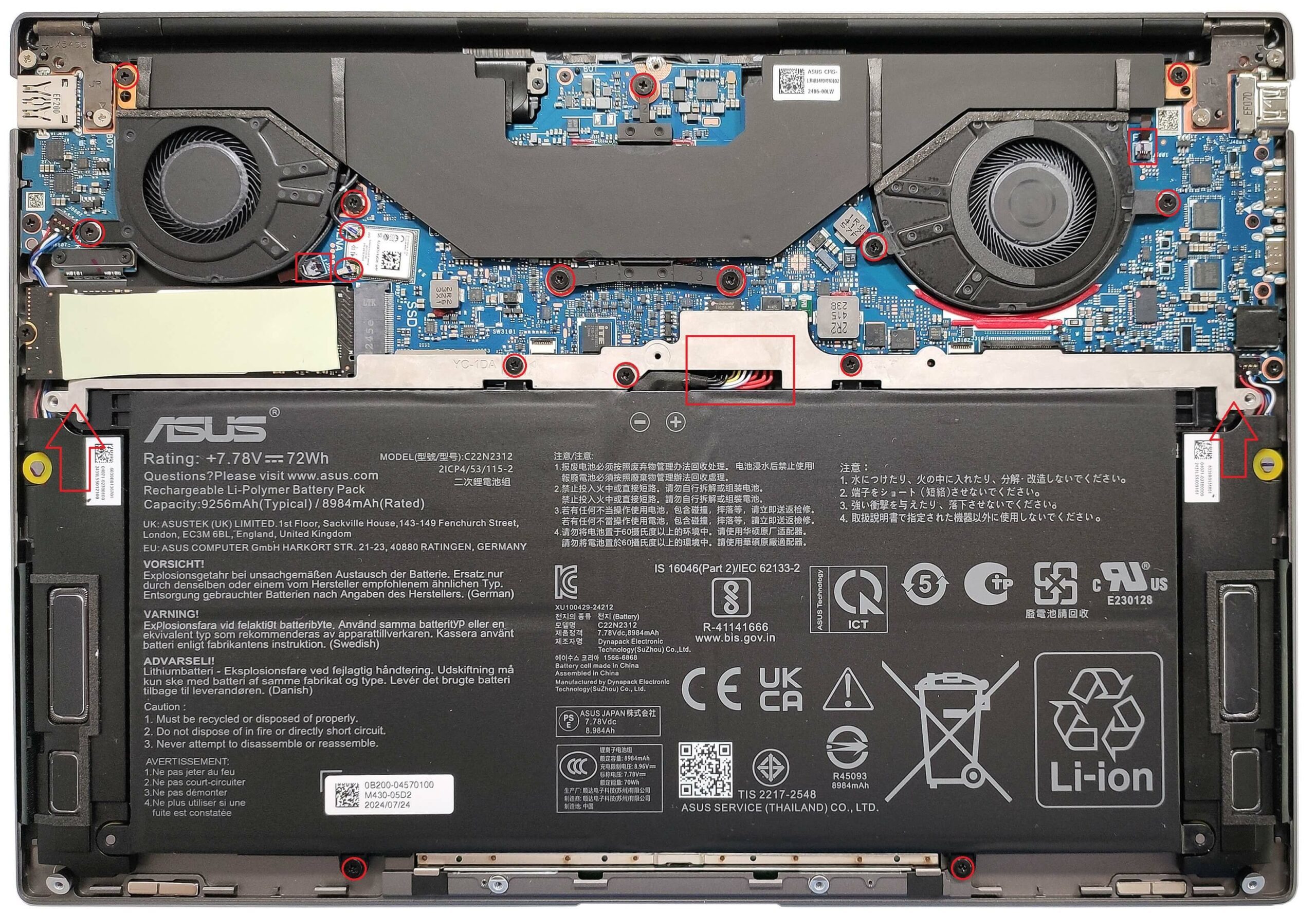
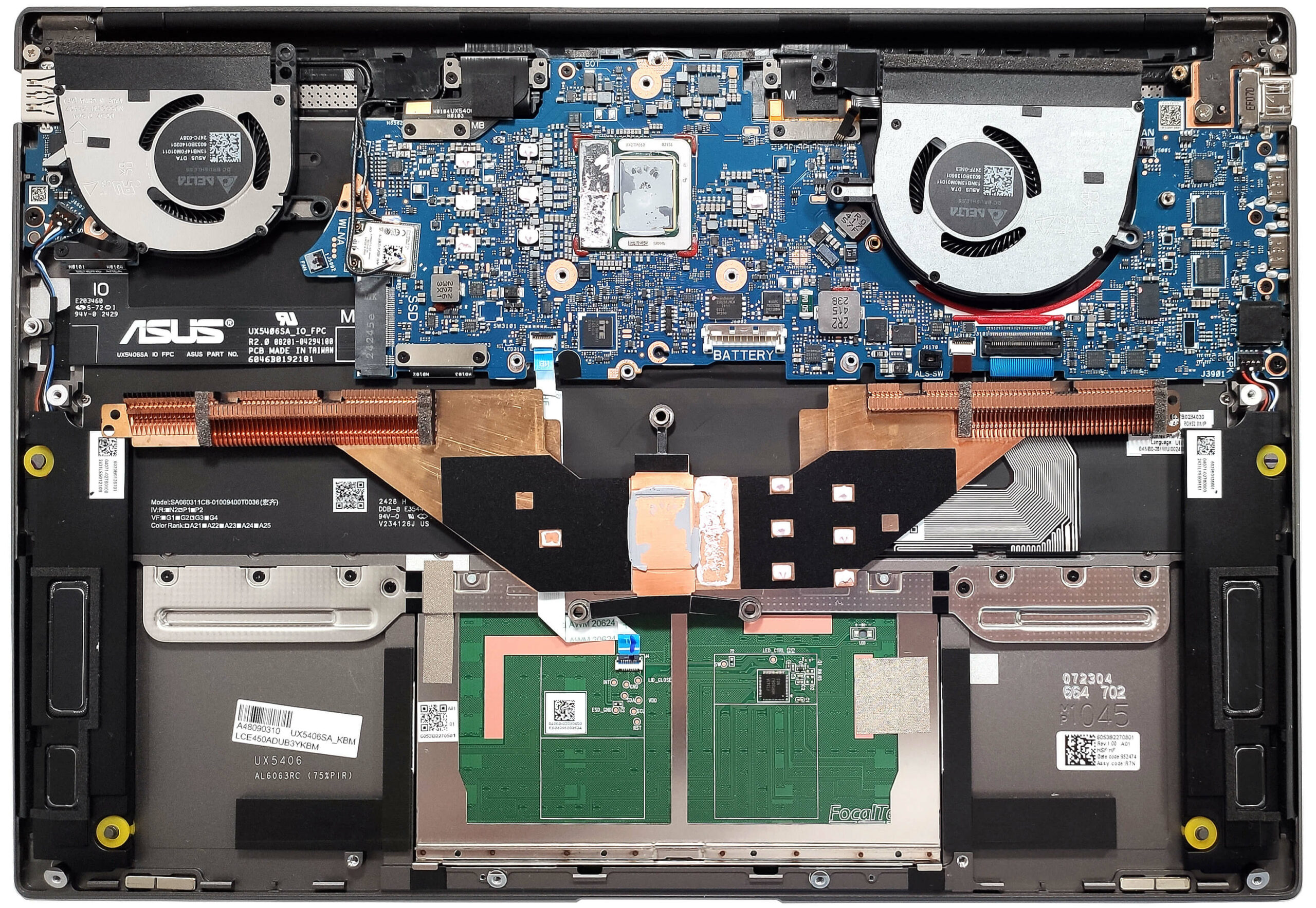
Here’s the internal look of the device.
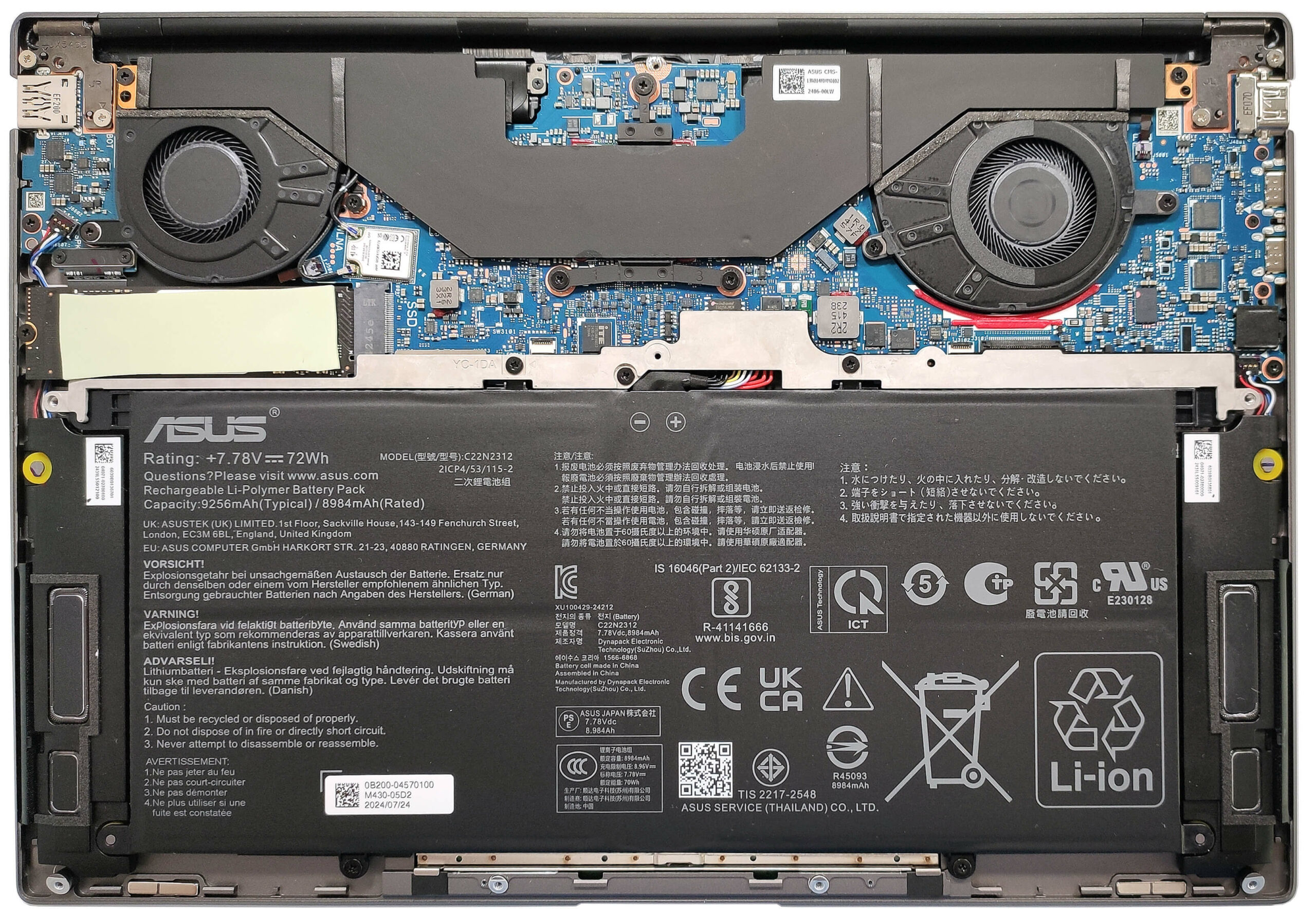
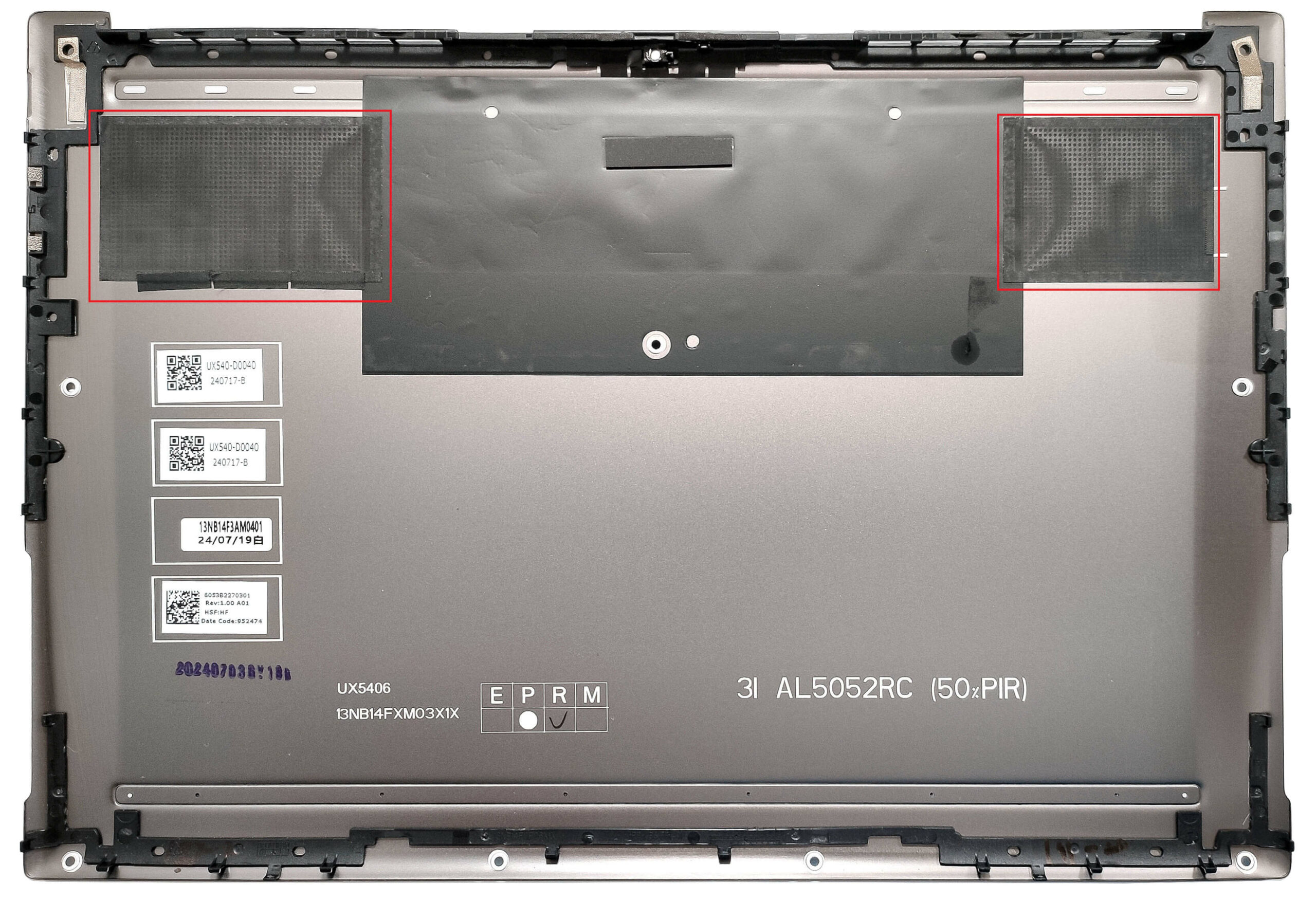
On the inside of the bottom panel, there is a pair of dust filters for the fans.
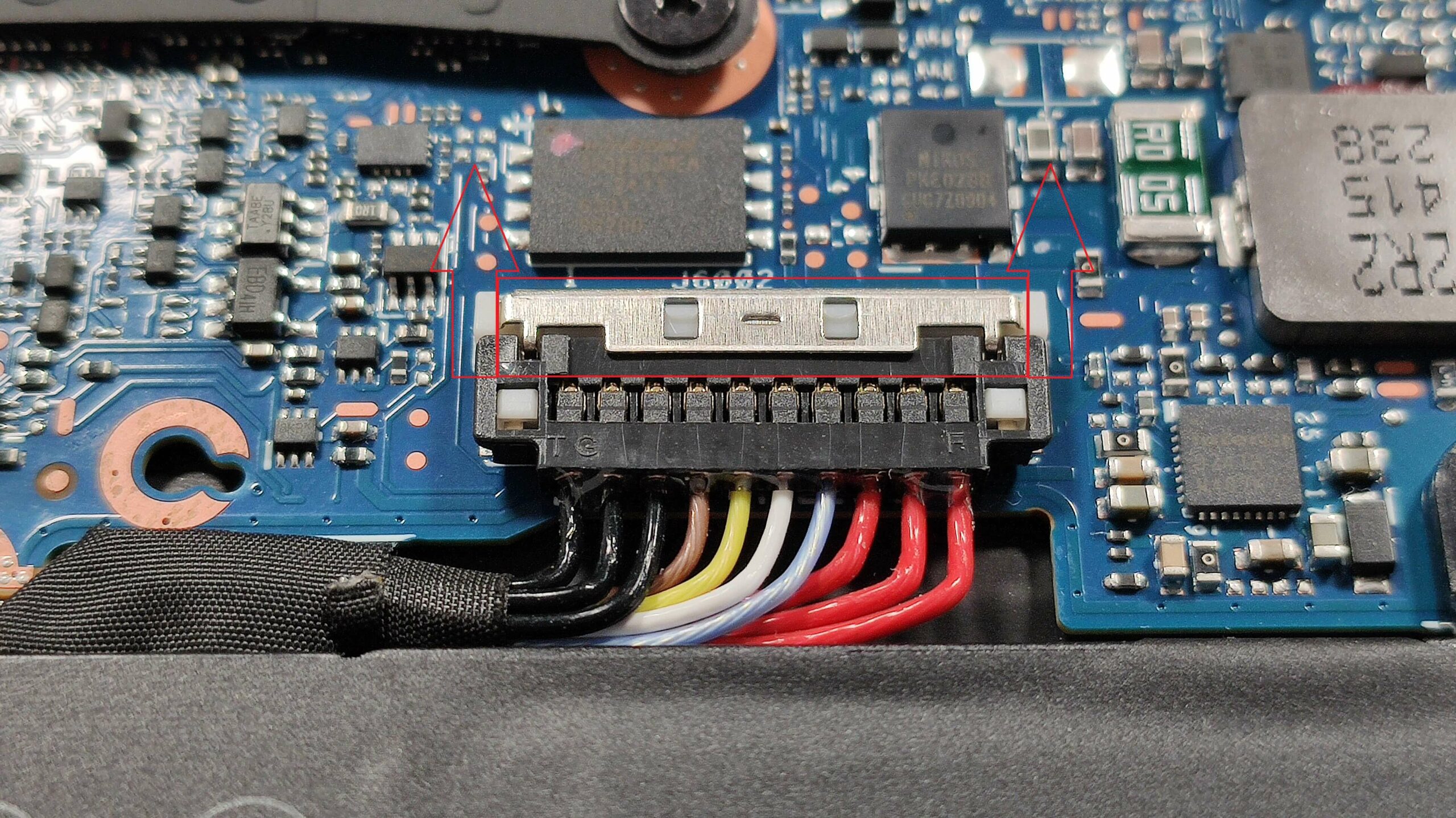
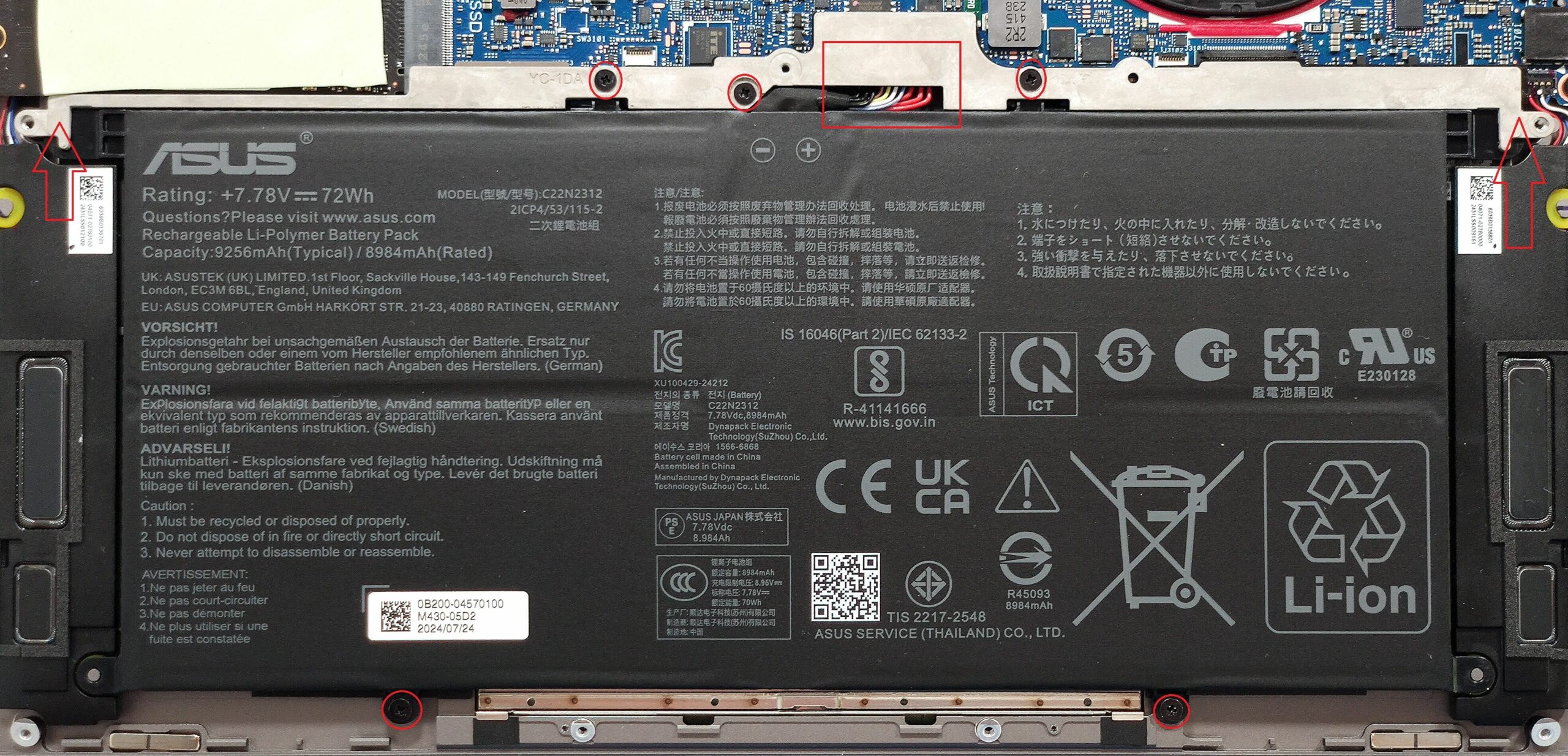
The laptop has a 72Wh model. To take it out, you have to remove the plastic shroud on the upper side that covers the battery connector. Wear gloves to avoid short circuits. Undo the 3 Phillips-head screws on the top as well as the two on the bottom of the battery. Now, you can lift up the plastic cover. Оn the battery connector, slide the metal clip UP, and then remove the battery plug.
The capacity is enough for around 16 hours of video playback. That’s a great result considering the high-res OLED screen.
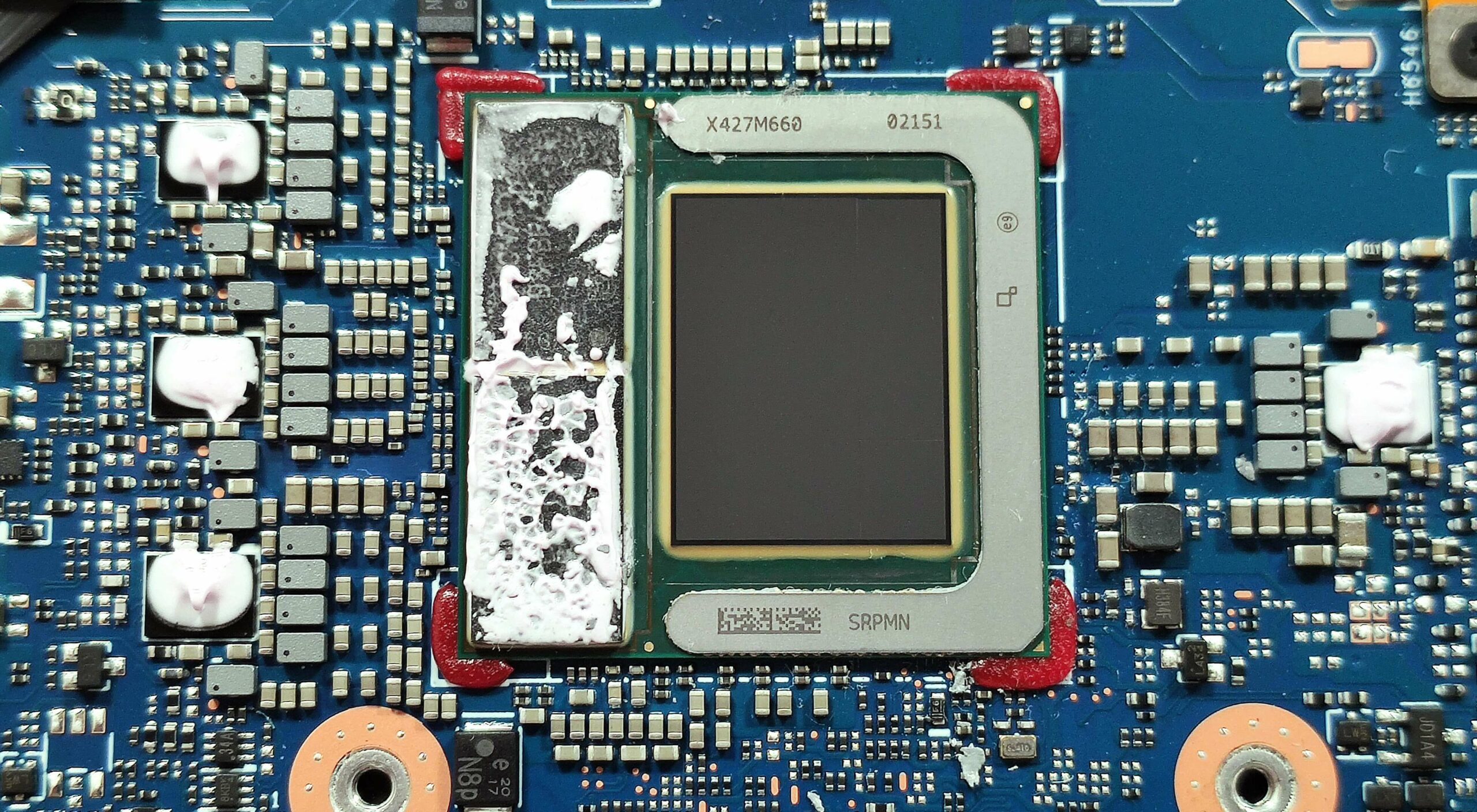
The memory is soldered. You can order this laptop with 16GB or 32GB of LPDDR5x-8533 MHz RAM that works in dual-channel mode.
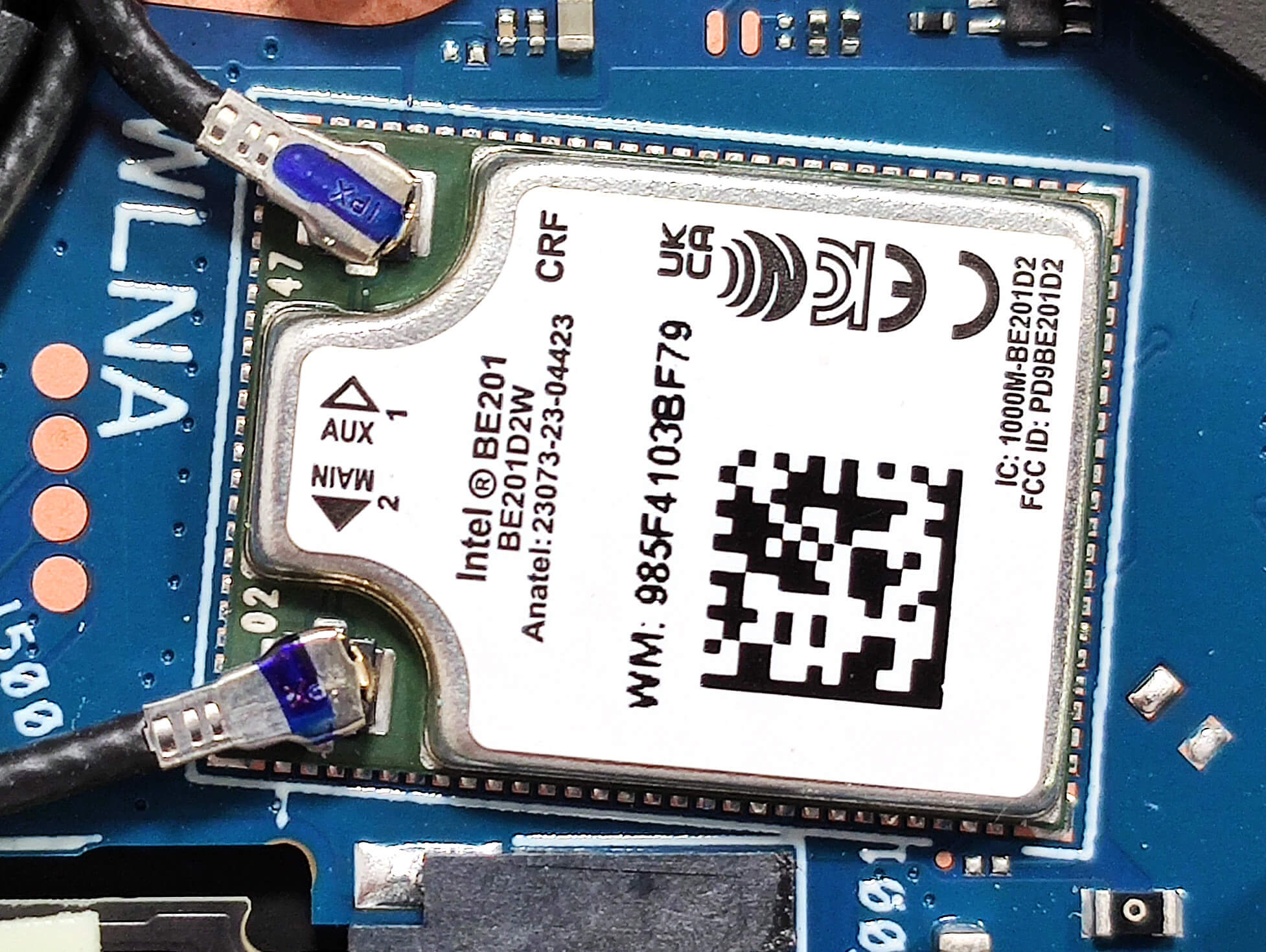
The Wi-Fi card isn’t replaceable as well.
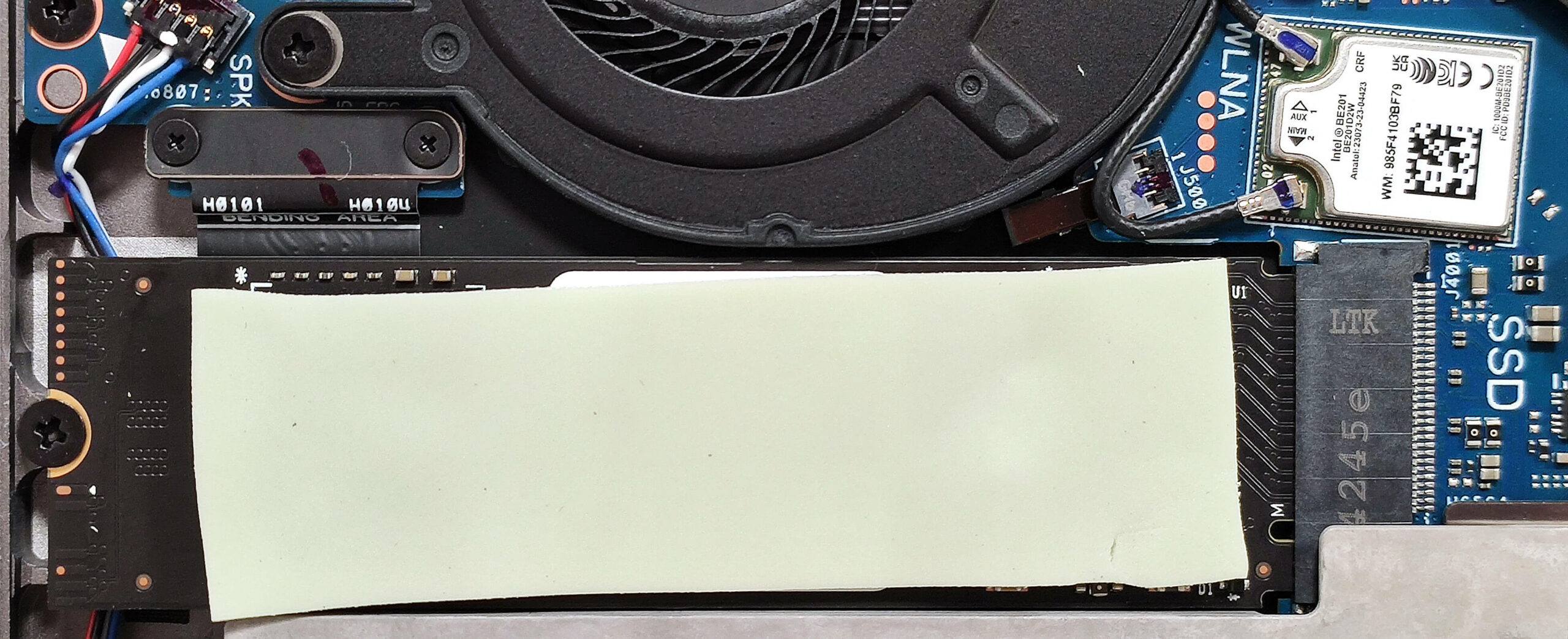
In terms of storage, you get just one M.2 slot compatible with 2280 Gen 4 SSDs. The NVMe drive is additionally cooled by a long thermal pad on top which makes contact with the metal bottom plate.
The thin vapor chamber cooling has two fans and a pair of top-mounted heat sinks.
The removal of the thermal system doesn’t seem complicated so let’s give it a try. You have to undo 9 Phillips-head screws – three at the center around the SoC and another three close by each fan.
You can solely remove the cooling without the fans. If you want to do it this way, don’t remove the two screws on the sides of the fans.
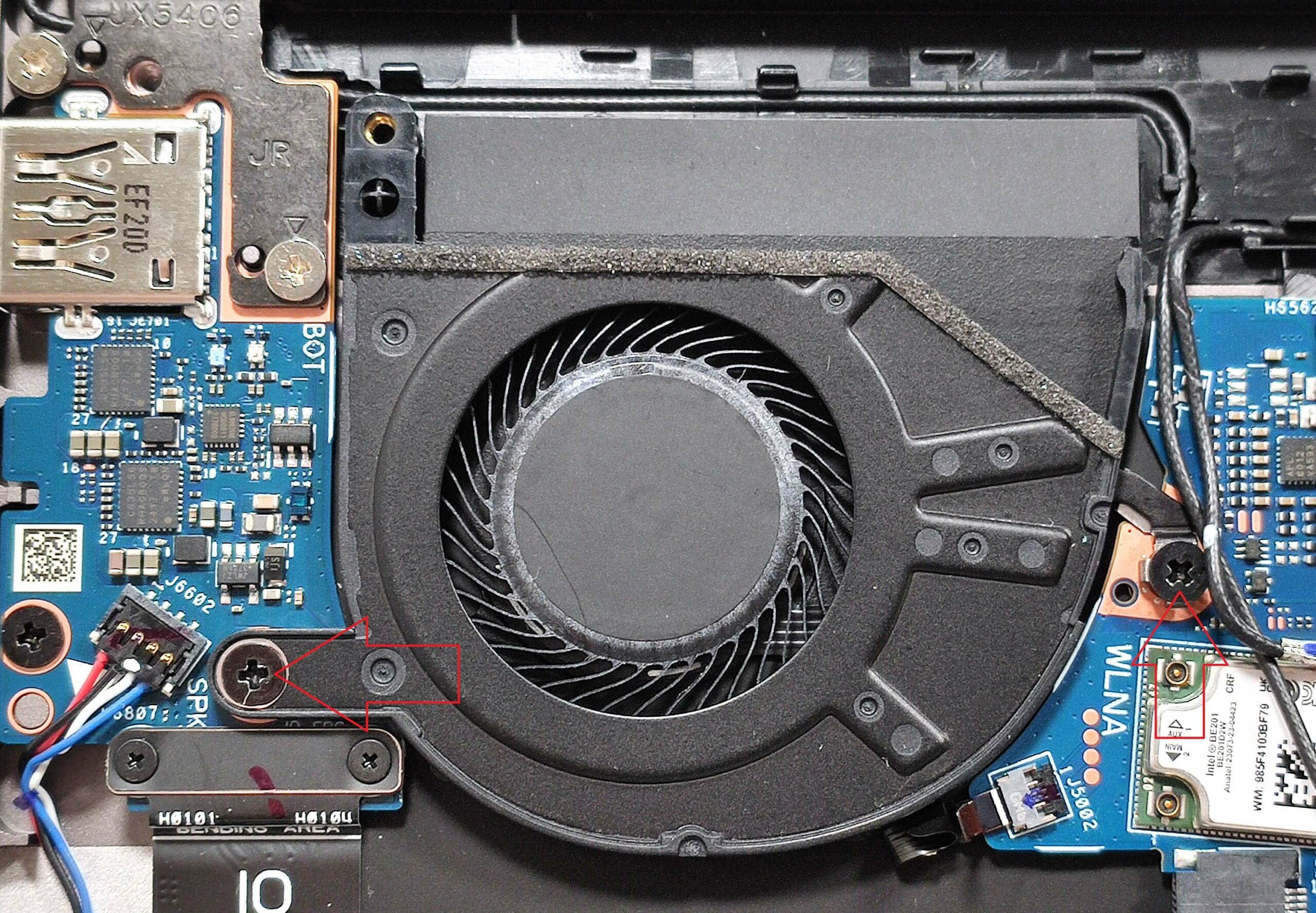
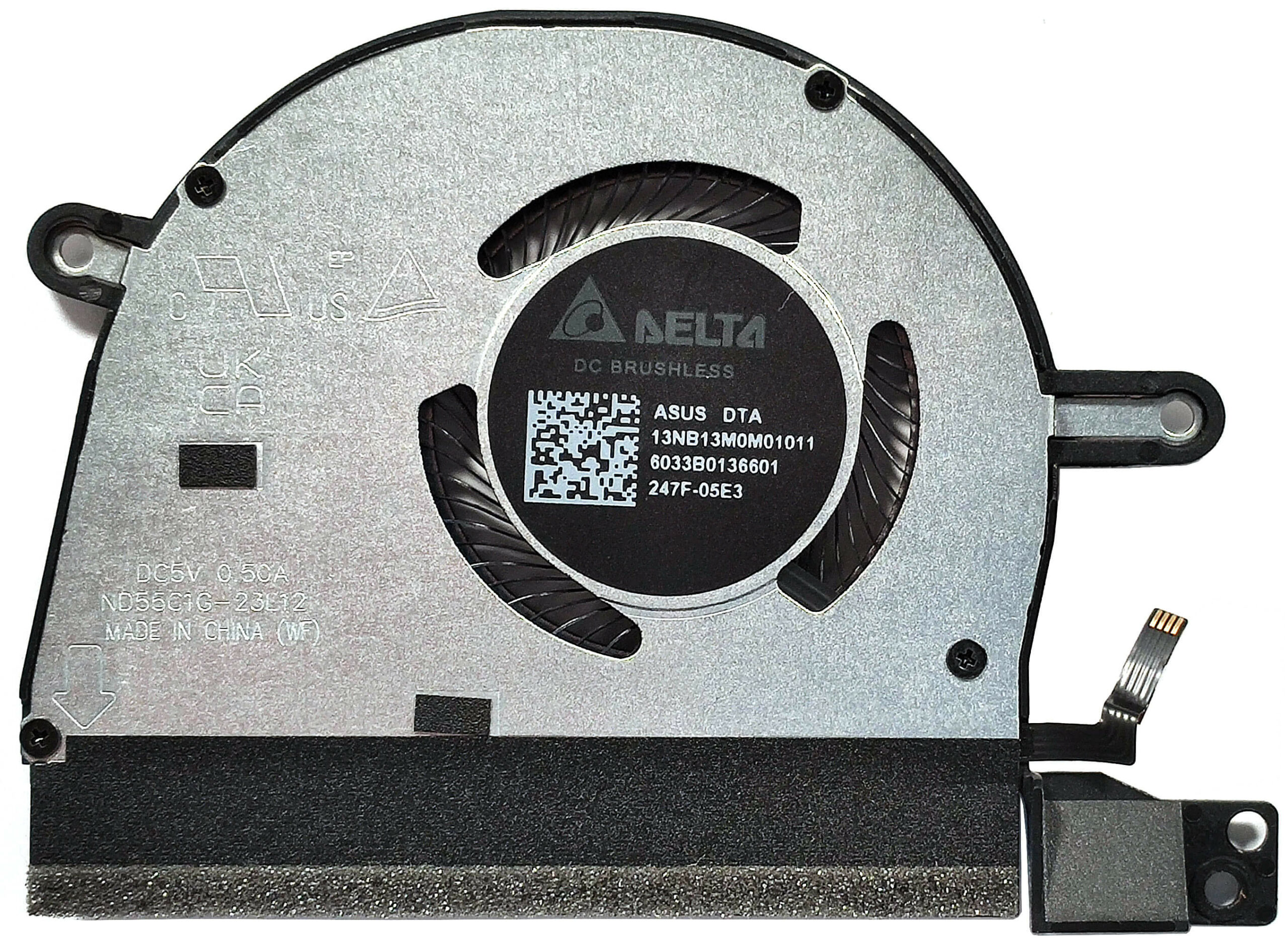
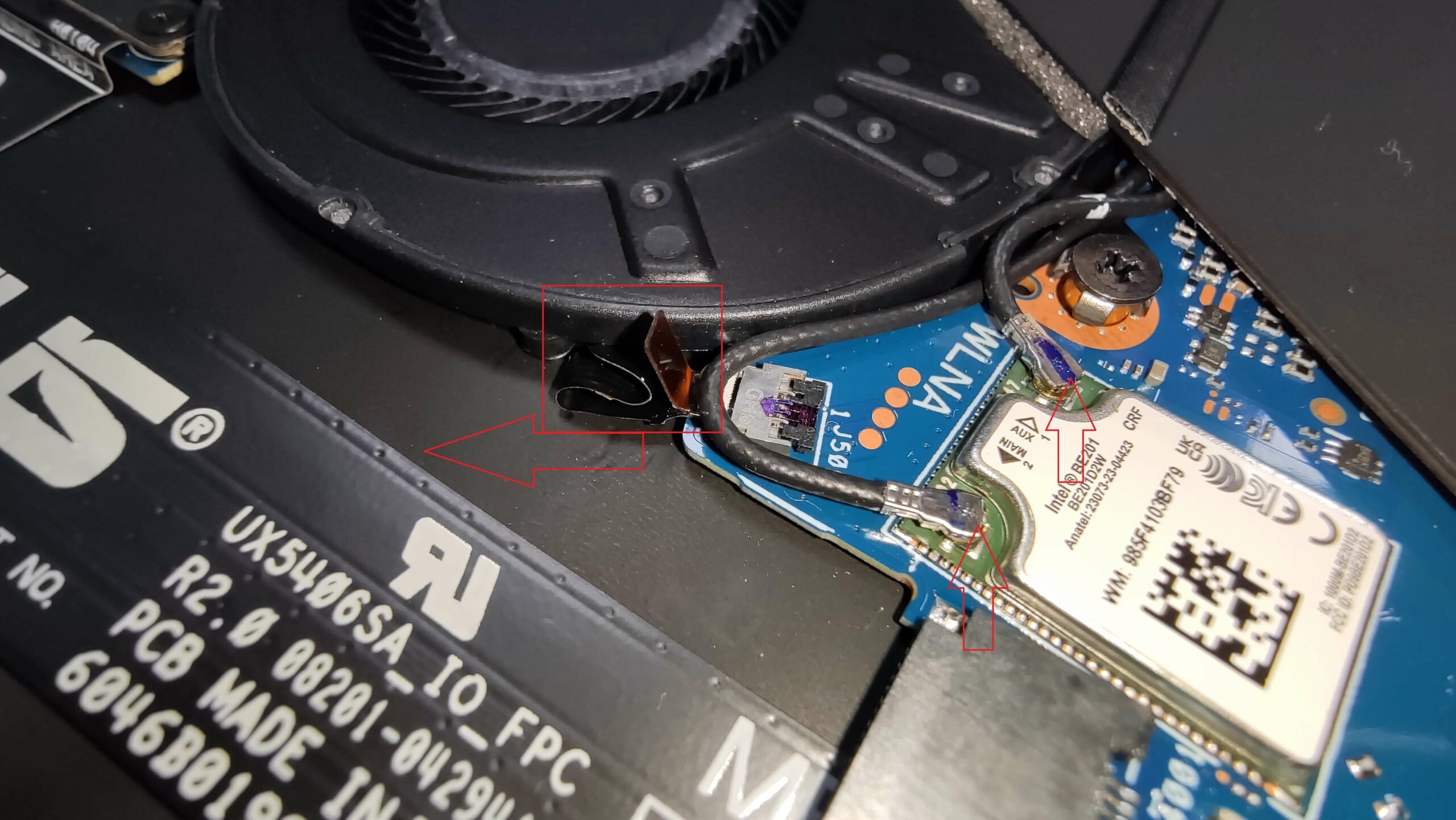
Use a lever tool to carefully pry the vapor chamber unit and lift it away from the chassis. Unplug the fan connectors. The Wi-Fi card cables are blocking the left fan ribbon connector. You might need to disconnect them to access it.
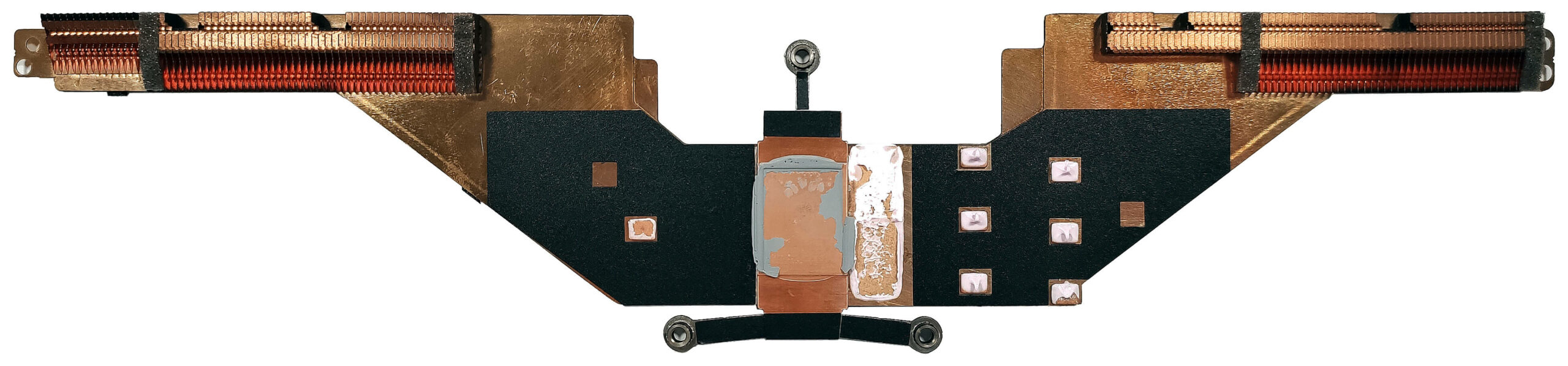
Now we can see the SoC and the two RAM chips on the sides that have preapplied soft thermal interface material (also known as “Thermal Putty”) which is also used for other components around the CPU.
Now, the cooling is entirely removed.
Verdict
 If you are constantly on the go and need a premium, thin, and yet powerful laptop, the ASUS Zenbook S 14 UX5406 can give you all that alongside an efficient CPU plus very long battery life. During work, the device always feels responsive because of the Lunar Lake processor which P and LP E cores boost to around 2.70 GHz / 3.35 GHz in short loads. The Intel Arc Graphics 140V is also powerful enough to provide acceptable FPS on Low and Medium details (of course, on 1080p resolution). The XeSS supersampling could increase the performance in more demanding titles.
The ultra-thin and light chassis is also built like a tank. The input devices are comfortable for home or office work. The 3K OLED display (ATNA40CU09-0 (SDC419D)) should be one of the key-selling features of this device. The 120Hz panel covers fully the DCI-P3 gamut and it has an infinite contrast ratio. The max brightness in HDR mode nears 600 nits and you can rely on 364 cd/m² while watching SDR content.
If you pop the bottom plate, the only thing you can do it to change the SSD or apply a new thermal paste on the CPU. Still, that’s completely fine when we are talking about such an impressively compact notebook. The port selection is up to date with its two Thunderbolt 4s and one Type-A port.
The Zenbook S 14 UX5406 impresses with long battery life, a great OLED touchscreen, good comfort under load, and a nice keyboard.
You can check the prices and configurations in our Specs System: https://laptopmedia.com/series/asus-zenbook-s-14-ux5406/
Pros
- Superb OLED display with 100% sRGB and DCI-P3 coverage (SDC419D)
- Infinite contrast ratio, 120Hz refresh rate, and 2880 x 1800 resolution (SDC419D)
- 591 nits in HDR and 364 nits max brightness in SDR mode (SDC419D)
- Tremendous color accuracy (SDC419D)
- Quality Harman Kardon-certified four-speaker audio system with Dolby Atmos support
- Vapor chamber cooling with two fans
- Comfortable keyboard
- Big and smooth touchpad
- 1080p IR Web camera
- Very good overall CPU and iGPU performance given the thin profile
- The fans aren’t too noisy in “Full-speed mode” mode during heavy loads
- Up to 32GB of soldered LPDDR5x
- Long battery life
- The Core Ultra 7 258V can maintain 2.70 GHz / 3.35 GHz for the P and LP E cores in short loads
- Great solid premium build quality
- 2x Thunderbolt 4 ports + Type-C charging
Cons
- The P-core frequency drops down below the official base clock in long loads
- Only one M.2 slot + soldered RAM
 Author: Nikolay Palaozov
 Author: eng. Kroum NikolovHead of Engineering at LaptopMedia.com, inventor and innovator with 40+ years of experience in electronics and high technology.
TOP 100 GAMING LAPTOPS


TOP LAPTOP RATINGS
HIGHLIGHTS view more
![[May 2026] Global Ranking of Best-Selling Laptop GPUs on Amazon – Apple Dominates with 45% Share, Sweeps Top 3 Spots; NVIDIA’s RTX 5060 Leads the Dedicated GPU Pack](https://laptopmedia.com/wp-content/uploads/2026/06/Best-Selling-GPUs-GLOBAL-Top-10-400x225.jpg)
[May 2026] Global Ranking of Best-Selling Laptop GPUs on Amazon – Apple Dominates with 45% Share, Sweeps Top 3 Spots; NVIDIA’s RTX 5060 Leads the Dedicated GPU Pack
Jun 04, 2026![[May 2026] Global Ranking of Best-Selling Laptop CPUs on Amazon – Apple Crushes Competition with 45.2% Market Share, M5 Dominates](https://laptopmedia.com/wp-content/uploads/2026/06/Best-Selling-CPUs-GLOBAL-Top-10-400x225.jpg)
[May 2026] Global Ranking of Best-Selling Laptop CPUs on Amazon – Apple Crushes Competition with 45.2% Market Share, M5 Dominates
Jun 04, 2026![[May 2026] Amazon Germany: Top 7 Best-Selling Gaming Laptops – Lenovo Legion 5i Crowned Champion Amidst Fierce Mid-Range Competition](https://laptopmedia.com/wp-content/uploads/2026/06/Best-Selling-Gaming-Laptops-DE-Top-10-1-400x225.jpg)
[May 2026] Amazon Germany: Top 7 Best-Selling Gaming Laptops – Lenovo Legion 5i Crowned Champion Amidst Fierce Mid-Range Competition
Jun 03, 2026![[May 2026] Amazon Italy: Top 10 Best-Selling Laptops – Apple MacBook Neo Reigns Supreme, Premium Models Capture Dominant Revenue Share](https://laptopmedia.com/wp-content/uploads/2026/06/Best-Selling-Laptops-IT-Top-10-400x225.jpg)
[May 2026] Amazon Italy: Top 10 Best-Selling Laptops – Apple MacBook Neo Reigns Supreme, Premium Models Capture Dominant Revenue Share
Jun 03, 2026![[May 2026] Best-Selling Laptop Brands on Amazon Italy – Apple Dominates Across All Metrics](https://laptopmedia.com/wp-content/uploads/2026/06/IT-Best-Brands-400x225.jpg)
[May 2026] Best-Selling Laptop Brands on Amazon Italy – Apple Dominates Across All Metrics
Jun 03, 2026
REVIEWS view more
MSI Cyborg 17 B13W review – Big Screen, Low RTX Power
Jun 02, 2026Apple MacBook Air 15.3″ (M5) – The Best 15-Inch Laptop for Everyday Use?
May 30, 2026ASUS ROG Zephyrus G14 (GA403, Ryzen AI 300) review – RTX 5070 Ti, OLED, and True Portability
May 27, 2026ASUS Vivobook 18 (M1807) review – Huge Screen, Big Battery, Real Compromises
May 23, 2026Apple MacBook Neo review – The $599 MacBook That Changed the Entry-Level Game
May 21, 2026