How to open MSI Stealth 14 AI Studio A1V – disassembly and upgrade options
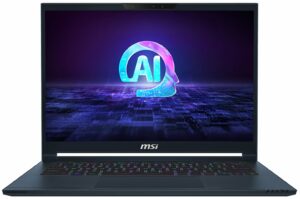
Opening the Device
- Undo the 8 Phillips-head screws securing the bottom panel.
- Lift the top two corners by inserting a thin plastic tool between the plate and the chassis.
- Flip the laptop and pry the sides, lifting the left side up to the level of the audio jack.
- Turn the laptop back over and pry the front.
- Lift the panel on the right and slide it to the left where the audio jack is located.
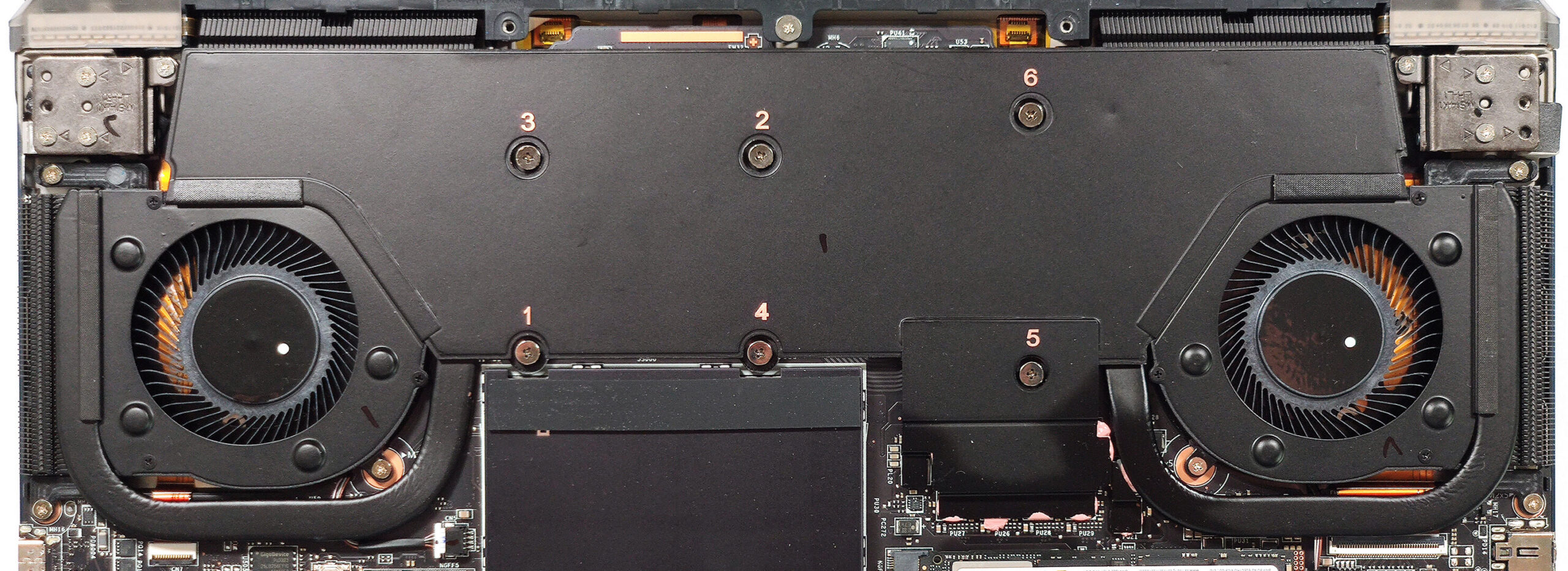
More info: Here’s how the bottom panel looks on the inside.


Battery Removal
- Pull out the battery connector from the mainboard.
- Undo the 6 Phillips-head screws securing the battery.
- Lift the battery to remove it from the device.
Note: The device uses a 72Wh battery, providing approximately 5 hours and 42 minutes of video playback with specific settings applied:
- “Super Battery” preset and “Display Power Saver” function in the MSI Center.
- “MSHybrid Graphics Mode” turned on and “Balance” mode selected in the BIOS under the “User Scenario” section.
- “Best Power Efficiency” preset activated in the Windows “Power & Battery” menu.

Memory Upgrade
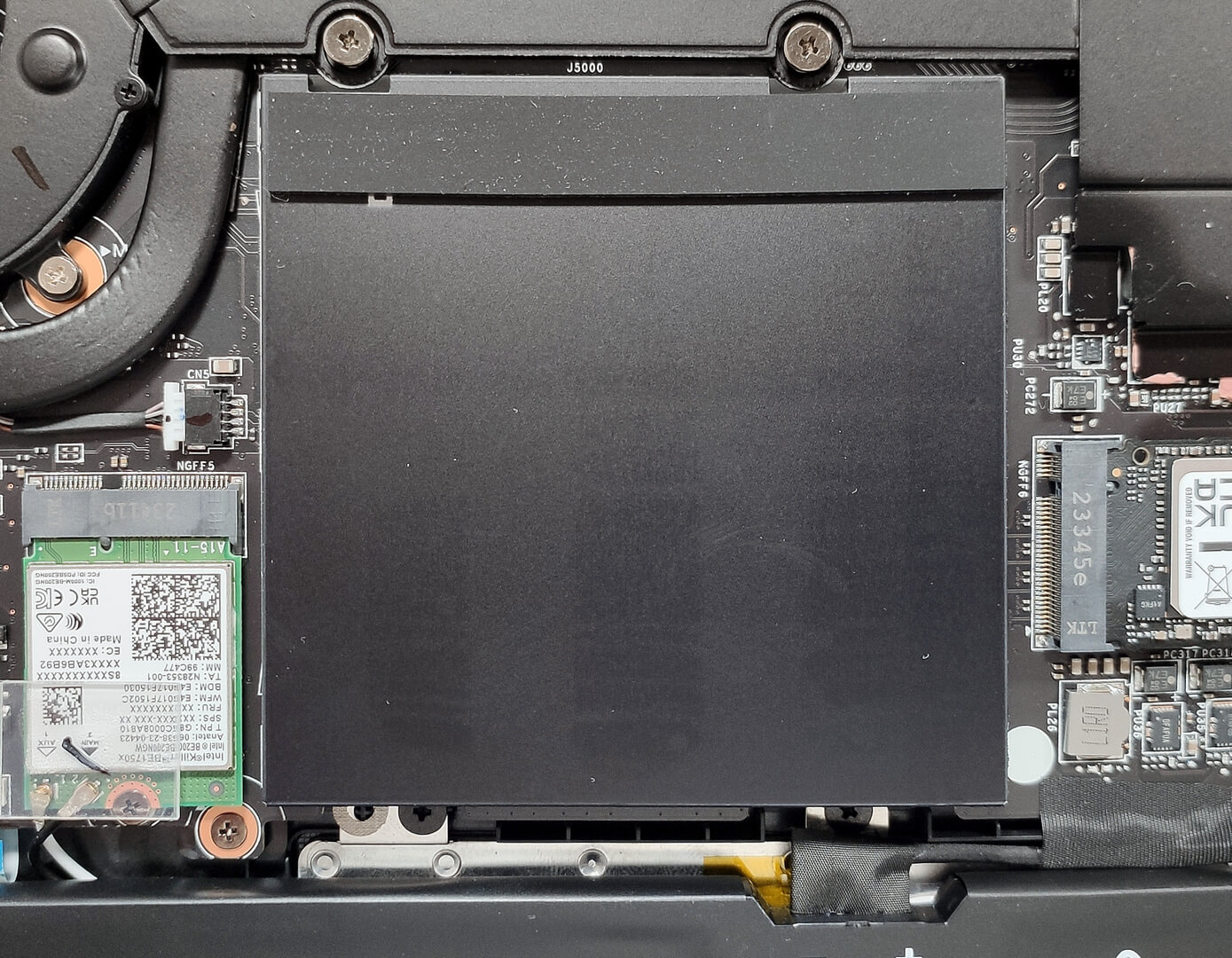
- Locate the memory area protected by a metal plate with a rubber foot on top.
- Raise the metal shroud using a thin plastic tool to access the memory slots.
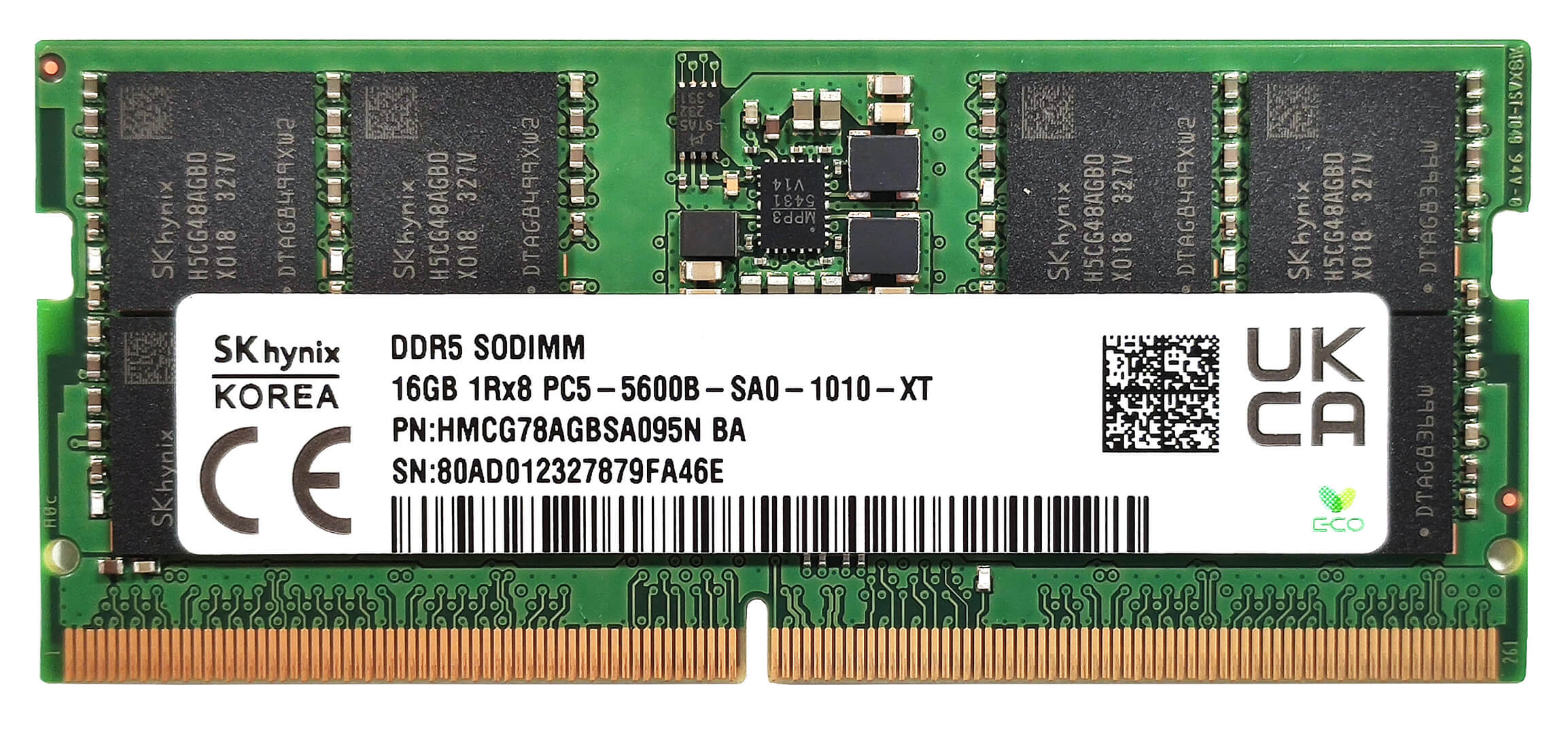
Note: The two SODIMM slots support up to 96GB of DDR5-5600MHz RAM in dual-channel mode, the maximum specified for a Meteor Lake-H CPU.
You can buy compatible RAM modules here: Buy from Amazon.co.uk (#CommissionsEarned)

Storage Upgrade
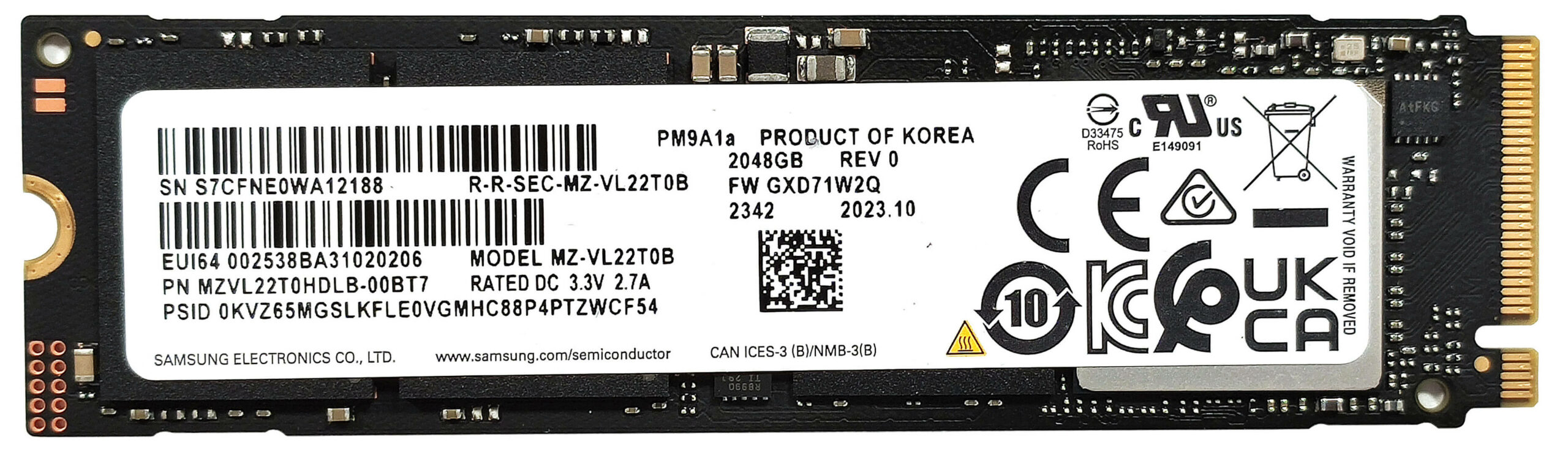
- Locate the single M.2 slot compatible with 2280 Gen 4 SSDs.
- Remove the preinstalled NVMe and the two thermal pads below it.
- Install the new SSD in the slot.
Hint: Don’t forget to check out our Top M.2 SSDs Performance Rankings for insights on the best storage options available.
You can buy compatible SSDs here: Buy from Amazon.co.uk (#CommissionsEarned)

Cooling System Overview
- The vapor chamber cooling system includes two large fans, a pair of heat pipes, four heat sinks, and a heat spreader.
- Ensure all cooling components are clean and free of dust for optimal performance.
Note: The cooling system is designed to efficiently handle the device’s high-performance components.
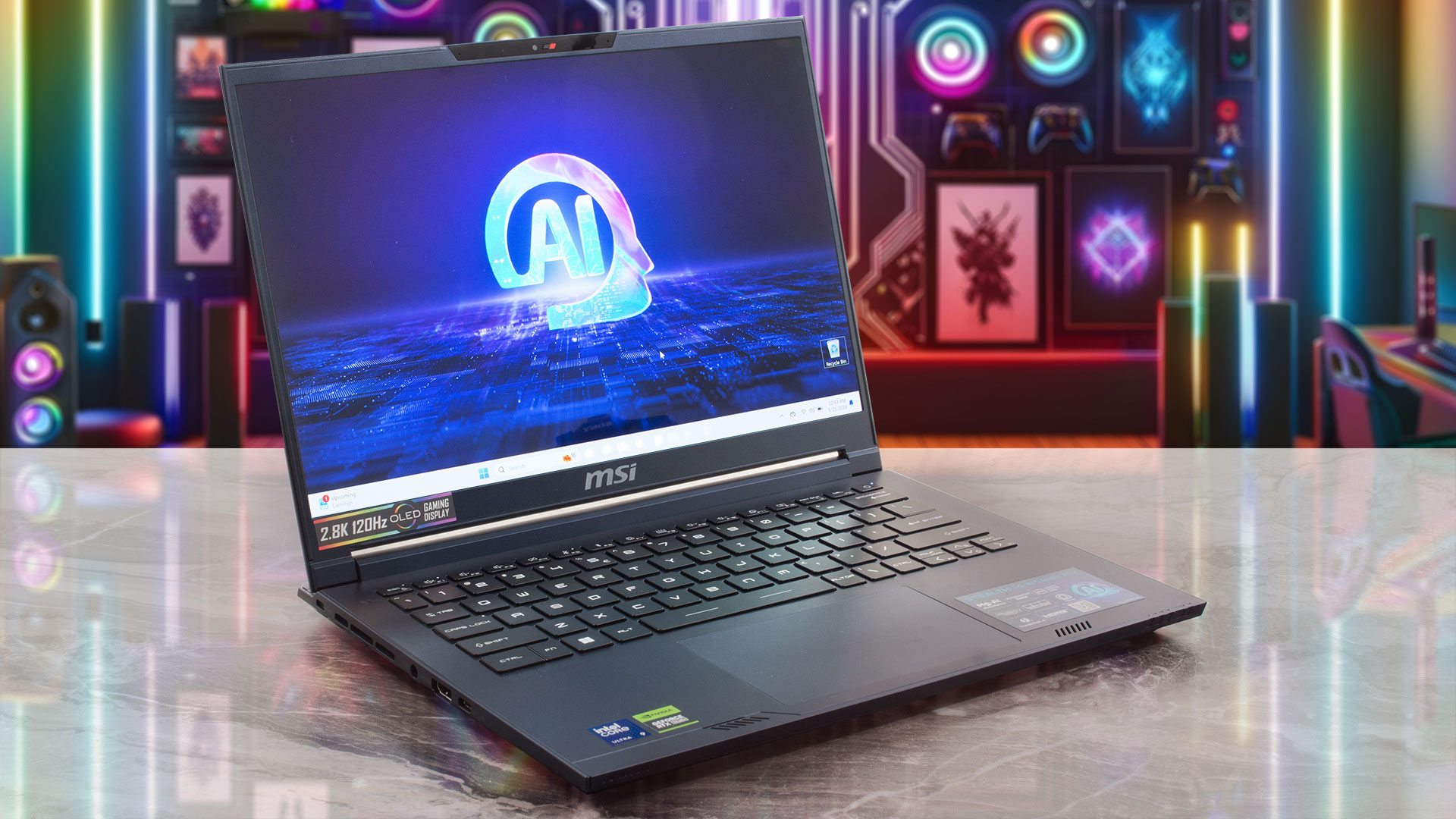
MSI Stealth 14 AI Studio (A1Vx) in-depth review
For power users and professionals who travel a lot, a small yet hardware-potent machine could be a dream come true. The MSI Stealth 14 AI Studio A1V has all the needed mouthwatering features to be a compact powerhouse for gaming or content creation. It relies on 28W Intel Raptor Lake-H CPUs and NVIDIA Ada Lovelace graphics cards with 90W TGPs. The device isn't hefty but it's not super thin at the same time since it has a big vapor chamber cooling and two SODIMMs under the hood. You don't get a plethora of connectors but the included ones are up to date including Thunderbolt 4 and an HDMI 2.1. [...]
Pros
- Good performance for a 14-incher
- 2x SODIMMs for up to 96GB of DDR5 memory
- 1800p resolution + 120Hz refresh rate (SDC419B)
- Full sRGB and DCI-P3 coverage + accurate color with our "Design and Gaming" profile (SDC419B)
- High max brightness of 636 nits in HDR and 404 nits in SDR mode + infinite contrast ratio (SDC419B)
- Great per-key RGB keyboard by SteelSeries + smooth and accurate touchpad
- Solid magnesium aluminum chassis
- The Core Ultra 9 185H can maintain 3.6 Ghz / 2.9 Ghz P and E core clock during heavy loads
- The optional RTX 4070 offers 90W TGP and ~2000 MHz during gaming
- The MSI Center offers plenty of customizations
- Thunderbolt 4, 1x Type-C port + HDMI 2.1
- Vapor chamber cooling
- 1080p IR Web camera with privacy shutter
- MUX switch
- Compact and powerful
- The fans don't spin in idle if the GPU temperature is below 50°C
Cons
- Loud fan noise + the keyboard feels hot to the touch during gaming in "Extreme Performance"
- The "Balanced" preset offers just a ~45W GPU TGP
- No G-Sync or NVIDIA Advanced Optimus support
- Just three USB ports
- Strange fan hysteresis under heavy CPU stress alongside high chip temperature
- PWM usage (SDC419B)
 Author: Severin Kolakov

![[June 2026] Best-Selling Laptop Brands on Amazon Global – Apple’s Unrivaled Dominance in Units and Revenue](https://laptopmedia.com/wp-content/uploads/2026/07/GLOBAL-Best-Brands-400x225.jpg)
![[June 2026] Amazon Global: Top 10 Best-Selling Laptops – Apple’s New MacBook Neo Storms to #1, Reshaping the Market with Affordability](https://laptopmedia.com/wp-content/uploads/2026/07/Best-Selling-Laptops-GLOBAL-Top-10-400x225.jpg)
![[June 2026] Amazon Global: Top 10 Best-Selling Gaming Laptops – Acer’s Nitro V 16S AI Dominates Sales, While ASUS Leads Overall Revenue](https://laptopmedia.com/wp-content/uploads/2026/07/Best-Selling-Gaming-Laptops-GLOBAL-Top-10-400x225.jpg)
![[June 2026] Global Ranking of Best-Selling Laptop GPUs on Amazon – NVIDIA RTX 5060 is the Top-Selling Dedicated GPU](https://laptopmedia.com/wp-content/uploads/2026/07/Best-Selling-GPUs-GLOBAL-Top-10-400x225.jpg)
![[June 2026] Global Ranking of Best-Selling Laptop CPUs on Amazon – Apple M5 Dominates, AMD Ryzen 7 260 Gets Solid Premium Share](https://laptopmedia.com/wp-content/uploads/2026/07/Best-Selling-CPUs-GLOBAL-Top-10-400x225.jpg)