How to open Dell Vostro 15 3530 – disassembly and upgrade options
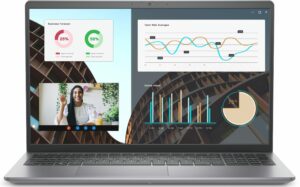
1. Removing the Bottom Plate
– Ensure the laptop is powered off and unplugged from any external power source.
– Flip the laptop to access its bottom side.
– Unscrew the 8 Phillips-head screws. Remember, the ones in the top corners are captive and will slightly lift the plate.
– Start prying the panel with a plastic tool from where the captive screws lifted it.
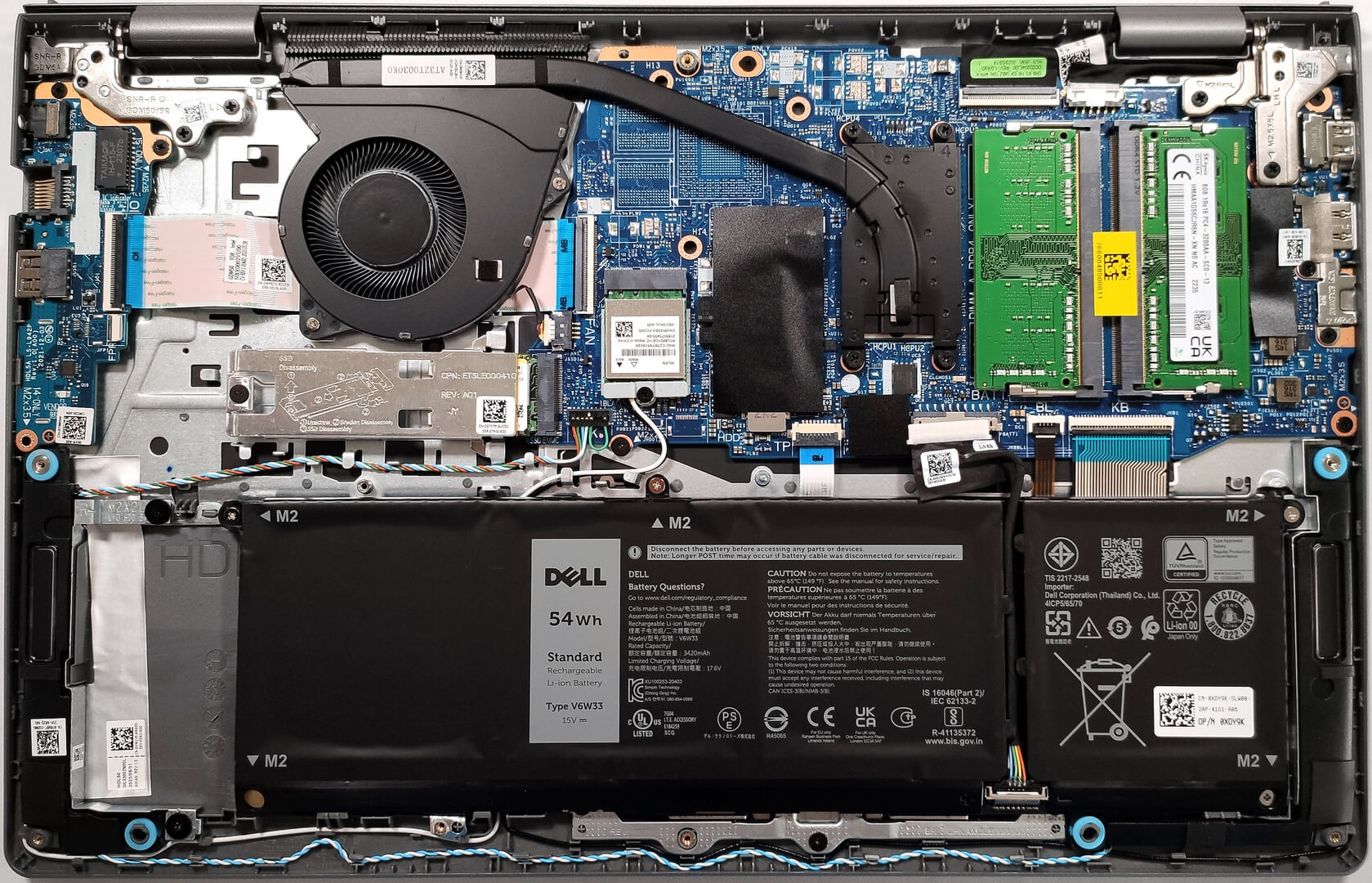
2. Battery Removal
– To ensure safety while handling internal components, first, disconnect the battery.
– Carefully unplug the battery connector from the mainboard.
– Unscrew the 4 Phillips-head screws holding the battery in place.
– Lift and remove the battery.

3. Memory (RAM) Upgrade
– The laptop features two SODIMM slots that can accommodate either DDR4-3200MHz or DDR4-2666MHz RAM.
– Depending on the model and the type of Type-C port, the RAM speed can vary. If the laptop has a regular Type-C port, it is equipped with slower RAM. Devices with Type-C ports supporting DisplayPort 1.4 and Power Delivery have faster memory.
– To upgrade or replace, gently release the clips holding the memory sticks and carefully pull them out. Insert the new ones ensuring they click into place.
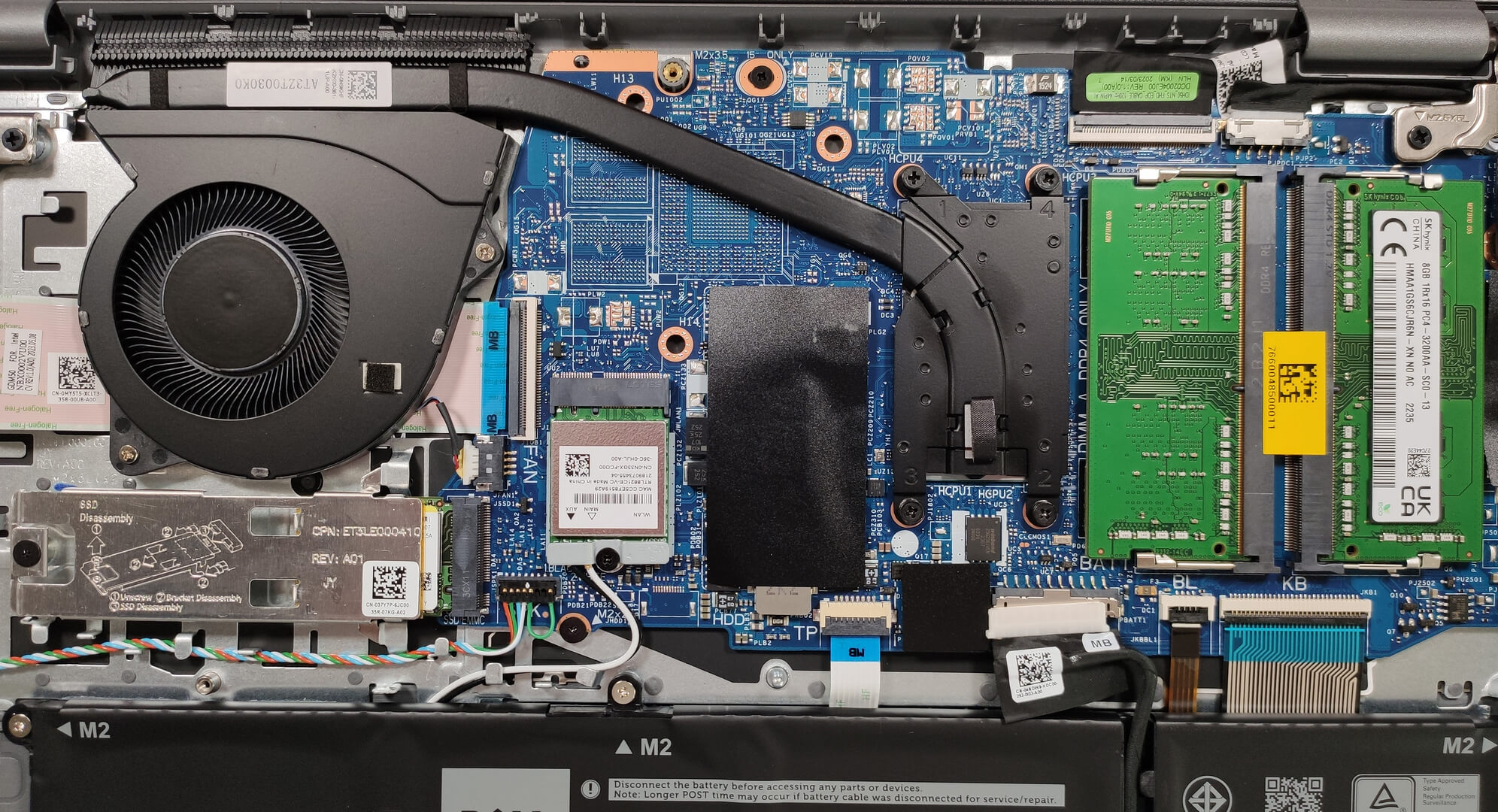
4. Storage Upgrade
– The Vostro 15 3530 comes with an M.2 slot that can handle 2230 or 2280 Gen 4 SSDs.
– To replace or upgrade the SSD, remove the securing screw and gently pull out the current SSD.
– Place the new SSD in, ensuring it’s properly seated, and then secure it with the screw.
– Remember, there’s a metal shroud with a thermal pad inside, meant to dissipate heat from the SSD. Make sure it’s correctly placed.

5. Cooling System Maintenance
– The cooling system is relatively simple, with one fan and one heat pipe.
– For maintenance, make sure the fan blades are clean. Dust accumulation can reduce efficiency.
– If the device is overheating, consider seeking professional help to replace the thermal paste or check for any malfunctioning components.
Note: Working with internal components requires care. If unsure about any step, it’s advisable to consult with a professional or visit an authorized service center. Also, keep in mind that opening the laptop might void its warranty, so always check warranty conditions beforehand.

 Author: Nikolay Palaozov

![[June 2026] Best-Selling Laptop Brands on Amazon Global – Apple’s Unrivaled Dominance in Units and Revenue](https://laptopmedia.com/wp-content/uploads/2026/07/GLOBAL-Best-Brands-400x225.jpg)
![[June 2026] Amazon Global: Top 10 Best-Selling Laptops – Apple’s New MacBook Neo Storms to #1, Reshaping the Market with Affordability](https://laptopmedia.com/wp-content/uploads/2026/07/Best-Selling-Laptops-GLOBAL-Top-10-400x225.jpg)
![[June 2026] Amazon Global: Top 10 Best-Selling Gaming Laptops – Acer’s Nitro V 16S AI Dominates Sales, While ASUS Leads Overall Revenue](https://laptopmedia.com/wp-content/uploads/2026/07/Best-Selling-Gaming-Laptops-GLOBAL-Top-10-400x225.jpg)
![[June 2026] Global Ranking of Best-Selling Laptop GPUs on Amazon – NVIDIA RTX 5060 is the Top-Selling Dedicated GPU](https://laptopmedia.com/wp-content/uploads/2026/07/Best-Selling-GPUs-GLOBAL-Top-10-400x225.jpg)
![[June 2026] Global Ranking of Best-Selling Laptop CPUs on Amazon – Apple M5 Dominates, AMD Ryzen 7 260 Gets Solid Premium Share](https://laptopmedia.com/wp-content/uploads/2026/07/Best-Selling-CPUs-GLOBAL-Top-10-400x225.jpg)