Acer Predator XB3 (XB273UGS) has a 165 Hz display with great color accuracy, thanks to our profiles
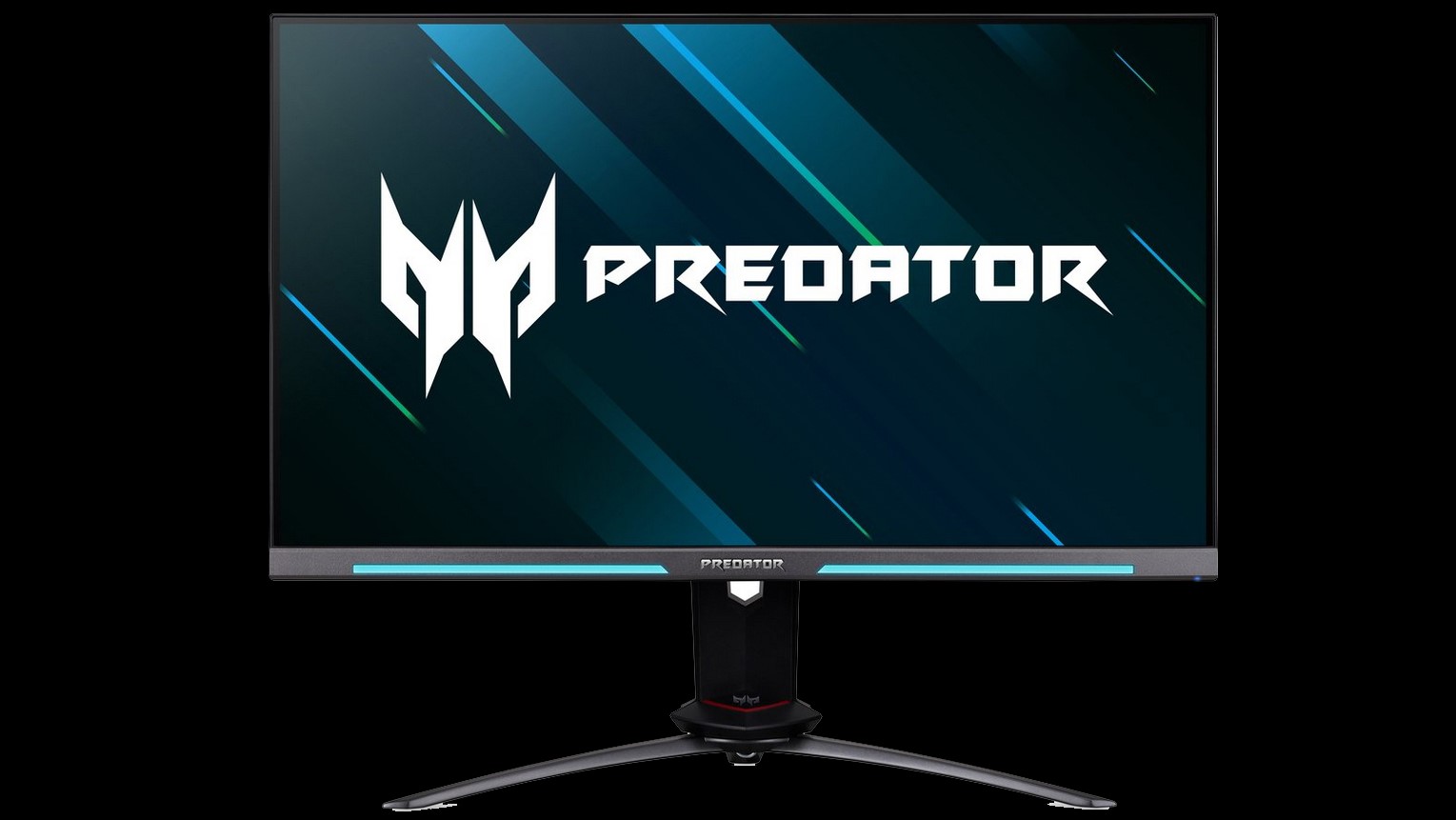 When you look at the Acer Predator XB3 (XB273UGS) you will probably notice that it’s a product that wants to impress gamers. Yep, the design is gamer-ish but not too excessive and intrusive. The hinge of this monitor isn’t something that you can see every day – it’s really big and there is a a reason for that – the adjustability is very good (height adjustment, tilt (from -5 to 20 degrees), swivel (20-degrees for every side), and pivot).
Ok, enough talking about the exterior part of the Acer Predator XB3, let’s get straight to its display specs and quality. First of all, if you think that the 1080p resolution is outdated in 2020, well, this one is a QHD unit and its native resolution is 2560×1440.
By the way, the 1440p resolution is the right one for a 27″ monitor, Full HD is a bit too low for that kind of screen size. Further down the road, this product supports a 165 refresh rate (via overclocking and you need a DP cable for that, otherwise you’re “stuck” with just 144Hz) and G-Sync as well. Such a high refresh rate isn’t a joke especially when it’s combined with a higher resolution so keep in mind that you need really powerful hardware that can achieve as high as possible FPS results.
We are pretty happy with the display quality of the Acer Predator XB3, and we are going to explain why.
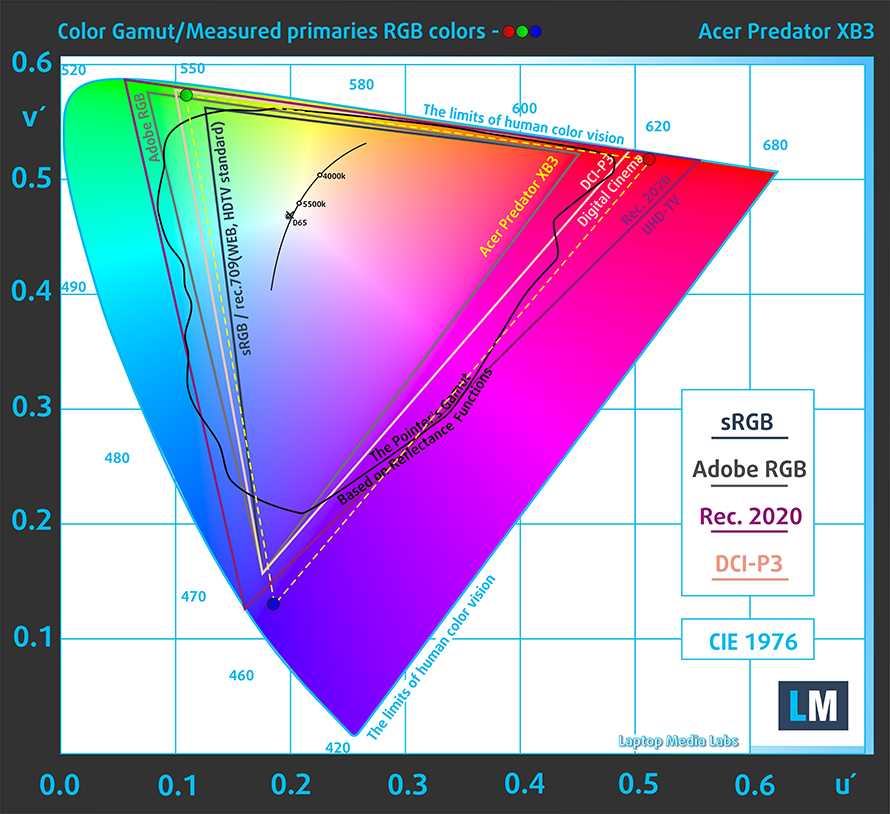
The maximum measured brightness in the “Standard” mode is more than fine – 446 nits (cd/m2) in the middle of the screen and 395 nits (cd/m2) average across the surface with a maximum deviation of 18%. The contrast ratio is good – 1040:1. We can advise you to use the “Standard” mode because with this setup settings the monitor is able to spread its abilities beyond the sRGB gamut and it reaches the DCI-P3 color gamut. This is an excellent result for a gaming monitor.
Check out our Acer Predator XB3 (XB273UGS) in-depth review.
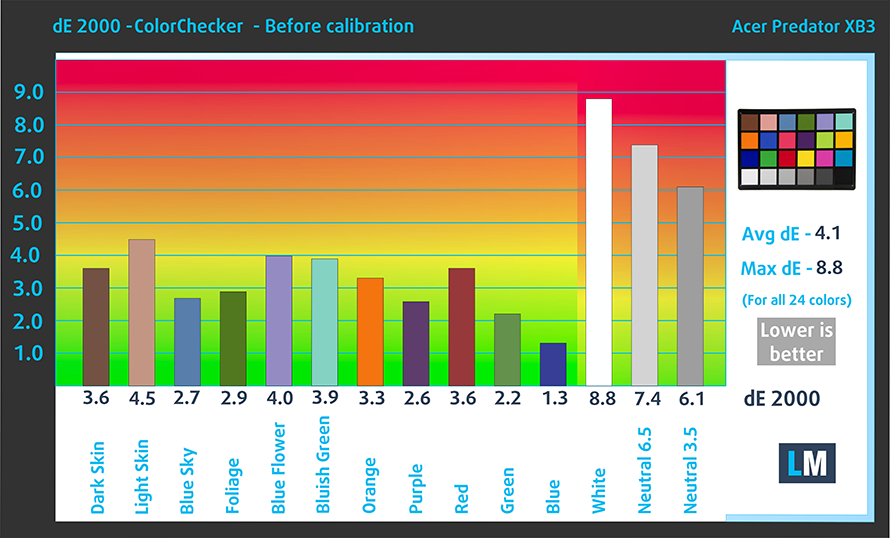
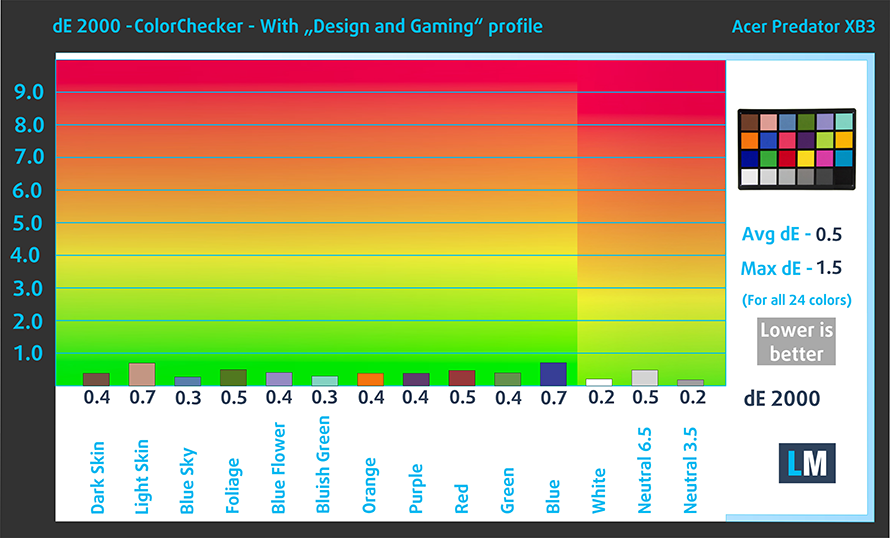
Another good thing is its color accuracy. As you can see, the out of the box setting isn’t something to write home about. With a result of just 4.1, the monitor looked like a typical mediocre unit. However, after we applied our “Design and Gaming” it unlocked its full potential and the Acer display became very color accurate. It can be used for color-sensitive jobs as well (keep in mind that our unit had a problem with its uniformity but maybe that’s an isolated case). No matter what you’re going to do in front of the panel, you’re probably going to enjoy the punchy and vibrant colors that it’s able to produce.
The viewing angles of this IPS unit are excellent. The color shift is almost unnoticeable and hard to spot.

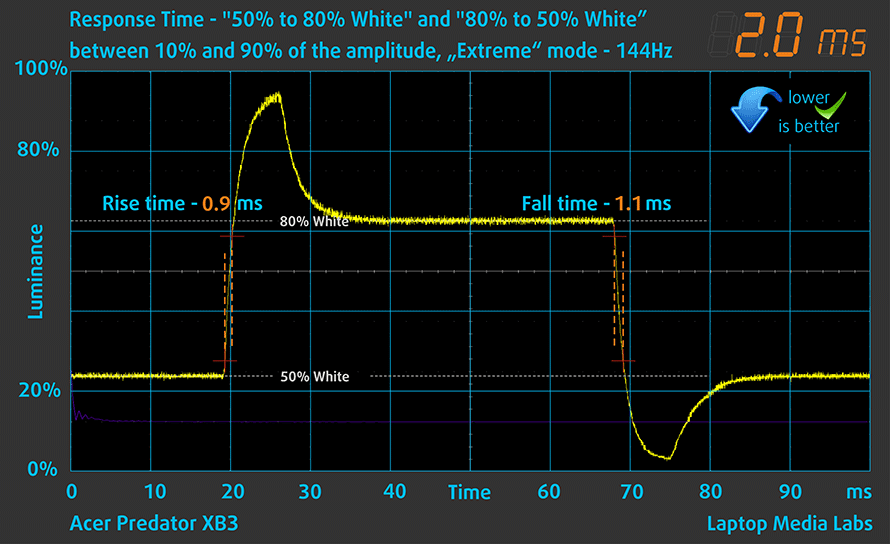
Hey, that’s a gaming monitor, so it has to be fast, right? As you may know from our previous articles, sometimes there are panels that have a high refresh rate but their response time is slow and the end result is disappointing. This is not the case with the Acer Predator XB3. It has two Overdrive settings – Normal and Extreme. With the latter, the monitor is fast as hell but we observe too much overshooting in this mode – yeah, fast but unusable. The Normal mode seems to be the sweet spot – it offers a 5ms response and we didn’t see any artifacts when it was enabled.

It’s time for a quick verdict – the Acer Predator XB3 (XB273UGS) looks like a complete package for a gaming monitor, and it really is. It has the perfect size for a 1440p resolution, its hinge allows to adjust it in many ways, the color coverage is great as well as the color accuracy (after applying our profile). In addition, the monitor can be overclocked to 165Hz, the viewing angles are superb, and on top of that, the response time is good too. Oh, we almost forgot to mention the G-Sync support, while he OSD menu is rich in options so you can tune this monitor by your own likings.
Buy our profiles
Since our profiles are tailored for each individual display model, this article and its respective profile package are meant for the Acer Predator XB3 (XB273UGS).
In this case, the profiles are ready for work after a factory reset, except for the Gaming and Web design profile, where you need to set the display to the “sRGB mode”. Interestingly, depending on the ambient light and the game you’re playing it is highly possible that the Office Work profile might be more appealing than the Gaming and Web design one.
*Should you have problems with downloading the purchased file, try using a different browser to open the link you’ll receive via e-mail. If the download target is a .php file instead of an archive, change the file extension to .zip or contact us at [email protected].
Read more about the profiles HERE.
効率的で健康に優しいプロファイルを受け取ることに加え、LaptopMediaの製品を購入することで、可能な限り客観的なレビューを作成するためにデバイスをテストする私たちのラボの開発を支援することにもなります。

Office Work
Office Workは、テキストや表を見たり、ウェブサーフィンにほとんどの時間を費やすユーザーに主に使用されるべきです。このプロファイルは、フラットなガンマカーブ(2.20)、ネイティブな色温度、知覚的に正確な色を維持することで、より良い鮮明さと明瞭さを提供することを目指しています。

Design and Gaming
このプロファイルは、プロとして色を扱うデザイナーや、ゲームや映画向けです。Design and Gamingは、ディスプレイパネルの性能を最大限に引き出し、WebおよびHDTVのsRGB IEC61966-2-1規格(D65ホワイトポイント)で可能な限り正確な色を再現します。

3つのプロファイルをすべて33%割引で入手

 Author: Nikolay Palaozov

![[2026年6月] Amazonグローバルにおけるノートパソコンのベストセラーブランド ― 販売台数と売上高の両面で、Appleが圧倒的な優位性を示す](https://laptopmedia.com/wp-content/uploads/2026/07/GLOBAL-Best-Brands-400x225.jpg)
![[2026年6月] アマゾン・グローバル:ノートパソコン売上ランキングトップ10――Appleの新型「MacBook Neo」が1位に躍り出て、手頃な価格帯で市場を再編](https://laptopmedia.com/wp-content/uploads/2026/07/Best-Selling-Laptops-GLOBAL-Top-10-400x225.jpg)
![[2026年6月] アマゾン・グローバル:ゲーム用ノートPC売上ランキングトップ10――エイサーの「Nitro V 16S AI」が販売台数で首位を独占、ASUSが総売上高で首位に立つ](https://laptopmedia.com/wp-content/uploads/2026/07/Best-Selling-Gaming-Laptops-GLOBAL-Top-10-400x225.jpg)
![[2026年6月] AmazonにおけるノートPC用GPUの世界販売ランキング ― NVIDIA RTX 5060が専用GPU部門で首位を獲得](https://laptopmedia.com/wp-content/uploads/2026/07/Best-Selling-GPUs-GLOBAL-Top-10-400x225.jpg)
![[2026年6月] AmazonにおけるノートPC用CPUの世界販売ランキング ― Apple M5が首位を独占、AMD Ryzen 7 260がプレミアム層で堅調なシェアを獲得](https://laptopmedia.com/wp-content/uploads/2026/07/Best-Selling-CPUs-GLOBAL-Top-10-400x225.jpg)