How to open ASUS Zenbook S 16 (UM5606) – disassembly and upgrade options
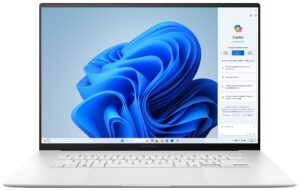
Opening the Device
- Undo the 11 Torx-head screws securing the bottom panel.
- If you are brave and careful enough, pop the bottom plate by raising it in the speaker cutout sections and then pry the sides with a thin plastic tool.
- Alternatively, pry the top two corners, pop the rear with a lever tool, and work your way around the sides and the front to remove the bottom panel.
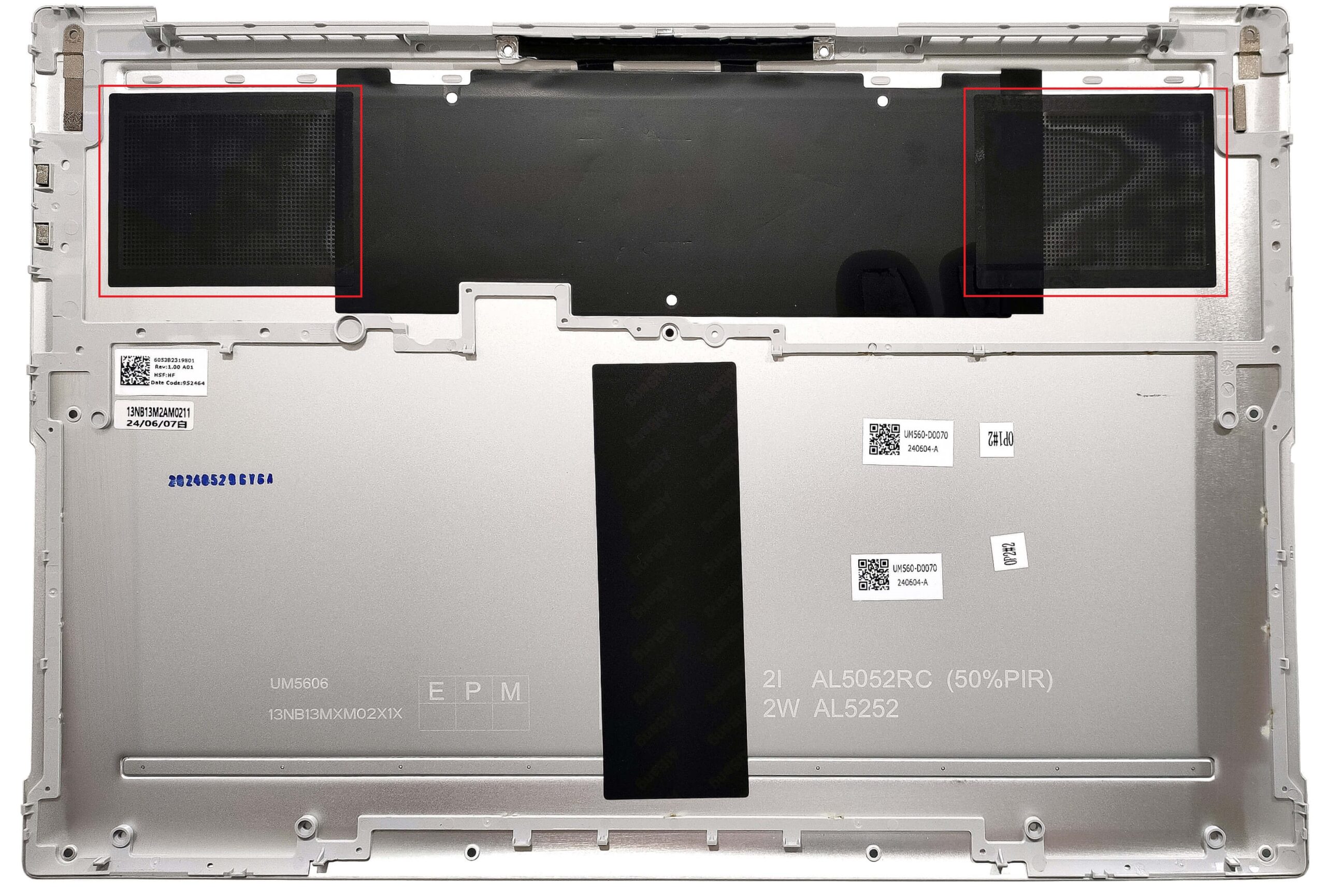
More info: There are two dust filters for the ventilation grills on the inside of the bottom plate.
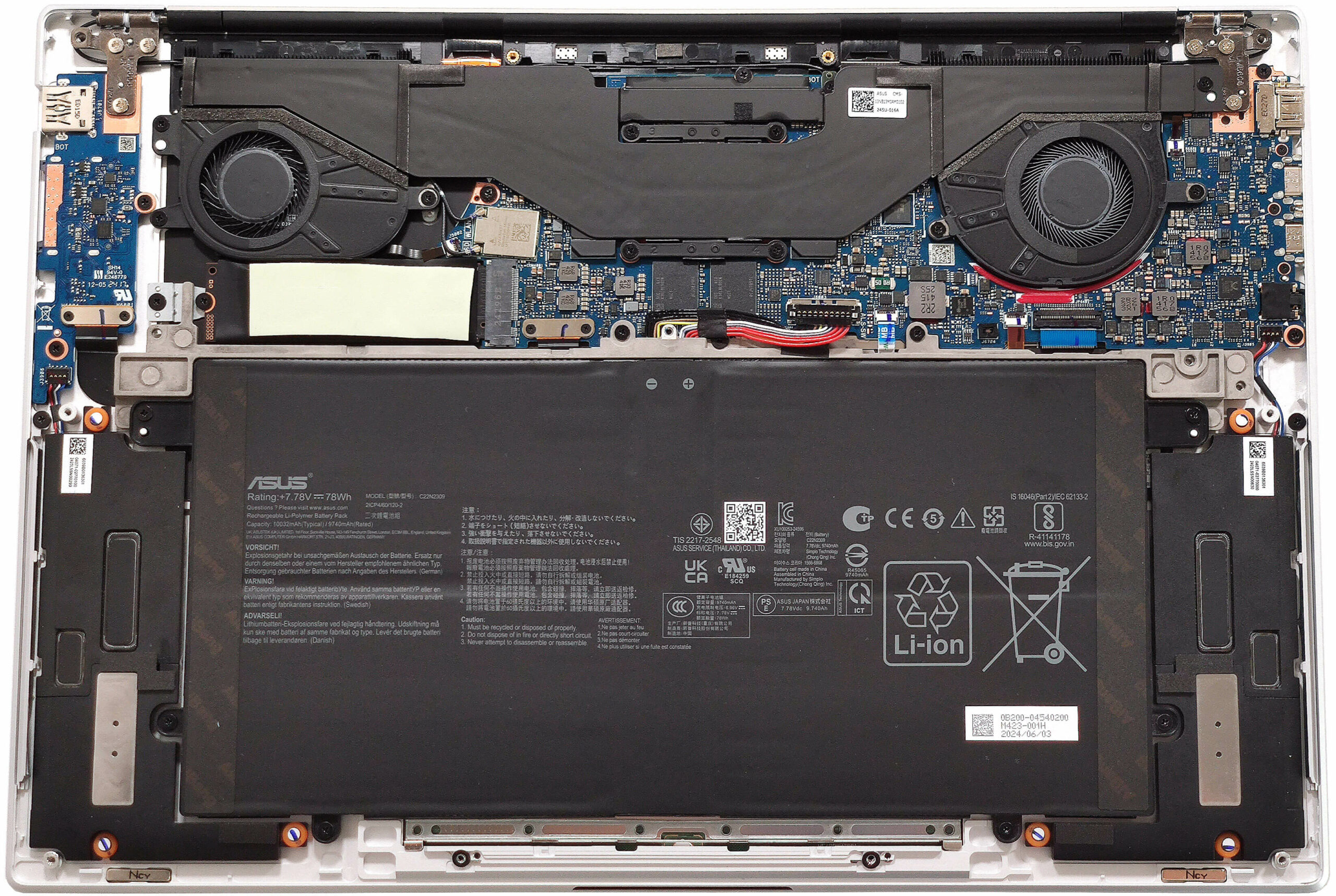
Battery Removal
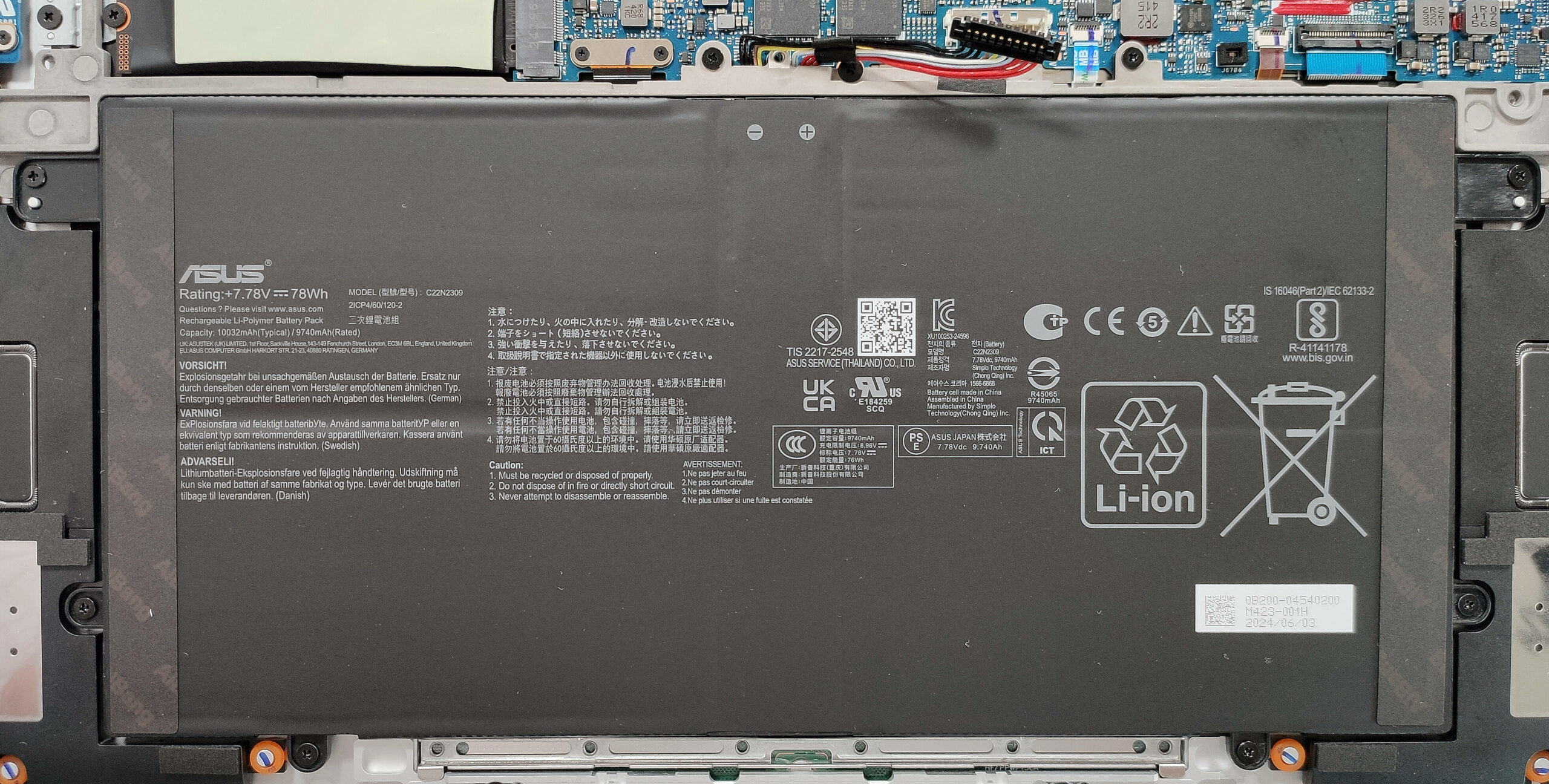
- Pull out the battery connector from the motherboard.
- Undo the 9 Phillips-head screws securing the battery.
- Lift the battery to remove it from the device.
Note: The laptop uses a 78Wh battery, providing approximately 14.5 hours of video playback.
Memory Information
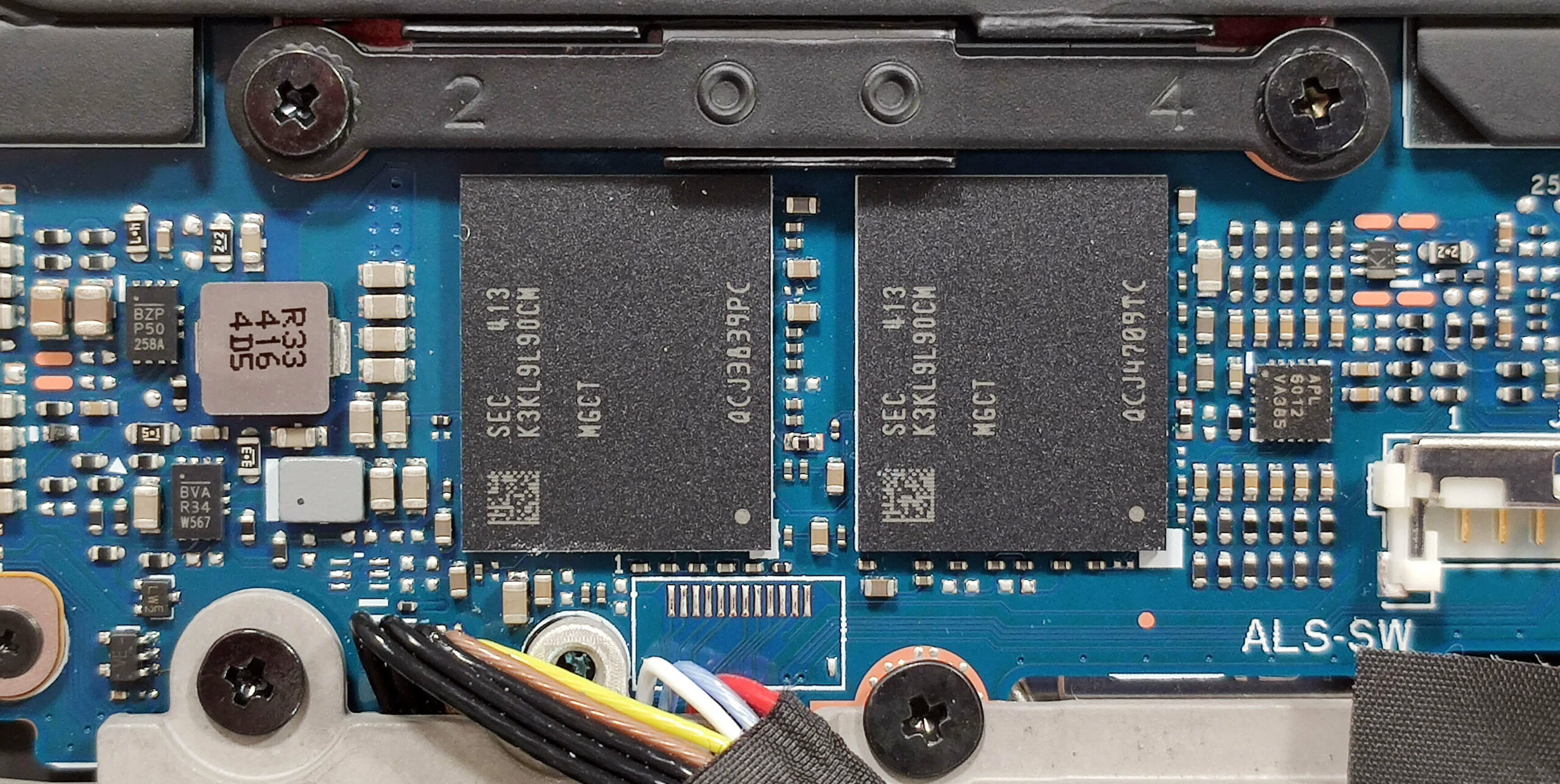
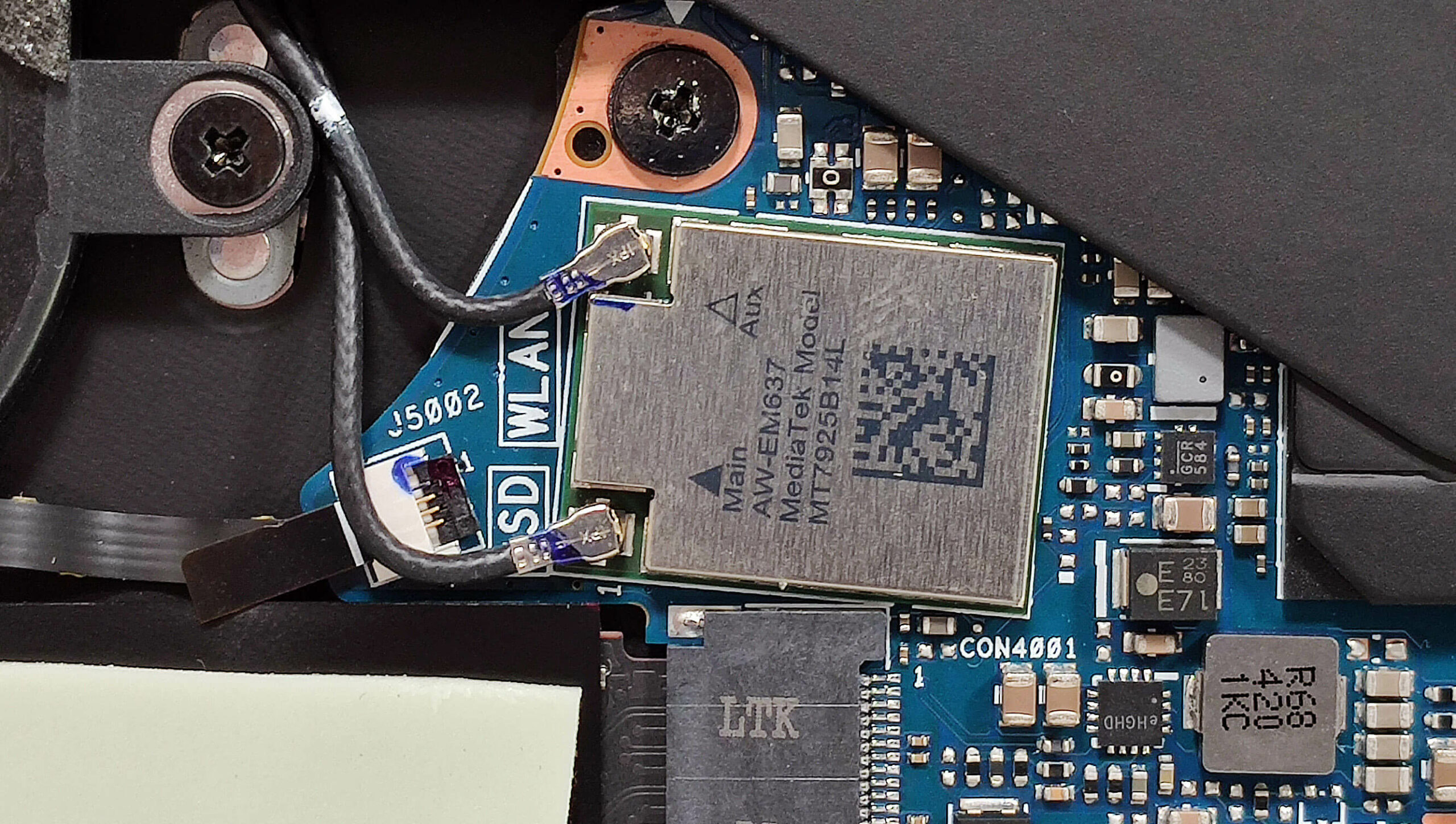
Note: The memory is soldered but you get up to 32GB of LPDDR5x-7500MHz in dual-channel mode, which should be plenty for most users. The Wi-Fi card on the left is also soldered.
Storage Upgrade
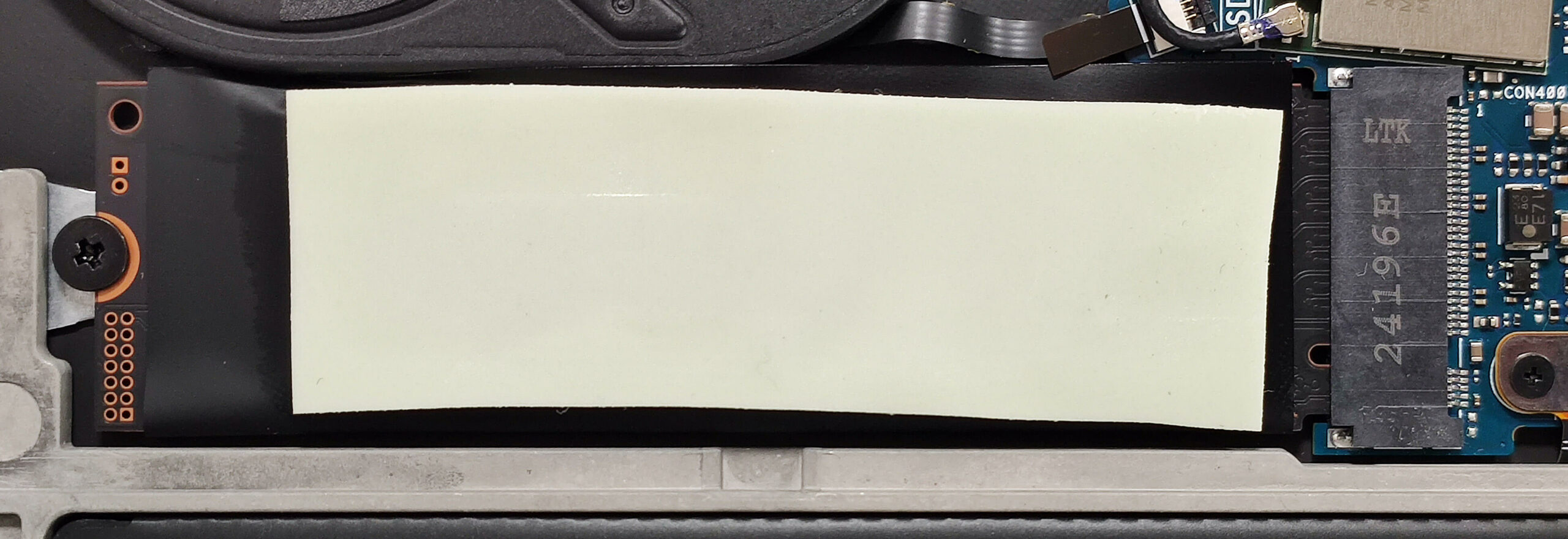
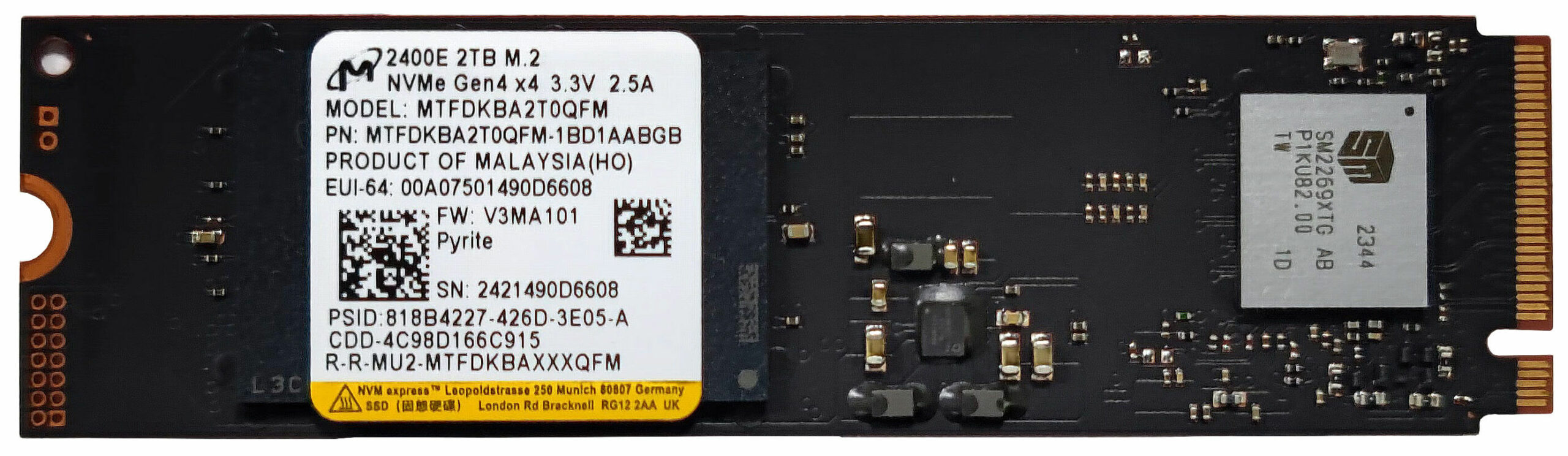
- Locate the single M.2 slot compatible with 2280 Gen 4 SSDs.
- Remove the foil covering the preinstalled NVMe and the long thermal pad on top, if present.
- Install the new SSD in the slot.
Hint: Don’t forget to check out our Top M.2 SSDs Performance Rankings for insights on the best storage options available.
You can buy compatible SSDs here: Cumpărați de pe Amazon.com (#CommissionsEarned)
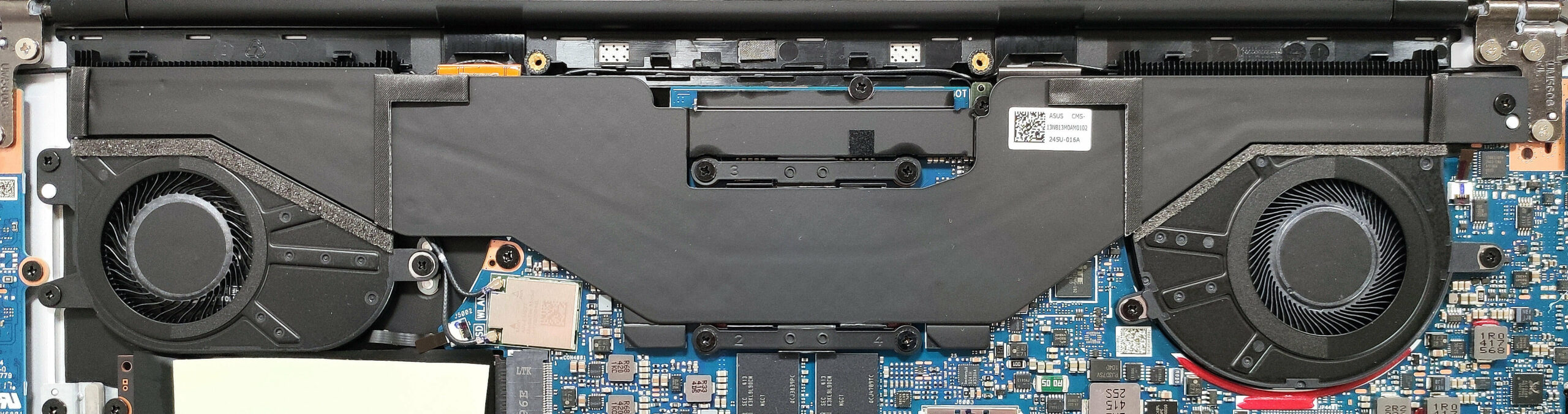
Cooling System Overview
- The thin vapor chamber cooling system includes two fans.
- Some of its other components are also visible, such as the pair of heat sinks.
- Ensure all cooling components are clean and free of dust for optimal performance.
ASUS Zenbook S 16 (UM5606) recenzie detaliată
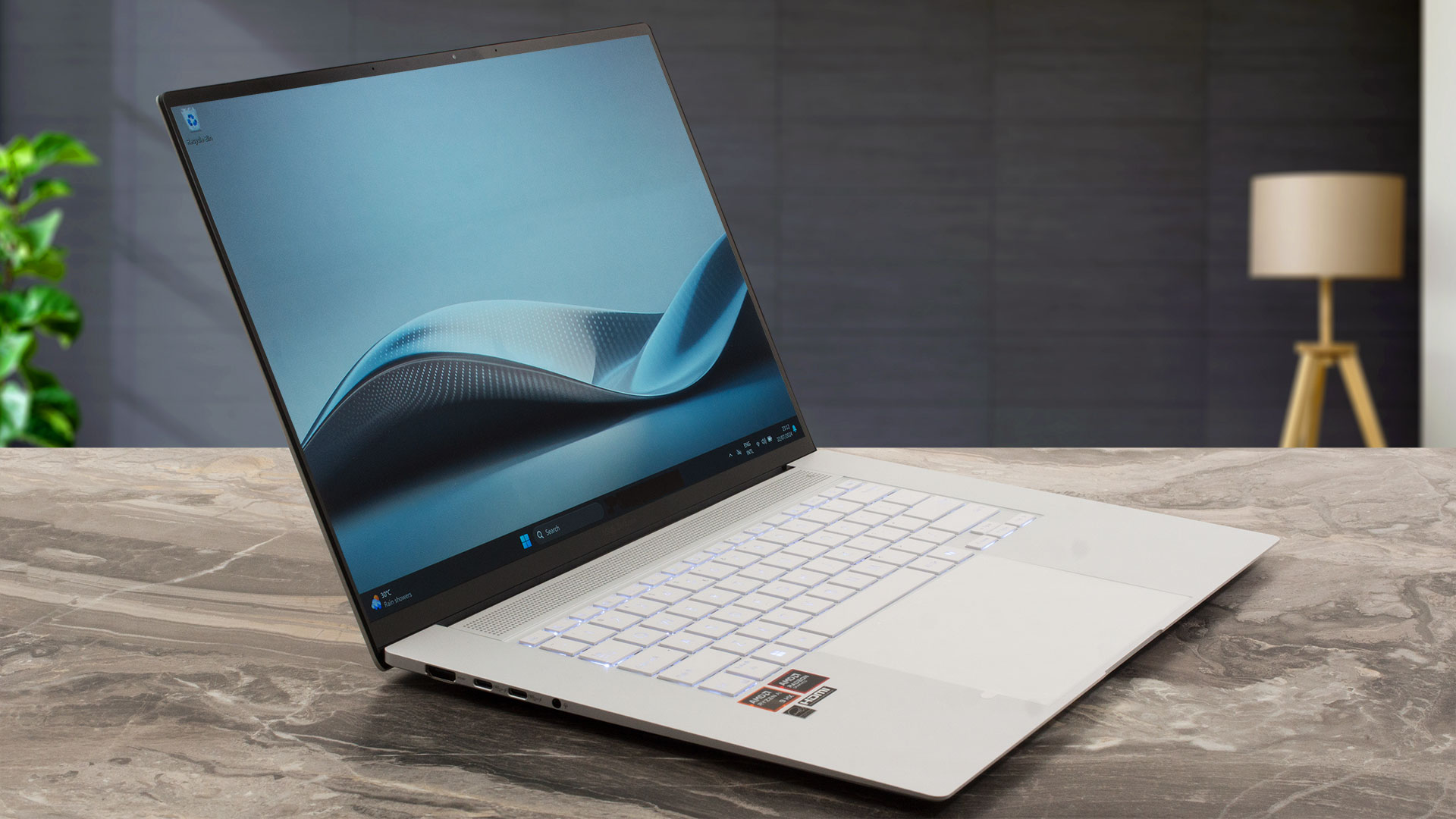
Primele laptopuri Zen 5 sunt deja pe piață. Zenbook S 16 (UM5606) este unul dintre primele PC-uri ASUS AI de ultimă generație cu un design ultraportabil. Acesta este bazat pe cipurile AMD Strix Point. Laptopurile de top sunt oferite cu Ryzen AI 9 HX 370, care se mândrește cu patru nuclee Zen 5 performante și opt nuclee Zen 5c mai mici, alături de 24 de fire de execuție și o puternică iGPU Radeon 890M bazată pe RDNA 3.5 cu 16 unități de calcul. Acesta din urmă transformă acest laptop super subțire într-o mașină de gaming entry-level. Puteți chiar să jucați unele dintre ti[...]
Avantaje
- Afișaj OLED excelent cu acoperire 100% sRGB și DCI-P3 (SDC41AF)
- Raport de contrast infinit, rată de reîmprospătare de 120 Hz și rezoluție de 2880 x 1800 (SDC41AF)
- 588 nits în HDR și 378 nits luminozitate maximă în modul SDR (SDC41AF)
- Precizie extraordinară a culorilor (SDC41AF)
- Configurație audio bună
- Modul "OLED Flicker-Free Dimming" în software-ul MyASUS
- Tastatură confortabilă bine iluminată
- Touchpad uriaș și neted
- Cameră web IR 1080p
- Performanță generală foarte bună a CPU și iGPU având în vedere profilul subțire
- Ventilatoarele sunt zgomotoase chiar și în modul "Full-speed mode" în timpul încărcărilor complete
- Până la 32 GB de LPDDR5x lipit
- Durată lungă de viață a bateriei
- Ryzen AI 9 HX 370 poate menține 28W plus ~ 2,70 GHz / 1,80 GHz pentru nucleele P și E
- Calitate de construcție premium foarte solidă
- 2 porturi USB4 + încărcare Type-C
Dezavantaje
- Utilizarea PWM fără modul "Flicker-Free Dimming" (SDC41AF)
- Un singur slot M.2 + RAM lipit
- Preț ridicat
 Author: Severin Kolakov

![[Iunie 2026] Cele mai vândute mărci de laptopuri pe Amazon Global – Dominația de neegalat a Apple în ceea ce privește numărul de unități vândute și veniturile](https://laptopmedia.com/wp-content/uploads/2026/07/GLOBAL-Best-Brands-400x225.jpg)
![[Iunie 2026] Amazon Global: Top 10 cele mai vândute laptopuri – Noul MacBook Neo de la Apple se clasează pe locul 1, redefinind piața prin prețul accesibil](https://laptopmedia.com/wp-content/uploads/2026/07/Best-Selling-Laptops-GLOBAL-Top-10-400x225.jpg)
![[Iunie 2026] Amazon Global: Top 10 cele mai bine vândute laptopuri pentru jocuri – Modelul Nitro V 16S AI de la Acer domină vânzările, în timp ce ASUS conduce în ceea ce privește veniturile totale](https://laptopmedia.com/wp-content/uploads/2026/07/Best-Selling-Gaming-Laptops-GLOBAL-Top-10-400x225.jpg)
![[Iunie 2026] Clasamentul global al celor mai bine vândute plăci grafice pentru laptopuri pe Amazon – NVIDIA RTX 5060 este cea mai bine vândută placă grafică dedicată](https://laptopmedia.com/wp-content/uploads/2026/07/Best-Selling-GPUs-GLOBAL-Top-10-400x225.jpg)
![[Iunie 2026] Clasamentul global al celor mai bine vândute procesoare pentru laptopuri de pe Amazon – Apple M5 domină, iar AMD Ryzen 7 260 înregistrează o cotă solidă în segmentul premium](https://laptopmedia.com/wp-content/uploads/2026/07/Best-Selling-CPUs-GLOBAL-Top-10-400x225.jpg)
Muchas gracias por el video, me gustaría ver desarmada la cámara de vapor. Es posible ? podrías desarmarla ? Muchas gracias, gran video, me encanta.
Buongiorno, potreste aggiornare arrivando alla tastiera – se possibile arrivarci? Ne ho comprato uno con tastiera francese e se è semplice vorrei sostituirla.