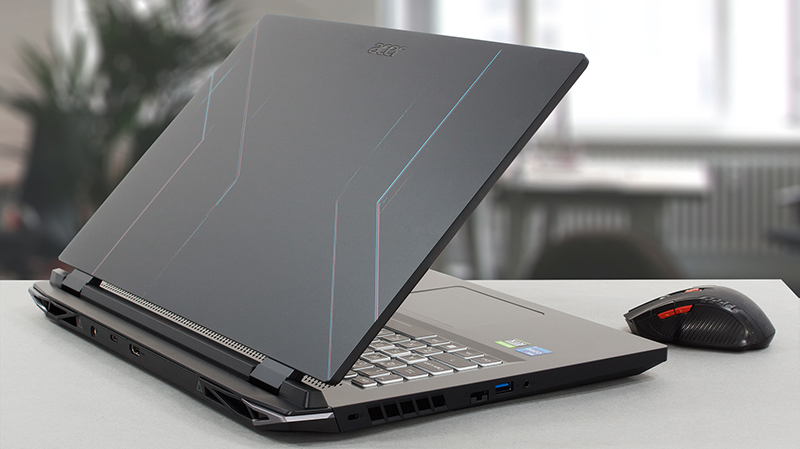
 Acer stands a huge chance to become the best brand in the medium-budget gaming laptop segment of the market. Of course, to be the best, you have to offer the most. And the Nitro 5 in 2022 has brought one of the biggest yearly upgrades we’ve ever seen from the company.
We are not only talking about the introduction of 12th Gen Intel processors, which are undoubtedly the crop of the cream in 2022. No, the most important upgrade, which concerns gamers especially, is the bump in the TGP of its graphics cards. Last year, the 17-inch Nitro 5 (AN517-54) could be paired with a 100W version of the RTX 3070. Nowadays, you do not only get the more powerful RTX 3070 Ti, but it also features a 150W TGP.
Yes, this is a 50% increase for just one year. This indicates great efforts in the cooling department. Also, you now get a MUX switch, so you can extract the maximum out of your graphics card.
This alone would be a good reason to buy the Nitro 5. Of course, if it happens to meet the expectations. But another great aspect of this mobile computer is its display, which can go all the way up to 1440p resolution and 165Hz refresh rate.
You can check the prices and configurations in our Specs System: https://laptopmedia.com/series/acer-nitro-5-an517-55/
Contents
- Specs Sheet
- What’s in the box?
- Design and construction
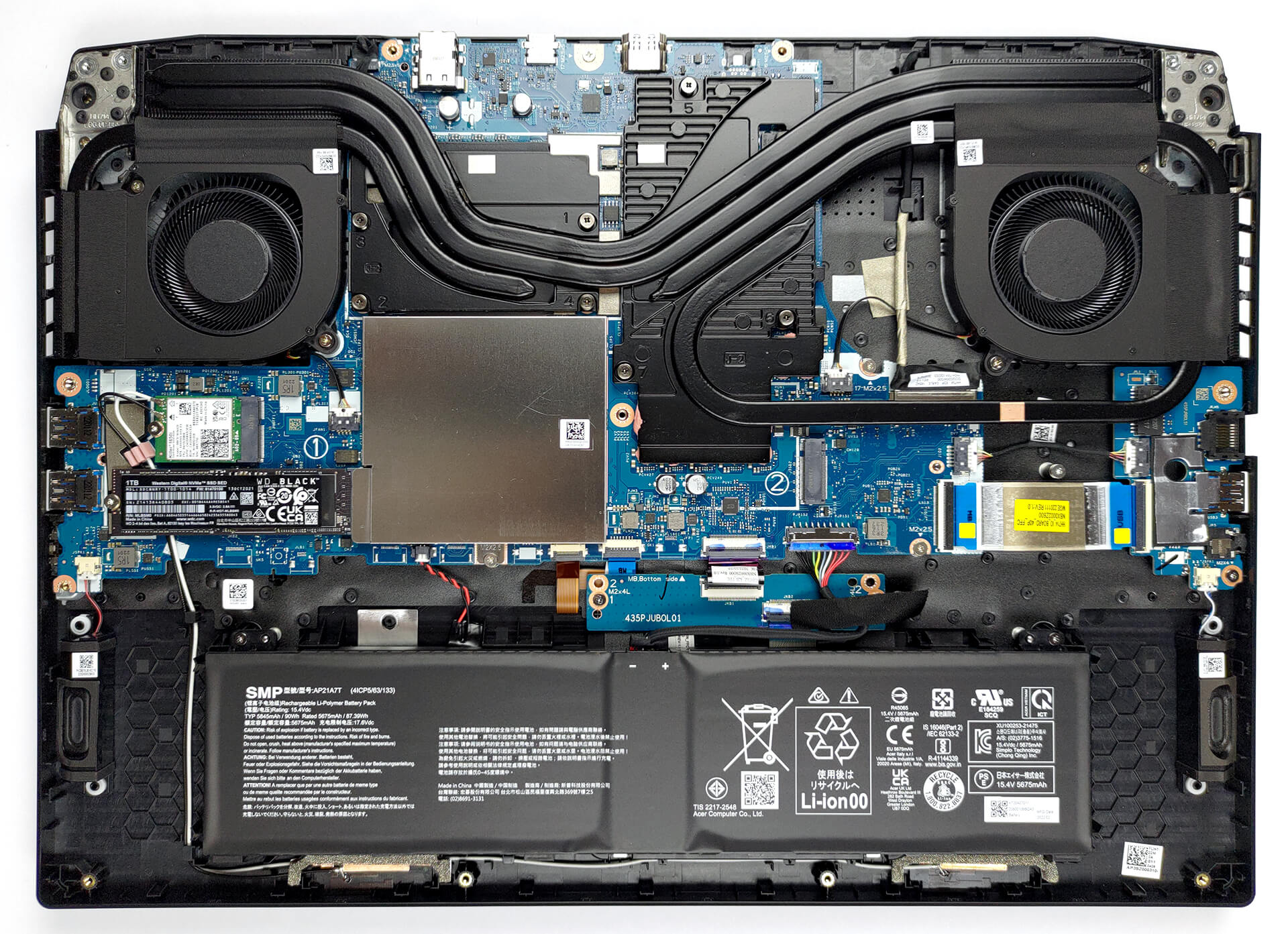
- Disassembly, upgrade options, and maintenance
- Display quality
- PWM (Screen flickering)
- Buy our profiles
- Sound
- Drivers
- Battery
- CPU options
- GPU options
- Gaming tests
- [eBook Guide + Tools] How to MAX OUT your Acer Nitro 5 (AN517-55)
- Temperatures and comfort
- Verdict
Specs Sheet
Acer Nitro 5 (AN517-55) - Specificații



- GPU
- NVIDIA GeForce RTX 4060 (Laptop, 140W) #77 în Top GPU-uri NVIDIA GeForce RTX 4050 (Laptop, 140W) #97 în Top GPU-uri NVIDIA GeForce RTX 3070 Ti (Laptop, 150W) #34 în Top GPU-uri NVIDIA GeForce RTX 3060 (Laptop, 130W) #89 în Top GPU-uri NVIDIA GeForce RTX 3050 Ti (Laptop, 95W) #156 în Top GPU-uri NVIDIA GeForce RTX 3050 (Laptop, 95W) #163 în Top GPU-uri

- HDD/SSD
- până la 4000GB SSD + până la 4000GB HDD
- Slot M.2
- 2x 2280 PCIe NVMe 4.0 x4 RAID Vezi foto
- RAM
- up to 64GB
- SO
- Windows 11 Home, No OS, Windows 11 Pro, Windows 10 Home, Windows 10 Pro, Linux, DOS, Windows 11
- Baterie
- 90Wh, 4-cell
- Material Carcasă
- Plastic / Polycarbonate
- Dimensiuni
- 400.5 x 294.5 x 27.9 - 28.6 mm (15.77" x 11.59" x 1.10")
- Greutate
- 3.00 kg (6.6 lbs)
- Porturi și conectivitate
- 1x USB Type-A
- 3.2 Gen 1 (5 Gbps)
- 1x USB Type-A
- 3.2 Gen 2 (10 Gbps)
- 1x USB Type-A
- 3.2 Gen 2 (10 Gbps), Sleep and Charge
- 1x USB Type-C
- 3.2 Gen 2 (10 Gbps), Thunderbolt 4, Power Delivery (PD), DisplayPort
- HDMI
- 2.1
- Ethernet LAN
- 10, 100, 1000 Mbit/s
- Wi-Fi
- 802.11ax
- Bluetooth
- 5.2
- Mufă audio
- 3.5mm Combo Jack
- Caracteristici
- Cititor de amprente
- Cameră web
- HD
- Tastatură iluminată
- Microfon
- Microphone with Acer Purified Voice, support for Cortana
- Difuzoare
- Audio by DTS:X Ultra
- Unitate optică
- Slot blocare securitate
- Kensington Lock
Toate Acer Nitro 5 (AN517-55) configurații
What’s in the box?
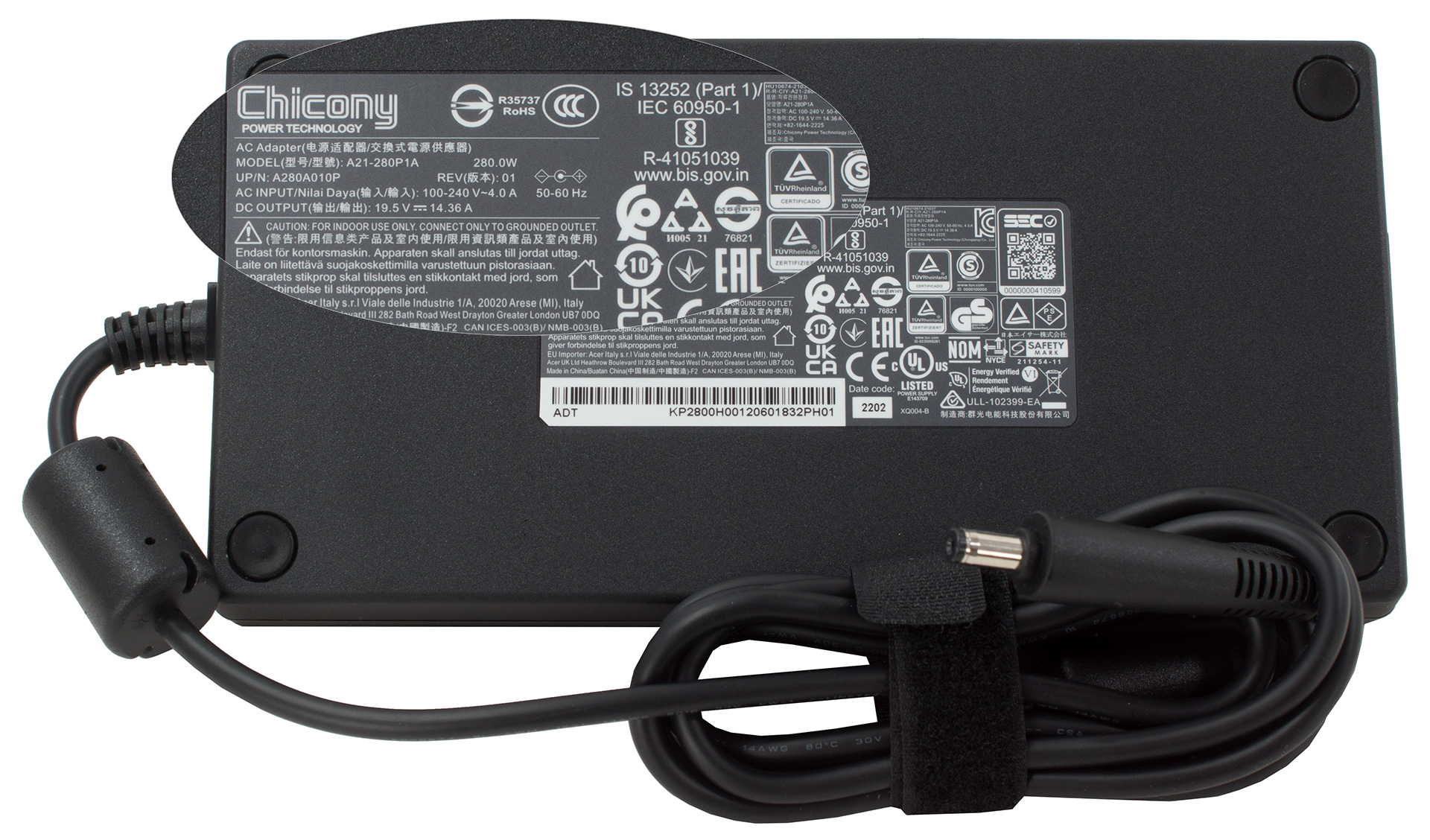
Inside the package, we found a huge 280W power adapter, which can easily be used to serve charcuterie. In addition, you get the mandatory paperwork, as well as the laptop itself.
Design and construction
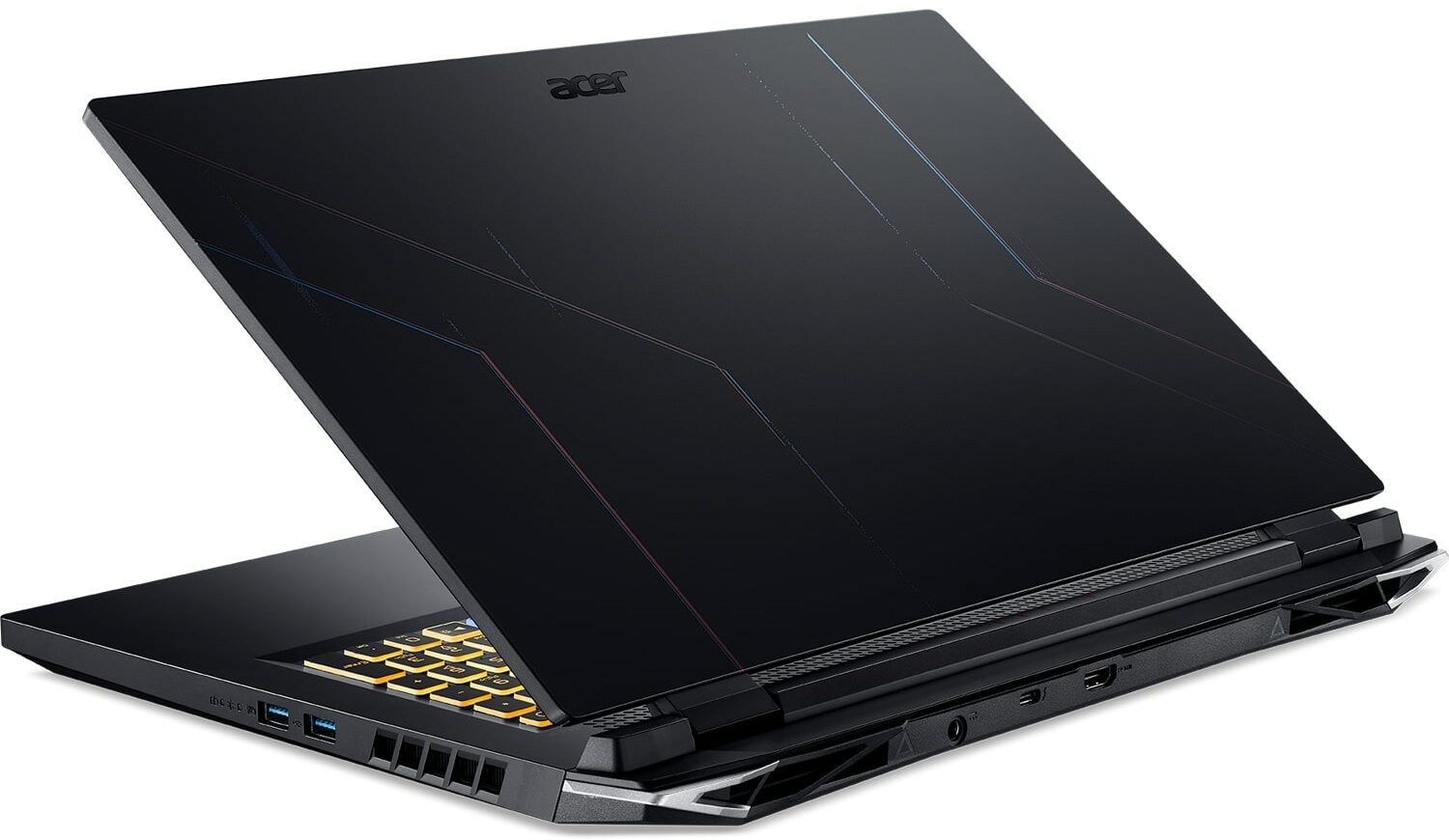
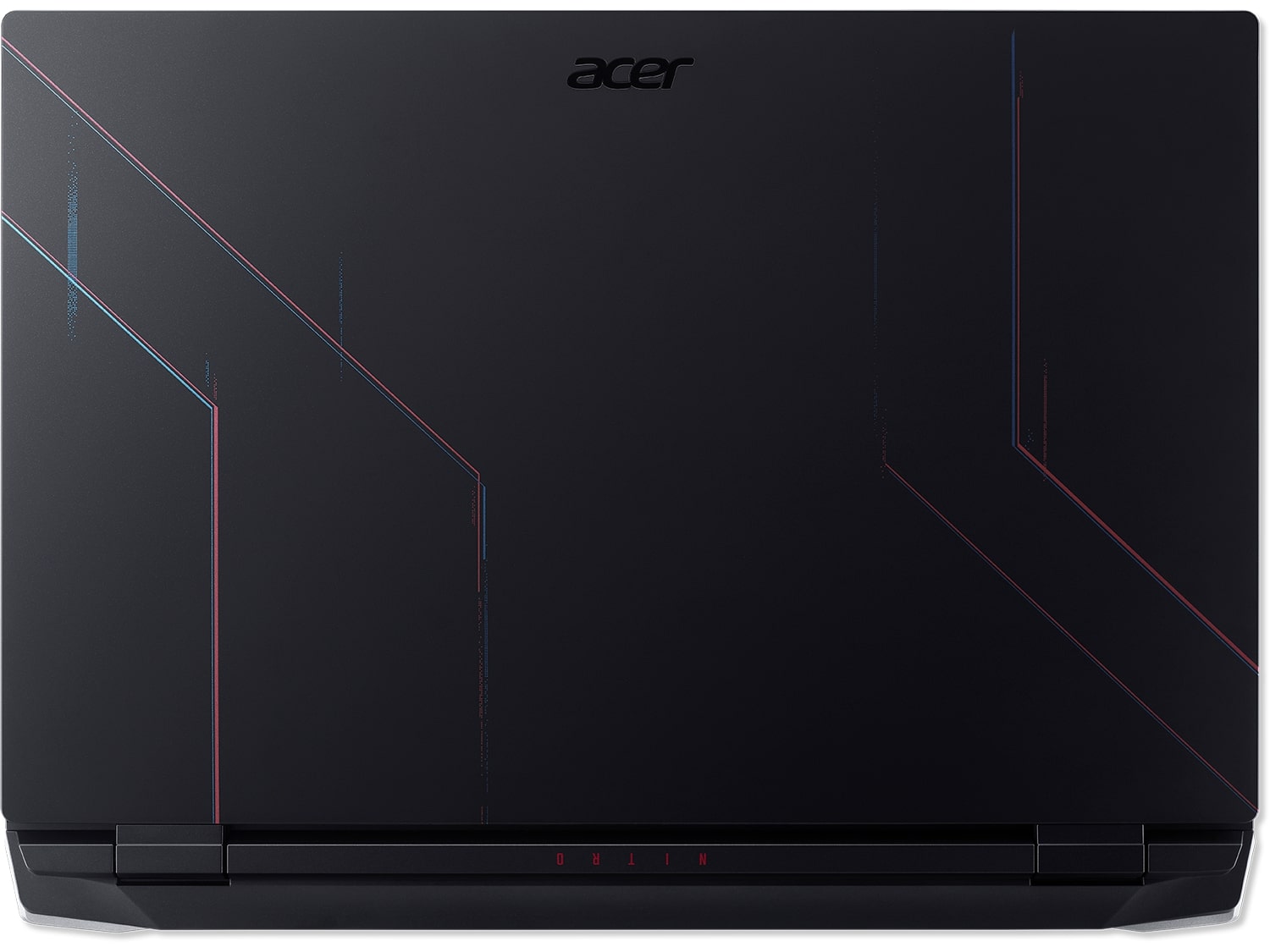
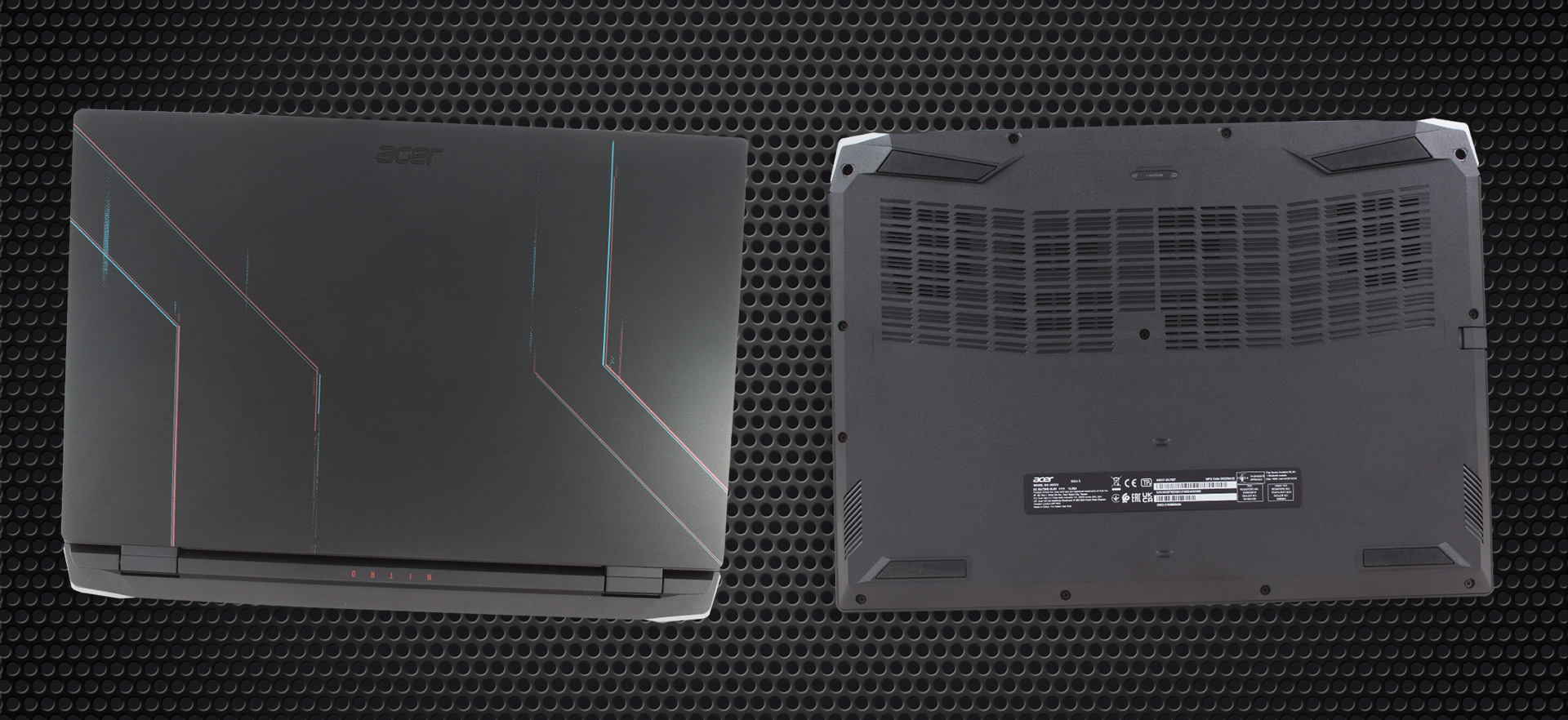
You can’t simply make a 150W RTX 3070 Ti “affordable” laptop without making compromises. And one of them is the material of use – plastic. On the bright side, the build itself is pretty solid, with almost no flex in the base, and some marginal flex in the lid.
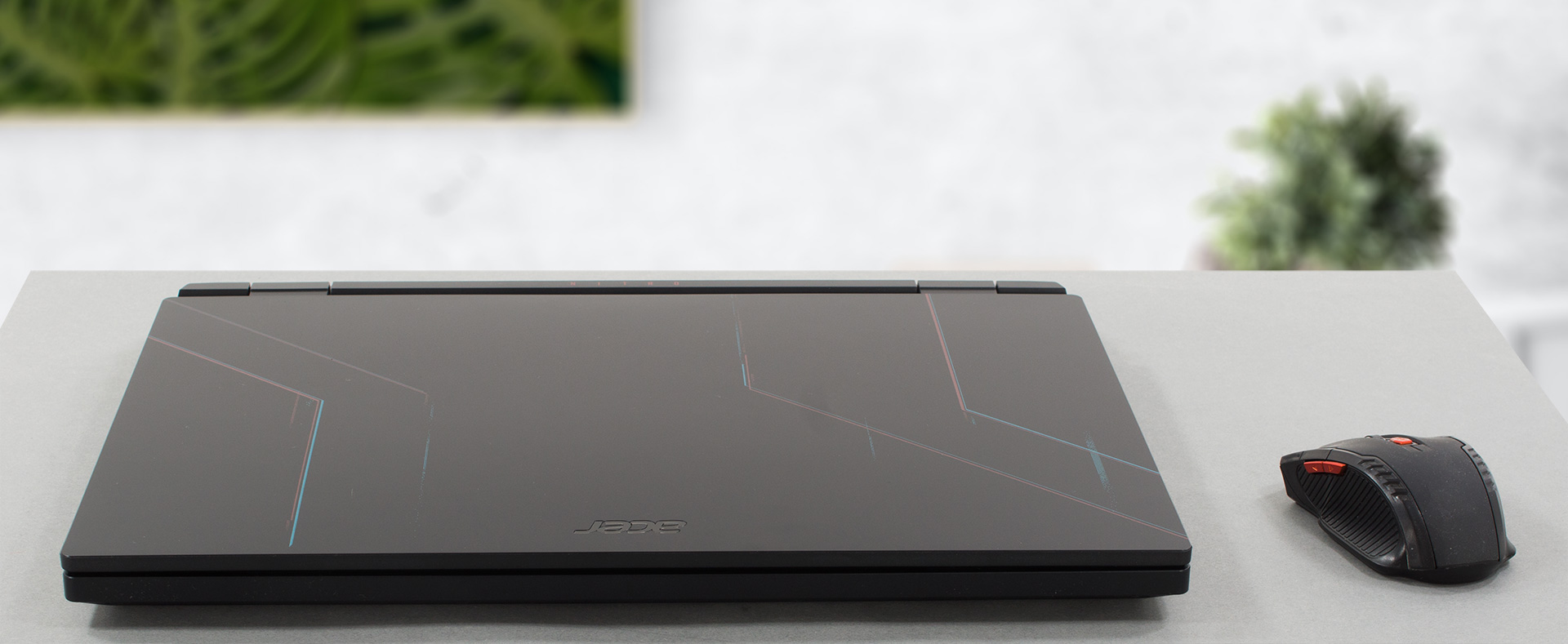
The laptop also feels pretty good on touch, but you have to keep in mind that fingerprints stick to it the same way Game of Thrones fans stick to south Croatia. You have to keep in mind that this laptop is a bit heavy, standing at 3 kilos, while the thickness is between 27.9 and 28.6mm.
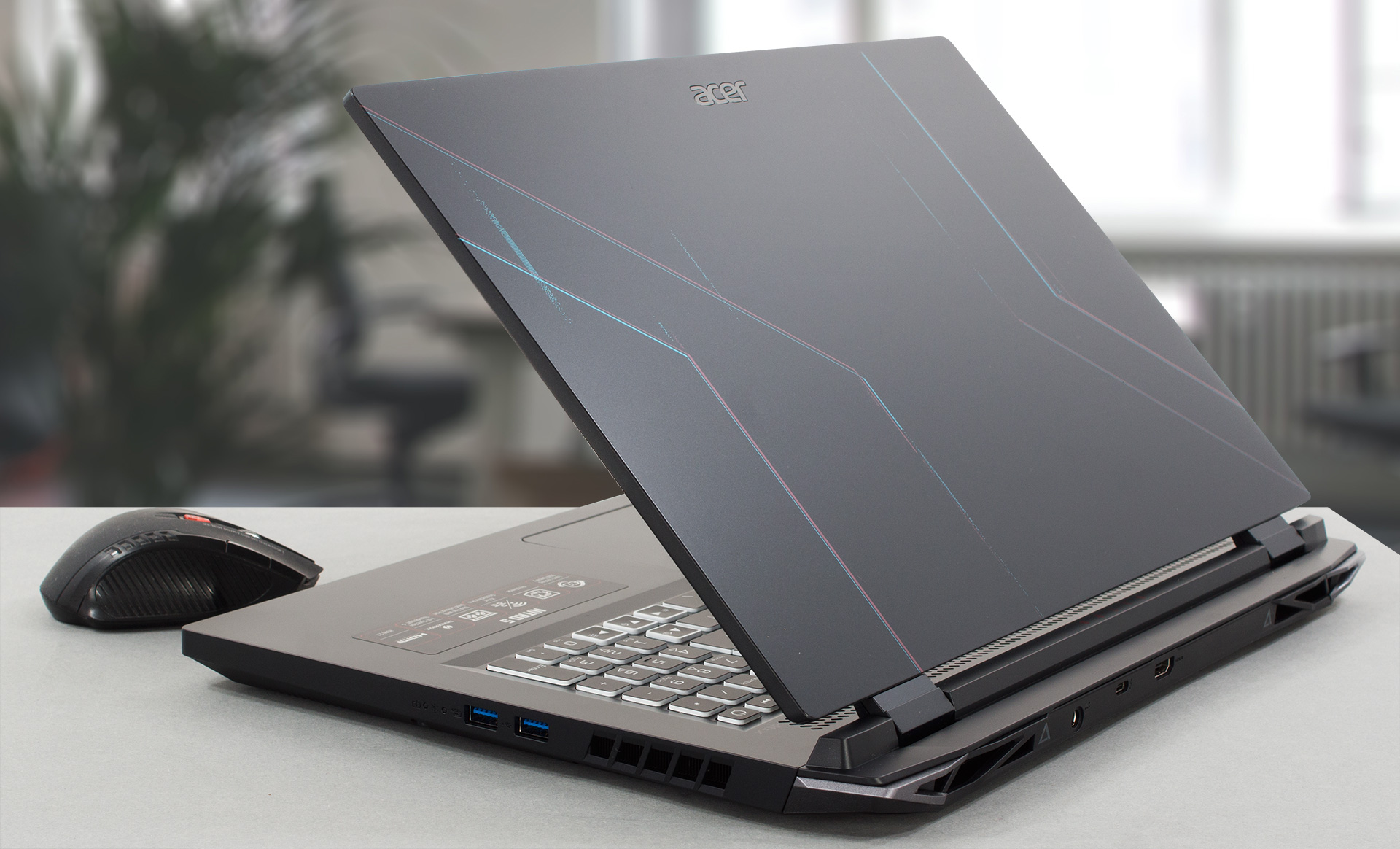
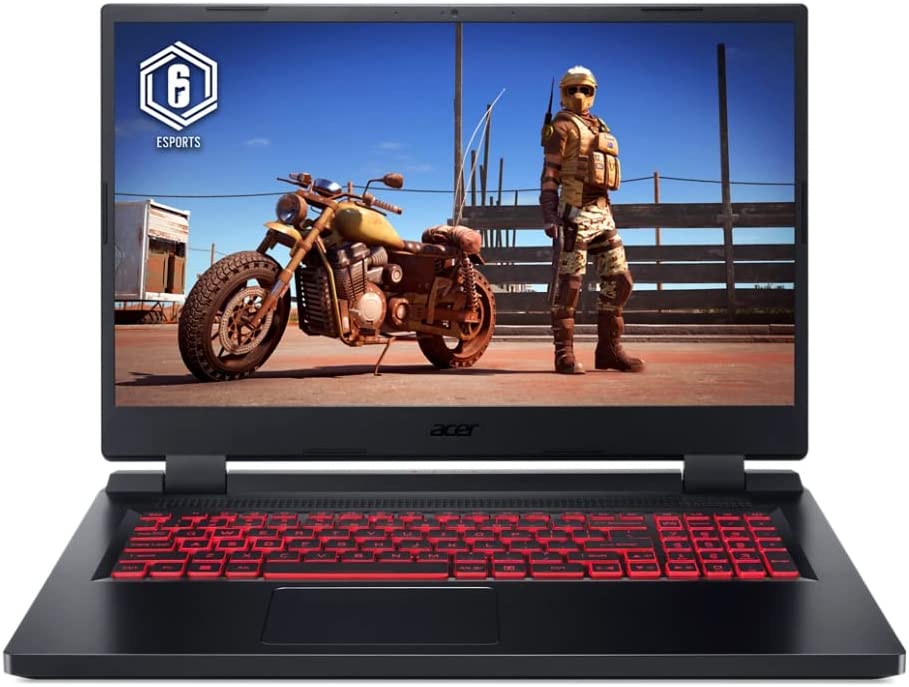
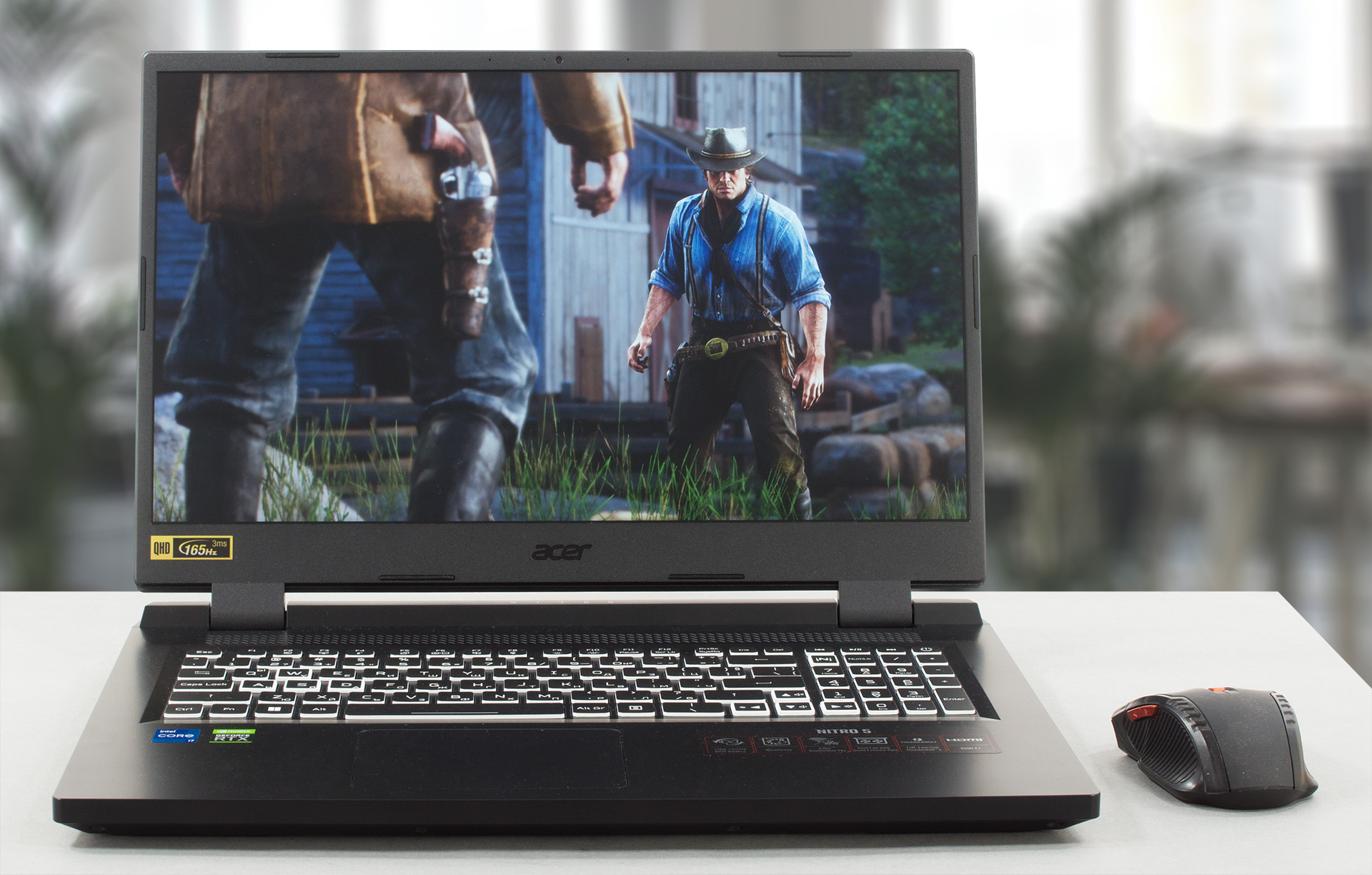
Due to the heft of the machine and the smooth hinges, the lid can be opened with a single hand. The bezels around the screen are pretty thin, except for the bottom one. Respectively, the top one features an HD Web camera.
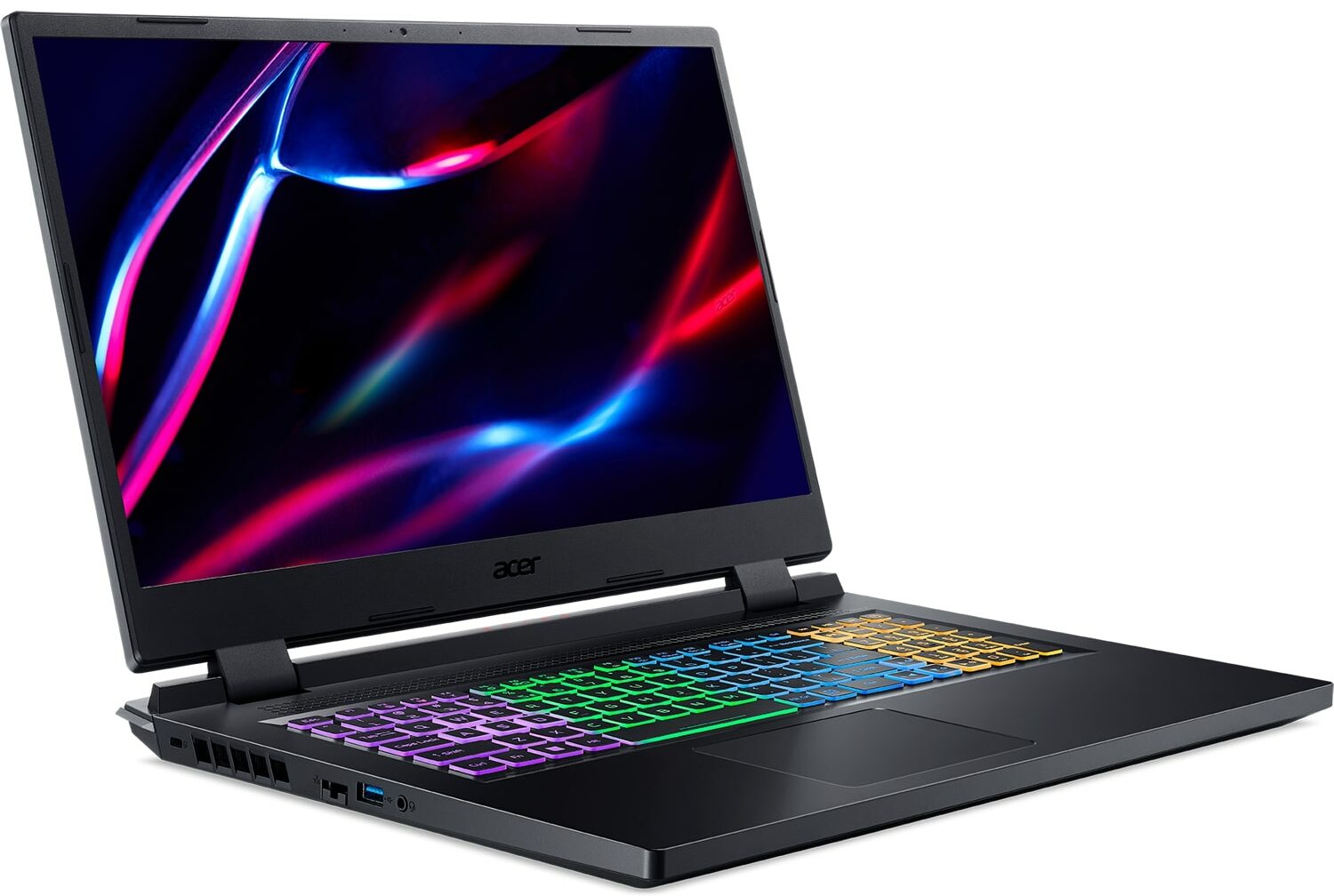
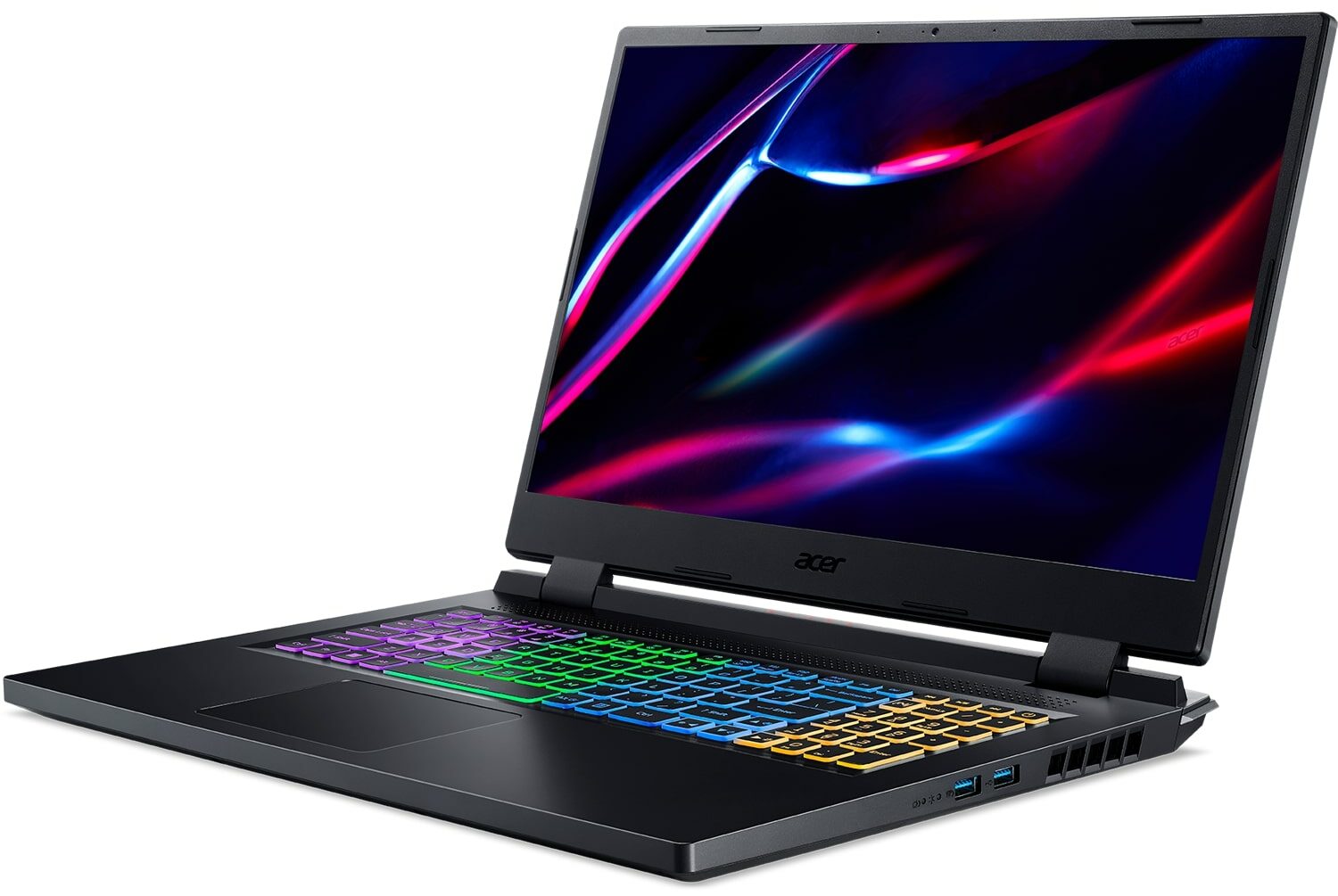
Moving to the base, we see a vent above the keyboard. Ultimately, the latter sports a NumberPad section, as well as a 4-zone RGB backlight. It has a reasonably long key travel and clicky-enough travel. As you can see, there are a set of highlighted keys – the WASD and the Arrow ones have the same size, which is great. In addition, you get a NitroSense key, which naturally launches the NitroSense app.
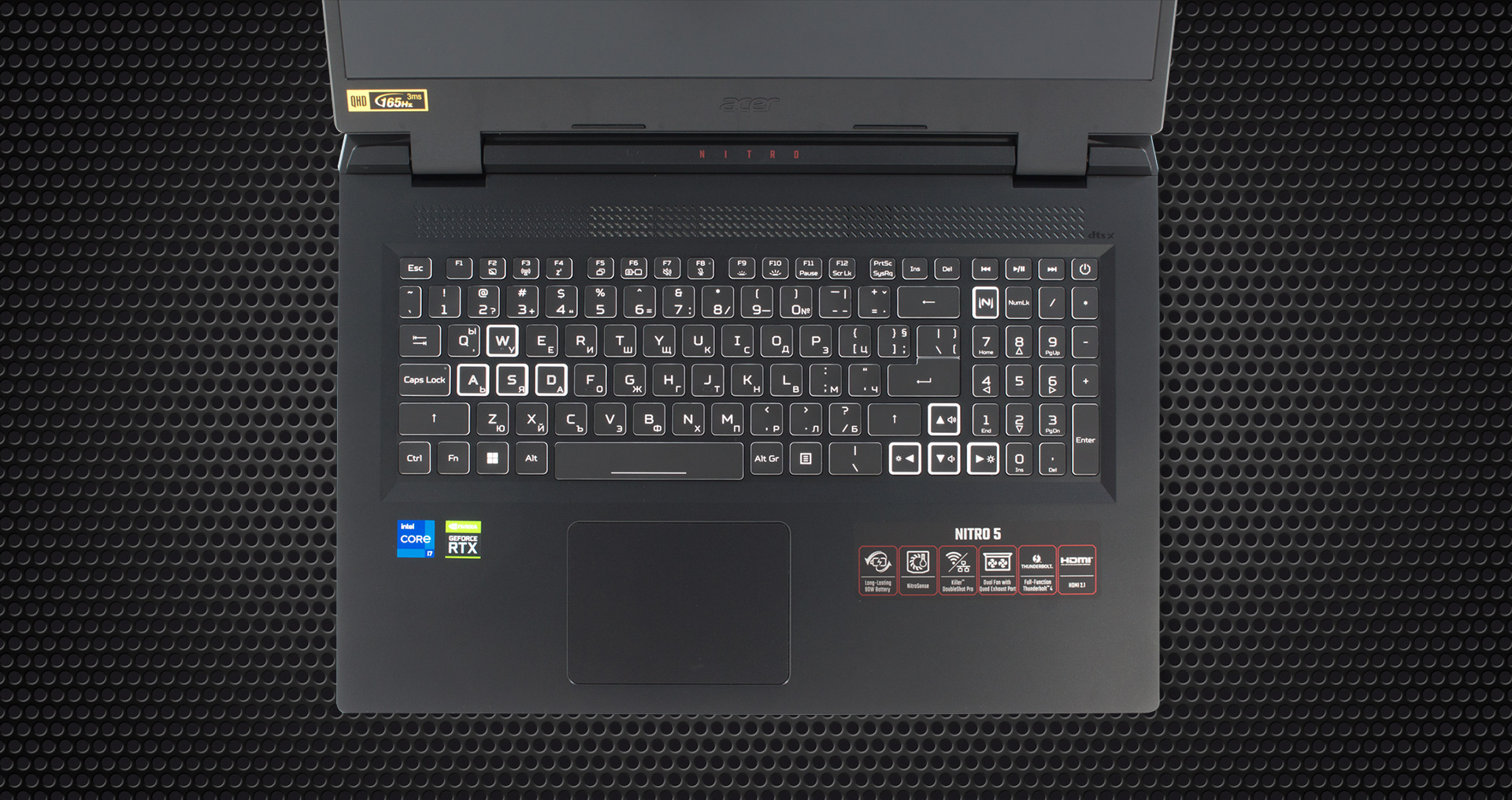
Below it, there is a touchpad, which is a bit small for the standards set by other devices in 2022. Other than that, the gliding is smooth, the clicking mechanism is comfortable, and the tracking is super fast and accurate.
On the bottom, you will find two speaker cutouts, as well as the ventilation grill. Hot air, however, is exhausted through four vents – two on the back, and one on each side.
Ports
On the left side, there is a LAN port, a USB Type-A 3.2 (Gen. 1) port, and an audio jack. Respectively, on the right, you get two USB Type-A 3.2 (Gen. 2) ports, while the back houses an HDMI 2.1 connector, a Thunderbolt 4 port, and the power plug.



Disassembly, upgrade options, and maintenance
To take this notebook apart, you need to undo a total of 12 Phillips-head screws. Then, pry the bottom panel with a plastic tool, starting from the front corners.

Here, we see a 90Wh battery pack. It lasts for 8 hours of Web browsing, or more than 7 hours of video playback. To take it out, unplug the battery connector, and remove the two Phillips-head screws that hold it in place.
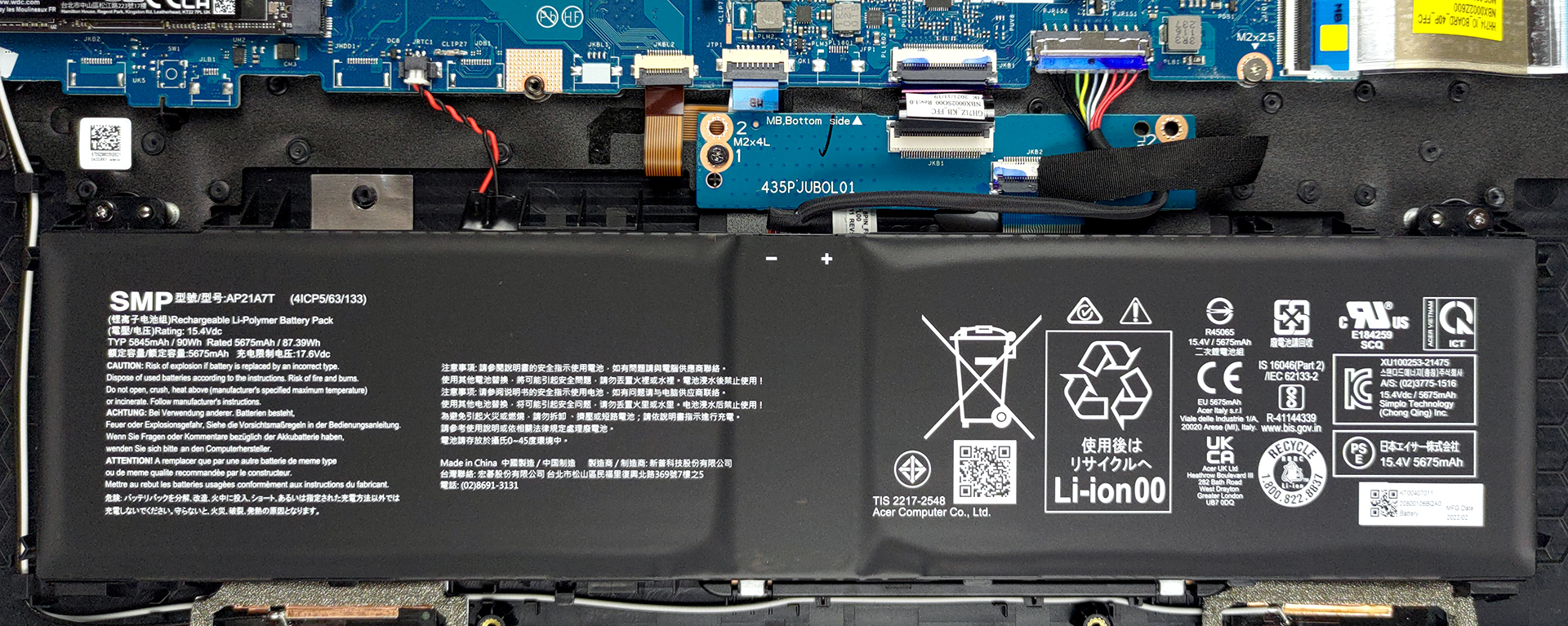
Memory-wise, you get two SODIMM slots for up to 32GB of DDR4 memory in dual-channel mode. Interestingly, the storage options include two M.2 PCIe x4 slots, both of which work with Gen 4 SSDs, and support RAID mode.

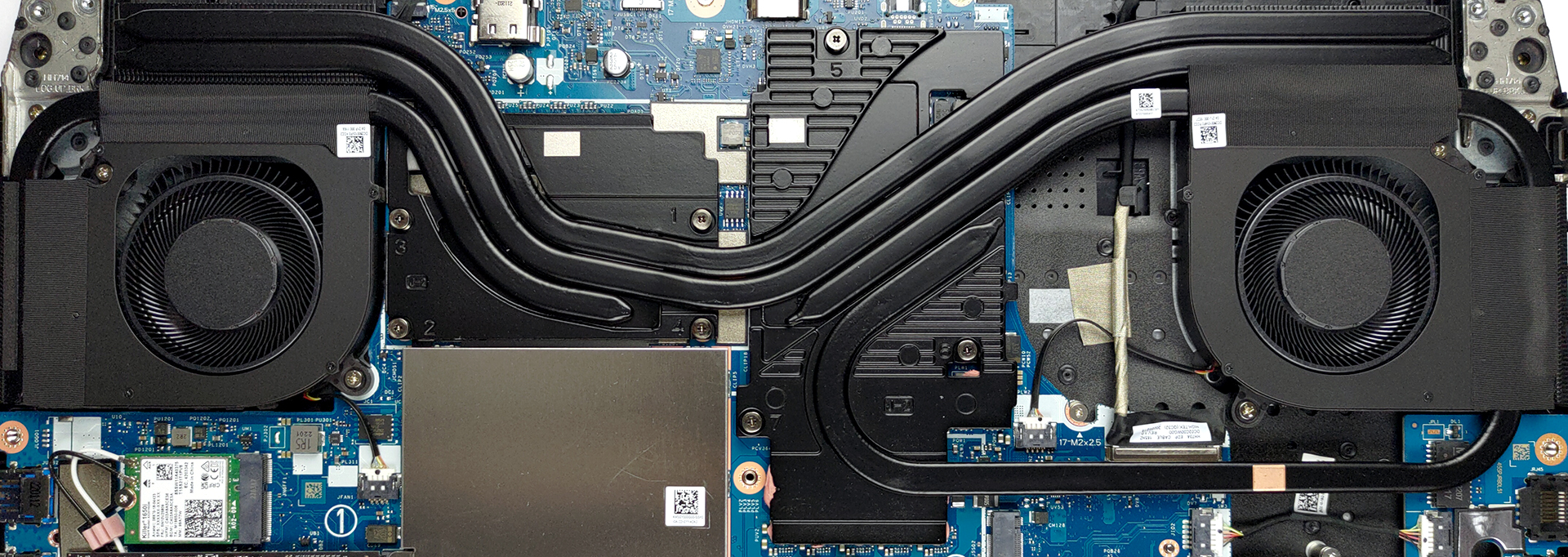
The cooling comprises two heat pipes shared between the CPU and the GPU, one more for each of them, and a fifth one meant for the graphics card. In addition, you get four heat sinks, two fans, and a couple of heat spreaders for the VRMs and the graphics memory.
Display quality
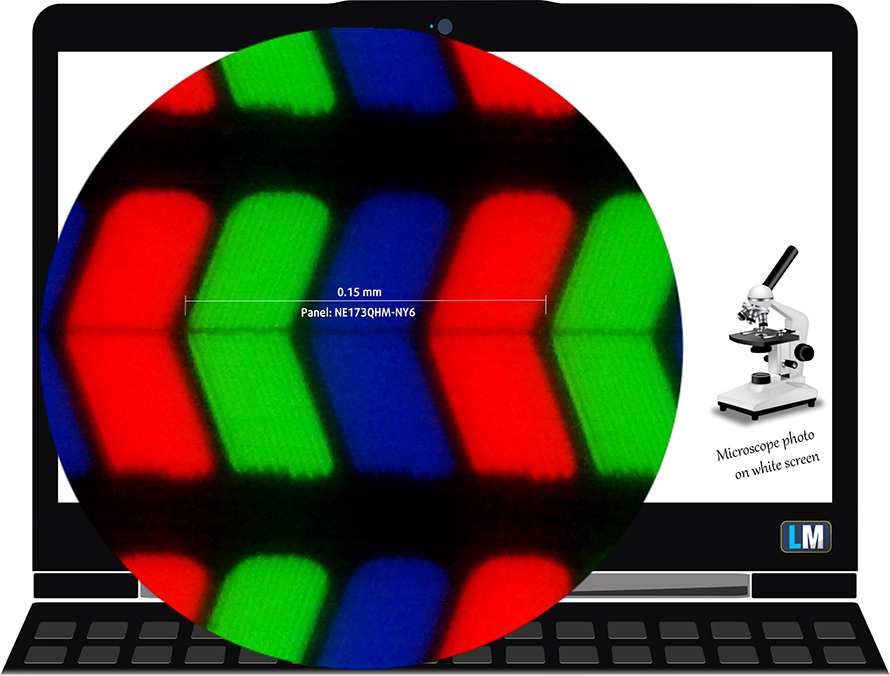
Acer Nitro 5 (AN517-55) is equipped with a Quad HD 165Hz IPS panel, model number BOE NE173QHM-NY6 (BOE0A13). Its diagonal is 17.3″ (43.94 cm), and the resolution is 2560 x 1440 pixels. The screen ratio is 16:9, and we are looking at a pixel density of – 170 ppi, and a pitch of 0.15 х 0.15 mm. The screen turns into Retina when viewed at a distance equal to or greater than 51m (20″) (from this distance one’s eye stops differentiating the separate pixels, and it is normal for looking at a laptop).
Viewing angles are comfortable. We offer images at 45° to evaluate image quality.
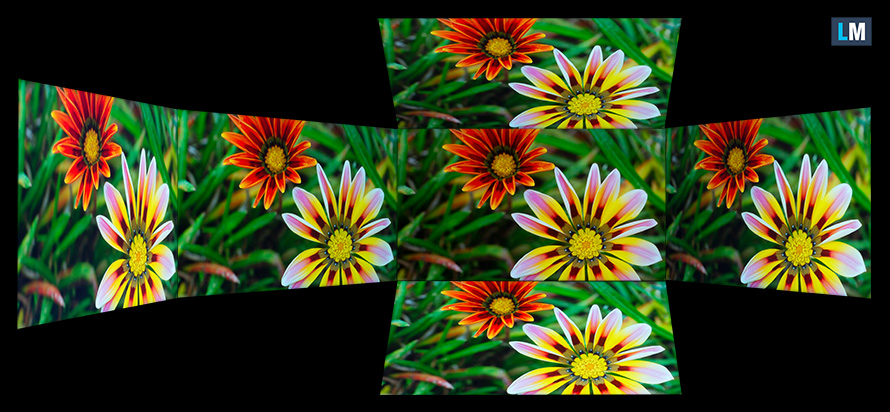
Also, a video with locked focus and exposure.
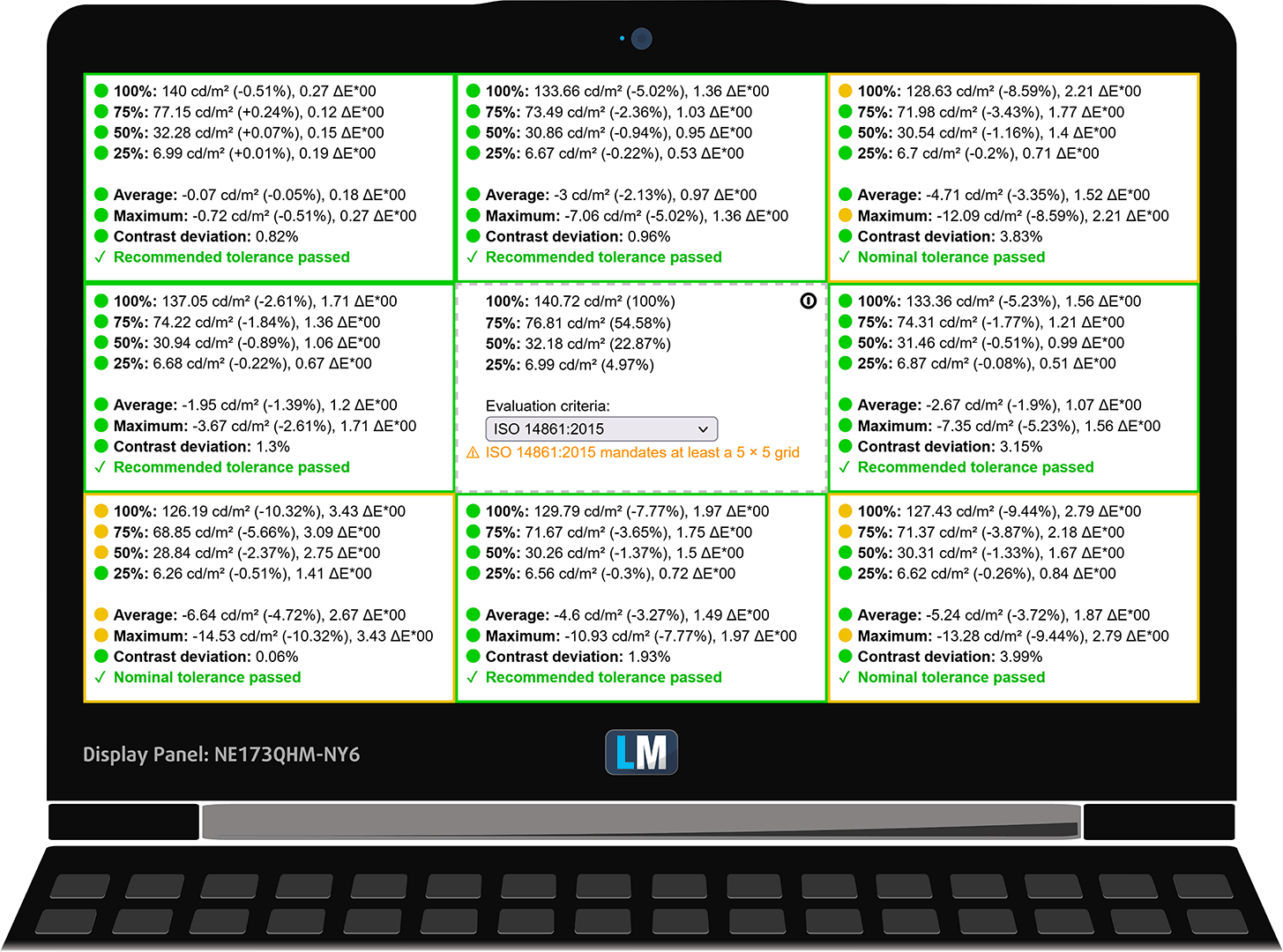
The measured maximum brightness of 320 nits in the middle of the screen and 302 nits as an average for the whole area, with a maximum deviation of 10%. The Correlated Color Temperature on a white screen is 7560K – colder than the optimal for the sRGB standard of 6500K.
In the illustration below you can see how the display performs from a uniformity perspective. In other words, the leakage of light from the light source.
Values of dE2000 over 4.0 should not occur, and this parameter is one of the first you should check if you intend to use the laptop for color-sensitive work. The contrast ratio is good – 1160:1.
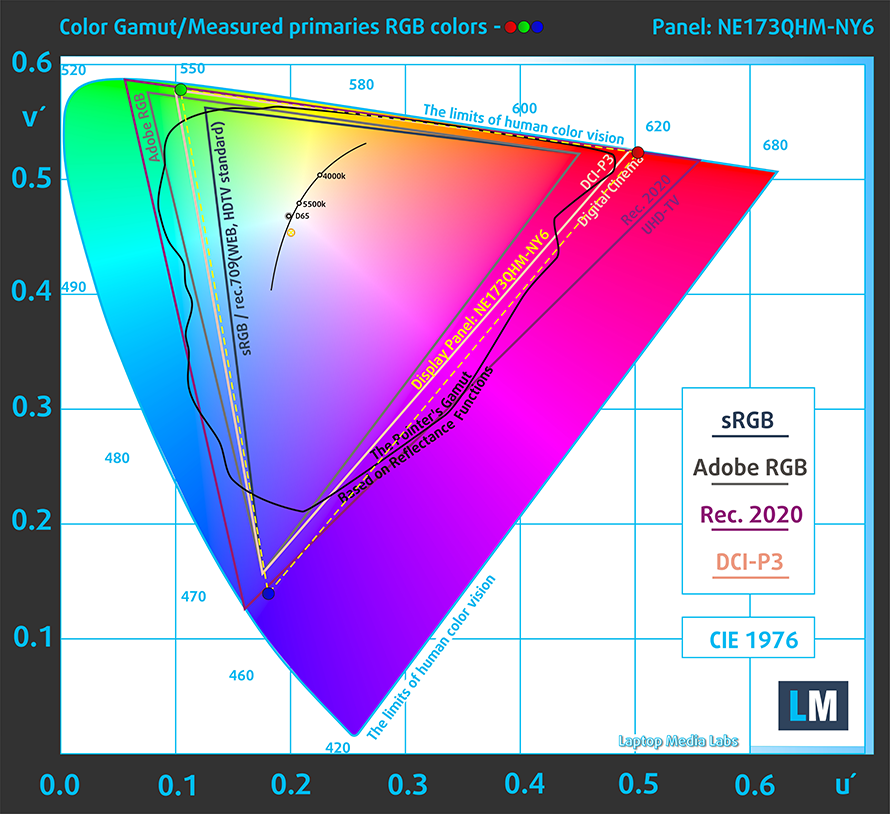
To make sure we are on the same page, we would like to give you a little introduction to the sRGB color gamut and the Adobe RGB. To start, there’s the CIE 1976 Uniform Chromaticity Diagram that represents the visible specter of colors by the human eye, giving you a better perception of the color gamut coverage and the color accuracy.
Inside the black triangle, you will see the standard color gamut (sRGB) that is being used by millions of people on HDTV and on the web. As for the Adobe RGB, this is used in professional cameras, monitors, etc for printing. Colors inside the black triangle are used by everyone and this is the essential part of the color quality and color accuracy of a mainstream notebook.
Still, we’ve included other color spaces like the famous DCI-P3 standard used by movie studios, as well as the digital UHD Rec.2020 standard. Rec.2020, however, is still a thing of the future and it’s difficult for today’s displays to cover that well. We’ve also included the so-called Michael Pointer gamut, or Pointer’s gamut, which represents the colors that naturally occur around us every day.
The yellow dotted line shows Acer Nitro 5 (AN517-55)’s color gamut coverage.
Its display covers not only 100% of the sRGB/ITU-R BT.709 (web/HDTV standard) in CIE1976, but also 99% of the DCI-P3 color gamut. This leads to a very attractive and vibrant image.
Our “Design and Gaming” profile delivers optimal color temperature (6500K) at 140 cd/m2 luminance and sRGB gamma mode.
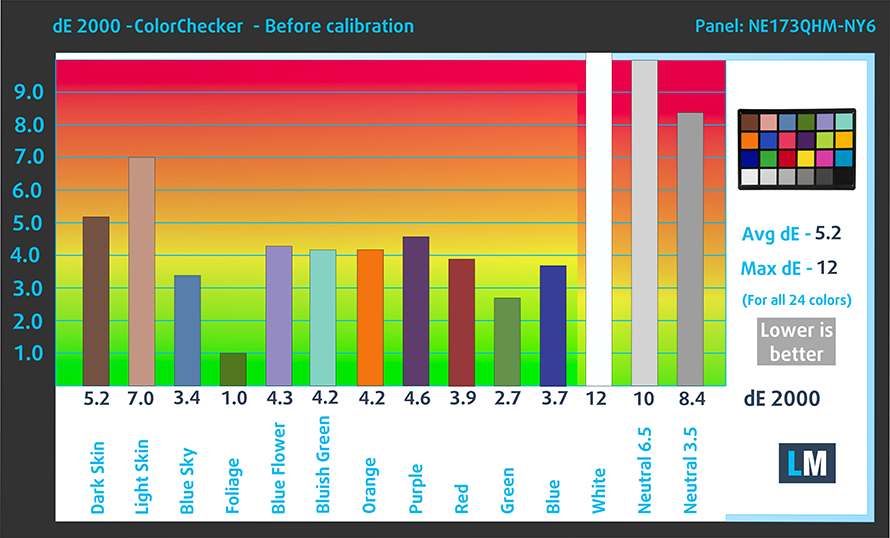
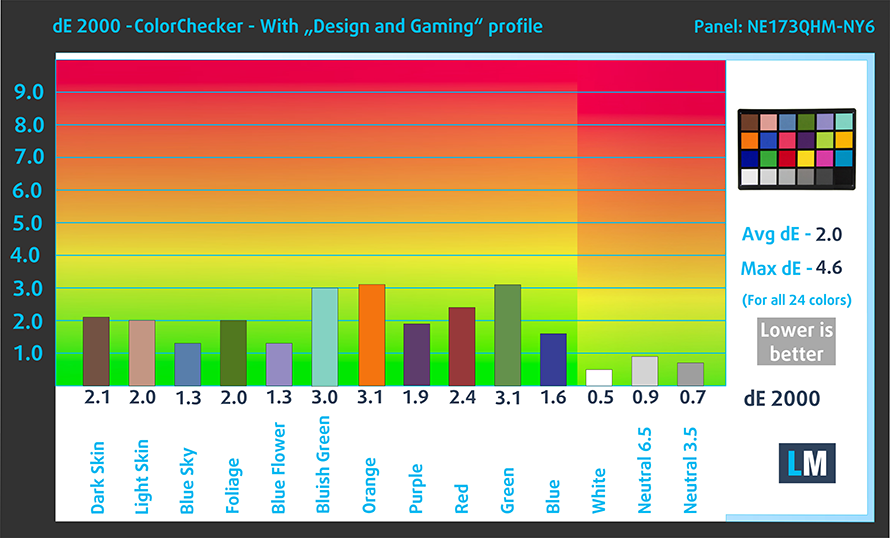
We tested the accuracy of the display with 24 commonly used colors like light and dark human skin, blue sky, green grass, orange, etc. You can check out the results in factory condition and also, with the “Design and Gaming” profile.
Below you see the scores of Acer Nitro 5 (AN517-55) with the “Gaming and Web design” profile.
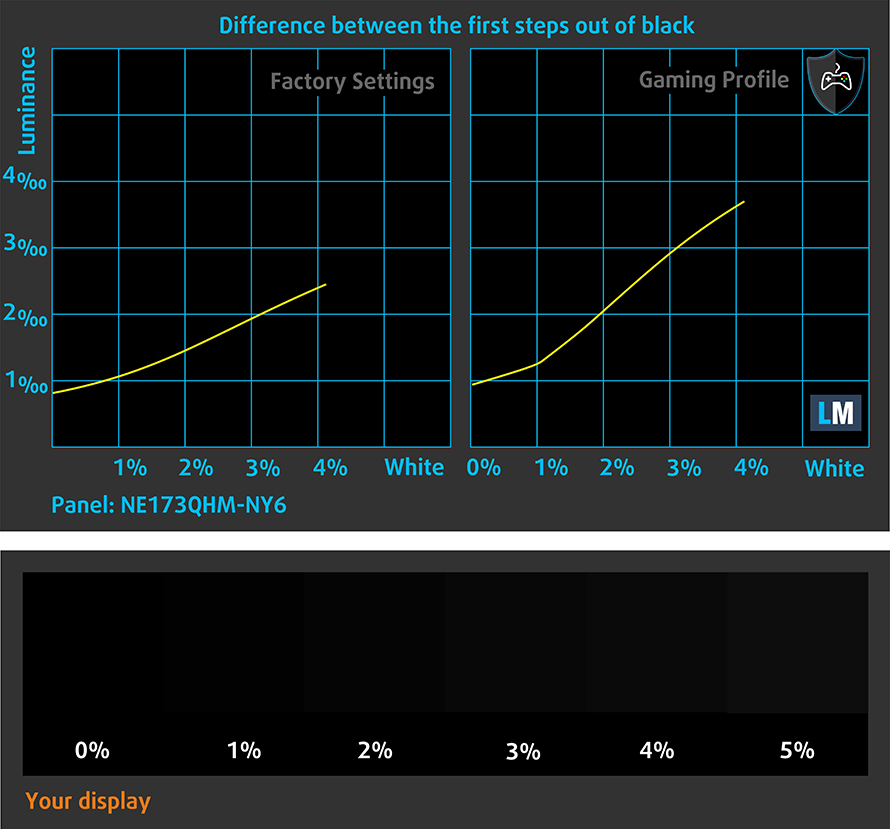
The next figure shows how well the display is able to reproduce really dark parts of an image, which is essential when watching movies or playing games in low ambient light.
The left side of the image represents the display with stock settings, while the right one is with the “Gaming and Web Design” profile activated. On the horizontal axis, you will find the grayscale, and on the vertical axis – the luminance of the display. On the two graphs below you can easily check for yourself how your display handles the darkest nuances but keep in mind that this also depends on the settings of your current display, the calibration, the viewing angle, and the surrounding light conditions.
Response time (Gaming capabilities)
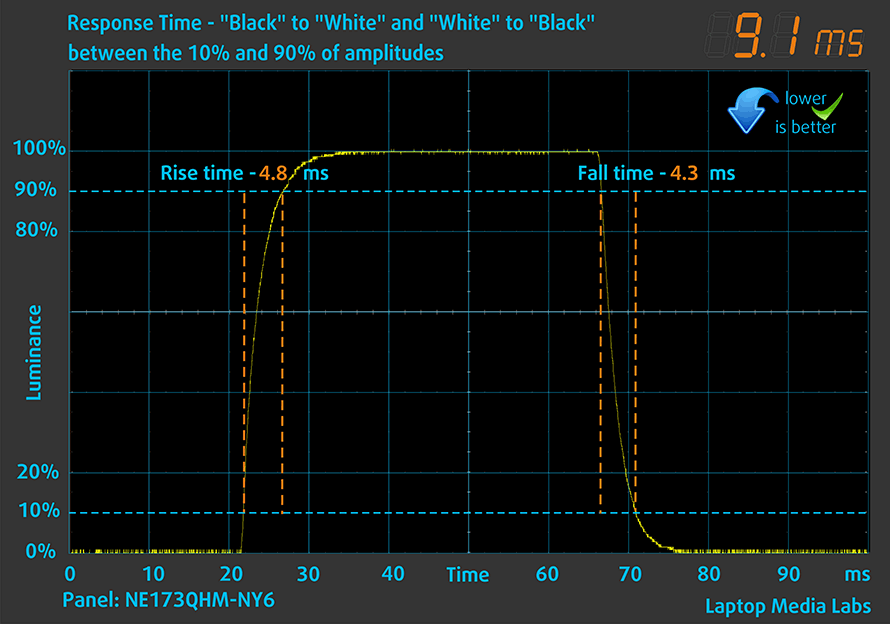
We test the reaction time of the pixels with the usual “black-to-white” and “white-to-black” method from 10% to 90% and vice versa.
We recorded Fall Time + Rise Time = 9 ms.
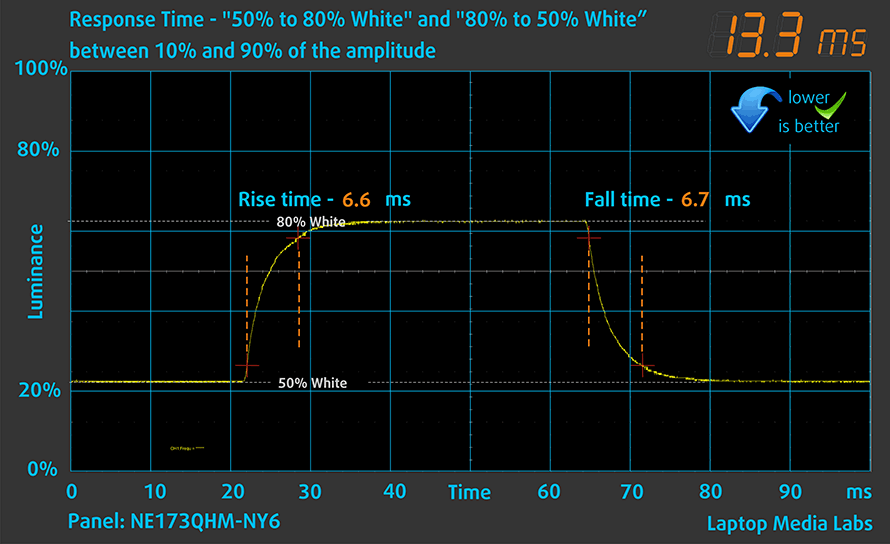
After that, we test the reaction time of the pixels with the usual “Gray-to-Gray” method from 50% White to 80% White and vice versa between 10% and 90% of the amplitude.
PWM (Screen flickering)
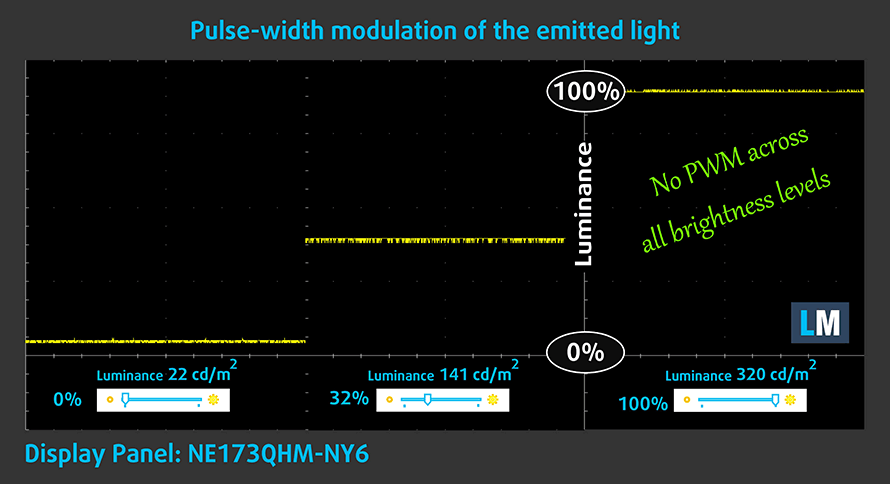
Pulse-width modulation (PWM) is an easy way to control monitor brightness. When you lower the brightness, the light intensity of the backlight is not lowered, but instead turned off and on by the electronics with a frequency indistinguishable to the human eye. In these light impulses, the light/no-light time ratio varies, while brightness remains unchanged, which is harmful to your eyes. You can read more about that in our dedicated article on PWM.
The backlight of the Acer Nitro 5 (AN517-55) doesn’t use PWM to adjust its levels of brightness. This means the display is comfortable for use, without presenting any excessive eye strain in this aspect.
Blue light emissions
Installing our Health-Guard profile not only eliminates PWM but also reduces the harmful Blue Light emissions while keeping the colors of the screen perceptually accurate. If you’re not familiar with the Blue light, the TL;DR version is – emissions that negatively affect your eyes, skin, and your whole body. You can find more information about that in our dedicated article on Blue Light.
Gloss level measurement
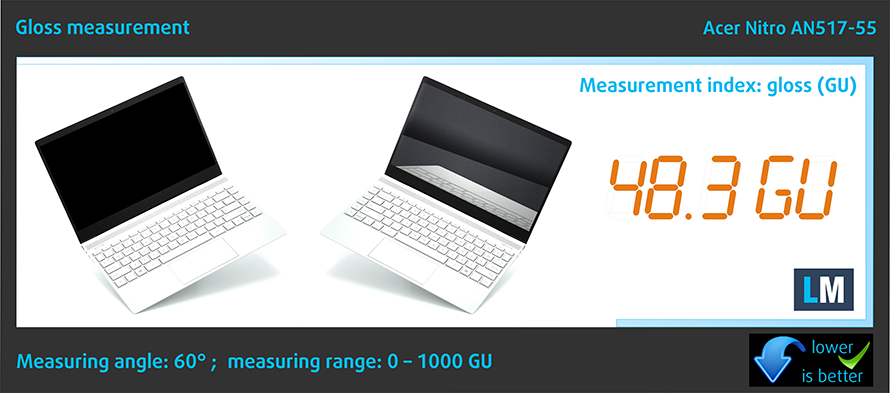
Glossy-coated displays are sometimes inconvenient in high ambient light conditions. We show the level of reflection on the screen for the respective laptop when the display is turned off and the measurement angle is 60° (in this case, the result is 48.3 GU).
Buy our profiles
Since our profiles are tailored for each individual display model, this article and its respective profile package are meant for Acer Nitro 5 (AN517-55) configurations with 17.3″ Quad HD IPS BOE NE173QHM-NY6 (BOE0A13).
*Should you have problems with downloading the purchased file, try using a different browser to open the link you’ll receive via e-mail. If the download target is a .php file instead of an archive, change the file extension to .zip or contact us at [email protected].
Read more about the profiles HERE.
Pe lângă primirea de profiluri eficiente și prietenoase cu sănătatea, prin cumpărarea produselor LaptopMedia sprijiniți și dezvoltarea laboratoarelor noastre, unde testăm dispozitive pentru a produce cele mai obiective recenzii posibile.

Office Work
Office Work ar trebui folosit în principal de utilizatorii care petrec cea mai mare parte a timpului uitându-se la texte, tabele sau pur și simplu navigând. Acest profil urmărește să ofere o distincție și o claritate mai bună prin menținerea unei curbe gamma plate (2.20), a temperaturii native a culorii și a culorilor perceptiv exacte.

Design and Gaming
Acest profil se adresează designerilor care lucrează profesional cu culorile, precum și pentru jocuri și filme. Design and Gaming duce panourile de afișaj la limitele lor, făcându-le cât mai precise posibil în standardul sRGB IEC61966-2-1 pentru Web și HDTV, la punctul de alb D65.

Health-Guard
Health-Guard elimină modulația dăunătoare a lățimii impulsului (PWM) și reduce lumina albastră negativă care ne afectează ochii și corpul. Deoarece este personalizat pentru fiecare panou, reușește să mențină culorile perceptiv exacte. Health-Guard simulează hârtia, astfel încât presiunea asupra ochilor este redusă considerabil.
Obține toate cele 3 profiluri cu 33% reducere

Sound
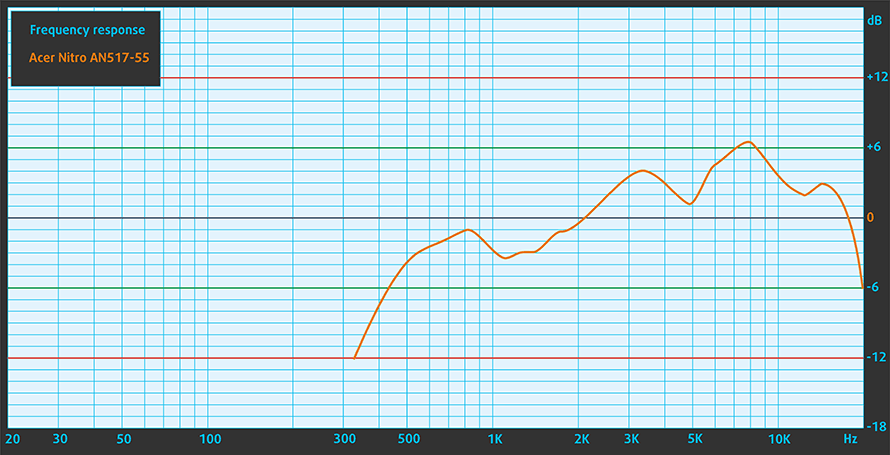
Acer Nitro 5 (AN517-55)’s speakers produce a sound of good quality. Its low, mid, and high tones are clear of deviations.
Drivers
All drivers and utilities for this notebook can be found here: https://www.acer.com/ac/en/US/content/support-product/9248?b=1
Battery
Now, we conduct the battery tests with the Windows Better performance setting turned on, screen brightness adjusted to 120 nits, and all other programs turned off except for the one we are testing the notebook with. The 90Wh battery here lasts for 8 hours of Web browsing, or 7 hours and 11 minutes of video playback.
Luminozitate: 180 nits; Mod Afișaj: SDR
Timp până la Descărcare Completă: Mai mare este mai bun
Pentru a simula condiții reale, am folosit propriul nostru script pentru navigarea automată pe web prin peste 70 de site-uri.
CPU options
This device is currently offered with a Core i5-12500H or Core i7-12700H.
Rezultatele sunt de la testul CPU Cinebench R23 (scorul mai mare este mai bun)
GPU options
The graphics options are quite vast – you can pick from the RTX 3050 (95W), RTX 3050 Ti (95W), RTX 3060 (140W), RTX 3070 (150W), or RTX 3070 Ti (150W).
Rezultatele sunt de la 3DMark Time Spy (Grafică). Un scor mai mare este mai bun.
Rezultatele sunt de la benchmark-ul 3DMark Fire Strike (Grafică) (un scor mai mare este mai bun)
Rezultatele sunt de la 3DMark Wild Life Extreme Unlimited. Un scor mai mare este mai bun.
Rezultatele sunt de la benchmark-ul Unigine Superposition (un scor mai mare este mai bun)
Gaming tests

| Metro Exodus | Full HD, Low (Check settings) | Full HD, High (Check settings) | Full HD, Extreme (Check settings) |
|---|---|---|---|
| Average FPS | 138 fps | 90 fps | 49 fps |

| Borderlands 3 | Full HD, Medium (Check settings) | Full HD, High (Check settings) | Full HD, Badass (Check settings) |
|---|---|---|---|
| Average fps | 119 fps | 102 fps | 88 fps |

| Tom Clancy’s Ghost Recon Wildlands | Full HD, High (Check settings) | Full HD, Very High (Check settings) | Full HD, Ultra (Check settings) |
|---|---|---|---|
| Average | 130 fps | 111 fps | 77 fps |
[eBook Guide + Tools] How to MAX OUT your Acer Nitro 5 (AN517-55)
Your Acer Nitro 5 (AN517-55) can be Faster. LaptopMedia has tested thousands of models in the last 15 years, and we’re yet to see a notebook that couldn’t be made more powerful through modifications. And have you seen the most popular search on Google related to “how to make my …”? No? OK, here it is:

As you see, having a faster laptop is more important than having more hair.
Well, the main issue here is that there are thousands of advices on the Web. Some work, some don’t. Some are easy, some are complicated. Some are safe, and some are risky. If only there could be an Easy-to-Follow, Step-by-Step, and Laboratory-Tested guide by a proven organization, right?
That’s what we’ve done. We have hundreds of laptops scattered in our office, and we’ve spent a whole year testing different optimizations. We’ve chosen the ones that really make a difference, that are easy to implement without expert skills, and that are safe for your laptop in the long term.

🚀 What’s the performance boost I could expect?
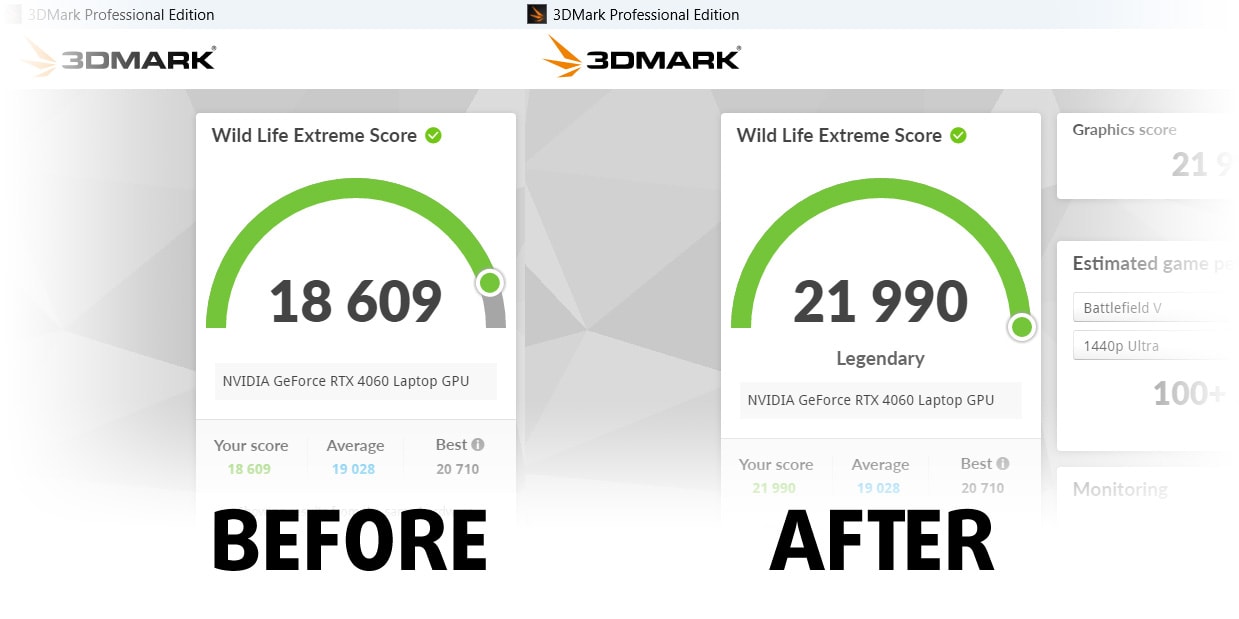
There’s no general answer but we’ve reached more than 30% GPU Performance boost on some models, while typically it’s between 10% and 20%. You could always go beyond but we want to be sure that our advice will keep your laptop on the safe side in the long term. But you want to get the absolute maximum? We’ll show you how, and then it’s up to you.
We even set several World Records on 3DMark, one being our first Max Out for a specific laptop model – MSI Katana B13V.
We’d be happy to compete with YOU on the 3DMark rank lists, and see what YOUR laptop can do using our guide!
📦 What’s included?
📖 Our eBook includes All the tools you need, along with an Easy-to-follow guide for hassle-free:
⚡ GPU Performance boost by vBIOS replacement, Overclocking, and Undervolting
⚙️ Checking the hardware components and finding if you could get a significant boost by upgrading some of them
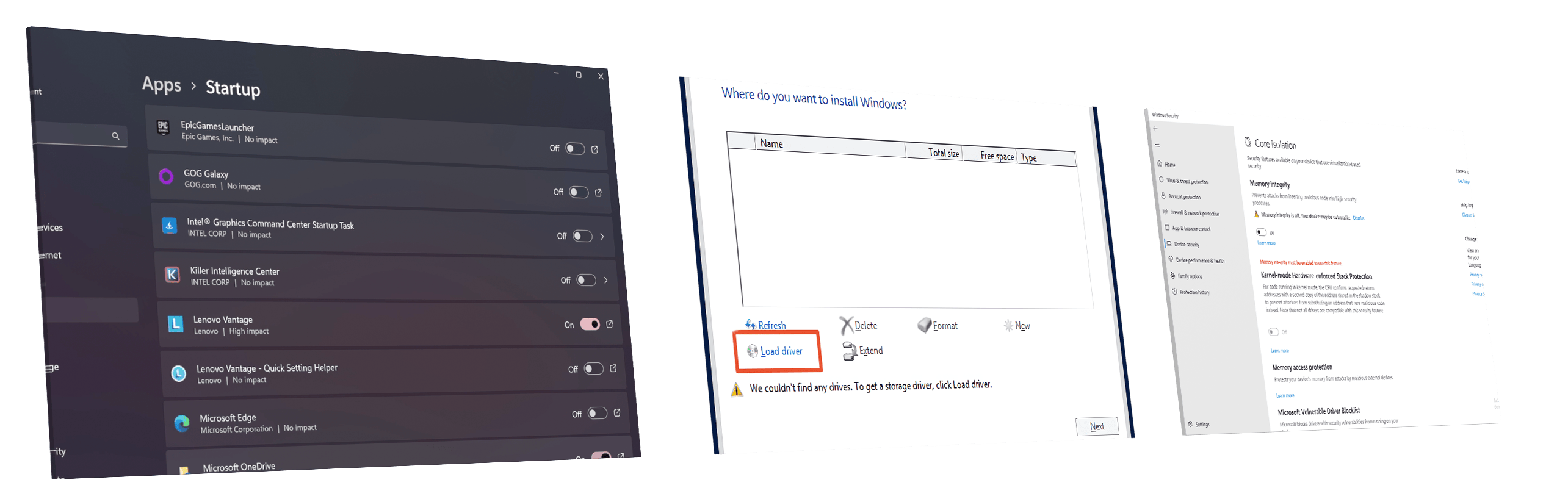
💾 Installing a clean Windows OS, with all the base settings you need
📋 Software optimization steps that really give a performance boost
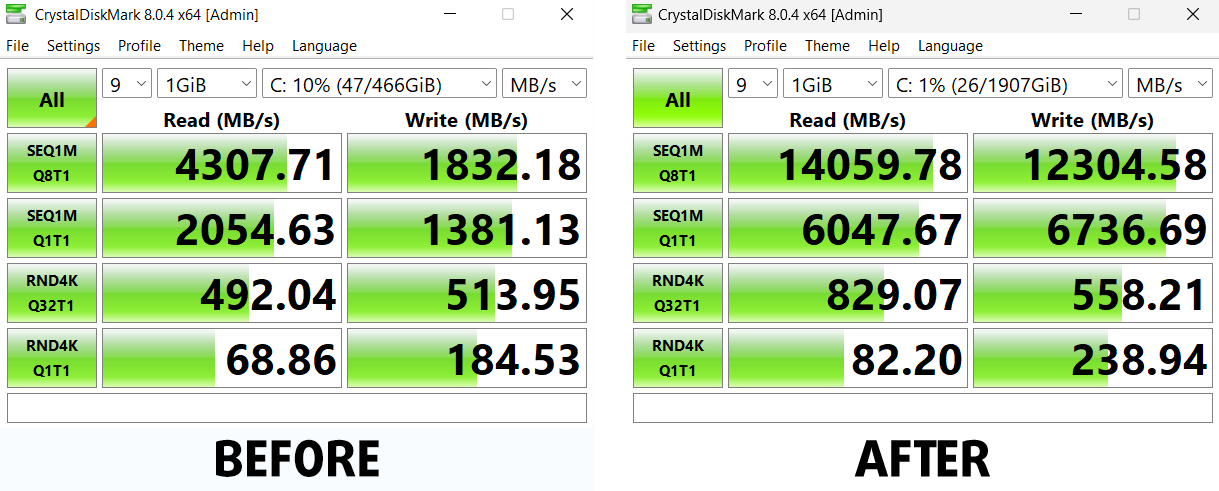
⏩ Building a RAID Storage configuration for doubling sequential read/write speeds or protecting your data
🎯 Display Profiles bundle for a panel of your choice, enhancing the display for accurate colors, better experience, and protection of your eyes
🎁 To receive the Display Profiles bundle as a gift, simply email us your panel model through our “Contact Us” form.
💵 What is the price?
R&D on laptops isn’t easy nor cheap, especially when you’re not using cherry-picked review samples but real units instead. Our idea is to reinvest the profits from the sales back in our laboratory. However, we also want to make it a killer deal for everyone who is planning or has already spent on a gaming laptop, as this product would significantly boost the performance per dollar they get.
🛠️ GPU Modifications: vBIOS, Overclocking, Undervolting
⚙️ Building Fast/Reliable RAID configuration
💻 Hardware upgrade tips for best results
🖼 Display enhancing
💾 OS Optimization for best performance
✖ But if these optimizations are easy, why don’t manufacturers do them?
There are a lot of reasons for the manufacturers to put boundaries on your machine, locking part of its performance:
📊 Market Segmentation: To create different product tiers, manufacturers often limit performance. This allows them to target various market segments and price points, encouraging consumers to pay more for higher-performing models.
❓Unknown Potential: Each unit’s performance varies. Checking each one individually isn’t feasible.
🏢 Regulatory Compliance: Certain regions have regulations regarding energy consumption, and manufacturers often place some boundaries to fit all standards.
🏭 Supply Chain Constraints: Limitations are imposed due to the current availability of components.
🫰 Cost-effective solutions: Often, less popular but important details are overlooked. For example, better RAM types can boost performance by up to 30%, but many users ignore this, and many online stores don’t even provide that info.
🔒 Security concerns: Many protections impact performance while being negligible for regular users. However, manufacturers don’t know if their laptops will be purchased by individuals or large corporations, so they can’t disable these features by default.
Not a bad performance bump in terms of Storage Speeds:
What are the default apps that impact performance the most?
What to do when RAID drives don’t show up?
How to optimize Windows further for maximum FPS gain in games?
Temperatures and comfort
Max CPU load
In this test we use 100% on the CPU cores, monitoring their frequencies and chip temperature. The first column shows a computer’s reaction to a short load (2-10 seconds), the second column simulates a serious task (between 15 and 30 seconds), and the third column is a good indicator of how good the laptop is for long loads such as video rendering.
Average P-core frequency; Average E-core frequency; CPU temp.; Package Power
| Intel Core i7-12700H (45W TDP) | 0:02 – 0:10 sec | 0:15 – 0:30 sec | 10:00 – 15:00 min |
|---|---|---|---|
| Acer Nitro 5 (AN517-55) | 2.22 GHz @ 3.27 GHz @ 83°C @ 115W | 3.43 GHz @ 2.71 GHz @ 82°C @ 100W | 1.58 GHz @ 3.27 GHz @ 93°C @ 95W |
| Dell Vostro 16 7620 | 2.83 GHz @ 2.38 GHz @ 64°C @ 71W | 2.73 GHz @ 2.24 GHz @ 70°C @ 66W | 2.42 GHz @ 1.80 GHz @ 72°C @ 52W |
| Dell XPS 15 9520 | 3.18 GHz @ 2.56 GHz @ 95°C @ 87W | 2.52 GHz @ 2.10 GHz @ 92°C @ 57W | 2.11 GHz @ 1.70 GHz @ 81°C @ 45W |
| Dell Precision 17 5770 | 3.34 GHz @ 2.69 GHz @ 78°C @ 95W | 3.30 GHz @ 2.66 GHz @ 87°C @ 92W | 2.54 GHz @ 2.10 GHz @ 75°C @ 55W |
| MSI Pulse GL76 (12Ux) | 3.29 GHz @ 2.76 GHz @ 77°C @ 97W | 3.27 GHz @ 2.75 GHz @ 83°C @ 95W | 3.14 GHz @ 2.68 GHz @ 86°C @ 85W |
| MSI Crosshair 15 (B12Ux) | 3.27 GHz @ 2.67 GHz @ 84°C @ 97W | 3.19 GHz @ 2.65 GHz @ 91°C @ 94W | 3.05 GHz @ 2.47 GHz @ 88°C @ 80W |
| Acer Predator Helios 300 (PH317-56) | 3.39 GHz @ 2.84 GHz @ 64°C @ 103W | 3.53 GHz @ 2.76 GHz @ 71°C @ 100W | 2.66 GHz @ 2.86 GHz @ 87°C @ 102W |
| MSI Stealth GS66 (12Ux) | 3.84 GHz @ 2.82 GHz @ 83°C @ 124W | 3.55 GHz @ 2.67 GHz @ 85°C @ 107W | 3.19 GHz @ 2.42 GHz @ 83°C @ 85W |
| MSI Vector GP66 (12Ux) | 3.81 GHz @ 2.91 GHz @ 81°C @ 116W | 3.54 GHz @ 2.72 GHz @ 83°C @ 98W | 3.30 GHz @ 2.57 GHz @ 79°C @ 86W |
| Acer Predator Triton 500 SE (PT516-52s) | 3.25 GHz @ 2.52 GHz @ 89°C @ 80W | 3.10 GHz @ 2.46 GHz @ 90°C @ 73W | 2.93 GHz @ 2.38 GHz @ 91°C @ 66W |
The Nitro 5 (AN517-55) uses a weird pattern with its thermal management. It runs at very low P-core clocks for most of the time, but the E-cores are boosting as high as the heat profile will allow it. Ultimately, this makes the CPU run really hot, while the performance is not that great.
Real-life gaming
| NVIDIA GeForce RTX 3070 Ti | GPU frequency/ Core temp (after 2 min) | GPU frequency/ Core temp (after 30 min) | GPU frequency/ Core temp (Max Fan) |
|---|---|---|---|
| Acer Nitro 5 (AN517-55) | 1663 MHz @ 73°C @ 149W | 1655 MHz @ 74°C @ 149W | – |
| ASUS ROG Strix SCAR 15 G533 (2022) | 1631 MHz @ 80°C @ 149W | 1614 MHz @ 81°C @ 149W | – |
| Acer Predator Helios 300 (PH317-56) | 1637 MHz @ 70°C @ 149W | 1628 MHz @ 72°C @ 149W | 1646 MHz @ 67°C @ 150W |
| MSI Stealth GS66 (12Ux) | 1277 MHz @ 71°C @ 92W | 1250 MHz @ 75°C @ 91W | 1314 MHz @ 64°C @ 92W |
| Acer Predator Triton 500 SE (PT516-52s) | 1270 MHz @ 87°C @ 115W | 1200 MHz @ 87°C @ 105W | 1320 MHz @ 87°C @ 113W |
On the other hand, the GPU performance is astonishing. It puts to shame the ASUS ROG Strix SCAR 15 G533 (2022), which is considerably more expensive.
Gaming comfort
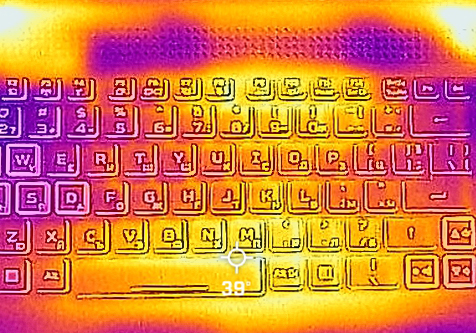
Yes, this happens with the help of the “Performance” preset, through the NitroSense app. This leads to high noise levels, but the highest keyboard temperature never exceeds 40°C.
Verdict
Given the weird cooling behavior in processor loads, we wouldn’t count on the Nitro 5 to be always there for us in CPU-intensive scenarios. On the other hand, the machine is extremely stable during gaming, and when you combine this with the fantastic 1440p display, you will get probably the best gaming experience for the money.
Acer Nitro 5 (AN517-55)’s IPS panel has a QHD resolution, good contrast ratio, and comfortable viewing angles. Furthermore, it covers fully both the sRGB and the DCI-P3 color gamuts. This makes the image appear really attractive. At the same time, our Gaming and Web design profile improves the color accuracy to standard-matching levels. Thankfully, the panel doesn’t use PWM for brightness adjustment. And gamers will be happy too since it has a 165Hz refresh rate with very quick pixel response times.
Actually, do you really need all that power? Well, if you’re going to invest in a mobile RTX 3070 Ti, you can also check out the Predator Helios 300 (PH317-56). It has a significantly better build quality, but to our surprise, it has basically the same features as the Nitro 5 we had with us today.
This means that the more affordable Nitro 5 supports RAID mode via two M.2 PCIe x4 Gen 4 slots, as well as 32GB of memory in dual-channel. For better or for worse, the RAM here is DDR4, instead of DDR5.
In addition, the I/O is also very competitive, as you get a Thunderbolt 4 port, an HDMI 2.1 connector, a LAN port, three USB Type-A ports, and an Audio jack. Indeed, the only thing missing from it is the SD card reader.
So, would we recommend the Nitro 5 (AN517-55)? Well, yes, we would. There is a couple of stuff we don’t really like, especially the super loud noise coming from the fans. However, it is present mainly when you use the “Performance” preset in the NitroSense app.
And to be honest, if you get an RTX 3070 Ti, you wouldn’t really need to use that mode, because the GPU is still one of the most powerful ones out there. Especially in its 150W iteration.
You can check the prices and configurations in our Specs System: https://laptopmedia.com/series/acer-nitro-5-an517-55/
Pros
- Thunderbolt 4 + HDMI 2.1
- 2x SODIMM, 2x M.2 PCIe x4 Gen 4 slots with RAID support
- 100% sRGB coverage and accurate color representation with our Gaming and Web design profile (BOE NE173QHM-NY6 (BOE0A1A))
- Quick pixel response times and G-Sync (BOE NE173QHM-NY6 (BOE0A1A))
- No PWM (BOE NE173QHM-NY6 (BOE0A1A))
- Outstanding performance
Cons
- Weird CPU thermal management
- Plastic build
- Lacks an SD card reader
 Author: Alex Iliev
 Author: eng. Kroum NikolovHead of Engineering at LaptopMedia.com, inventor and innovator with 40+ years of experience in electronics and high technology.

![[August 2026] Amazon Global: Top 10 cele mai vândute laptopuri – Apple MacBook Neo domină clasamentul, în timp ce laptopurile Windows din gama economică și de mijloc se luptă pentru volumul vânzărilor](https://laptopmedia.com/wp-content/uploads/2026/09/Best-Selling-Laptops-GLOBAL-Top-10-400x225.jpg)
![[August 2026] Cele mai vândute mărci de laptopuri pe Amazon Global – Apple domină în ceea ce privește veniturile, în timp ce HP se află pe primul loc în ceea ce privește varietatea de modele](https://laptopmedia.com/wp-content/uploads/2026/09/GLOBAL-Best-Brands-400x225.jpg)
![[August 2026] Amazon Global: Top 10 cele mai bine vândute laptopuri pentru jocuri – HP Victus 15 ocupă primul loc, în timp ce modelele accesibile domină clasamentul](https://laptopmedia.com/wp-content/uploads/2026/09/Best-Selling-Gaming-Laptops-GLOBAL-Top-10-400x225.jpg)
![[August 2026] Best-Selling Laptop Brands on Amazon Japan – Apple Dominates Market Share and Revenue Led by Strong Unit Sales](https://laptopmedia.com/wp-content/uploads/2026/09/CO.JP-Best-Brands-1-400x225.jpg)
![[August 2026] Best-Selling Laptop Brands on Amazon USA – Apple Dominates Market Revenue and Volume Despite Lower Model Diversity](https://laptopmedia.com/wp-content/uploads/2026/09/COM-Best-Brands-1-400x225.jpg)

so basically acer nitro get thermal throttling after 10-15 mins?