How to open HP Pavilion Aero 13 (13-bg0000) – disassembly and upgrade options
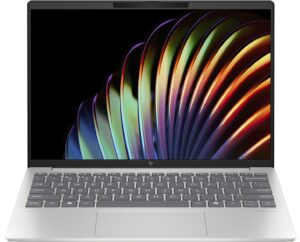
Opening the Device
- Undo the 4 Phillips-head screws securing the bottom panel.
- Raise the two zones close to the top two corners behind the hinge cover to create gaps in these sections.
- Fully pry the sides and the front. The rear side should be pried last.
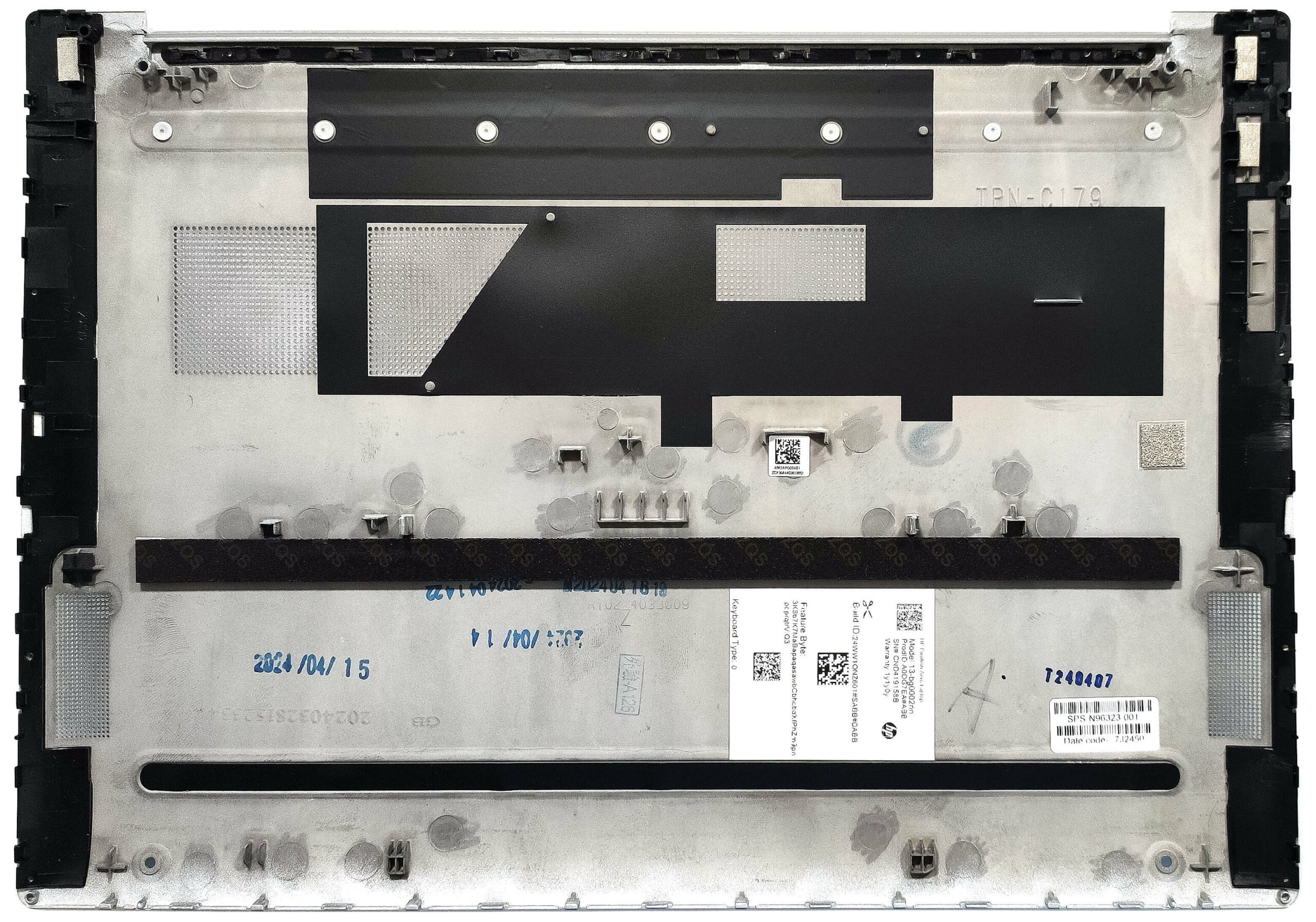
More info: Here’s how the bottom plate looks on the inside.
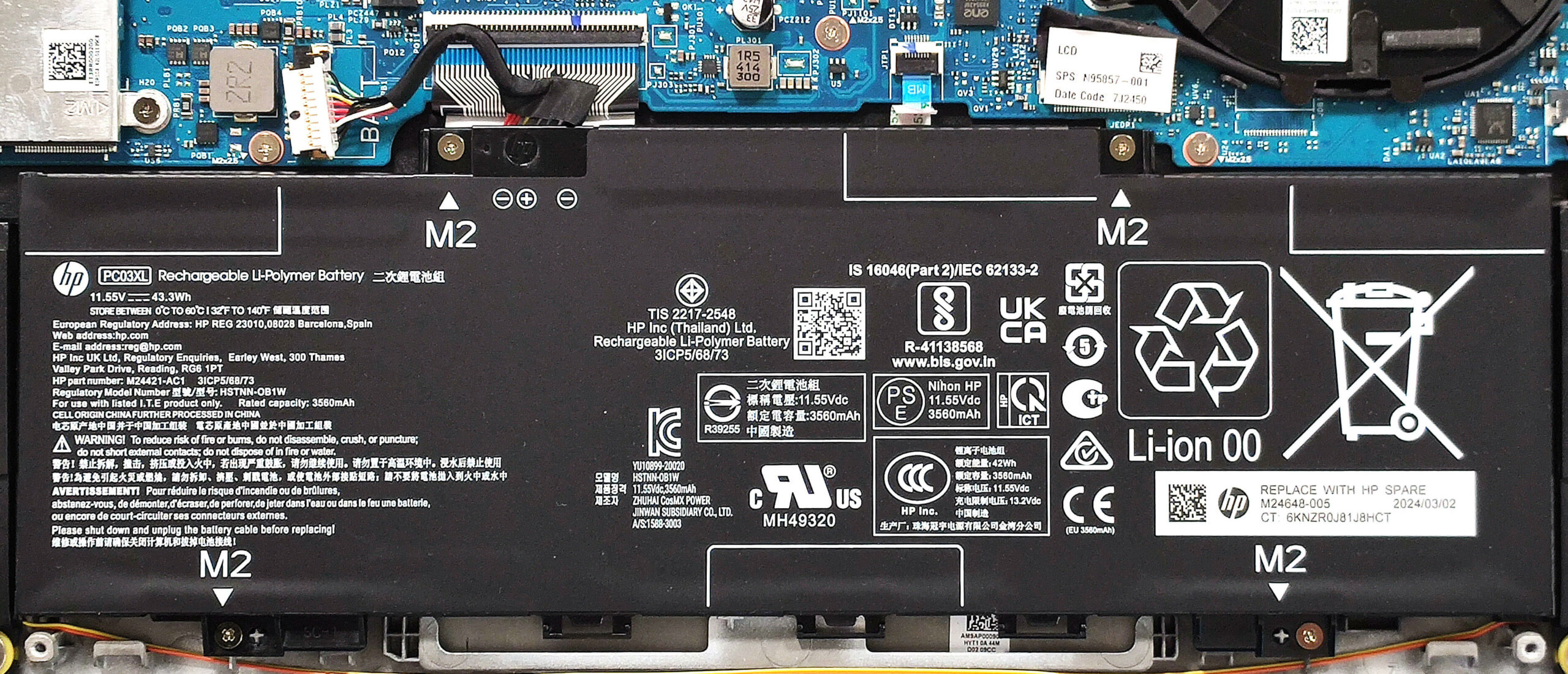
Battery Removal
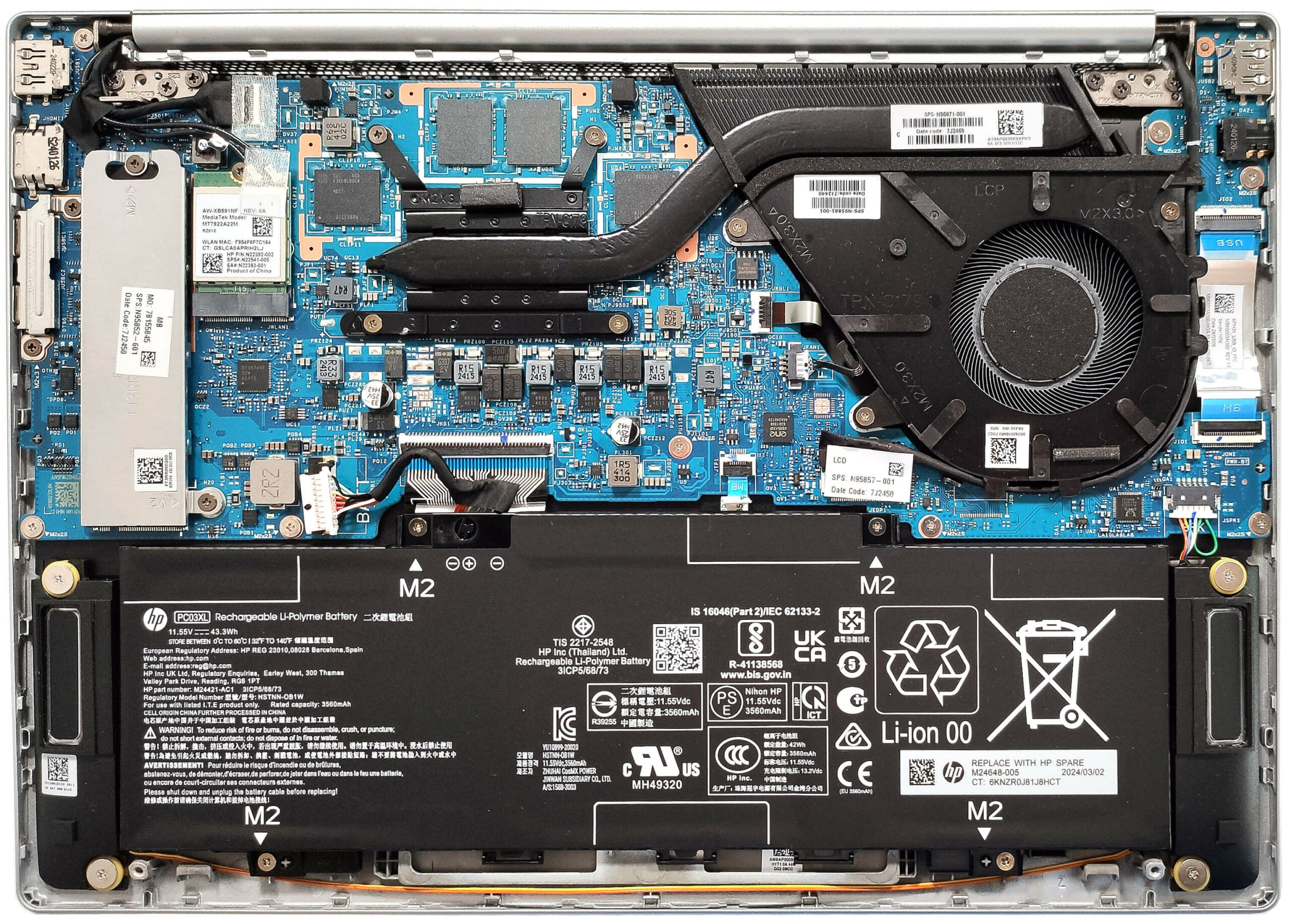
- Unplug the battery connector from the mainboard.
- Undo the 4 Phillips-head screws securing the battery.
- Lift the battery to remove it from the device.
Note: The laptop uses a 43Wh battery, providing approximately 9.5 hours of video playback.
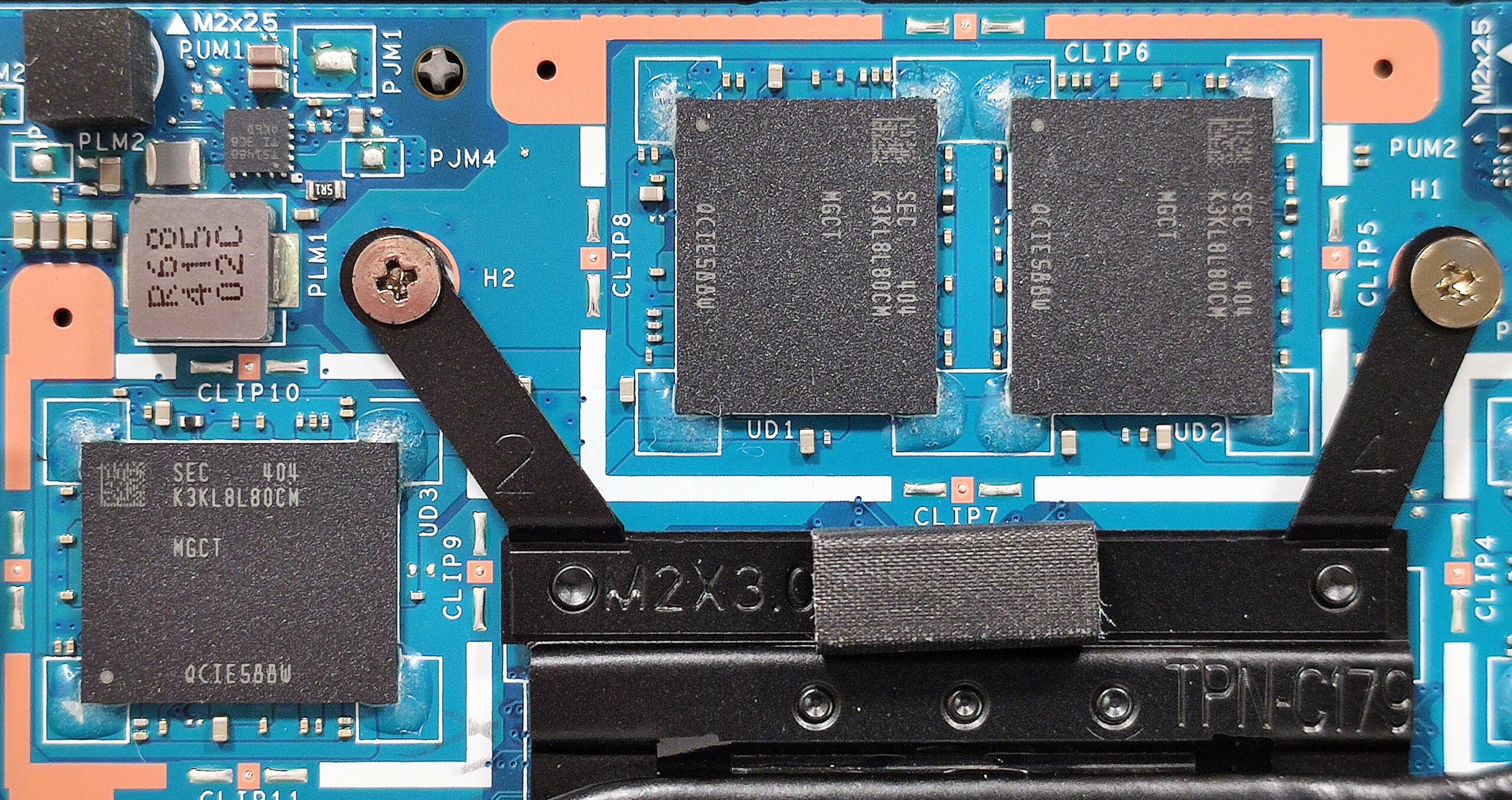
Memory Information
Note: All devices in this HP series rely on soldered 16GB of LPDDR5x-6400 MHz memory in dual-channel mode.
Storage Upgrade
- Locate the single M.2 slot for 2280 Gen 4 SSDs.
- Remove the metal shroud covering the NVMe drive by undoing the 2 Phillips-head screws.
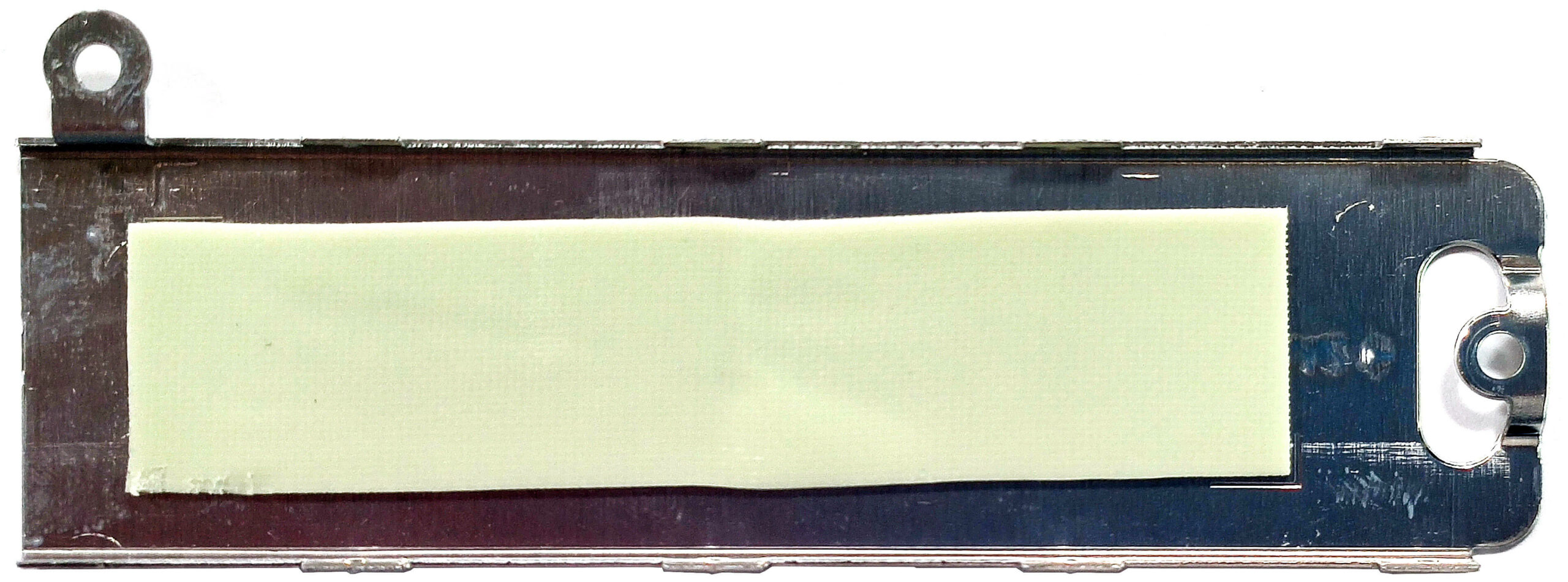
- Lift the metal shroud to reveal the long thermal pad inside.
- Install the new SSD in the slot.
Hint: Don’t forget to check out our Top M.2 SSDs Performance Rankings for insights on the best storage options available.
You can buy compatible SSDs here: Buy from Amazon.com (#CommissionsEarned)
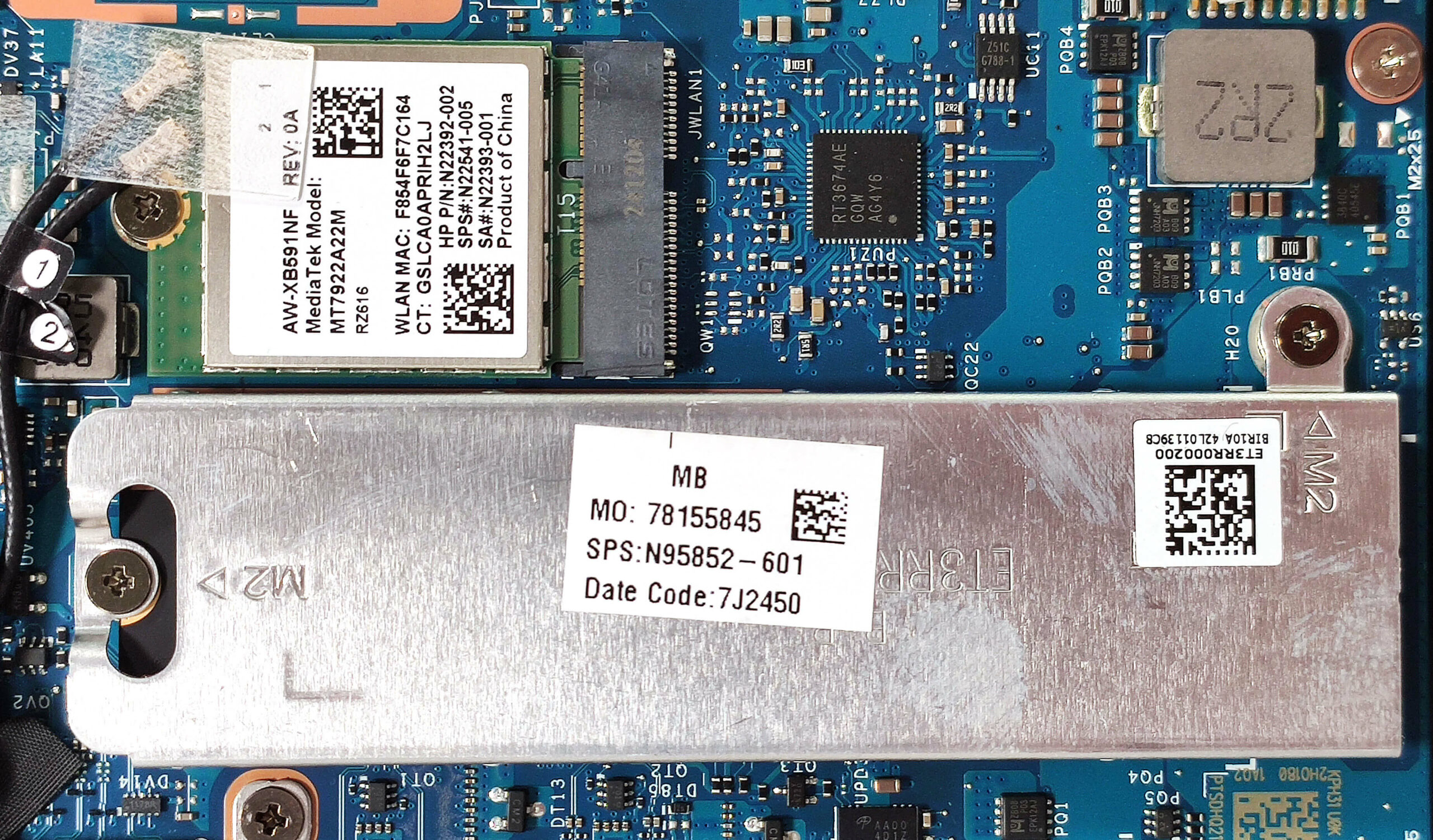
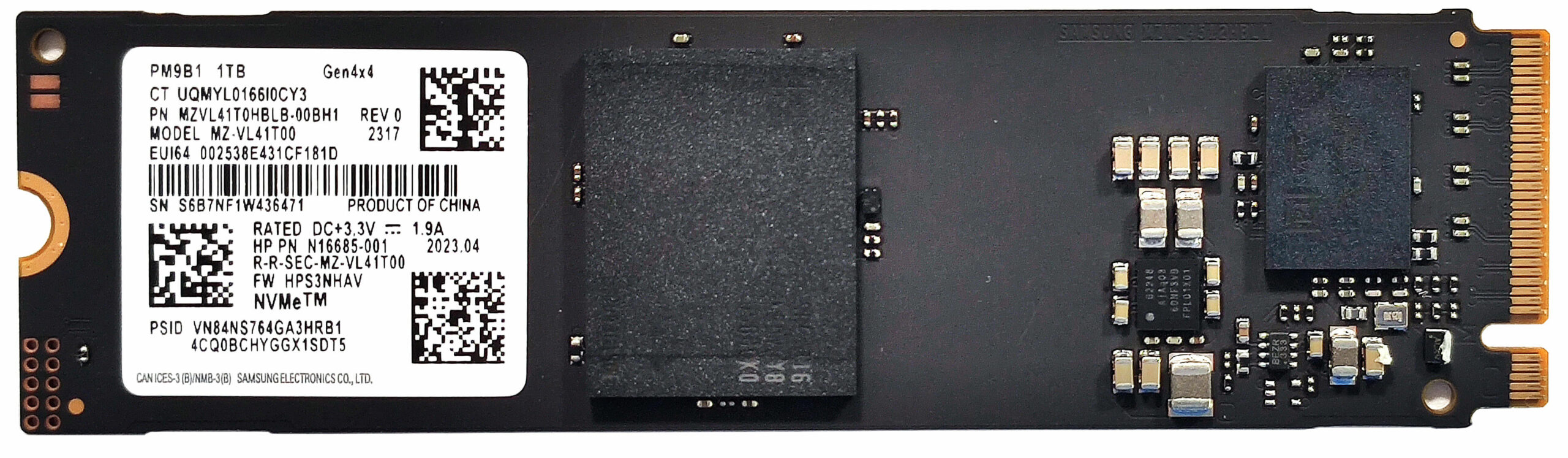
Wi-Fi Card
- The Wi-Fi card is located to the right of the SSD slot.
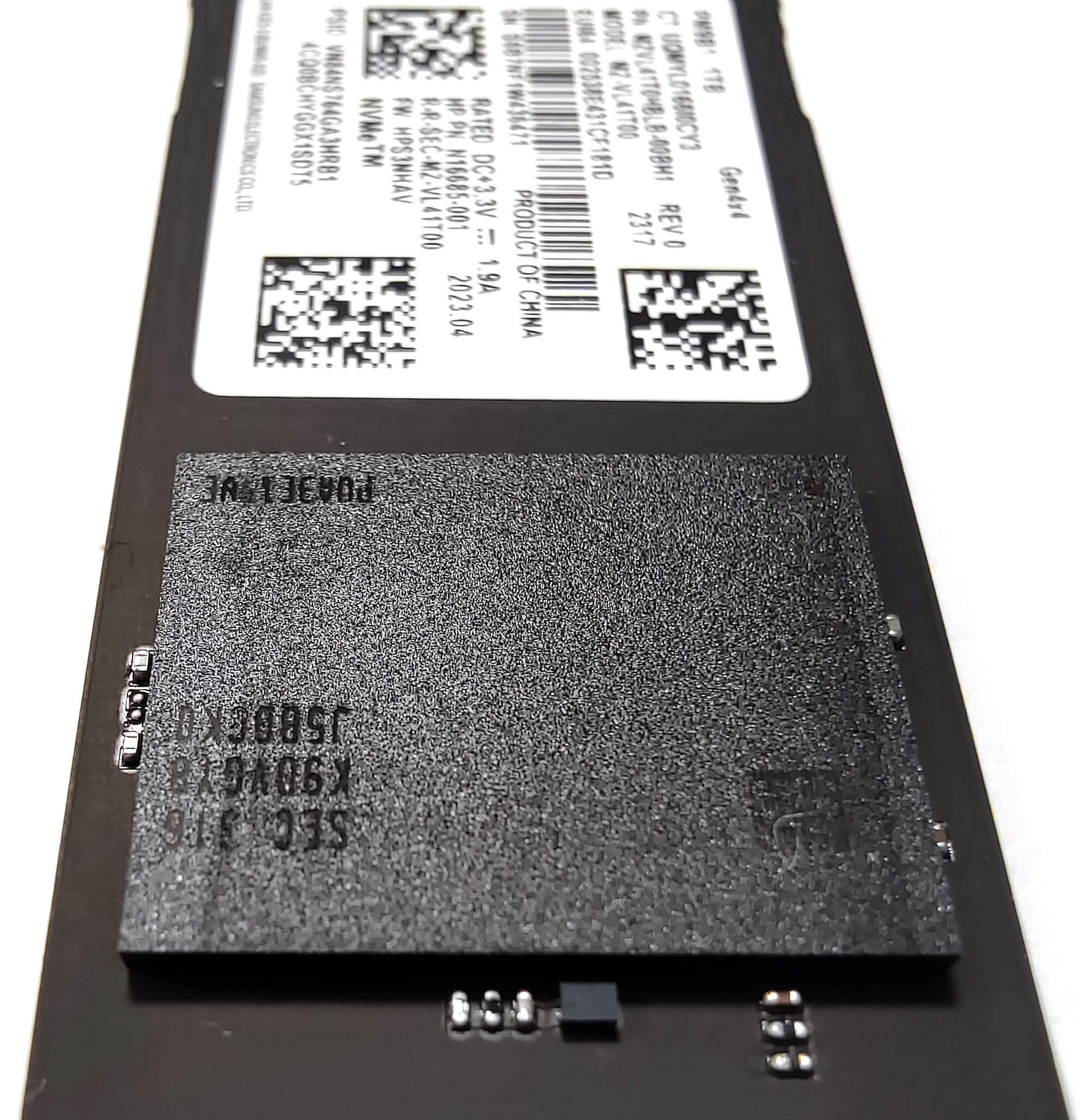
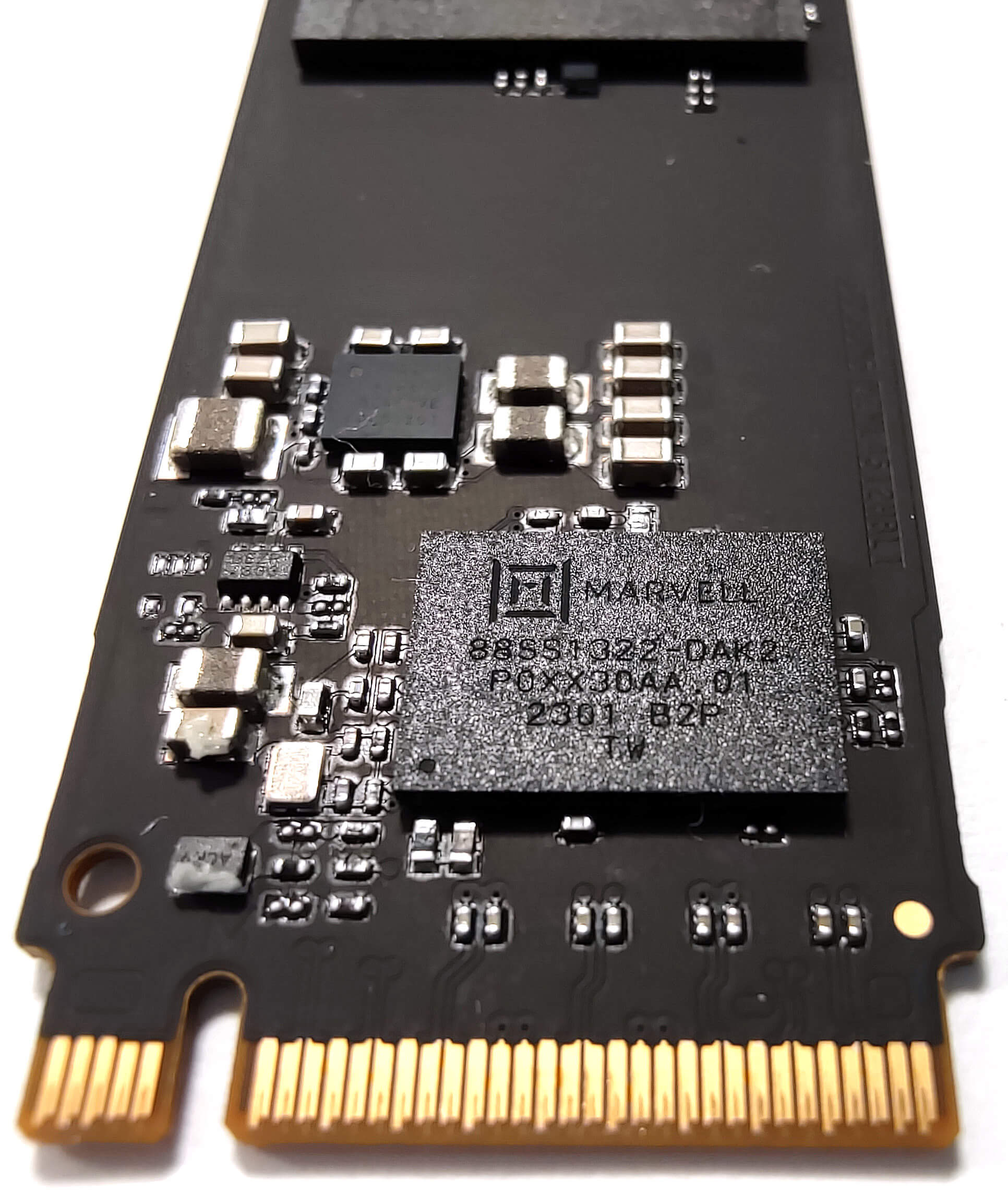
More info: Here are some close-ups of the SSD’s memory and controller chips.
Cooling System Overview
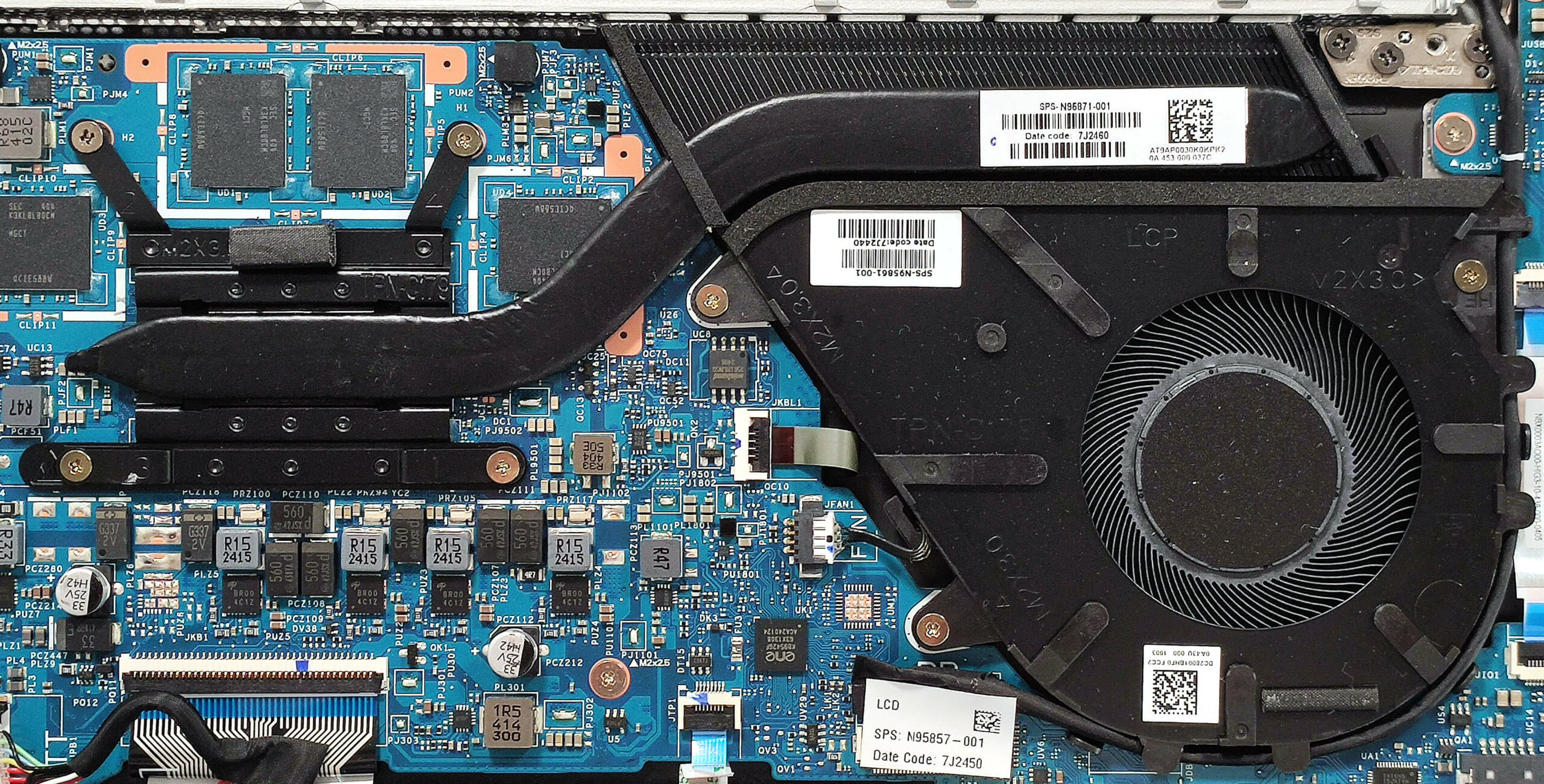
- The cooling system includes a large fan, a heat pipe, one long tall top-mounted heat sink, and a heat spreader.
- Ensure all cooling components are clean and free of dust for optimal performance.
HP Pavilion Aero 13 (13z-bg0000) in-depth review
It's almost unbelievable that an ultra-light laptop such as the HP Pavilion Aero 13 (13-bg0000) is powered by snappy Zen 4 CPUs with up to 8 cores and 45W default TDP. We decided to buy a machine with a 28W AMD Ryzen 7 8840U which will not stress the cooling system as much as the Ryzen 7 8840HS. The razor-thin profile comes at the cost of some missing functionalities such as a lack of SODIMMs and just one storage slot. Still, the port selection looks great for a 13-incher and you can easily open the bottom panel for servicing.The display department is represented by two IPS panels - one 12[...]
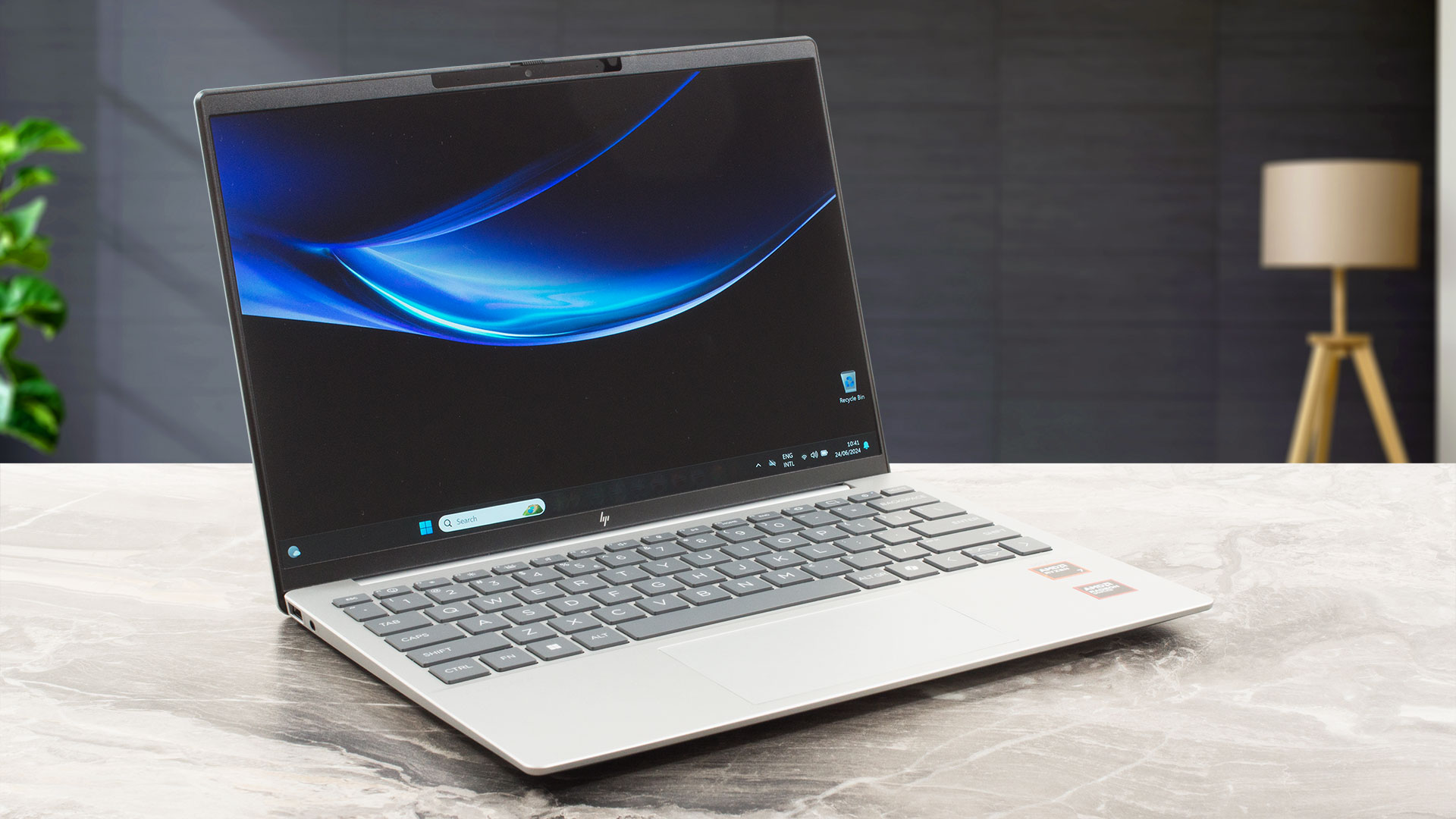
Pros
- Clean design
- Ultra-low weight and a thin profile even for a 13-incher (983 grams / 16.5 mm)
- Snappy performance for daily or normal office tasks
- Wide viewing angles and a high max brightness of 443 nits (LGD0715)
- 98% sRGB coverage + accurate colors with our "Design and gaming profile" (LGD0715)
- 1600p PWM-free panel (LGD0715)
- Comfortable backlit keyboard
- 2x Type-A + 2x Type-C ports
- The fan isn't noisy in "Performance" mode
- Long battery battery life given the 1600p display and the small 43Wh capacity (more than 9 hours of video playback)
- Has a 5MP IR Web camera with a privacy shutter
- Decently snappy NVMe (1TB SAMSUNG MZVL41T0HBLB-00BH1)
- Lid with a lever design
- Solid base
Cons
- The optional Ryzen 7 8840U can't reach its official base clock even in short loads
- Lacks a fingerprint reader
- Soldered memory and just one M.2 slot
 Author: Severin Kolakov

![[June 2026] Best-Selling Laptop Brands on Amazon Global – Apple’s Unrivaled Dominance in Units and Revenue](https://laptopmedia.com/wp-content/uploads/2026/07/GLOBAL-Best-Brands-400x225.jpg)
![[June 2026] Amazon Global: Top 10 Best-Selling Laptops – Apple’s New MacBook Neo Storms to #1, Reshaping the Market with Affordability](https://laptopmedia.com/wp-content/uploads/2026/07/Best-Selling-Laptops-GLOBAL-Top-10-400x225.jpg)
![[June 2026] Amazon Global: Top 10 Best-Selling Gaming Laptops – Acer’s Nitro V 16S AI Dominates Sales, While ASUS Leads Overall Revenue](https://laptopmedia.com/wp-content/uploads/2026/07/Best-Selling-Gaming-Laptops-GLOBAL-Top-10-400x225.jpg)
![[June 2026] Global Ranking of Best-Selling Laptop GPUs on Amazon – NVIDIA RTX 5060 is the Top-Selling Dedicated GPU](https://laptopmedia.com/wp-content/uploads/2026/07/Best-Selling-GPUs-GLOBAL-Top-10-400x225.jpg)
![[June 2026] Global Ranking of Best-Selling Laptop CPUs on Amazon – Apple M5 Dominates, AMD Ryzen 7 260 Gets Solid Premium Share](https://laptopmedia.com/wp-content/uploads/2026/07/Best-Selling-CPUs-GLOBAL-Top-10-400x225.jpg)