Dell Pro 14 (PC14250) Review – Entry-Level Business Laptop That Looks Like a MacBook
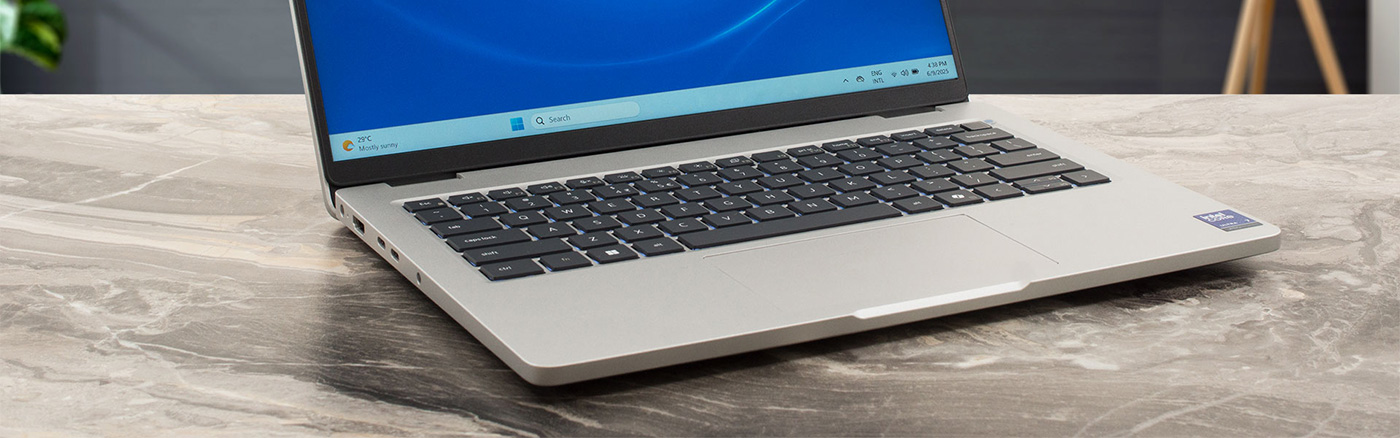
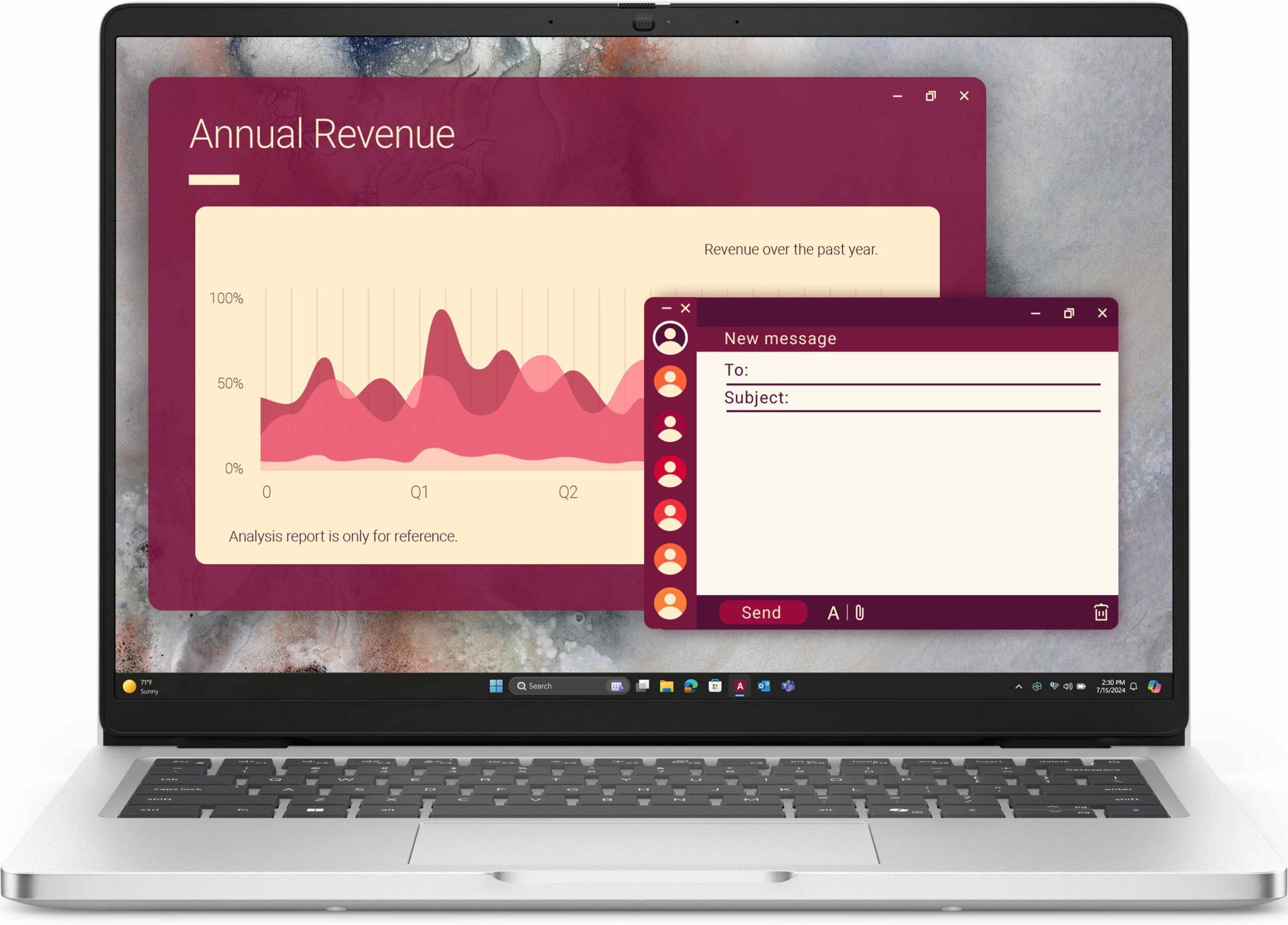
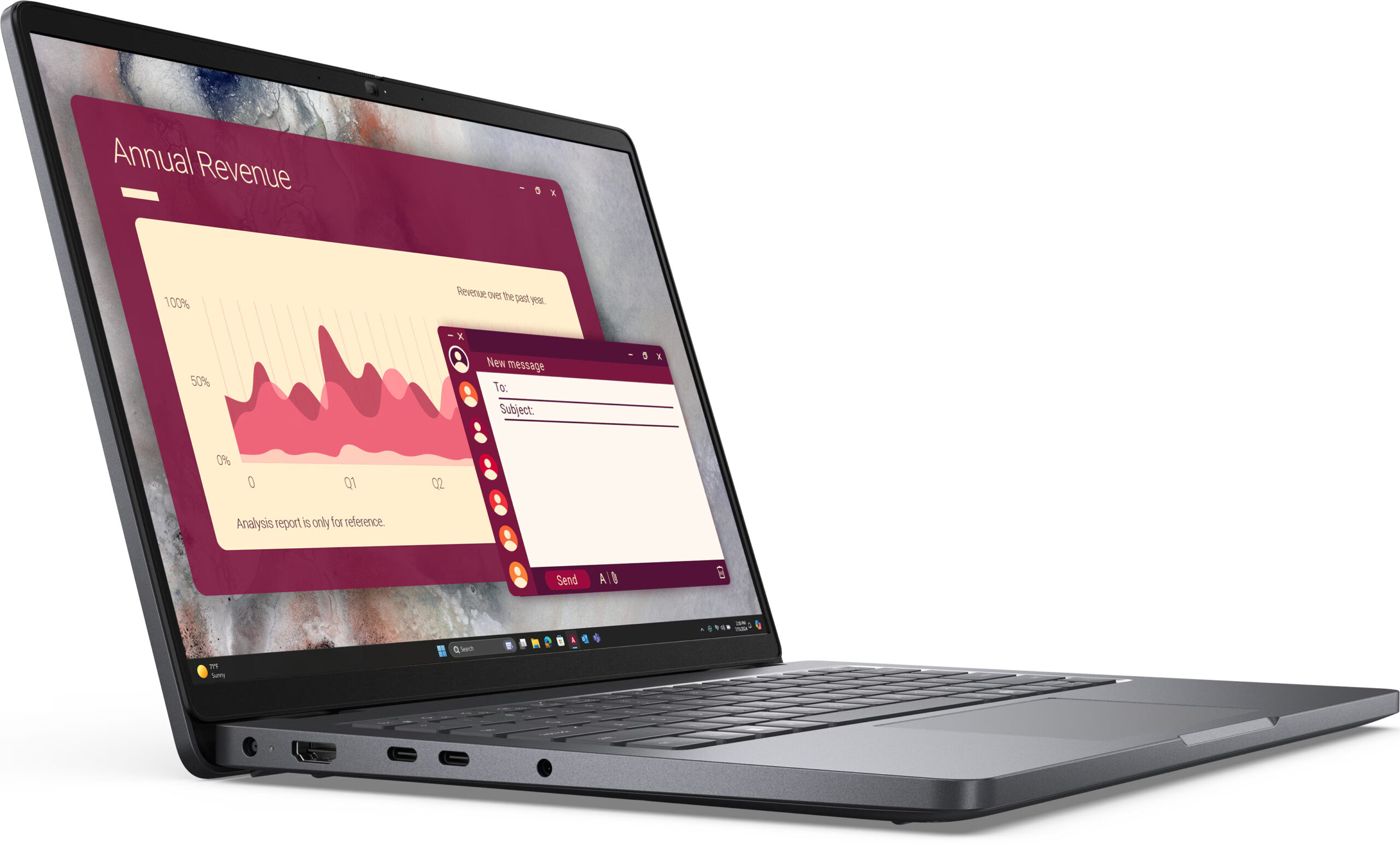
The Dell Pro 14 (PC14250) arrives as the successor to the workhorse Latitude 3450, but with a design that, at first glance, looks a lot like a MacBook Pro. However, this premium aesthetic is a clever disguise. As part of Dell’s base “C” line (indicated by the second letter in its model number), this is a machine built for practicality first. It packs a fantastic suite of business-ready ports and user-serviceable RAM into a portable 14-inch chassis.
But this functional core is paired with some significant compromises, including a hot-running processor and a truly disappointing base-model screen. The question is, is this practical foundation strong enough to overcome the flaws hidden beneath its stylish exterior?
You can check the prices and configurations in our Specs System: https://laptopmedia.com/series/dell-pro-14-pc14250/
Contents
Specs, Drivers, What’s in the box
Dell Pro 14 (PC14250) - Specs

- CPU
- Intel Core i3-1315U #193 in Top CPUs Intel Core Ultra 7 265U #163 in Top CPUs Intel Core Ultra 5 225U #127 in Top CPUs Intel Core 7 150U #176 in Top CPUs Intel Core 5 120U #184 in Top CPUsIntel Processor U300e Intel Core Ultra 7 255U Intel Core Ultra 5 235U Intel Core 7 250U Intel Core 5 220U Intel Core 3 100U
- Display
- 14.0”, WUXGA (1920 x 1200), IPS

- HDD/SSD
- up to 4000GB SSD
- M.2 Slot
- 1x 2230 M.2 NVMe PCIe 4.0 x4 See photo
- RAM
- up to 64GB
- OS
- Windows 11 Home, Windows 10 Pro, Windows 11 Pro, No OS
- Battery
- 55Wh
- Dimensions
- 313.70 x 225.30 x 18.89 - 20.37 mm (12.35" x 8.87" x 0.74")
- Weight
- 1.36 kg (3 lbs)
- Ports and connectivity
- 1x USB Type-A
- 3.2 Gen 1 (5 Gbps)
- 1x USB Type-A
- 3.2 Gen 1 (5 Gbps), Sleep and Charge
- 1x USB Type-C
- 3.2 Gen 2 (10 Gbps), Power Delivery (PD), DisplayPort
- 1x USB Type-C
- 4.0, Thunderbolt 4, Power Delivery (PD), DisplayPort
- HDMI
- 2.1
- Card reader
- Ethernet LAN
- 10, 100, 1000 Mbit/s
- Wi-Fi
- Wi-Fi 7
- Bluetooth
- 5.4
- Audio jack
- 3.5mm Combo Jack
- Features
- Fingerprint reader
- optional
- Web camera
- FHD
- Backlit keyboard
- optional
- Microphone
- Dual Array Microphone
- Speakers
- 2x 2.5W Stereo Speakers
- Security Lock slot
- Wedge Lock
All Dell Pro 14 (PC14250) configurations
Drivers
All drivers and utilities for this notebook can be found here: https://www.dell.com/support/product-details/en-us/product/dell-pro-pc14250-laptop/drivers
What’s in the box?
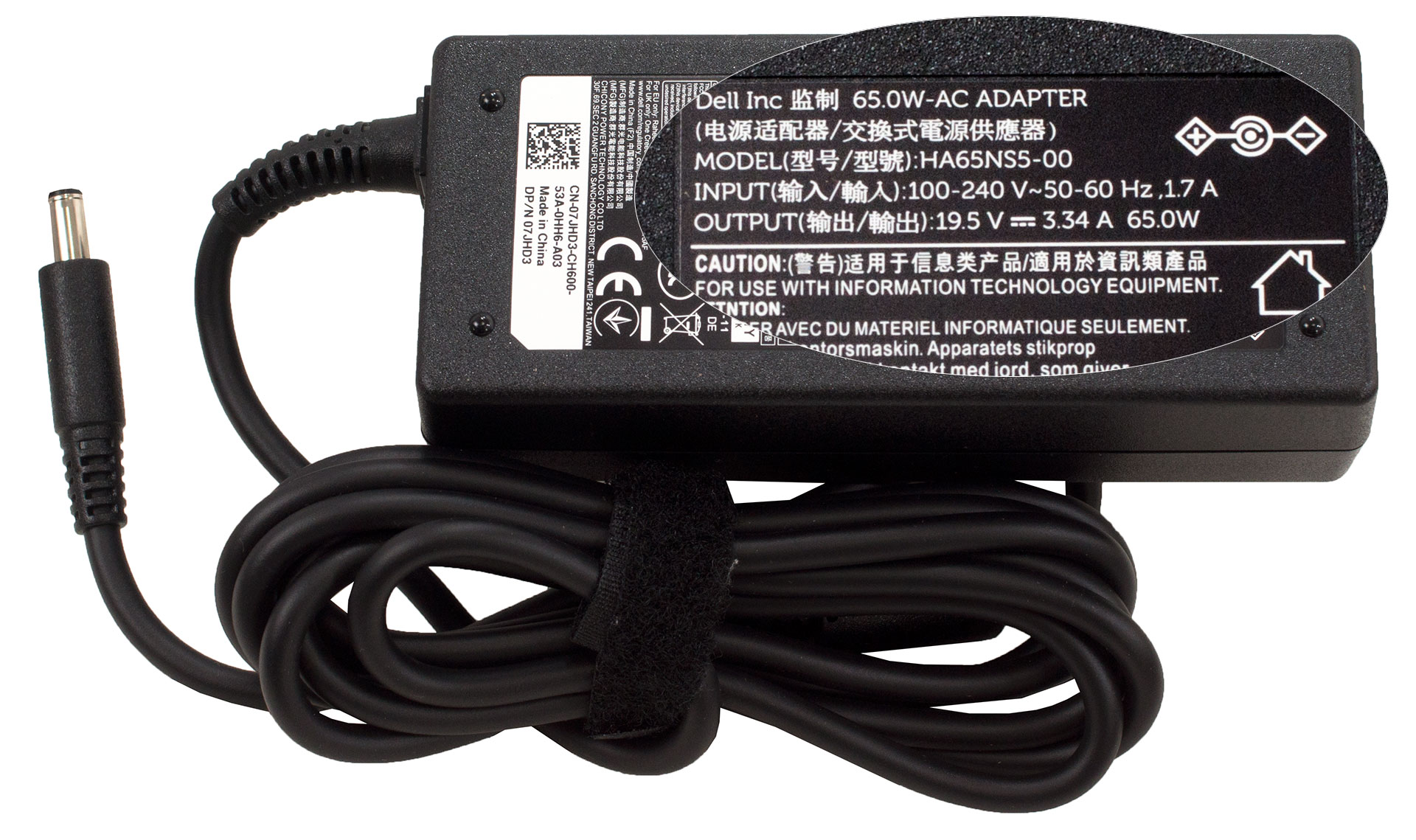
Opening the box for the Dell Pro 14 (PC14250) is a very straightforward experience, revealing the laptop in a simple plastic sleeve alongside its 65W power adapter.
The charger, however, brings a notable surprise: it uses a barrel plug, unlike the Type-C found on the bigger 16-inch model. Frankly, we prefer this, as the dedicated port is conveniently located at the back of the left side and, more importantly, it doesn’t occupy one of the valuable USB ports.
Design and construction
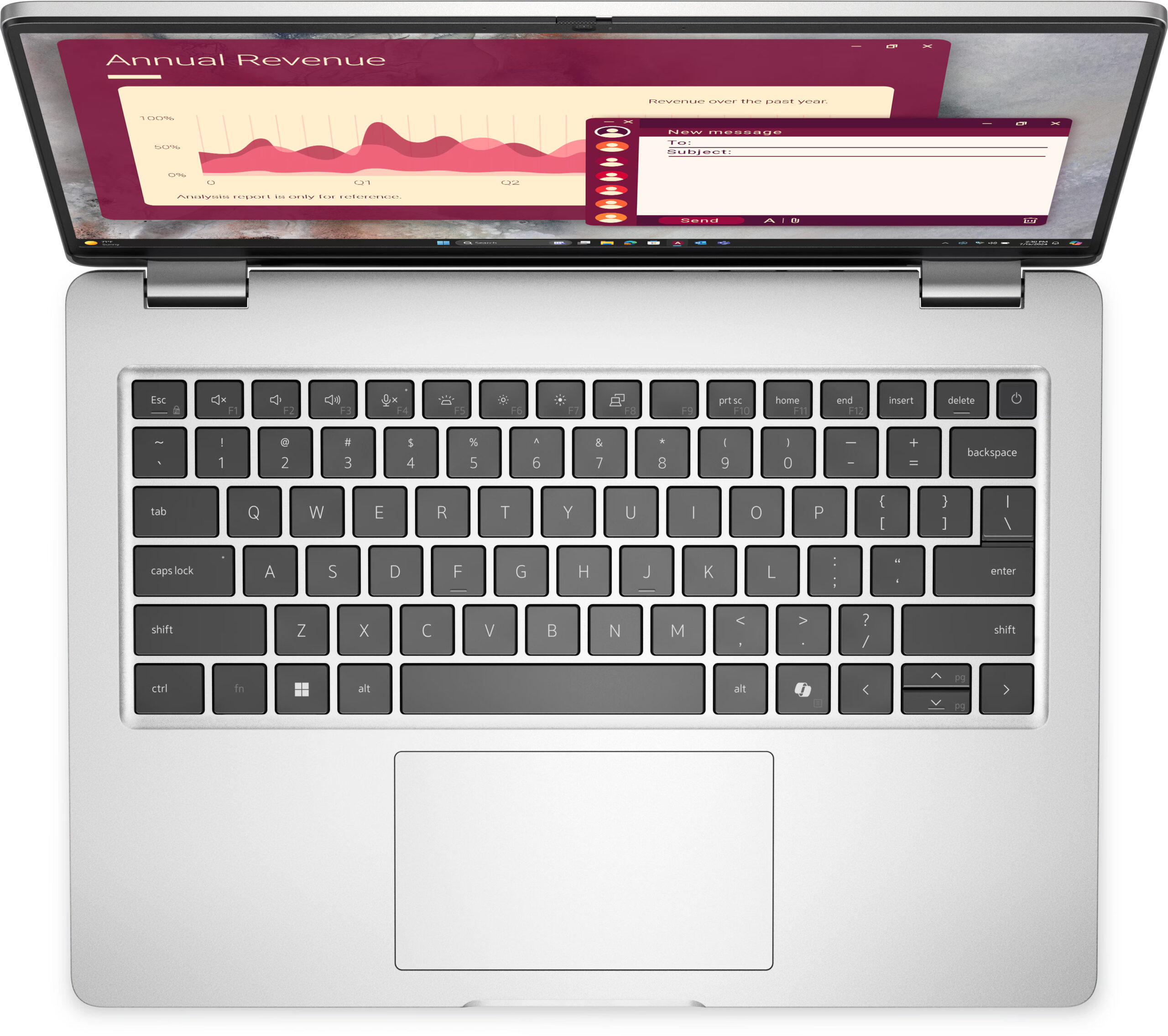
The Dell Pro 14 (PC14250) cuts an elegant figure, its clean lines and professional demeanor evoking a certain familiarity, almost like a more business-focused cousin to a MacBook Pro, though it’s important to note its chassis is crafted from plastic.
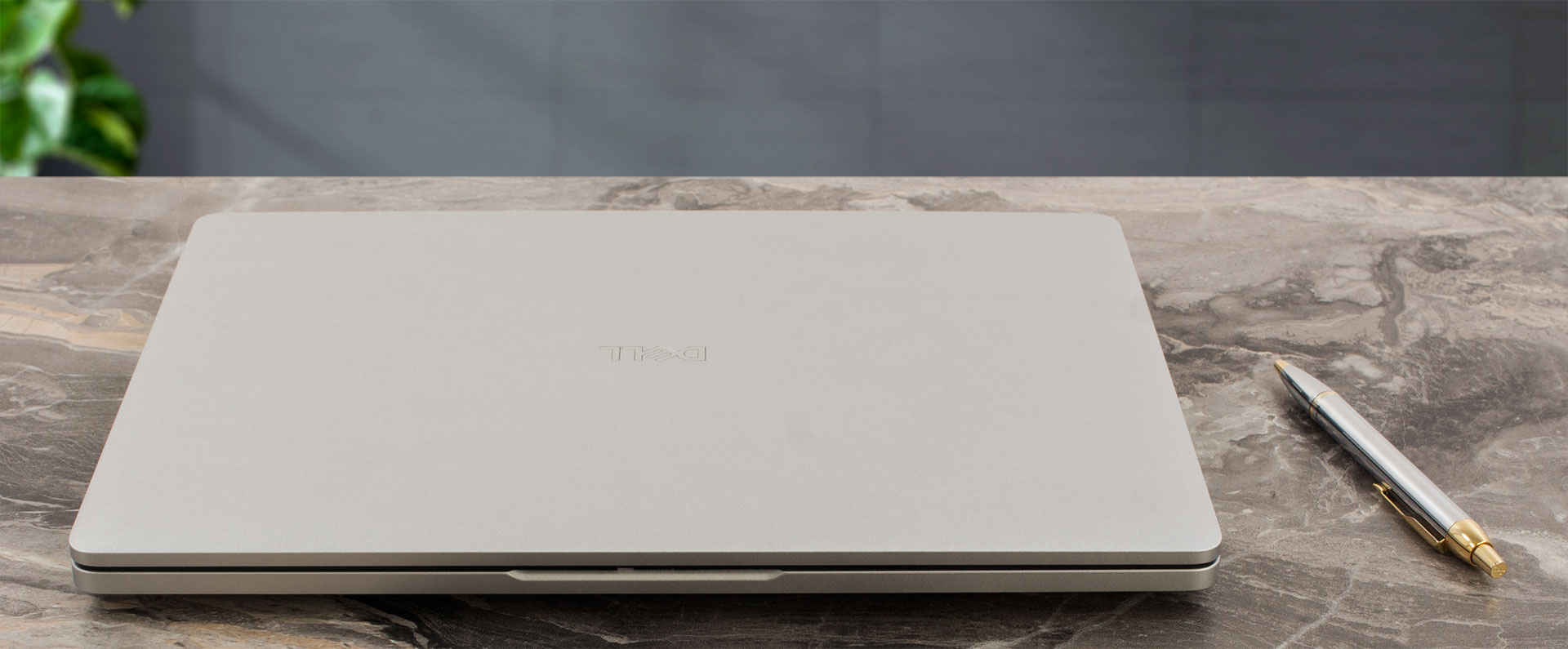
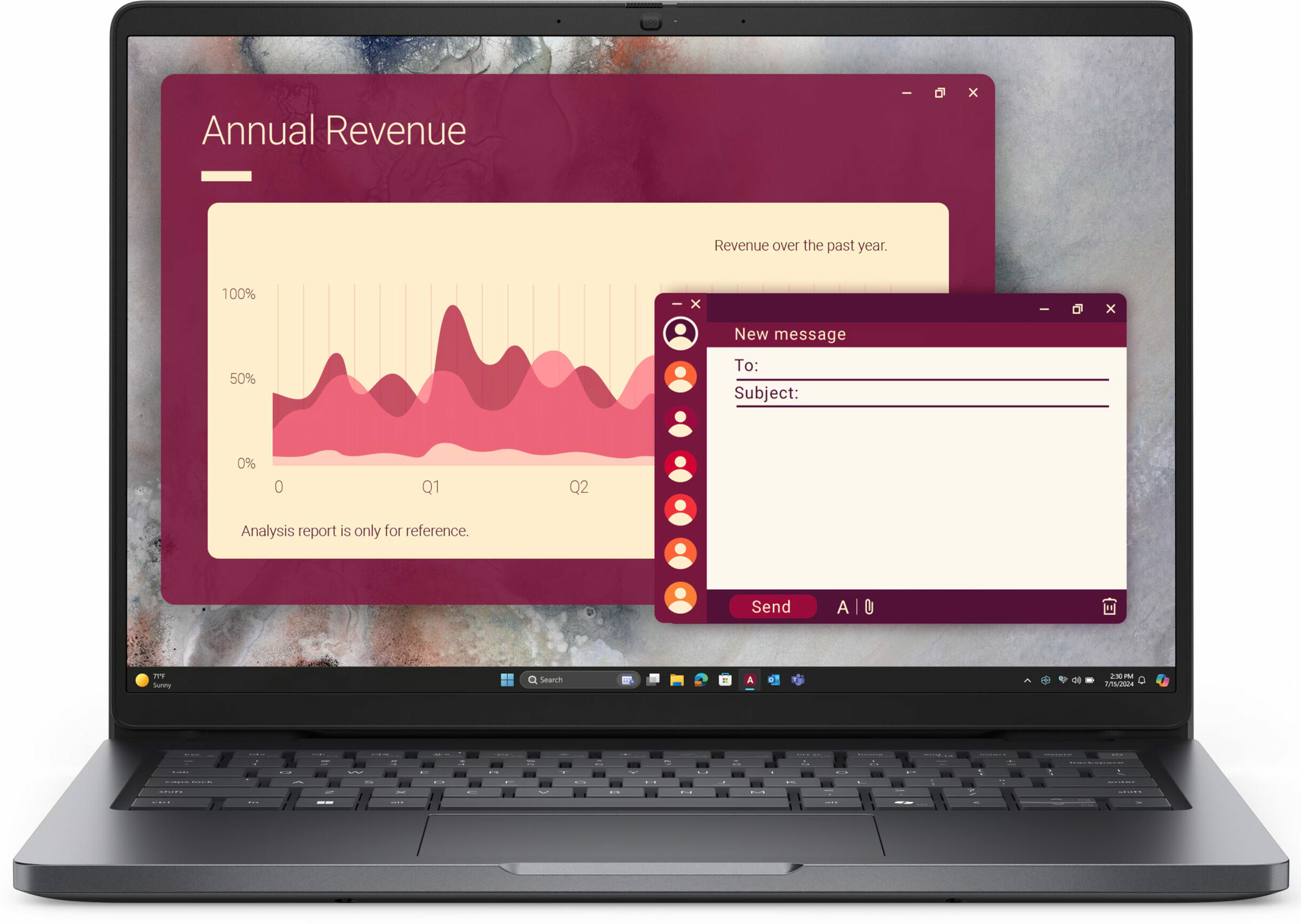
You have a choice between two finishes: “Platinum Silver” and “Magnetite”, which are Dell’s take on the classic silver and space gray aesthetics. We opted for the Platinum Silver for this review, as we’d previously tested a Magnetite model, and our experience revealed a practical difference. While we might personally lean towards the look of the darker Magnetite, it does tend to show faint smudges after extended use. The Platinum Silver, on the other hand, remained almost completely clean, which is something to keep in mind for those who value a pristine look. The plastic itself (PC+ABS) contains up to 30% post-consumer recycled materials, a commendable nod to sustainability.
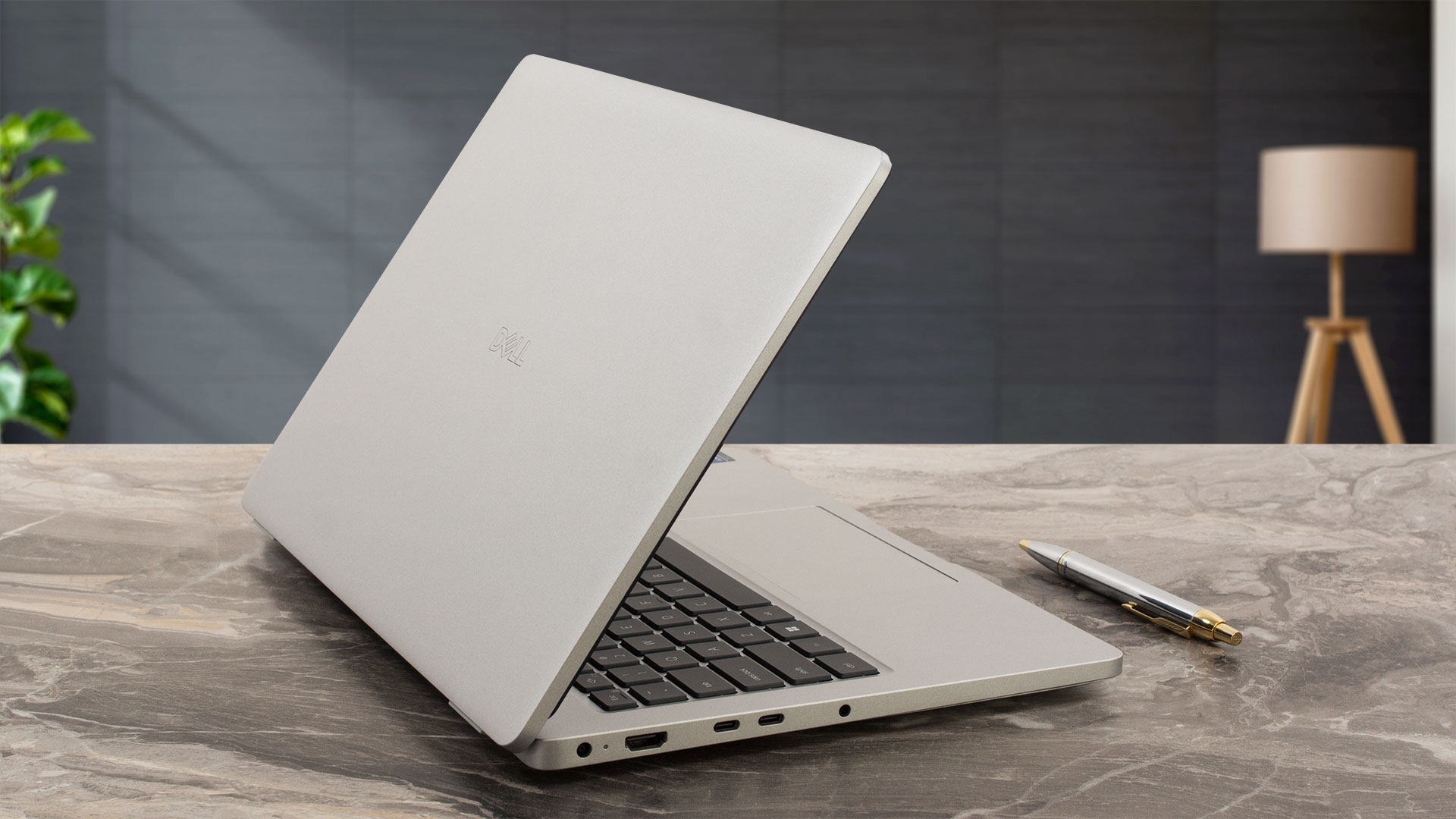
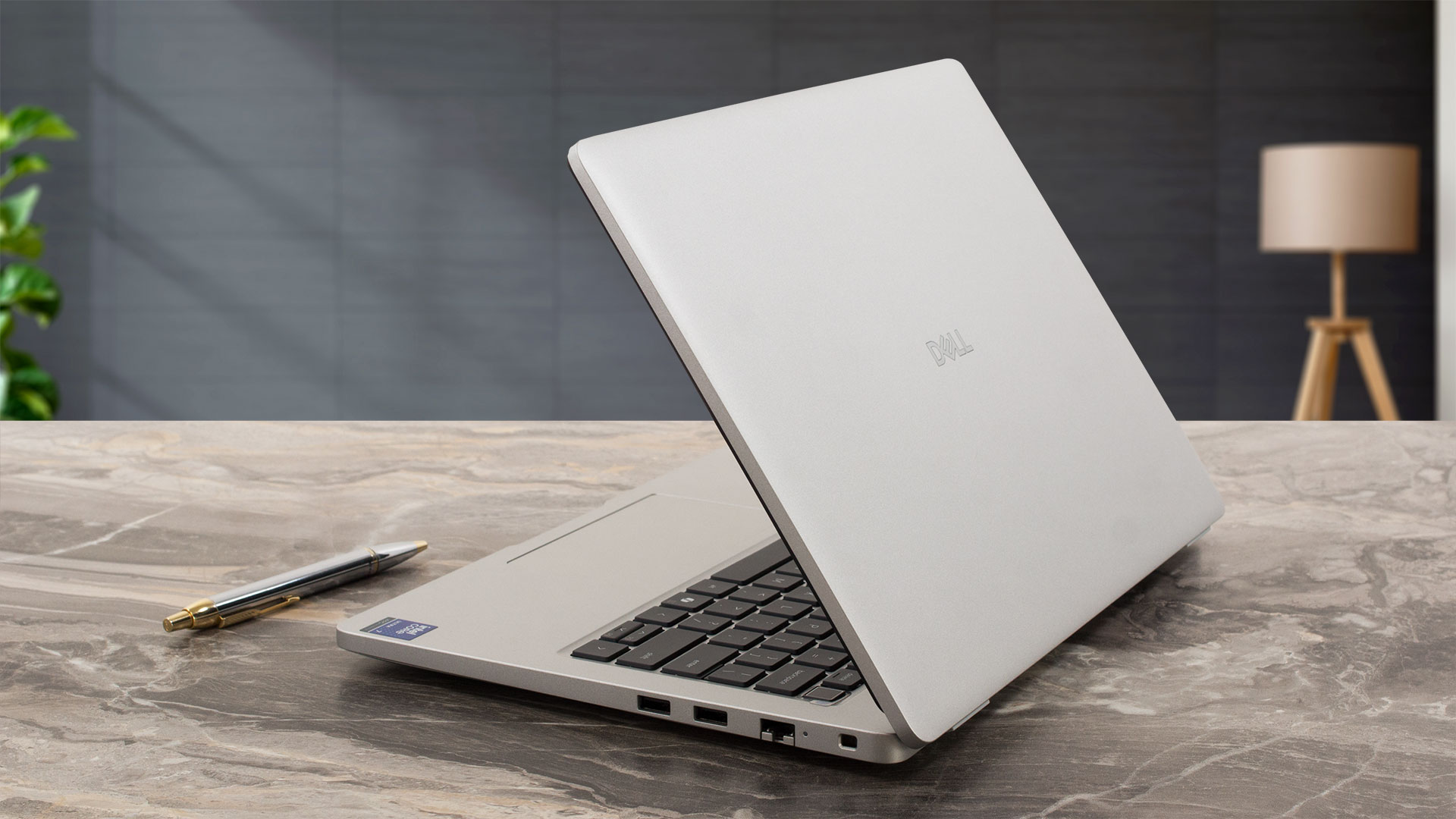
This is a relatively thin and light machine, making it a great companion for professionals on the move. It measures 313.70 x 225.3 mm with a tapered height from 18.89 mm at the front to 20.37 mm at the rear (12.35 x 8.87 x 0.74-0.80 inches) and has a starting weight of just 1.36 kg (2.99 lbs). The plastic construction feels solid enough for standard use, with noticeable flex only occurring under more significant pressure than you’d typically apply. True to form for many of Dell’s business-class laptops, the hinges are very firm, requiring two hands to open the lid. However, these hinges offer excellent functionality, allowing the screen to open a full 180 degrees to lay completely flat.
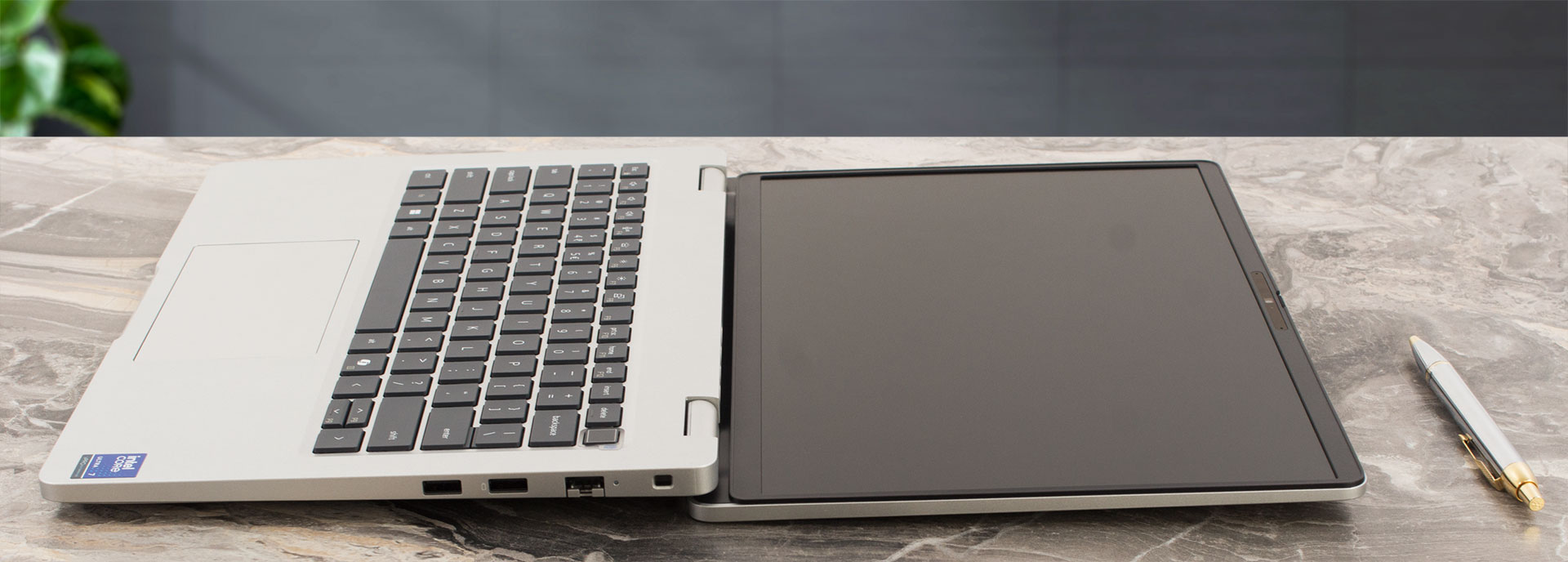
As you open it past 110 degrees, the base also lifts slightly, creating a more ergonomic typing angle. The lay-flat capability is particularly useful as a touchscreen version of this computer is also available.
The display features a respectable 87.8% screen-to-body ratio, with slim 6 mm (approximately 0.24 inches) side bezels. The top bezel is thicker at 11 mm (approximately 0.43 inches), but it’s packed with technology, including a Lid Close Sensor, dual noise-canceling microphones, and one of three camera options (HD, FHD HDR, or FHD + IR HDR). If you opt for a configuration with a Core Ultra processor, you’re guaranteed one of the two higher-spec FHD cameras.
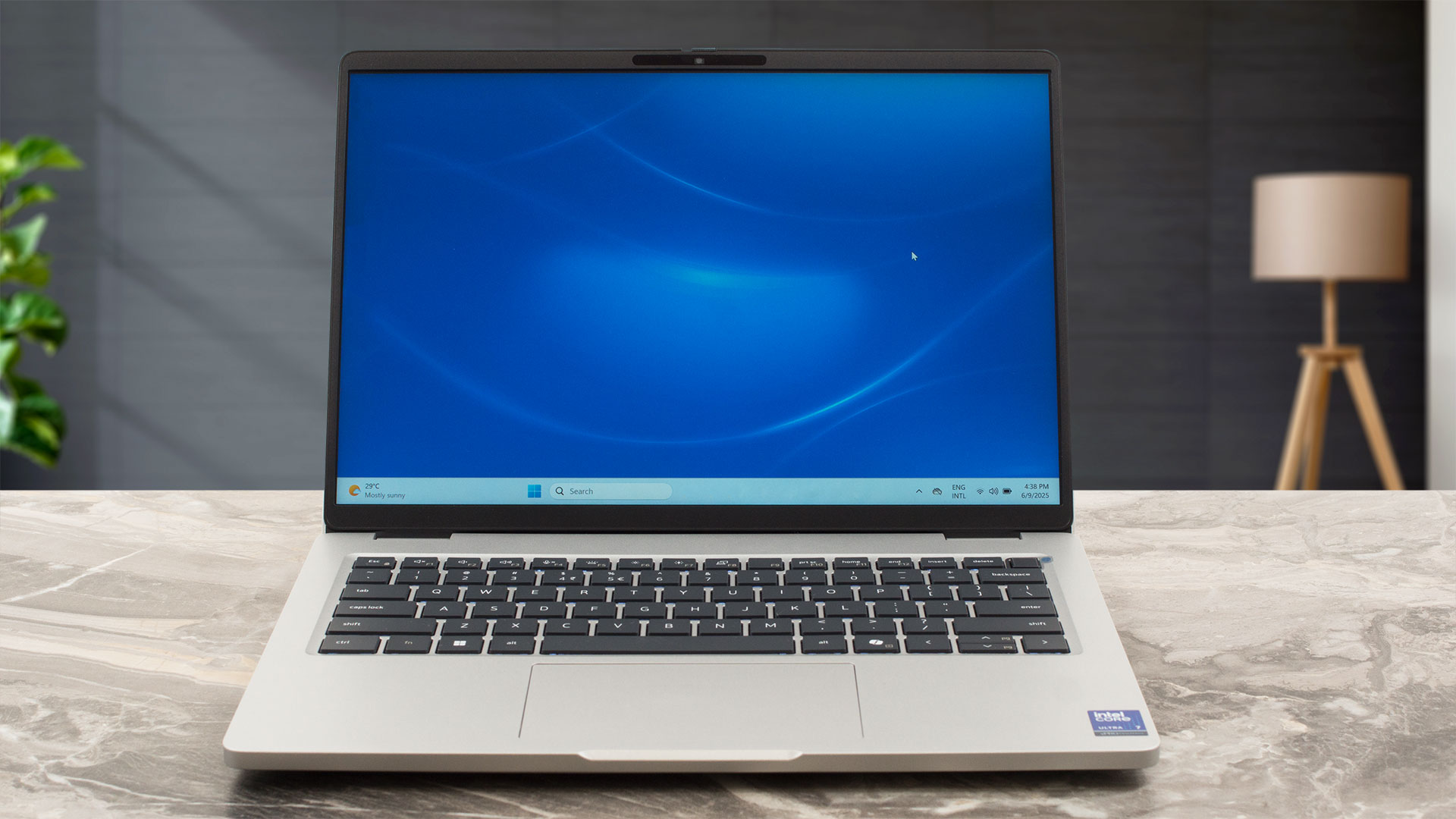
Best of all, Dell has included a physical privacy shutter – a simple and highly effective feature we always love to see.

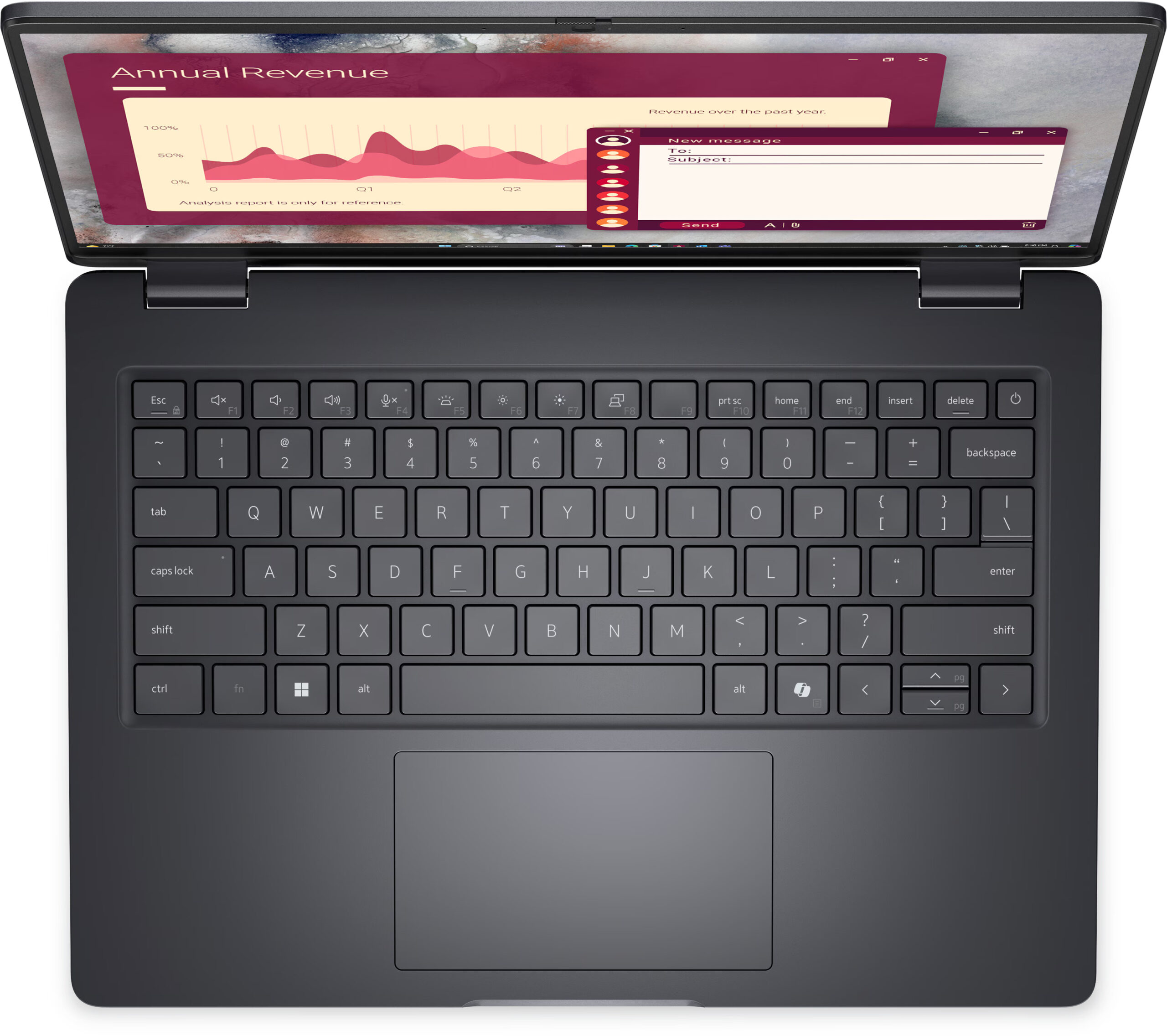
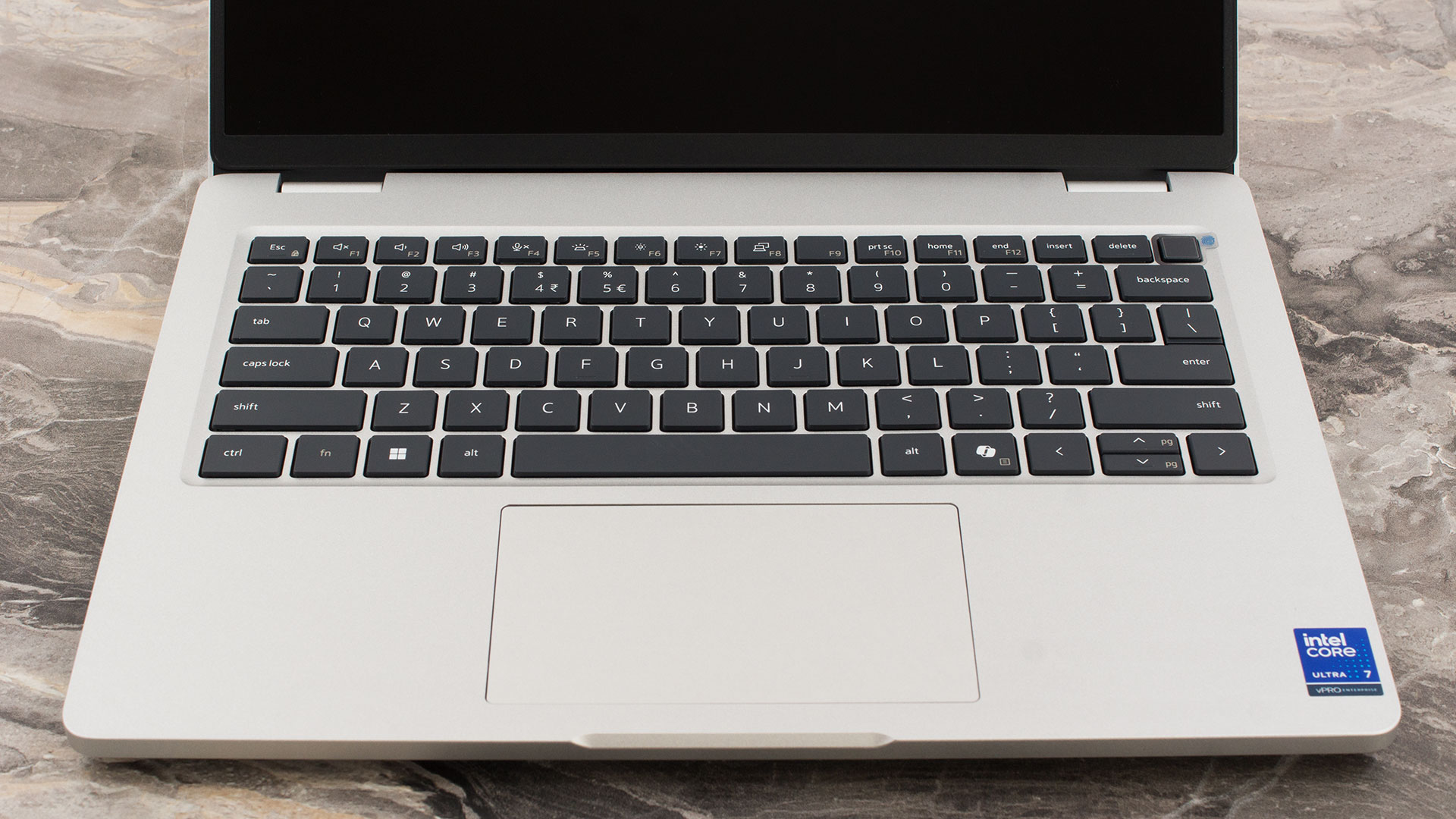
The keyboard deck is comfortable and spacious. Dell has forgone a NumPad on this 14-inch model, which allows the main keys to be generously sized. A keyboard backlight is available, but it’s an optional extra, so be sure to check the specifications list carefully before you purchase. For biometric login, a fingerprint sensor is conveniently integrated into the top-right key of the keyboard. Below this, you’ll find the trackpad. Measuring 115 x 67 mm (4.53 x 2.64 inches), it isn’t particularly large compared to some other machines on the market this year, but we found it to be perfectly comfortable and precise enough for daily use.
Ports and Connectivity
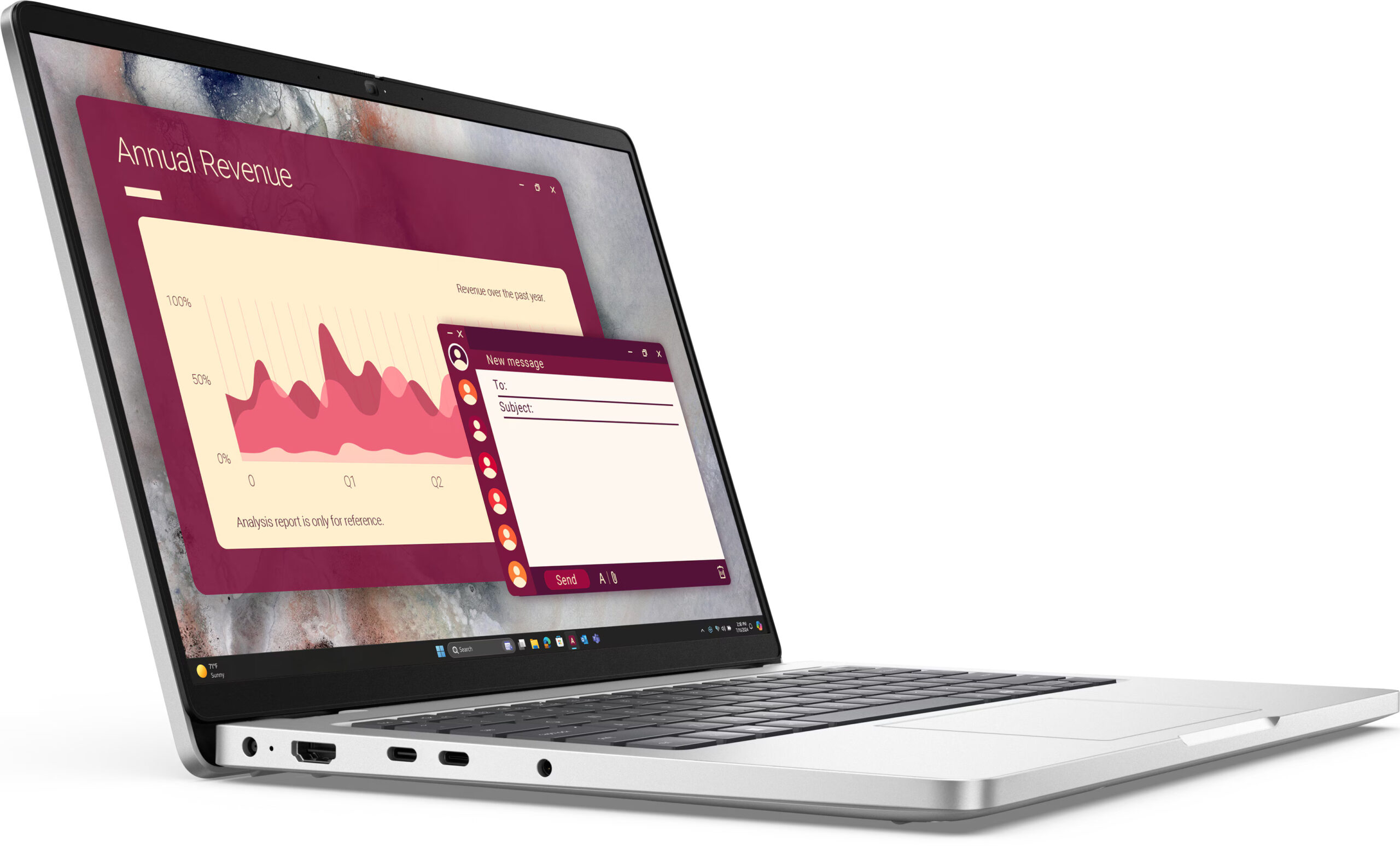
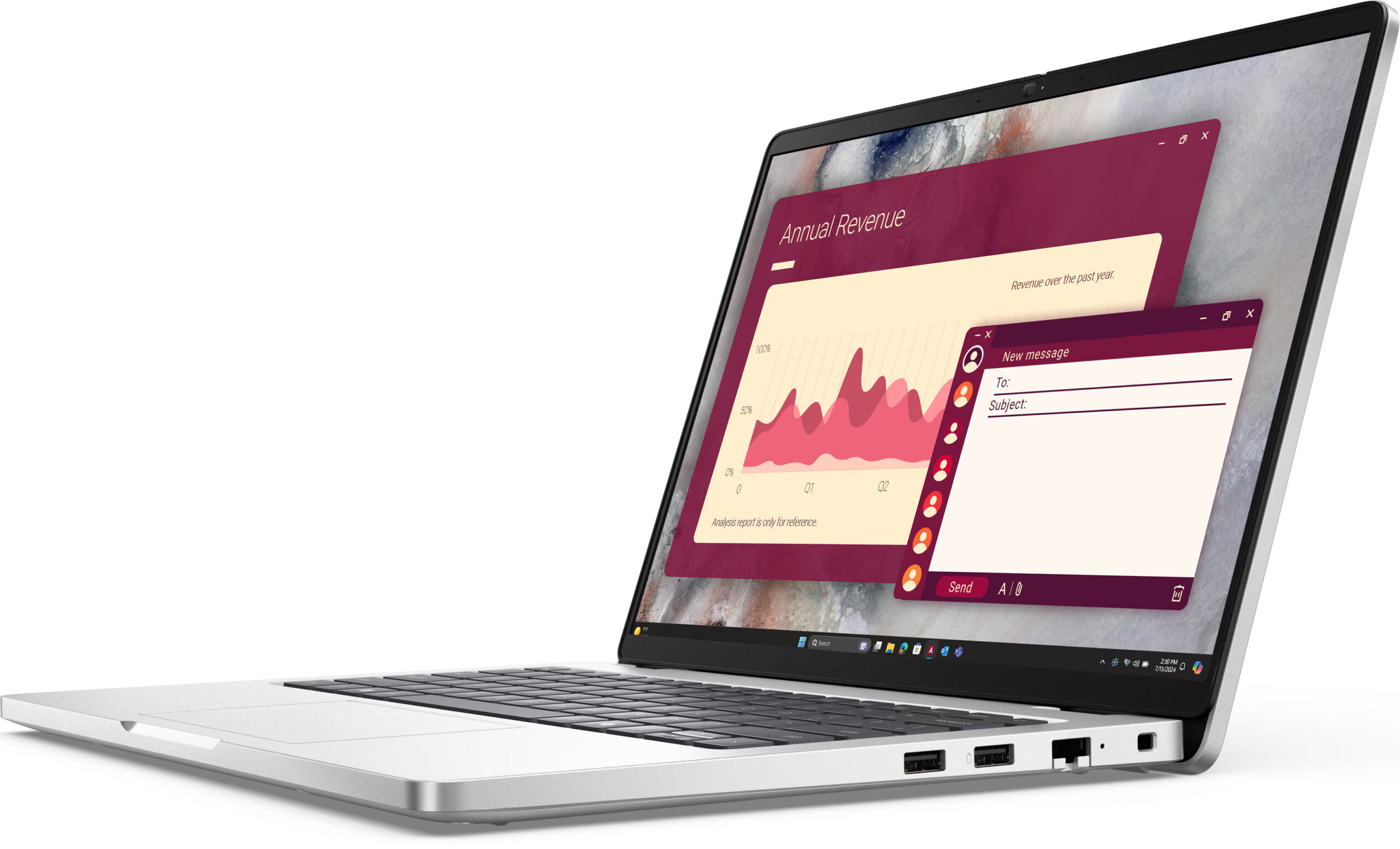
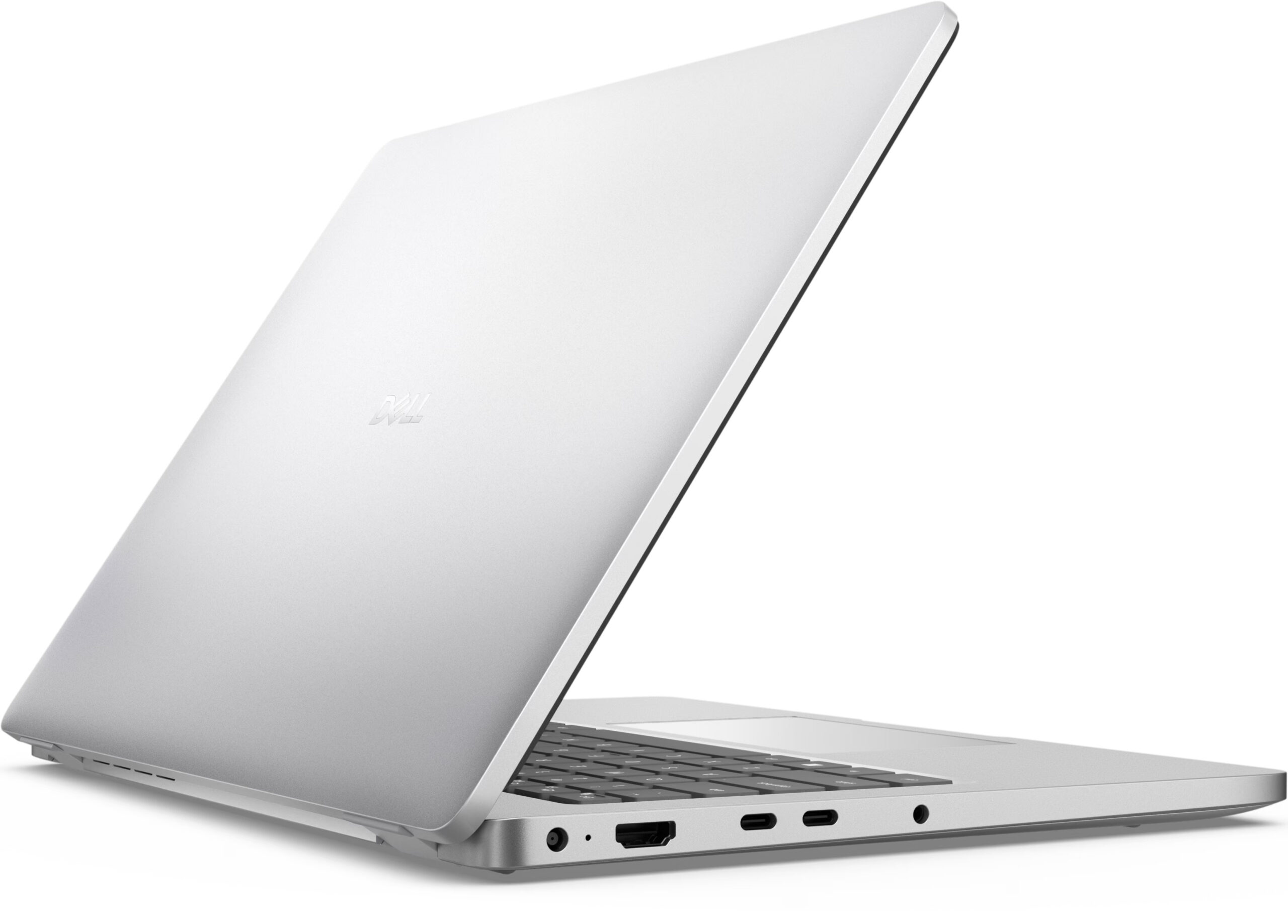
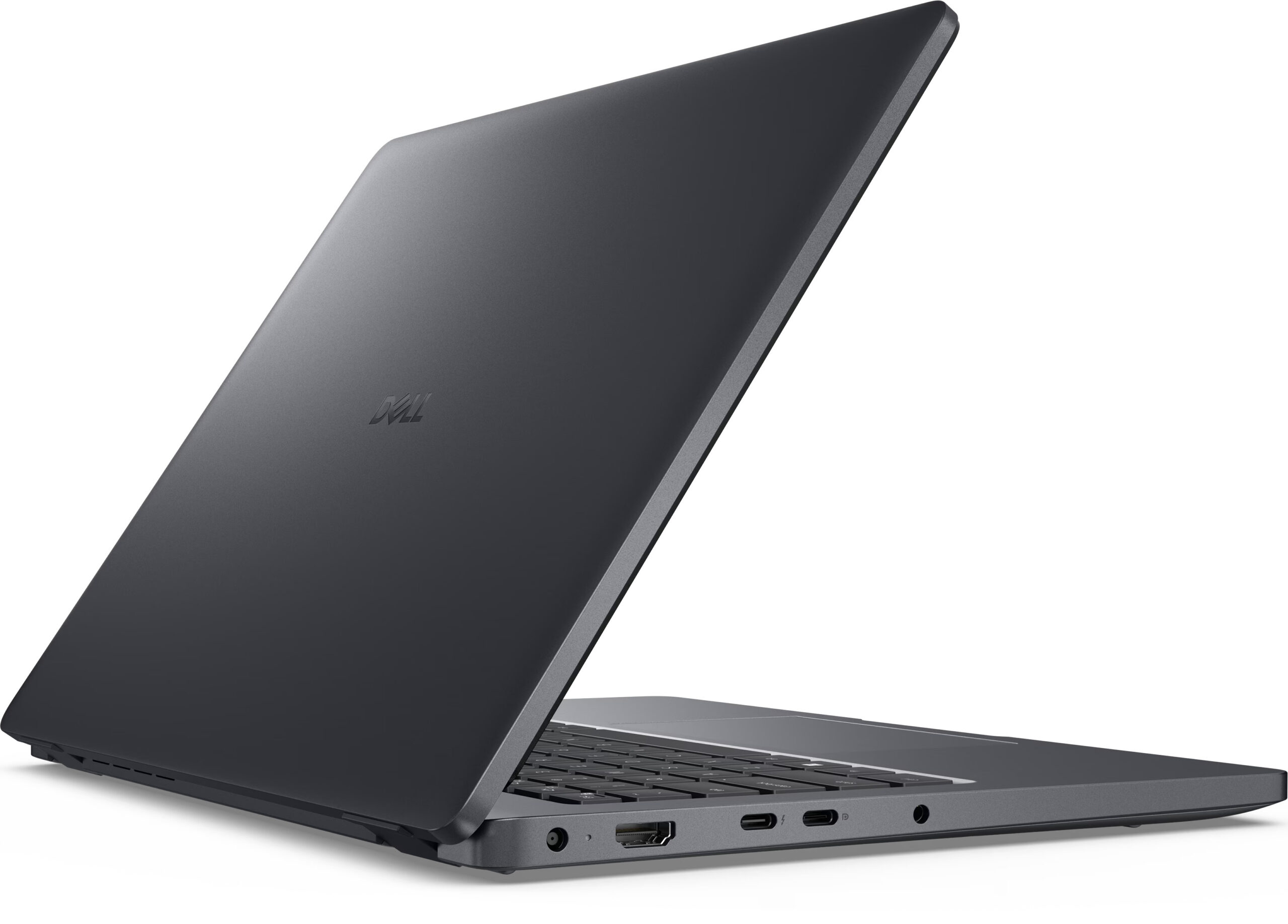
The Dell Pro 14 (PC14250) is equipped with a comprehensive and practical set of ports suitable for a professional environment. On the left side, it uses a traditional 4.5mm barrel connector for power delivery. For display connectivity, there’s a modern HDMI 2.1 port. The main feature here is a pair of powerful USB-C ports: one is a full-featured Thunderbolt 4 port offering high-speed data transfer (up to 40Gbps) and DisplayPort 2.1, while the other is a standard USB-C with DisplayPort 2.0. Both of these Type-C ports support the enhanced Power Delivery 3.1 standard. A universal 3.5mm audio jack for headphones or headsets is also present on this side.

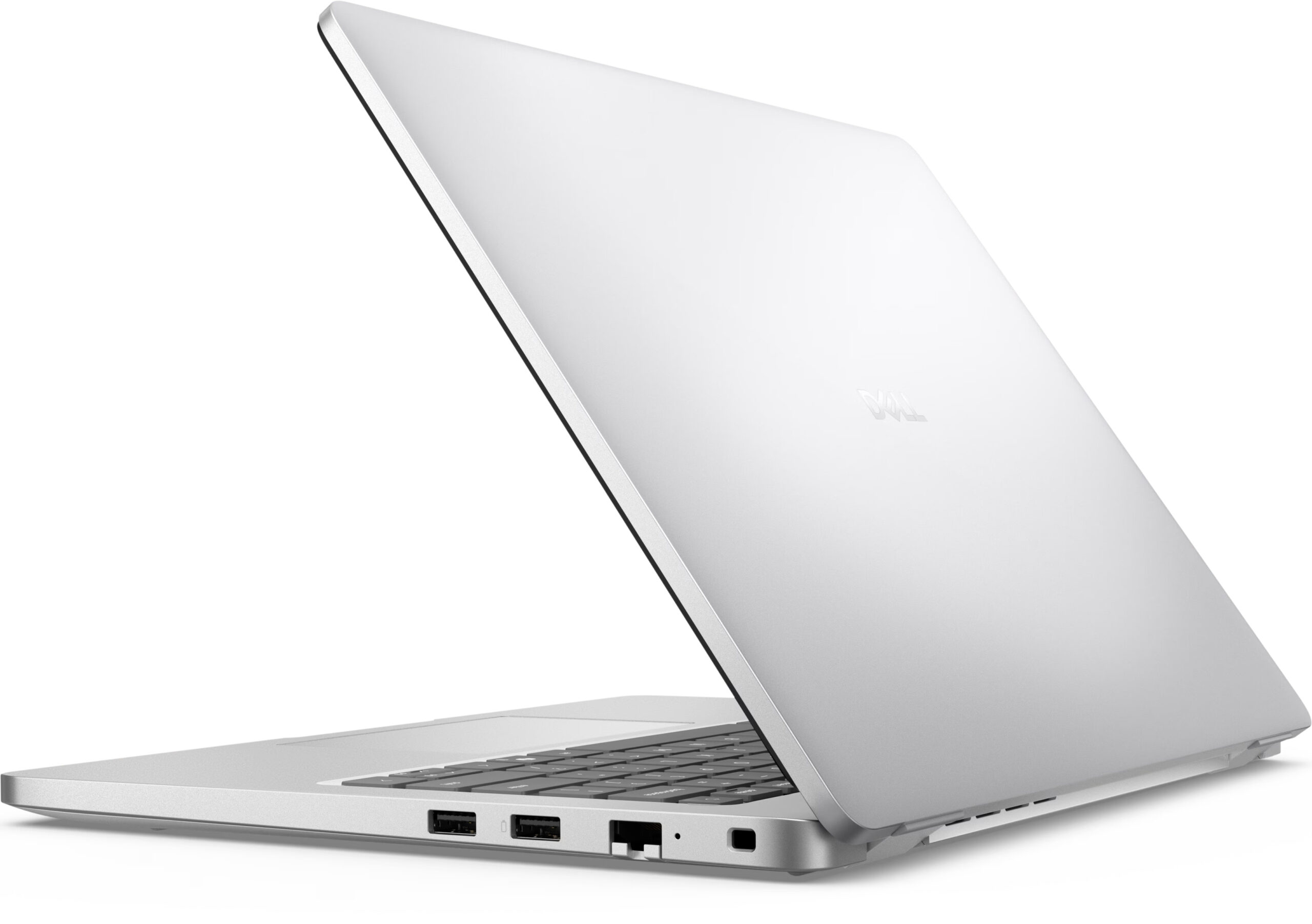
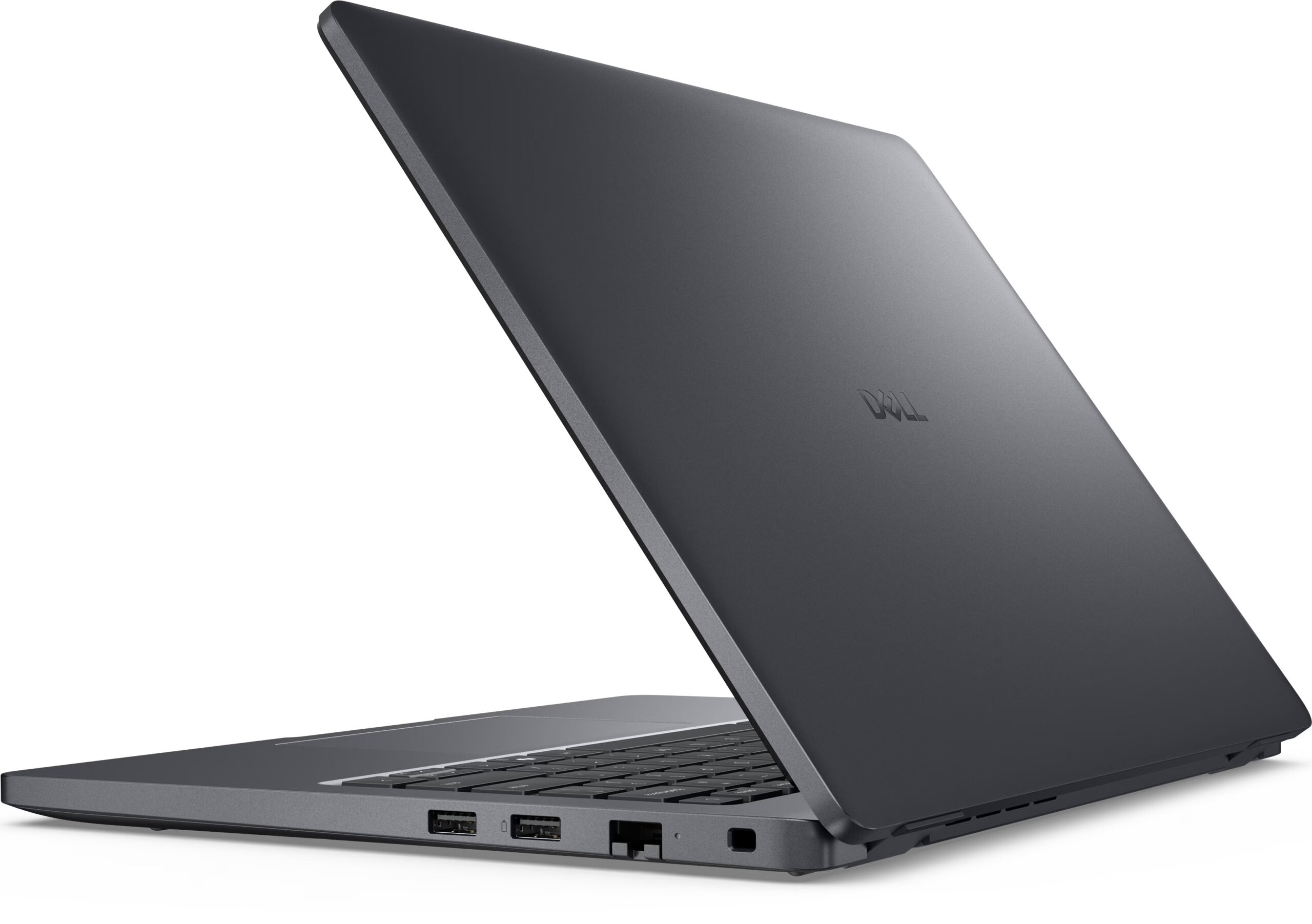
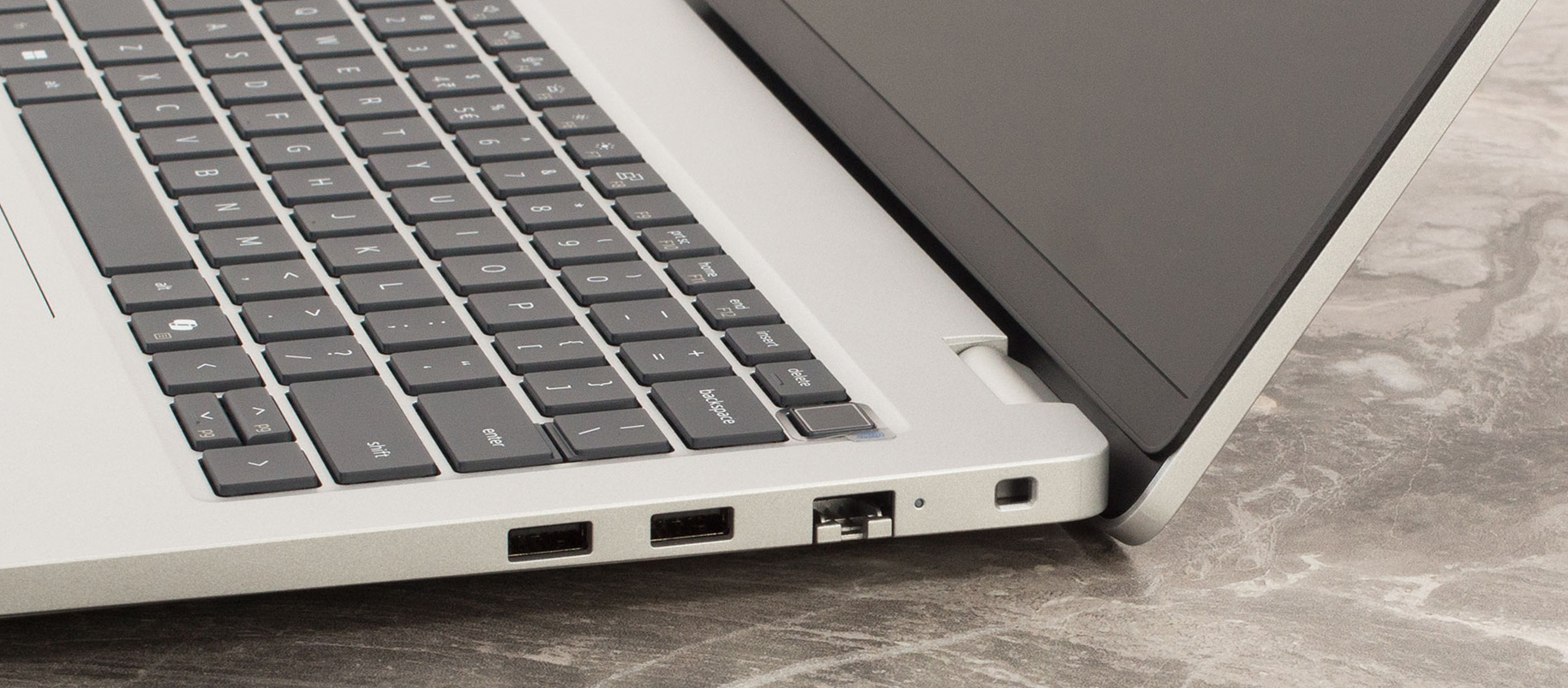
The right side houses two USB 3.2 Gen 1 Type-A ports (operating at 5Gbps), one of which includes Dell’s PowerShare feature to charge peripherals even when the laptop is off. A key inclusion for business users is the RJ-45 port for a stable 1GbE wired network connection. A wedge-shaped lock slot for physical security rounds out the right side. Depending on the configuration, an optional Smart Card Reader can also be integrated for enhanced security, a common requirement in corporate settings.

When it comes to wireless connectivity, the Dell Pro 14 offers several options, and this is an area where potential buyers need to be particularly vigilant. The laptop can be configured with a MediaTek Wi-Fi 6 card, an Intel AX211 Wi-Fi 6E card, or the latest Intel BE202 Wi-Fi 7 card. We feel it’s essential to share our own purchasing experience here: we ordered the flagship version with an Intel Core Ultra 7 265U processor, but the unit still arrived with the Wi-Fi 6E module, not the expected top-tier Wi-Fi 7. Therefore, if having the latest wireless standard is important to you, we strongly recommend you carefully check the exact specifications of the configuration you intend to buy. If you’re wondering whether this difference matters for your needs, you can learn more from our article on the topic: Wi-Fi 7 vs Wi-Fi 6E: Learn the Key Differences in 10 Seconds

Display and Sound Quality, Display Profiles
We ordered the budget, 6-bit panel, and as you see, it’s mediocre, except for its Eye-safety which has a very high score, thanks to the low reflectance and lack of PWM.
| Dell Pro 14 (PC14250) | FHD+ (1920 x 1200), 60 Hz, IPS, 6-bit | FHD+ (1920 x 1200), 60 Hz, IPS | FHD+ (1920 x 1200), 60 Hz, IPS, 8-bit, 100% sRGB |
| Diagonal | 14.0 inches (35.6 cm) | 14.0 inches (35.6 cm) | 14.0 inches (35.6 cm) |
| Panel Type | IPS, Non-touch | IPS, Touch | IPS, Non-touch |
| Resolution | 1920 x 1200 pixels | 1920 x 1200 pixels | 1920 x 1200 pixels |
| Max Refresh Rate | 60 Hz | 60 Hz | 60 Hz |
| Aspect Ratio | 16:10 | 16:10 | 16:10 |
| Pixel Density | 162 PPI | 162 PPI | 162 PPI |
| ‘Retina’ Distance | Greater than or equal to 54 cm | Greater than or equal to 54 cm | Greater than or equal to 54 cm |
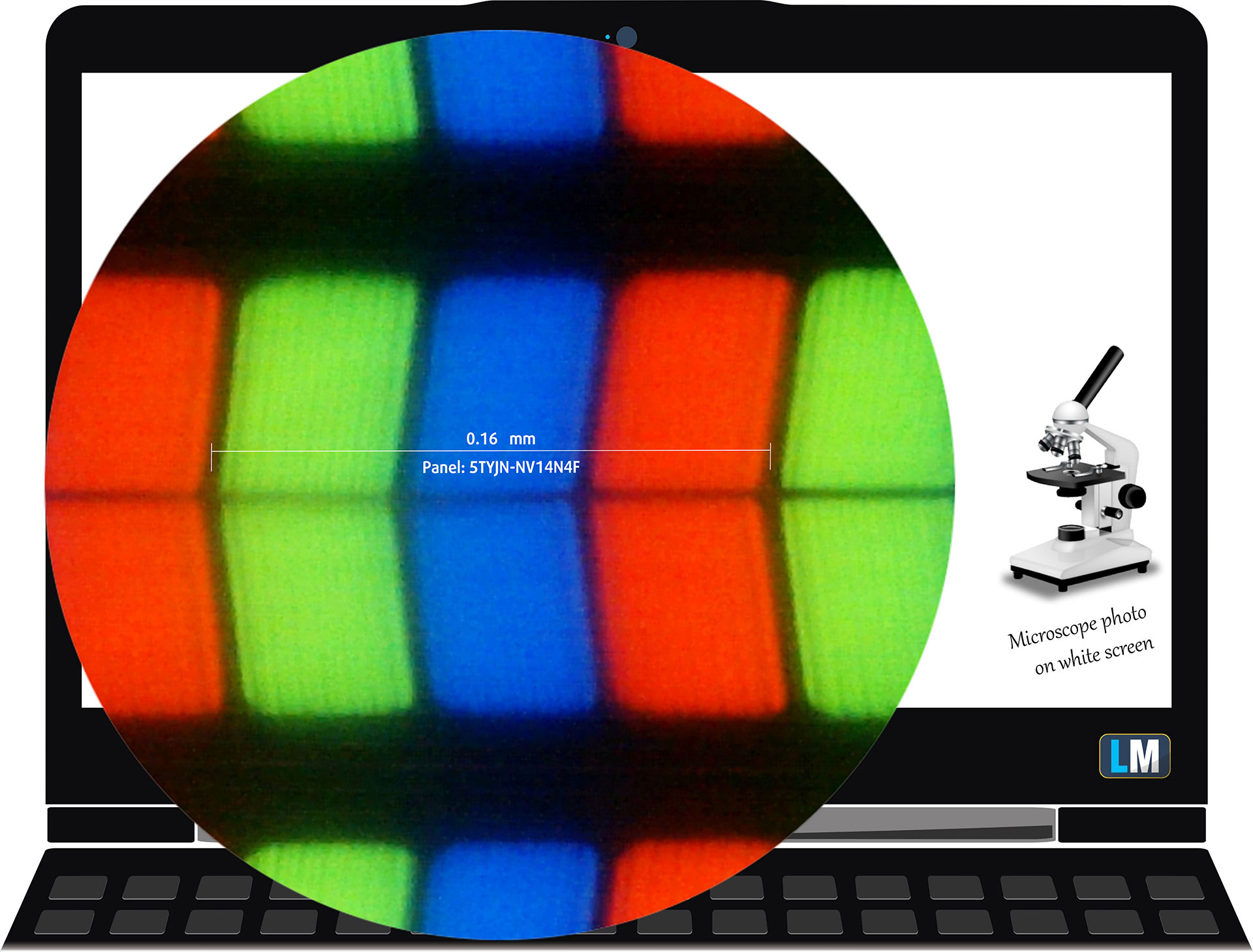
The 6-bit FHD, IPS, 60 Hz panel under our microscope
Viewing Angles
Viewing angles are good. We take photos from different angles to evaluate the quality.
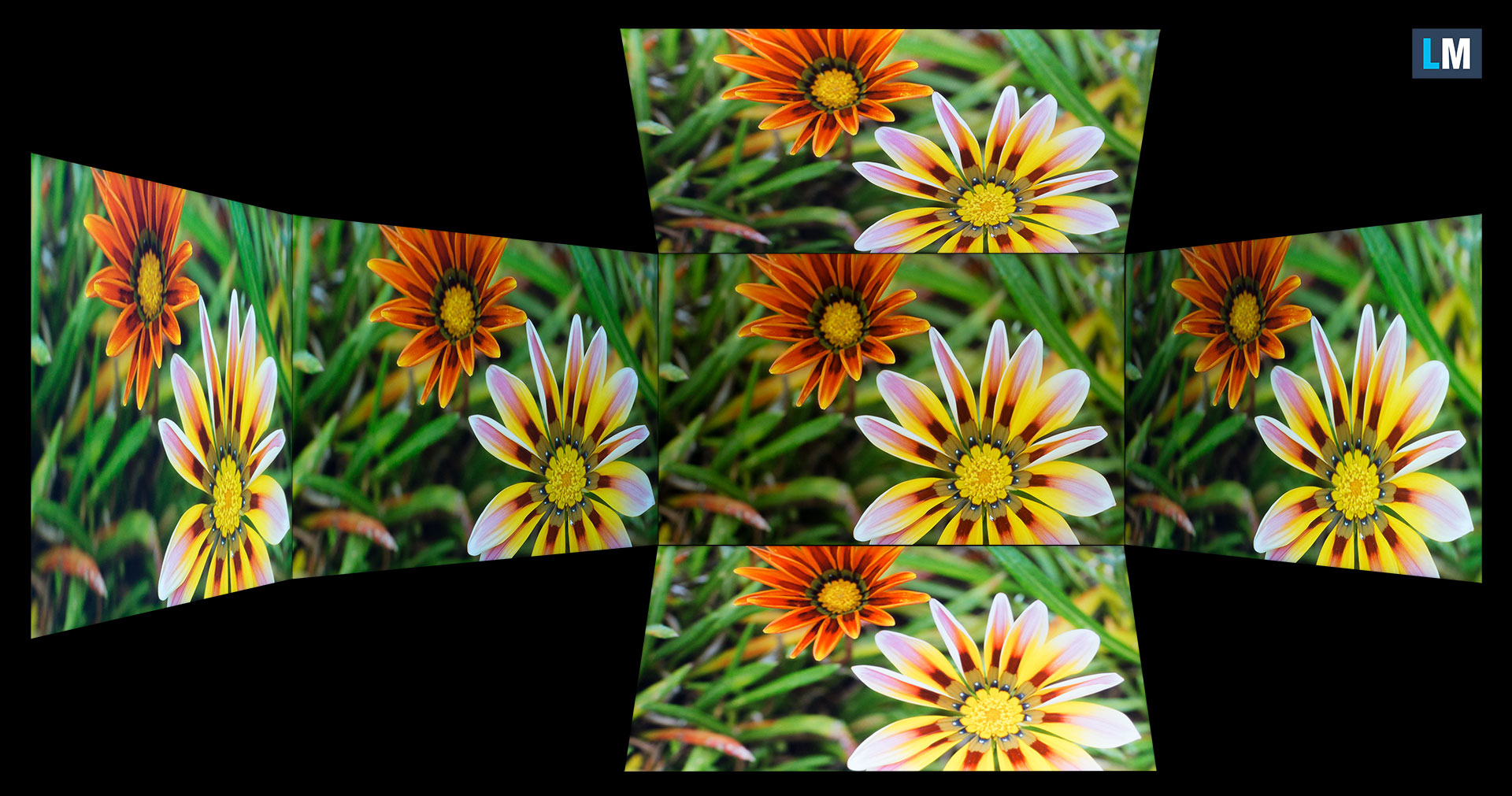
Also, a video with locked focus and exposure.
Color Coverage
The whole “sail-shaped” map below (Fig. 1) consists of all the colors we can see, while the black crooked line shows all the colors from real-world scenes and nature around us.
Then, we’ve drawn some of the most important and interesting color spaces, compared to the colors the panel of Dell Pro 14 (PC14250) can show:
Standard/For Web: sRGB – widely used color space for most consumer devices, ideal for Web design and development
For Print: AdobeRGB – used in professional photo editing, graphic design, and print
For Photographers/Video Editors: DCI-P3 – used in high-end film production, post-production, and digital cinema
Premium HDR: Rec.2020 – the widest consumer ITU color standard, covering a massive 75.8% of the visible spectrum, a benchmark for premium HDR content.
Dell Pro 14 (PC14250): the yellow dashed triangle (– – – – – –) represents the range of colors this monitor can show.
In our tests, we calculated the total color coverage of the display at 51% of the sRGB color gamut and 41% of the DCI-P3 color gamut.
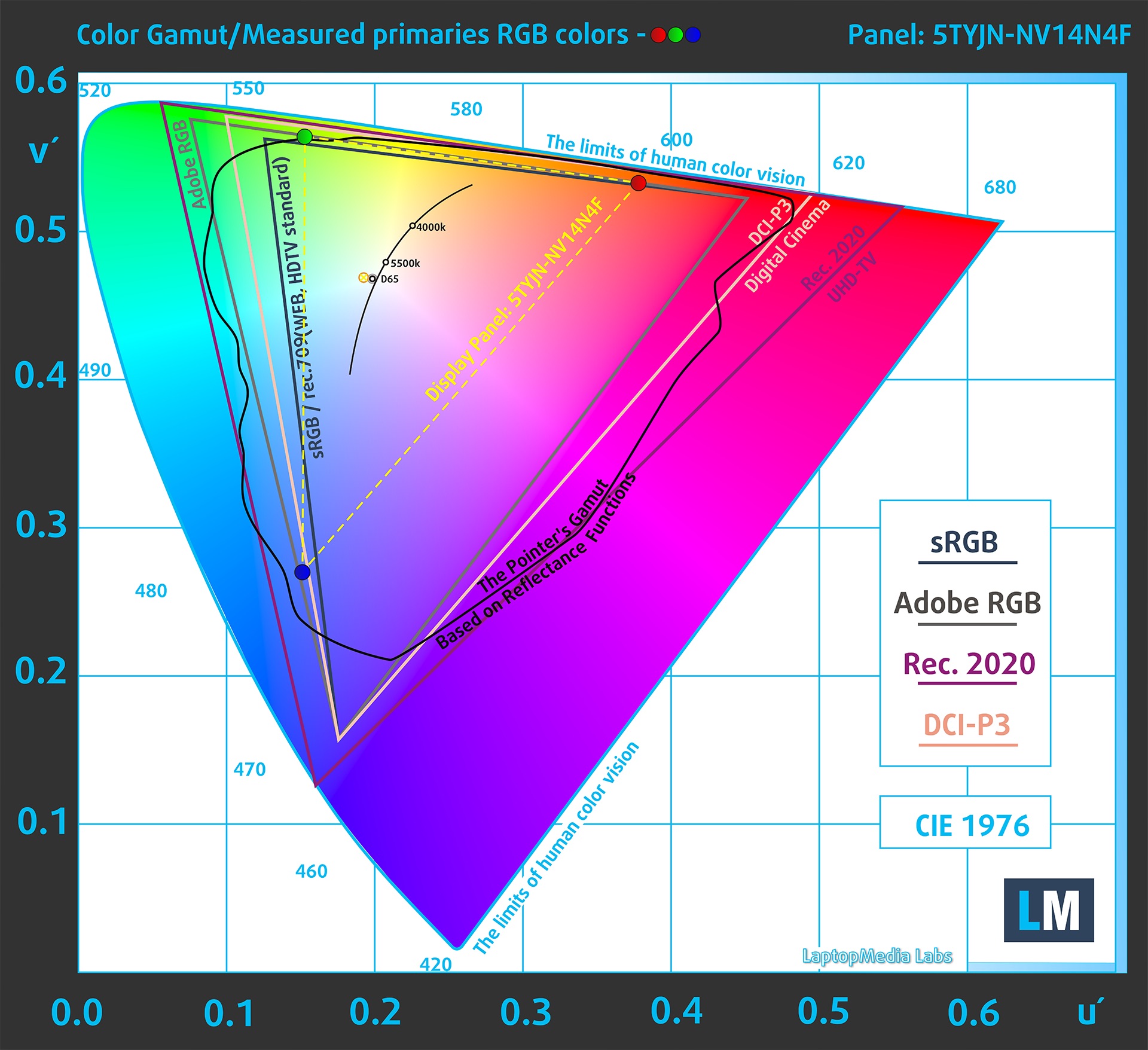
(Fig.1) Dell Pro 14 (PC14250) covers 51% of the sRGB gamut
Brightness and Contrast
The maximum brightness in SDR mode is 336 cd/m² in the center of the screen and 319 cd/m² averaged across the surface with a maximum deviation of 11%.
The Correlated Color Temperature (CCT) on a white screen at maximum brightness is 6710K.
The contrast ratio is 1240:1.
Uniformity: Luminance, Contrast, and Color Deviation
The figure below shows the results from our uniformity test across different sections of the screen. It’s measured at 179 nits (Windows slider = 53%) — a brightness level we consider typical for standard working conditions.
DeltaE values below 4.0 are acceptable for regular users. For those working with colors, screens with DeltaE values no higher than 2.0 are recommended.

Color Accuracy
Let’s check the difference between real colors and those you’ll see on the Dell Pro 14 (PC14250). We measure that distance in DeltaE – the higher the number, the more different they look.
Values below 4.0 are acceptable for regular users, while values below 2.0 are suitable for color-sensitive work. A value below 1.0 means the difference is indistinguishable to the naked eye.
For the next graph, we’ve selected 24 common colors, including dark/light skin, blue sky, green grass, etc.
Before our calibration of the Dell Pro 14 (PC14250), the Average color accuracy was 6.0 dE (Fig. 2), and with our Design and Gaming profile, it lowered to 4.0 dE (Fig. 3). In other words, our Design and Office work profile pushes the display to the “Acceptable” category which is still not suitable for professional work but it’s 50% better than the factory condition.
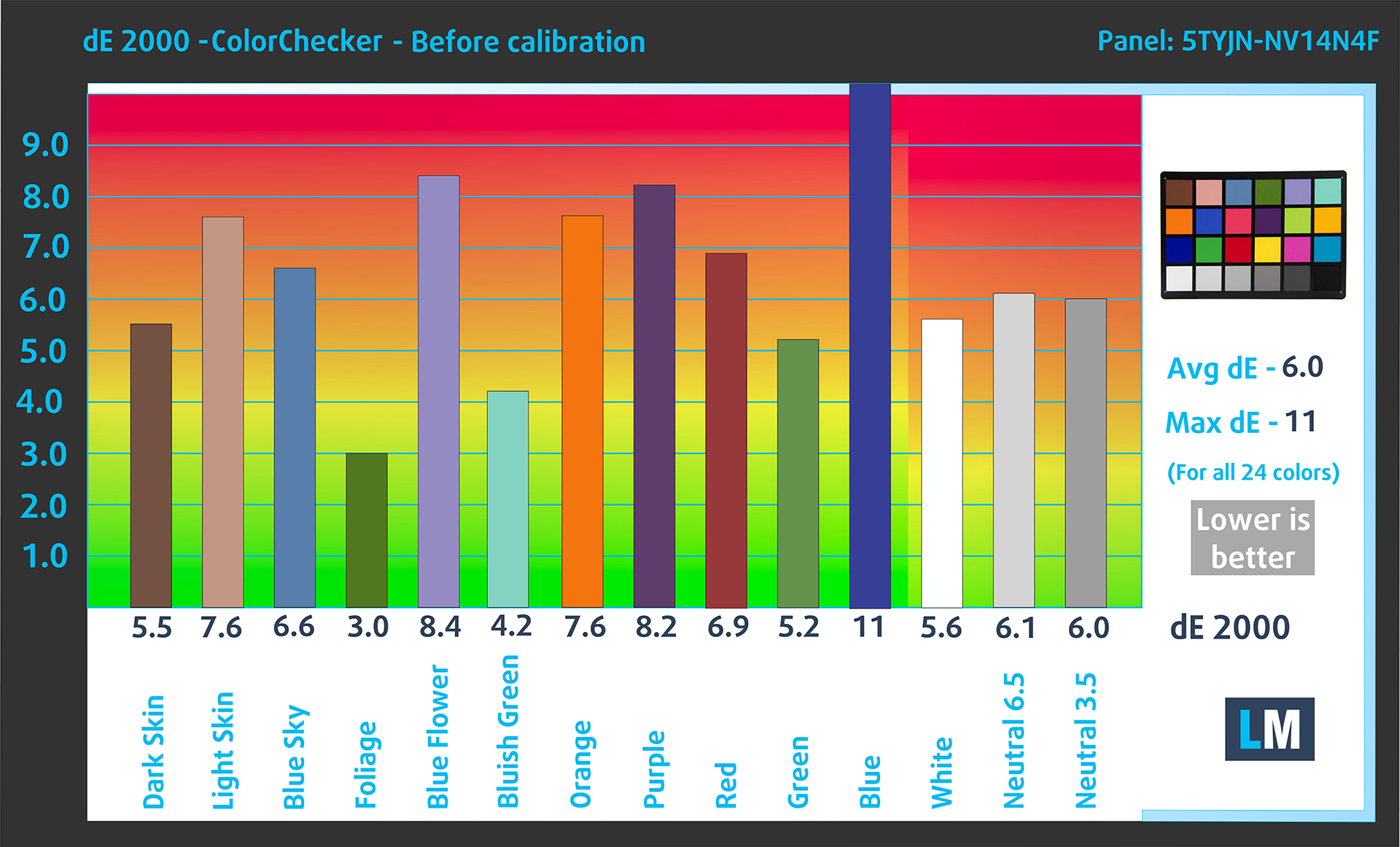
(Fig. 2) Dell Pro 14 (PC14250) in its factory condition

(Fig. 3) Dell Pro 14 (PC14250) with our display profile
Comparison in the sRGB color space.
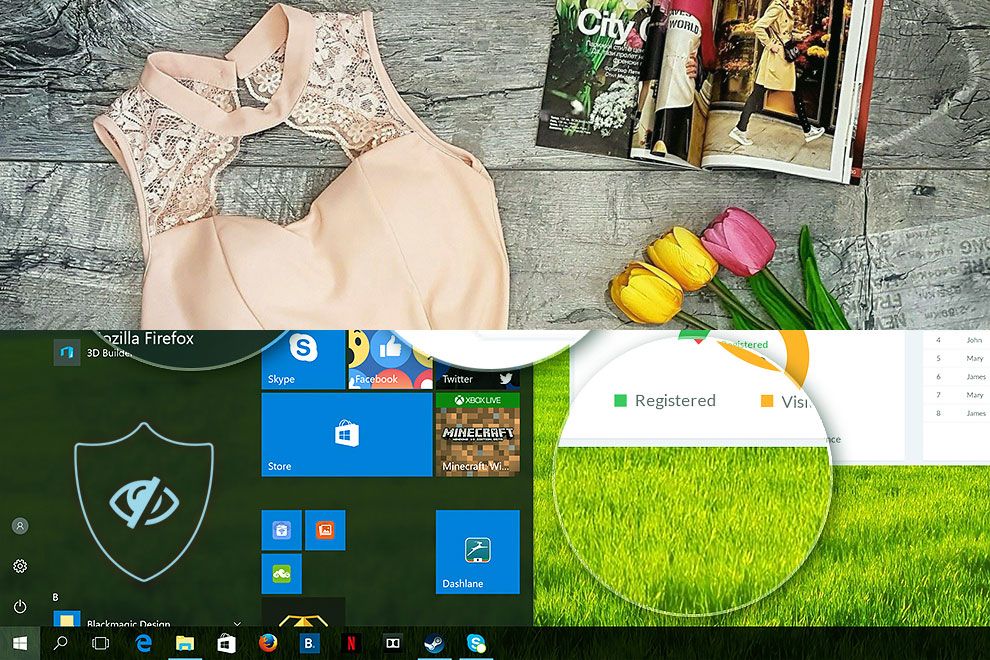
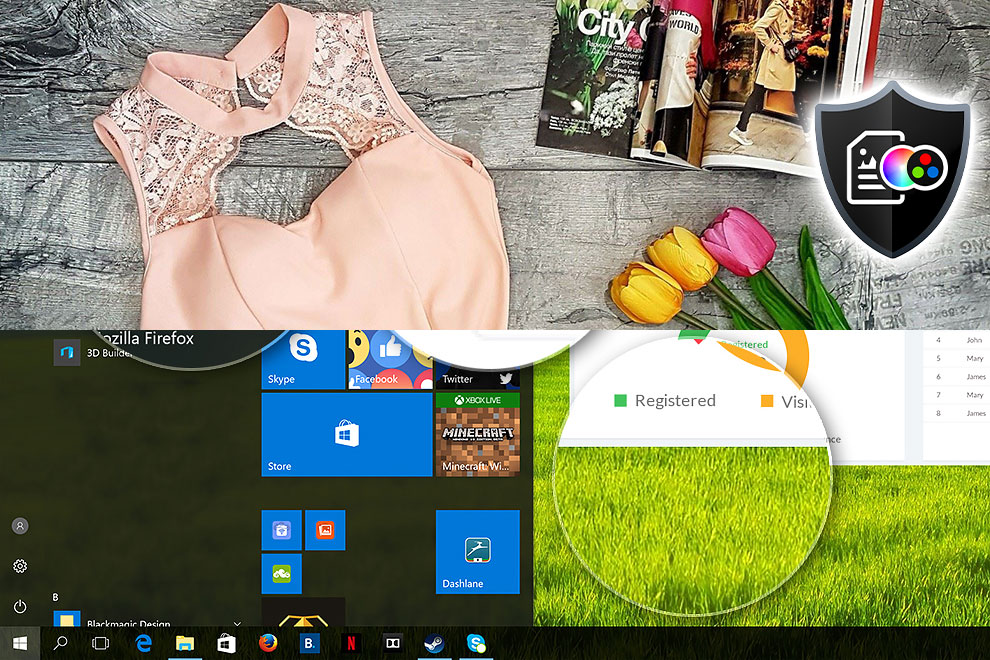
Here’s an illustration of what the Design and Office profile aims to deliver:
Left: No Profile | Drag the slider to see the difference | Right: Design & Office Profile
Visibility in dark scenes
Have you ever watched a movie with dark scenes where you could barely see anything? This often happens because many display panels struggle to differentiate the darkest nuances, making them appear the same.
The next figure illustrates how well the display reproduces these dark nuances. The left side of the image shows the display with stock settings, and the right side shows it with our Gaming and movies profile activated.
On the horizontal axis are the grayscale levels, and on the vertical axis – the corresponding display brightness.
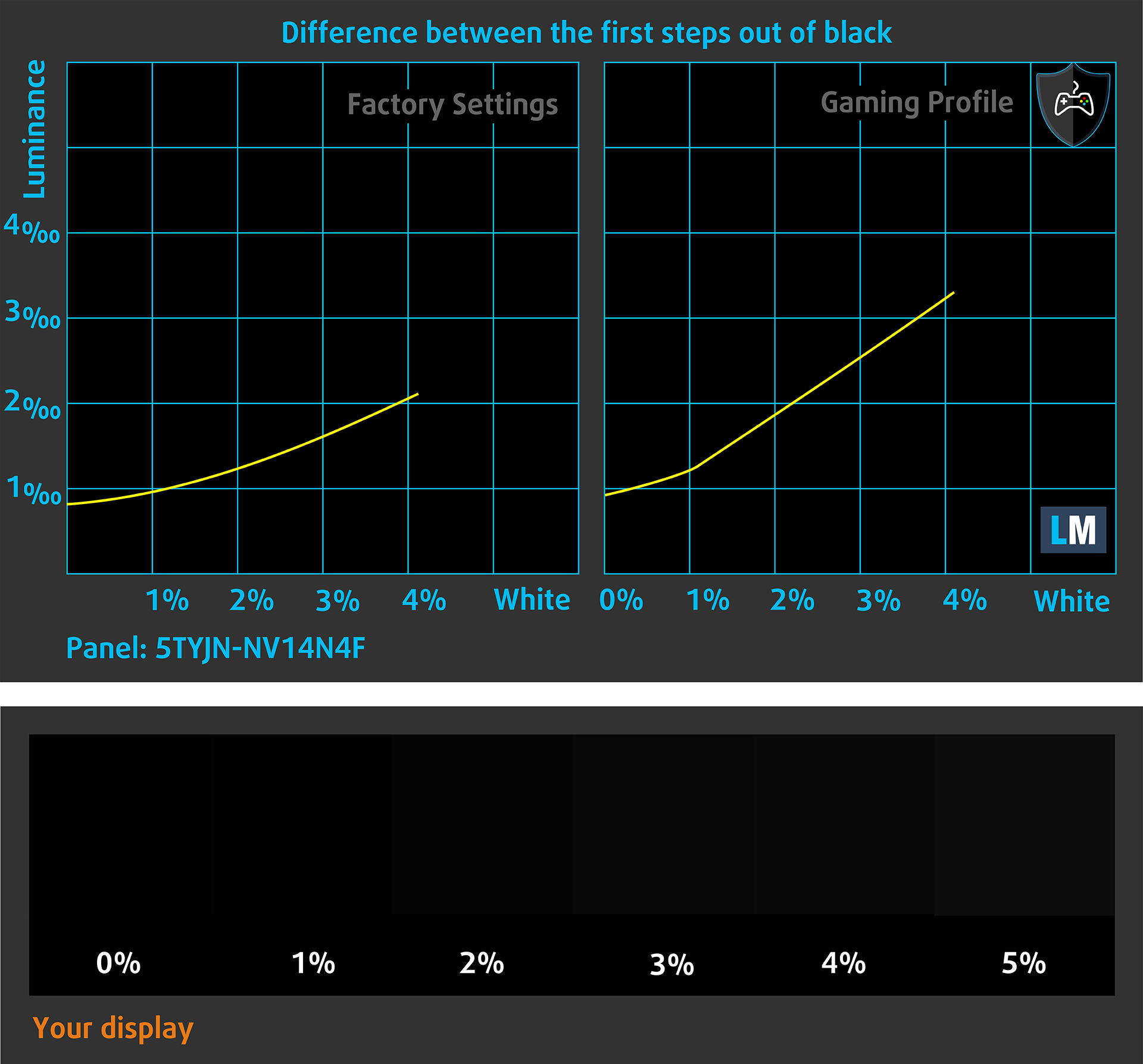
You can also check how your display handles the darkest nuances but keep in mind that this also depends on the settings of your current display and the surrounding light conditions.
Response time (Gaming capabilities)
We test the reaction time of the pixels with the usual “black-to-white” and “white-to-black” method from 10% to 90% and vice versa.
We recorded Fall Time + Rise Time = 15.0 ms. Short pixel response time is a prerequisite for a smooth picture in dynamic scenes.
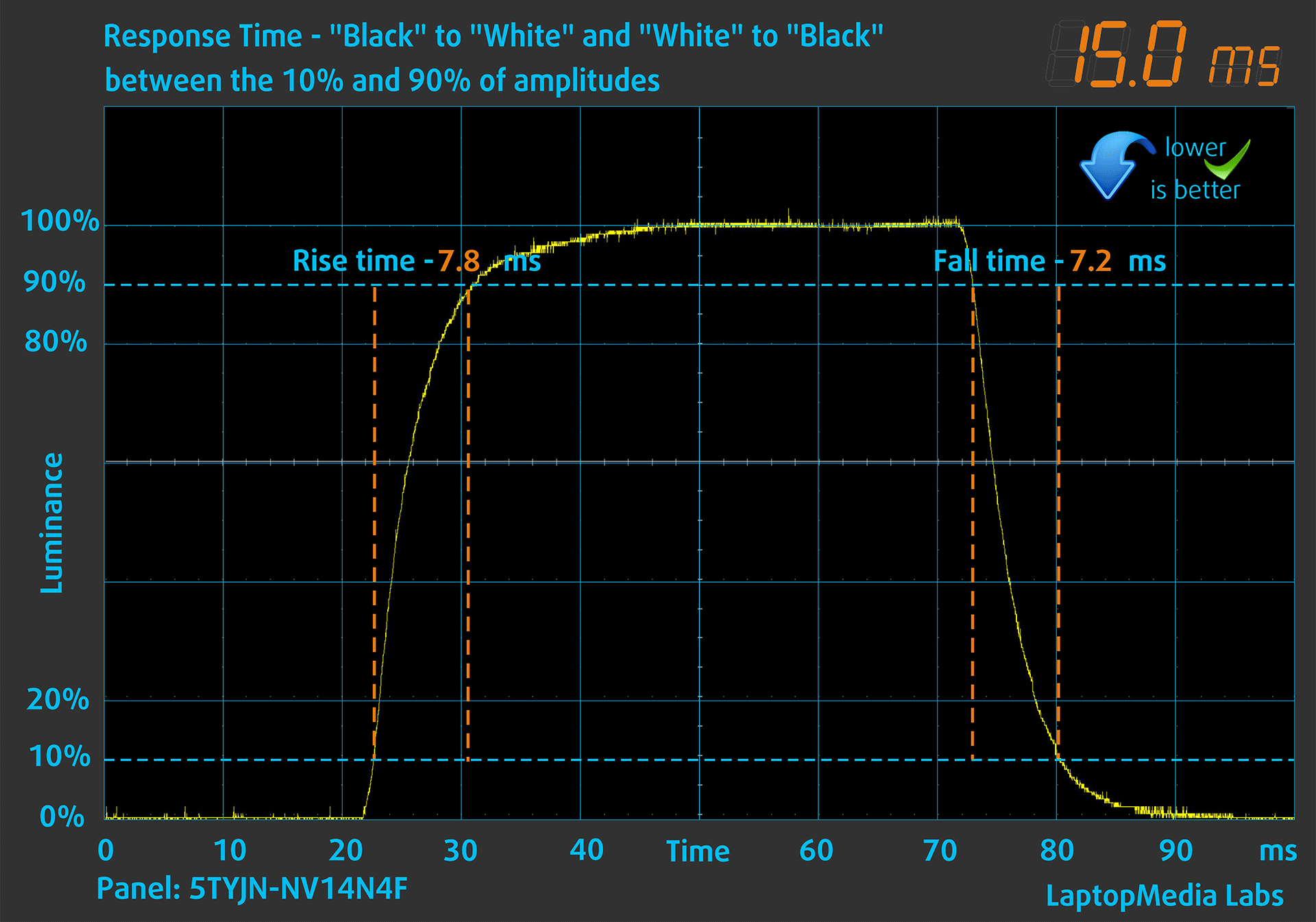
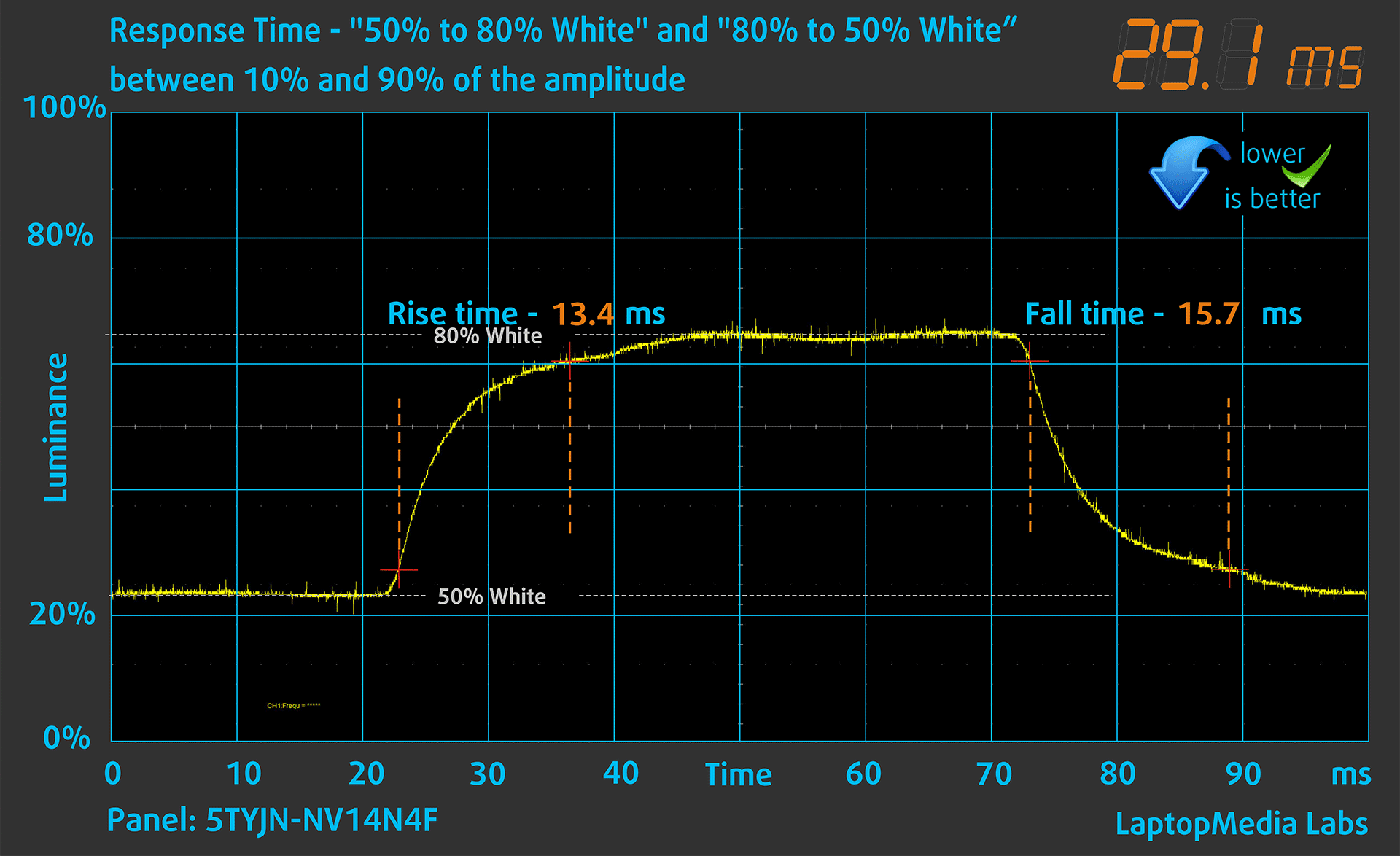
After that, we test the reaction time of the pixels with the usual “Gray-to-Gray” method from 50% White to 80% White and vice versa between 10% and 90% of the amplitude.
Health Impact: PWM (Screen flickering)
Some use PWM to regulate their brightness, which means that instead of reducing the light intensity, they pulse or flicker. Our brain merges the image, so it appears darker, but this strains both it and our vision, especially when the frequency of the pulses is low. You can read more about that in our dedicated article on PWM.
In the graph below, you see the intensity of light at different brightness levels—on the vertical axis is the brightness of the emitted light, and on the horizontal axis—time.
The light from the backlight of the Dell Pro 14 (PC14250) display is not pulse-width modulated, providing visual comfort in the discussed aspect.

Health Impact: Blue light emissions
Installing our Health-Guard profile reduces harmful Blue Light emissions while keeping the colors of the screen perceptually accurate.
If you’re not familiar with the Blue light, the TL;DR version is – emissions that negatively affect your eyes, skin, and your whole body. You can find more information about that in our dedicated article on Blue Light.
Health Impact: Screen Reflectance
Glossy-coated displays can cause eye fatigue in high ambient light conditions due to reflections. We measure the level of screen reflection with the display turned off, at a 60° angle.
The reflectance of the Dell Pro 14 (PC14250)’s screen is 52.2 GU. This is a very good result!
High Gloss: >70 GU
Medium Gloss: 30 – 70 GU
Low Gloss: <30 GU
Get our profiles
Since our profiles are tailored for each individual display model, this article and its respective profile package are meant for Dell Pro 14 (PC14250) configurations with 5TYJN-NV14N4F (BOE0CB7), 1920 x 1200, IPS panel.
*Should you have problems with downloading the purchased file, try using a different browser to open the link you’ll receive via e-mail. If the download target is a .php file instead of an archive, change the file extension to .zip or contact us at [email protected].
Read more about the profiles HERE.
In addition to receiving efficient and health-friendly profiles, by buying LaptopMedia's products you also support the development of our labs, where we test devices in order to produce the most objective reviews possible.
Design and Office
The Design and Office profile makes display colors as close to real as possible.Ideal not only for professionals but also for everyday users, it meets sRGB standards (D65 white point, sRGB gamma) with minimal DeltaE for precise color reproduction on your panel.

Gaming and Movies
Have you ever watched a movie where, during dark scenes, you can barely see anything? Many displays fail to distinguish dark tones properly. Our Gaming and Movies profile enhances low-light performance, like HDR tech, using a gamma curve tailored to human perception — ideal for gamers seeking faster reactions and clearer visuals.

Health-Guard
Our Health-Guard profile protects your eyes by eliminating PWM flickering, reducing strain and fatigue, and minimizing harmful Blue light exposure that can disrupt sleep and health. It uses software dimming and a gamma curve tailored to human perception for comfort and safety during screen use.
Get All The Profiles With 33% Discount!

Sound
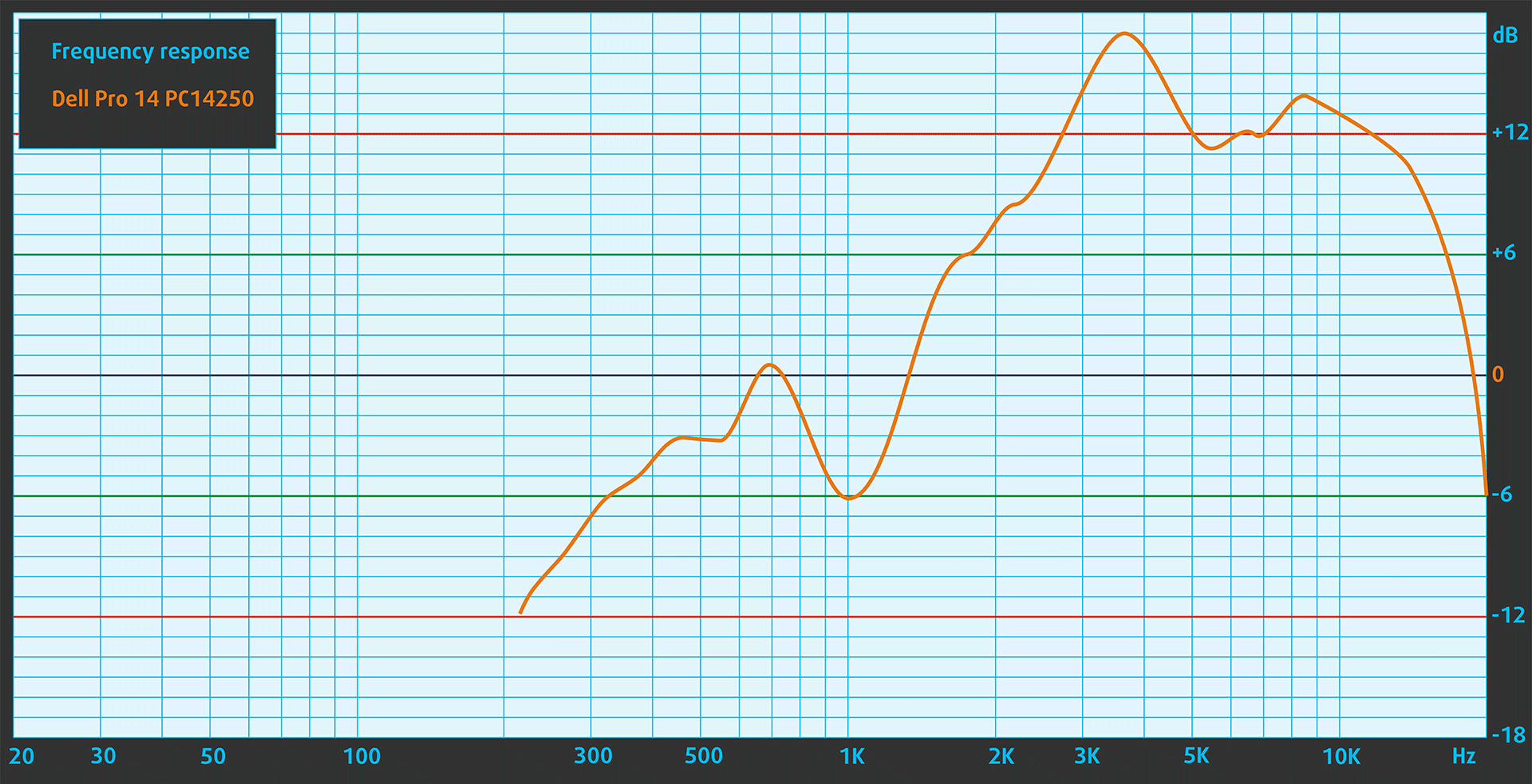
When we subjectively listen to a sound file through the built-in speakers, the sound quality offered by Dell Pro 14 (PC14250) is very good. There is, however, a noticeable rise in the high frequencies in the frequency response chart.
Work Performance: CPU, Storage, AI
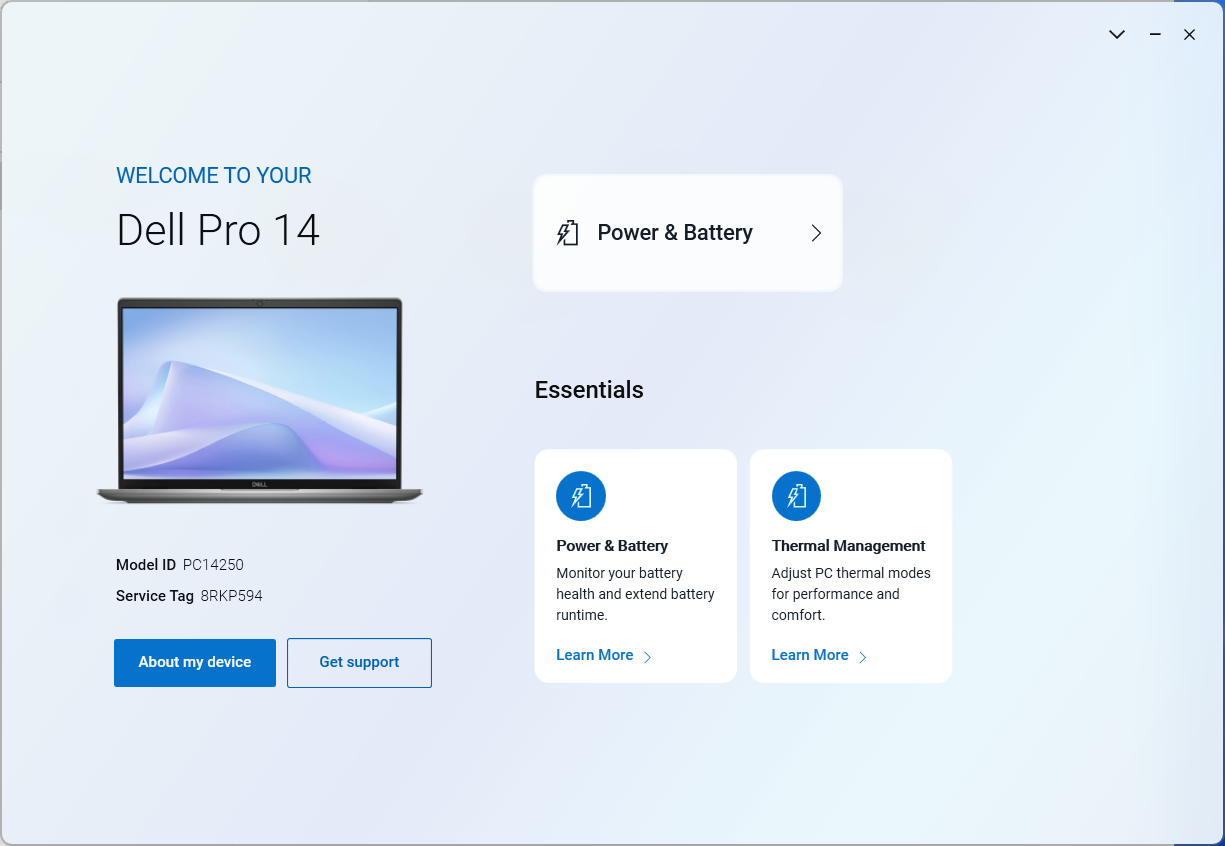
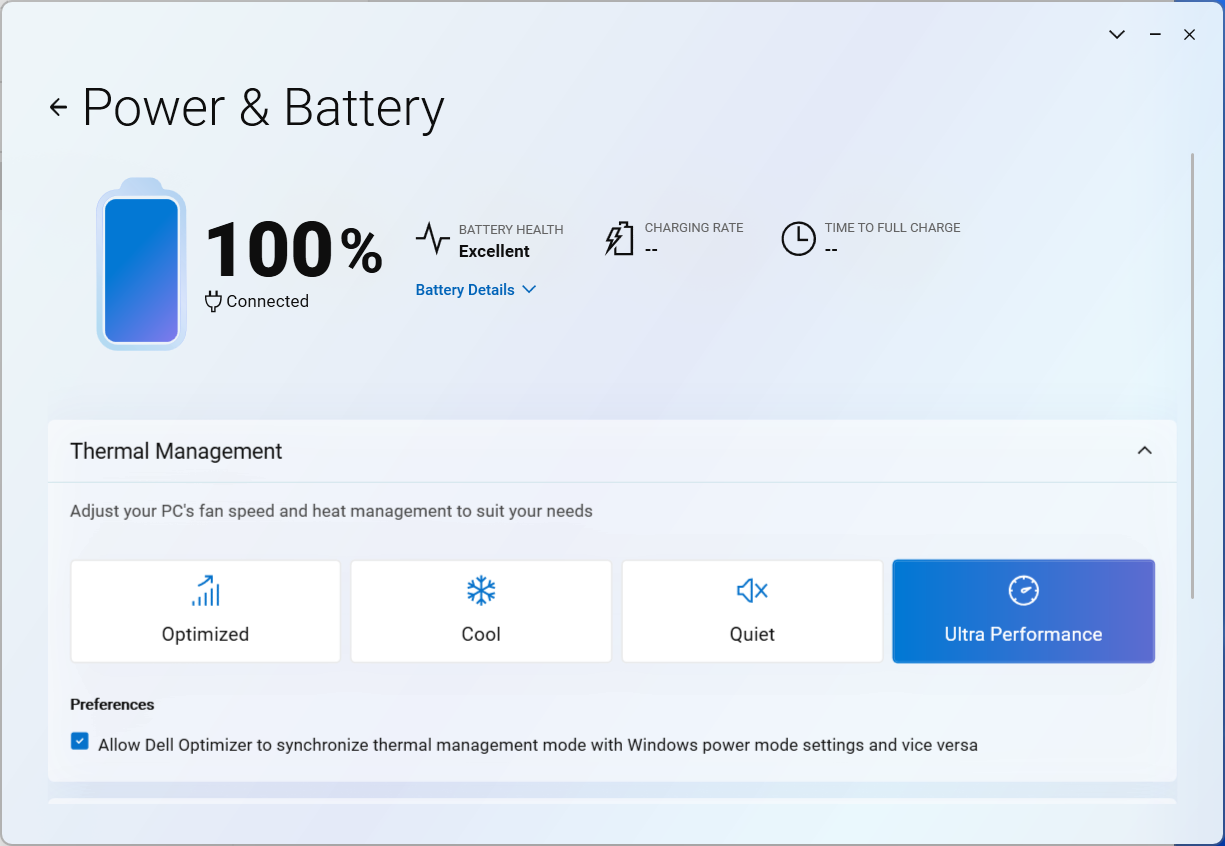
All performance and temperature tests are conducted with “Ultra Performance” mode activated in Dell Optimizer:
CPU and Work Performance
The Dell Pro 14 (PC14250) is offered with a broad selection of power-efficient processors, ranging from the entry-level Intel Core i3-1315U to the more capable Core Ultra 7 265U. The lineup also includes various Core 5 and Core 7 models from both older and newer generations, such as the Core 5 120U and the Core Ultra 5 235U. There’s also the Intel Processor U300e for very basic tasks. These processors are well-suited for office work, web browsing, and light multitasking.
For a full performance comparison across all CPUs, you can refer to our Top Laptop CPU Ranking.
We ordered a configuration with Intel Core Ultra 7 265U. If you’re looking for higher CPU performance, you might want to check out the more premium Dell offerings like the B or A series – Dell Pro 14 Plus PB14250 (detailed review), and Dell Pro 14 Premium PA14250 (detailed review).
Single-core performance ensures smooth operation and responsiveness in operating systems, providing a better user experience.
Results are from the Geekbench 6 Single-Core test (higher is better)
Multi-core performance is essential for handling complex and demanding tasks, such as Video editing, CAD, and Scientific simulations.
Results are from the Geekbench 6 Multi-Core test (higher is better)
Here, we evaluate the CPU's performance using a real-world 3D rendering task, assessing its ability to handle complex computations and rendering workloads efficiently.
Results are from the Cinebench 2024 Multi-Core test (higher is better)
Storage Performance
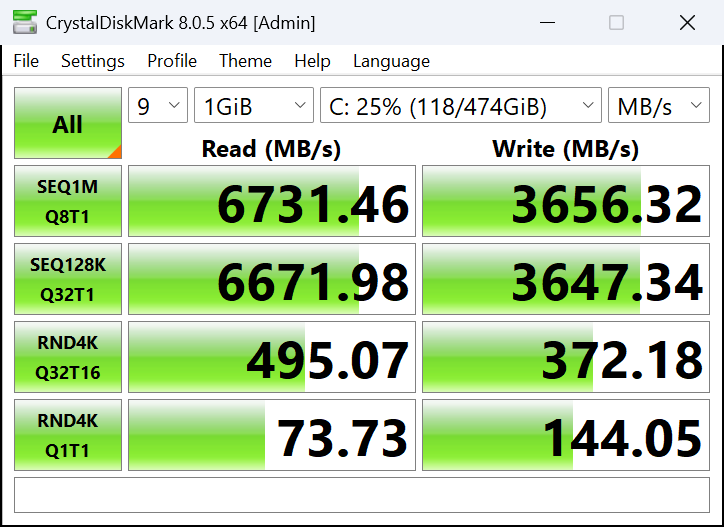
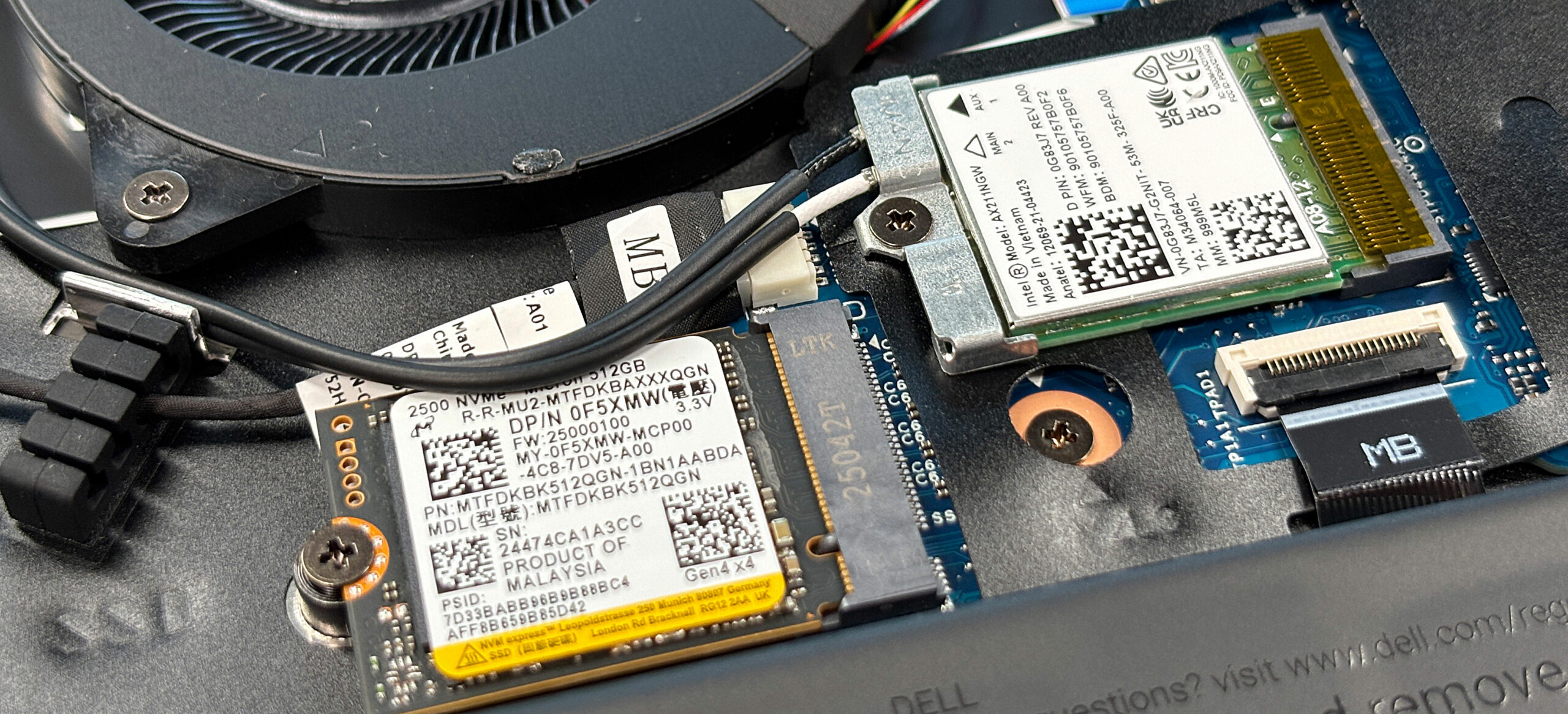
Dell Pro 14 (PC14250) has only one 2230 M.2 slot for storage. We ordered a 512GB configuration, and it arrived with Micron 2500 PCIe 4.0 NVMe SSD.
The sequential read speed is fast – 6.7GB/sec, while the sequential writing is not so good – almost half of that, 3.7GB/sec.
AI Performance
Here you can see the position of the GPUs and CPUs (NPUs) found within the Dell Pro 14 (PC14250) in our AI Hardware Performance Rankings based on their AI processing power, measured in TOPS (Tera Operations Per Second) - a critical metric indicating the computational throughput, particularly for AI tasks.
The first column shows peak performance for INT8/FP8 precision, which is the most widespread metric for evaluating AI inference capabilities. We exclude Sparsity to provide a more accurate reflection of AI performance in dense computation scenarios where sparsity optimizations may not be applicable. The second and third columns show the performance with Sparsity, and FP4 TFLOPS, when supported.
For SoCs, the results reflect the peak performance of the integrated NPU. Additionally, it’s important to note that, according to Microsoft, a NPU must have at least 40 TOPS of AI computing power for the PC to be considered “AI-capable.”
| # | GPU / CPU (NPU) | TOPS INT8/FP8 No Sparsity | TOPS INT8/FP8 Sparsity | TFLOPS FP4 Sparsity |
|---|---|---|---|---|
| 1742. | Intel Core Ultra 7 265U | 12 | — | — |
GPU and Gaming Performance
As for graphics, the laptop relies entirely on integrated solutions from Intel. Depending on the configuration, you’ll find Intel UHD Graphics Xe G4, Iris Xe Graphics with 80 or 96 execution units, or more basic options like UHD Graphics (Alder Lake) or Intel Graphics with 4 cores. While these GPUs are sufficient for everyday use and media consumption, they are not intended for heavy graphics workloads or modern gaming.
You can explore their comparative performance in our Top Laptop Graphics Ranking.
The Arc Graphics in Dell Pro 14 Plus PB14250 (detailed review), and Dell Pro 14 Premium PA14250 (detailed review) also bring much higher GPU performance – double the Intel Graphics (4-Cores) power.
The results are from 3DMark Time Spy (Graphics). Higher is better.
The results are from 3DMark Wild Life Extreme Unlimited. Higher is better.
Dell Pro 14 (PC14250) GPU variants
Here you can see an approximate comparison between the GPUs that can be found in the Dell Pro 14 (PC14250) models on the market. This way you can decide for yourself which Dell Pro 14 (PC14250) model is the best bang for your buck.
Note: The chart shows the cheapest different GPU configurations so you should check what the other specifications of these laptops are by clicking on the laptop’s name / GPU.
The results are from 3DMark Time Spy (Graphics). Higher is better.
Results are from the 3DMark: Fire Strike (Graphics) benchmark (higher the score, the better)
Results are from the 3DMark: Wild Life (Graphics) benchmark (higher the score, the better)
Results are from the Unigine Superposition benchmark (higher the score, the better)
Gaming tests

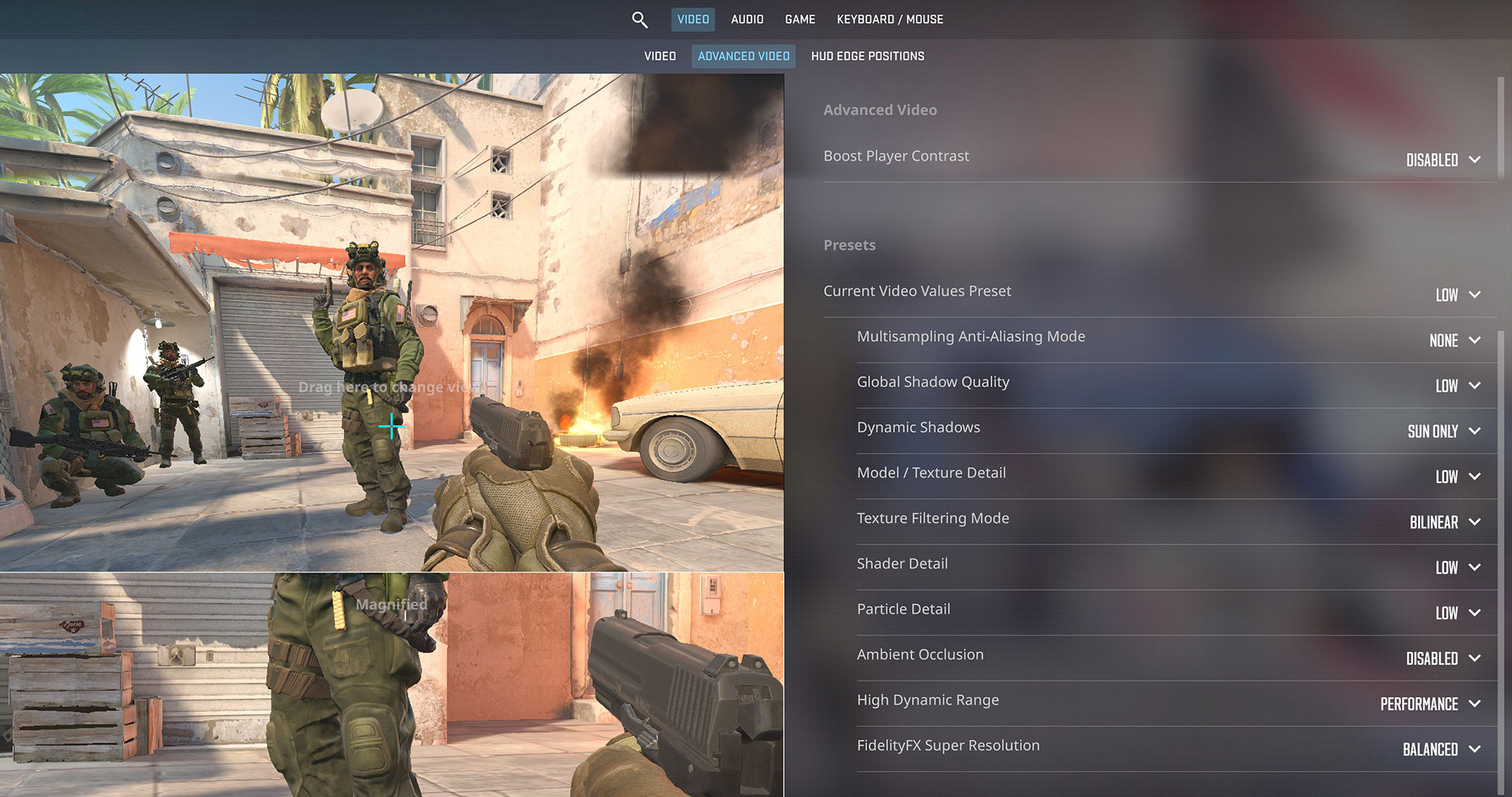
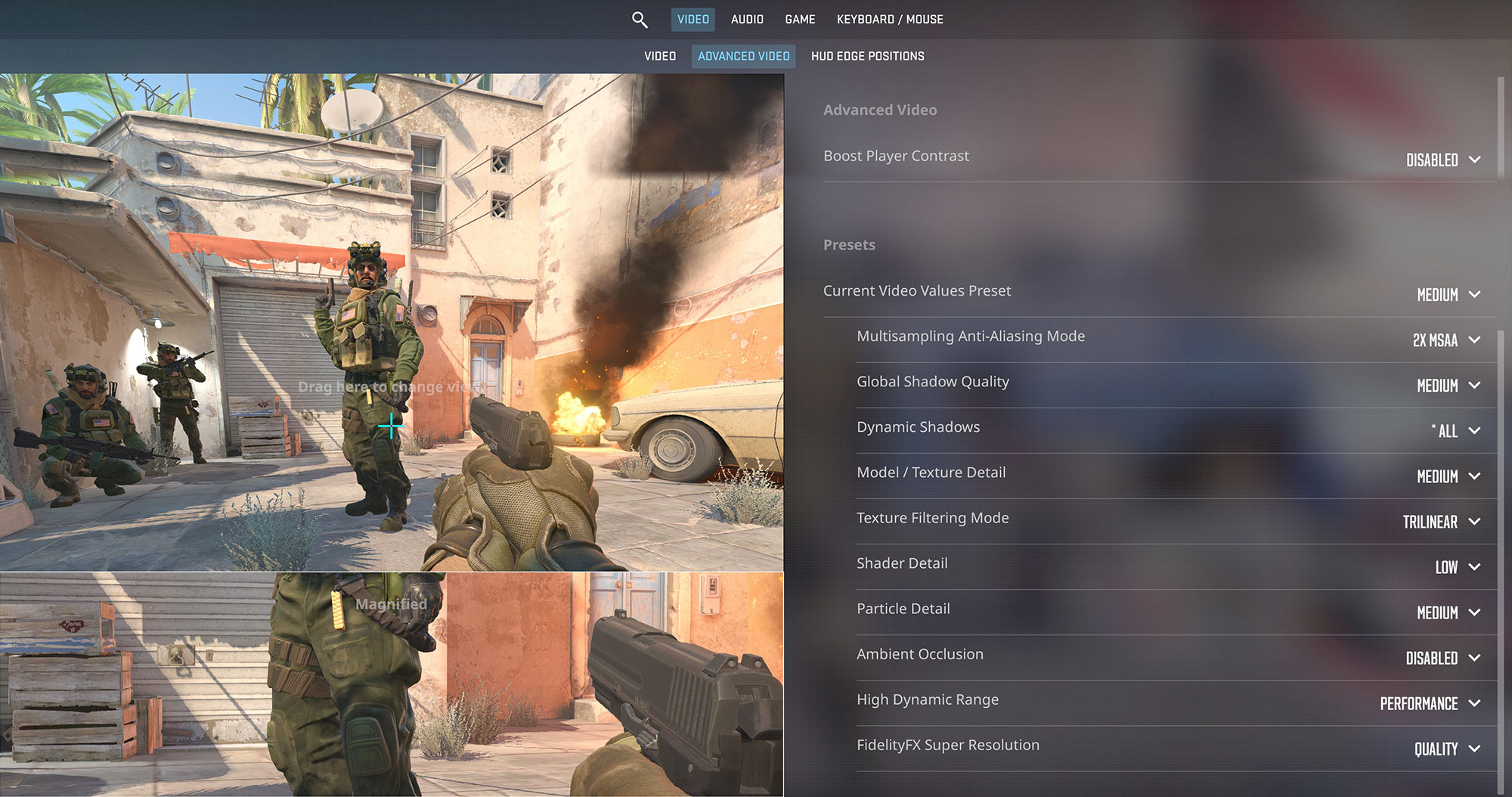
The integrated Intel Graphics on the Dell Pro 14 is suitable for light gaming and older titles. In Counter-Strike 2, it delivers a smooth 74 FPS on Low settings at 1200p. Increasing the settings to Medium results in 45 FPS, which is still playable but not ideal for competitive play.
| Counter Strike 2 | 1200p, Low (Check settings) | 1200p, Medium (Check settings) |
| Average FPS | 74 FPS | 45 FPS |

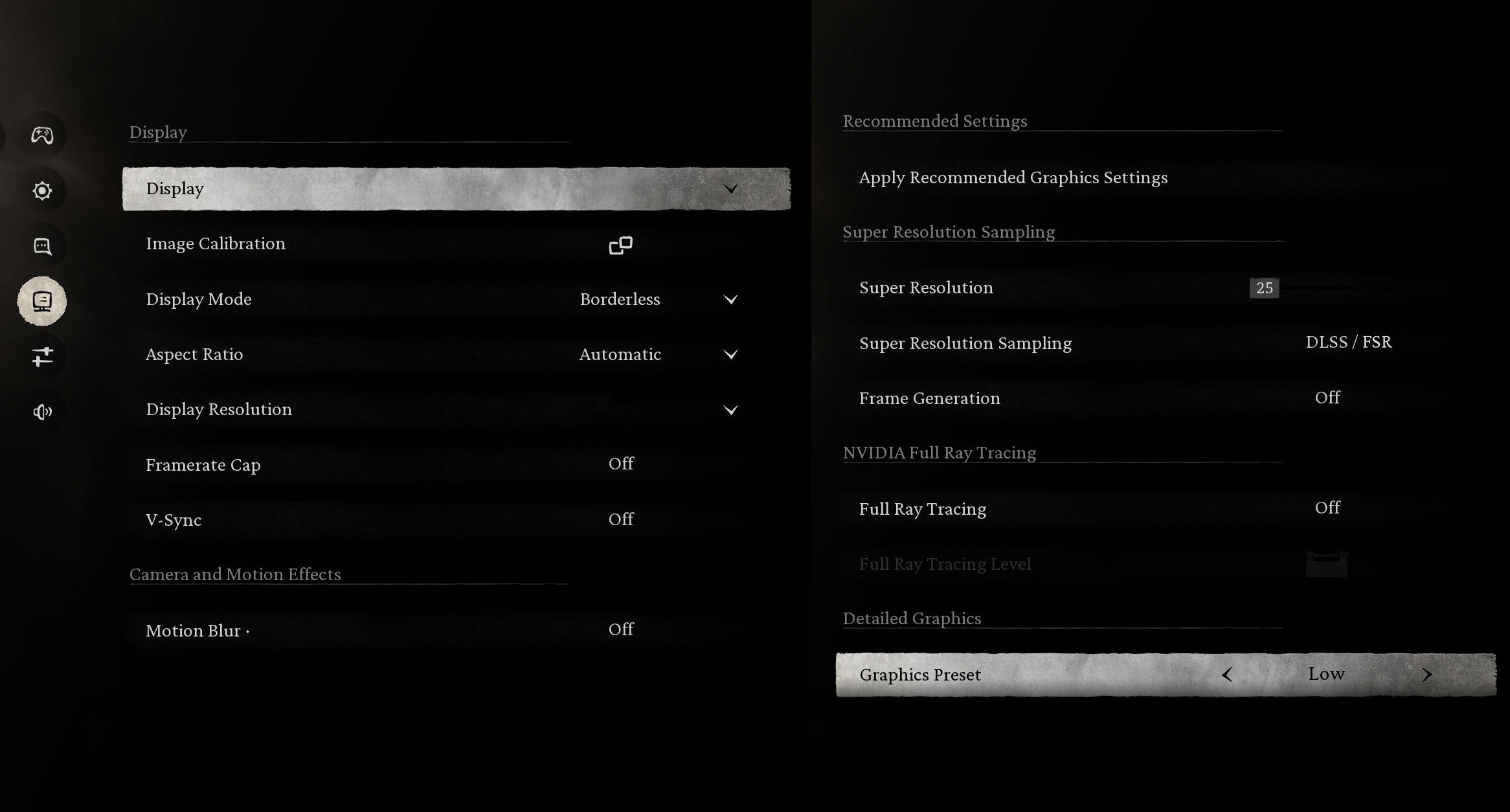
Graphically demanding modern games like Black Myth: Wukong are challenging for this hardware. The laptop manages 28 FPS on the Low preset at 1200p, which is below what we would consider a smooth gaming experience.
| Black Myth: Wukong | 1200p, Low (Check settings) |
| Average FPS | 28 FPS |

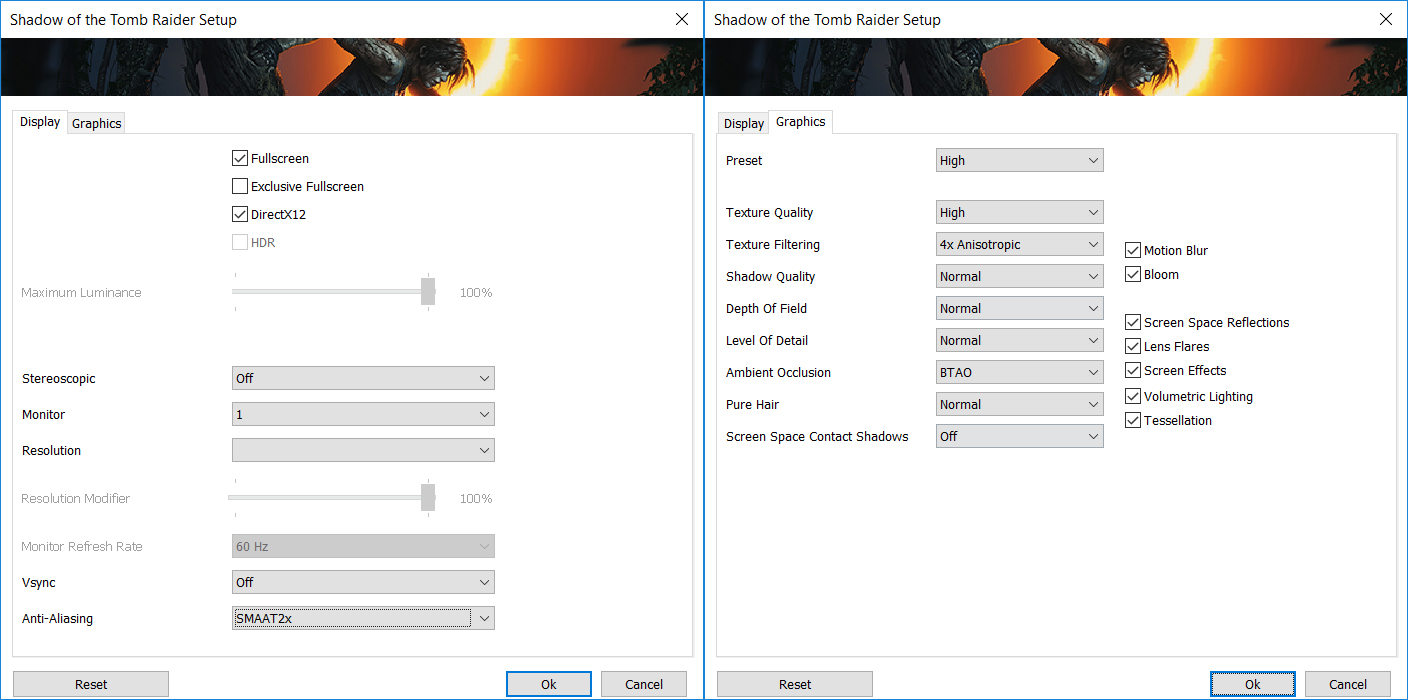
In a well-optimized title like Shadow of the Tomb Raider, the Dell Pro 14 achieves a playable 31 FPS on Low settings at 1200p. This is adequate for casual playthroughs of less demanding single-player games.
| Shadow of the Tomb Raider | 1200p, Low (Check settings) |
| Average FPS | 31 FPS |
Temperatures and Comfort, Noise, Stability
At idle, the CPU package of the Dell Pro 14 (PC14250) maintains a temperature of 46ºC, and the notebook remains completely silent.
Office Work, Web Development, Design
Short periods (0:00 – 0:10 s) of 100 % CPU load
This test shows the CPU behavior during short periods of serious load. It’s important for users who are looking for laptops suitable for tasks like Web Design and Programming.
| Intel Core Ultra 7 265U | Avg. P-Core Clock | Avg. CPU Temp. | Avg. CPU Power |
| Dell Pro 16 (PC16250) | 3639 MHz | 100 °C | 42 W |
| Dell Pro 14 (PC14250) | 3338 MHz | 104 °C | 34 W |
Under short, intense CPU loads, the Dell Pro 14 averages 3338 MHz with 34 W power. The CPU temperature quickly peaks at 105 °C, averaging 104 °C during the first 10 seconds. These are high temperatures, indicating significant thermal stress. Compared to the Dell Pro 16 with the same CPU, the Pro 14 delivers a slightly lower average clock (3338 MHz vs 3639 MHz) and consumes less power (34 W vs 42 W). Despite consuming less power, the Pro 14 runs at a higher average temperature (104 °C vs 100 °C), which is due to the smaller chassis.
Video editing, Scientific computing, Software compilation, 3D rendering
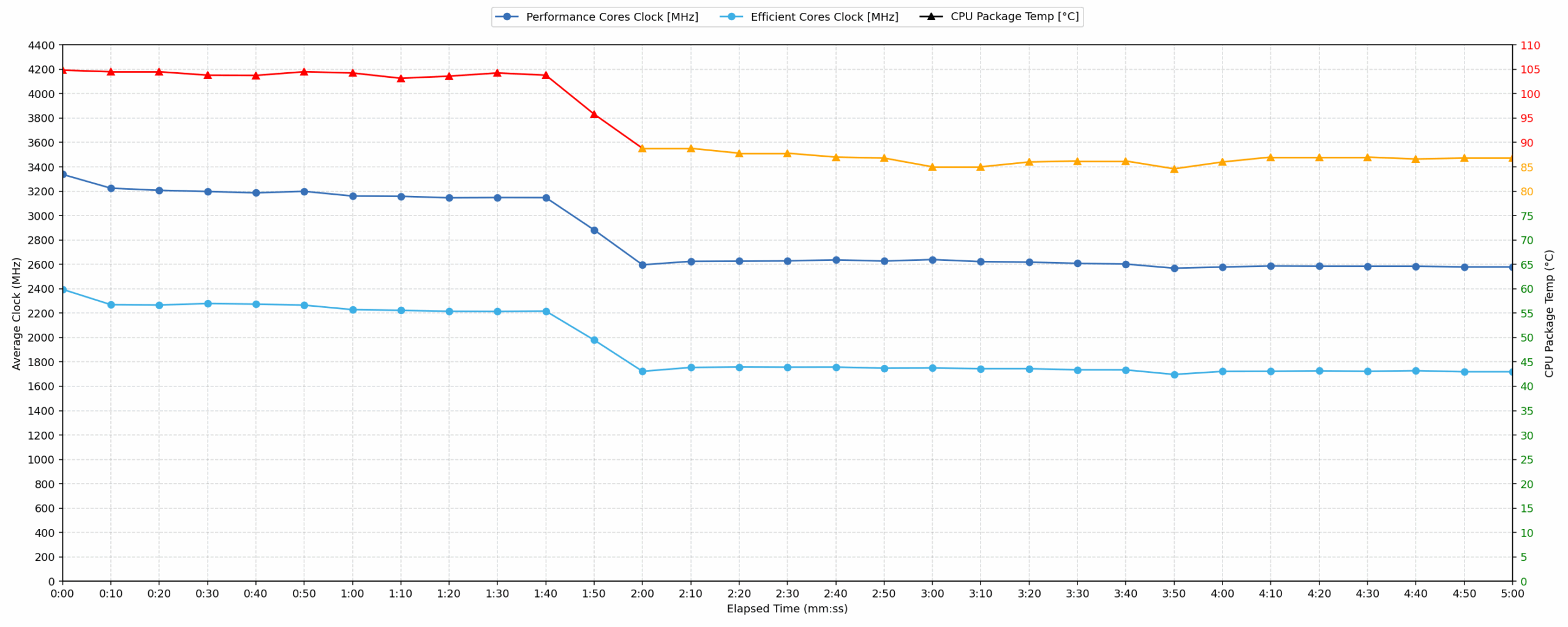
Long periods (0:00 – 30:00 min) of 100 % CPU load
This test shows the CPU behavior during long periods of serious load. It’s important for users who are looking for laptops suitable for tasks like Video Editing and 3D Rendering.
| Intel Core Ultra 7 265U | Avg. P-Core Clock | Avg. CPU Temp. | Avg. CPU Power |
| Dell Pro 14 (PC14250) | 2614 MHz | 88 °C | 18 W |
| Dell Pro 16 (PC16250) | 2614 MHz | 89 °C | 19 W |
For sustained, long-duration CPU loads, the Dell Pro 14 maintains an average clock speed of 2614 MHz, consuming 18 W over 30 minutes. The average CPU temperature stabilizes at 88 °C, which is acceptable for prolonged operation. The minimum clock observed was 2536 MHz, indicating consistent performance. Compared to the Dell Pro 16 with the same CPU, the Pro 14 exhibits identical sustained clock speeds and it even runs slightly cooler (88 °C vs 89 °C), while consuming marginally less power (18 W vs 19 W). This suggests excellent thermal management and stable, sustained performance for demanding, extended tasks.

Battery Life
Despite being smaller, the Dell Pro 14 has the same battery pack as its bigger sibling, Dell Pro 16 – a 55Wh unit. Some configurations come with a smaller 45Wh one.
We conducted the battery life test with the Quiet mode activated in Dell Optimizer.
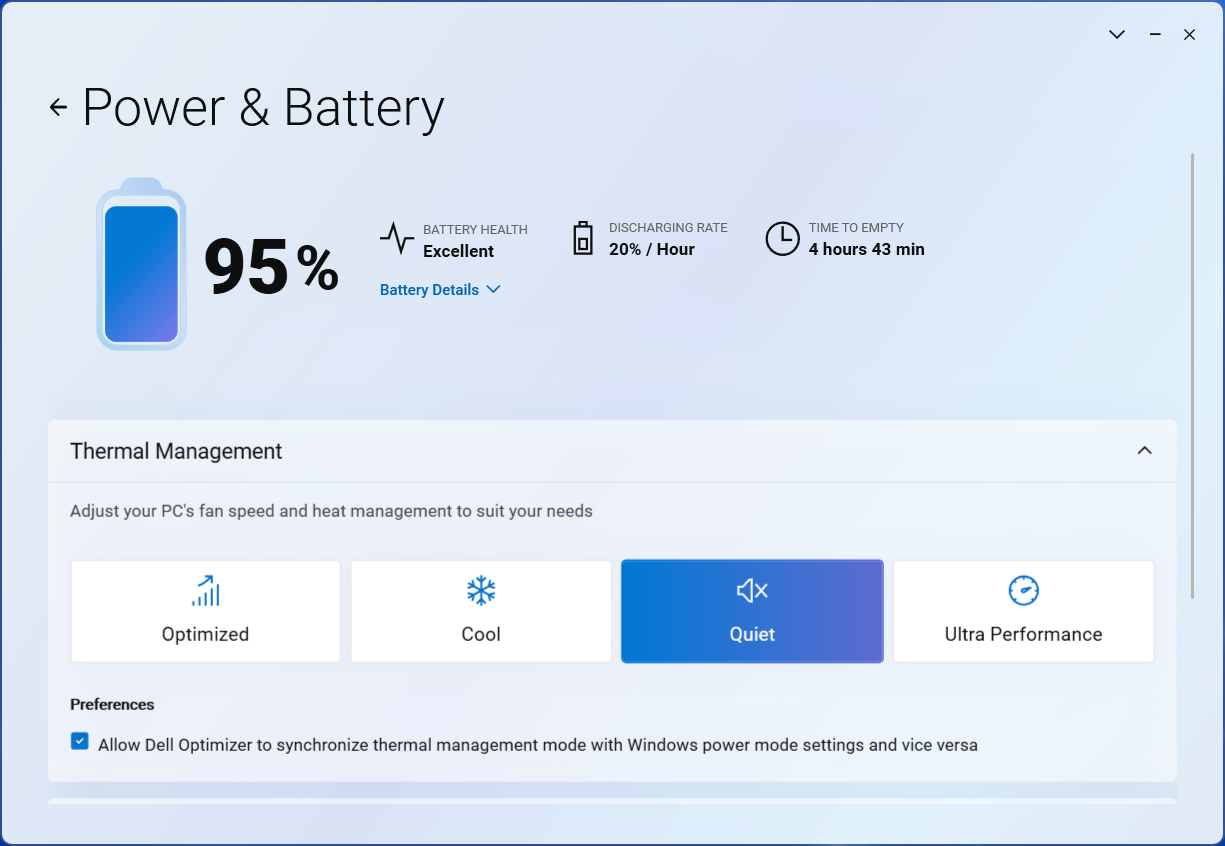
Almost 11 hours on a single charge is not a bad result! However, the Dell Pro 14 Plus PB14250 (detailed review) excels with more than 16 hours of battery life!
Brightness: 180 nits; Display Mode: SDR
Time to Full Discharge: Higher is Better
Disassembly, Upgrade options, and Maintenance
Removing the bottom panel is straightforward – nine Phillips-head captive screws let go first, and a gentle pry with a plastic pick frees the cover without drama.
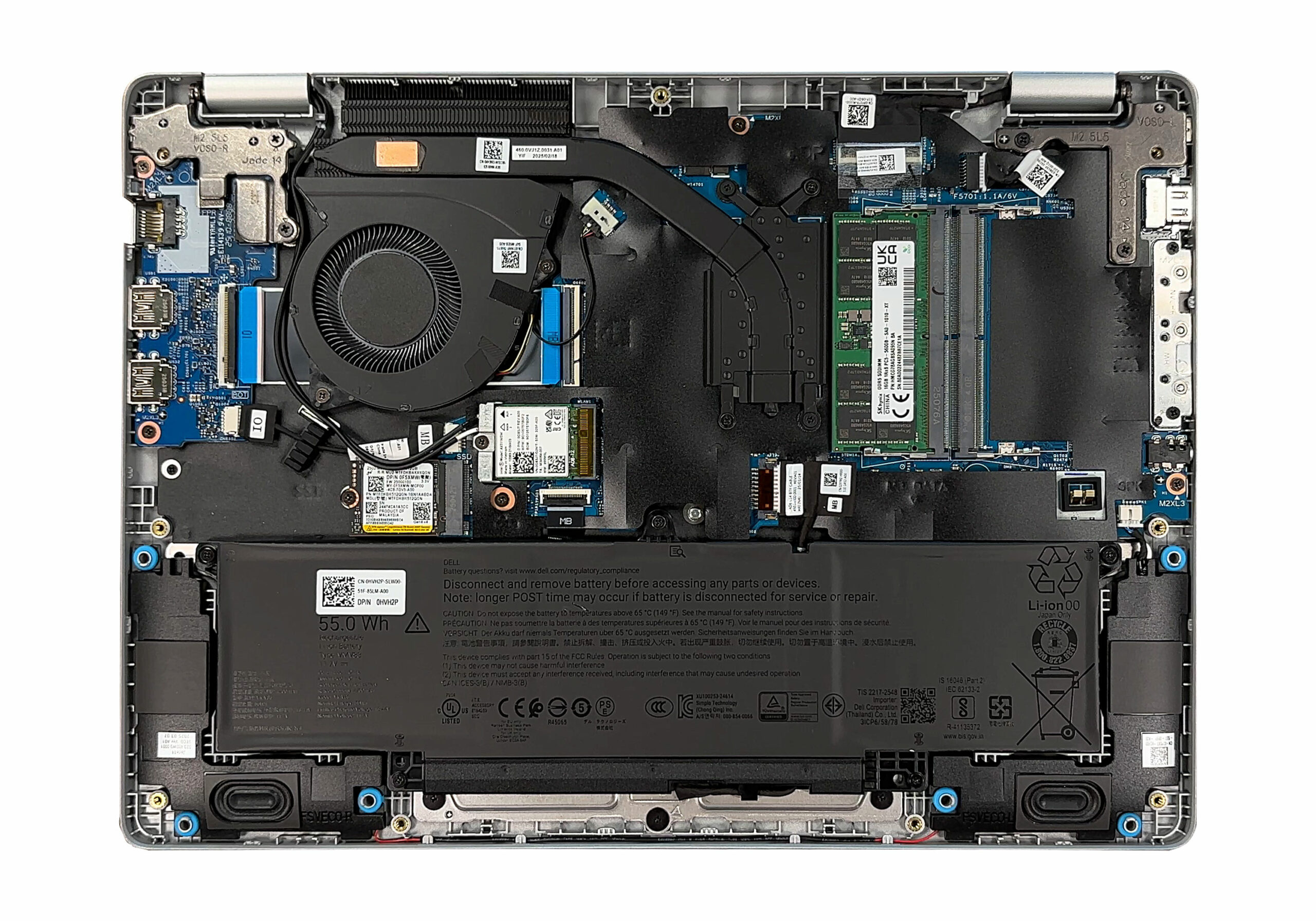
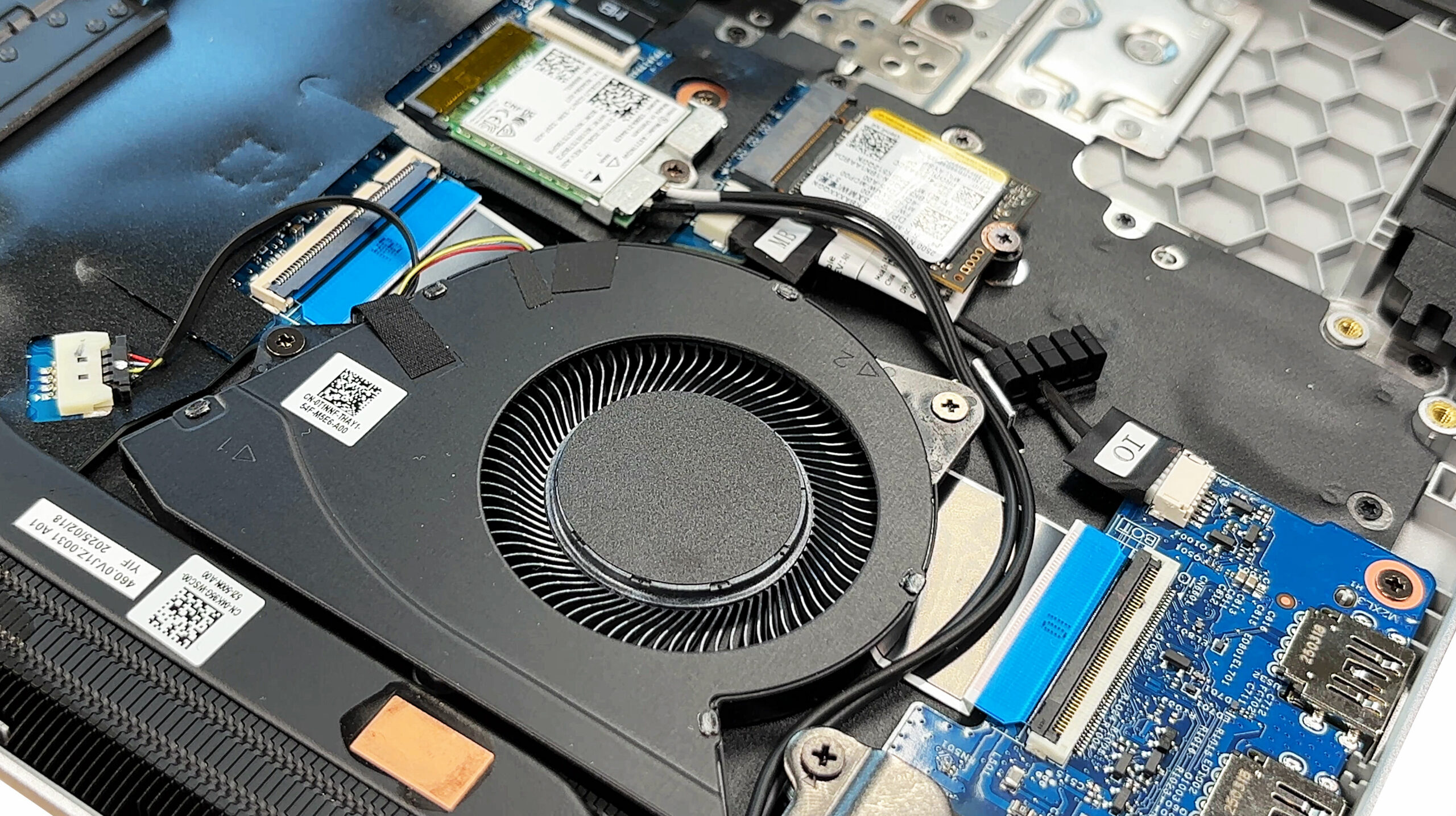
Cooling duties are handled by a single fan linked to two heat pipes that carry heat toward a dense fin stack at the rear. The fan draws fresh air from vents in the bottom plate and exhausts it out the back, so be sure not to block that edge when the laptop is on soft surfaces.
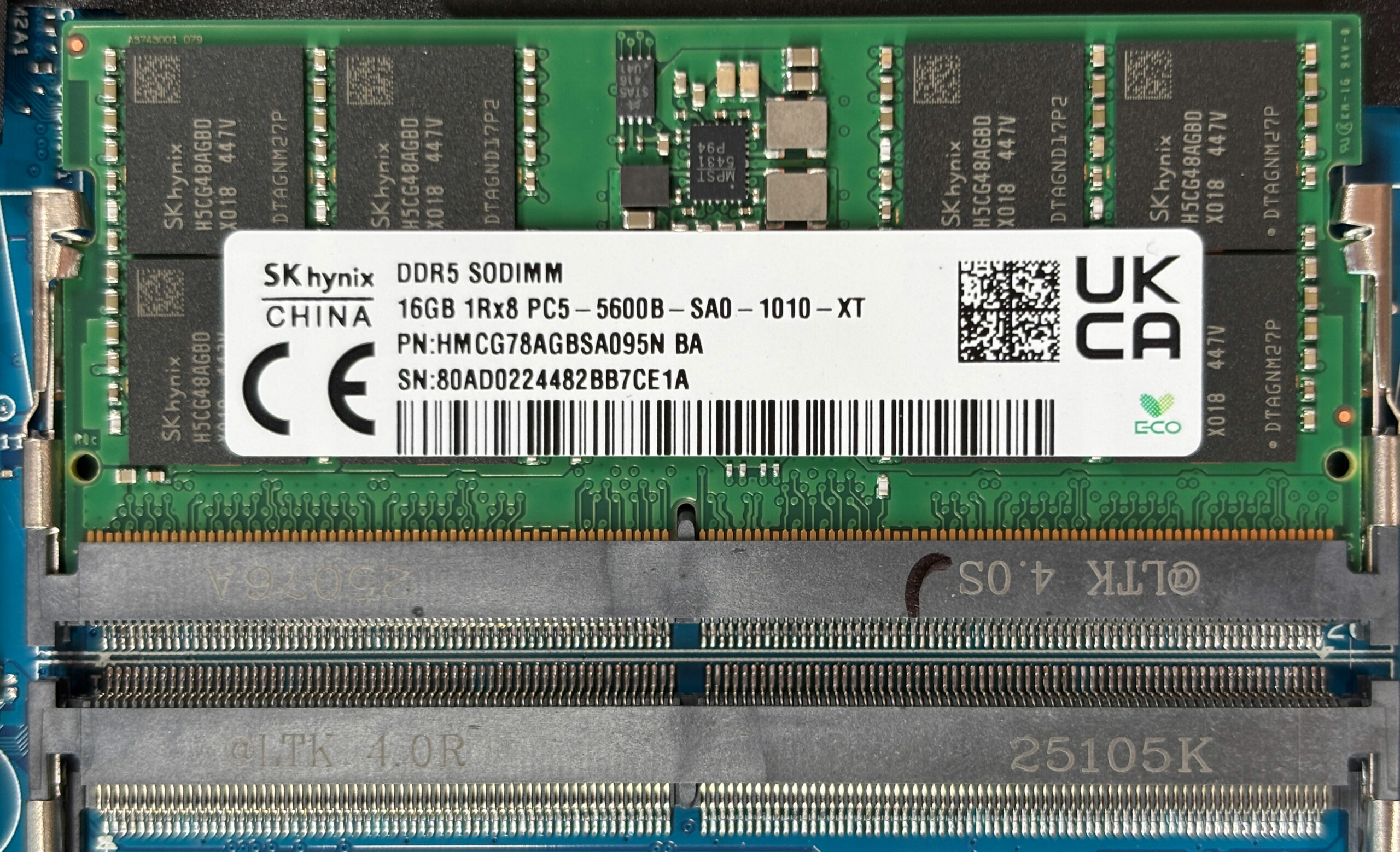
Memory upgrades are easy: two DDR5 SO‑DIMM slots sit under a thin protective film and accept modules up to 5600 MT/s when a Core Ultra CPU is installed, or 5200 MT/s with the regular chips. Both slots are user‑accessible without further disassembly.
For storage Dell fits a single M.2 2230 PCIe Gen4 slot. Our unit ships with a Micron 2500 NVMe drive, but any 2230 module should work once you remove the lone retaining screw.
The Intel AX211 Wi‑Fi 6E card, the stereo speakers, and the entire cooling assembly are all modular, meaning they can be swapped if they fail down the road. Reinforced metal brackets around the hinges should also help the display mechanism survive years of use.
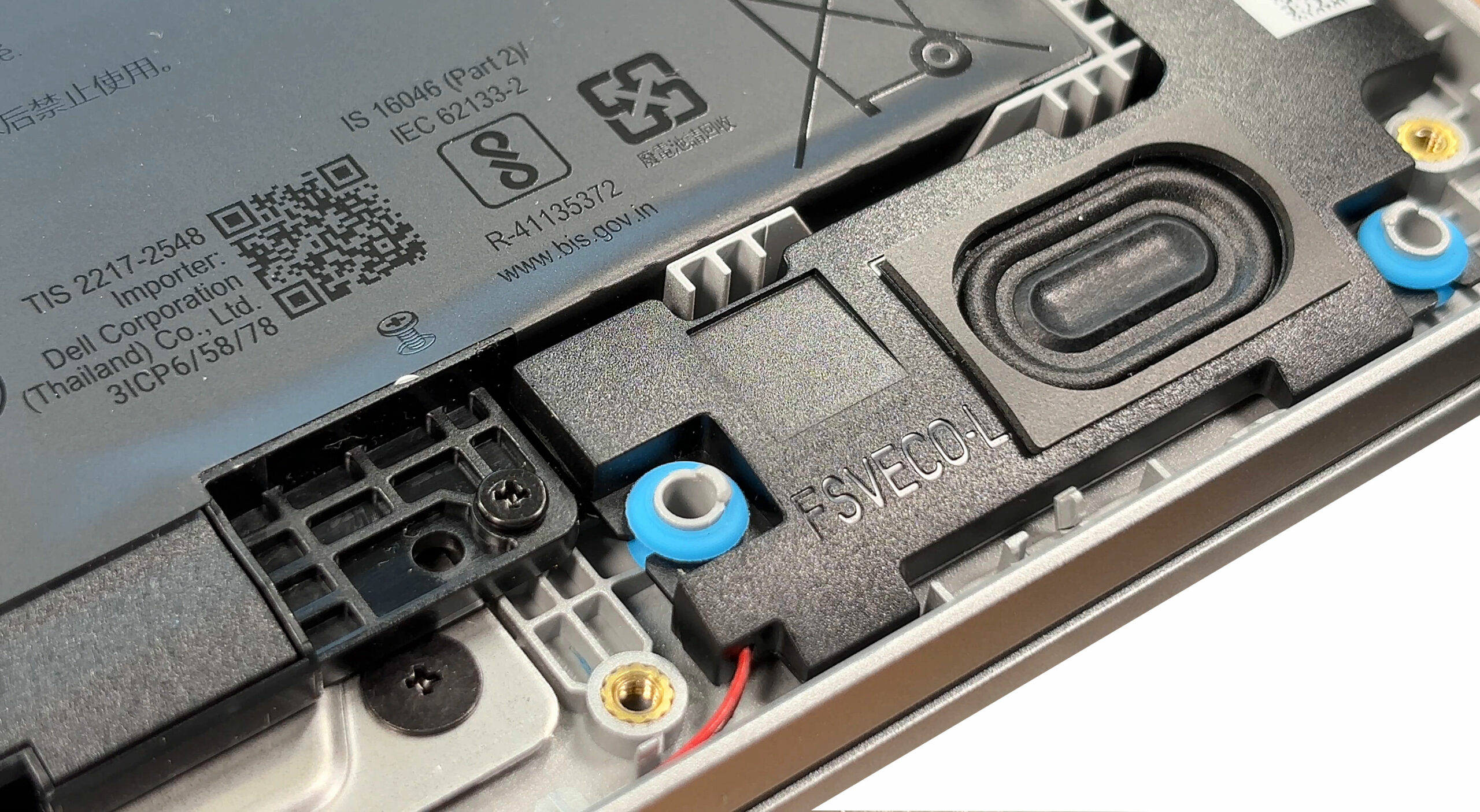
The battery in our unit is the larger 55 Wh pack, secured by five captive screws and a single cable. A 45 Wh option exists for lower‑priced models, so double‑check before ordering replacements.
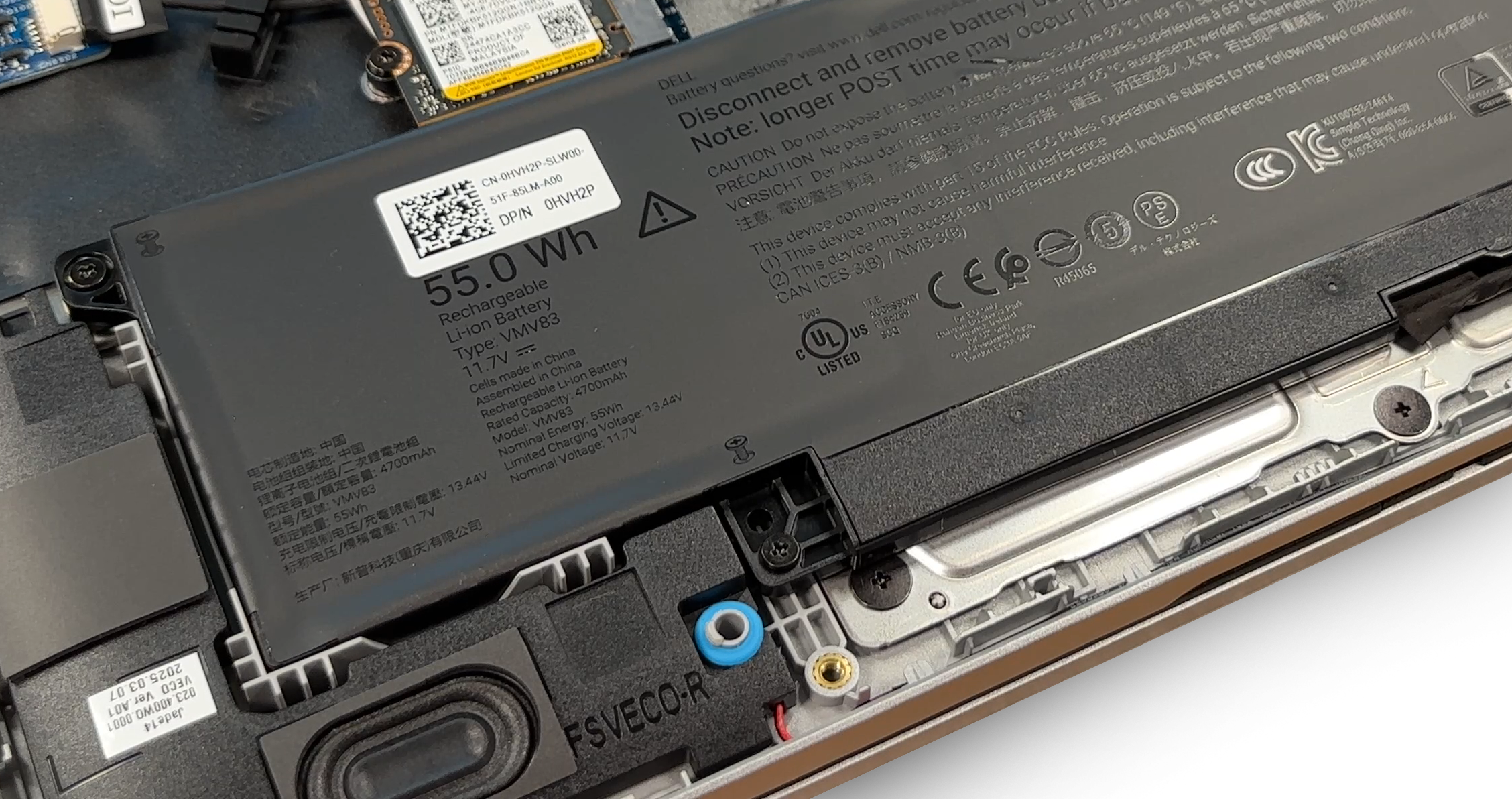
Overall, the Pro 14 offers above‑average serviceability – once the captive screws are out, every key component is right there for cleaning or upgrades. A minor disappointment is the small-sized SSD – 2280 drives don’t fit.
Verdict
The Dell Pro 14 (PC14250) is a quintessential business workhorse, a machine built with practicality and long-term serviceability as its guiding principles. It forgoes flashy designs and premium materials in favor of a robust feature set that caters directly to the needs of an IT department or a professional user who values flexibility above all else. It’s a laptop that champions the right to repair and upgrade in a market increasingly hostile to it.
However, this admirable philosophy is paired with some significant and, at times, baffling compromises that can severely impact the day-to-day user experience, especially on the base models.
✅ The Good
With two user-accessible SODIMM slots for RAM, this laptop provides solid flexibility and long-term value, making it a reliable option among modern business notebooks.
This is complemented by an excellent and comprehensive port selection for a professional environment, including a versatile Thunderbolt 4 port, two USB-A ports, and a crucial RJ-45 Ethernet port. The battery life is also excellent, delivering almost 11 hours on a single charge, easily lasting through a full workday.
Even the disappointing base model screen has a critical saving grace: it is completely PWM-free and has a very effective anti-glare finish, making it exceptionally comfortable for the eyes during long hours of work. The inclusion of a physical privacy shutter and a fingerprint reader further solidifies its business credentials.
❌ The Bad
The most significant compromise on our test unit is the entry-level display. With extremely poor color coverage at just 51% sRGB, it is only suitable for basic office tasks and provides a visually dull and washed-out experience. We strongly recommend opting for the 100% sRGB panel if at all possible.
The thermal management is another major point of concern, as the CPU runs hot, frequently hitting its thermal limits and throttling performance. A truly baffling design choice is the use of a single, small M.2 2230 slot for storage. This severely limits upgrade options to smaller, often more expensive drives and is a major functional drawback.
🆚 The Competitors
The Dell Pro 14’s primary competition comes from within Dell’s own lineup. Compared to the Dell Pro 14 Plus (PB14250) (detailed review), the standard Pro 14 falls far behind in performance and battery life. However, its trump card is the user-upgradeable RAM, whereas the more powerful Plus model has its memory soldered down. This creates a clear choice: superior performance now, or flexibility for the future.
When compared to its larger sibling, the Dell Pro 16 (PC16250) (detailed review), the Pro 14 offers better portability and runs slightly cooler under sustained load, but gives up the NumPad. Ultimately, the Pro 14’s unique selling point in a crowded market is its commitment to serviceability, a feature that will be the deciding factor for a very specific, but important, type of user.
You can check the prices and configurations in our Specs System: https://laptopmedia.com/series/dell-pro-14-pc14250/
Pros
- Good RAM upgradeability with two SODIMM slots
- Great port selection for business, including Thunderbolt 4 and Ethernet
- PWM-free display is exceptionally comfortable for the eyes
- Good battery life for all-day use
- Physical privacy shutter and fingerprint reader for security
- Good serviceability for key components
Cons
- Base model display has very poor color coverage (51% sRGB)
- CPU runs extremely hot and throttles under load
- Storage is limited to a single, small M.2 2230 slot
 Author: Simeon NikolovEditor-in-Chief at LaptopMedia.com with 20+ years of experience in testing and analyzing laptops and mobile devices.
 Author: eng. Kroum NikolovHead of Engineering at LaptopMedia.com, inventor and innovator with 40+ years of experience in electronics and high technology.

![[May 2026] Amazon Global: Top 10 Best-Selling Gaming Laptops – Budget-Friendly ASUS TUF Gaming A15 Dominates the Market](https://laptopmedia.com/wp-content/uploads/2026/06/Best-Selling-Gaming-Laptops-GLOBAL-Top-10-400x225.jpg)
![[May 2026] Amazon Global: Top 10 Best-Selling Laptops – Apple’s Affordable ‘MacBook Neo’ Takes the Crown Amidst Strong Air and Pro Sales](https://laptopmedia.com/wp-content/uploads/2026/06/Best-Selling-Laptops-GLOBAL-Top-10-400x225.jpg)
![[May 2026] Best-Selling Laptop Brands on Amazon Global – Apple Dominates in Units and Revenue](https://laptopmedia.com/wp-content/uploads/2026/06/GLOBAL-Best-Brands-400x225.jpg)