How to open HP Victus Gaming 15 (15-fb3000) – disassembly and upgrade options
Step 1: Removing the bottom panel
- Power off the laptop and place it on a soft, clean surface.
- Undo the 7 Phillips-head screws securing the bottom panel. They are the same length, which makes reassembly easier.
- Use a thin plastic pry tool to release the internal clips around the perimeter. A suction cup can help create the first gap.
- Work slowly and avoid pushing the tool too deep into the chassis, as it could touch the motherboard, cables, or other internal components.
- Lift the bottom cover away from the laptop.
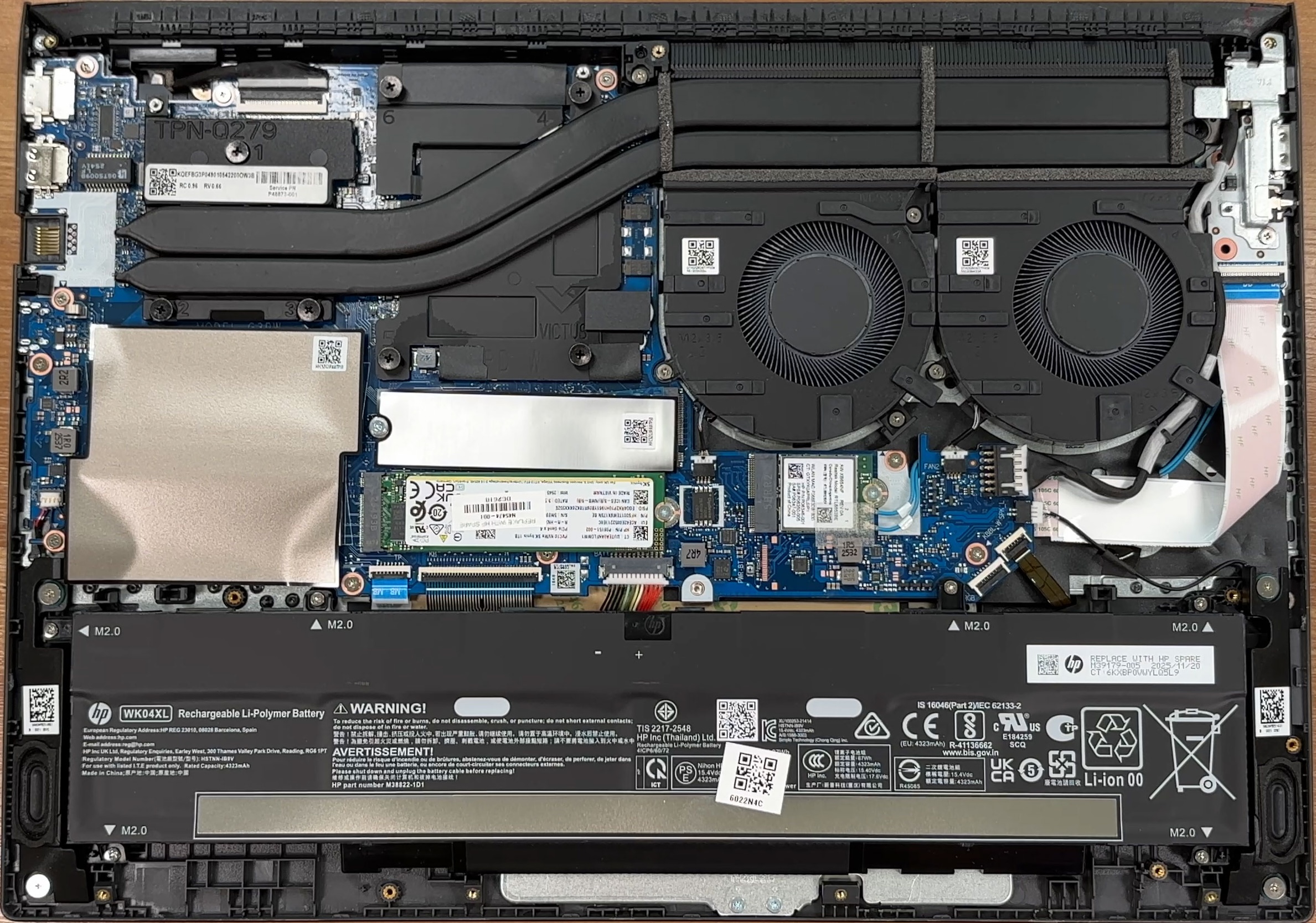
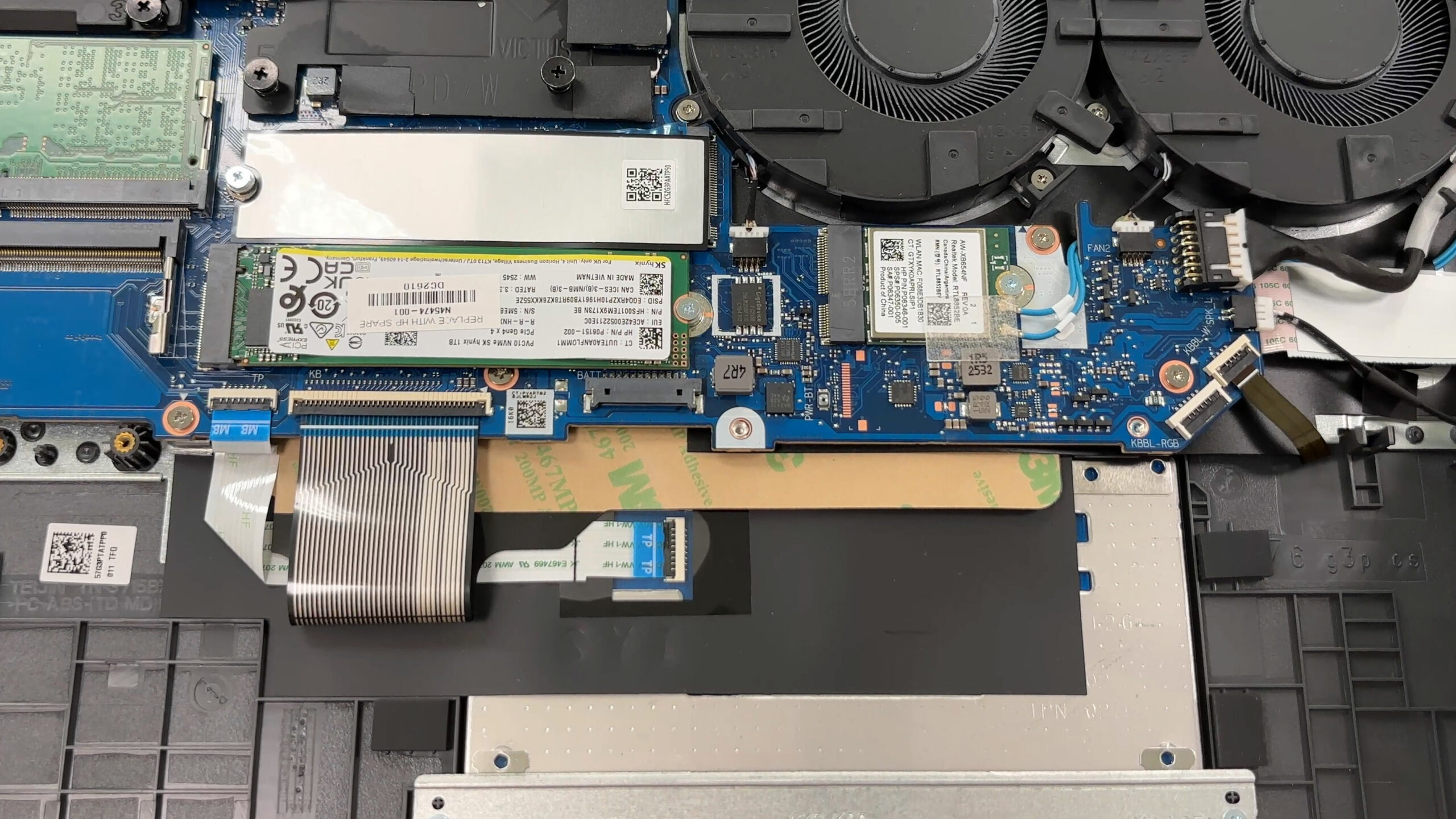
More info: Once inside, the layout is easy to understand. The cooling system occupies the upper half, while the battery stretches across the lower section. The primary SSD, second M.2 slot, memory area, and Wi-Fi card are all directly accessible.
Step 2: Battery removal
- Disconnect the battery cable from the motherboard before touching any other internal component.
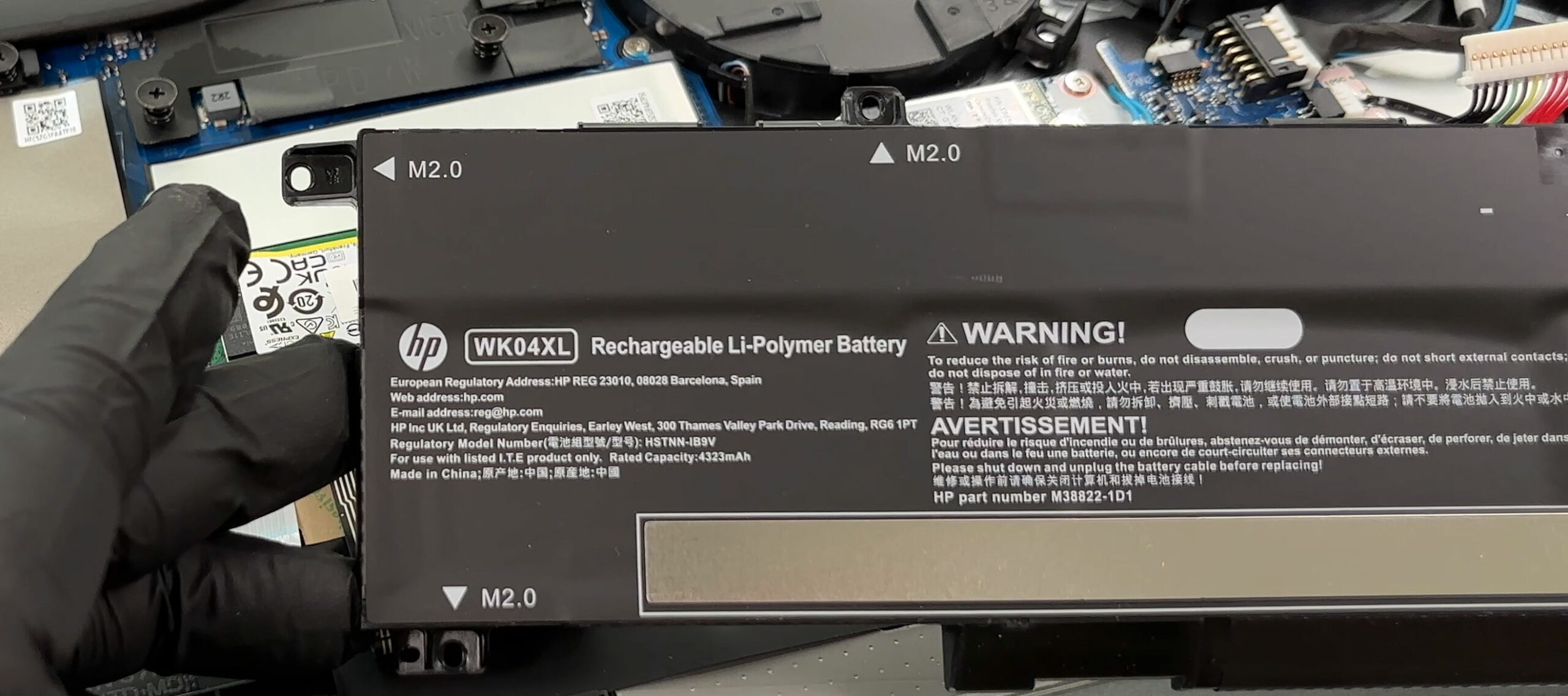
- Undo the screws securing the 70Wh HP WK04XL lithium-polymer battery.
- Lift the battery out of the chassis carefully.
More info: The battery is model HSTNN-IB9V and has a rated capacity of 4323mAh. It is removable and screw-mounted, which makes future replacement straightforward.
Step 3: Memory Upgrade
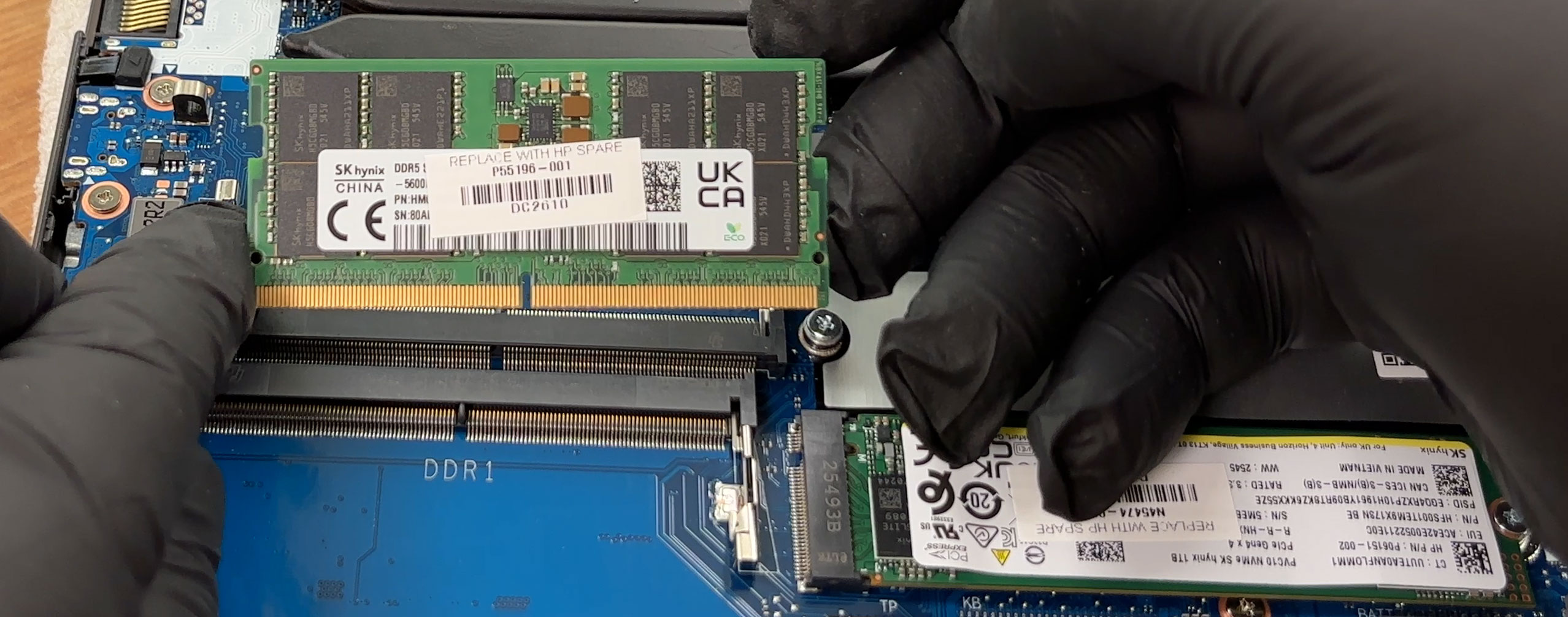
- The memory area is covered by shielding tape.
- Carefully peel back the tape to access the two DDR5 SODIMM slots.
- Our configuration uses an SK hynix DDR5-5600 module.
- HP officially lists support for up to 24GB of memory for this model family.
- Because this is a two-slot design, higher-capacity combinations may work depending on BIOS support and the exact configuration.
- To replace or add memory, insert the module at an angle and press it down until the side clips lock it in place.
You can buy DDR5 RAM modules here: Buy from Amazon.com.au (#CommissionsEarned)
Step 4: Storage Upgrade
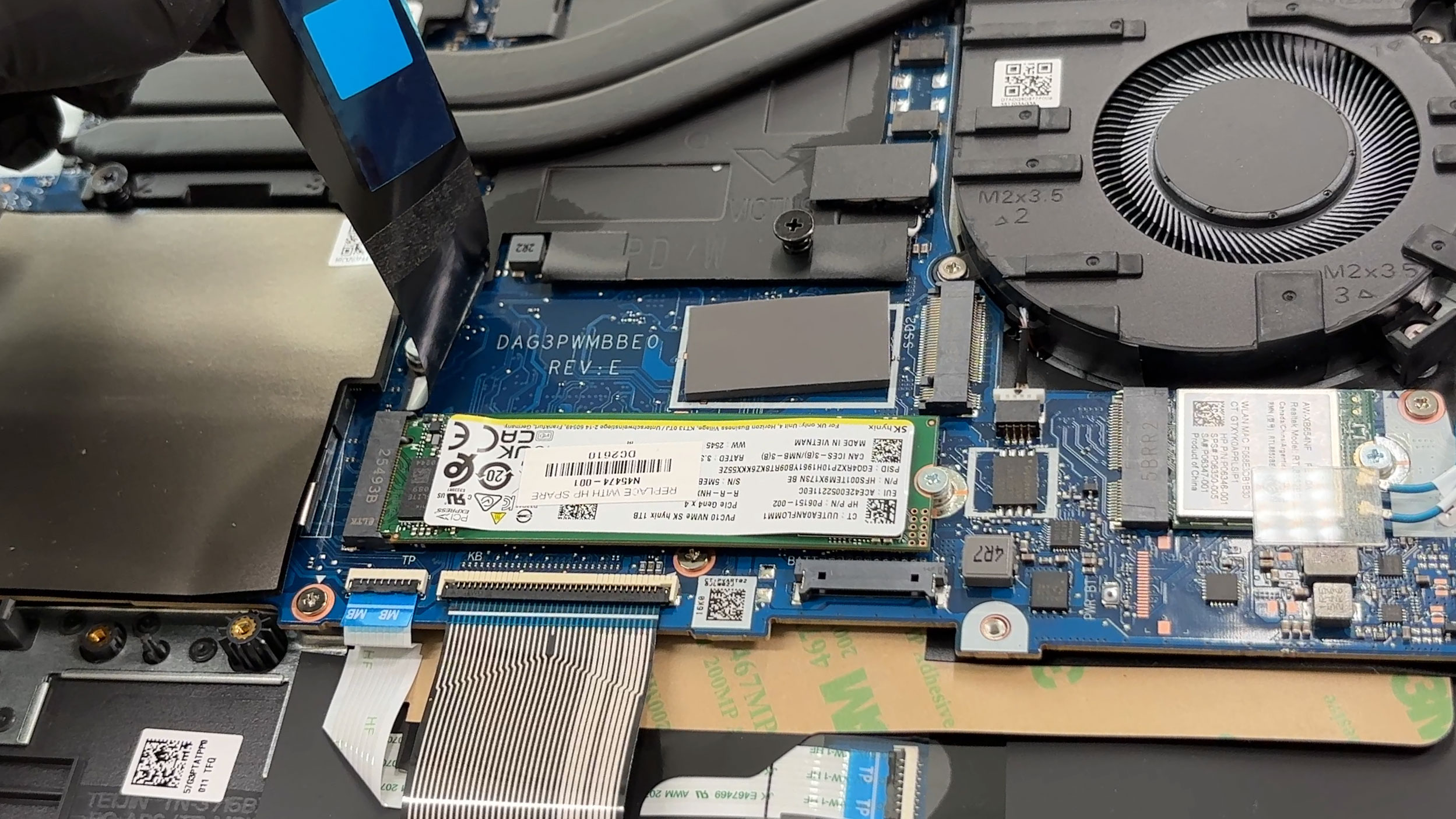
- The laptop has two M.2 slots for NVMe SSDs.
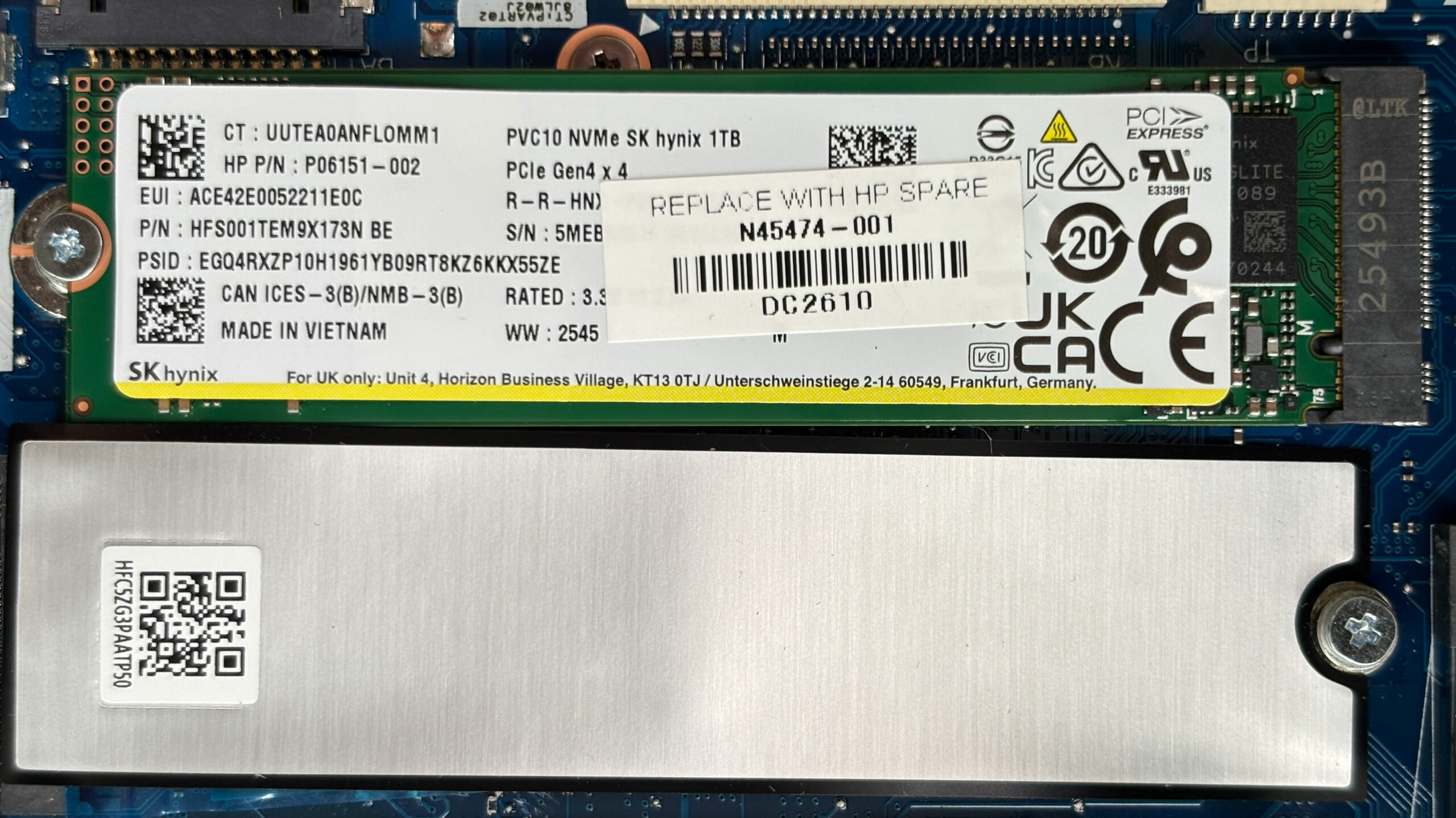
- Our reviewed unit comes with a 1TB SK hynix NVMe SSD in the primary M.2 slot.
- The installed drive supports PCIe Gen 4 x4 speeds and carries HP spare number N45474-001.
- The second M.2 slot is empty in our unit, so you can add another SSD without replacing the original drive.
- HP has already placed a thermal pad in the second SSD area, which is useful for a future storage upgrade.
You can buy Gen 4 M.2 SSDs here: Buy from Amazon.com.au (#CommissionsEarned)
Hint: Don’t forget to check out our Top M.2 SSDs Performance Rankings for insights on the best storage options available.
Step 5: Cooling system overview
- The cooling system uses two fans and two long heat pipes.
- The heat pipes run across the CPU and the dedicated GPU area.
- The processor sits under the left part of the cooling assembly, while the discrete graphics chip is positioned closer to the two fans.
- This is a conventional but sensible gaming-laptop cooling layout, with the hot components grouped close to the exhaust system.
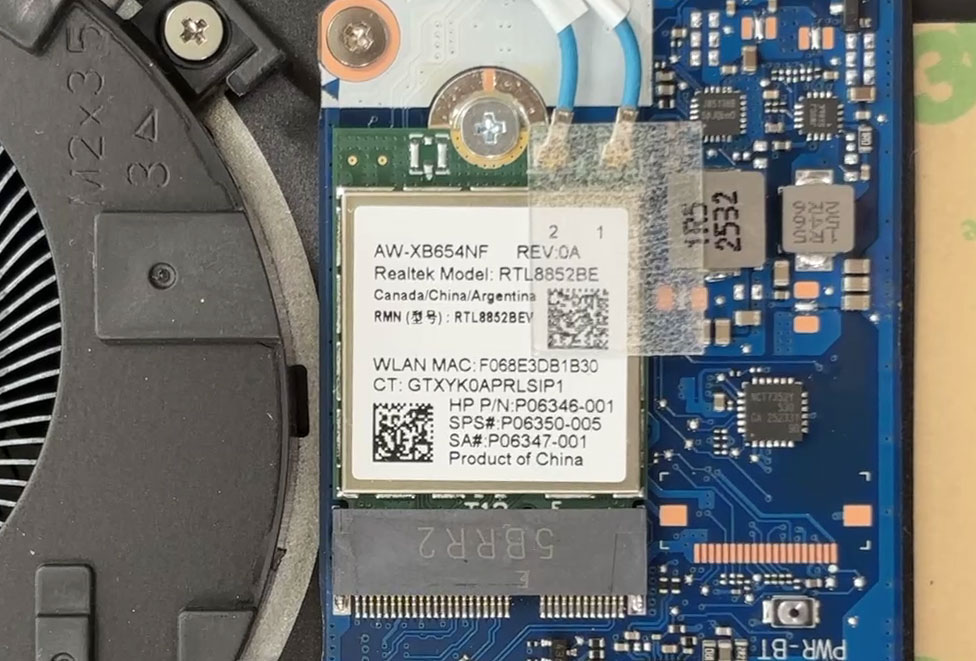
More info: The Wi-Fi card is replaceable. Our reviewed unit uses a Realtek RTL8852BE module with Wi-Fi 6 support, mounted in a standard small M.2 wireless slot with two antenna cables.
More info: The CPU and GPU are soldered to the motherboard and cannot be upgraded. The practical serviceable parts are the two memory slots, two M.2 SSD positions, Wi-Fi card, battery, and cooling fans.
HP Victus 15 (15z-fb2000, fb3000) in-depth review
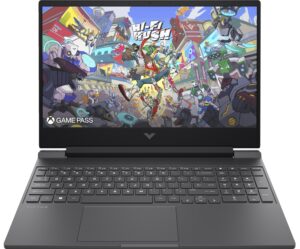
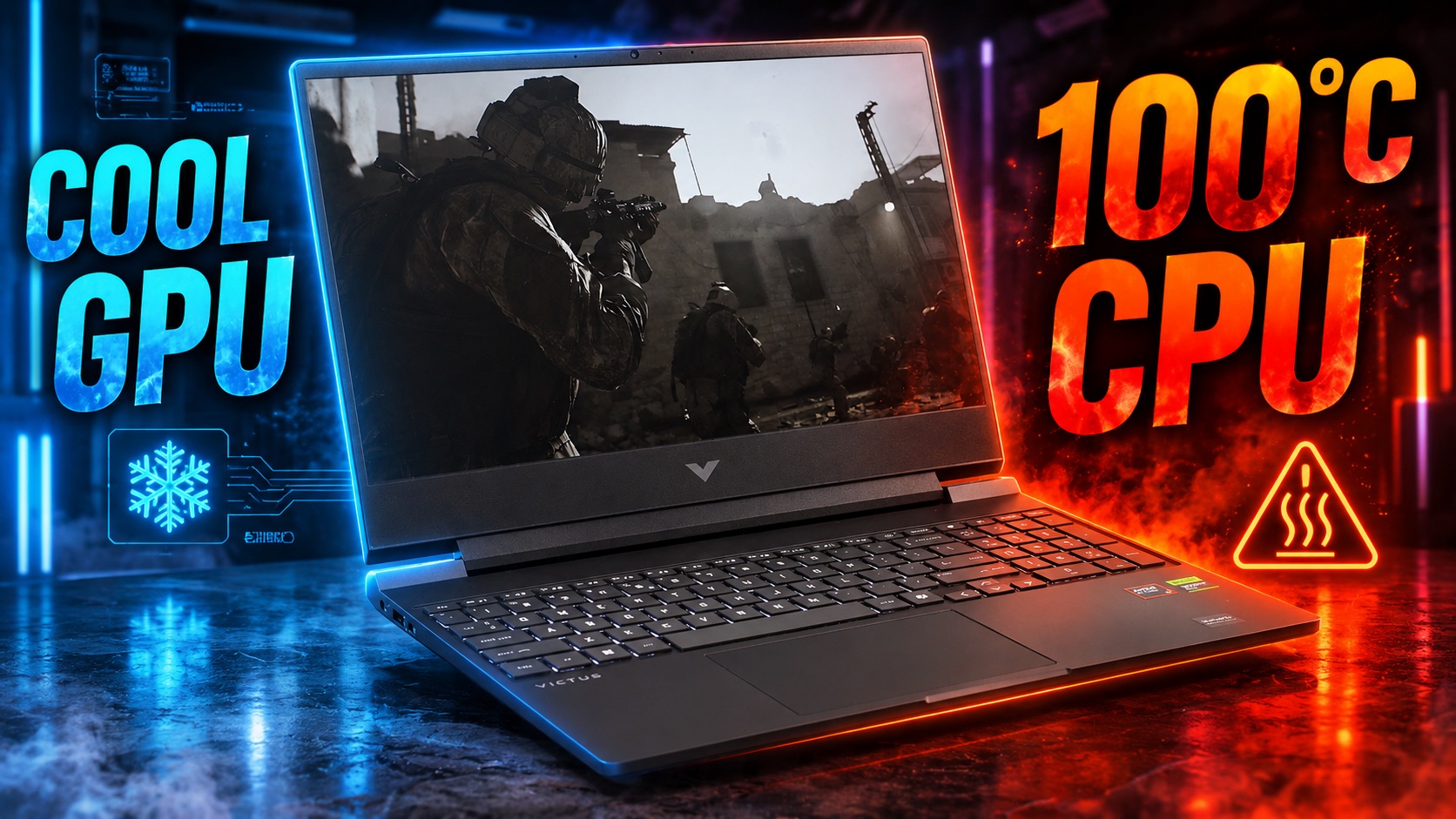
The HP Victus 15 (15-fb3000) occupies a unique space in the crowded budget gaming market. With its mature, understated "Shadow Black" design, it successfully hides its gaming DNA, making it a perfect fit for a quiet office or a minimalist dorm room. But don't mistake its subtle looks for weakness. Beneath the chassis, it’s built to deliver solid frame rates for competitive esports and AAA titles without the "gamer tax" often found on more expensive rigs. However, our testing uncovered a significant paradox: while it excels at keeping the GPU cool and stable, the CPU is pushed to its abso[...]
Pros
- Excellent GPU thermal management keeps gaming performance stable
- Stealthy, professional design with a fingerprint-resistant finish
- Fantastic upgradeability with two RAM and two M.2 slots
- Completely PWM-free display is great for eye comfort
- Comfortable keyboard featuring a full-sized NumPad
Cons
- CPU runs very hot (100°C) under sustained load
- Display has very poor color coverage (57% sRGB)
- Cramped, half-height arrow keys
 Author: Dimitar Stalev

![[May 2026] Global Ranking of Best-Selling Laptop GPUs on Amazon – Apple Dominates with 45% Share, Sweeps Top 3 Spots; NVIDIA’s RTX 5060 Leads the Dedicated GPU Pack](https://laptopmedia.com/wp-content/uploads/2026/06/Best-Selling-GPUs-GLOBAL-Top-10-400x225.jpg)
![[May 2026] Global Ranking of Best-Selling Laptop CPUs on Amazon – Apple Crushes Competition with 45.2% Market Share, M5 Dominates](https://laptopmedia.com/wp-content/uploads/2026/06/Best-Selling-CPUs-GLOBAL-Top-10-400x225.jpg)
![[May 2026] Amazon Germany: Top 7 Best-Selling Gaming Laptops – Lenovo Legion 5i Crowned Champion Amidst Fierce Mid-Range Competition](https://laptopmedia.com/wp-content/uploads/2026/06/Best-Selling-Gaming-Laptops-DE-Top-10-1-400x225.jpg)
![[May 2026] Amazon Italy: Top 10 Best-Selling Laptops – Apple MacBook Neo Reigns Supreme, Premium Models Capture Dominant Revenue Share](https://laptopmedia.com/wp-content/uploads/2026/06/Best-Selling-Laptops-IT-Top-10-400x225.jpg)