How to open Lenovo ThinkPad T14 Gen 4 – disassembly and upgrade options
Step 1: Accessing the Internal Components
- Ensure the Lenovo ThinkPad T14 Gen 4 is powered off and placed on a soft, clean surface to prevent scratches or damage.
- Unscrew the 7 captive Phillips-head screws from the bottom of the laptop.
- Pry the bottom panel off starting from one of the upper two corners with a plastic tool.
Hint: Be gentle during this process to avoid damaging the internal clips or the laptop casing.
Step 2: Removing the Battery
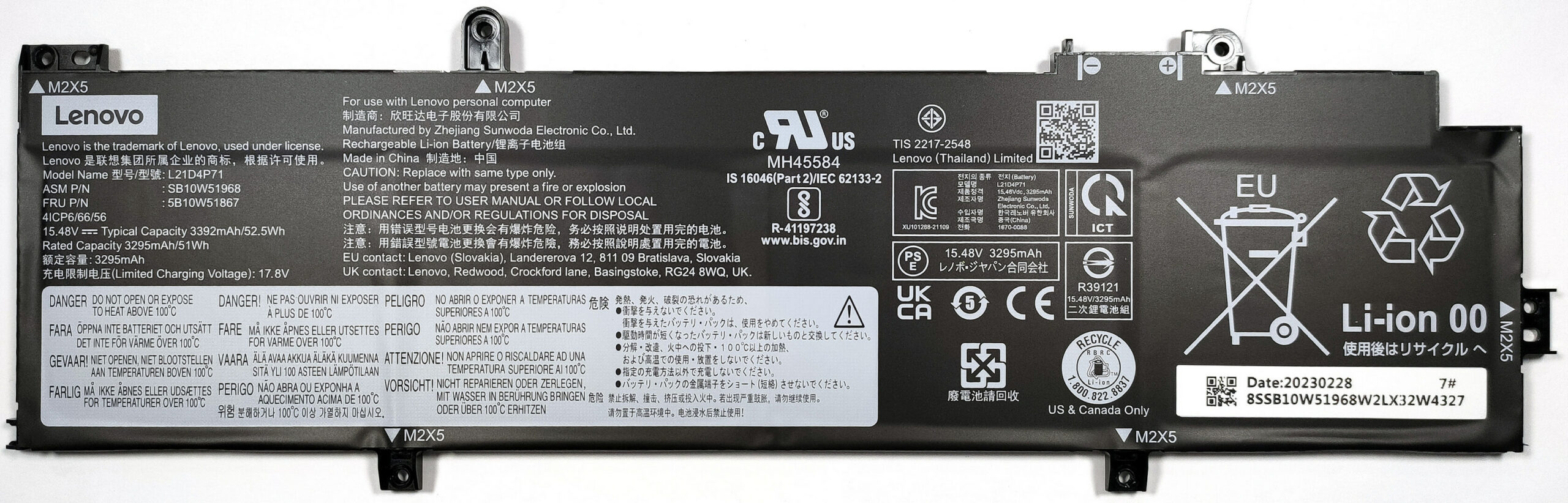
- Wear gloves to safely disconnect the built-in battery connector to avoid short-circuiting.
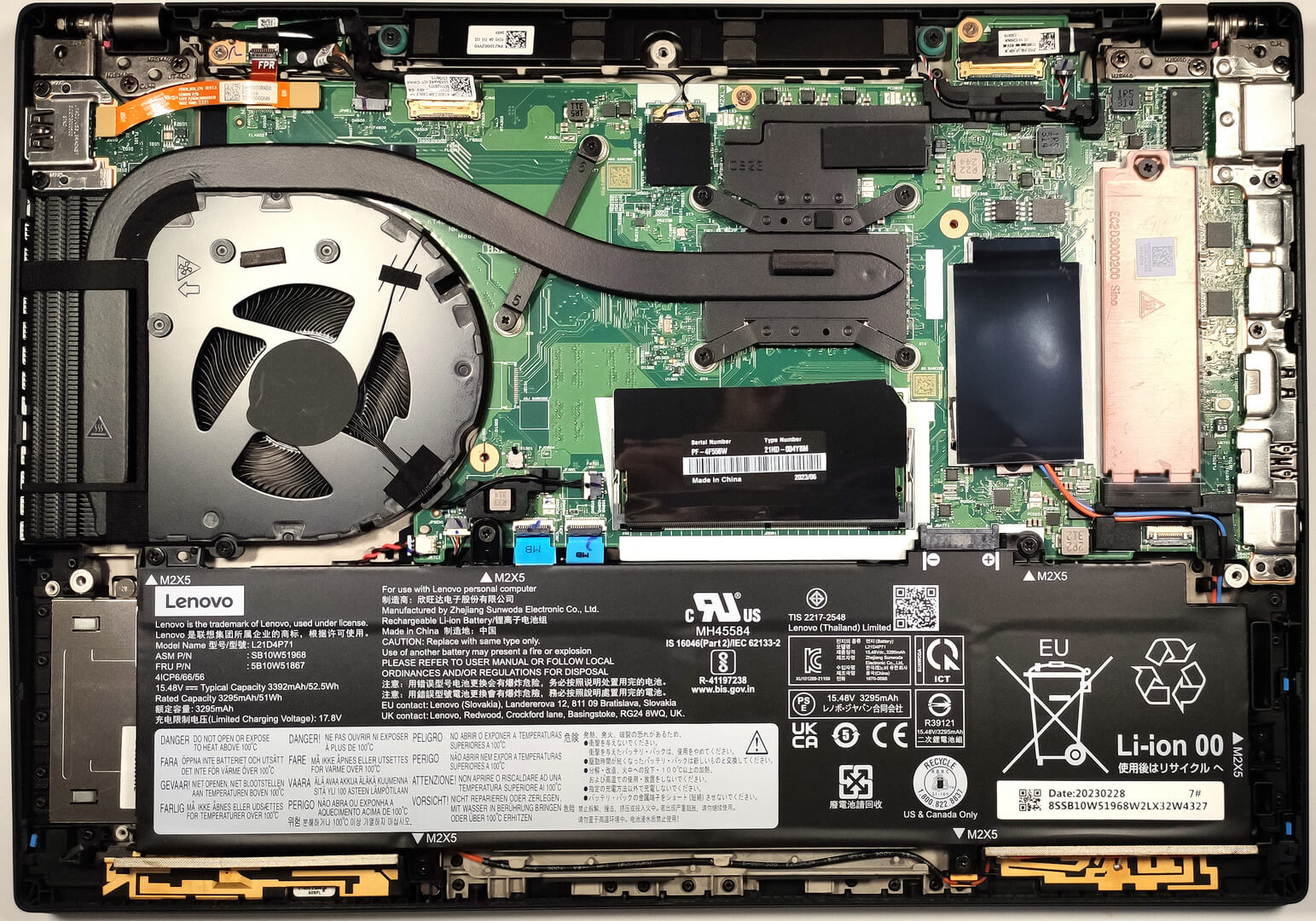
- Remove the 6 Phillips-head screws securing the battery to the laptop’s chassis, then lift the optional 52.5Wh battery away from the device.
Caution: Handle the battery and its connector with care to avoid any damage.
More info: The 52.5Wh battery provides up to 11 hours and 7 minutes of web browsing or 7 hours and 42 minutes of video playback, offering good battery life.
Memory Upgrade
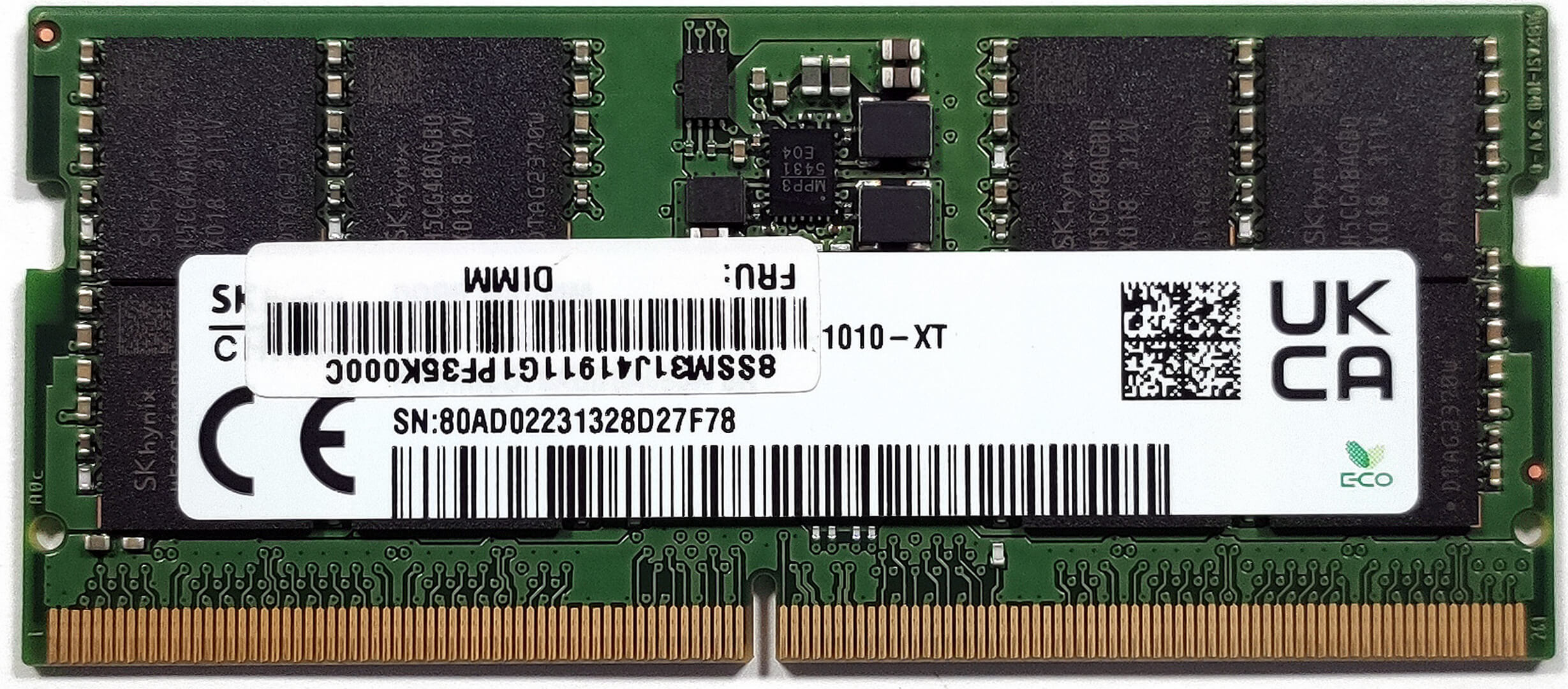
- Identify the memory configuration of your device. iGPU-only devices have one SODIMM slot plus soldered memory, while dGPU models have soldered memory only.
- For DDR4 models, add up to a 32GB DDR4-3200MHz stick to complement the 8GB of soldered memory. For DDR5 models, you can add up to 16GB DDR5-5600MHz RAM to complement the 16GB of soldered LPDDR5x-7500MHz memory.
Hint: Ensure compatibility and maximum performance by matching the memory speeds as closely as possible with the soldered RAM.
You can buy DDR4 RAM modules here: Amazon.com'dan satın al (#CommissionsEarned)
You can buy DDR5 RAM modules here: Amazon.com'dan satın al (#CommissionsEarned)
Storage Upgrade
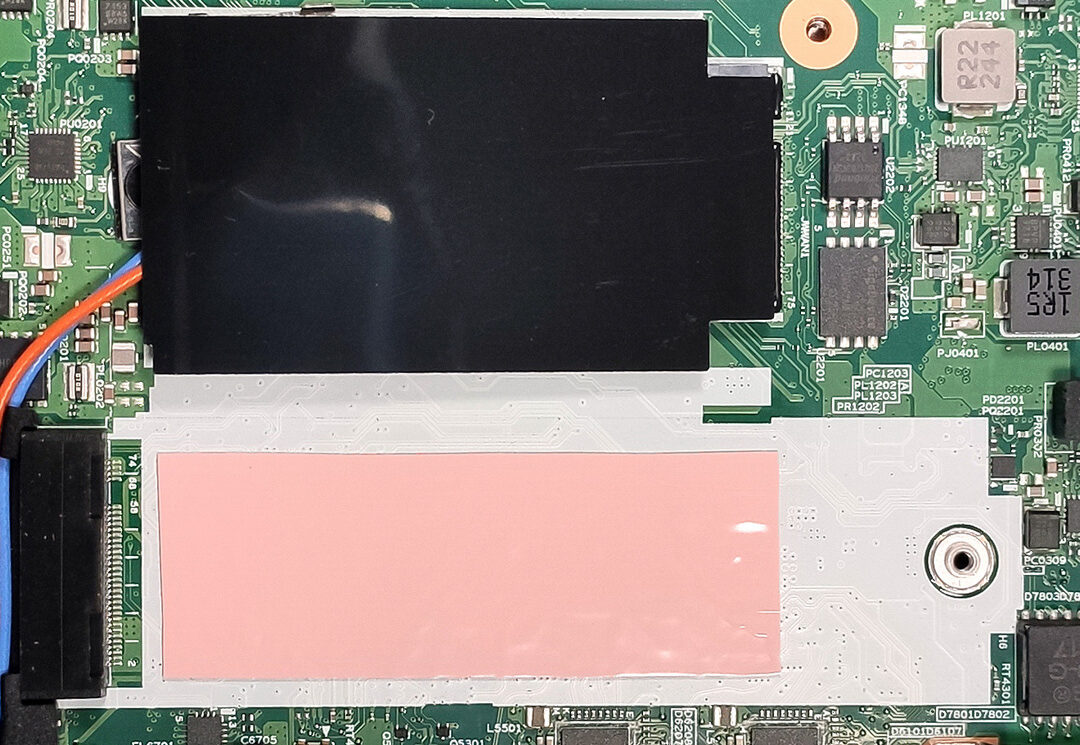
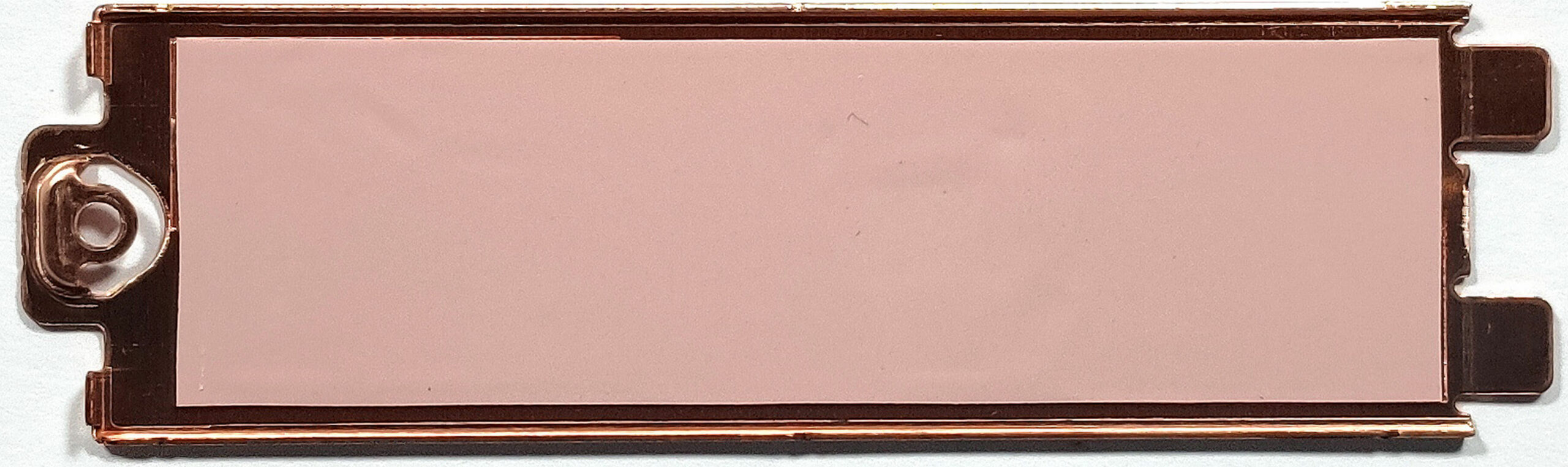
- Locate the M.2 slot compatible with 2280 Gen 4 SSDs. Note the presence of a metal shroud with a thermal pad on the inside for cooling.
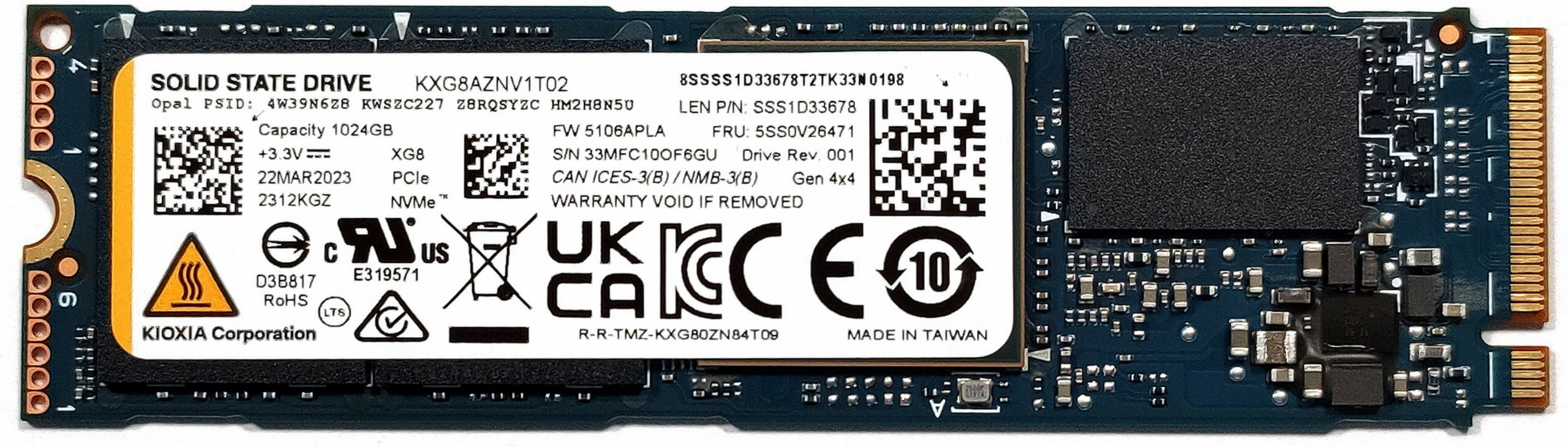
- Upgrade the storage by installing a new NVMe SSD, taking advantage of the additional cooling pad on the motherboard beneath the SSD for optimal thermal management.
- Choose and purchase a new drive when needed. Don’t forget to check out our Top M.2 SSDs Performance Rankings.
You can buy Gen 4 M.2 SSD modules here: Amazon.com'dan satın al (#CommissionsEarned)
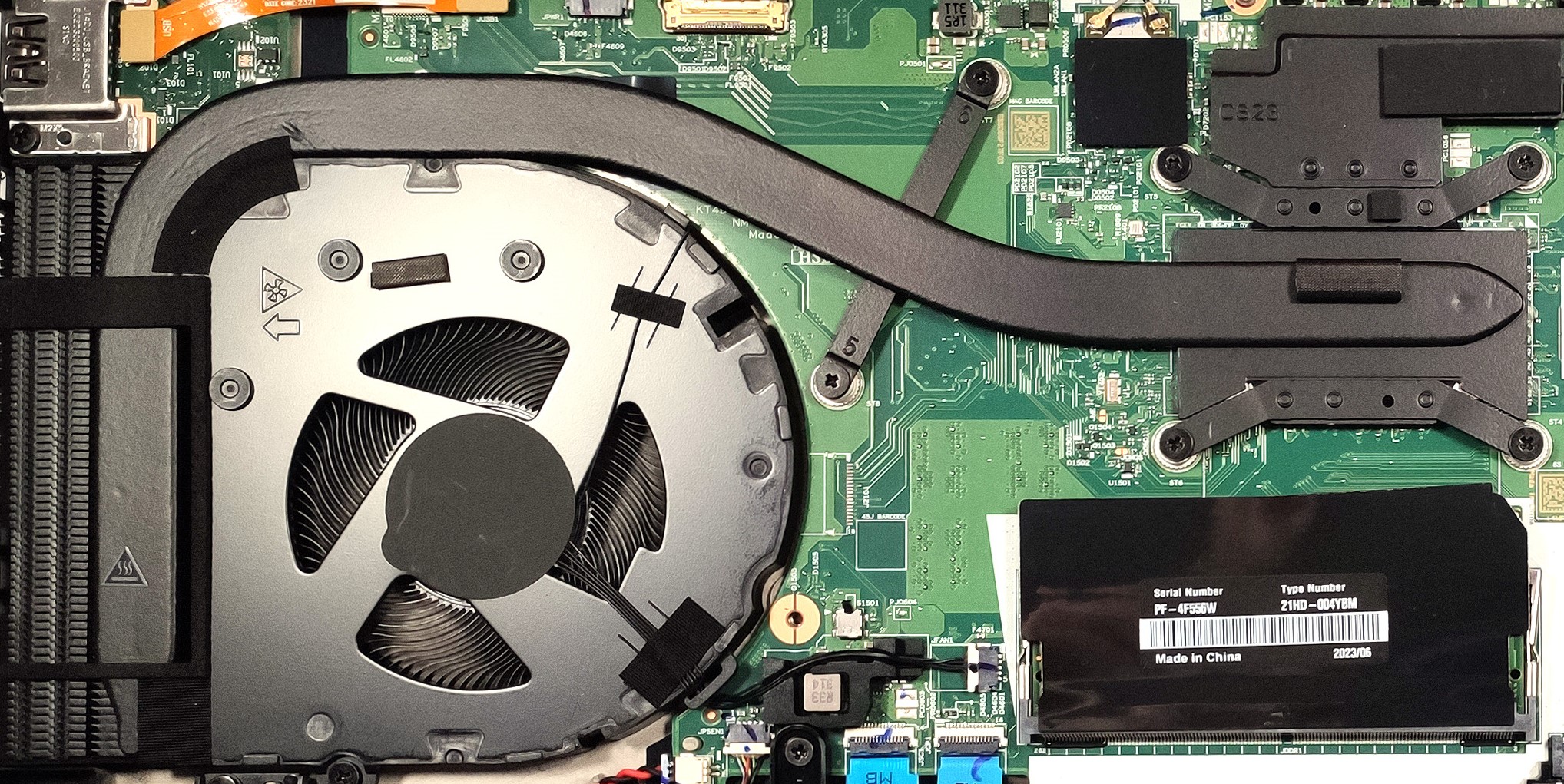
Examining the Cooling System
Inspect the cooling system, which includes one fan, a heat pipe, one heat sink, and a heat spreader, designed to efficiently manage the thermal output of the device.
 Author: Anna Iorgova

![[Ağustos 2026] Amazon’da En Çok Satan Dizüstü Bilgisayar GPU’larının Küresel Sıralaması – Apple Liderliğini Sürdürüyor, NVIDIA’nın RTX 5060 Modeli Özel GPU Sıralamasında Zirvede](https://laptopmedia.com/wp-content/uploads/2026/09/Best-Selling-GPUs-GLOBAL-Top-10-400x225.jpg)
![[Ağustos 2026] Amazon’da En Çok Satan Dizüstü Bilgisayar İşlemcilerinin Küresel Sıralaması – Apple Hem Ekonomik Hem de Üst Sınıf Segmentte Hakimiyet Kuruyor: A18 Pro ve M5, Ağustos 2026’da Intel ve AMD’yi Geride Bıraktı](https://laptopmedia.com/wp-content/uploads/2026/09/Best-Selling-CPUs-GLOBAL-Top-10-400x225.jpg)
![[Ağustos 2026] Amazon Global: En Çok Satan 10 Dizüstü Bilgisayar – Apple MacBook Neo Listelerin Zirvesinde Yer Alırken, Ekonomik ve Orta Sınıf Windows Dizüstü Bilgisayarlar Satış Hacmi İçin Rekabet Ediyor](https://laptopmedia.com/wp-content/uploads/2026/09/Best-Selling-Laptops-GLOBAL-Top-10-400x225.jpg)
![[Ağustos 2026] Amazon Global’de En Çok Satan Dizüstü Bilgisayar Markaları – Apple Gelirde Liderken, HP Model Çeşitliliği Konusunda Önde](https://laptopmedia.com/wp-content/uploads/2026/09/GLOBAL-Best-Brands-400x225.jpg)
![[Ağustos 2026] Amazon Global: En Çok Satan 10 Oyun Dizüstü Bilgisayarı – HP Victus 15 Birinci Sırayı Aldı; Listeyi Uygun Fiyatlı Modeller Hakimiyetine Aldı](https://laptopmedia.com/wp-content/uploads/2026/09/Best-Selling-Gaming-Laptops-GLOBAL-Top-10-400x225.jpg)