How to open Acer Aspire 15 (A15-41M) – disassembly and upgrade options
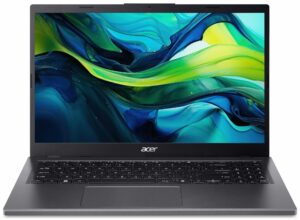
Opening the Device
- Undo the 11 Phillips-head screws securing the bottom panel.
- Pop the top two corners with a thin plastic tool, then pry the sides, the front, and the back to remove the bottom panel.
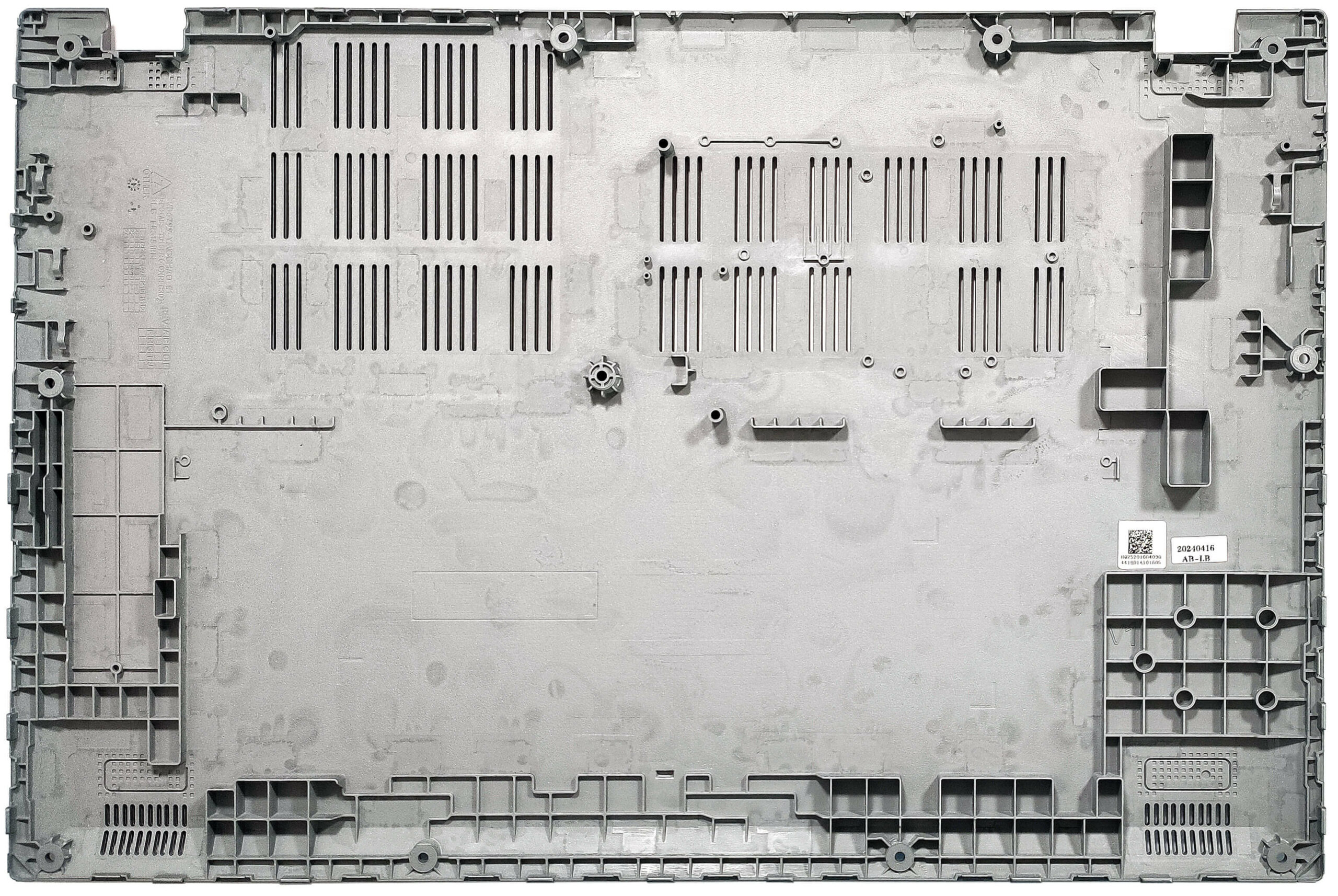
More info: Here’s how the bottom panel looks on the inside.
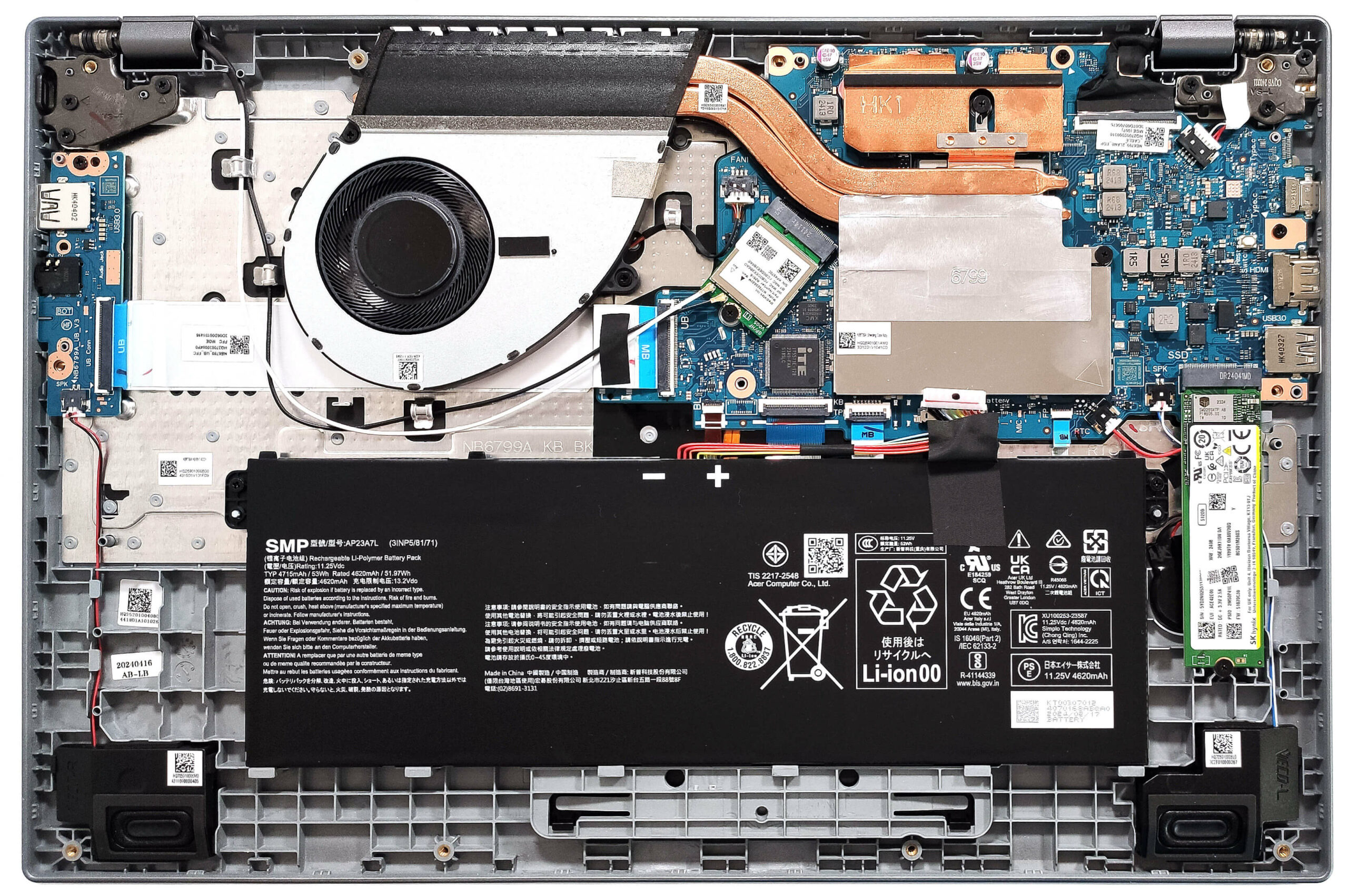
Battery Removal
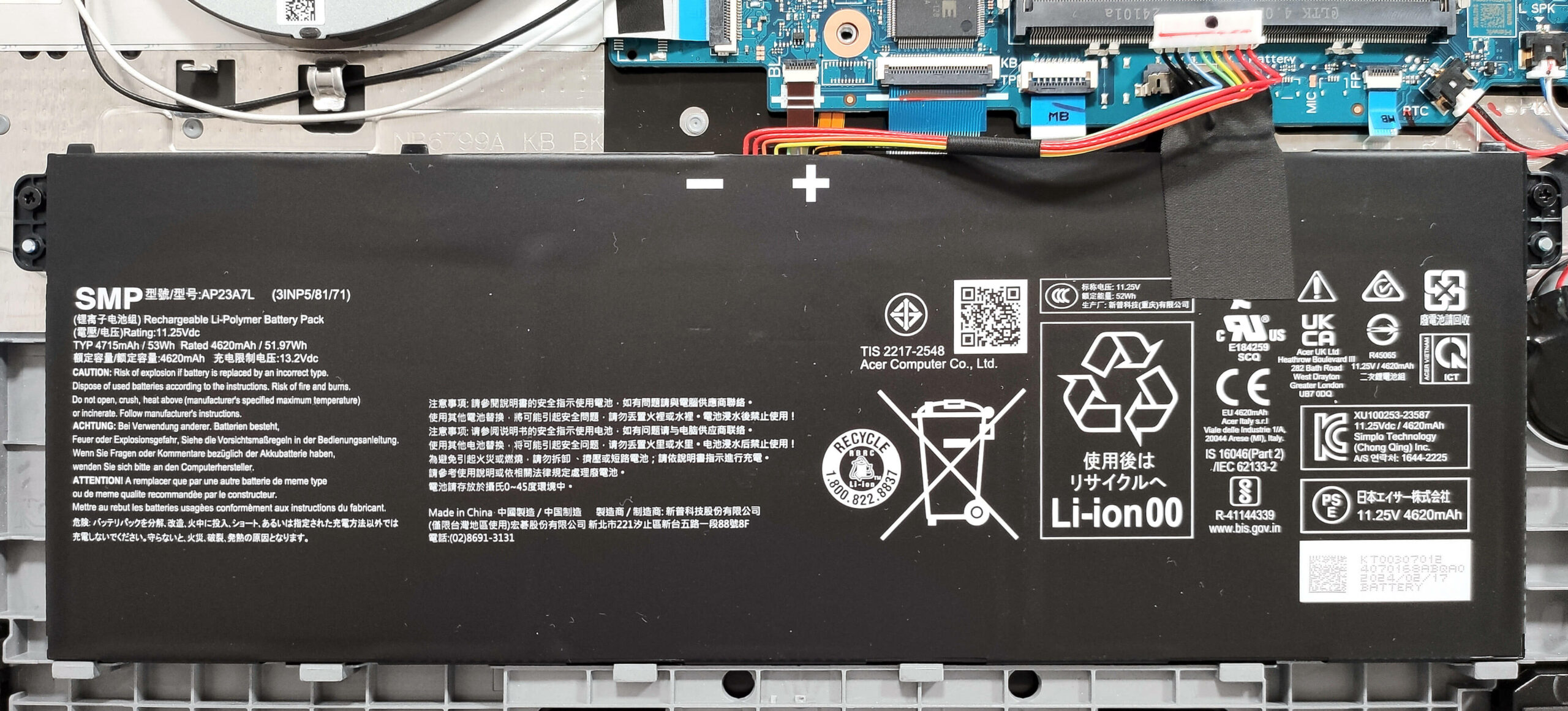
- Unplug the battery connector from the motherboard.
- Undo the two Phillips-head screws securing the battery.
- Lift the battery to remove it from the device.
Note: The laptop uses a 53Wh battery, providing approximately 8.5 hours of video playback.
Memory Information
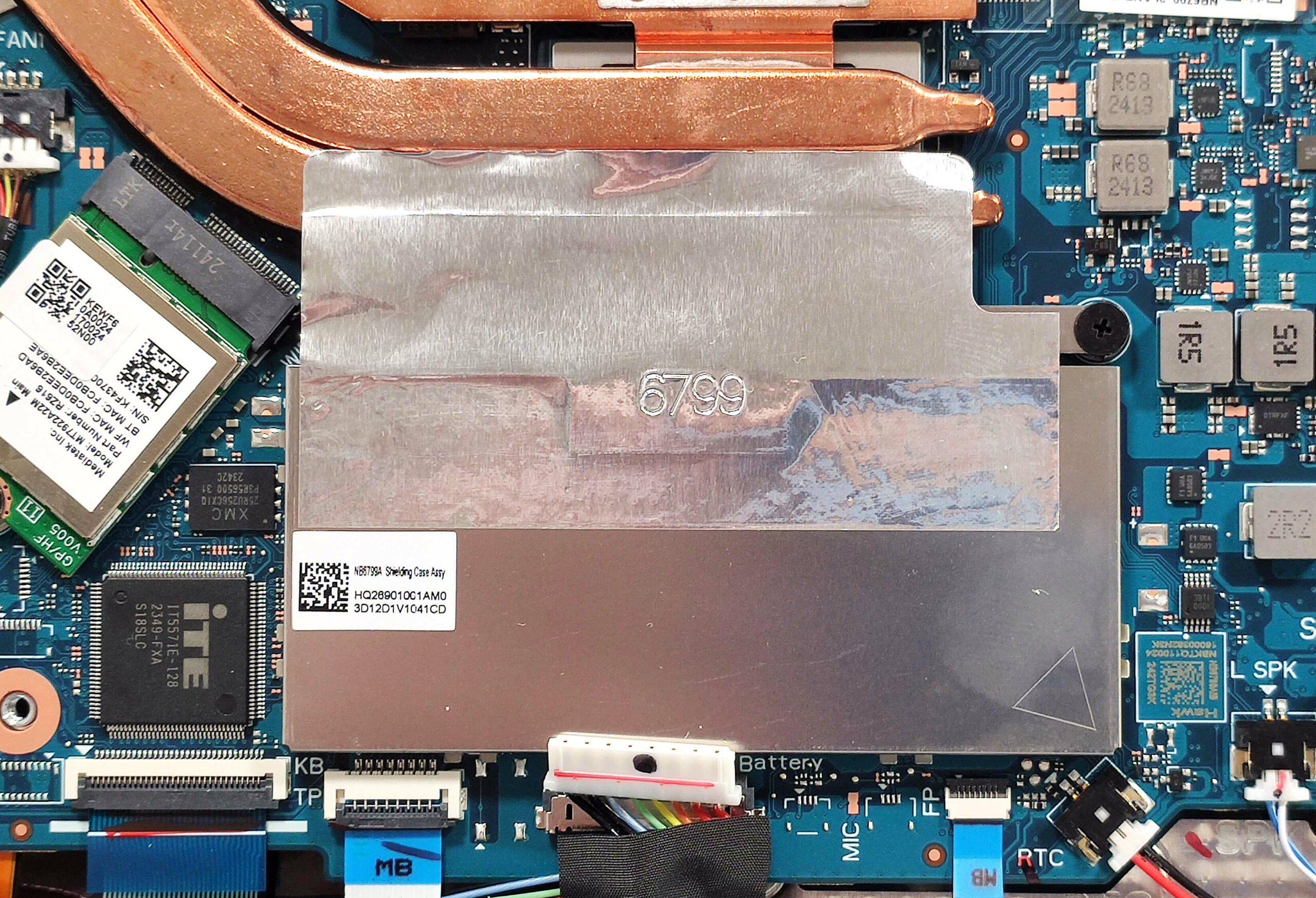
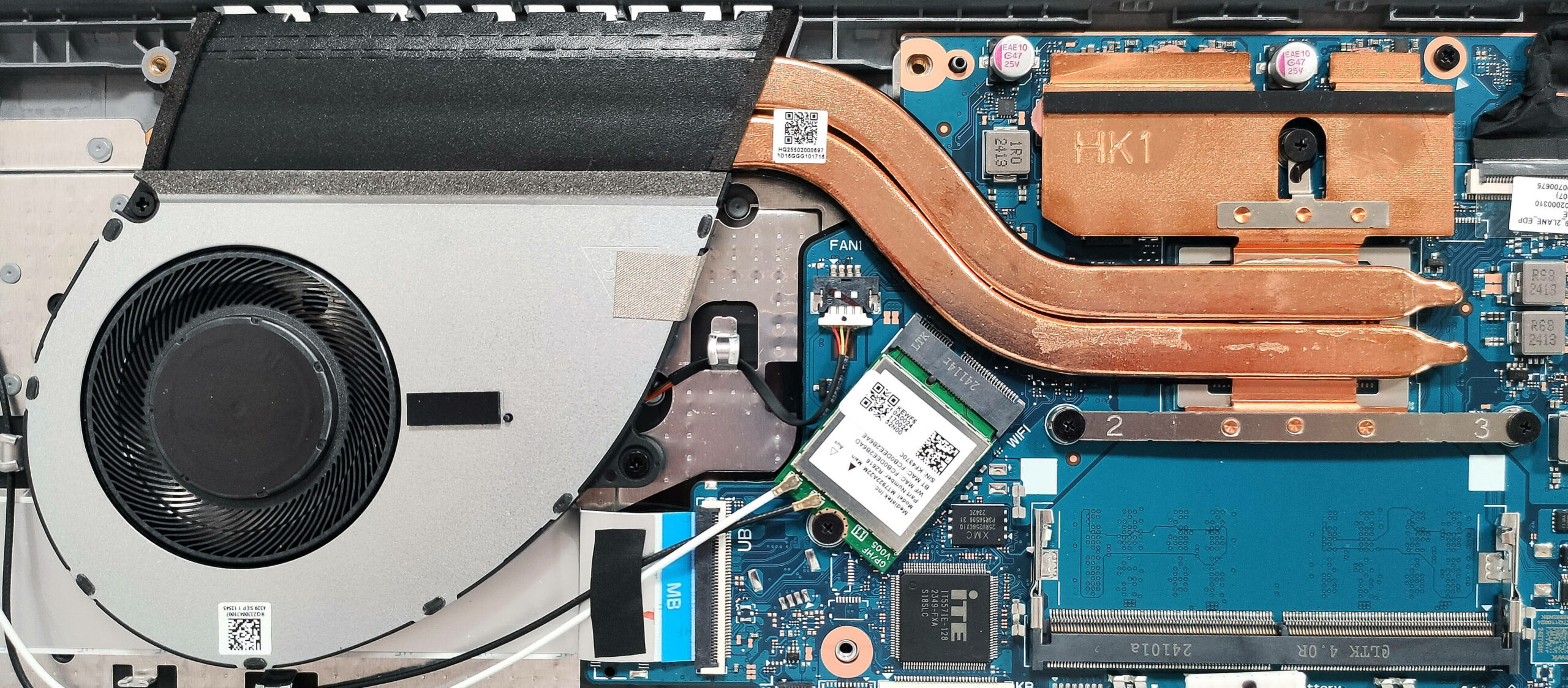
- The memory zone is covered with a metal cap, which you can lift with a lever tool.
- All devices come with 8GB of soldered RAM.
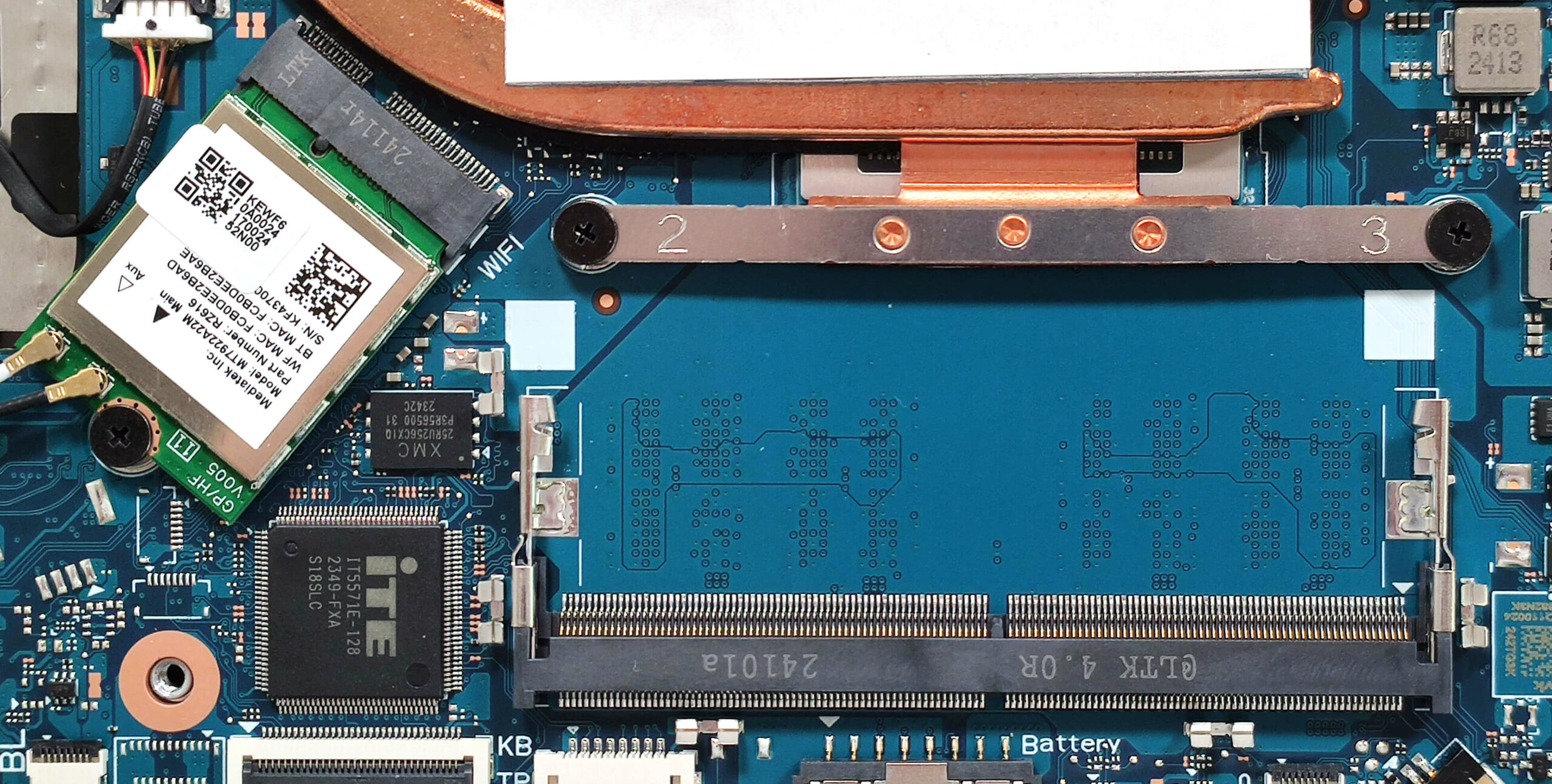
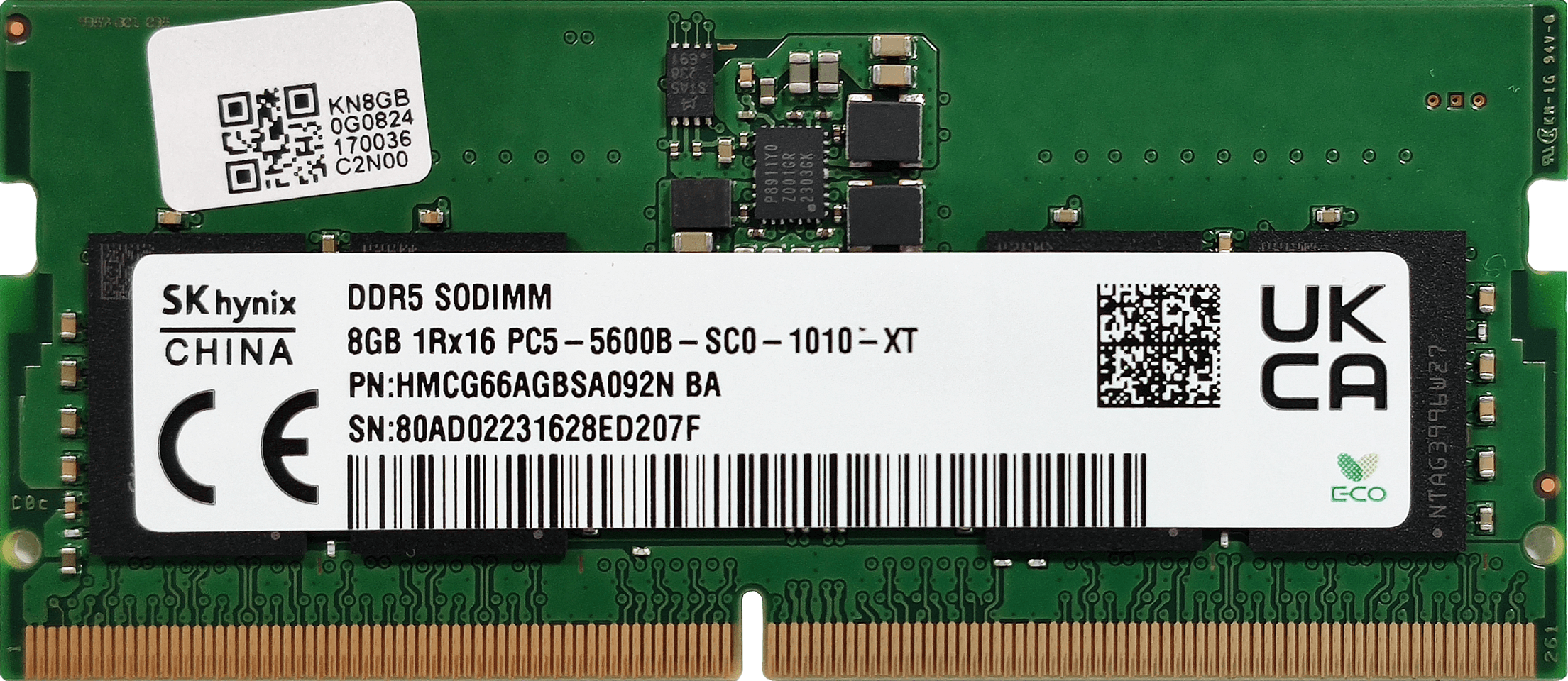
- There is also a SODIMM slot for dual-channel mode, which supports up to 8GB DDR5-5600MHz RAM sticks according to Acer. However, since the Zen 4 CPU can support up to 256GB, the laptop likely wouldn’t have issues running more than the official manufacturer’s specified limit.
Note: The Wi-Fi card is located on the left side of the motherboard.
You can buy compatible RAM modules here: Buy from Amazon.com (#CommissionsEarned)
Storage Upgrade
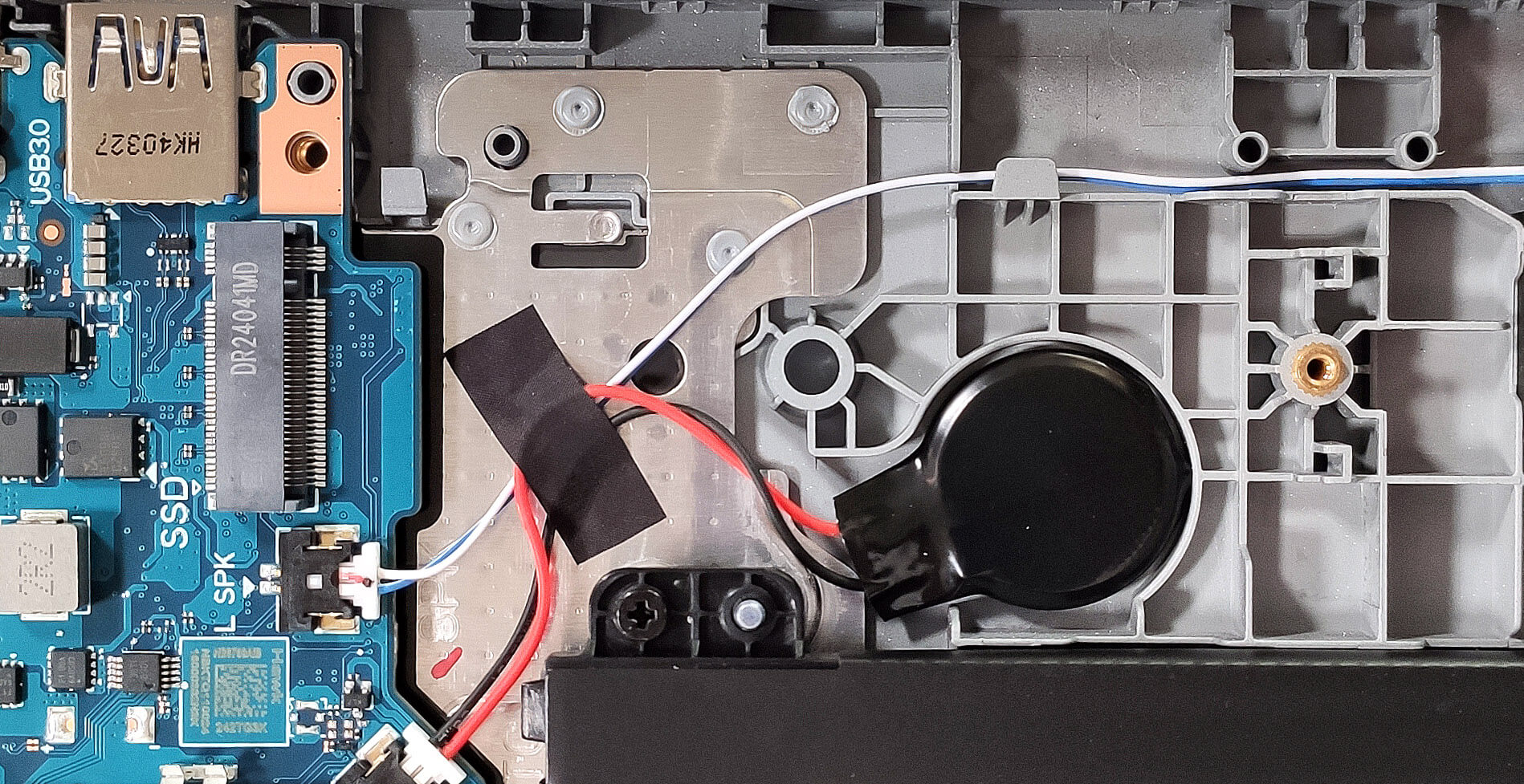
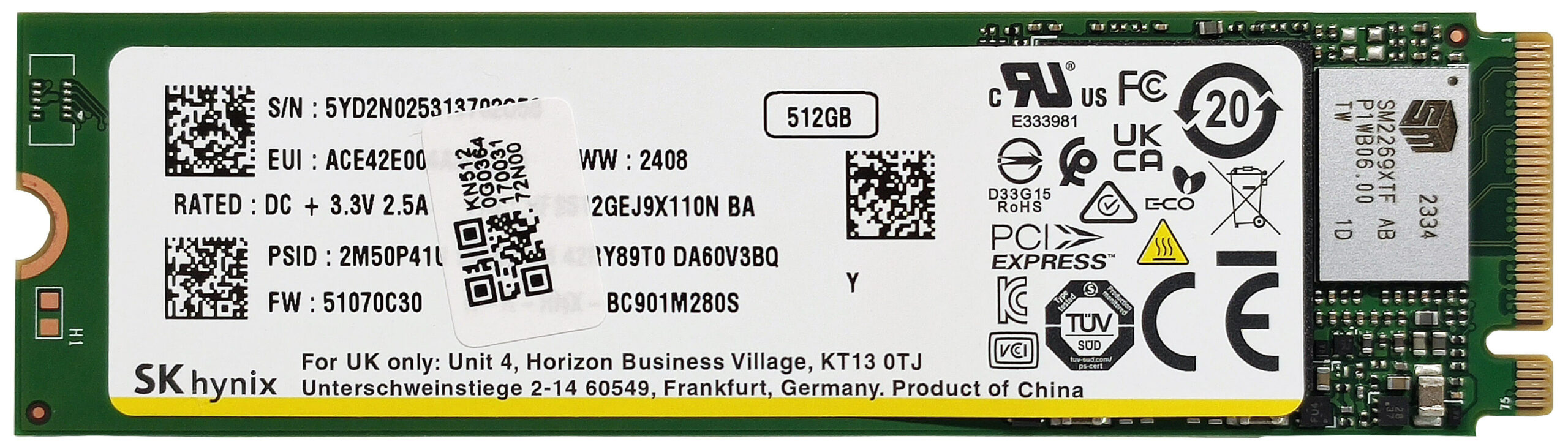
- Locate the single M.2 slot compatible with 2280 Gen 4 SSDs.
- Remove the preinstalled SSD, if any, and the thermal pad beneath it, if present.
- Install the new SSD in the slot.
Hint: Don’t forget to check out our Top M.2 SSDs Performance Rankings for insights on the best storage options available.
You can buy compatible SSDs here: Buy from Amazon.com (#CommissionsEarned)
Cooling System Overview
- The cooling system includes one fan, two heat pipes, one top-mounted heat sink, and a heat spreader.
- Ensure all cooling components are clean and free of dust for optimal performance.
Acer Aspire 15 (A15-41M) in-depth review
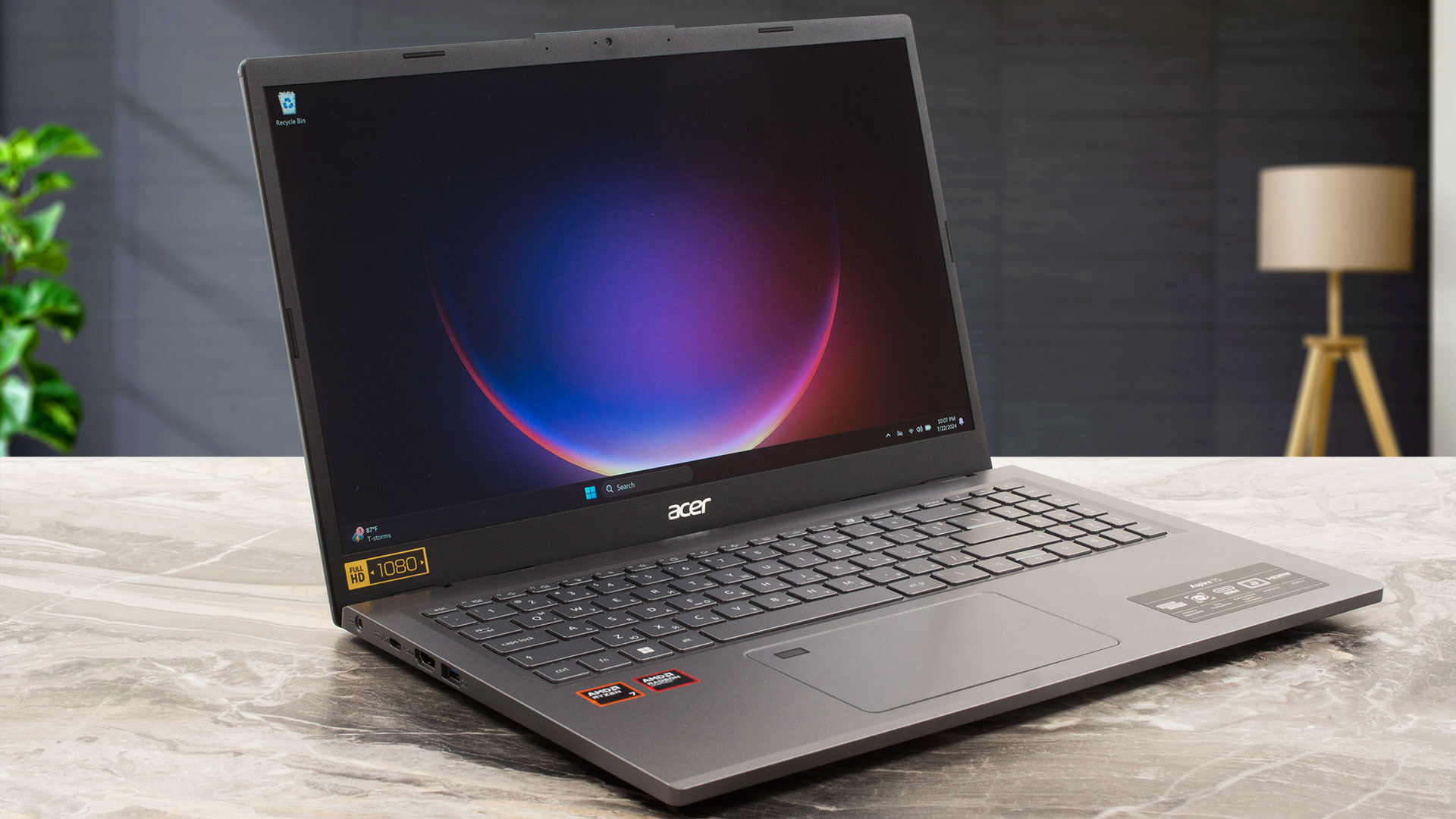
According to the manufacturer, the Aspire 15 (A15-41M) is meant "to manage a wide range of tasks with ease". That's true only if you pick a laptop with a more powerful processor than the base one which is the 4-core Ryzen 3 7335U (Zen 3+ Rembrandt-U Refresh). Since this machine is also offered with Zen 4 Hawk Point-HS chips, we decided to buy a notebook with the top CPU for this Acer series which is the 8-core 28W Ryzen 7 8840HS. This one will put to a serious test the modest cooling system that has just one fan.Part of the memory is soldered but on the bright side, you get a SODIMM for me[...]
Pros
- Long battery life considering the modest 53Wh capacity - 8 hours and a half of video playback
- Decent keyboard and touchpad
- Well priced
- Decently solid build
- Metal lid with a lever design
- Light for a 15-incher (1.65 kg)
- PWM-free (CMN1561)
- Wide viewing angles (CMN1561)
- Decent port selection for the class with a USB4 and an HDMI 2.1
- Wi-Fi 6E + Bluetooth 5.3
- The fan isn't noisy during full loads
- The Ryzen 7 8840HS can maintain ~3.40 GHz clock in long CPU loads
- Decently fast NVMe (512GB SK Hynix HFS512GEJ9X110N)
- SODIMM slot for memory in dual-channel mode
- 1080p@60FPS Web camera
Cons
- Part of the RAM is soldered + just one M.2 slot
- Low sRGB coverage (CMN1561)
 Author: Severin Kolakov

![[June 2026] Best-Selling Laptop Brands on Amazon Global – Apple’s Unrivaled Dominance in Units and Revenue](https://laptopmedia.com/wp-content/uploads/2026/07/GLOBAL-Best-Brands-400x225.jpg)
![[June 2026] Amazon Global: Top 10 Best-Selling Laptops – Apple’s New MacBook Neo Storms to #1, Reshaping the Market with Affordability](https://laptopmedia.com/wp-content/uploads/2026/07/Best-Selling-Laptops-GLOBAL-Top-10-400x225.jpg)
![[June 2026] Amazon Global: Top 10 Best-Selling Gaming Laptops – Acer’s Nitro V 16S AI Dominates Sales, While ASUS Leads Overall Revenue](https://laptopmedia.com/wp-content/uploads/2026/07/Best-Selling-Gaming-Laptops-GLOBAL-Top-10-400x225.jpg)
![[June 2026] Global Ranking of Best-Selling Laptop GPUs on Amazon – NVIDIA RTX 5060 is the Top-Selling Dedicated GPU](https://laptopmedia.com/wp-content/uploads/2026/07/Best-Selling-GPUs-GLOBAL-Top-10-400x225.jpg)
![[June 2026] Global Ranking of Best-Selling Laptop CPUs on Amazon – Apple M5 Dominates, AMD Ryzen 7 260 Gets Solid Premium Share](https://laptopmedia.com/wp-content/uploads/2026/07/Best-Selling-CPUs-GLOBAL-Top-10-400x225.jpg)