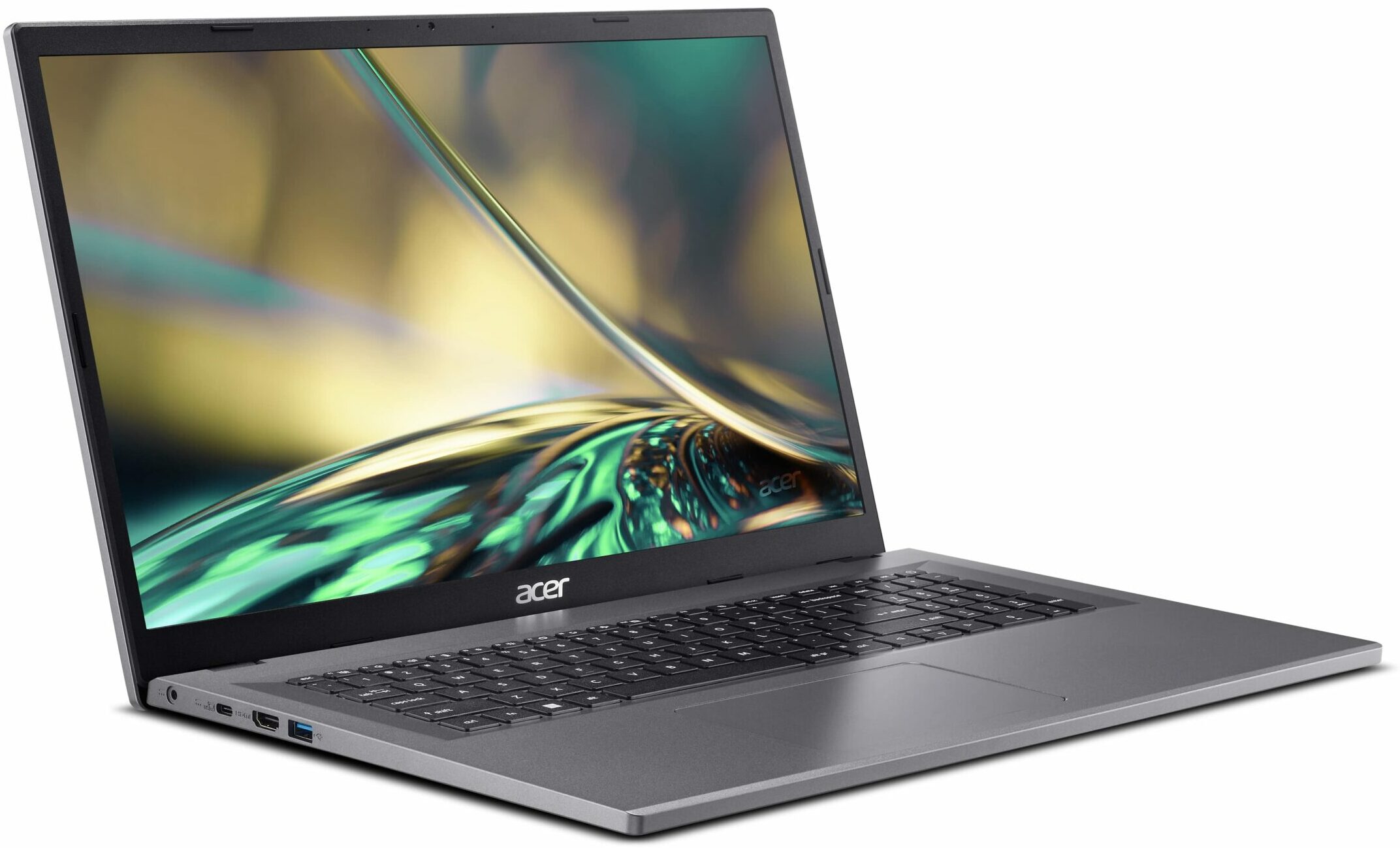
Acer Aspire 3


- Date Published: 24 Jul 2025
- Intel Processor N100
- Intel UHD Graphics Xe (24EU)
- 17.3”, HD+ (1600 x 900), TN
- 128GB SSD
- 4GB RAM
- 2.10 kg (4.6 lbs)
Review
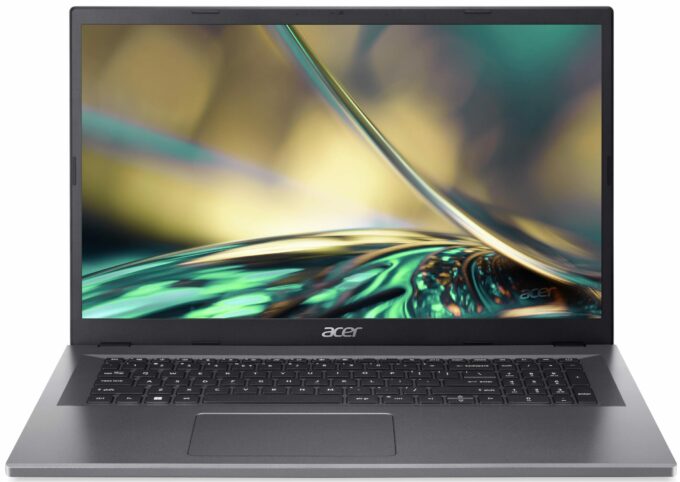
Acer Aspire 3 in-depth review
The modern-day user is comfortably spoiled by a large variety of new devices that offer OLED displays, great upgradability, per-key RGB keyboards, top-of-the-line hardware, and much more. What about if you don't need all these things and just want to get a normal machine for light daily tasks? The Acer Aspire 3 (A317-55P) is an affordable big-screen laptop that could be the right choice for many users seeking something on a budget (if you pick it with the right hardware for your needs). Yes, some of the notebooks are configured with a 6W 4-core CPU, 4GB of RAM, eMMC storage, and a pity old-school 900p TN panel - avoid these devices like the plague since their performance isn't up to modern standards at all.On the other hand, we bought a maxed-out version of the A317-55P with a 1080p IP[...]
Read the full review
Pros
- Long battery life given the modest capacity of 53Wh - around 8 hours of videos
- Decent input devices
- Well-priced notebook
- Decent chassis rigidity
- Lid with a lever design
- Relatively light and thin for a 17.3-incher (2.1 kg / 19.9 mm)
- PWM-free (BOE084E)
- Wide viewing angles and + 317 nits of max brightness (BOE084E)
- Decent I/O for the price
- Wi-Fi 6 + Bluetooth 5.1
- Optional fingerprint reader
- Good comfort under full loads
- The Core i3-N305 can sustain ~3.00 GHz clock in short loads
- SSD with TLC memory (Micron 2450 MTFDKBA512TFK)
Cons
- Some machines are configured with 4-core CPUs and eMMC storage
- Plastic build
- Low sRGB coverage (BOE084E)
- Soldered memory that works in a single-channel mode + just one M.2 slot
Disassembly, maintenance and upgrade options
Opening the DeviceUndo the 11 Phillips-head screws securing the bottom panel. Pop the top two corners with a thin plastic tool. Pry the back and then work your way around the sides and the front to remove the bottom panel.More info: Here's how the bottom panel looks on the inside.Battery RemovalUnplug the battery connector from the motherboard. Undo the two Phillips-head screws securing the battery. Lift the battery to remove it from the device.Note: The notebook has an optional 53Wh battery, with the base model having a 40Wh variant. The option[...]
Read more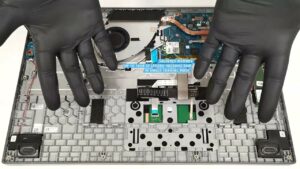


![[June 2026] Best-Selling Laptop Brands on Amazon Global – Apple’s Unrivaled Dominance in Units and Revenue](https://laptopmedia.com/wp-content/uploads/2026/07/GLOBAL-Best-Brands-400x225.jpg)
![[June 2026] Amazon Global: Top 10 Best-Selling Laptops – Apple’s New MacBook Neo Storms to #1, Reshaping the Market with Affordability](https://laptopmedia.com/wp-content/uploads/2026/07/Best-Selling-Laptops-GLOBAL-Top-10-400x225.jpg)
![[June 2026] Amazon Global: Top 10 Best-Selling Gaming Laptops – Acer’s Nitro V 16S AI Dominates Sales, While ASUS Leads Overall Revenue](https://laptopmedia.com/wp-content/uploads/2026/07/Best-Selling-Gaming-Laptops-GLOBAL-Top-10-400x225.jpg)
![[June 2026] Global Ranking of Best-Selling Laptop GPUs on Amazon – NVIDIA RTX 5060 is the Top-Selling Dedicated GPU](https://laptopmedia.com/wp-content/uploads/2026/07/Best-Selling-GPUs-GLOBAL-Top-10-400x225.jpg)
![[June 2026] Global Ranking of Best-Selling Laptop CPUs on Amazon – Apple M5 Dominates, AMD Ryzen 7 260 Gets Solid Premium Share](https://laptopmedia.com/wp-content/uploads/2026/07/Best-Selling-CPUs-GLOBAL-Top-10-400x225.jpg)