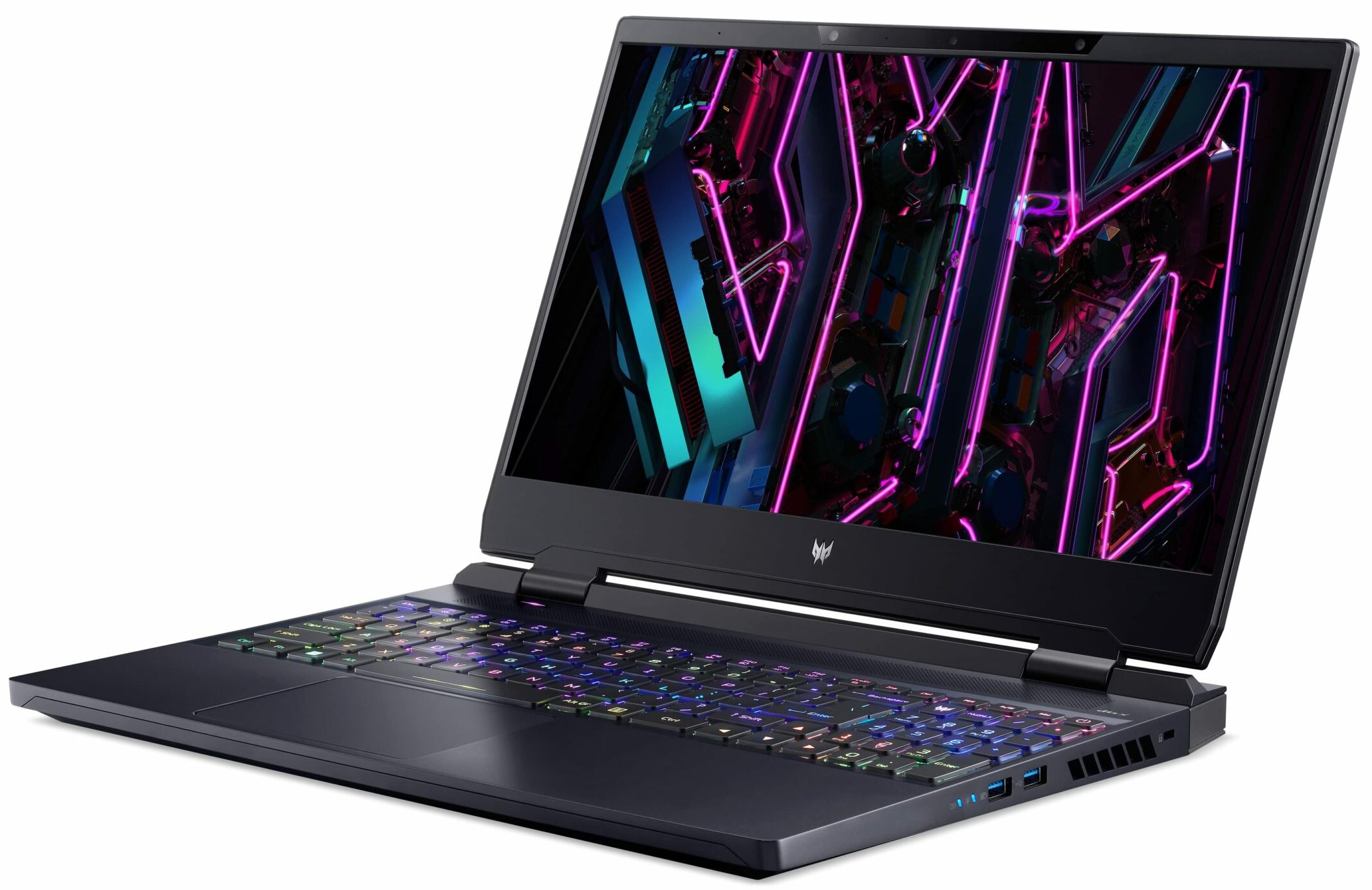
Acer Predator Helios 3D 15 SpartialLabs Edition

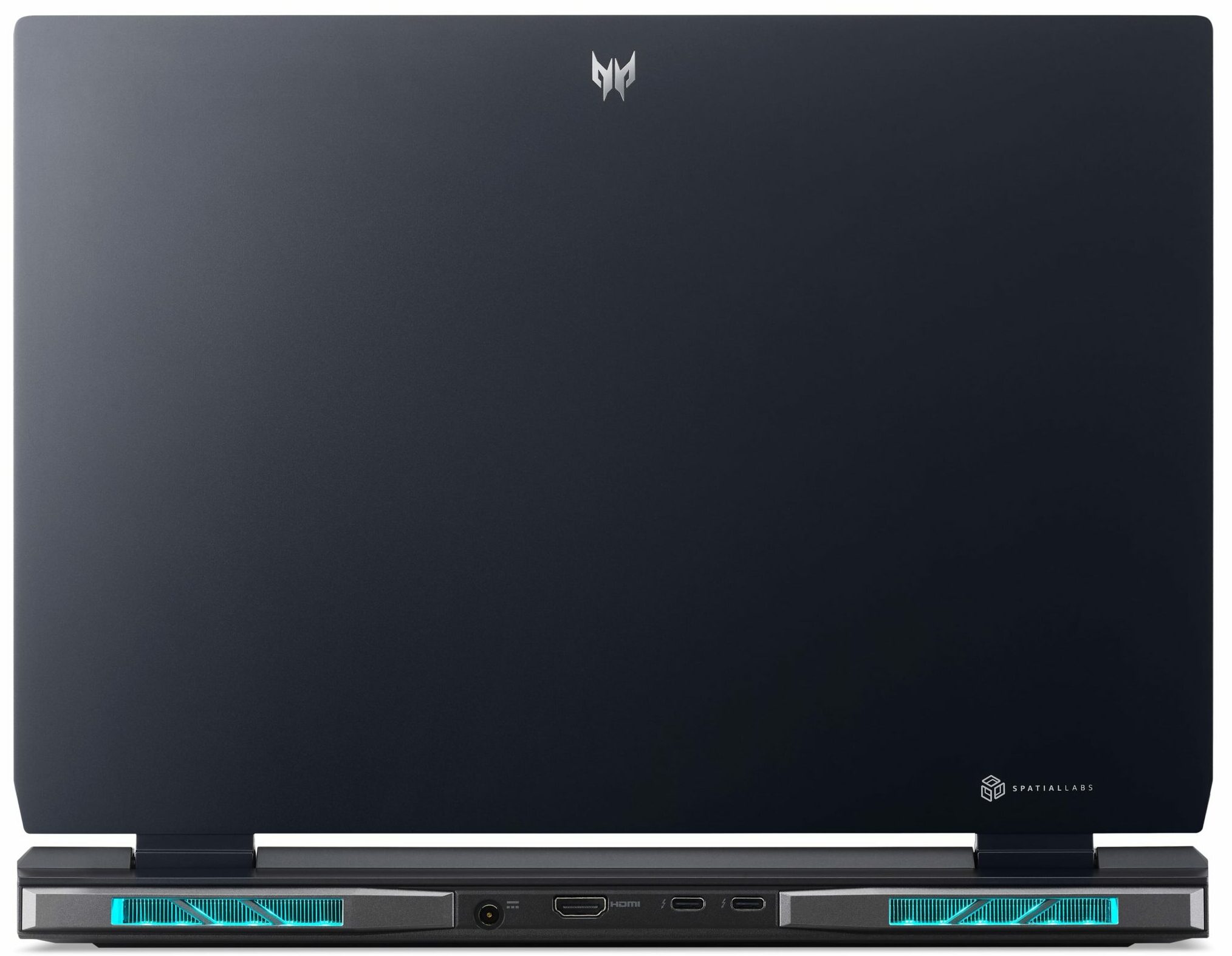

- Date Published: 21 Oct 2024
- Intel Core i9-13900HX
- NVIDIA GeForce RTX 4080 (Laptop, 175W)
- 15.6”, 4K UHD (3840 x 2160), IPS
- 2000GB SSD
- 40GB RAM
- 2.99 kg (6.6 lbs)

Specs
- Display

- HDD/SSD
- 2000GB SSD
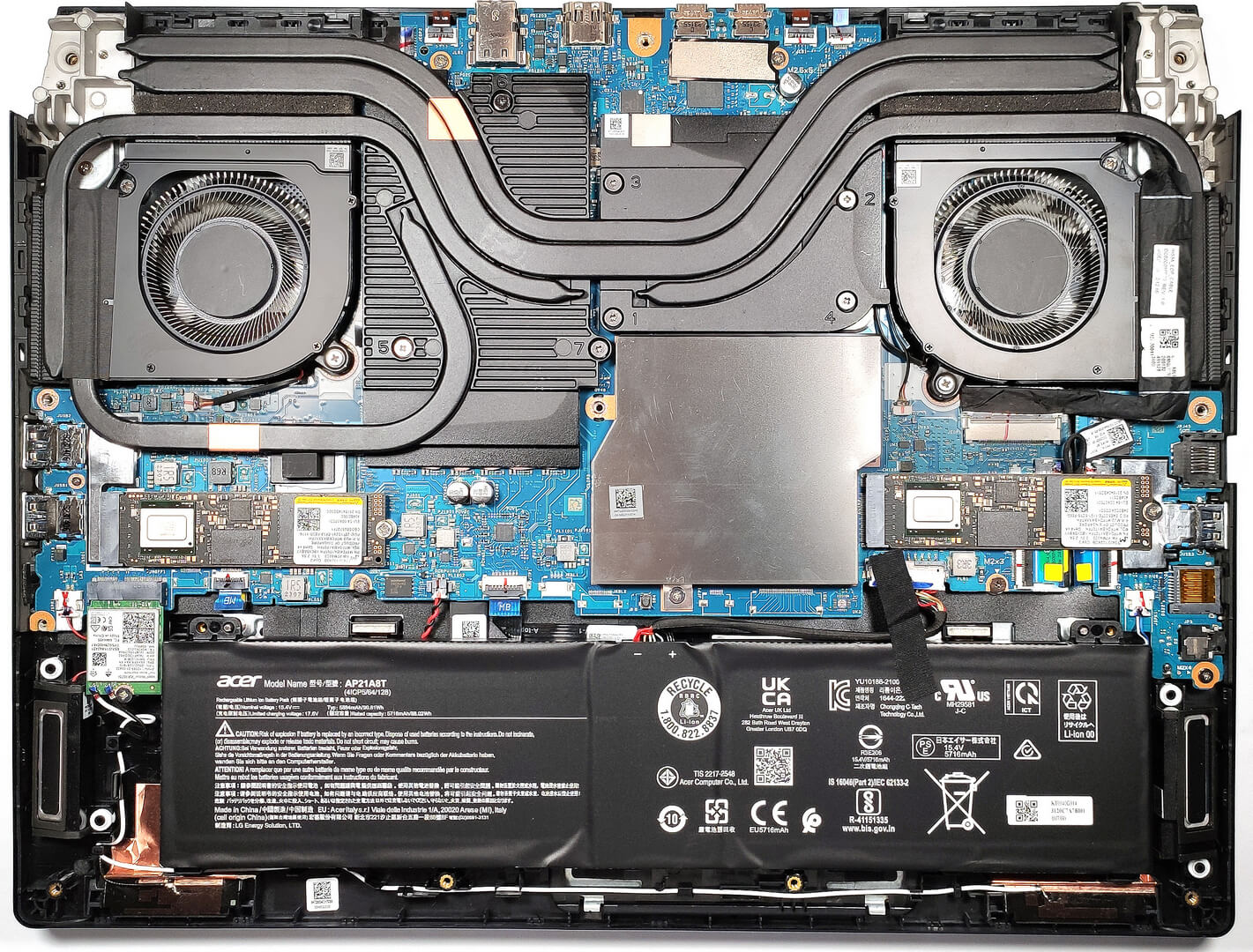
- M.2 Slot
- 2x 2280 M.2 NVMe PCIe 4.0 x4 See photo
- RAM
- 40GB RAM
- OS
- Windows 11 Home
- Body Material
- Plastic / Polycarbonate, Aluminum
- Dimensions
- 359.4 x 280.8 x 26.9 - 27.9 mm (14.15" x 11.06" x 1.06")
- Weight
- 2.99 kg (6.6 lbs)
- Ports and connectivity
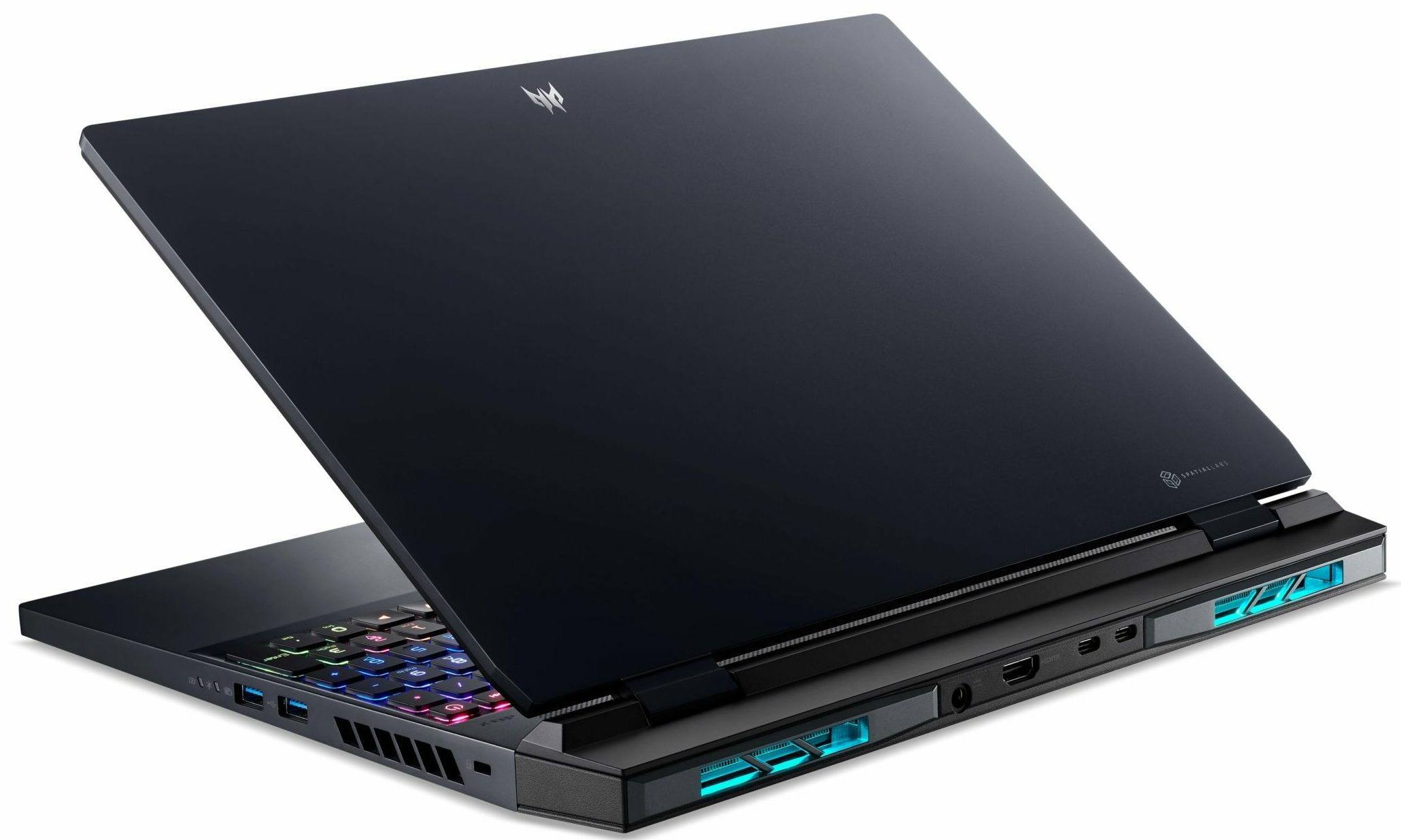
- 1x USB Type-A
- 3.2 Gen 1 (5 Gbps)
- 1x USB Type-A
- 3.2 Gen 2 (10 Gbps)
- 1x USB Type-A
- 3.2 Gen 2 (10 Gbps), Sleep and Charge
- 2x USB Type-C
- 3.2 Gen 2 (10 Gbps), Thunderbolt 4, Power Delivery (PD), DisplayPort
- HDMI
- 2.1
- Card Reader
- microSD (microSD, microSDHC, microSDXC)
- Ethernet LAN
- 10, 100, 1000 Mbit/s
- Wi-Fi
- 802.11ax
- Bluetooth
- 5.1
- Audio jack
- 3.5mm Combo Jack
- Features
- Fingerprint reader
- Web camera
- HD with Temporal Noise Reduction
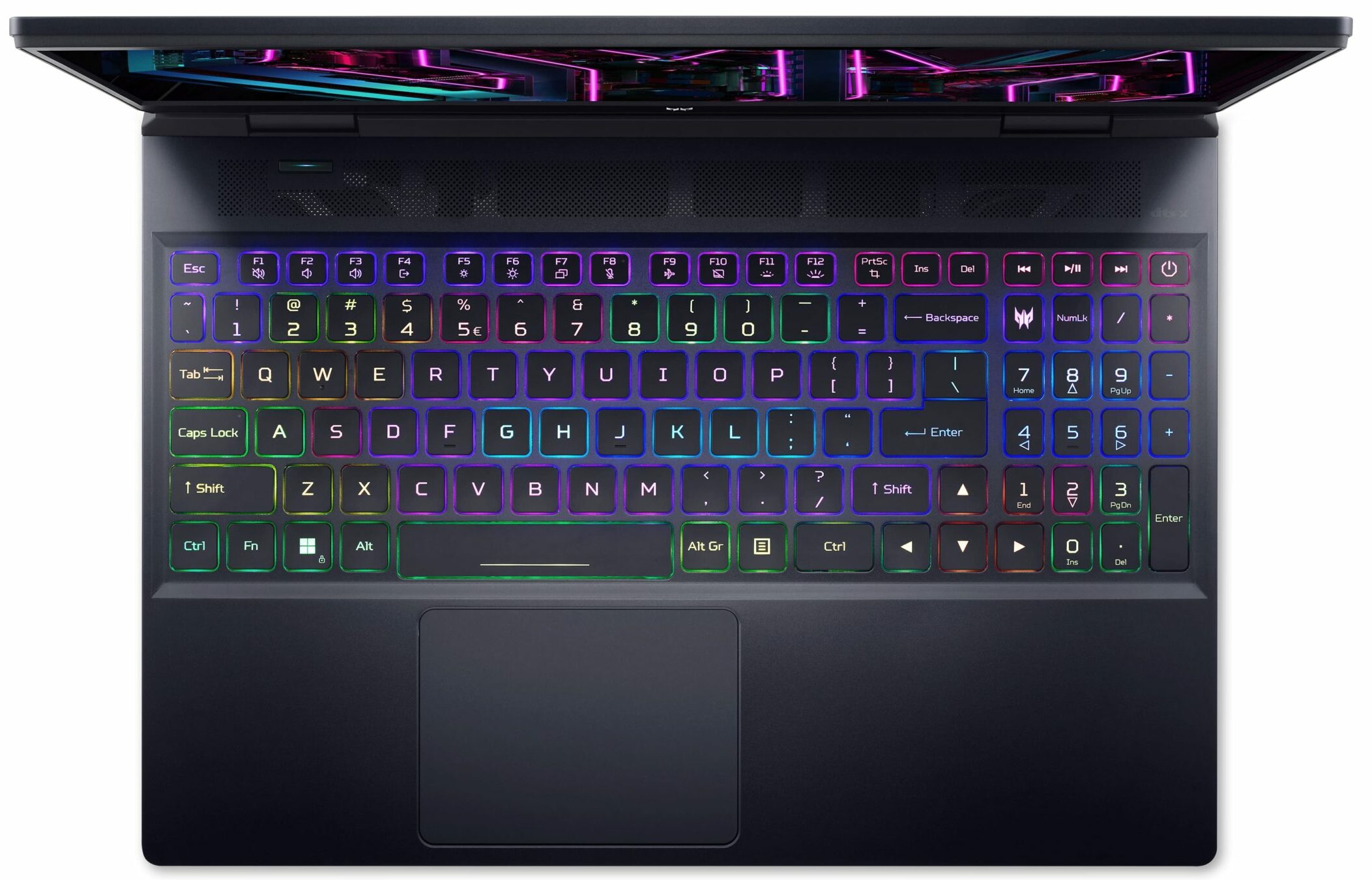
- Backlit keyboard
- Microphone
- Dual Microphones with Acer Purified Voice
- Speakers
- Speakers by DTS X: Ultra Audio
- Security Lock slot
- Kensington Lock
Portability
Review
Acer Predator Helios 3D 15 SpartialLabs Edition in-depth review
Have you ever got the feeling that getting the latest hardware isn't enough and you want to experience something new in front of the display? Acer has a trick up in its sleeve - a powerful gaming laptop with a stereoscopic 3D display. You don't need to wear glasses to enjoy the 3D content. This sounds cool on paper but in reality, it's a bit tricky to find the right sitting position in order to play a game without seeing blurry images. The name of the device is extraordinary and longer than usual. Let's take a deep breath - it's called the Acer Predator Helios 3D 15 SpatialLabs Edition (PH3D15-71)!Like it or not, you can't choose among many CPU, GPU, and display options. However, you get only top-of-the-line parts here including a 24-core Intel Core i9-13900HX and the 175W version of t[...]
Read the full review
Pros
- Excellent CPU and GPU performance
- The RTX 4080 can sustain 174W and ~2200 MHz during long gaming sessions
- The 32-thread Core i9-13900HX can maintain very high clocks and power limits under maximum stress
- 2x M.2 Gen 4 slots, 2x DDR5 RAM SODIMMs in dual-channel
- Wi-Fi 6E + Bluetooth 5.1
- Covers 100% of thesRGB and 90% of the DCI-P3 color gamut (AUO B156ZAN03.R (AUO39A4))
- No PWM (AUO B156ZAN03.R (AUO39A4))
- Stereoscopic 3D display (AUO B156ZAN03.R (AUO39A4))
- Has a MUX switch
- Wide port selection
- Great input devices
- The keyboard remains cool after long gaming sessions
- Good build quality
- High-end parts inside of a metal 15.6" chassis
Cons
- High price
- Short battery life
- The 3D effect isn't perfect and needs an improvement
- Noisy fans in "Turbo" mode
Disassembly, maintenance and upgrade options
Step 1: Accessing the Internal ComponentsPower off your laptop and place it on a soft, clean surface to avoid scratching or damage. Undo the 11 Torx-head screws securing the bottom panel of the laptop. Carefully hold the two exhaust vents on the back and lift away the bottom panel from the chassis to expose the internal components.Hint: Keep the screws in a safe place to avoid losing any.Step 2: Removing the BatteryLocate the battery inside the laptop. Unplug the battery connector from the mainboard to disconnect the power. Remove the battery from its de[...]
Read more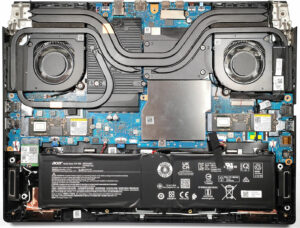


![[June 2026] Best-Selling Laptop Brands on Amazon Global – Apple’s Unrivaled Dominance in Units and Revenue](https://laptopmedia.com/wp-content/uploads/2026/07/GLOBAL-Best-Brands-400x225.jpg)
![[June 2026] Amazon Global: Top 10 Best-Selling Laptops – Apple’s New MacBook Neo Storms to #1, Reshaping the Market with Affordability](https://laptopmedia.com/wp-content/uploads/2026/07/Best-Selling-Laptops-GLOBAL-Top-10-400x225.jpg)
![[June 2026] Amazon Global: Top 10 Best-Selling Gaming Laptops – Acer’s Nitro V 16S AI Dominates Sales, While ASUS Leads Overall Revenue](https://laptopmedia.com/wp-content/uploads/2026/07/Best-Selling-Gaming-Laptops-GLOBAL-Top-10-400x225.jpg)
![[June 2026] Global Ranking of Best-Selling Laptop GPUs on Amazon – NVIDIA RTX 5060 is the Top-Selling Dedicated GPU](https://laptopmedia.com/wp-content/uploads/2026/07/Best-Selling-GPUs-GLOBAL-Top-10-400x225.jpg)
![[June 2026] Global Ranking of Best-Selling Laptop CPUs on Amazon – Apple M5 Dominates, AMD Ryzen 7 260 Gets Solid Premium Share](https://laptopmedia.com/wp-content/uploads/2026/07/Best-Selling-CPUs-GLOBAL-Top-10-400x225.jpg)