Dell Pro Max 14 (MC14250) review – Powerful, Repairable, and Very Configuration-Dependent
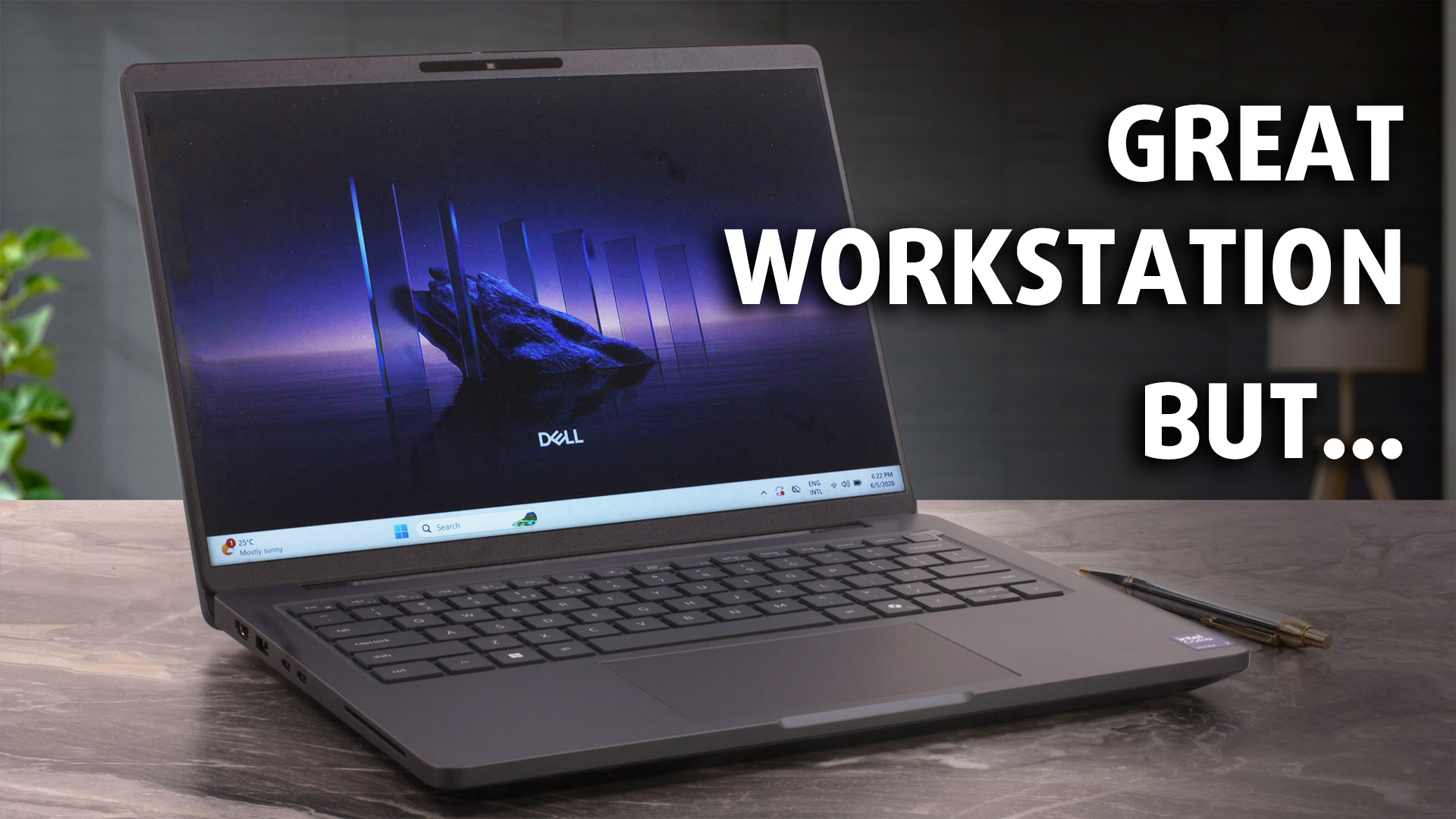 This looks like a quiet corporate laptop, but push it hard and the Dell Pro Max 14 starts to behave like something much more serious. In our tests, this compact 14-inch machine delivered excellent sustained CPU performance, stayed impressively cool under long heavy loads, and still kept the practical business features many modern laptops have abandoned – Ethernet, Thunderbolt 4, USB-A, and upgradeable LPCAMM2 memory.
But there is a catch, and it can completely change the buying decision. The Pro Max 14 is extremely configuration-dependent. Choose it well, and you get a powerful, serviceable professional laptop with strong battery life and great connectivity. Choose the base display like the one in our configuration, and you get a panel that is fine for office work, but not good enough for color-sensitive tasks. So the real question is …Which version is worth buying?
You can check the prices and configurations in our Specs System: https://laptopmedia.com/series/dell-pro-max-14-mc14250/
TESTED CONFIGURATION:
– Intel Core Ultra 7 255H
– Intel Arc 140T
– 16GB RAM
– 512GB SSD NVMe
– 14.0″, 1920 x 1200 (WUXGA), 60Hz, IPS
Contents
Specs, Drivers, What’s in the box
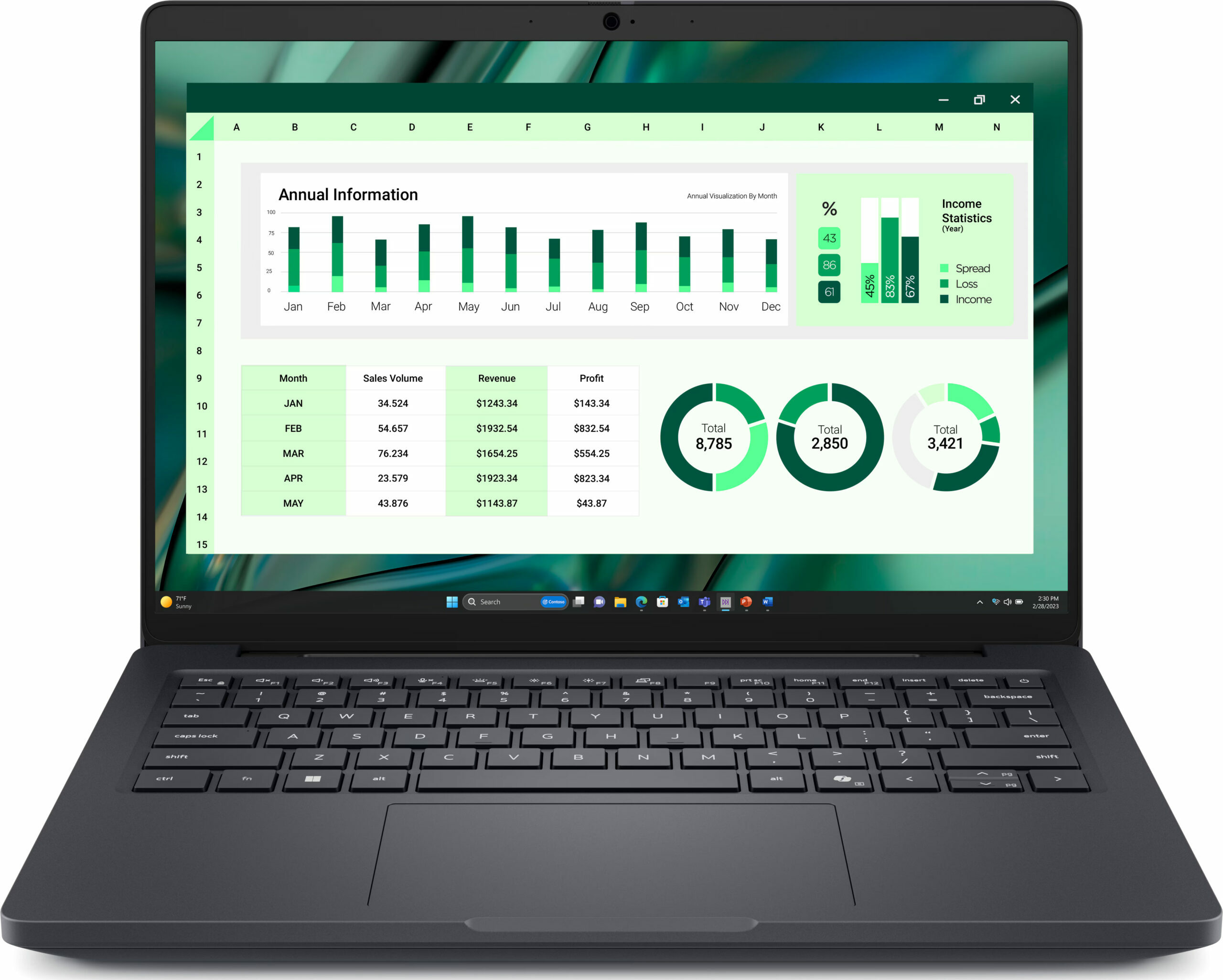
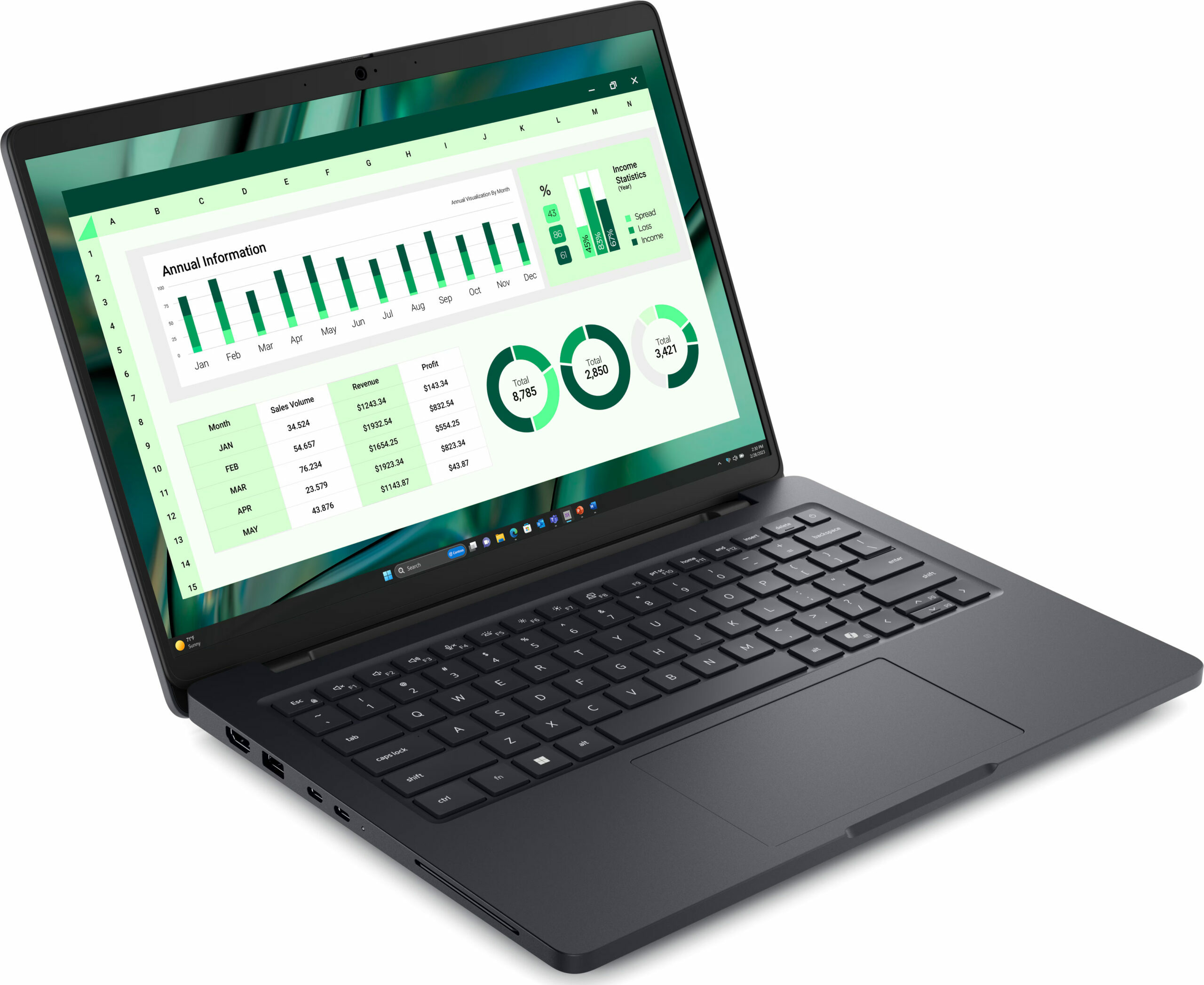
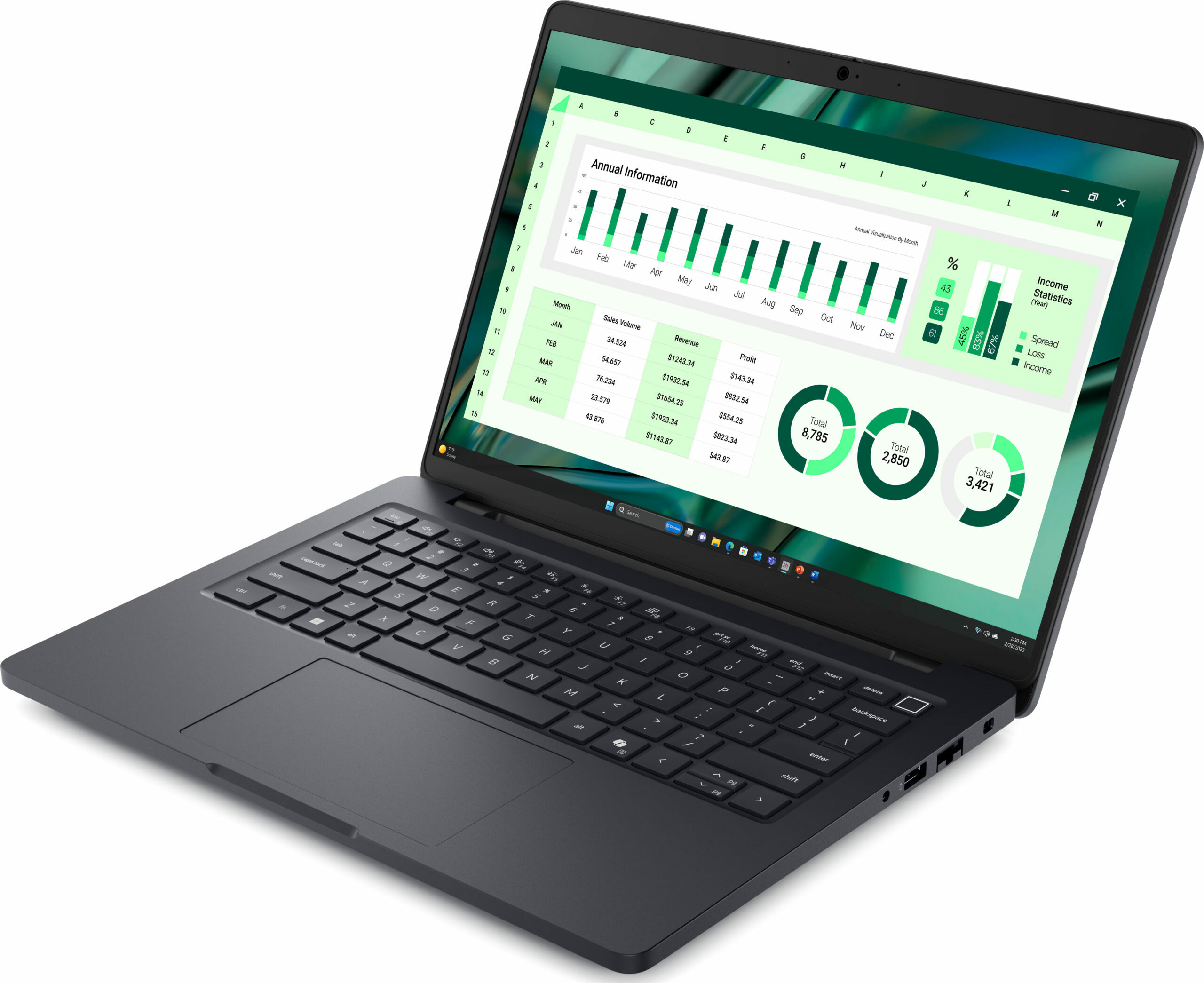
Dell Pro Max 14 (MC14250) - Specs
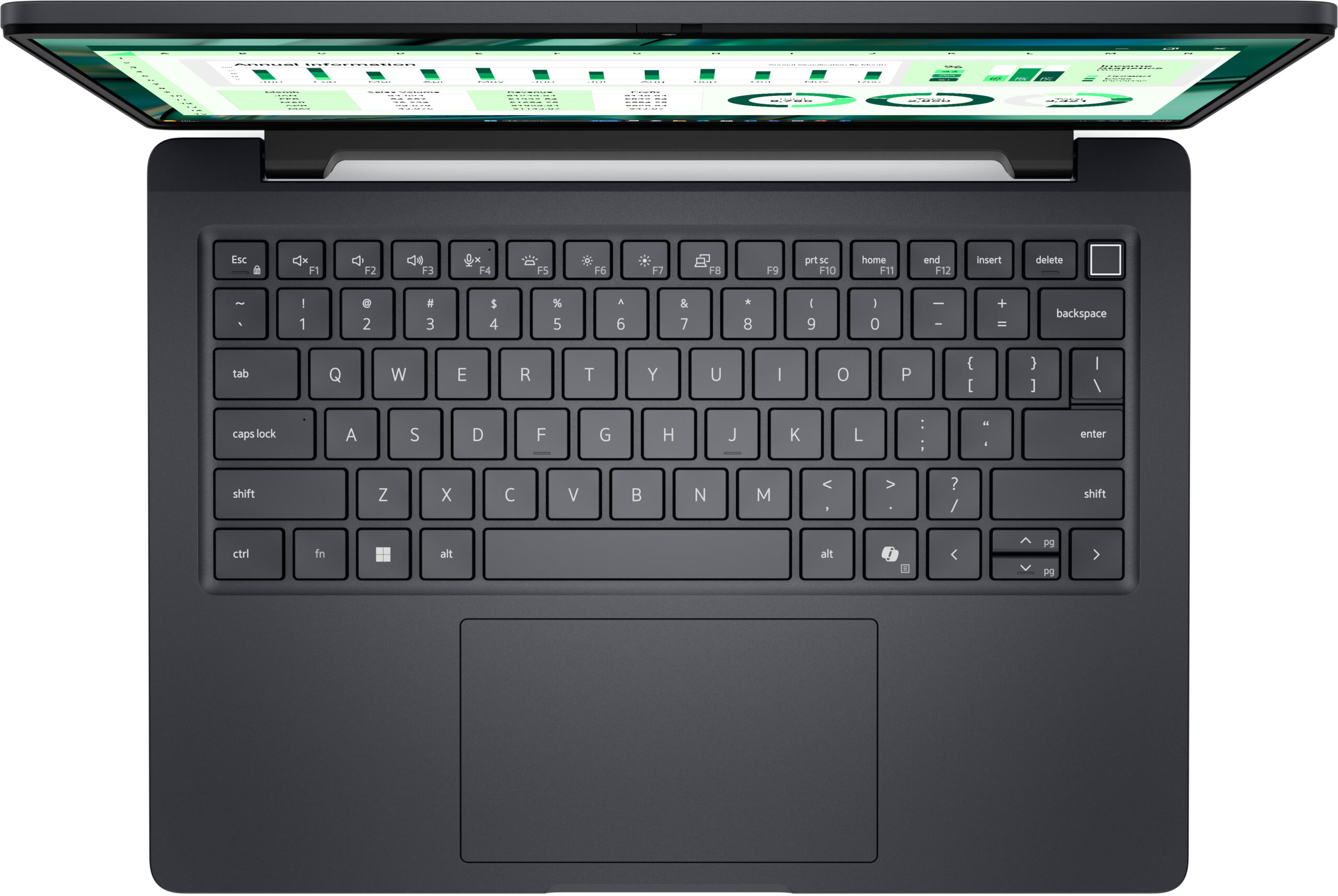
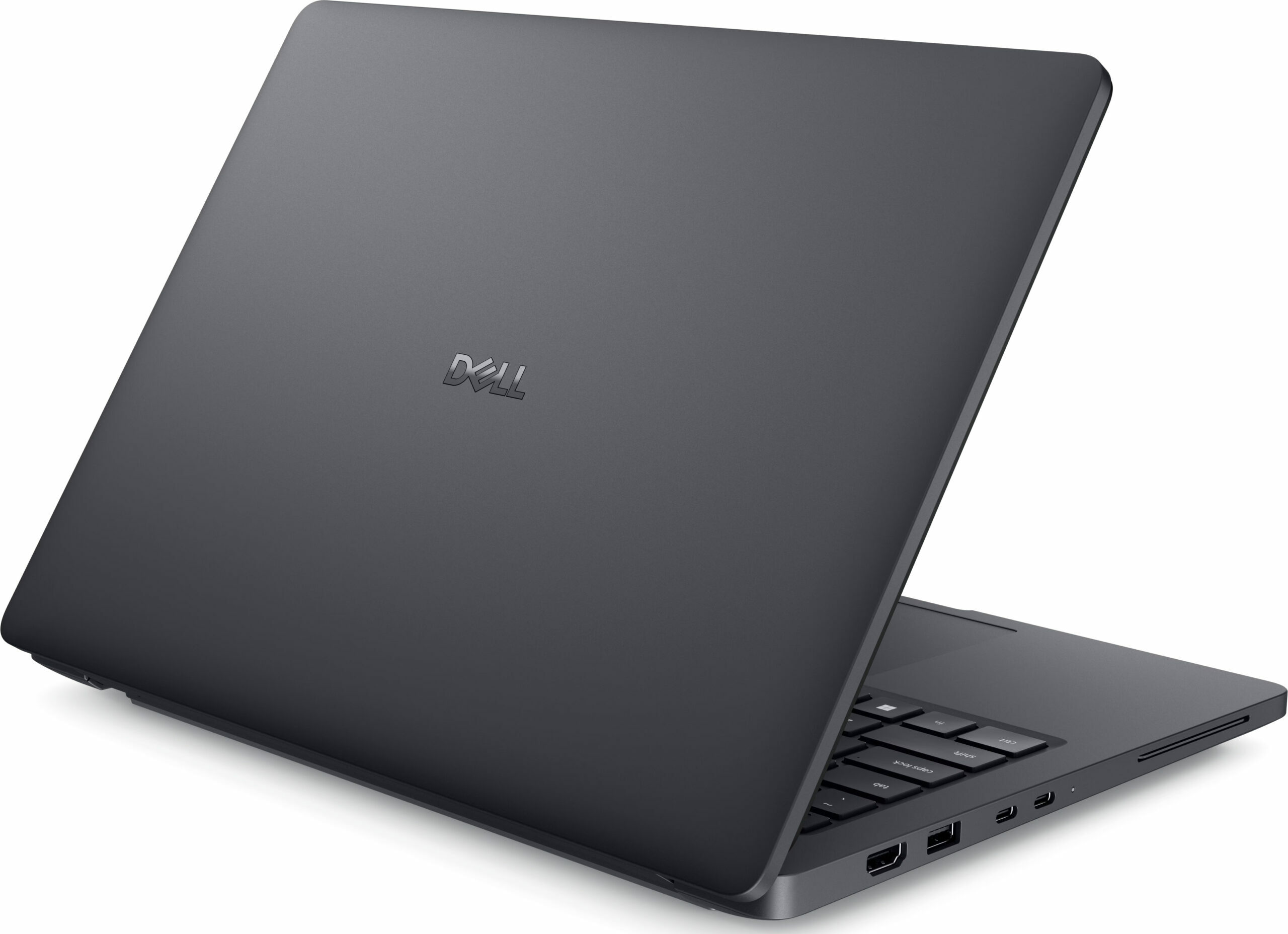
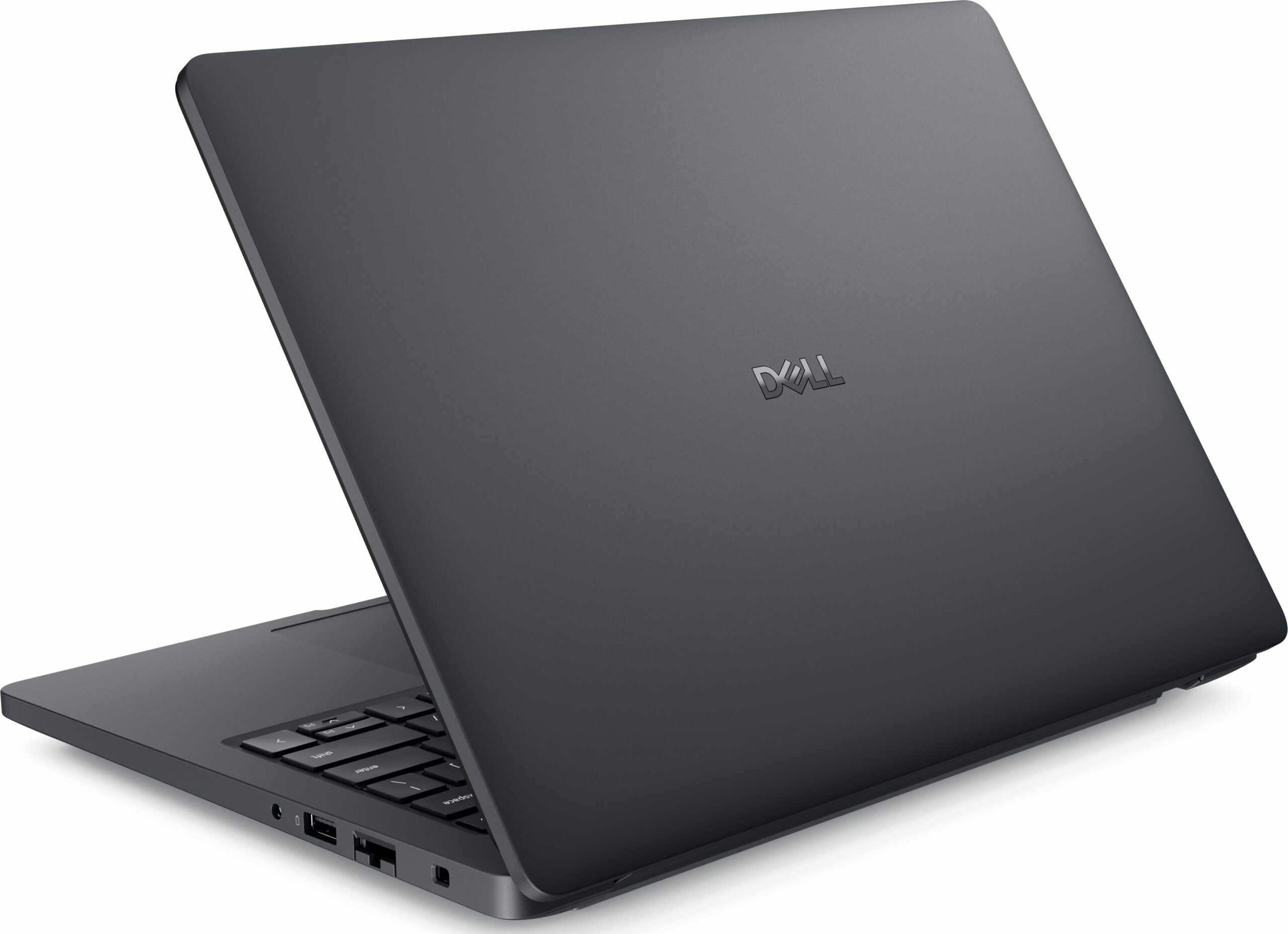
- Display
- 14.0”, WUXGA (1920 x 1200), IPS

- HDD/SSD
- up to 2000GB SSD
- RAM
- up to 64GB
- OS
- Windows 11 Pro, Windows 11 Home
- Battery
- 72Wh
- Dimensions
- 313 x 227.30 x 14.79 - 18.90 mm (12.32" x 8.95" x 0.58")
- Weight
- 1.83 kg (4 lbs)
- Ports and connectivity
- 1x USB Type-A
- 3.2 Gen 1 (5 Gbps)
- 1x USB Type-A
- 3.2 Gen 1 (5 Gbps), Sleep and Charge
- 2x USB Type-C
- 4.0, Thunderbolt 4, Power Delivery (PD), DisplayPort
- HDMI
- 2.1
- Card reader
- microSD (microSD, microSDHC, microSDXC)
- Ethernet LAN
- 10, 100, 1000 Mbit/s
- Wi-Fi
- Wi-Fi 7
- Bluetooth
- 5.4
- Audio jack
- 3.5mm Combo Jack
- Features
- Fingerprint reader
- optional
- Web camera
- FHD IR
- Backlit keyboard
- optional
- Microphone
- Digital Array Microphones
- Speakers
- 2x 2.5W Stereo Speakers
- Security Lock slot
- Wedge Lock
All Dell Pro Max 14 (MC14250) configurations
Drivers
All drivers and utilities for this notebook can be found here: https://www.dell.com/support/product-details/en-us/product/dell-pro-max-mc14250-laptop/drivers
What’s in the box?
Unboxing the Dell Pro Max 14 is a strictly business-like experience: no flashy extras, no unnecessary accessories – just the laptop, the documentation, the power cable, and a 100W USB-C adapter in our EU package.
The 100W charger is a detail worth noting. Dell has documented a scenario where some MC14250 UMA configurations may experience CPU performance drops and even slight battery drain when used with a 65W adapter and multiple USB devices attached. Our ordered configuration comes with the stronger 100W unit, which should give the laptop more comfortable headroom for desk use with peripherals. If you are buying a different configuration, it is worth checking which adapter is included. You can read Dell’s note on the issue here.
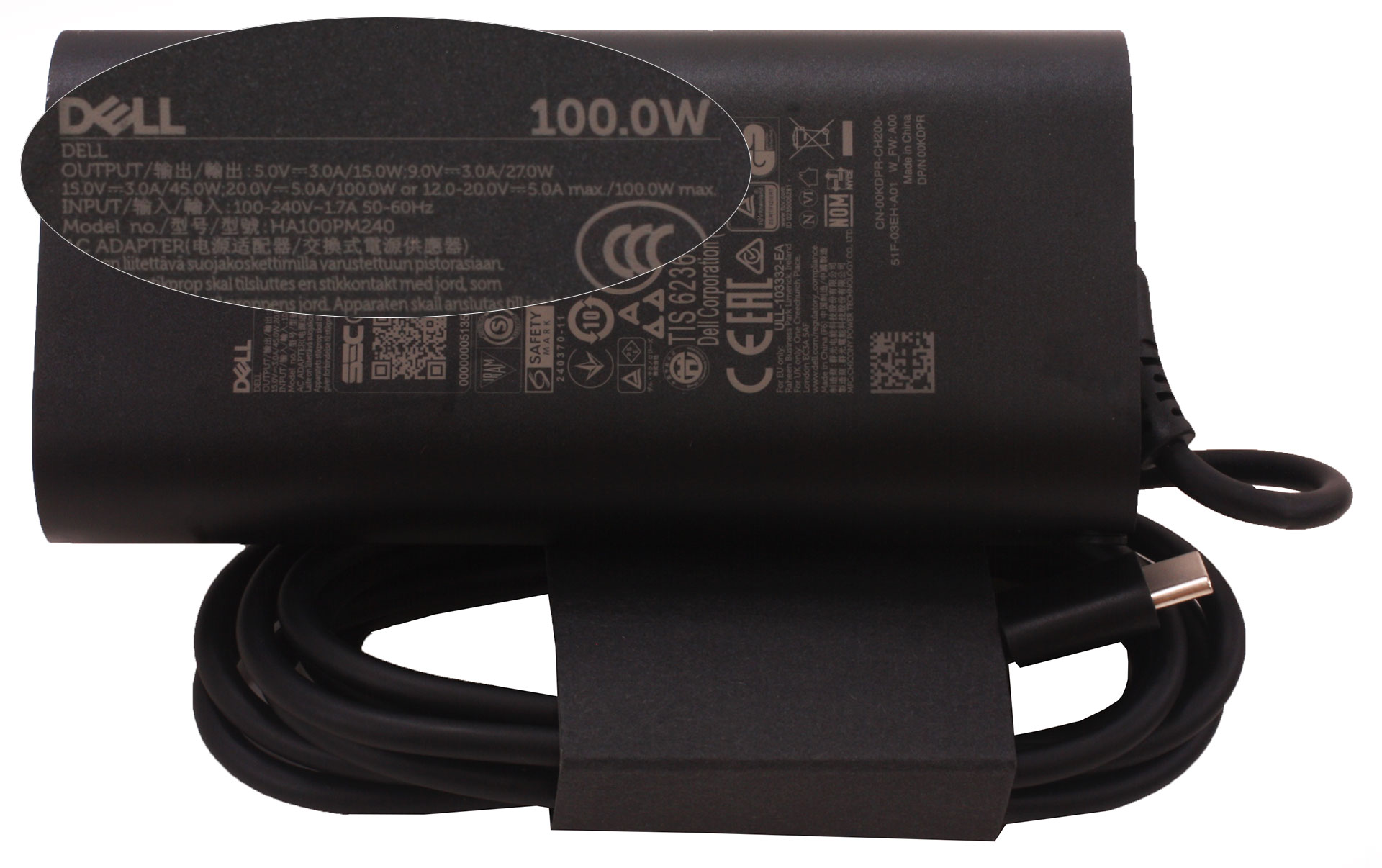
There are no dongles or adapters in the box, but that is less of a problem here than on many thin laptops, since the Pro Max 14 already includes HDMI, RJ-45, USB-A, and Thunderbolt 4 ports.
Design and construction
The Dell Pro Max 14 (MC14250) doesn’t try to win you over with flashy aesthetics; instead, it leans heavily into a serious, business-oriented demeanor. It looks and feels like a compact professional machine with workstation ambitions, rather than a flashy consumer laptop.
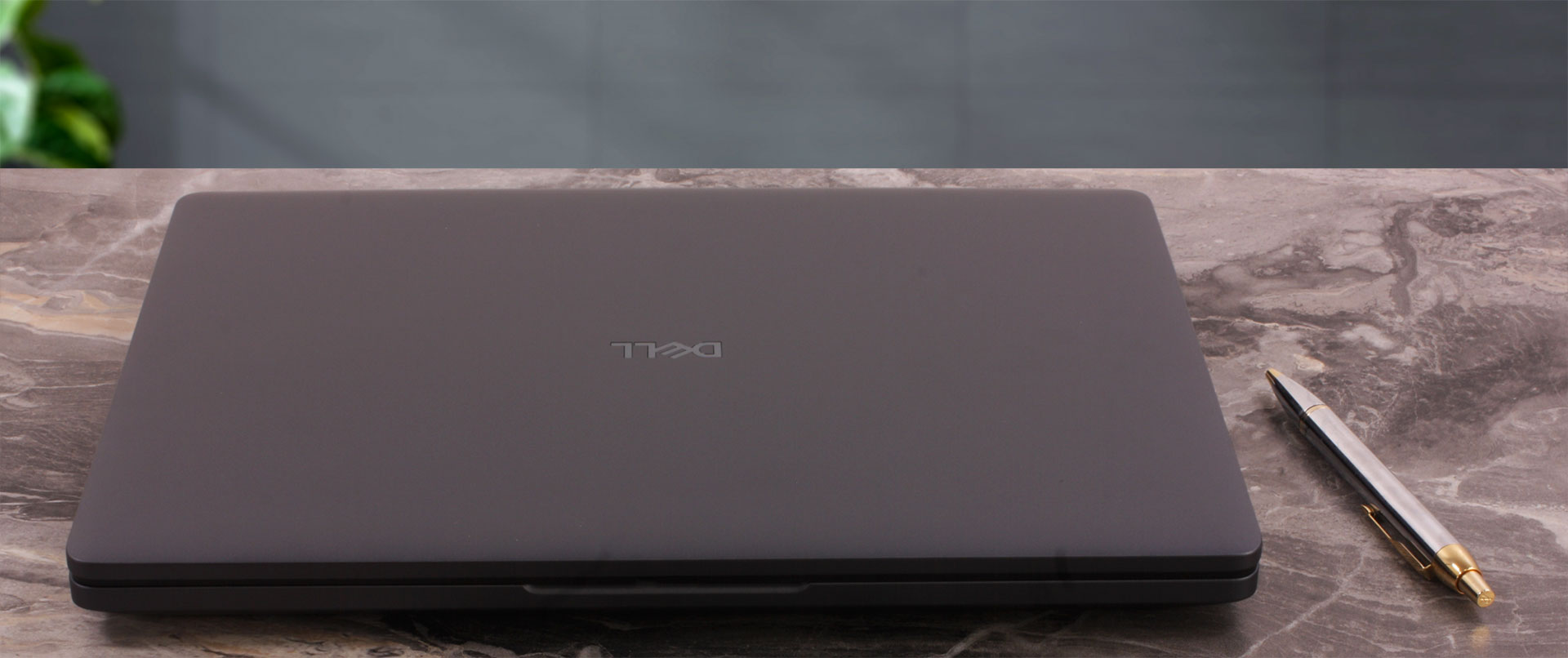
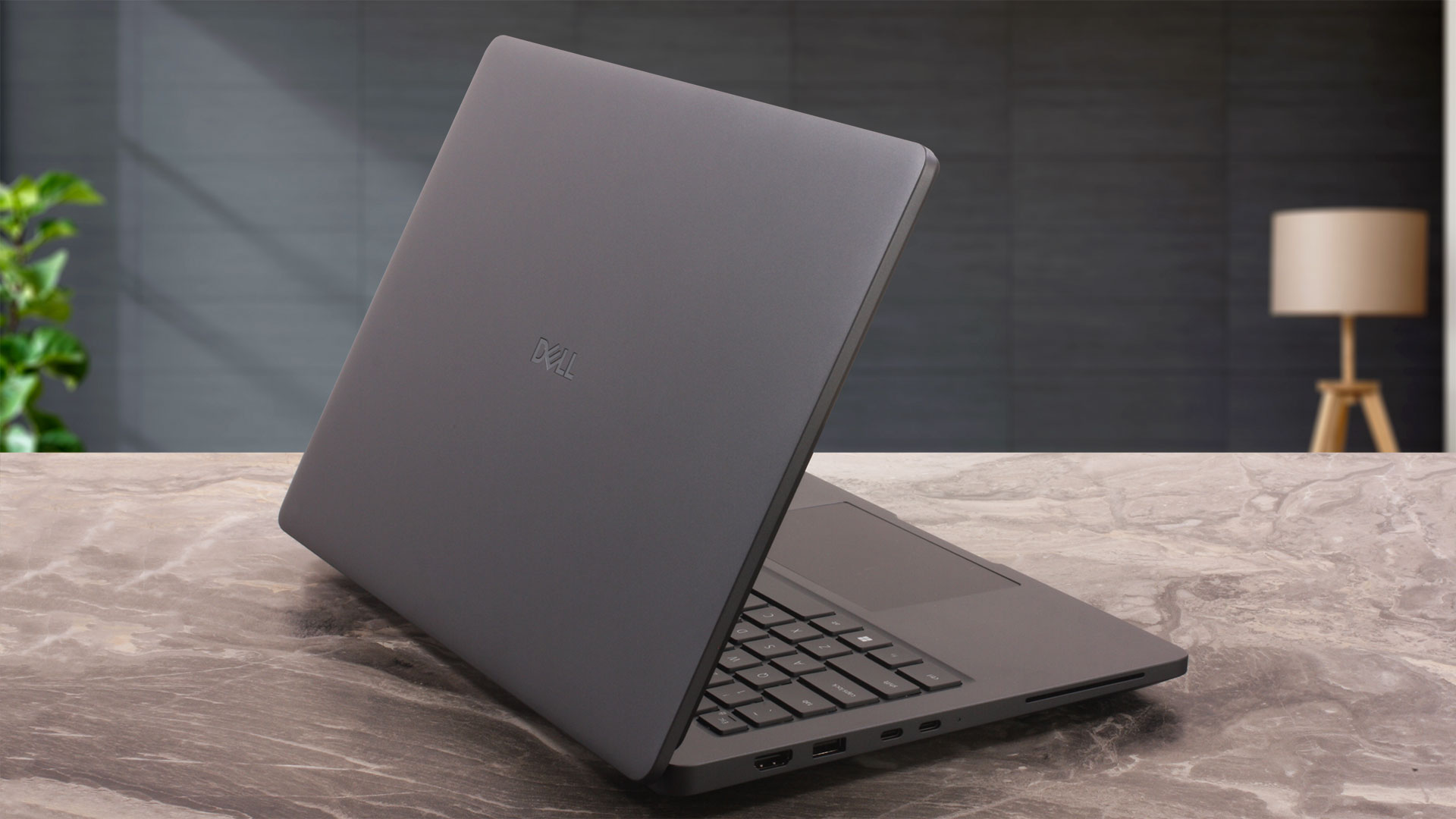
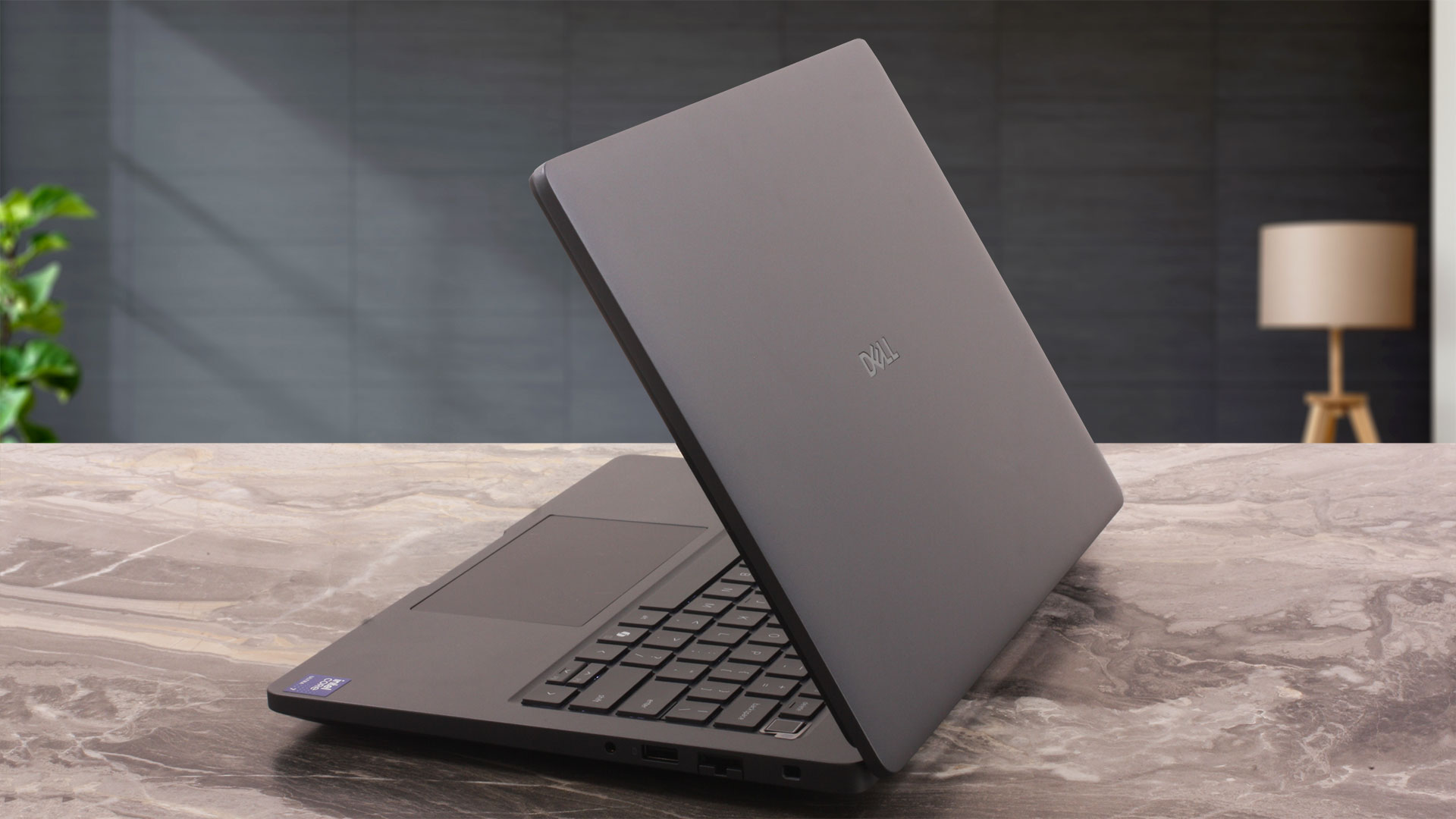
The configuration we ordered comes in Dell’s “Magnetite” finish, a sleek dark graphite grey that suits the laptop’s purposeful character very well. It does not have the cold, raw feel of an aluminum unibody machine; to the touch, it feels closer to a high-quality composite or magnesium-based construction. Still, the chassis feels reassuringly solid, and Dell rates the model for MIL-STD 810H durability testing. There is a slight, typical flex if you press hard on the center of the lid, but the base feels stable enough for daily transport. It feels more utilitarian than luxurious, but that actually suits the Pro Max 14’s business-first character. Another practical bonus is the surface treatment: even after prolonged use, our Magnetite unit remained impressively resistant to fingerprint smudges.
| Dell Pro Max 14 MC14250 | Dimensions | Weight |
| Metric units | 313.0 x 222.3 x 14.7–18.8 mm, peak: 24.6 mm | 1.79 kg |
| U.S. customary | 12.32 x 8.75 x 0.58–0.74 in, peak: 0.97 in | 3.95 lbs |
For a machine capable of handling professional workloads, its physical footprint is quite manageable, although this is not one of those ultra-thin 14-inch designs that tries to disappear in your bag. Dell lists the chassis at 0.58 inches at the front and 0.74 inches at the rear, with a peak height of 0.97 inches. In the table above, we use Dell’s inch measurements as the baseline and convert them consistently to metric units.
When you go to open the laptop, you can lift the lid a few centimeters with one hand, but the hinges are tight enough that you will quickly need your other hand to hold the base down. The upside is stability: the screen does not wobble easily, and the hinges allow a full 180-degree range of motion, so the panel can lie completely flat on a desk. That is especially practical for meetings, collaboration, or touchscreen configurations of the series.
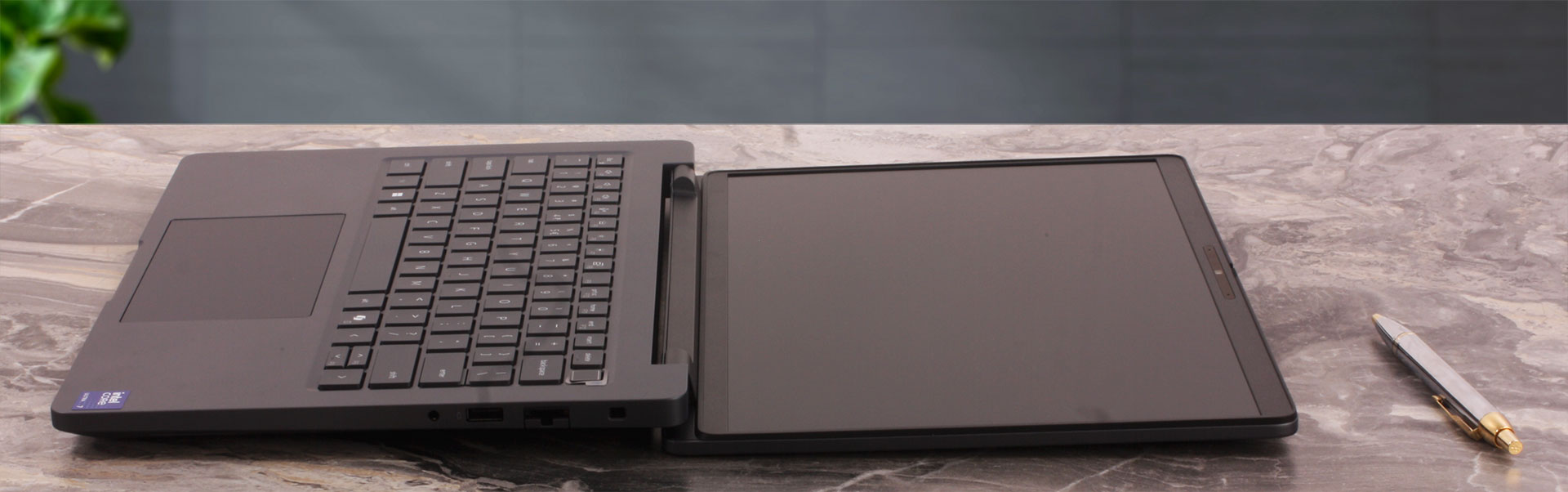
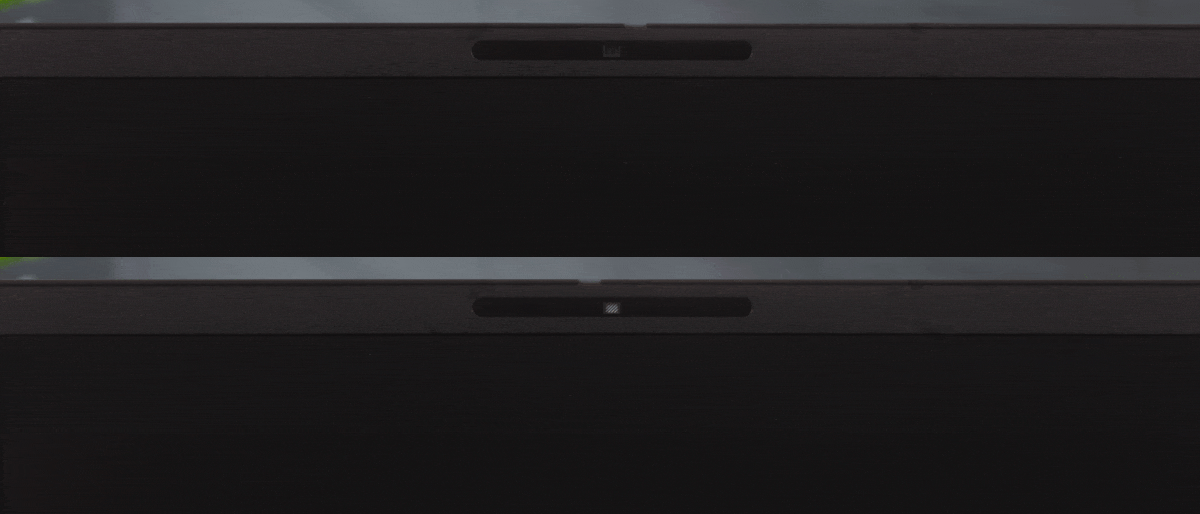
The screen itself is bordered by pleasantly thin side bezels, while the top bezel is noticeably thicker. This extra space is put to good use, housing the camera array. Depending on the configuration, Dell offers three camera variants: an FHD RGB camera, an FHD RGB + IR camera, or a higher-end 8MP MIPI RGB + IR camera. The FHD options record at 1080p and 30 FPS, while the 8MP variant can deliver 1440p at 30 FPS. Regardless of the camera option, Dell includes a physical privacy shutter slider above it, which is exactly what we like to see on a business-oriented laptop.
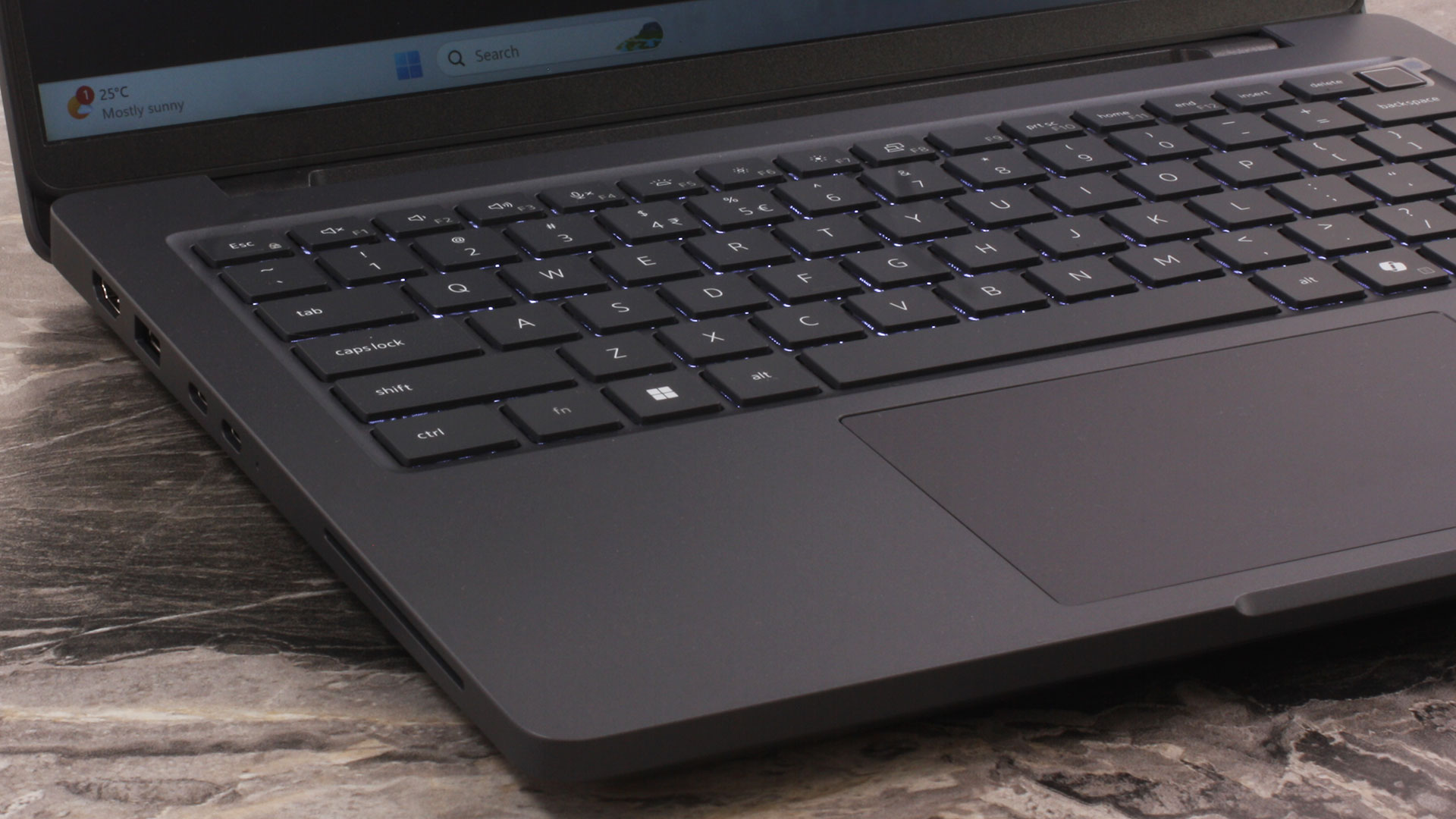
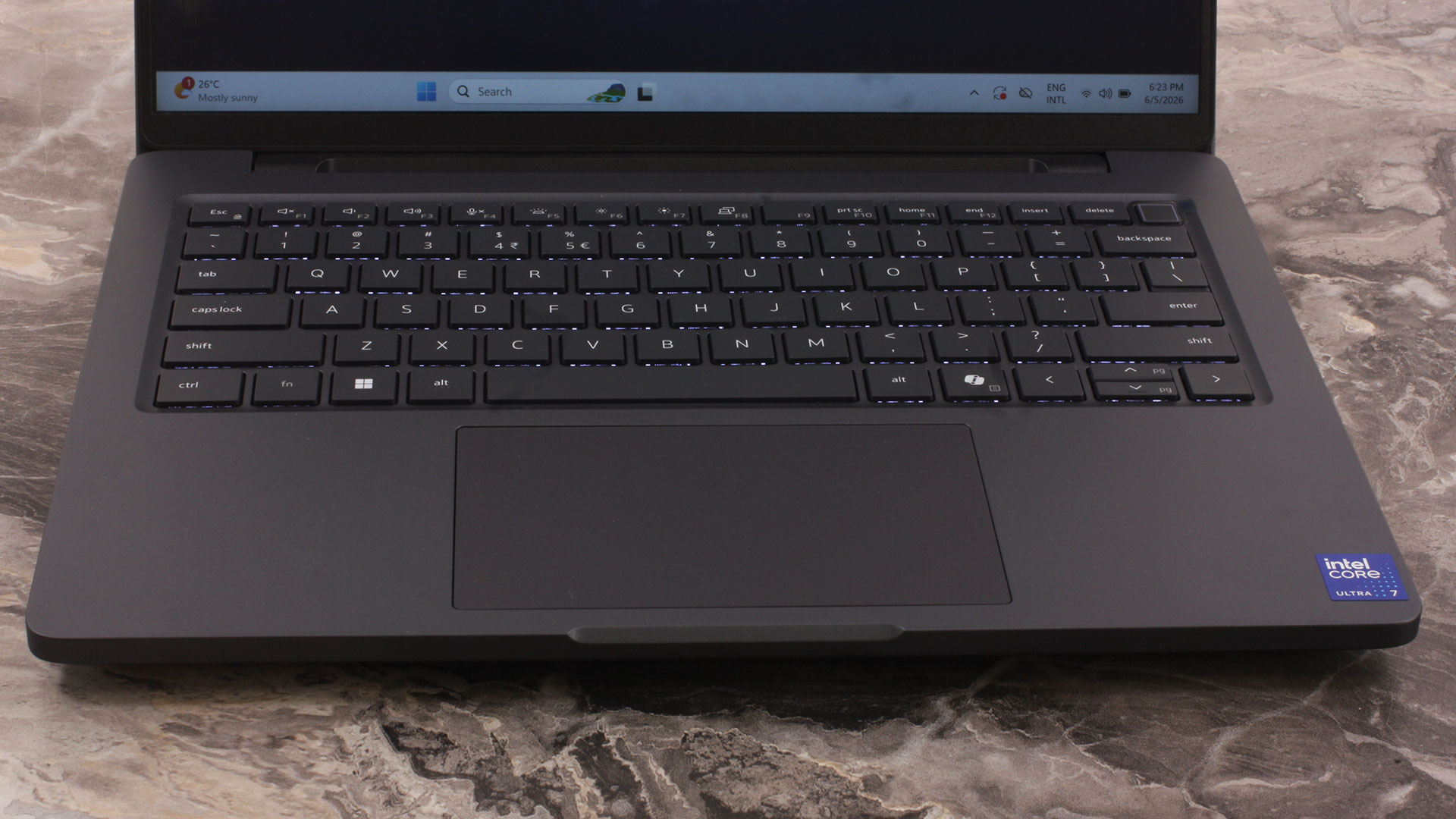
Moving down to the deck, the 14-inch form factor naturally leaves no room for a dedicated NumPad, but it gives the main keyboard a clean and spacious layout. Dell lists both backlit and non-backlit keyboard options for the series, so this is something worth checking carefully before buying if you often work in dim environments. The “AI hotkey” wording refers to the inclusion of the Windows Copilot key. Biometric security is also configuration-dependent, with an optional 500 dpi capacitive fingerprint sensor integrated into the power button.
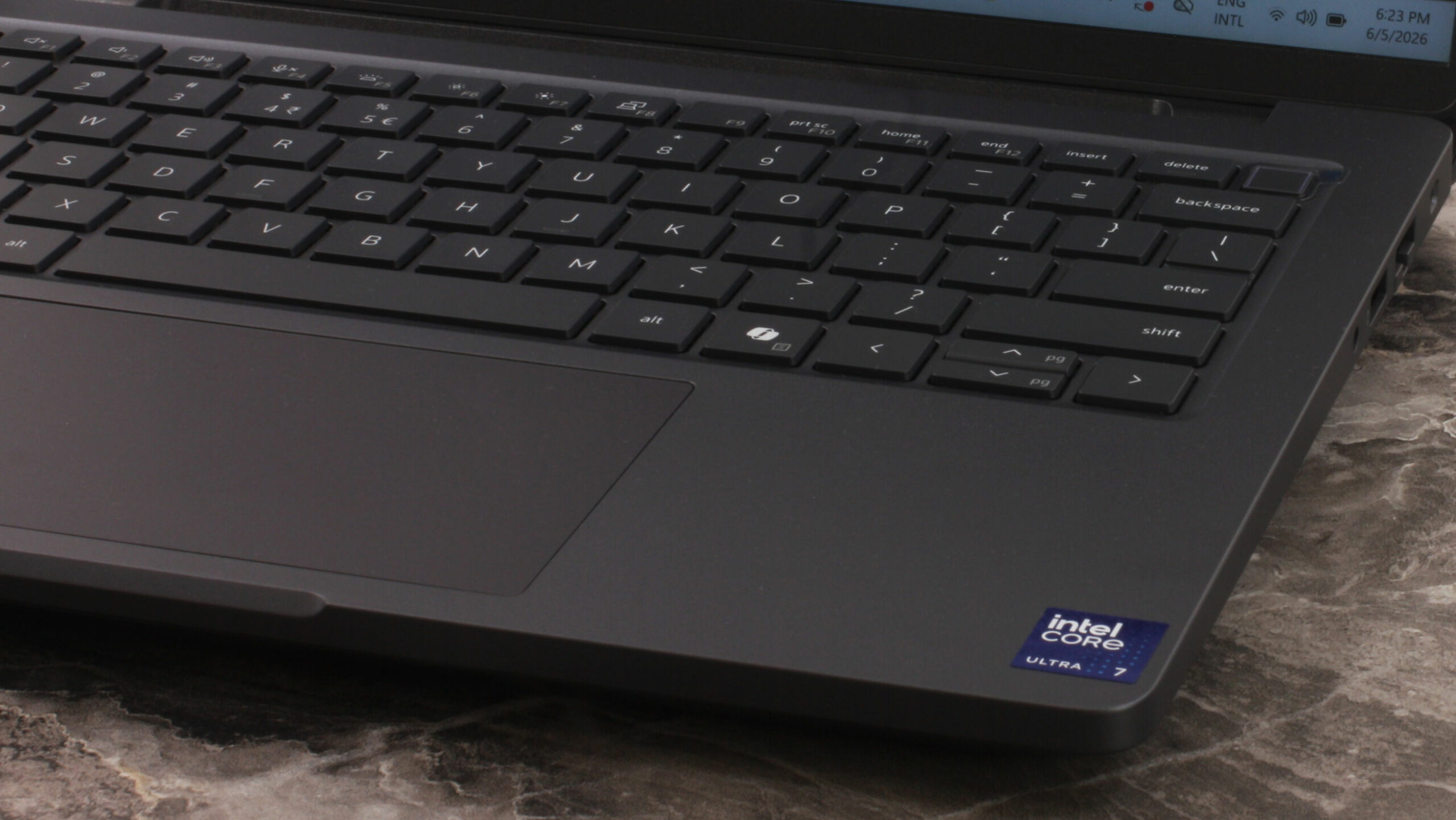
Finally, we arrive at the Precision touchpad. At 125 x 73 mm, it offers a very decent surface area for a 14-inch business laptop, and gestures work as expected. However, the physical click on our unit does not feel as crisp or as stable as we would like. The pad first sinks slightly and produces a faint pre-click sound, and only after that comes the actual click. It works, but the two-step feel makes the mechanism seem less refined than the rest of the machine.
Ports and Connectivity
The Dell Pro Max 14 (MC14250) offers a strong, business-oriented port selection, and importantly, it does not force you into dongle life. All ports are placed on the left and right sides of the chassis, leaving the rear edge completely clean.
On the left, you get a universal audio jack, a wedge-shaped lock slot, a Gigabit Ethernet RJ-45 port, and a USB 3.2 Gen 1 Type-A port with 5Gbps speeds. This USB-A port also supports Dell’s PowerShare feature, so it can be configured to power small external devices depending on the system settings and charge state.
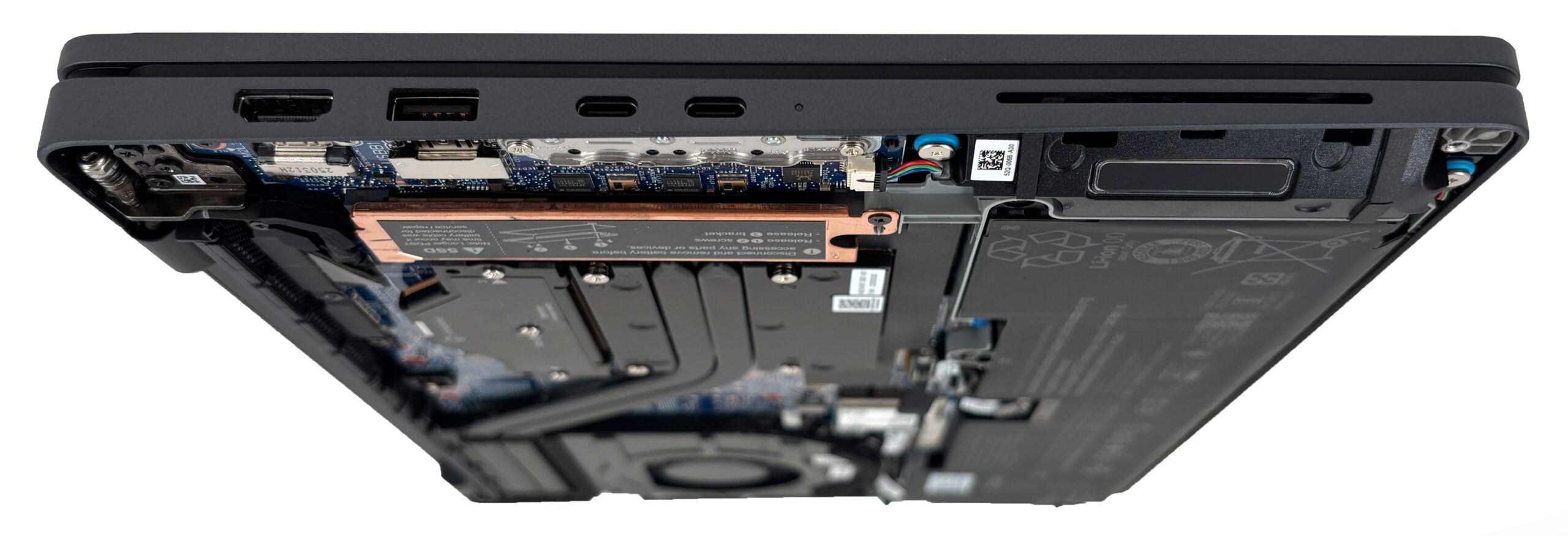 The ports on the left side + a sneak peek of the insides
The right side is where most of the high-speed connectivity lives. Here, you will find an HDMI 2.1 port, a second USB 3.2 Gen 1 Type-A port, and two Thunderbolt 4 ports with 40Gbps bandwidth, Power Delivery, and DisplayPort support. Since there is no dedicated barrel-plug charging connector, charging is handled through one of these two Thunderbolt ports. That works great for USB-C and Thunderbolt docking stations, but right-handed users should keep in mind that the charging cable comes out from the mouse side of the laptop.
Depending on the configuration, this side may also include an optional Smart Card reader for enterprise authentication. What you do not get is an SD or microSD card reader, so photographers and video creators will still need an external reader.
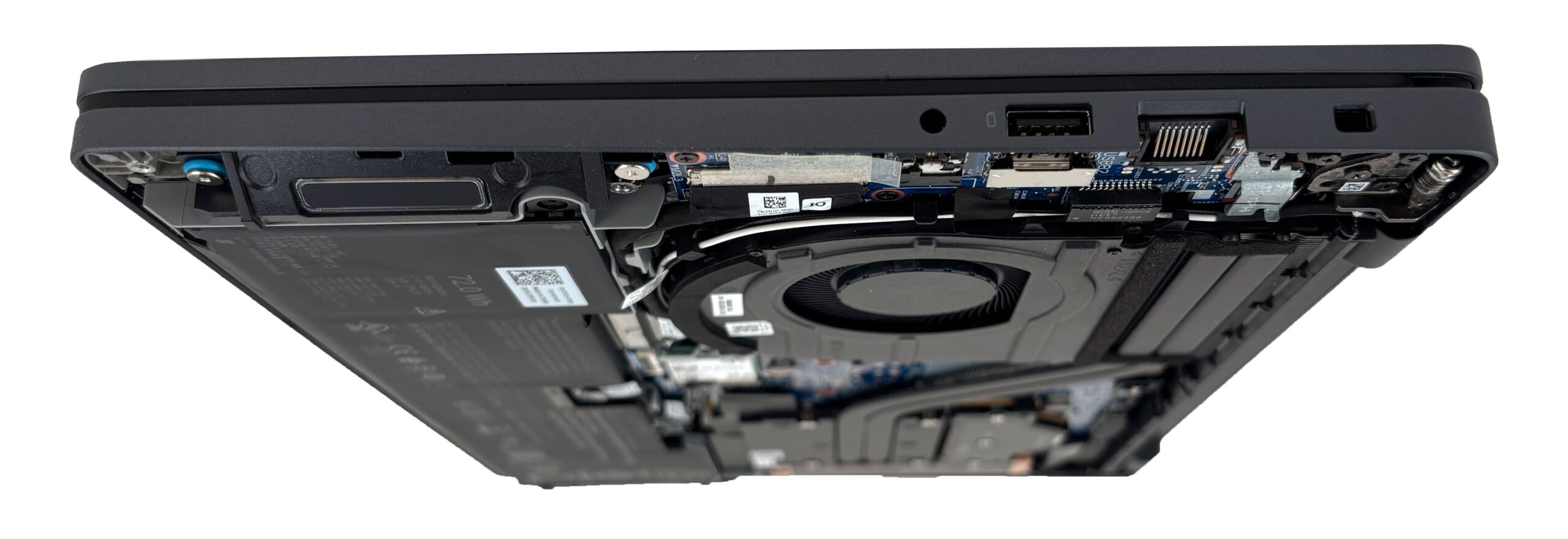 The ports on the right side + a sneak peek of the insides
External display support is also better than you might expect from a compact 14-inch machine. With integrated graphics, Dell lists support for up to three external 4K/60Hz displays while the laptop’s own screen remains active, or up to four external 4K/60Hz displays with the internal display turned off. For 8K/60Hz output, the official guide lists support for one external display via Thunderbolt 4.
Wireless connectivity depends on the exact configuration. The Pro Max 14 can be equipped with either Intel Wi-Fi 6E AX211 with Bluetooth 5.3, or Intel Wi-Fi 7 BE201 with Bluetooth 5.4. The Wi-Fi 7 option is the more future-proof choice if you already have, or plan to use, a compatible router. There is no confirmed WWAN or SIM card option for this model, so mobile internet will have to come through Wi-Fi, tethering, or an external modem.
Display and Sound Quality, Display Profiles
We ordered the Dell Pro Max 14 MC14250 with its most basic 14-inch WUXGA (1920 x 1200) 60 Hz IPS display option, identified as AUO B140UAN-4RJCP / AUO82B2. This is the 300-nit, 45% NTSC panel, so it is important to separate it from the better display options Dell offers for the same series. Buyers can also find brighter WUXGA variants, touch-enabled WUXGA panels with 100% sRGB coverage, and a sharper QHD+ (2560 x 1600) 90 Hz option with higher pixel density and 100% sRGB coverage.
| Dell Pro Max 14 MC14250 | 14″, WUXGA (1920 x 1200), 60 Hz, 45% NTSC AUO B140UAN-4RJCP / AUO82B2 | 14″, WUXGA (1920 x 1200), 60 Hz, 45% NTSC | 14″, WUXGA (1920 x 1200), 60 Hz, 100% sRGB | 14″, WUXGA (1920 x 1200), 60 Hz, 100% sRGB | 14″, QHD+ (2560 x 1600), 90 Hz, 100% sRGB |
| Touchscreen | No | No | Yes | Yes | No |
| Brightness | 319 nits | ~400 nits | ~300 nits | ~400 nits | ~300 nits |
| Diagonal | 14.0 inches (35.6 cm) | 14.0 inches (35.6 cm) | 14.0 inches (35.6 cm) | 14.0 inches (35.6 cm) | 14.0 inches (35.6 cm) |
| Panel Type | IPS | IPS-class | IPS-class | IPS-class | IPS-class |
| Resolution | 1920 x 1200 pixels | 1920 x 1200 pixels | 1920 x 1200 pixels | 1920 x 1200 pixels | 2560 x 1600 pixels |
| Max Refresh Rate | 60 Hz | 60 Hz | 60 Hz | 60 Hz | 90 Hz |
| Aspect Ratio | 16:10 | 16:10 | 16:10 | 16:10 | 16:10 |
| Pixel Density | 162 PPI | 162 PPI | 162 PPI | 162 PPI | 215 PPI |
| ‘Retina’ Distance | 54 cm or greater | 54 cm or greater | 54 cm or greater | 54 cm or greater | 41 cm or greater |
This makes our configuration a practical but clearly entry-level display choice for the Pro Max 14 family. The 16:10 aspect ratio is great for productivity, the 1920 x 1200 resolution is sharp enough at 14 inches, and the matte IPS panel is comfortable for office work. However, the limited color gamut is the key trade-off. If you plan to edit photos, create visual content, or simply want richer colors, the 100% sRGB or QHD+ options make much more sense.
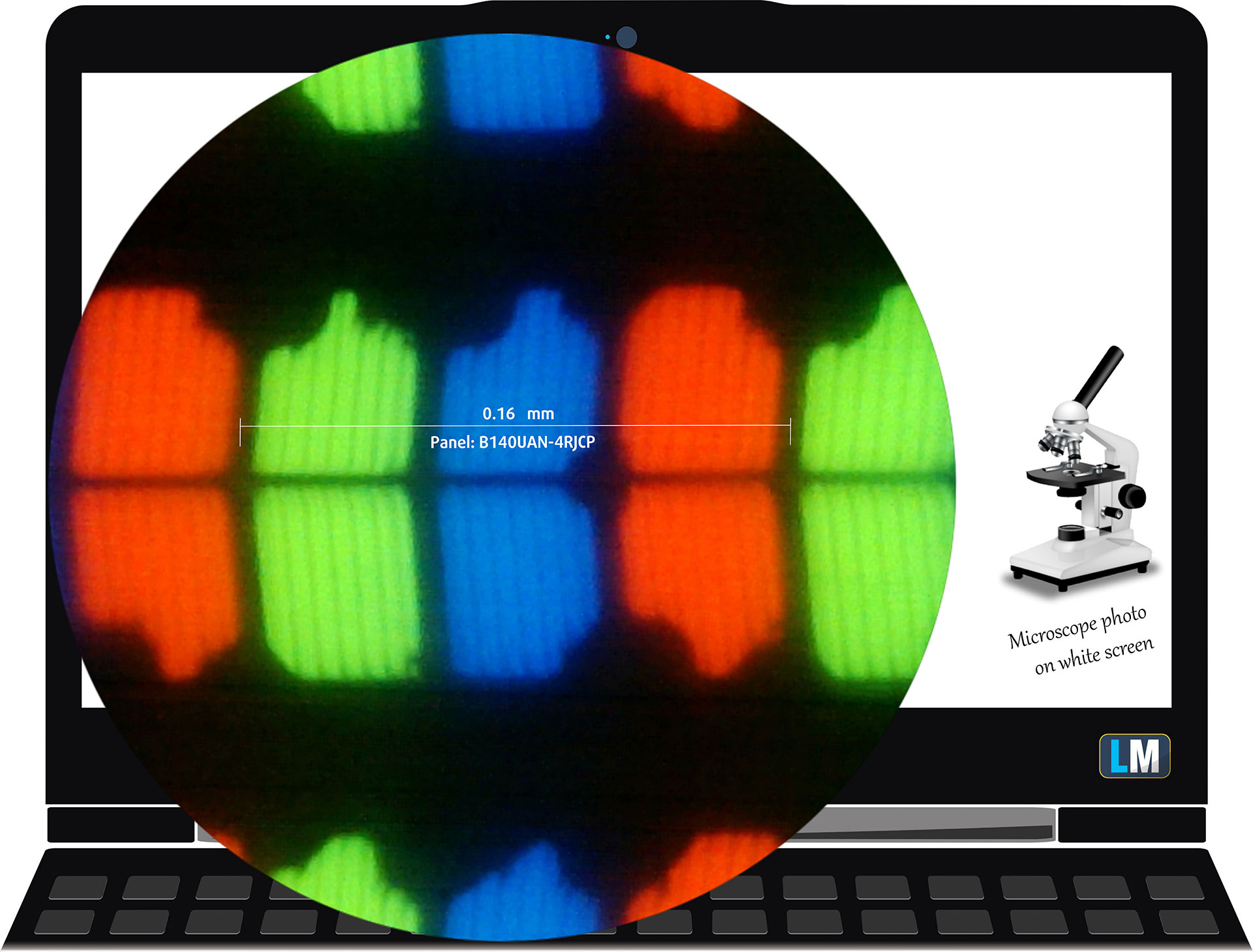 The WUXGA (1920 x 1200), 60 Hz, IPS display variant under our microscope
Viewing Angles
Viewing angles are good. We take photos from different angles to evaluate the quality.
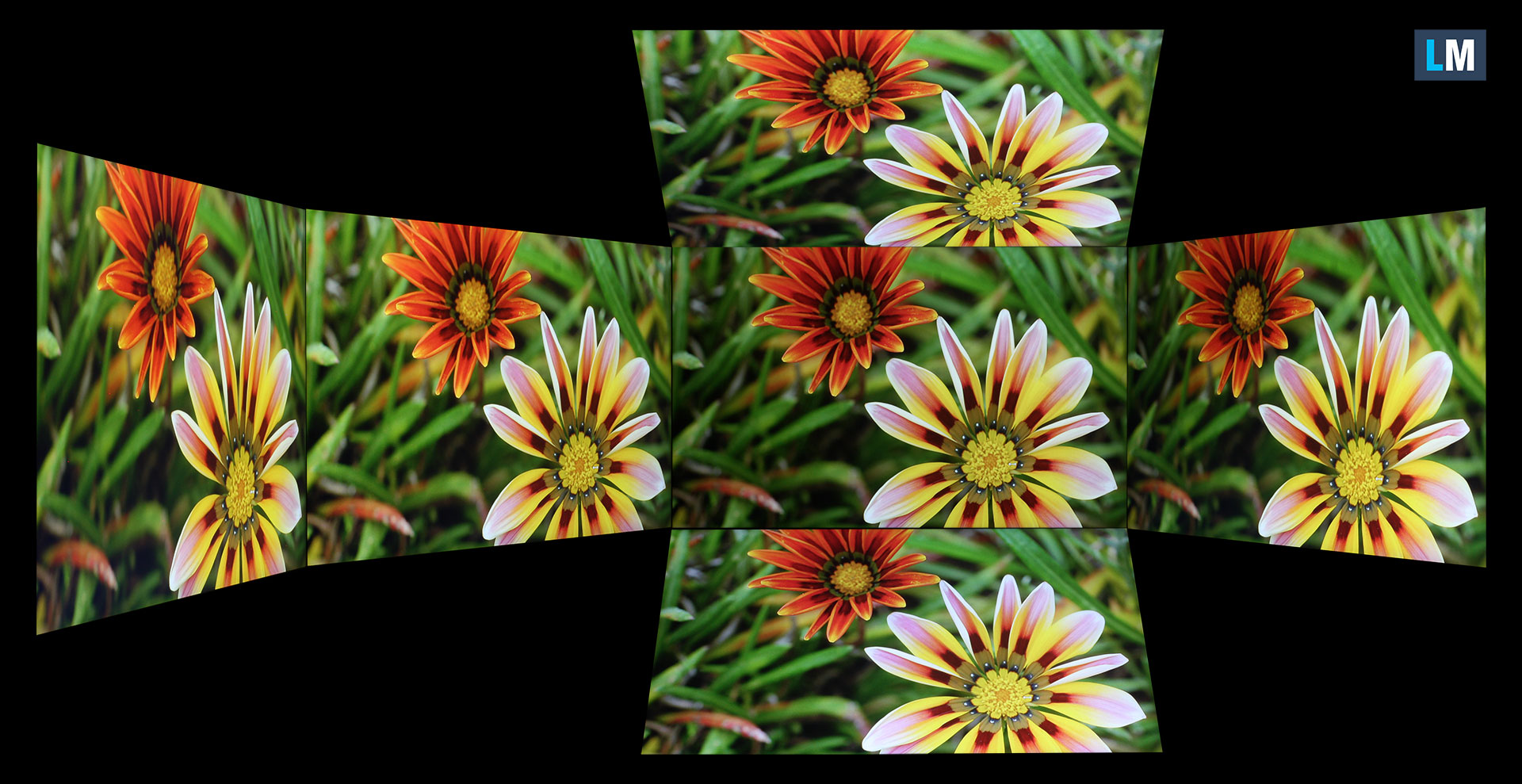
Also, a video with locked focus and exposure.
Color Coverage
The whole “sail-shaped” map below (Fig. 1) consists of all the colors we can see, while the black curved line shows all the colors from real-world scenes and nature around us.
Then, we’ve drawn some of the most important and interesting color spaces, compared to the colors the panel of Dell Pro Max 14 MC14250 can show:
Standard/For Web: sRGB – widely used color space for most consumer devices, ideal for Web design and development.
For Print: AdobeRGB – used in professional photo editing, graphic design, and print.
For Photographers/Video Editors: DCI-P3 – used in high-end film production, post-production, and digital cinema.
Premium HDR: Rec.2020 – one of the widest consumer color standards, covering 75.8% of the visible spectrum and serving as a benchmark for premium HDR content.
Dell Pro Max 14 MC14250: the yellow dashed triangle (– – – – – –) represents the range of colors this display can show.
In our tests, we calculated the total color coverage of the display at 51% of the sRGB color gamut and 40% of the DCI-P3 color gamut. This confirms what the 45% NTSC rating already suggests: this panel is not intended for color-sensitive work. It is fine for documents, spreadsheets, browsing, and general office use, but it cannot reproduce the full range of standard web colors, let alone wider creative color spaces.
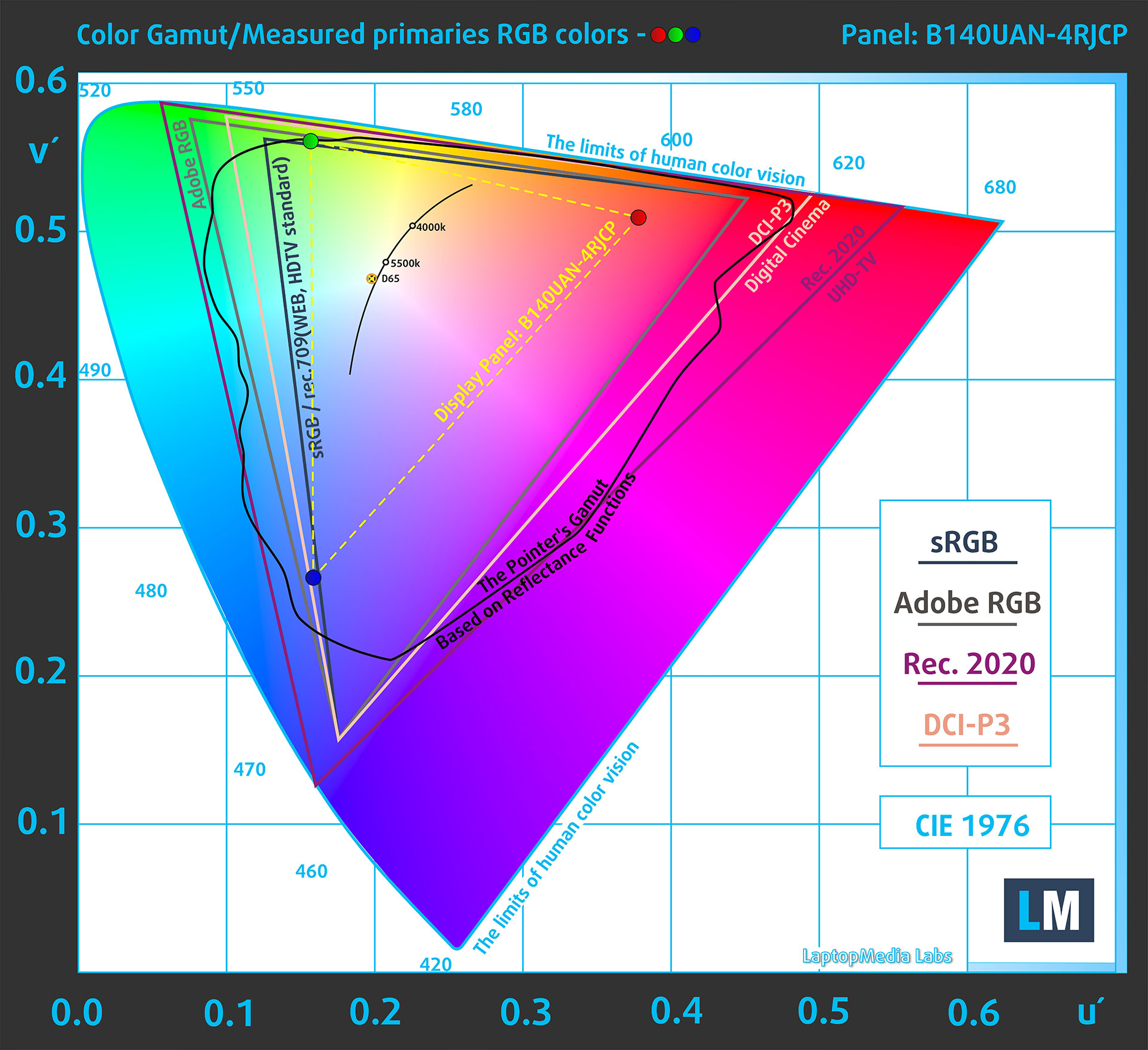
(Fig. 1) Dell Pro Max 14 MC14250 covers 51% of the sRGB gamut
Brightness and Contrast
The maximum brightness in SDR mode is 319 cd/m² in the center of the screen and 304 cd/m² averaged across the surface, with a maximum deviation of 11%.
The Correlated Color Temperature (CCT) on a white screen at maximum brightness is 6560 K, which is very close to the 6500 K target.
The contrast ratio is 1330:1, a good result for this type of IPS panel.
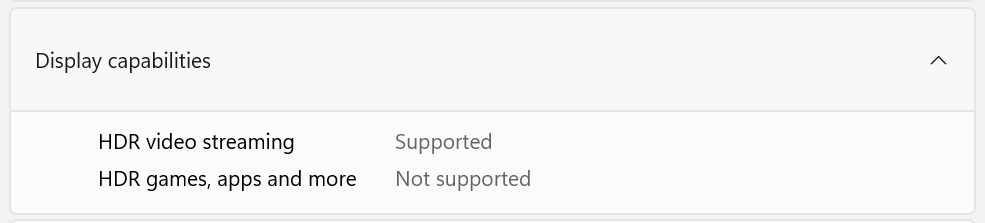
The panel is not recognized by Windows as HDR-capable for games, apps, and desktop use. HDR video streaming is reported as supported, but this display should still be considered an SDR screen.
Uniformity: Luminance, Contrast, and Color Deviation
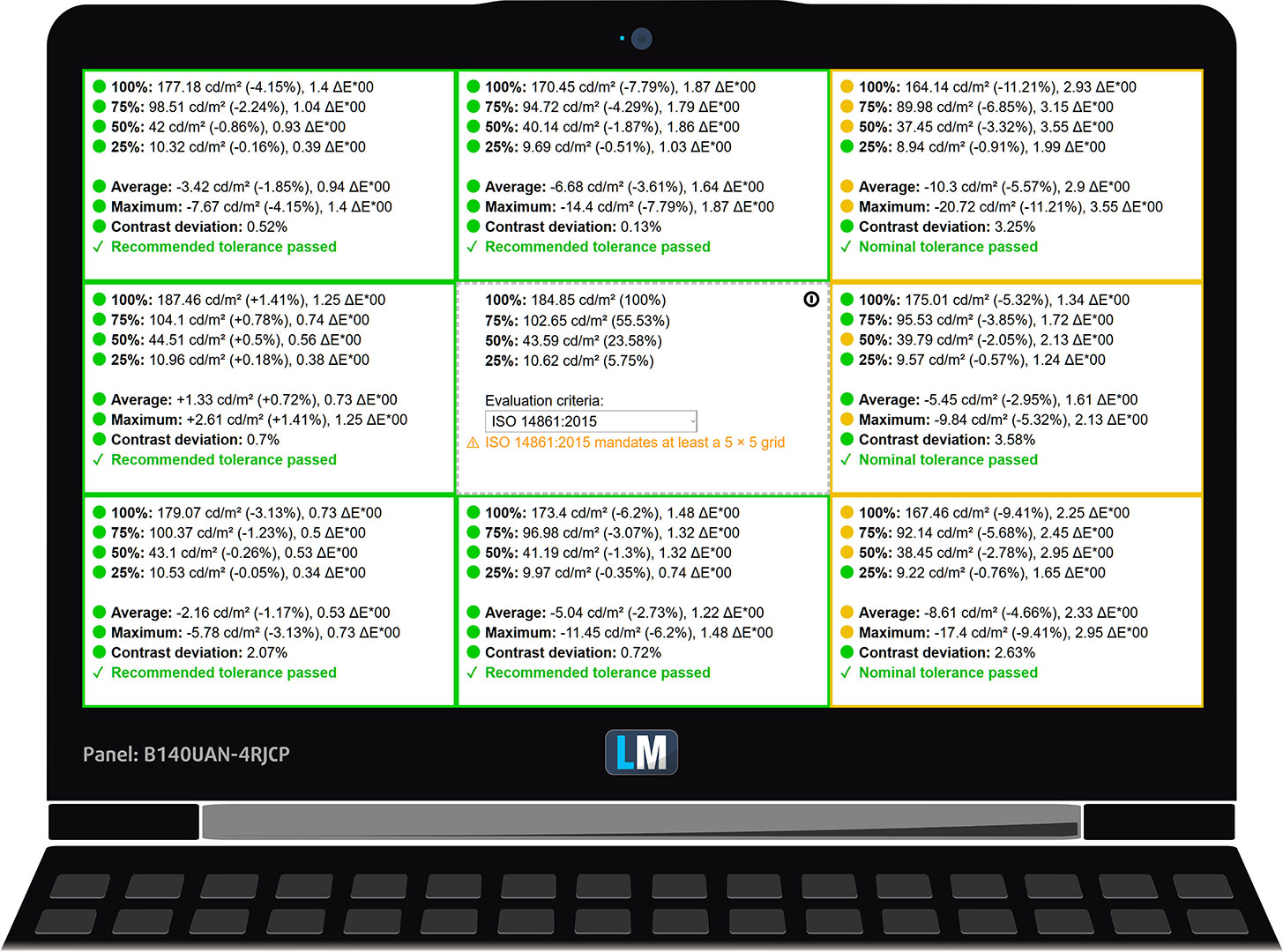
The figure below shows the results from our uniformity test across different sections of the screen. It’s measured at 185 nits (Windows slider = 57%) – a brightness level we consider typical for standard working conditions.
DeltaE values below 4.0 are acceptable for regular users. For those working with colors, screens with DeltaE values no higher than 2.0 are recommended.
Color Accuracy
Let’s check the difference between real colors and those you’ll see on the Dell Pro Max 14 MC14250. We measure that distance in DeltaE – the higher the number, the more different they look.
Values below 4.0 are acceptable for regular users, while values below 2.0 are suitable for color-sensitive work. A value below 1.0 means the difference is indistinguishable to the naked eye.
For the next graph, we’ve selected 24 common colors, including dark and light skin tones, blue sky, green grass, etc.
Before our calibration of the Dell Pro Max 14 MC14250, the average color accuracy was 5.1 dE (Fig. 2), and with our Design and Office profile, it improved to 4.2 dE (Fig. 3). This is a measurable improvement, but the result is still not good enough for color-sensitive work, mainly because the panel’s color gamut is physically limited. In other words, a profile can improve balance and accuracy within the panel’s capabilities, but it cannot turn a 45% NTSC display into a full-sRGB screen.
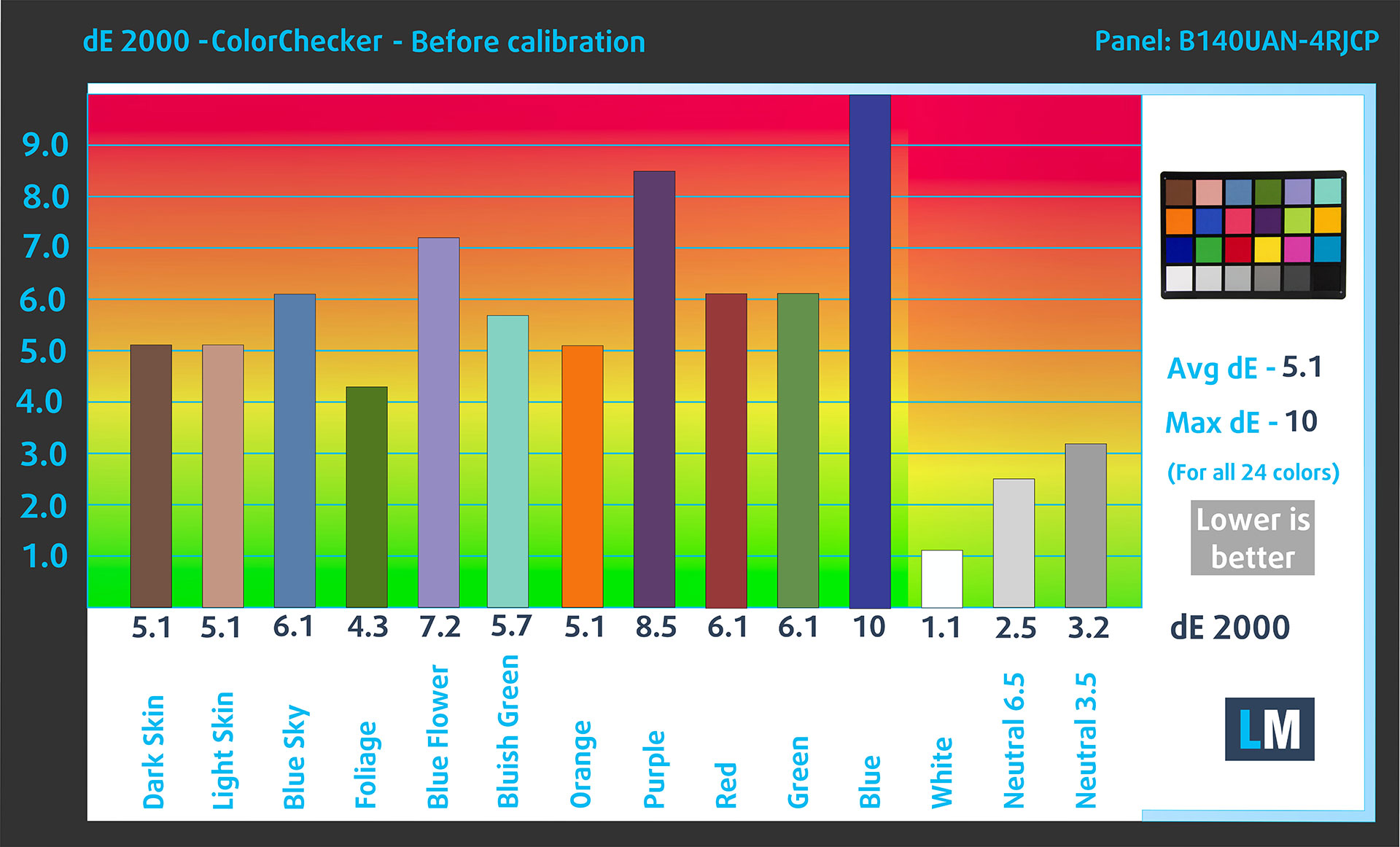
(Fig. 2) Dell Pro Max 14 MC14250 in its factory condition
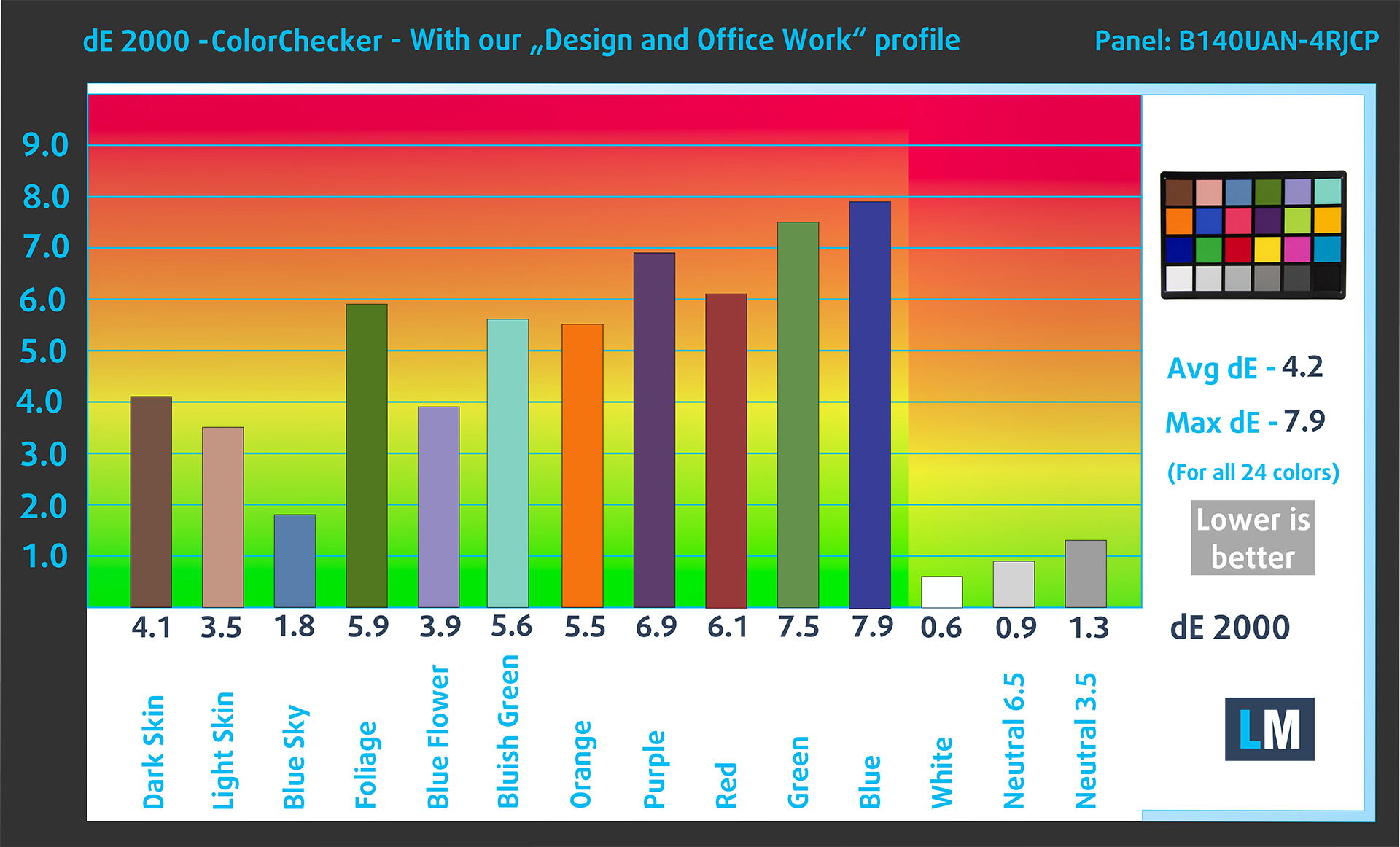
(Fig. 3) Dell Pro Max 14 MC14250 with our display profile
Comparison in the sRGB color space.
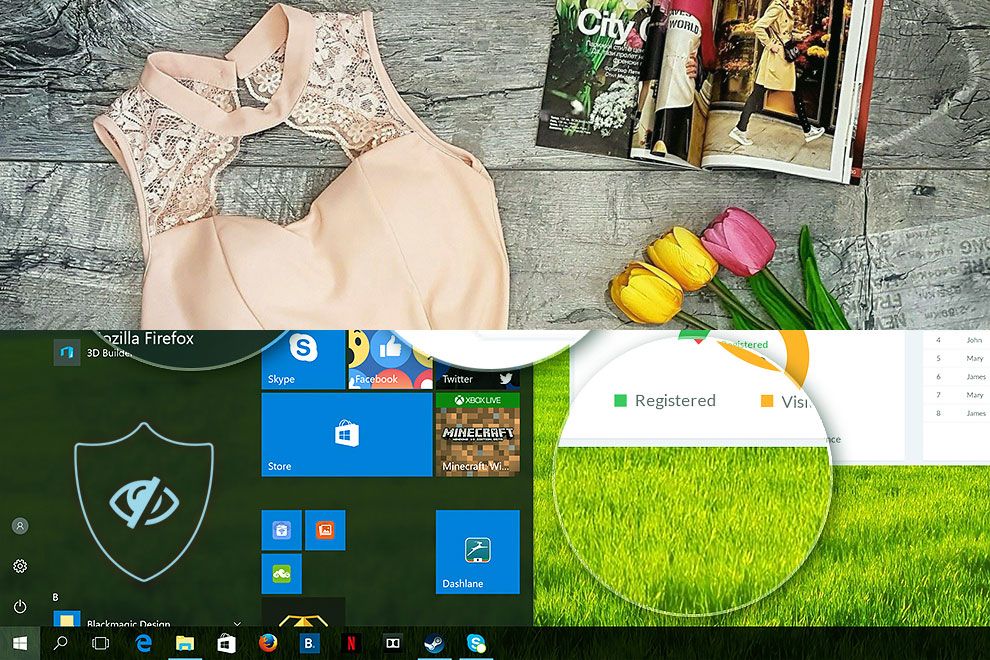
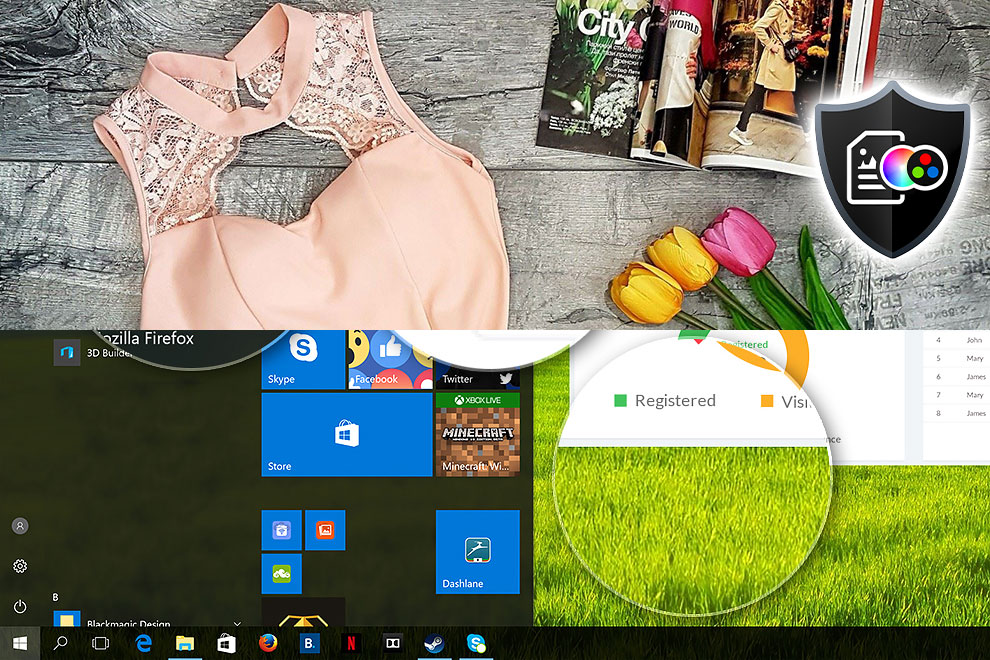
Here’s an illustration of what the Design and Office profile aims to deliver:
Left: No Profile | Drag the slider to see the difference | Right: Design & Office Profile
Visibility in dark scenes
Have you ever watched a movie with dark scenes where you could barely see anything? This often happens because many display panels struggle to differentiate the darkest nuances, making them appear the same.
The next figure illustrates how well the display reproduces these dark nuances. The left side of the image shows the display with stock settings, and the right side shows it with our Gaming and Movies profile activated.
The horizontal axis shows the grayscale levels, while the vertical axis shows the corresponding display brightness.
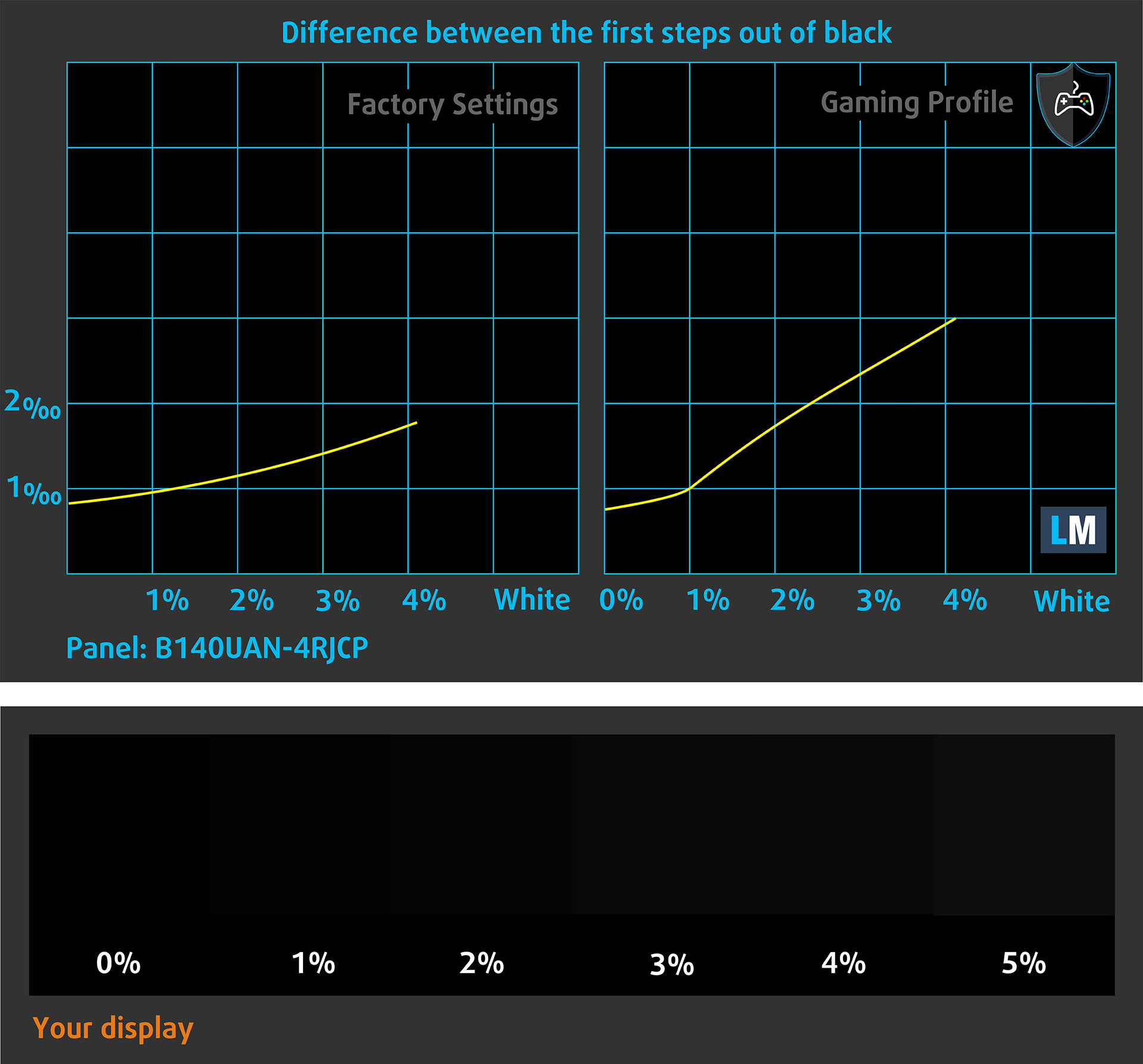
You can also check how your display handles the darkest nuances but keep in mind that this also depends on the settings of your current display and the surrounding light conditions.
Response time (Gaming capabilities)
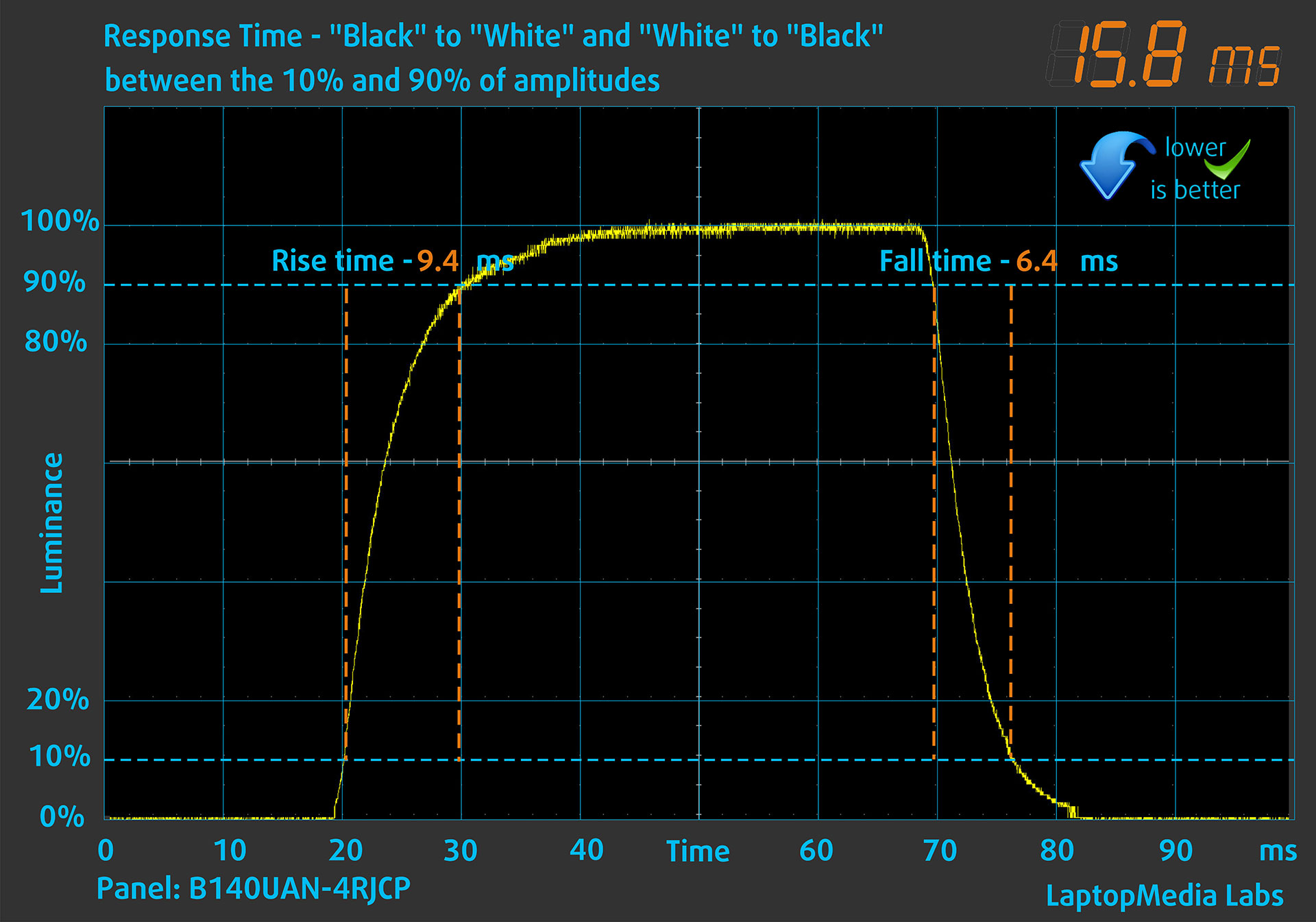
We test the reaction time of the pixels with the usual “black-to-white” and “white-to-black” method from 10% to 90% and vice versa.
We recorded Rise Time + Fall Time of 15.8 ms, which is not very short, but not bad for an IPS-class LCD panel. The screen is still limited to 60 Hz, so this is clearly not a gaming-focused display, but motion handling is acceptable for a business laptop.
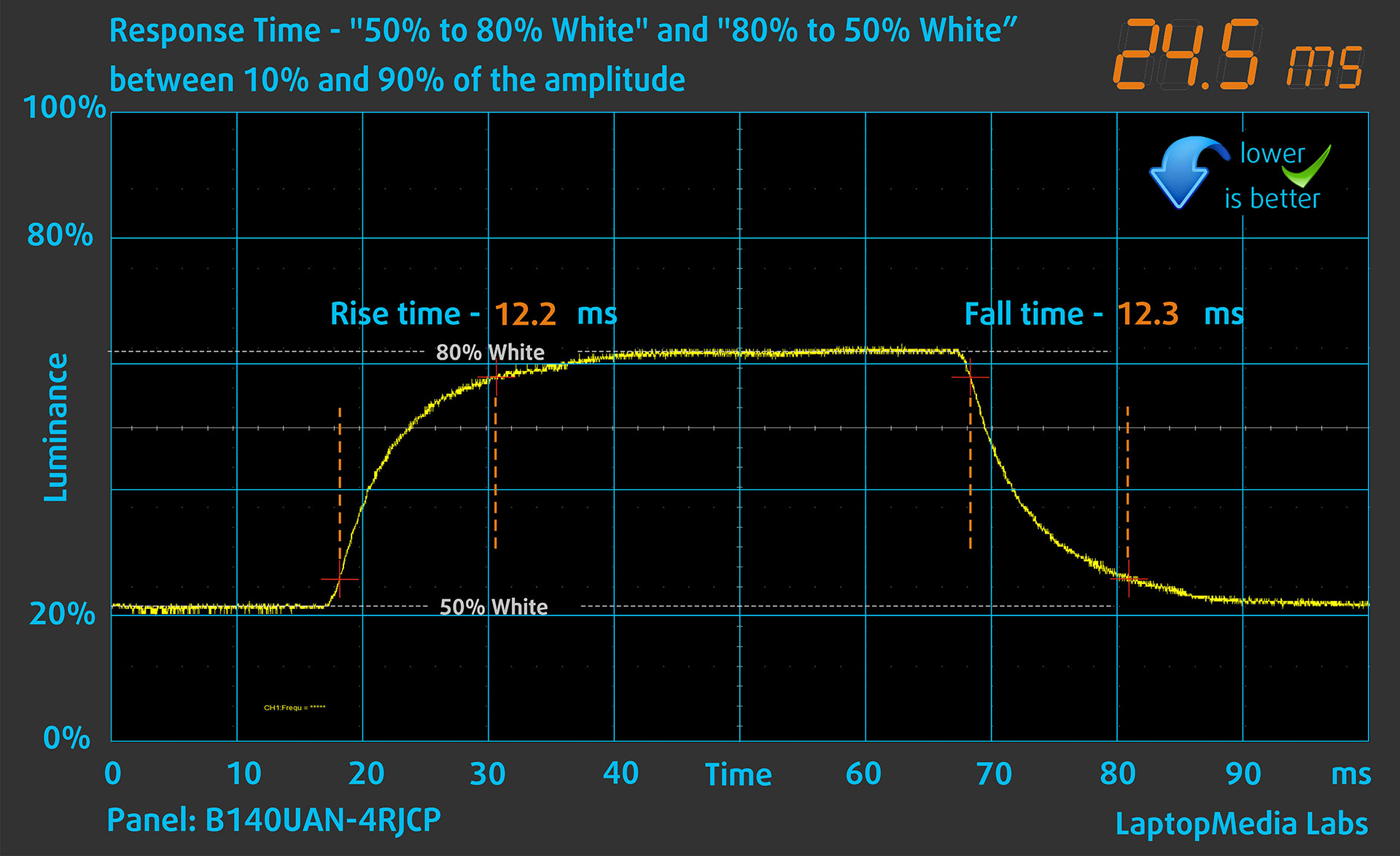
After that, we test the reaction time of the pixels with the usual “Gray-to-Gray” method from 50% White to 80% White and vice versa between 10% and 90% of the amplitude. In this test, we measured 24.5 ms.
Health Impact: PWM (Screen flickering)
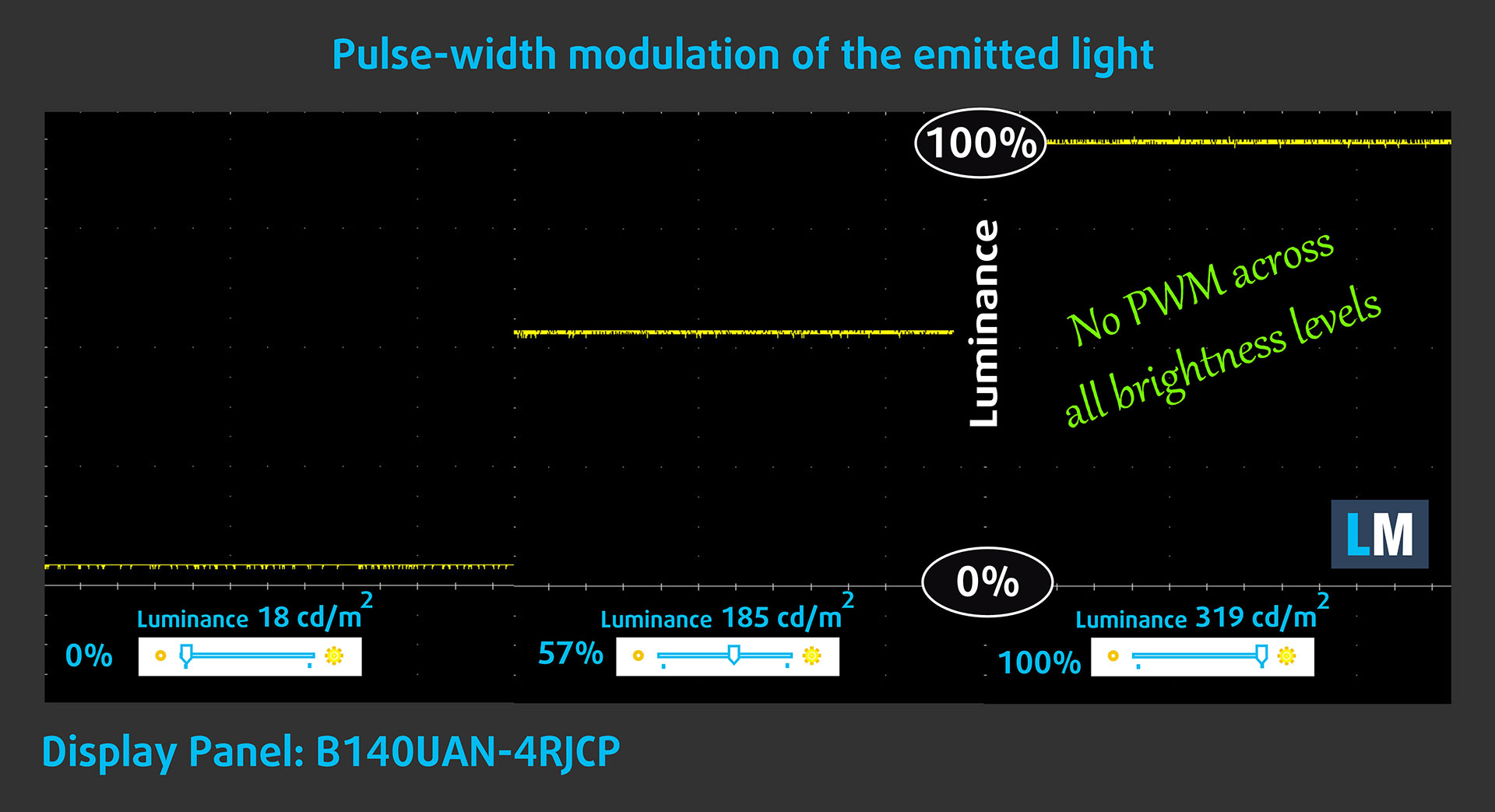
Some displays use PWM to regulate brightness, which means that instead of reducing the light intensity, they pulse or flicker. Our brain merges the image, so it appears darker, but this strains both it and our vision, especially when the frequency of the pulses is low. You can read more about that in our dedicated article on PWM.
In the graph below, you can see the intensity of light at different brightness levels. The vertical axis shows the brightness of the emitted light, while the horizontal axis shows time.
The Dell Pro Max 14 MC14250‘s display does not use PWM to regulate brightness, which makes it comfortable for prolonged use in this regard.
Health Impact: blue light emissions
Installing our Health-Guard profile not only eliminates harmful PWM when the laptop uses it to control brightness but also reduces harmful Blue Light emissions while keeping the colors of the screen perceptually accurate.
If you’re not familiar with the Blue light, the TL;DR version is – emissions that negatively affect your eyes, skin, and your whole body. You can find more information about that in our dedicated article on Blue Light.
Health Impact: Screen Reflectance
Displays with higher surface reflectance can cause eye fatigue in bright ambient conditions due to reflections. We measure the level of screen reflection with the display turned off, at a 60° angle.
The reflectance of the Dell Pro Max 14 MC14250’s screen is 57.7 GU. This places it in the medium-reflectance range: acceptable for normal office use, but direct light sources and bright windows can still create visible reflections.
Low Reflectance: < 45 GU
Medium Reflectance: 45 – 80 GU
High Reflectance: > 80 GU
Get our profiles
Since our profiles are tailored for each individual display model, this article and its respective profile package are meant for Dell Pro Max 14 MC14250 configurations with AUO B140UAN-4RJCP (AUO82B2), 1920 x 1200, IPS panel.
*Should you have problems with downloading the purchased file, try using a different browser to open the link you’ll receive via e-mail. If the download target is a .php file instead of an archive, change the file extension to .zip or contact us at [email protected].
Read more about the profiles HERE.
In addition to receiving efficient and health-friendly profiles, by buying LaptopMedia's products you also support the development of our labs, where we test devices in order to produce the most objective reviews possible.
Design and Office
The Design and Office profile makes display colors as close to real as possible.Ideal not only for professionals but also for everyday users, it meets sRGB standards (D65 white point, sRGB gamma) with minimal DeltaE for precise color reproduction on your panel.

Gaming and Movies
Have you ever watched a movie where, during dark scenes, you can barely see anything? Many displays fail to distinguish dark tones properly. Our Gaming and Movies profile enhances low-light performance, like HDR tech, using a gamma curve tailored to human perception — ideal for gamers seeking faster reactions and clearer visuals.

Health-Guard
Our Health-Guard profile protects your eyes by eliminating PWM flickering, reducing strain and fatigue, and minimizing harmful Blue light exposure that can disrupt sleep and health. It uses software dimming and a gamma curve tailored to human perception for comfort and safety during screen use.
Get All The Profiles With 33% Discount!

Sound Quality
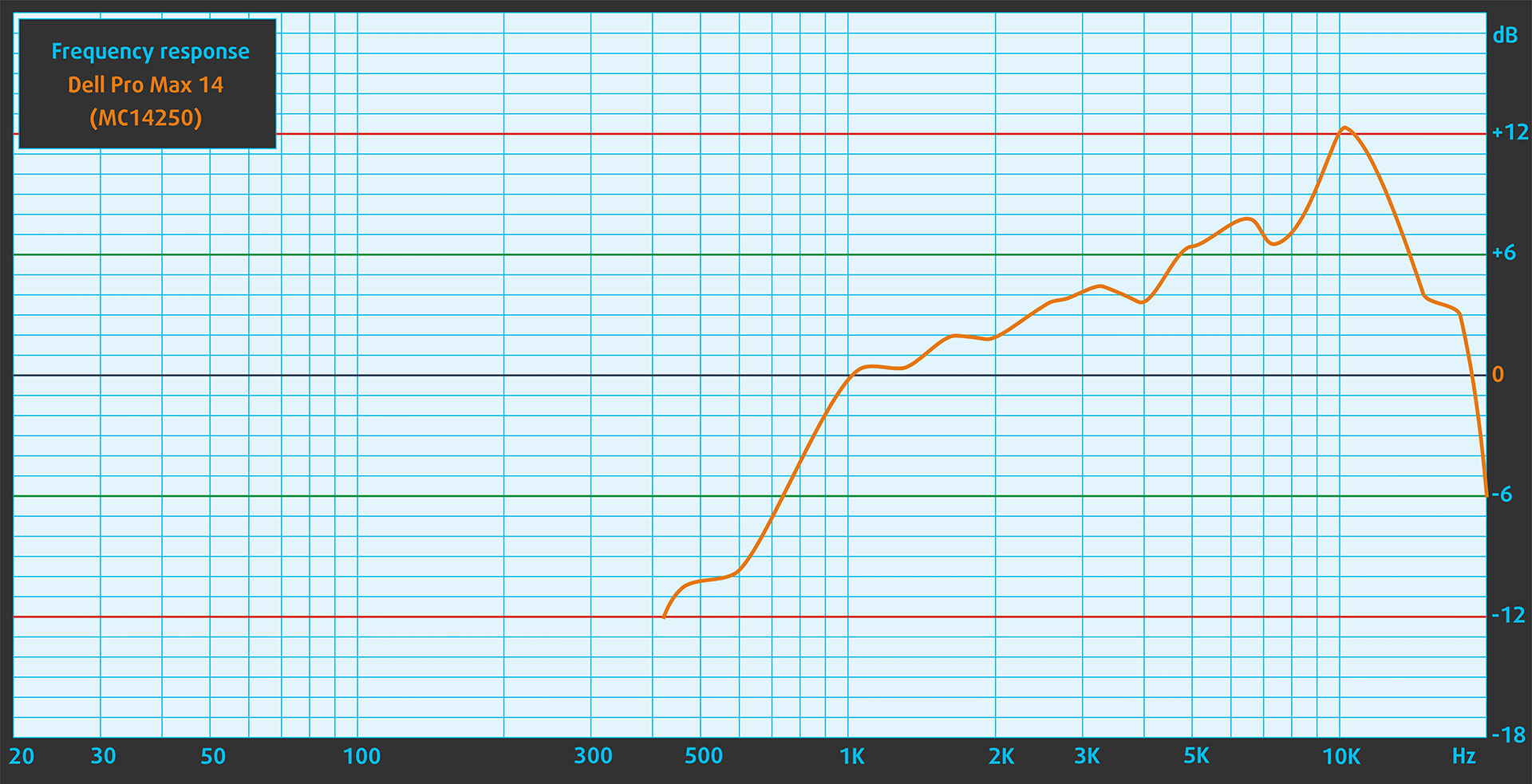
The speakers of the Dell Pro Max 14 MC14250 deliver good sound for a compact business laptop. Voices are clear, which is important for calls, meetings, and media playback, and the low, mid, and high frequencies are free from major deviations.
Work Performance: CPU, Storage, AI
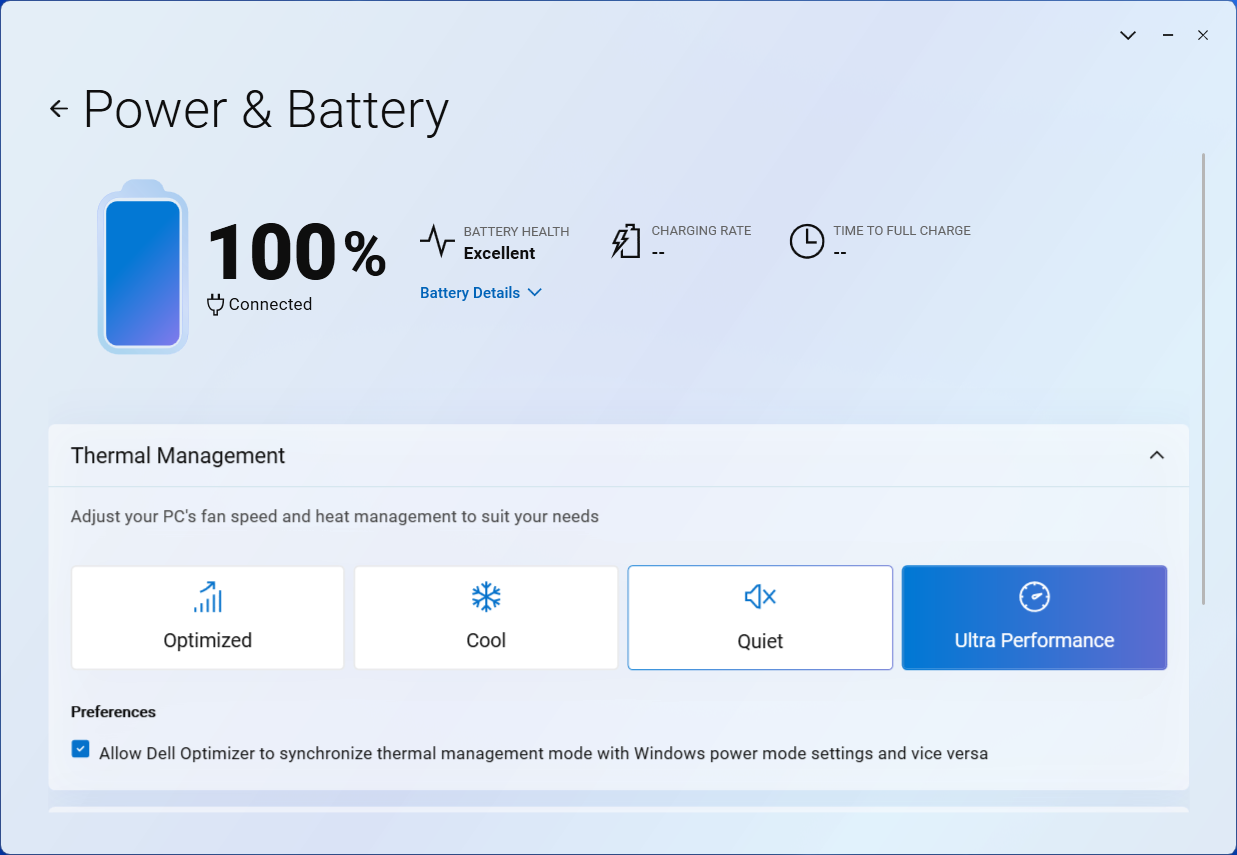
All performance and temperature tests are conducted with Ultra Performance mode activated in Dell Optimizer:
CPU and Work Performance
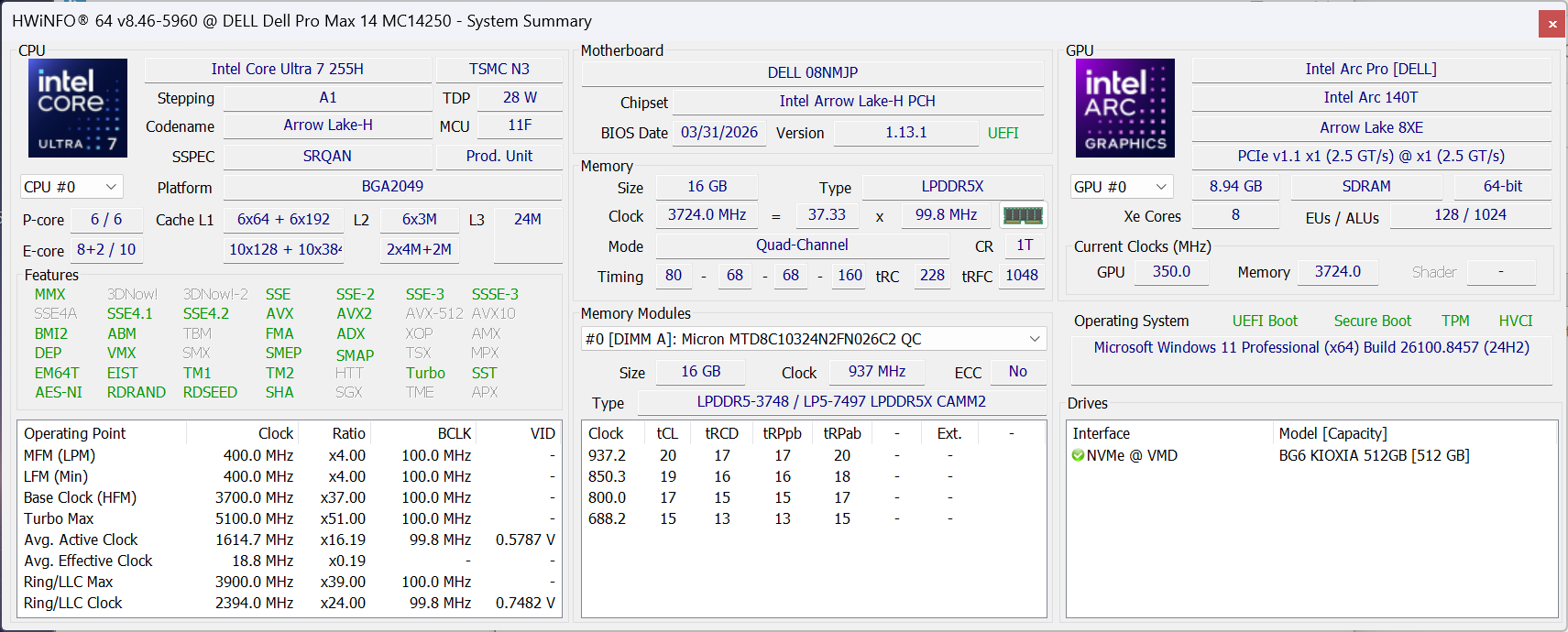
The Dell Pro Max 14 (MC14250) is available with Intel Core Ultra H-series processors, including the Core Ultra 5 225H, Core Ultra 5 235H vPro, Core Ultra 7 255H, and Core Ultra 7 265H vPro. Our ordered configuration uses the Core Ultra 7 255H, which is an important distinction: this is not a low-power ultraportable CPU, but a performance-oriented H-series chip inside a compact 14-inch business machine.
That shows clearly in our benchmarks. Compared to recent compact rivals such as the Lenovo IdeaPad Pro 5 with Ryzen AI 5 340 (detailed review), Dell XPS 13 9350 with Core Ultra 7 258V (detailed review), and Dell Latitude 14 5455 with Snapdragon X Plus X1P-42-100 (detailed review), the Pro Max 14 is especially strong in multi-core workloads and CPU rendering. Single-core performance is also excellent, but the biggest advantage of the Core Ultra 7 255H appears when the workload can use many cores at once.
This makes the machine well suited for heavy office work, large spreadsheets, code compilation, multitasking, and CPU-based creative workloads. One thing to keep in mind is memory capacity: our 16GB configuration is fine for general productivity, but heavier multitasking, large datasets, virtual machines, and creative workloads will benefit from the 32GB or 64GB LPCAMM2 options. Also, our machine uses integrated Intel Arc 140T graphics, so GPU-heavy professional tasks are a different story and are covered separately in the graphics section.
Single-core performance ensures smooth operation and responsiveness in operating systems, providing a better user experience.
Results are from the Geekbench 6 Single-Core test (higher is better)

Multi-core performance is essential for handling complex and demanding tasks, such as Video editing, CAD, and Scientific simulations.
Results are from the Geekbench 6 Multi-Core test (higher is better)
Here, we evaluate the CPU's performance using a real-world 3D rendering task, assessing its ability to handle complex computations and rendering workloads efficiently.
Results are from the Cinebench 2024 Multi-Core test (higher is better)
Storage Performance
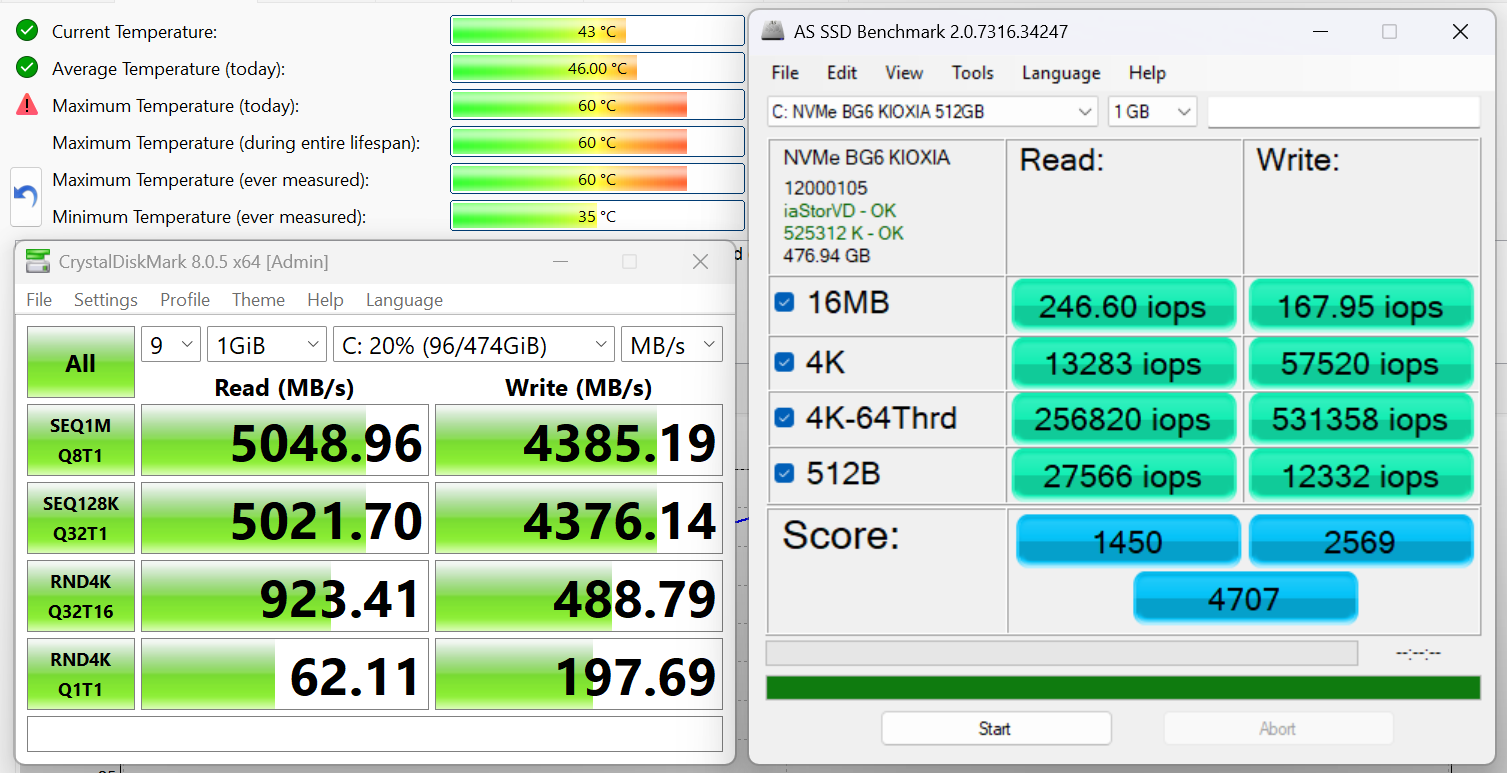
We ordered a configuration with 512GB of storage, and our Dell Pro Max 14 arrived with a KIOXIA BG6 NVMe SSD.
It is a rather fast PCIe 4.0 drive, reaching 5.0GB/s sequential read and 4.4GB/s sequential write speeds in our benchmark, while keeping temperatures within good limits. For a 512GB business configuration, this is a strong result and helps the system feel responsive in everyday work.
AI Performance
The AI side of this configuration is split between the CPU, the integrated Intel Arc 140T graphics, and the dedicated NPU inside the Core Ultra processor. The NPU is useful for efficient local AI and background acceleration, while the integrated GPU can provide much higher throughput in supported workloads. However, this should not be confused with the RTX PRO configurations of the Pro Max 14 series — our ordered machine is better viewed as a capable business laptop with modern AI acceleration, not as a dedicated local-AI workstation. For local AI models, memory capacity may become a bigger practical limitation than raw TOPS in the 16GB configuration.
Here you can see the position of the GPUs and CPUs (NPUs) found within the Dell Pro Max 14 (MC14250) in our AI Hardware Performance Rankings based on their AI processing power, measured in TOPS (Tera Operations Per Second) - a critical metric indicating the computational throughput, particularly for AI tasks.
The first column shows peak performance for INT8/FP8 precision, which is the most widespread metric for evaluating AI inference capabilities. We exclude Sparsity to provide a more accurate reflection of AI performance in dense computation scenarios where sparsity optimizations may not be applicable. The second and third columns show the performance with Sparsity, and FP4 TFLOPS, when supported.
For SoCs, the results reflect the peak performance of the integrated NPU. Additionally, it’s important to note that, according to Microsoft, a NPU must have at least 40 TOPS of AI computing power for the PC to be considered “AI-capable.”
| # | GPU / CPU (NPU) | TOPS INT8/FP8 No Sparsity | TOPS INT8/FP8 Sparsity | TFLOPS FP4 Sparsity |
|---|---|---|---|---|
| 1735. | Intel Core Ultra 7 255H | 13 | — | — |
| 1737. | Intel Core Ultra 7 265H | 13 | — | — |
| 1743. | Intel Core Ultra 5 225H | 13 | — | — |
| 1745. | Intel Core Ultra 5 235H | 13 | — | — |
GPU and Gaming Performance
Graphics options for the Dell Pro Max 14 (MC14250) include integrated Intel Arc or Arc Pro Graphics, depending on the selected processor, as well as a discrete NVIDIA RTX PRO 500 Blackwell option. Our configuration uses the integrated Intel Arc 140T, so this section reflects the capabilities of the iGPU version, not the RTX PRO model.
For an integrated GPU, the Arc 140T performs very well. It is far ahead of weaker integrated solutions such as the Intel Graphics 4-core iGPU in the Dell Pro 14 (detailed review), and it also clearly beats the Radeon 840M in the Lenovo IdeaPad Pro 5 (detailed review). Compared to Intel Arc Graphics 140V machines such as the Dell XPS 13 9350 (detailed review) and Lenovo ThinkPad X9-14 Gen 1 (detailed review), it is a little behind, but still close enough to be considered a strong modern iGPU.
In practical terms, this means the Pro Max 14 with Arc 140T is suitable for everyday GPU acceleration, media work, light creative tasks, and casual or esports gaming at modest settings. However, users who need CUDA acceleration, heavier 3D workloads, professional GPU rendering, AI tasks on the GPU, or certified workstation-like performance should look at the RTX PRO 500 Blackwell configuration instead.
The results are from 3DMark Time Spy (Graphics). Higher is better.
The results are from 3DMark Wild Life Extreme Unlimited. Higher is better.
Gaming tests

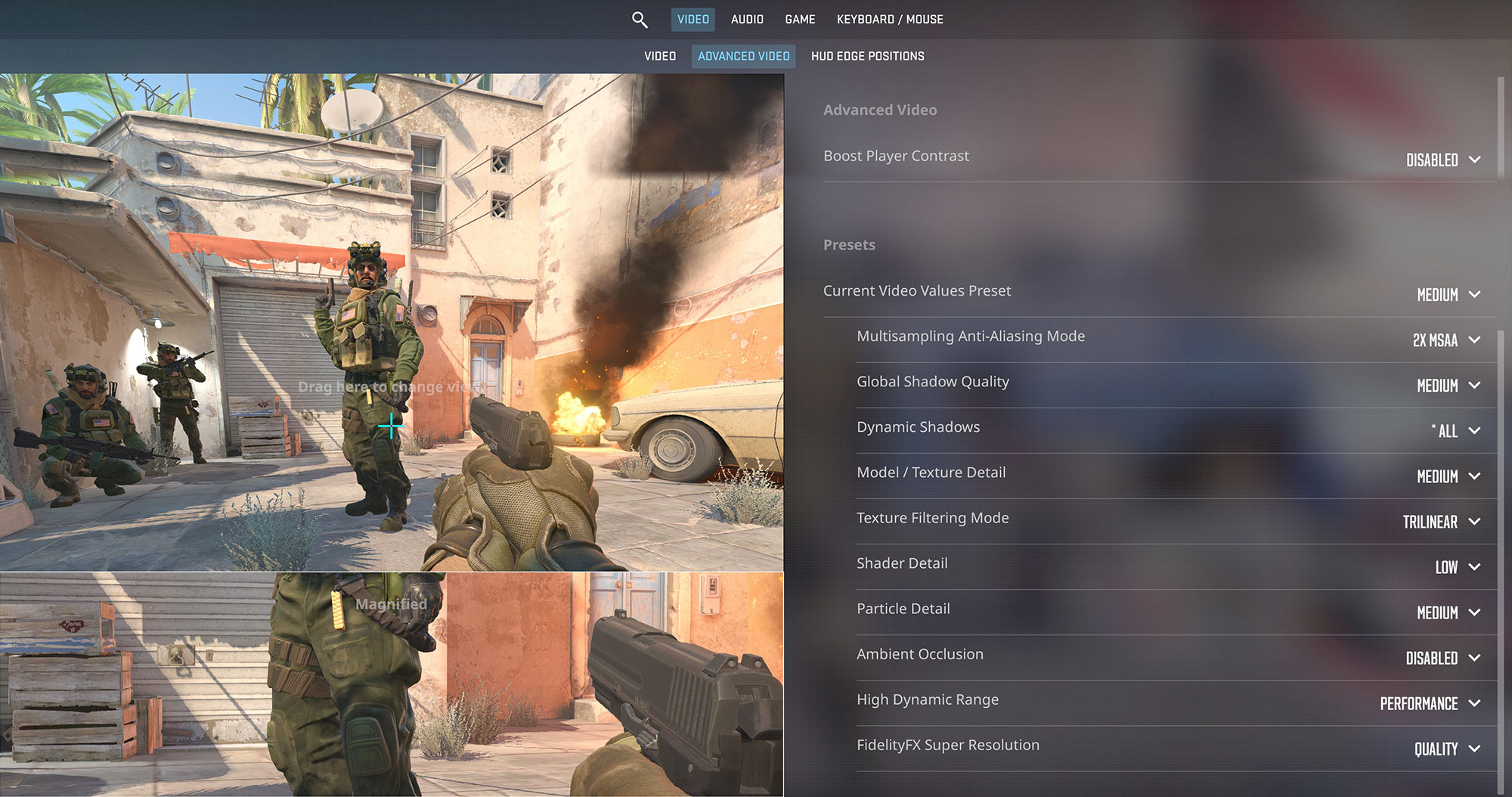
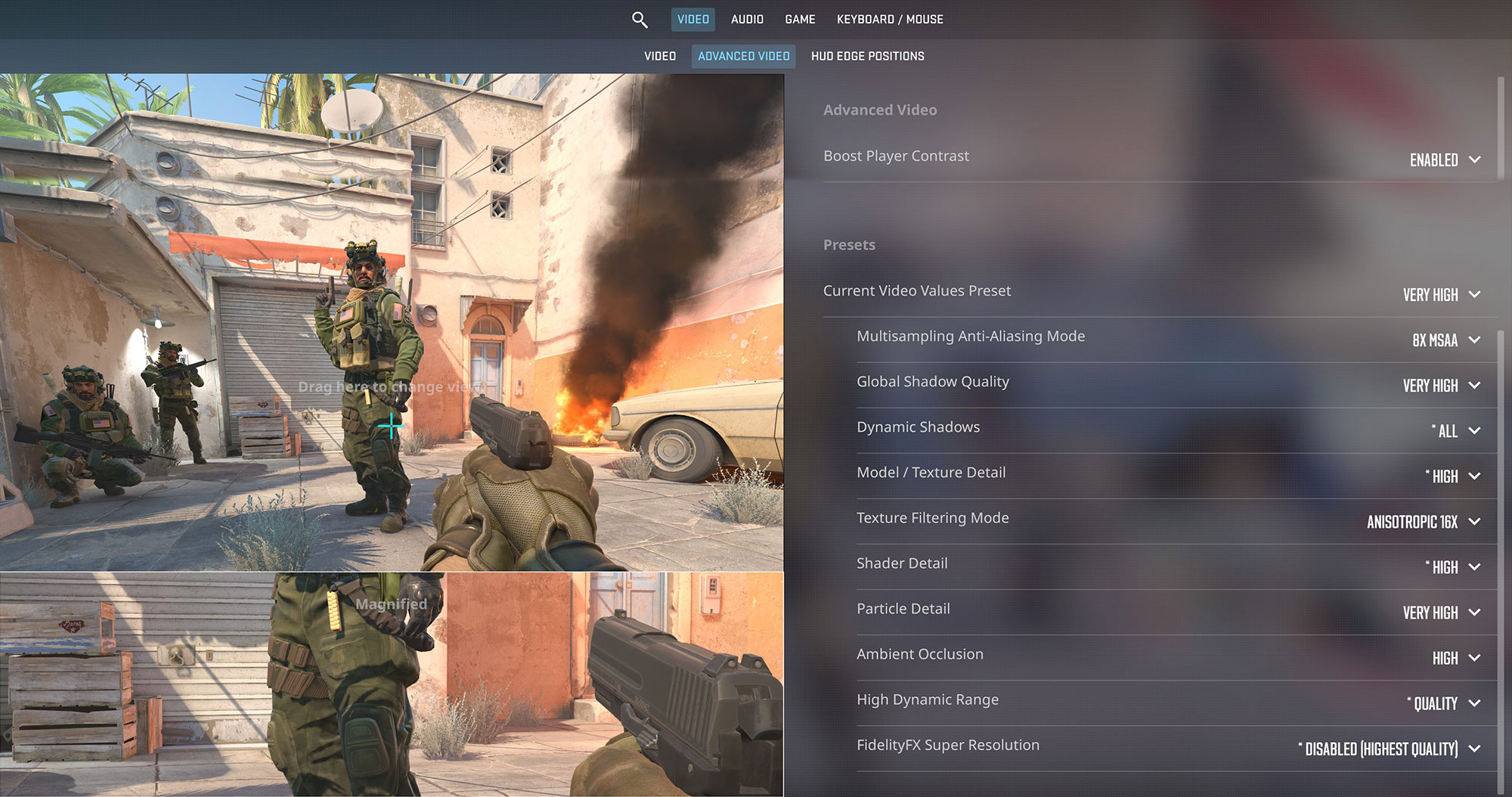
The Dell Pro Max 14 is clearly not designed as a gaming laptop, but the Intel Arc 140T integrated graphics inside our configuration are more capable than you might expect. In Counter-Strike 2, the laptop reaches 107 FPS on Medium settings at 1200p, which is more than enough for the built-in 60Hz display. Very High settings are possible as well, but at 49 FPS the experience is no longer as fluid, so Medium is the better choice for this machine.
| Counter-Strike 2 | 1200p, Medium (Check settings) | 1200p, Very High (Check settings) |
| Average FPS | 107 FPS | 49 FPS |

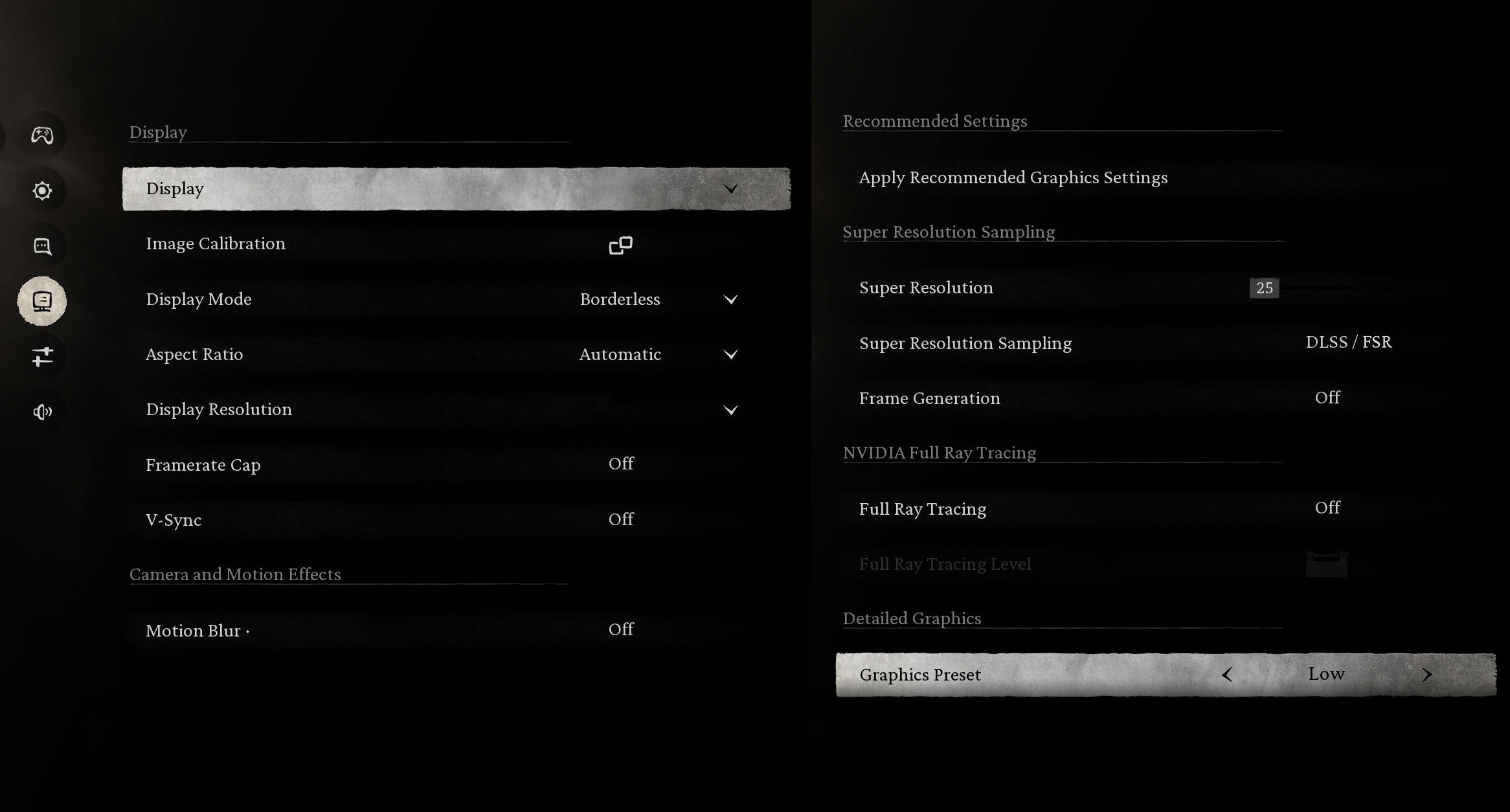
More demanding modern titles require much more realistic expectations, but the result in Black Myth: Wukong is still impressive for integrated graphics. At 1200p on Low settings, the Pro Max 14 manages 50 FPS, which is a surprisingly playable result for integrated graphics.
| Black Myth: Wukong | 1200p, Low (Check settings) |
| Average FPS | 50 FPS |

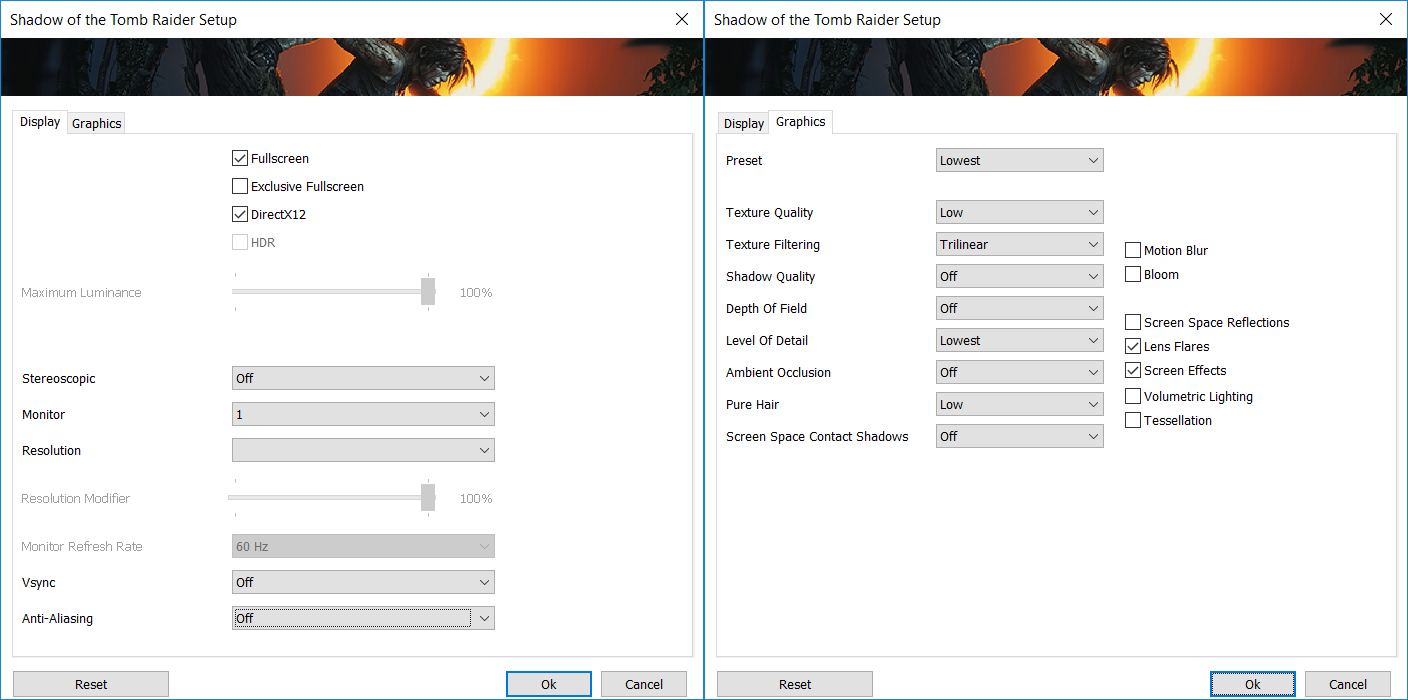
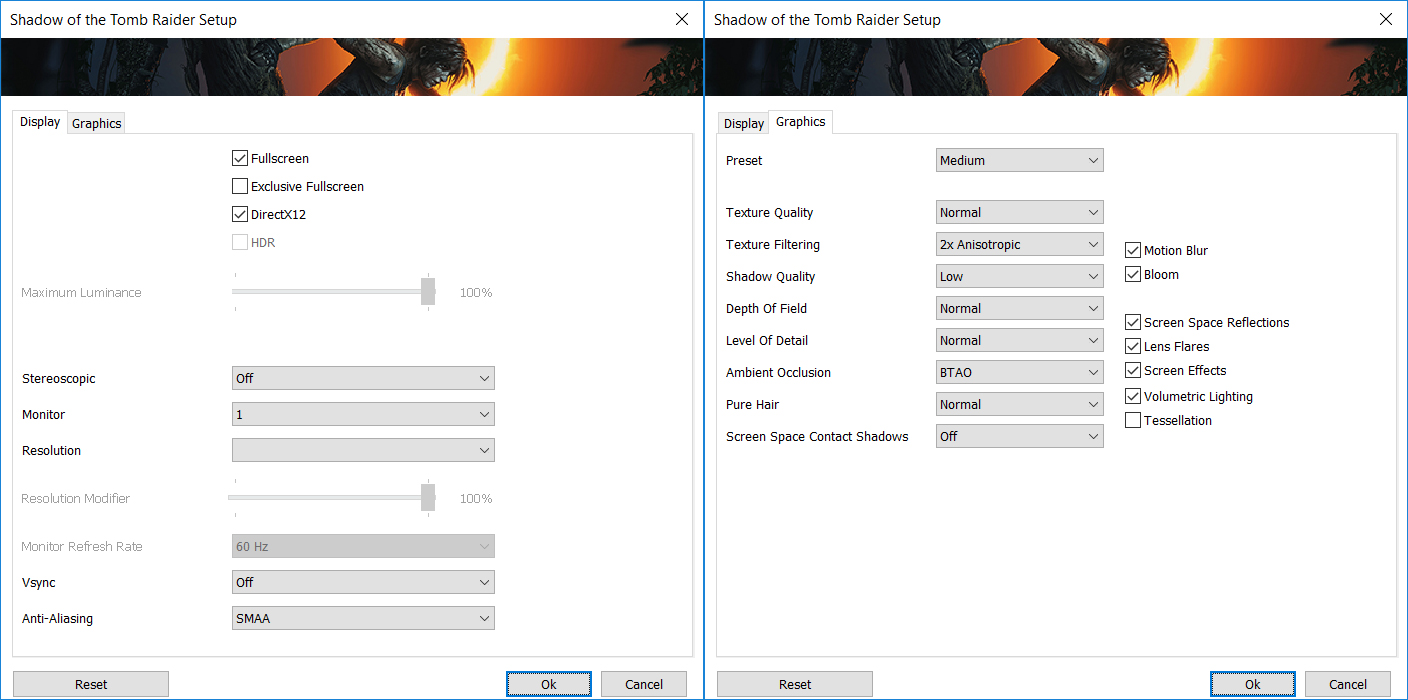
Older AAA games are also well within reach. Shadow of the Tomb Raider runs at 73 FPS on the Lowest preset at 1200p, which fits the 60Hz display very well. Medium settings lower the result to 37 FPS, so they are usable, but the Lowest preset is clearly the smoother option.
| Shadow of the Tomb Raider | 1200p, Lowest (Check settings) | 1200p, Medium (Check settings) |
| Average FPS | 73 FPS | 37 FPS |
Temperatures and Comfort, Noise, Stability
At idle, the CPU package of the Intel Core Ultra 7 255H sits at a very low 36°C, so thermally the laptop is completely relaxed. The less ideal part is acoustics: in the performance-focused test profile, our machine remains slightly audible even when doing nothing demanding, which is not what we would call optimal for a compact business laptop.
Office Work, Web Development, Design
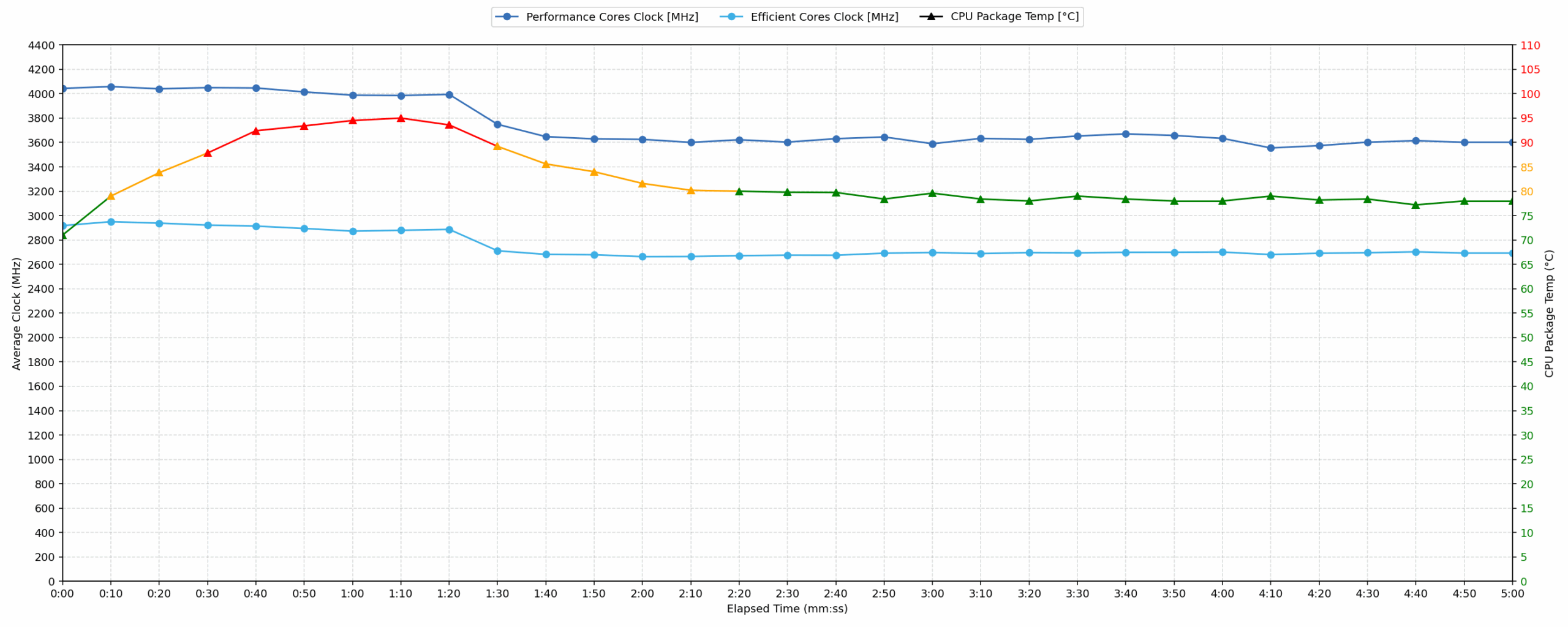
Short periods (0:00 – 0:10 s) of 100% CPU load
This test shows the CPU behavior during short periods of serious load. It’s important for users who are looking for laptops suitable for tasks like Web Design and Programming.
| Intel Core Ultra 7 255H | Avg. P-Core Clock | Avg. CPU Temp. | Avg. CPU Power |
| Dell Pro Max 14 (MC14250) | 4043 MHz | 71 °C | 51 W |
| Dell Pro Max 16 (MC16250) | 3749 MHz | 81 °C | 72 W |
| Lenovo Yoga Book 9i (14″, Gen 10) | 3371 MHz | 96 °C | 56 W |
The short-load behavior is excellent. The Pro Max 14 lets the Core Ultra 7 255H boost aggressively, averaging just over 4.0 GHz on the P-cores while staying at a very reasonable 71°C. In this specific test configuration, it even achieves higher average P-core clocks than the larger Dell Pro Max 16, while using less power and running cooler. For everyday responsiveness, opening large projects, compiling smaller chunks of code, exporting short tasks, or handling heavy browser and office bursts, this is exactly the type of behavior you want to see.
Video editing, Scientific computing, Software compilation, 3D rendering
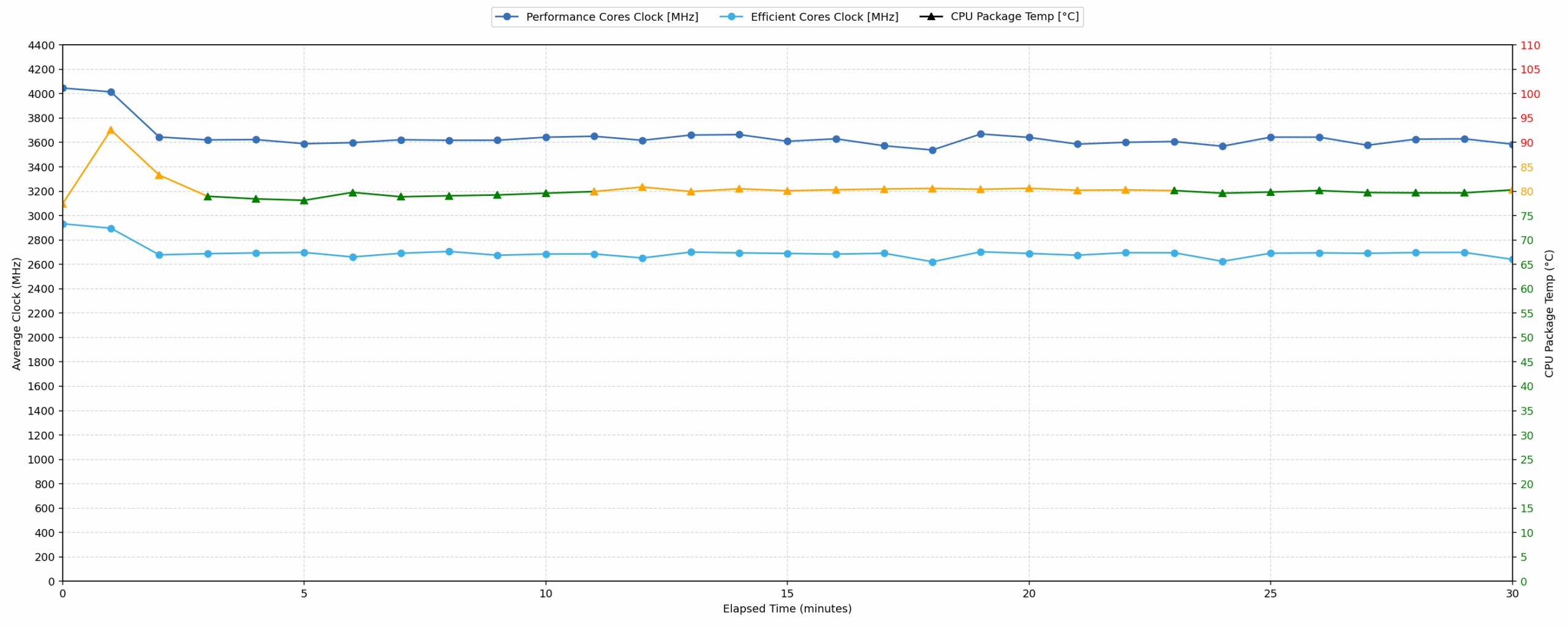
Long periods (0:00 – 30:00 min) of 100% CPU load
This test shows the CPU behavior during long periods of serious load. It’s important for users who are looking for laptops suitable for tasks like Video Editing and 3D Rendering.
| Intel Core Ultra 7 255H | Avg. P-Core Clock | Avg. CPU Temp. | Avg. CPU Power |
| Dell Pro Max 14 (MC14250) | 3636 MHz | 80 °C | 43 W |
| Dell Pro Max 16 (MC16250) | 3495 MHz | 89 °C | 65 W |
| Lenovo Yoga Book 9i (14″, Gen 10) | 2583 MHz | 79 °C | 32 W |
The sustained-load result is also very strong for a 14-inch machine. After 30 minutes of full CPU load, the Pro Max 14 still keeps the P-cores at an average of 3636 MHz, with the CPU package averaging 80°C and 43 W. This shows that Dell is not relying only on a short boost spike — the cooling system can maintain serious CPU performance over time.
In this specific comparison, the 14-inch model runs at lower power than the Pro Max 16 but still maintains slightly higher average P-core clocks in our test, while also staying cooler. That is an impressive result, although the trade-off is again noise: this is not a silent machine when pushed hard. Still, from a stability and thermal-control perspective, the Pro Max 14 behaves confidently and avoids the kind of excessive temperatures we often see in compact performance laptops.
Battery Life
The battery of the Dell Pro Max 14 MC14250 is a 4-cell Li-ion unit, model D9V29, with a capacity of 72.0 Wh. That is a generous size for a 14-inch business laptop and gives the machine a good starting point for long unplugged use.
We tested the battery with the Best Power Efficiency mode activated in Windows settings and the Quiet mode selected in the Dell Optimizer app.
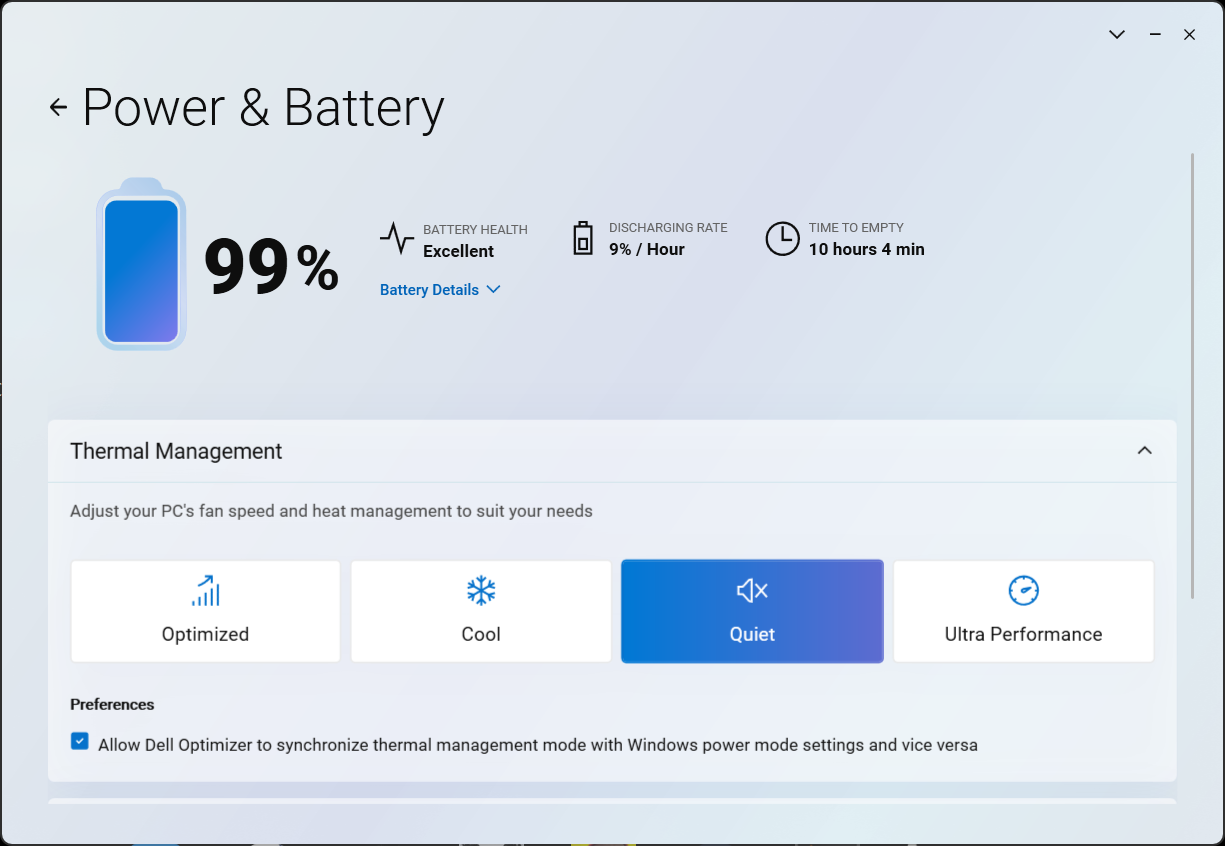
In our video playback test at 180 nits in SDR mode, the Pro Max 14 lasted 12 hours and 29 minutes. This is a strong result for a compact laptop with an H-series Core Ultra processor, and it is more than enough for a full workday of light use. Still, it is not the most efficient machine in this class. Laptops built around lower-power platforms, such as the Dell Latitude 14 5455 with Snapdragon X Plus (detailed review), Dell Pro 14 Plus PB14250 (detailed review), and Lenovo ThinkPad X9-14 Gen 1 (detailed review), can last noticeably longer despite using smaller batteries.
The takeaway is simple: the Pro Max 14 offers good endurance, but its bigger 72Wh battery is partly there to balance the higher-performance Core Ultra H-series hardware. If maximum battery life is your top priority, there are more efficient 14-inch options. If you want stronger CPU performance without giving up all-day battery life, this Dell strikes a solid balance.
Brightness: 180 nits; Display Mode: SDR
Time to Full Discharge: Higher is Better

Disassembly, Upgrade options, and Maintenance
Getting inside the Dell Pro Max 14 MC14250 is straightforward. The bottom panel is held by 10 captive screws, so they stay attached to the cover after loosening. After that, a thin plastic pry tool is enough to release the clips, but it is worth working carefully and keeping the tool shallow to avoid touching the internal components.
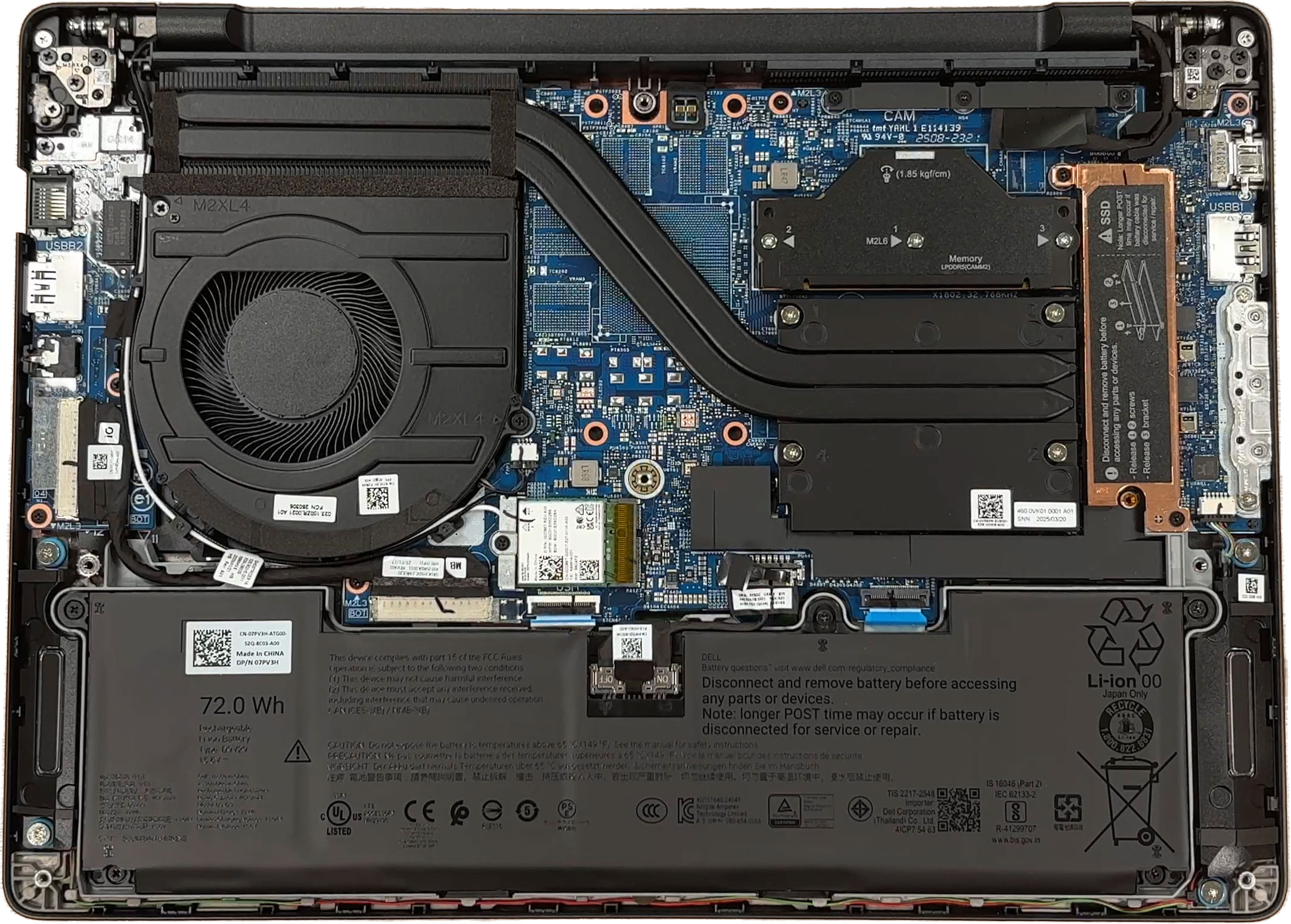
As always, the first thing to do after removing the bottom cover is to disconnect the battery. This machine uses a 72Wh, 4-cell Li-ion battery, model D9V29. Dell lists two variants with the same capacity: a Standard Life version and a Long Cycle version. The battery is secured with screws and can be removed without taking out the motherboard, which is good news for long-term servicing.
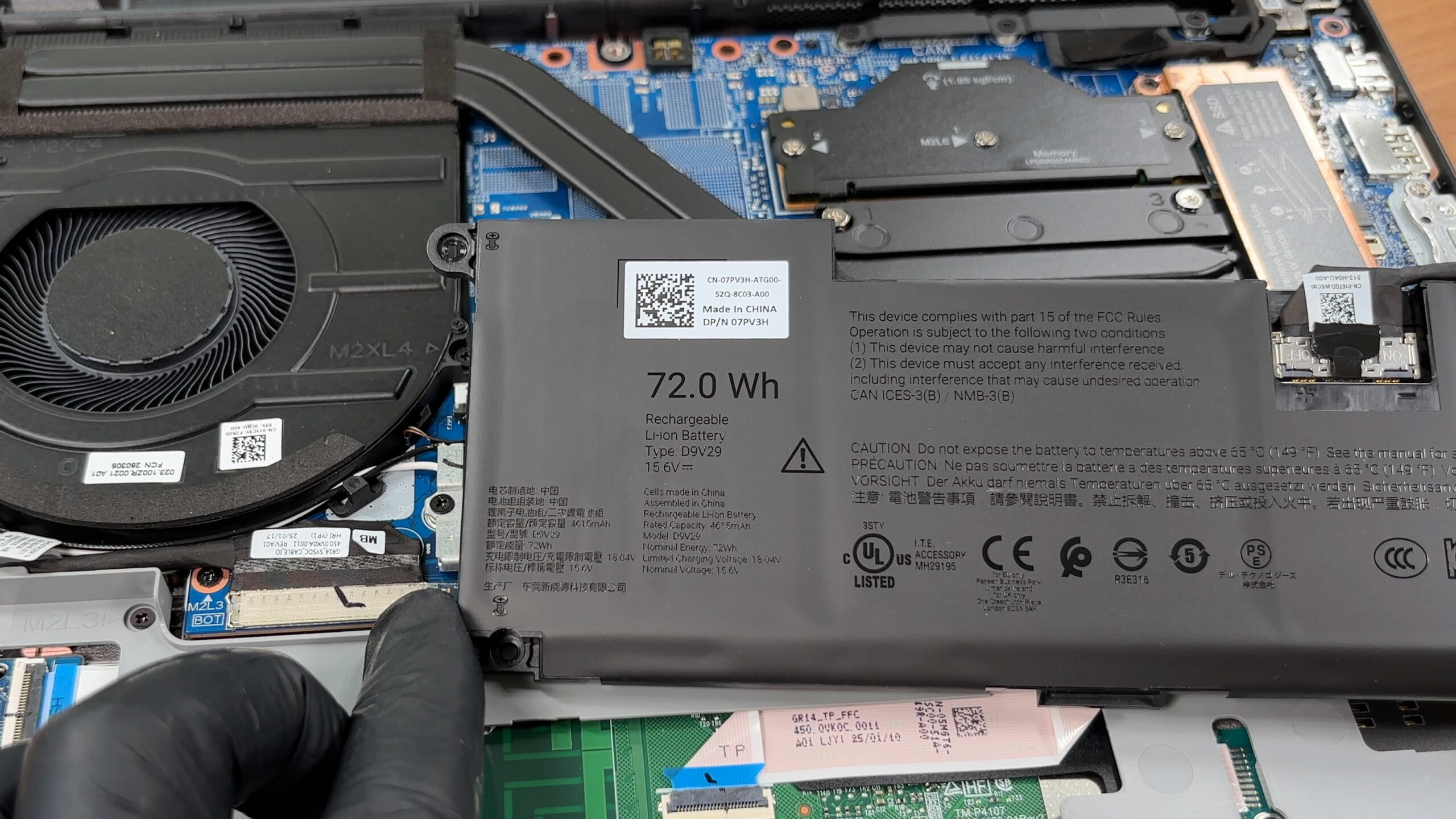
A useful detail printed inside the chassis is that the system may take longer to complete POST after the battery cable has been disconnected for service or repair. This is normal behavior, so users should not immediately assume something has gone wrong after maintenance.
For cooling, Dell uses a single-fan heat-pipe solution. The processor sits underneath the cooling assembly, while the fan pushes heat through the fin stack near the hinge area. It is a compact and easy-to-access setup, so cleaning the fan and heatsink area during maintenance should be simple once the bottom cover is removed.
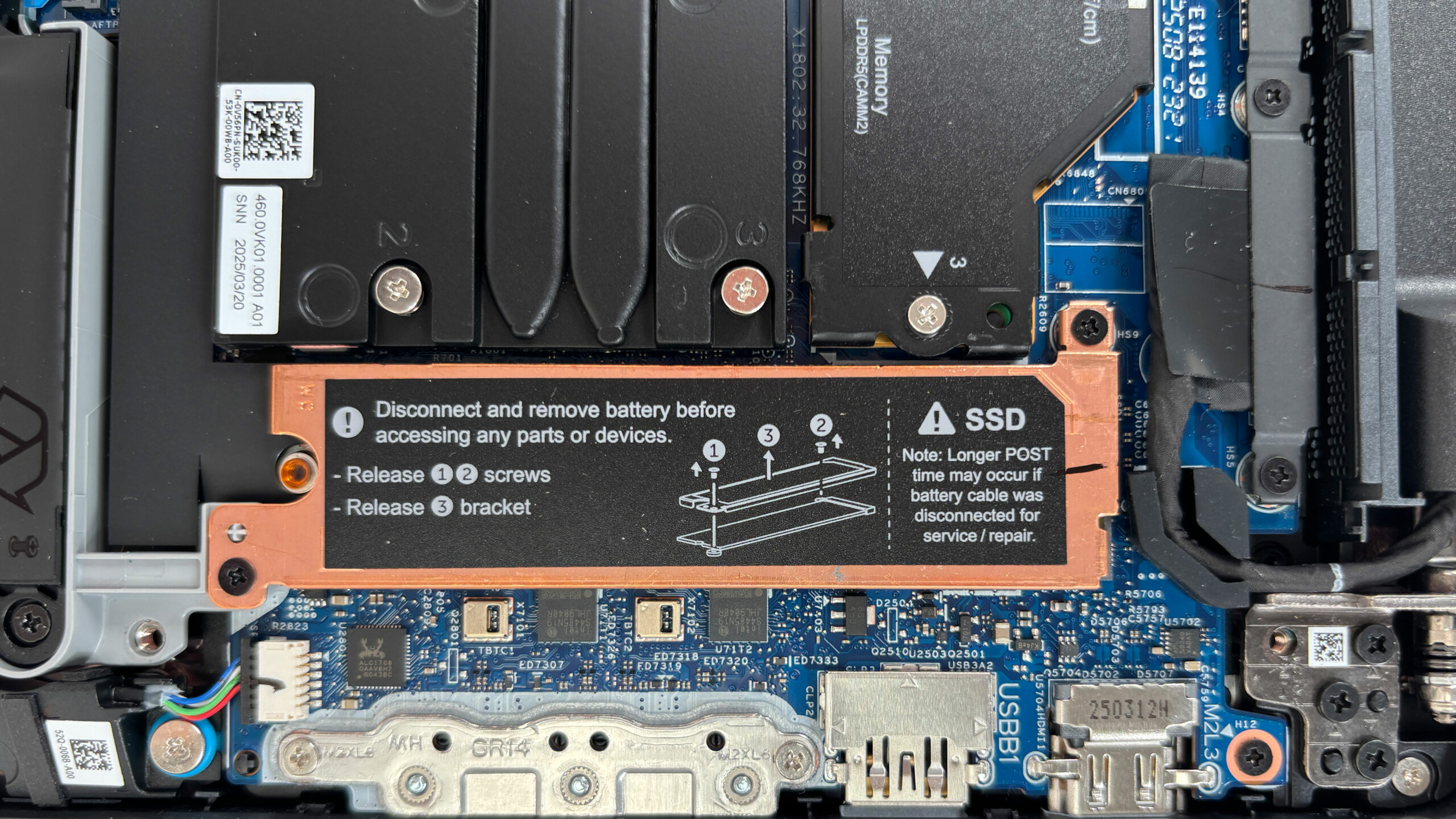
One of the more interesting things about the internal design is how service-oriented it feels for a compact 14-inch machine. The side I/O areas appear to use separate board-style assemblies and connectors rather than treating every port as a permanently integrated part of the mainboard. This is the kind of detail we like to see on a professional laptop, because damaged ports and small interface boards are among the parts that may realistically need servicing over the years.
Storage is handled by a single M.2 PCIe Gen 4 x4 NVMe slot. It supports both M.2 2230 and M.2 2280 SSDs, with Dell listing up to 512GB for the shorter 2230 format and up to 2TB for 2280 drives. The configuration we ordered comes with a 512GB KIOXIA BG6 NVMe SSD in the compact 2230 format. The metal EMI/RFI cover above the drive also works as a heatsink, and there are thermal pads prepared for both supported SSD sizes.
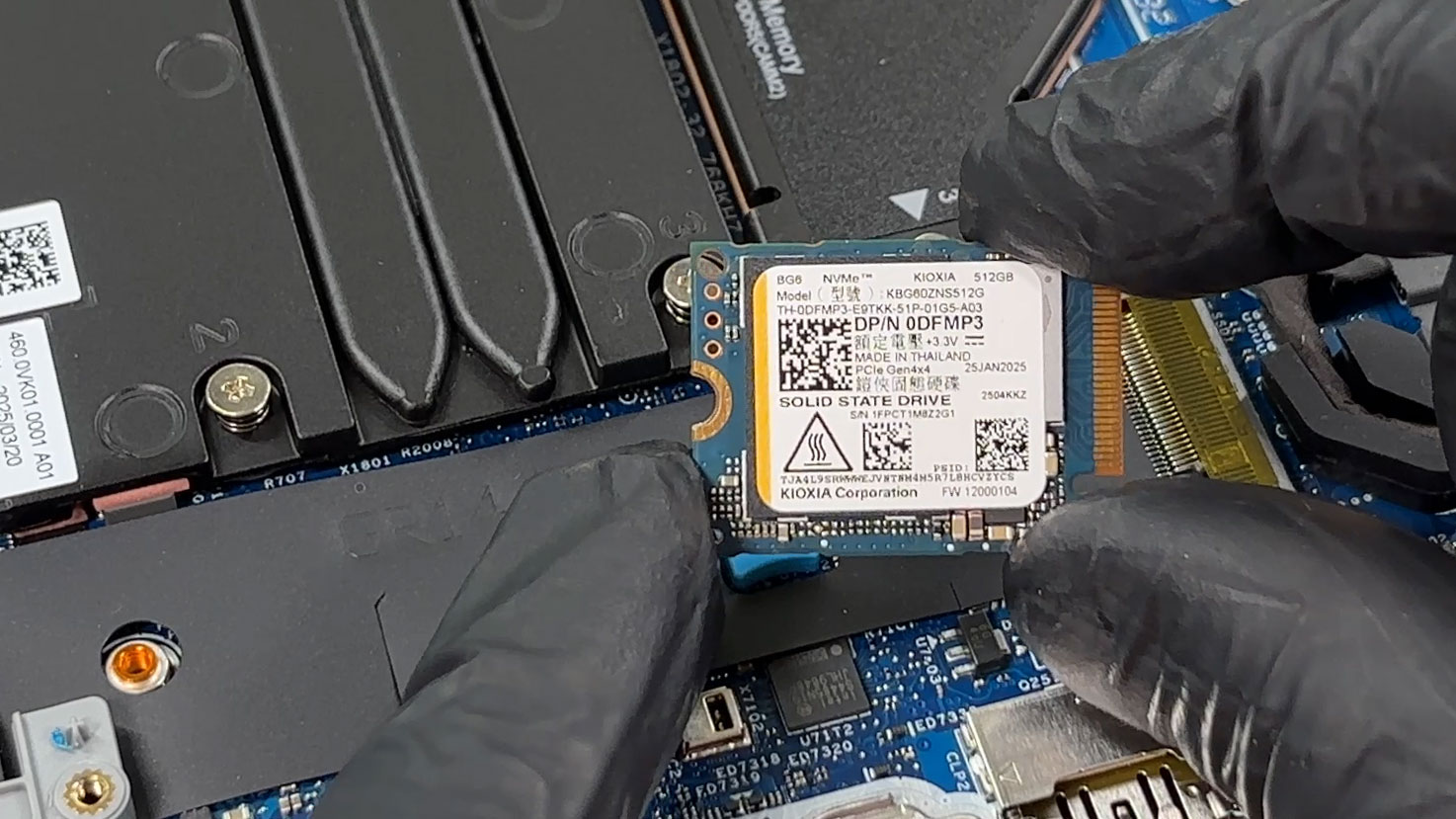
The main storage limitation is simple: there is only one SSD slot. Replacing the existing drive is possible, but adding a second SSD is not, and RAID 0 is not supported on this machine. On the positive side, the shielding/heatsink bracket is clearly designed with service instructions printed on it, which makes SSD access and reassembly easier to follow.
The memory setup is much more interesting than usual. This is not a standard SO-DIMM design, but a single LPCAMM2 slot for LPDDR5X memory. Dell lists 16GB, 32GB, and 64GB module options running at 7467 MT/s in dual-channel mode. Our machine is equipped with a 16GB Micron LPDDR5X CAMM2 module.
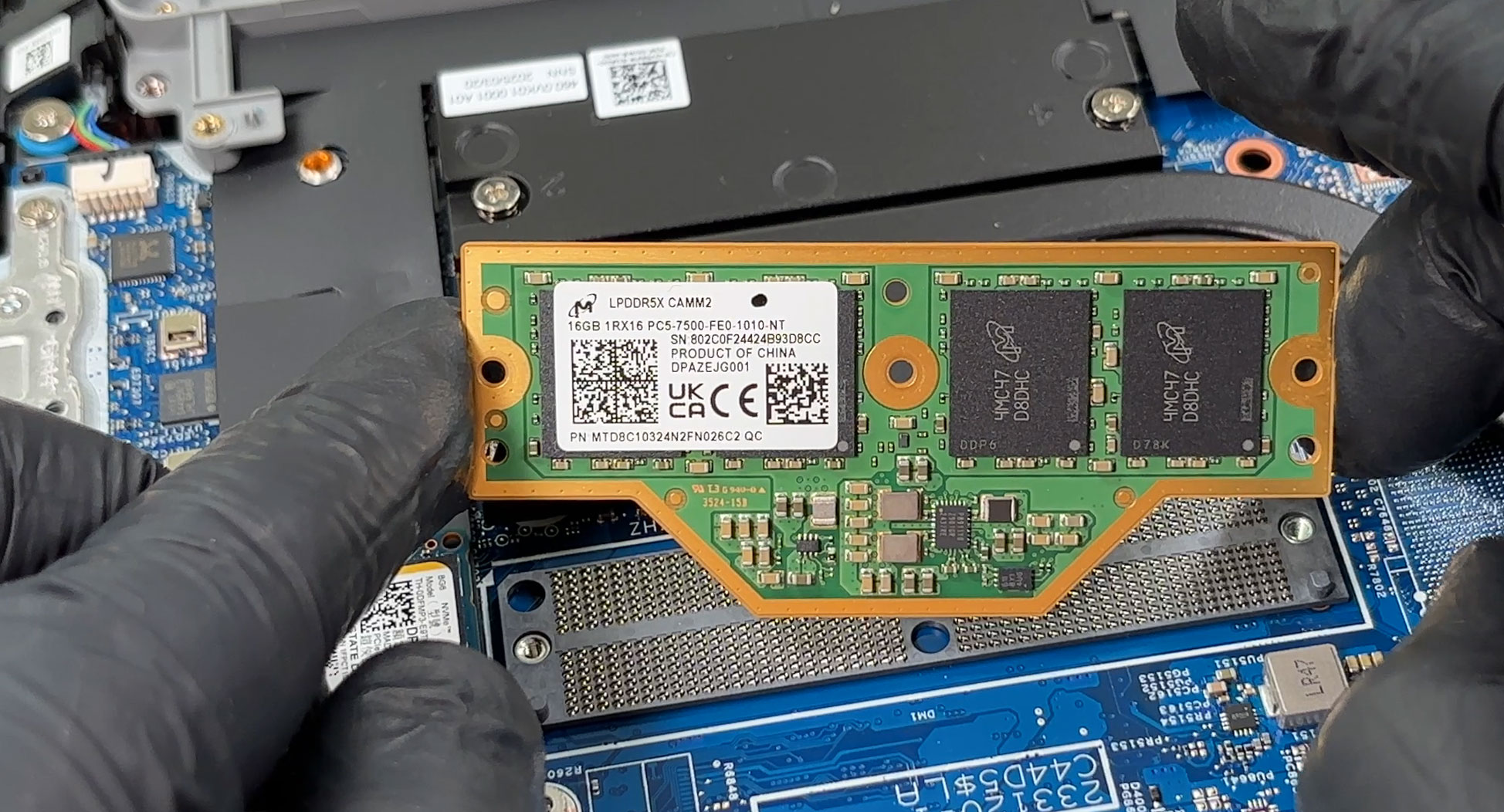
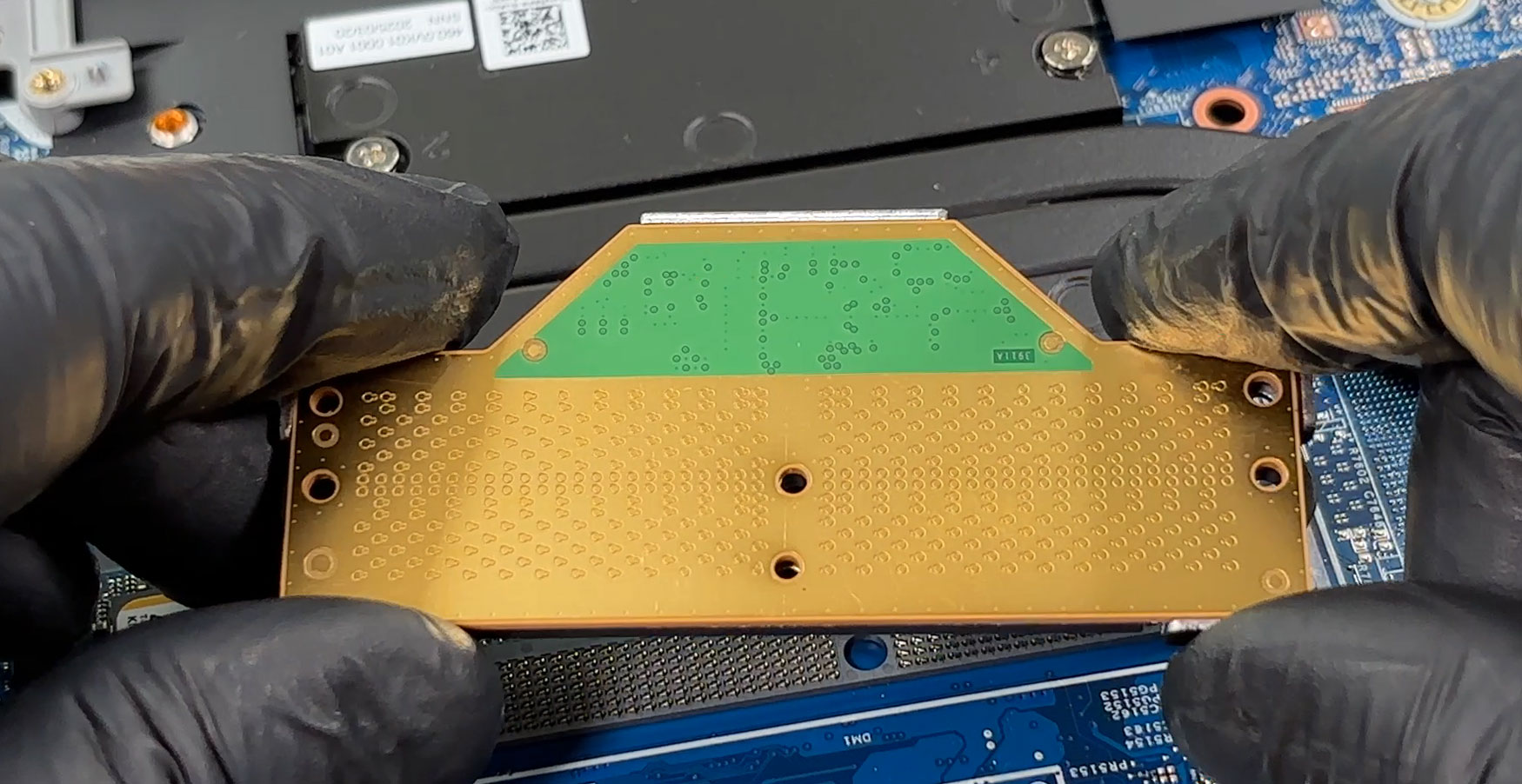
This is a big advantage over fully soldered memory, because the RAM module is removable. At the same time, it is not as simple or as commonly available as classic SO-DIMM memory. The LPCAMM2 module uses a compression-style connector and a three-screw bracket, so it needs more care during installation. The module should be aligned flat over the connector plate, and the bracket should be tightened in the marked order. The bracket also serves as electromagnetic shielding.
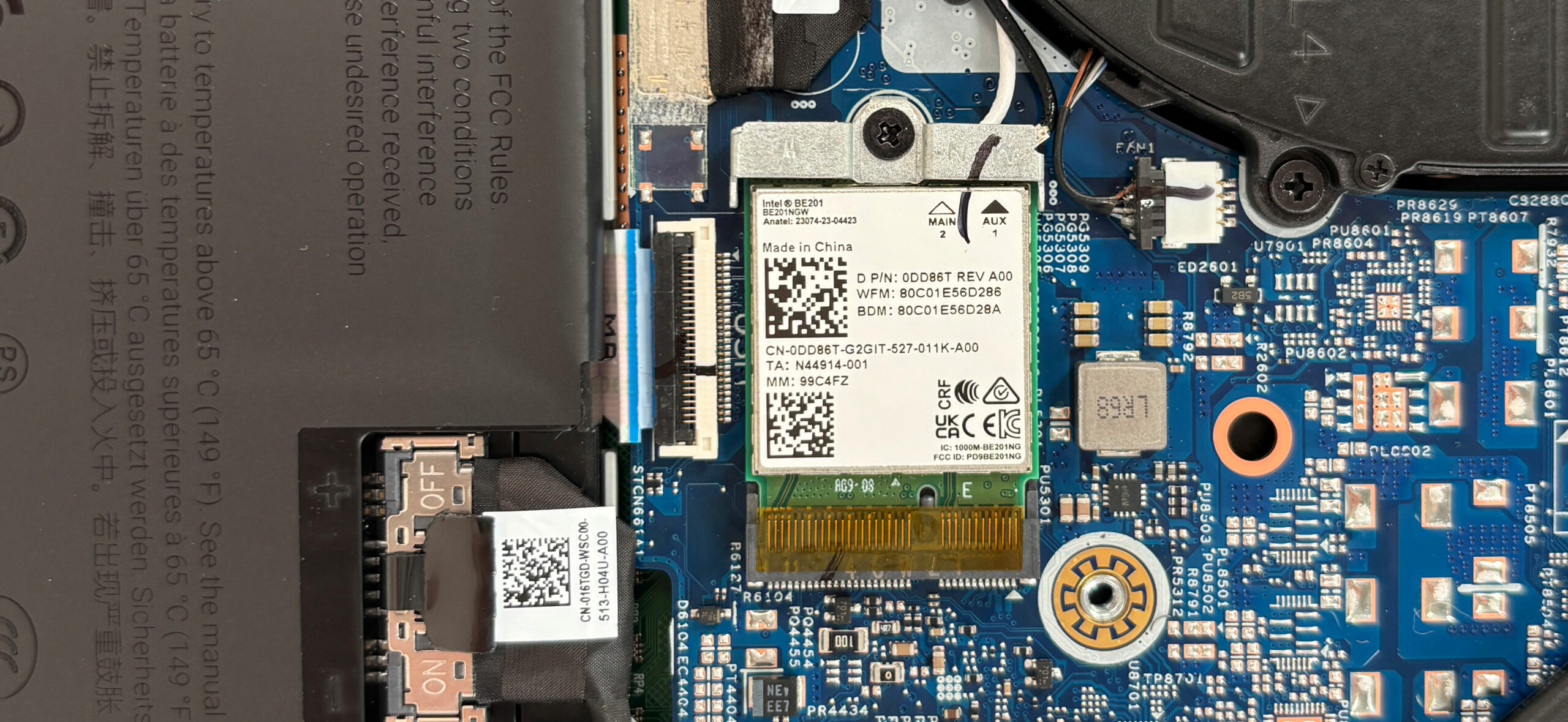
The wireless card is also accessible. Dell lists two possible wireless configurations for this model: Intel Wi-Fi 6E AX211 or Intel Wi-Fi 7 BE201. Our ordered configuration uses the Intel Wi-Fi 7 BE201 card, with two antenna cables attached. This is another welcome serviceability point, since the Wi-Fi module is not soldered to the motherboard.
Overall, the Dell Pro Max 14 MC14250 is easy to service for a compact professional laptop. The battery, SSD, Wi-Fi card, fan area, and LPCAMM2 memory are all accessible, and the internal labeling makes the maintenance process more user-friendly than usual. The main limitations are the single SSD slot and single memory slot: upgrades are possible, but they are done by replacing the existing component rather than adding a second one.
Verdict
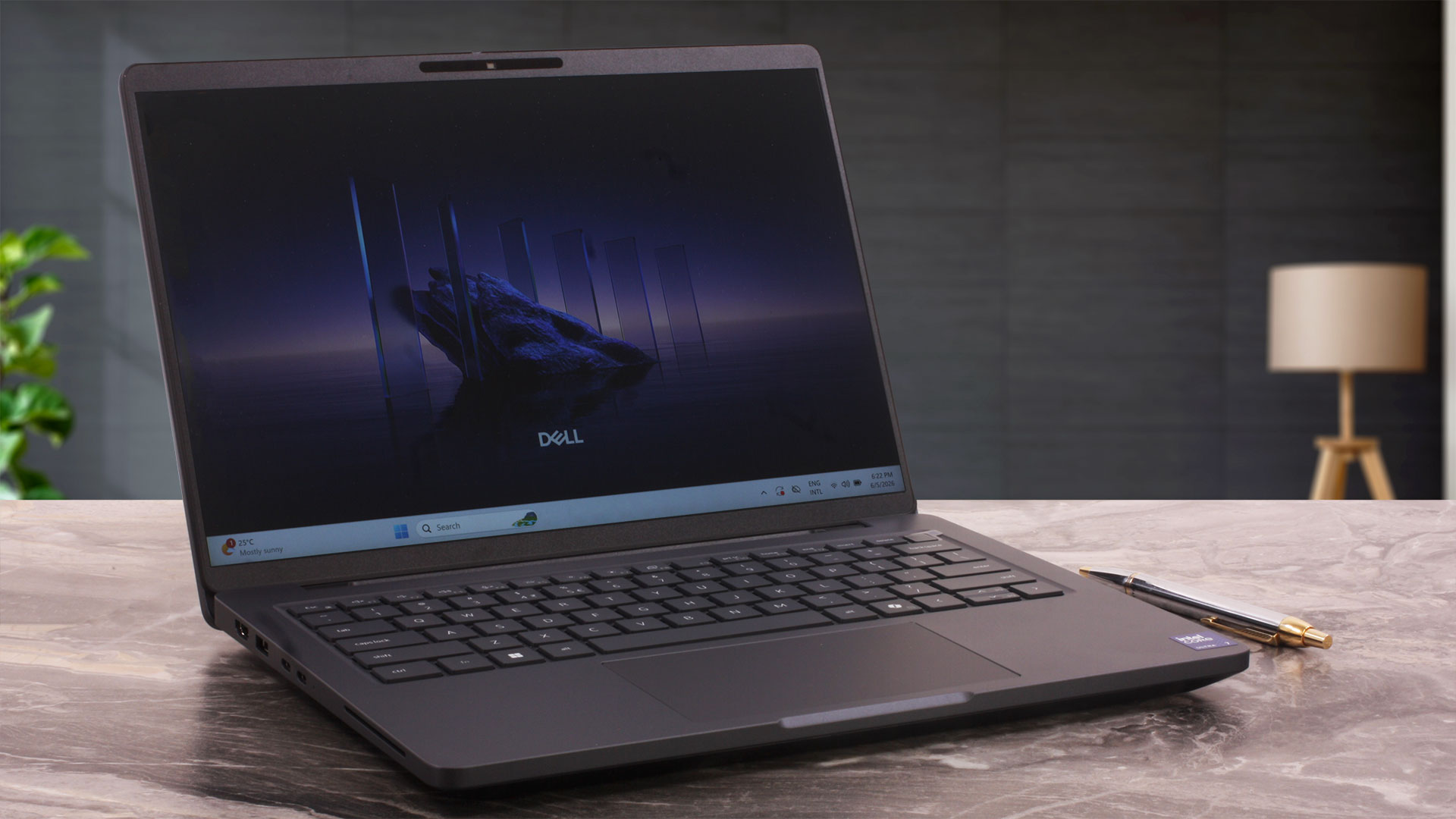 The Dell Pro Max 14 (MC14250) is a serious, no-nonsense professional laptop that prioritizes practicality, sustained CPU performance, connectivity, and long-term serviceability over flashy consumer appeal. It focuses on being a compact business workhorse with strong performance, useful ports, and unusually good upgrade access for its size.
The key thing to understand is that the Pro Max 14 is highly configuration-dependent. Our configuration with the Core Ultra 7 255H and Intel Arc 140T delivers excellent CPU performance and surprisingly capable integrated graphics, but it also uses the most basic 45% NTSC display and comes with 16GB of RAM. That makes our machine very strong for office work, development, multitasking, and CPU-heavy tasks, but buyers who care about visual quality or heavier professional workloads should pay close attention to the display and memory options before ordering.
You can check the prices and configurations in our Specs System: https://laptopmedia.com/series/dell-pro-max-14-mc14250/
✅ The Good
The strongest part of this laptop is its excellent sustained CPU performance paired with very good thermal control. The Core Ultra 7 255H maintains high clock speeds under extended heavy loads while averaging just 80°C in our 30-minute stress test. For code compilation, heavy multitasking, large spreadsheets, data processing, and CPU-based creative work, this 14-inch machine performs far better than its compact size might suggest.
Serviceability is another major advantage. Instead of fully soldered memory, Dell uses LPCAMM2 RAM, which means the memory module is removable and the platform can be configured with up to 64GB. The battery, SSD, Wi-Fi card, and fan area are also easily accessible, and the internal labeling makes maintenance more user-friendly than usual. The only caveat is that upgrades are done by replacing existing components, not by adding extra ones.
The port selection is also excellent for a compact business laptop. You get two Thunderbolt 4 ports, HDMI 2.1, RJ-45 Ethernet, two USB-A ports, and an audio jack, so this is not a machine that immediately forces you into adapters. The 72Wh battery delivers strong endurance as well, reaching more than 12 hours in our video playback test. The display also has one very important health-related advantage: it does not use PWM for brightness control.
⚠️ Configuration Notes
The base WUXGA IPS panel in our configuration is the biggest reason to choose carefully. It is sharp enough, PWM-free, and fine for office work, but its 51% sRGB color coverage makes it unsuitable for color-sensitive work. This is not necessarily a weakness of the whole series, because Dell also offers better 100% sRGB and QHD+ display options. If you plan to edit photos, work with visuals, or simply want richer colors, avoid the base 45% NTSC panel.
The same applies to memory. Our 16GB configuration is fine for general productivity, but heavier workloads, local AI experiments, virtual machines, and large creative projects will benefit from the 32GB or 64GB LPCAMM2 options. The good news is that the RAM is not soldered, but LPCAMM2 is still not as cheap or widely available as classic SO-DIMM memory.
❌ The Bad
Some compromises remain regardless of configuration. There is only one M.2 slot, so storage expansion means replacing the existing SSD rather than adding a second drive. The laptop also lacks an SD or microSD card reader, which is not ideal for photographers and video creators.
Acoustics are another area where the Pro Max 14 is not perfect. The laptop runs cool, but in the performance-focused profile it remains slightly audible even at idle, and it is not a silent machine under heavy load. The touchpad on our unit also deserves criticism: its physical click works, but the two-step feel makes it less crisp and less premium than the rest of the machine.
🆚 The Competitors
Compared to the Dell XPS 13 9350 (detailed review), the Pro Max 14 is the more practical professional tool. The XPS feels more premium and can be configured with a vastly better OLED display, but it has soldered memory and a much more restrictive port selection. The Pro Max 14 is the better choice if serviceability, ports, Ethernet, and sustained CPU performance matter more than luxury feel and display quality.
Against the Dell Latitude 14 5455 with Snapdragon X Plus (detailed review), the choice is mostly about priorities. The Latitude is far more efficient and lasts dramatically longer on battery, but the Pro Max 14 offers stronger sustained x86 performance, broader software compatibility, better upgrade options, and a more workstation-like personality.
The Dell Pro 14 Plus PB14250 (detailed review) is another interesting alternative if you want a more efficient business laptop with longer battery life. However, the Pro Max 14 is the more performance-focused and serviceable machine, especially if you configure it with more memory and one of the better display options.
In short, the Dell Pro Max 14 MC14250 is a very capable compact business machine, but choosing the right configuration matters a lot. We like its CPU performance, thermals, ports, battery life, and serviceability. Our main reservations are tied either to the base display and 16GB RAM configuration we ordered, or to a few platform-level limitations such as the single SSD slot, the lack of a card reader, and the noticeable fan noise in performance mode. With a better display and more memory, this model becomes a much more convincing professional laptop.
Pros
- Excellent sustained CPU performance for heavy workloads
- Very good thermal control under load
- Removable LPCAMM2 memory with up to 64GB configuration options
- Accessible battery, SSD, Wi-Fi card, and cooling system
- Strong port selection with Thunderbolt 4, HDMI, USB-A, and RJ-45 Ethernet
- PWM-free display
- Strong battery life for an H-series 14-inch laptop
- Surprisingly capable Intel Arc 140T integrated graphics
Cons
- Only one M.2 slot, so storage upgrades require replacing the existing SSD
- No SD or microSD card reader
- Fans are slightly audible even at idle in the performance-focused profile
- Touchpad click on our unit feels less crisp and refined than expected
- Base 45% NTSC display option has very limited color coverage
- LPCAMM2 is upgradeable, but not as common or inexpensive as SO-DIMM memory
 Author: Simeon NikolovEditor-in-Chief at LaptopMedia.com with 20+ years of experience in testing and analyzing laptops and mobile devices.
 Author: eng. Kroum NikolovHead of Engineering at LaptopMedia.com, inventor and innovator with 40+ years of experience in electronics and high technology.

![[June 2026] Best-Selling Laptop Brands on Amazon Global – Apple’s Unrivaled Dominance in Units and Revenue](https://laptopmedia.com/wp-content/uploads/2026/07/GLOBAL-Best-Brands-400x225.jpg)
![[June 2026] Amazon Global: Top 10 Best-Selling Laptops – Apple’s New MacBook Neo Storms to #1, Reshaping the Market with Affordability](https://laptopmedia.com/wp-content/uploads/2026/07/Best-Selling-Laptops-GLOBAL-Top-10-400x225.jpg)
![[June 2026] Amazon Global: Top 10 Best-Selling Gaming Laptops – Acer’s Nitro V 16S AI Dominates Sales, While ASUS Leads Overall Revenue](https://laptopmedia.com/wp-content/uploads/2026/07/Best-Selling-Gaming-Laptops-GLOBAL-Top-10-400x225.jpg)
![[June 2026] Global Ranking of Best-Selling Laptop GPUs on Amazon – NVIDIA RTX 5060 is the Top-Selling Dedicated GPU](https://laptopmedia.com/wp-content/uploads/2026/07/Best-Selling-GPUs-GLOBAL-Top-10-400x225.jpg)
![[June 2026] Global Ranking of Best-Selling Laptop CPUs on Amazon – Apple M5 Dominates, AMD Ryzen 7 260 Gets Solid Premium Share](https://laptopmedia.com/wp-content/uploads/2026/07/Best-Selling-CPUs-GLOBAL-Top-10-400x225.jpg)
LPCAMM2 being removable instead of soldered makes this genuinely repairable, which almost no compact 14-inch business laptop offers. Sustained 3636 MHz P-core average after 30 minutes of full load at only 80°C is impressive thermal engineering for this form factor. Thunderbolt 4, HDMI, RJ-45 Ethernet, and two USB-A ports without a single dongle needed is increasingly rare. The base 45% NTSC panel being the trap configuration is the critical buying decision here. QHD+ with 100% sRGB changes the value proposition entirely for anyone doing visual work. 12 hours battery life from an H-series chip in a 72Wh pack is solid… Read more »