Dell 15 (DC15250) review – Practical Office Laptop with Big Configuration Traps
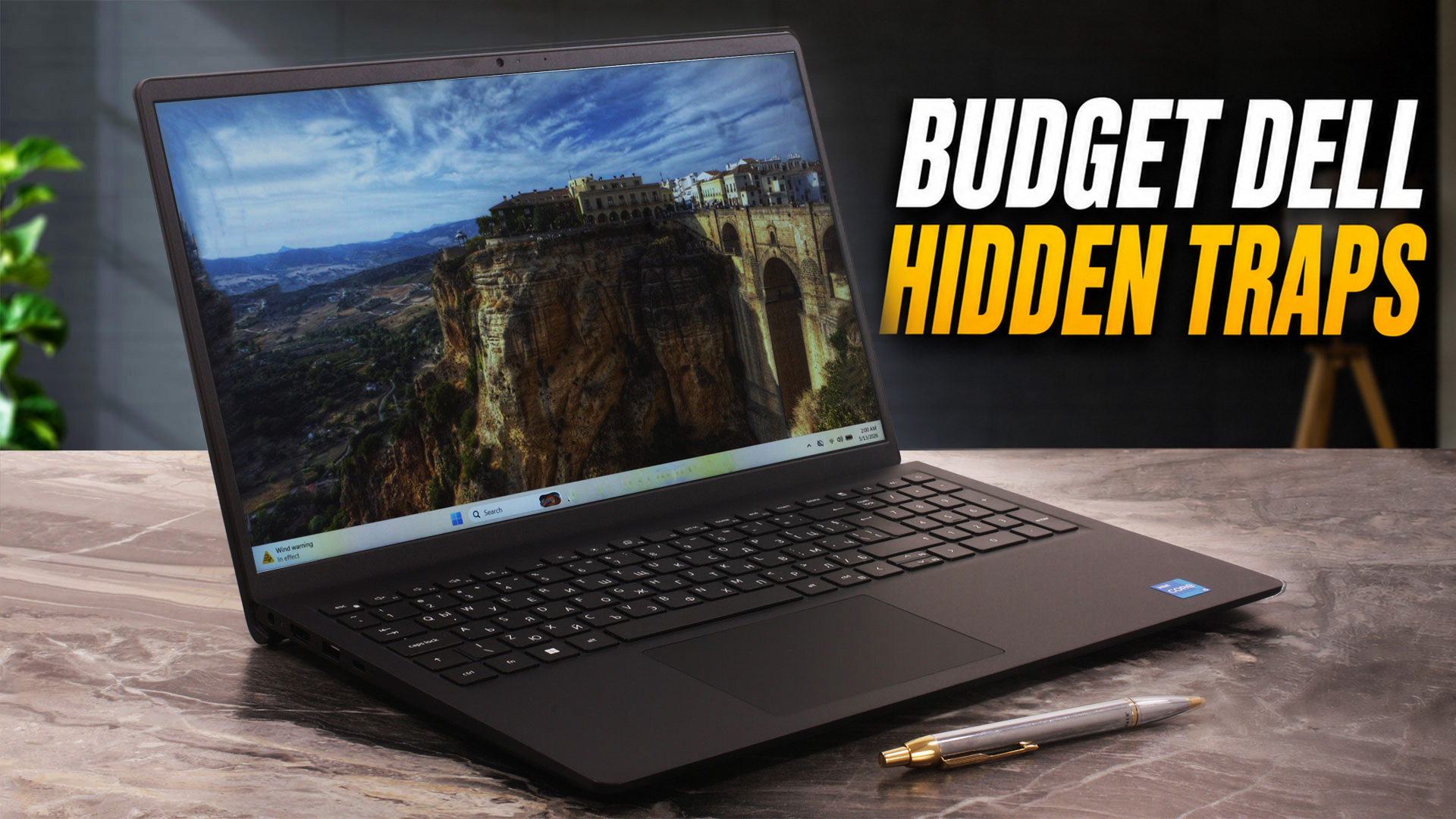 Budget laptops are supposed to be simple. You pick a processor, choose how much RAM and storage you need, and get on with your life. The Dell 15 (DC15250), however, is a bit more complicated than that. On the surface, it looks like a very standard 15.6-inch office laptop, but the exact configuration can change more than you might expect.
For example, the chassis version affects the webcam, microphones, USB-C functionality, and even the overall user experience. The plastic Carbon Black model, which we chose and ordered, comes with a data-only USB-C port, a 720p webcam, and a single microphone, while the aluminum version can offer a better webcam setup and more capable USB-C. Add display options, different memory configurations, and two battery sizes, and suddenly this simple Dell starts to require careful attention.
Our retail unit arrived with an Intel Core i5-1334U, 8GB of single-channel RAM, a 512GB Samsung NVMe SSD, and a 120Hz Full HD panel. That combination gives us a very interesting picture: the laptop is easy to service, has two SODIMM slots, a smooth 120Hz display option, and a practical keyboard with a NumPad. At the same time, it also comes with clear compromises, including weak color coverage, aggressive PWM below maximum brightness, modest battery life, limited HDMI output, and conservative sustained CPU performance.
So, is the Dell 15 (DC15250) a good budget laptop, or just a cheap one with too many catches? Let’s find out.
You can check the prices and configurations in our Specs System: https://laptopmedia.com/series/dell-15-dc15250/
TESTED CONFIGURATION:
– Intel Core i5-1334U
– Intel UHD Graphics, Raptor Lake-P/U GT2, 80 EUs
– 8GB RAM, single-channel
– 512GB SSD NVMe
– 15.6″, 1920 x 1080 (Full HD), 120Hz IPS
Contents
Specs, Drivers, What’s in the box
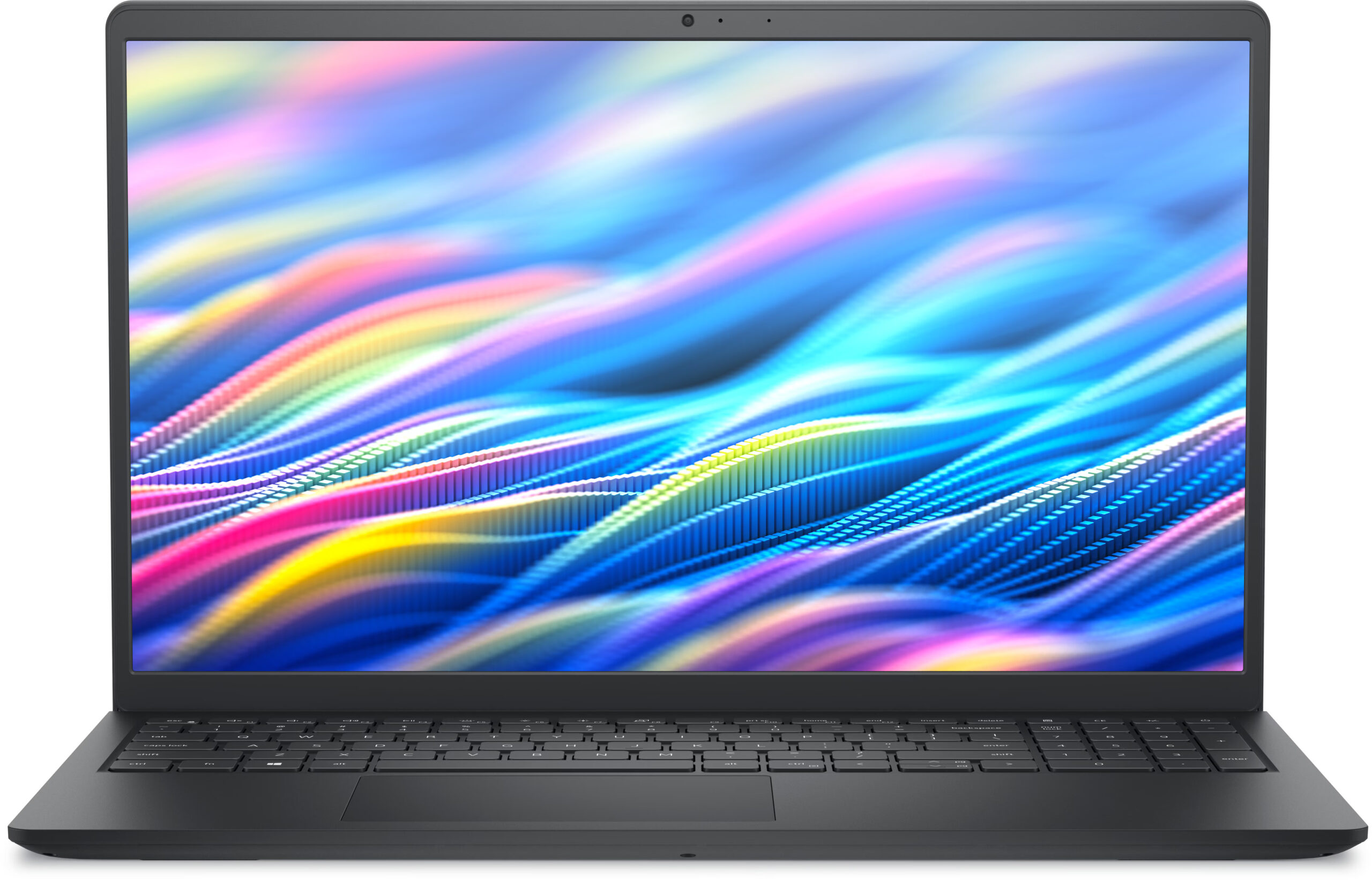
Dell 15 (DC15250) - Specs


- HDD/SSD
- up to 4000GB SSD
- M.2 Slot
- 1x 2230 M.2 NVMe PCIe 4.0 x4 See photo
- RAM
- up to 64GB
- OS
- Windows 11 Pro, Windows 10 Home, Windows 11 Home, Windows 10 Pro, Windows 11, No OS
- Body material
- Plastic / Polycarbonate, Aluminum
- Dimensions
- 358.50 x 235.56 x 16.96 - 18.99 mm (14.11" x 9.27" x 0.67")
- Weight
- 1.90 kg (4.2 lbs)
- Ports and connectivity
- 1x USB Type-A
- 2.0
- 1x USB Type-A
- 3.2 Gen 1 (5 Gbps)
- 1x USB Type-C
- 3.2 Gen 1 (5 Gbps), Power Delivery (PD), DisplayPort
- HDMI
- 1.4
- Card reader
- SD (SD, SDHC, SDXC)
- Wi-Fi
- Wi-Fi 5 / Wi-Fi 6
- Bluetooth
- 5.0 / 5.3
- Audio jack
- 3.5mm Combo Jack
- Features
- Fingerprint reader
- optional
- Web camera
- FHD
- Backlit keyboard
- optional
- Microphone
- Dual Array Microphones
- Speakers
- 2x 2.5W Stereo Speakers
- Security Lock slot
All Dell 15 (DC15250) configurations
Drivers
All drivers and utilities for this notebook can be found here: https://www.dell.com/support/product-details/en-us/product/dell-dc15250-laptop/drivers
What’s in the box?
The retail package is very simple. Inside the box, we found the Dell 15 (DC15250) itself, the usual documentation and setup leaflets, and a 65W Dell power adapter with a barrel-style connector.
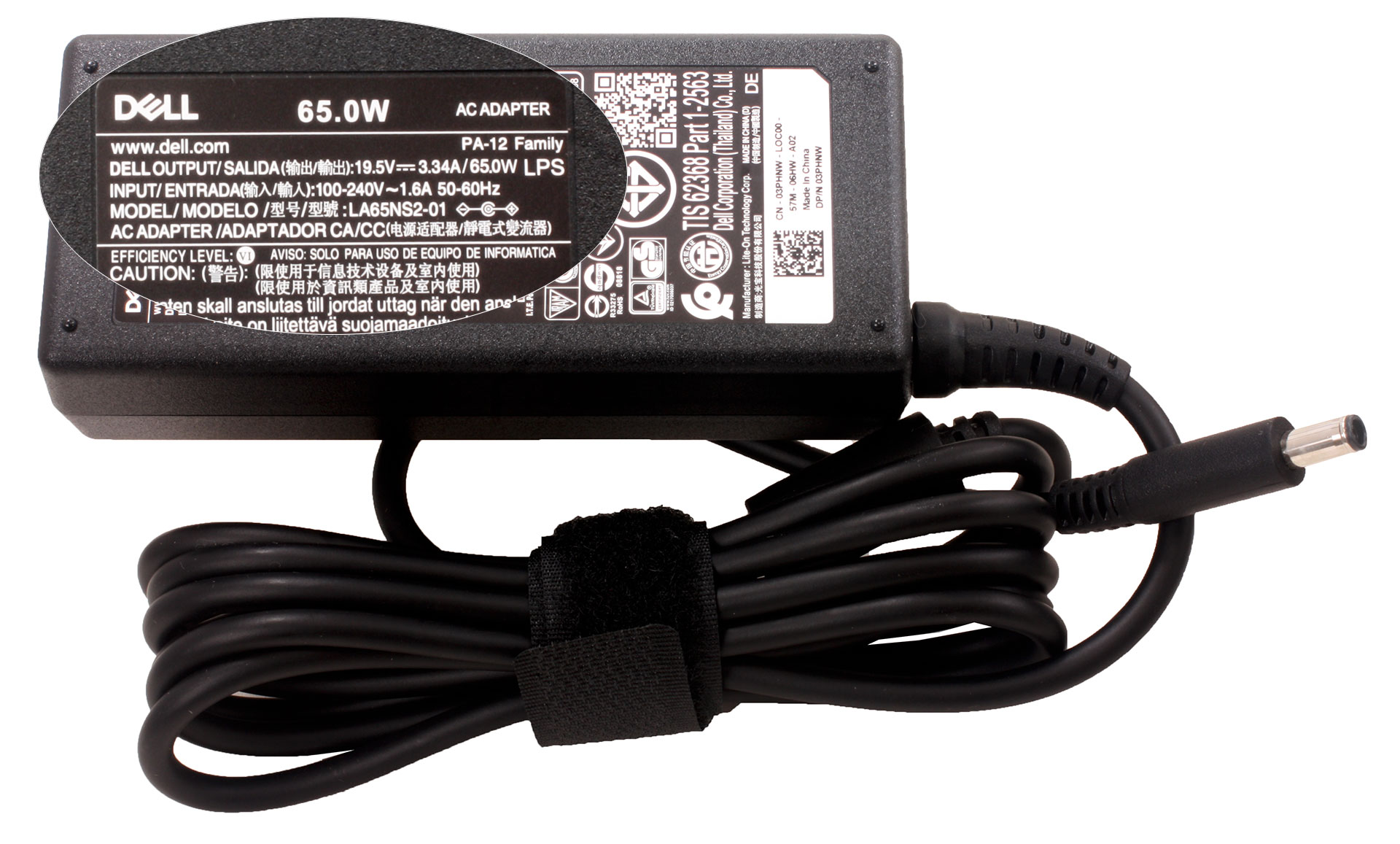
There are no extra accessories in the box, and this is expected for a budget office laptop. Also, since our configuration uses a traditional barrel charger, buyers should not expect a USB-C charger in the package.
Design and construction
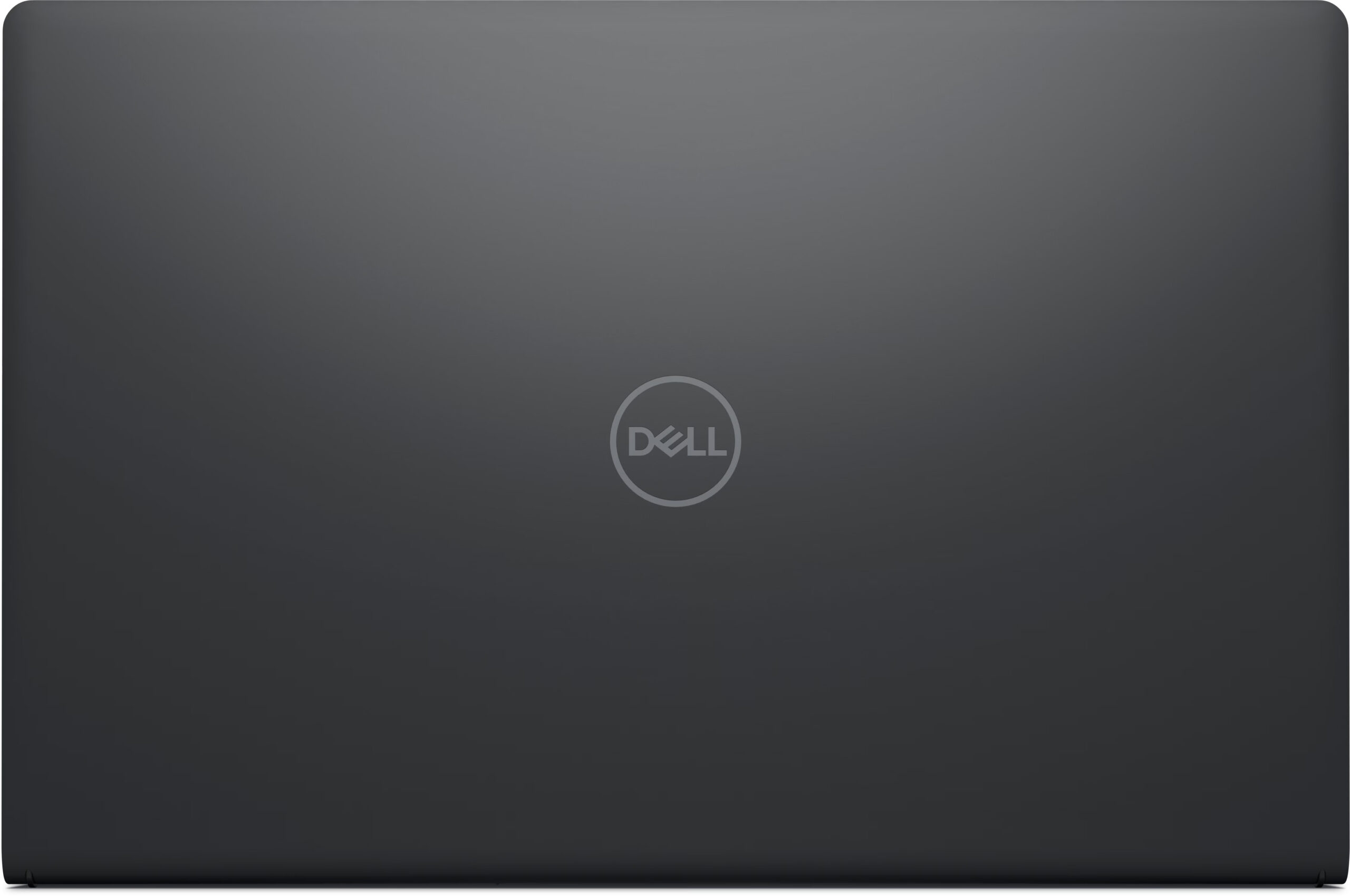
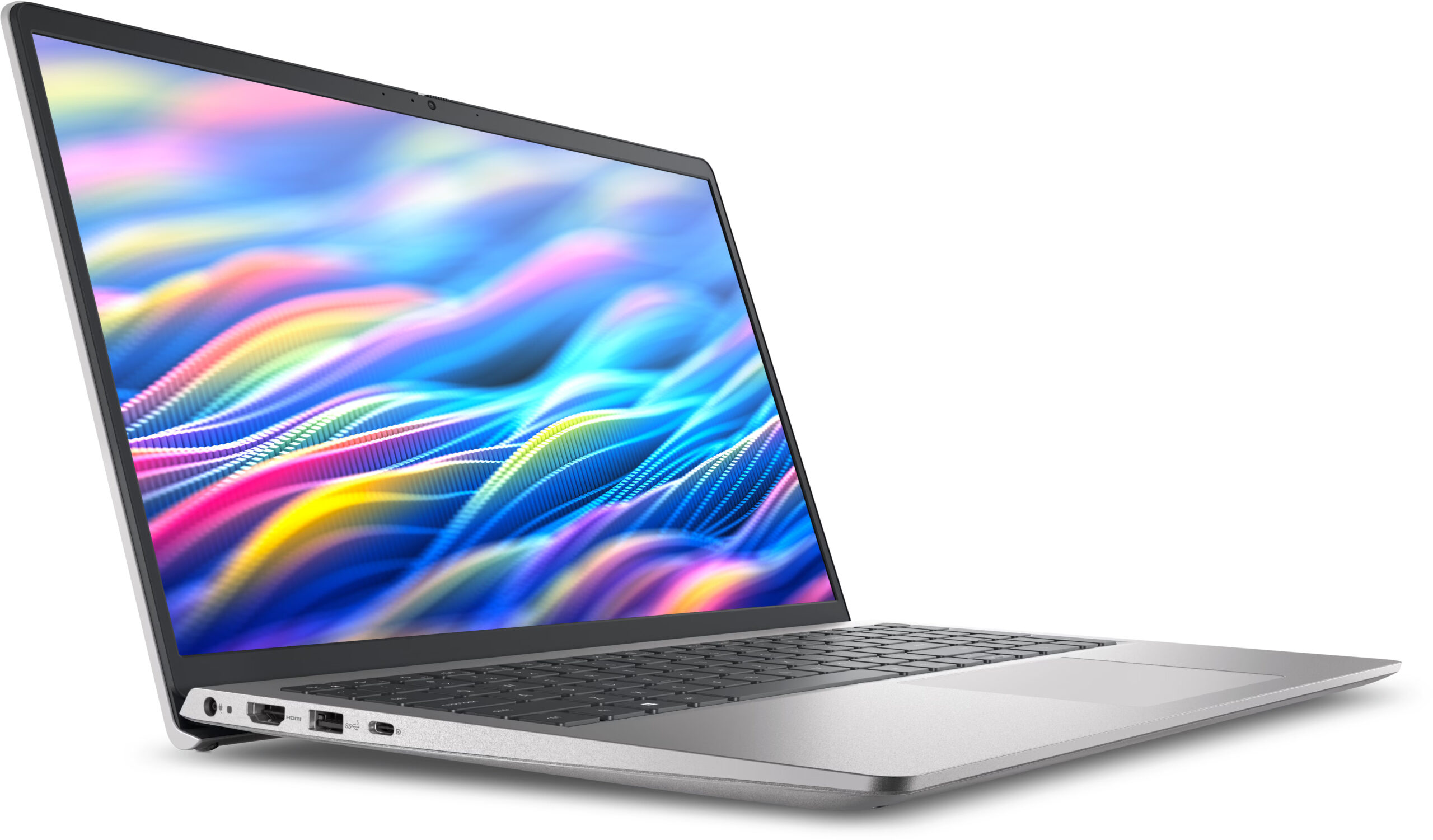
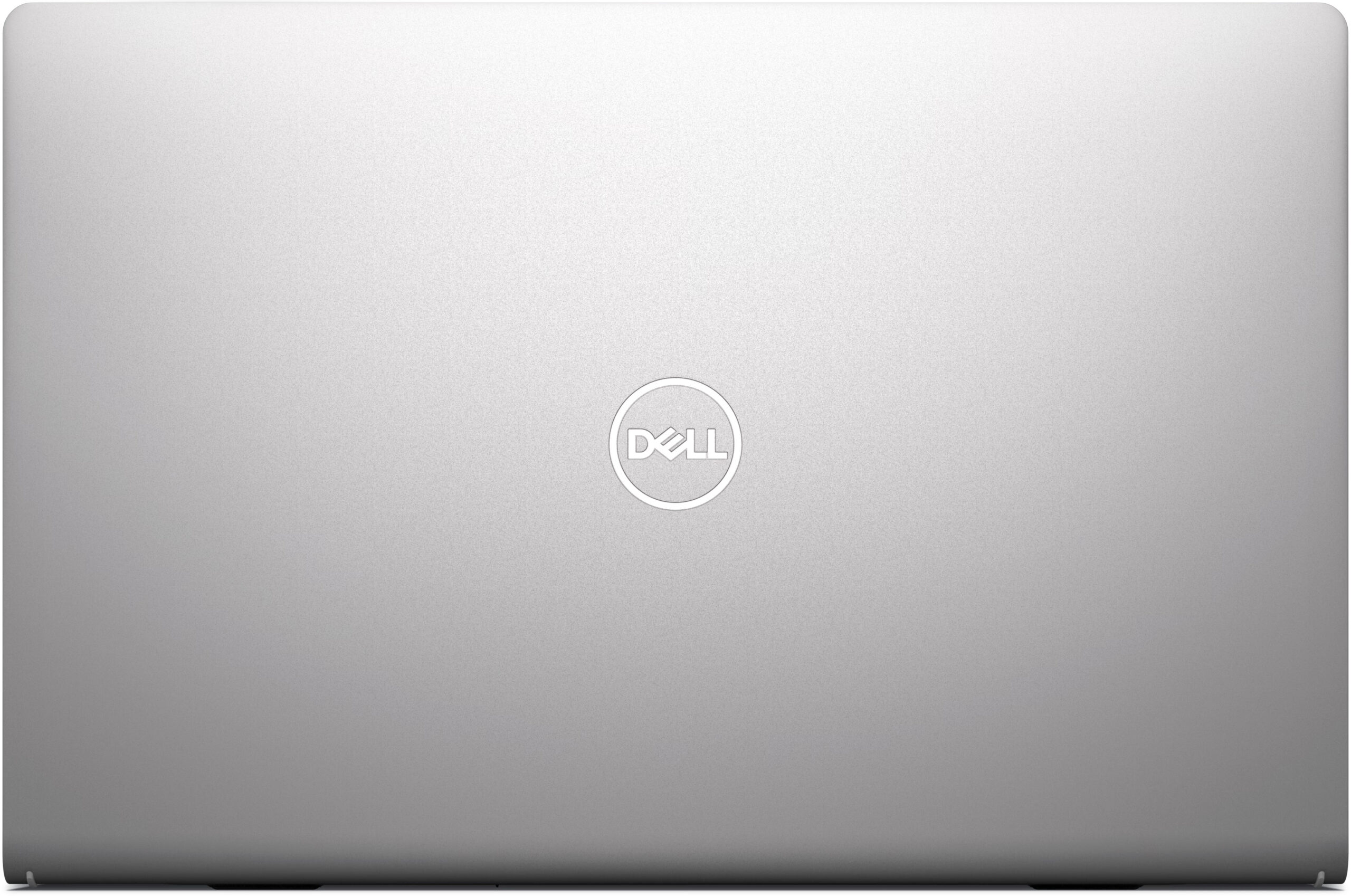
The Dell 15 (DC15250) has the look of a classic, clean 15-inch office laptop. There is nothing aggressive here, no RGB lighting, and no gaming-inspired shapes. The whole design is focused on practicality, and that makes sense for this class. We chose and ordered the Carbon Black configuration, which gives the machine a more business-oriented and understated appearance.
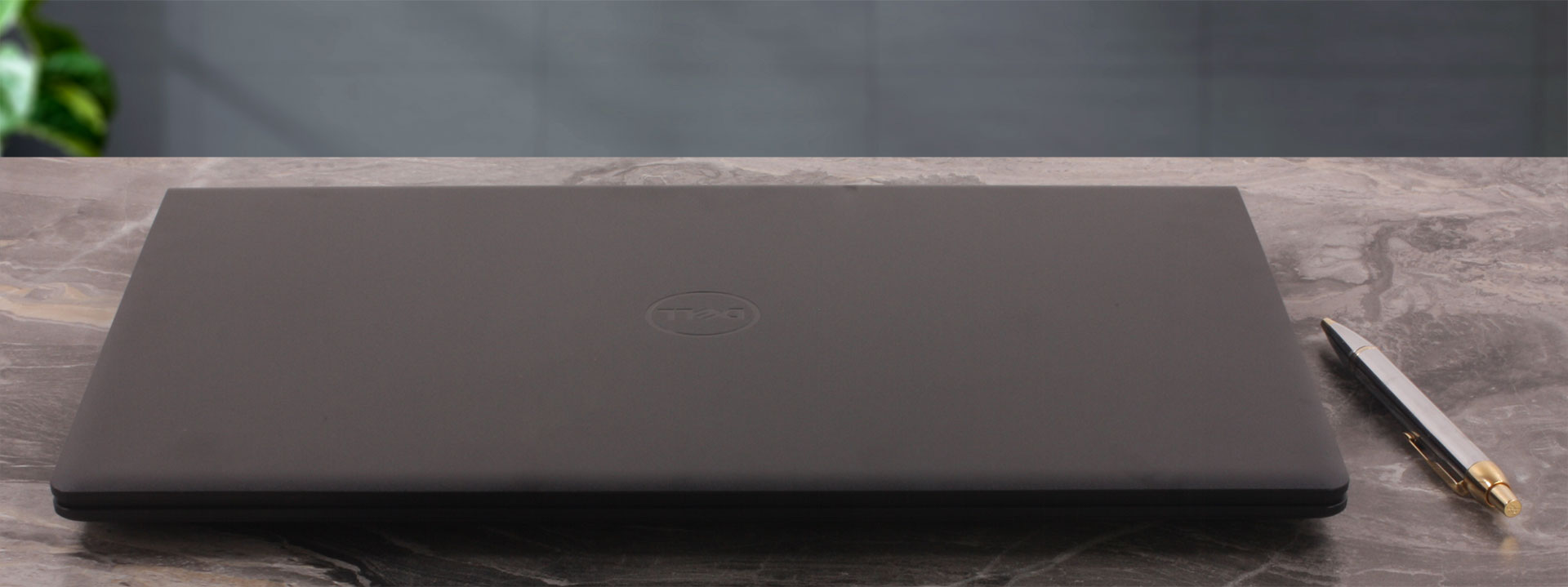
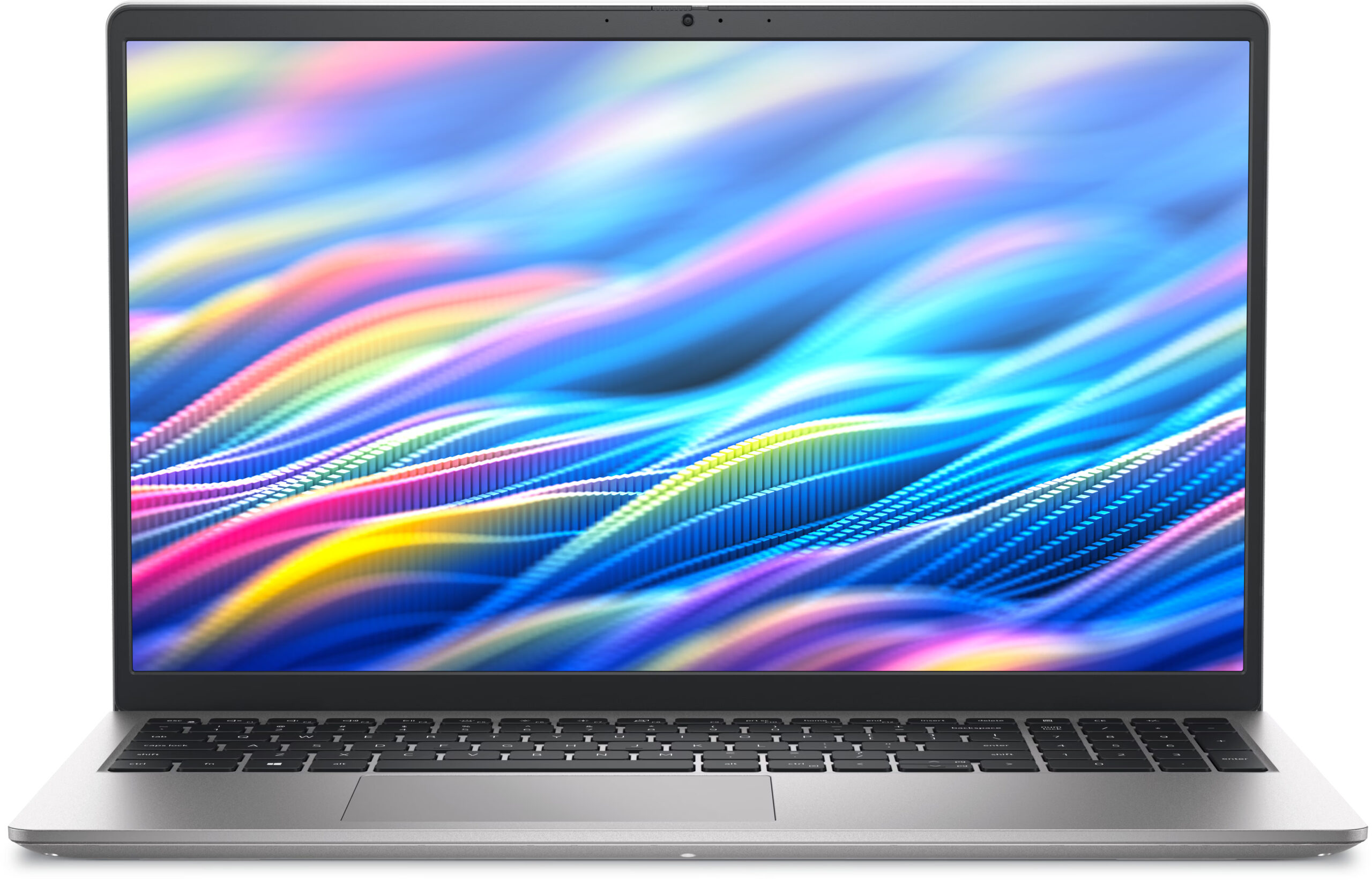
The series is available in two main color options: Carbon Black and Platinum Silver. However, there is a small twist here. Carbon Black comes with a PC+ABS plastic chassis, while Platinum Silver can be configured either with a plastic body or with an aluminum cover chassis. This is one of the first examples where the exact Dell 15 (DC15250) configuration matters more than the simple model name suggests.
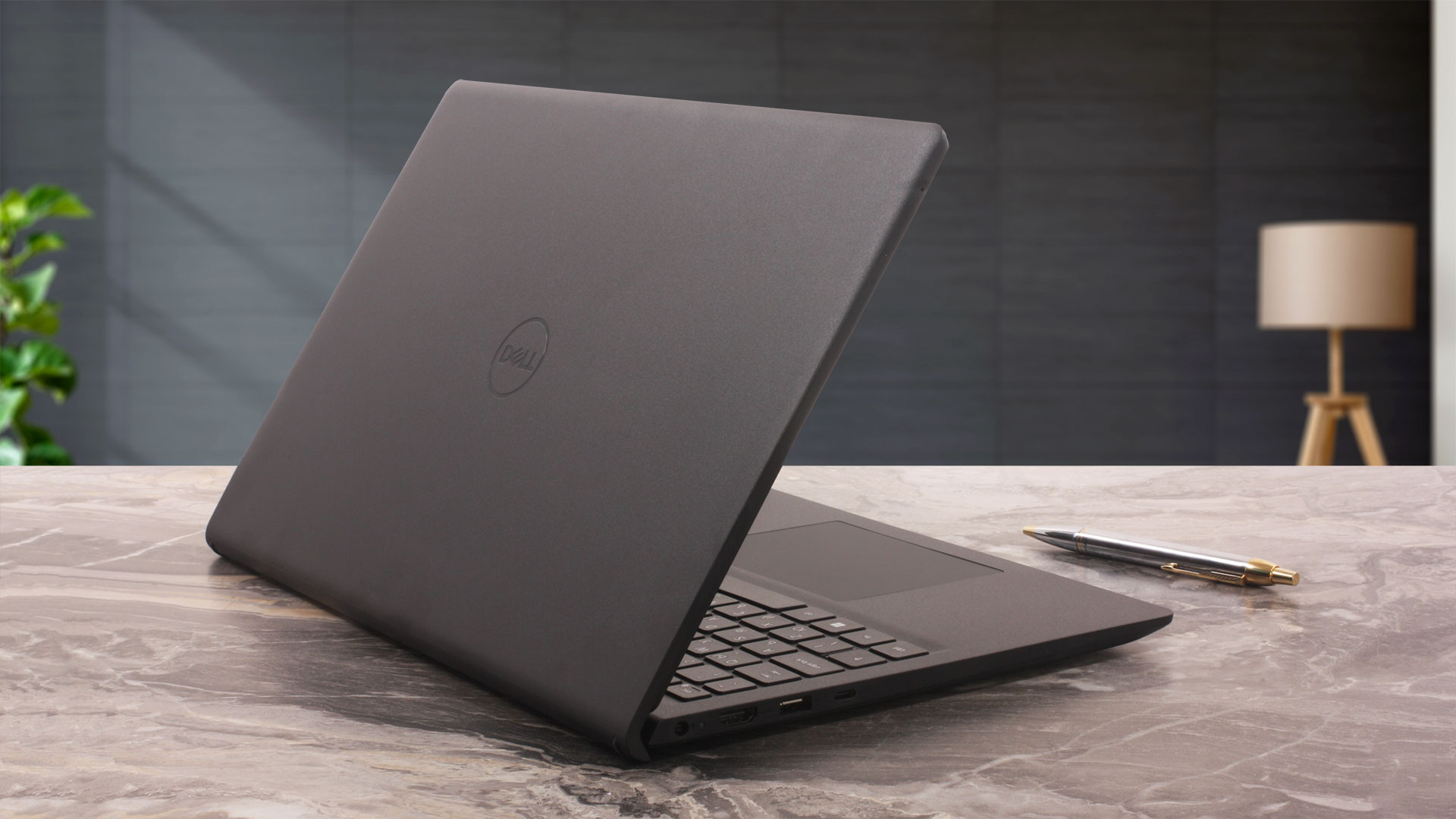
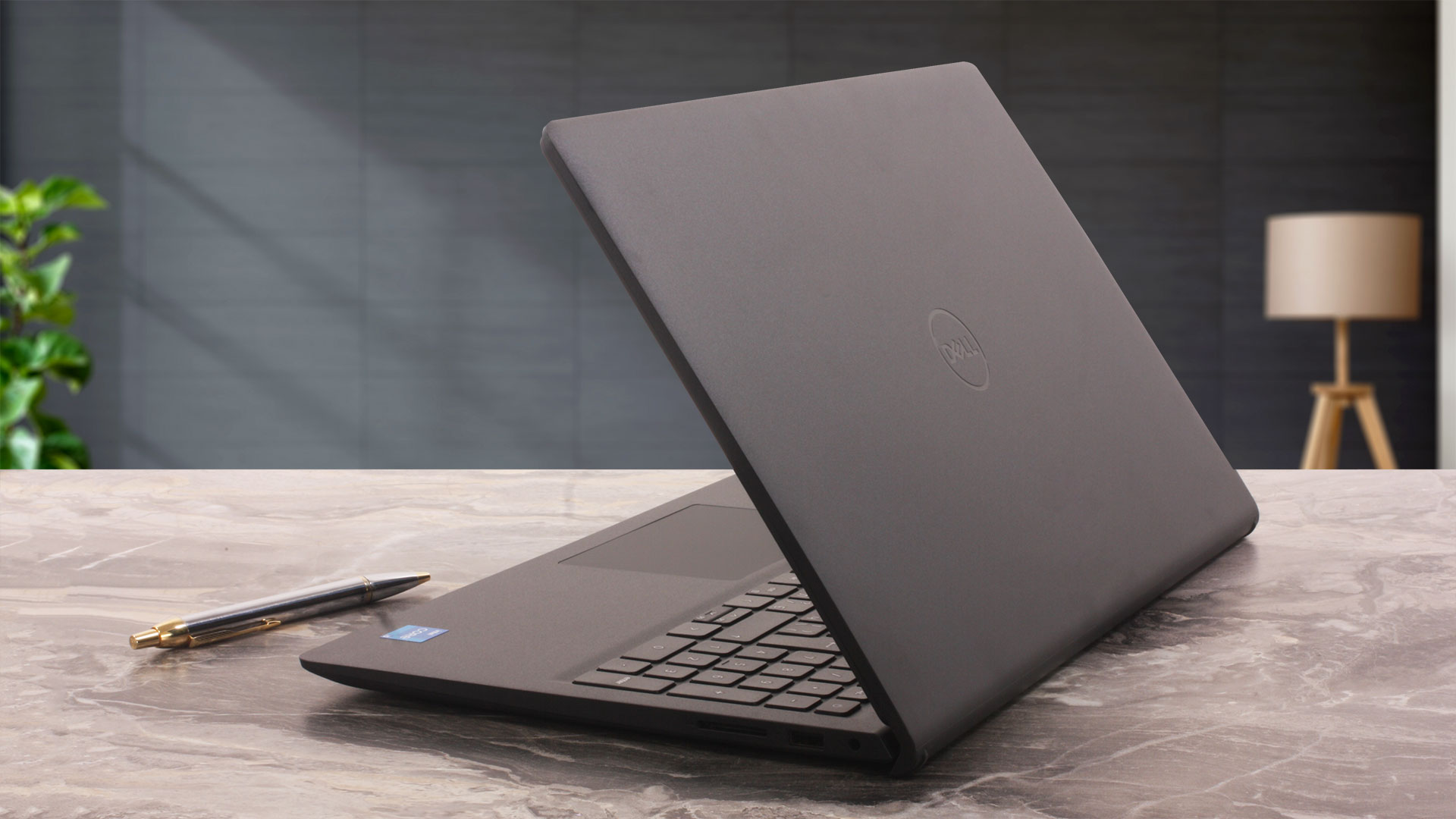
Dell 15 (DC15250) is available in two chassis variants, and they have slightly different dimensions. The plastic model is a bit thicker but starts at a slightly lower weight, while the aluminum version is thinner but starts a few grams heavier. Dell lists a starting weight of 1.62 kg for the plastic chassis and 1.65 kg for the aluminum version, while the more conservative maximum values are up to 1.90 kg and 1.94 kg, respectively, depending on the configuration.
| Dell 15 (DC15250) | Dimensions | Weight |
| Plastic chassis, metric | 358.50 x 235.56 x 16.96–18.99 mm | from 1.62 kg / up to 1.90 kg |
| Aluminum chassis, metric | 358.50 x 234.90 x 15.52–17.50 mm | from 1.65 kg / up to 1.94 kg |
| Plastic chassis, U.S. customary | 14.11 x 9.27 x 0.67–0.75 in | from 3.57 lbs / up to 4.19 lbs |
| Aluminum chassis, U.S. customary | 14.11 x 9.25 x 0.61–0.69 in | from 3.64 lbs / up to 4.28 lbs |
Dark matte surfaces often attract fingerprints easily, but our Carbon Black unit handles this surprisingly well. The lid and palm rest do not stay perfectly clean forever, of course, but fingerprint resistance is better than expected for a dark plastic laptop.
The material choice is where things become more interesting. Our Carbon Black configuration uses a PC+ABS plastic chassis. The Platinum Silver version, depending on the exact SKU, may also be available with an aluminum cover chassis. This is slightly confusing, but it is important because the chassis option also affects other parts of the machine, including the webcam, microphones, and USB-C functionality.
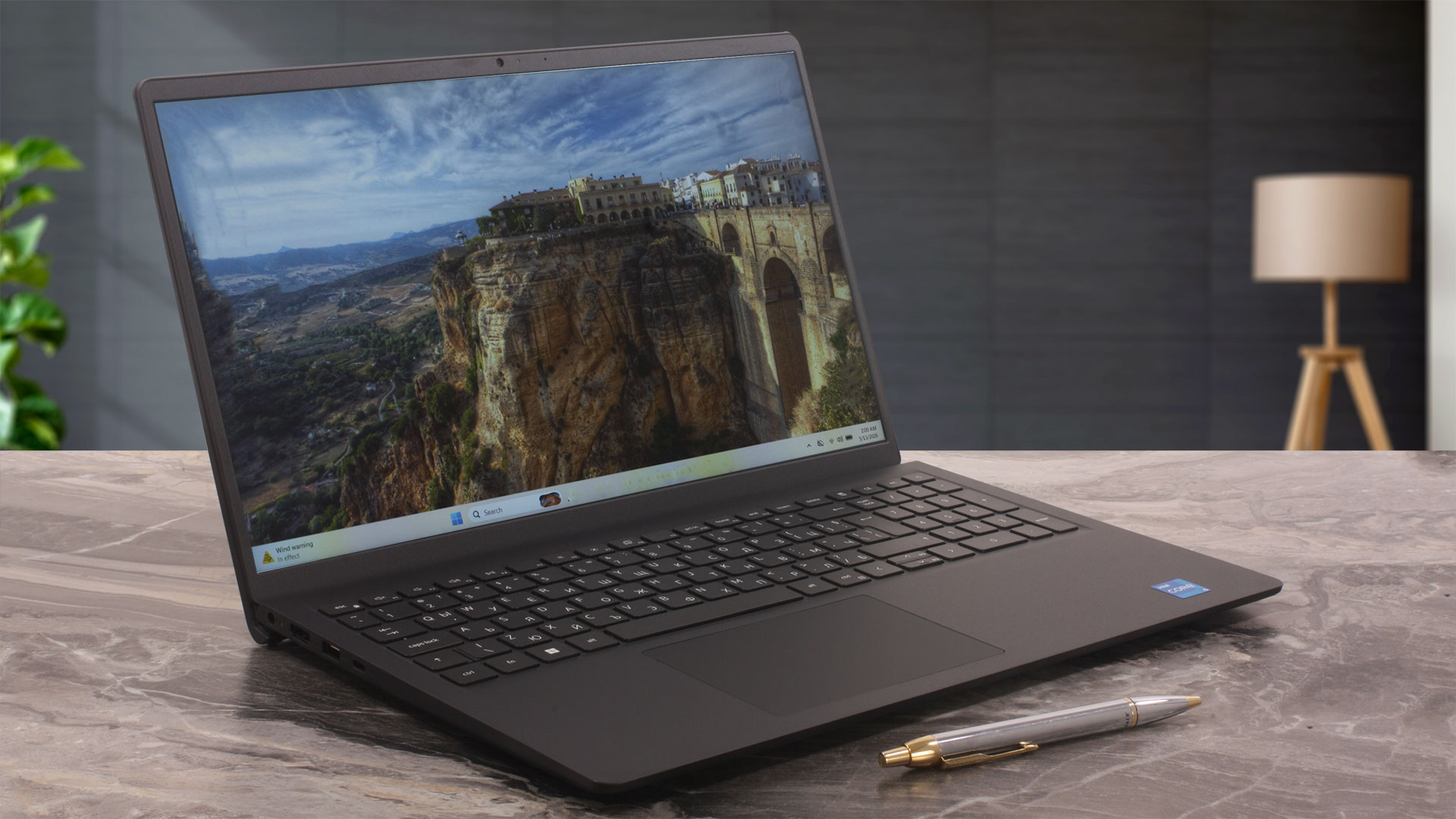
Rigidity is about what we would expect from a budget 15-inch laptop. There is visible flex when we press the center of the lid, and the inner deck also bends under pressure. Dell advertises the model as having undergone military-grade reliability testing, but in real hands-on use this still feels like an affordable plastic laptop rather than a premium machine. That is not necessarily a deal-breaker, but it is something buyers should know.
The hinges are on the tighter side, so the lid cannot be opened with one hand. We paid extra attention to this because some users online have raised concerns about hinge durability on the Dell 15 (DC15250) and similar affordable Dell models (Reddit discussion). In our unit, however, we did not find an actual hinge problem. The hinges hold the screen firmly in place, without excessive wobbling during normal use.
The maximum opening angle is 135 degrees, so the display cannot lie flat at 180 degrees. As long as you do not force the lid beyond its intended range, the mechanism feels normal for this class. The hinge design slightly raises the rear of the laptop when the screen is opened, giving the keyboard a more comfortable typing angle and potentially improving airflow a little. It is not an aggressive ErgoLift-style design, but it is a useful touch for an everyday office machine.
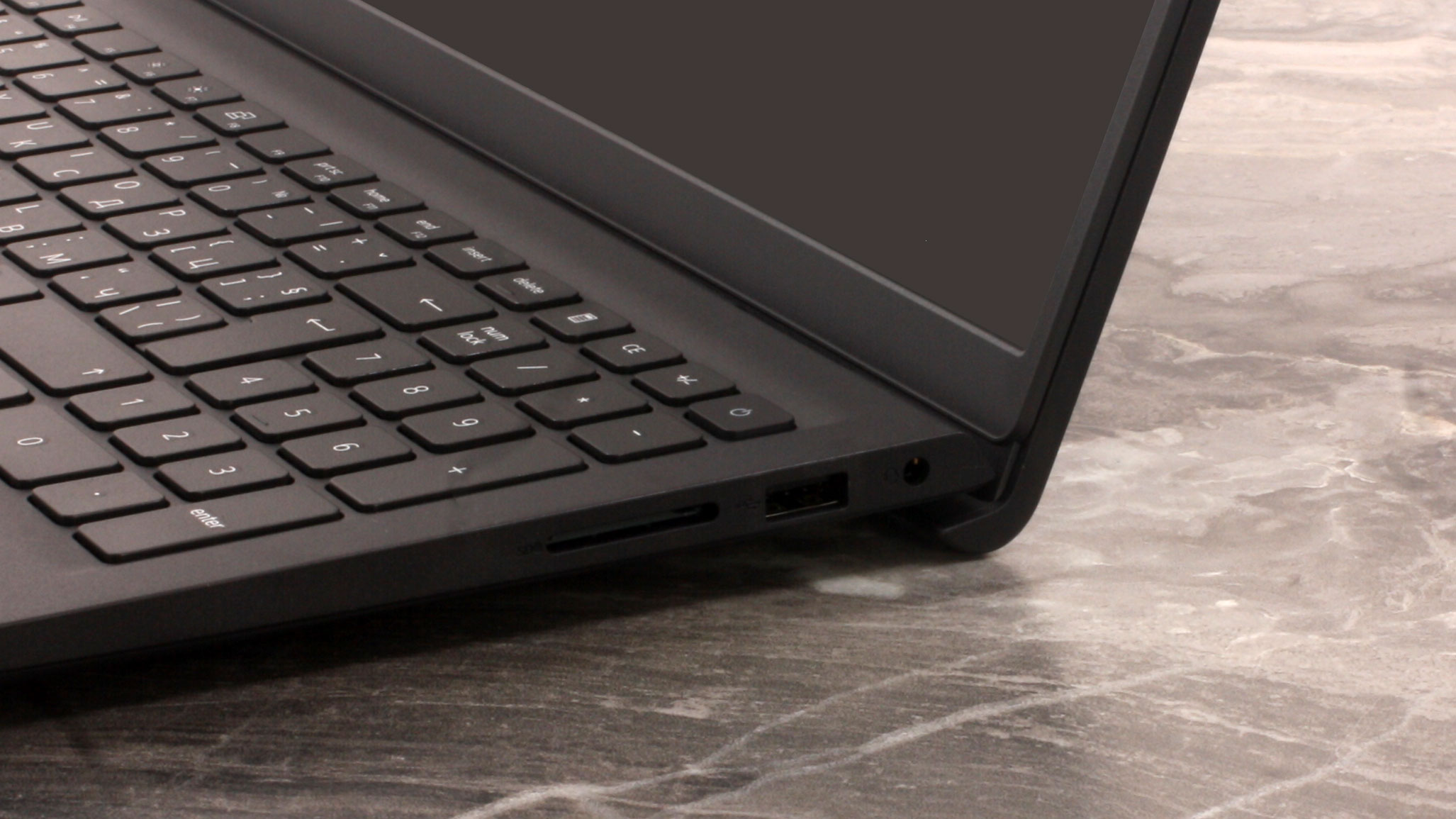
The side bezels around the display are not thick, but the top and bottom bezels are not ultrabook-thin either. Our plastic chassis version comes with an HD 720p camera, a single microphone, and no privacy shutter. The better FHD 1080p webcam, privacy shutter, and dual-array microphones are reserved for the aluminum chassis version, so this is another area where the exact configuration makes a real difference.
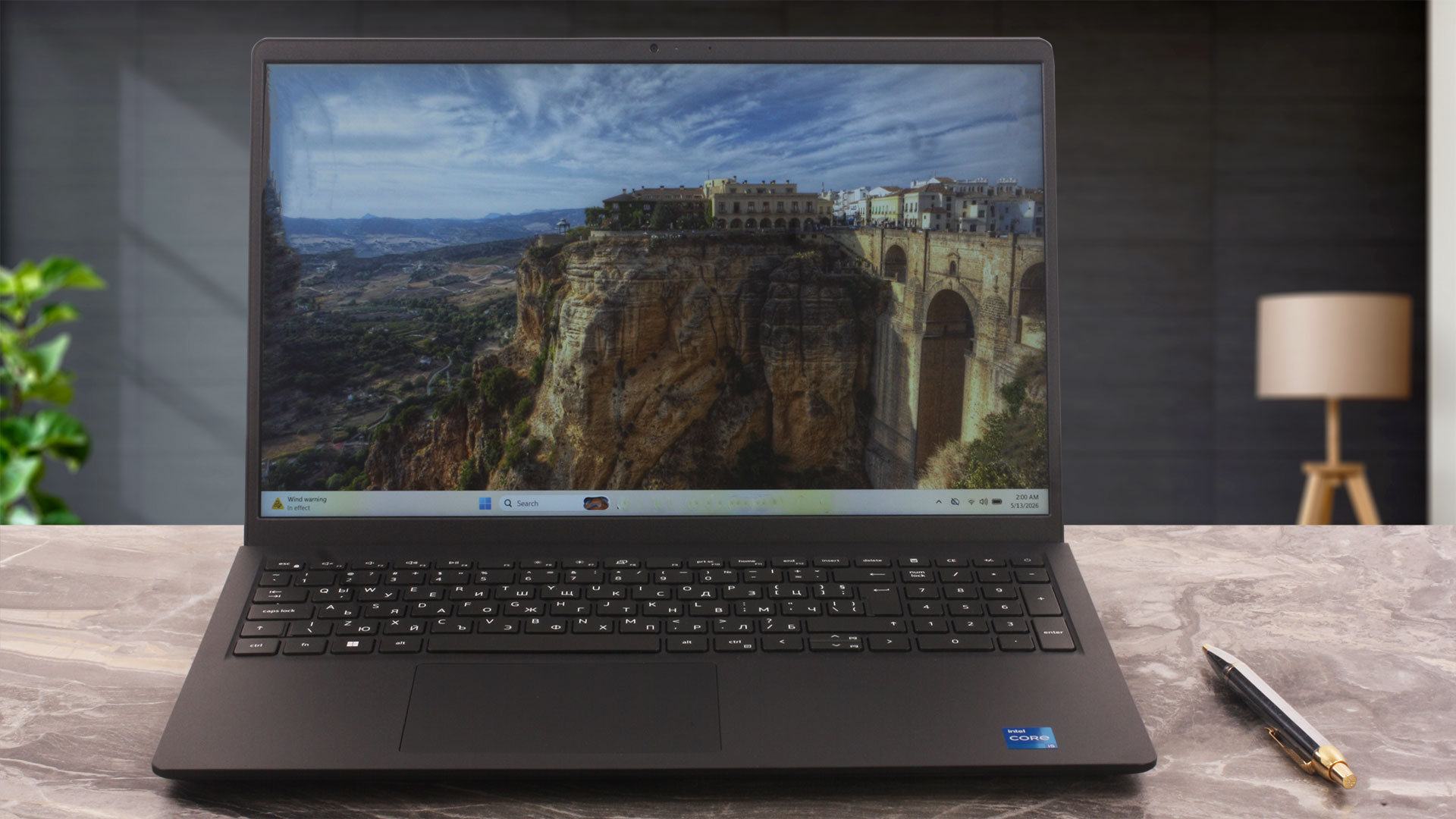
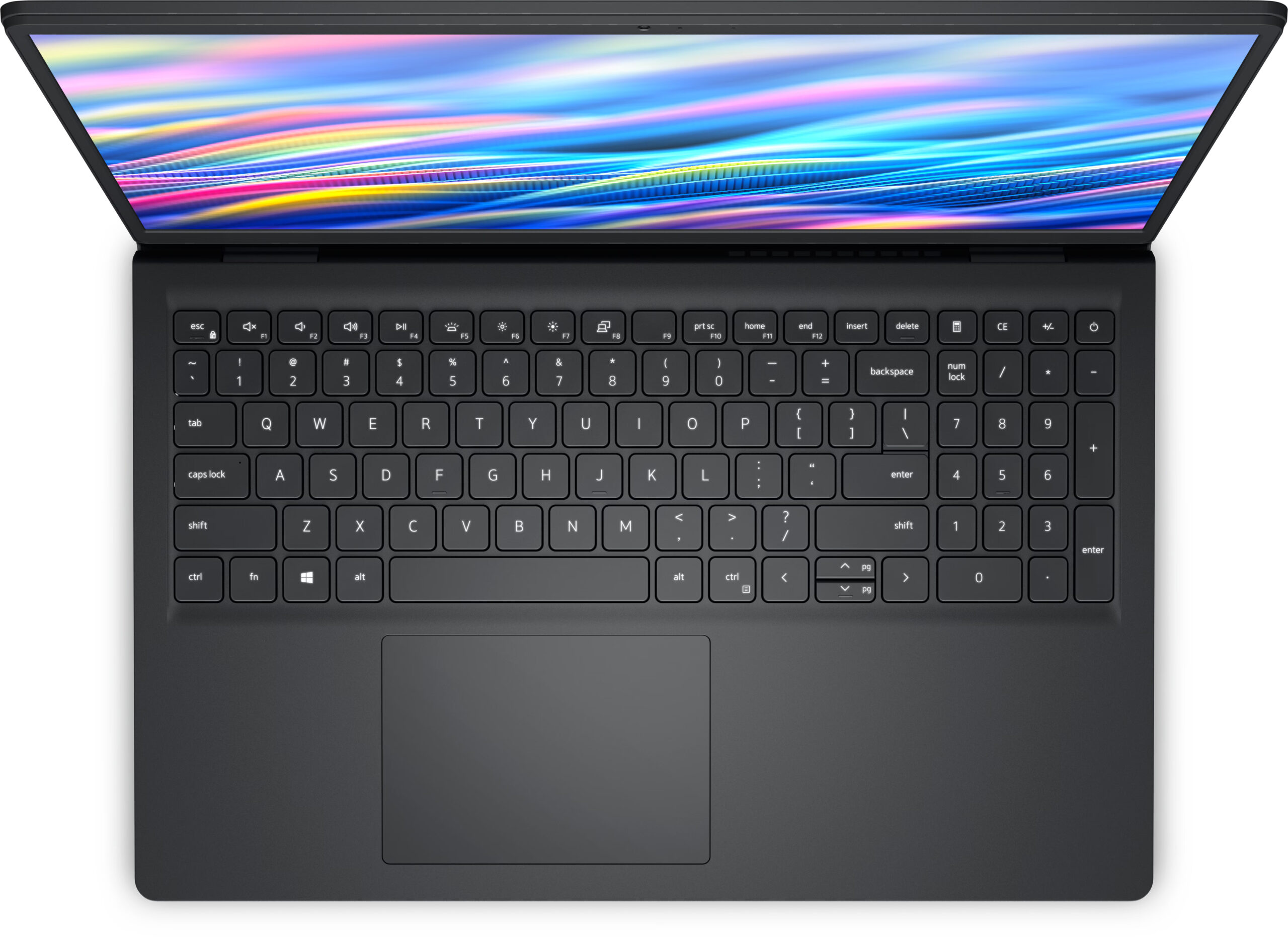
The keyboard is a full-size unit with a NumPad. The NumPad keys are slightly narrower than the main keys, but they remain comfortable enough for spreadsheets, accounting work, and fast number entry. Backlighting is optional, so buyers should check the exact configuration before ordering. The arrow-key layout is mixed: the left and right arrows are full-sized, while the up and down arrows are half-height.
The fingerprint reader is also optional and, when present, it is integrated into the power button. Our configuration does not rely on it as a standard feature, so this is another option that depends on the selected SKU.
The touchpad measures 115 x 80 mm, or 4.53 x 3.15 inches. That is a decent size for a budget 15-inch laptop. It is usable for everyday work, but it is not the most solid-feeling touchpad in this class. The overall experience is more typical budget laptop than premium business machine.
Ports and Connectivity
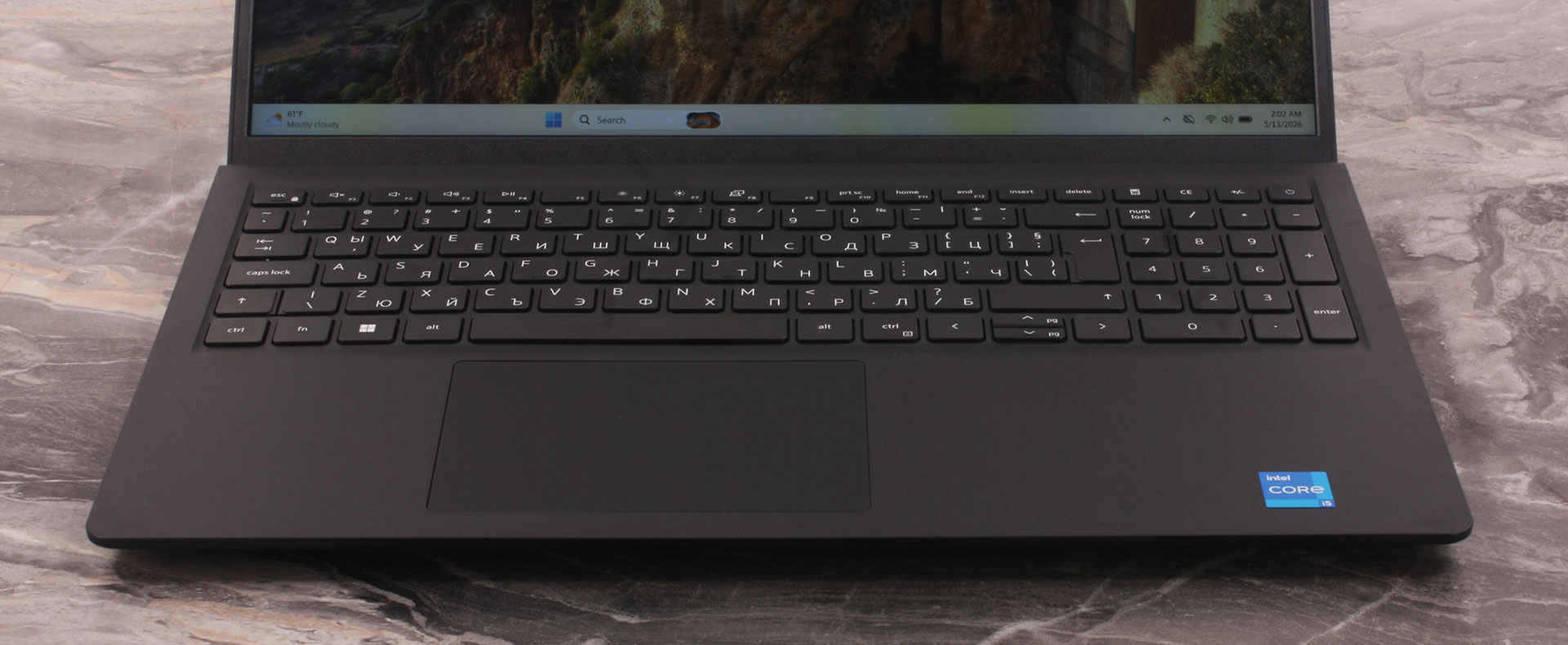
The port selection of the Dell 15 (DC15250) looks practical at first glance, but there are two important limitations buyers should know about before ordering: HDMI output is limited to Full HD, and USB-C functionality depends on the chassis configuration.
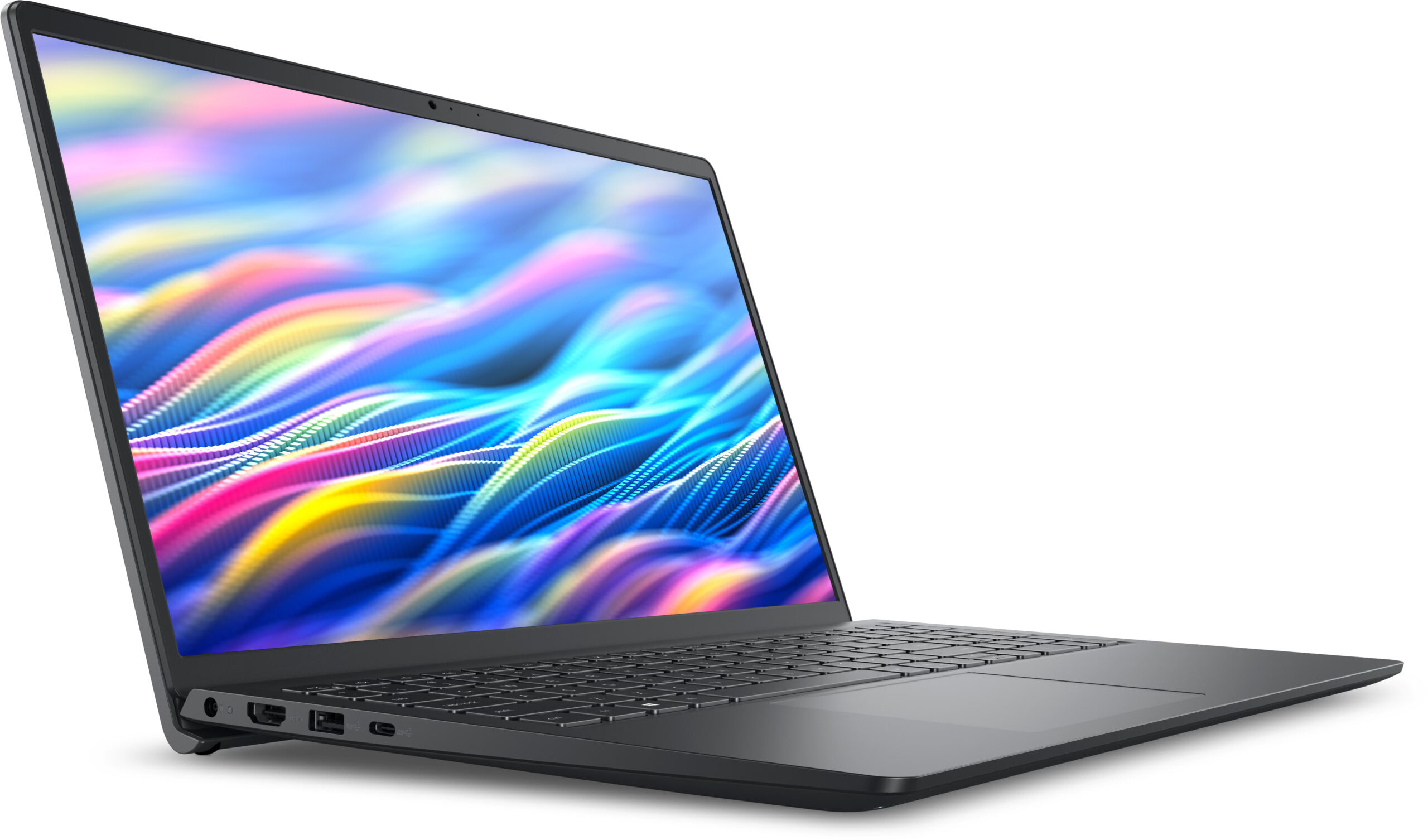
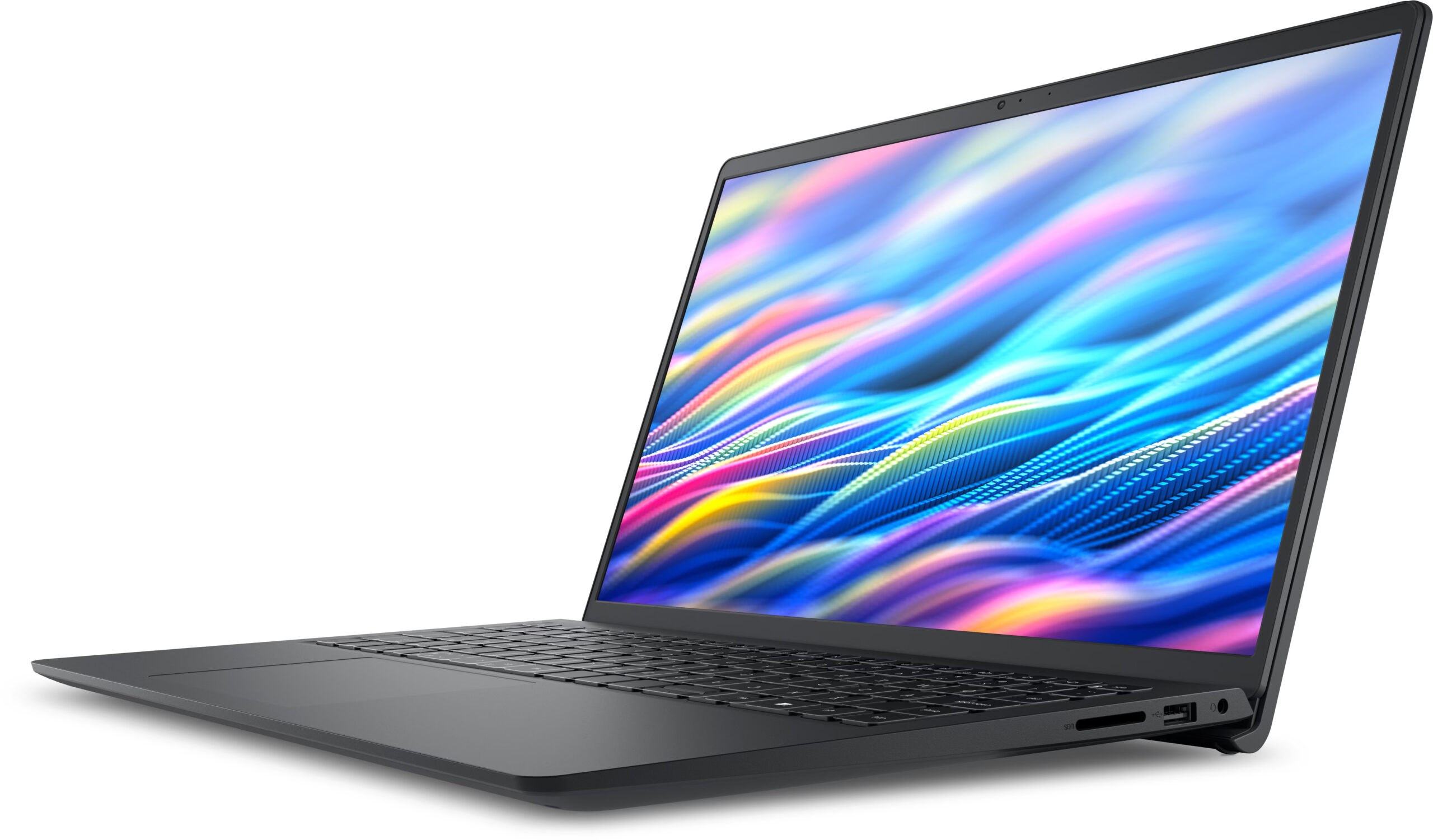
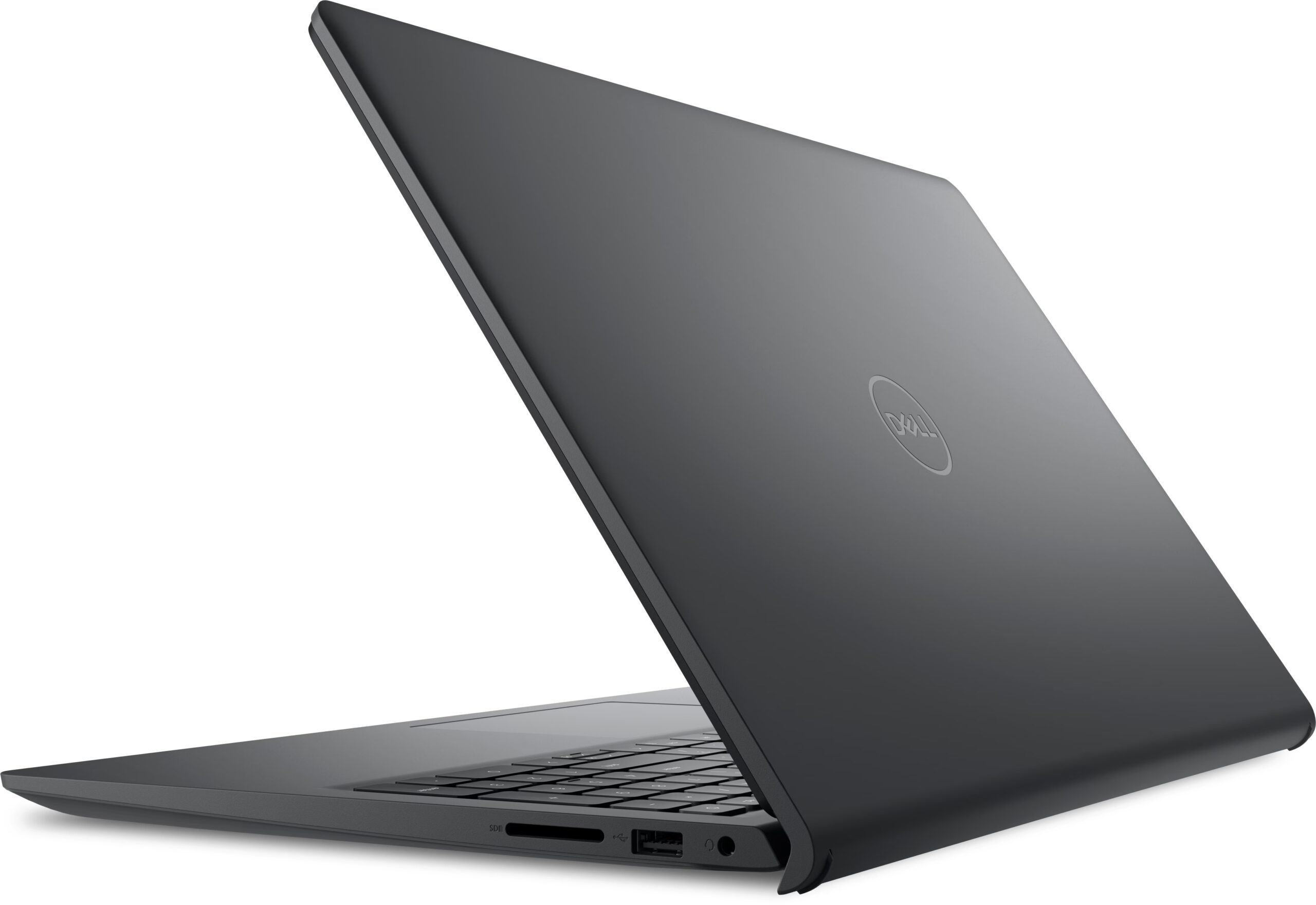
On the left side, we get the main ports for charging and external display output: a barrel-style power connector, a battery/status LED, an HDMI 1.4 port, one USB-A 3.2 Gen 1 port, and one USB-C 3.2 Gen 1 port. The tricky part is the USB-C port. On configurations with a plastic chassis, it is data-only. Since our Carbon Black unit uses the plastic chassis, it belongs to the data-only USB-C group.
On configurations with the aluminum chassis, it supports DisplayPort Alt Mode 1.4 and Power Delivery. In both cases, however, this is still USB 3.2 Gen 1, meaning 5Gbps, not Thunderbolt or USB4.
The HDMI port is the other important detail here. It is officially limited to 1920 x 1080 at 60Hz, so it does not support 2K or 4K output. That can be an unpleasant surprise if you plan to connect the laptop to a higher-resolution external monitor.

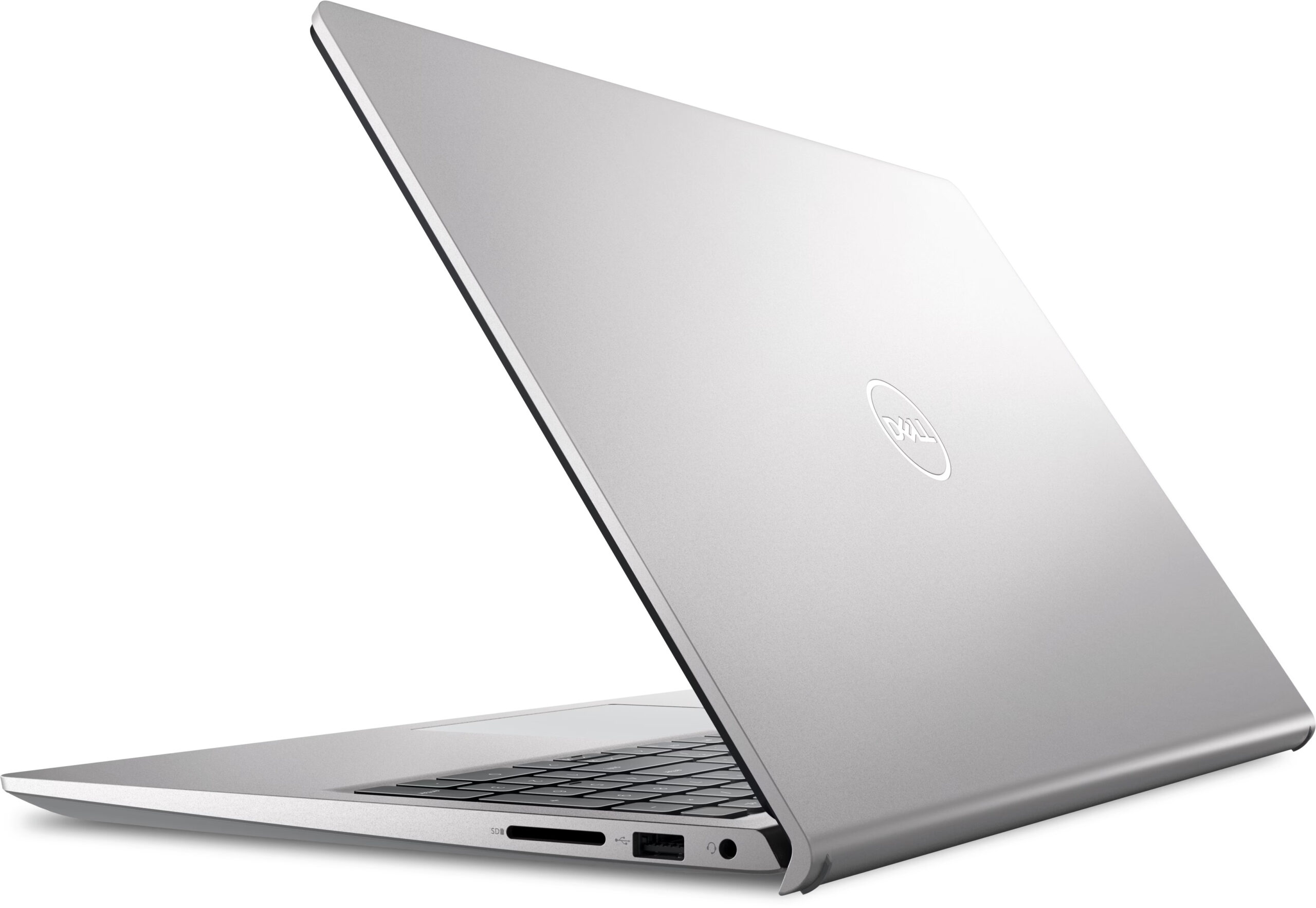
On the right side, there is an SD card reader, a USB-A 2.0 port, and a 3.5 mm universal audio jack. The SD card reader is a nice addition for a budget 15-inch laptop, especially for school, office work, or light photo-related tasks. The USB 2.0 port is obviously slow by modern standards, but it is still fine for a mouse, keyboard, printer, or other basic peripherals.

There are no ports on the back. All connectors are placed on the left and right sides, so cables will remain visible next to the laptop when you connect the charger, an external display, or wired accessories.
For wireless connectivity, the Dell 15 (DC15250) is available with two different modules. The more basic option is the Realtek RTL8821CE with Wi-Fi 5 and Bluetooth 5.0, while the better option is the Realtek RTL8852BE with Wi-Fi 6 and Bluetooth 5.3. There is no SIM card slot, no RJ-45 LAN port, and no security lock slot.
Display and Sound Quality, Display Profiles
We ordered the Dell 15 (DC15250) with a 15.6-inch Full HD (1920 x 1080) anti-glare panel running at 120Hz (BOE NV15N4U-R6FD8 / BOE092A). On paper, the 120Hz refresh rate is the most attractive part of this display option. In practice, the panel is pleasant enough for everyday use and scrolling feels smoother than on a standard 60Hz screen, but this is still a budget-class display with limited color reproduction.
The series is also available with lower-refresh Full HD variants, including a 60Hz touch WVA option and a brighter 60Hz non-touch IPS option rated at 300 nits. All officially listed display options have 45% NTSC color coverage, so buyers should not expect creator-grade colors from this model.
| Dell 15 (DC15250) | 15.6″, Full HD (1920 x 1080), 60Hz, WVA, touch | 15.6″, Full HD (1920 x 1080), 60Hz, IPS, non-touch | 15.6″, Full HD (1920 x 1080), 120Hz, IPS-class (BOE NV15N4U-R6FD8 / BOE092A) |
| Diagonal | 15.6 inches (39.6 cm) | 15.6 inches (39.6 cm) | 15.6 inches (39.6 cm) |
| Panel Type | WVA | IPS | IPS-class |
| Resolution | 1920 x 1080 pixels | 1920 x 1080 pixels | 1920 x 1080 pixels |
| Max Refresh Rate | 60Hz | 60Hz | 120Hz |
| Aspect Ratio | 16:9 | 16:9 | 16:9 |
| Pixel Density | 141 PPI | 141 PPI | 141 PPI |
| ‘Retina’ Distance | 62 cm or greater | 62 cm or greater | 62 cm or greater |
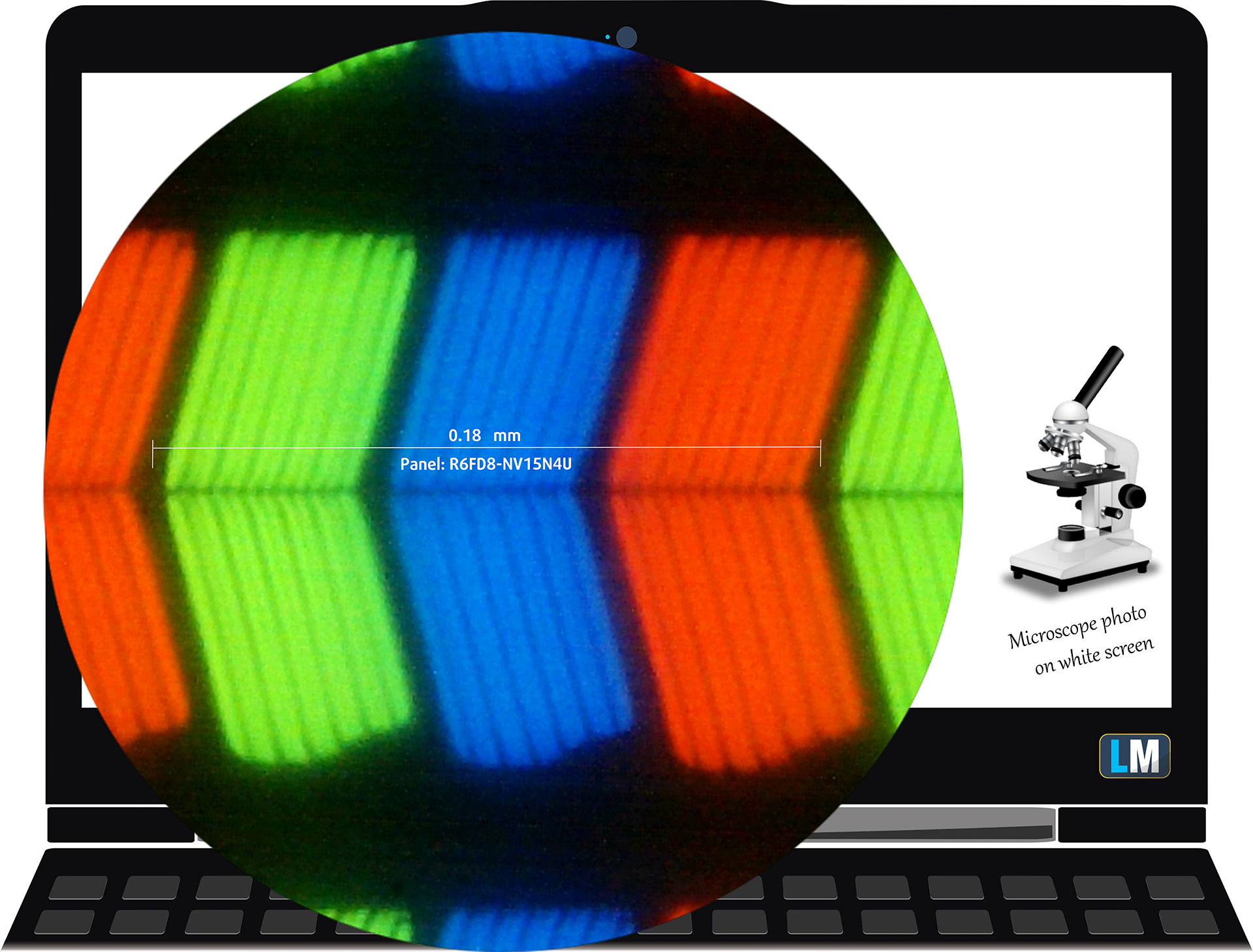
The Full HD (1920 x 1080), 120Hz display variant under our microscope
Viewing Angles
Viewing angles are good, as expected from this type of panel. We take photos from different angles to evaluate the quality.
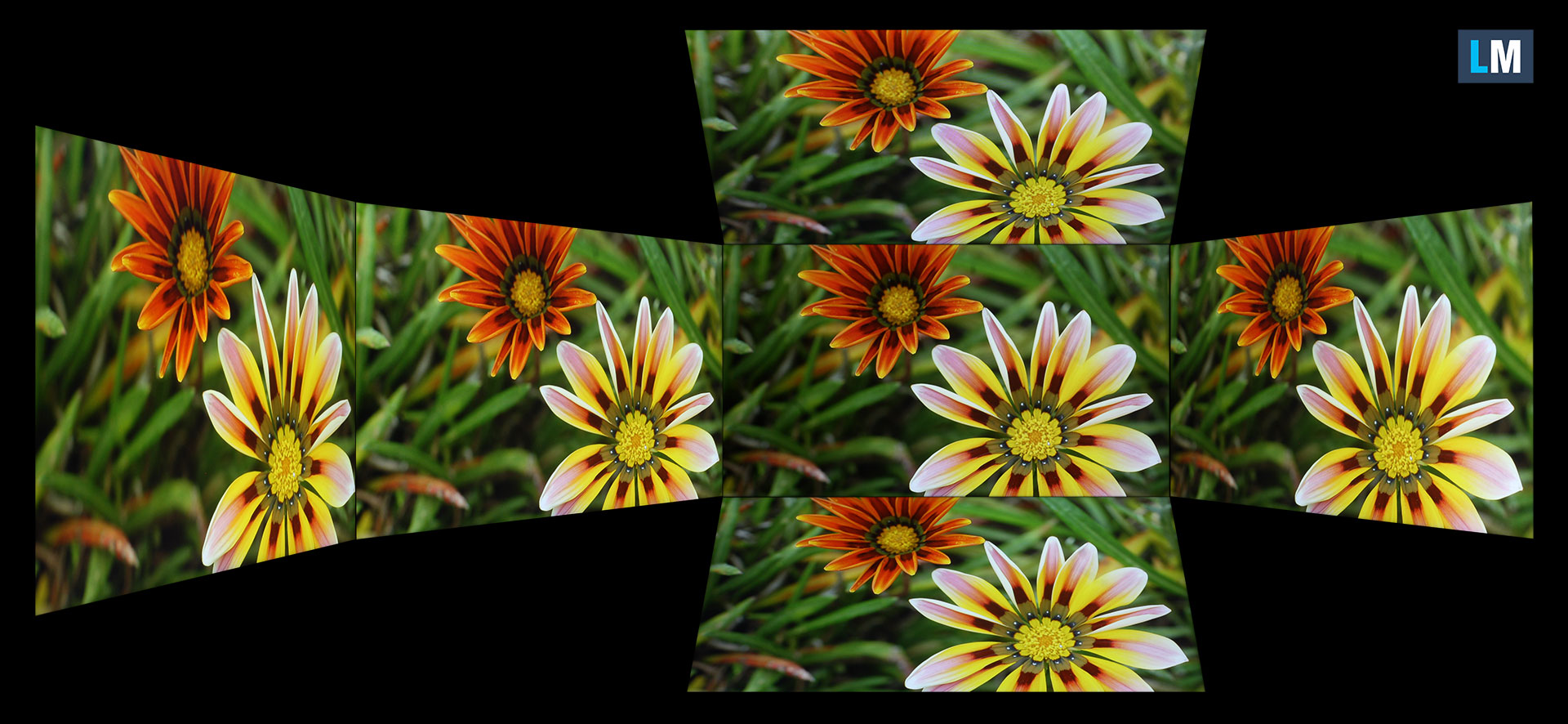
Also, a video with locked focus and exposure.
Color Coverage
The whole “sail-shaped” map below (Fig. 1) consists of all the colors we can see, while the black curved line shows all the colors from real-world scenes and nature around us.
Then, we’ve drawn some of the most important and interesting color spaces, compared to the colors the panel of Dell 15 (DC15250) can show:
Standard/For Web: sRGB – widely used color space for most consumer devices, ideal for Web design and development.
For Print: AdobeRGB – used in professional photo editing, graphic design, and print.
For Photographers/Video Editors: DCI-P3 – used in high-end film production, post-production, and digital cinema.
Premium HDR: Rec.2020 – one of the widest consumer color standards, covering 75.8% of the visible spectrum and serving as a benchmark for premium HDR content.
Dell 15 (DC15250): the yellow dashed triangle (– – – – – –) represents the range of colors this display can show.
In our tests, the display covered just 51% of the sRGB color gamut and 41% of the DCI-P3 color gamut. This is the biggest limitation of the screen. It is usable for office work, browsing, and video playback, but it is not suitable for color-sensitive work such as photo editing, design, or content creation.
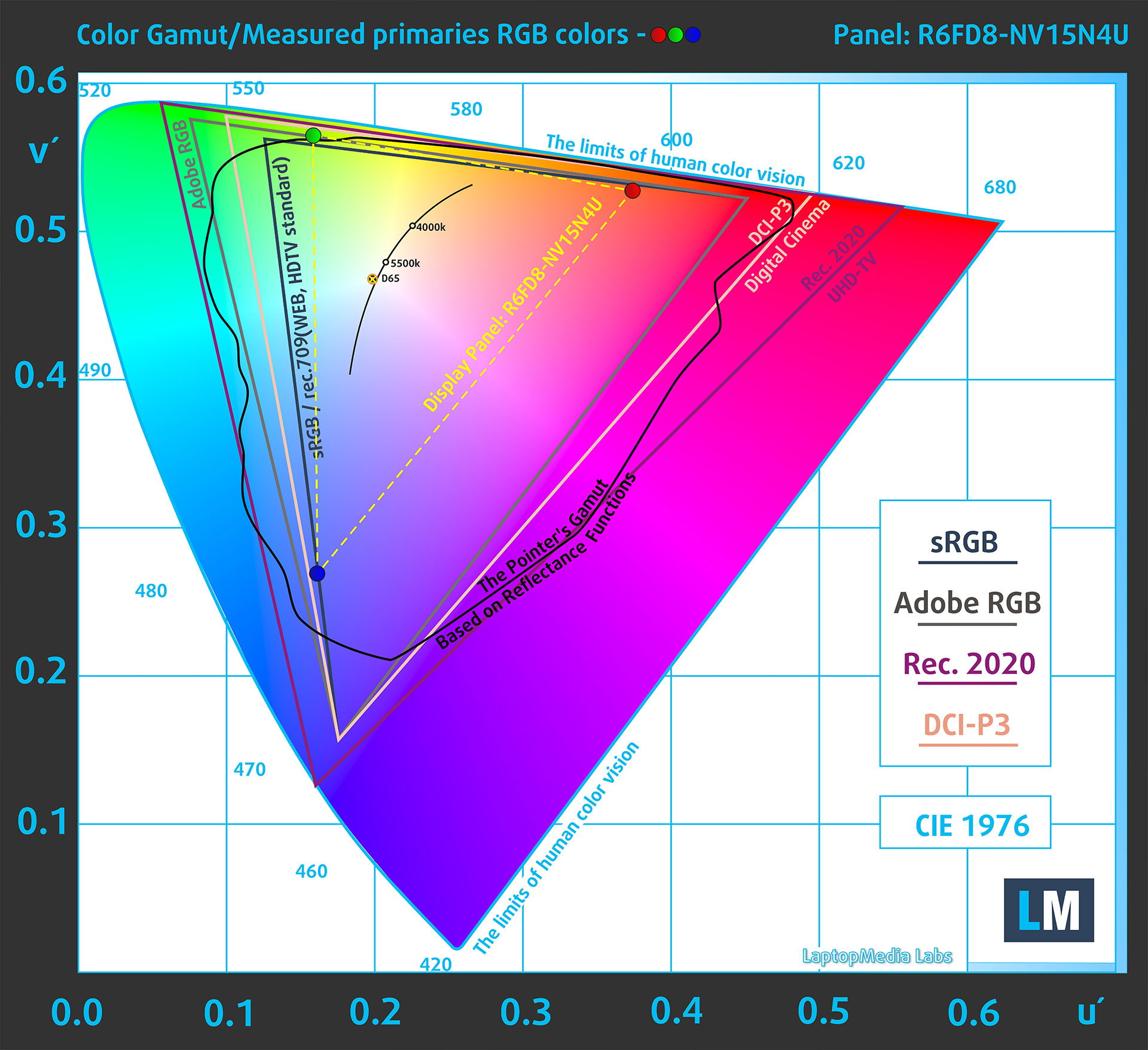
(Fig. 1) Dell 15 (DC15250) covers 51% of the sRGB gamut
Brightness and Contrast
The maximum brightness in SDR mode is 290 cd/m² in the center of the screen and 279 cd/m² averaged across the surface, with a maximum deviation of 10%. This is actually a bit higher than the official 250-nit rating for the 120Hz panel, and it is a decent result for an affordable laptop.
The Correlated Color Temperature (CCT) on a white screen at maximum brightness is 6580K, which is very close to the 6500K reference point. The contrast ratio is 1080:1, which is also fine for this class.
The panel is not recognized by Windows as HDR-capable for games, apps, and desktop use. HDR video streaming is reported as supported, but the display should be considered a standard SDR screen.

Uniformity: Luminance, Contrast, and Color Deviation
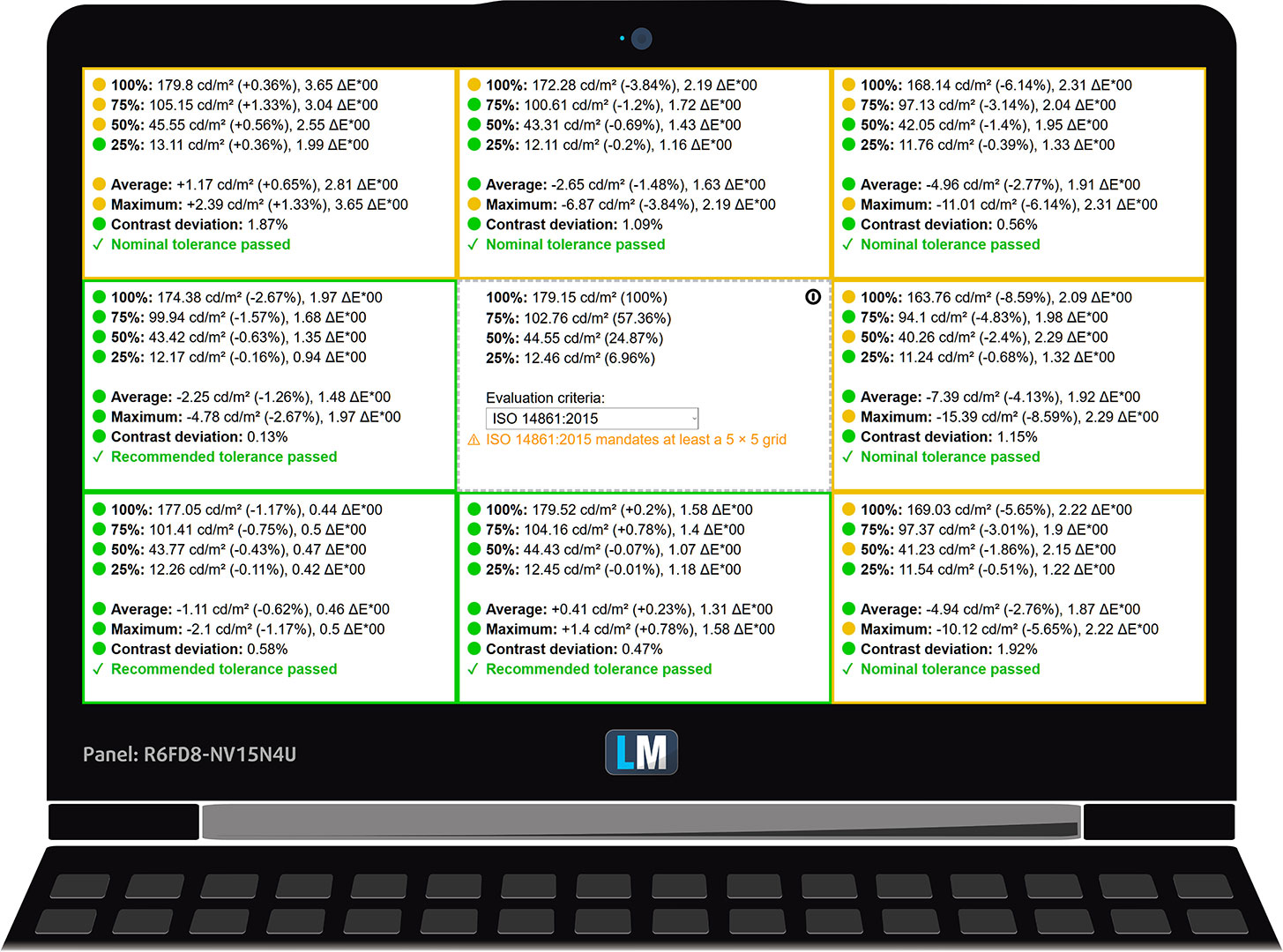
The figure below shows the results from our uniformity test across different sections of the screen. It’s measured at 179 nits (Windows slider = 61%) – a brightness level we consider typical for standard working conditions.
DeltaE values below 4.0 are acceptable for regular users. For those working with colors, screens with DeltaE values no higher than 2.0 are recommended.
Color Accuracy
Let’s check the difference between real colors and those you’ll see on the Dell 15 (DC15250). We measure that distance in DeltaE – the higher the number, the more different they look.
Values below 4.0 are acceptable for regular users, while values below 2.0 are suitable for color-sensitive work. A value below 1.0 means the difference is indistinguishable to the naked eye.
For the next graph, we’ve selected 24 common colors, including dark and light skin tones, blue sky, green grass, etc.
Before our calibration of the Dell 15 (DC15250), the average color accuracy was 5.5 dE (Fig. 2), and with our Design and Office profile, it improved to 4.4 dE (Fig. 3).
This improvement is useful, but there is an important limitation: calibration cannot create colors the panel is physically unable to display. Because of the narrow color gamut, this screen remains unsuitable for professional color work even after profiling.
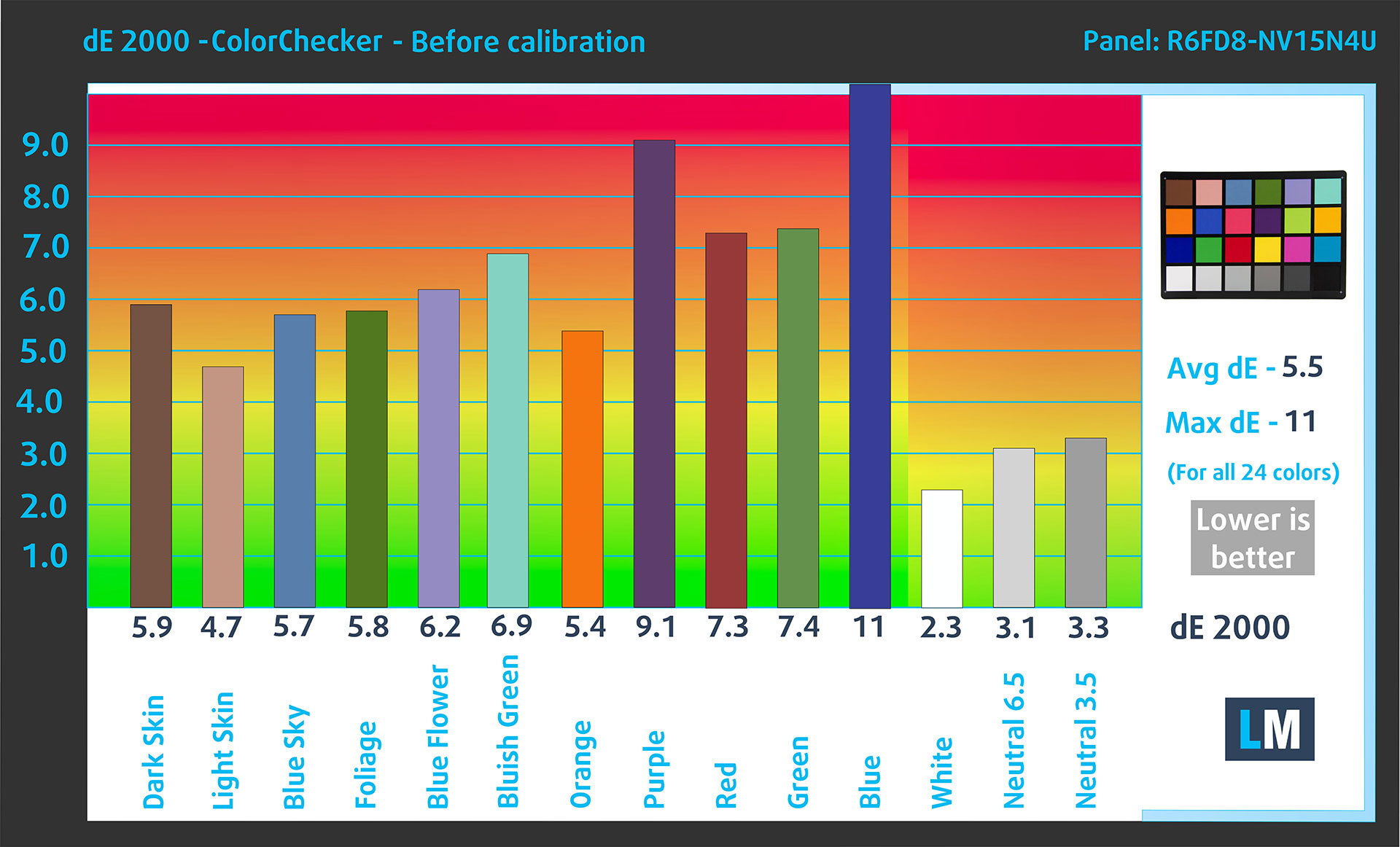
(Fig. 2) Dell 15 (DC15250) in its factory condition
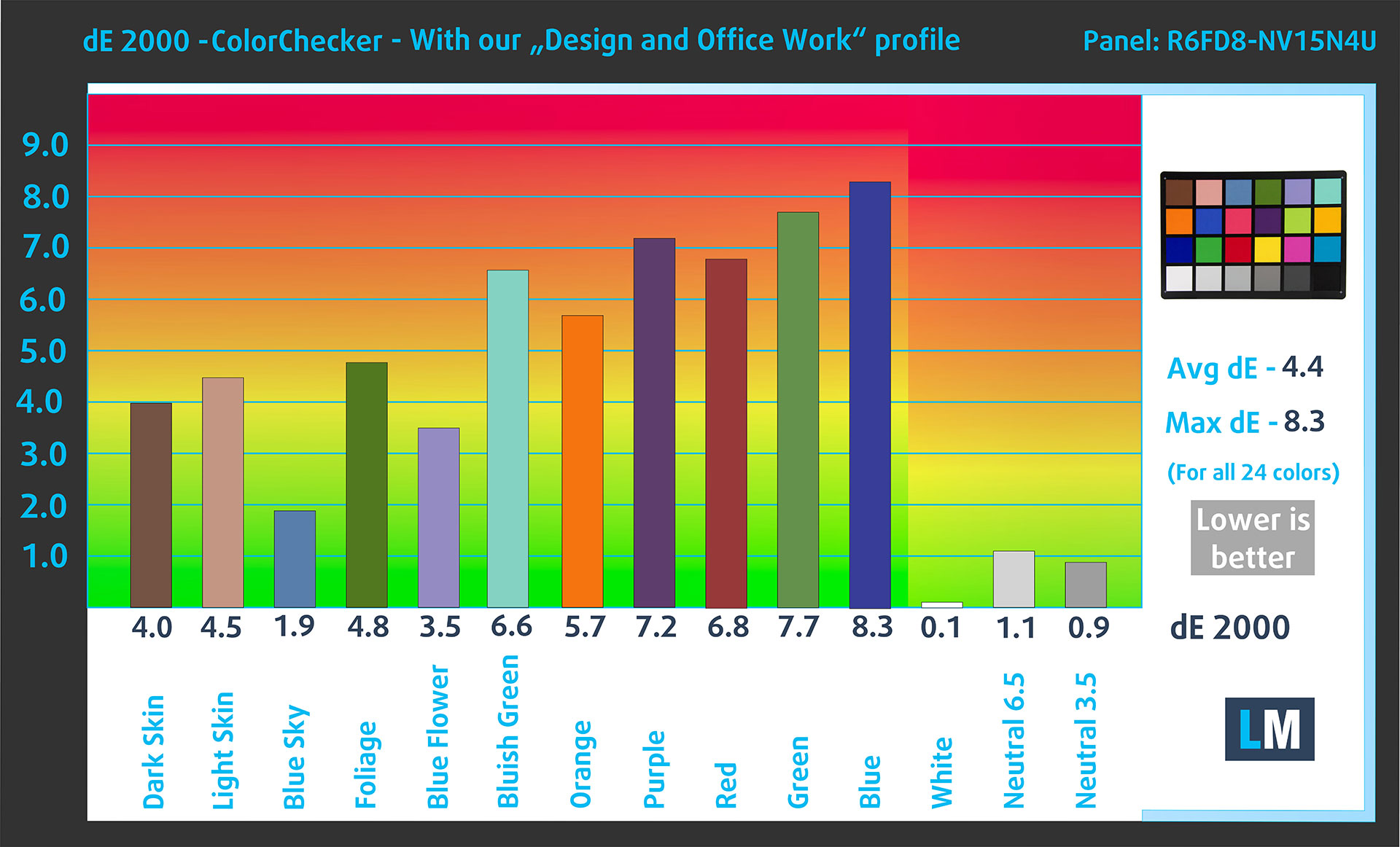
(Fig. 3) Dell 15 (DC15250) with our display profile
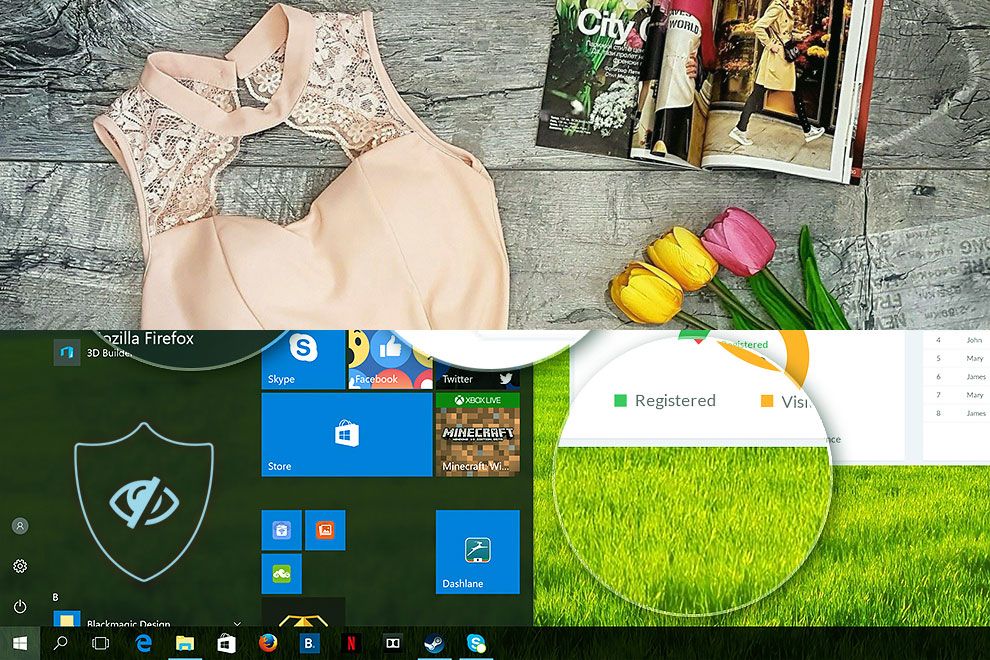
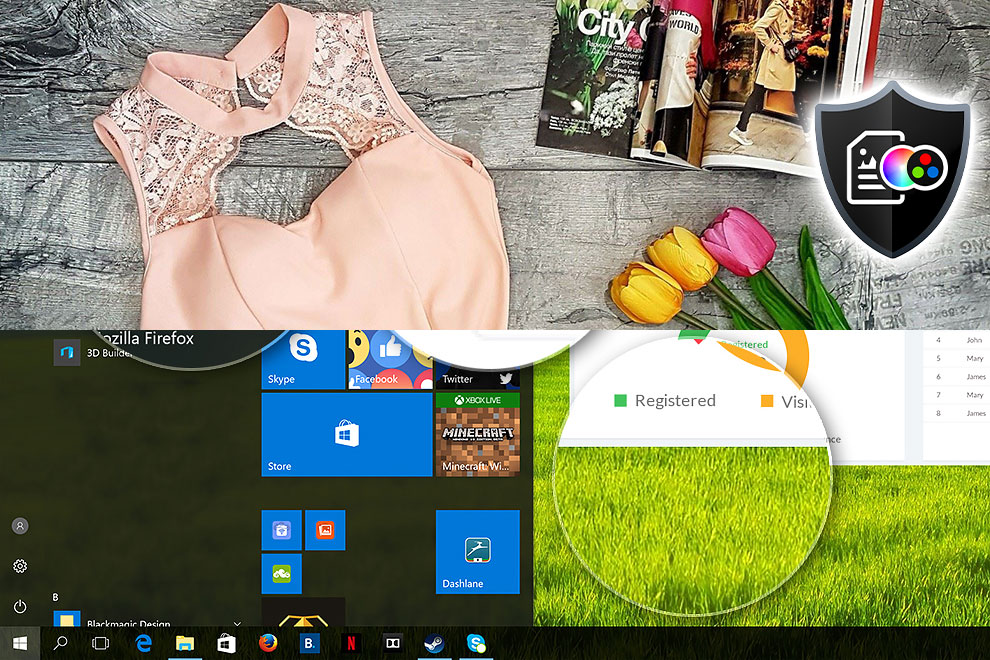
Comparison in the sRGB color space.
Here’s an illustration of what the Design and Office profile aims to deliver:
Left: No Profile | Drag the slider to see the difference | Right: Design & Office Profile
Visibility in dark scenes
Have you ever watched a movie with dark scenes where you could barely see anything? This often happens because many display panels struggle to differentiate the darkest nuances, making them appear the same.
The next figure illustrates how well the display reproduces these dark nuances. The left side of the image shows the display with stock settings, and the right side shows it with our Gaming and Movies profile activated.
The horizontal axis shows the grayscale levels, while the vertical axis shows the corresponding display brightness.
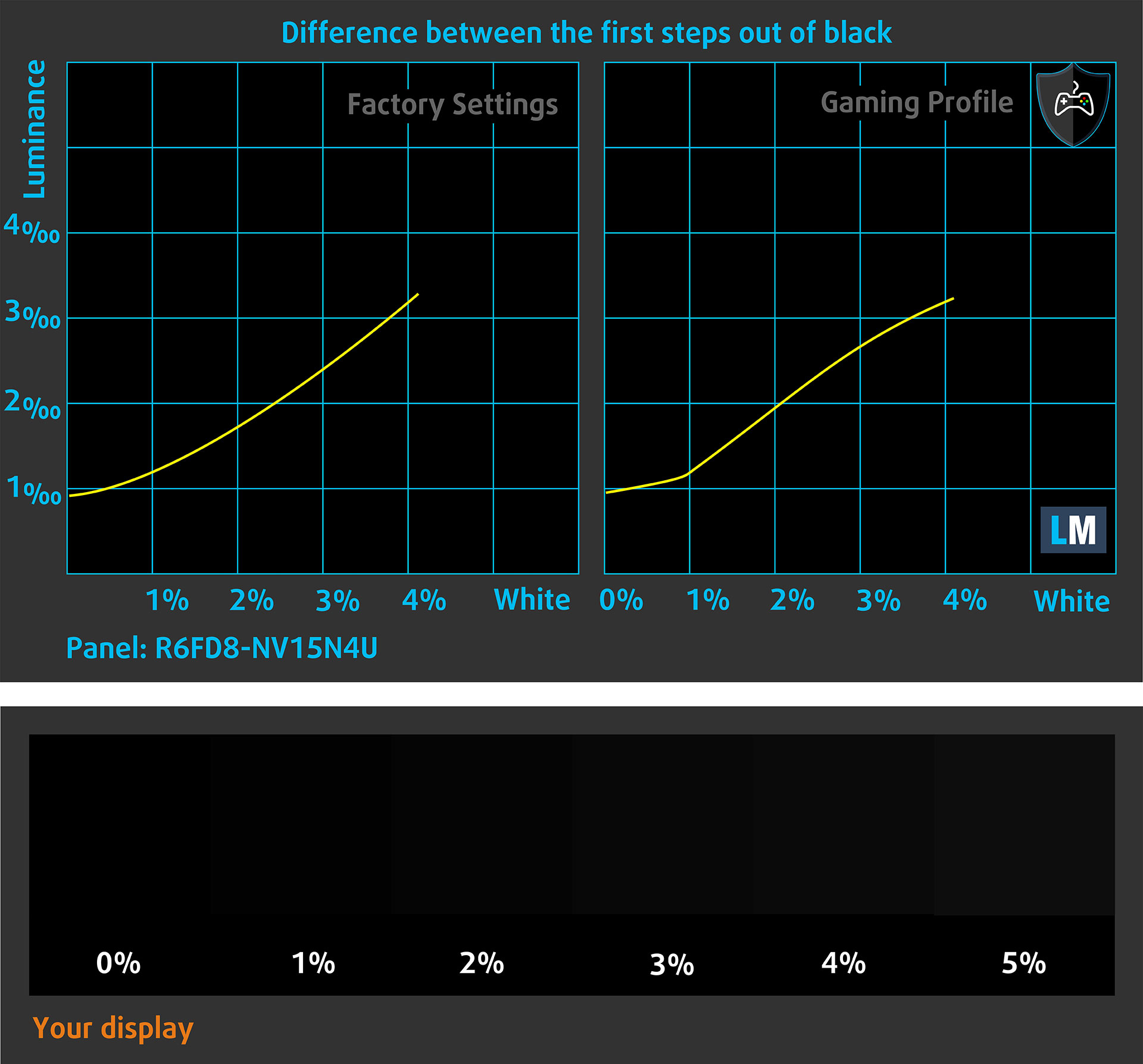
You can also check how your display handles the darkest nuances but keep in mind that this also depends on the settings of your current display and the surrounding light conditions.
Response time (Gaming capabilities)
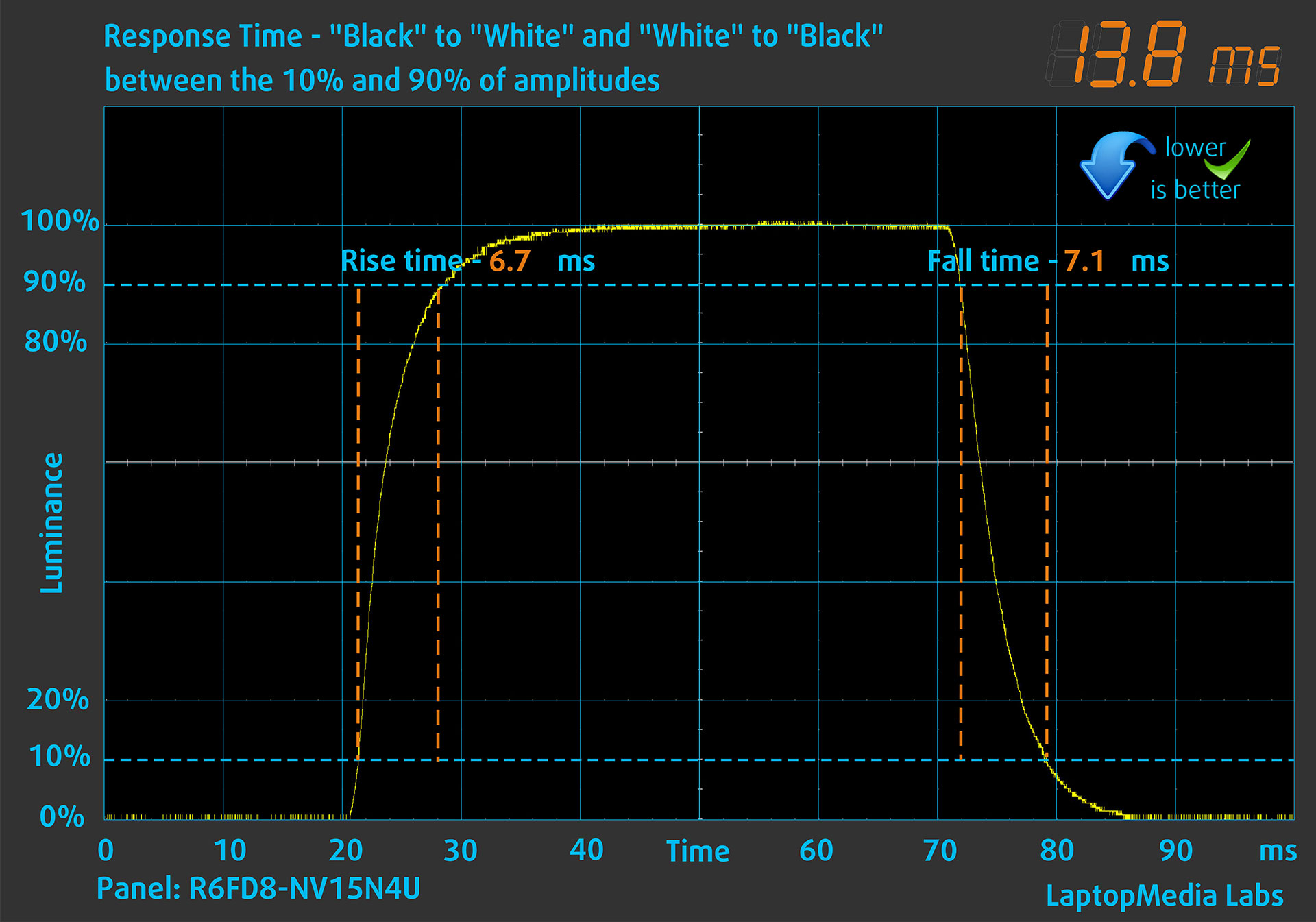
We test the reaction time of the pixels with the usual “black-to-white” and “white-to-black” method from 10% to 90% and vice versa.
We recorded Fall Time + Rise Time of 13.8 ms, which is a good result for a budget IPS-class LCD panel. Combined with the 120Hz refresh rate, this makes the display feel smoother than a typical 60Hz office panel. Still, the Dell 15 is not a gaming laptop, and the weak integrated graphics remain the bigger limitation for gaming.
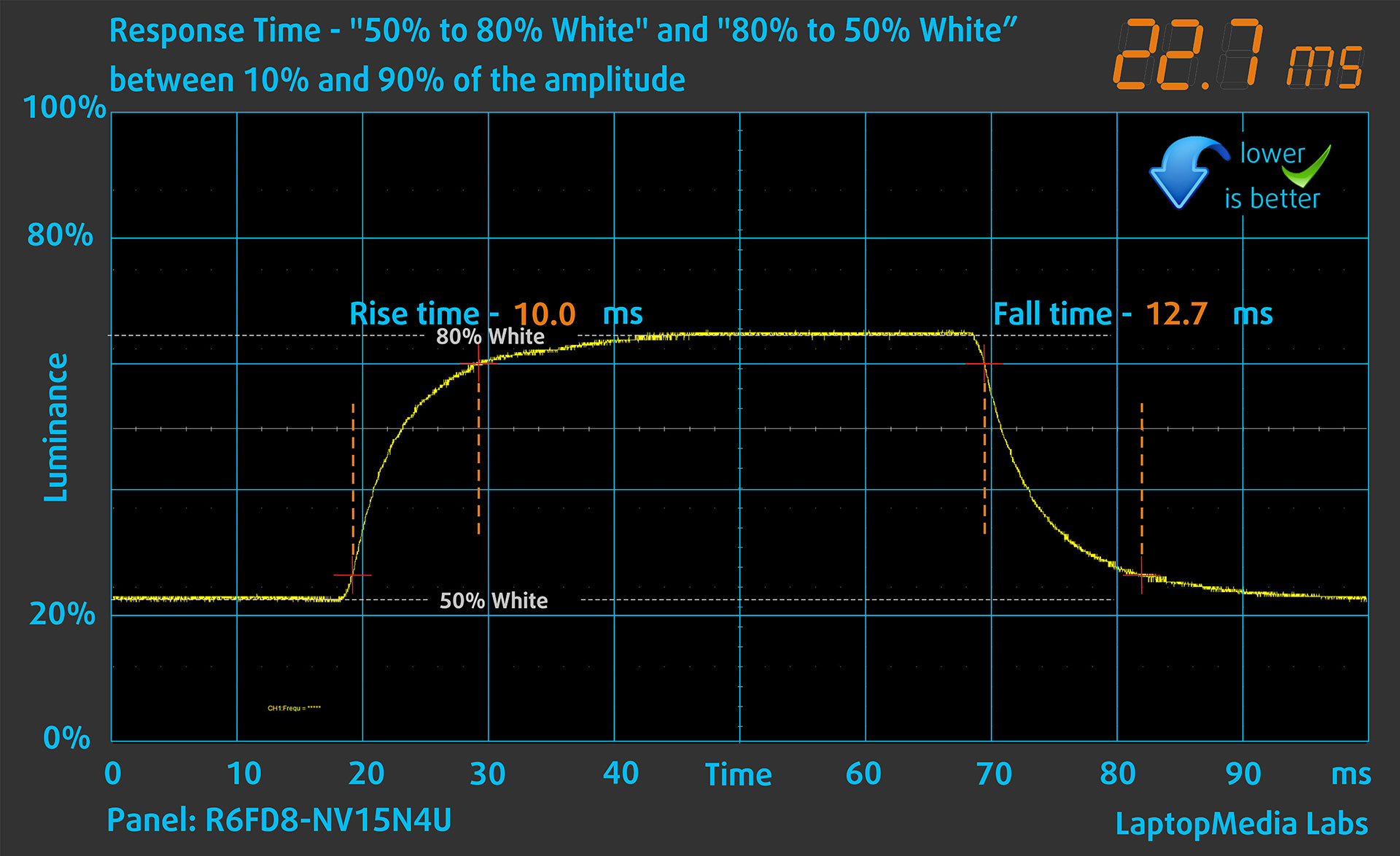
After that, we test the reaction time of the pixels with the usual “Gray-to-Gray” method from 50% White to 80% White and vice versa between 10% and 90% of the amplitude.
Health Impact: PWM (Screen flickering)
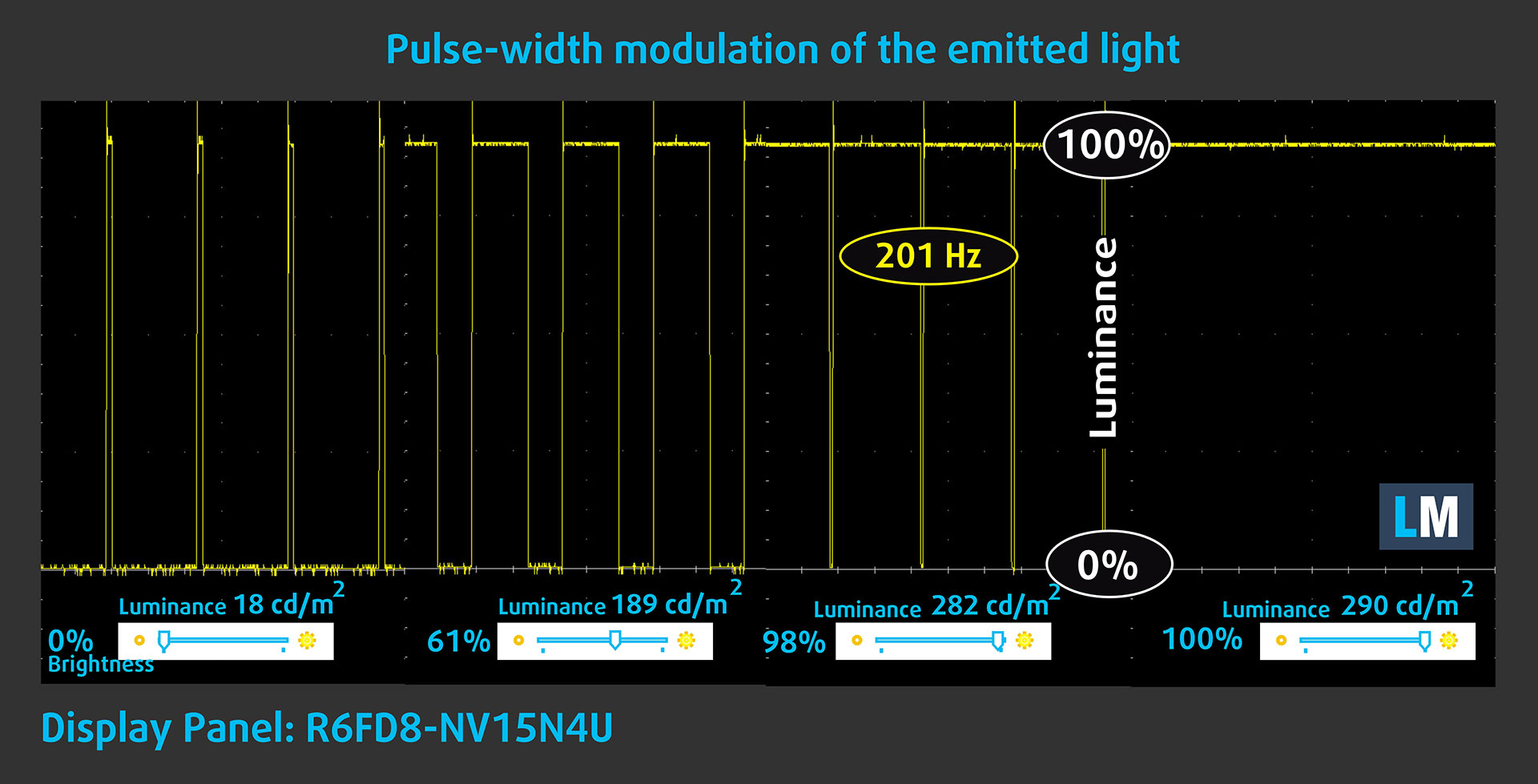
Some displays use PWM to regulate brightness, which means that instead of reducing the light intensity, they pulse or flicker. Our brain merges the image, so it appears darker, but this strains both it and our vision, especially when the frequency of the pulses is low. You can read more about that in our dedicated article on PWM.
In the graph below, you see the intensity of light at different brightness levels—on the vertical axis is the brightness of the emitted light, and on the horizontal axis—time.
The Dell 15 (DC15250)’s display uses PWM to adjust brightness at all tested levels below maximum. The measured frequency is very low, around 201Hz, and the waveform is a sharp on/off pulse pattern rather than a smooth modulation. This is one of the weakest points of this panel, and it is closer to what we used to observe on much older low-cost displays.
Because of the low frequency and the aggressive pulse pattern, we do not recommend using this display at brightness levels below 100% for extended periods without our Health-Guard profile enabled, especially for users sensitive to flicker. With Health-Guard active, the panel can be kept at its PWM-free maximum backlight level, while perceived brightness is reduced through the profile’s own brightness control, effectively avoiding the native low-frequency PWM behavior.
Health Impact: blue light emissions
Installing our Health-Guard profile reduces blue light emissions and improves viewing comfort, while keeping the screen colors perceptually accurate. It may be helpful during evening use. On laptops that use PWM for brightness control, the profile can eliminate flickering by keeping the backlight at its PWM-free maximum-brightness state and reducing perceived brightness through the profile’s own brightness control instead.
This brightness-control slider is available when the Health-Guard profile is selected, because this method can affect profiles intended for the highest color accuracy. Users who want maximum visual comfort and flicker reduction should use the “Health-Guard” profile, while users who need the most accurate color matching should use the “Design and Office” profile, with the display retaining its native brightness-control behavior.
You can find more information about that in our dedicated article on Blue Light.
Health Impact: Screen Reflectance
Displays with higher surface reflectance can cause eye fatigue in bright ambient conditions due to reflections. We measure the level of screen reflection with the display turned off, at a 60° angle.
The reflectance of the Dell 15 (DC15250)’s screen is 53.2 GU, which falls into the medium-gloss range. For a matte budget laptop display, this is a good result and helps with usability in brighter rooms.
High Gloss: >70 GU
Medium Gloss: 30 – 70 GU
Low Gloss: <30 GU
Get our profiles
Since our profiles are tailored for each individual display model, this article and its respective profile package are meant for Dell 15 (DC15250) configurations with NV15N4U-R6FD8 (BOE092A), 1920 x 1080, IPS-class panel.
*Should you have problems with downloading the purchased file, try using a different browser to open the link you’ll receive via e-mail. If the download target is a .php file instead of an archive, change the file extension to .zip or contact us at [email protected].
Read more about the profiles HERE.
In addition to receiving efficient and health-friendly profiles, by buying LaptopMedia's products you also support the development of our labs, where we test devices in order to produce the most objective reviews possible.

Design and Office
The Design and Office profile makes display colors as close to real as possible.Ideal not only for professionals but also for everyday users, it meets sRGB standards (D65 white point, sRGB gamma) with minimal DeltaE for precise color reproduction on your panel.

Gaming and Movies
Have you ever watched a movie where, during dark scenes, you can barely see anything? Many displays fail to distinguish dark tones properly. Our Gaming and Movies profile enhances low-light performance, like HDR tech, using a gamma curve tailored to human perception — ideal for gamers seeking faster reactions and clearer visuals.

Health-Guard
Our Health-Guard profile protects your eyes by eliminating PWM flickering, reducing strain and fatigue, and minimizing harmful Blue light exposure that can disrupt sleep and health. It uses software dimming and a gamma curve tailored to human perception for comfort and safety during screen use.
Get All The Profiles With 33% Discount!

Sound
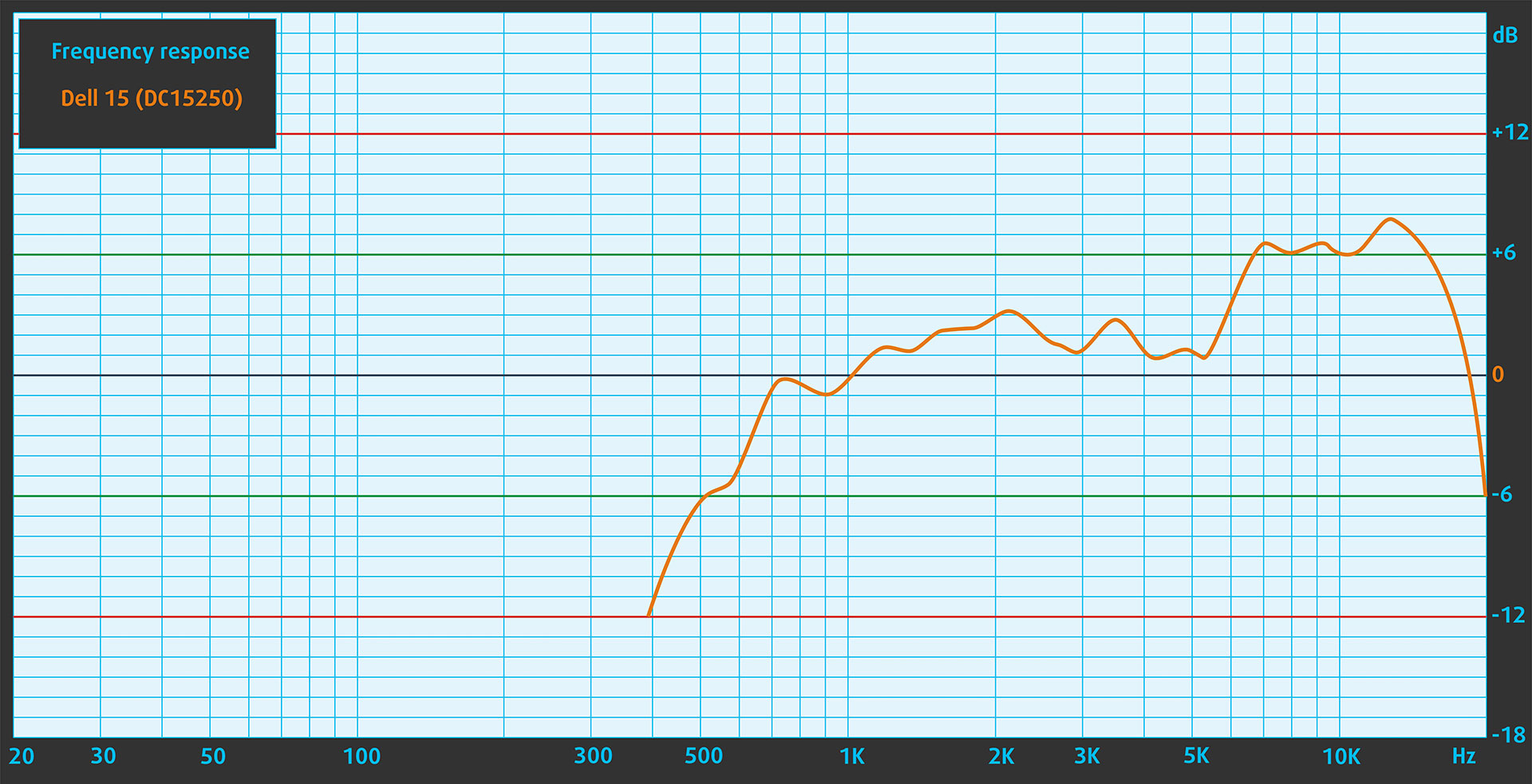
The Dell 15 (DC15250) delivers good sound quality for its class, with clear lows, mids, and highs. The amplitude-frequency response has a slight rise in the high-frequency range, but the overall result is fine for video calls, speech, and casual media playback.
Work Performance: CPU, Storage
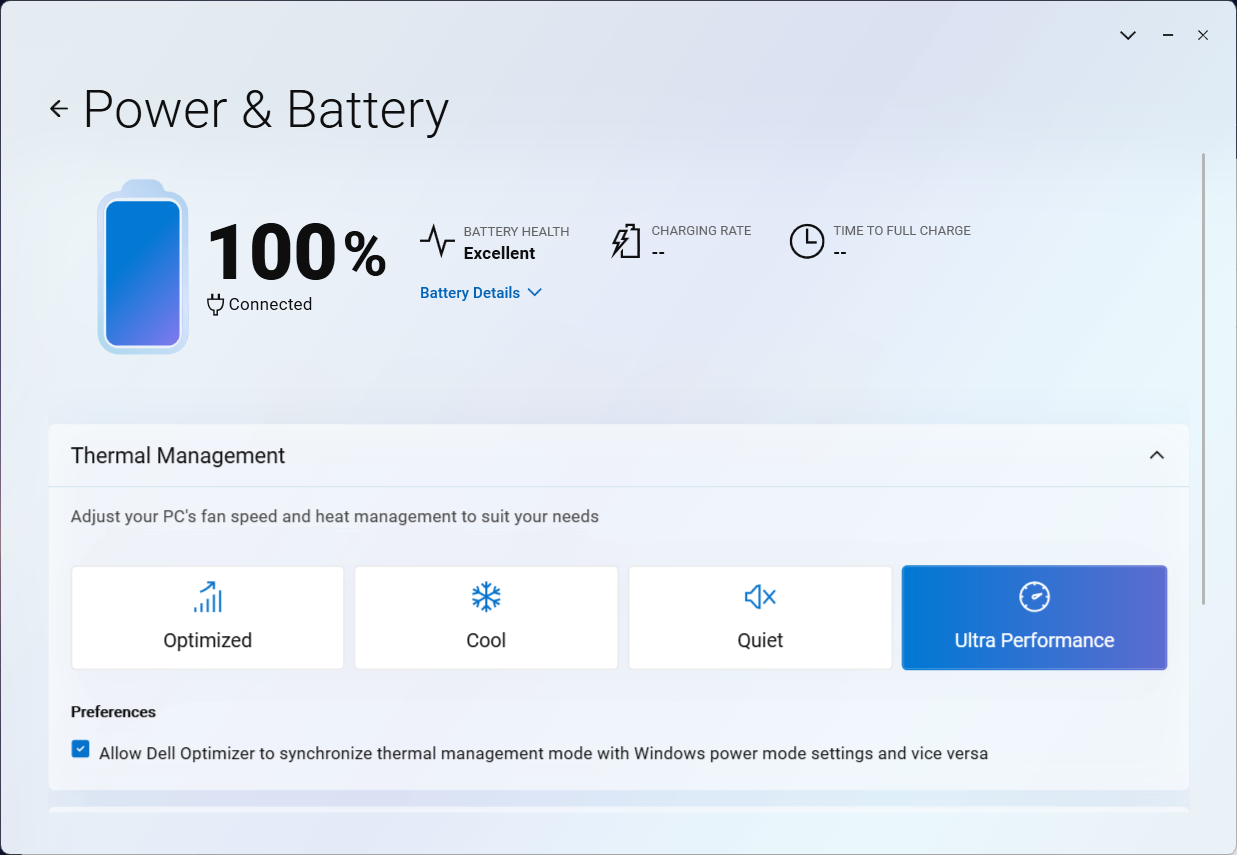
All performance and temperature tests are conducted with Ultra Performance mode activated in Dell Optimizer:
CPU and Work Performance
The Dell 15 (DC15250) is available with several Intel U-series processors, including the Core i7-1355U, Core i5-1334U, and Core 3 100U. These are power-efficient chips aimed at everyday workloads such as office tasks, web browsing, video calls, and light multitasking, rather than heavy sustained performance. Since the CPU choice can noticeably affect responsiveness, especially under multitasking, it is worth checking our Top Laptop CPU Ranking before choosing a configuration.
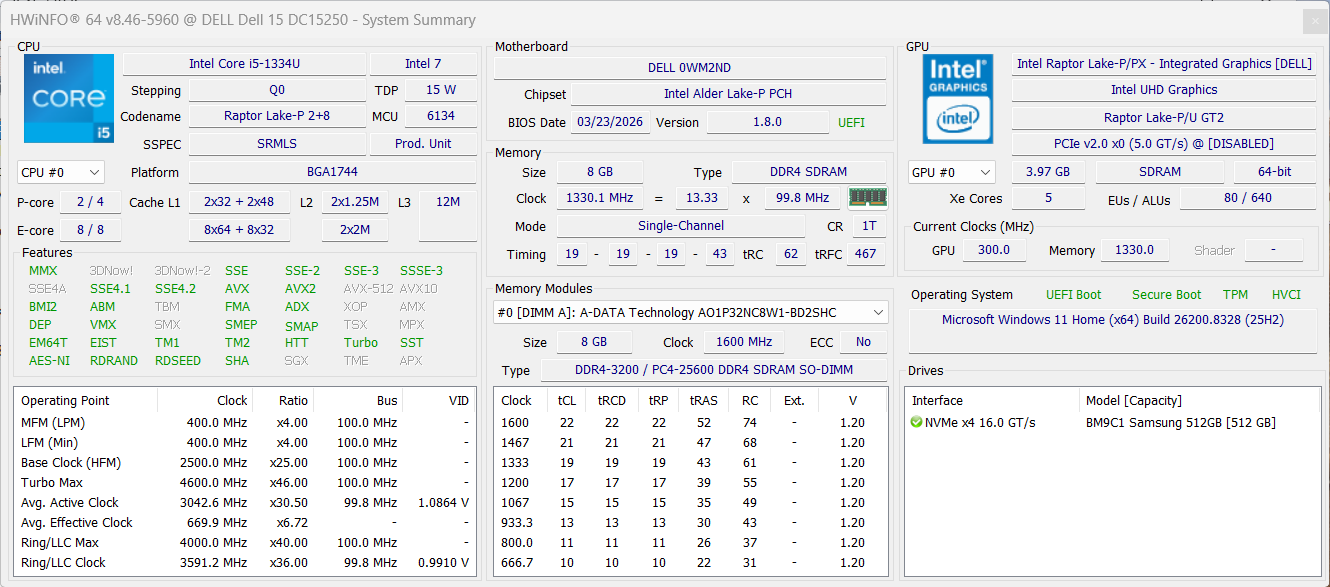
We ordered a budget configuration with the Core i5-1334U. Interestingly, it was listed as a 16GB model, but the unit we received had 8GB of RAM installed. This is an important detail because the 8GB version uses a single memory module, which means single-channel operation. Because of that, our results should not be treated as the absolute ceiling of the Core i5-1334U in this chassis. The same processor can perform better when paired with more memory and dual-channel RAM.
In Geekbench 6, our Dell 15 scored 2139 points in Single-Core and 5278 points in Multi-Core. The single-core result is acceptable for everyday responsiveness, and it is very close to some other budget machines in the comparison. However, it is still behind another laptop with the same Core i5-1334U, the Acer TravelMate P2, which shows that the CPU itself has more potential.
The multi-core result is the bigger limitation. Our score of 5278 points is not disastrous for basic work, but it is clearly conservative compared to stronger configurations and even to some other budget-class laptops. Part of this comes from the 8GB single-channel memory configuration, but our long-term stress test also shows that this retail unit runs with a very cautious sustained power profile. In other words, short tasks feel fine, but this is not the best configuration for prolonged CPU-heavy workloads.
In practice, this Dell 15 configuration is fast enough for browser work, office documents, video calls, online learning, and light multitasking. However, buyers who plan to keep many browser tabs open, work with larger spreadsheets, or use heavier applications should avoid the 8GB RAM configuration and look for at least 16GB, preferably in dual-channel mode.
Single-core performance ensures smooth operation and responsiveness in operating systems, providing a better user experience.
Results are from the Geekbench 6 Single-Core test (higher is better)



Multi-core performance is essential for handling complex and demanding tasks, such as Video editing, CAD, and Scientific simulations.
Results are from the Geekbench 6 Multi-Core test (higher is better)
Storage Performance
We ordered a configuration with 512GB of storage, and our Dell 15 arrived with a Samsung BM9C1 SSD.
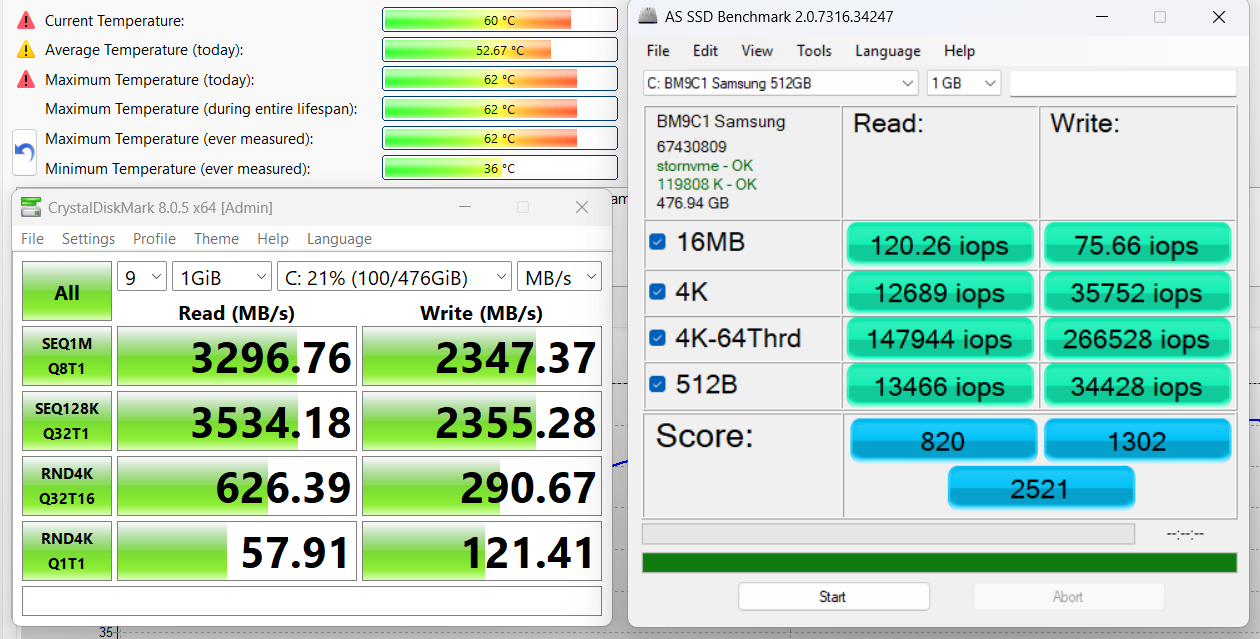
This is not bad for a budget device. It is a PCIe 4.0 NVMe drive, reaching 3.3GB/s sequential read and 2.3GB/s sequential write speeds in our benchmark, while keeping temperatures within good limits. For everyday use, office work, and general responsiveness, the SSD is one of the better parts of this configuration.
GPU and Gaming Performance
Graphics are handled by integrated Intel solutions, depending on the selected processor and memory configuration. The Core i7-1355U configuration can use Intel Iris Xe Graphics G7 with 96 execution units, while the Core i5-1334U can use the 80EU version. The Core 3 100U relies on Intel Graphics with 64 execution units. These GPUs are suitable for basic multimedia use, office work, and light graphical tasks, but they are not intended for demanding gaming or GPU-heavy creative workloads. You can compare them with other integrated and discrete GPUs in our Top Laptop Graphics Ranking.
There is another configuration note here. Our unit came with 8GB of RAM, which means single-channel memory operation. This can noticeably reduce integrated GPU performance, because the iGPU depends heavily on system memory bandwidth. In other words, the same Core i5-1334U can perform better graphically when paired with dual-channel RAM.
Because of that, the Dell 15 should be treated as a laptop for media playback, web use, office work, and very light games. It is not a gaming machine, and the base 8GB configuration makes the integrated graphics even less suitable for heavier 3D workloads.
The results are from 3DMark Time Spy (Graphics). Higher is better.
The results are from 3DMark Wild Life Extreme Unlimited. Higher is better.
Dell 15 (DC15250) GPU variants
Here you can see an approximate comparison between the GPUs that can be found in the Dell 15 (DC15250) models on the market. This way you can decide for yourself which Dell 15 (DC15250) model is the best bang for your buck.
Note: The chart shows the cheapest different GPU configurations so you should check what the other specifications of these laptops are by clicking on the laptop’s name / GPU.
The results are from 3DMark Time Spy (Graphics). Higher is better.
Results are from the 3DMark: Fire Strike (Graphics) benchmark (higher the score, the better)
Results are from the 3DMark: Wild Life (Graphics) benchmark (higher the score, the better)
Results are from the Unigine Superposition benchmark (higher the score, the better)
Temperatures and Comfort, Noise, Stability
At idle, the CPU package of the Intel Core i5-1334U maintains a temperature of 40ºC, and the notebook remains completely silent.
One important note before we look at the stress-test results: our retail unit was already running BIOS version 1.8.0. This matters because earlier BIOS versions for the DC15250 platform were associated with fan and thermal behavior issues. With BIOS 1.8.0 installed, our results should be seen as the behavior of this specific retail configuration, not as a symptom of the older fan-control bug.
Office Work, Web Development, Design
Short periods (0:00 – 0:10 s) of 100 % CPU load
This test shows the CPU behavior during short periods of serious load. It’s important for users who are looking for laptops suitable for tasks like Web Design and Programming.
| Intel Core i5-1334U | Avg. P-Core Clock | Avg. CPU Temp. | Avg. CPU Power |
| Dell 15 (DC15250) | 2788 MHz | 64 °C | 23 W |
During the initial short-load burst, the Intel Core i5-1334U in the Dell 15 reaches a peak clock speed of 3115 MHz while pulling a peak power of 26W. Over the first 10 seconds of intensive load, the processor settles at an average P-Core clock of 2788 MHz and an average power draw of 23W. Thermal performance remains very well controlled during this short period, with the CPU averaging 64°C and peaking at 71°C.
This is the stronger side of our configuration. Short bursts of work are handled well, and the laptop does not need to run hot to deliver quick responsiveness in everyday tasks.
Video editing, Scientific computing, Software compilation, 3D rendering
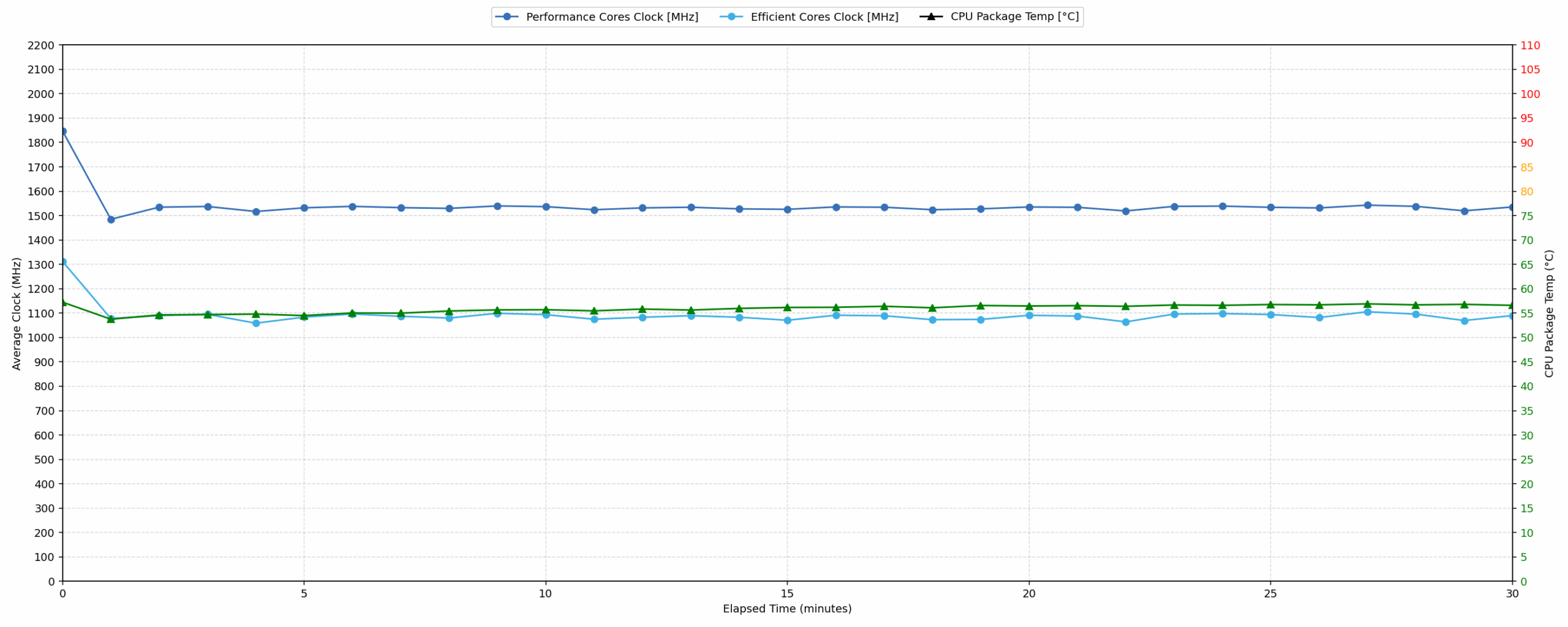
Long periods (0:00 – 30:00 min) of 100 % CPU load
This test shows the CPU behavior during long periods of serious load. It’s important for users who are looking for laptops suitable for tasks like Video Editing and 3D Rendering.
| Intel Core i5-1334U | Avg. P-Core Clock | Avg. CPU Temp. | Avg. CPU Power |
| Dell 15 (DC15250) | 1536 MHz | 55 °C | 10 W |
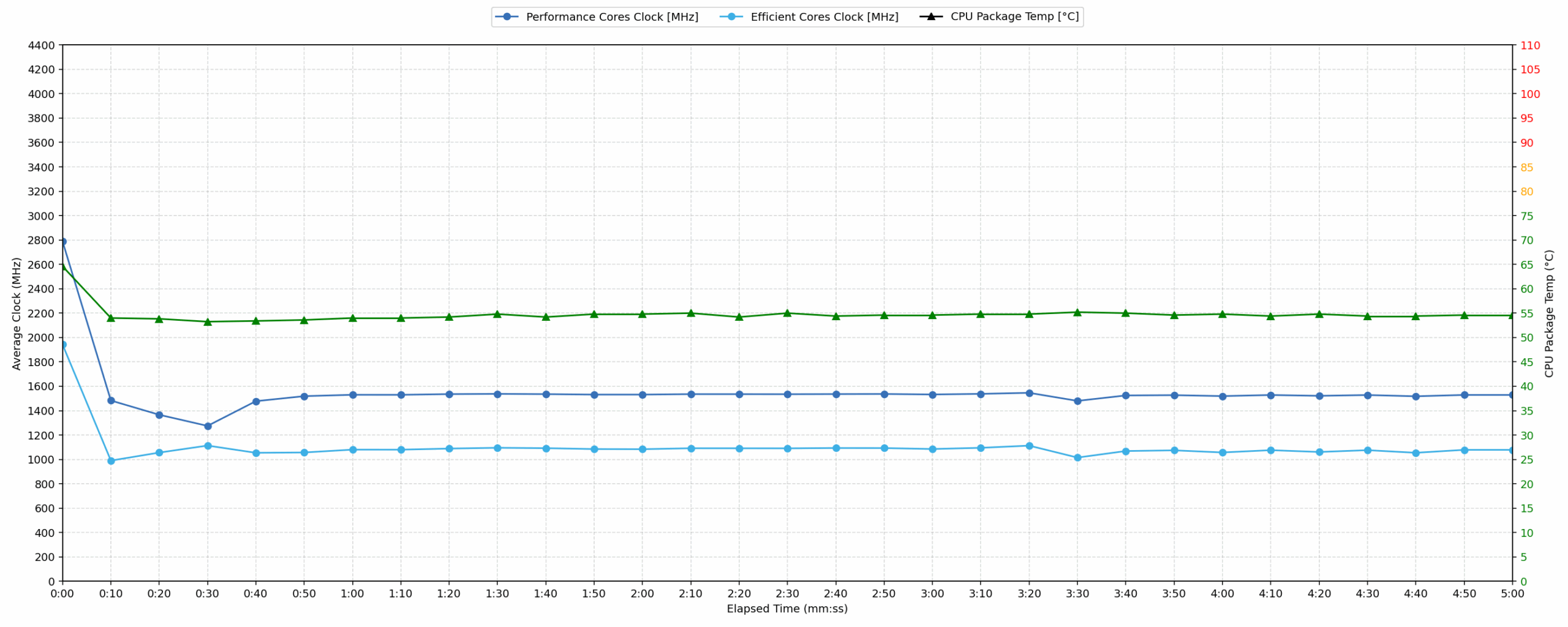
The long-term behavior is much more conservative. Under prolonged stress testing from 0 to 30 minutes, the Dell 15 maintains an average P-Core clock of 1536 MHz with an average CPU package power of just 10W. Between 1 and 5 minutes, the average power drops slightly to 9W, and the CPU clock hits a minimum of 817 MHz.
The interesting part is that temperatures remain very low. The average CPU temperature over the full 30-minute run is only 55°C, while the peak temperature stays at 71°C. This does not look like classic thermal throttling. Instead, our unit appears to prioritize low heat and conservative sustained power over long-term multi-core performance.
This also explains the split we saw in the benchmarks: short tasks feel fine, but prolonged CPU-heavy workloads are not this configuration’s strength. The 8GB single-channel RAM affects benchmark performance, especially in mixed workloads, but the very low sustained CPU power shows that our retail unit is also tuned conservatively under long continuous load.
Battery
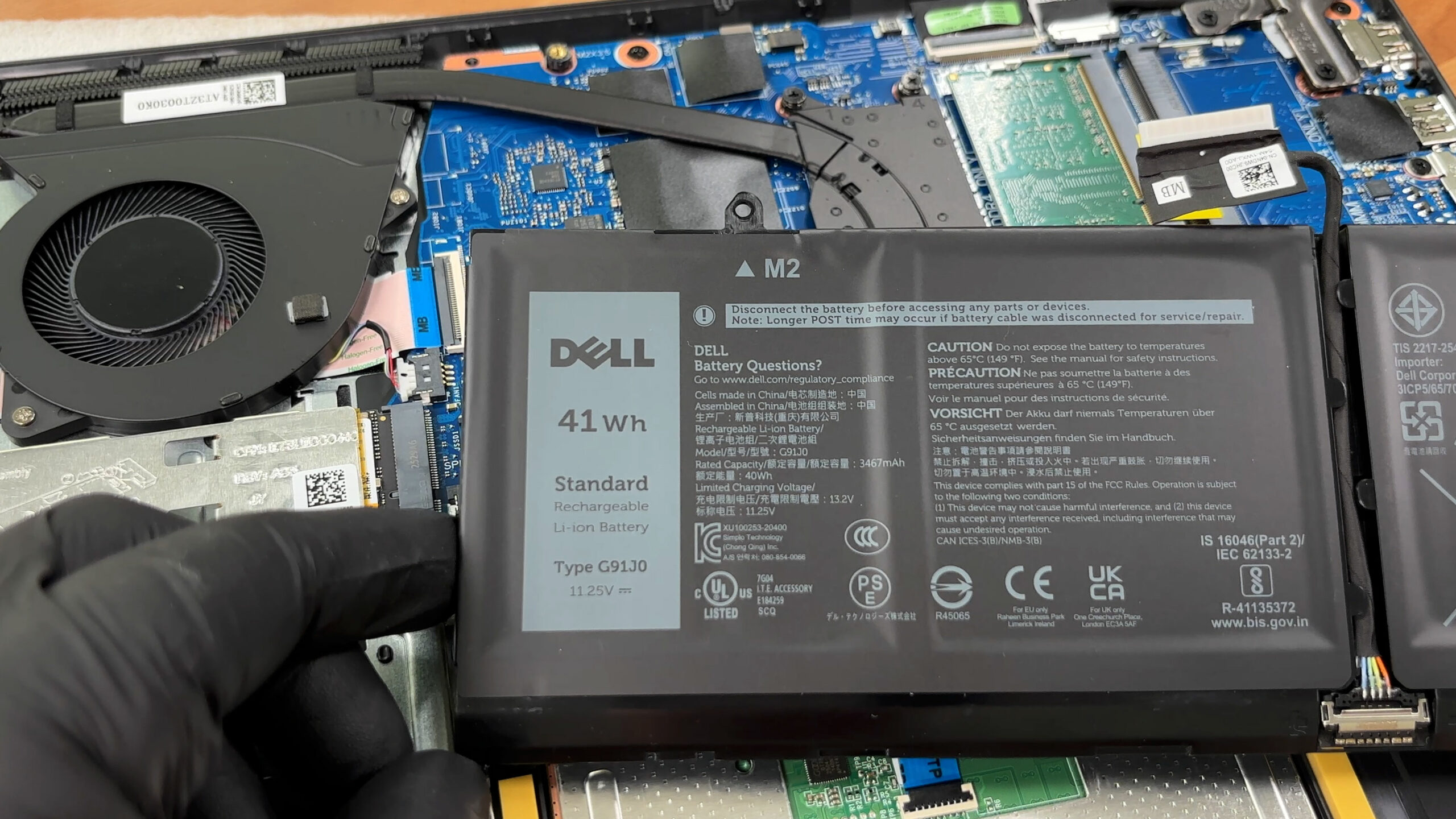
The battery in our Dell 15 (DC15250) is the smaller 3-cell pack, officially listed as 41Wh. The battery label also shows 40Wh rated energy, so this is the same battery pack rather than a different configuration.
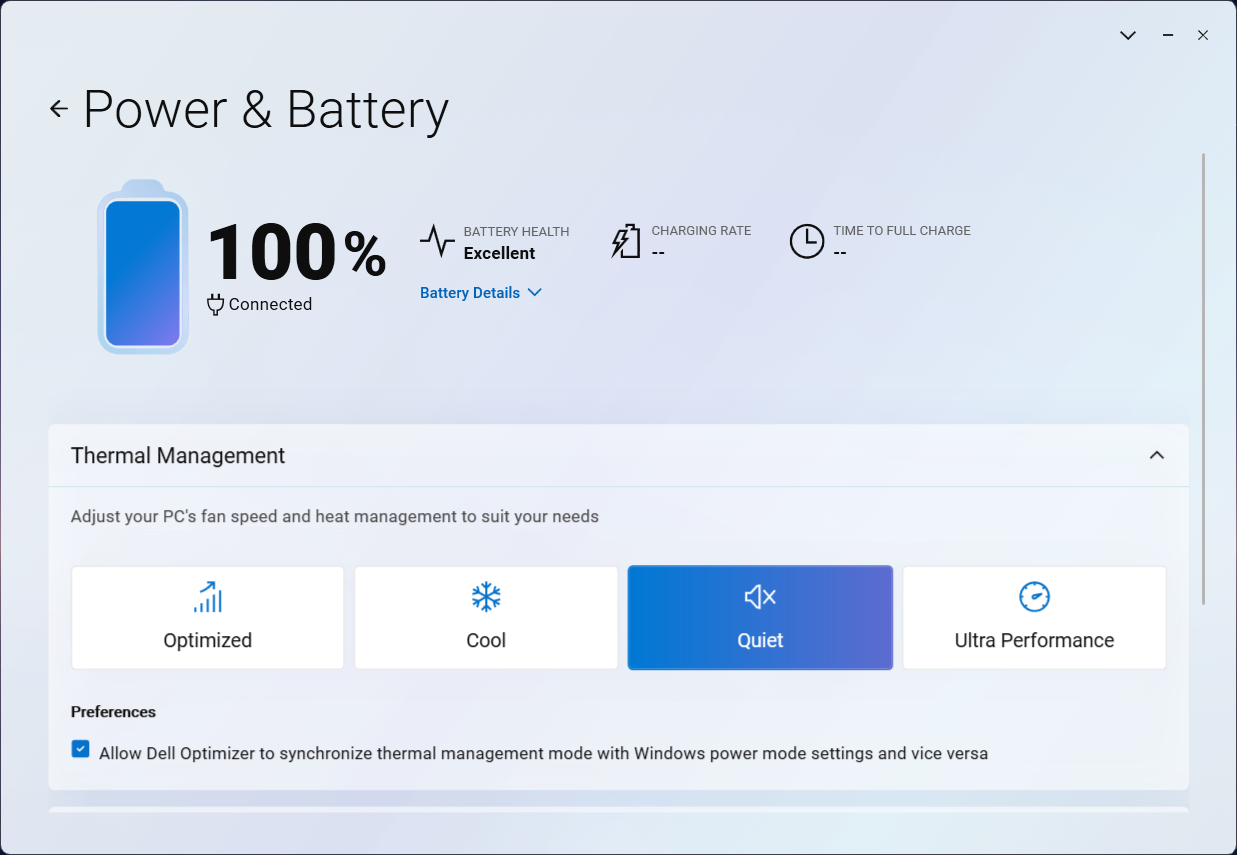
We tested the battery with the “Best Power Efficiency” mode activated in Windows settings, and Quiet mode selected in Dell Optimizer.
The Dell 15 (DC15250) lasted 5 hours and 12 minutes in our video playback test. The result is usable for short trips, classes, or a few hours away from the charger, but it is clearly not an all-day performer. Many competing budget and mainstream laptops in our comparison last longer, especially models equipped with larger 53–55Wh batteries. If battery life is a priority, the 54Wh configuration of the Dell 15 should be the better choice.
Brightness: 180 nits; Display Mode: SDR
Time to Full Discharge: Higher is Better


Disassembly, Upgrade options, and Maintenance
Accessing the Dell 15 DC15250 is refreshingly simple. The bottom panel is secured by six removable Phillips-head screws and two captive corner screws. The captive screws help lift the cover slightly, giving you a useful starting point for a plastic pry tool. Once the clips are released, the internal layout is easy to read, with the battery at the lower side, the cooling system on the left, the memory slots near the center-right, and the storage drive close to the fan area.
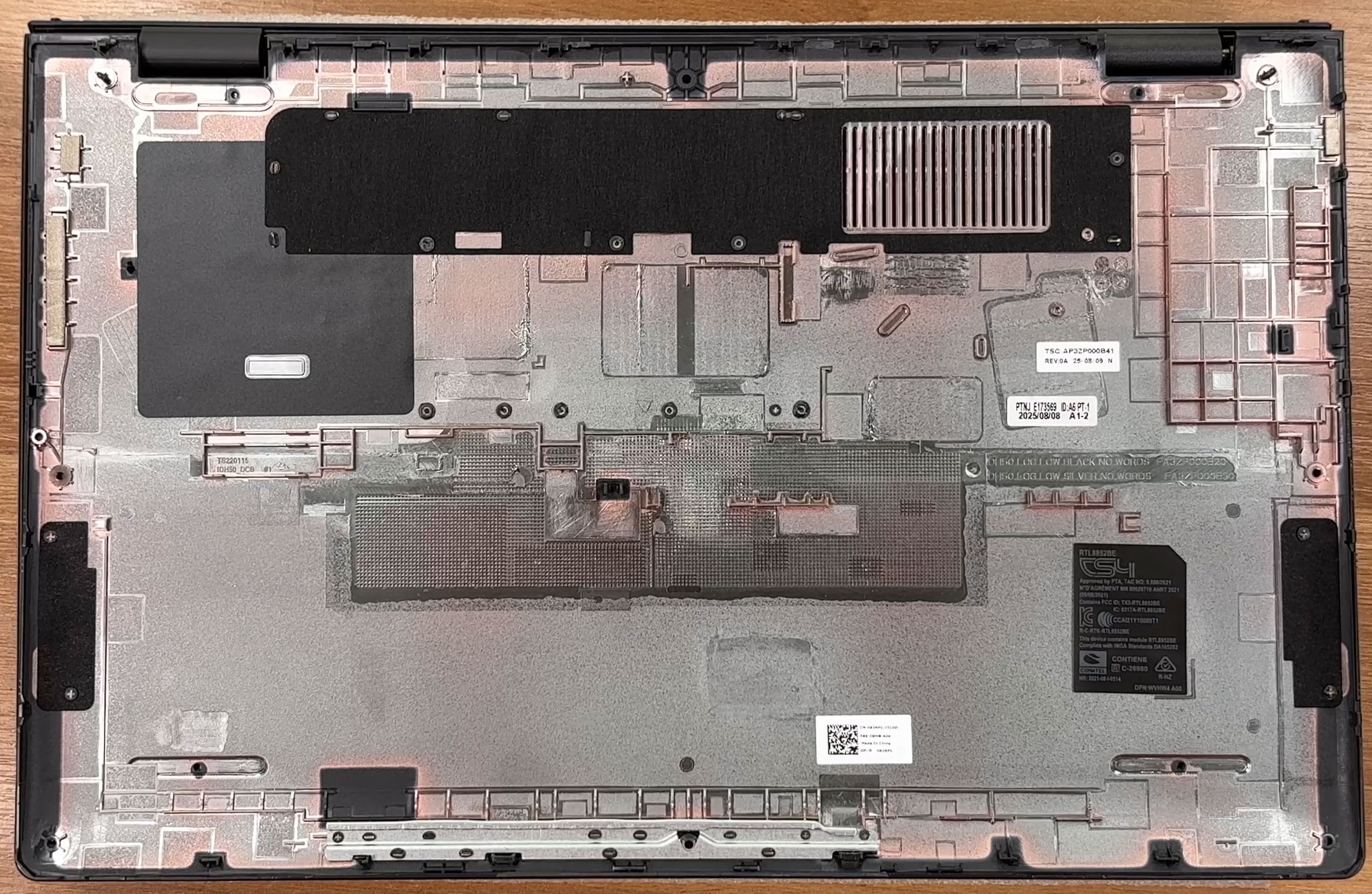
The cooling system is a basic single-fan setup, which is expected for this class of 15-inch everyday laptop. The processor sits underneath the heatsink assembly, and the fan exhausts heat through the rear area of the chassis. This is not a performance-oriented thermal design, but it is straightforward to service, and the fan itself is a removable part.
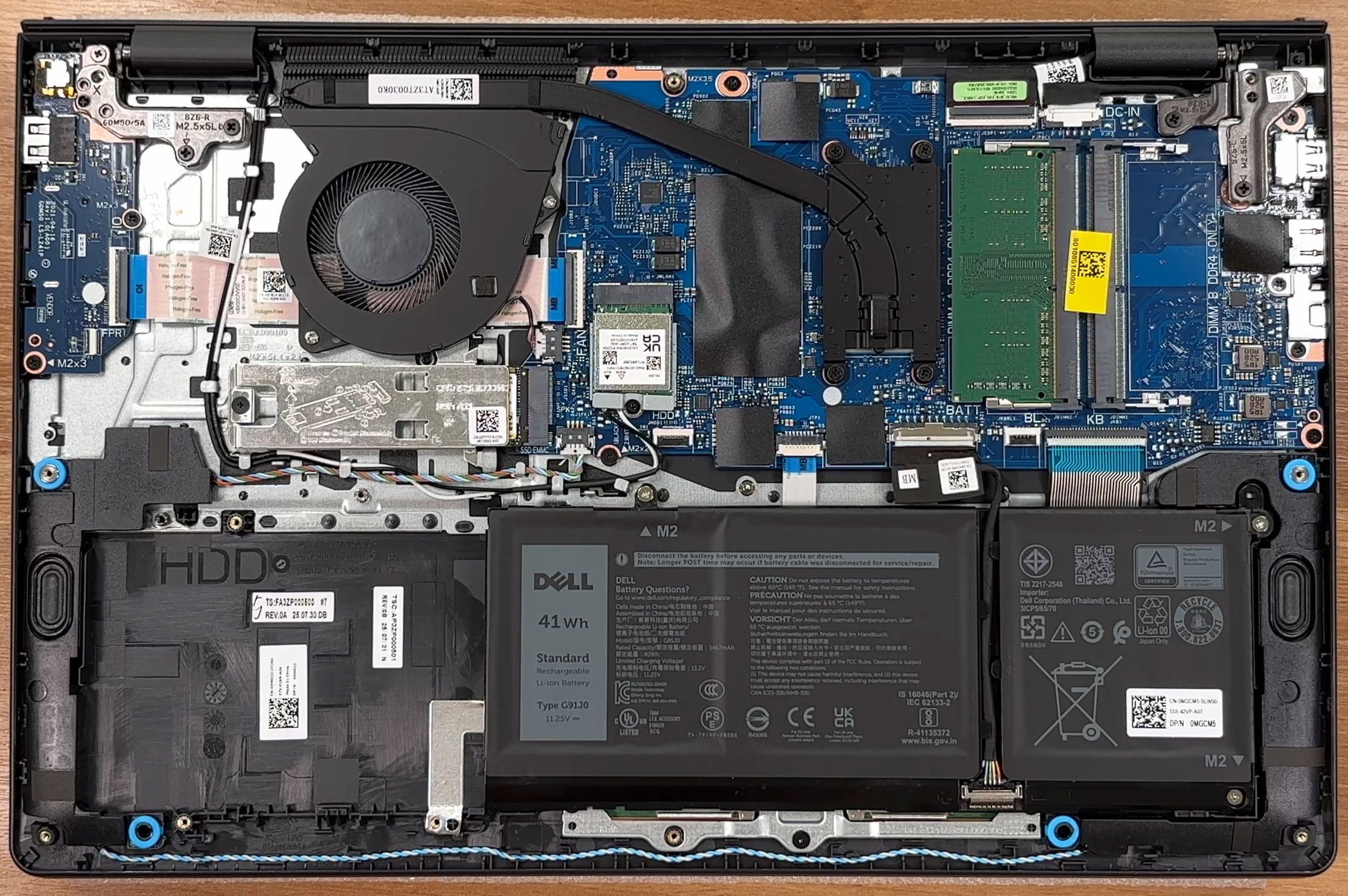
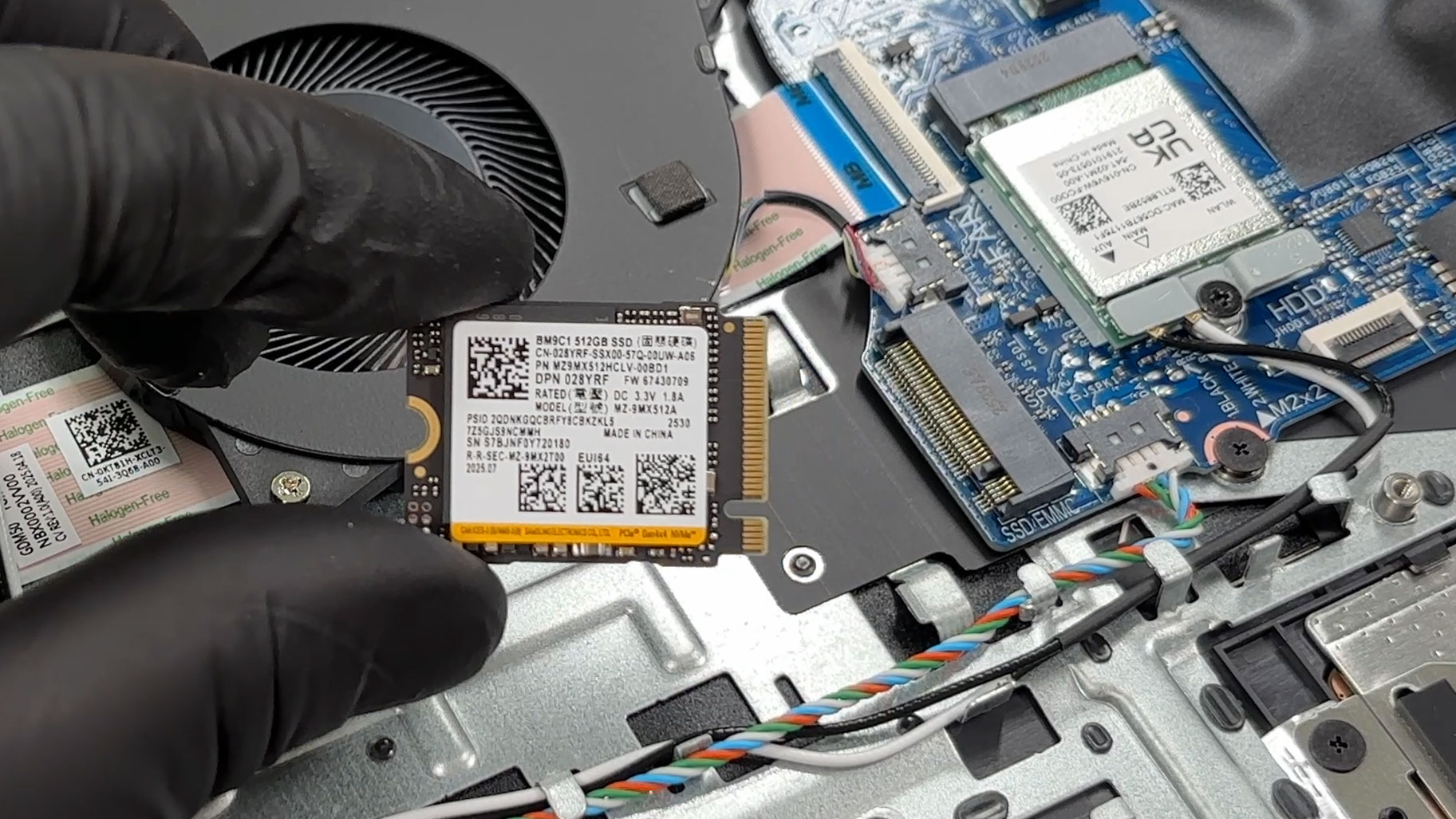
Storage is handled by a single M.2 NVMe SSD. Our configuration uses a 512GB Samsung M.2 2230 drive, covered by a metal EMI/RFI shield that also acts as a support bracket and may help spread heat from the drive. Dell lists support for a PCIe 4.0 NVMe Gen 4 x4 SSD with capacities up to 1TB. The internal slot description mentions M.2 Key-M 2230/2280 support, but the storage specification and service screw list focus on the M.2 2230 format, so that is the safest upgrade direction for this chassis.
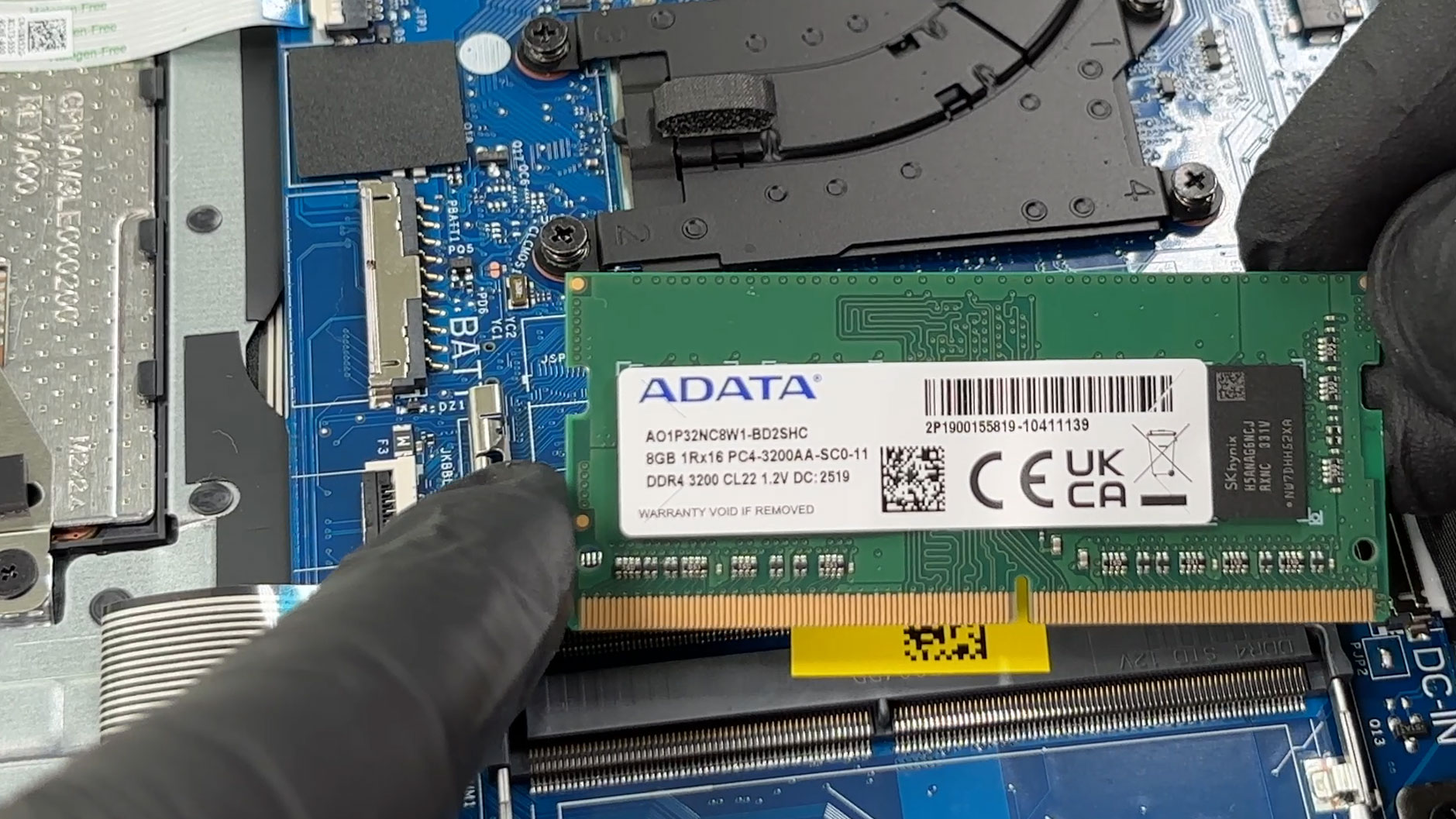
The memory situation is better than on many modern budget laptops because the RAM is not soldered. There are two SODIMM slots, and our unit comes with one 8GB ADATA DDR4-3200 module installed, leaving the second slot free. Dell lists both DDR4 and DDR5 variants for the series, depending on the exact configuration, so you should match the memory type your laptop shipped with. The official maximum memory configuration is 16GB, although real-world upgrade options may depend on the exact SKU, BIOS support, and memory compatibility.
The battery in our unit is the smaller 3-cell, 41Wh lithium-ion polymer pack. Dell also lists a larger 4-cell, 54Wh option for the series, which uses more of the internal space. The left-side area of the chassis is shaped for an alternative layout, and the plastic tray is marked for HDD use, but Dell’s current storage specifications for this model focus on a single M.2 SSD. Because of that, secondary storage availability should be treated as configuration-dependent rather than guaranteed.
The Wi-Fi card is also replaceable. The reviewed unit uses the Realtek RTL8852BE, which is the faster option listed for the series, with Wi-Fi 6 and Bluetooth 5.3 support. Dell also documents a Realtek RTL8821CE option, which is limited to Wi-Fi 5 and Bluetooth 5.0.
The easier customer-replaceable parts include the base cover, battery, memory modules, SSD, wireless card, speakers, and fan. Other components, such as the heatsink, touchpad, I/O daughterboard, power button, power-adapter port, display assembly, and system board, are deeper service jobs that require more care and time.
Overall, the Dell 15 DC15250 is easy to maintain for its class, with quick access to RAM, storage, Wi-Fi, battery, and cooling. The main limitations are the single SSD slot, the 2230-focused storage implementation, and Dell’s official 16GB memory ceiling.
Verdict
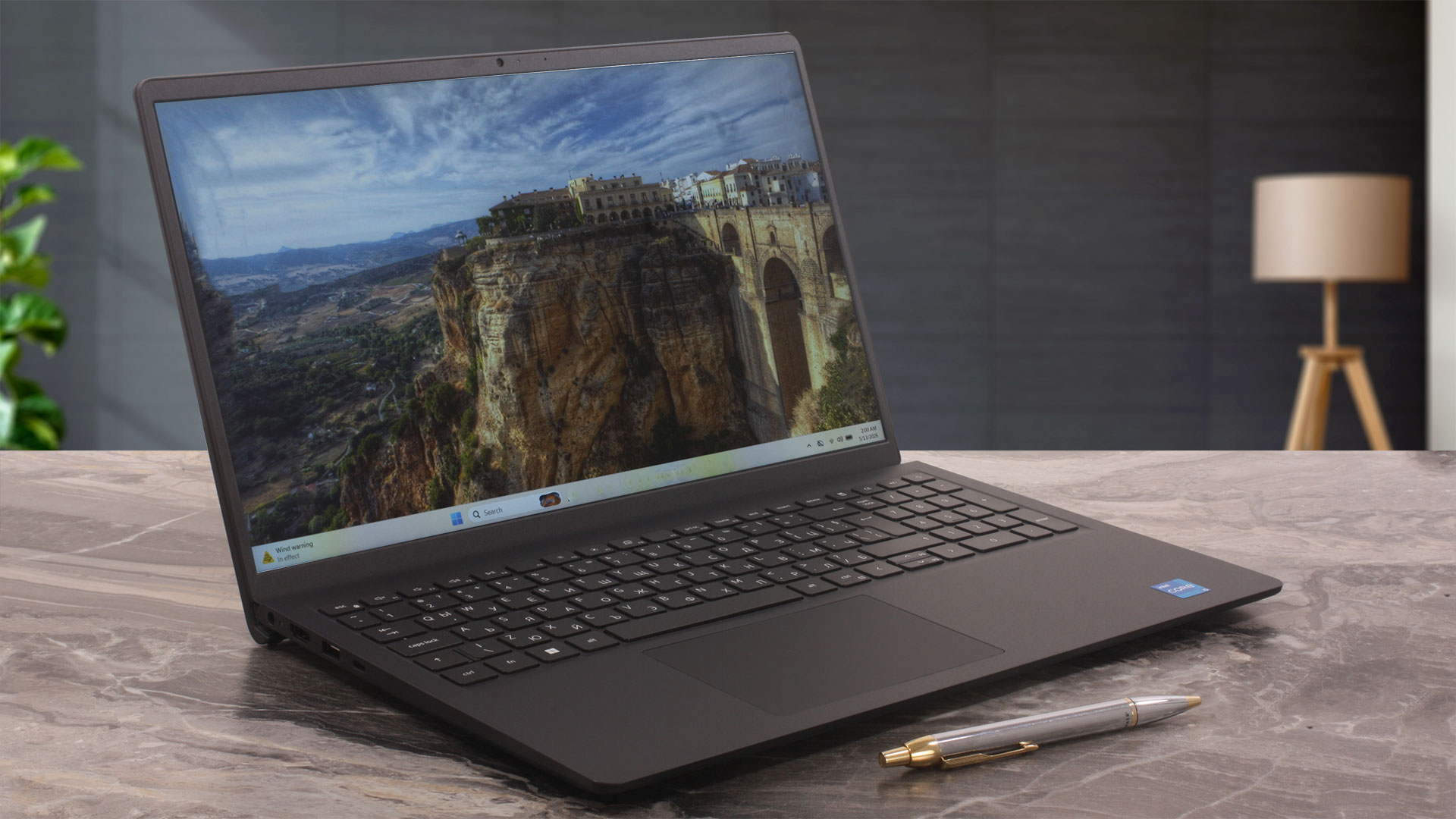 The Dell 15 (DC15250) is a classic budget office laptop, built for everyday tasks, web browsing, video calls, online learning, and simple productivity. It does not try to be a premium ultrabook or a performance machine, and that is fine. Its goal is to offer a practical and affordable 15-inch experience, preferably for users who know exactly which configuration they are buying.
That last part is important because the Dell 15 (DC15250) is more configuration-sensitive than it first appears. Small-looking differences, such as the chassis version, can affect the webcam, microphones, USB-C functionality, and even the overall feature set. Our Carbon Black unit uses the plastic chassis, which means a data-only USB-C port, a 720p webcam, a single microphone, and no privacy shutter. The aluminum version can be better equipped, but buyers need to check the exact SKU carefully.
The laptop has some strong practical qualities, especially its easy maintenance and user-accessible internals. However, it also makes clear budget-class compromises in display quality, sustained performance, battery life, and port limitations. It can be a good basic work machine at the right price, but it is not a model you should buy blindly.
You can check the prices and configurations in our Specs System: https://laptopmedia.com/series/dell-15-dc15250/
✅ The Good
The strongest part of the Dell 15 is its serviceability. Unlike many modern affordable laptops with soldered memory, this model gives you two SODIMM slots, easy access to the SSD, a replaceable Wi-Fi card, removable battery, and a straightforward cooling system. The official memory ceiling is still listed as 16GB, so we would not call it unlimited, but the internal layout is clearly more repair-friendly than many competing budget machines.
The 120Hz display option is also a pleasant surprise. It does not make this a gaming laptop, and the panel has serious color limitations, but scrolling and everyday Windows navigation feel smoother than on a standard 60Hz office screen. The measured 13.8 ms black-to-white response time is also good for this class.
We also appreciate the full-size keyboard with a NumPad, the inclusion of an SD card reader, and the surprisingly good fingerprint resistance of our Carbon Black unit. The Samsung PCIe 4.0 NVMe SSD in our configuration also performed well for a budget laptop, reaching 3.3GB/s sequential read and 2.3GB/s sequential write speeds.
❌ The Bad
The display is the biggest compromise. Our 120Hz BOE panel covers just 51% of the sRGB gamut and 41% of DCI-P3, so it is not suitable for color-sensitive work such as photo editing, design, or content creation. The color accuracy improves with our Design and Office profile, but profiling cannot create colors the panel is physically unable to reproduce.
The other major display issue is low-frequency PWM flickering. The panel uses an aggressive on/off pulse pattern at brightness levels below 100%, measured at around 201Hz. We do not recommend using the display below maximum brightness for long sessions without our Health-Guard profile enabled. With Health-Guard active, the panel can stay at its PWM-free maximum backlight level while perceived brightness is reduced through the profile’s own brightness control, effectively avoiding the native PWM behavior.
Performance is acceptable for basic work, but our retail configuration was clearly limited. We ordered a Core i5-1334U model that was listed as 16GB, but the unit arrived with 8GB of single-channel RAM. This hurts both CPU benchmark results and integrated GPU performance. In Geekbench 6, our unit scored 2139 points in Single-Core and 5278 points in Multi-Core. The single-core result is fine for everyday responsiveness, but the multi-core score is conservative.
The long stress test confirms this behavior. Under sustained CPU load, our unit averaged only 10W of CPU package power while staying very cool at an average temperature of 55°C. This does not look like classic thermal throttling. Instead, the laptop prioritizes low heat and quiet operation over long-term multi-core performance. Short tasks feel fine, but prolonged CPU-heavy work is not this configuration’s strength.
The ports are another area where buyers must be careful. On the plastic chassis, USB-C is data-only, with no DisplayPort and no Power Delivery charging. The HDMI 1.4 port is also limited to 1920 x 1080 at 60Hz, so it cannot drive 2K or 4K external monitors. Battery life is also modest: our 41Wh configuration lasted 5 hours and 12 minutes in our video playback test at 180 nits.
🆚 The Competitors
Compared to other budget 15-inch machines, the Dell 15 (DC15250) is strongest when we talk about serviceability and practical office features. The two SODIMM slots, replaceable SSD, replaceable Wi-Fi card, SD reader, NumPad, and simple internal layout are real advantages if you value maintenance and long-term usability.
However, competitors can beat it in several important areas. Some Acer Aspire Go (detailed review) and Acer Extensa (detailed review) configurations deliver better battery life or stronger CPU performance, while models with larger batteries can last much longer away from the charger. The Acer TravelMate P2 (detailed review) with the same Core i5-1334U also shows that this processor can perform better when paired with a stronger configuration and tuning.
So the Dell 15 (DC15250) makes the most sense if you find it at a good price and choose the configuration carefully. We would avoid the 8GB single-channel version if possible and look for at least 16GB of RAM, preferably in dual-channel mode. If you need USB-C charging, external monitor flexibility, better webcam quality, or longer battery life, make sure you are not buying the most basic plastic-chassis configuration.
Pros
- Very easy to service and maintain
- Two user-accessible SODIMM slots
- Replaceable SSD, Wi-Fi card, battery, and fan
- 120Hz display option makes everyday navigation feel smoother
- Includes a full-size keyboard with NumPad
- SD card reader is useful for a budget office laptop
- Samsung PCIe 4.0 NVMe SSD performs well for the class
- Carbon Black finish resists fingerprints better than expected
- Hinges feel stable in our unit despite online durability concerns
Cons
- Very limited color coverage – 51% sRGB and 41% DCI-P3
- Low-frequency PWM flickering below 100% brightness without Health-Guard
- Our 8GB single-channel configuration limits CPU and iGPU performance
- Very conservative sustained CPU power under long workloads
- Battery life is modest – 5 hours and 12 minutes in our video playback test
- HDMI is limited to 1080p at 60Hz
- USB-C on the plastic chassis is data-only, with no charging or DisplayPort
- 720p webcam, single microphone, and no privacy shutter on the plastic chassis
 Author: Simeon NikolovEditor-in-Chief at LaptopMedia.com with 20+ years of experience in testing and analyzing laptops and mobile devices.
 Author: eng. Kroum NikolovHead of Engineering at LaptopMedia.com, inventor and innovator with 40+ years of experience in electronics and high technology.

![[August 2026] Amazon Italy: Top 10 Best-Selling Laptops – Apple MacBook Neo Claims the Crown as Budget and Mid-Range Windows Machines Dominate Volume](https://laptopmedia.com/wp-content/uploads/2026/09/Best-Selling-Laptops-IT-Top-10-400x225.jpg)
![[August 2026] Amazon Italy: Top 7 Best-Selling Gaming Laptops – ASUS V16 Claims the #1 Spot Amid Strong Mid-Range Demand](https://laptopmedia.com/wp-content/uploads/2026/09/Best-Selling-Gaming-Laptops-IT-Top-10-400x225.jpg)
![[August 2026] Best-Selling Laptop Brands on Amazon Italy – Lenovo Dominates Market Share and Revenue Leadership](https://laptopmedia.com/wp-content/uploads/2026/09/IT-Best-Brands-400x225.jpg)
![[August 2026] Amazon India: Top 10 Best-Selling Laptops – Apple MacBook Neo Dominates the Charts with Massive Sales Lead](https://laptopmedia.com/wp-content/uploads/2026/09/Best-Selling-Laptops-IN-Top-10-400x225.jpg)
![[August 2026] Amazon India: Top 10 Best-Selling Gaming Laptops – HP Victus 15 Dominates the Market with Massive Unit Lead](https://laptopmedia.com/wp-content/uploads/2026/09/Best-Selling-Gaming-Laptops-IN-Top-10-400x225.jpg)
