Acer Nitro 17

- Date Published: 30 Oct 2023
- AMD Ryzen 7 7735HS
- NVIDIA GeForce RTX 4050 (Laptop, 140W)
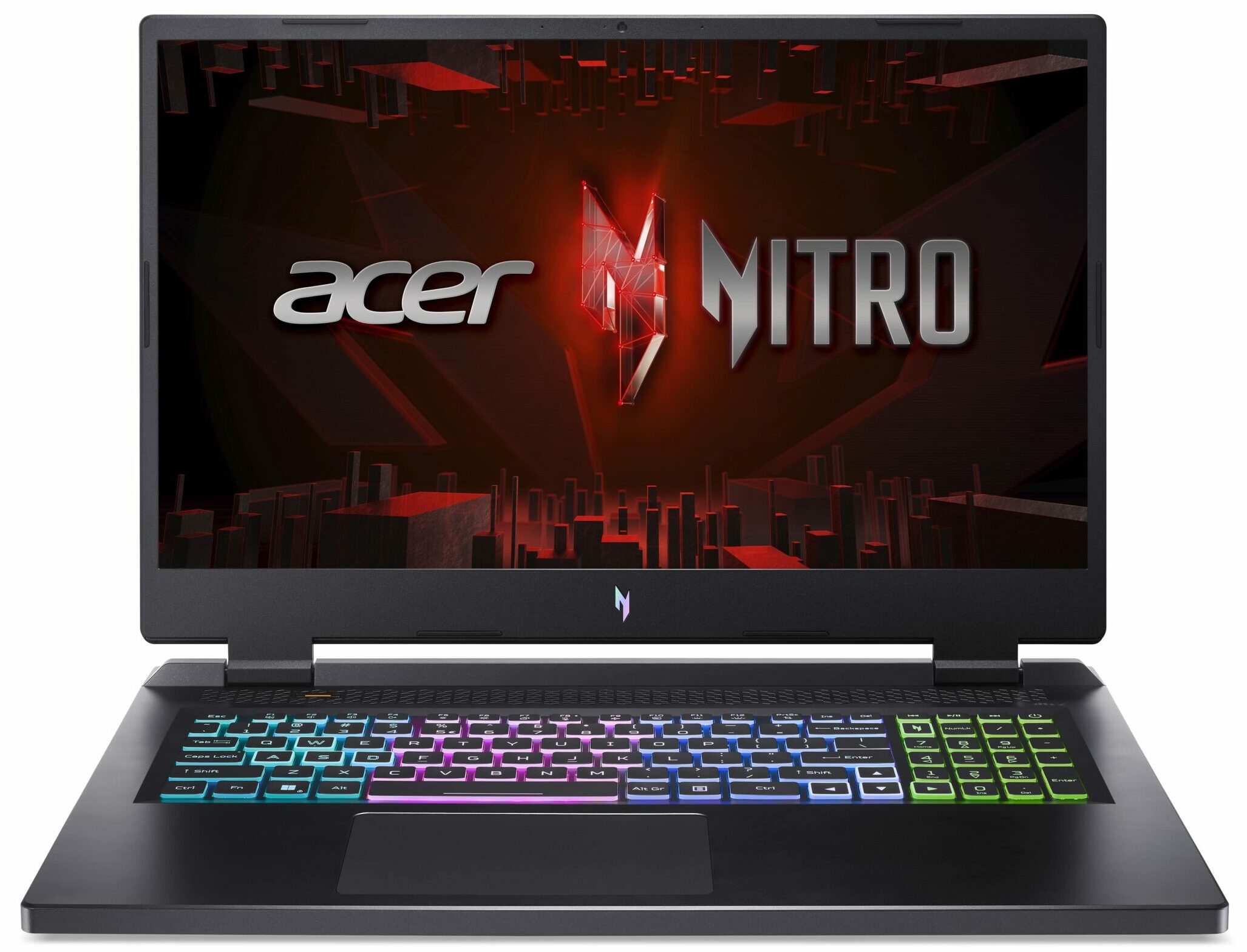
- 17.3”, Full HD (1920 x 1080), 165 Hz, IPS + G-Sync
- 1000GB SSD
- 32GB DDR5
- 3.10 kg (6.8 lbs)

Specs
- HDD/SSD
- 1TB SSD
- M.2 Slot
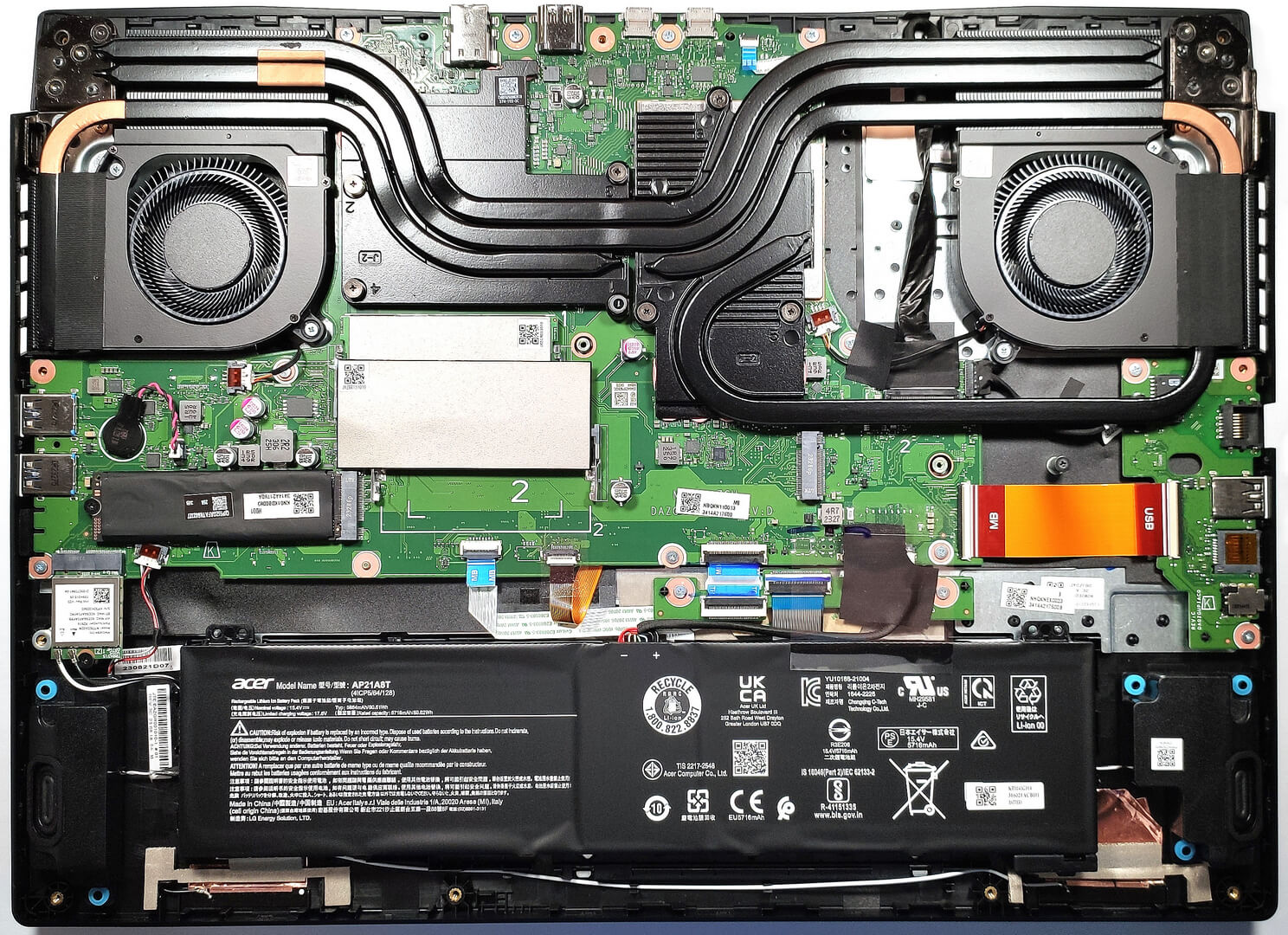
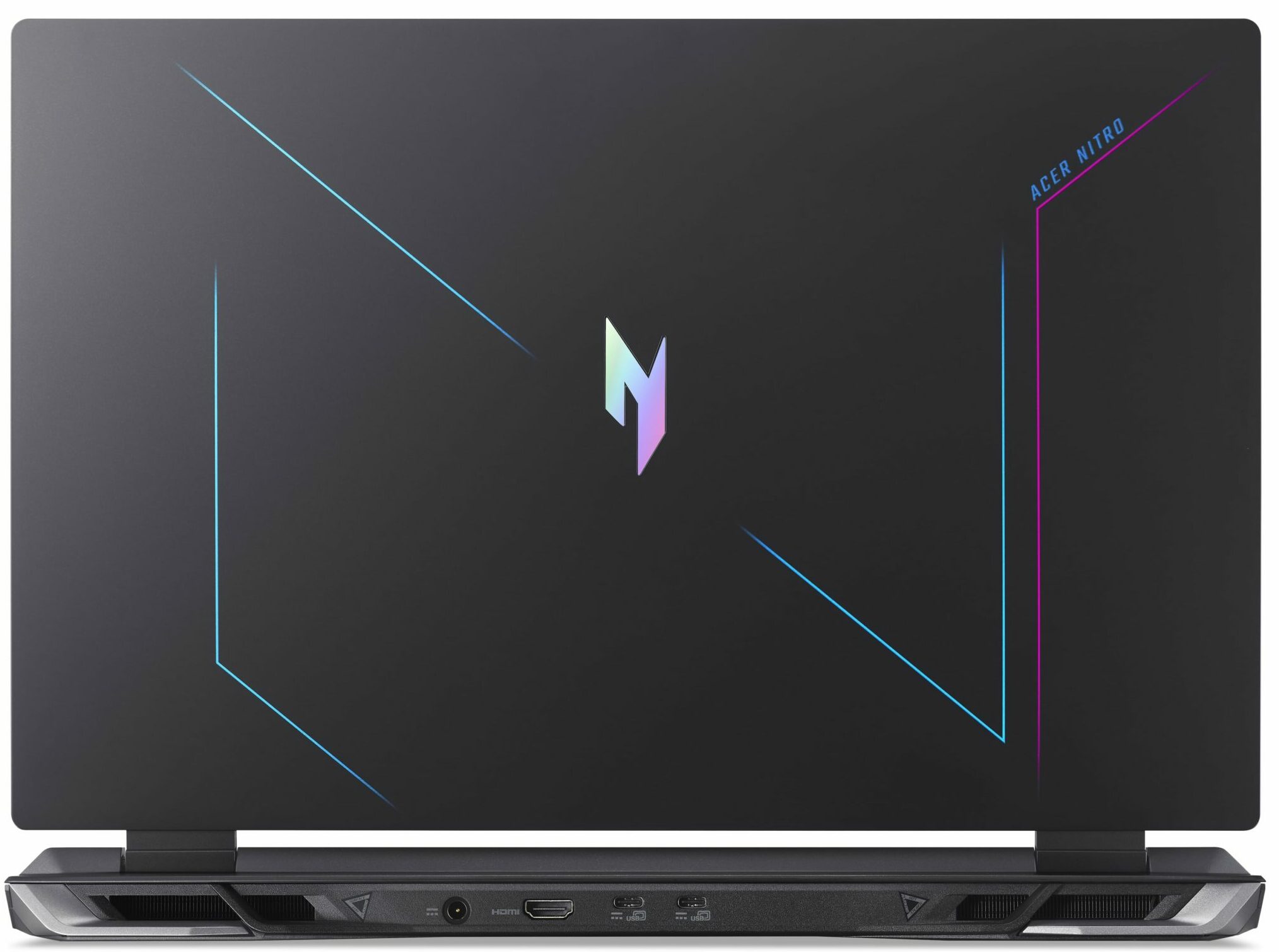
- 2x 2280 PCIe NVMe 4.0 x4 See photo
- RAM
- 32GB DDR5
- OS
- Windows 10 Pro
- Body Material
- Plastic / Polycarbonate
- Dimensions
- 400.2 x 293.25 x 27.9 - 28.9 mm (15.76" x 11.55" x 1.10")
- Weight
- 3.10 kg (6.8 lbs)
- Ports and connectivity
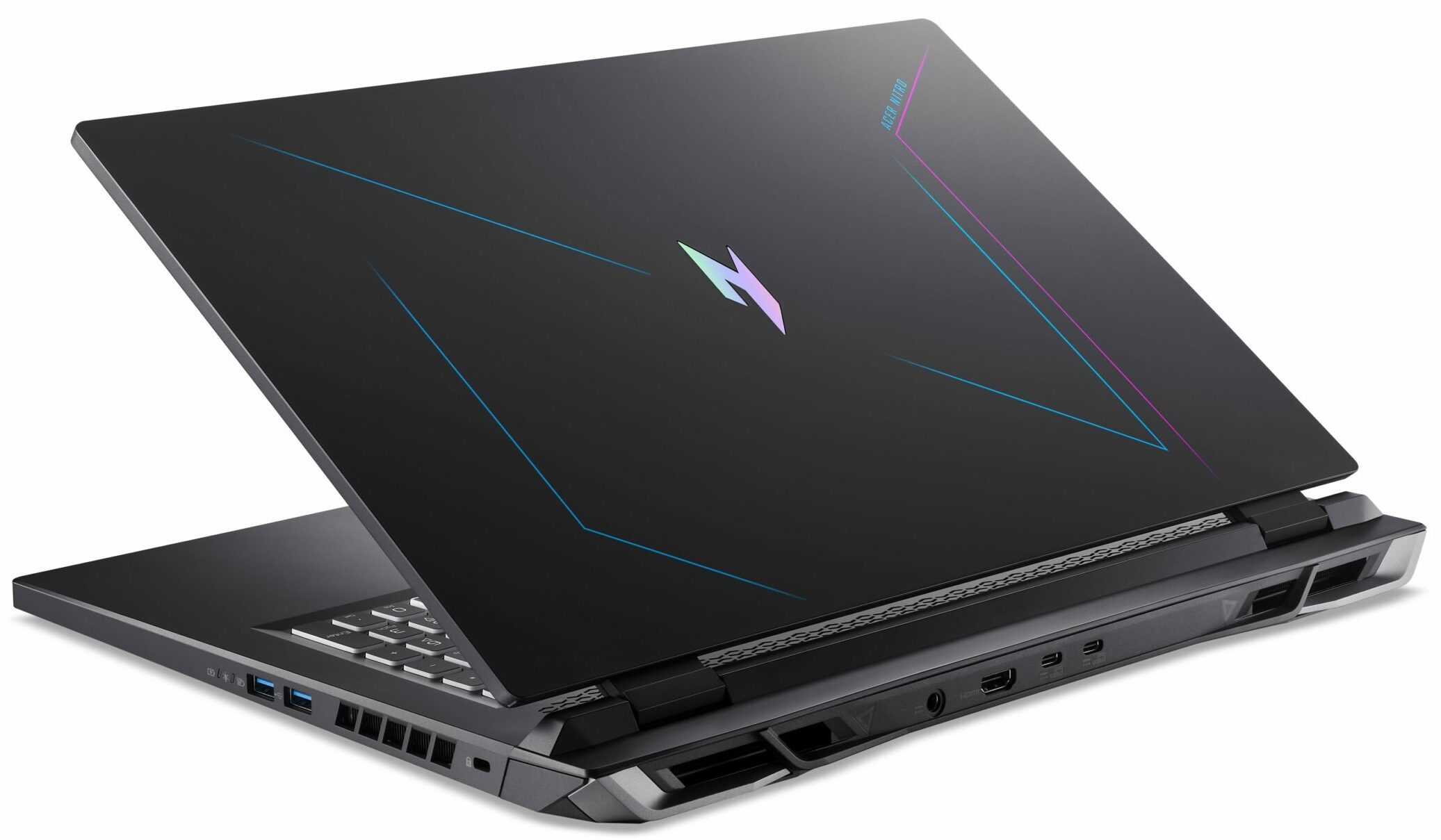
- 1x USB Type-A
- 2.0
- 1x USB Type-A
- 3.2 Gen 2 (10 Gbps)
- 1x USB Type-A
- 3.2 Gen 2 (10 Gbps), Sleep and Charge
- 1x USB Type-C
- 3.2 Gen 2 (10 Gbps), Power Delivery (PD), DisplayPort
- 1x USB Type-C
- 4.0, Power Delivery (PD), DisplayPort
- HDMI
- 2.1
- Card Reader
- microSD (microSD, microSDHC, microSDXC)
- Ethernet LAN
- 10, 100, 1000 Mbit/s
- Wi-Fi
- 802.11ax
- Bluetooth
- 5.1
- Audio jack
- 3.5mm Combo Jack
- Features
- Fingerprint reader
- Web camera
- HD with Temporal Noise Reduction
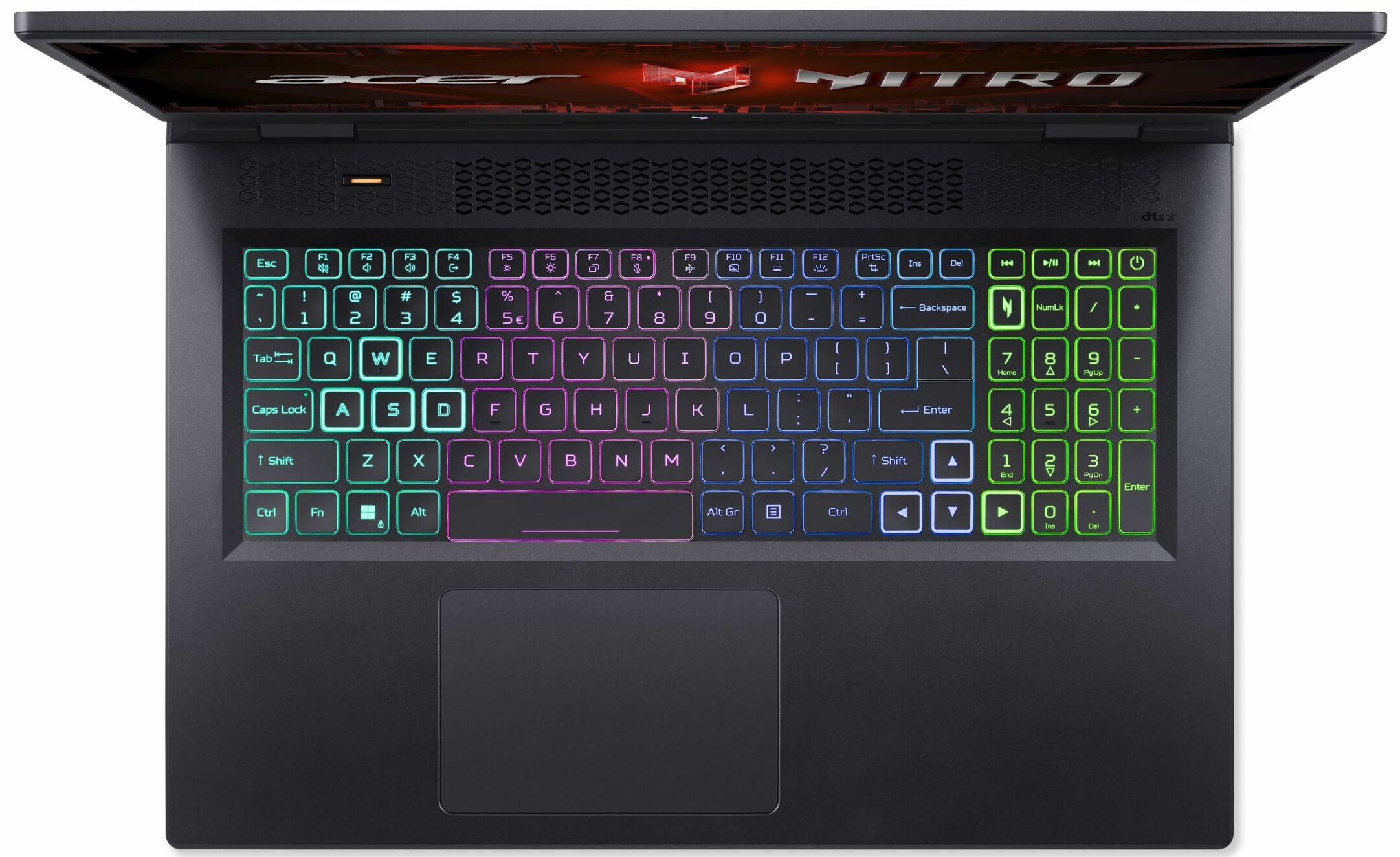
- Backlit keyboard
- Microphone
- Dual Microphones with Acer Purified Voice, AI noise reduction
- Speakers
- Speakers by DTS X: Ultra Audio
- Optical drive
- Security Lock slot
- Kensington Lock
- Gifts
- Vine Express 32GB USB Drive
Portability
Review
Acer Nitro 17 in-depth review
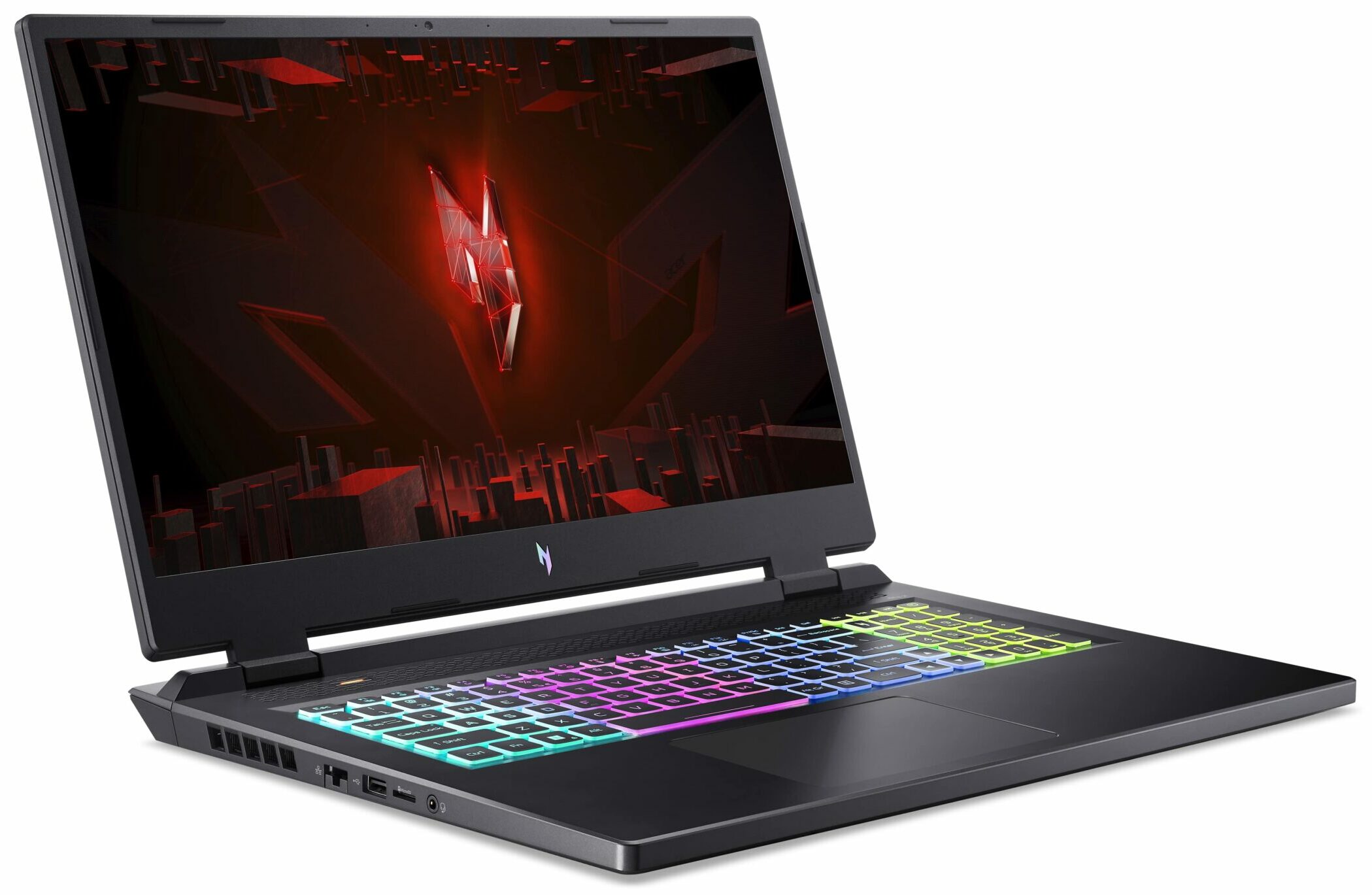
Since we've already reviewed the Acer Nitro 17 (AN17-71) and the Acer Nitro 17 (AN17-51) now it's time to test the AMD version that is simply called Acer Nitro 17 (AN17-41). This one looks almost exactly the same as the two Intel-based iterations. It's a big 17.3" laptop that can be configured with high-end gaming hardware.This includes AMD Zen 4 CPU options and refreshed Zen 3+ chips. The device can be a modest machine with a Ryzen 5 7535HS or you can transform it into a real beast if you choose the Ryzen 9 7940HS. GPU-wise, you can rely on some of the latest and greatest NVIDIA Ada Lovelace graphics cards. The top-end version is the GeForce RTX 4070 with a hefty TGP.You can choose between two 16:9 IPS G-Sync capable display options. The base one is a 1080p unit with a 165Hz refre[...]
Read the full review
Pros
- Snappy and efficient Zen 4 CPU
- 2x M.2 Gen 4 slots, 2x DDR5 RAM SODIMM slots + Wi-Fi 6E
- 100% sRGB and 99% DCI-P3 coverage (BOE NE173QHM-NY6 (BOE0B7C))
- Fast display with quick response times (BOE NE173QHM-NY6 (BOE0B7C)
- PWM-free (BOE NE173QHM-NY6 (BOE0B7C))
- G-Sync support + MUX switch and Advanced Optimus
- Modern port selection
- The keyboard feels cool during heavy loads
- The 4-zone RGB keyboard is comfortable for typing and gaming
- Very long battery life
- Good cooling solution and low temperatures under load
- High CPU and GPU clocks and power limits during any kind of stress
- The Acer Nitro Sence app offers 4 performance presets as well as a custom fan curve
Cons
- Plastic build
- Loud fans in "Turbo" mode
- Noticeable RPM fluctuations in the "Performance" mode
- The touchpad is just an average unit
- The GPU performance isn't that impressive
- The lid is a bit flexible
Disassembly, maintenance and upgrade options
Step 1: Accessing the Internal ComponentsEnsure the Acer Nitro 17 (AN17-41) is powered off and placed on a soft, clean surface to prevent damage. Remove the 11 Phillips-head screws securing the bottom panel. Use a plastic tool to pry the bottom plate off, or carefully lift it by holding the two plastic exhaust vents on the back.Hint: Keep track of the screws to avoid losing them.Step 2: Removing the BatteryLocate the battery's connector on the mainboard. Disconnect the battery by pulling out the connector. Lift the battery away from the chassis, noting t[...]
Read more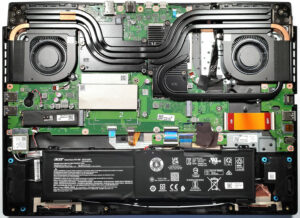


![[June 2026] Best-Selling Laptop Brands on Amazon Global – Apple’s Unrivaled Dominance in Units and Revenue](https://laptopmedia.com/wp-content/uploads/2026/07/GLOBAL-Best-Brands-400x225.jpg)
![[June 2026] Amazon Global: Top 10 Best-Selling Laptops – Apple’s New MacBook Neo Storms to #1, Reshaping the Market with Affordability](https://laptopmedia.com/wp-content/uploads/2026/07/Best-Selling-Laptops-GLOBAL-Top-10-400x225.jpg)
![[June 2026] Amazon Global: Top 10 Best-Selling Gaming Laptops – Acer’s Nitro V 16S AI Dominates Sales, While ASUS Leads Overall Revenue](https://laptopmedia.com/wp-content/uploads/2026/07/Best-Selling-Gaming-Laptops-GLOBAL-Top-10-400x225.jpg)
![[June 2026] Global Ranking of Best-Selling Laptop GPUs on Amazon – NVIDIA RTX 5060 is the Top-Selling Dedicated GPU](https://laptopmedia.com/wp-content/uploads/2026/07/Best-Selling-GPUs-GLOBAL-Top-10-400x225.jpg)
![[June 2026] Global Ranking of Best-Selling Laptop CPUs on Amazon – Apple M5 Dominates, AMD Ryzen 7 260 Gets Solid Premium Share](https://laptopmedia.com/wp-content/uploads/2026/07/Best-Selling-CPUs-GLOBAL-Top-10-400x225.jpg)