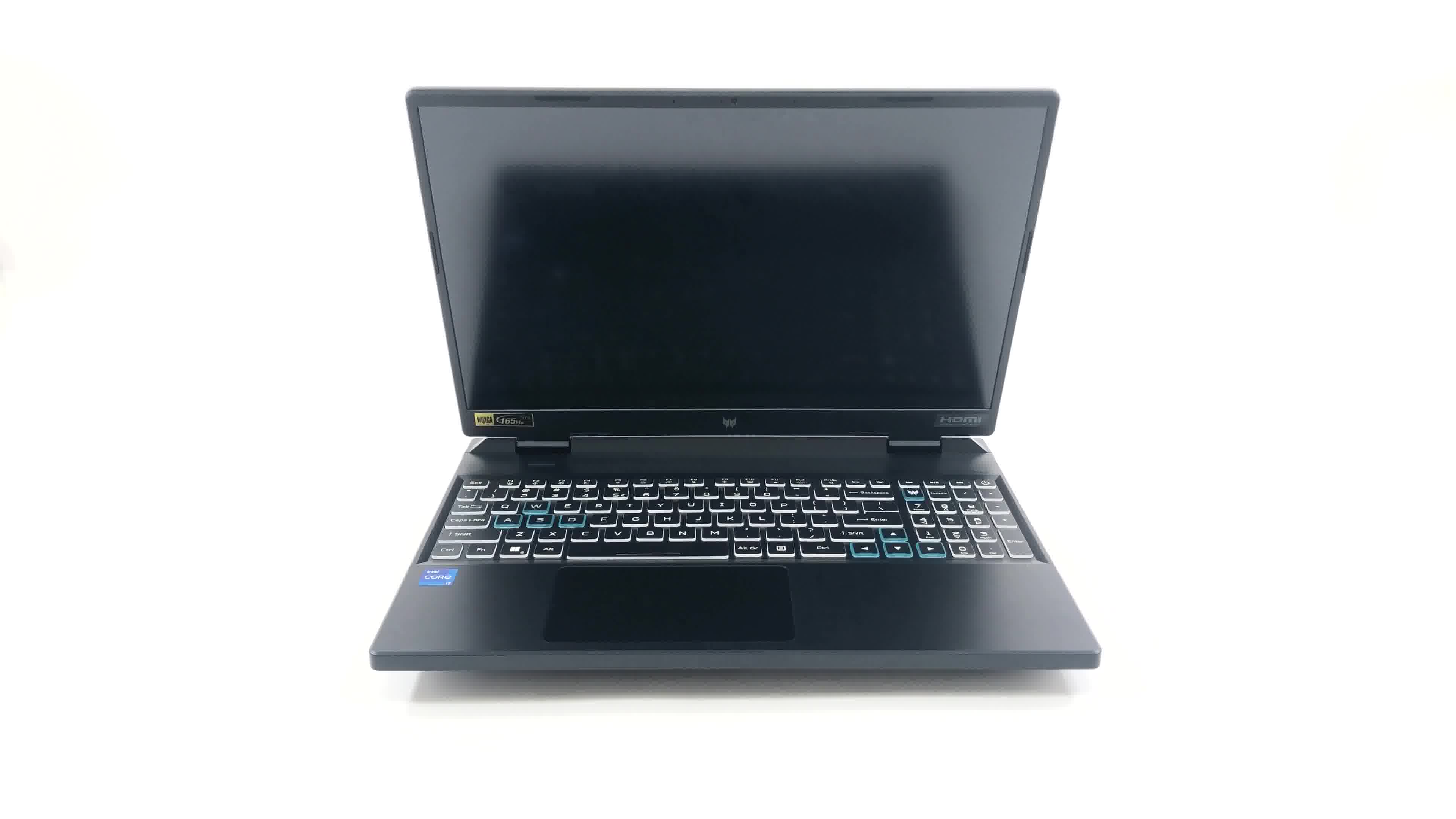
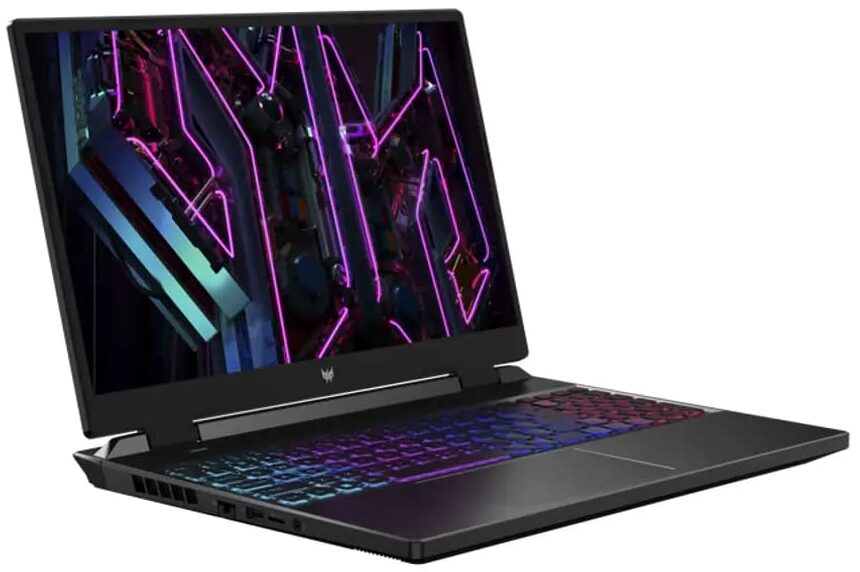
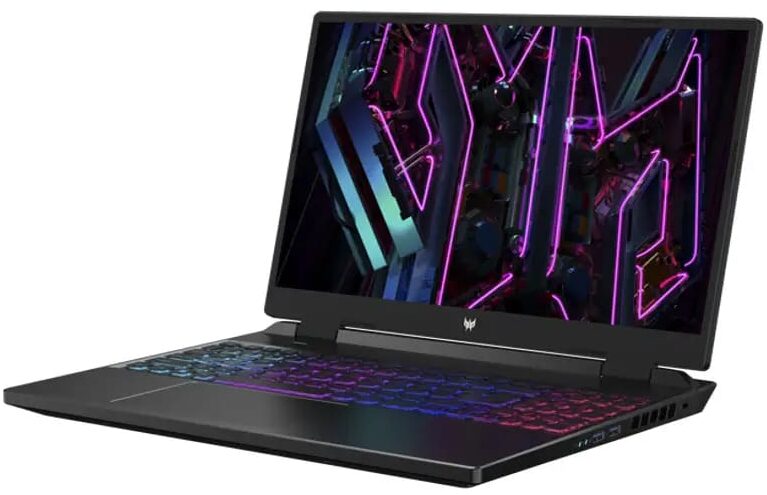
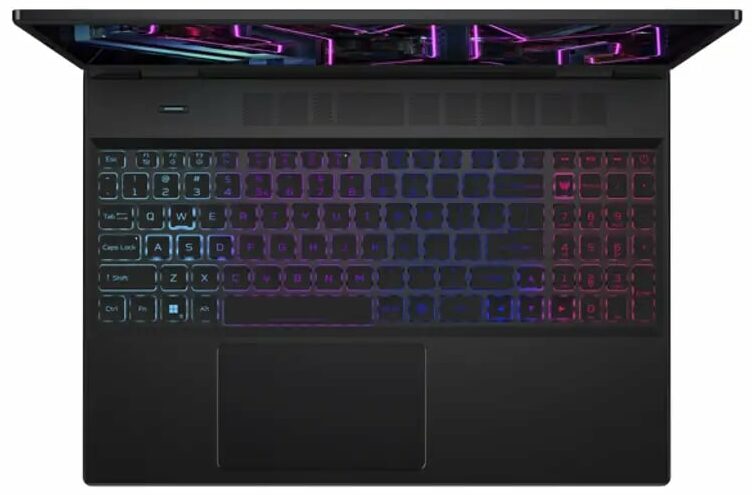
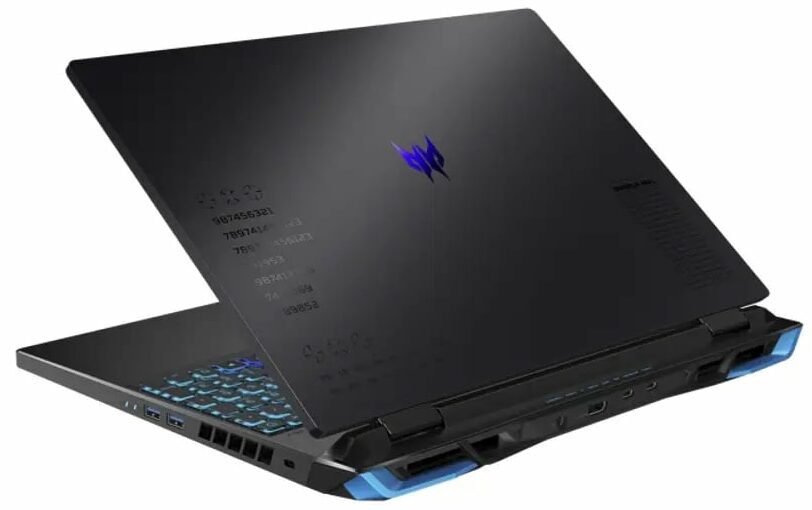
Acer Predator Helios Neo 16


- Date Published: 02 Sep 2024
- Intel Core i7-13650HX
- NVIDIA GeForce RTX 4060 (Laptop, 140W)
- 16.0″, WUXGA (1920 x 1200), 165 Hz, IPS
- 1024GB SSD
- 64GB RAM
- 2.60 kg (5.7 lbs)
Review
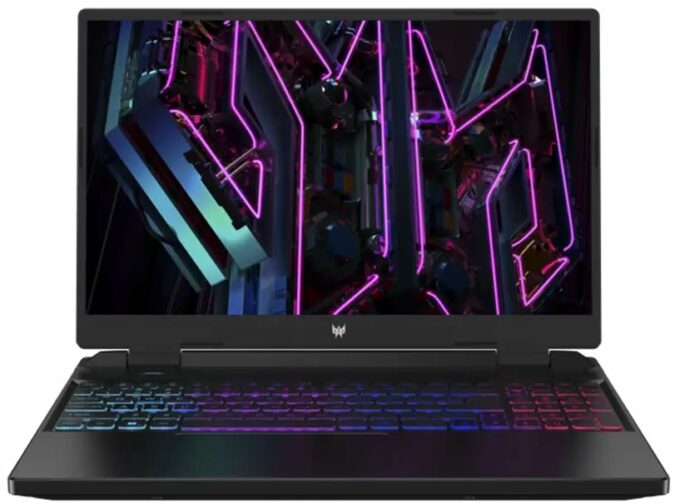
Acer Predator Helios Neo 16 in-depth review
Today, we have another gaming laptop in our office. It is the Acer Predator Helios Neo 16 (PHN16-71) - quite a mouthful of a name. But this company already has the Predator Helios 16, so the most natural question would be - what is the difference between the two models?To be honest, we don't really know how they are supposed to share the market together. Ultimately, the "Neo" should be a bit less expensive, due to the fact that it can be maxed out "only" with the RTX 4070, whereas the non-Neo product can be found with an RTX 4080.In addition to that, there are a couple more differences - the most obvious being in its design. On the other hand, the processors of choice are still Intel's 13th Gen HX-series, which have a huge potential for performance, and for disabling your entire n[...]
Read the full review
Pros
- 2x M.2 PCIe x4 Gen 4 slots, 2x DDR5 RAM SODIMM slots in dual channel
- Covers 99% of the sRGB color gamut and has accurate color representation (AUO B160QAN03.H (AUOF8A7))
- Snappy panel with quick response times (AUO B160QAN03.H (AUOF8A7))
- No PWM (AUO B160QAN03.H (AUOF8A7))
- G-Sync support + MUX switch
- Wide port selection
- Decent keyboard and touchpad
- Good build quality
Cons
- Weird CPU behavior
- Subpar battery life
Disassembly, maintenance and upgrade options
1. Unscrewing the Back Panel The first step to accessing the internals of the Acer Predator Helios Neo 16 (PHN16-71) laptop is undoing the 11 Phillips-head screws at the back. You'll need a Phillips-head screwdriver for this.2. Removing the Back Panel After unscrewing, pry the bottom panel off with a plastic tool, starting from the front side.Caution: Be gentle during this process to avoid damaging the panel or the internal components.3. Disconnecting the Battery Inside the laptop, there is a 90.6Wh battery pack. To remove it, simply unplug the battery connector from t[...]
Read more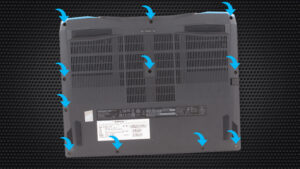


![[June 2026] Best-Selling Laptop Brands on Amazon Global – Apple’s Unrivaled Dominance in Units and Revenue](https://laptopmedia.com/wp-content/uploads/2026/07/GLOBAL-Best-Brands-400x225.jpg)
![[June 2026] Amazon Global: Top 10 Best-Selling Laptops – Apple’s New MacBook Neo Storms to #1, Reshaping the Market with Affordability](https://laptopmedia.com/wp-content/uploads/2026/07/Best-Selling-Laptops-GLOBAL-Top-10-400x225.jpg)
![[June 2026] Amazon Global: Top 10 Best-Selling Gaming Laptops – Acer’s Nitro V 16S AI Dominates Sales, While ASUS Leads Overall Revenue](https://laptopmedia.com/wp-content/uploads/2026/07/Best-Selling-Gaming-Laptops-GLOBAL-Top-10-400x225.jpg)
![[June 2026] Global Ranking of Best-Selling Laptop GPUs on Amazon – NVIDIA RTX 5060 is the Top-Selling Dedicated GPU](https://laptopmedia.com/wp-content/uploads/2026/07/Best-Selling-GPUs-GLOBAL-Top-10-400x225.jpg)
![[June 2026] Global Ranking of Best-Selling Laptop CPUs on Amazon – Apple M5 Dominates, AMD Ryzen 7 260 Gets Solid Premium Share](https://laptopmedia.com/wp-content/uploads/2026/07/Best-Selling-CPUs-GLOBAL-Top-10-400x225.jpg)