ASUS ROG Zephyrus G14 GA403


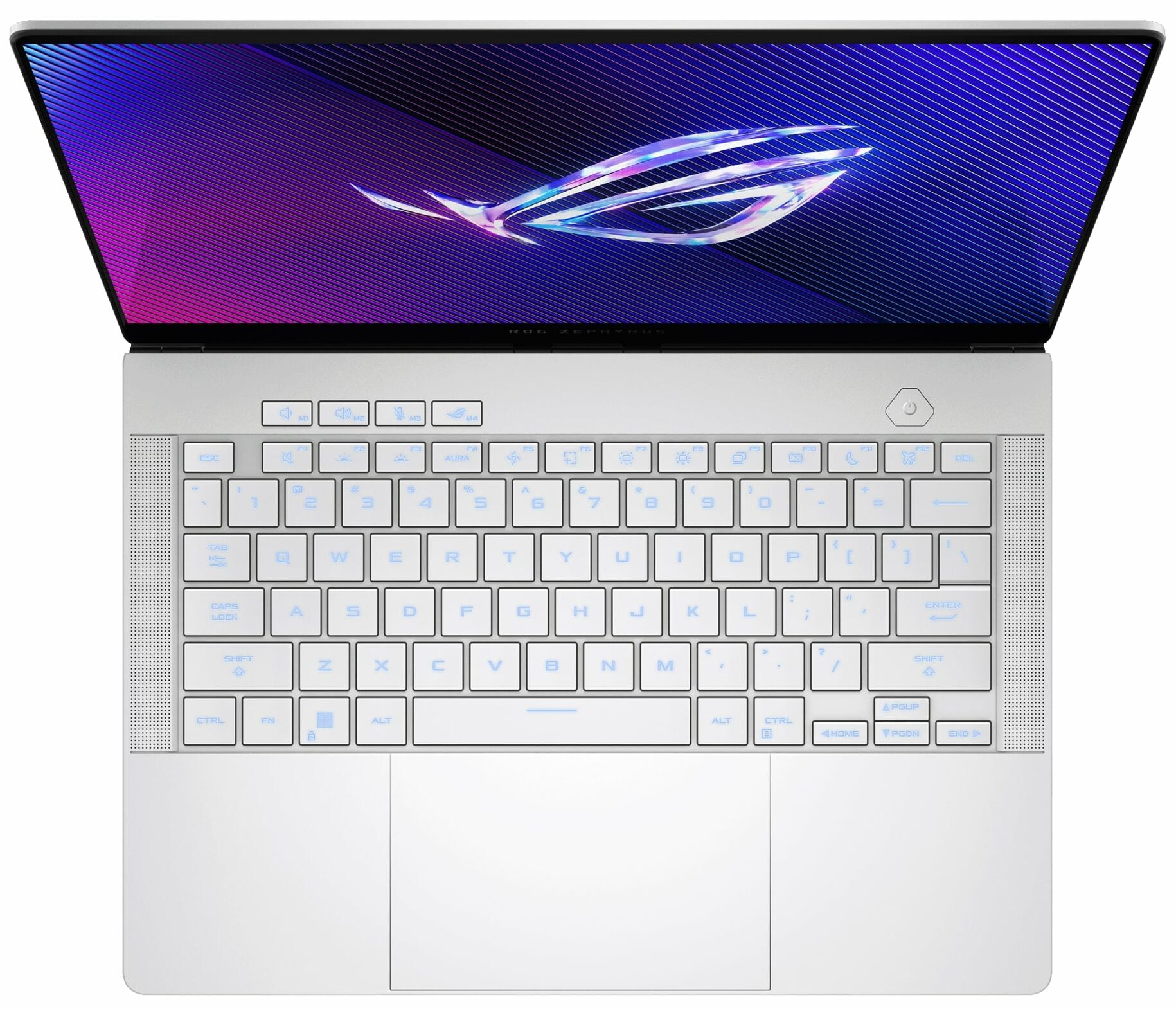
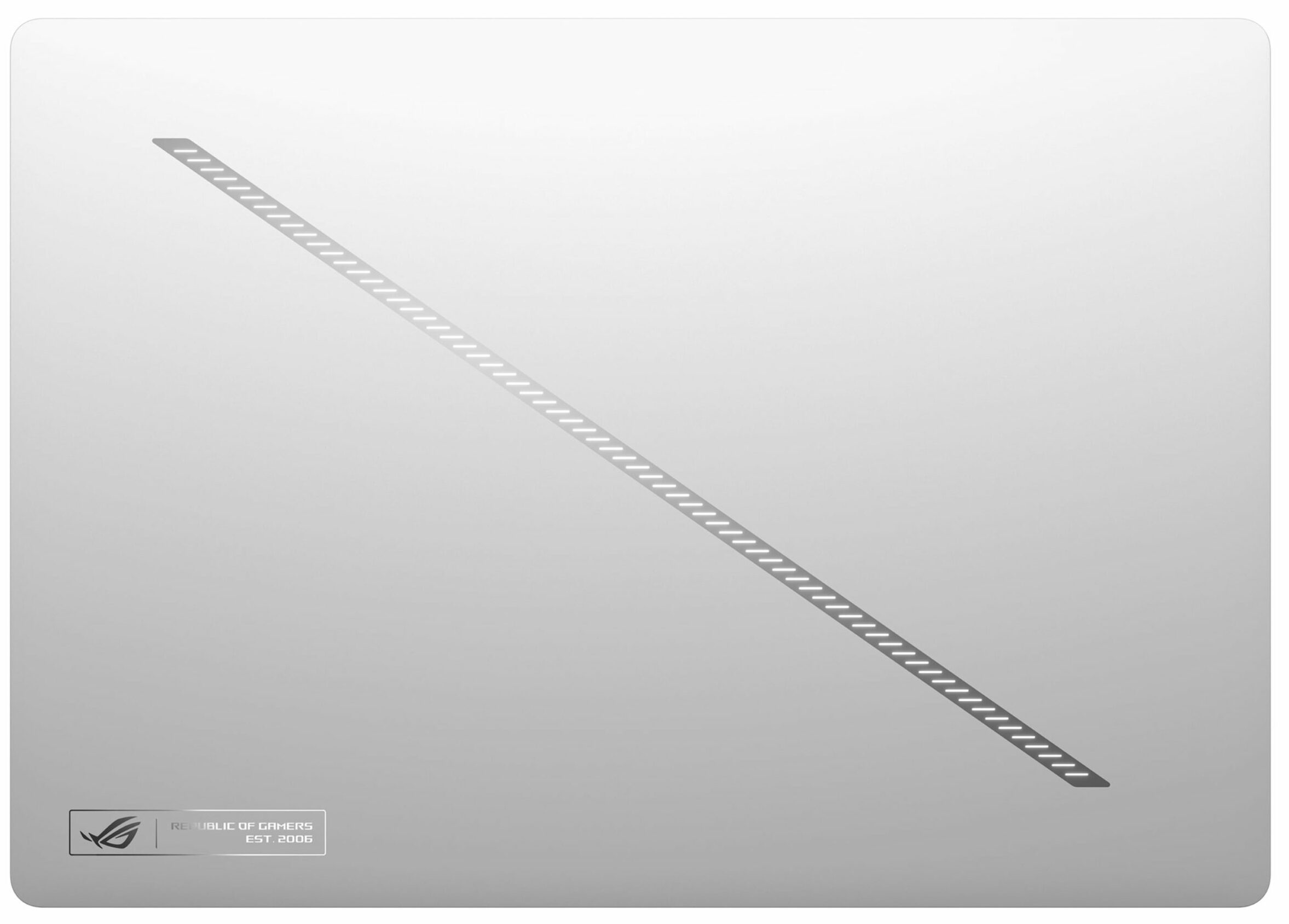

- Date Published: 11 Dec 2025
- AMD Ryzen AI 9 HX 370
- NVIDIA GeForce RTX 5080 (Laptop)
- 14.0″, 2.8K (2880 x 1800), 120 Hz, OLED
- 4000GB SSD
- 32GB RAM
- 1.50 kg (3.3 lbs)

Review
ASUS ROG Zephyrus G14 GA403 in-depth review
The 14-inch gaming laptop is one of the hardest categories to get right. Manufacturers have to balance high-end performance, effective cooling, battery life, and real portability, all inside a chassis that leaves very little room for error. With the ROG Zephyrus G14 (GA403, Ryzen AI 300), ASUS is clearly aiming for that difficult sweet spot: a compact premium machine that can handle serious gaming and creator workloads without looking or feeling like a traditional bulky gaming laptop.Instead of an aggressive “gamer” design, the G14 uses a clean CNC-machined aluminium chassis, a 120Hz OLED display, AMD Ryzen AI processors, and NVIDIA RTX 50-series graphics. Depending on the configuration, the series can weigh as little as 1.50 kg, while our RTX 5070 Ti version comes in at 1.57 kg. T[...]
Read the full review
Pros
- Excellent 120Hz OLED display with full DCI-P3 coverage and great color accuracy
- Exceptional CNC-machined aluminium build quality
- Fantastic battery life for a gaming laptop, nearly 11 hours in our test
- Thin, light, and genuinely portable at 1.57 kg
- Strong gaming performance for a 14-inch chassis
- Very good GPU thermals for such a compact machine
- Comfortable keyboard and large touchpad
- Modern port selection including USB4
Cons
- Soldered RAM with no upgrade options
- Only one M.2 slot limits storage expansion
- No physical privacy shutter for the webcam
Disassembly, maintenance and upgrade options
Step 1: Removing the bottom panelPower off the laptop and place it on a soft, clean surface. Remove the bottom-panel screws. Use a thin plastic pry tool to carefully release the clips around the perimeter. Lift the bottom cover away from the chassis.More info: The bottom cover is more than just a simple plate. It includes large dust-filtered intake zones for the fans, thermal pads, and several contact points that help guide airflow and support the internal structure.Step 2: Battery removalDisconnect the battery connector from the motherboard before touc[...]
Read more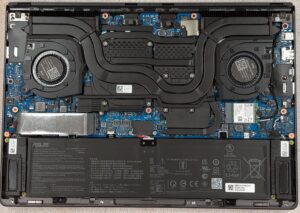


![[June 2026] Best-Selling Laptop Brands on Amazon Global – Apple’s Unrivaled Dominance in Units and Revenue](https://laptopmedia.com/wp-content/uploads/2026/07/GLOBAL-Best-Brands-400x225.jpg)
![[June 2026] Amazon Global: Top 10 Best-Selling Laptops – Apple’s New MacBook Neo Storms to #1, Reshaping the Market with Affordability](https://laptopmedia.com/wp-content/uploads/2026/07/Best-Selling-Laptops-GLOBAL-Top-10-400x225.jpg)
![[June 2026] Amazon Global: Top 10 Best-Selling Gaming Laptops – Acer’s Nitro V 16S AI Dominates Sales, While ASUS Leads Overall Revenue](https://laptopmedia.com/wp-content/uploads/2026/07/Best-Selling-Gaming-Laptops-GLOBAL-Top-10-400x225.jpg)
![[June 2026] Global Ranking of Best-Selling Laptop GPUs on Amazon – NVIDIA RTX 5060 is the Top-Selling Dedicated GPU](https://laptopmedia.com/wp-content/uploads/2026/07/Best-Selling-GPUs-GLOBAL-Top-10-400x225.jpg)
![[June 2026] Global Ranking of Best-Selling Laptop CPUs on Amazon – Apple M5 Dominates, AMD Ryzen 7 260 Gets Solid Premium Share](https://laptopmedia.com/wp-content/uploads/2026/07/Best-Selling-CPUs-GLOBAL-Top-10-400x225.jpg)