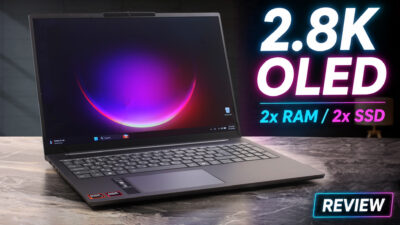
How to open ASUS ROG Zephyrus G14 (GA403) – disassembly and upgrade options

Step 1: Removing the bottom panel
- Power off the laptop and place it on a soft, clean surface.
- Remove the bottom-panel screws.
- Use a thin plastic pry tool to carefully release the clips around the perimeter.
- Lift the bottom cover away from the chassis.
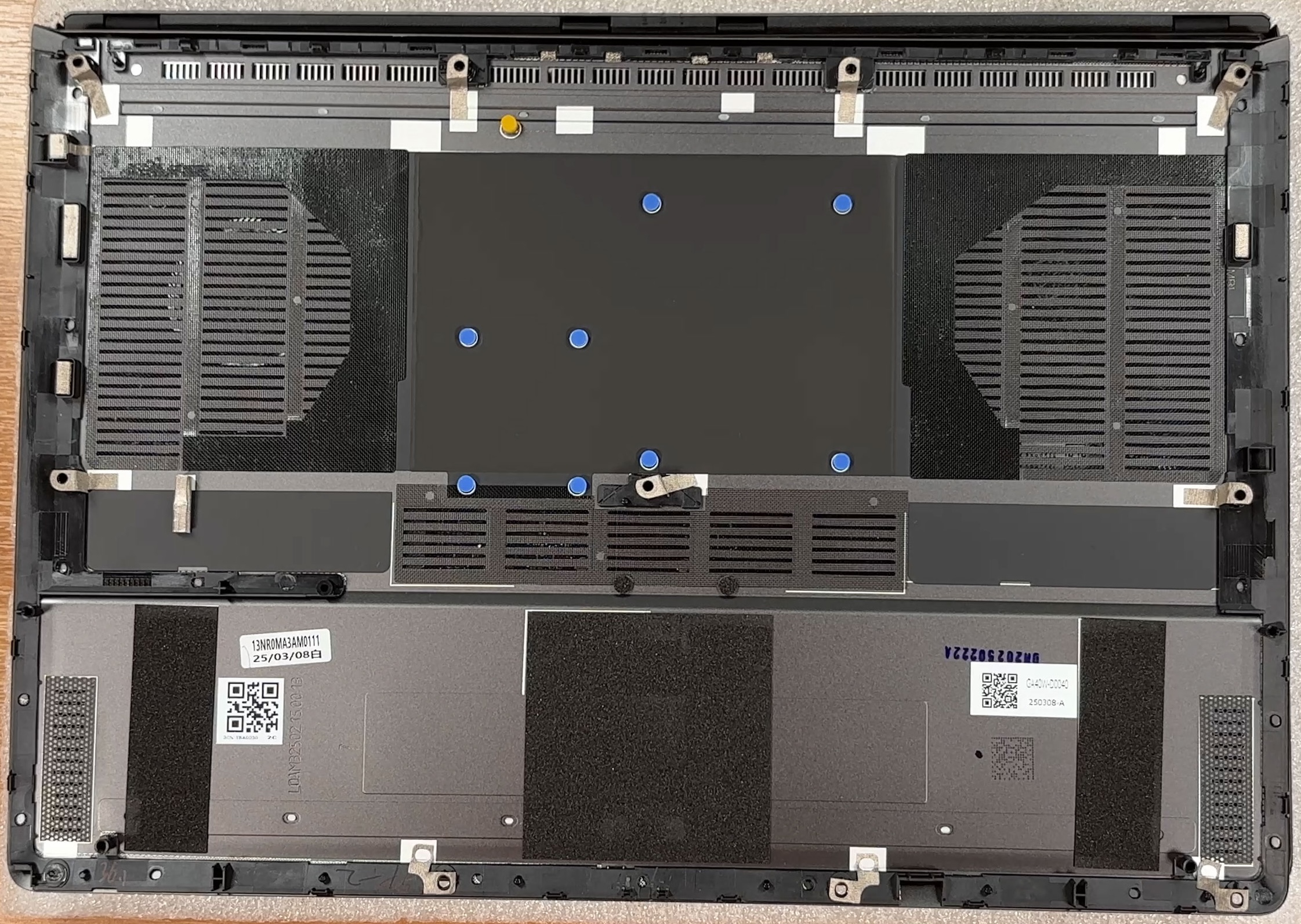
More info: The bottom cover is more than just a simple plate. It includes large dust-filtered intake zones for the fans, thermal pads, and several contact points that help guide airflow and support the internal structure.
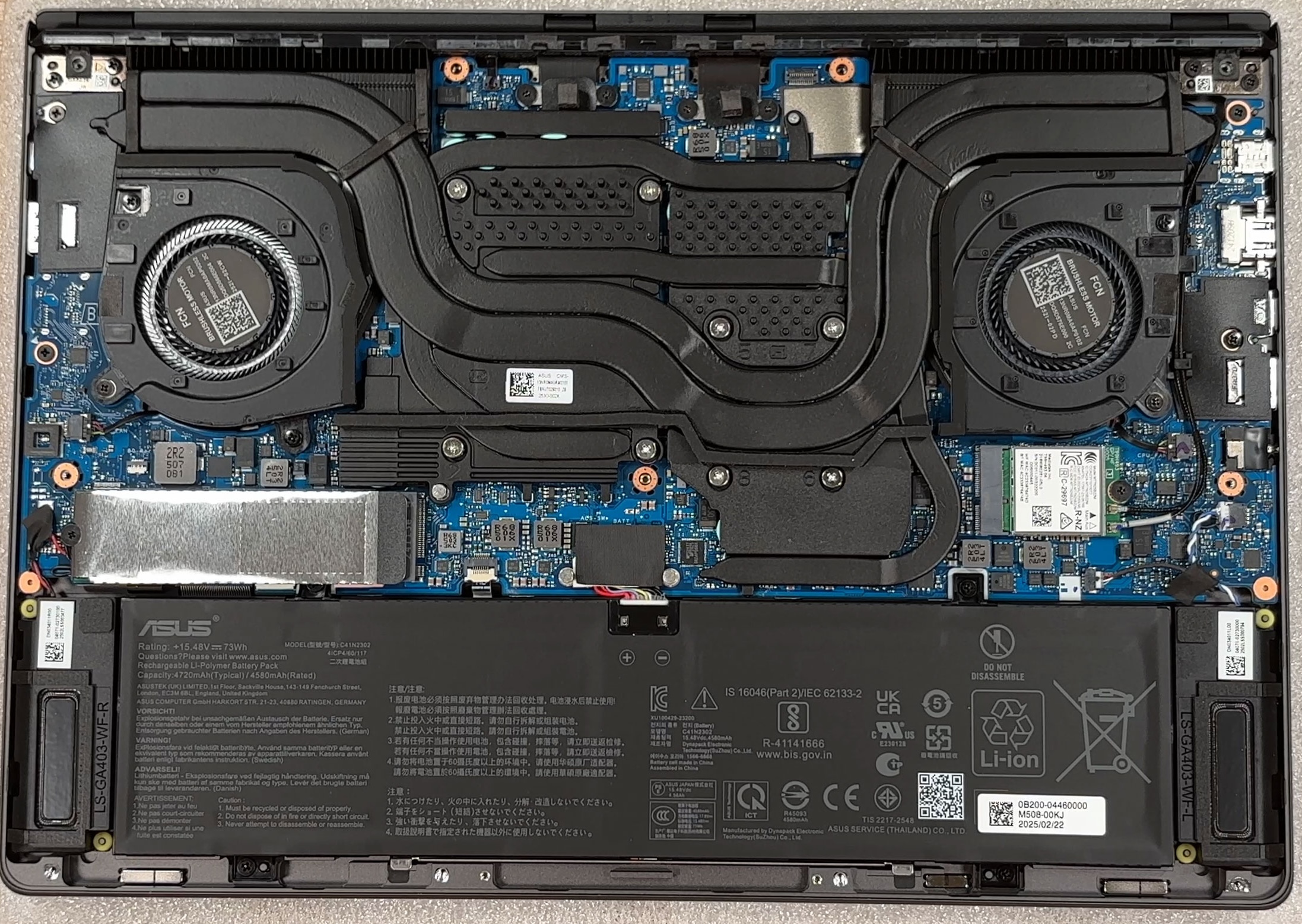
Step 2: Battery removal
- Disconnect the battery connector from the motherboard before touching any other internal component.
- Remove the SSD first, because one of the battery screws is hidden underneath the SSD area.
- Undo the screws securing the 73Wh battery pack.
- Lift the battery out of the chassis carefully.
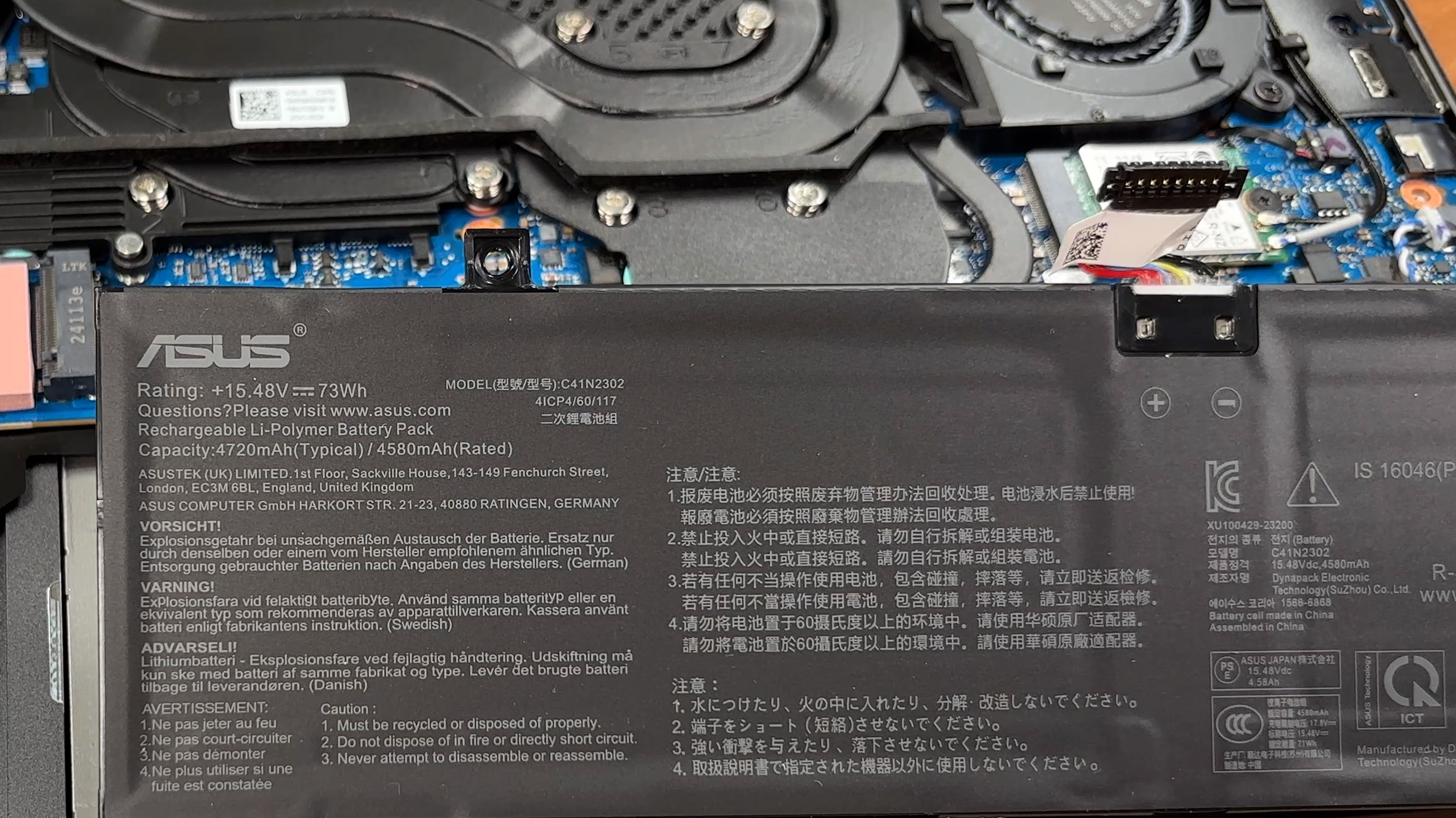
More info: The battery is a 73Wh lithium-polymer unit, model C41N2302. Its connector uses a locking mechanism, so handle it carefully before pulling the cable free.
Step 3: Memory Upgrade
- The memory is soldered to the motherboard.
- There are no SODIMM slots, so RAM upgrades are not possible after purchase.
- Our unit is equipped with 32GB of LPDDR5X memory running in dual-channel mode.
More info: Since the RAM is permanent, choose the memory configuration carefully when buying the laptop. The 32GB version is suitable for gaming, multitasking, and creator workloads, but it cannot be expanded later.
Step 4: Storage Upgrade
- The laptop has a single M.2 slot for PCIe 4.0 x4 NVMe SSDs.
- Our configuration comes with a 1TB SK hynix NVMe SSD installed.
- The SSD is covered by a metal EMI/RFI shield, which should be reinstalled after any upgrade.
- Some configurations may ship with a 2TB SSD instead.
- Since there is only one SSD slot, upgrading storage means replacing the existing drive rather than adding a second one.
You can buy Gen 4 M.2 SSDs here: Buy from Amazon.com (#CommissionsEarned)
Hint: Don’t forget to check out our Top M.2 SSDs Performance Rankings for insights on the best storage options available.
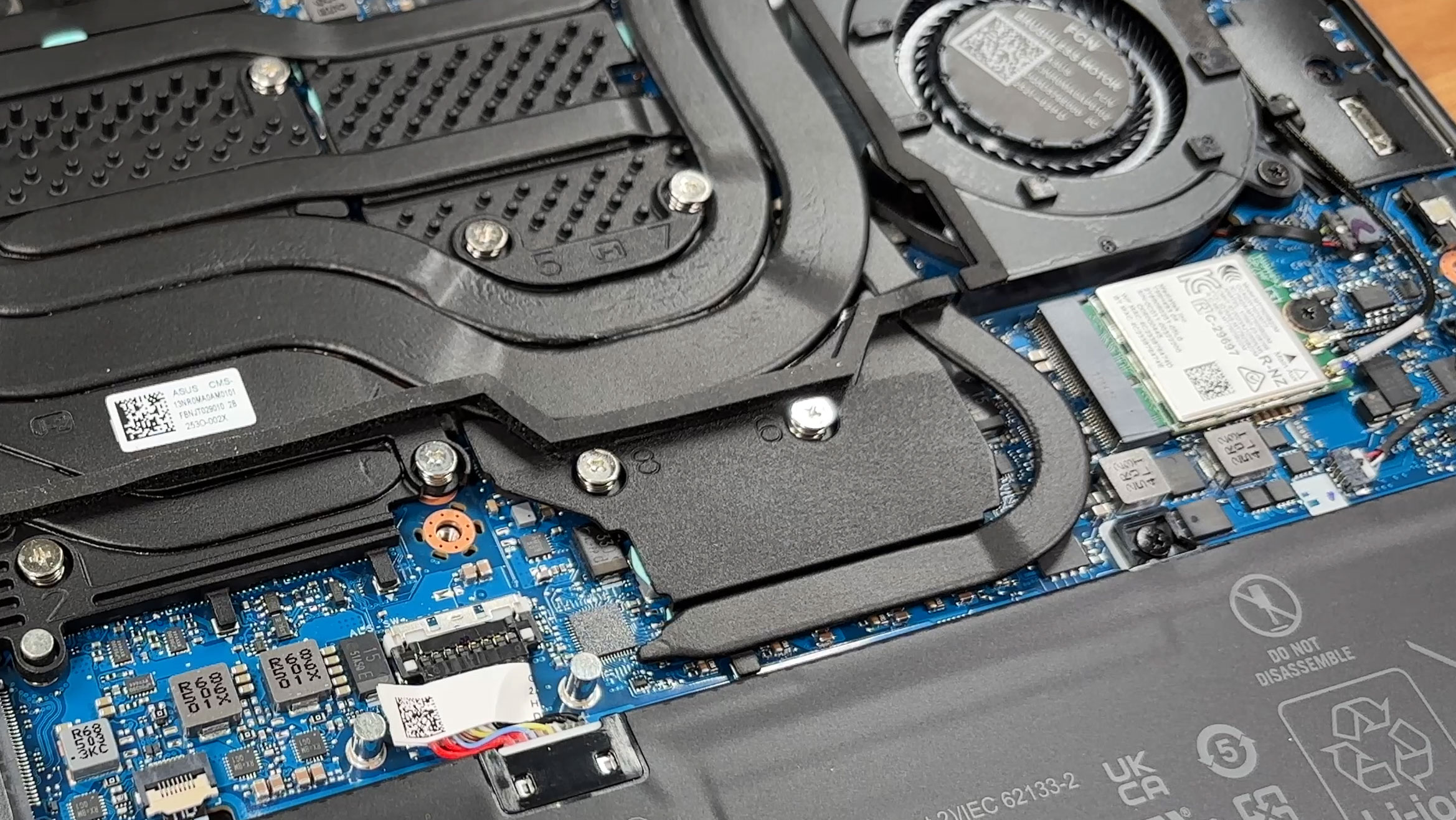
Step 5: Cooling system overview
- The cooling system uses two fans, several heat pipes, and a wide heatsink array.
- The thermal system exhausts heat toward the rear and sides of the chassis.
- The CPU and discrete GPU are positioned under the main cooling assembly.
- The surrounding VRM and memory-related components are also covered by the cooling plate.
- Basic dust cleaning is manageable once the bottom cover is removed, but removing the full cooling system is a more advanced procedure.
More info: The Wi-Fi card is replaceable. Our unit uses a MediaTek MT7925 module with Wi-Fi 7 and Bluetooth 5.4 support. The card is positioned near the cooling system and battery area, and its antenna connectors should be handled carefully.
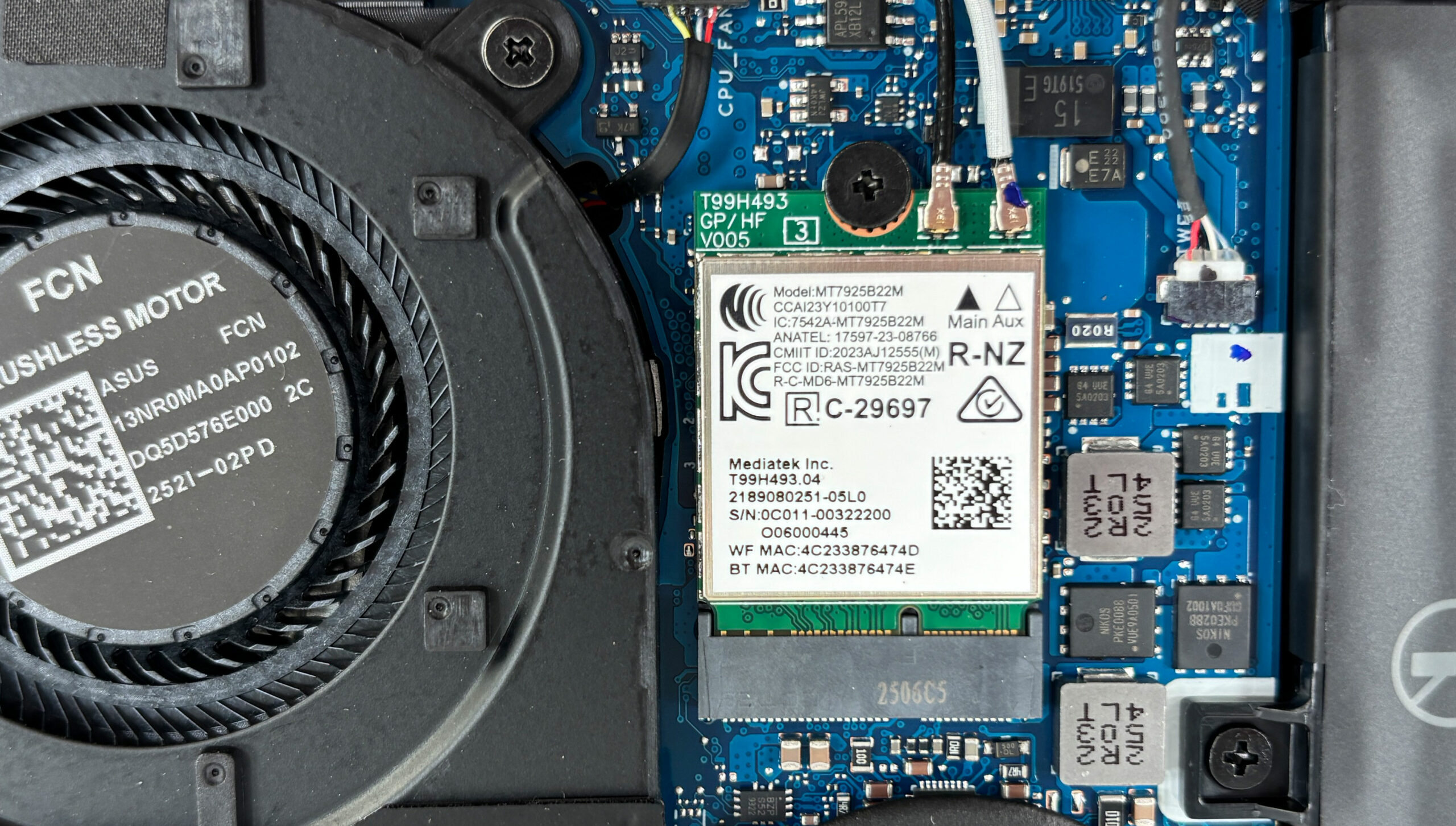
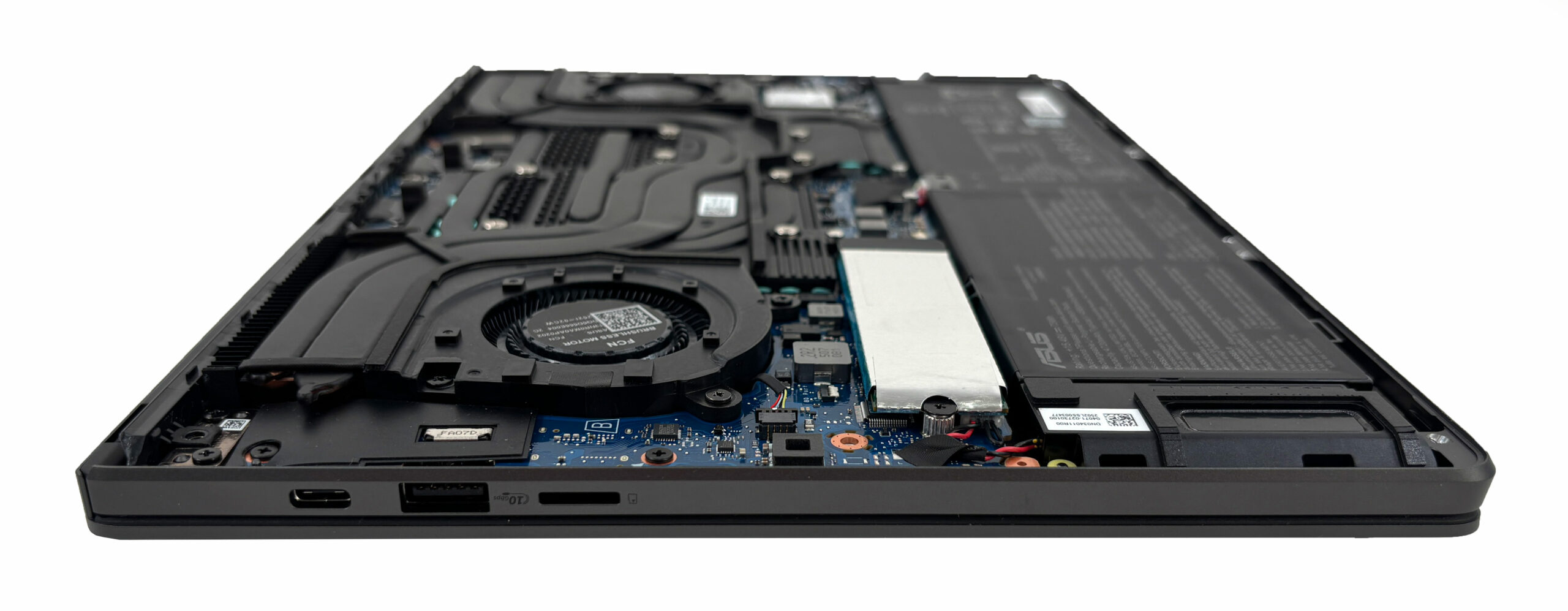
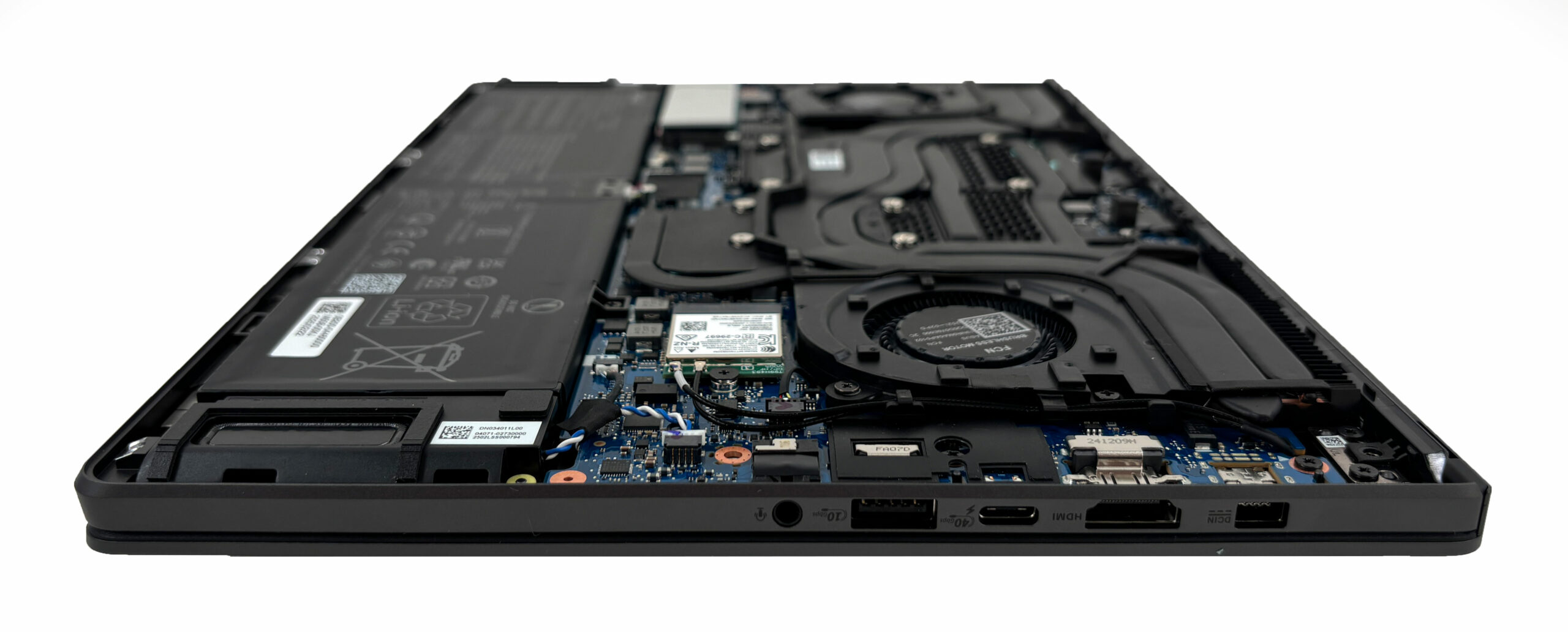
More info: Other practically replaceable parts include the SSD, Wi-Fi module, battery, fans, and speakers. The CPU, GPU, and memory are soldered, so performance upgrades are limited. Overall, the ASUS ROG Zephyrus G14 (GA403) is reasonably serviceable for cleaning, battery replacement, and SSD or Wi-Fi swaps, but the single storage slot and soldered RAM limit long-term upgradeability.
ASUS ROG Zephyrus G14 GA403 in-depth review
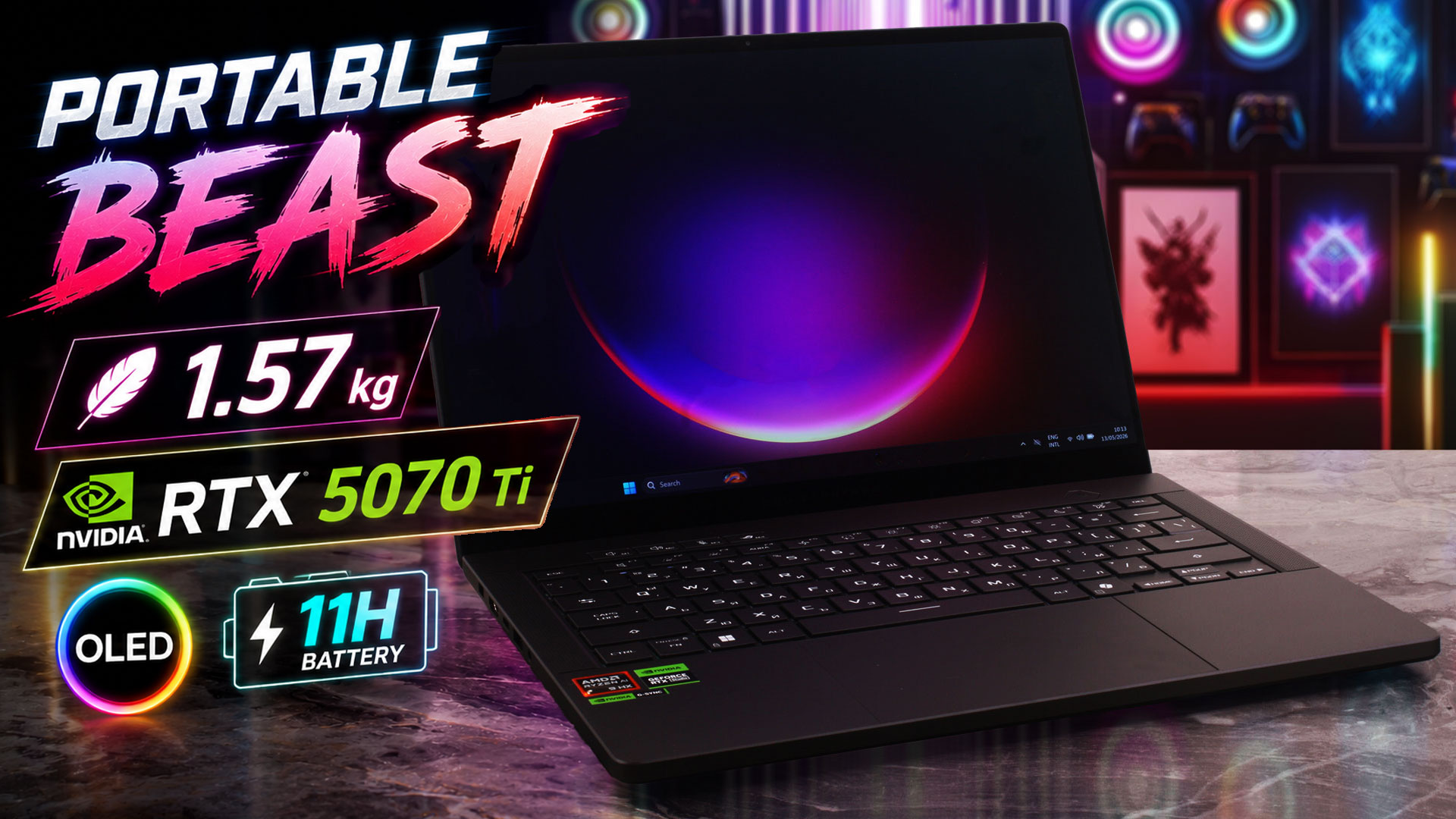
The 14-inch gaming laptop is one of the hardest categories to get right. Manufacturers have to balance high-end performance, effective cooling, battery life, and real portability, all inside a chassis that leaves very little room for error. With the ROG Zephyrus G14 (GA403, Ryzen AI 300), ASUS is clearly aiming for that difficult sweet spot: a compact premium machine that can handle serious gaming and creator workloads without looking or feeling like a traditional bulky gaming laptop.Instead of an aggressive “gamer” design, the G14 uses a clean CNC-machined aluminium chassis, a 120[...]
Pros
- Excellent 120Hz OLED display with full DCI-P3 coverage and great color accuracy
- Exceptional CNC-machined aluminium build quality
- Fantastic battery life for a gaming laptop, nearly 11 hours in our test
- Thin, light, and genuinely portable at 1.57 kg
- Strong gaming performance for a 14-inch chassis
- Very good GPU thermals for such a compact machine
- Comfortable keyboard and large touchpad
- Modern port selection including USB4
Cons
- Soldered RAM with no upgrade options
- Only one M.2 slot limits storage expansion
- No physical privacy shutter for the webcam
 Author: Dimitar Stalev

![[June 2026] Best-Selling Laptop Brands on Amazon Global – Apple’s Unrivaled Dominance in Units and Revenue](https://laptopmedia.com/wp-content/uploads/2026/07/GLOBAL-Best-Brands-400x225.jpg)
![[June 2026] Amazon Global: Top 10 Best-Selling Laptops – Apple’s New MacBook Neo Storms to #1, Reshaping the Market with Affordability](https://laptopmedia.com/wp-content/uploads/2026/07/Best-Selling-Laptops-GLOBAL-Top-10-400x225.jpg)
![[June 2026] Amazon Global: Top 10 Best-Selling Gaming Laptops – Acer’s Nitro V 16S AI Dominates Sales, While ASUS Leads Overall Revenue](https://laptopmedia.com/wp-content/uploads/2026/07/Best-Selling-Gaming-Laptops-GLOBAL-Top-10-400x225.jpg)
![[June 2026] Global Ranking of Best-Selling Laptop GPUs on Amazon – NVIDIA RTX 5060 is the Top-Selling Dedicated GPU](https://laptopmedia.com/wp-content/uploads/2026/07/Best-Selling-GPUs-GLOBAL-Top-10-400x225.jpg)
![[June 2026] Global Ranking of Best-Selling Laptop CPUs on Amazon – Apple M5 Dominates, AMD Ryzen 7 260 Gets Solid Premium Share](https://laptopmedia.com/wp-content/uploads/2026/07/Best-Selling-CPUs-GLOBAL-Top-10-400x225.jpg)