Acer Nitro V 15 (ANV15-A31) review – A Practical Budget Gamer with One Major Catch
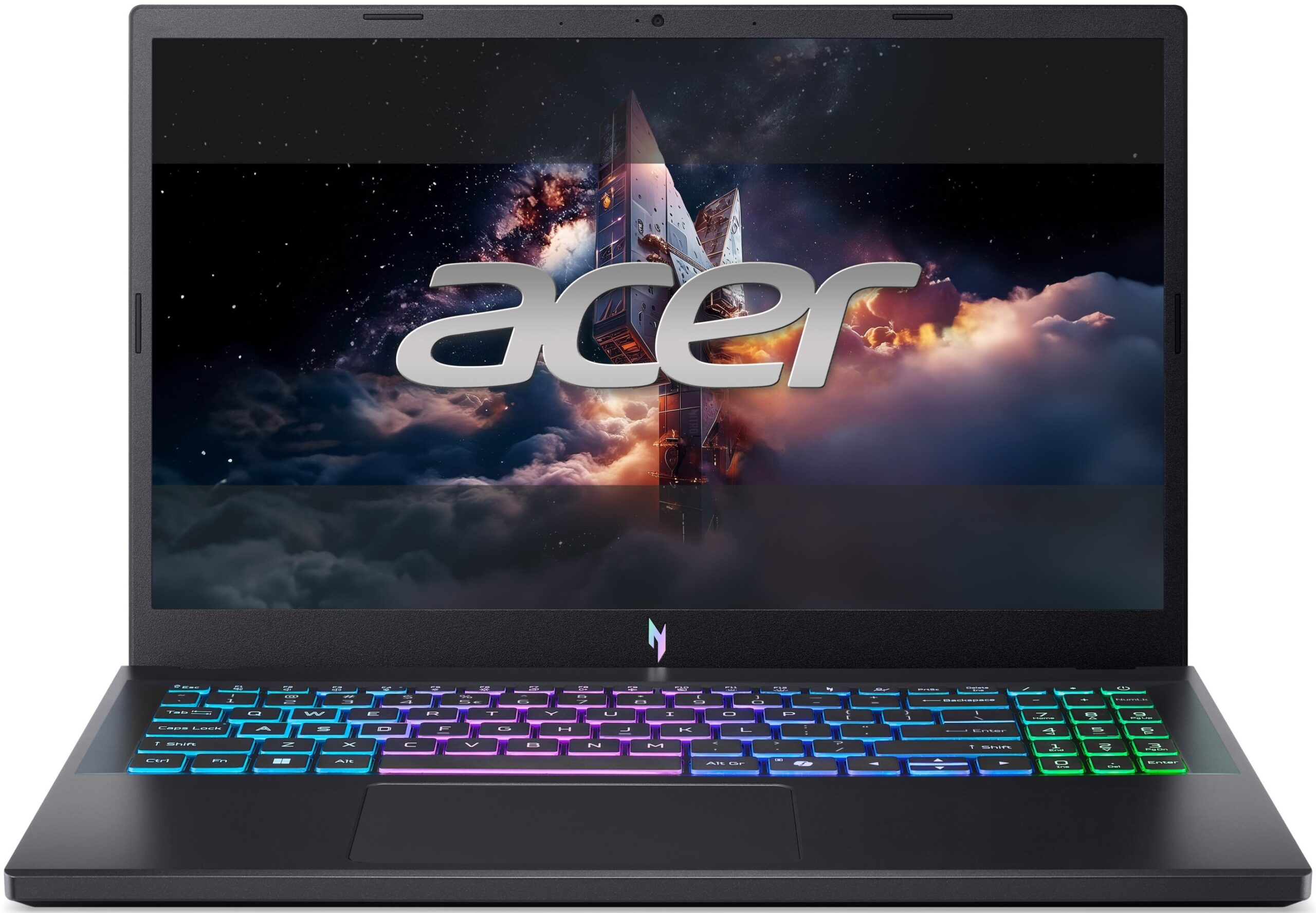
 The Acer Nitro V 15 (ANV15-A31) is an affordable and unusually practical gaming laptop. Its understated black chassis avoids excessive gamer styling, the keyboard is comfortable, connectivity is better than expected for the class, and its exceptional battery life makes it suitable for much more than sitting permanently on a desk.
However, Acer has achieved this balance through several deliberate compromises. The older processor, restricted GPU power, slow display response times, and limited storage expansion prevent the Nitro V 15 from competing with more performance-focused gaming machines. Choosing the right configuration is therefore especially important.
You can check the prices and configurations in our Specs System: https://laptopmedia.com/series/acer-nitro-v-15-anv15-a31/
TESTED CONFIGURATIONS:
– AMD Ryzen 7 170
– NVIDIA GeForce RTX 5060, RTX 5070
– 16GB DDR5-4800 RAM
– 1TB PCIe 4.0 NVMe SSD
– 15.6″, 1920 x 1080 (Full HD), 165Hz IPS
Contents
Specs, Drivers, What’s in the box
Acer Nitro V 15 (ANV15-A31) - Specs

- HDD/SSD
- up to 1000GB SSD
- RAM
- up to 32GB
- OS
- No OS, Windows 11 Home, Windows 11 Pro
- Battery
- 76Wh
- Dimensions
- 362.3 x 239.89 x 23.5 mm (14.26" x 9.44" x 0.93")
- Weight
- 2.10 kg (4.6 lbs)
- Ports and connectivity
- 2x USB Type-A
- 3.2 Gen 1 (5 Gbps)
- 1x USB Type-A
- 3.2 Gen 1 (5 Gbps), Sleep and Charge
- 1x USB Type-C
- 4.0, Power Delivery (PD), DisplayPort, Sleep and Charge
- HDMI
- 2.1
- Card reader
- Ethernet LAN
- 10, 100, 1000 Mbit/s
- Wi-Fi
- Wi-Fi 6E
- Bluetooth
- 5.4
- Audio jack
- 3.5mm Combo Jack
- Features
- Fingerprint reader
- Web camera
- FHD with Temporal Noise Reduction
- Backlit keyboard
- Microphone
- 2x Microphones with Acer Purified Voice with AI Noise Reduction
- Speakers
- 6 Speakers, DTS X: Ultra Audio
- Security Lock slot
- Kensington Lock
All Acer Nitro V 15 (ANV15-A31) configurations
Drivers
All drivers and utilities for this notebook can be found here: https://www.acer.com/sg-en/support/product-support/Nitro_ANV15-A31/
What’s in the box?
Inside the Acer Nitro V 15 box, you will find only the laptop itself and its 135W power adapter. Interestingly, Acer supplies the exact same charger with both of our retail configurations – the GeForce RTX 5060 model and the higher-tier RTX 5070 version.
The modest adapter immediately suggested that the more powerful GPU might be operating within a restricted power budget. The charger does not directly determine the graphics card’s power limit – that is defined by the laptop’s firmware and electrical design. But its relatively low 135W rating was an early indication that this would not be a high-power RTX 5070 implementation.
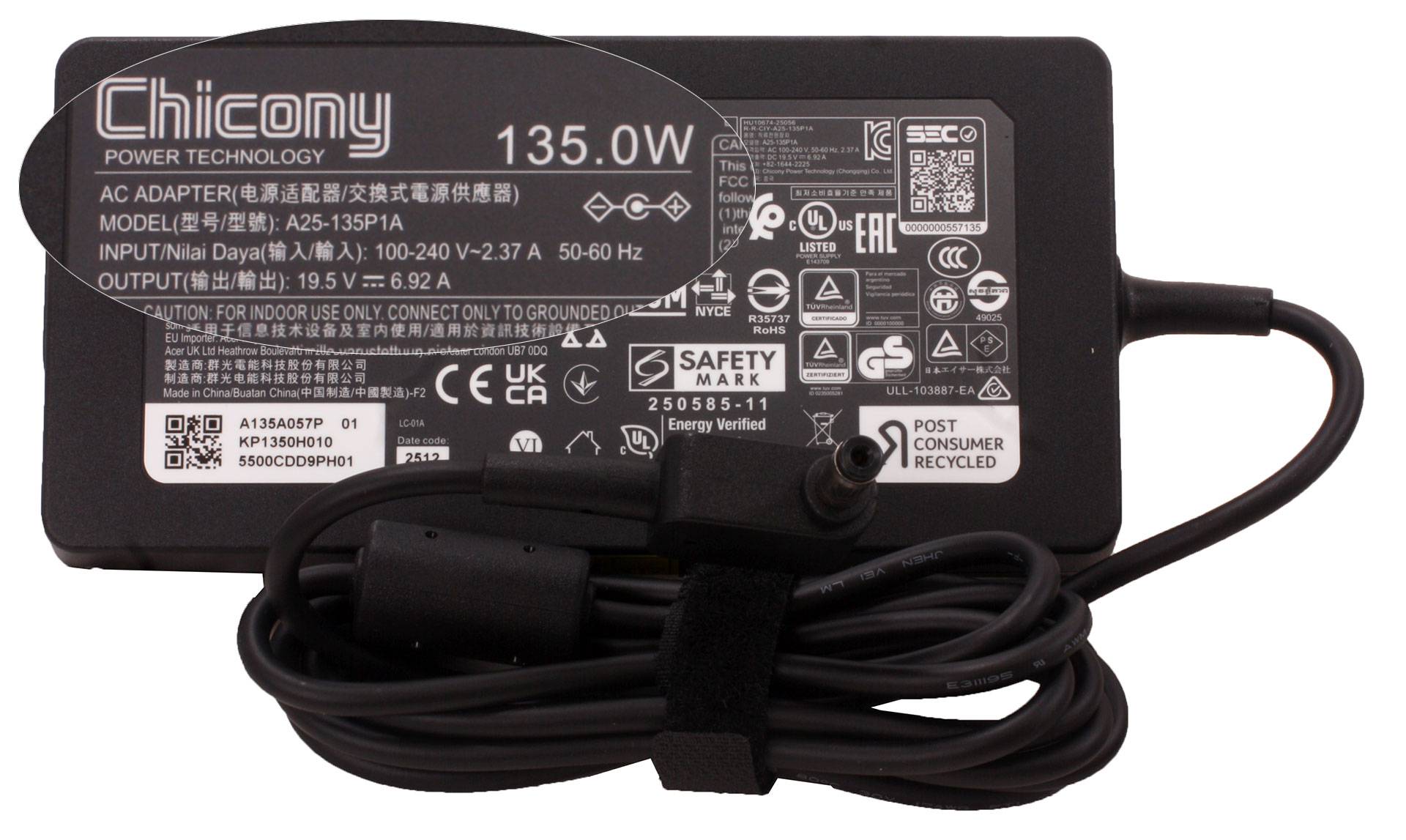
Our measurements later confirmed this concern: both the RTX 5060 and RTX 5070 are configured with a maximum GPU power limit of only 75W. This makes the 135W adapter sufficient for the intended operating envelope, but it also means that the RTX 5070 cannot approach the performance of the substantially higher-powered implementations found in many competing gaming laptops.
Design and construction
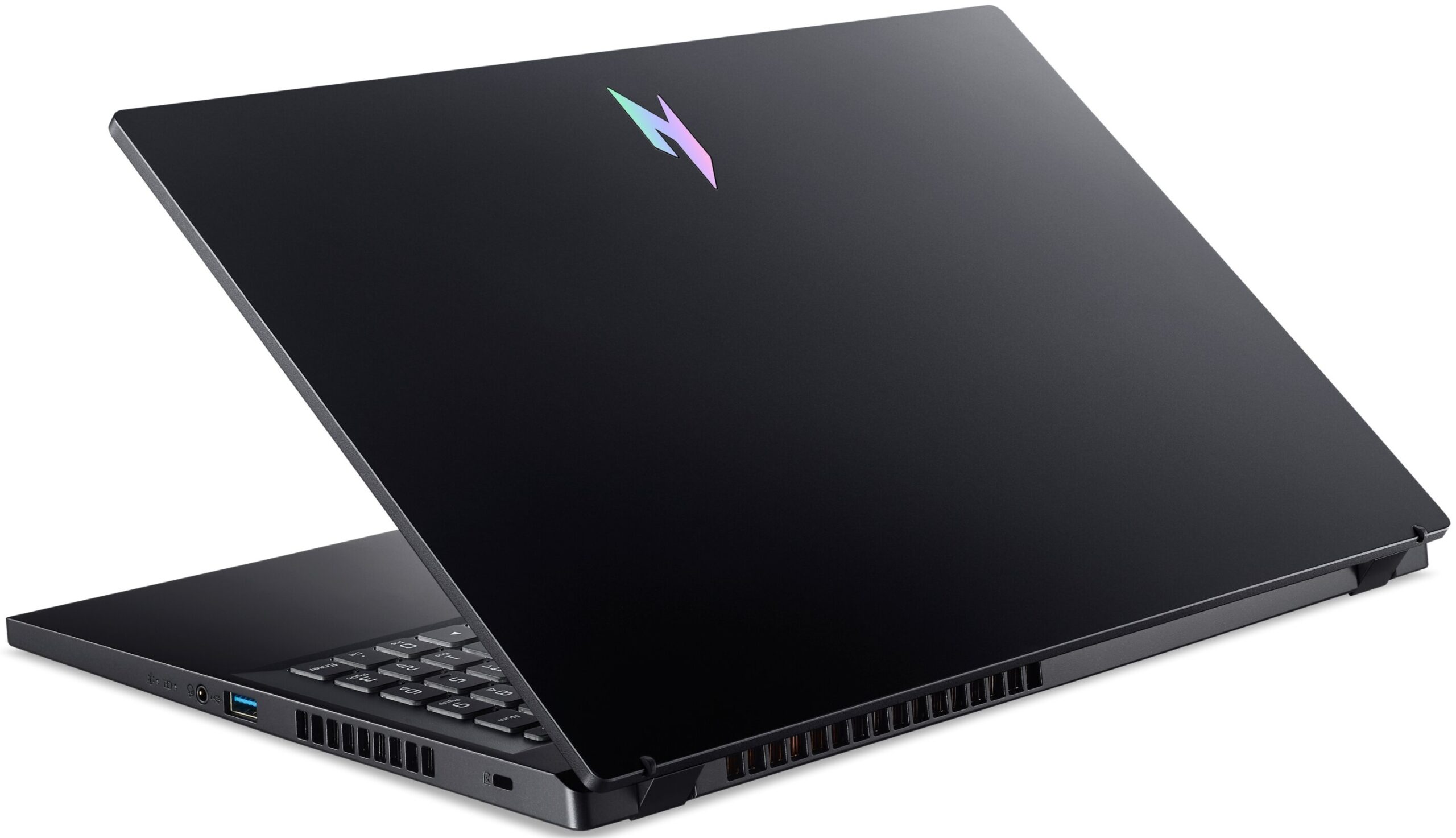
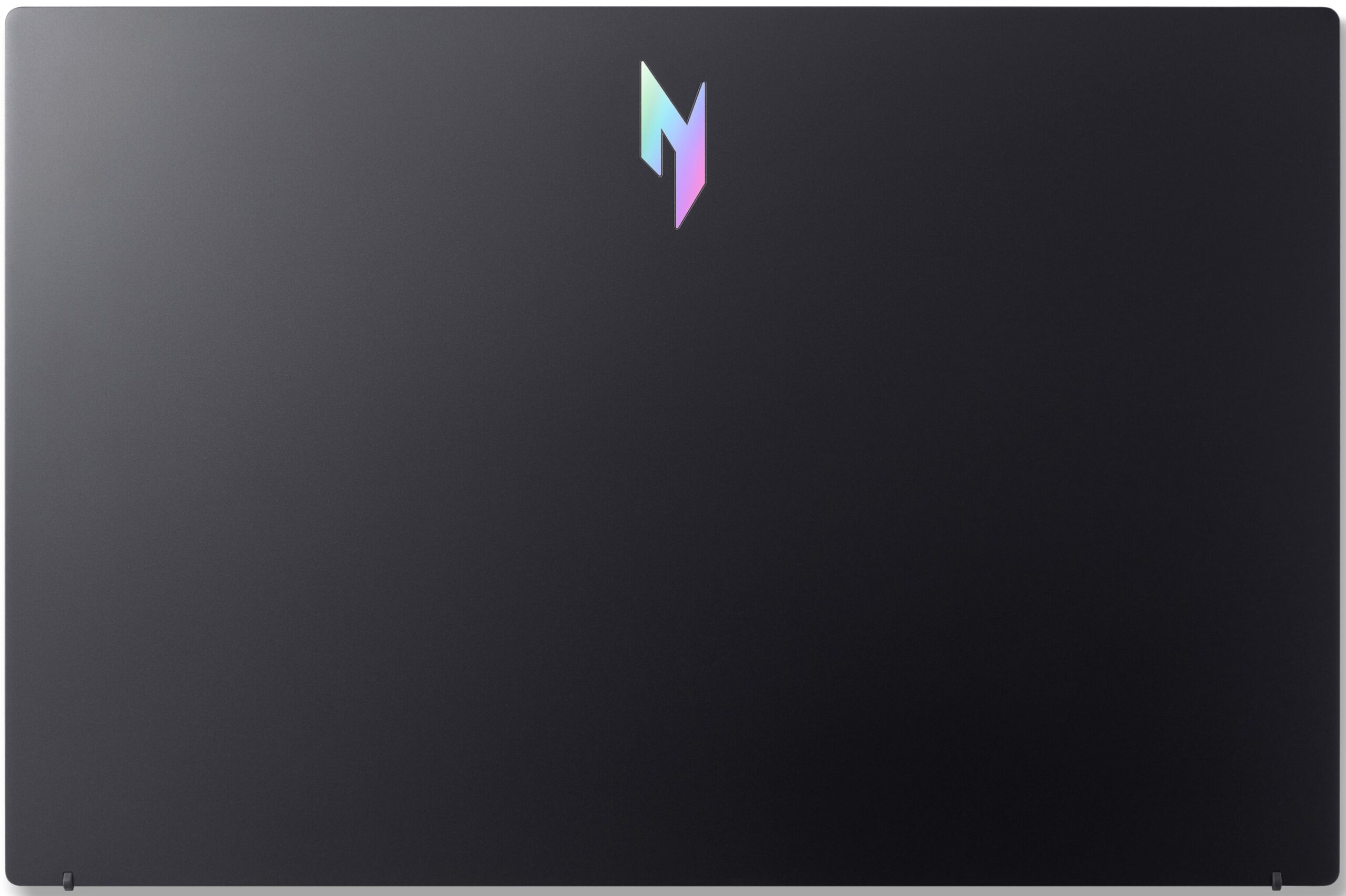
The Acer Nitro V 15 (ANV15-A31) takes a refreshingly restrained approach to gaming-laptop design, proving that such a machine does not need to resemble an alien spaceship. Its stealthy, all-black chassis features clean lines and avoids loud colors or overly aggressive decorative elements. The main indication of its gaming identity is the distinctive, metallic-looking Nitro logo on the lid.
Thanks to this understated aesthetic, the machine would not look out of place in a college lecture hall or a corporate office. We purchased the black version, and as far as we could determine, this is the only color Acer officially offers for the ANV15-A31 series.
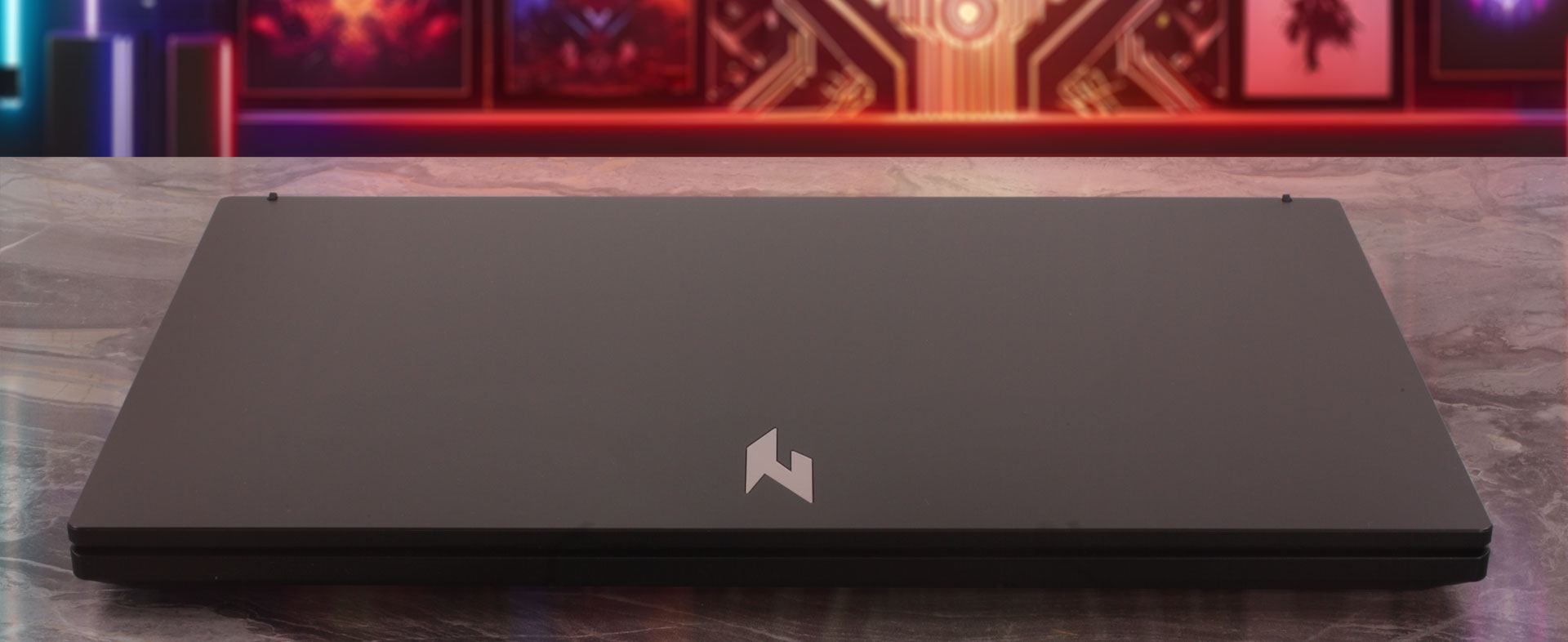
To keep the laptop reasonably lightweight and affordable, Acer has constructed the chassis entirely from plastic. Despite this, the base feels reassuringly stable during normal handling. Pressing the center of the closed lid produces a small amount of flex, but this is common among all-plastic laptops in this class and does not make the machine feel fragile.
The matte finish picks up some faint smudges during daily use, particularly on the lid, but the Nitro V 15 is not an excessive fingerprint magnet and remains relatively easy to keep clean.
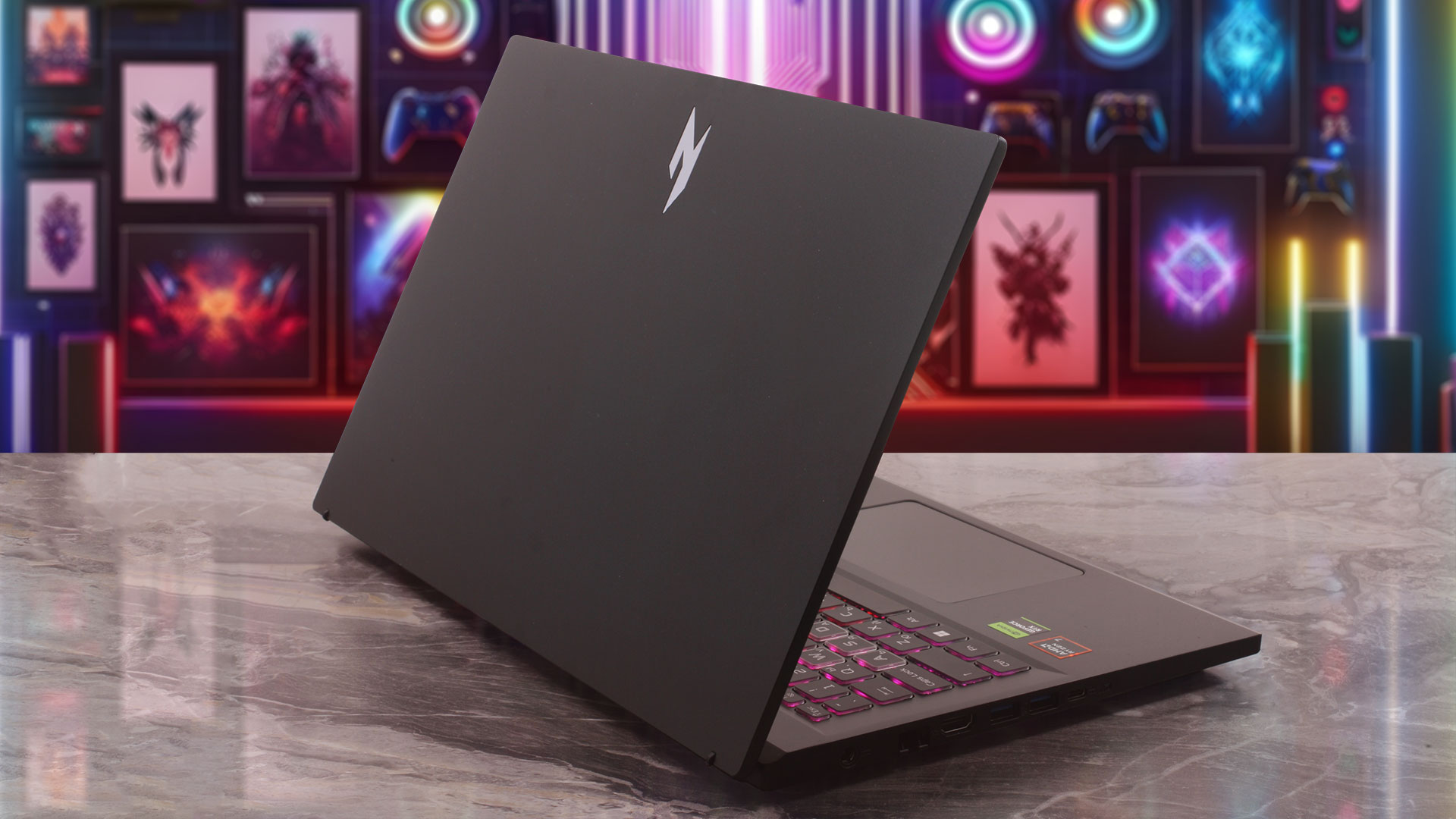
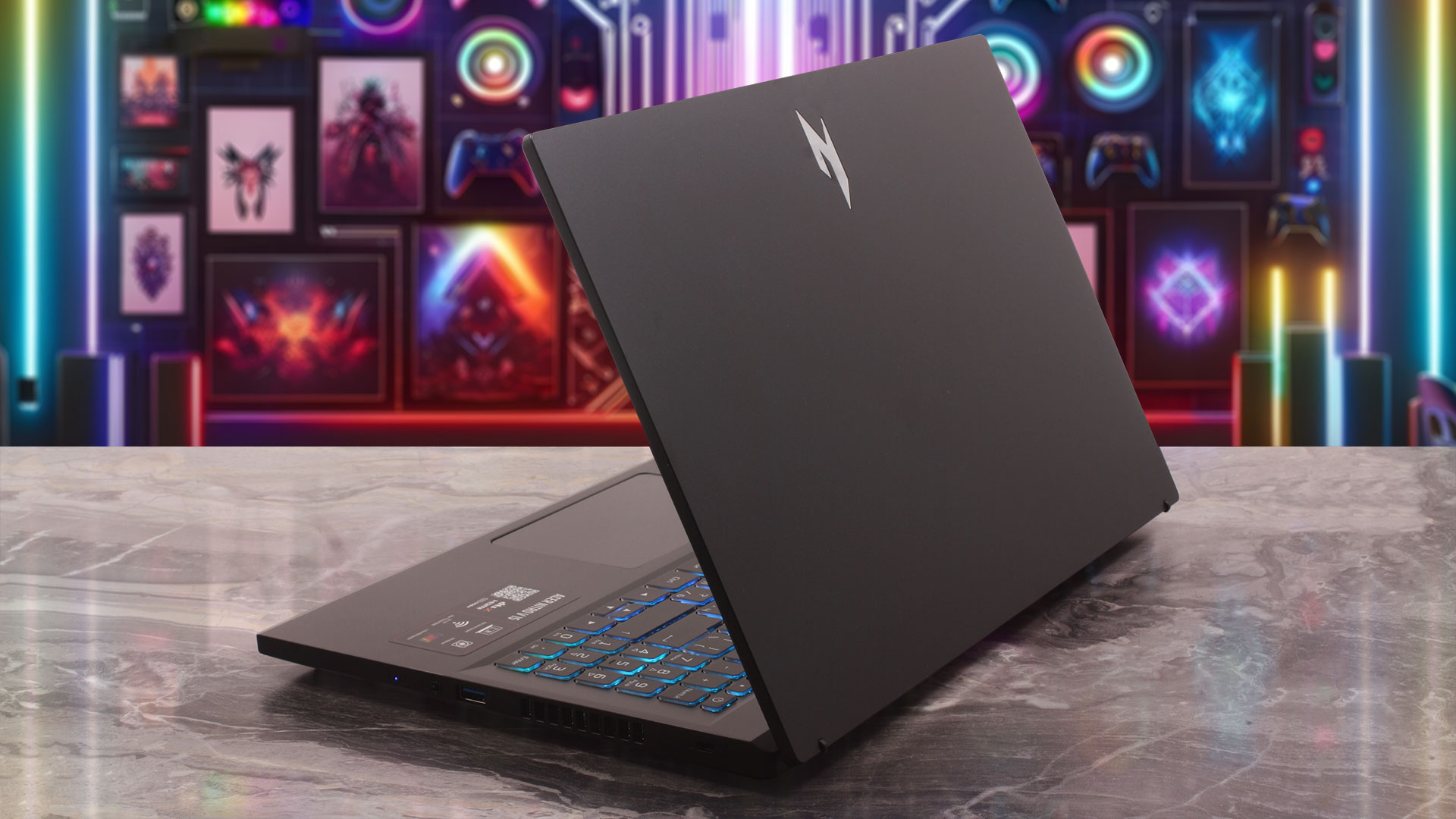
By opting for a plastic chassis, Acer has kept the Nitro V 15 reasonably portable for a 15.6-inch gaming laptop. Here is a quick breakdown of its physical footprint:
| Acer Nitro V 15 (ANV15-A31) | Dimensions | Weight |
| Metric units | 362.3 mm x 239.9 mm x 23.5 mm | 2.10 kg |
| U.S. customary | 14.26 in x 9.44 in x 0.93 in | 4.63 lbs |
The hinges feel stable and allow the display to open to a maximum angle of approximately 120 degrees. Interestingly, once the screen passes roughly 100 degrees, the lower edge of the lid begins to lift the rear of the base slightly above the desk. This creates additional clearance beneath the cooling intakes and places the keyboard at a small angle. In practice, however, most users are unlikely to game with the display opened far enough to activate the full lift.
The display is surrounded by bezels that are typical for an affordable 15.6-inch gaming laptop. The side borders are not excessively thick, but the overall presentation is noticeably less compact than that of a premium thin-and-light machine.
The webcam has a Full HD resolution of 1920 x 1080 pixels and records at 30 FPS. Acer also specifies Temporal Noise Reduction and a pair of built-in microphones. There is no physical privacy shutter, so users seeking complete visual privacy will need to rely on software controls or an external camera cover.
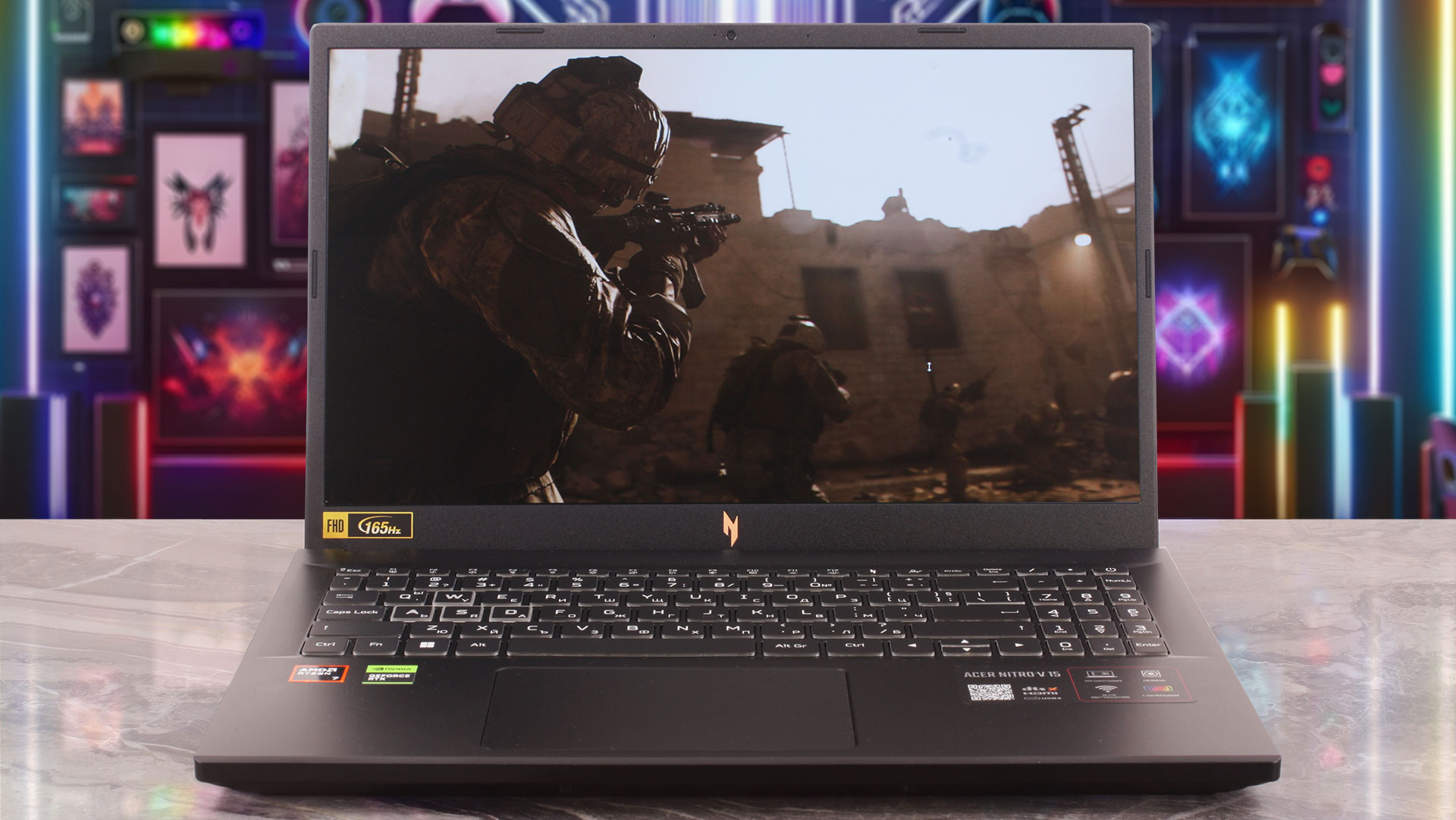
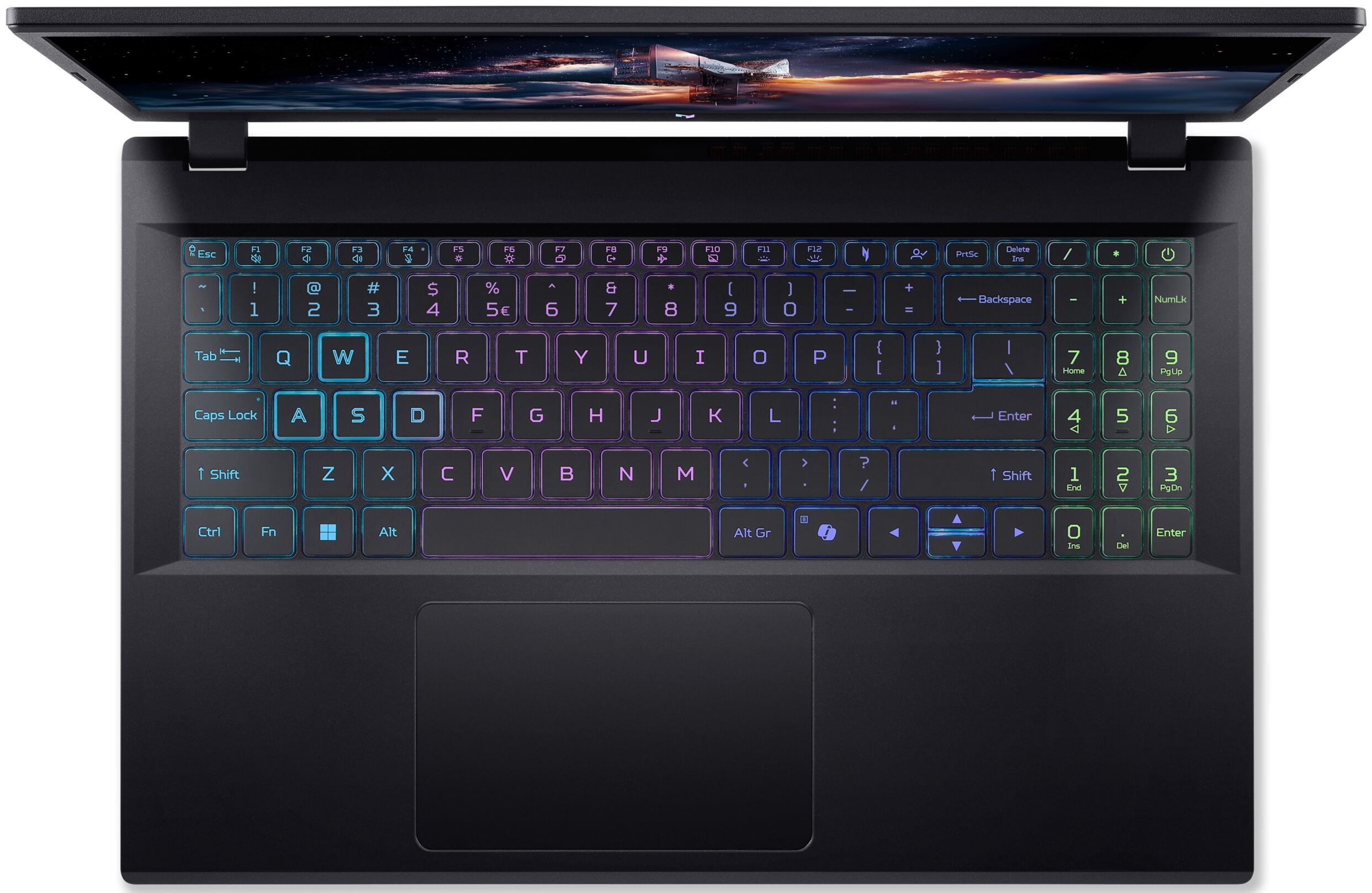
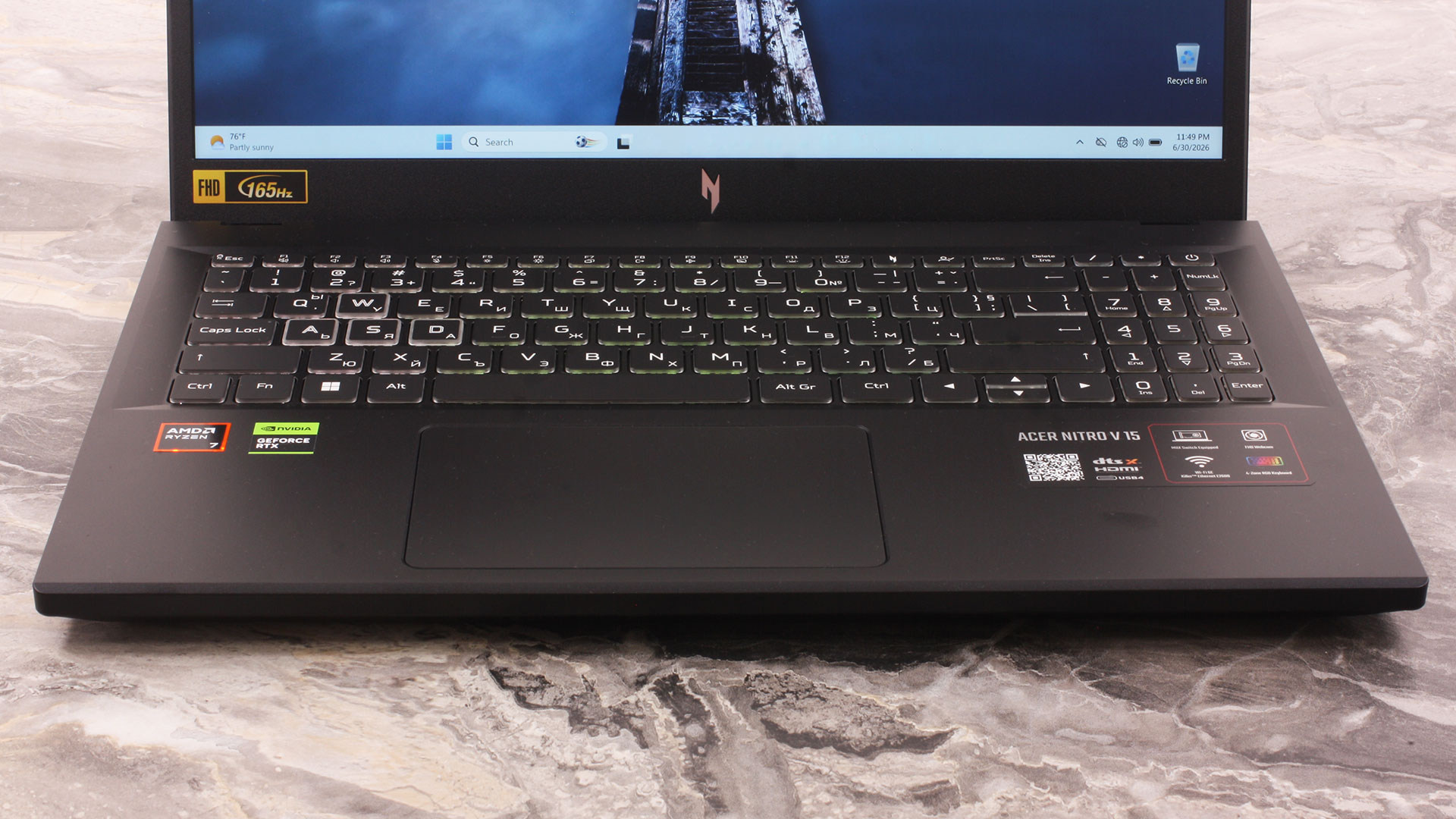
Moving down to the keyboard deck, Acer has made good use of the available space. There is a dedicated NumPad, which is useful for productivity tasks, although its keys are noticeably narrower than those in the main keyboard area. The layout also includes dedicated NitroSense, Acer My Key, and Copilot buttons.
The typing experience is genuinely excellent for this class. The keys provide comfortable feedback, and during an informal typing test, we reached approximately 90 words per minute almost immediately – very close to the roughly 95 WPM we typically achieve on our desktop keyboards.
The keyboard includes customizable four-zone RGB illumination controlled through the NitroSense application. Our main complaint concerns the arrow-key layout: the Up and Down arrows are compressed into half-height keys. This saves space, but makes them less convenient for games and applications that rely heavily on directional input.
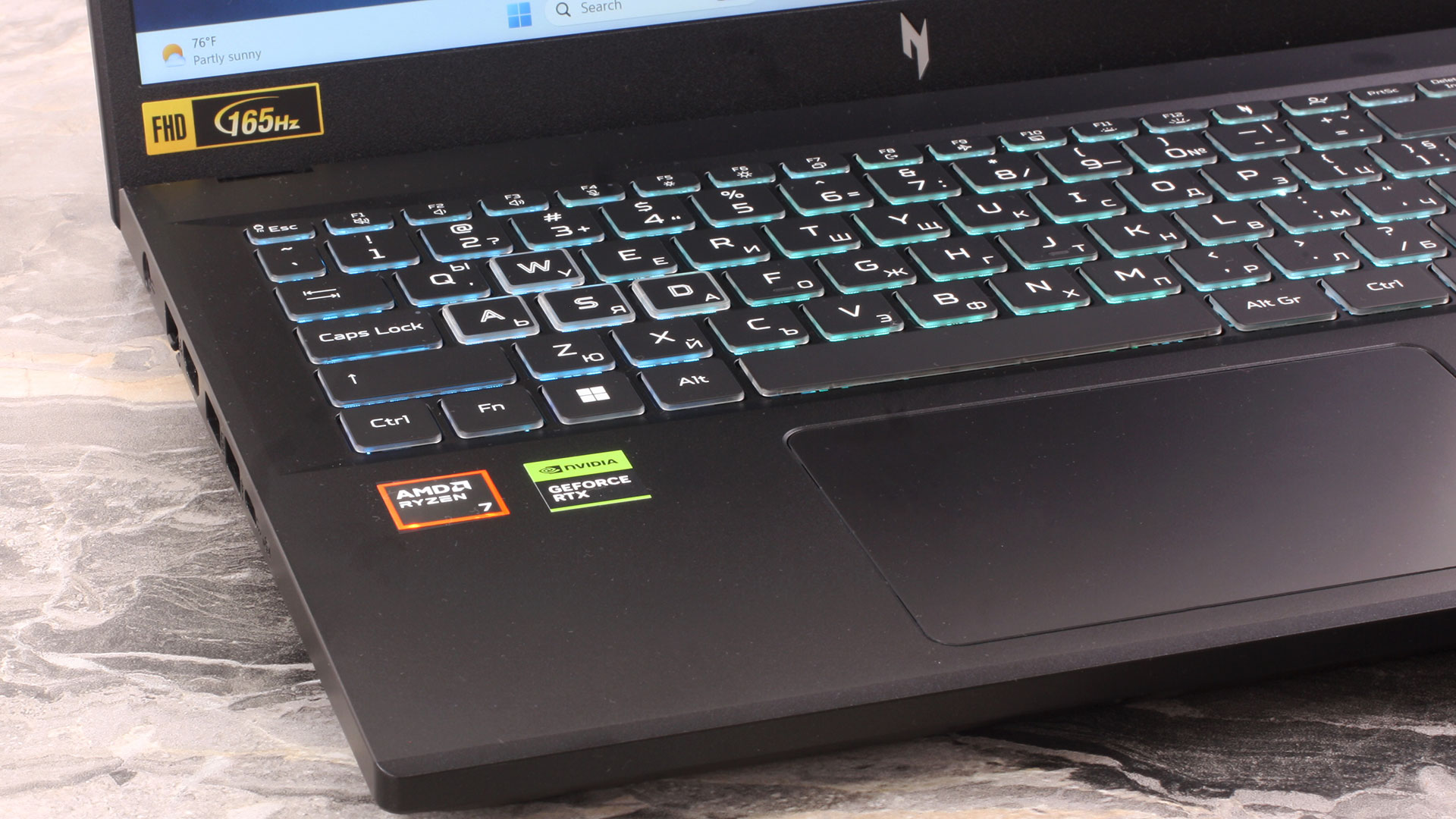
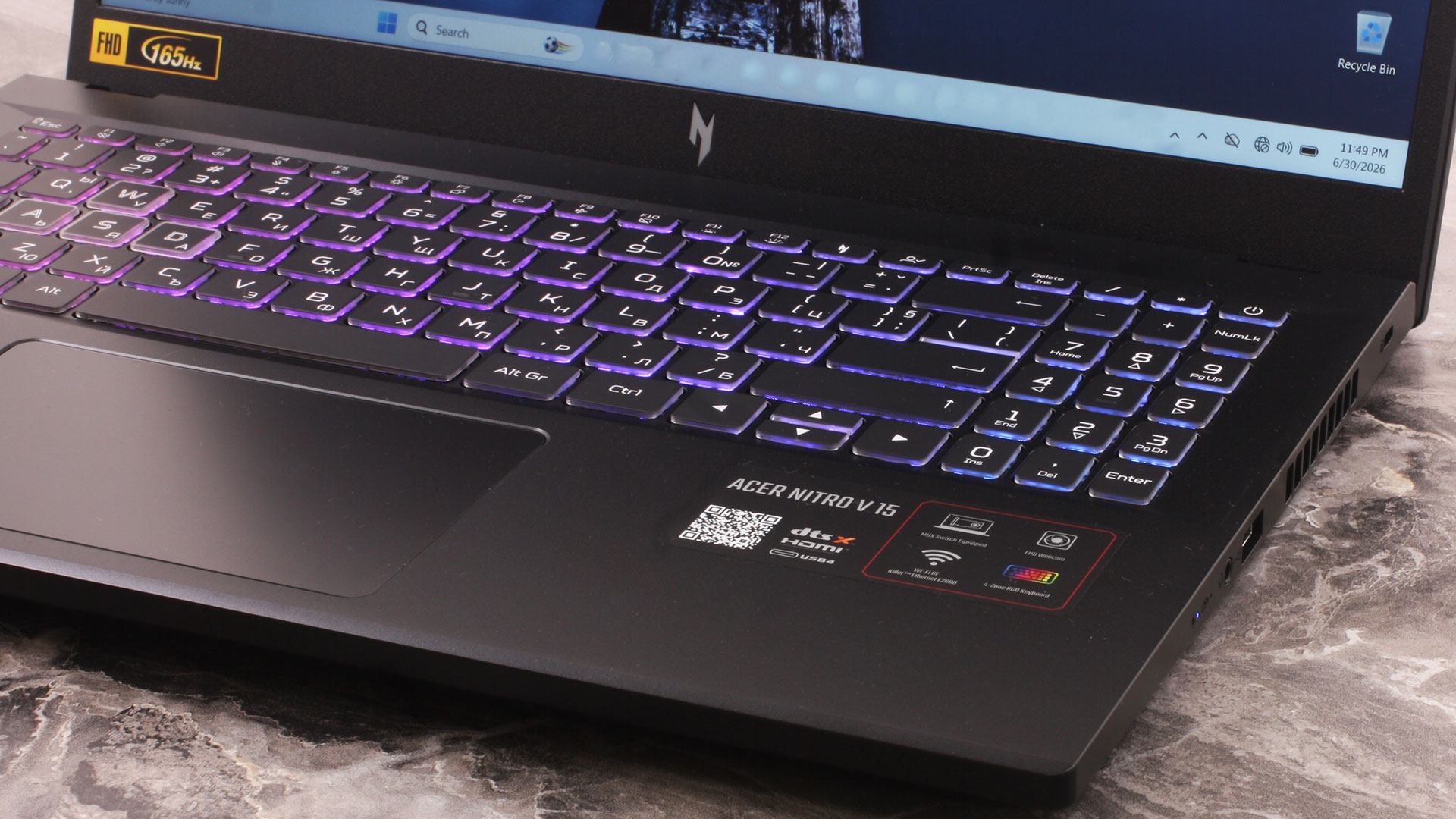
There is no fingerprint reader, so Windows authentication relies on a PIN or password.
The touchpad offers a generously sized surface for a 15-inch gaming laptop. Tracking is precise, gestures register reliably, and the integrated physical mechanism produces a distinct and satisfying click.
Ports and Connectivity
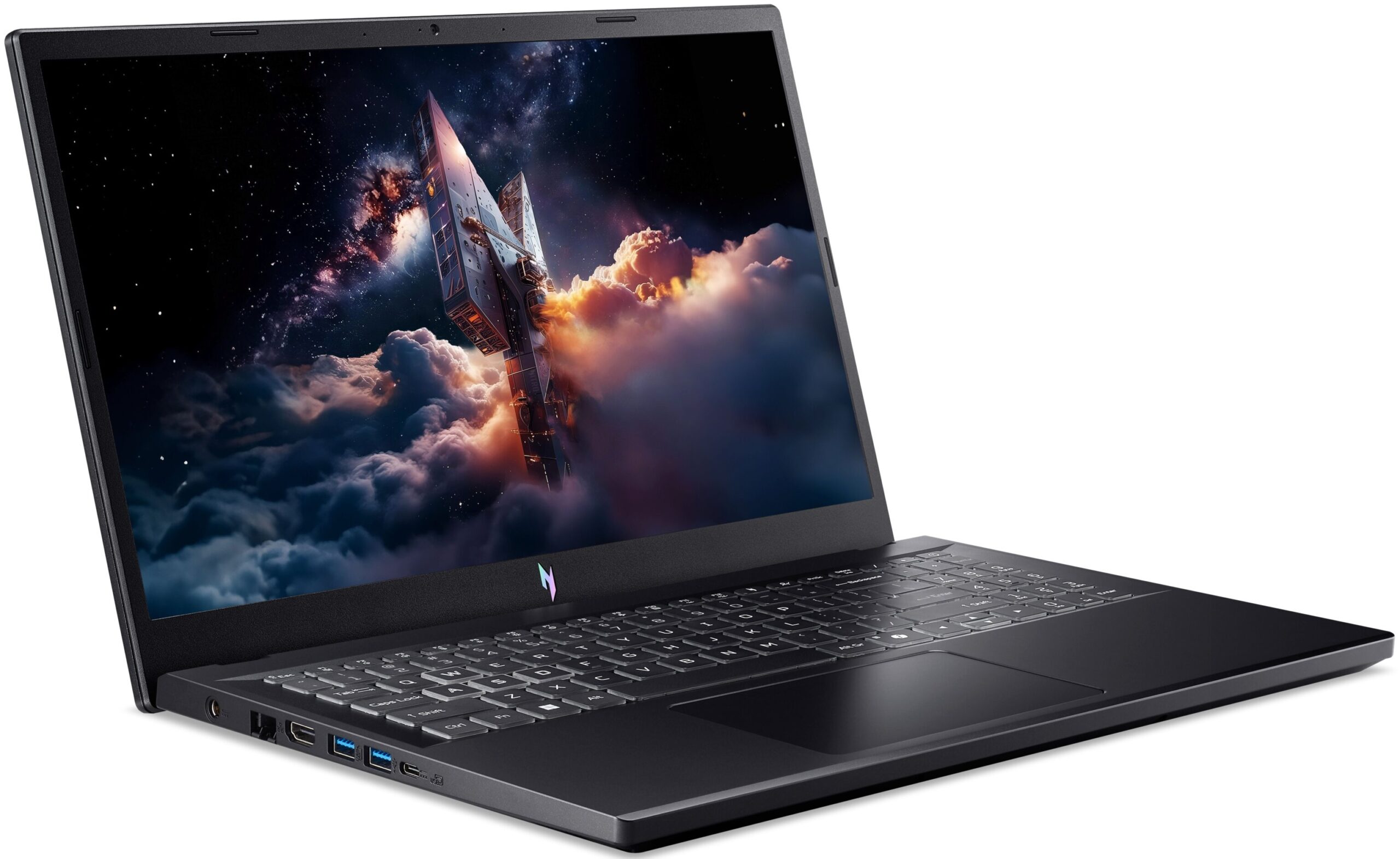
The Acer Nitro V 15 (ANV15-A31) concentrates most of its connectivity on the left side of the chassis. This can create some cable clutter when several devices are connected simultaneously, but it also keeps the thick power, Ethernet, and display cables away from the right-hand mouse area.
The left side houses the connector for the dedicated 135W power adapter, a Killer E2600 Gigabit Ethernet port, HDMI 2.1, two USB 3.2 Gen 1 Type-A ports with speeds of up to 5Gbps, and one USB4 Type-C port. One of the USB-A ports also supports charging connected devices while the laptop is switched off.
The inclusion of USB4 is a welcome feature in this price class. The Type-C port provides bandwidth of up to 40Gbps and supports DisplayPort 2.1 video output. However, the display signal is routed through the integrated Radeon GPU rather than directly through the NVIDIA graphics card, which is worth keeping in mind for users hoping to bypass the hybrid-graphics path when connecting an external monitor.
The USB-C port can also charge the laptop with a compatible adapter at up to 90W and provides up to 5V/3A of output power for connected devices. Acer explicitly notes that 90W USB-C charging is intended for basic usage, that slow charging is expected, and that full performance or gaming operation is not guaranteed. The dedicated 135W adapter therefore remains necessary when using the laptop under demanding loads.
We did not independently test USB-C charging or the external-display capabilities, so the supported power and DisplayPort specifications above are based on Acer’s documentation.

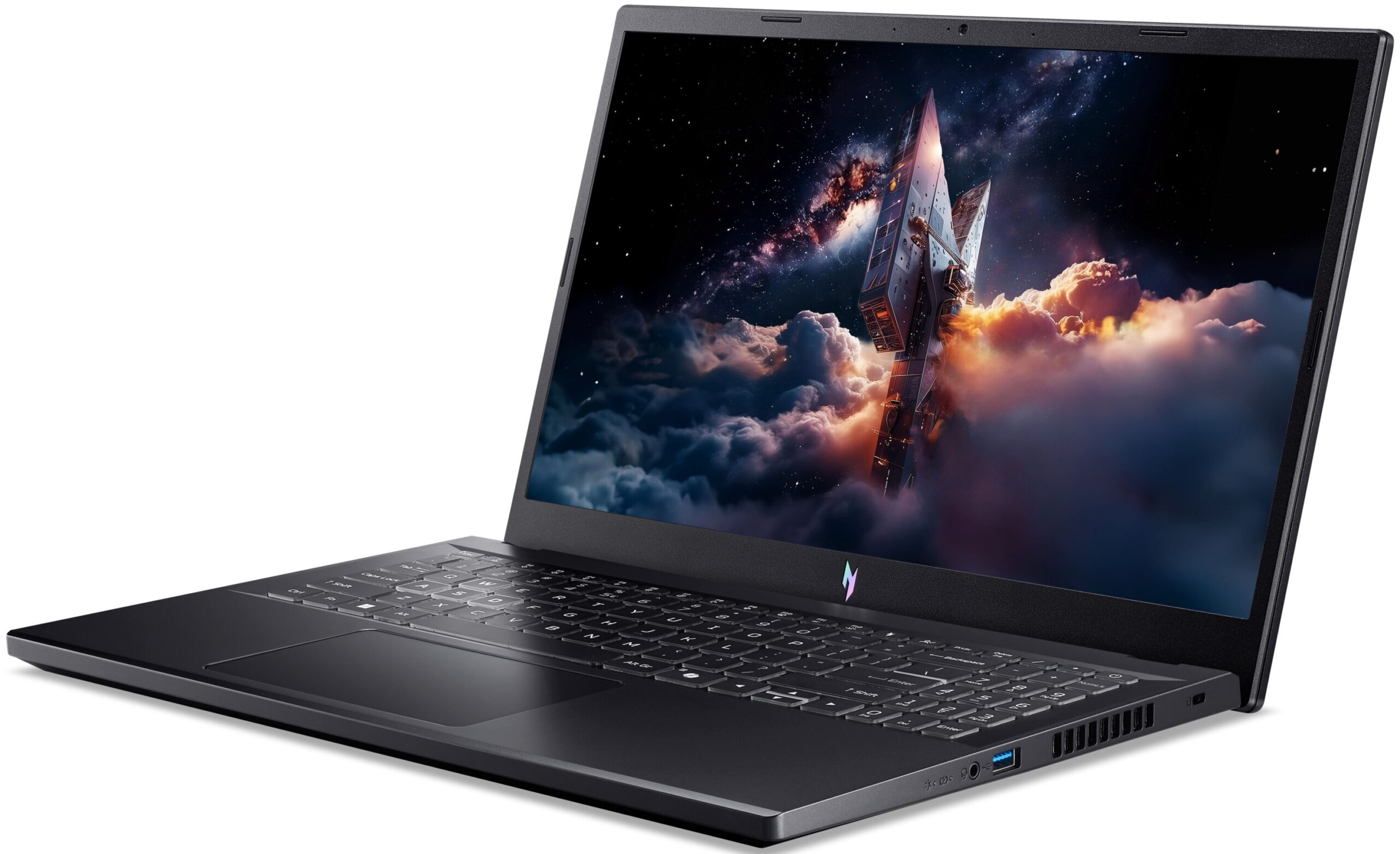
The right side is much less crowded. It includes a Kensington lock slot, a third USB 3.2 Gen 1 Type-A port operating at up to 5Gbps, and a 3.5mm combo audio jack for headphones or a headset with a microphone.
A side-facing cooling exhaust is also positioned here. While the minimal port layout leaves more room for a mouse, the vent may direct warm air toward the user’s hand when the mouse is placed close to the laptop during prolonged gaming sessions.

There are no ports on the rear, which is reserved for the cooling system and its exhaust openings.
The overall selection is versatile, particularly because of the 40Gbps USB4 port, but there are still some compromises. All three USB-A ports are limited to 5Gbps, the wired network connection is Gigabit Ethernet rather than 2.5GbE, and there is only one USB-C port. The laptop also lacks a memory card reader and a SIM slot, so photographers and video creators will need an external reader for transferring files from SD or microSD cards.
Wireless connectivity in both of our retail configurations is provided by a MediaTek RZ616 module, also known as the MT7922. It supports Wi-Fi 6E, a 2×2 antenna configuration, channels up to 160MHz wide, and connections across the 2.4GHz, 5GHz, and 6GHz frequency bands. The additional 6GHz band can provide a cleaner connection and lower interference when paired with a compatible router, although its shorter effective range should also be considered.
Bluetooth connectivity is included as well, with Acer listing Bluetooth 5.4 or later for the series. This can be used for wireless headsets, controllers, mice, and other peripherals.

Display and Sound Quality, Display Profiles
We ordered both Acer Nitro V 15 (ANV15-A31) retail configurations with the more affordable 15.6-inch Full HD (1920 x 1080) 165 Hz IPS panel (NE156FHM-NXA / BOE0D39). If you want the better display option, Acer also offers a Full HD IPS variant that goes up to 180 Hz and is explicitly listed with 300 nits of brightness, 100% sRGB coverage, and a 3 ms Overdrive response time.
| Acer Nitro V 15 (ANV15-A31) | 15.6″, Full HD (1920 x 1080), 165 Hz, IPS (NE156FHM-NXA / BOE0D39) | 15.6″, Full HD (1920 x 1080), 180 Hz, IPS (300 nits, 100% sRGB) |
| Brightness | Not specified | 300 nits |
| Diagonal | 15.6 inches (39.6 cm) | 15.6 inches (39.6 cm) |
| Panel Type | IPS | IPS |
| Resolution | 1920 x 1080 pixels | 1920 x 1080 pixels |
| Max Refresh Rate | 165 Hz | 180 Hz |
| Claimed Response Time | Not specified | 3 ms Overdrive |
| Color Coverage | Not specified | 100% sRGB |
| Adaptive Refresh | AMD FreeSync, 48–165 Hz | Not specified |
| Aspect Ratio | 16:9 | 16:9 |
| Pixel Density | 141 PPI | 141 PPI |
| ‘Retina’ Distance | 62 cm or greater | 62 cm or greater |
Both of our retail units arrived with the same 165Hz BOE panel. The measurements below were performed on the RTX 5070-equipped machine. Since the panel ID is identical in both laptops, the general characteristics should also apply to the RTX 5060 configuration, although brightness and uniformity can vary slightly between individual panels.
The Full HD resolution is adequate for a 15.6-inch gaming laptop and reduces the GPU load compared with higher-resolution panels. However, its 141 PPI density does not produce the same fine text and image detail as the increasingly common 1600p alternatives.
Our tested 165Hz panel reports AMD FreeSync support across a range of 48 to 165Hz. Native NVIDIA G-SYNC support is not reported.
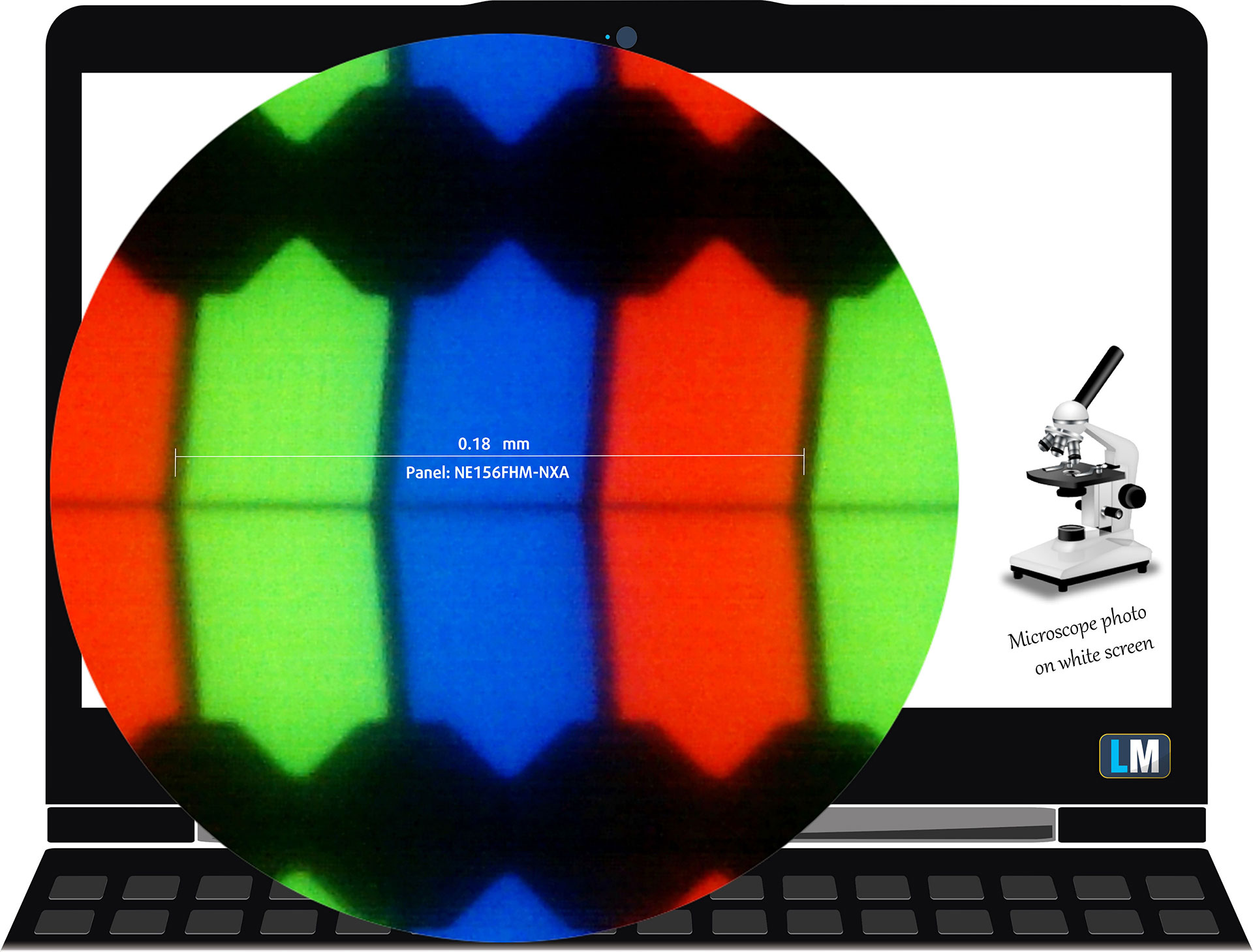
The Full HD (1920 x 1080), 165Hz IPS display variant under our microscope
Viewing Angles
The viewing angles are good. We take photos from different positions to evaluate the image quality when the screen is viewed off-axis.

Below is also a video recorded with locked focus and exposure.
Color Coverage
The sail-shaped diagram represents the visible color space, while the black curved line represents Pointer’s gamut, which approximates the colors commonly found in nature.
We have also included several important color spaces and compared them with the range of colors that the Acer Nitro V 15 (ANV15-A31) can reproduce:
Standard/For Web: sRGB – the most widely used color space for consumer devices and web content.
For Print: AdobeRGB – commonly used in professional photography, graphic design, and print production.
For Photographers/Video Editors: DCI-P3 – a wider gamut used in modern video production, post-production, and digital cinema.
Premium HDR: Rec.2020 – one of the widest consumer color standards and an important target for premium HDR content.
Acer Nitro V 15 (ANV15-A31): the yellow dashed triangle (– – – – – –) represents the range of colors this display can reproduce.
In our tests, the display covered only 54% of the sRGB color gamut and 42% of DCI-P3. This is a limited result, even for a budget gaming panel. Games, photos, and videos consequently appear less vivid than they would on a display with full sRGB coverage.
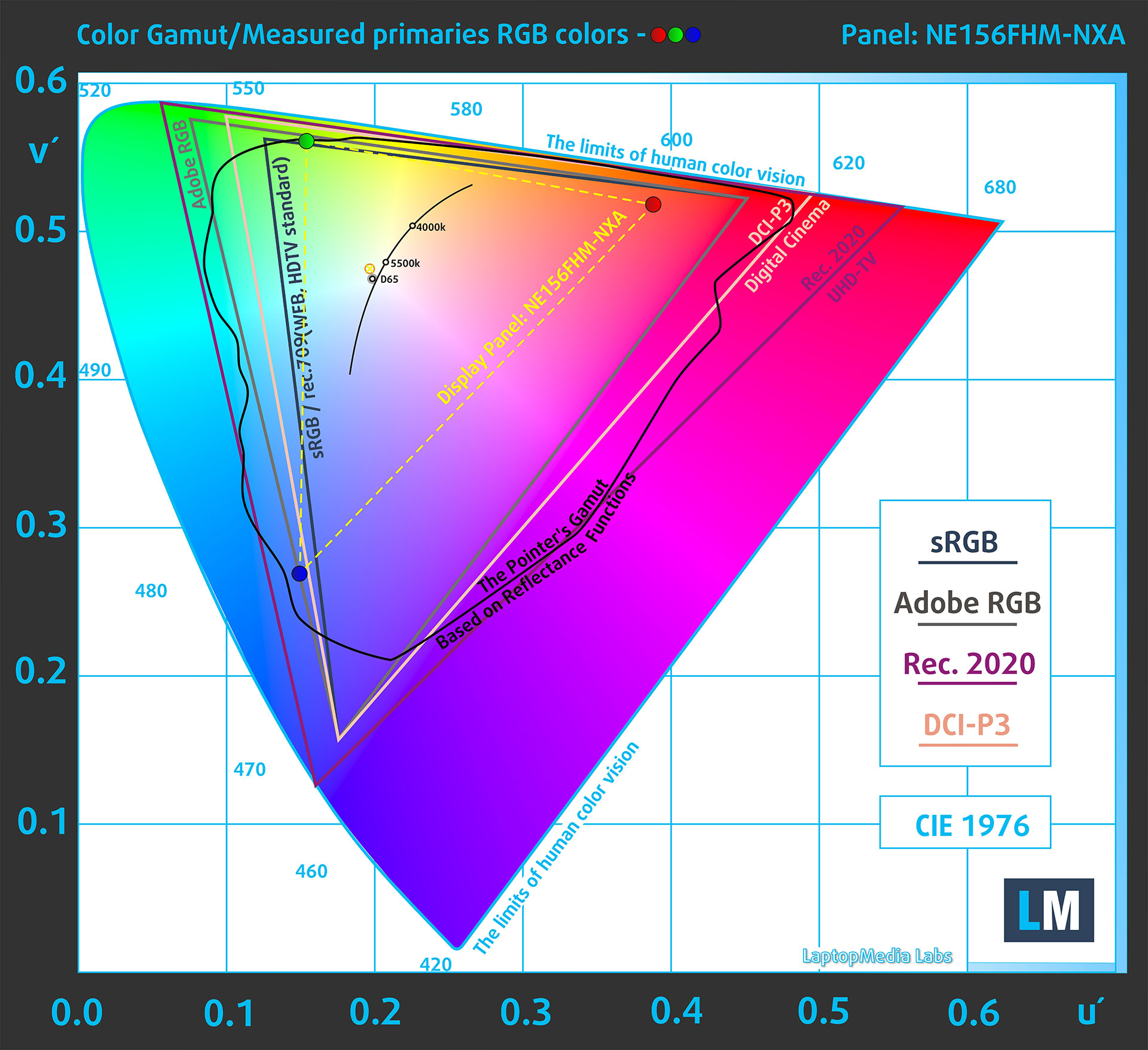
(Fig. 1) Acer Nitro V 15 (ANV15-A31) covers 54% of the sRGB gamut
Brightness and Contrast
The maximum brightness in SDR mode is 383 cd/m² in the center of the screen and 361 cd/m² averaged across the display surface, with a maximum deviation of 9%. This is a good brightness result for the class and should be sufficient for indoor use and brighter rooms.
The Correlated Color Temperature (CCT) on a white screen at maximum brightness is 6300 K. This is slightly warmer than the 6500K target but remains reasonably close to neutral.
The contrast ratio is 1820:1, which is very good for an IPS display. Dark scenes consequently have more depth than on many entry-level IPS panels, although this is still not comparable with the true blacks of an OLED screen.
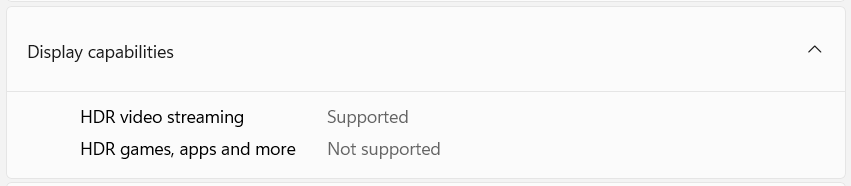
Windows reports support for HDR video streaming, but not for HDR games and applications. Combined with the panel’s limited color gamut and lack of local dimming, this should be treated as an SDR display rather than a genuine HDR solution.
Uniformity: Luminance, Contrast, and Color Deviation
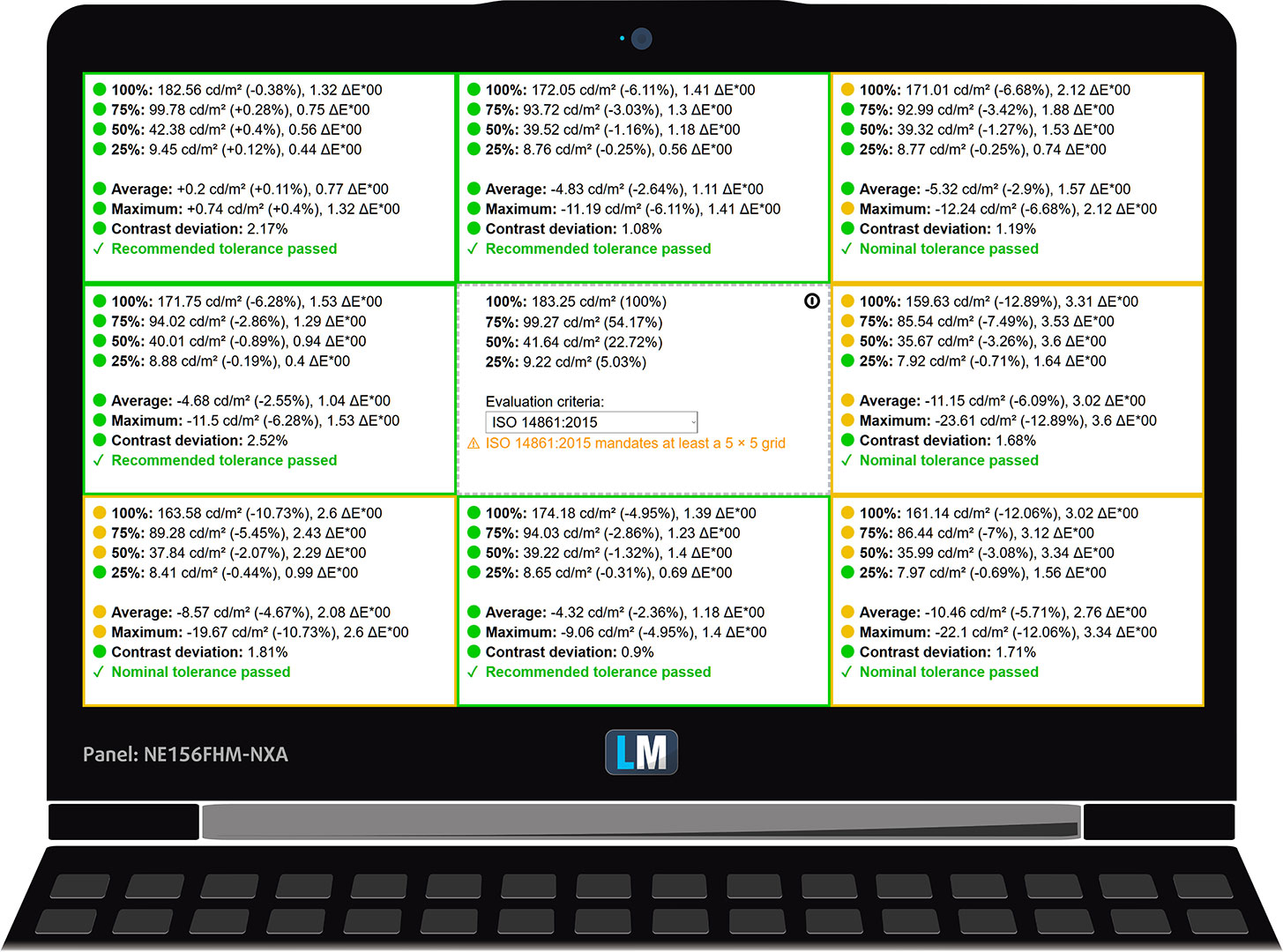
The figure below shows the results from our uniformity test across different sections of the screen. The measurements were taken at 183 nits (Windows brightness slider at 67%), which is a level we consider representative of normal working conditions.
DeltaE values below 4.0 are acceptable for general use. For color-sensitive work, a maximum DeltaE of 2.0 or lower is preferable.
Color Accuracy
Let us examine the difference between the intended colors and those displayed by the Acer Nitro V 15 (ANV15-A31). We measure this difference using DeltaE – the higher the value, the more visible the color error.
Values below 4.0 are acceptable for general use, while values below 2.0 are suitable for color-sensitive work. A result below 1.0 generally indicates that the difference is indistinguishable to the naked eye.
For the following test, we selected 24 commonly encountered colors, including light and dark skin tones, blue sky, and green grass.
In its factory condition, the display produced an average color error of 3.8 dE 2000 (Fig. 2). Applying our Design and Office Work profile reduced it slightly to 3.6 dE 2000 (Fig. 3).
This is acceptable for general use, but the improvement is modest. More importantly, calibration cannot reproduce colors that fall outside the panel’s physical gamut, so its 54% sRGB coverage still makes it unsuitable for photography, video color grading, or other color-sensitive work.
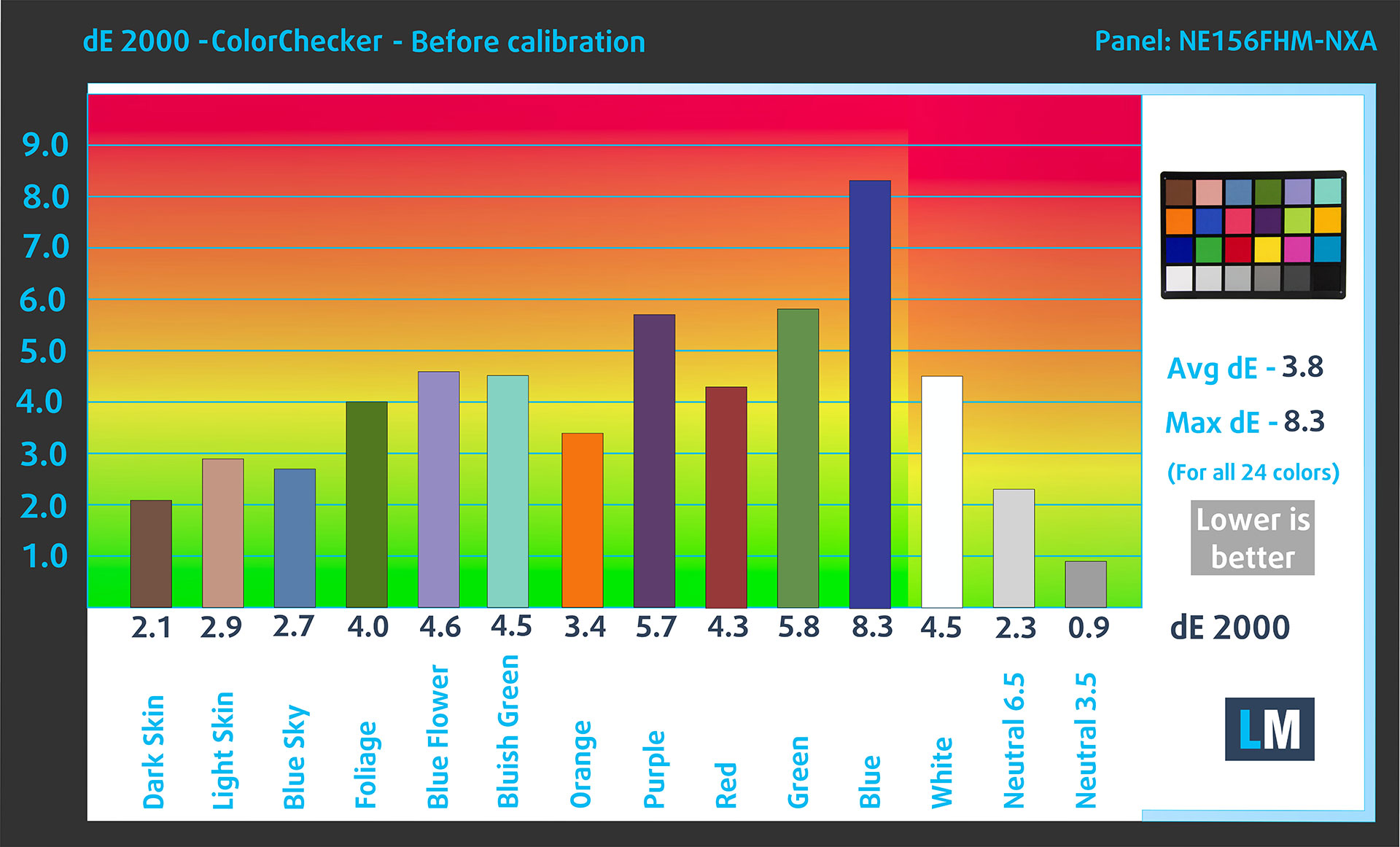
(Fig. 2) Acer Nitro V 15 (ANV15-A31) in its factory condition
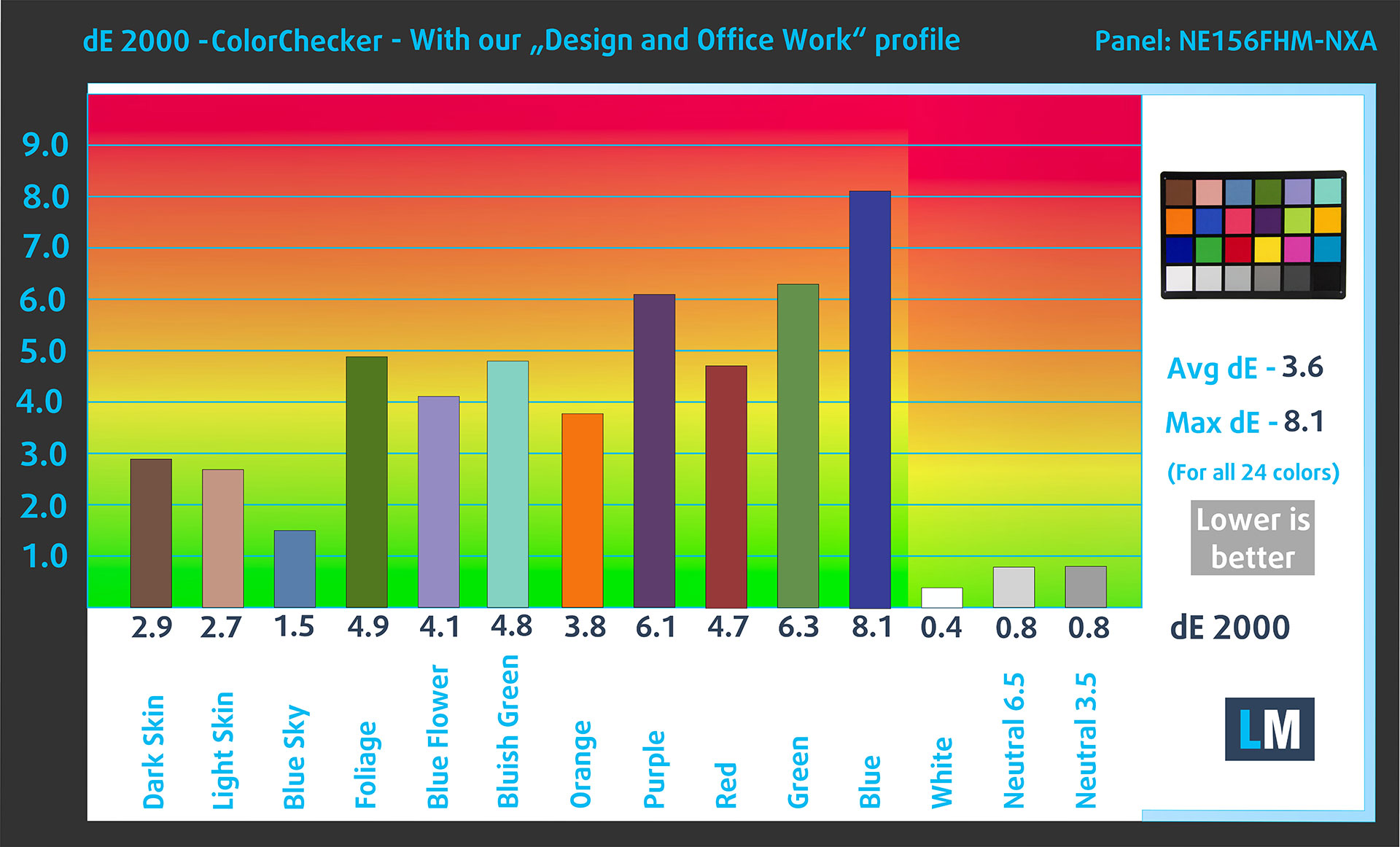
(Fig. 3) Acer Nitro V 15 (ANV15-A31) with our display profile
Comparison in the sRGB color space.
Here is an illustration of what the Design and Office Work profile aims to deliver:
Left: No Profile | Drag the slider to see the difference | Right: Design & Office Profile


Visibility in Dark Scenes
Have you ever watched a movie or played a game with dark scenes where important details were barely visible? This often happens because a display struggles to differentiate between the darkest grayscale levels, causing them to blend together.
The following figure illustrates how well the panel reproduces these dark nuances. The left side shows the display with its factory settings, while the right side shows it with our Gaming and Movies profile enabled.
The horizontal axis represents the grayscale levels, while the vertical axis shows the corresponding display brightness.
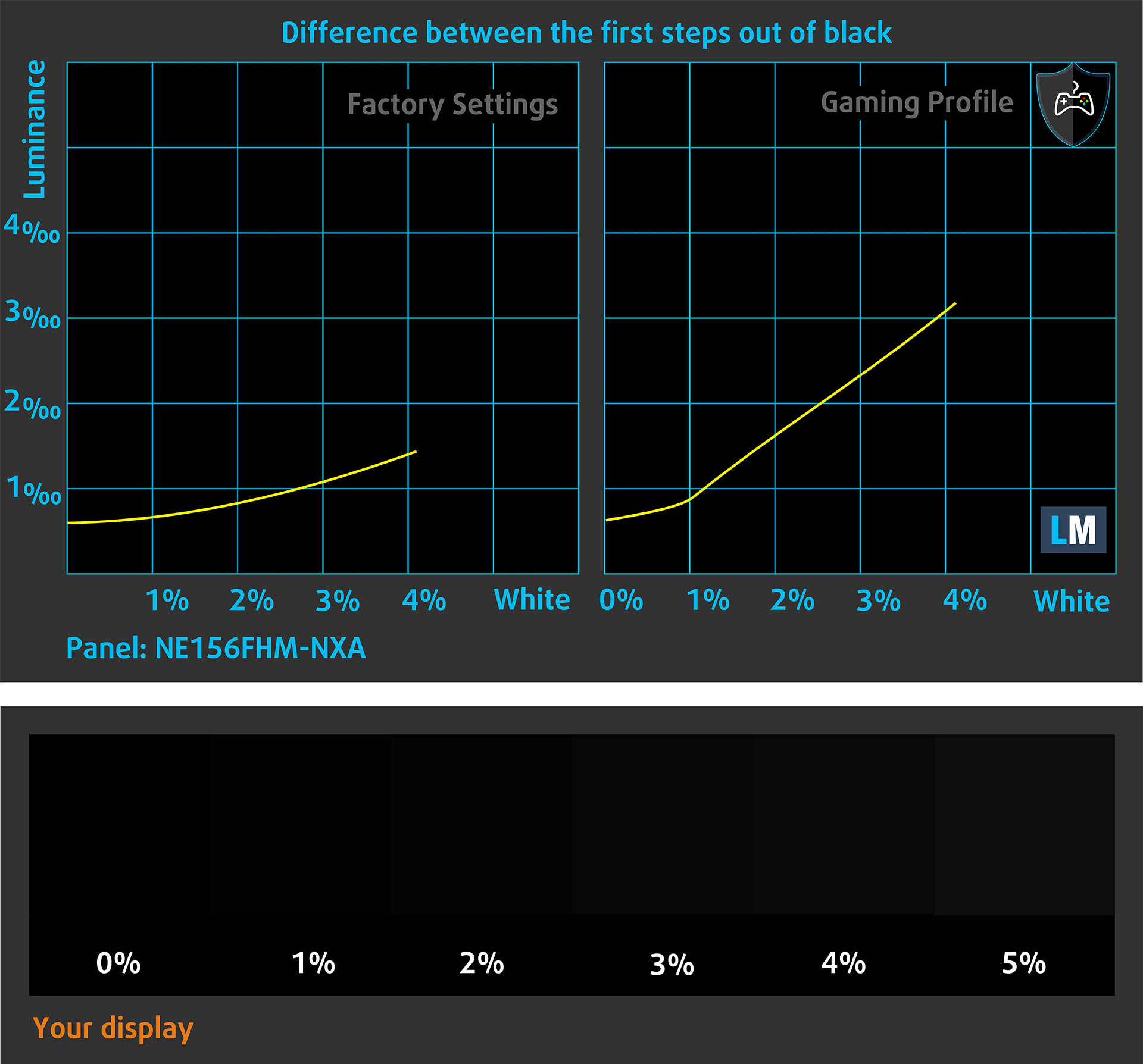
You can also check how your current display handles the darkest nuances, but keep in mind that the visible result depends on your screen settings and surrounding light conditions.
Response Time (Gaming Capabilities)
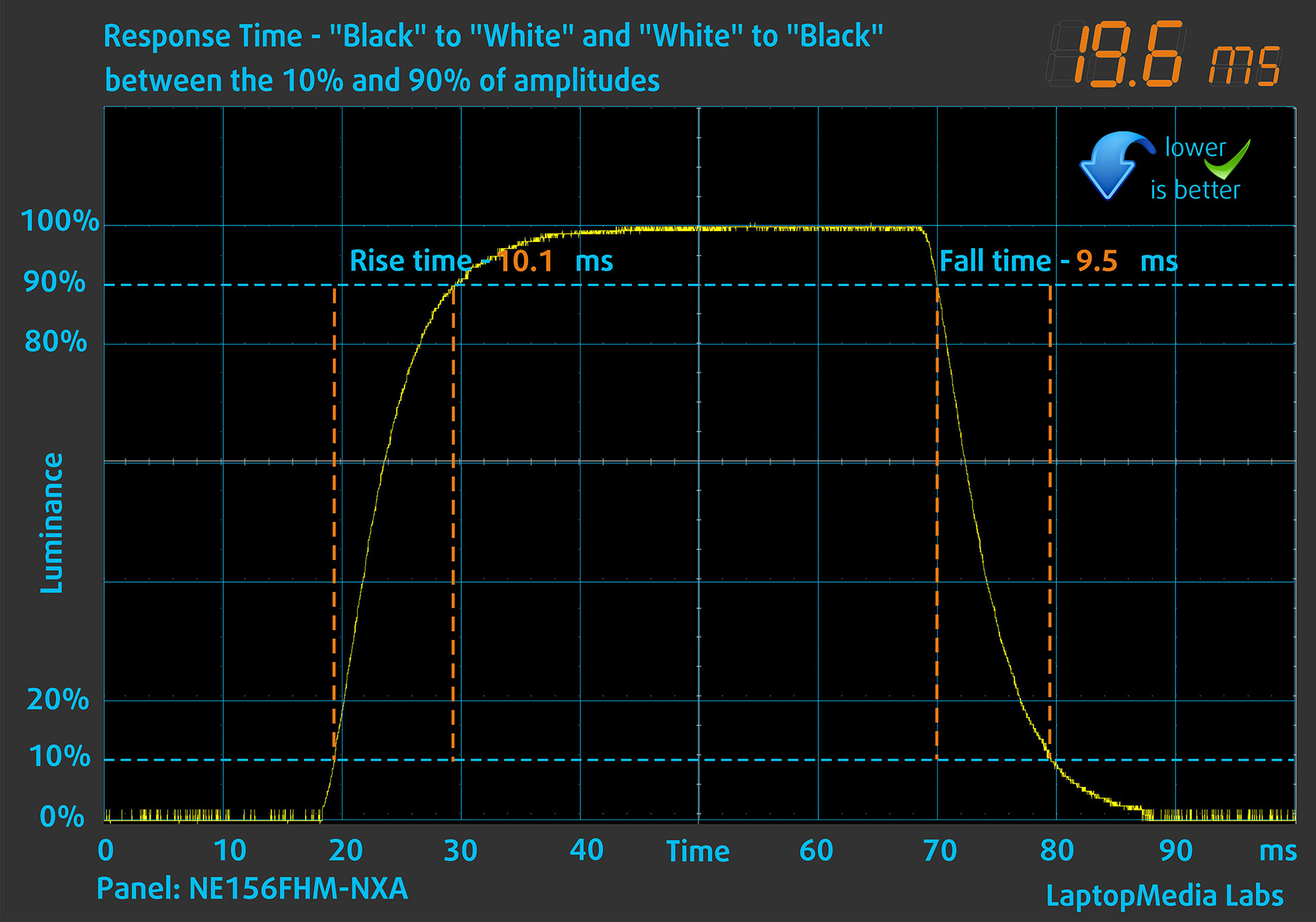
We first test pixel response time using the usual black-to-white and white-to-black method, measuring between 10% and 90% of the signal amplitude and vice versa.
We recorded a combined Rise Time + Fall Time of 19.6 ms. This is a mediocre result for an IPS-class LCD panel and considerably slower than we would expect from a gaming display advertised with a 165Hz refresh rate.
We then use a Gray-to-Gray transition from 50% White to 80% White and back, again measuring between 10% and 90% of the amplitude. In this test, the panel required a combined 37.0 ms, consisting of a 17.8 ms rise time and a 19.2 ms fall time.
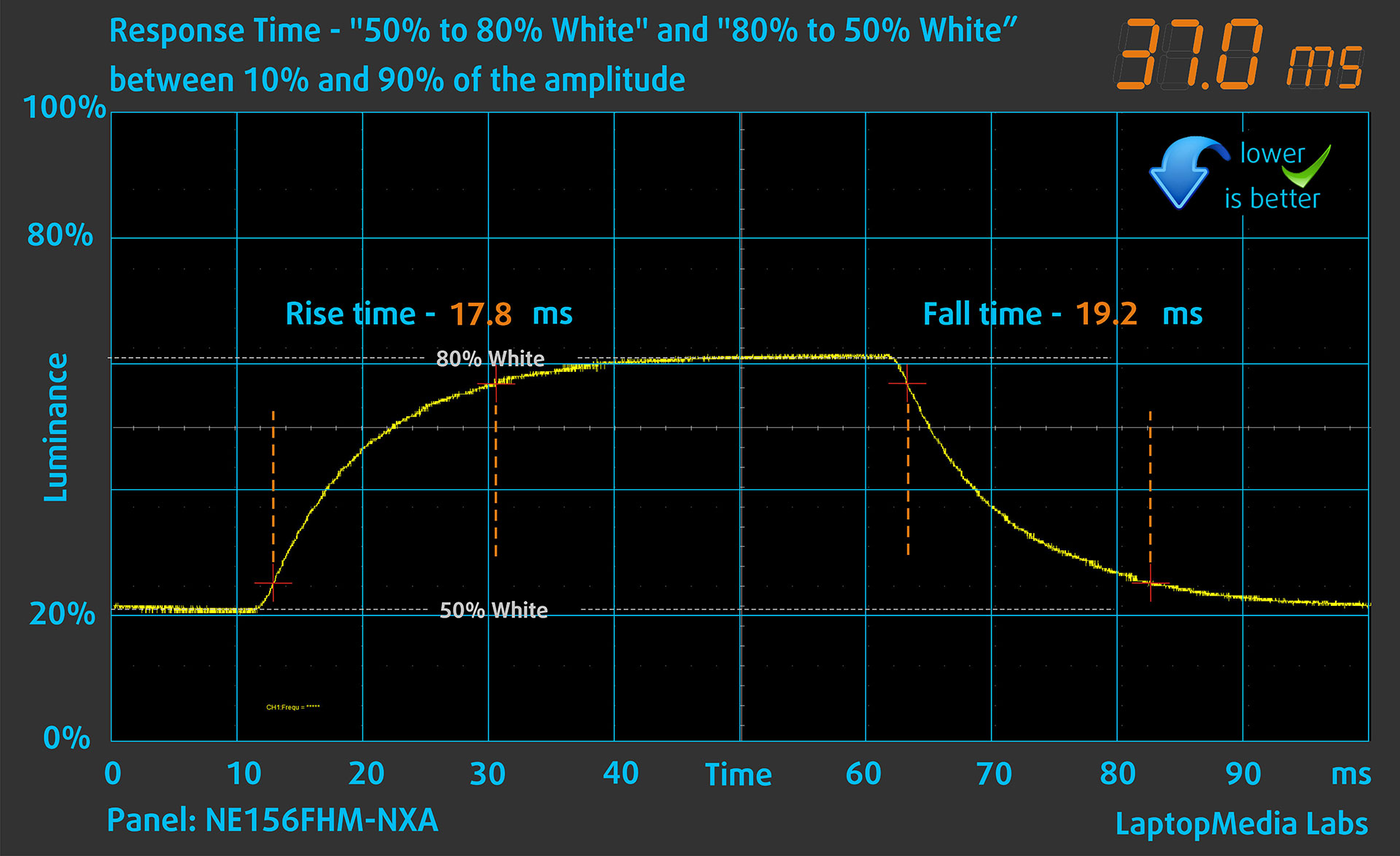
These results reveal the main weakness of the display. Although the 165Hz refresh rate improves input responsiveness and the frequency at which new frames can be shown, the pixels themselves are too slow to complete many transitions within a single refresh cycle. Visible trailing and ghosting should therefore be expected in fast-moving games.
Casual gaming still benefits from the higher refresh rate, but competitive players looking for sharp motion clarity will not receive the full visual benefit normally associated with a good 165Hz gaming panel.
Health Impact: PWM (Screen Flickering)
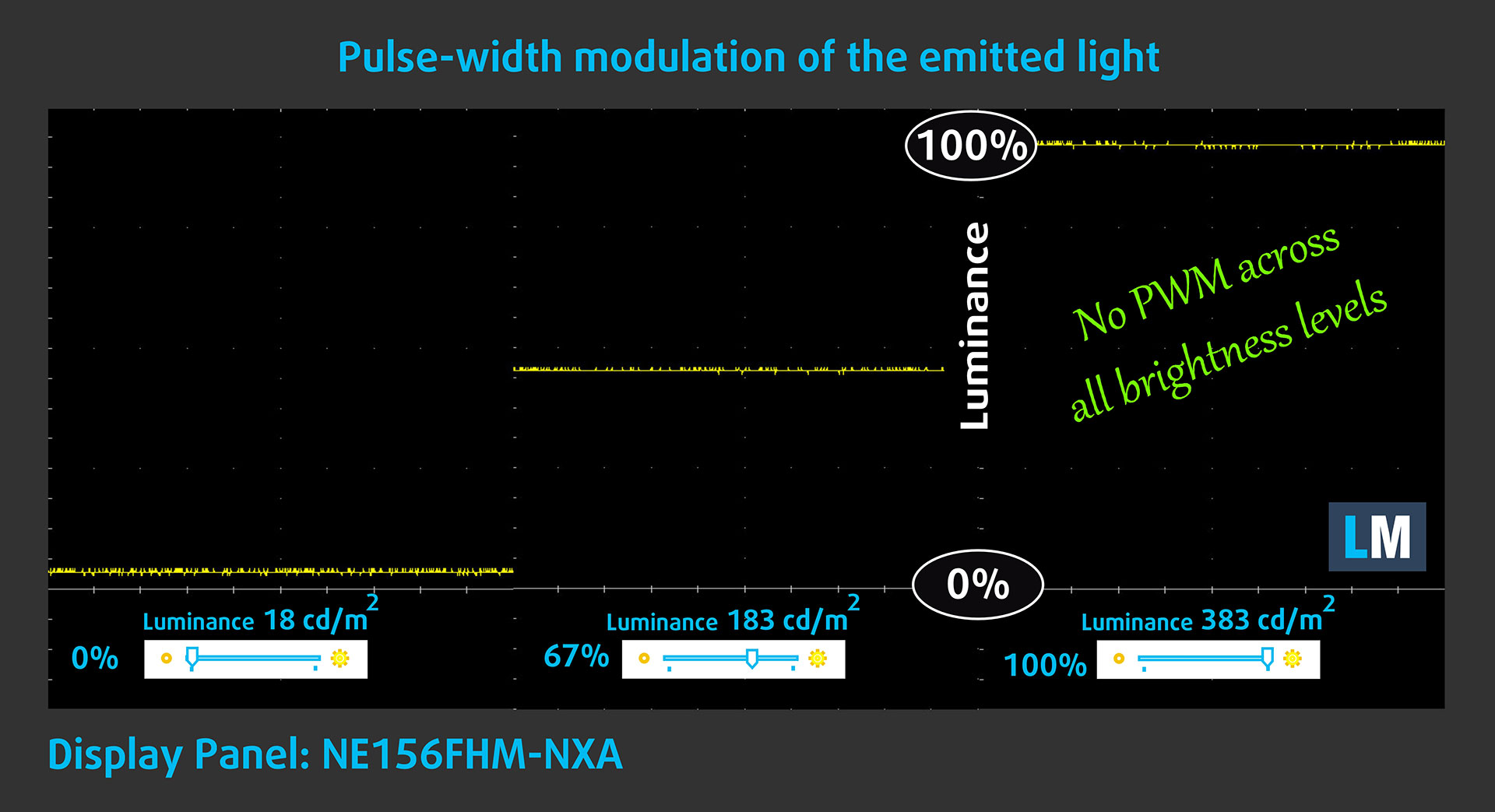
Some displays use PWM to regulate brightness, meaning that instead of continuously reducing the backlight intensity, they rapidly pulse it on and off. The image appears darker to the viewer, but low-frequency PWM can increase eye strain for sensitive users. You can read more in our dedicated article on PWM.
The graph below shows the light intensity at different brightness levels. The vertical axis represents emitted-light intensity, while the horizontal axis represents time.
The Acer Nitro V 15 (ANV15-A31) does not use PWM to regulate display brightness. This is an important advantage for users who are sensitive to flickering and makes the screen more comfortable for prolonged use in this regard.
Health Impact: Blue Light Emissions
Our Health-Guard profile reduces blue-light emissions and may improve viewing comfort, particularly during evening use, while keeping colors perceptually accurate. On PWM-controlled displays, it can also reduce flicker by maintaining a PWM-free backlight level and controlling perceived brightness through the profile. For maximum color accuracy, use the Design and Office profile.
You can find more information in our dedicated article about Blue Light.
Health Impact: Screen Reflectance
Displays with high surface reflectance can cause additional eye fatigue in bright ambient conditions because of visible reflections. We measure screen reflectance with the display switched off and positioned at a 60-degree angle.
The Acer Nitro V 15 (ANV15-A31) recorded a reflectance value of 53.2 GU. This places it in our medium-reflectance category, though relatively close to the low-reflectance threshold. In practice, the matte surface keeps reflections reasonably manageable under normal indoor lighting.
Low Reflectance: < 45 GU
Medium Reflectance: 45–80 GU
High Reflectance: > 80 GU
Sound Quality
The Acer Nitro V 15 (ANV15-A31)’s speakers deliver good sound for the class. Mids and highs remain clear, which is useful for dialogue, voice communication, and general media consumption. As expected from a relatively compact laptop speaker system, true low-bass extension is limited.
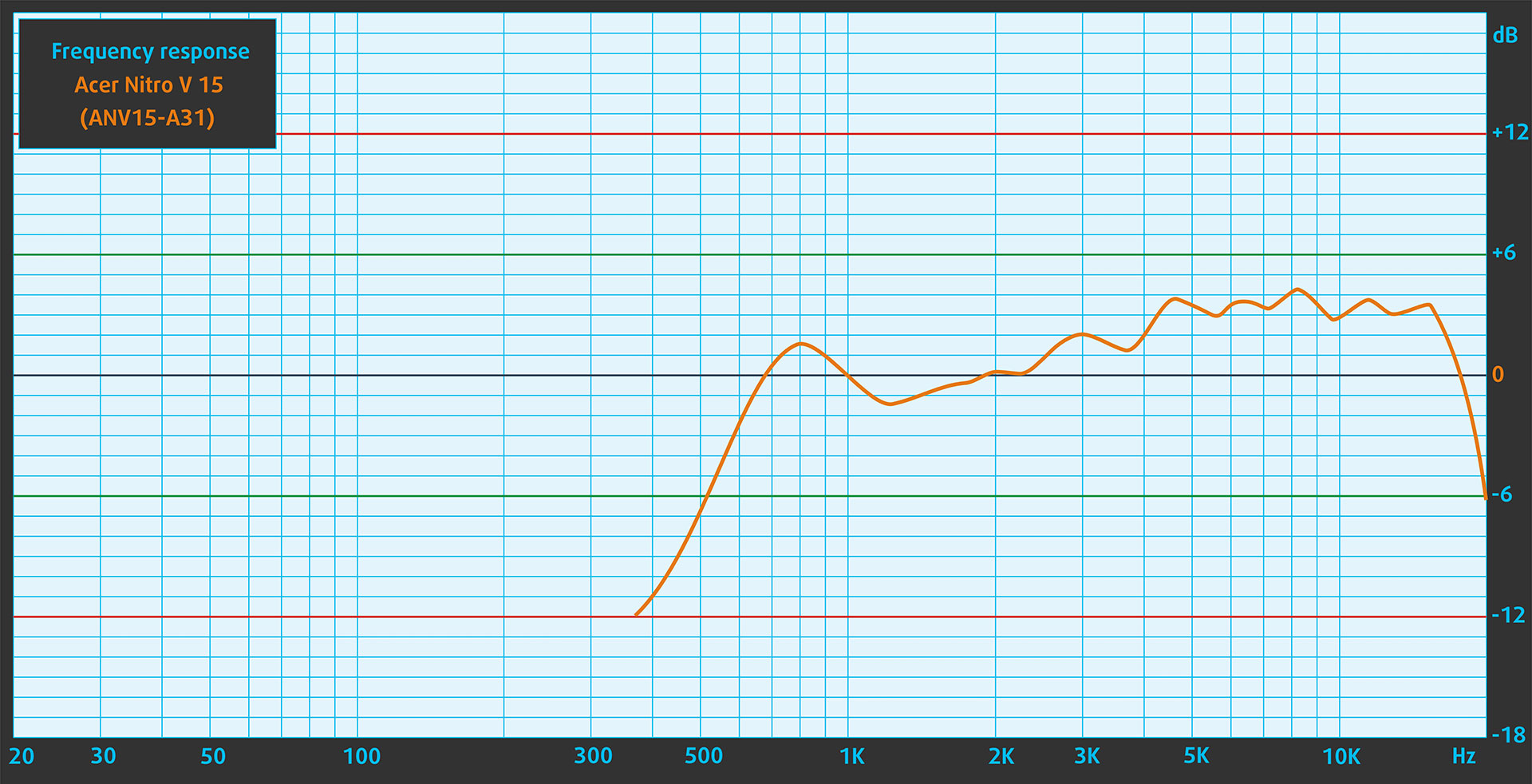
Acer also advertises DTS:X Ultra processing and a high-SNR headphone output capable of delivering up to 2.1 Vrms and driving high-impedance headphones rated at up to 600 ohms. We did not independently verify the output voltage or test the laptop with 600-ohm headphones, so these should be treated as manufacturer specifications rather than our measured findings.
Get Our Profiles
Our profiles are created for each individual display model. This article and its respective profile package are therefore intended specifically for Acer Nitro V 15 (ANV15-A31) configurations equipped with the NE156FHM-NXA (BOE0D39), 1920 x 1080, IPS panel.
Both of the retail configurations tested for this review (the RTX 5060 and RTX 5070 versions) used this exact panel. Other regional configurations may ship with a different display, so check your panel model before purchasing a profile.
Should you have problems downloading the purchased file, try using a different browser to open the link you receive via email. If the downloaded file has a .php extension instead of being an archive, change the extension to .zip or contact us at [email protected].
Read more about the profiles HERE.
In addition to receiving efficient and health-friendly profiles, by buying LaptopMedia's products you also support the development of our labs, where we test devices in order to produce the most objective reviews possible.

Design and Office
The Design and Office profile makes display colors as close to real as possible.Ideal not only for professionals but also for everyday users, it meets sRGB standards (D65 white point, sRGB gamma) with minimal DeltaE for precise color reproduction on your panel.

Gaming and Movies
Have you ever watched a movie where, during dark scenes, you can barely see anything? Many displays fail to distinguish dark tones properly. Our Gaming and Movies profile enhances low-light performance, like HDR tech, using a gamma curve tailored to human perception — ideal for gamers seeking faster reactions and clearer visuals.

Health-Guard
Our Health-Guard profile protects your eyes by eliminating PWM flickering, reducing strain and fatigue, and minimizing harmful Blue light exposure that can disrupt sleep and health. It uses software dimming and a gamma curve tailored to human perception for comfort and safety during screen use.
Get All The Profiles With 33% Discount!

Work Performance: CPU, Storage, AI
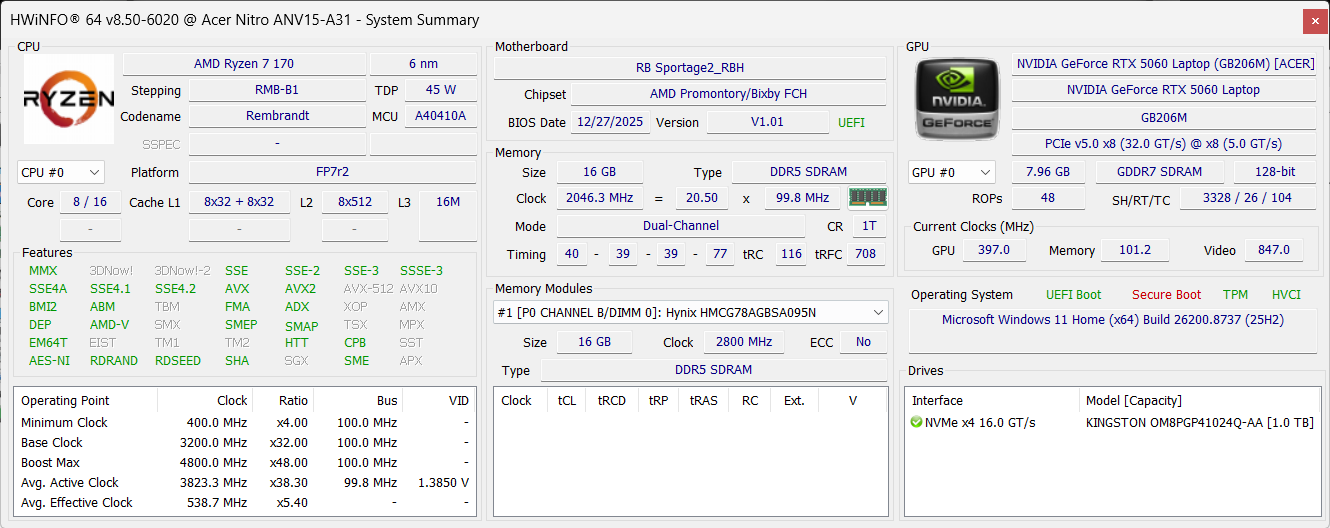
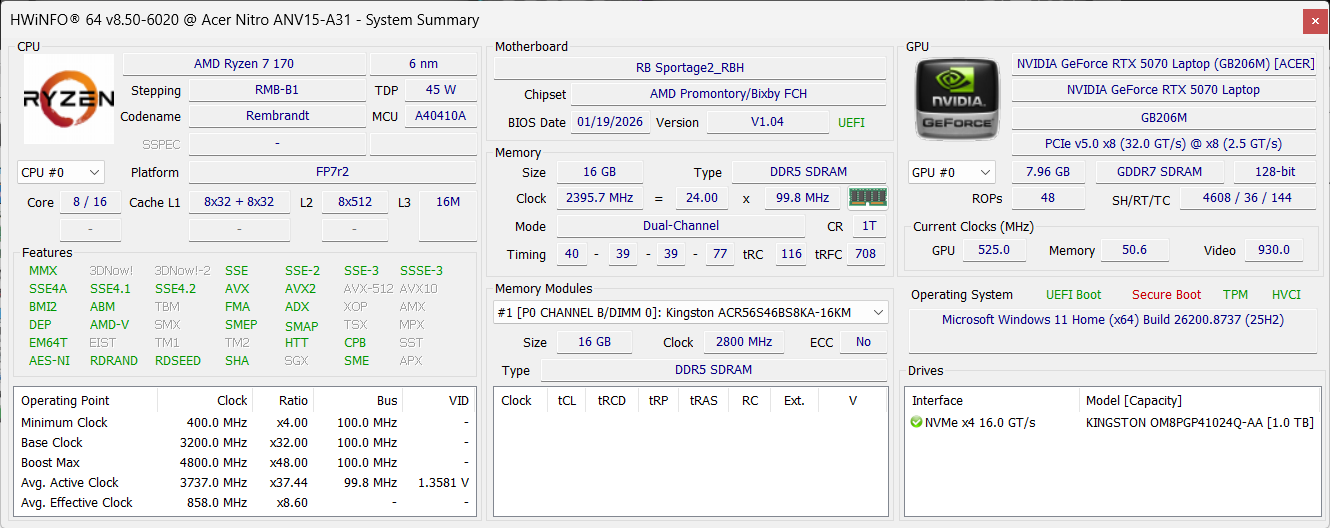
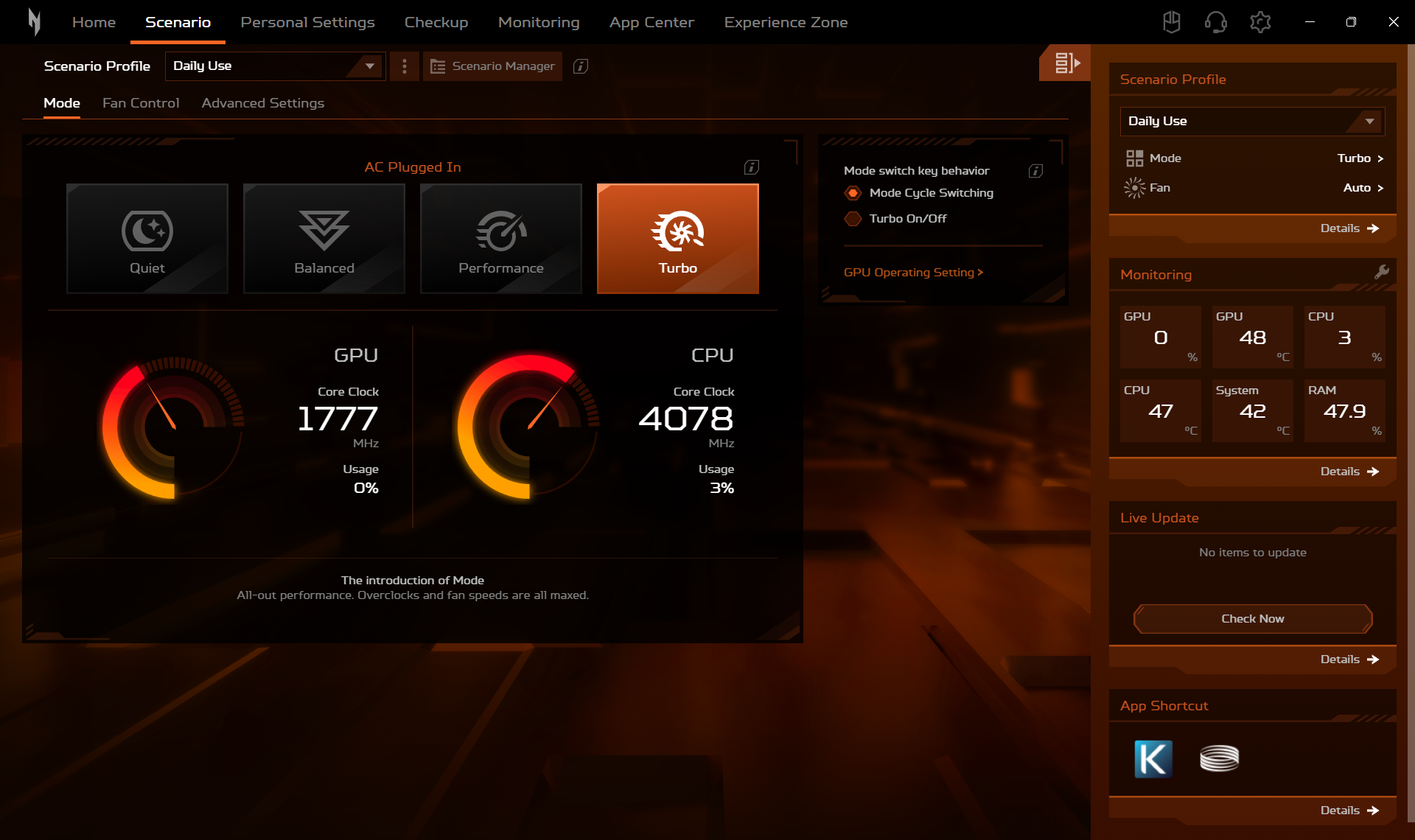
All performance and temperature tests were conducted in NitroSense Turbo mode, with the GPU mode set to Discrete GPU only (dGPU), while connected to the original 135W power adapters.
CPU and Work Performance
The Acer Nitro V 15 (ANV15-A31) is available with the AMD Ryzen 7 170 and Ryzen 5 150. Despite their relatively recent naming, these are not latest-generation AMD designs. Both are based on the older 6nm Rembrandt platform and Zen 3+ architecture. The Ryzen 7 170 has 8 cores and 16 threads with a boost clock of up to 4.75 GHz, while the Ryzen 5 150 uses 6 cores and 12 threads with a maximum boost of 4.55 GHz.
Our GeForce RTX 5060 and RTX 5070 retail configurations both use the Ryzen 7 170, and their CPU results are practically identical. The difference between the two machines remains below 1% in Geekbench 6 Single-Core, Geekbench 6 Multi-Core, and Cinebench 2024, confirming that choosing between the two GPU configurations has no meaningful effect on CPU performance.
The Ryzen 7 170 is adequate for everyday productivity, gaming, and occasional heavier work, but it falls noticeably behind the processors found in many contemporary gaming laptops. The Ryzen 7 260 in the Acer Nitro V 16 AI ANV16-42 (detailed review) is approximately 29% faster in Geekbench 6 Single-Core and around 22% ahead in both Geekbench 6 Multi-Core and Cinebench 2024.
The Ryzen 7 250 in the Lenovo LOQ 15 Gen 10 15AHP10 (detailed review) extends the advantage to around 33% in single-core performance, 55% in Geekbench 6 Multi-Core, and 31% in Cinebench 2024. Users who regularly perform CPU rendering, software compilation, video encoding, or other heavily threaded work should therefore consider a laptop with a newer processor.
Both of our retail units arrived with a single 16GB DDR5-4800 SO-DIMM and an unoccupied second memory slot. The results below therefore represent the laptops exactly as sold. Installing a second compatible module may improve performance in some memory-sensitive workloads, but we were unable to quantify the difference on these machines.
For a broader comparison, check our Top Laptop CPU Ranking.
Single-core performance ensures smooth operation and responsiveness in operating systems, providing a better user experience.
Results are from the Geekbench 6 Single-Core test (higher is better)
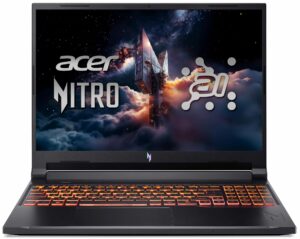

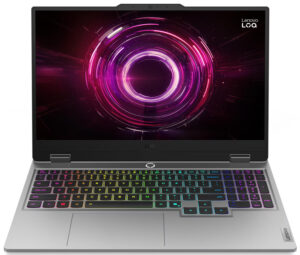


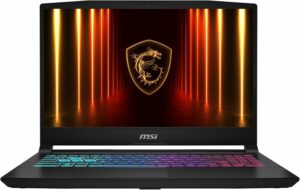
Multi-core performance is essential for handling complex and demanding tasks, such as Video editing, CAD, and Scientific simulations.
Results are from the Geekbench 6 Multi-Core test (higher is better)
Here, we evaluate the CPU's performance using a real-world 3D rendering task, assessing its ability to handle complex computations and rendering workloads efficiently.
Results are from the Cinebench 2024 Multi-Core test (higher is better)
Storage Performance
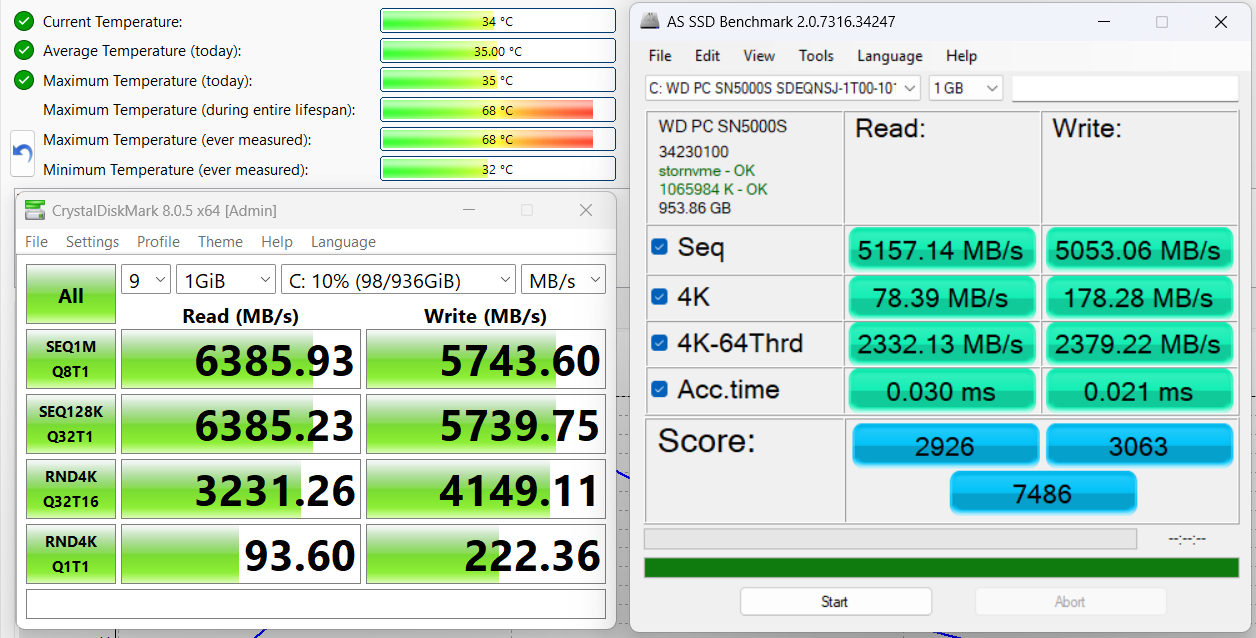
We ordered both of our retail configurations with 1TB of storage, but they arrived with different SSDs. One machine uses a WD PC SN5000S 1TB, while the other is equipped with a Kingston OM8PGP41024Q-AA 1TB. This suggests that the exact storage device is not necessarily tied to the GPU configuration and may vary between production batches depending on component availability.
The benchmark shown below belongs to the WD-equipped unit. This PCIe 4.0 x4 NVMe drive delivers excellent short-burst performance, reaching 6.39GB/s in sequential reads and 5.74GB/s in sequential writes in CrystalDiskMark. It also achieved 5.16GB/s read and 5.05GB/s write speeds in AS SSD.
The drive reached a maximum temperature of 68 °C during the benchmark before cooling to approximately 34–35 °C at idle. This is a rather warm result, although it remains within the SSD’s specified operating range.
The WD PC SN5000S uses QLC NAND, while Kingston officially identifies the closely related OM8PGP41024Q-A0 as a TLC-based drive. Our installed Kingston SSD reports the slightly different OM8PGP41024Q-AA identifier, so we would avoid assigning it a specific endurance rating without documentation for that exact revision.
Since we did not run the same complete benchmark on the Kingston-equipped unit, we cannot rank the two drives conclusively. The main takeaway is that buyers should not expect every Acer Nitro V 15 (ANV15-A31) to include the same SSD – the installed model appears to vary according to component availability.
AI Performance
The Ryzen 7 170 is based on AMD’s pre-Ryzen AI Rembrandt platform and does not include a dedicated NPU. Local AI acceleration therefore relies primarily on the GeForce RTX GPU and its Tensor cores.
Here you can see the position of the GPUs and CPUs (NPUs) found within the Acer Nitro V 15 (ANV15-A31) in our AI Hardware Performance Rankings based on their AI processing power, measured in TOPS (Tera Operations Per Second) - a critical metric indicating the computational throughput, particularly for AI tasks.
The first column shows peak performance for INT8/FP8 precision, which is the most widespread metric for evaluating AI inference capabilities. We exclude Sparsity to provide a more accurate reflection of AI performance in dense computation scenarios where sparsity optimizations may not be applicable. The second and third columns show the performance with Sparsity, and FP4 TFLOPS, when supported.
For SoCs, the results reflect the peak performance of the integrated NPU. Additionally, it’s important to note that, according to Microsoft, a NPU must have at least 40 TOPS of AI computing power for the PC to be considered “AI-capable.”
| # | GPU / CPU (NPU) | TOPS INT8/FP8 No Sparsity | TOPS INT8/FP8 Sparsity | TFLOPS FP4 Sparsity |
|---|---|---|---|---|
| 849. | NVIDIA GeForce RTX 5070 (Laptop, 8GB GDDR7) | 173 | 346 | 692 |
| 1011. | NVIDIA GeForce RTX 5060 (Laptop) | 133 | 266 | 532 |
GPU and Gaming Performance
Graphics options for the Acer Nitro V 15 (ANV15-A31) include the NVIDIA GeForce RTX 5050, RTX 5060, and RTX 5070 Laptop GPUs. Our two retail configurations use the RTX 5060 and RTX 5070, but both graphics cards are restricted to a maximum power limit of 75W.
This is an important detail because the same laptop GPU can perform very differently depending on its power allocation and cooling system. In this case, the relatively low limit places both versions well below the power levels used by many competing gaming laptops, particularly affecting the RTX 5070’s ability to use its additional processing resources.
The RTX 5070 configuration scored 11,869 points in 3DMark Time Spy Graphics and 21,227 points in Wild Life Extreme Unlimited. That makes it only around 8% faster than the RTX 5060 version in Time Spy and 7% faster in Wild Life Extreme. This is a rather modest advantage for moving up to the higher GPU tier and confirms that the shared 75W limit substantially narrows the gap between the two graphics cards.
Compared with other RTX 5070 laptops, the Nitro V 15 sits near the lower end of the performance range. The RTX 5070 in the Acer Nitro V 16 AI ANV16-42 (detailed review) is approximately 13% faster in Time Spy and 12% faster in Wild Life Extreme. The higher-powered RTX 5070 in the Lenovo LOQ 15 Gen 10 15AHP10 (detailed review) extends its advantage to around 17–18%.
The RTX 5060 version is more competitive within its class. It trails the RTX 5060-equipped Lenovo LOQ 15 by approximately 12% in Time Spy and 14% in Wild Life Extreme, but comfortably outperforms lower-powered implementations. Compared with the ASUS V16 V3607 (detailed review), the Nitro is around 14–15% faster across the two tests.
These results suggest that the RTX 5060 is the more natural match for the Nitro V 15’s limited power budget. The RTX 5070 remains faster, but much of its additional potential is left unused. Its value therefore depends heavily on the price premium: unless the two configurations are priced relatively close together, the RTX 5060 model is likely to offer the better price-to-performance ratio.
You can compare these GPUs with many other laptop graphics solutions in our Top Laptop Graphics Ranking.
The results are from 3DMark Time Spy (Graphics). Higher is better.
The results are from 3DMark Wild Life Extreme Unlimited. Higher is better.
Gaming Tests
We tested both of our retail Acer Nitro V 15 (ANV15-A31) configurations under the same conditions. Despite belonging to different GPU tiers, the GeForce RTX 5060 and RTX 5070 operate with the same 75W power limit, and the real-world gaming gap between them is surprisingly small.

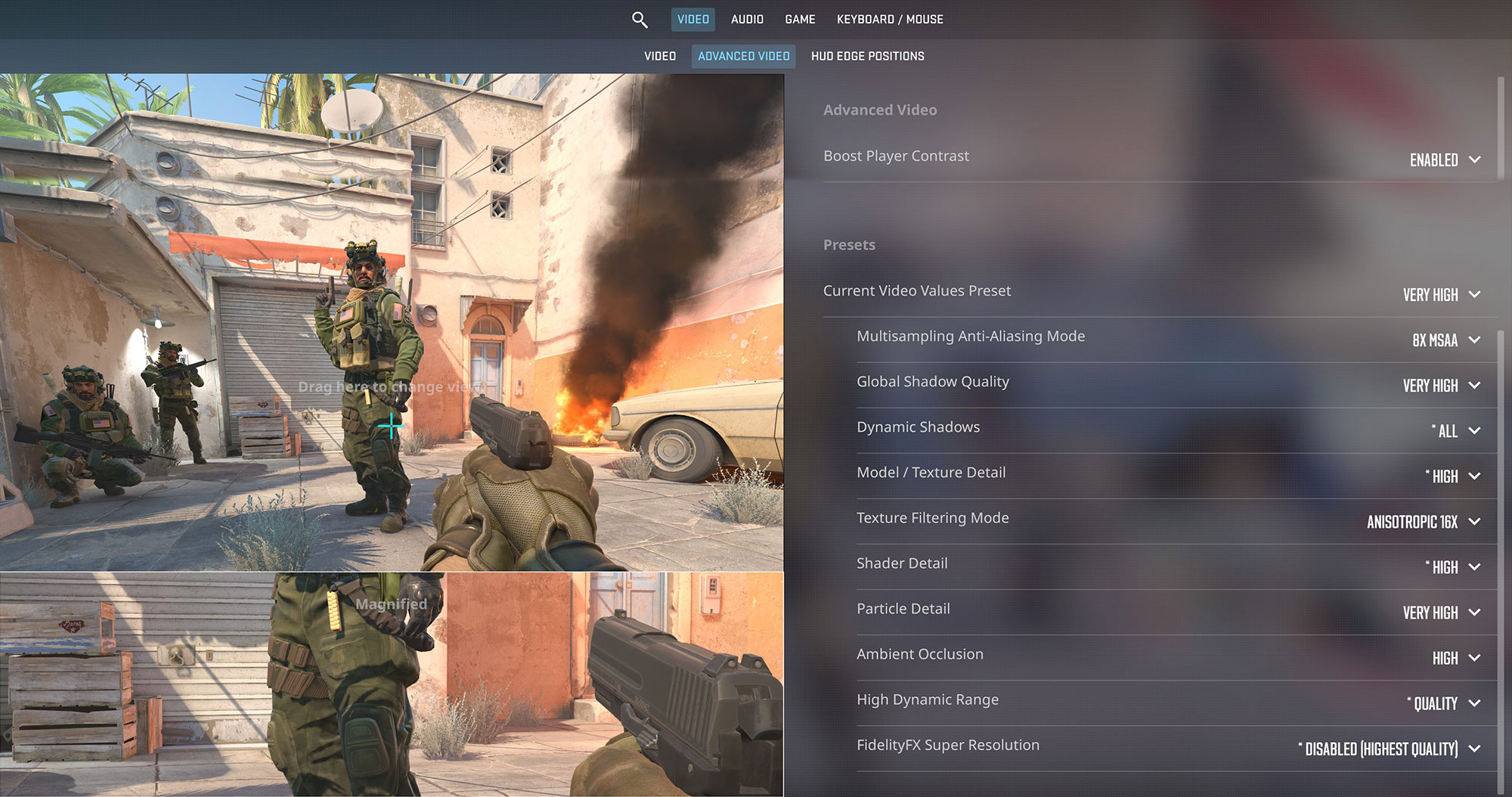
Both configurations perform very well in Counter-Strike 2 and exceed the display’s 165Hz refresh rate. However, the RTX 5070 is only 5 FPS faster, making the practical difference negligible. It is also worth remembering that the panel’s relatively slow pixel response limits motion clarity despite the high frame rate.
| Counter-Strike 2 | 1080p, Very High (Check settings) |
| GeForce RTX 5070 | 195 FPS |
| GeForce RTX 5060 | 190 FPS |
| RTX 5070 advantage | 3% |

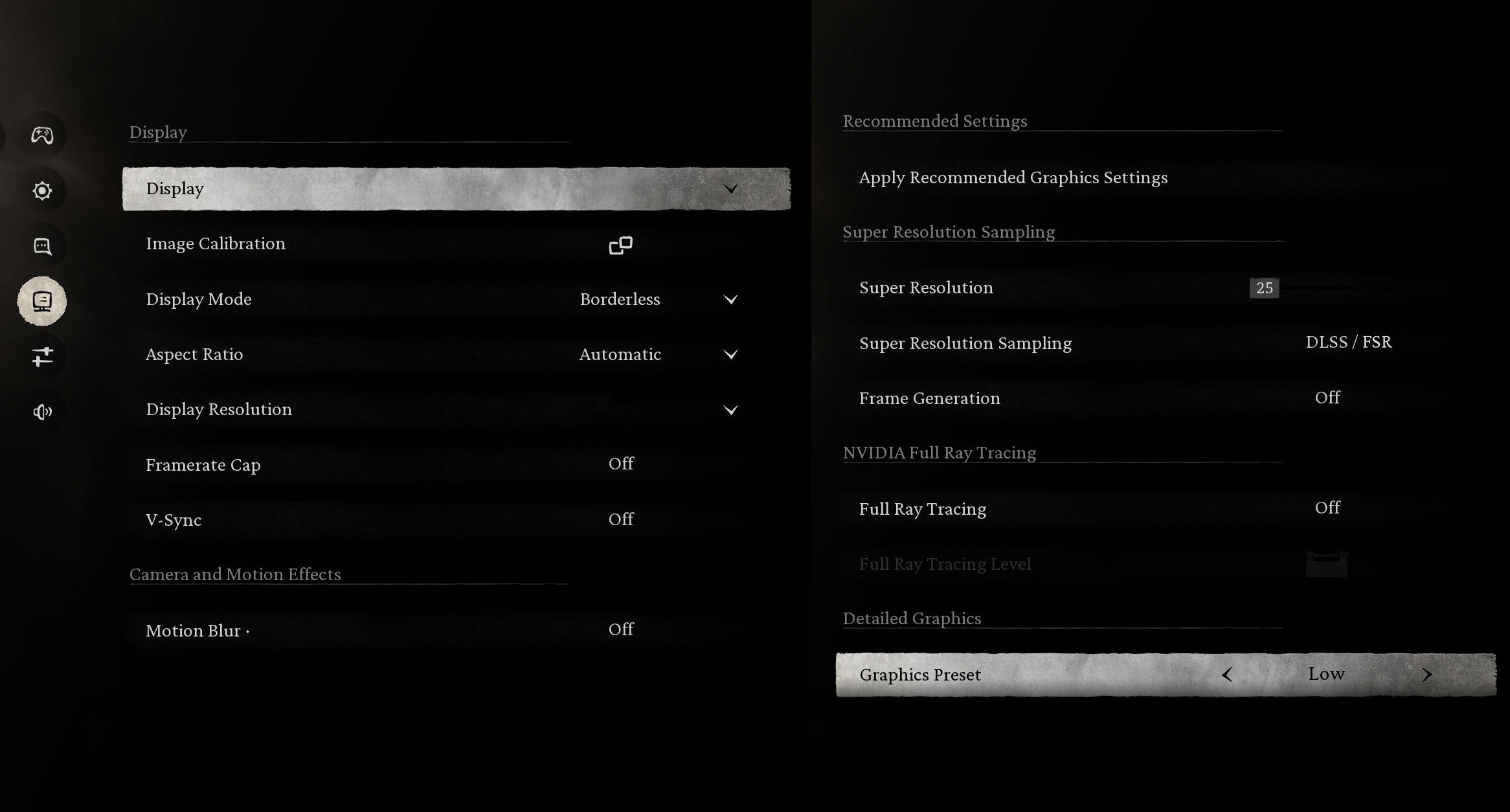
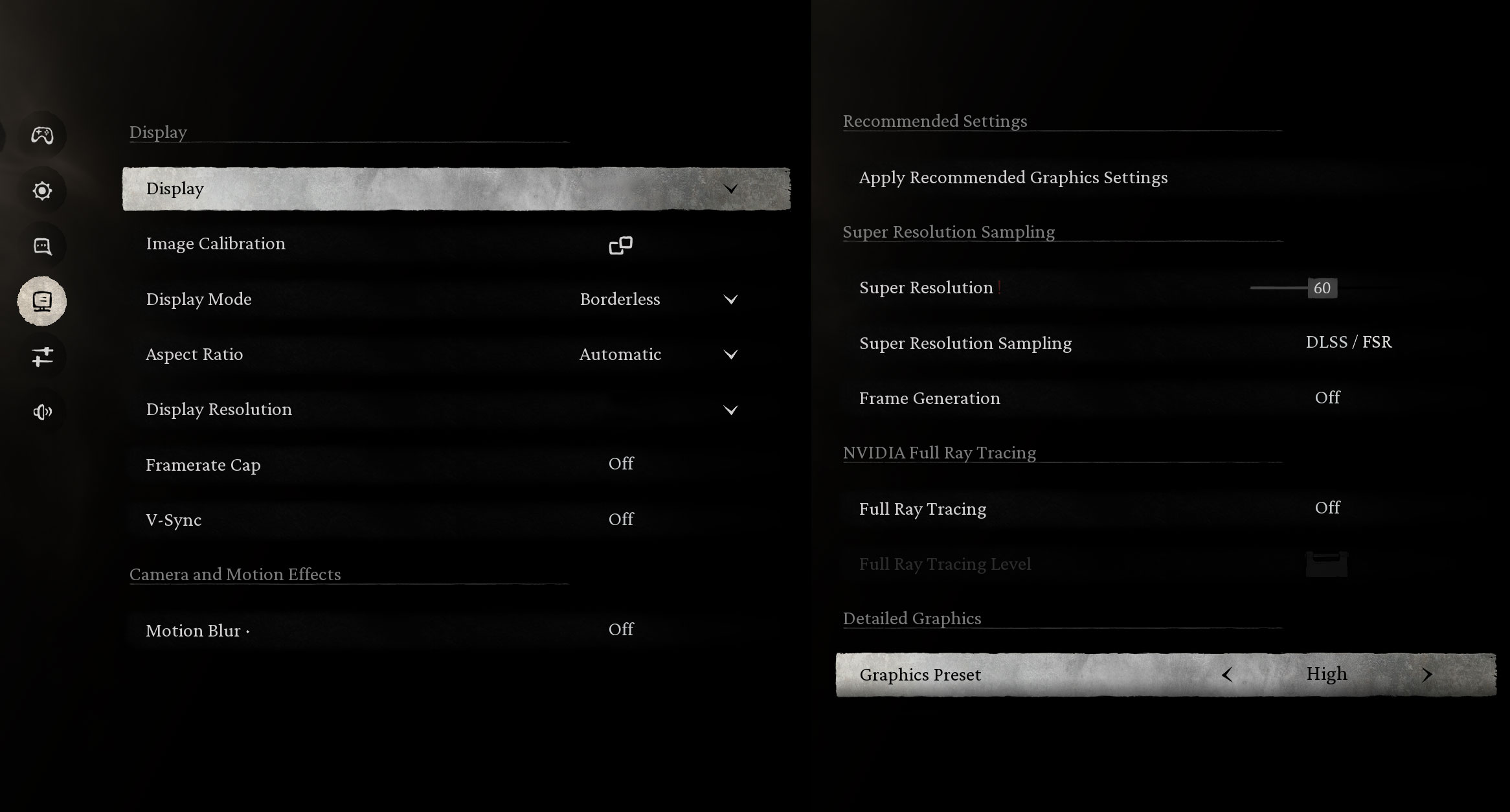
Black Myth: Wukong further demonstrates how tightly matched the two GPUs are in this chassis. They produce exactly the same result on the Low preset, while the RTX 5070 pulls ahead by only 5 FPS on High.
| Black Myth: Wukong | 1080p, Low (Check settings) | 1080p, High (Check settings) |
| GeForce RTX 5070 | 108 FPS | 90 FPS |
| GeForce RTX 5060 | 108 FPS | 85 FPS |
| RTX 5070 advantage | 0% | 6% |

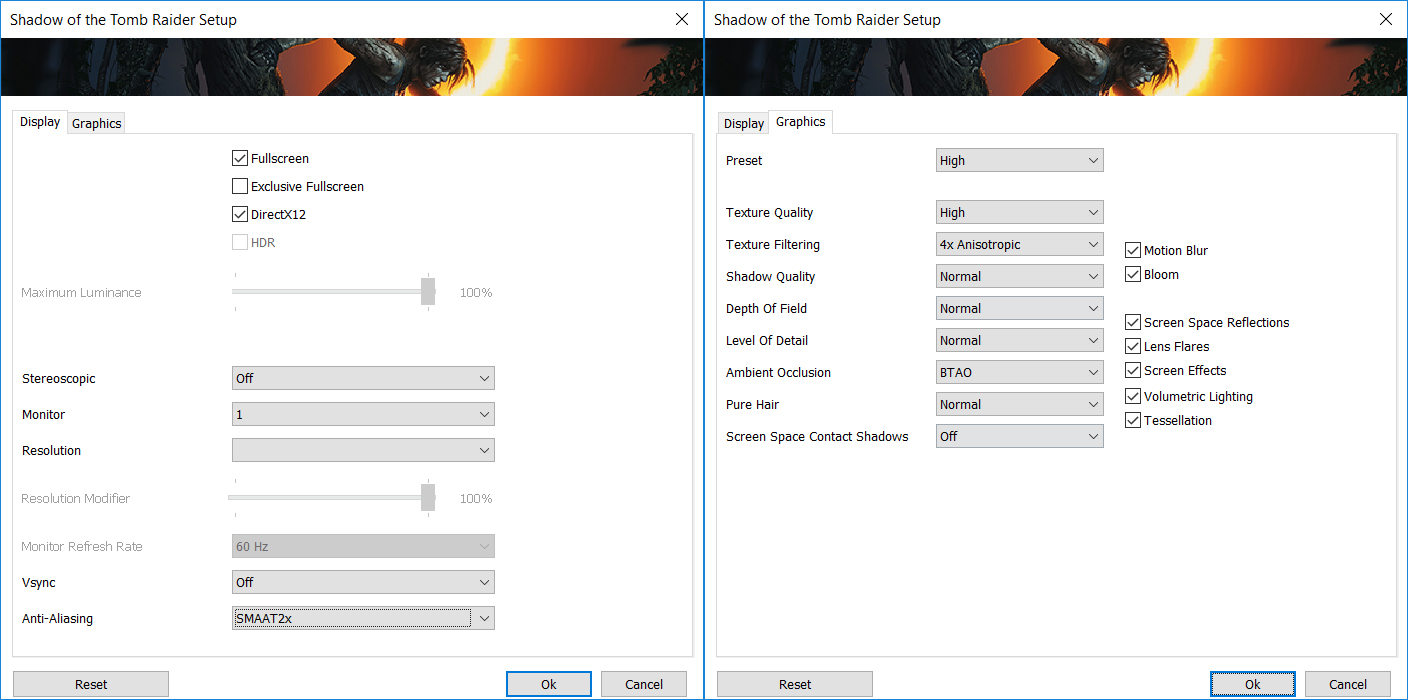
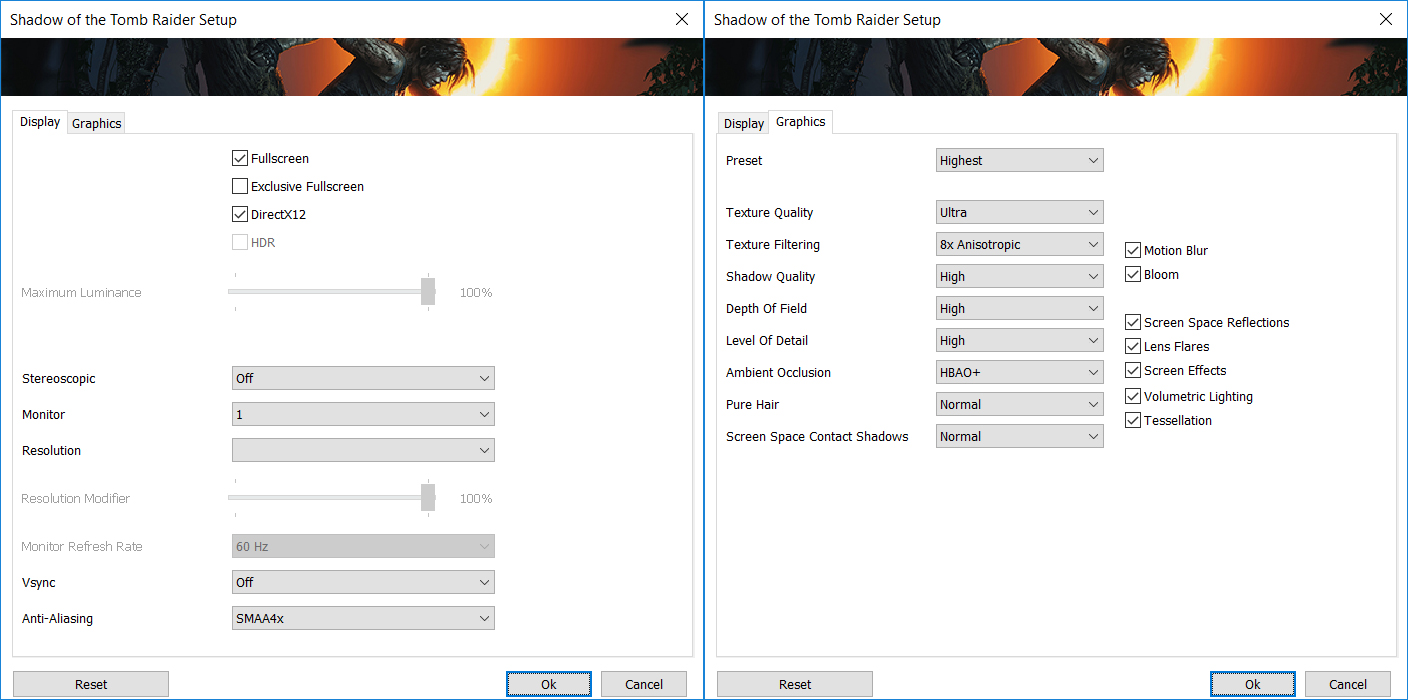
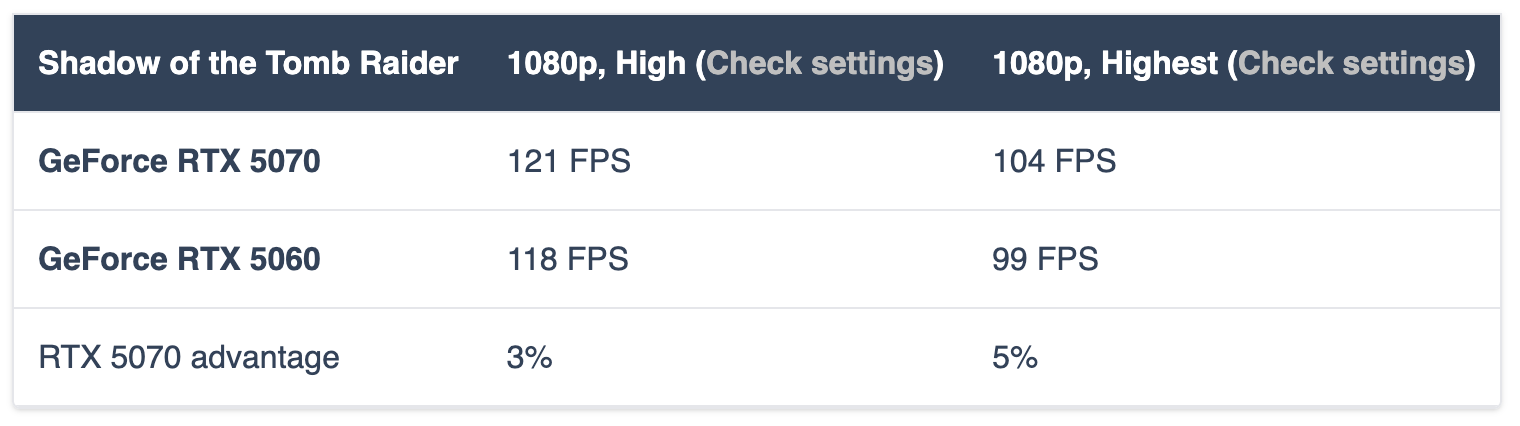
Both versions deliver smooth performance in Shadow of the Tomb Raider, including at the Highest preset. Once again, though, upgrading to the RTX 5070 produces only a modest 3–5% improvement.
| Shadow of the Tomb Raider | 1080p, High (Check settings) | 1080p, Highest (Check settings) |
| GeForce RTX 5070 | 121 FPS | 104 FPS |
| GeForce RTX 5060 | 118 FPS | 99 FPS |
| RTX 5070 advantage | 3% | 5% |

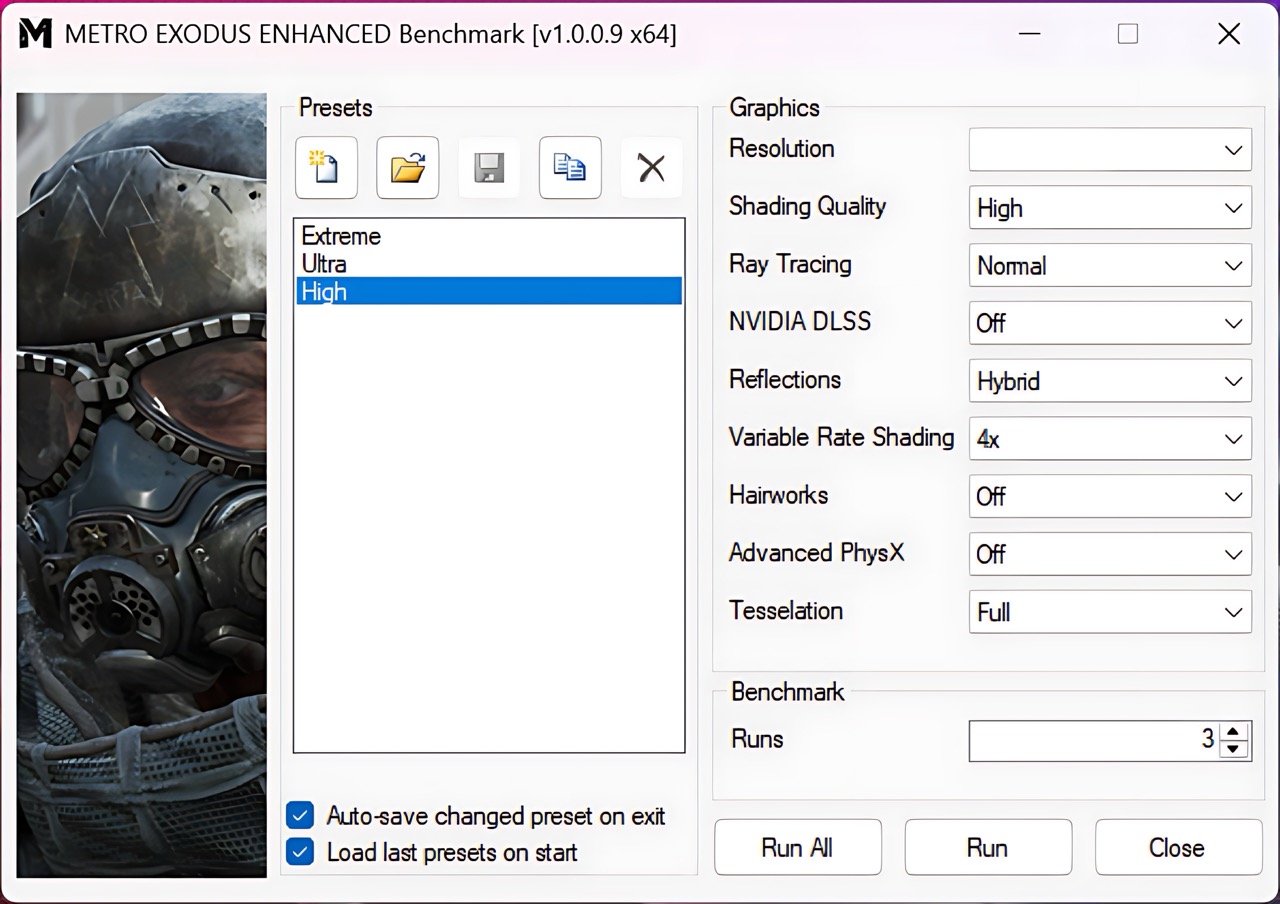
Metro Exodus Enhanced Edition places a demanding ray-traced workload on the GPU, yet both configurations remain comfortably above 60 FPS at 1080p on High settings. The RTX 5070 leads by just 4 FPS, or approximately 5%.
| Metro Exodus Enhanced Edition | 1080p, High (Check settings) |
| GeForce RTX 5070 | 85 FPS |
| GeForce RTX 5060 | 81 FPS |
| RTX 5070 advantage | 5% |
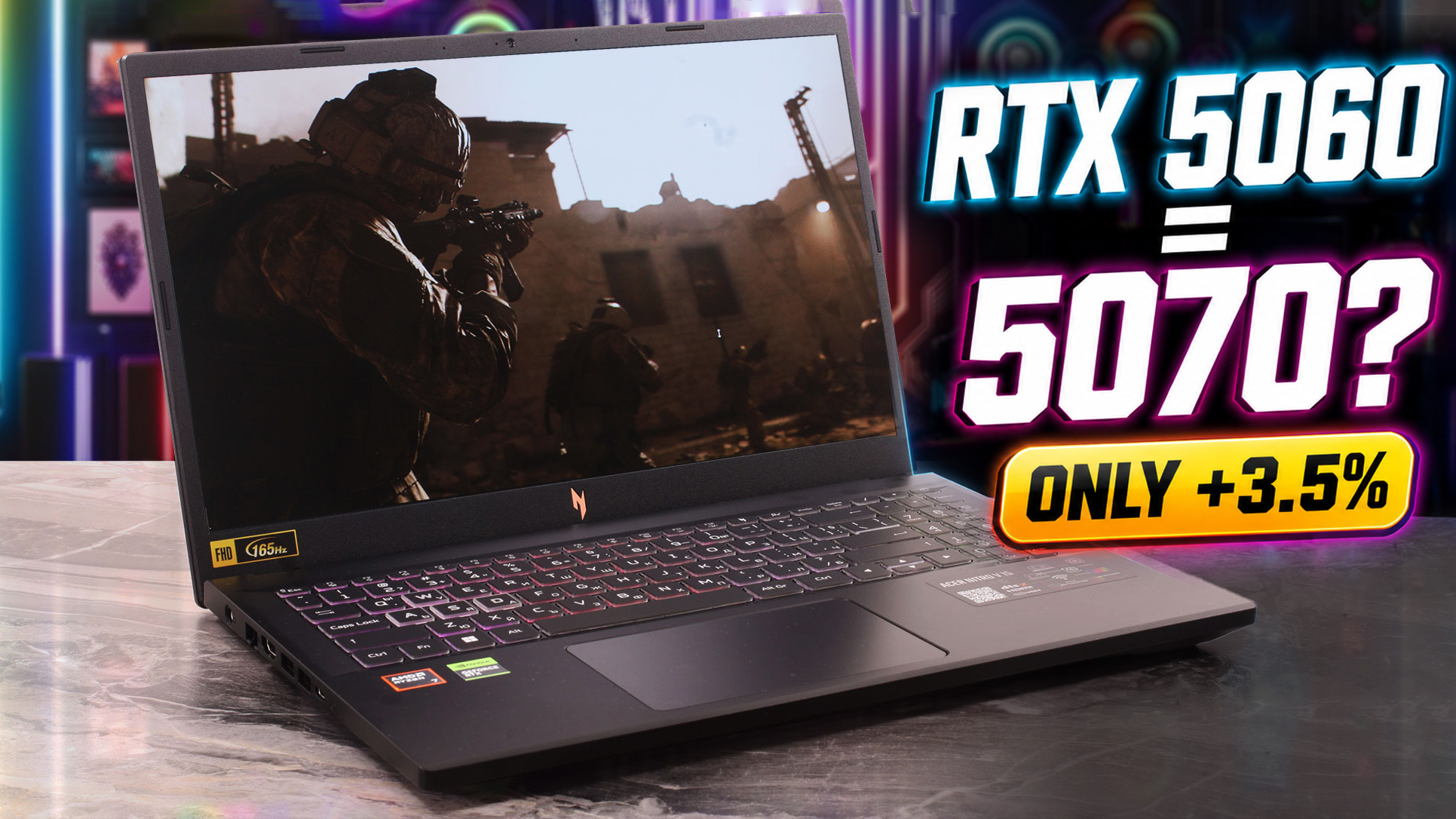
Across these six gaming results, the RTX 5070 configuration is only around 3.5% faster on average. Both versions provide strong 1080p performance, but the shared 75W power limit prevents the RTX 5070 from establishing the kind of lead normally expected from a higher GPU tier.
The RTX 5070 begins to show a slightly clearer advantage in the more demanding presets, but even there the difference remains around 5–6%. Unless its price premium is unusually small, the RTX 5060 configuration offers considerably better value and is the more sensible match for the Nitro V 15’s restricted graphics power budget.
Temperatures and Comfort, Noise, Stability
At idle, the CPU package of the AMD Ryzen 7 170 maintains a temperature of 46°C in both the RTX 5060 and RTX 5070 configurations. The cooling fans remain active, making both notebooks slightly audible even when no demanding tasks are running.
Office Work, Web Development, Design
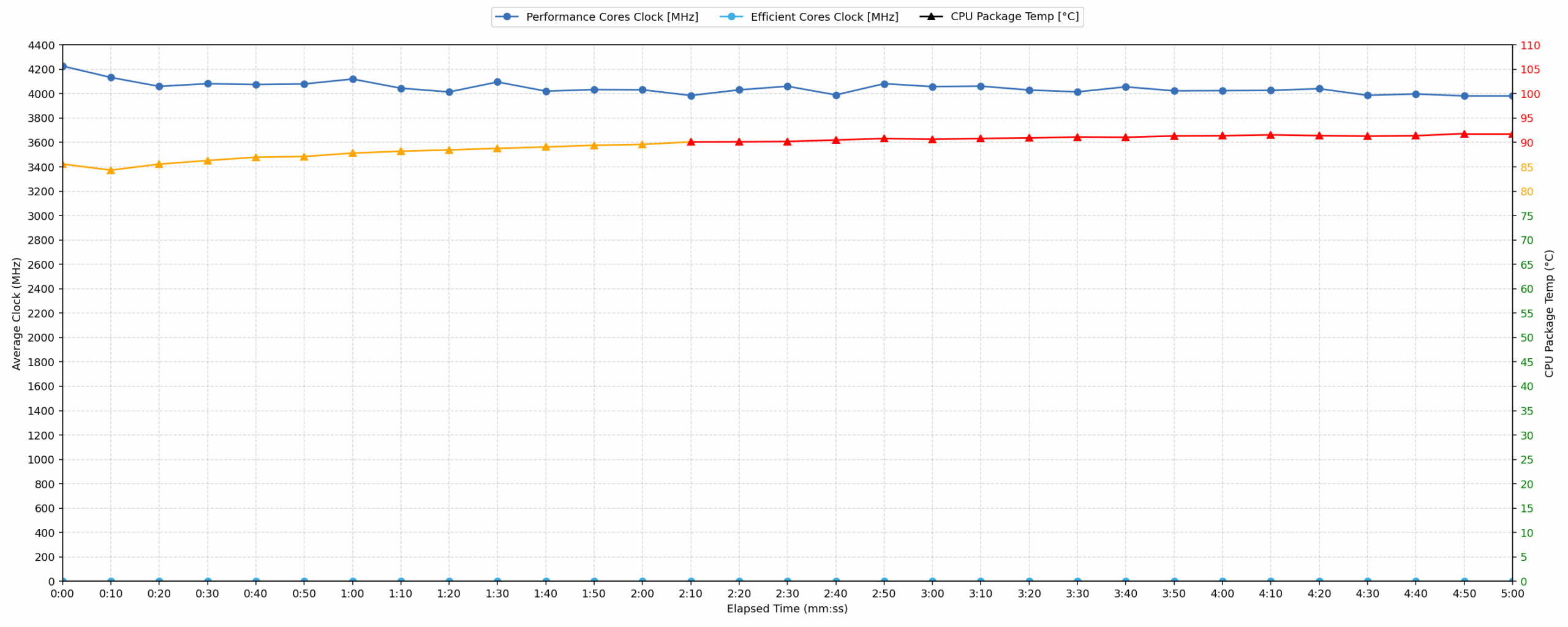
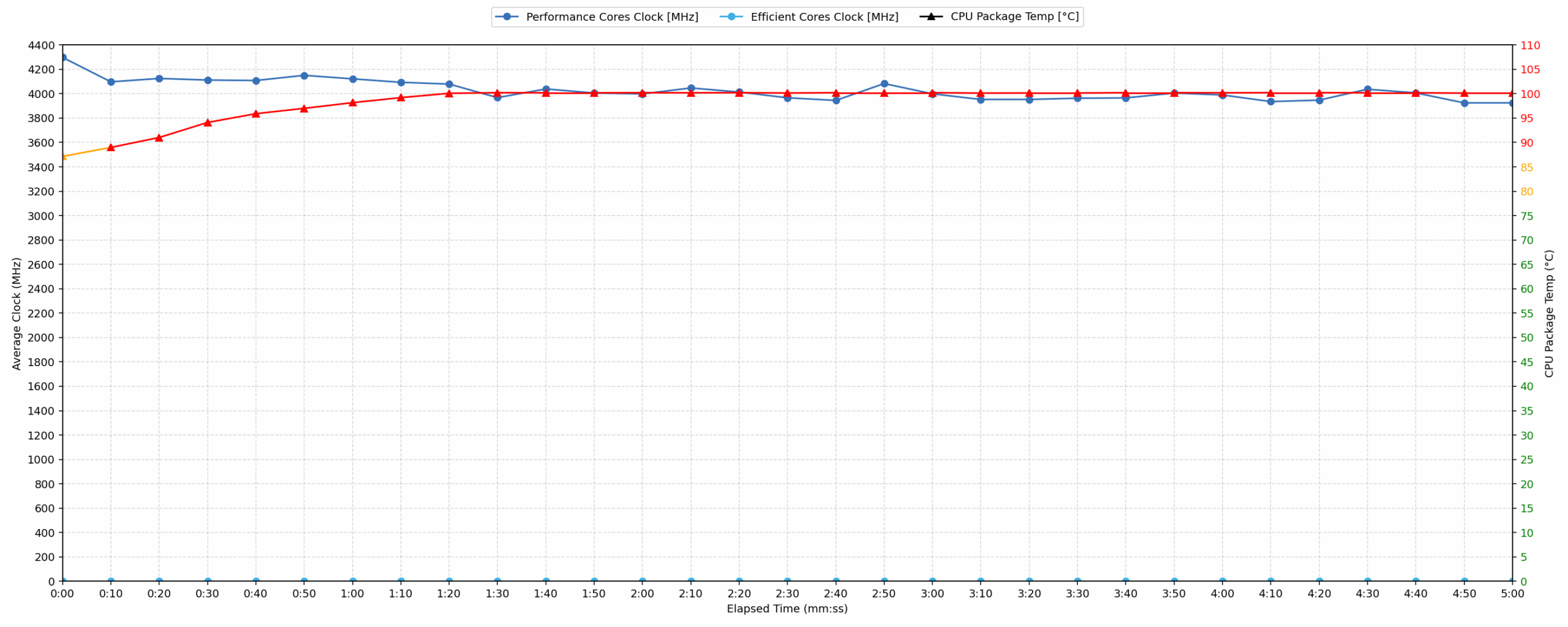
Short periods (0:00 – 0:10 s) of 100% CPU load
This test shows the CPU behavior during short periods of serious load. It is important for users looking for laptops suitable for tasks such as Web Design and Programming.
| AMD Ryzen 7 170 | GPU Configuration | Avg. CPU Clock | Avg. CPU Temp. | Avg. CPU Power |
| Acer Nitro V 15 (ANV15-A31) | GeForce RTX 5070 | 4227 MHz | 85 °C | 58 W |
| Acer Nitro V 15 (ANV15-A31) | GeForce RTX 5060 | 4298 MHz | 87 °C | 57 W |
During short bursts of CPU activity, both retail configurations deliver responsive performance. In our repeated test, the RTX 5070-equipped machine reaches a peak CPU clock of 4339 MHz during the first five seconds and averages 4227 MHz over the complete 10-second interval. It consumes an average of 58 W while maintaining an average temperature of 85 °C.
The RTX 5060 configuration records a similar peak of 4358 MHz and maintains a slightly higher average clock of 4298 MHz at 57 W. Its average CPU temperature is also slightly higher at 87 °C. The difference in clock speed is less than 2%, so the two retail machines provide practically comparable performance during short, intensive workloads.
Both results are acceptable for brief bursts of activity, although they demonstrate how quickly the Ryzen 7 170 reaches relatively high operating temperatures.
Video Editing, Scientific Computing, Software Compilation, 3D Rendering
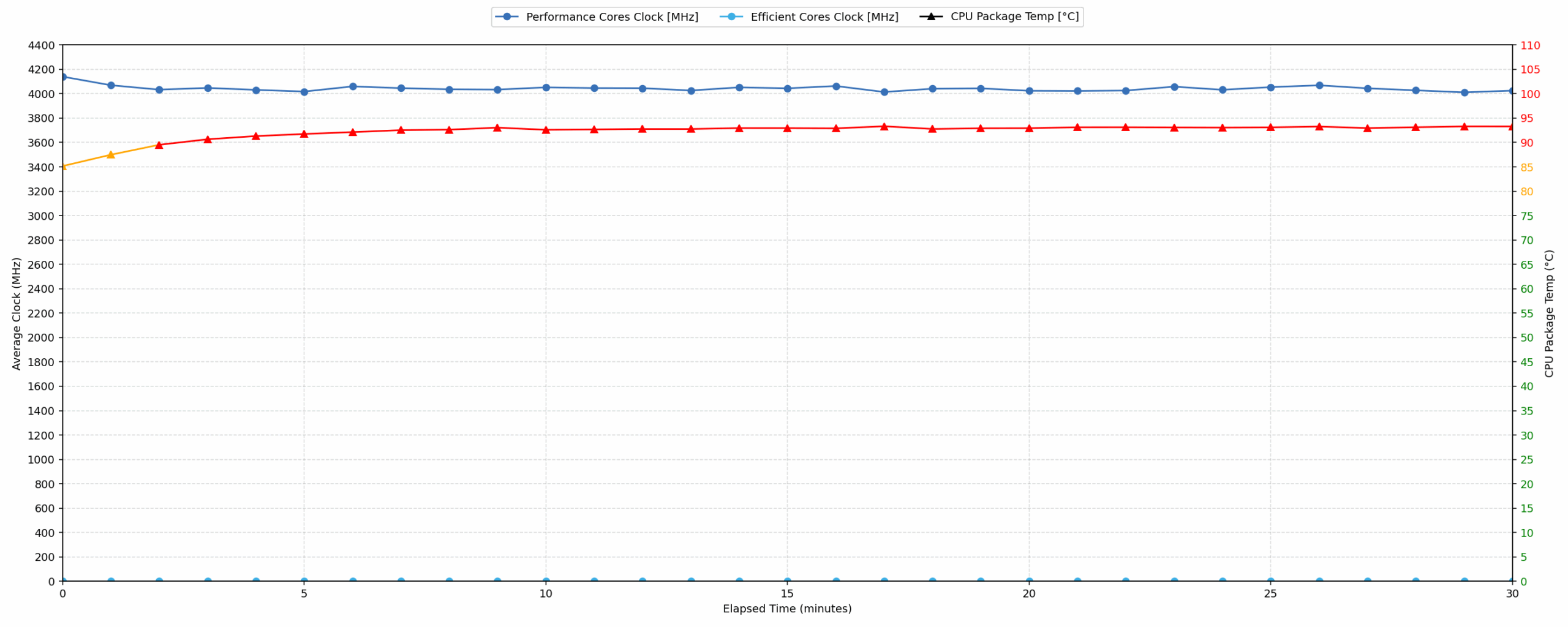
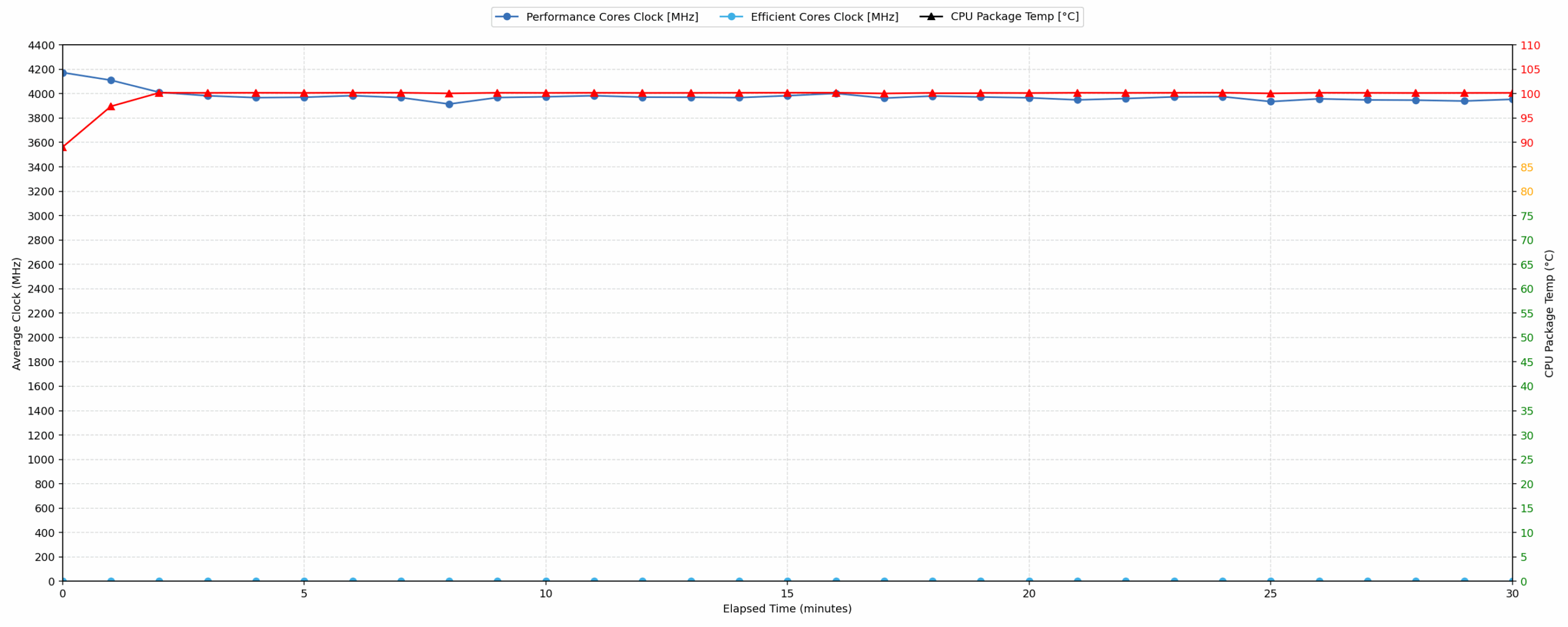
Long periods (0:00 – 30:00 min) of 100% CPU load
This test shows the CPU behavior during long periods of serious load. It is important for users looking for laptops suitable for tasks such as Video Editing and 3D Rendering.
| AMD Ryzen 7 170 | GPU Configuration | Avg. CPU Clock | Avg. CPU Temp. | Avg. CPU Power |
| Acer Nitro V 15 (ANV15-A31) | GeForce RTX 5070 | 4041 MHz | 92 °C | 53 W |
| Acer Nitro V 15 (ANV15-A31) | GeForce RTX 5060 | 3975 MHz | 99 °C | 49 W |
The difference between the two retail units becomes more pronounced during the 30-minute stress test. In our repeated run, the RTX 5070 configuration maintains an average CPU clock of 4041 MHz at 53 W. Its average temperature reaches 92 °C, with a recorded peak of 98 °C. The lowest observed clock is 3900 MHz, representing a 439 MHz reduction from its initial peak.
The RTX 5060-equipped machine encounters noticeably greater thermal pressure. Its CPU averages 99°C and briefly reaches 100°C – the limit reported by HWiNFO under this laptop’s Turbo profile. As a result, average CPU power falls to 49 W and the average clock decreases to 3975 MHz. The lowest recorded clock is 3851 MHz, a drop of 507 MHz from the initial peak.
We repeated the test on the RTX 5070 unit specifically to confirm that it had not accidentally switched to Balanced mode, where NitroSense applies a lower 92°C temperature target. The second test was completed in Turbo mode and reproduced essentially the same behavior: approximately 53 W of sustained CPU power, an average temperature of 92 °C, and a peak below the 100 °C limit.
This confirms that our RTX 5070 retail unit genuinely maintains lower CPU temperatures than the separately purchased RTX 5060 machine. Since the processor, chassis, and cooling design are nominally identical, the difference is more likely caused by normal sample-to-sample variation in cooling-system assembly or thermal-interface application than by the installed graphics card.
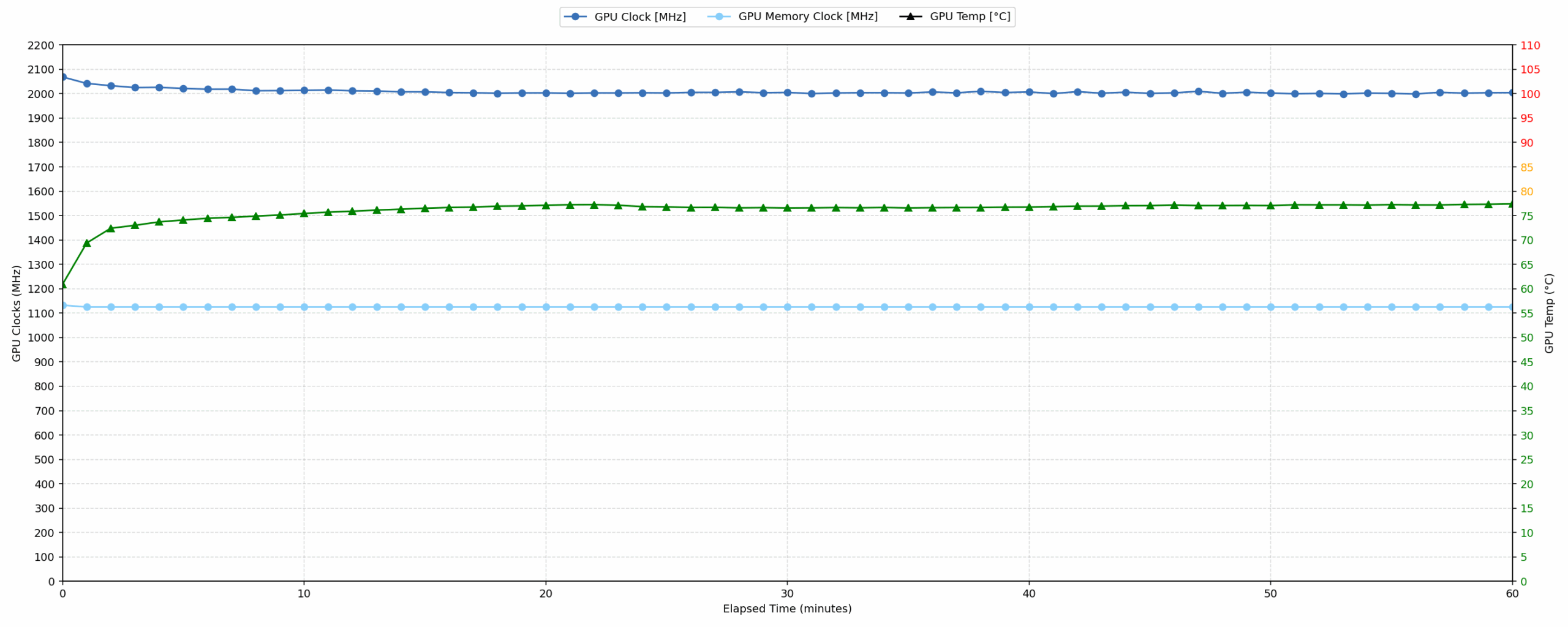
Gaming Stability – NVIDIA GeForce RTX 5070
Continuous gaming simulation (1-hour test)
This test evaluates the laptop’s performance under sustained GPU load and high CPU usage.
| NVIDIA GeForce RTX 5070 | Avg. GPU Clock | Avg. GPU Temp. | Avg. Memory Clock | Avg. GPU Mem Temp. | Avg. GPU Power |
| Lenovo Legion 5i (15″, 15IRHX10, Gen 10) | 2700 MHz | 82 °C | 1125 MHz | 71 °C | 113 W |
| Acer Nitro 18 AI (AN18-61) | 2588 MHz | 79 °C | 1125 MHz | 75 °C | 113 W |
| HP OMEN 16 (16-ap0000) | 2510 MHz | 77 °C | 1125 MHz | 69 °C | 113 W |
| HP OMEN 16 (16-am0000) | 2493 MHz | 75 °C | 1125 MHz | 74 °C | 113 W |
| MSI Katana 15 HX B14W | 2376 MHz | 85 °C | 1500 MHz | 85 °C | 112 W |
| Alienware 16X Aurora (AC16251) | 2528 MHz | 86 °C | 1125 MHz | 81 °C | 111 W |
| Acer Predator Triton 14 AI (PT14-52T) | 2462 MHz | 81 °C | 1125 MHz | 75 °C | 107 W |
| MSI Katana 17 HX B14W | 2452 MHz | 85 °C | 1125 MHz | 83 °C | 106 W |
| Lenovo Legion 7i (16”, Gen 10 / 16IAX10) | 2441 MHz | 83 °C | 1125 MHz | 75 °C | 104 W |
| ASUS ProArt P16 H7606 (2025) | 2553 MHz | 84 °C | 1125 MHz | 83 °C | 102 W |
| Acer Nitro V 17 AI (ANV17-41) | 2489 MHz | 82 °C | 1093 MHz | 77 °C | 93 W |
| Acer Nitro V 16 (ANV16-72) | 2460 MHz | 78 °C | 1125 MHz | 75 °C | 93 W |
| GIGABYTE GAMING A16 GA63H | 2264 MHz | 77 °C | 1125 MHz | 80 °C | 83 W |
| Alienware 16 Aurora (AC16250) | 2114 MHz | 73 °C | 1125 MHz | 72 °C | 74 W |
| Acer Nitro V 15 (ANV15-A31) | 2007 MHz | 76 °C | 1125 MHz | 82 °C | 71 W |
During the one-hour gaming simulation, the GeForce RTX 5070 reaches an initial peak of 2602 MHz before dropping to a minimum of 1920 MHz during the final half-hour. It maintains an average GPU clock of 2007 MHz while consuming 71 W, giving the Acer Nitro V 15 the lowest average clock and power consumption in this RTX 5070 comparison.
The restricted power budget does at least result in manageable temperatures. The GPU core averages 76 °C and peaks at 78 °C, while the GDDR7 memory averages 82 °C and peaks at 84 °C. These figures indicate that the GPU is limited primarily by its 75 W power ceiling rather than by excessive core temperatures.
However, the low power limit prevents the RTX 5070 from approaching the performance available from higher-powered implementations of the same GPU. Most of the competing systems in the table sustain between approximately 93 W and 113 W, allowing them to maintain considerably higher clock speeds.
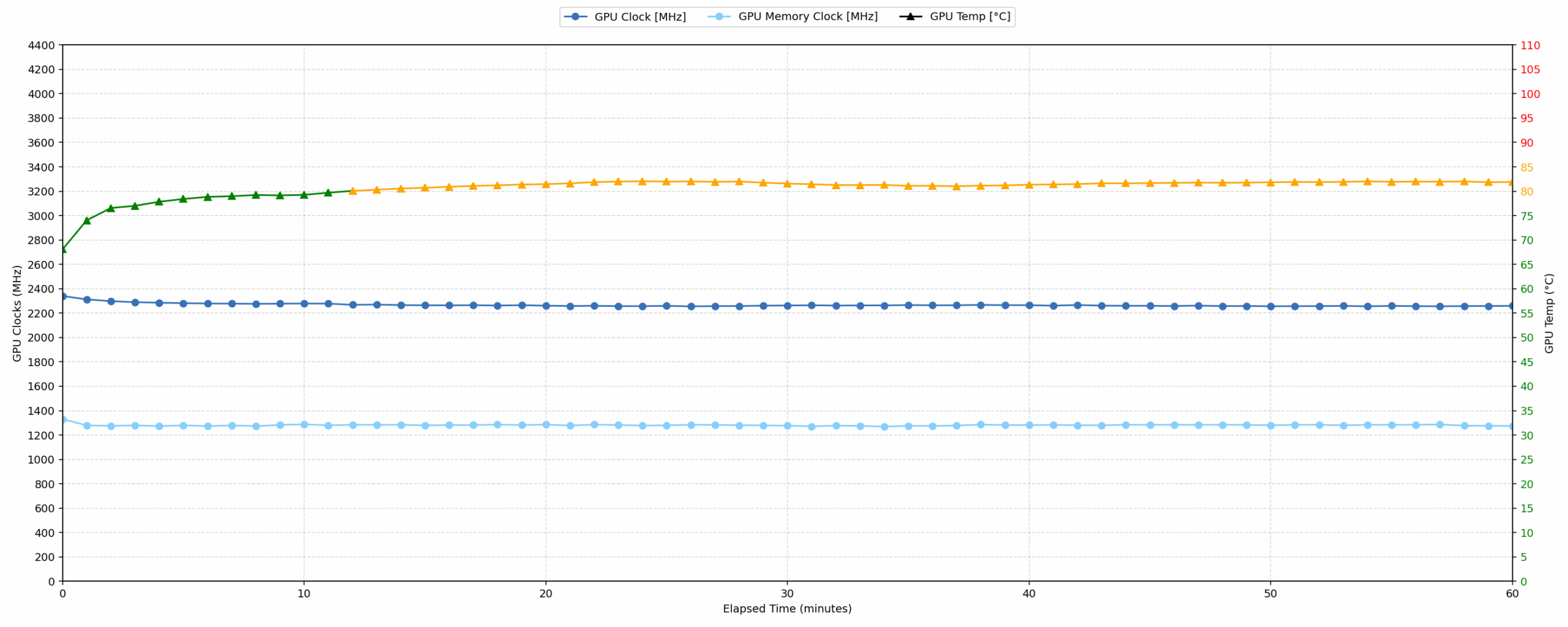
Gaming Stability – NVIDIA GeForce RTX 5060
Continuous gaming simulation (1-hour test)
This test evaluates the laptop’s performance under sustained GPU load and high CPU usage.
| NVIDIA GeForce RTX 5060 | Avg. GPU Clock | Avg. GPU Temp. | Avg. Memory Clock | Avg. GPU Mem Temp. | Avg. GPU Power |
| Lenovo Legion Pro 5 (16″, Gen 10) | 2821 MHz | 75 °C | 1400 MHz | 61 °C | 113 W |
| Lenovo Legion 5i (15″, Gen 11) | 2817 MHz | 76 °C | 1400 MHz | 72 °C | 113 W |
| Lenovo Legion 5a (15″, Gen 11, 15AGP11) | 2773 MHz | 74 °C | 1400 MHz | 72 °C | 113 W |
| Lenovo LOQ 17IRX10 | 2742 MHz | 85 °C | 1393 MHz | 77 °C | 113 W |
| Acer Predator Helios Neo 16 (PHN16-I31) | 2638 MHz | 78 °C | 1353 MHz | 73 °C | 112 W |
| ASUS TUF Gaming A16 FA608 (2025) | 2708 MHz | 84 °C | 1387 MHz | 78 °C | 111 W |
| ASUS TUF Gaming F16 FX608 | 2714 MHz | 72 °C | 1387 MHz | 60 °C | 110 W |
| Lenovo LOQ 15 (Gen 10, 15AHP10) | 2626 MHz | 77 °C | 1393 MHz | 74 °C | 99 W |
| Lenovo Yoga Pro 9i Aura Edition (16″, Gen 11) | 2568 MHz | 71 °C | 1375 MHz | 65 °C | 99 W |
| Acer Nitro V 16 AI (ANV16-42) | 2575 MHz | 84 °C | 1354 MHz | 79 °C | 93 W |
| Lenovo Legion 7a (16″, Gen 11) | 2569 MHz | 75 °C | 1400 MHz | 74 °C | 92 W |
| Acer Nitro V 15 (ANV15-A31) | 2266 MHz | 80 °C | 1280 MHz | 80 °C | 73 W |
| ASUS V16 (V3607) | 2120 MHz | 76 °C | 1232 MHz | 79 °C | 68 W |
| MSI Cyborg 15 B2RW | 1971 MHz | 72 °C | 1170 MHz | 73 °C | 54 W |
During the same one-hour gaming simulation, the GeForce RTX 5060 maintains an average GPU clock of 2266 MHz at 73 W. The GPU core averages 80 °C and peaks at 83 °C, while the GDDR7 memory averages 80 °C and peaks at 82 °C.
These temperatures remain within safe operating limits, although the RTX 5060 configuration runs slightly warmer than the RTX 5070 version. Performance is modest compared with higher-powered RTX 5060 laptops, and the Nitro V 15 sits near the bottom of the comparison, ahead only of lower-powered machines such as the ASUS V16 and MSI Cyborg 15.
As with the RTX 5070 configuration, the primary limiting factor is the restricted GPU power budget. The Acer Nitro V 15 allows the RTX 5060 to operate close to its 75 W maximum, but this remains considerably below the approximately 100–115 W sustained power levels recorded by many competing gaming laptops.
Overall, the cooling system is capable of keeping both GPUs away from thermal throttling during prolonged gaming, although this is helped by their relatively low 75 W power limits. The RTX 5060 averages 73 W and runs at 80 °C, while the RTX 5070 averages 71 W and remains cooler at 76 °C.
The Ryzen 7 170 places greater pressure on the cooling system. Our RTX 5070 retail unit averaged 91–92 °C across two separate 30-minute runs, with peaks of 96–98 °C, while the RTX 5060 machine averaged 99 °C and briefly reached the 100 °C limit reported by HWiNFO under the laptop’s Turbo profile. This considerable difference between two otherwise similar retail units suggests that buyers may encounter some sample-to-sample variation in CPU cooling performance.
The RTX 5060 is the more natural match for this limited power budget. Across our six gaming measurements, the RTX 5070 was only around 3.5% faster on average, so the higher-tier configuration makes sense only when its price is very close to that of the RTX 5060 model.
Battery
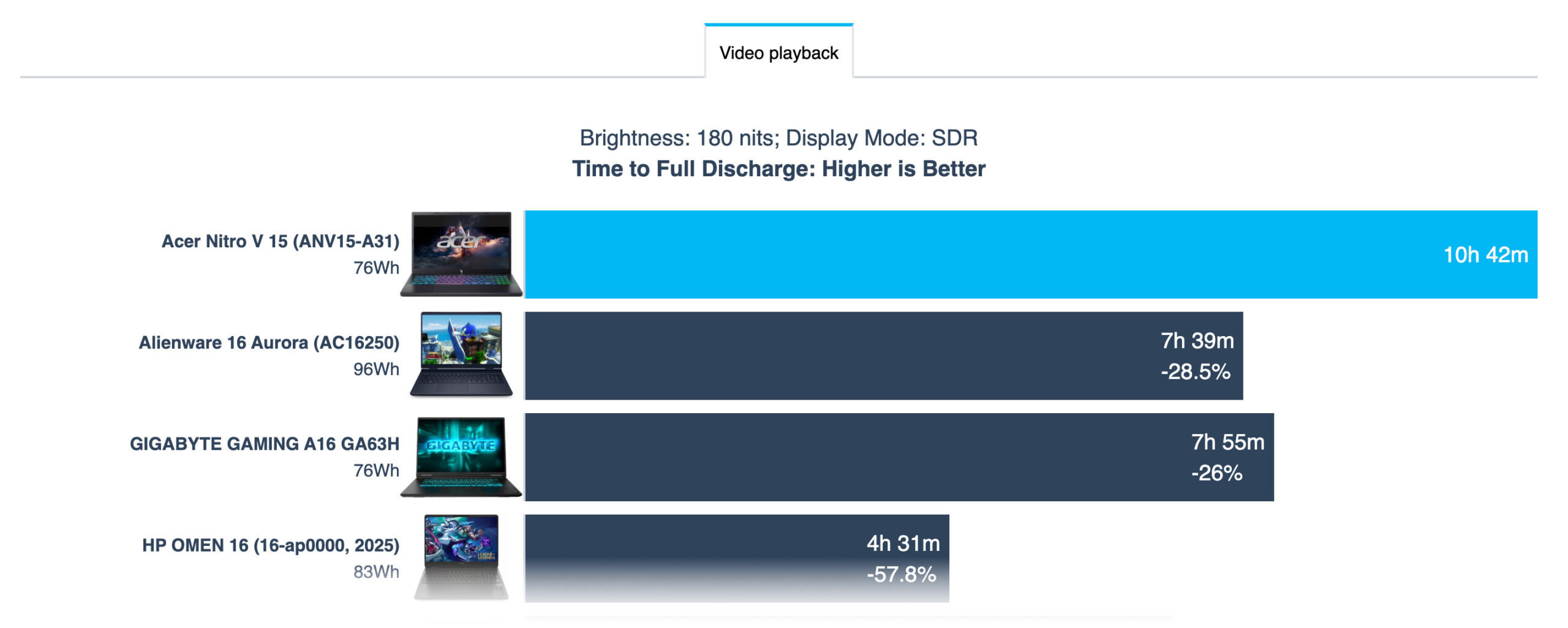
The Acer Nitro V 15 (ANV15-A31) uses a four-cell AP24ABQ lithium-ion battery with a capacity of 76Wh. Our GeForce RTX 5070 configuration lasted an excellent 10 hours and 42 minutes in the local video playback test.
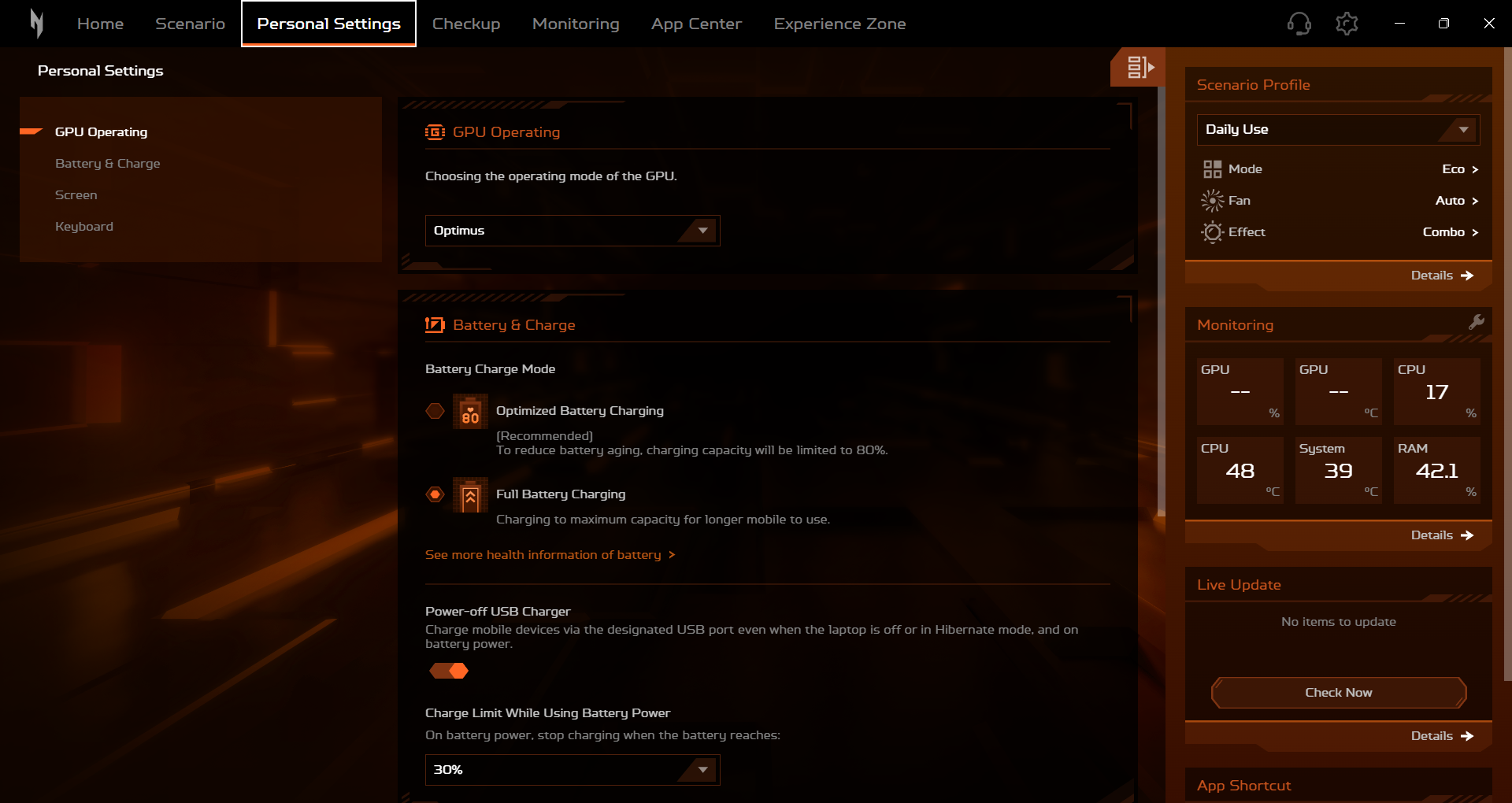
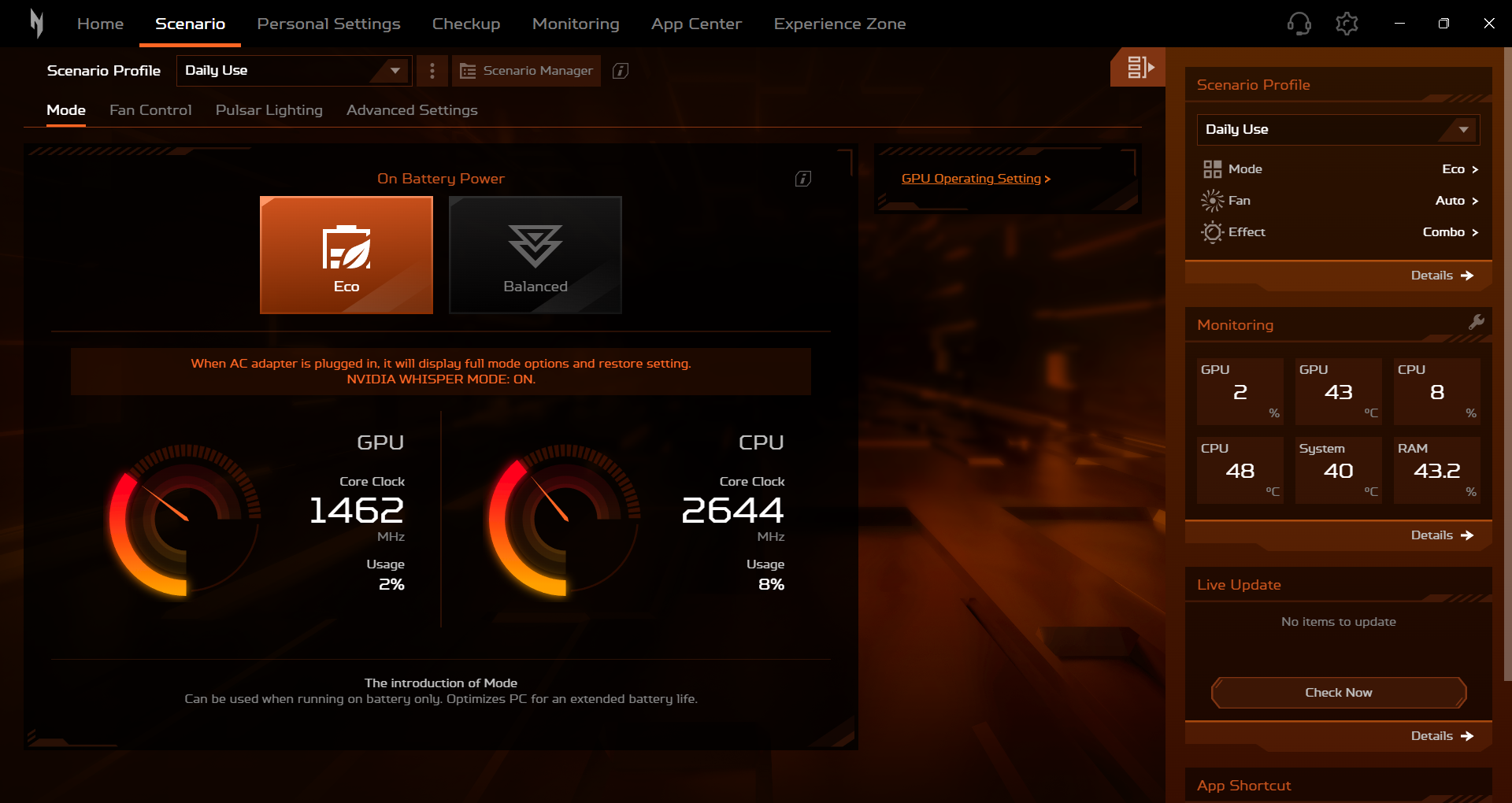
We conducted the test at 180 nits in SDR mode, with NitroSense set to Eco and the GPU mode configured as Optimus (Automatic). Under these conditions, video playback should be handled by the integrated Radeon graphics, allowing the power-hungry NVIDIA GPU to remain inactive.
Although we tested only the RTX 5070 configuration, we expect the RTX 5060 version to deliver a very similar result. Both of our machines use the same processor, display panel, and battery capacity, while the discrete GPU should not play an active role during this workload. Small differences may still occur because of BIOS revisions, background software, storage devices, and normal battery variation.
The result is particularly impressive for a gaming laptop. The Nitro V 15 lasts 3 hours and 20 minutes longer than the Lenovo LOQ 15 Gen 10 15AHP10 (detailed review) and provides almost twice the video playback time of the ASUS V16 V3607 (detailed review).
Dividing the nominal 76Wh capacity by the measured runtime suggests an average system consumption of roughly 7.1W during the test. This indicates that Acer’s Eco and Optimus modes manage light workloads very efficiently, making the Nitro V 15 surprisingly practical away from a power outlet.
Brightness: 180 nits; Display Mode: SDR
Time to Full Discharge: Higher is Better

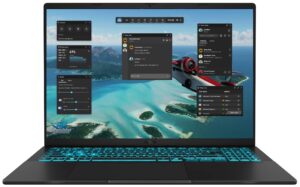
Disassembly, Upgrade Options, and Maintenance
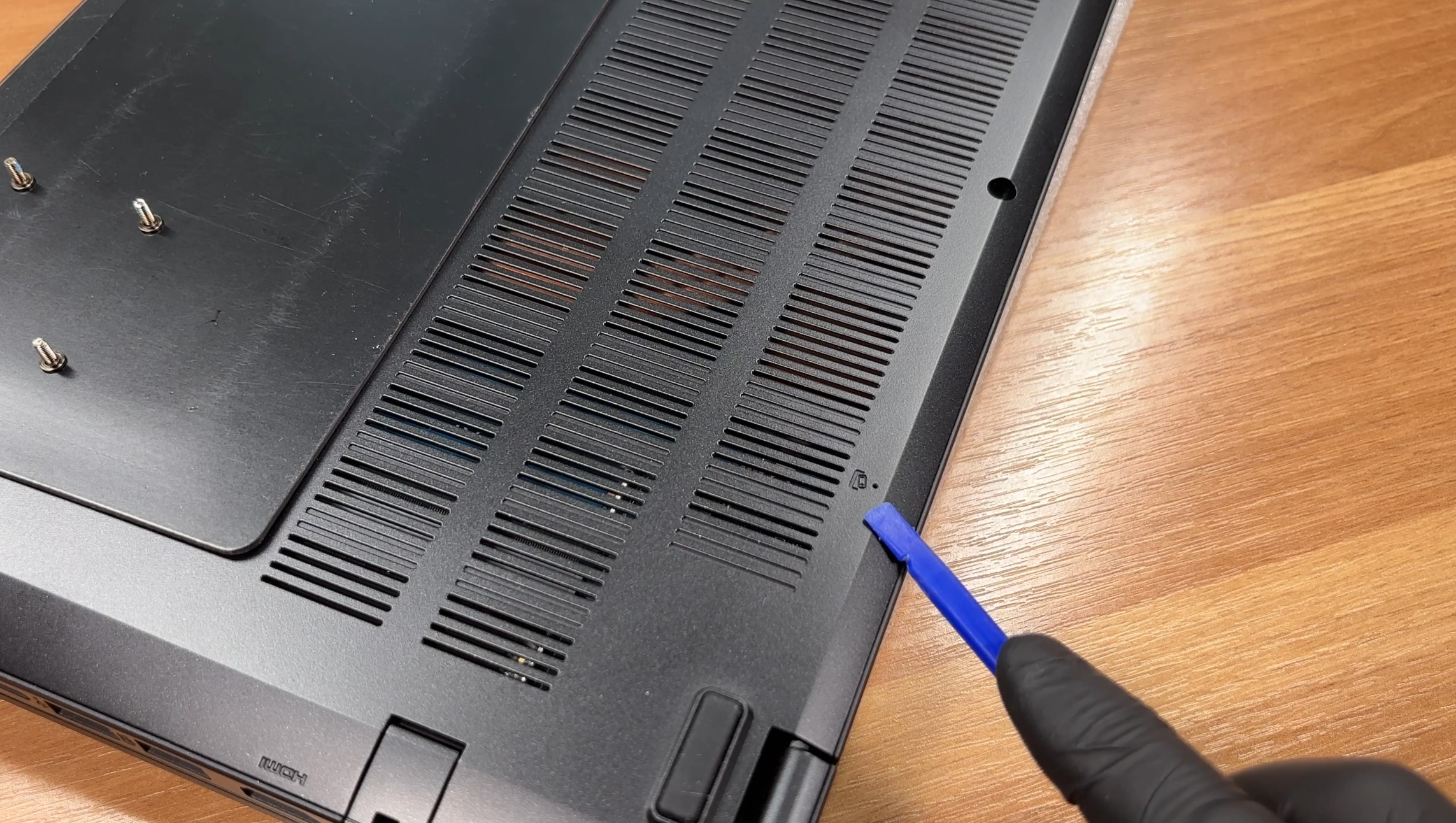
Getting inside the Acer Nitro V 15 (ANV15-A31) is relatively straightforward. The bottom panel is held in place by 11 screws of equal length, after which the surrounding plastic clips can be released with a thin prying tool. Using a plastic rather than a metal tool reduces the risk of marking the chassis.
Before servicing any internal components, the laptop should be shut down completely, disconnected from its charger, and the internal battery connector should be detached. Acer also includes a battery-reset pinhole on the underside, which can be useful for troubleshooting power-related problems without opening the laptop.
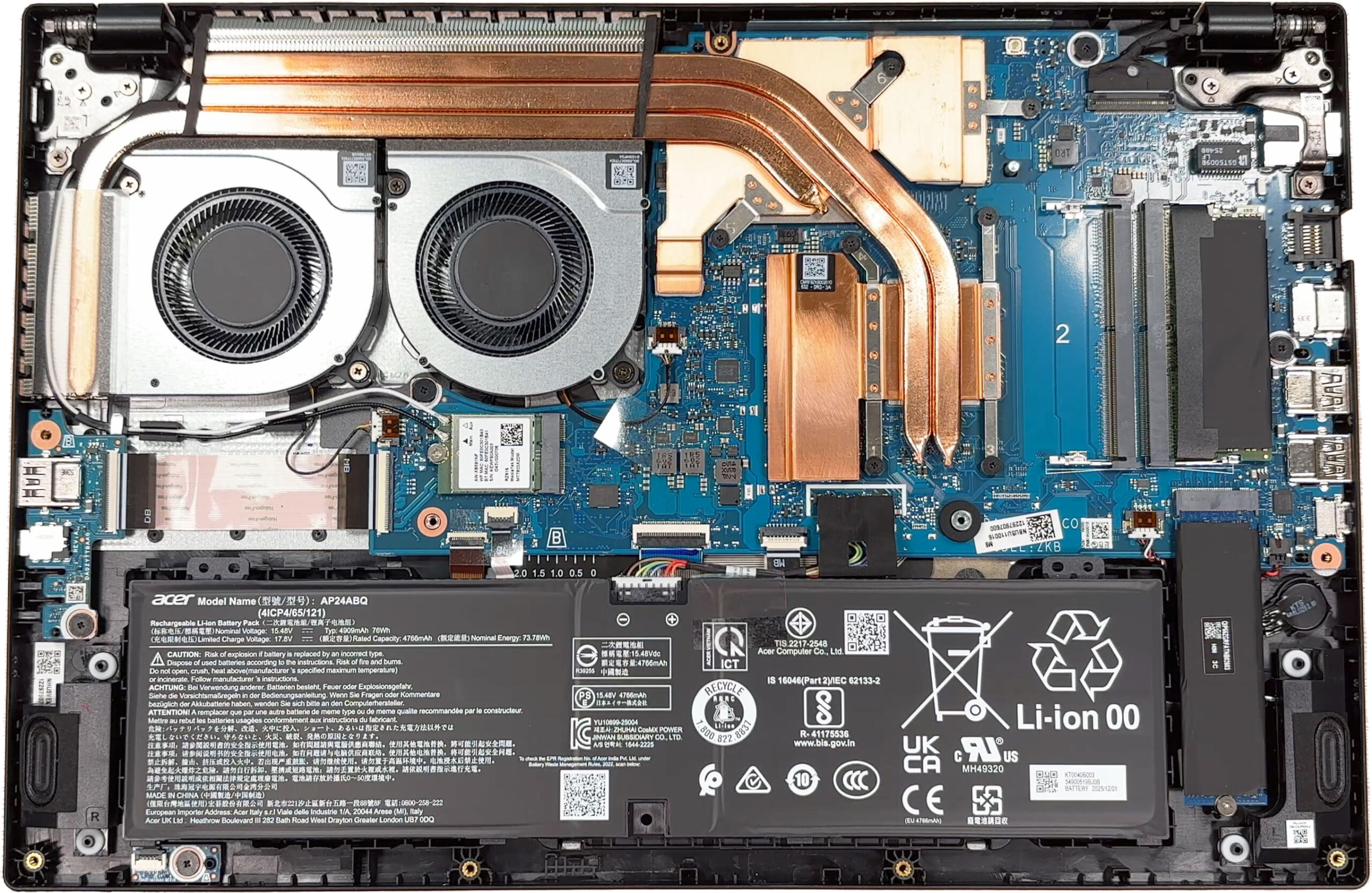
The cooling system consists of two fans, several copper heat pipes, and large cooling plates covering the CPU, GPU, and surrounding components. An additional heat pipe reinforces the graphics side of the system, while both fans are positioned close to the heatsinks and exhaust vents.
The series is offered with NVIDIA GeForce RTX 5050, RTX 5060, and RTX 5070 Laptop GPUs. Our two retail configurations combine the AMD Ryzen 7 170 with either the RTX 5060 or RTX 5070. Both the CPU and GPU are soldered directly to the motherboard and cannot be upgraded.
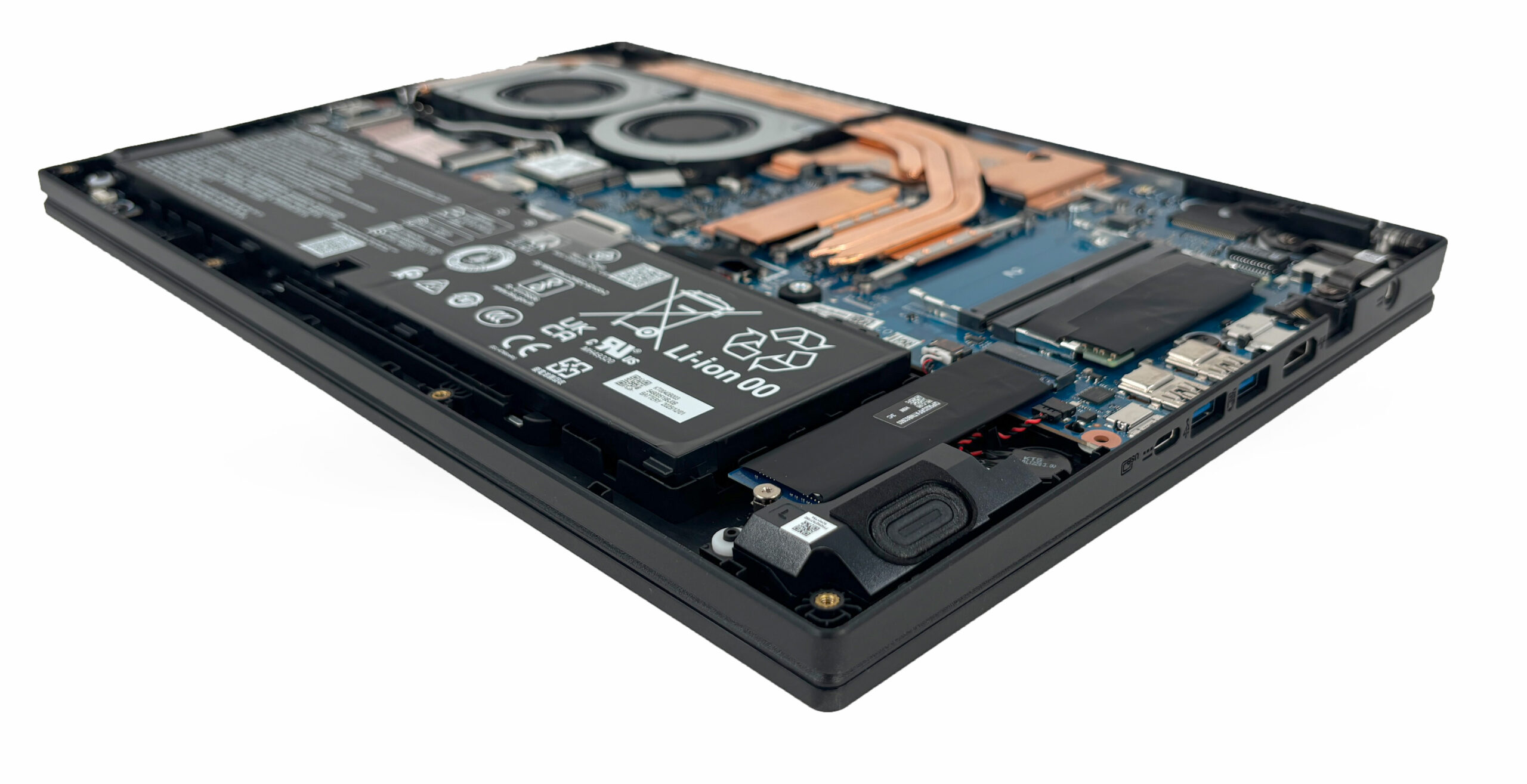
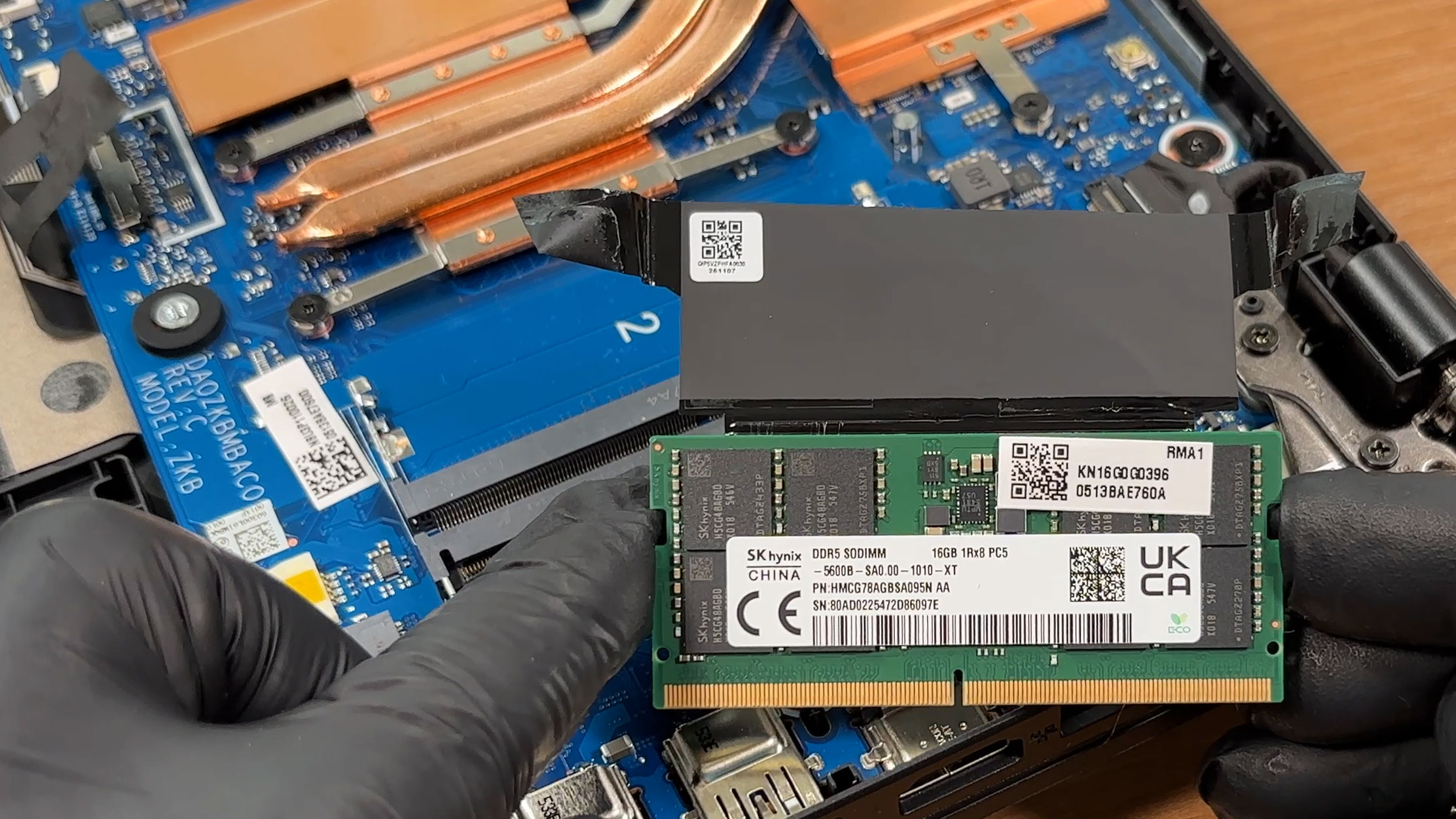
Memory upgrades are handled by two DDR5 SO-DIMM slots. Both of our retail units arrived with a single 16GB module, leaving the second slot unoccupied and easily accessible.
The installed modules are rated for DDR5-5600 operation, but the platform runs them at DDR5-4800. Adding a second compatible SO-DIMM populates both physical memory slots and increases the available memory bandwidth, which can improve performance in RAM-sensitive workloads.
The two laptops did not use identical memory modules: one arrived with an SK Hynix stick, while the other used Kingston memory. This indicates that the exact supplier may vary according to component availability. Acer officially specifies a maximum memory capacity of 32GB for the series.
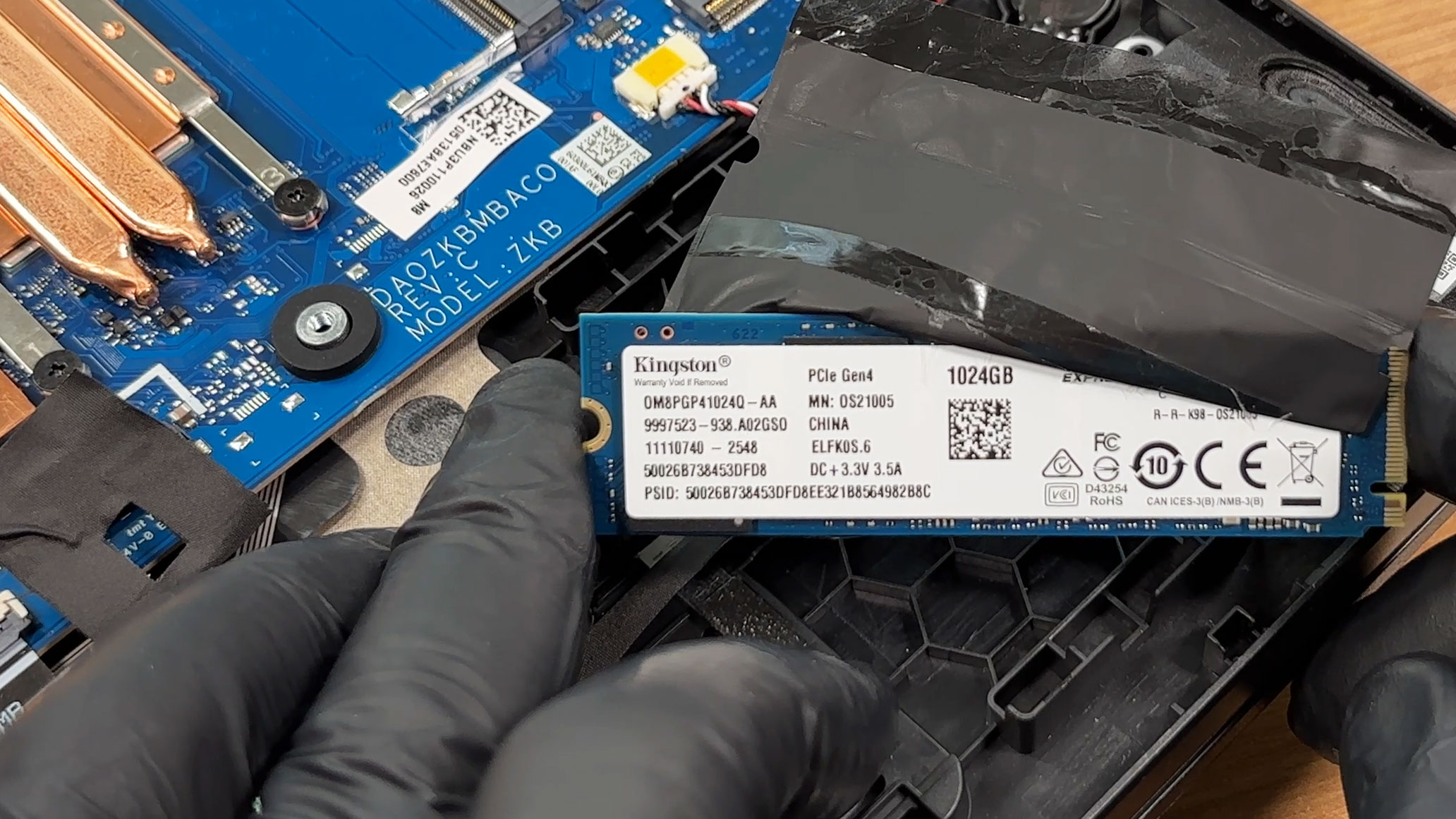
Storage expansion is more restricted because the motherboard provides only one M.2 2280 slot. It supports PCIe 4.0 x4 NVMe SSDs, but adding more internal storage requires replacing the existing drive rather than installing a second one. An internal two-drive RAID array is therefore not possible.
Our two retail machines also arrived with different 1TB SSDs – one with a WD PC SN5000S and the other with a Kingston OM8PGP41024Q-AA. The exact drive therefore appears to depend on component availability rather than being guaranteed for a particular GPU configuration.
A conductive shielding cover is positioned over the SSD to reduce electromagnetic and radio-frequency interference. It should be reinstalled after replacing the drive.
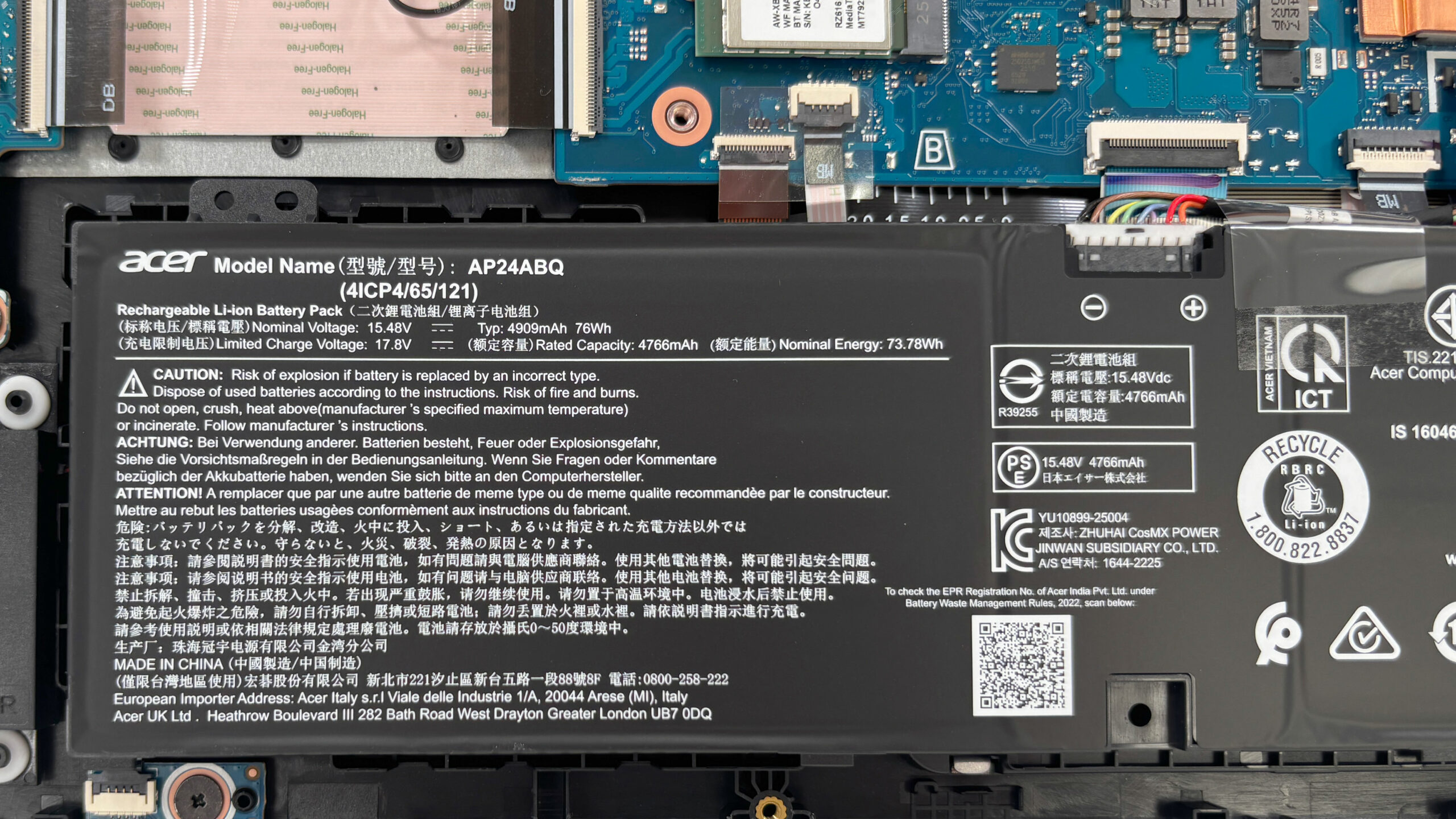
The four-cell lithium-ion battery has a rated capacity of 76Wh. Its connector is easily accessible and should be disconnected before working on the memory, SSD, wireless card, or cooling system.
Interestingly, the battery itself is not secured with screws. This makes replacement quick once the connector has been detached, but the laptop should remain flat while the bottom cover is removed to prevent the battery pack from shifting inside the chassis.
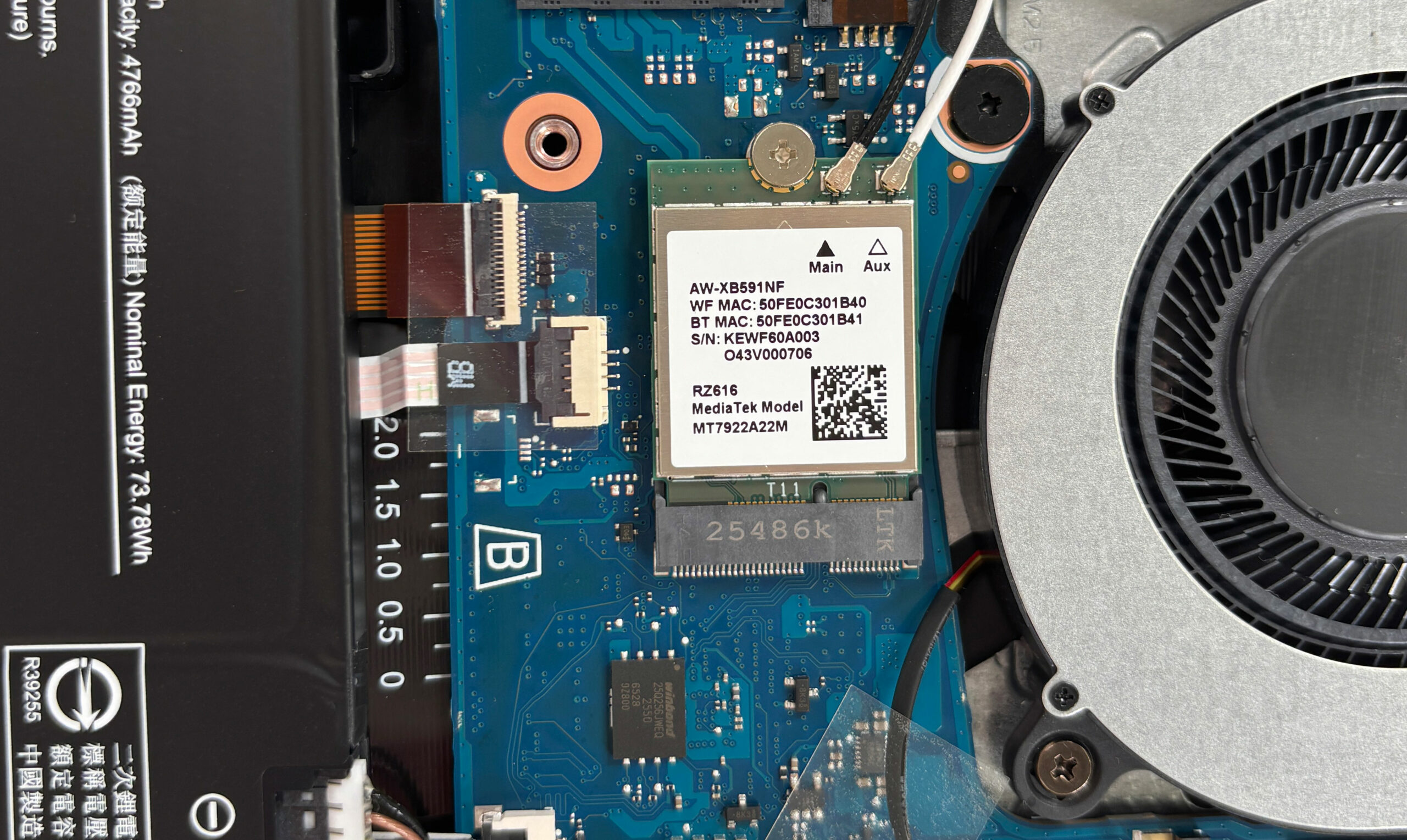
The wireless module is replaceable as well. Both of our machines use a MediaTek RZ616, also known as the MT7922, with Wi-Fi 6E and Bluetooth support. The card is secured by a single screw and connected to two antenna cables.
The battery, both memory slots, SSD, and wireless module can all be serviced independently. The fans are also directly accessible for routine cleaning, although removing the complete cooling assembly would require disturbing the thermal interface on the CPU and GPU.
Overall, maintenance is straightforward thanks to the uncomplicated bottom-panel removal, socketed memory, replaceable wireless module, and easily accessible battery. The main limitation is the single M.2 slot, which means that any future storage upgrade requires replacing the existing SSD and transferring or reinstalling the operating system.
Verdict
After testing both retail configurations, our recommendation is straightforward: the Acer Nitro V 15 is a practical and unusually long-lasting budget gaming laptop, but the RTX 5060 is the configuration that makes the most sense. The RTX 5070 version leaves too much of its additional GPU potential unused under the same 75W limit.
✅ The Good
The standout feature is undoubtedly the excellent battery life. Our RTX 5070 configuration lasted 10 hours and 42 minutes in the local video playback test, which is an outstanding result for a gaming laptop and makes the Nitro V 15 a genuinely useful mobile computer.
Our tested 165Hz BOE display also has several notable strengths. It reaches a good 383 nits, offers an excellent 1820:1 contrast ratio for an IPS panel, and does not use PWM to regulate brightness. Its matte surface keeps reflections reasonably manageable, making the screen comfortable for prolonged work and entertainment.
We also appreciate the inclusion of a 40Gbps USB4 port, the comfortable keyboard with four-zone RGB illumination and a NumPad, and the two accessible DDR5 SO-DIMM slots. The understated design allows the Nitro V 15 to fit into an office or classroom more naturally than many aggressively styled gaming laptops.
GPU temperatures remain well controlled during prolonged gaming. This is partly a consequence of the conservative power limits, but neither graphics configuration is thermally overwhelmed during sustained use.
❌ The Bad
The most important limitation is that both the GeForce RTX 5060 and RTX 5070 are capped at 75W. This prevents either GPU from matching higher-powered implementations, but the effect is particularly damaging to the RTX 5070. Across our six gaming measurements, it was only around 3.5% faster on average than the RTX 5060, with individual differences ranging from 0% to 6%.
This makes the RTX 5060 the more natural match for the chassis. The RTX 5070 remains technically faster, but its value depends entirely on the price premium. Unless the two versions are priced very closely, paying considerably more for the higher GPU is difficult to justify.
Our tested 165Hz BOE display also looks better on the specification sheet than it does in motion. Its 54% sRGB coverage produces noticeably muted colors, while the slow 19.6ms black-to-white and 37.0ms gray-to-gray response times result in visible trailing during fast movement. The refresh rate improves responsiveness, but competitive players will not receive the motion clarity expected from a good 165Hz gaming panel.
The Ryzen 7 170 is based on the older Zen 3+ architecture and falls well behind newer gaming-laptop processors in both single-core and multi-core work. It also runs hot under sustained CPU loads: our RTX 5060 unit averaged 99°C and briefly reached the 100°C limit reported under the laptop’s Turbo profile, although the separately purchased RTX 5070 machine performed noticeably better.
Storage expansion is another clear compromise. There is only one M.2 slot, so increasing capacity requires replacing the original SSD rather than adding a second drive. The laptop also lacks a physical webcam privacy shutter and biometric login.
🆚 The Competitors
The Lenovo LOQ 15 Gen 10 15AHP10 (detailed review) is the stronger choice for raw performance. Its newer processor is substantially faster, and its higher-powered graphics configuration delivers better gaming results. The Acer counters with dramatically longer battery life, USB4 connectivity, and a more portable everyday experience.
Against the ASUS V16 V3607 (detailed review), the Nitro V 15 is the more convincing all-round package. It delivers higher gaming performance, almost twice the video playback endurance, and more versatile connectivity, although neither machine offers a particularly colorful display.
Ultimately, the Acer Nitro V 15 is best viewed as a practical budget laptop that can also play modern games well at 1080p – not as a platform designed to extract maximum performance from NVIDIA’s RTX 50-series GPUs. The RTX 5060 configuration is the version we would generally choose, while the RTX 5070 model is worth considering only when its price is unusually close.
You can check the prices and configurations in our Specs System: https://laptopmedia.com/series/acer-nitro-v-15-anv15-a31/
Pros
- Exceptional battery life for a gaming laptop – 10 hours and 42 minutes
- Our tested 165 Hz IPS panel is bright, PWM-free, and has an excellent 1820:1 contrast ratio
- Versatile connectivity with a 40Gbps USB4 port
- Comfortable keyboard with four-zone RGB lighting and a NumPad
- Two accessible DDR5 SO-DIMM slots
- Understated design suitable for work, school, and gaming
- Well-controlled GPU temperatures during prolonged gaming
Cons
- Both GPUs are restricted to 75W
- RTX 5070 is only around 3.5% faster on average in our gaming tests
- Our 165Hz BOE panel covers only 54% of sRGB and has slow pixel response times
- Older Zen 3+ processor runs hot under prolonged CPU loads
- Only one M.2 SSD slot
- No physical webcam shutter or biometric login
 Author: Simeon NikolovEditor-in-Chief at LaptopMedia.com with 20+ years of experience in testing and analyzing laptops and mobile devices.
 Author: eng. Kroum NikolovHead of Engineering at LaptopMedia.com, inventor and innovator with 40+ years of experience in electronics and high technology.

![[August 2026] Amazon USA: Top 10 Best-Selling Laptops – Apple MacBook Neo Dominates the Market with Massive Unit Sales!](https://laptopmedia.com/wp-content/uploads/2026/09/Best-Selling-Laptops-COM-Top-10-400x225.jpg)
![[August 2026] Amazon USA: Top 10 Best-Selling Gaming Laptops – ASUS ROG Strix G16 Dominates the Market with Massive Unit Sales](https://laptopmedia.com/wp-content/uploads/2026/09/Best-Selling-Gaming-Laptops-COM-Top-10-400x225.jpg)
![[July 2026] Amazon Global: Top 10 Best-Selling Laptops – Apple MacBook Neo Dominates the Charts as Budget and Premium Notebooks Split the Market](https://laptopmedia.com/wp-content/uploads/2026/08/Best-Selling-Laptops-GLOBAL-Top-10-400x225.jpg)
![[July 2026] Amazon Global: Top 10 Best-Selling Gaming Laptops – ASUS ROG Strix G16 Dominates the Global Market with Record-Breaking Unit Sales](https://laptopmedia.com/wp-content/uploads/2026/08/Best-Selling-Gaming-Laptops-GLOBAL-Top-10-400x225.jpg)
![[July 2026] Global Ranking of Best-Selling Laptop GPUs on Amazon – RTX 5060 Dominate Premium, Intel Still Rules Budget](https://laptopmedia.com/wp-content/uploads/2026/08/Best-Selling-GPUs-GLOBAL-Top-10-400x225.jpg)