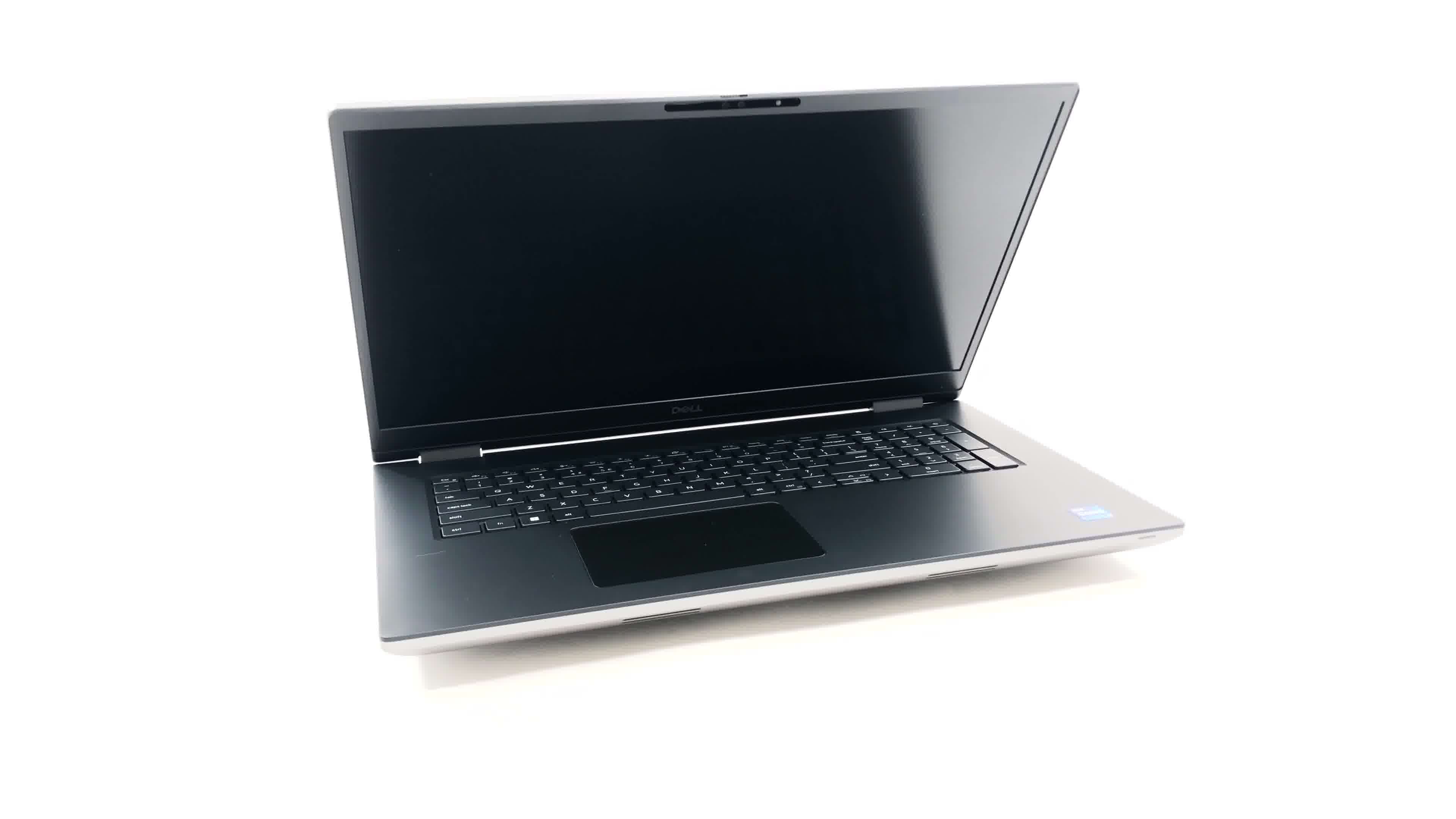
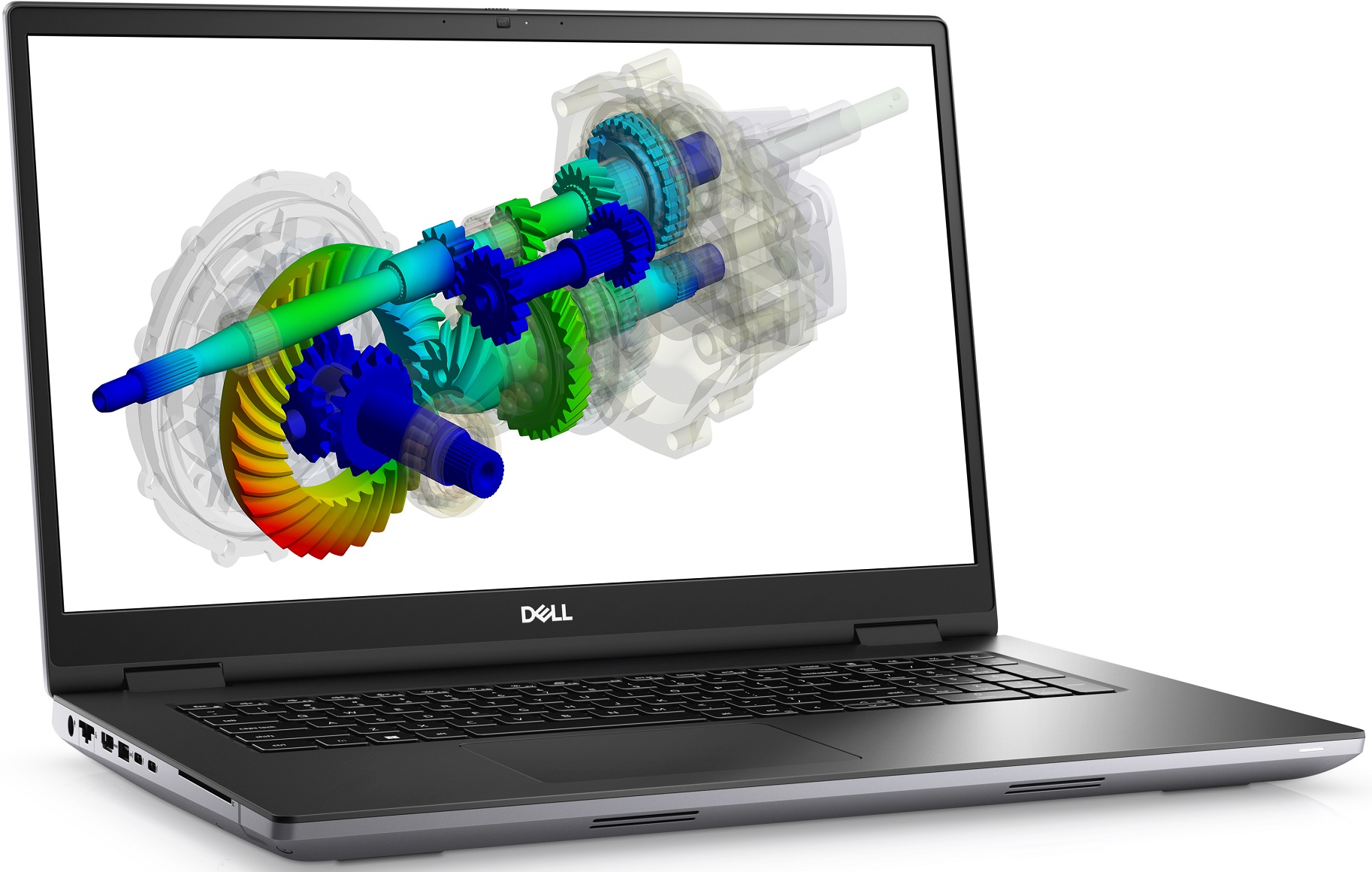
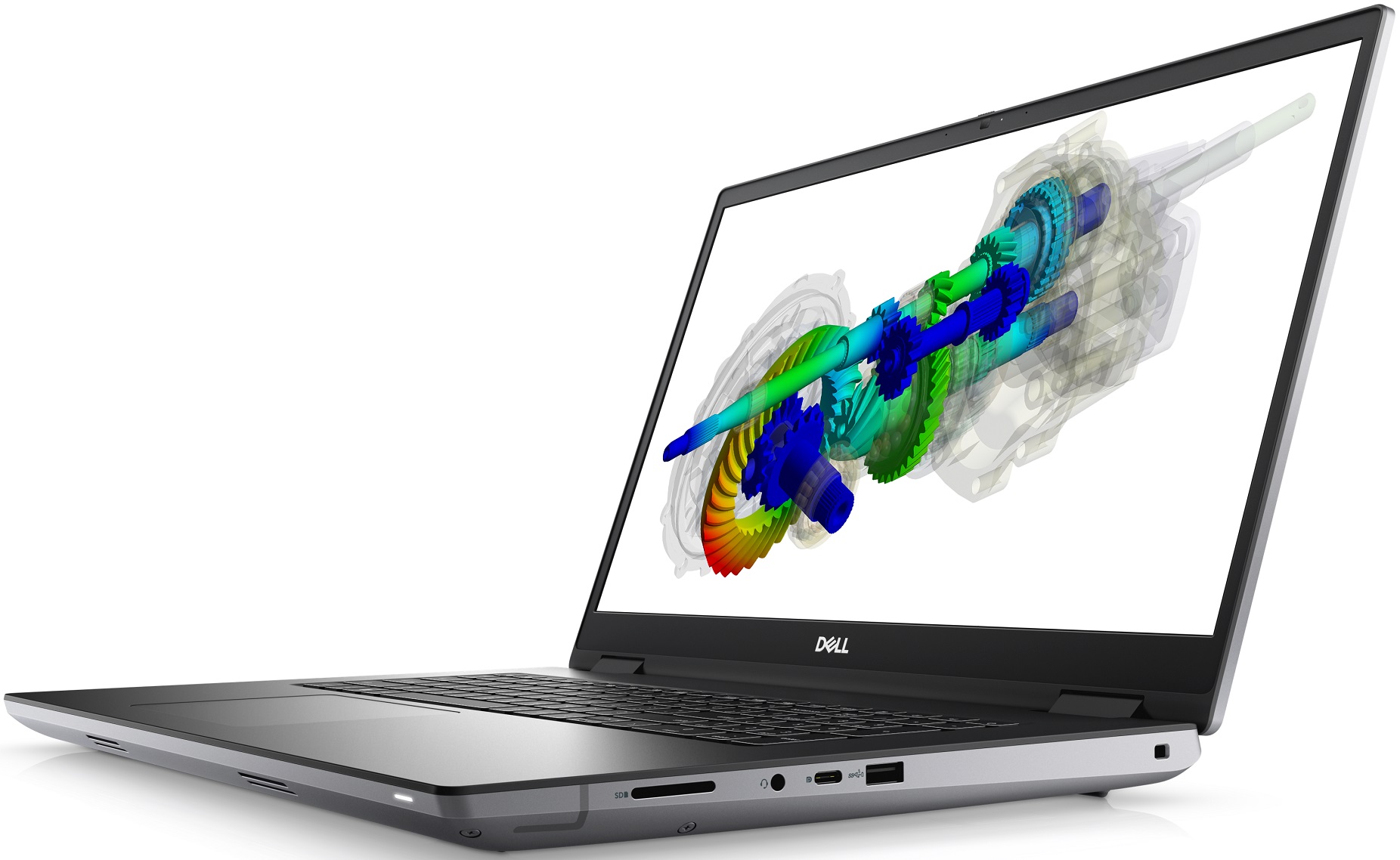
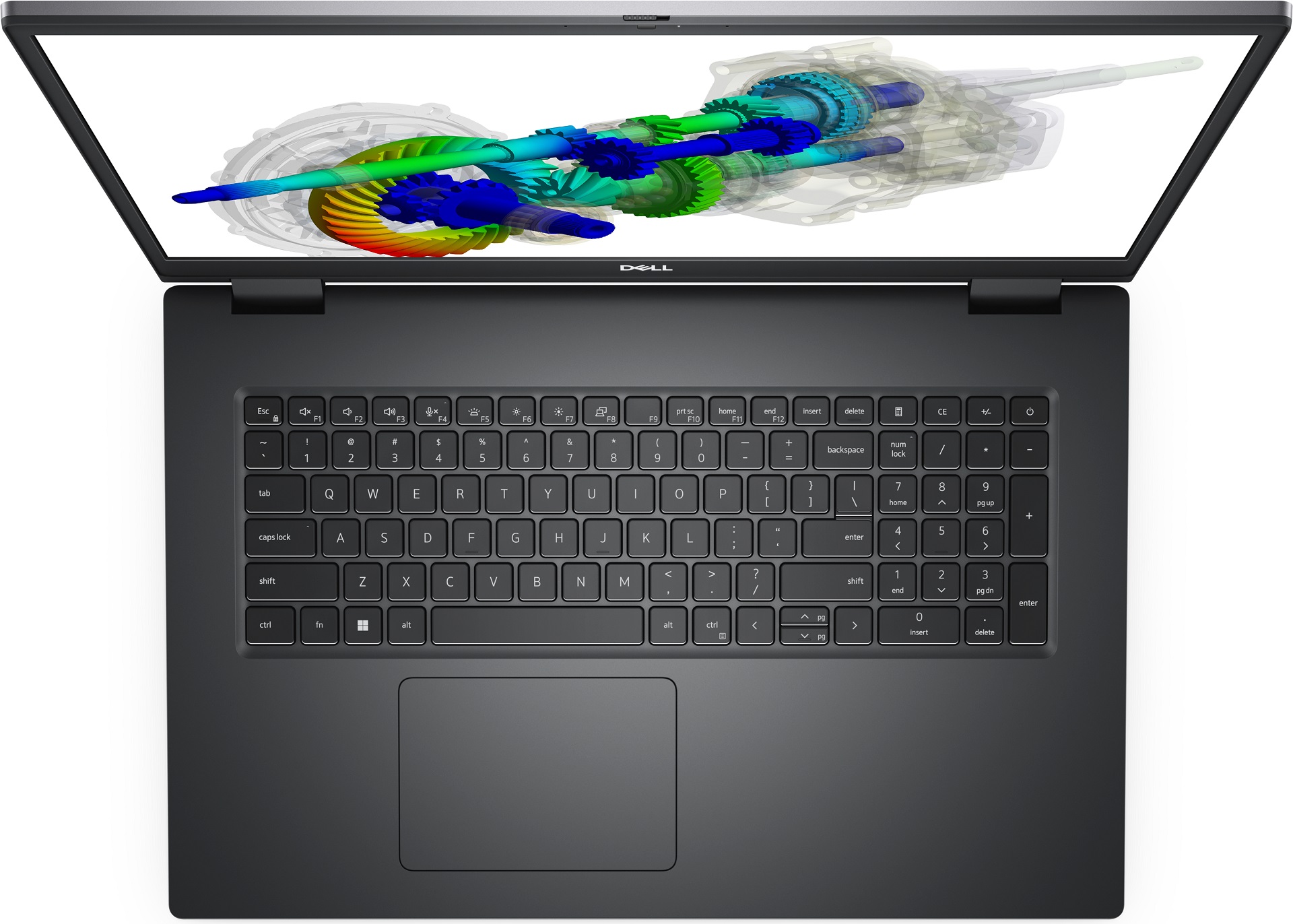
Dell Precision 7770


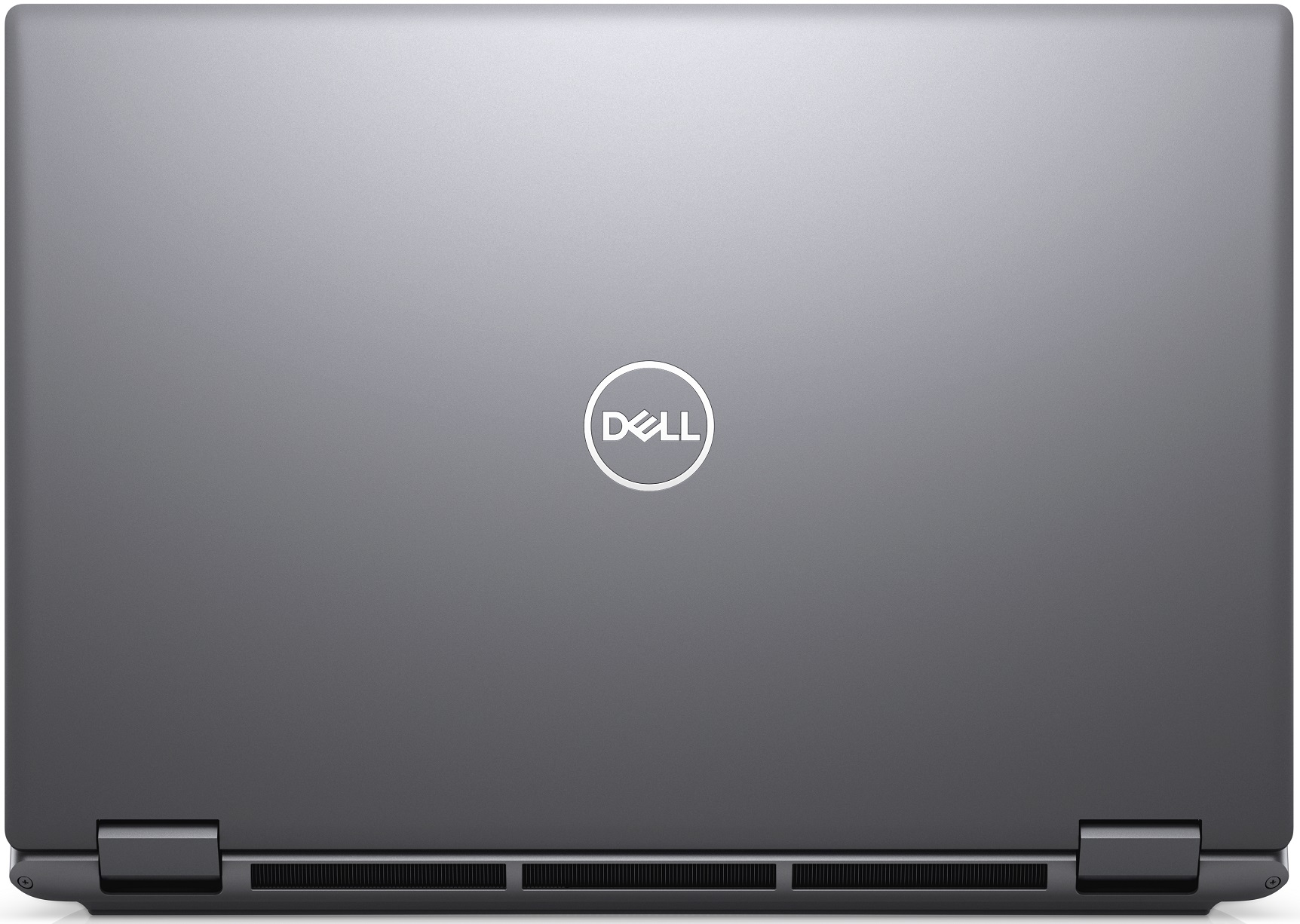

- Date Published: 10 Apr 2023
- Intel Core i7-12850HX
- NVIDIA RTX A3000 (Laptop, 135W)
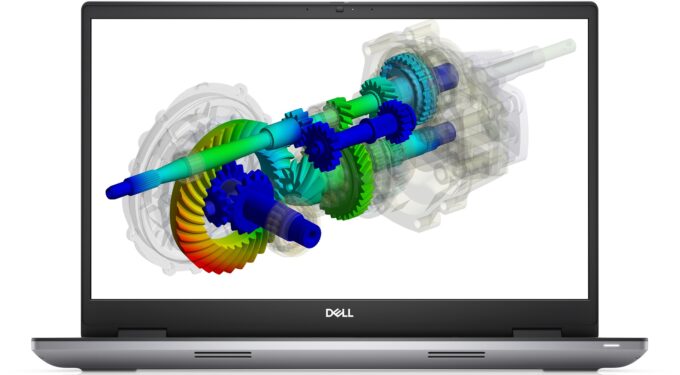
- 17.3”, 4K UHD (3840 x 2160), 120 Hz, IPS
- 512GB SSD
- 16GB DDR5
- 3.02 kg (6.7 lbs)
Review
Dell Precision 7770 in-depth review
Today, we have another workstation. This time, it is a big boy, and it is meant for heavy-duty projects. An attestation for that is the use of up to NVIDIA RTX A5500 dedicated graphics.This graphics card will allow you to work with professional software, receiving full support, and guaranteed effectiveness. Both are thanks to the way it is built, and the way the software interacts with the drivers.But hey, we jumped to the graphics card before we even said the name of the laptop. It is a Dell Precision 17 7770. And as a modern version of the "Chekhov's gun" principle, if there is a GPU in the first part of a review, it will definitely be tested at some point later on.Anyways, a laptop is a lot more than just a graphics card with accessories. It has a processor, which (albeit l[...]
Read the full review
Pros
- Up to 128GB of DDR5 (CAMM) + four M.2 slots
- Capable hardware
- 99% DCI-P3 coverage and accurate colors/li>
- No PWM
- Fingerprint reader + optional IR face recognition and 5G connectivity
- SD card reader + 2x Thunderbolt 4 + HDMI 2.1
- Packs good security features
- Great keyboard and touchpad
- Good battery life
Cons
- High price
- Cooling is not great
- No mention of spill-resistance
Disassembly, maintenance and upgrade options
Upgrading this device is both easy and intriguing. In this article, you are going to learn how to access the memory module(s), and the storage slots.Check out all Dell Precision 17 7770 prices and configurations in our Specs System, or read more in our In-Depth review.1. Open the service door The first thing we see in this laptop is the service door. Pry it open with a plastic tool, and you'll get access to one M.2 PCIe x4 slot.2. Remove the bottom plate To continue with the disassembly, undo the six captive Phillips-head screws. Then, pry the bottom panel with a plastic [...]
Read more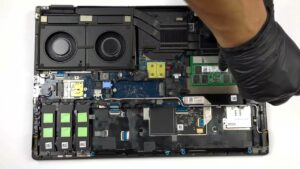


![[June 2026] Best-Selling Laptop Brands on Amazon Global – Apple’s Unrivaled Dominance in Units and Revenue](https://laptopmedia.com/wp-content/uploads/2026/07/GLOBAL-Best-Brands-400x225.jpg)
![[June 2026] Amazon Global: Top 10 Best-Selling Laptops – Apple’s New MacBook Neo Storms to #1, Reshaping the Market with Affordability](https://laptopmedia.com/wp-content/uploads/2026/07/Best-Selling-Laptops-GLOBAL-Top-10-400x225.jpg)
![[June 2026] Amazon Global: Top 10 Best-Selling Gaming Laptops – Acer’s Nitro V 16S AI Dominates Sales, While ASUS Leads Overall Revenue](https://laptopmedia.com/wp-content/uploads/2026/07/Best-Selling-Gaming-Laptops-GLOBAL-Top-10-400x225.jpg)
![[June 2026] Global Ranking of Best-Selling Laptop GPUs on Amazon – NVIDIA RTX 5060 is the Top-Selling Dedicated GPU](https://laptopmedia.com/wp-content/uploads/2026/07/Best-Selling-GPUs-GLOBAL-Top-10-400x225.jpg)
![[June 2026] Global Ranking of Best-Selling Laptop CPUs on Amazon – Apple M5 Dominates, AMD Ryzen 7 260 Gets Solid Premium Share](https://laptopmedia.com/wp-content/uploads/2026/07/Best-Selling-CPUs-GLOBAL-Top-10-400x225.jpg)