Acer TravelMate P4 (TMP414-53) review – Great for Work or School
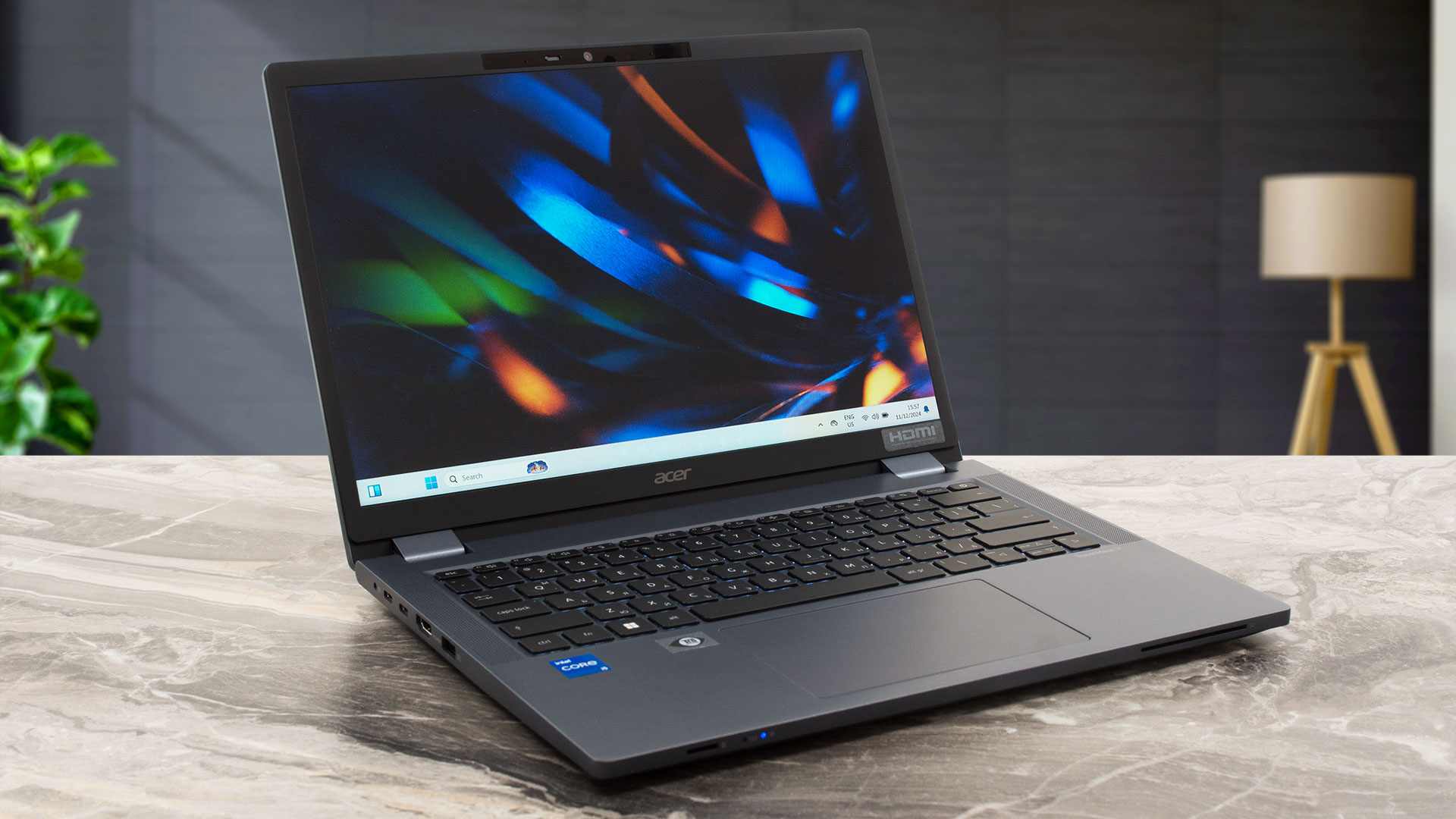 If you like the Acer TravelMate P4 Spin (TMP414RN-53) but don’t need its transforming capabilities, you could save some bucks by choosing the TravelMate P4 (TMP414-53). It’s the same device but it lacks a 360-degree hinge. The rest of the specs are almost the same. This means 13th gen Raptor Lake-U CPU options alongside upgradable RAM and Wi-Fi card. The port selection remains great for a 14″ machine with two Thunderbolt 4s and a pair of Type-As.
The useful Dust Defender system is on board. All you have to do is to open the Quick Access app and activate the “Clean” mode. Shortly after that, the fan spins counterclockwise and it blows out the dust through a small hole in the bottom plate. By the way, this function is triggered automatically after every six hours of continuous use.
You also get a choice of different IPS panels. Our one is the base model and while it’s suitable for work, it’s not the most color-accurate unit out there.
You can check the prices and configurations in our Specs System: https://laptopmedia.com/series/acer-travelmate-p4-tmp414-53-tmp414-53g/
Contents
Specs, Drivers, What’s in the box
Acer TravelMate P4 (TMP414-53 / TMP414-53G) - Specs


- HDD/SSD
- up to 1000GB SSD
- M.2 Slot
- 1x 2280 M.2 NVMe PCIe 4.0 x4 See photo
- RAM
- up to 32GB
- OS
- Windows 11 Pro, Windows 11 Home, DOS
- Battery
- 56Wh, 4-cell , 56Wh, 4-cell
- Body material
- Plastic / Polycarbonate, Aluminum
- Dimensions
- 319 x 229 x 18.9 mm (12.56" x 9.02" x 0.74")
- Weight
- 1.39 kg (3.1 lbs)
- Ports and connectivity
- 1x USB Type-A
- 3.2 Gen 1 (5 Gbps)
- 1x USB Type-A
- 3.2 Gen 1 (5 Gbps), Sleep and Charge
- 2x USB Type-C
- 4.0, Thunderbolt 4, Power Delivery (PD)
- HDMI
- 2.1
- Card reader
- microSD (microSD, microSDHC, microSDXC)
- Ethernet LAN
- 10, 100, 1000 Mbit/s
- Wi-Fi
- 802.11ax
- Bluetooth
- 5.3
- Audio jack
- 3.5mm Combo Jack
- Features
- Fingerprint reader
- optional
- Web camera
- FHD IR
- Backlit keyboard
- optional
- Microphone
- Speakers
- 2x Stereo Speakers
- Optical drive
- Security Lock slot
- Kensington Lock
All Acer TravelMate P4 (TMP414-53 / TMP414-53G) configurations
Drivers
All drivers and utilities for this notebook can be found here: https://www.acer.com/us-en/support/product-support/TMP414-53/downloads?suggest=TMP414-53;0
What’s in the box?
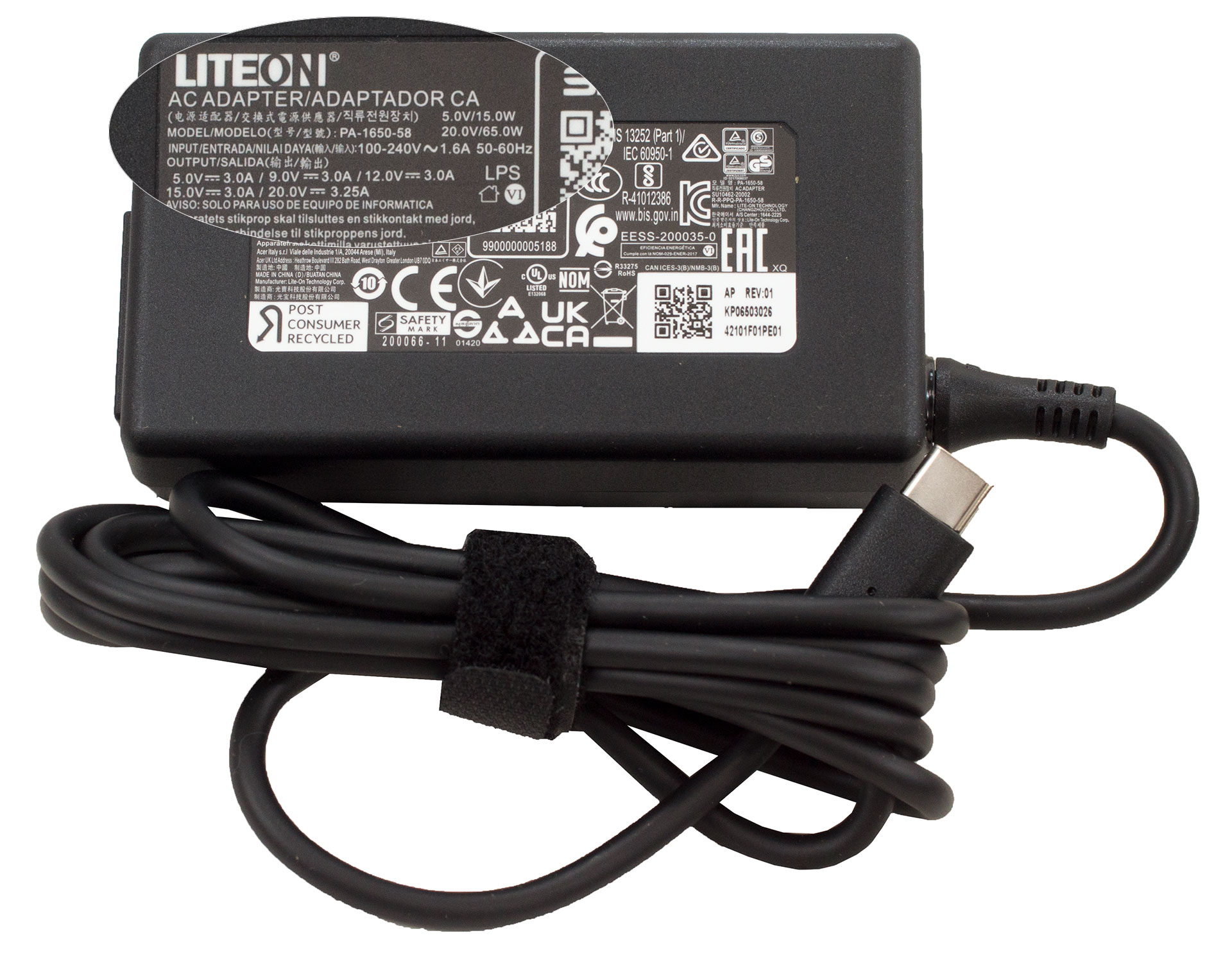
Nothing too fancy inside the box – a plethora of manuals and a 65W Type-C or barrel plug charger.
Design and construction
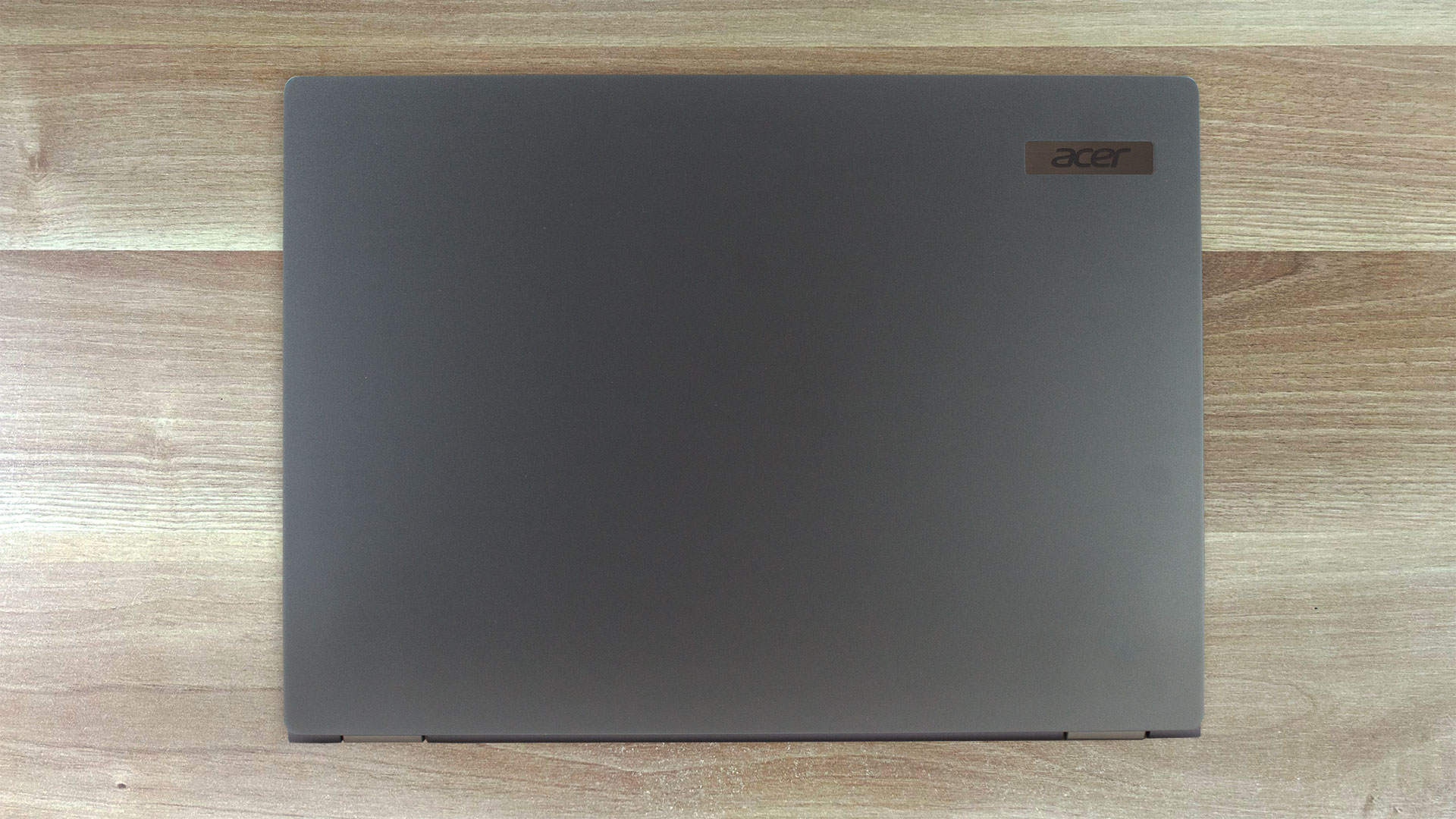
The TravelMate P4 (TMP414-53) and the TMP414RN-53 model are almost twins. Even the profile thickness is the same – 18.9 mm. Still, TMP414-53 has no 2-in-1 capabilities, and that’s why it’s a bit lighter with its 1.39 kilos.
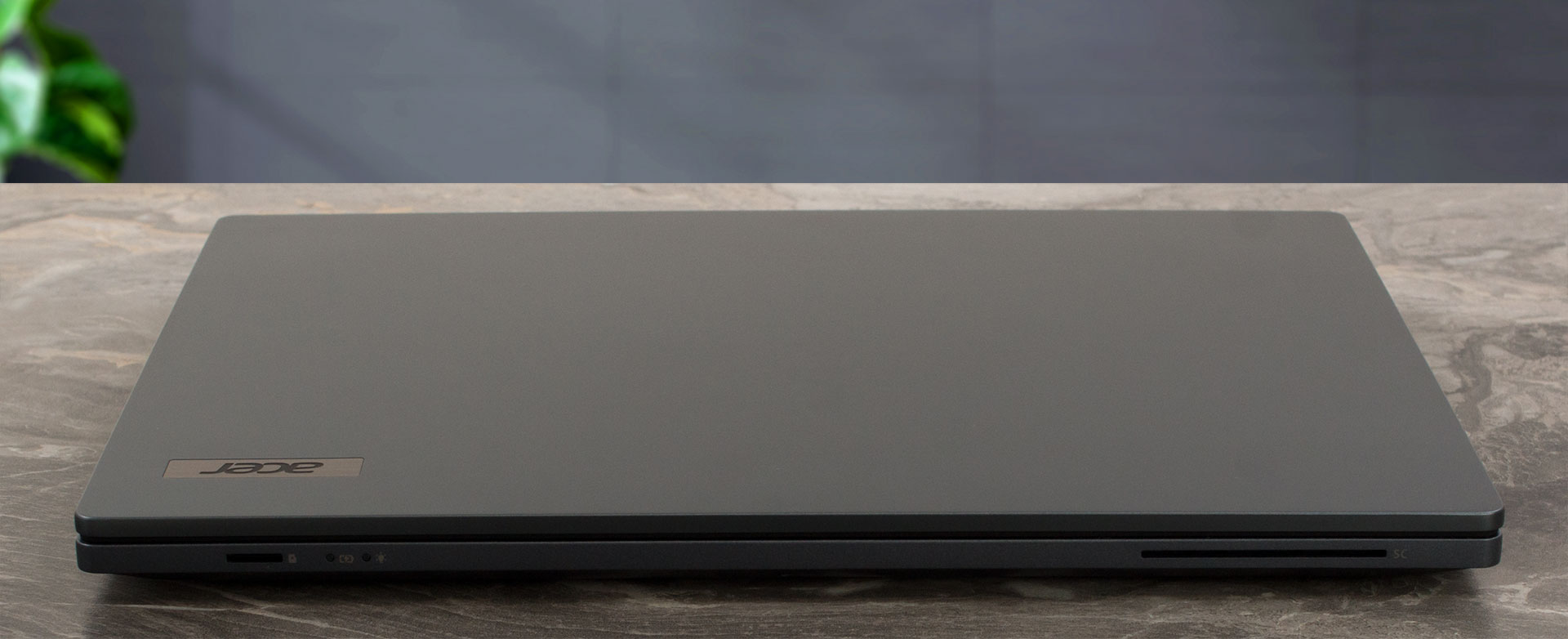
You can’t open the lid with one hand. However, the unit is stable and this also applies to the base.
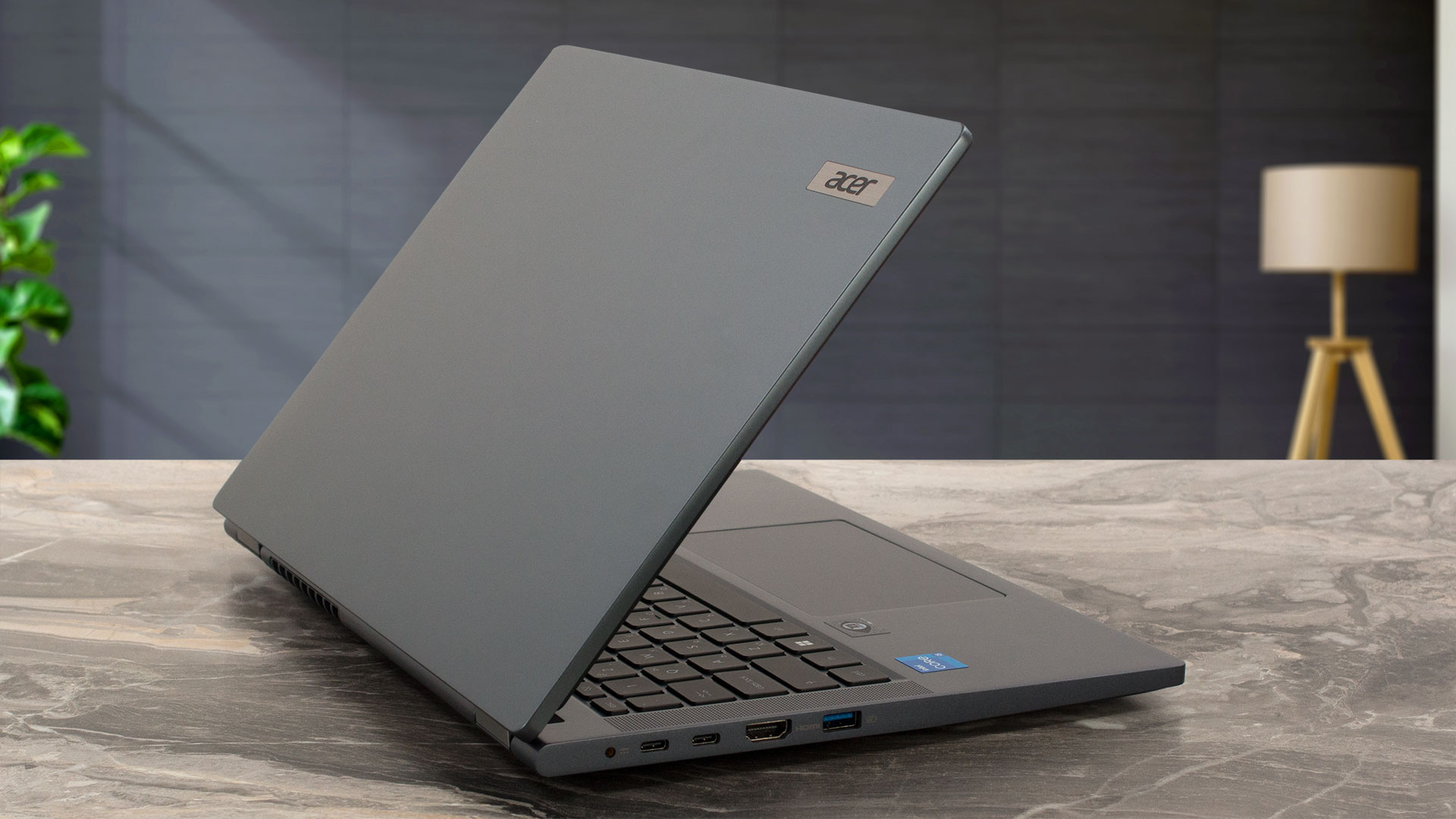
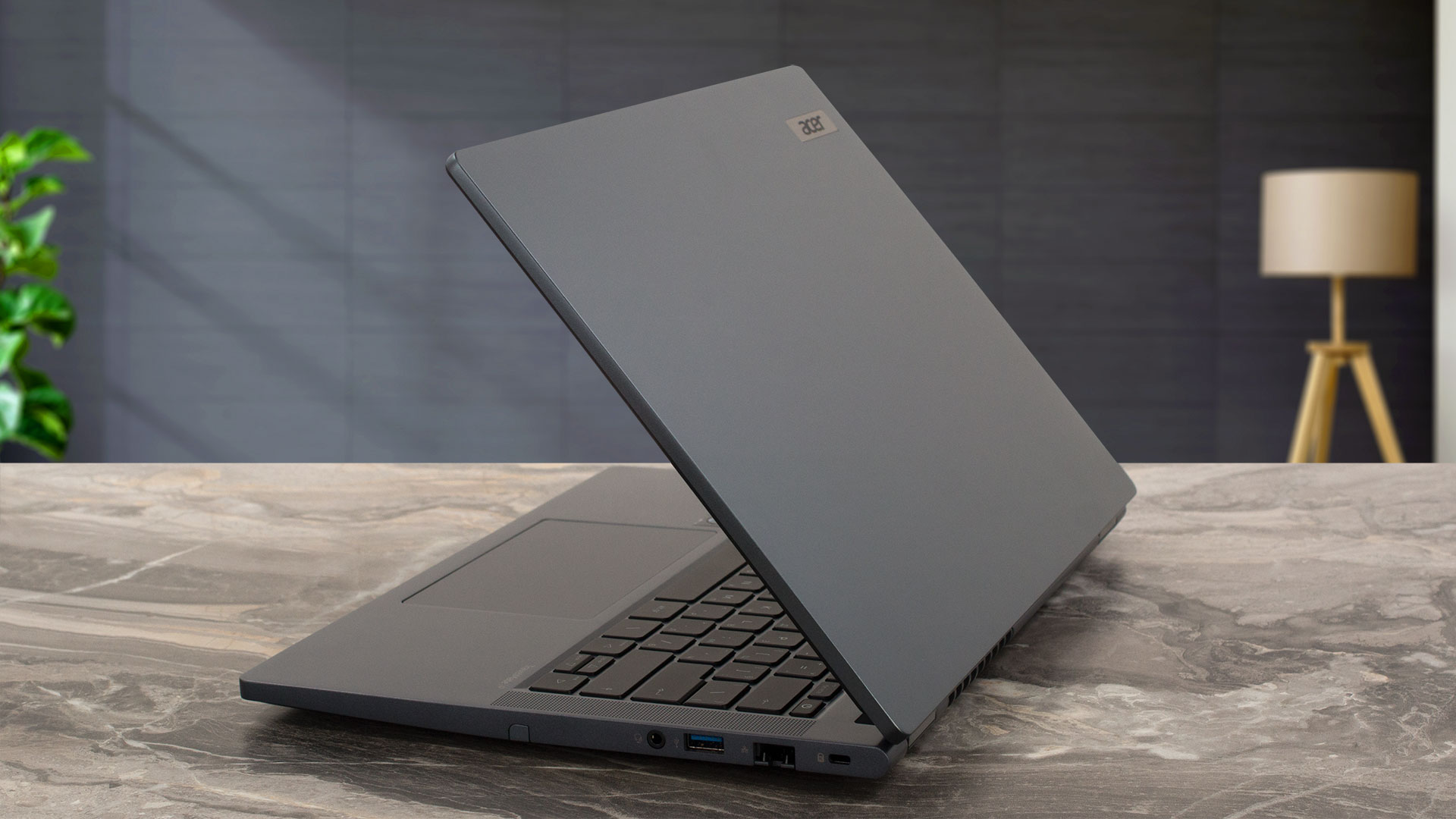
The bezels around the 1200p IPS panel aren’t exactly thin.
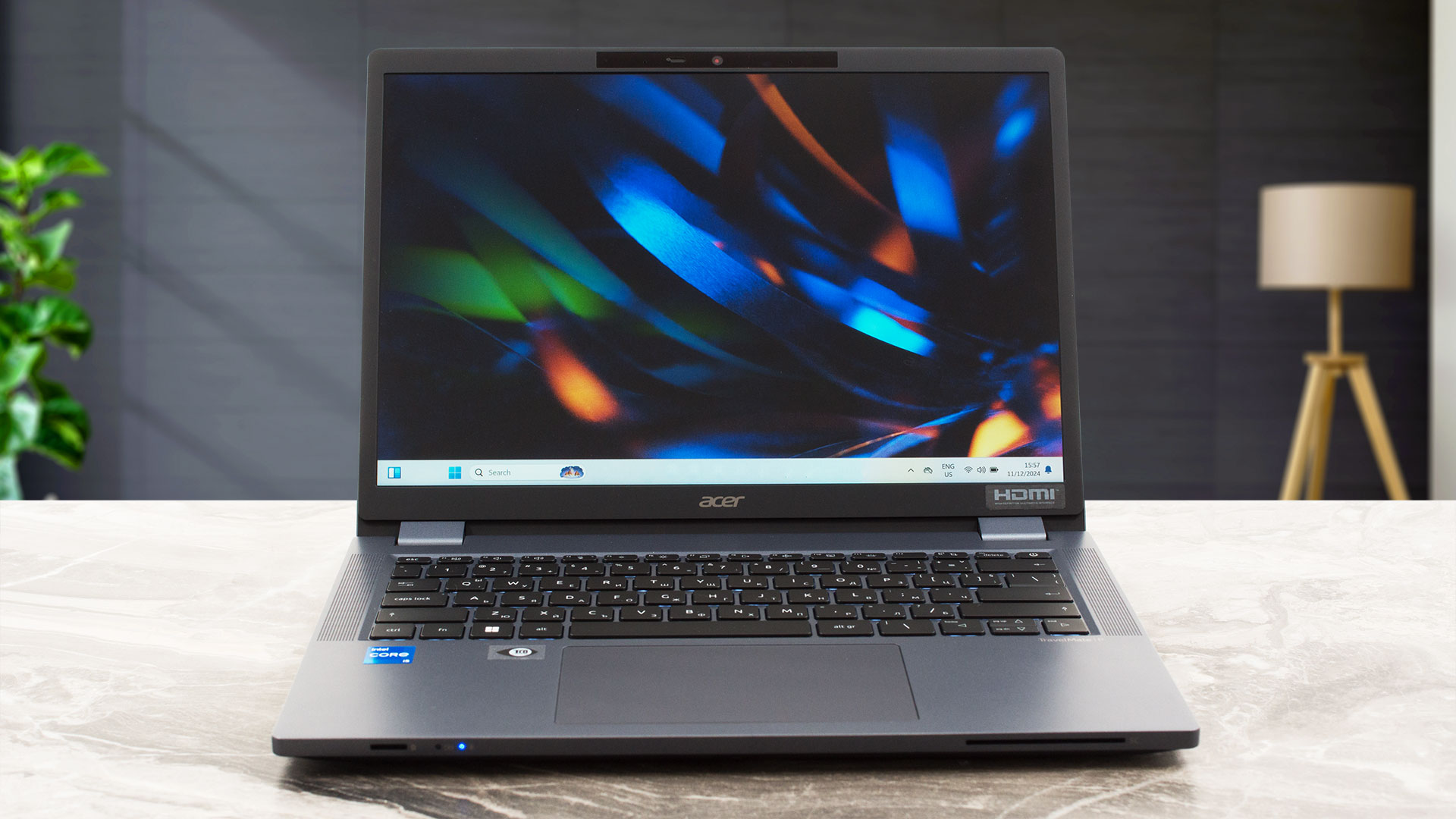
The 720p@30FPS Web camera with a privacy shutter is positioned above the screen. You can also opt for a 1080p@60FPS IR unit for Windows Hello.
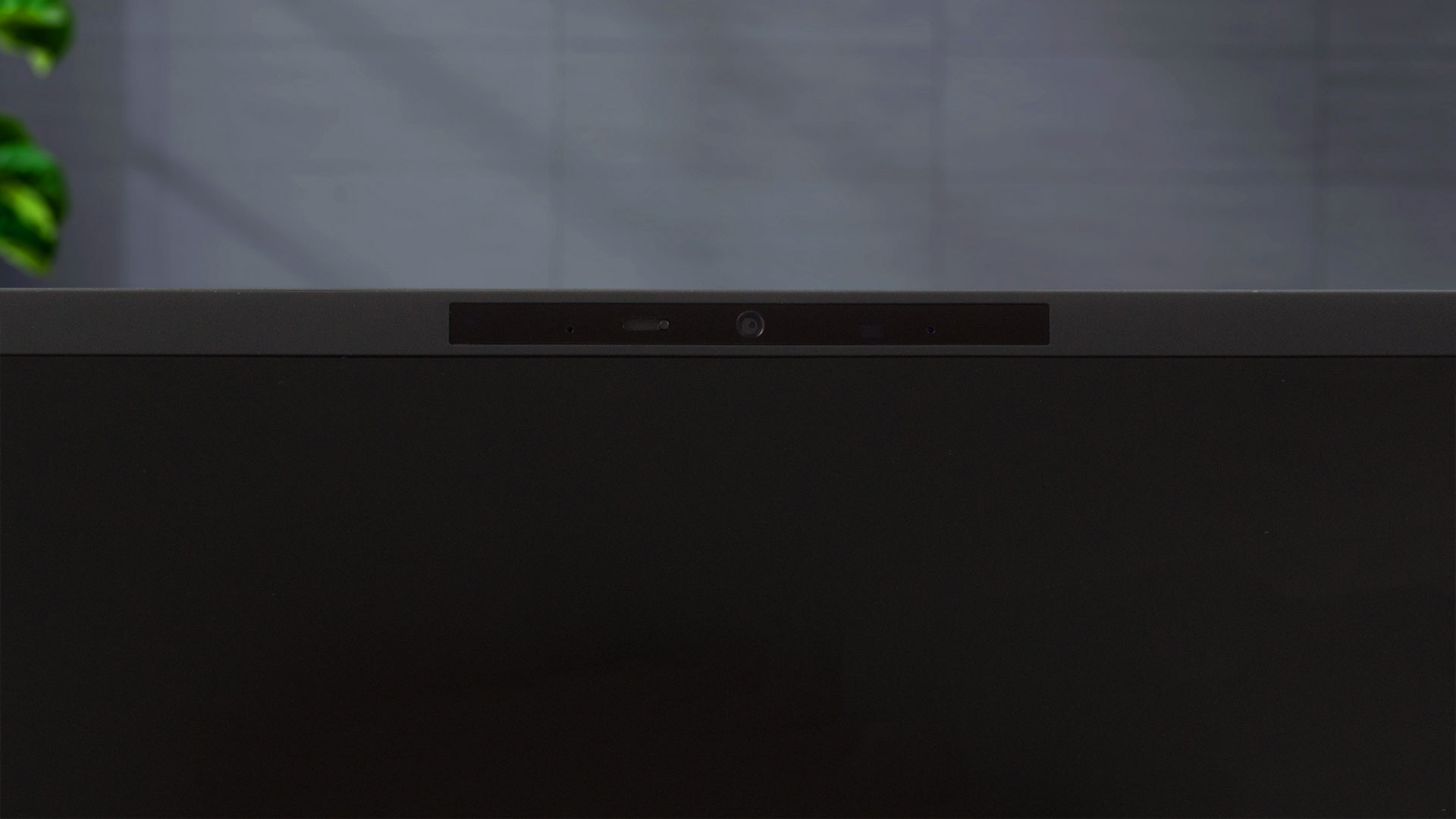
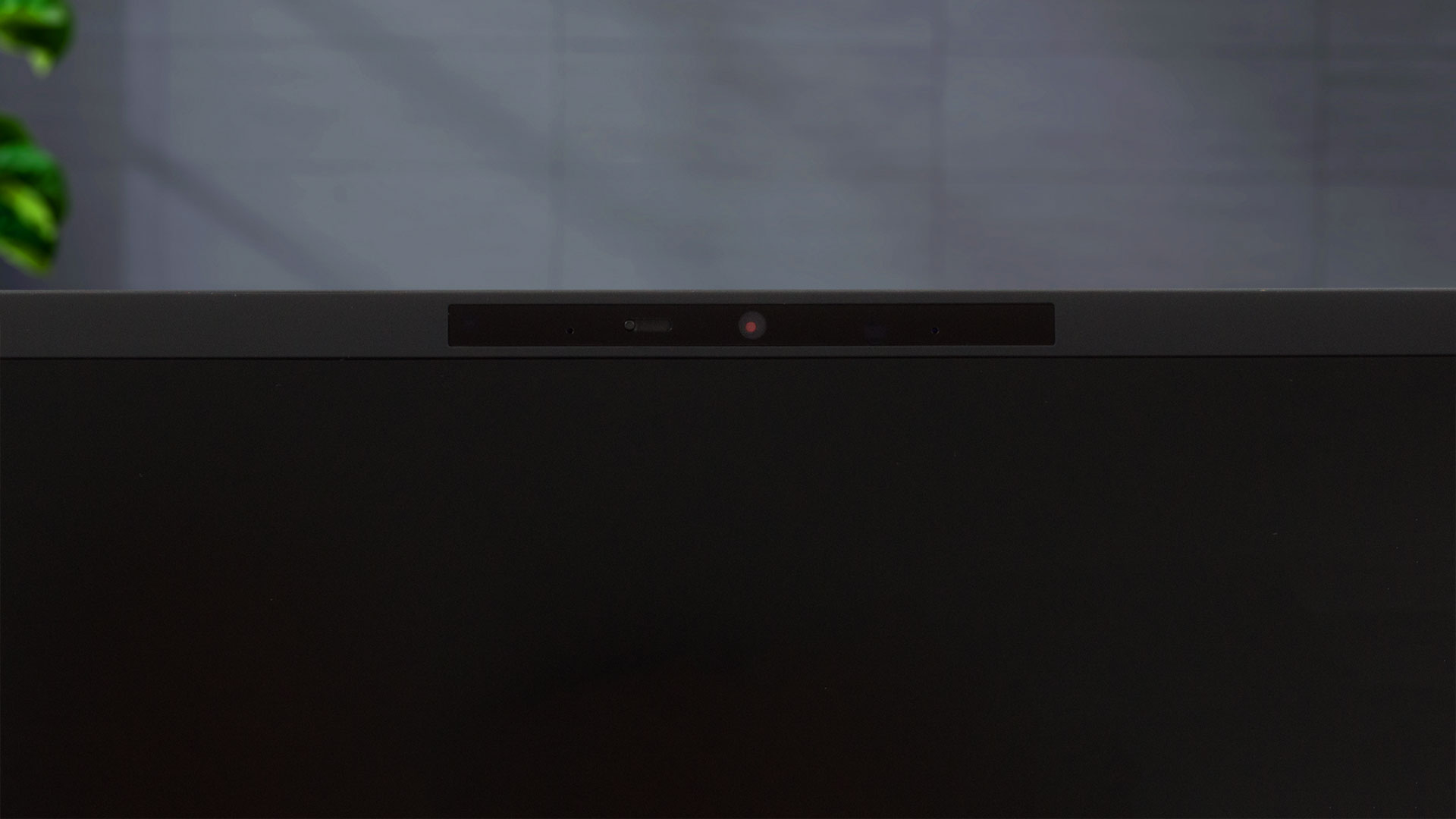
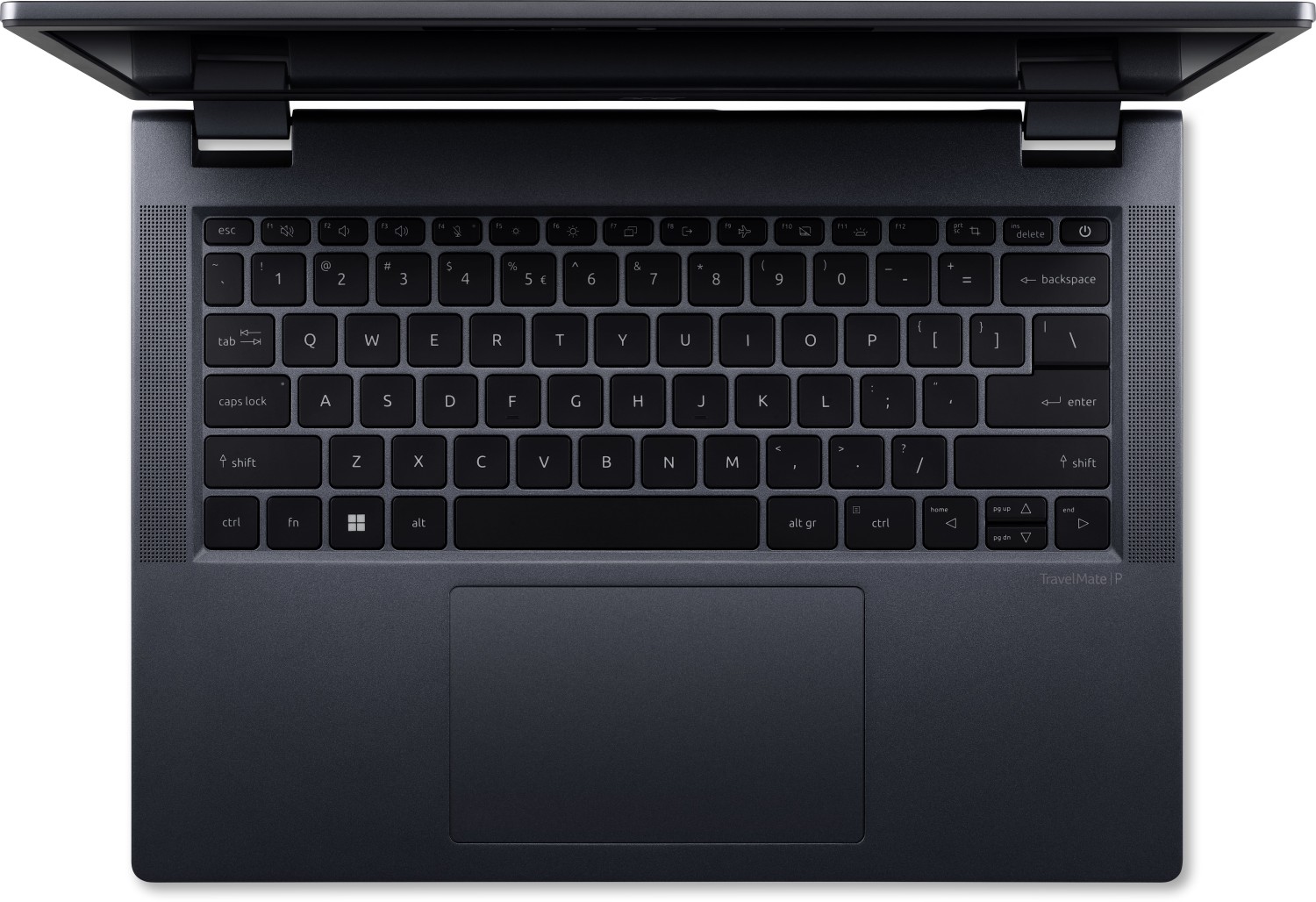
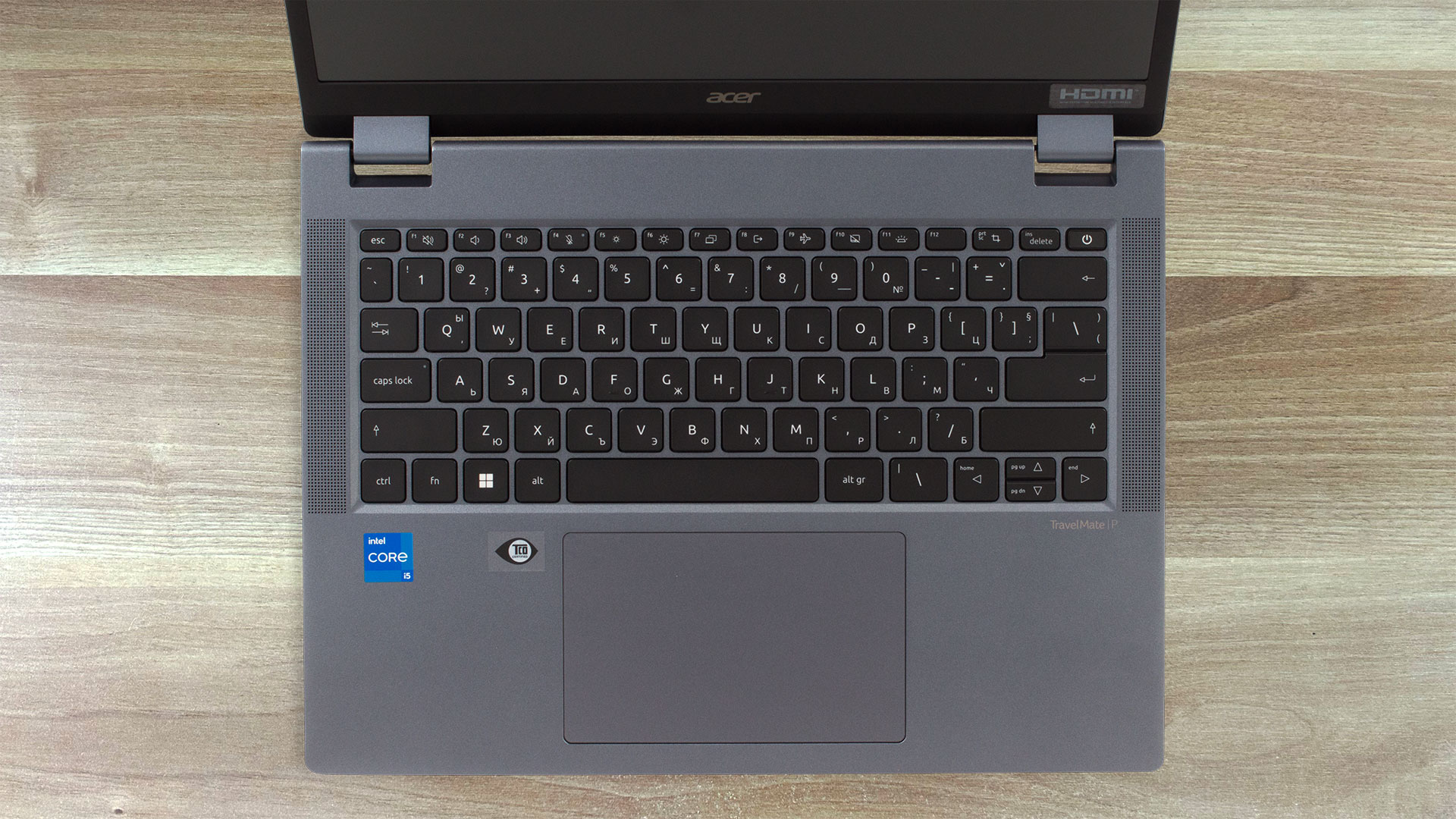
The tiny “Up” and “Down” Arrow keys are the only downside of the backlit keyboard, which offers pretty long key travel and is great for typing. The Power button doubles as a fingerprint reader. The speaker grills are on the sides of the board.
The large touchpad is smooth, which is a nice surprise given this machine’s end price. The accuracy is on point.
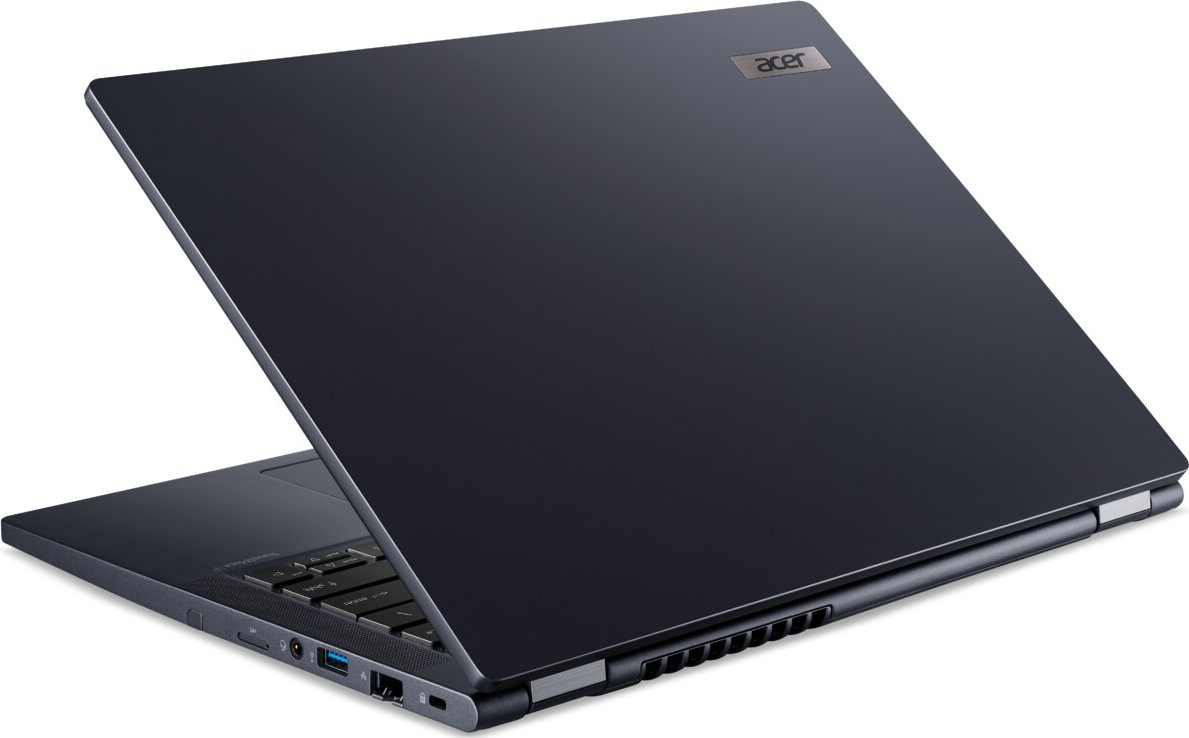
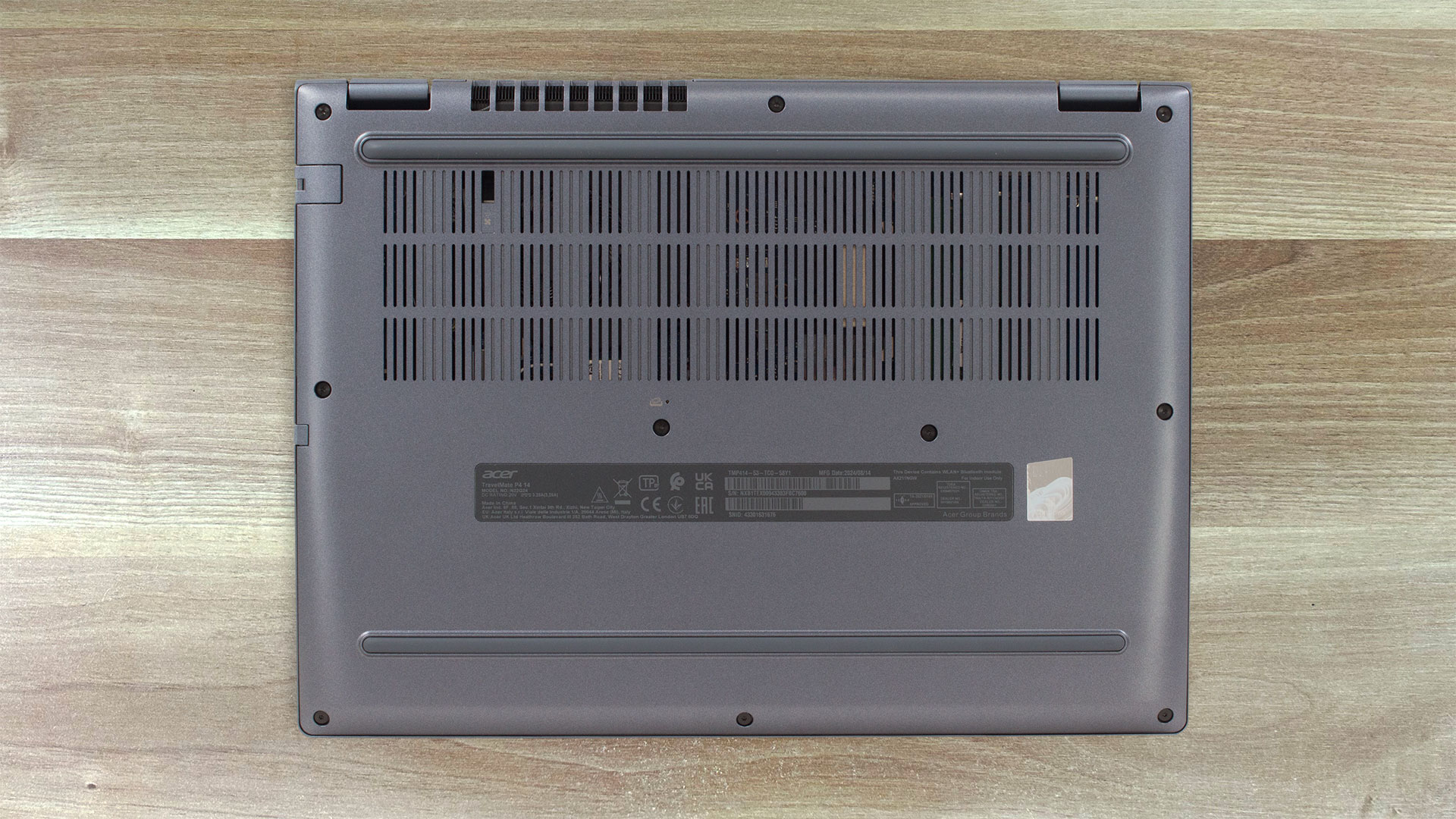
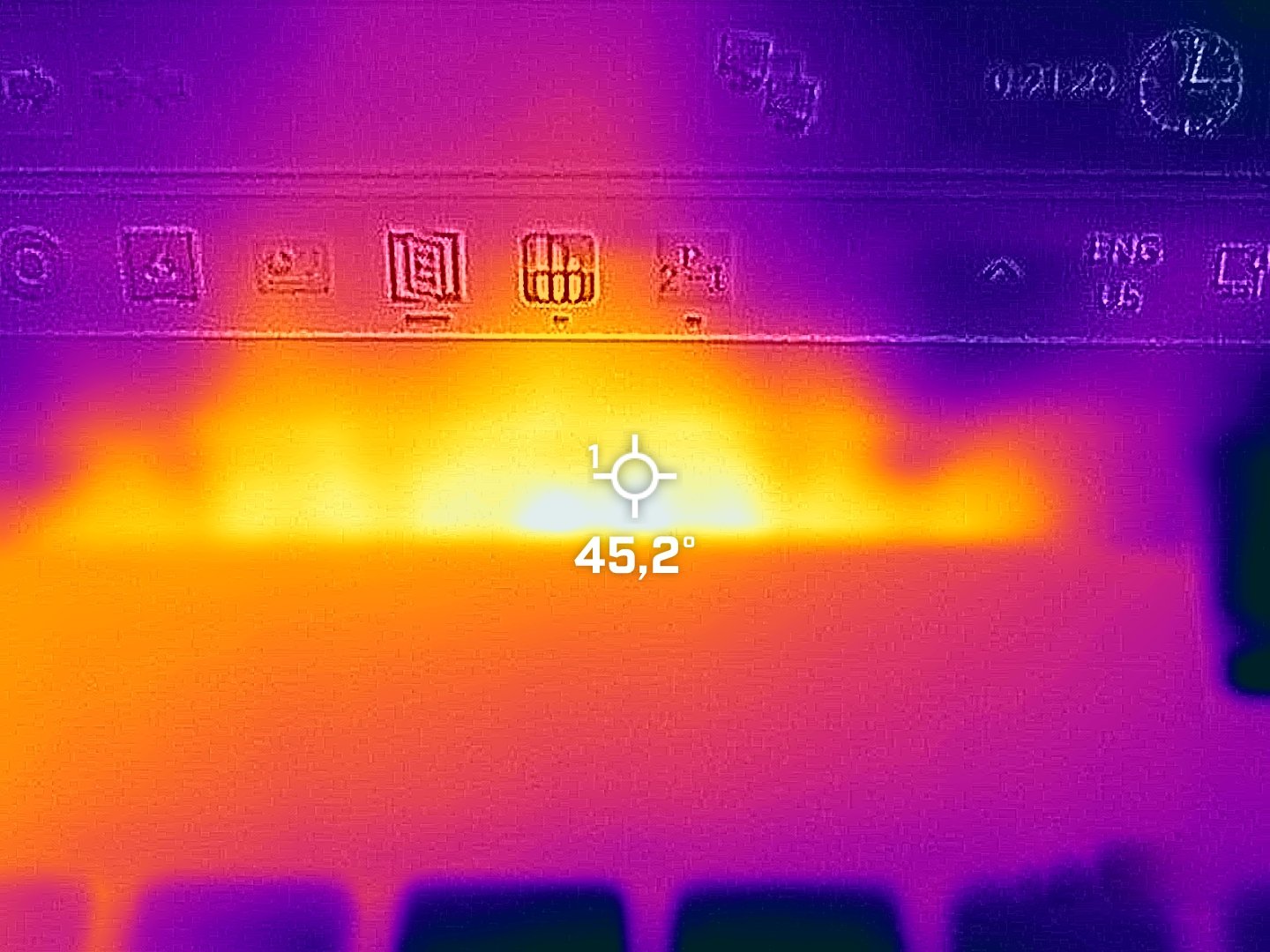
When you flip the device upside down, you’ll see two long rubber feet, a battery reset pinhole, and a large ventilation grill that houses a cutout on the top left section for the Acer Dust Defender system. The hot air is exhausted through a vent on the back. When the CPU is pounded with heavy loads, a bit of heat makes its way to the lower display bezel.

Ports
On the left, there is a power connector, two 40 Gbps Thunderbolt 4 / USB4 ports with DisplayPort and charging capabilities (65W DC-in), an HDMI 2.1, and a USB Type-A 3.2 (Gen. 1) port that supports power-off charging. The microSD Card and the optional Smart Card readers are placed on the front. On the right, you get a Kensington lock slot, LAN, another USB Type-A 3.2 (Gen. 1) port, an Audio combo jack, an optional SIM card slot, and a Stylus garage (option).



Display and Sound Quality, Get our Profiles
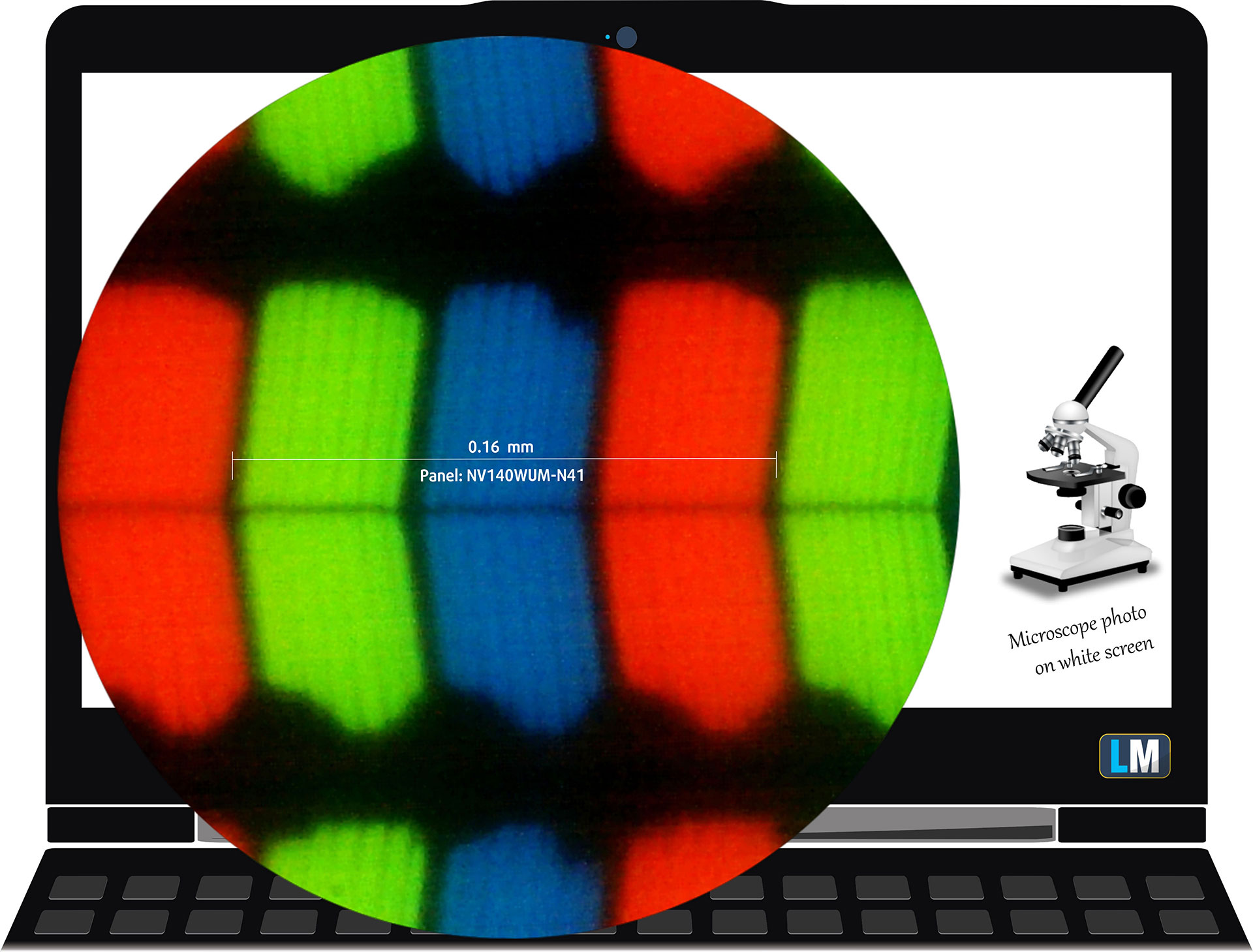
| Acer TravelMate P4 (TMP414-53) | NV140WUM-N41 (BOE0AE8) |
| Diagonal | 14.0 inches (35.6 cm) |
| Panel Type | IPS |
| Resolution | 1920 x 1200 pixels |
| Max Refresh Rate | 60 Hz |
| Aspect Ratio | 16:10 |
| Pixel Density | 162 PPI |
| ‘Retina’ Distance | Greater than or equal to 53 cm |
Viewing Angles
Viewing angles are good. We take photos from different angles to evaluate the quality.
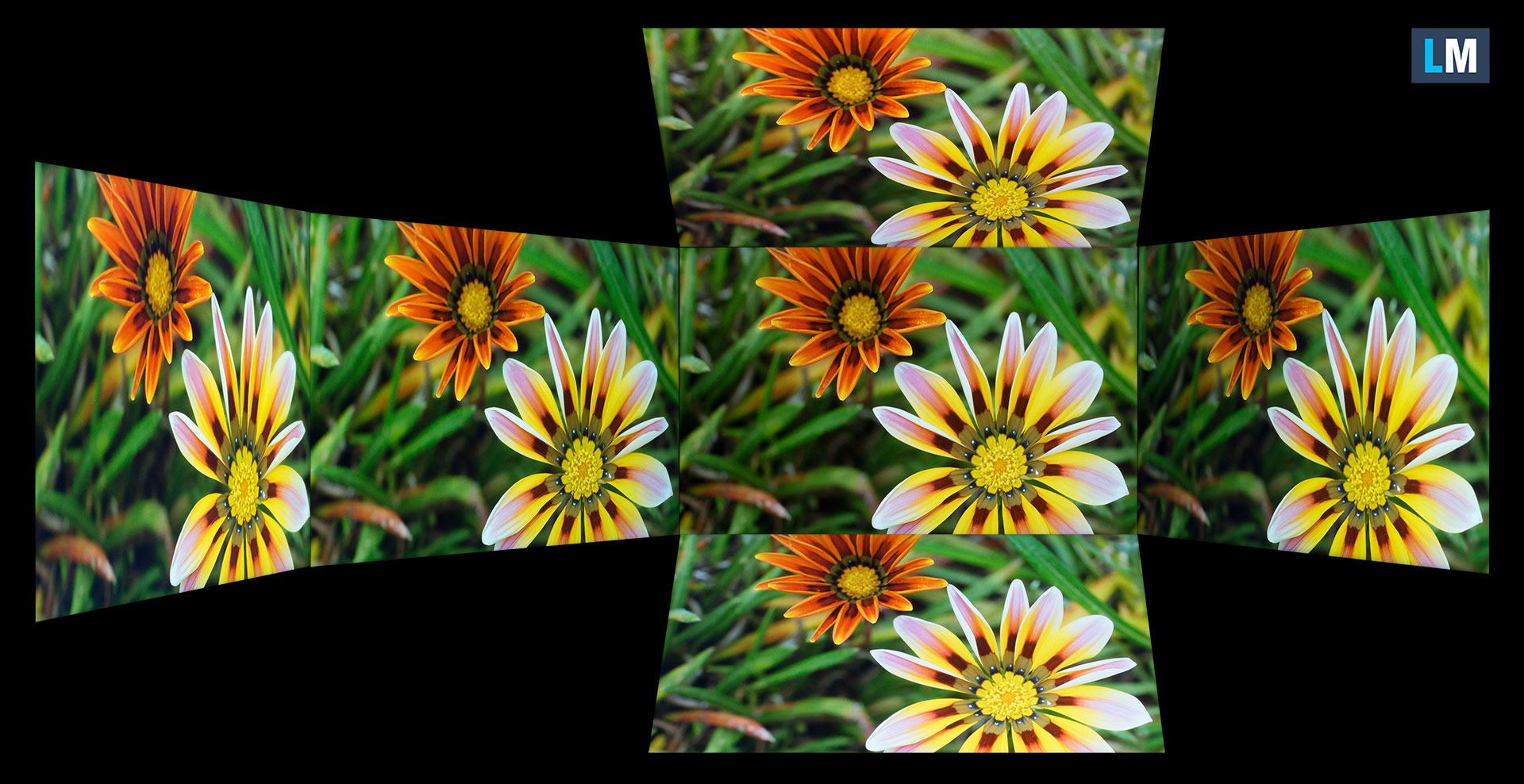
Also, a video with locked focus and exposure.
Color Coverage
The whole “sail-shaped” map below (Fig. 1) consists of all the colors we can see, while the black crooked line shows all the colors from real-world scenes and nature around us.
Then, we’ve drawn some of the most important and interesting color spaces, compared to the colors the panel of Acer TravelMate P4 (TMP414-53) can show:
Standard/For Web: sRGB – widely used color space for most consumer devices, ideal for Web design and development
For Print: AdobeRGB – used in professional photo editing, graphic design, and print
For Photographers/Video Editors: DCI-P3 – used in high-end film production, post-production, and digital cinema
Premium HDR: Rec.2020 – the widest consumer ITU color standard, covering a massive 75.8% of the visible spectrum, a benchmark for premium HDR content
Acer TravelMate P4 (TMP414-53): the yellow dashed triangle (– – – – – –) represents the range of colors this monitor can display.
In our tests, we calculated the total color coverage of the monitor at 49% of the sRGB color gamut and 39% of the DCI-P3 color gamut.
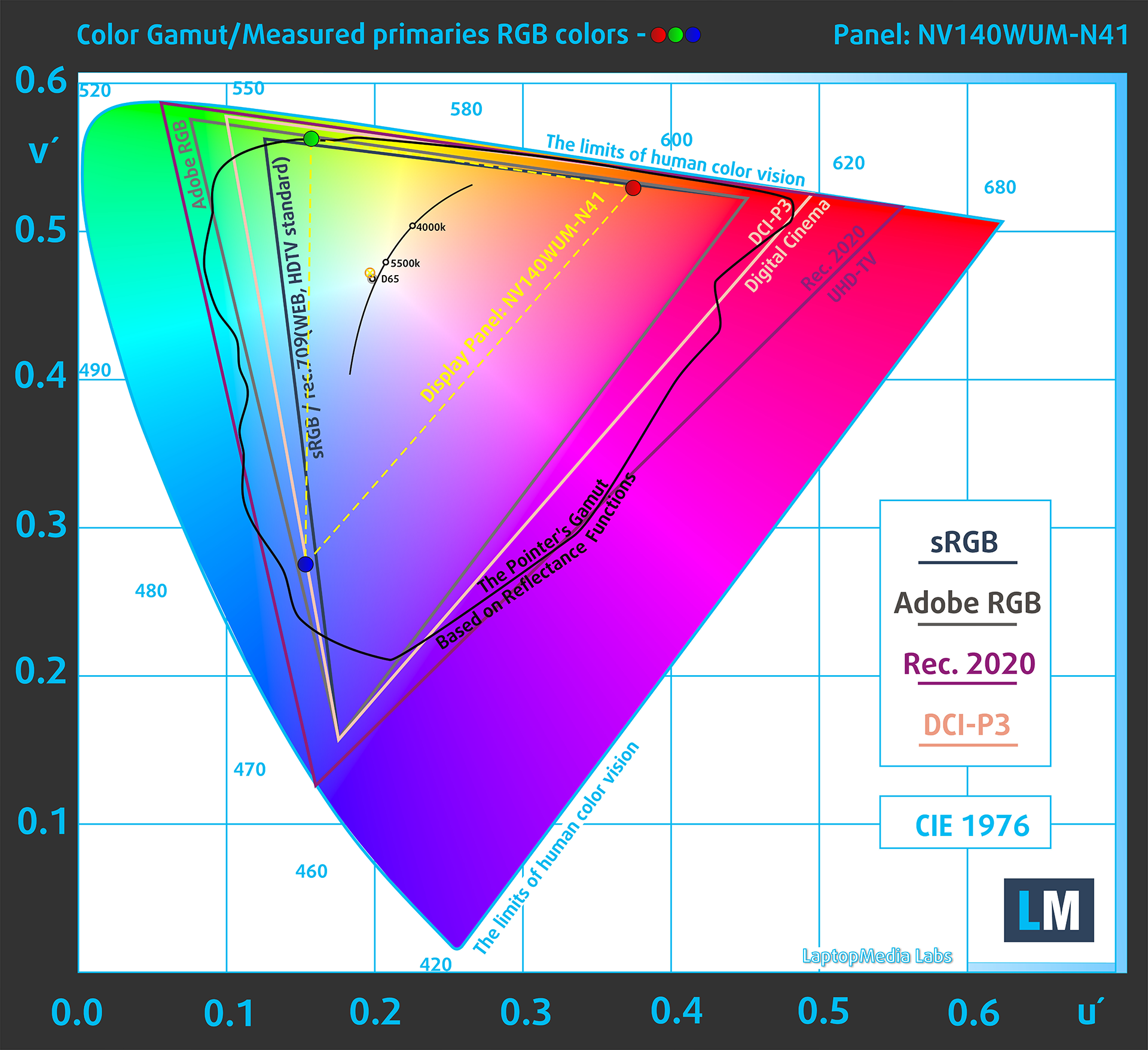
(Fig.1) Acer TravelMate P4 (TMP414-53) covers 49% of the sRGB gamut
Brightness and Contrast
The maximum brightness in SDR mode is 276 cd/m² in the center of the screen and 275 cd/m² averaged across the surface with a maximum deviation of 5%.
The Correlated Color Temperature (CCT) on a white screen at maximum brightness is 6380K.
The contrast ratio is 1210:1.
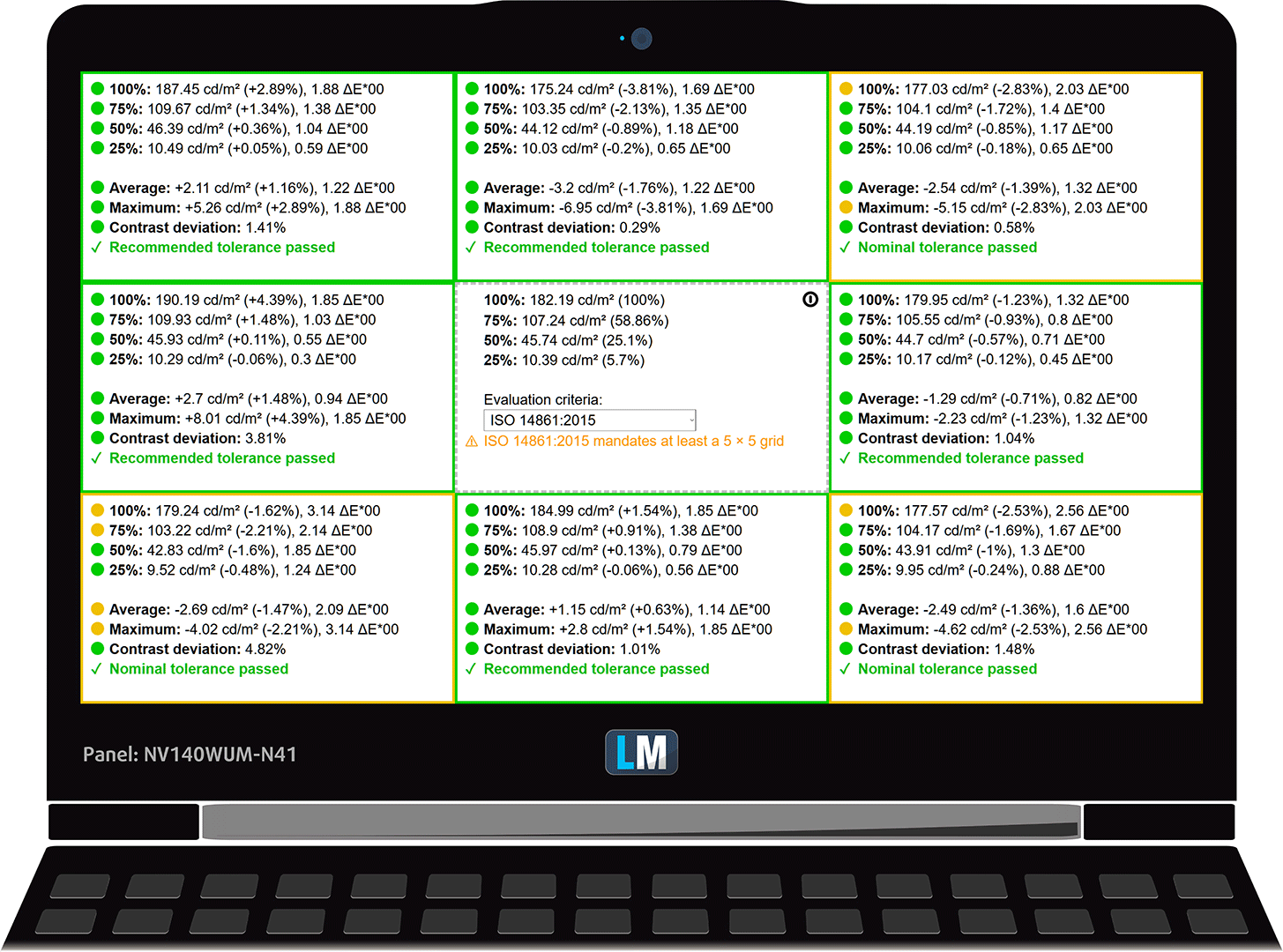
Uniformity: Luminance, Contrast, and Color Deviation
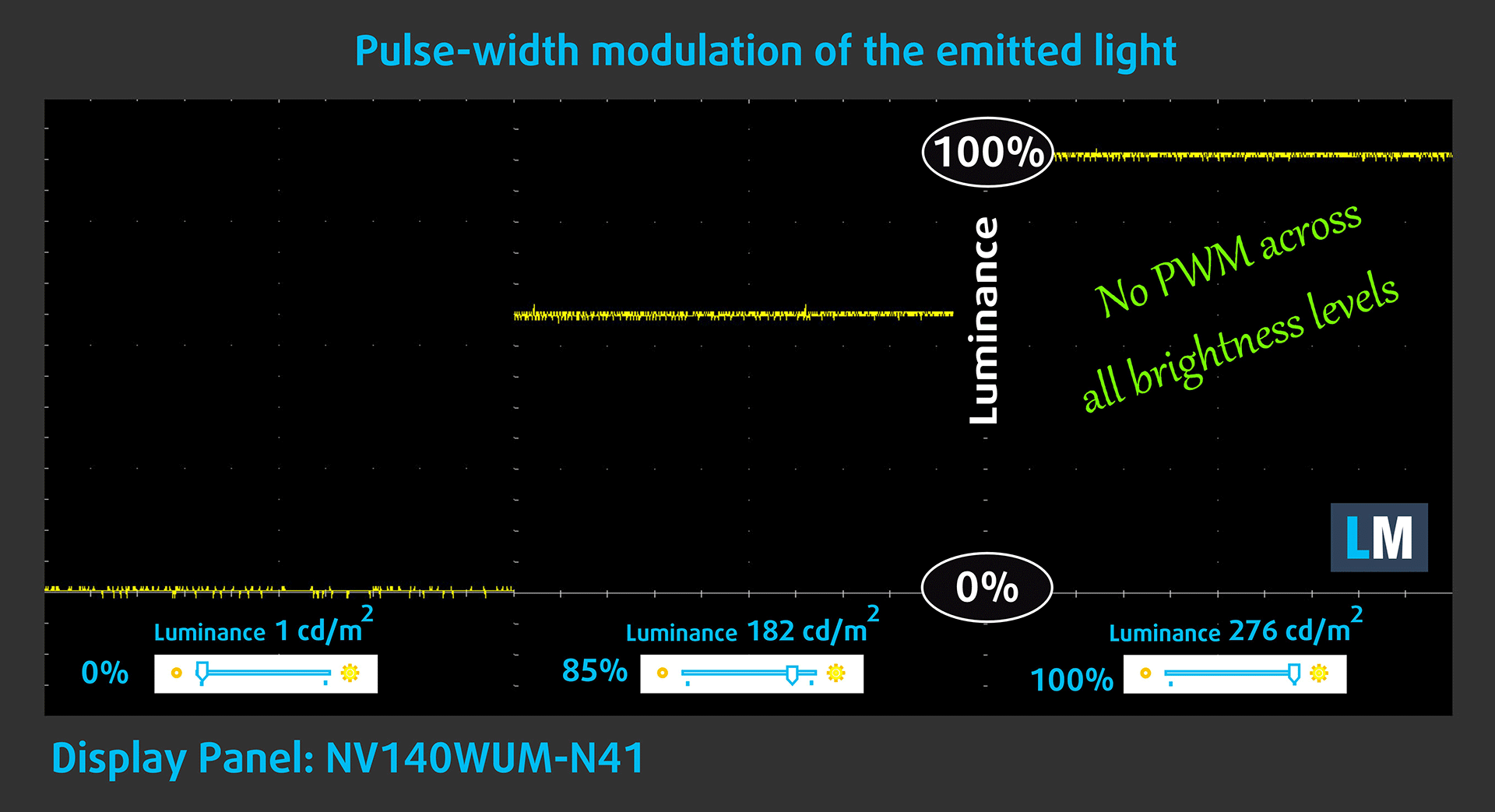
The figure below shows the results from our uniformity test across different sections of the screen. It’s measured at 182 nits (Windows slider = 85%) — a brightness level we consider typical for standard working conditions.
DeltaE values below 4.0 are acceptable for regular users. For those working with colors, screens with DeltaE values no higher than 2.0 are recommended.
Color Accuracy
Let’s check the difference between real colors and those you’ll see on the Acer TravelMate P4 (TMP414-53). We measure that distance in DeltaE – the higher the number, the more different they look.
Values below 4.0 are acceptable for regular users, while values below 2.0 are suitable for color-sensitive work. A value below 1.0 means the difference is indistinguishable to the naked eye.
For the next graph, we’ve selected 24 common colors, including dark/light skin, blue sky, green grass, etc.
Before our calibration of the Acer TravelMate P4 (TMP414-53), the Average color accuracy was 6.2 dE (Fig. 2), and with our Design and Office Work profile, it lowered to 4.3 dE (Fig. 3).
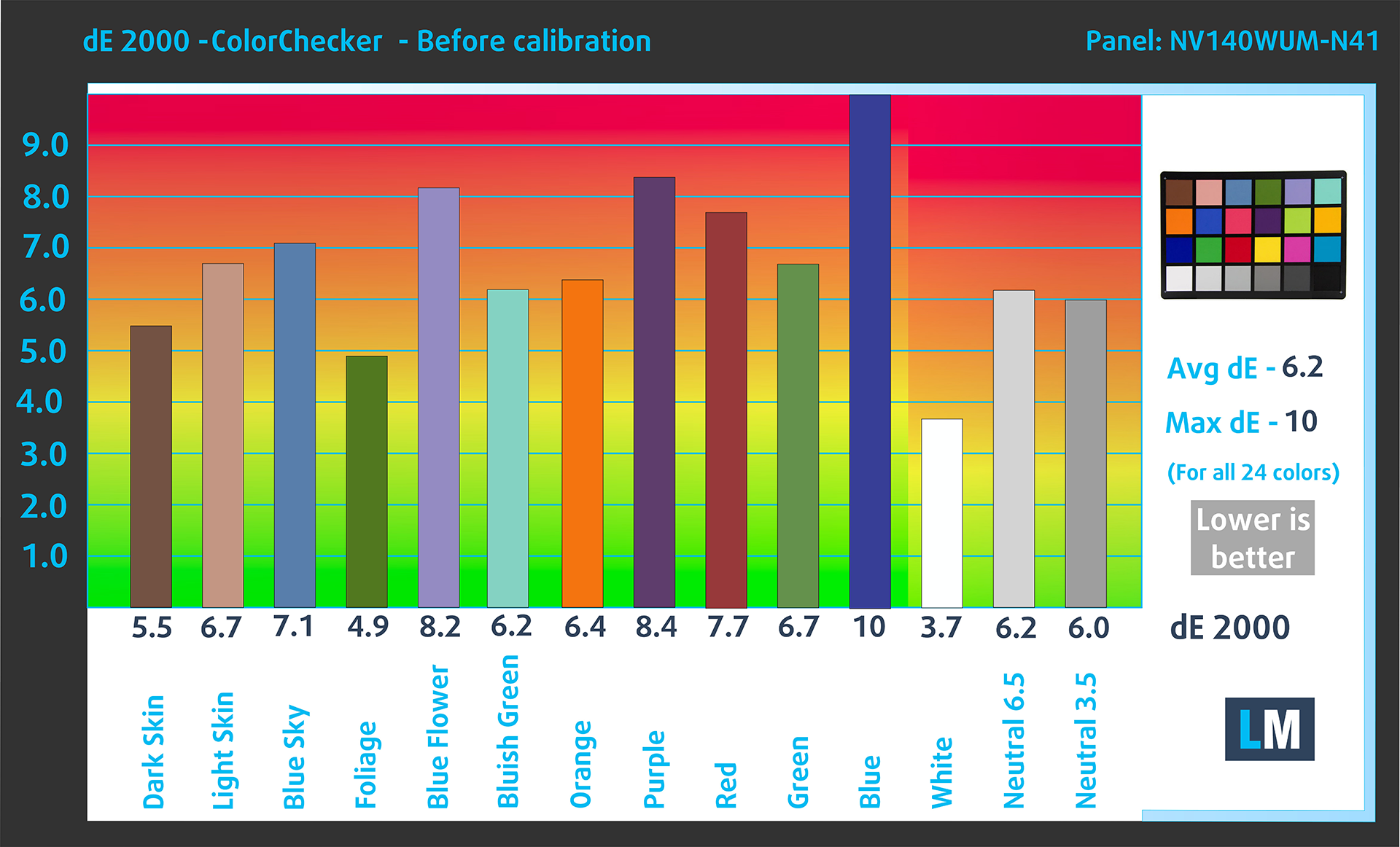
(Fig. 2) Acer TravelMate P4 (TMP414-53) in its factory condition
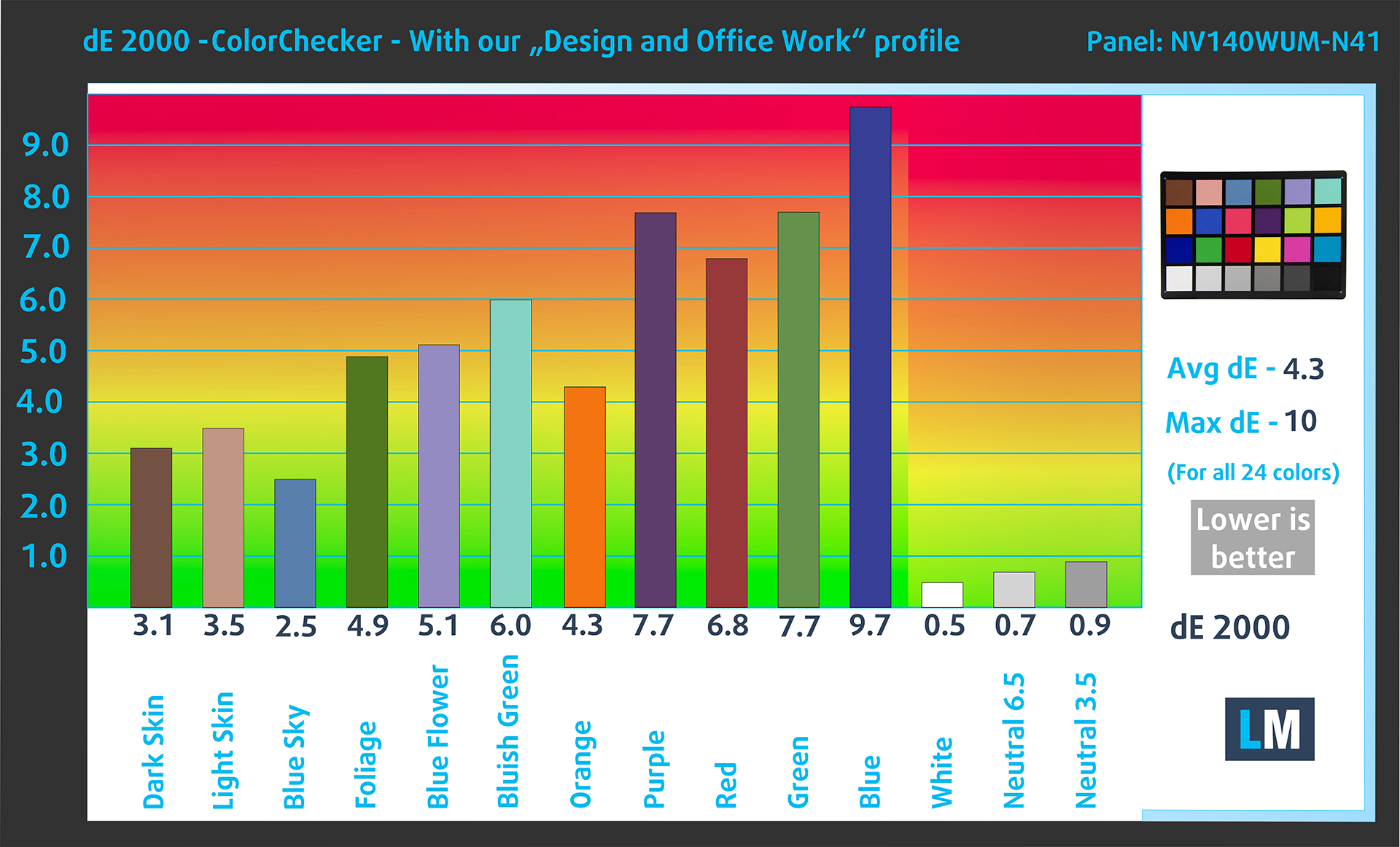
(Fig. 3) Acer TravelMate P4 (TMP414-53) with our display profile
Comparison in the sRGB color space (primaries and D65 white point specified in ITU-R BT.709, sRGB encoding curve).
Here’s an illustration of what the Design and Office Work profile aims to deliver:
Left: No Profile | Drag the slider to see the difference | Right: Design & Gaming Profile


Visibility in dark scenes
Have you ever watched a movie with dark scenes where you could barely see anything? This often happens because many display panels struggle to differentiate the darkest nuances, making them appear the same.
The next figure illustrates how well the display reproduces these dark nuances. The left side of the image shows the display with stock settings, and the right side shows it with our Design and Office Work profile activated.
On the horizontal axis are the grayscale levels, and on the vertical axis – the corresponding display brightness.
You can also check how your display handles the darkest nuances but keep in mind that this also depends on the settings of your current display and the surrounding light conditions.
Response time (Gaming capabilities)
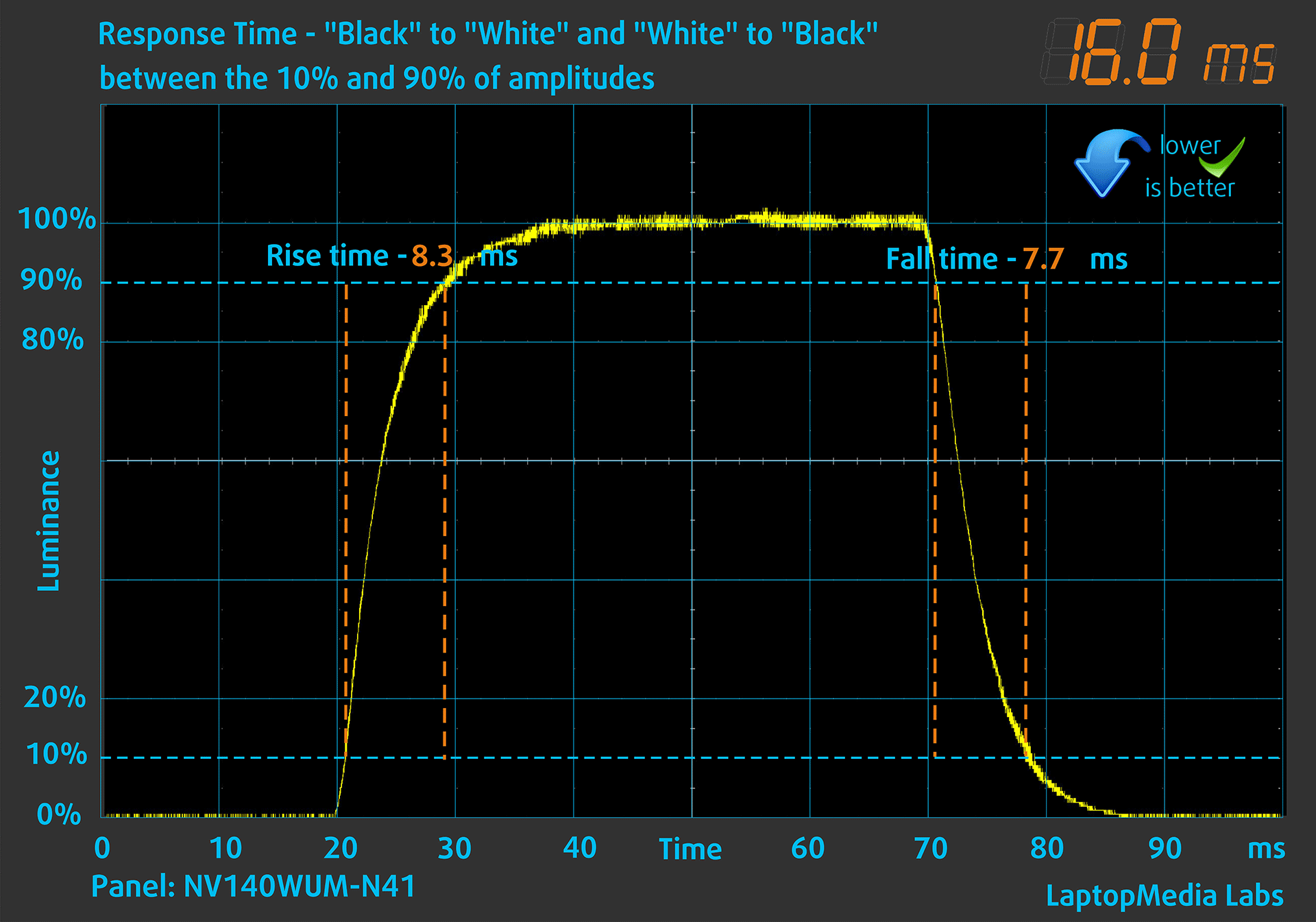
We test the reaction time of the pixels with the usual “black-to-white” and “white-to-black” method from 10% to 90% and vice versa.
We recorded Fall Time + Rise Time = 16.0 ms. Short pixel response time is a prerequisite for a smooth picture in dynamic scenes.
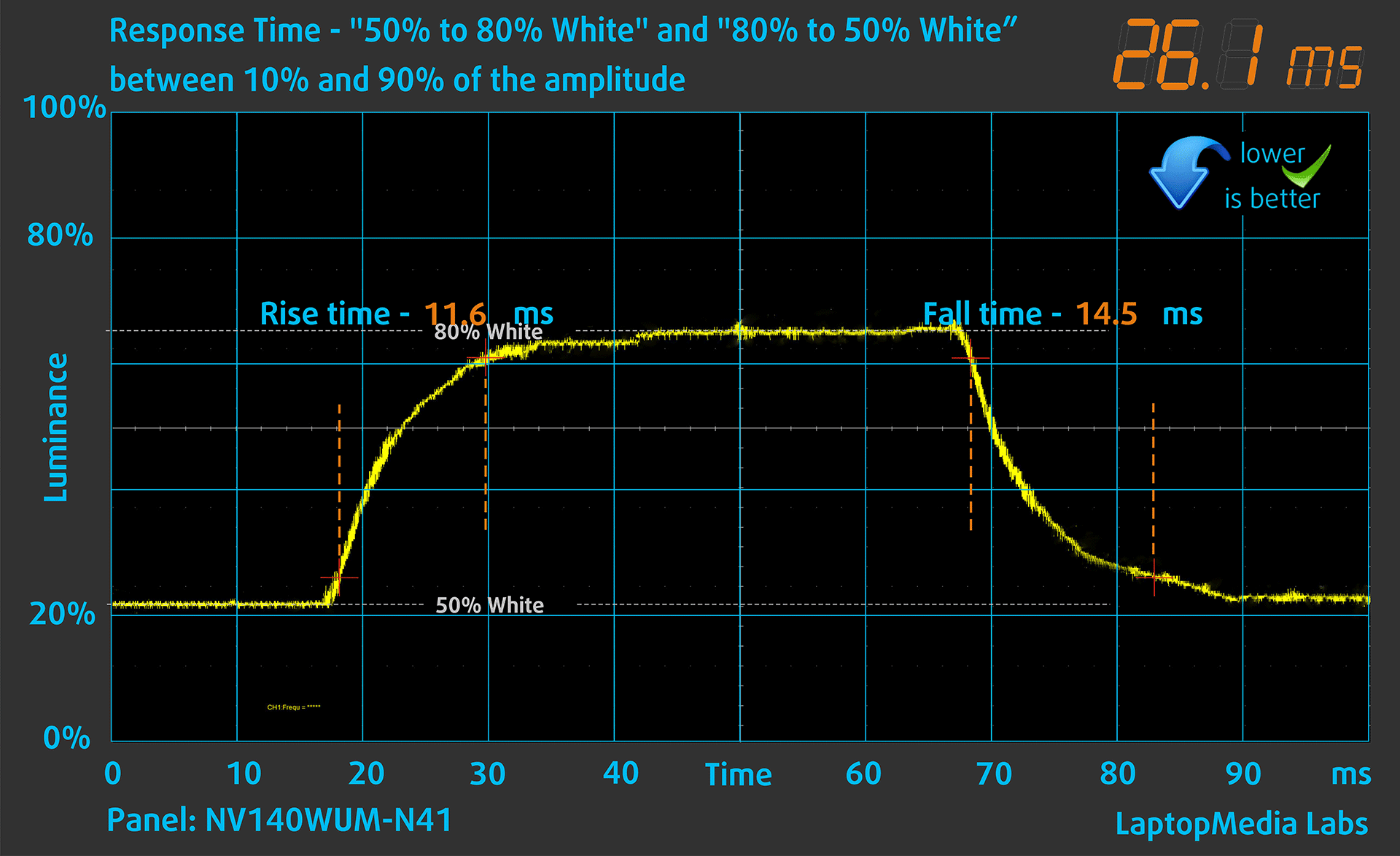
After that, we test the reaction time of the pixels with the usual “Gray-to-Gray” method from 50% White to 80% White and vice versa between 10% and 90% of the amplitude.
Health Impact: PWM (Screen flickering)
Some use PWM to regulate their brightness, which means that instead of reducing the light intensity, they pulse or flicker. Our brain merges the image, so it appears darker, but this strains both it and our vision, especially when the frequency of the pulses is low. You can read more about that in our dedicated article on PWM.
In the graph below, you see the intensity of light at different brightness levels—on the vertical axis is the brightness of the emitted light, and on the horizontal axis—time.
The light from the backlight of the Acer TravelMate P4 (TMP414-53) display is not pulse-width modulated, providing visual comfort in the discussed aspect.
Health Impact: Blue light emissions
Installing our Health-Guard profile not only eliminates harmful PWM when the laptop uses it to control brightness but also reduces harmful Blue Light emissions while keeping the colors of the screen perceptually accurate.
If you’re not familiar with the Blue light, the TL;DR version is – emissions that negatively affect your eyes, skin, and your whole body. You can find more information about that in our dedicated article on Blue Light.
Health Impact: Screen Reflectance
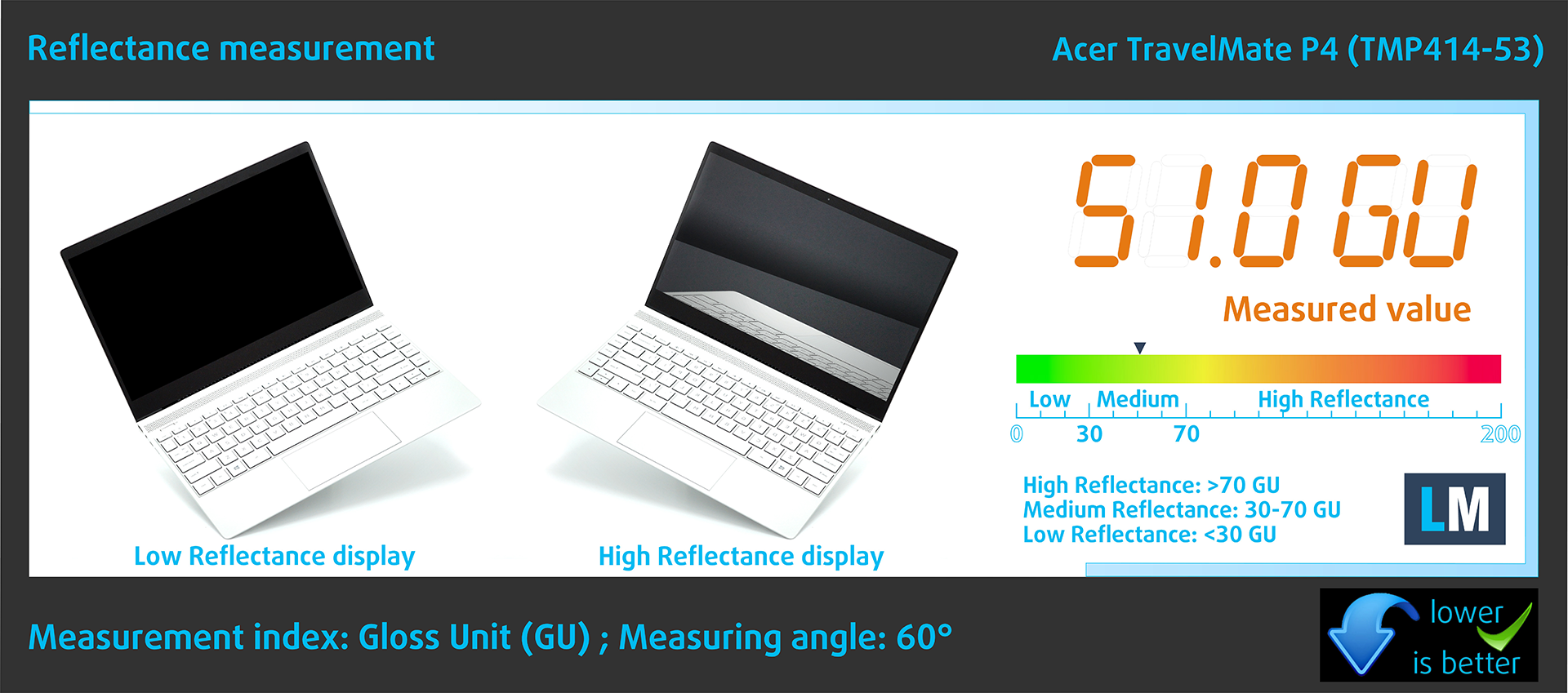
Glossy-coated displays can cause eye fatigue in high ambient light conditions due to reflections. We measure the level of screen reflection with the display turned off, at a 60° angle.
The reflectance of the TravelMate P4 (TMP414-53)’s screen is 51.0 GU.
High Gloss: >70 GU
Medium Gloss: 30 – 70 GU
Low Gloss: <30 GU
Get our profiles
Since our profiles are tailored for each individual display model, this article and its respective profile package are meant for Acer TravelMate P4 (TMP414-53) configurations with NV140WUM-N41 (BOE0AE8), 1920 х 1200, IPS panel.
*Should you have problems with downloading the purchased file, try using a different browser to open the link you’ll receive via e-mail. If the download target is a .php file instead of an archive, change the file extension to .zip or contact us at [email protected].
Read more about the profiles HERE.
In addition to receiving efficient and health-friendly profiles, by buying LaptopMedia's products you also support the development of our labs, where we test devices in order to produce the most objective reviews possible.
Design and Office
The Design and Office profile makes display colors as close to real as possible.Ideal not only for professionals but also for everyday users, it meets sRGB standards (D65 white point, sRGB gamma) with minimal DeltaE for precise color reproduction on your panel.

Gaming and Movies
Have you ever watched a movie where, during dark scenes, you can barely see anything? Many displays fail to distinguish dark tones properly. Our Gaming and Movies profile enhances low-light performance, like HDR tech, using a gamma curve tailored to human perception — ideal for gamers seeking faster reactions and clearer visuals.

Health-Guard
Our Health-Guard profile protects your eyes by eliminating PWM flickering, reducing strain and fatigue, and minimizing harmful Blue light exposure that can disrupt sleep and health. It uses software dimming and a gamma curve tailored to human perception for comfort and safety during screen use.
Get All The Profiles With 33% Discount!

Sound
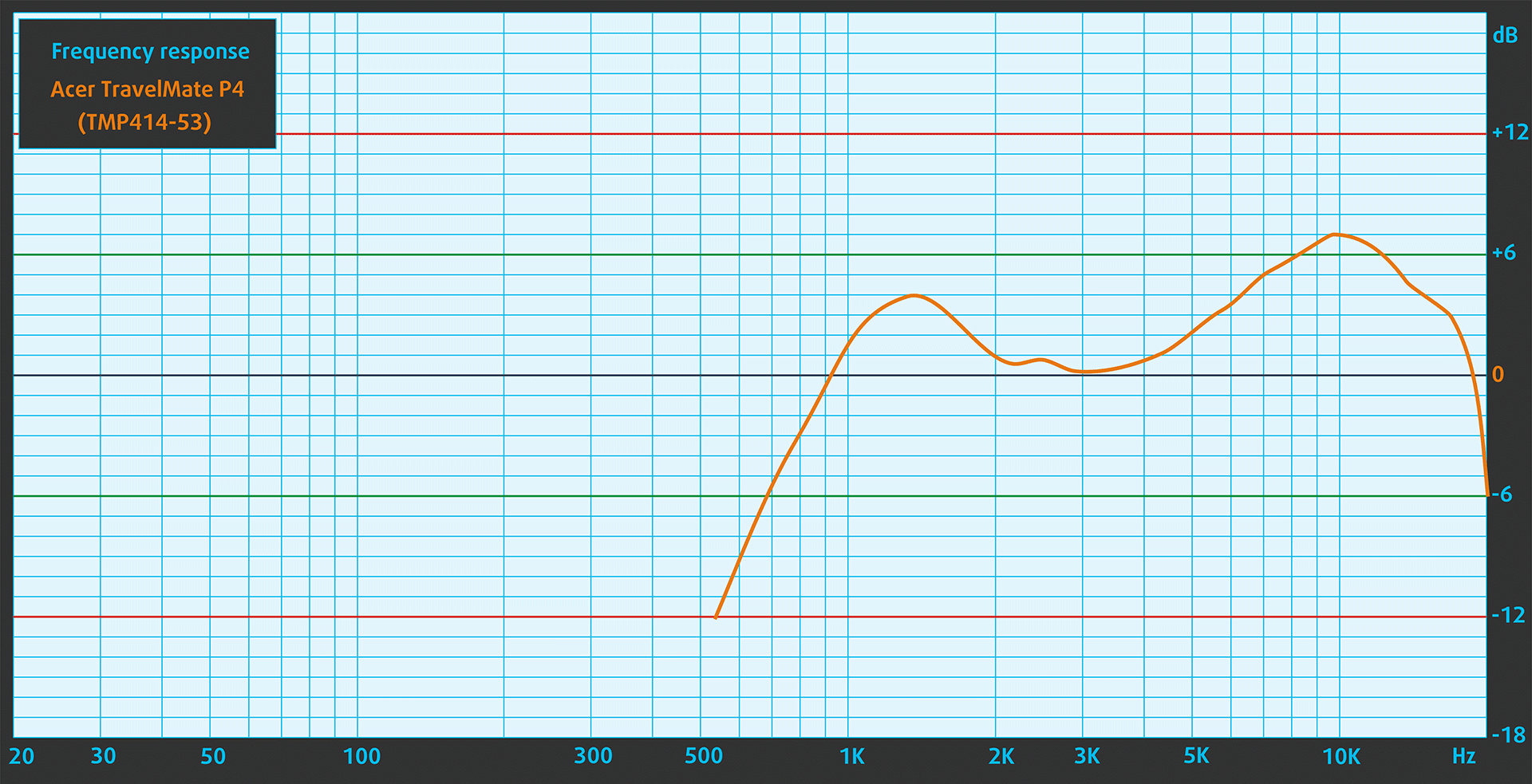
The sound of the Acer TravelMate P4 (TMP414-53) is of relatively good quality. In the subjective listening of a sound file, the low, middle and high frequencies have slight deviations in purity.
Performance: CPU, GPU, Storage
All benchmarks and tests were conducted with the “Performance” mode activated in the Acer Quick Access app. Also, the “Best performance” preset is applied in the Windows “Power & Battery” menu.


CPU options
This laptop is offered with Intel Core i3-1315U, Core i5-1335U, Core i5-1345U, Core i7-1355U, or Core i7-1365U.
Our machine is equipped with an i5-1335U.
Single-core performance ensures smooth operation and responsiveness in operating systems, providing a better user experience.
Results are from the Geekbench 6 Single-Core test (higher is better)
Multi-core performance is essential for handling complex and demanding tasks, such as Video editing, CAD, and Scientific simulations.
Results are from the Geekbench 6 Multi-Core test (higher is better)
Here, we evaluate the CPU's performance using a real-world 3D rendering task, assessing its ability to handle complex computations and rendering workloads efficiently.
Results are from the Cinebench 2024 Multi-Core test (higher is better)
GPU options
For graphics, you can rely on what’s inside the CPU, ergo, the iGPU.
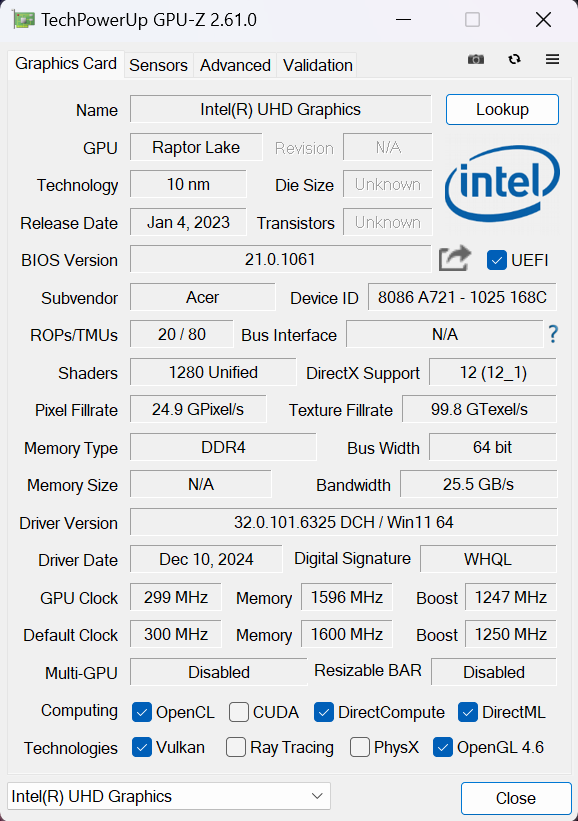
Our CPU has an Intel Iris Xe Graphics G7 (80EU) that operates as UHD Graphics because the memory works in single-channel mode.
The results are from 3DMark Time Spy (Graphics). Higher is better.
The results are from 3DMark Wild Life Extreme Unlimited. Higher is better.
Gaming tests

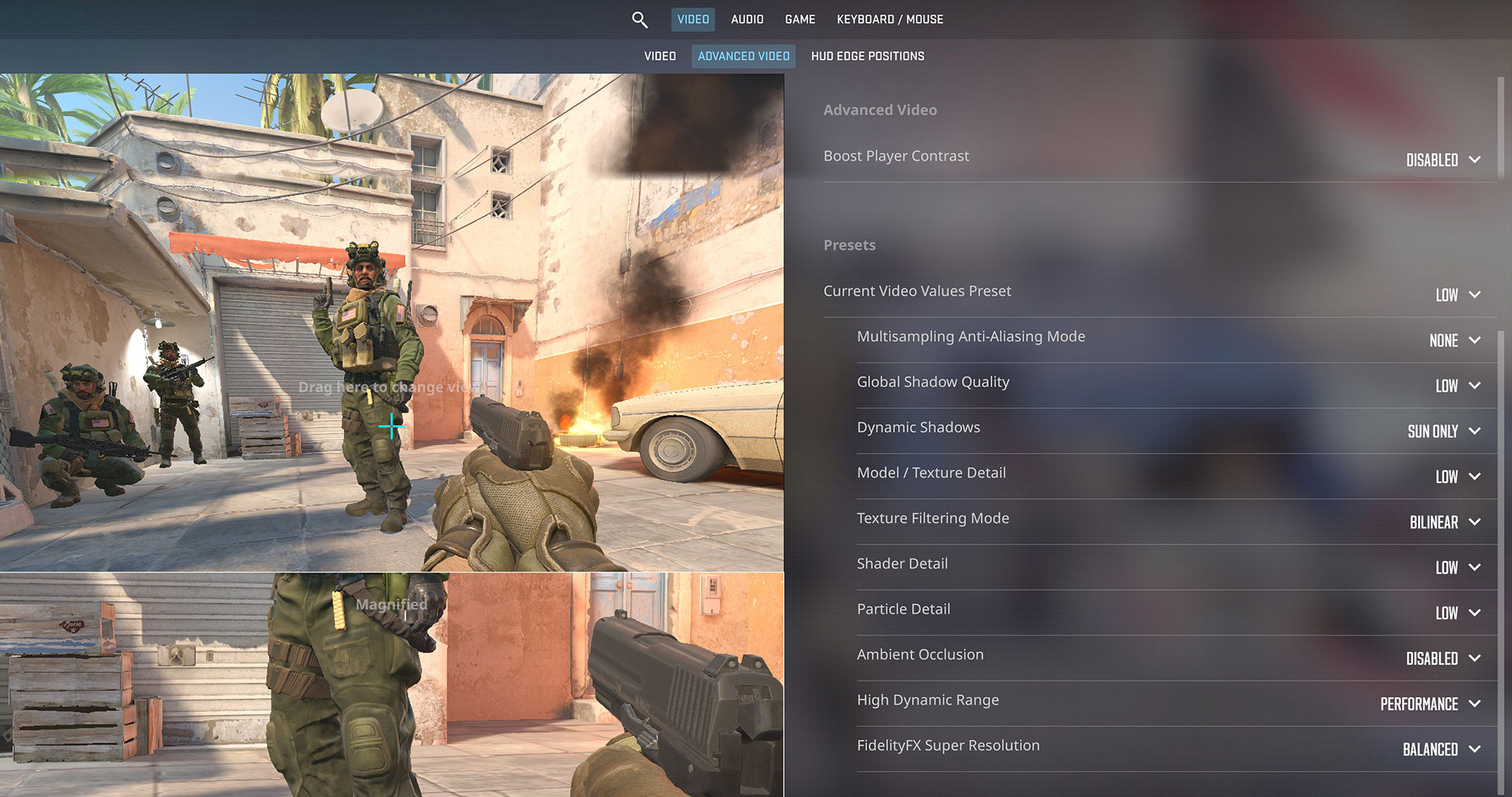
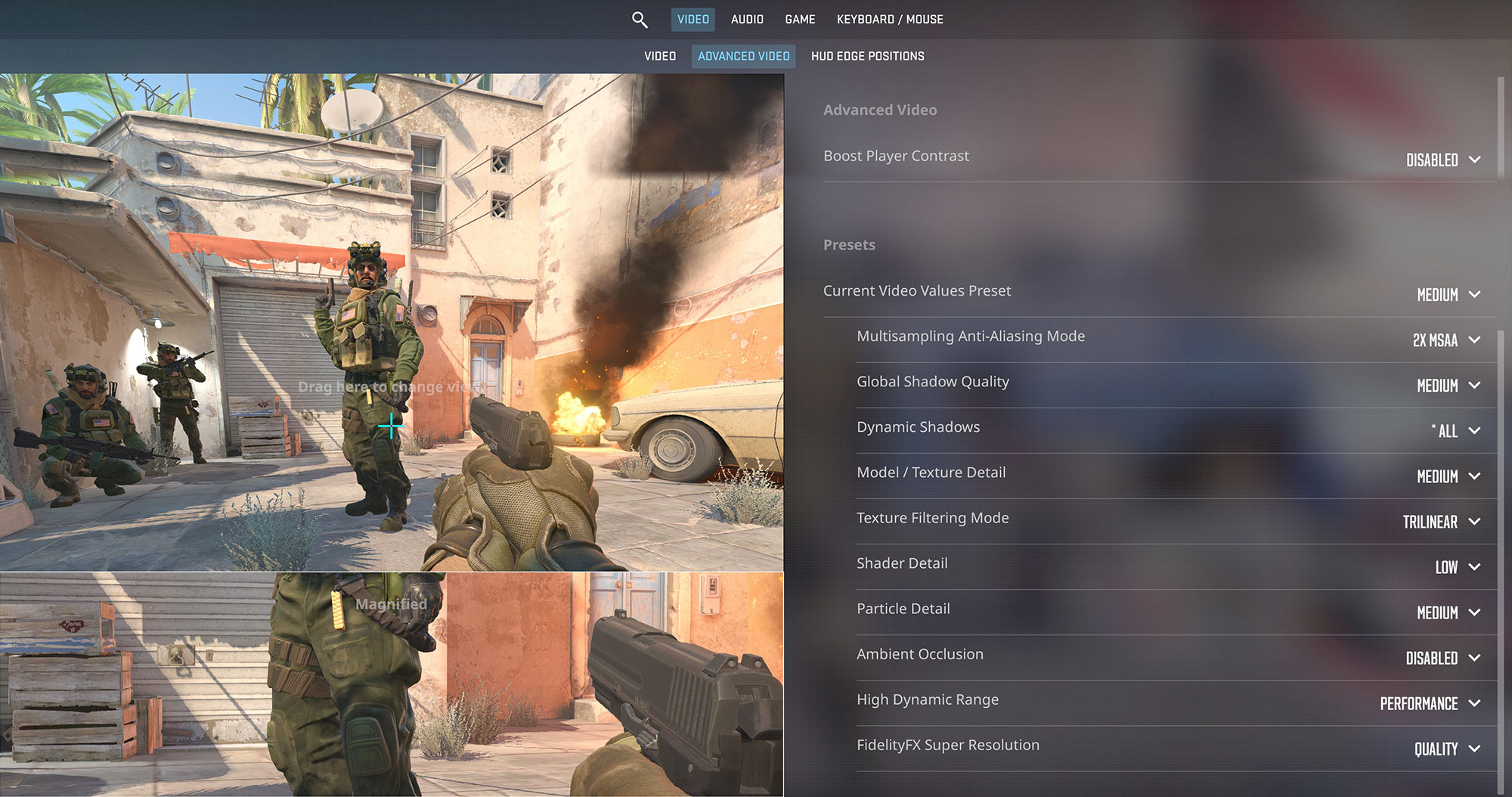
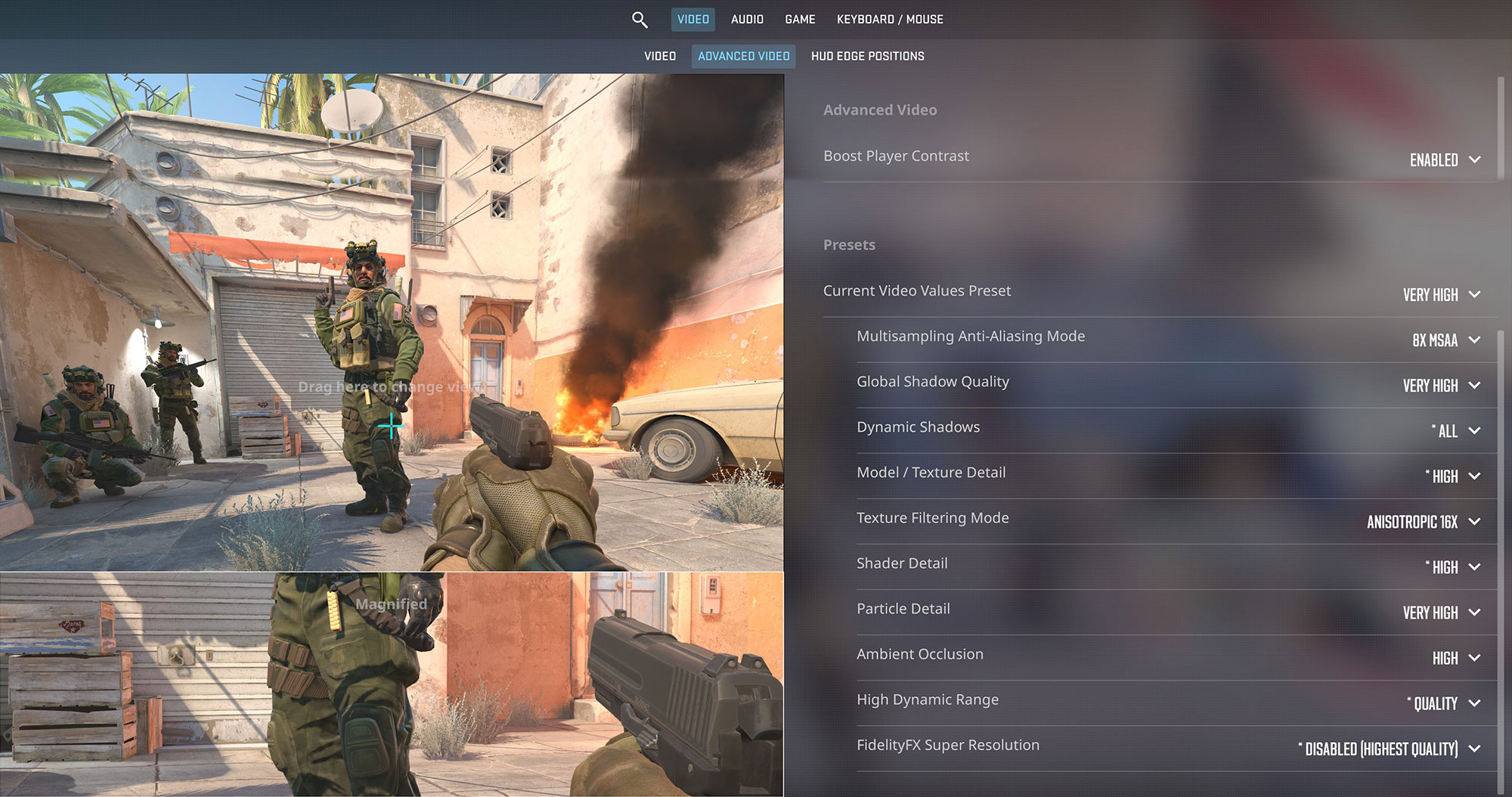
| Counter-Strike 2 | HD 1080p, Low (Check settings) | HD 1080p, Medium (Check settings) | HD 1080p, Very High (Check settings) |
| Average FPS | 54 FPS | 32 FPS | 9 FPS |

| Gears 5 | Full HD, Low (Check settings) | Full HD, Medium (Check settings) | Full HD, High (Check settings) | Full HD, Ultra (Check settings) |
| Average FPS | 27 FPS | 18 FPS | 14 FPS | 10 FPS |
Storage performance
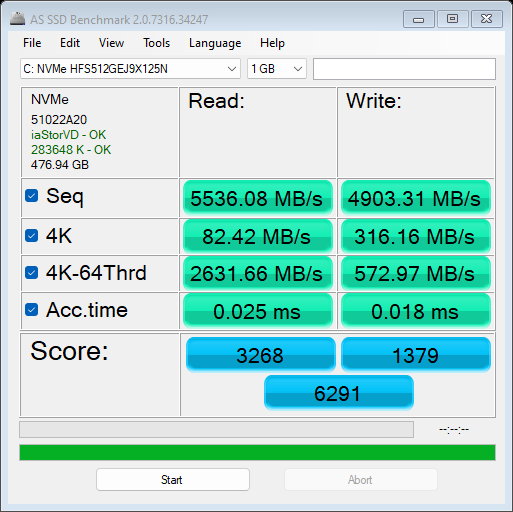
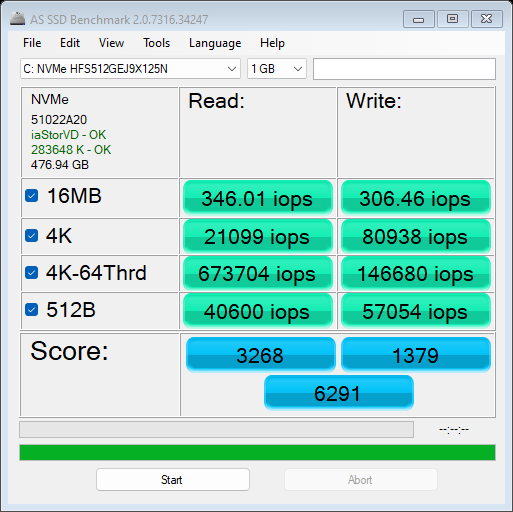
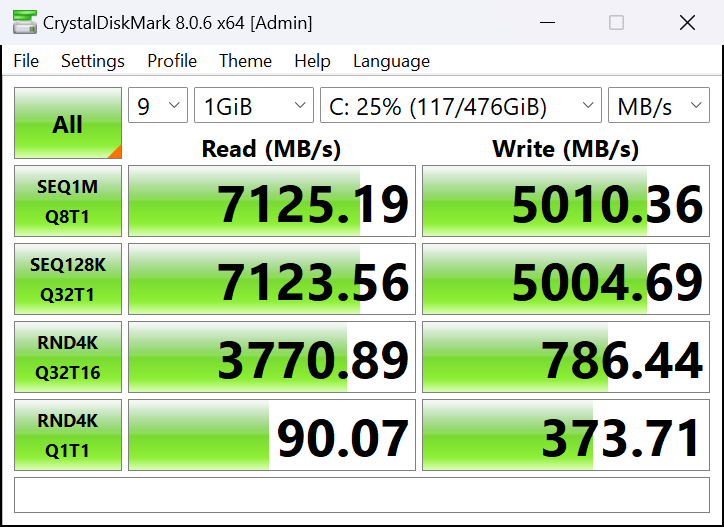
Our laptop has a 1TB SK Hynix FS512GEJ9X125N. Its benchmark read and write speeds are pretty good but the lack of dedicated cooling for the NVMe results in high temperatures.

[eBook Guide + Tools] How to MAX OUT Your Laptop
You can make your laptop Faster. LaptopMedia has tested thousands of models in the last 15 years, and we have yet to see a notebook that couldn't be made more powerful through modifications.
That's why we decided to bundle everything we know about how to achieve this in an Easy-to-Follow, Step-by-Step, and Laboratory-Tested, all in one project.
Read more about it here:
[eBook Guide + Tools] How to MAX OUT Your Laptop

🛠️ GPU Modifications: vBIOS, Overclocking, Undervolting
⚙️ Building Fast/Reliable RAID configuration
💻 Hardware upgrade tips for best results
🖼 Display enhancing
💾 OS Optimization for best performance
Temperatures and comfort, Battery Life
Max CPU load
In this test we use 100% on the CPU cores, monitoring their frequencies and chip temperature. The first column shows a computer’s reaction to a short load (2-10 seconds), the second column simulates a serious task (between 15 and 30 seconds), and the third column is a good indicator of how good the laptop is for long loads such as video rendering.

Average P-core frequency; Average E-core frequency; CPU temp.; Package Power
| Intel Core i5-1335U (15W TDP) | 0:02 – 0:10 sec | 0:15 – 0:30 sec | 10:00 – 15:00 min |
|---|---|---|---|
| Acer TravelMate P4 (TMP414-53) | 3.84 GHz @ 2.83 GHz @ 84°C @ 52W | 2.88 GHz @ 2.10 GHz @ 81°C @ 32W | 2.97 GHz @ 2.08 GHz @ 69°C @ 28W |
| Dell Latitude 3550 | 3.30 GHz @ 2.40 GHz @ 86°C @ 37W | 3.09 GHz @ 2.26 GHz @ 87°C @ 32W | 1.99 GHz @ 1.61 GHz @ 63°C @ 18W |
| Acer TravelMate P2 (TMP214-55) | 4.04 GHz @ 3.10 GHz @ 77°C @ 55W | 3.28 GHz @ 2.34 GHz @ 80°C @ 35W | 2.96 GHz @ 2.07 GHz @ 76°C @ 28W |
| Lenovo ThinkBook 16 Gen 6 (Intel) | 3.18 GHz @ 2.60 GHz @ 73°C @ 44W | 0.90 GHz @ 1.35 GHz @ 55°C @ 13W | 0.97 GHz @ 1.35 GHz @ 55°C @ 13W |
| Lenovo ThinkPad T16 Gen 2 | 3.77 GHz @ 2.92 GHz @ 74°C @ 49W | 3.64 GHz @ 2.86 GHz @ 88°C @ 48W | 2.13 GHz @ 1.66 GHz @ 69°C @ 21W |
| HP 470 G10 | 2.14 GHz @ 1.62 GHz @ 55°C @ 19W | 1.87 GHz @ 1.51 GHz @ 59°C @ 16W | 1.91 GHz @ 1.57 GHz @ 69°C @ 17W |
| Acer Aspire Vero 15 (AV15-53P) | 3.45 GHz @ 2.55 GHz @ 65°C @ 45W | 3.08 GHz @ 2.33 GHz @ 67°C @ 38W | 2.50 GHz @ 1.94 GHz @ 59°C @ 28W |
| Lenovo ThinkPad L13 Gen 4 (Intel) | 3.24 GHz @ 2.34 GHz @ 79°C @ 33W | 3.12 GHz @ 2.29 GHz @ 89°C @ 32W | 1.72 GHz @ 1.39 GHz @ 65°C @ 15W |
| HP EliteBook 640 G10 | 3.78 GHz @ 2.88 GHz @ 83°C @ 50W | 2.75 GHz @ 1.96 GHz @ 77°C @ 26W | 2.35 GHz @ 1.77 GHz @ 76°C @ 23W |
| Acer TravelMate P4 (TMP413-51) | 3.52 GHz @ 2.67 GHz @ 77°C @ 44W | 3.27 GHz @ 2.45 GHz @ 82°C @ 41W | 2.16 GHz @ 1.67 GHz @ 64°C @ 22W |
| HP EliteBook 650 G10 | 3.73 GHz @ 2.87 GHz @ 88°C @ 49W | 2.81 GHz @ 2.09 GHz @ 90°C @ 29W | 2.50 GHz @ 1.88 GHz @ 81°C @ 24W |
| HP 250 G10 | 3.33 GHz @ 2.46 GHz @ 73°C @ 40W | 3.08 GHz @ 2.23 GHz @ 85°C @ 35W | 2.11 GHz @ 1.76 GHz @ 76°C @ 22W |
| ASUS Vivobook 17 F1704 (X1704) | 3.10 GHz @ 2.14 GHz @ 71°C @ 30W | 3.09 GHz @ 2.16 GHz @ 89°C @ 30W | 1.97 GHz @ 1.67 GHz @ 70°C @ 18W |
| ASUS Vivobook 15 F1504 (X1504) | 2.99 GHz @ 2.07 GHz @ 66°C @ 28W | 2.94 GHz @ 2.07 GHz @ 81°C @ 28W | 2.02 GHz @ 1.68 GHz @ 75°C @ 18W |
| Acer Aspire 5 (A515-58M) | 2.05 GHz @ 2.74 GHz @ 61°C @ 47W | 1.81 GHz @ 2.54 GHz @ 64°C @ 40W | 1.22 GHz @ 2.23 GHz @ 61°C @ 28W |
| HP ProBook 440 G10 | 2.39 GHz @ 2.93 GHz @ 93°C @ 50W | 1.51 GHz @ 2.29 GHz @ 92°C @ 30W | 0.94 GHz @ 1.87 GHz @ 72°C @ 19W |
| HP ProBook 450 G10 | 3.41 GHz @ 2.79 GHz @ 94°C @ 48W | 2.80 GHz @ 2.17 GHz @ 94°C @ 31W | 1.87 GHz @ 2.04 GHz @ 81°C @ 23W |
| Acer Swift Go 16 (SFG16-71) | 3.29 GHz @ 2.46 GHz @ 65°C @ 45W | 3.06 GHz @ 2.37 GHz @ 71°C @ 42W | 1.80 GHz @ 1.98 GHz @ 61°C @ 28W |
| Lenovo ThinkBook 14s Yoga Gen 3 | 1.91 GHz @ 1.20 GHz @ 63°C @ 19W | 1.86 GHz @ 0.90 GHz @ 74°C @ 14W | 1.83 GHz @ 0.90 GHz @ 60°C @ 13W |
The TravelMate P4 with Core i5-1335U nears the clocks of the TravelMate P2 (TMP214-55) with the same chip. The results are almost identical (ergo, impressively high) in long stress where the CPU sustains ~ 3.00 GHz / 2.10 GHz for the P and E cores.
Comfort during full load
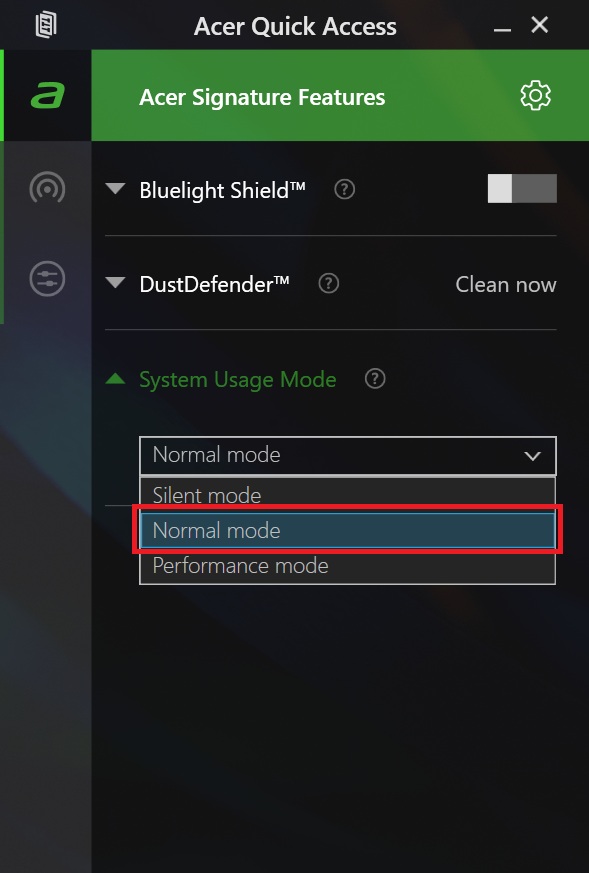
You can control the laptop’s power via the Quick Access app. In “Performance mode”, the single fan is averagely audible.
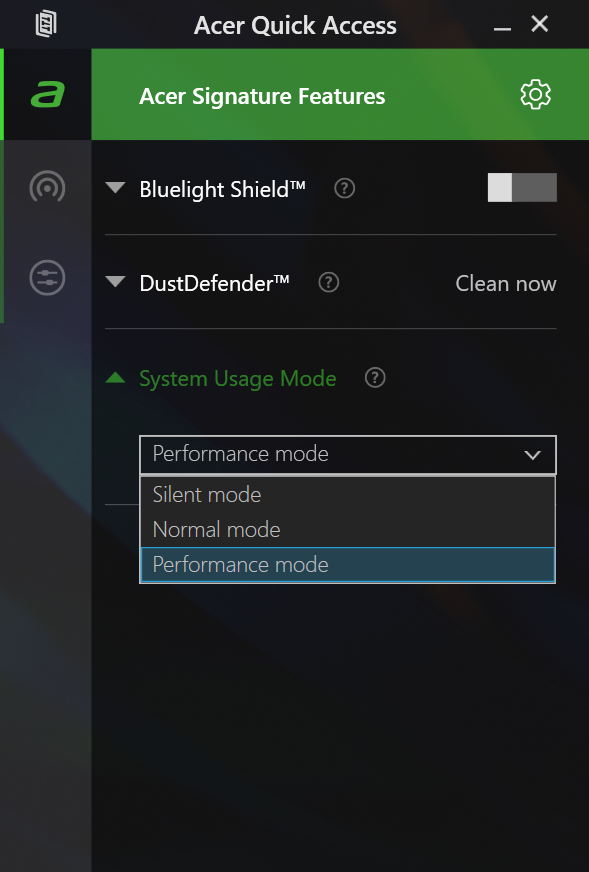
Interestingly, even in “Silent mode” the P and E core clocks are way higher than the official Intel base frequencies for this CPU. That’s great considering the tamed fan speed.
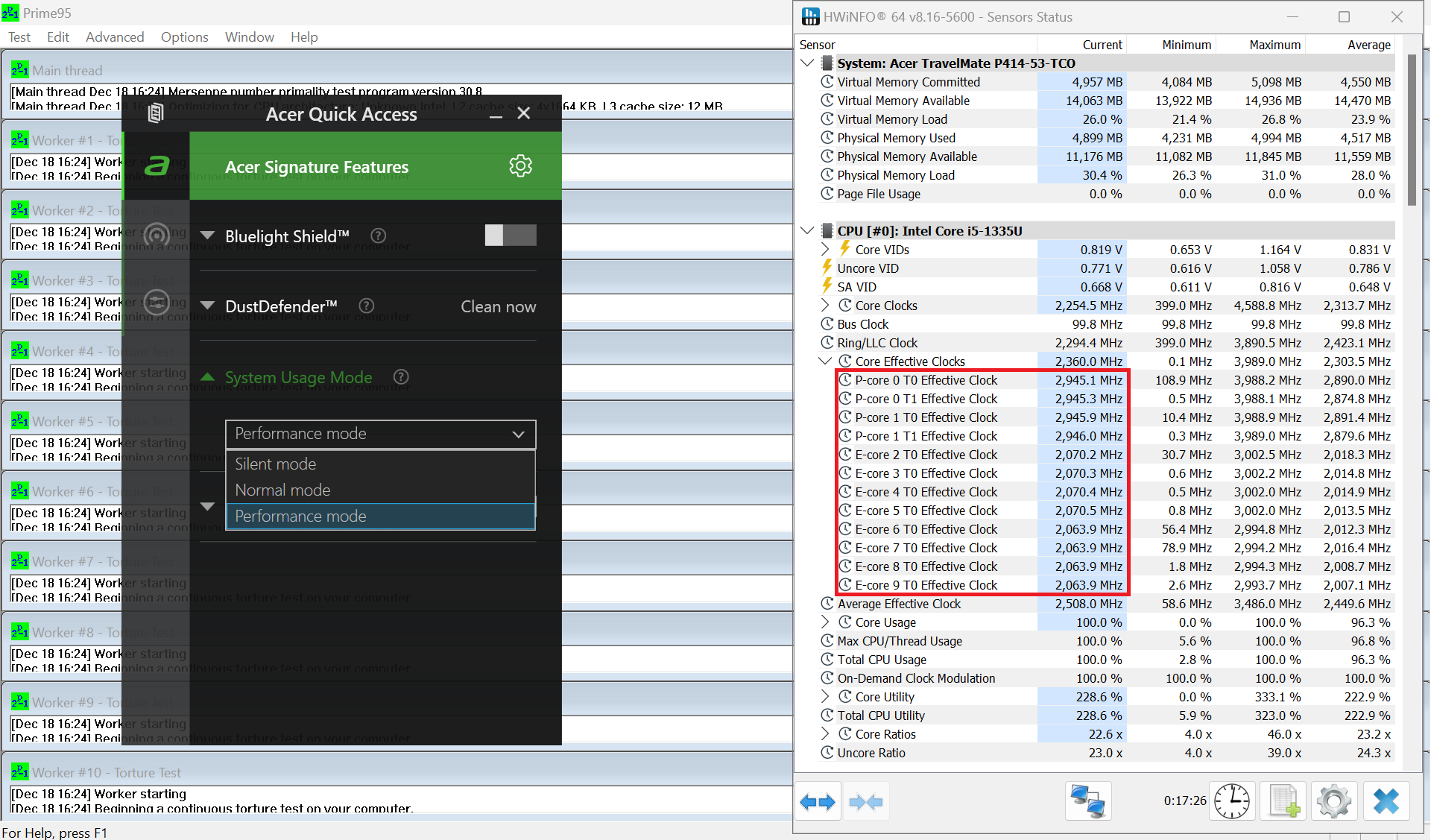 Performance
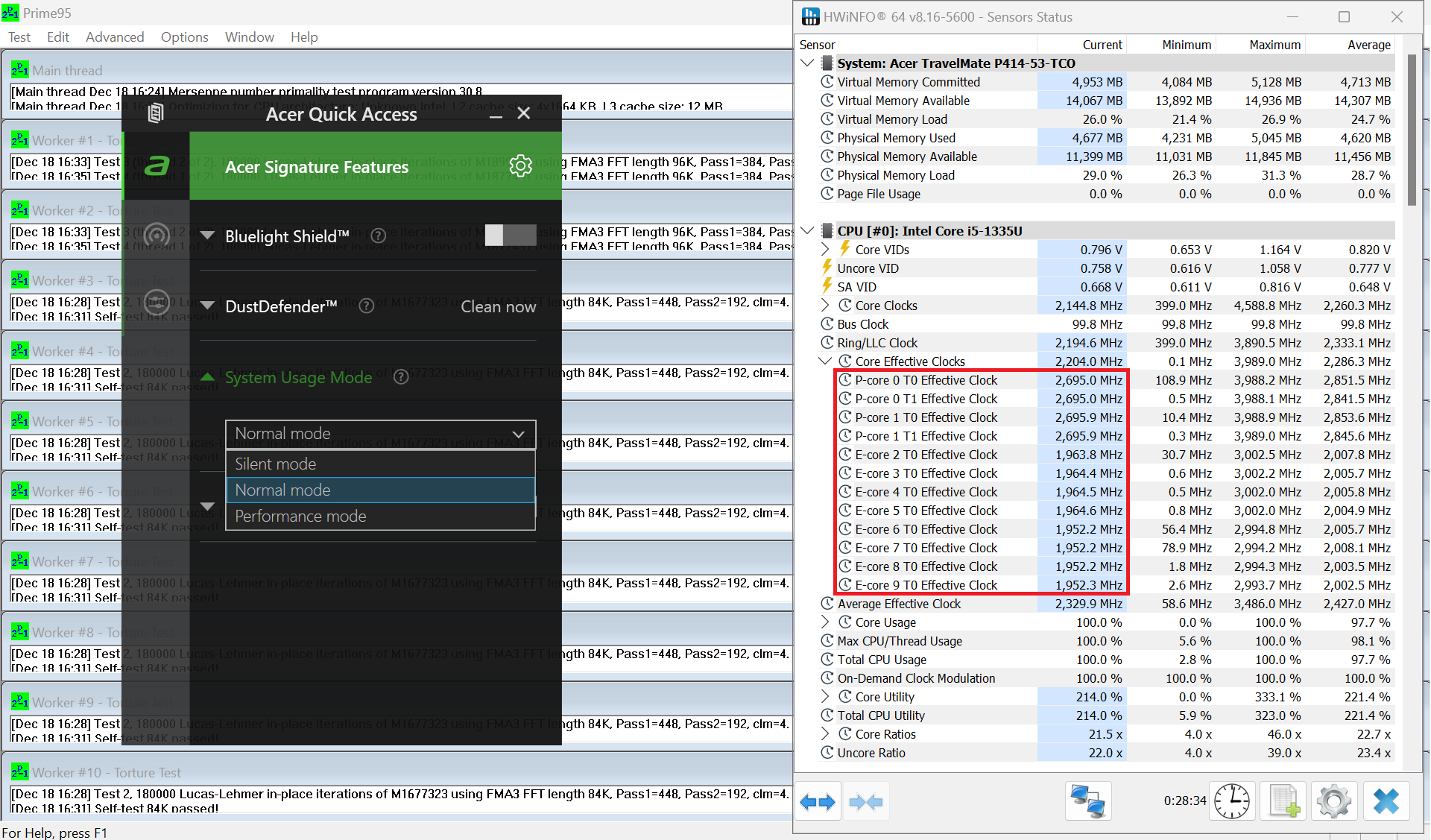 Normal
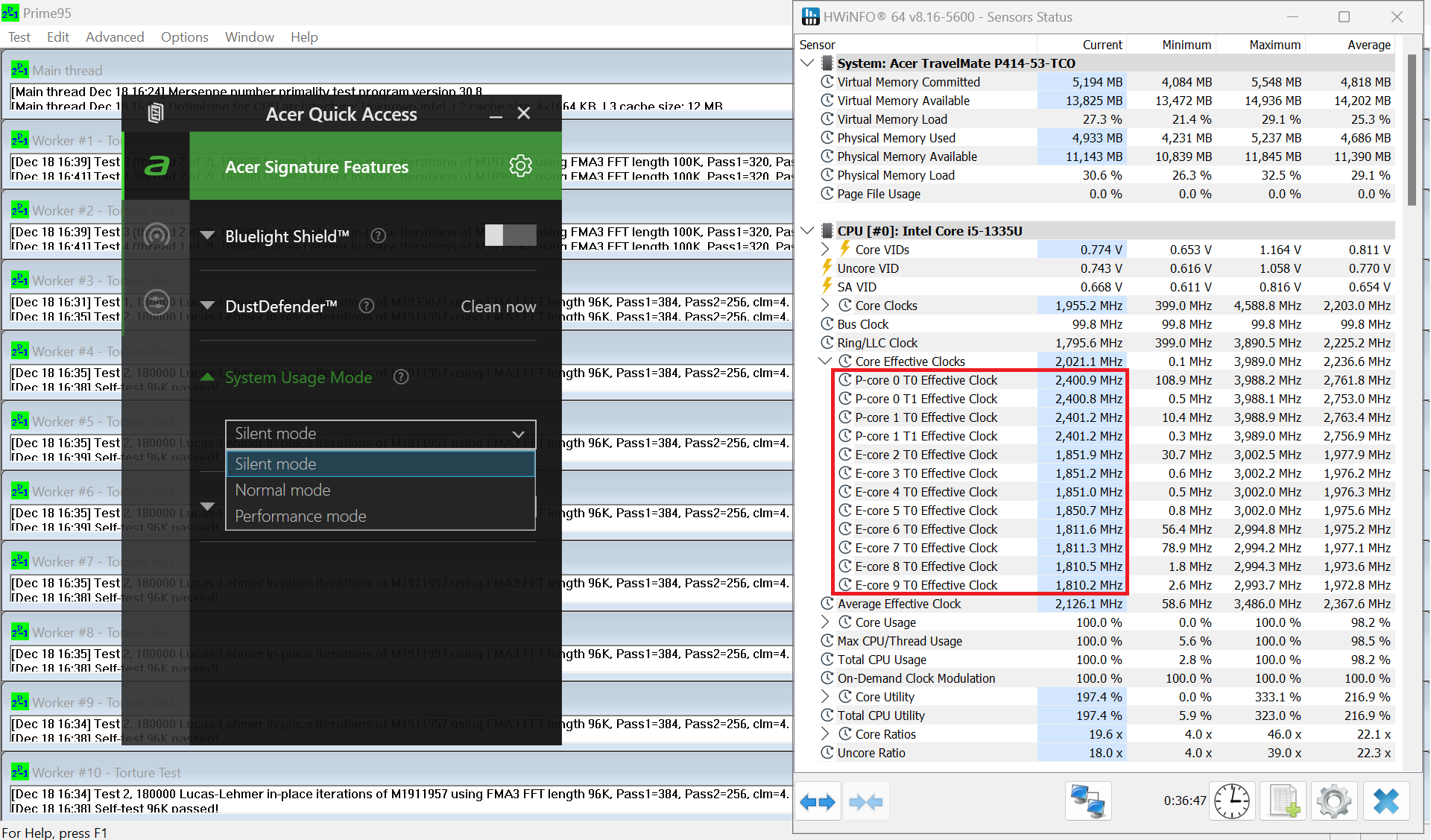 Silent
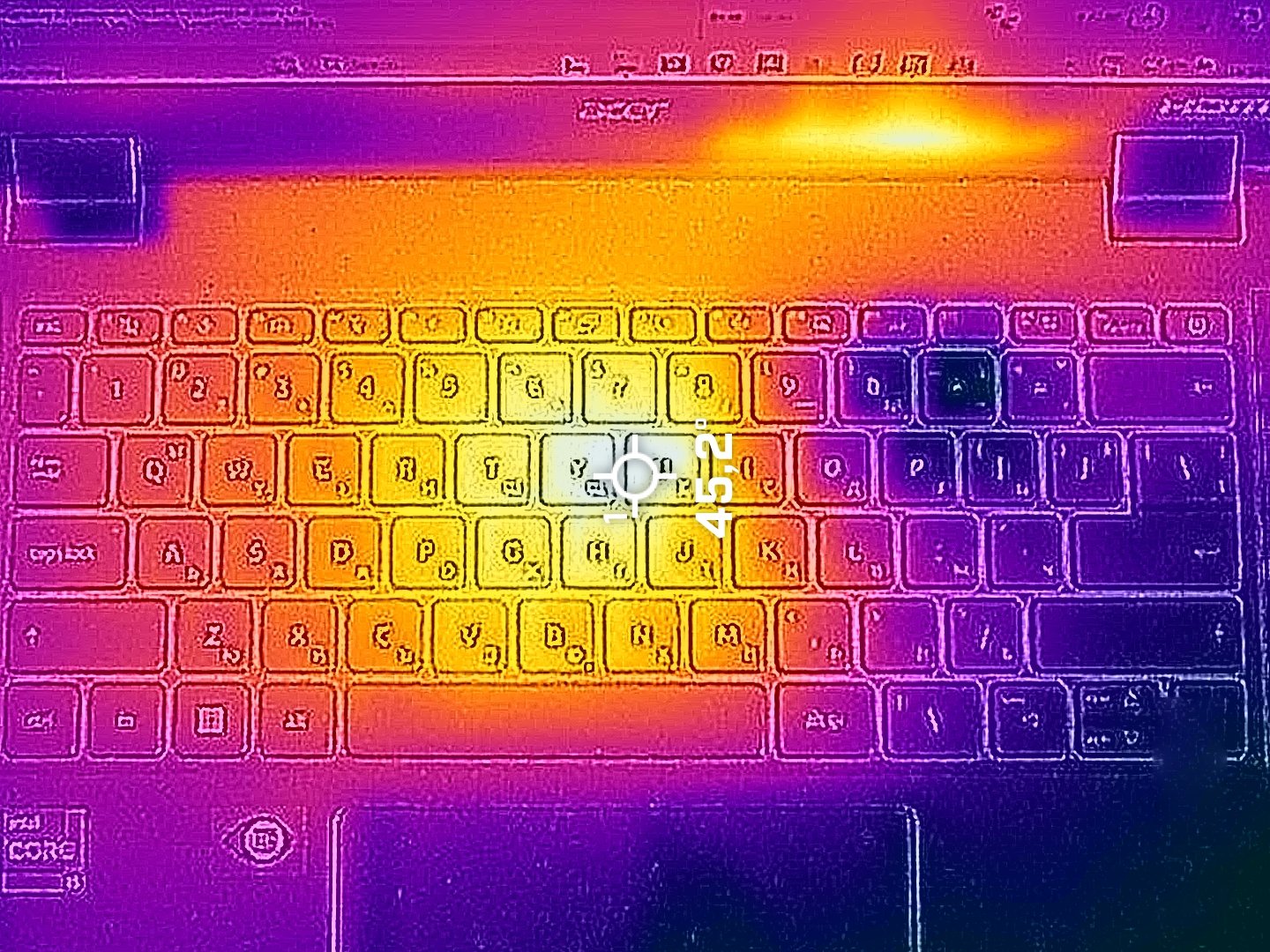
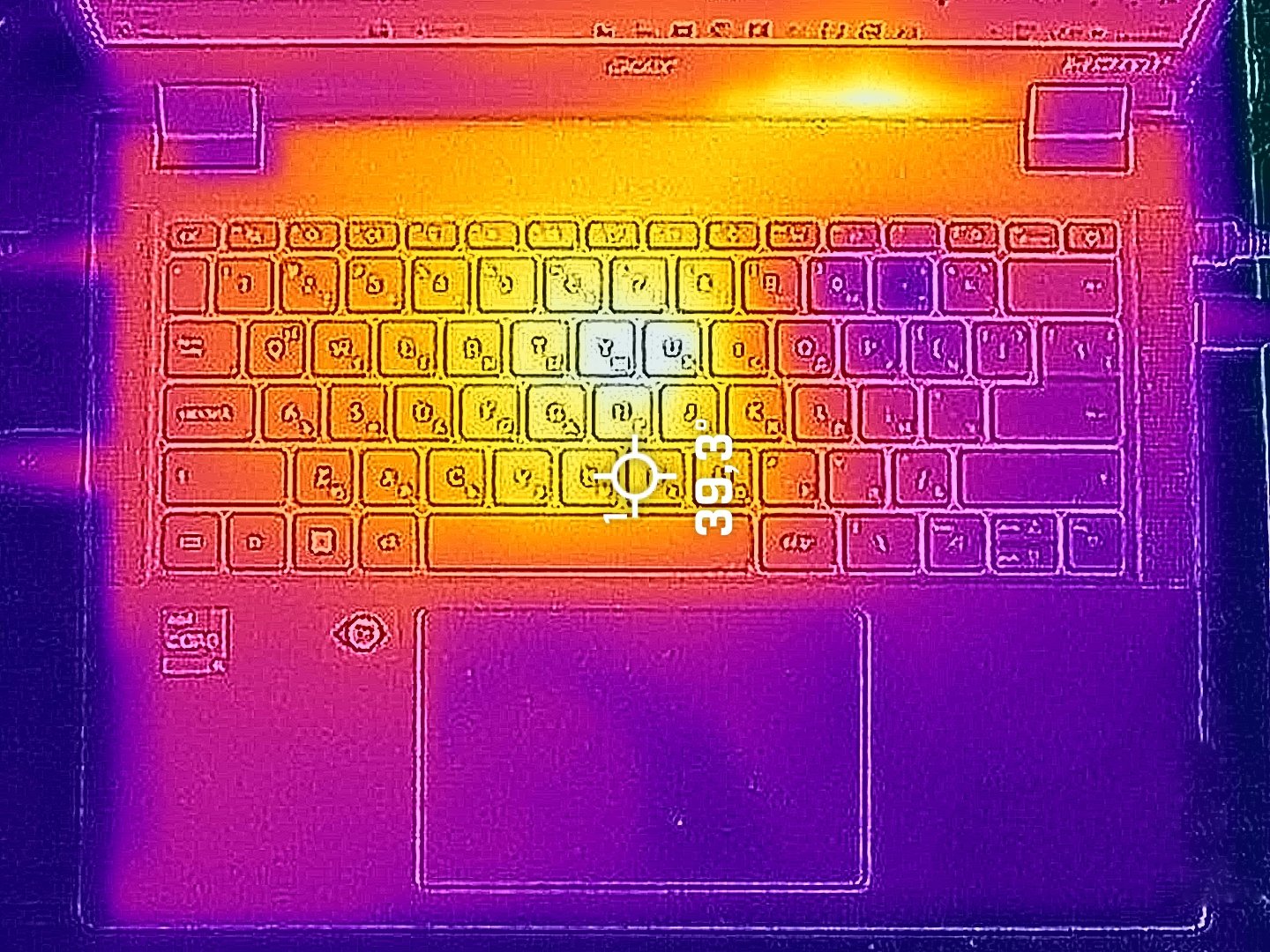
The external temperatures during heavy loads are also good. We measured 45°C on the keyboard hotspot and the display bottom bezel. Nothing to worry about.
Battery
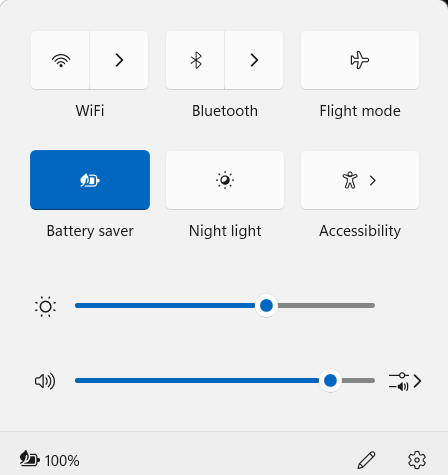
Now, we conduct the battery tests with the Windows Best Power Efficiency setting turned on, screen brightness adjusted to 180 nits and all other programs turned off except for the one we are testing the notebook with. This laptop’s 56Wh battery lasts for around 10 hours of video playback. Оur test was conducted with the “Battery Saver” preset activated in the Windows “Power & Battery” menu and the “Normal” mode applied in the Acer Quick Access app.
Brightness: 180 nits; Display Mode: SDR
Time to Full Discharge: Higher is Better
Disassembly, Upgrade options, and Maintenance
To open this compact device, you have to undo 10 Torx-head screws. Insert a thin plastic tool in one of the top edges to open a gap there. Use another tool to pry the side, the front, and the other side. Then, lift a bit the tool that is in between the plate and the base and fully pry the rear.
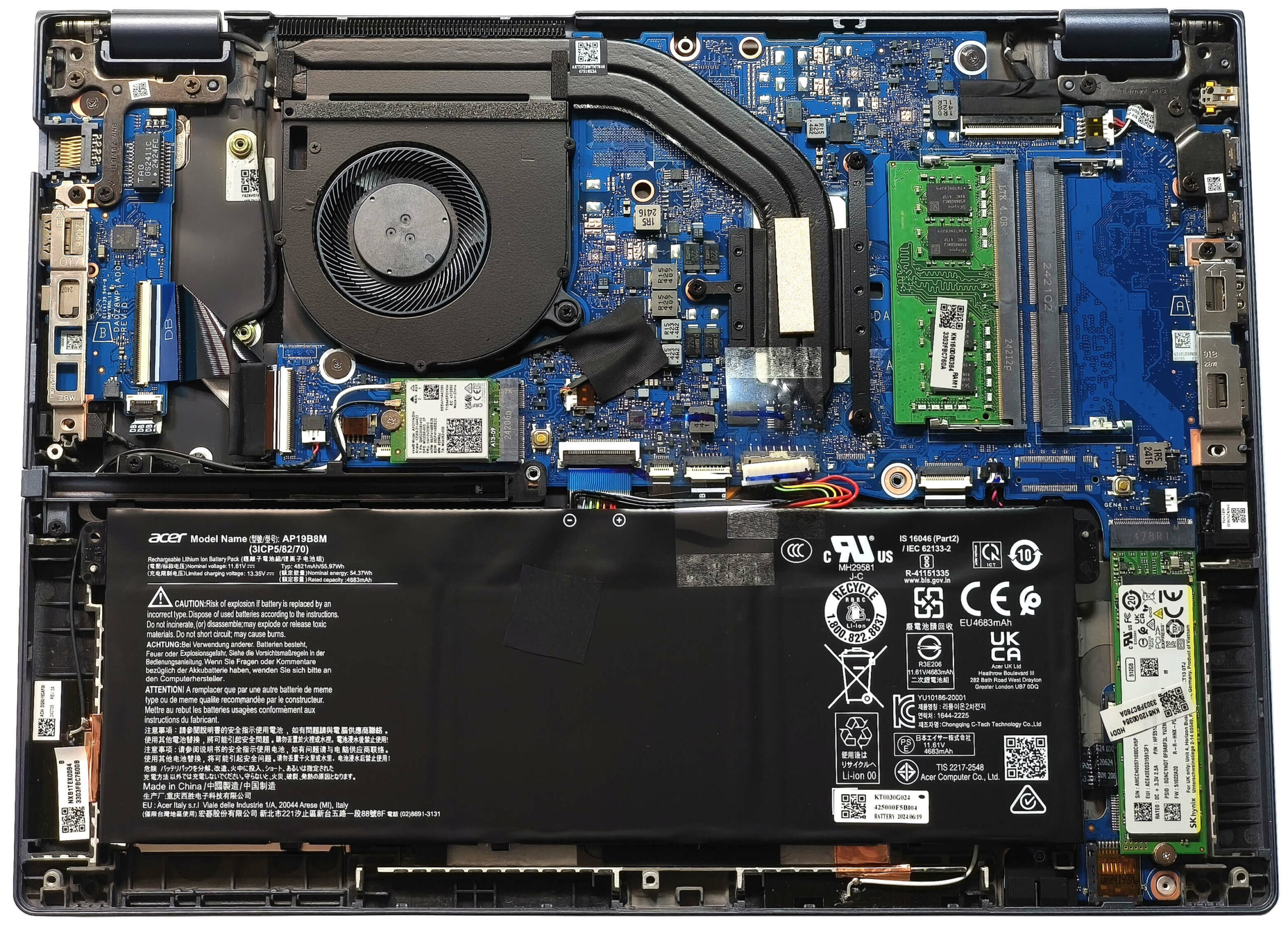
The battery isn’t fixed to the base with screws because there is a dedicated socket for it on the inside of the bottom cover that secures the unit in place.

The device that we bought is equipped with the default 56Wh battery pack. There is also an optional 65Wh variant. To detach it, remove the connector from the motherboard by pulling it towards the unit and just lift the battery away from the main body. The capacity is enough for around 10 hours of video playback.

According to Acer, the two SODIMMs fit up to 64GB of DDR4-3200MHz RAM in dual-channel mode. However, since the CPU can support up to 96GB, this laptop likely wouldn’t have issues running a larger amount of memory than the official manufacturer’s specified limit.

The single M.2 slot that is compatible with 2280 Gen 4 SSDs is on the right of the battery. The replaceable Wi-Fi 6E card can be seen underneath the fan.


The cooling comprises one fan, a pair of heat pipes, one heat sink, and a heat spreader.
Verdict
The Acer TravelMate P4 (TMP414-53) is a well-priced yet sturdy machine. It provides enough performance for daily or office tasks. This is due to the high clocks of the CPU. The machine that we bought is equipped with Core i5-1335U which P and E cores maintain 3.84 GHz / 2.83 GHz frequency in short loads and 2.97 GHz / 2.08 GHz in long stress like video conversion. That’s why the power is always there when you need it.
The 1200p 60Hz display (NV140WUM-N41 (BOE0AE8)) isn’t high-end but it’ll do the job for normal usage since it lacks PWM and you shouldn’t experience eye strain or headaches if you take regular breaks during work. On the other hand, the maximum brightness and the color coverage are low. However, Acer states that the optional panel maxes out the sRGB gamut. We can’t confirm that at the moment but we are pretty sure that the non-base IPS screen has more punchy colors than the one that is in front of us.
The TravelMate P4 has many tricks up in its sleeve like long battery life, good comfort during full loads, a nice keyboard, many ports, and a sturdy build.
You can check the prices and configurations in our Specs System: https://laptopmedia.com/series/acer-travelmate-p4-tmp414-53-tmp414-53g/
Pros
- Solid chassis
- Comfortable spill-resistant backlit keyboard
- Smooth touchpad
- The fan isn’t too noisy during heavy CPU stress in “Best performance” mode
- PWM-free (BOE0AE8)
- 16:10 aspect ratio and wide viewing angles (BOE0AE8)
- Light machine (1.39 kg)
- Fingerprint reader, privacy shutter, dTPM 2.0 chip, Lock slot
- Optional 1080p@60FPS IR Web camera
- 2x Thunderbolt 4 ports + MicroSD card reader + 2x Type-As
- Optional Smart Card reader
- Upgradable Wi-Fi card
- 2x SODIMMs
- Fast SSD (SK Hynix FS512GEJ9X125N)
- The overall performance is enough for normal daily or office usage
- Not expensive
- Long battery life (~ 10 hours of videos)
- Dust Defender system
- Metal lid
- The Core i5-1335U maintains a ~3.00 GHz / 2.10 GHz P and E core clock in long loads
- Very good “Silent” mode that offers low noise and 2.40 GHz / 1.80 GHz P and E core frequency
Cons
- Just 1x M.2 slot
- 83°C NVMe temperatures during benchmarking
- You can’t open the lid with one hand
- Low sRGB coverage and max brightness (BOE0AE8)
 Author: Nikolay Palaozov
 Author: eng. Kroum NikolovHead of Engineering at LaptopMedia.com, inventor and innovator with 40+ years of experience in electronics and high technology.
TOP 100 GAMING LAPTOPS




TOP LAPTOP RATINGS
HIGHLIGHTS view more
![[June 2026] Best-Selling Laptop Brands on Amazon Global – Apple’s Unrivaled Dominance in Units and Revenue](https://laptopmedia.com/wp-content/uploads/2026/07/GLOBAL-Best-Brands-400x225.jpg)
[June 2026] Best-Selling Laptop Brands on Amazon Global – Apple’s Unrivaled Dominance in Units and Revenue
Jul 06, 2026![[June 2026] Amazon Global: Top 10 Best-Selling Laptops – Apple’s New MacBook Neo Storms to #1, Reshaping the Market with Affordability](https://laptopmedia.com/wp-content/uploads/2026/07/Best-Selling-Laptops-GLOBAL-Top-10-400x225.jpg)
[June 2026] Amazon Global: Top 10 Best-Selling Laptops – Apple’s New MacBook Neo Storms to #1, Reshaping the Market with Affordability
Jul 06, 2026![[June 2026] Amazon Global: Top 10 Best-Selling Gaming Laptops – Acer’s Nitro V 16S AI Dominates Sales, While ASUS Leads Overall Revenue](https://laptopmedia.com/wp-content/uploads/2026/07/Best-Selling-Gaming-Laptops-GLOBAL-Top-10-400x225.jpg)
[June 2026] Amazon Global: Top 10 Best-Selling Gaming Laptops – Acer’s Nitro V 16S AI Dominates Sales, While ASUS Leads Overall Revenue
Jul 06, 2026![[June 2026] Global Ranking of Best-Selling Laptop GPUs on Amazon – NVIDIA RTX 5060 is the Top-Selling Dedicated GPU](https://laptopmedia.com/wp-content/uploads/2026/07/Best-Selling-GPUs-GLOBAL-Top-10-400x225.jpg)
[June 2026] Global Ranking of Best-Selling Laptop GPUs on Amazon – NVIDIA RTX 5060 is the Top-Selling Dedicated GPU
Jul 05, 2026![[June 2026] Global Ranking of Best-Selling Laptop CPUs on Amazon – Apple M5 Dominates, AMD Ryzen 7 260 Gets Solid Premium Share](https://laptopmedia.com/wp-content/uploads/2026/07/Best-Selling-CPUs-GLOBAL-Top-10-400x225.jpg)
[June 2026] Global Ranking of Best-Selling Laptop CPUs on Amazon – Apple M5 Dominates, AMD Ryzen 7 260 Gets Solid Premium Share
Jul 05, 2026
REVIEWS view more

Lenovo ThinkTab X11 Gen 1 review – The Tablet That Runs Without a Battery!
Jul 11, 2026Lenovo Yoga 9i 2-in-1 Aura Edition (14″, Gen 11) review – 2.8K OLED, Great Speakers, and 15+ Hours of Battery
Jul 08, 2026Dell Pro Max 14 (MC14250) review – Powerful, Repairable, and Very Configuration-Dependent
Jul 04, 2026Lenovo Legion 5i (15″, Gen 11) review – Full-Power RTX 5060, OLED Display, and Real Upgradeability
Jun 30, 2026Lenovo LOQ 15 (15IPH11) review – The Coolest Budget Gaming Laptop of 2026?
Jun 27, 2026
Detaylı ve bilgilendirici bir inceleme.