Lenovo ThnkPad E550 review – where budget and functionality go hand in hand
 Since Lenovo bought the ThinkPad business from IBM, the Chinese tech giant proved that they can reach new heights with the brand and take it a step further. Last year’s ThinkPad E540 is arguably one of the best budget business offers you can take home with you, but will the new ThinkPad E550 carry on the tradition?
The design isn’t changed as much, but Lenovo claims it’s significantly thinner than its predecessor, although we couldn’t tell the difference. It has the same sturdy, plastic chassis that doesn’t strike you as a premium device, but the materials used feel really good in hand.
Also, designers from Lenovo put some finishing touches on the details that we really liked. Regarding the hardware, we were a bit disappointed, besides the new Broadwell processor inside. But maybe because the E540 raised the bar too much or Lenovo is keeping its good configurations for the following months.
Contents
Retail package
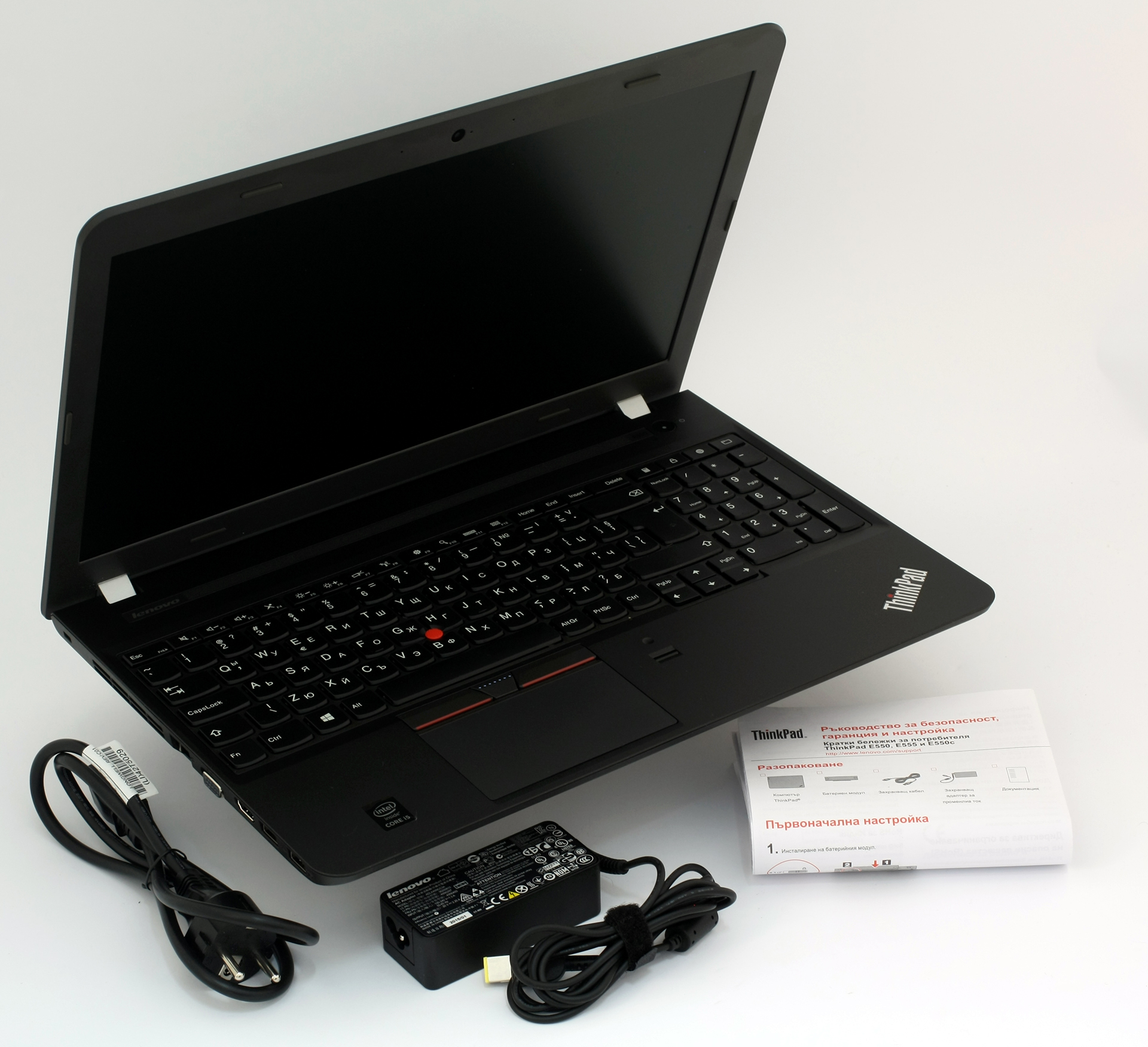
Nothing unusual there. The Lenovo ThinkPad E550 comes with AC charger, a DVD for the drivers and several user manuals for the machine.

Design and construction
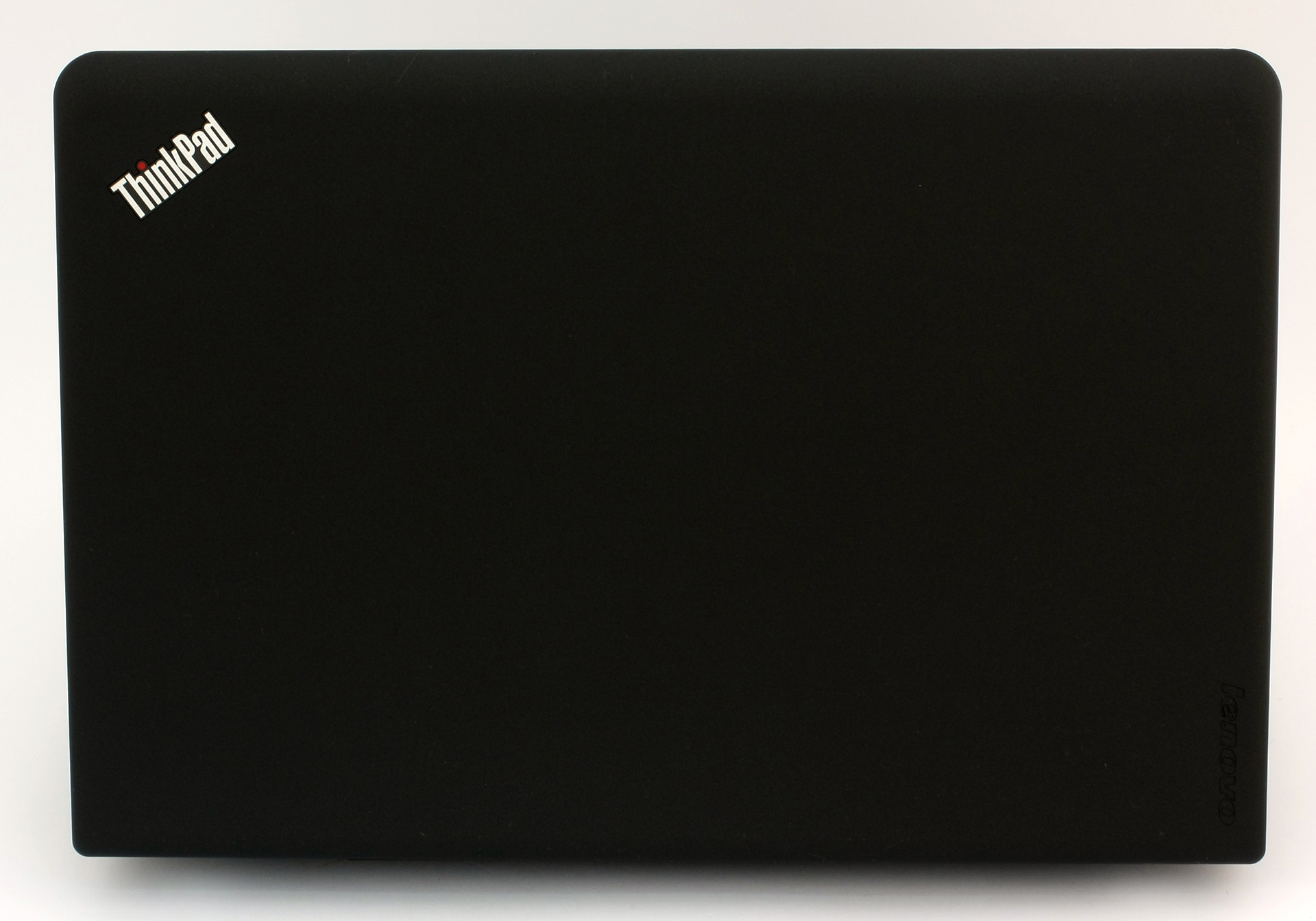
As we mentioned earlier, the design doesn’t strike us as a premium one, but it does offer a good soft touch that feels nice in hand. The surface of the lid is made of soft-touch plastic that leaves nasty smudges from your fingers, but at least it’s relatively easy to clean it. The Lenovo logo is featured at the top left corner and on the opposite edge can be found the ThinkPad logo with a little red LED light on the “i” that indicates when the computer is switched on or if it’s charging. Pretty nifty and elegant, don’t you think? On the other side of the lid is placed only the LCD panel and the built-in webcam for video chats.
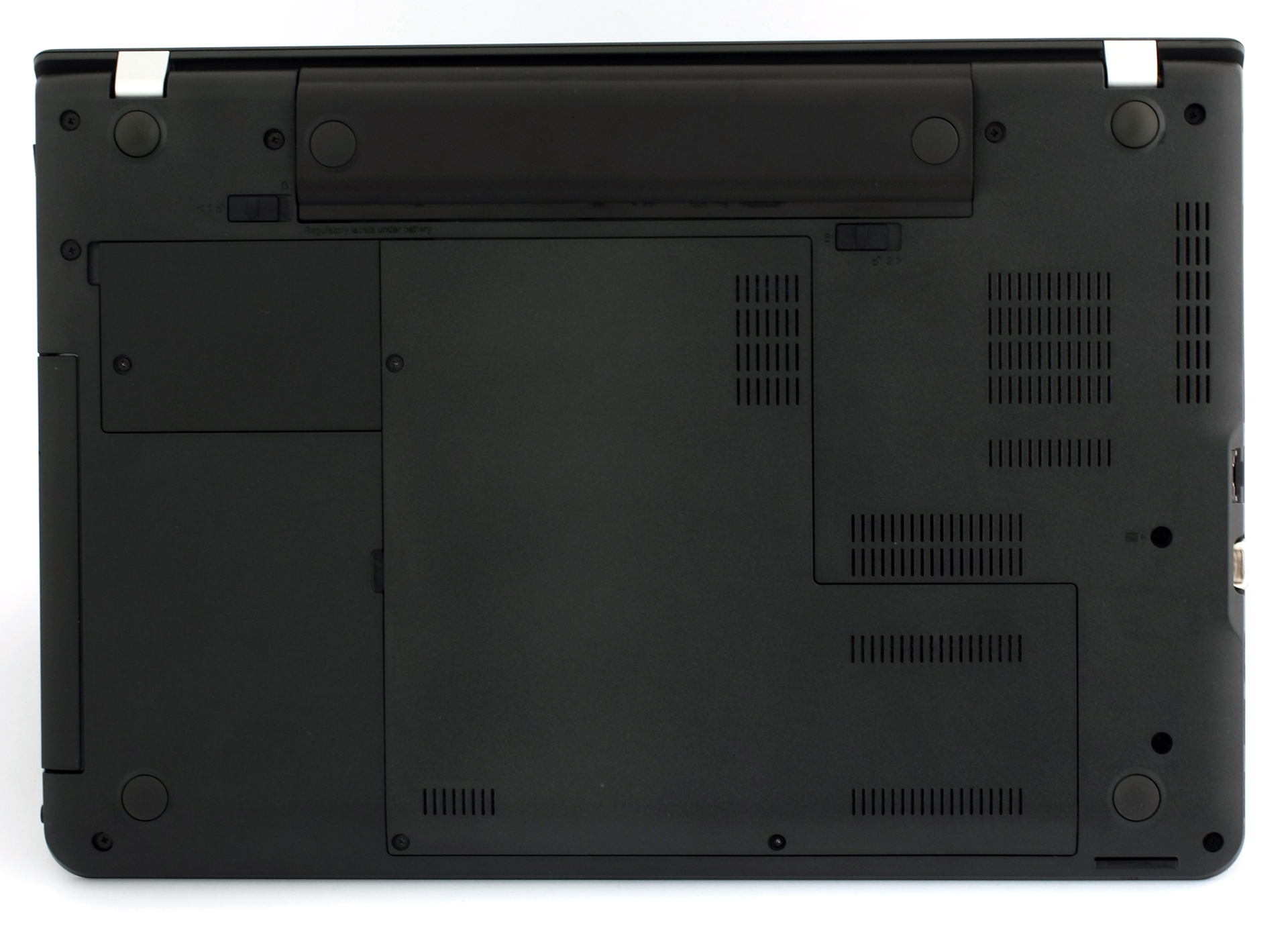
The bottom of the notebook is covered in hard plastic with a bit curved edges on the sides. There are two covers kept in place by a few screws, so you can easily access the HDD, RAM chips, and other useful components. More on that matter can be found in our upgrade and disassembly guide. There are also a few grills for dispersing the heat if you are planning to use an external cooling pad.

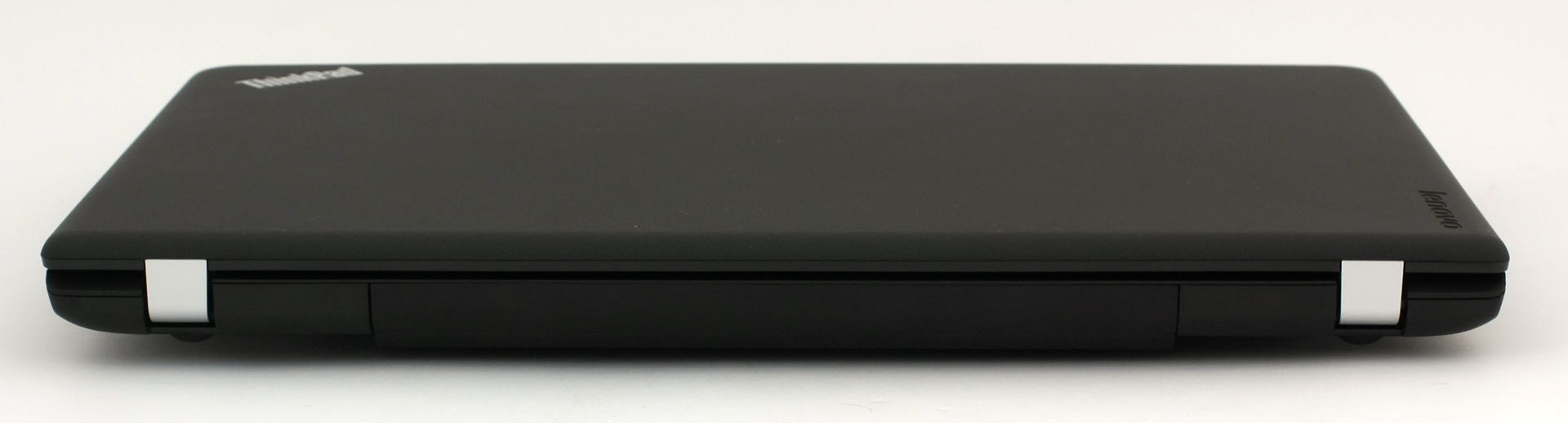
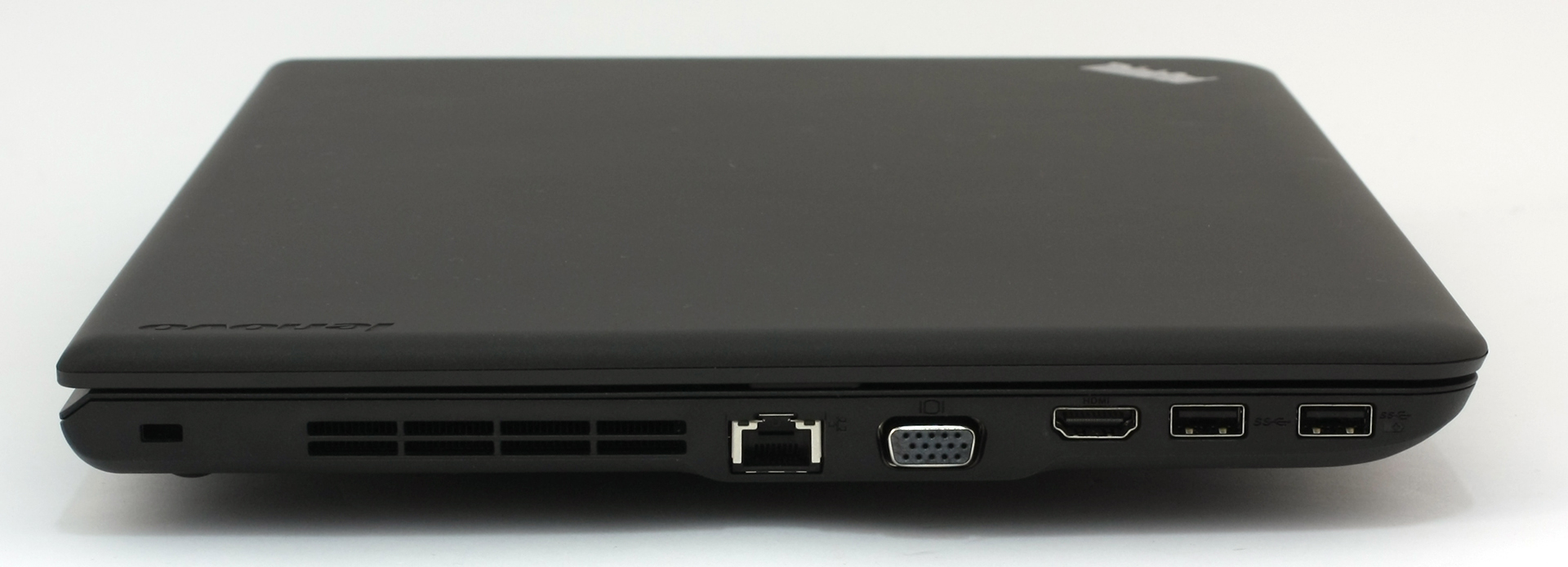

The sides of the machine offer nothing out of the ordinary. The left side is equipped with two USB 3.0 ports, HDMI, VGA and LAN port. Right next to them is the main grill for the cooling fan and it’s designed quite discreet – it just blends to the exterior. On the right side is one USB 2.0, the DC charging port and the optical drive.
However, the interior is the thing that will make you fall in love with the notebook. Yes, it doesn’t look classy but it’s hell of a practical. Well, it’s a business-oriented laptop, after all. The top corner is occupied by Lenovo’s logo and the grill for the loudspeakers. On the right side is the power button, which is concaved and it’s easy to reach out for it. The hard, matte plastic around the keyboard also feels sturdy and most importantly – it doesn’t attract fingerprints like the surface of the lid. There’s also the ThinkPad logo at the bottom right corner, again with the red LED light, similar to the one on the lid.

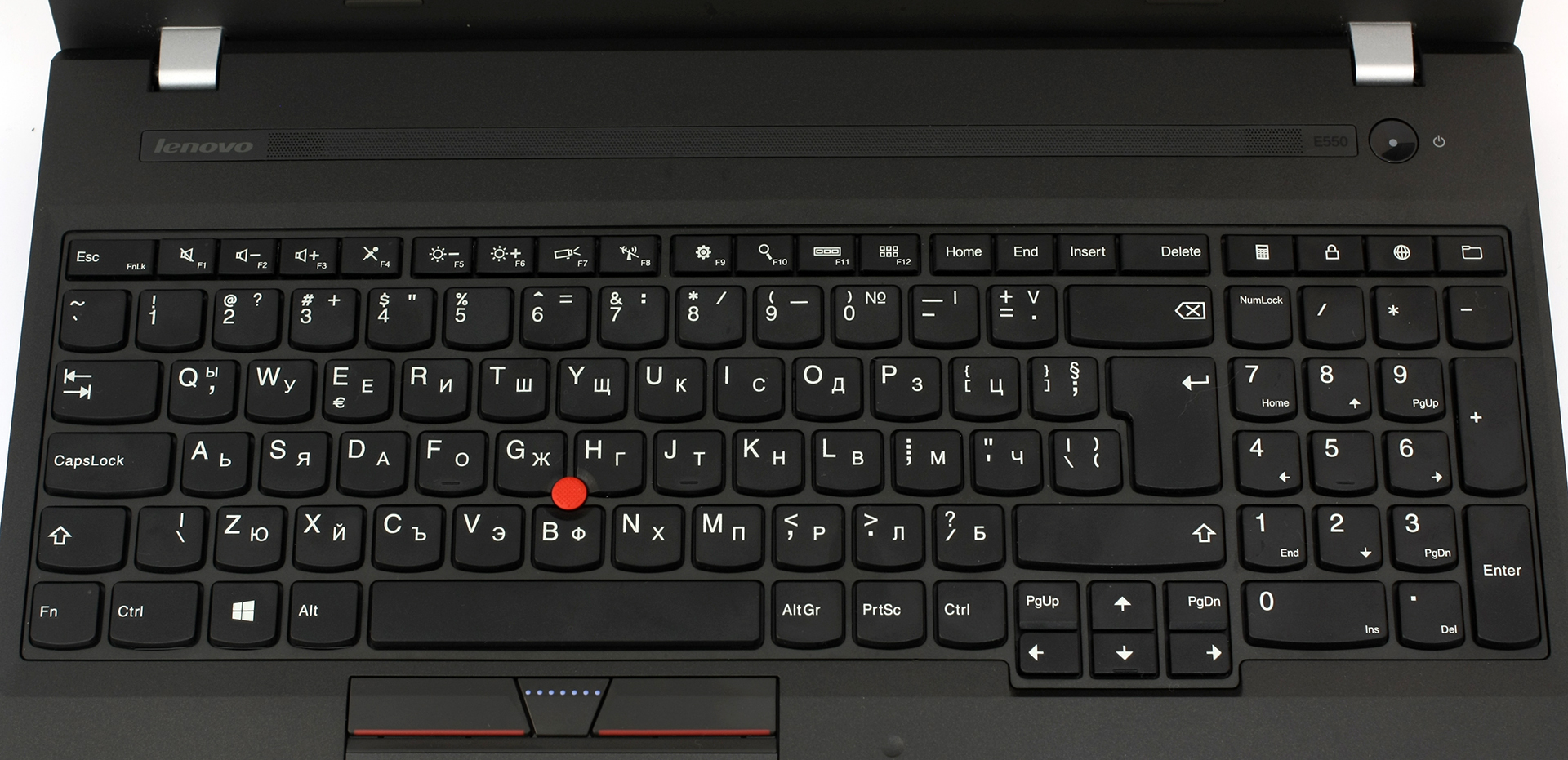
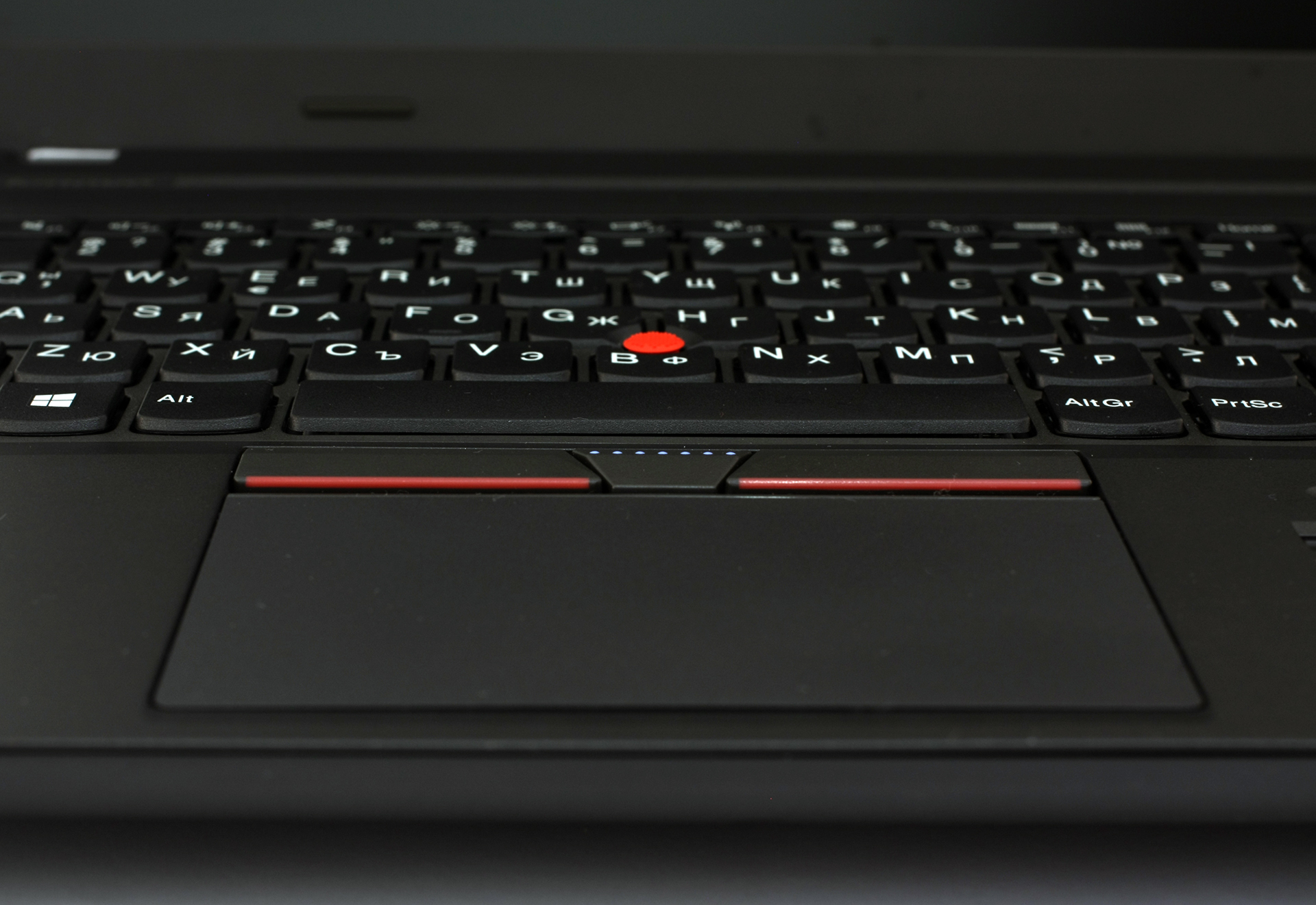
The keyboard is the thing that shines the most, though. The keys feel nice with their long, tactile feedback and ergonomic design. There are a handful of macro keys like a shortcut to the calculator, web browser, file explorer and so on. The most used function keys are placed among the first of the “F” keys so they are quite easy to reach with one hand. Nevertheless, no matter how comfortable the keyboard was, we couldn’t stop mistaking the “Fn” button for the “Ctrl” one. Maybe if you are a hardcore ThinkPad user you will not notice it, but if you are coming from a regular notebook, it will take time to adapt.

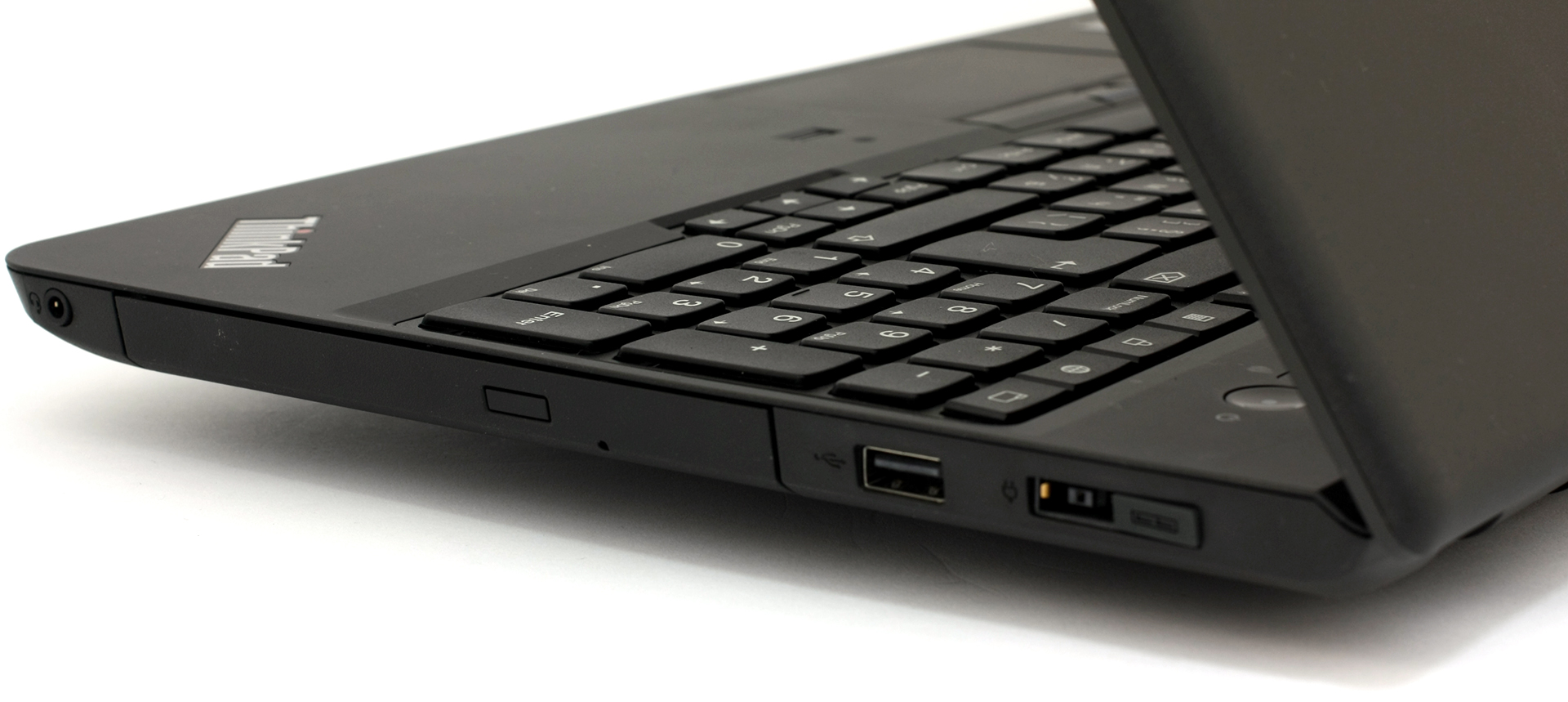

The trackpoint is also tremendous. Extremely easy to use and the mouse buttons are soft and placed perfectly. The touchpad is also quite responsive and it has its own mouse button 1 and 2 when pressed on the bottom corners. When you get used to the trackpad, you will eventually no longer feel the need for an external mouse. Not to mention the fingerprint reader, which features a small “dent” in the surface which will help you place your finger more accurately and this is quite useful when using the notebook in a pitch dark room for example.

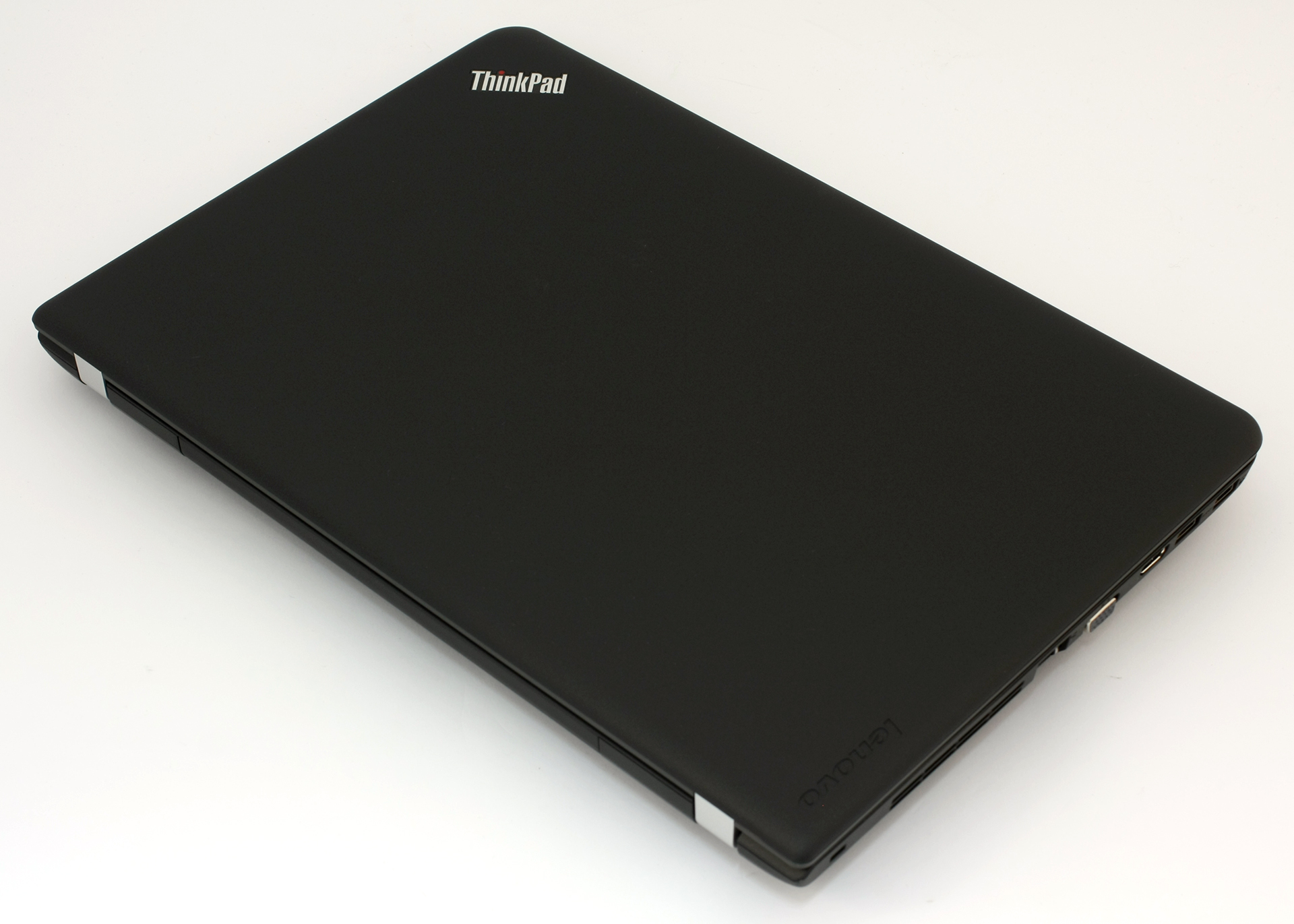

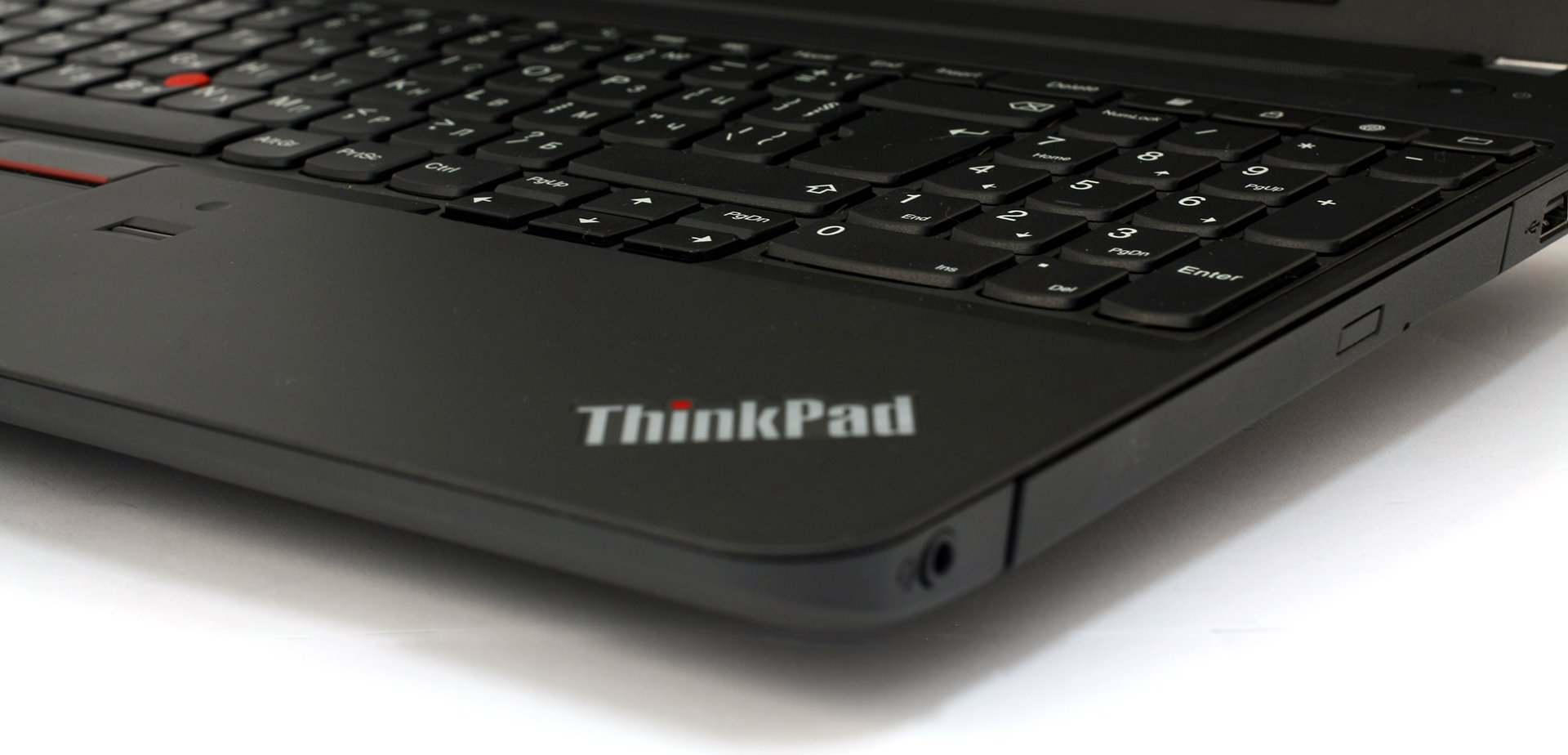
The overall design and construction are more than satisfying. The ThinkPad E550 brings the most essential needs a business user would want and at the same time carries an appealing price tag. It’s productive, sturdy, comfortable and really easy to use. The design is also good – nothing too special, yet doesn’t feel cheap at all.
Disassembly and upgrade options
You can read our short article on disassembly and upgrade options for more detailed information here:
http://laptopmedia.com/news/inside-the-lenovo-thinkpad-e550-disassembly-internal-photos-and-upgrade-options/
Display and sound
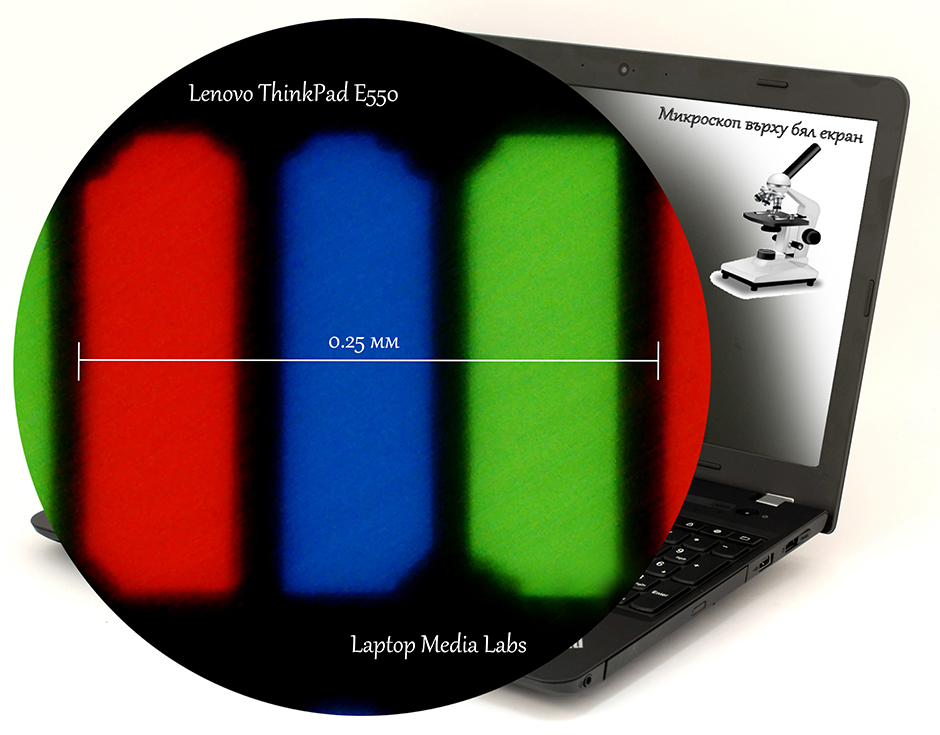
Lenovo ThinkPad E550’s display measures at 15.6-inch diagonal and it’s equipped with LCD TN panel with WLED backlight. The manufacturer is AU Optronics with model number B156XTN04.1. The resolution is 1366×768 pixels (WXGA) and each pixel is at 0.253 x 0.253 mm away from the next one or in other words – 100 PPI (pixels per inch).
You can see the alignment of the pixels under microscope on white background.
Here you can see the visibility of the screen at 45° angle and as we expected, viewing angles aren’t as good due to the TN panel.

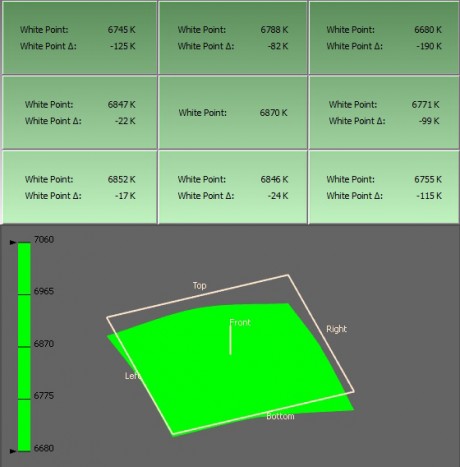
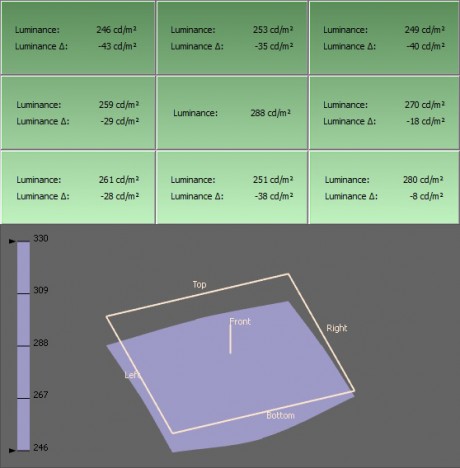
We’ve measured the maximum brightness of the panel before calibration – 262 cd/m2 and the recorded deviation is around 15%. This means that the screen will provide good viewing experience even in a bright room. The measured color temperature is 6800K – a bit cold, but still close to the optimal 6500K.
Screen flickering
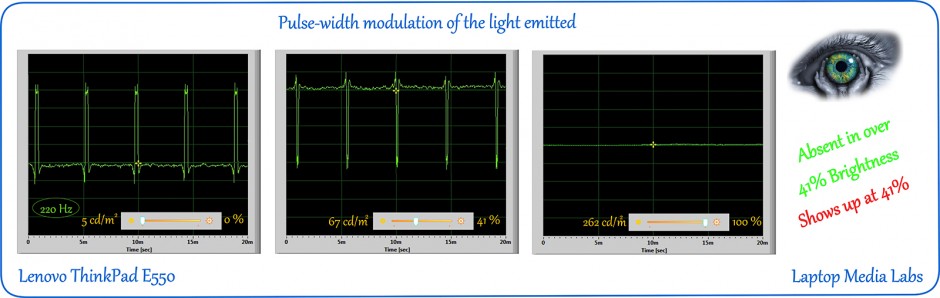
As you can see from the image below, PWM is present from 0% brightness (5 cd/m2) to 41% (67 cd/m2). These levels of brightness are so low that you will probably end not using them, so after 41% screen brightness the PWM (pulse-width modulation) is absent, thus harmless to human vision. Just make sure you don’t set the brightness level under 50%.
Color gamut coverage
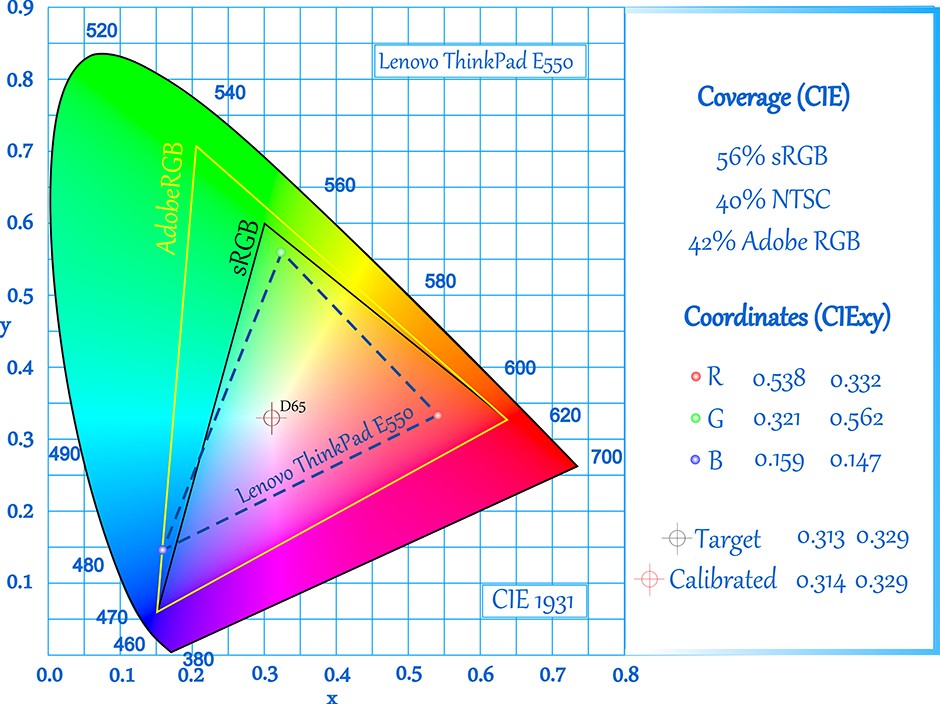
ThinkPad E550’s display covers 56% of the sRGB and 42% of the Adobe RGB color gamut. Almost half of the WEB-based (sRGB) colors are missing.
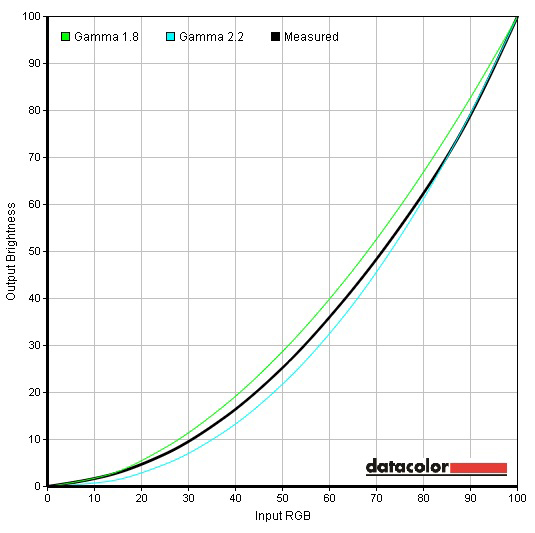
The gamma can be seen below and it’s pretty close to the optimal one, although some areas that are dark or mid-dark will appear a bit brighter than usual.
Color reproduction
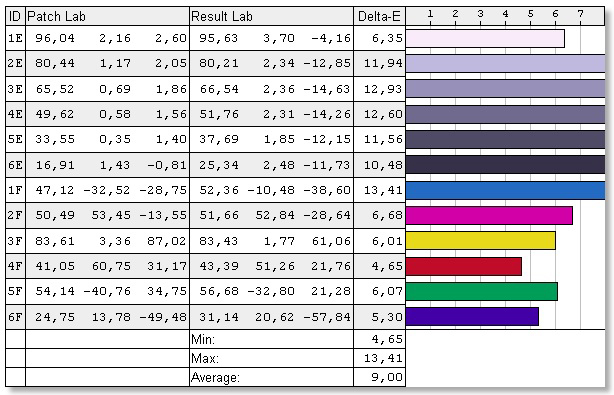
We calibrated the display at maximum brightness and color temperature at 6500K, but before that we’ve measured the color accuracy and average deviation of DeltaE(76) – 9.0.
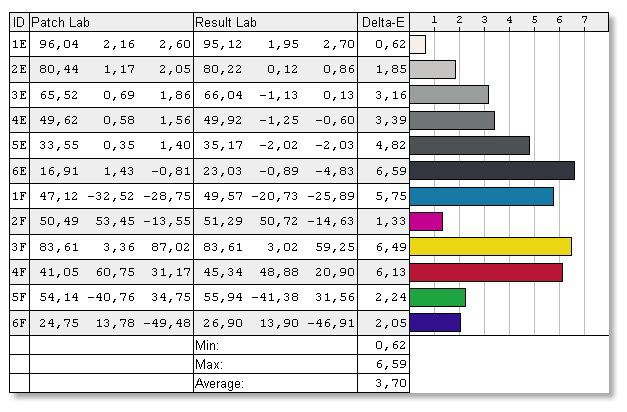
After calibration, the color accuracy improved significantly – DeltaE=3.7.
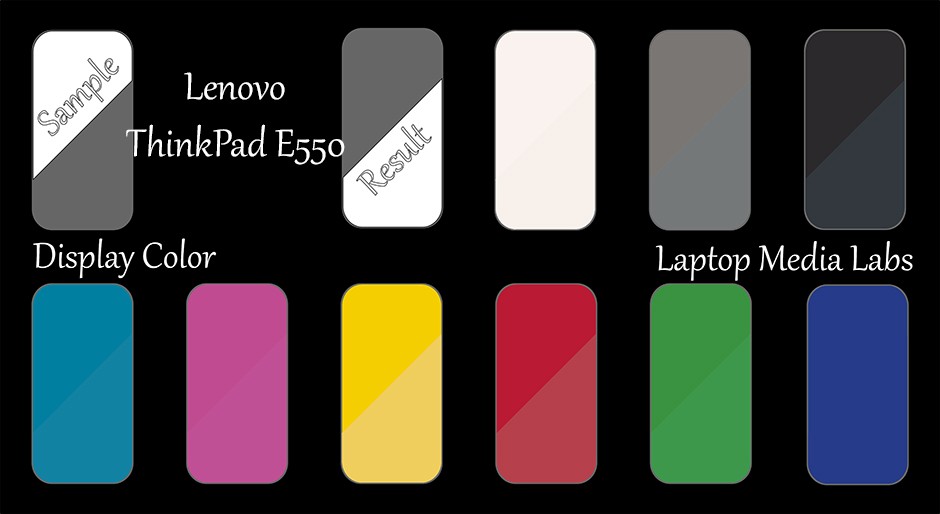
Here is a color map of the color accuracy.
Conclusion
ThinkPad E550’s display is good for business-oriented applications and usage, which aren’t related to video and photo editing. Due to the TN panel, the display is battery-friendly and the PWM is absent above 41% brightness. Though, it lacks good viewing angles, it doesn’t have good color reproduction, and insufficient contrast.
Screen comparison
If we assume a distance of 58cm (~23in) between the human eye and the notebook monitor, then normal (20/20) vision would require a pixel density of at least 150ppi in order to interpret an image as perfectly detailed.
| Laptop | Results | Result difference | Price | Price difference | |
|---|---|---|---|---|---|
| Lenovo ThinkPad E550 15.6-inch, AUO B156XTN04.1, 1366 x 768 pixels | 100.45 | ||||
| Lenovo ThinkPad Edge E540 15.6-inch, 1366 x 768 pixels | 100.45 | ||||
| Acer TravelMate P236 13.3-inch, AU Optronics, 1920 x 1080 pixels | 165.63 | +64.89% | |||
| Lenovo Yoga 2 Pro 13.3-inch, 3200 x 1800 pixels | 276.05 | +174.81% |
Higher panel brightness is of key importance for visual comfort when working outside or in a brightly lit room.
| Laptop | Results | Result difference | Price | Price difference | |
|---|---|---|---|---|---|
| Lenovo ThinkPad E550 15.6-inch, AUO B156XTN04.1, 1366 x 768 pixels | 262 | ||||
| Lenovo ThinkPad Edge E540 15.6-inch, 1366 x 768 pixels | 336 | +28.24% | |||
| Acer TravelMate P236 13.3-inch, AU Optronics, 1920 x 1080 pixels | 236 | -9.92% | |||
| Lenovo Yoga 2 Pro 13.3-inch, 3200 x 1800 pixels | 369 | +40.84% |
Delta E is a CIE measurement unit of color difference. Higher values indicate that the display produces less accurate colors. (lower results are desirable).
| Laptop | Results | Result difference | Price | Price difference | |
|---|---|---|---|---|---|
| Lenovo ThinkPad E550 15.6-inch, AUO B156XTN04.1, 1366 x 768 pixels | 9.0 | ||||
| Lenovo ThinkPad Edge E540 15.6-inch, 1366 x 768 pixels | 2.67 | -70.33% | |||
| Acer TravelMate P236 13.3-inch, AU Optronics, 1920 x 1080 pixels | 3.49 | -61.22% | |||
| Lenovo Yoga 2 Pro 13.3-inch, 3200 x 1800 pixels | 3.6 | -60% |
The sRGB color gamut, introduced as a standard for the Web, shows the percentage of colors used on the Web that can be displayed on the screen of the device being tested (higher values are better).
| Laptop | Results | Result difference | Price | Price difference | |
|---|---|---|---|---|---|
| Lenovo ThinkPad E550 15.6-inch, AUO B156XTN04.1, 1366 x 768 pixels | 56 | ||||
| Lenovo ThinkPad Edge E540 15.6-inch, 1366 x 768 pixels | 73 | +30.36% | |||
| Acer TravelMate P236 13.3-inch, AU Optronics, 1920 x 1080 pixels | 60 | +7.14% | |||
| Lenovo Yoga 2 Pro 13.3-inch, 3200 x 1800 pixels | 95 | +69.64% |
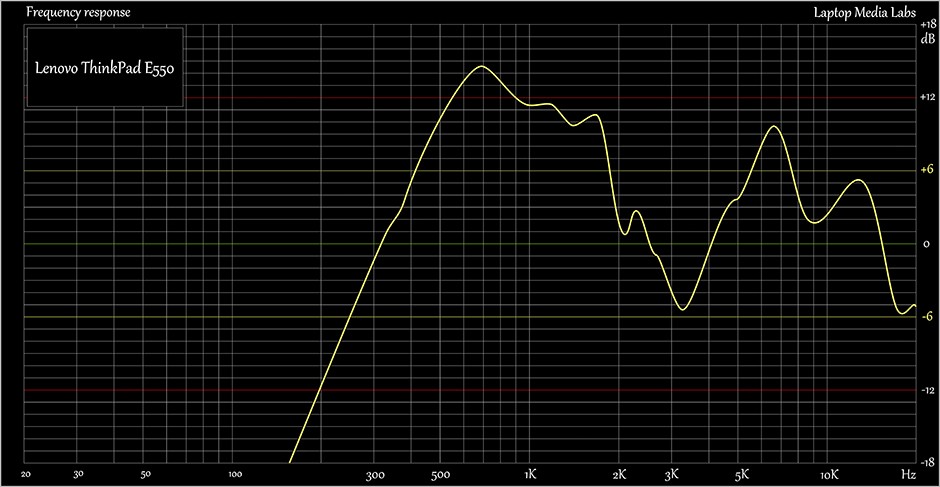
Sound
The notebook has the usual characteristics of sound quality as expected from a device of this price range. We didn’t notice any major issues in the quality of the sound.
Specs sheet
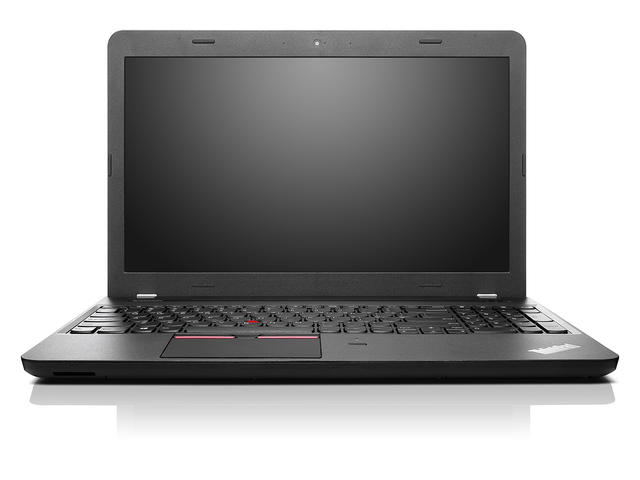
The current specs sheet is for this particular model and configurations may differ depending on your region.
| Processor | Intel Core i5-5200U (2-core, 2.20 – 2.70 GHz, 3MB cache) |
|---|---|
| RAM | 8GB (2x 4096MB) – DDR3, 1600Mhz |
| Graphics card | Intel HD Graphics 5500 (integrated graphics) |
| HDD/SSD | 1TB HDD (5400 rpm) |
| Display | 15.6-inch (39.62 cm.) – 1366 x 768 (HD), matte |
| Optical drive | DVD |
| Connectivity | LAN 10/100/1000 Mbps, Wi-Fi 802.11a/c, Bluetooth 4.0 |
| Other features |
|
| Battery | 6 cell Li-Ion Battery 48WH – 75+ |
| Thickness | 377 x 256 x 27 mm (14.82 x 10.08 x 1.06 in.) |
| Weight | 2.35 kg (5.18 lbs) |
Lenovo ThinkPad E550 configurations
Software and Drivers
The ThinkPad E550 doesn’t come with pre-installed operating system (it will, but it’s optional) and for testing purposes we used Windows 8.1 (64-bit). All the drivers needed can be found in Lenovo’s official website:
http://support.lenovo.com/bg/bg/products/laptops-and-netbooks/thinkpad-edge-laptops/thinkpad-e550?TabName
Battery
The battery is user removable – a big plus and it’s rated at 48Whr 75+ 6-cell. We also have energy-efficient hardware and not so power-hungry TN panel with a resolution of 1366 x 768 pixels so we can expect more than decent battery life. But to check the battery performance, we use a set of tests in real-life conditions – web browsing, watching a movie and gaming. All the tests share the same characteristics – Wi-FI is turned on, Bluetooth is off, power saver is on and screen brightness is set to 120cd/m2.
Web browsing
In order to simulate real-life conditions, we used our own script for automatic web browsing through over 70 websites.
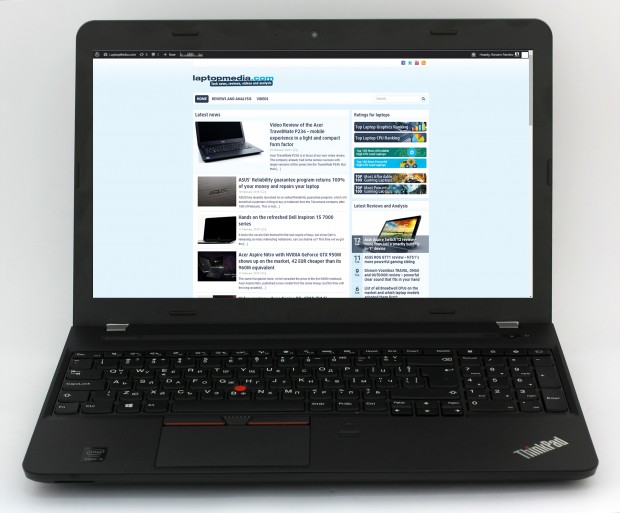
Outstanding result – 486 minutes (8 hours and 6 minutes).
Watching a movie
For every test like this, we use the same video in HD.
Almost identical result for vide playback – 456 minutes (7 hours and 36 minutes).
Gaming
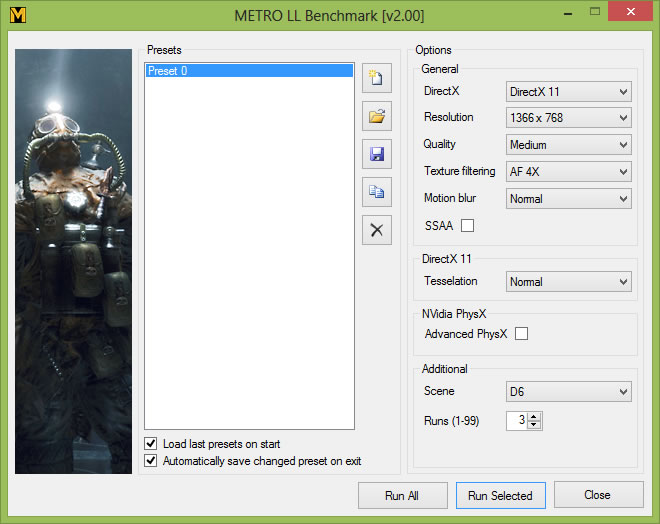
For accurate simulation, we used the Metro Last Light benchmark running on loop with graphic settings set to minimum.
By the most demanding test we can easily say that the ThinkPad E550 is more energy-efficient than most notebooks out there – only 236 minutes (3 hours and 56 minutes)
CPU
 The Intel Core i5-5200U processor is part of the Broadwell family and part of the “U” series CPUs. The “U” series offer a bit lower TDP, in this case 15W, two energy-efficient cores and higher clock rates in order to keep power consumption low without sacrificing the performance.
The Core i5-5200U is clocked at 2.2GHz base frequency and can go up to 2.7GHz for one active core and 2.5GHz for one active core, thanks to the Turbo Boost technology. Of course, it’s based on a 64-bit architecture and it’s manufactured by 14nm FinFET process, which means more power, less power consumption in a smaller die size to fit in smaller form factors. It also features the HyperThreading technology from Intel, which means that the CPU emulates one additional virtual core per physical one.
The CPU also features Intel HD 5500 integrated GPU with a base frequency of 300MHz and 900MHz Turbo Boost. Other distinctive features are DDR3(L)-1600 Memory Controller with up to 16GB, HyperThreading, AVX, AVX2, Quick Sync, Virtualization, AES-NI, DirectX 11.2 as well as OpenCL 1.3/2.0 support and OpenGL 4.3. It’s important to add that the i5-5200U has 128KB cache at level 1, 512KB at level 2 and 3072KB at level 3.
You can browse through our top CPUs ranking: http://laptopmedia.com/top-laptop-cpu-ranking/
Here you will find other useful information and every notebook we’ve tested with this processor: http://laptopmedia.com/processor/intel-core-i5-5200u/
Fritz
Fritz is a chess benchmark which tests the computing capabilities of the CPU with various chess moves. The Intel Core i5-5200U managed to get 5.058 million moves per second. For comparison, one of the most powerful PCs, Deep(er) Blue, was able to squeeze out 200 million moves per second. In 1997 Deep(er) Blue even beat the famous Garry Kasparov with 3.5 to 2.5.
GPU
 Intel HD Graphics 5500 is a GT2 graphics chip, built into Intel’s Broadwell Core i series of processors. It was announced on January 1, 2015, its goal being to stand against NVIDIA and AMD’s low-end dedicated graphics cards.
The HD Graphics 5500 has 24 shader cores, known as ‘unified units’, 4 texture cores and 1 raster core. They support DirectX 11.1, Pixel Shader 5.0, OpenCL 1.2, OpenGL 4.0 and Quick Sync encoding. Base frequency is 300MHz, and TurboBoost can increase that up to 950MHz depending on the processor.
Power consumption is drastically lower when compared to NVIDIA and AMD’s discrete graphics solutions. The controller also produces less heat, since it is part of the CPU package. This makes GT2 graphics accelerators the most desirable in the ultrabook class of portables.
You can browse through our top GPUs ranking: http://laptopmedia.com/top-laptop-graphics-ranking/
Here you will find other useful information and every notebook we’ve tested with this GPU: http://laptopmedia.com/video-card/intel-hd-graphics-5500/
Gaming tests
We are fully aware that the ThinkPad E550 is not intended for gaming, but we ran the test just for comparison and evaluation reasons.



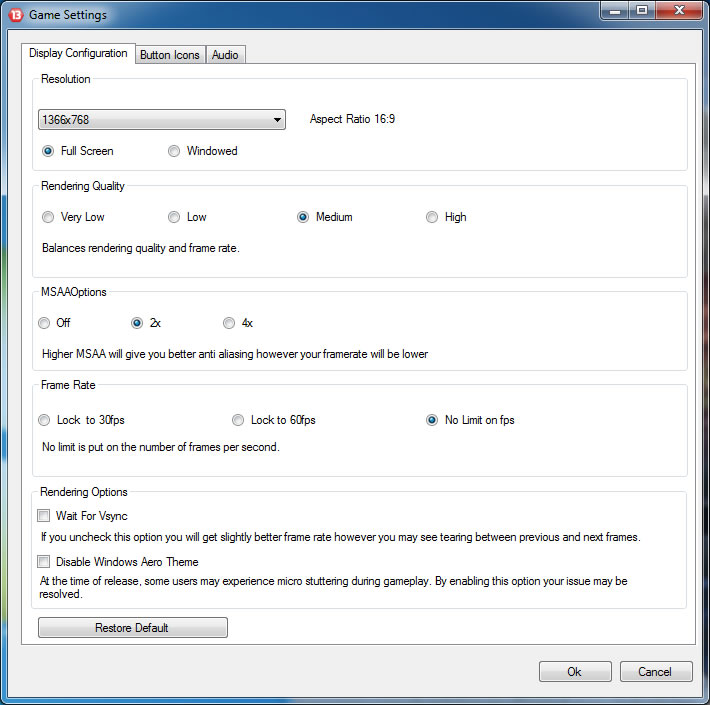
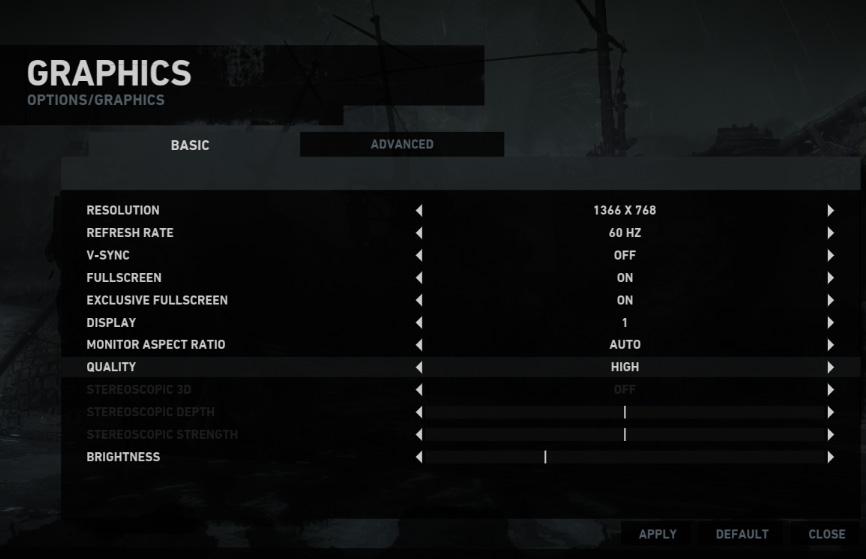
In order to be fair for most notebooks that have only 1366×768 (WXVGA) resolution, we test all laptops with this particular one.
As expected, ThinkPad E550’s hardware isn’t capable of running more demanding games, but older games or newer ones similar to FIFA 14 can be played at lower resolution settings.
Temperatures
As usual, we get to the point where we have to check the long-term stability of the system. To do so, we put the notebook to maximum CPU stress and see how it handles high temperatures and big load. We begin with the CPU test running with 100% load for about an hour. Sensors indicate a normal operating temperature of 30°C and 2.7GHz maximum frequency with one active core. When we turned on the thest, CPUs frequency dropped to 2.5GHz and a maximum temperature of 66°C, which is far from the maximum operating temperature of 105°C. We kept it running for about an hour and there were no bad surprises, since the CPU didn’t throttle and the heat was well managed. On the image below you will see the temperatures (red lone) and CPU load (green line).

After one hour we’ve switched on the GPU stress test to see if there are any significant changes when the GPU cores are running too. The temperature didn’t rise much – maximum of 69°C, which is great, but we did notice a lot of throttling. When the GPU stress test started running, the frequency of the processor dropped to 1.1-1.2GHz, which can be considered as a drawback. However, these test aim to show the stability of the system in long-term and it’s quite unlikely that a normal user would reach such high loads and temperatures. You can even see in the image how the heat affects the exterior.
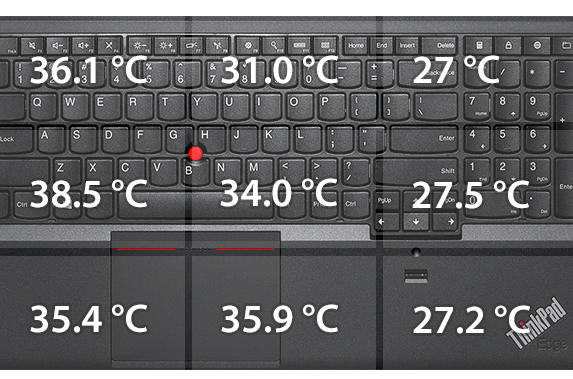
We didn’t’ record any high temperatures and the user will not feel any heat from the surface. In fact, the area where the palms rest remained cool throughout the whole tests and most importantly – the internals ran cool without any risks of permanent damage to the CPU or motherboard.
Verdict
No wonder that last year’s Lenovo ThinkPad E540 was selling so well, but does its successor live up to the legacy? Well, in some terms yes, but in others – no. Lenovo kept the same minimalistic design signature with high-quality plastic for the construction. The keyboard remains almost perfect as usual and the trackpad and touchpad complete the pleasant user experience. Yes, it still lacks the quality panel, but it does offer good functionality for its price range and you have a bonus fingerprint reader, as most competitors don’t offer this option. Actually the E550 brings more to the table than we would have expected and does the job perfectly for what it’s made for.
However, we were really disappointed by the fact that Lenovo left out the 3G functionality and the m.2 SATA slot, which is a necessity for a business laptop. For instance, last year’s E540 did offer both of them and we can’t quite understand why the vendor got rid of them. Nevertheless, the hope is still out there and judging by the carvings in the chassis and the seemingly empty space for the m.2 SATA slot, Lenovo might release some configurations with both options available in the future.
Pros
- Great keyboard
- Good trackpad and touchpad design
- Outstanding battery life
Cons
- m.2 SATA slot and 3G connectivity are missing
 Author: Rossen Pandev
 Author: eng. Kroum NikolovHead of Engineering at LaptopMedia.com, inventor and innovator with 40+ years of experience in electronics and high technology.

![[May 2026] Amazon Global: Top 10 Best-Selling Gaming Laptops – Budget-Friendly ASUS TUF Gaming A15 Dominates the Market](https://laptopmedia.com/wp-content/uploads/2026/06/Best-Selling-Gaming-Laptops-GLOBAL-Top-10-400x225.jpg)
![[May 2026] Amazon Global: Top 10 Best-Selling Laptops – Apple’s Affordable ‘MacBook Neo’ Takes the Crown Amidst Strong Air and Pro Sales](https://laptopmedia.com/wp-content/uploads/2026/06/Best-Selling-Laptops-GLOBAL-Top-10-400x225.jpg)
![[May 2026] Best-Selling Laptop Brands on Amazon Global – Apple Dominates in Units and Revenue](https://laptopmedia.com/wp-content/uploads/2026/06/GLOBAL-Best-Brands-400x225.jpg)





In the report the following remark is made about the sound; “The notebook has the usual characteristics of sound quality as expected from a device of this price range. We didn’t notice any major issues in the quality of the sound.” I have used many notebooks and was pleasantly surprised; sound quality is good enough to listen to listen music while working. Obviously my notebook has slightly different specs. For example; my display is full HD (1080×1920) and is reasoble. I have seen better, for instance on the 13″ Lenovo Yoga II. All in all it is not a sexy… Read more »
I just got E550, satisfied with every aspect until today I couldn’t connect to a 2nd wifi network. Still trying to figure that out.