MSI Vector GP77 13V review – quiet and powerful
Temperatures and comfort, Battery Life
Max CPU load
In this test we use 100% on the CPU cores, monitoring their frequencies and chip temperature. The first column shows a computer’s reaction to a short load (2-10 seconds), the second column simulates a serious task (between 15 and 30 seconds), and the third column is a good indicator of how good the laptop is for long loads such as video rendering.
Average P-core frequency; Average E-core frequency; CPU temp.; Package Power
| Intel Core i7-13700H (45W TDP) | 0:02 – 0:10 sec | 0:15 – 0:30 sec | 10:00 – 15:00 min |
|---|---|---|---|
| MSI Vector GP77 auto fan speed | 3.86 GHz @ 3.08 GHz @ 89°C @ 135W | 3.75 GHz @ 3.10 GHz @ 94°C @ 128W | 3.24 GHz @ 3.00 GHz @ 81°C @ 90W |
| MSI Vector GP77 with cooling pad | 3.87 GHz @ 2.95 GHz @ 84°C @ 131W | 3.83 GHz @ 3.10 GHz @ 93°C @ 135W | 3.24 GHz @ 3.10GHz @ 80°C @ 90W |
| MSI Vector GP77 with Cooler Boost | 3.87 GHz @ 3.04 GHz @ 84°C @ 135W | 3.83 GHz @ 3.10 GHz @ 93°C @ 135W | 3.25 GHz @ 3.10 GHz @ 77°C @ 90W |
The CPU can boost way higher compared to its default limits – up to 135W in short loads and around 90W in longer loads such as video rendering. As you can see, using a cooling pad or Cooling Boost isn’t that significant when it comes to temperatures and power limits, so the Auto mode is the way to go in our opinion.
Real-life gaming
| NVIDIA GeForce RTX 4070 (140W) | GPU frequency/ Core temp (after 2 min) | GPU frequency/ Core temp (after 30 min) |
|---|---|---|
| MSI Vector GP77 | 2295 MHz @ 61°C @ 95W | 2295 MHz @ 61°C @ 95W |
The GPU can’t reach 140W TGP but it offers super stable clocks and thermals no matter the load which leads to stable performance. We also measured 0.925V GPU voltage, 70°C memory temperature, and 67°C GPU hotspot after 30 minutes of gaming. These are great results and yes, the cooling of this machine is doing its job well. No matter the fact that the GPU is reaching 95W, its performance is closer or even higher compared to the GeForce RTX 3080 (130W) – check the “Gaming tests” section.
Comfort during full load
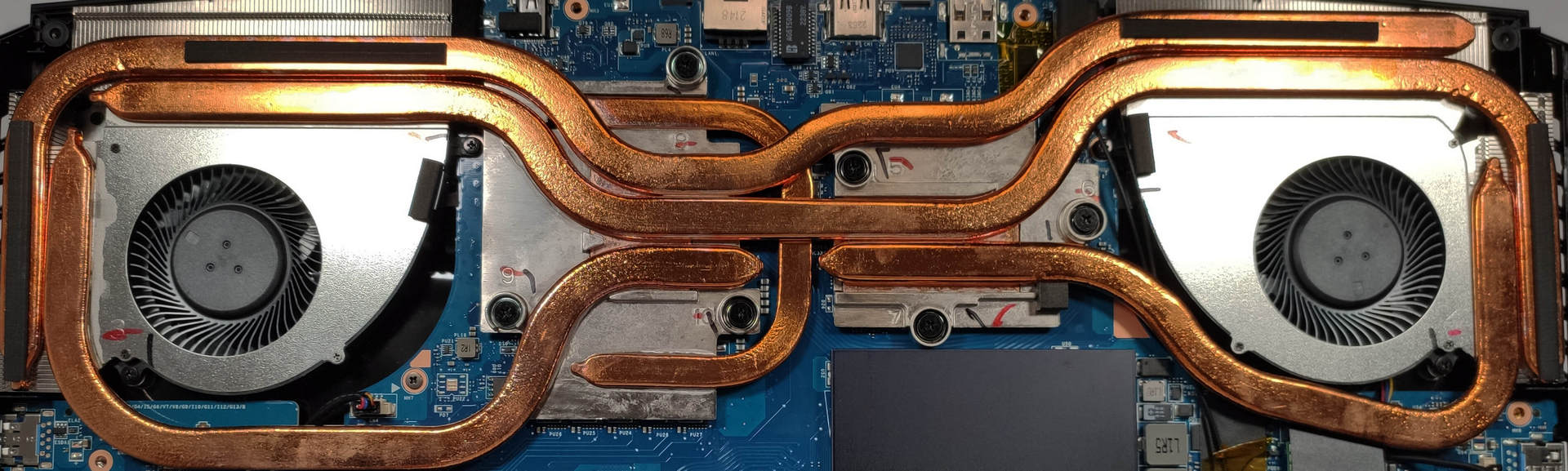
The base of the device is surprisingly cool during heavy load. The WASD section and the palm rest area are not hot at all so heat will not bother you while gaming. The other thing that surprises us in a good way is the noise – this is littery a quiet gaming laptop, even when the Extreme preset is applied. Nice!
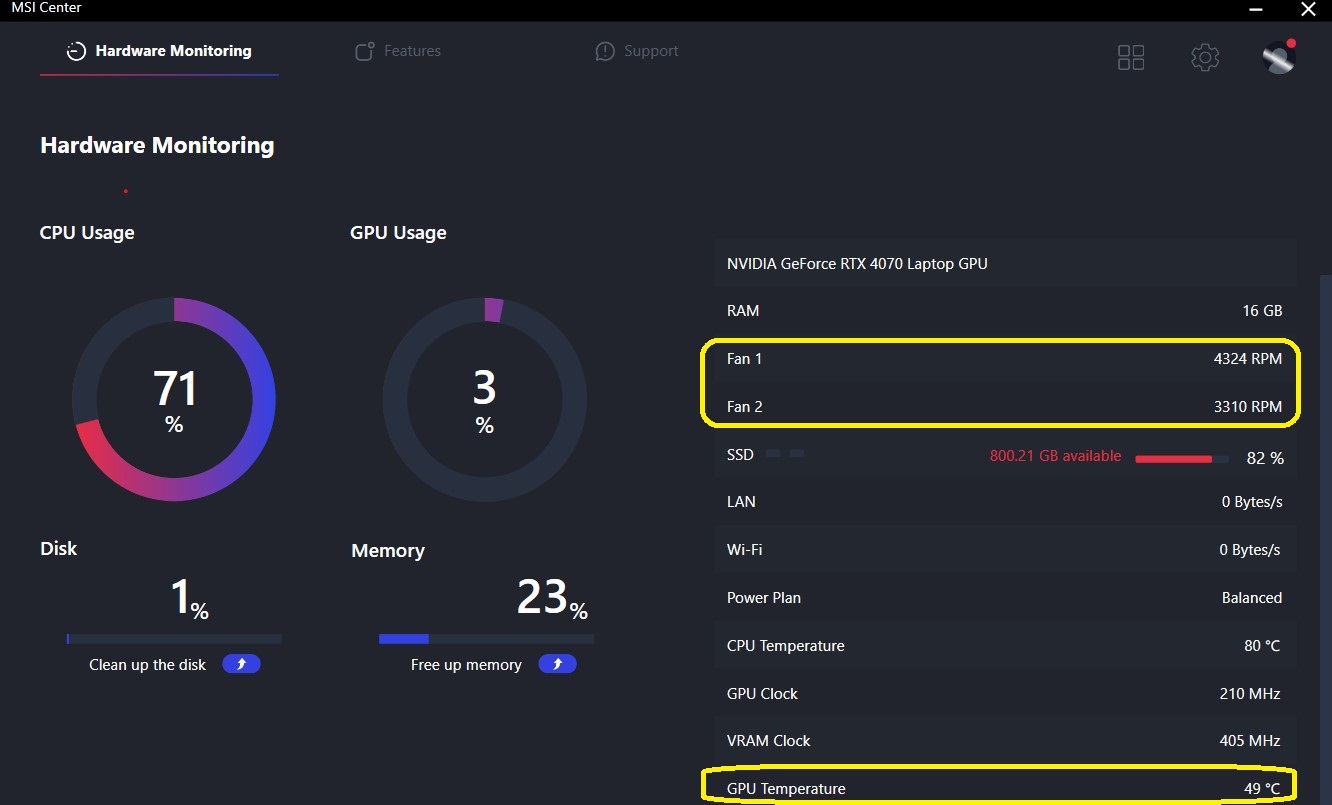
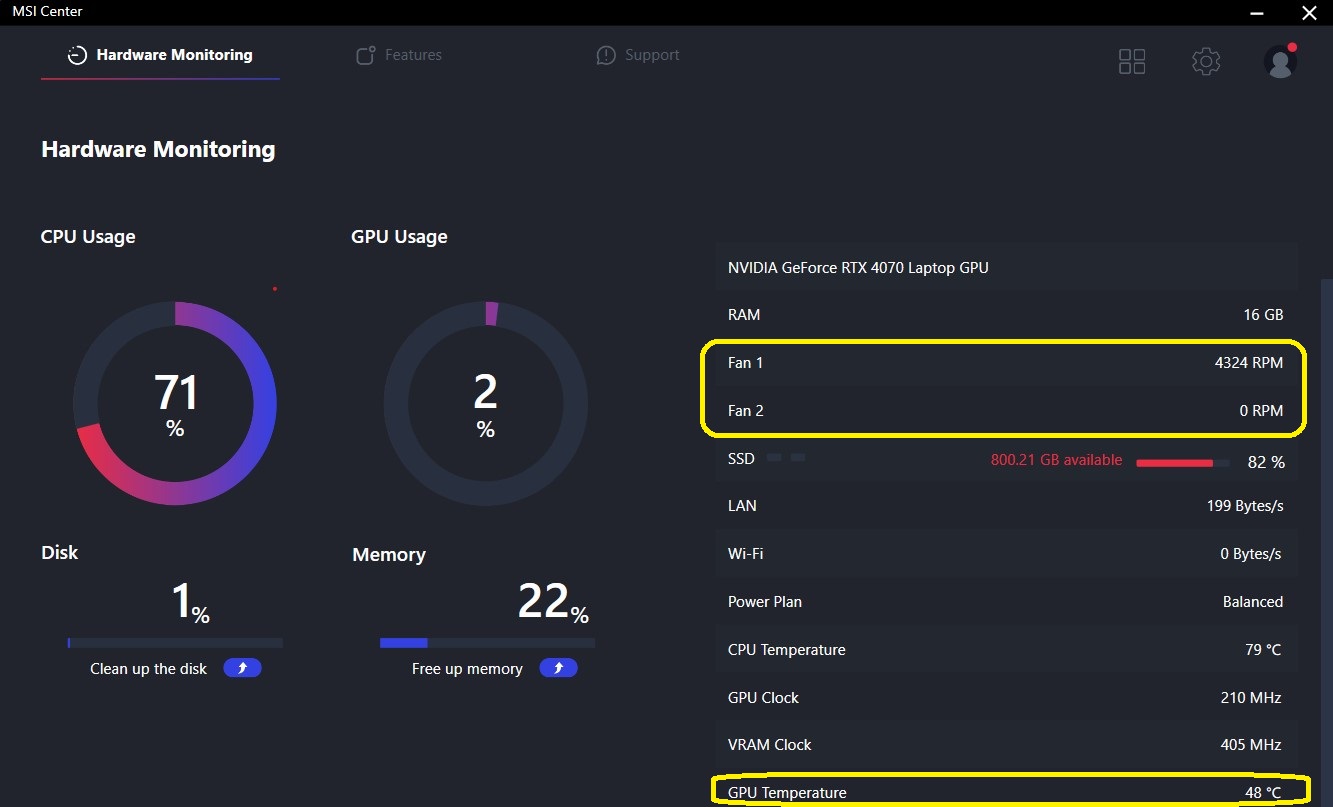
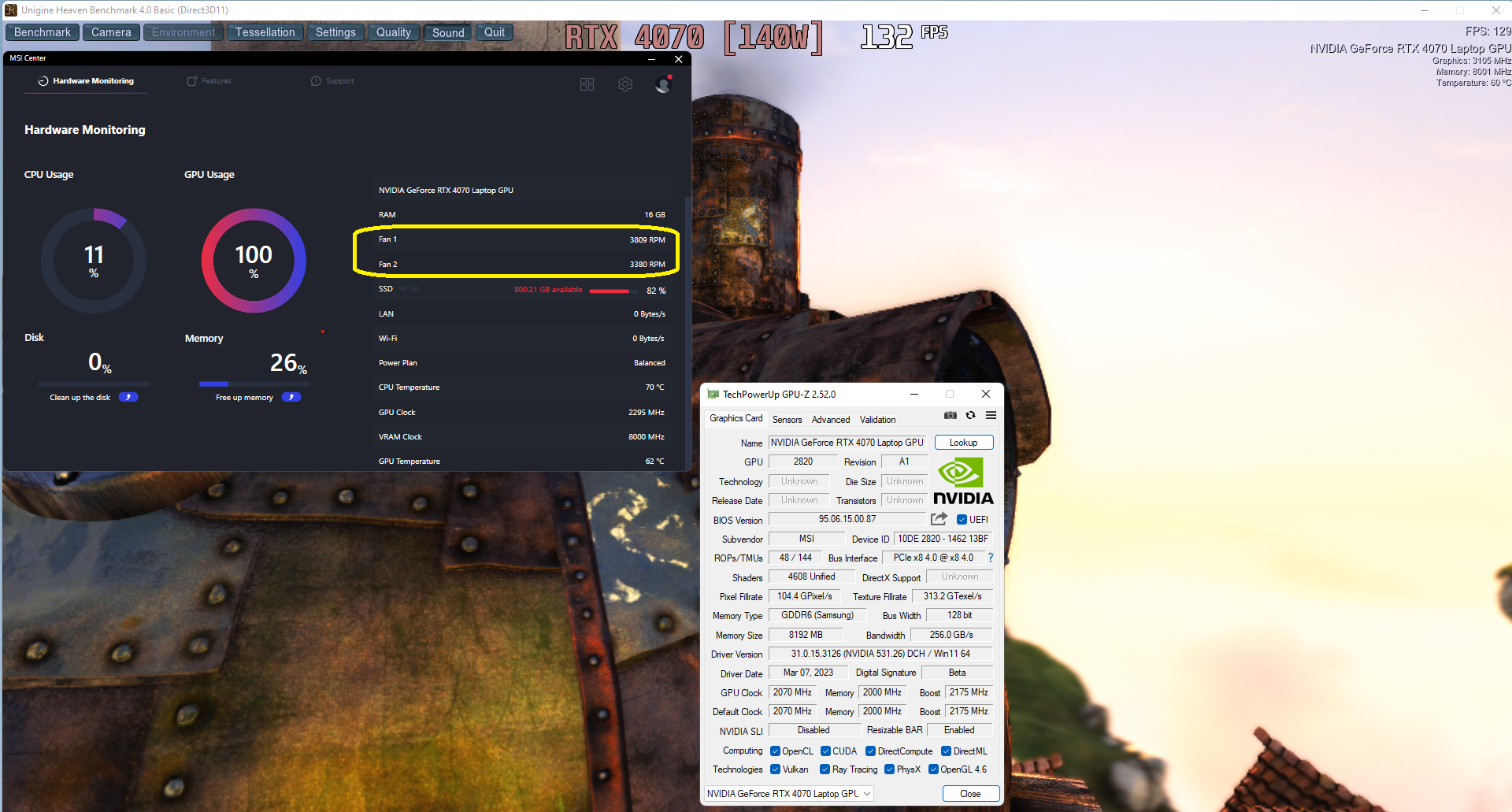
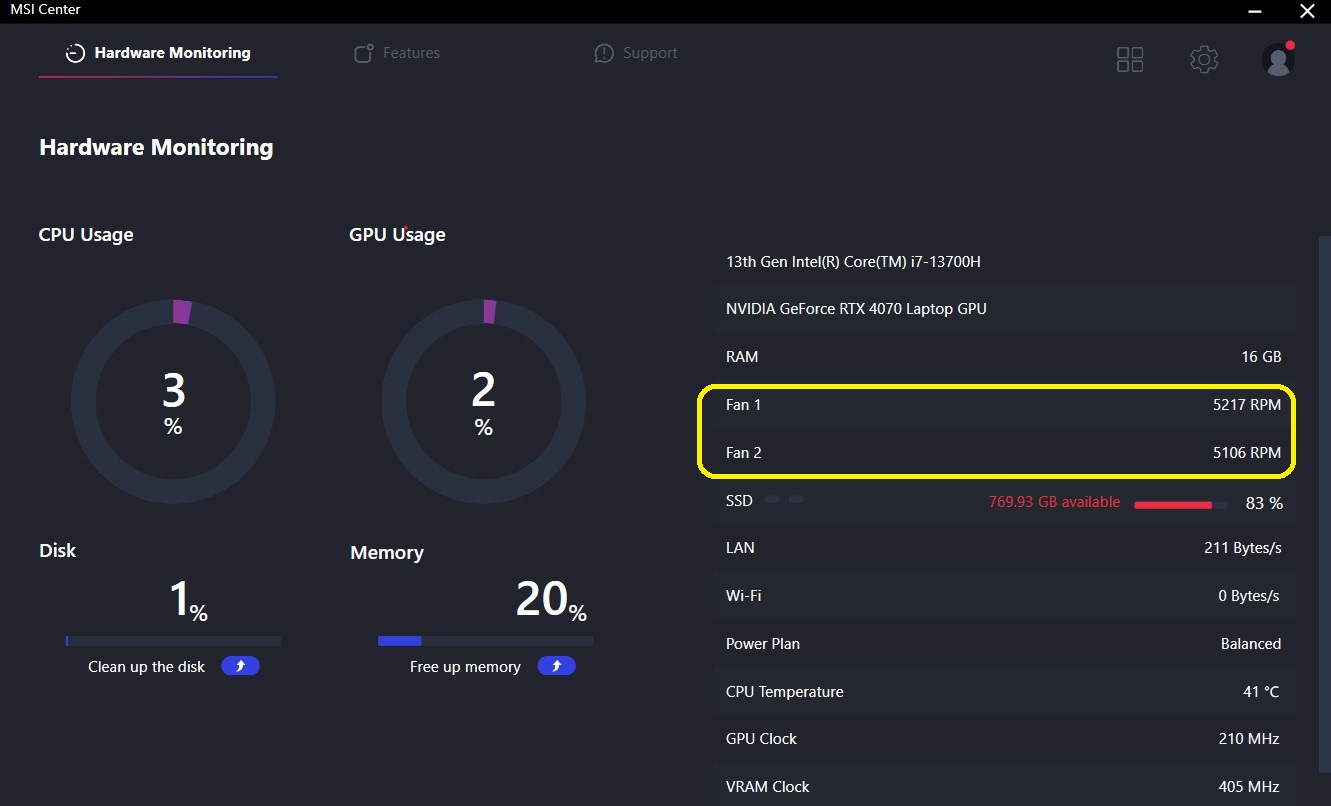
The GPU fan is not spinning until the graphics chip reaches 49°C. This contributes to great comfort in idle or under light CPU loads such as Web browsing. The first screenshot down below is showing that when the GPU temperature is at least 49°C, the dedicated fan is spinning at low RPM. Note that the CPU load is over 70%. When the GPU temperature is reaching 48°C the fan isn’t spring at all. The third screenshot is showing a typical gaming scenario where the GPU load is at 100% and the CPU isn’t working that hard. On the last screen, you can see the max RPM of both fans when Cooler Boost is on. If we have to be honest, there are a lot of gaming laptops that are noisier with their fans in Auto mode than this MSI device with Cooler Boost activated.
Battery
Now, we conduct the battery tests with the Windows Better performance setting turned on, screen brightness adjusted to 120 nits and all other programs turned off except for the one we are testing the notebook with. This device’s 65Wh battery lasts for 6 hours and 40 minutes of Web browsing, or 7 hours and 9 minutes of video playback. Considering the battery capacity, these are decent results for a gaming machine.
Brightness: 180 nits; Display Mode: SDR
Time to Full Discharge: Higher is Better
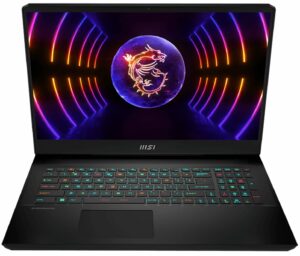
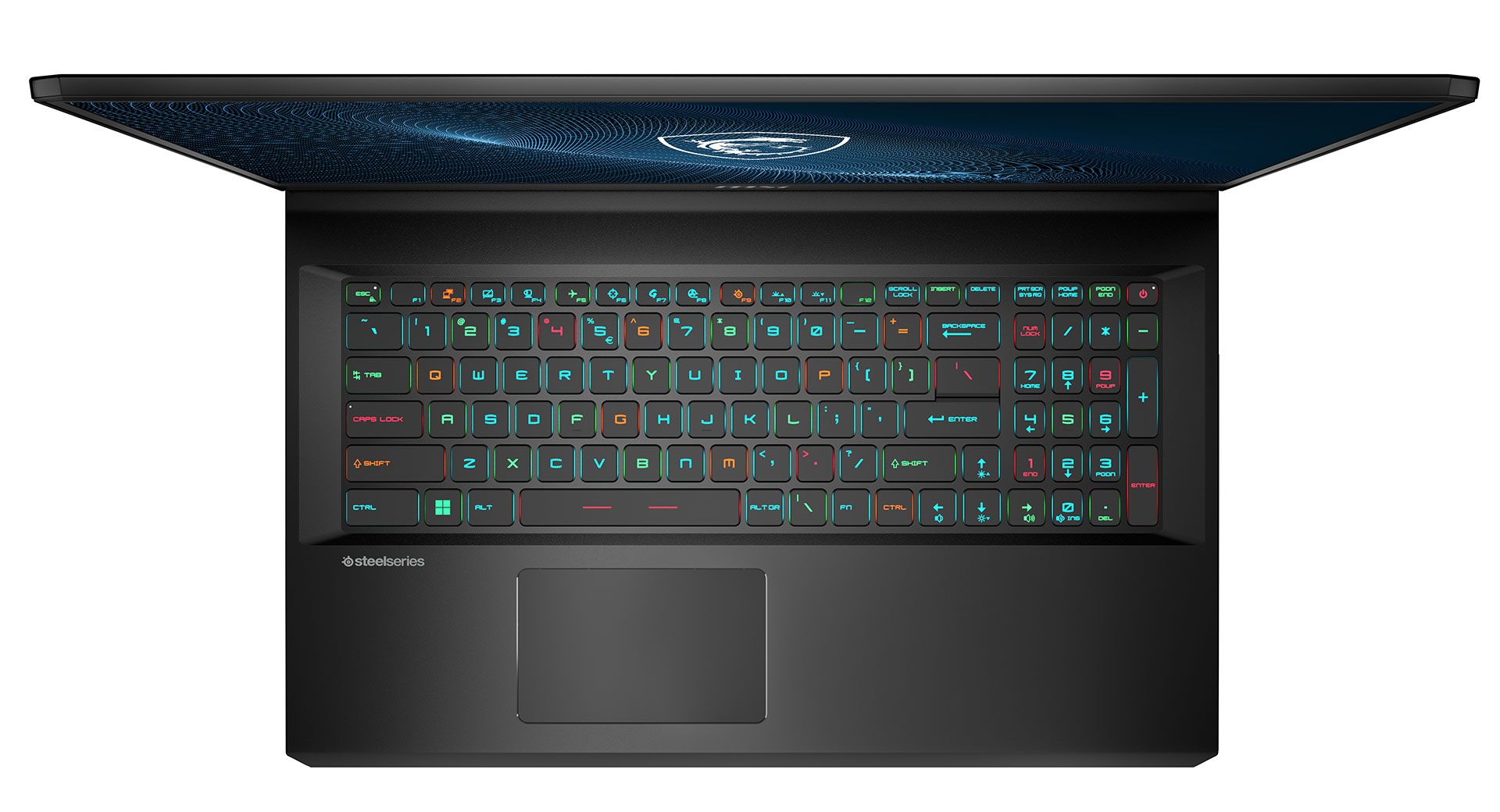
In order to simulate real-life conditions, we used our own script for automatic web browsing through over 70 websites.
 Author: Nikolay Palaozov

![[June 2026] Best-Selling Laptop Brands on Amazon Global – Apple’s Unrivaled Dominance in Units and Revenue](https://laptopmedia.com/wp-content/uploads/2026/07/GLOBAL-Best-Brands-400x225.jpg)
![[June 2026] Amazon Global: Top 10 Best-Selling Laptops – Apple’s New MacBook Neo Storms to #1, Reshaping the Market with Affordability](https://laptopmedia.com/wp-content/uploads/2026/07/Best-Selling-Laptops-GLOBAL-Top-10-400x225.jpg)
![[June 2026] Amazon Global: Top 10 Best-Selling Gaming Laptops – Acer’s Nitro V 16S AI Dominates Sales, While ASUS Leads Overall Revenue](https://laptopmedia.com/wp-content/uploads/2026/07/Best-Selling-Gaming-Laptops-GLOBAL-Top-10-400x225.jpg)
![[June 2026] Global Ranking of Best-Selling Laptop GPUs on Amazon – NVIDIA RTX 5060 is the Top-Selling Dedicated GPU](https://laptopmedia.com/wp-content/uploads/2026/07/Best-Selling-GPUs-GLOBAL-Top-10-400x225.jpg)
![[June 2026] Global Ranking of Best-Selling Laptop CPUs on Amazon – Apple M5 Dominates, AMD Ryzen 7 260 Gets Solid Premium Share](https://laptopmedia.com/wp-content/uploads/2026/07/Best-Selling-CPUs-GLOBAL-Top-10-400x225.jpg)
was curious if you know the length of the cable from the power brick to the computer?
5 feet
MSI could have done a better job with the Fan Speed panel UI design if they had labeled everything in Chinese. At least then we could use a translator. All of the fan speed sliders are in percent%, there is no use of actual temp C or F, yet each slider has a specific temp range that it operates within. So to help with that, MSI gave us a blue to red color bar (see pics above). One can also tell that they put absolutely no effort into this panel because there is no “Apply” button. You must press “Save”… Read more »
…basically just use the Fan Speed panel to set all sliders to 150%. This will keep fans pinned to max regardless of CPU/GPU temps. Use that for gaming. When you use “Cooler Boost” the fans speed will still be tied to temp ranges.