MSI Vector GP77 13V review – quiet and powerful
MSI Center
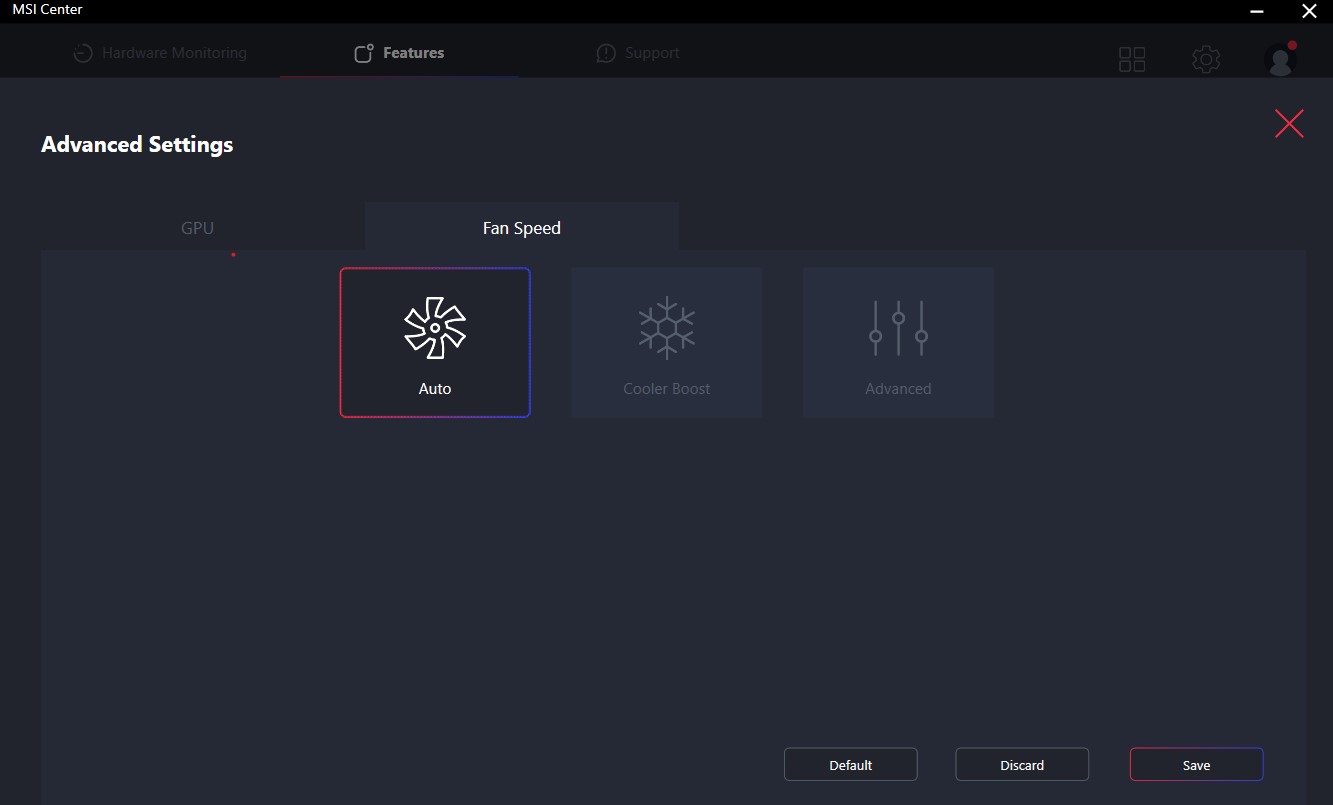
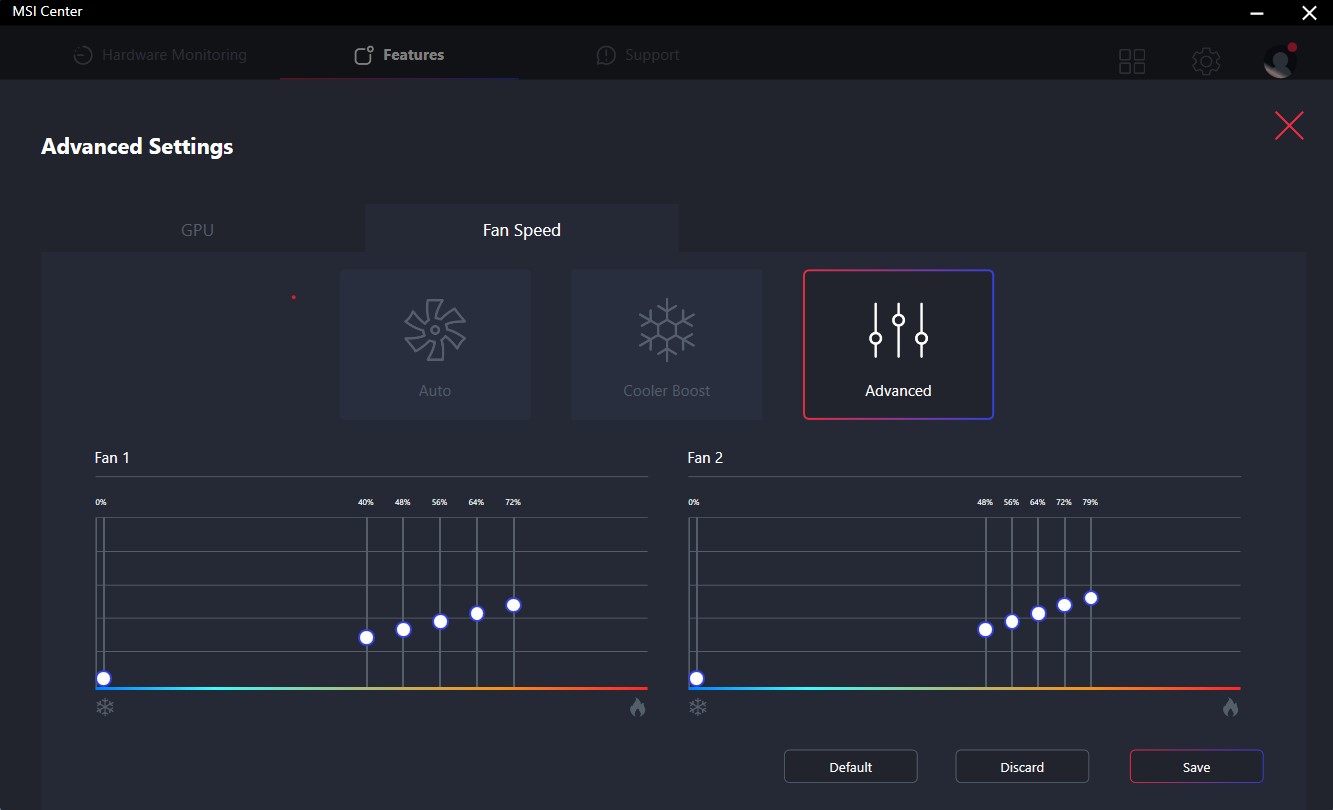
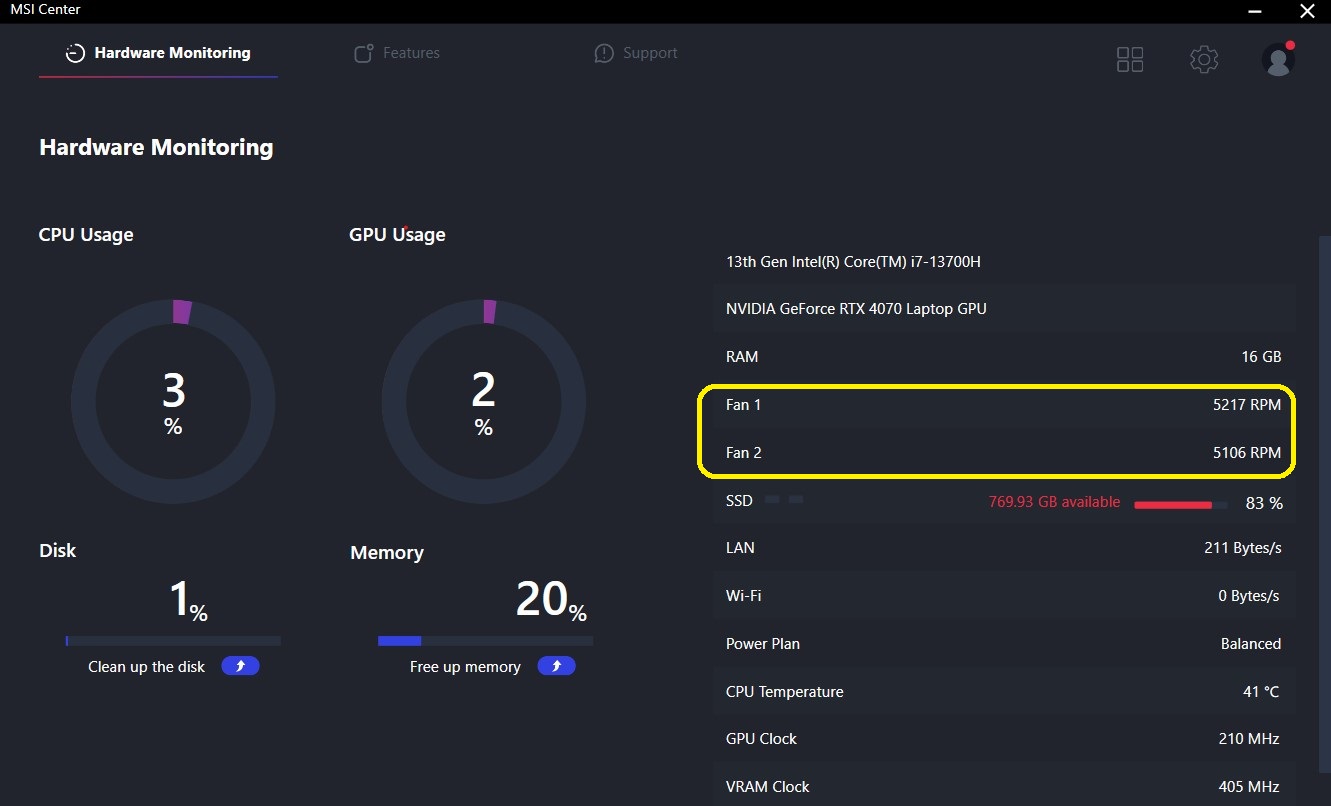
The MSI Center is a useful program that can be used to fine-tune the laptop. One of the features is the Cooler Boost option that ramps up the fans to max RPM. You can also use them in Auto Mode or set a custom fan curve. The last screenshot is showing the max possible RPM for the CPU and GPU fan.
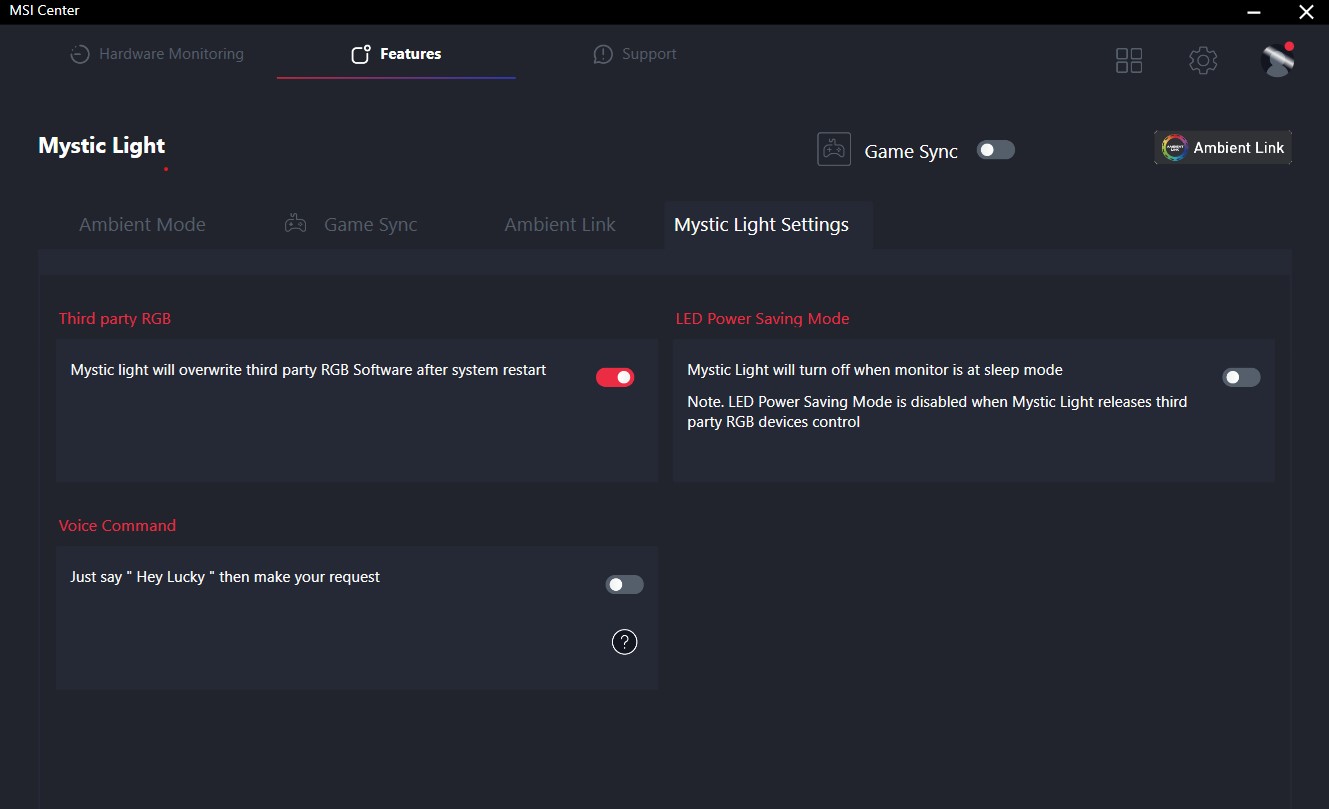
You can also control the RGBs.

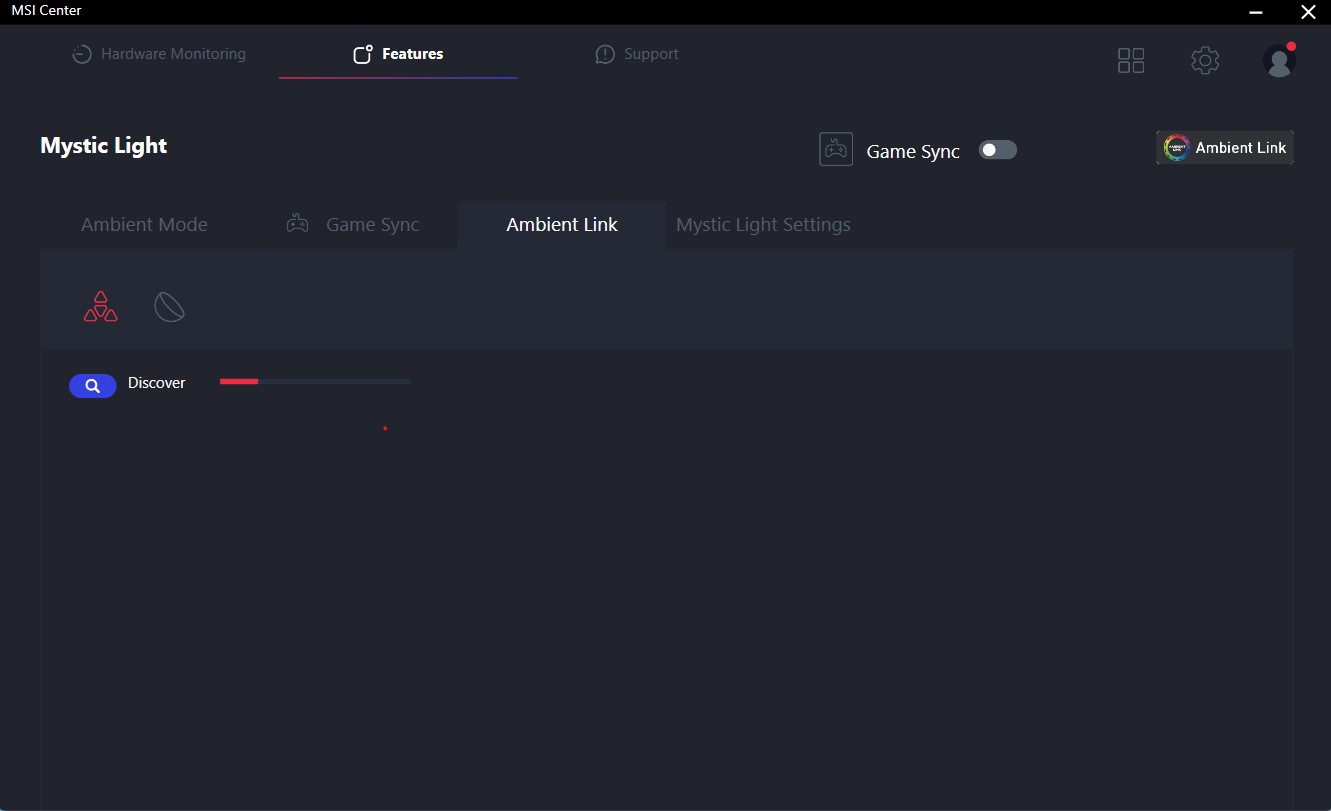
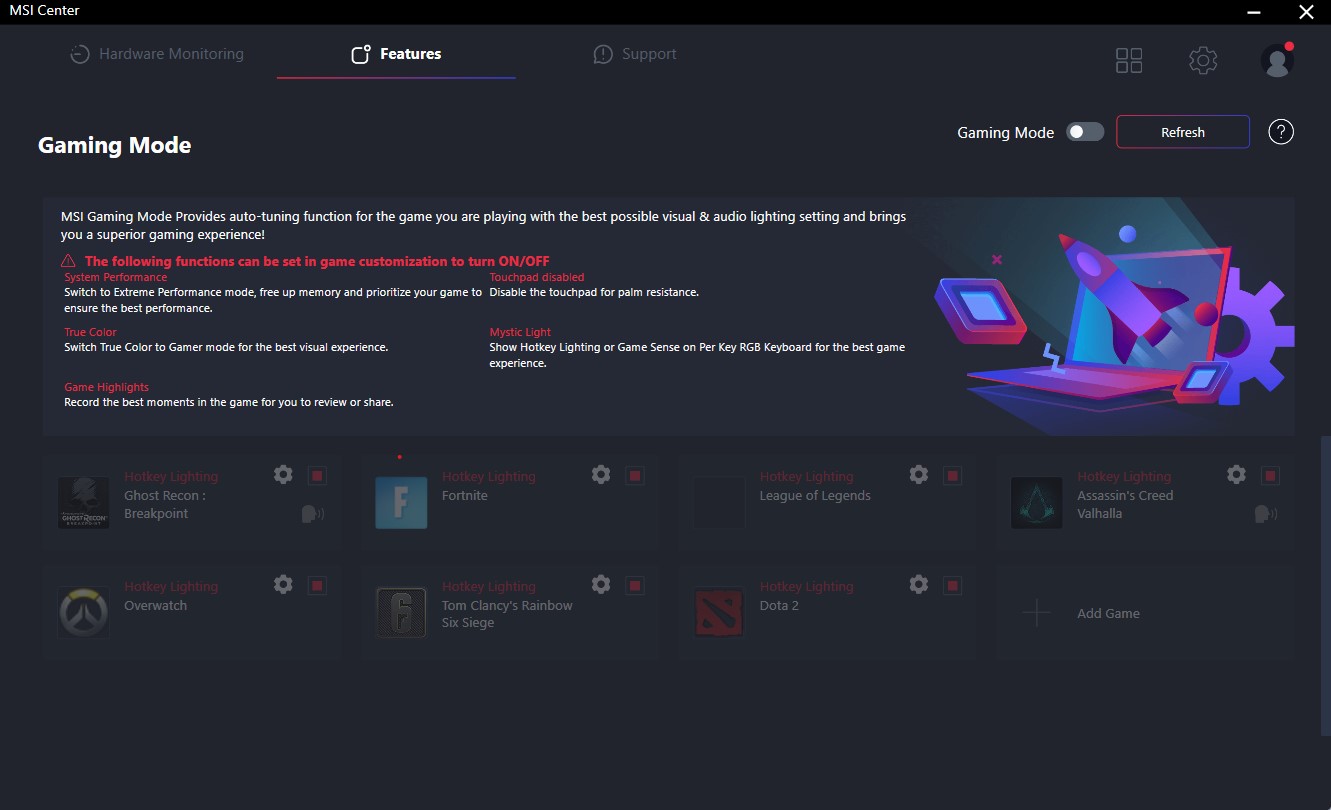
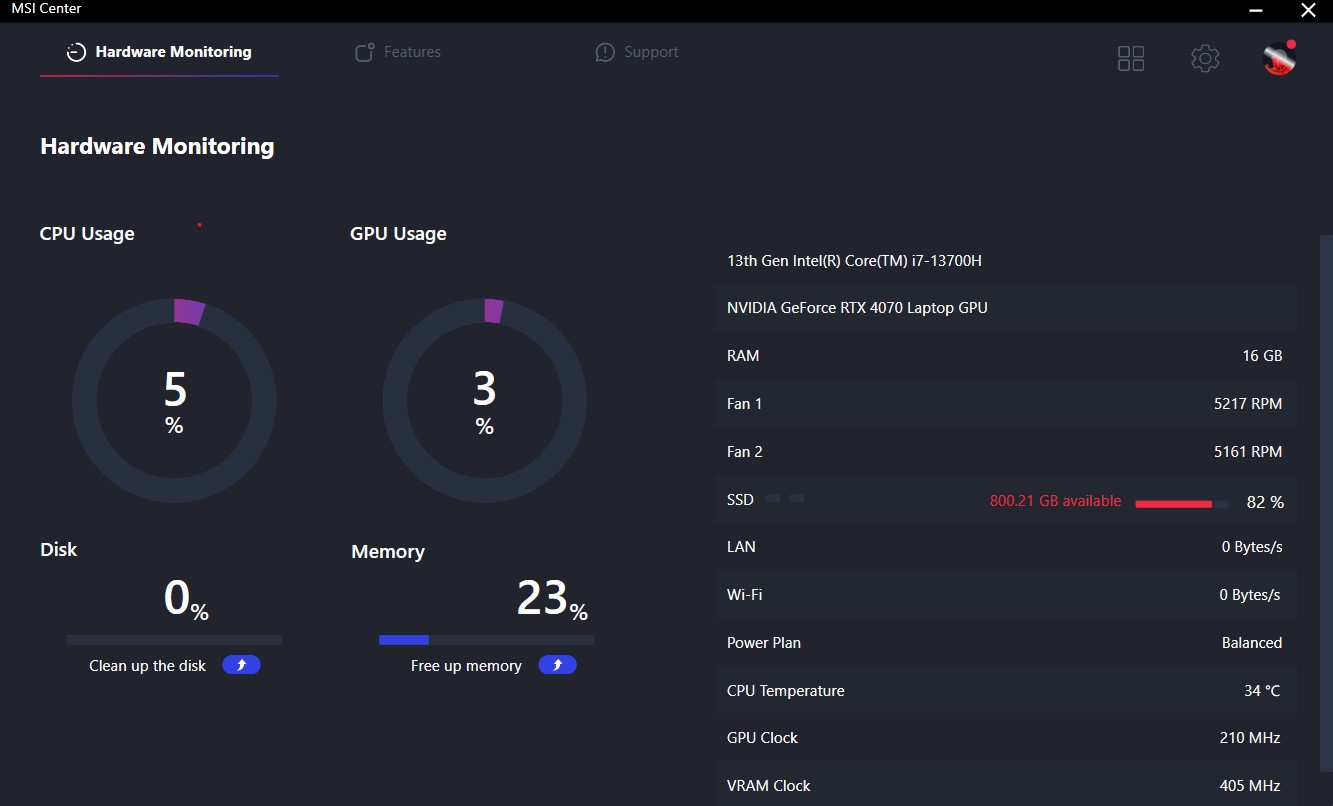
If you like to tune your laptop, you can extract the maximum possible performance using the MUX switch, overclocking the GPU, and applying the Extreme performance preset. Or you can just monitor the temperatures of the internals. The MSI Gaming mode could be useful for some of you because it automatically switches to Extreme mode, it can disable the touchpad, and some memory can be freed as well alongside other optimizations. Custom settings can be set per game which is nice.


 Author: Nikolay Palaozov

![[June 2026] Best-Selling Laptop Brands on Amazon Global – Apple’s Unrivaled Dominance in Units and Revenue](https://laptopmedia.com/wp-content/uploads/2026/07/GLOBAL-Best-Brands-400x225.jpg)
![[June 2026] Amazon Global: Top 10 Best-Selling Laptops – Apple’s New MacBook Neo Storms to #1, Reshaping the Market with Affordability](https://laptopmedia.com/wp-content/uploads/2026/07/Best-Selling-Laptops-GLOBAL-Top-10-400x225.jpg)
![[June 2026] Amazon Global: Top 10 Best-Selling Gaming Laptops – Acer’s Nitro V 16S AI Dominates Sales, While ASUS Leads Overall Revenue](https://laptopmedia.com/wp-content/uploads/2026/07/Best-Selling-Gaming-Laptops-GLOBAL-Top-10-400x225.jpg)
![[June 2026] Global Ranking of Best-Selling Laptop GPUs on Amazon – NVIDIA RTX 5060 is the Top-Selling Dedicated GPU](https://laptopmedia.com/wp-content/uploads/2026/07/Best-Selling-GPUs-GLOBAL-Top-10-400x225.jpg)
![[June 2026] Global Ranking of Best-Selling Laptop CPUs on Amazon – Apple M5 Dominates, AMD Ryzen 7 260 Gets Solid Premium Share](https://laptopmedia.com/wp-content/uploads/2026/07/Best-Selling-CPUs-GLOBAL-Top-10-400x225.jpg)
was curious if you know the length of the cable from the power brick to the computer?
5 feet
MSI could have done a better job with the Fan Speed panel UI design if they had labeled everything in Chinese. At least then we could use a translator. All of the fan speed sliders are in percent%, there is no use of actual temp C or F, yet each slider has a specific temp range that it operates within. So to help with that, MSI gave us a blue to red color bar (see pics above). One can also tell that they put absolutely no effort into this panel because there is no “Apply” button. You must press “Save”… Read more »
…basically just use the Fan Speed panel to set all sliders to 150%. This will keep fans pinned to max regardless of CPU/GPU temps. Use that for gaming. When you use “Cooler Boost” the fans speed will still be tied to temp ranges.