Acer Nitro 16


- Date Published: 19 Mar 2025
- Intel Core i7-14650HX
- NVIDIA GeForce RTX 4060 (Laptop, 140W)
- 16.0″, WUXGA (1920 x 1200), 165 Hz, IPS
- 1000GB SSD
- 16GB RAM
- 2.45 kg (5.4 lbs)

Review
Acer Nitro 16 in-depth review
The Raptor Lake-HX Refresh CPUs are already here and some of them offer more cores, bigger cache size, and slightly higher frequencies than their predecessors. The Acer Nitro 16 (AN16-72) relies on the abovementioned chips which means that the device boasts a serious amount of power - the top-end processor is the Core i7-14700HX with 20 cores and 28 threads. Our laptop has the same CPU - this is the best way to torture the cooling at max. In terms of graphics, the base GPU is the GeForce RTX 3050 (Laptop, 6GB), and the most powerful video card for this series is the GeForce RTX 4060 (Laptop). All display models are IPS units with a 165Hz frequency - this is a good start. There are two 1200p variants and one 1600p screen. That's a gaming laptop so it's not a surprise that it brings to the [...]
Read the full review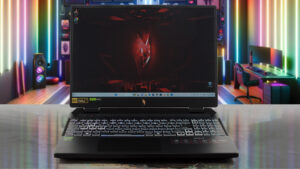
Pros
- 2x M.2 Gen 4 slots + 2x DDR5 RAM SODIMMs
- Covers 98% of the sRGB color gamut and has accurate color representation with our "Design and Gaming" profile (AUO B160QAN03.H (AUOCDAB))
- Snappy 165Hz panel with 506 cd/m2 max brightness (AUO B160QAN03.H (AUOCDAB))
- PWM-free (AUO B160QAN03.H (AUOCDAB))
- G-Sync support + MUX switch
- Modern I/O
- Comfortable input devices
- Solid body
- The processor and the graphics card can sustain impressively high frequencies during full loads
- The fans aren't too noisy in "Turbo" mode
- Opening the laptop for servicing is an easy job
- Great overall performance
Cons
- The lid could be more stable
- So-so battery life
Disassembly, maintenance and upgrade options
Step 1: Opening the LaptopTurn off the Acer Nitro 16 (AN16-72) and place it on a soft surface to prevent scratches. Remove the 11 Phillips-head screws from the bottom panel of the laptop. Carefully lift the backside by holding the two plastic exhausts. Use a thin plastic tool to gently pry open the left side, the bottom, and around the Ethernet port areas.Caution: Be extra careful near the LAN connector to avoid breaking the plate.Step 2: Removing the BatteryDetach the battery connector from the mainboard to disconnect the power. Lift the 90.61Wh battery aw[...]
Read more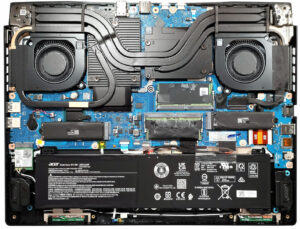


![[June 2026] Best-Selling Laptop Brands on Amazon Global – Apple’s Unrivaled Dominance in Units and Revenue](https://laptopmedia.com/wp-content/uploads/2026/07/GLOBAL-Best-Brands-400x225.jpg)
![[June 2026] Amazon Global: Top 10 Best-Selling Laptops – Apple’s New MacBook Neo Storms to #1, Reshaping the Market with Affordability](https://laptopmedia.com/wp-content/uploads/2026/07/Best-Selling-Laptops-GLOBAL-Top-10-400x225.jpg)
![[June 2026] Amazon Global: Top 10 Best-Selling Gaming Laptops – Acer’s Nitro V 16S AI Dominates Sales, While ASUS Leads Overall Revenue](https://laptopmedia.com/wp-content/uploads/2026/07/Best-Selling-Gaming-Laptops-GLOBAL-Top-10-400x225.jpg)
![[June 2026] Global Ranking of Best-Selling Laptop GPUs on Amazon – NVIDIA RTX 5060 is the Top-Selling Dedicated GPU](https://laptopmedia.com/wp-content/uploads/2026/07/Best-Selling-GPUs-GLOBAL-Top-10-400x225.jpg)
![[June 2026] Global Ranking of Best-Selling Laptop CPUs on Amazon – Apple M5 Dominates, AMD Ryzen 7 260 Gets Solid Premium Share](https://laptopmedia.com/wp-content/uploads/2026/07/Best-Selling-CPUs-GLOBAL-Top-10-400x225.jpg)