Acer Nitro 18 AI
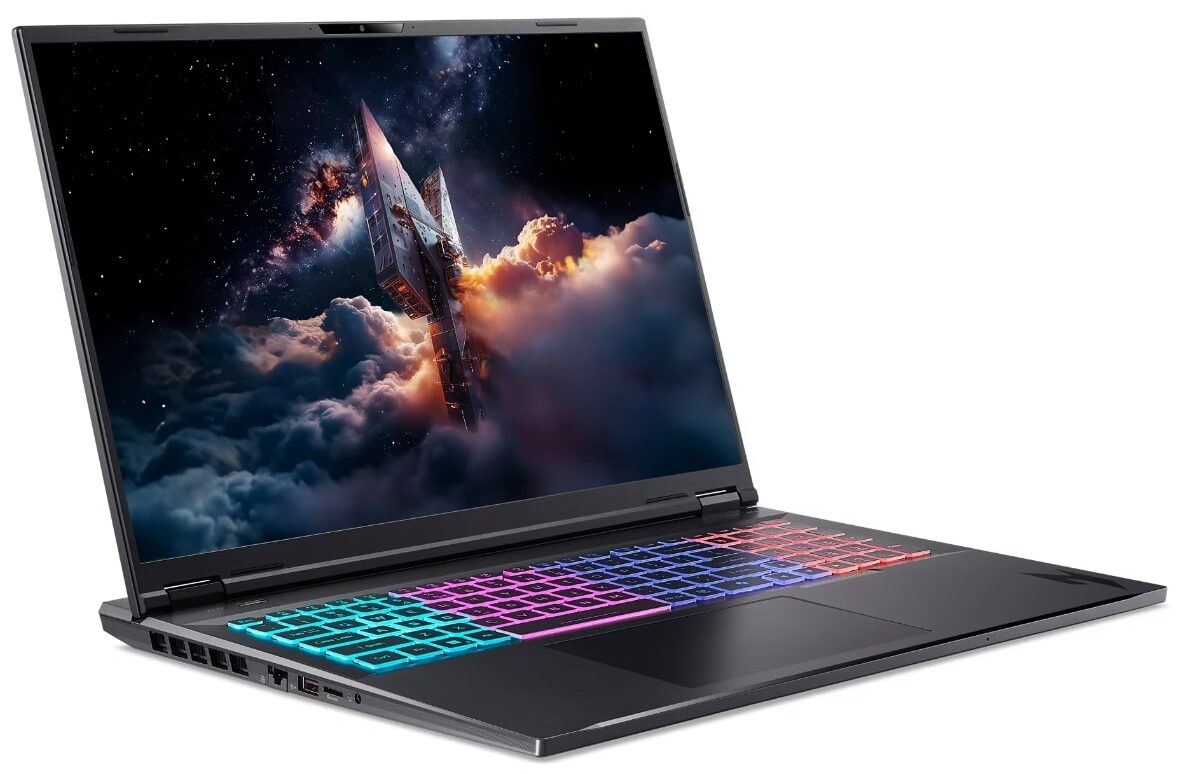
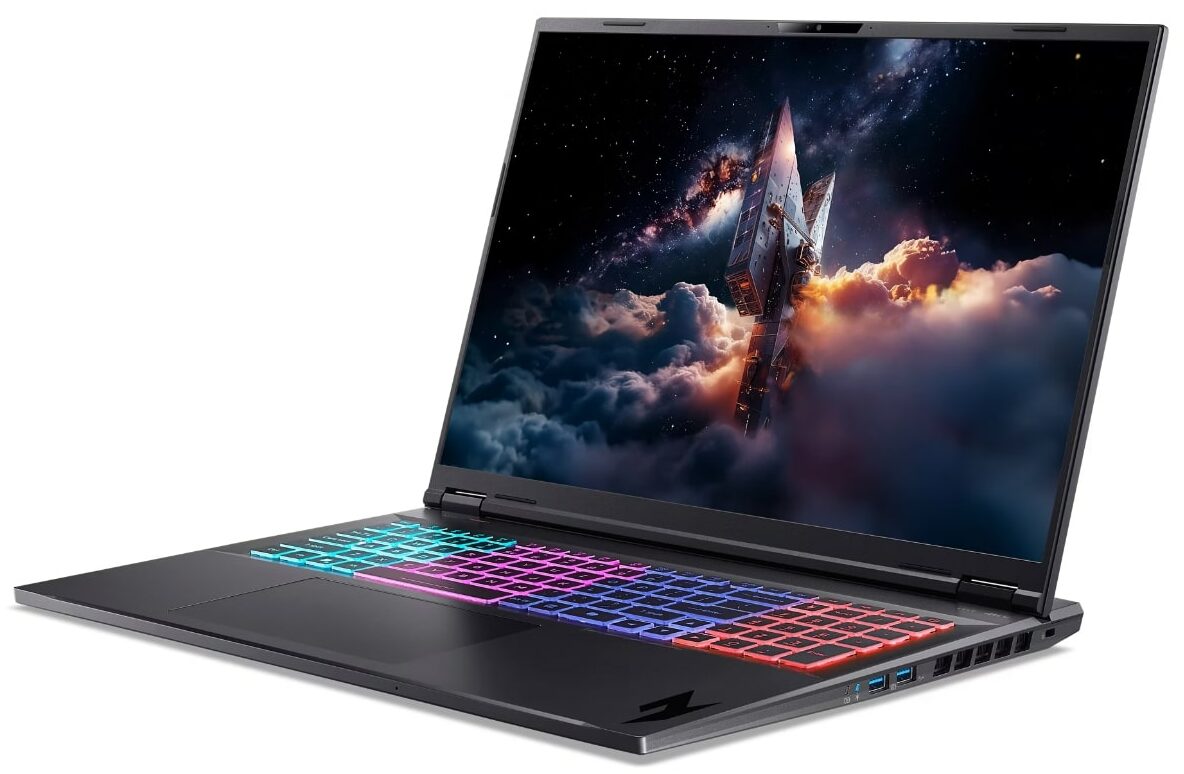
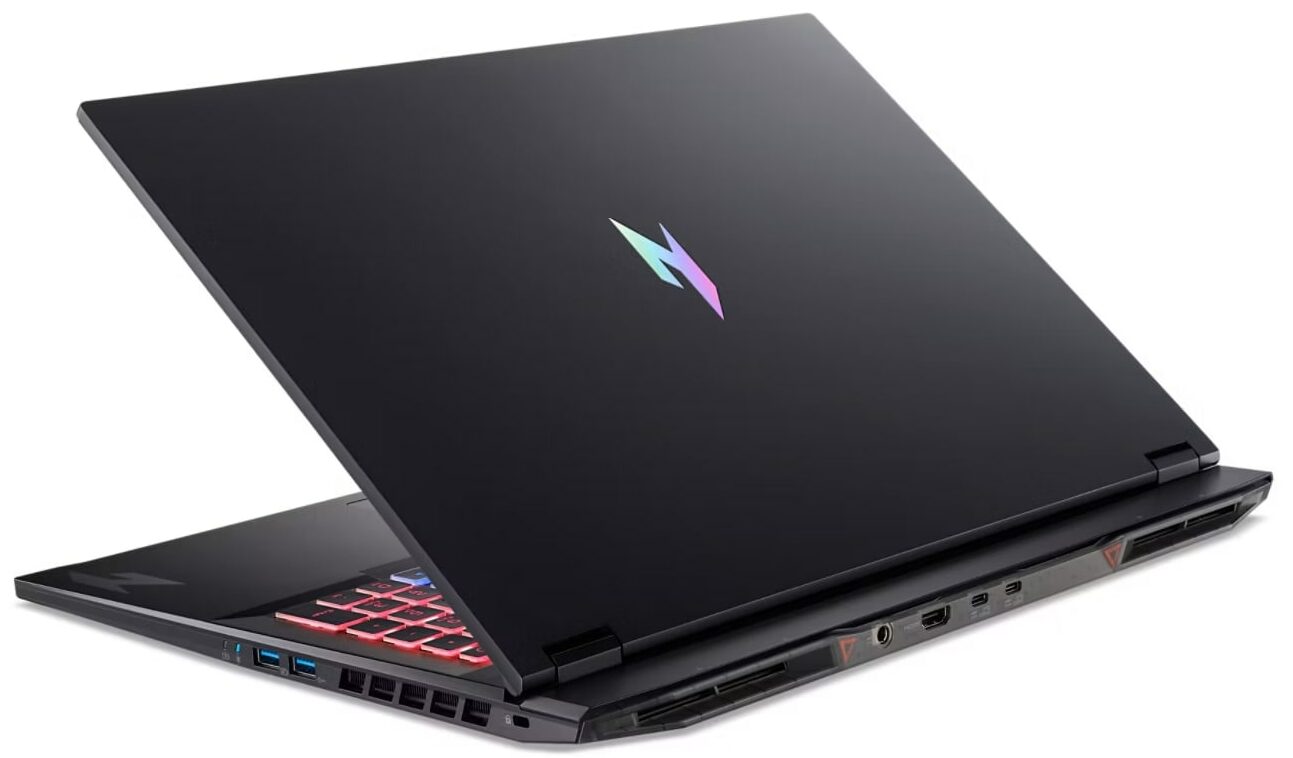
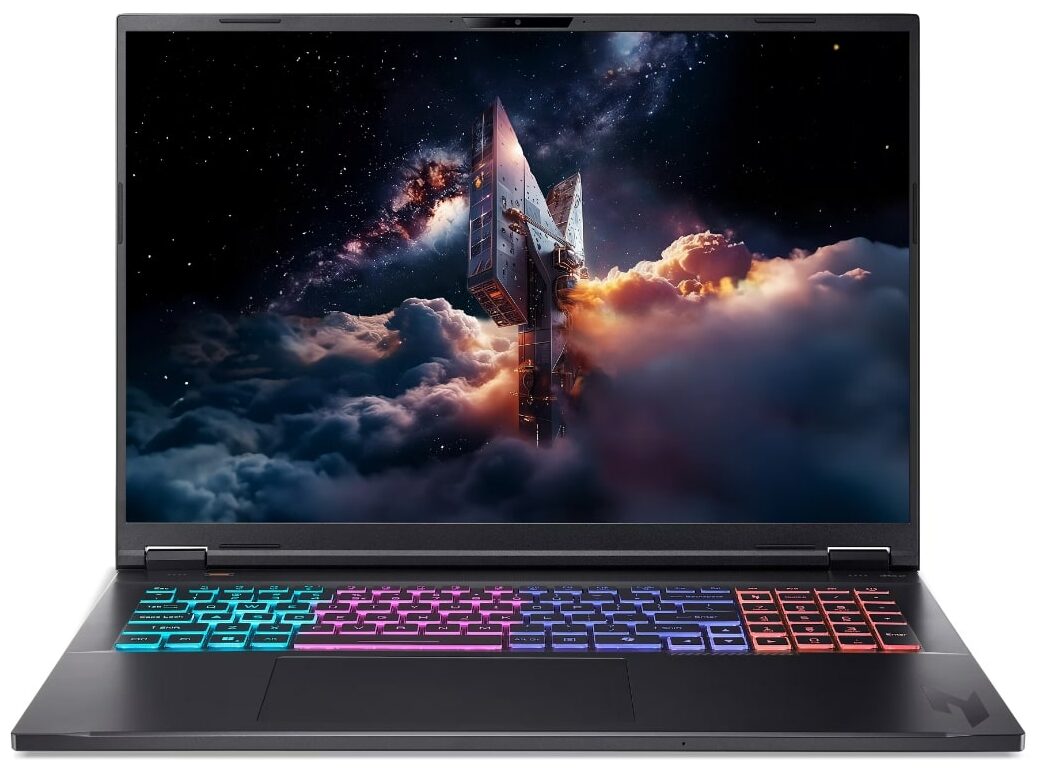
- Date Published: 07 Jul 2026
- AMD Ryzen AI 7 350
- NVIDIA GeForce RTX 5070 Ti (Laptop)
- 18.0”, WQXGA (2560 x 1600), 165 Hz, IPS
- 1000GB SSD
- 16GB RAM
- 3.02 kg (6.7 lbs)
Review
Acer Nitro 18 AI in-depth review
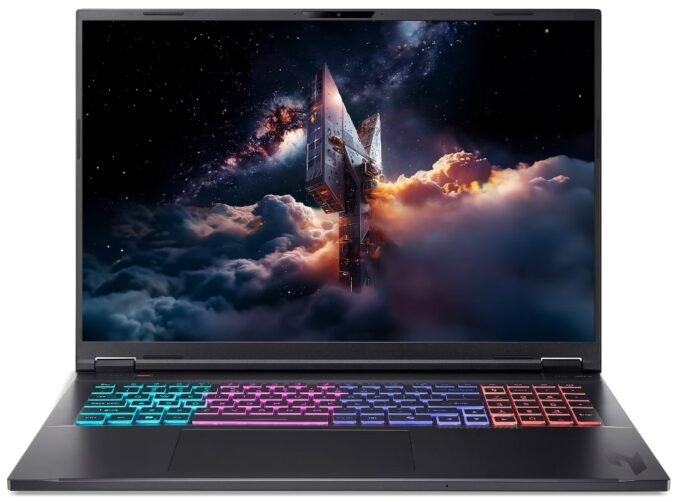
The era of the massive gaming laptop is back, and the Acer Nitro 18 AI (AN18-61) is unapologetically leading the charge. This isn't a machine designed to slip unnoticed into a backpack; it is a dedicated battle station built to dominate your desk with an expansive 18-inch display and a chassis large enough to cool the most demanding hardware. Usually, upsizing a laptop brings diminishing returns, but Acer has used the extra space to pull off a surprising trick. Beyond the raw power and screen real estate, we discovered a hidden strength that defies the stereotypes of the "desktop replacement" category - endurance that puts smaller laptops to shame.You can check the prices and configurations in our Specs System: https://laptopmedia.com/series/acer-nitro-18-ai-an18-61/Specs[...]
Read the full review
Pros
- Excellent gaming performance with high sustained GPU clocks
- Great 165Hz QHD+ display with accurate colors and no PWM
- Exceptional battery life for an 18-inch gaming laptop (nearly 8 hours)
- Superb thermal management keeps the system cool and stable
- Fantastic upgradeability with two RAM and two M.2 slots
- Spacious keyboard with full-sized NumPad and huge trackpad
Cons
- Large, heavy chassis limits portability
- No physical privacy shutter or biometric login options
- Lid is prone to fingerprints and smudges
Disassembly, maintenance and upgrade options
Before you start: Power the laptop off, unplug the charger and peripherals, and hold the power button for a few seconds to discharge residual power. Work on a clean, non-conductive surface and use ESD protection if available. Opening the bottom panelPlace the laptop upside down on a soft surface to avoid scratching the lid. Remove the bottom screws (keep track of their positions if lengths differ). Use a thin plastic pry tool to release the clips around the perimeter, starting near a corner where you can create a small gap. Work your way around the[...]
Read more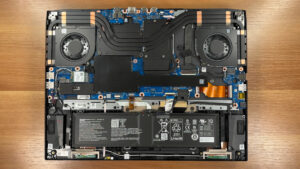


![[June 2026] Best-Selling Laptop Brands on Amazon Global – Apple’s Unrivaled Dominance in Units and Revenue](https://laptopmedia.com/wp-content/uploads/2026/07/GLOBAL-Best-Brands-400x225.jpg)
![[June 2026] Amazon Global: Top 10 Best-Selling Laptops – Apple’s New MacBook Neo Storms to #1, Reshaping the Market with Affordability](https://laptopmedia.com/wp-content/uploads/2026/07/Best-Selling-Laptops-GLOBAL-Top-10-400x225.jpg)
![[June 2026] Amazon Global: Top 10 Best-Selling Gaming Laptops – Acer’s Nitro V 16S AI Dominates Sales, While ASUS Leads Overall Revenue](https://laptopmedia.com/wp-content/uploads/2026/07/Best-Selling-Gaming-Laptops-GLOBAL-Top-10-400x225.jpg)
![[June 2026] Global Ranking of Best-Selling Laptop GPUs on Amazon – NVIDIA RTX 5060 is the Top-Selling Dedicated GPU](https://laptopmedia.com/wp-content/uploads/2026/07/Best-Selling-GPUs-GLOBAL-Top-10-400x225.jpg)
![[June 2026] Global Ranking of Best-Selling Laptop CPUs on Amazon – Apple M5 Dominates, AMD Ryzen 7 260 Gets Solid Premium Share](https://laptopmedia.com/wp-content/uploads/2026/07/Best-Selling-CPUs-GLOBAL-Top-10-400x225.jpg)