
- Date Published: 08 Jul 2026
- Intel Core 7 240H
- NVIDIA GeForce RTX 5060 (Laptop)
- 16.0″, WUXGA (1920 x 1200), 144 Hz, IPS
- 2000GB SSD
- 64GB RAM
- 1.93 kg (4.3 lbs)
Review
ASUS V16 in-depth review
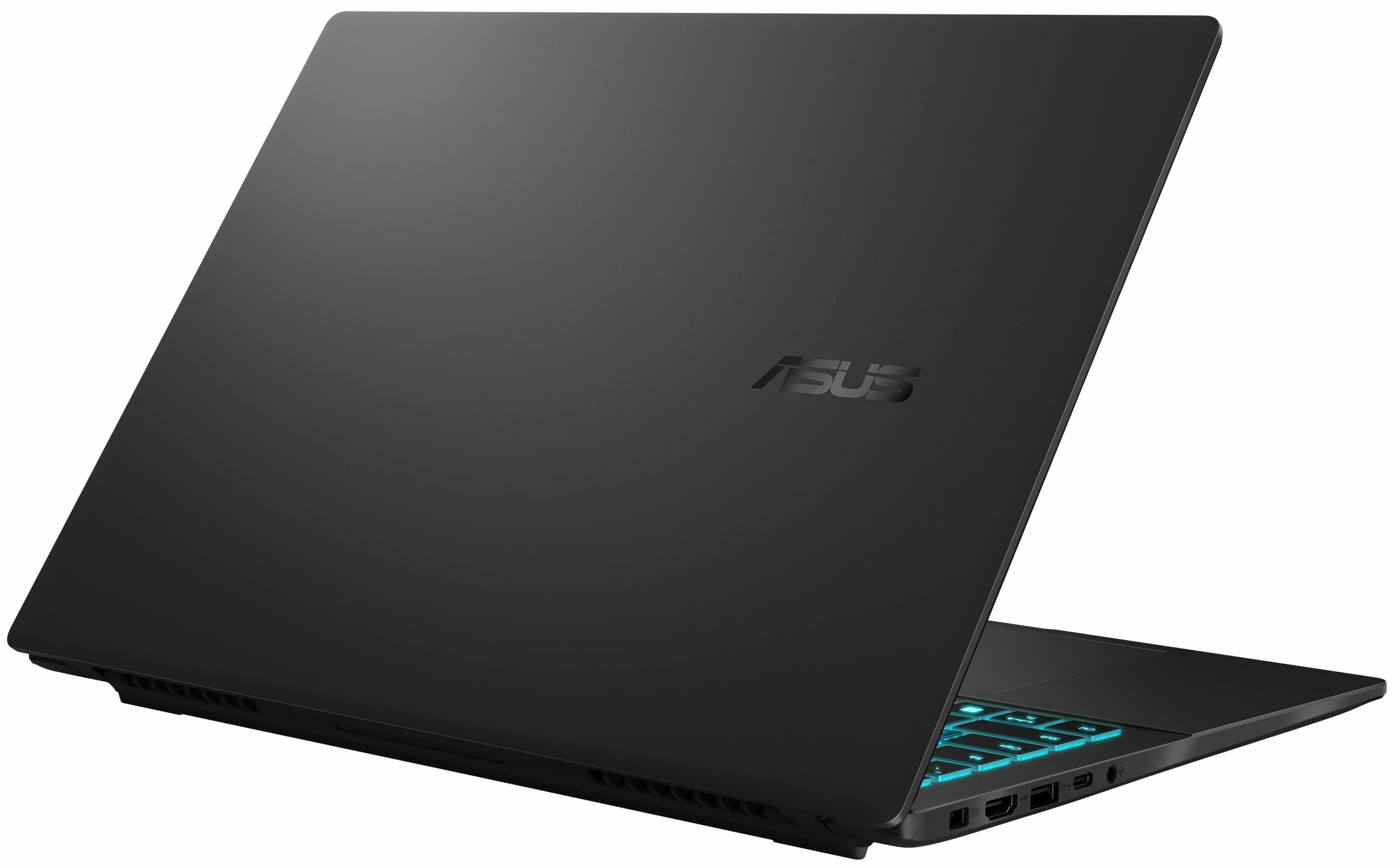
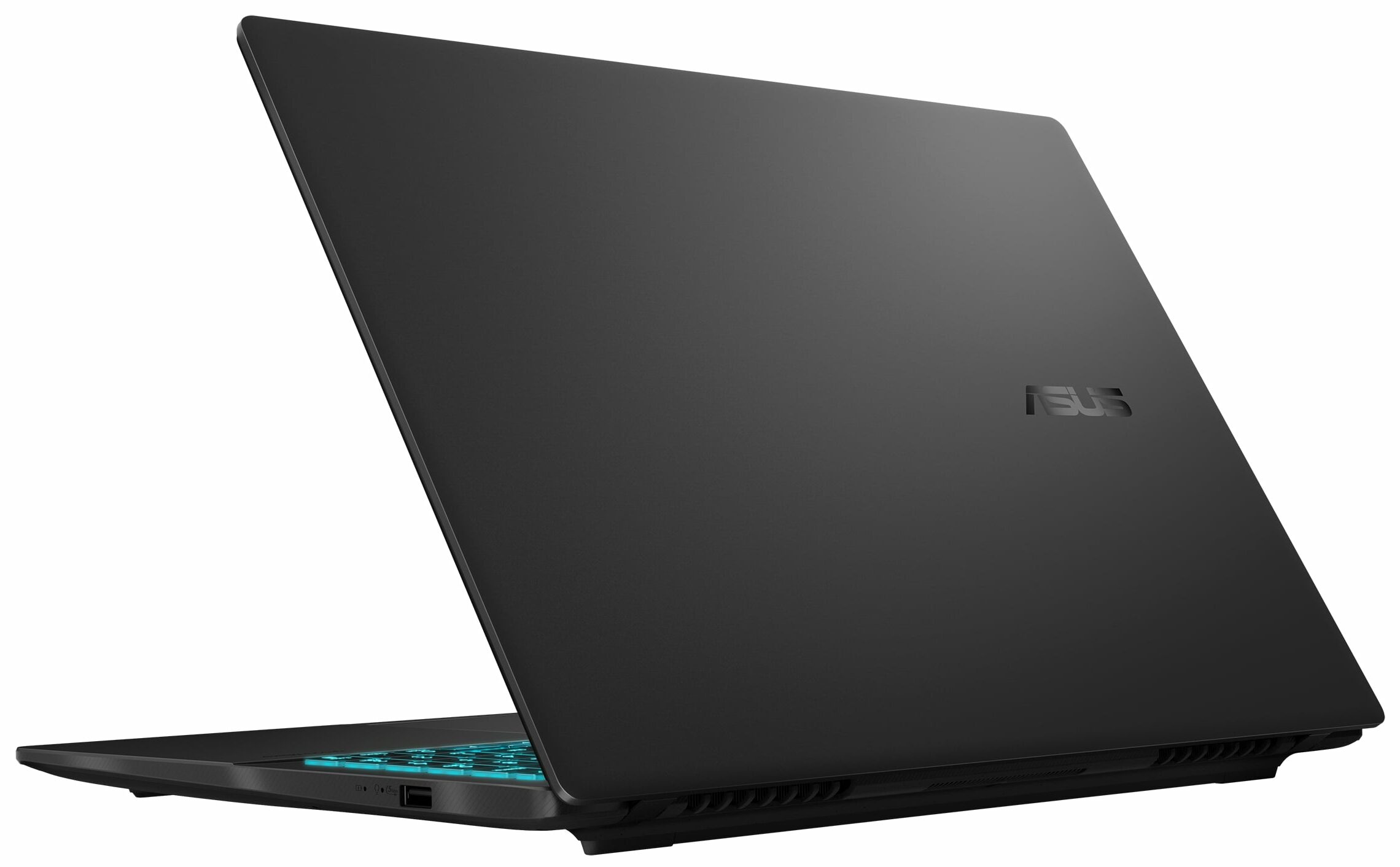
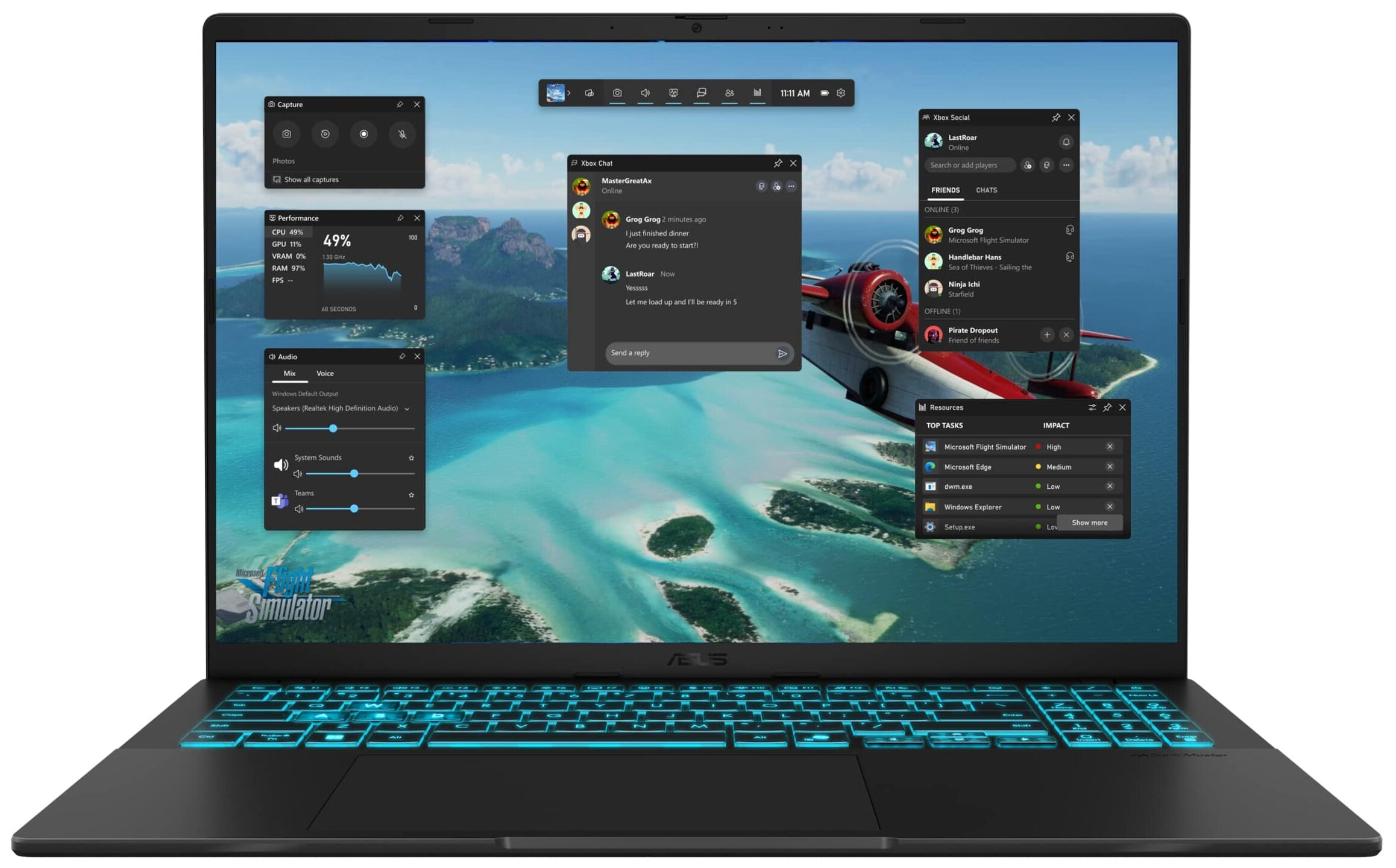
The ASUS V16 (V3607) is a master of disguise. At first glance, it looks like a sleek, professional Vivobook designed for spreadsheets and meetings. But peel back the modest exterior, and you'll find a machine with a secret: it's packing genuine gaming hardware. This is a laptop built for the user who needs a versatile daily driver for school or work but wants to jump into a game of Call of Duty or Elden Ring the moment the clock strikes five. It promises the best of both worlds on a budget, but can a machine that tries to be everything to everyone truly excel at anything?You can check the prices and configurations in our Specs System: https://laptopmedia.com/series/asus-v16-v3607/Specs, Drivers, What's in the boxDrivers All drivers and utilities for this notebook can[...]
Read the full review
Pros
- Excellent thermal management keeps the system cool and quiet
- Sleek, professional design suitable for work and play
- PWM-free display is great for eye comfort
- Two user-accessible RAM slots for easy upgrades
- Solid CPU performance for the price
- Physical privacy shutter for the webcam
Cons
- Severely power-limited GPU results in subpar gaming performance
- Base model display has poor color coverage (52% sRGB)
- Only one M.2 slot for storage
- Mediocre battery life
- Trackpad feels cheap with indistinct clicking
Disassembly, maintenance and upgrade options
Before you start: Power the laptop down completely, unplug the charger, and hold the power button for a few seconds to discharge residual power. Use a plastic pry tool and keep screws organized for reassembly. Opening the bottom panelRemove the bottom cover screws (note their lengths/positions if they differ). Work a thin plastic pick around the perimeter to release the clips and lift the panel away. Once the cover is off, disconnect the battery first before touching RAM, SSD, or the Wi-Fi card. Internal layout overviewThe layout is[...]
Read more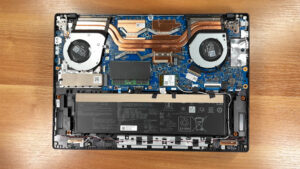


![[June 2026] Best-Selling Laptop Brands on Amazon Global – Apple’s Unrivaled Dominance in Units and Revenue](https://laptopmedia.com/wp-content/uploads/2026/07/GLOBAL-Best-Brands-400x225.jpg)
![[June 2026] Amazon Global: Top 10 Best-Selling Laptops – Apple’s New MacBook Neo Storms to #1, Reshaping the Market with Affordability](https://laptopmedia.com/wp-content/uploads/2026/07/Best-Selling-Laptops-GLOBAL-Top-10-400x225.jpg)
![[June 2026] Amazon Global: Top 10 Best-Selling Gaming Laptops – Acer’s Nitro V 16S AI Dominates Sales, While ASUS Leads Overall Revenue](https://laptopmedia.com/wp-content/uploads/2026/07/Best-Selling-Gaming-Laptops-GLOBAL-Top-10-400x225.jpg)
![[June 2026] Global Ranking of Best-Selling Laptop GPUs on Amazon – NVIDIA RTX 5060 is the Top-Selling Dedicated GPU](https://laptopmedia.com/wp-content/uploads/2026/07/Best-Selling-GPUs-GLOBAL-Top-10-400x225.jpg)
![[June 2026] Global Ranking of Best-Selling Laptop CPUs on Amazon – Apple M5 Dominates, AMD Ryzen 7 260 Gets Solid Premium Share](https://laptopmedia.com/wp-content/uploads/2026/07/Best-Selling-CPUs-GLOBAL-Top-10-400x225.jpg)