How to open ASUS V16 (V3607) – disassembly and upgrade options
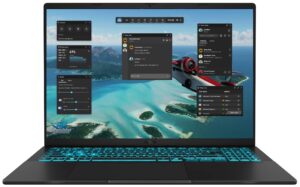
Before you start: Power the laptop down completely, unplug the charger, and hold the power button for a few seconds to discharge residual power. Use a plastic pry tool and keep screws organized for reassembly.
Opening the bottom panel
- Remove the bottom cover screws (note their lengths/positions if they differ).
- Work a thin plastic pick around the perimeter to release the clips and lift the panel away.
- Once the cover is off, disconnect the battery first before touching RAM, SSD, or the Wi-Fi card.
Internal layout overview
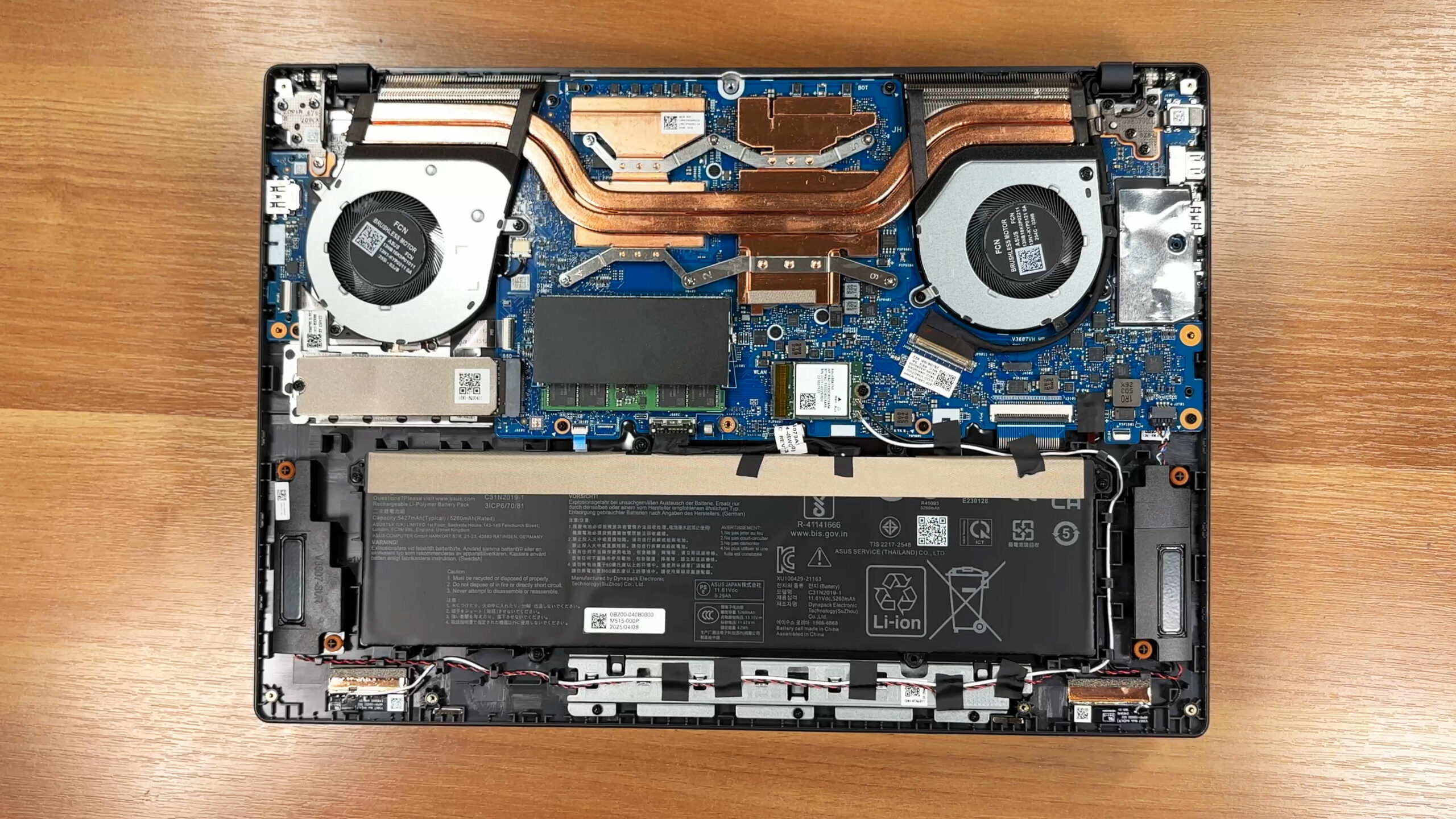
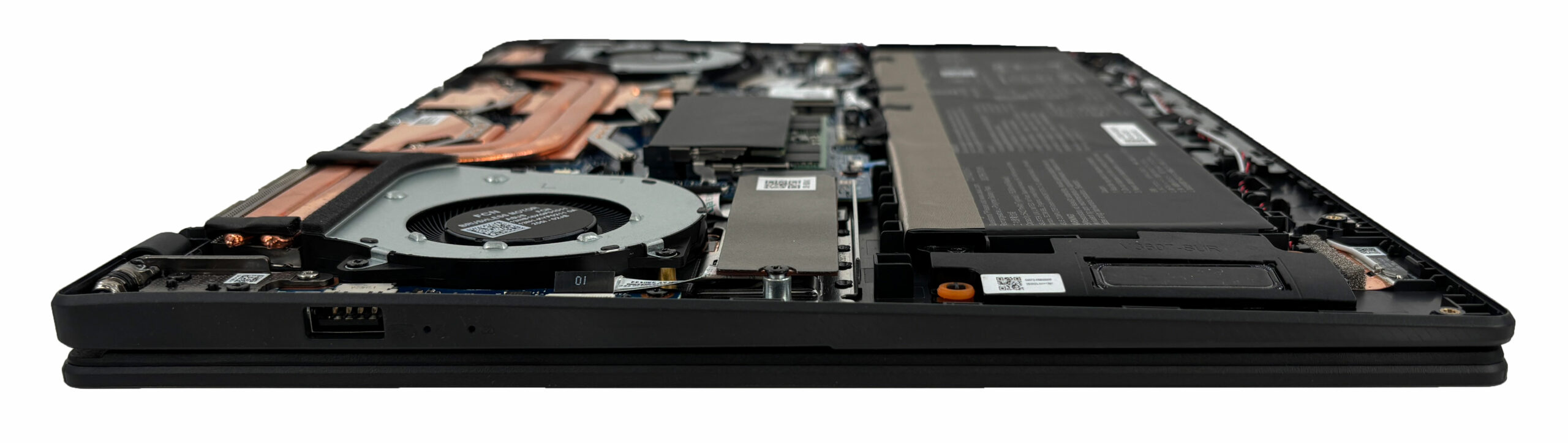
- The layout is straightforward: cooling hardware spans the upper half, while the battery covers most of the lower section.
- Key serviceable parts (RAM, SSD, Wi-Fi) are reachable without removing the full cooling assembly.
Cooling system
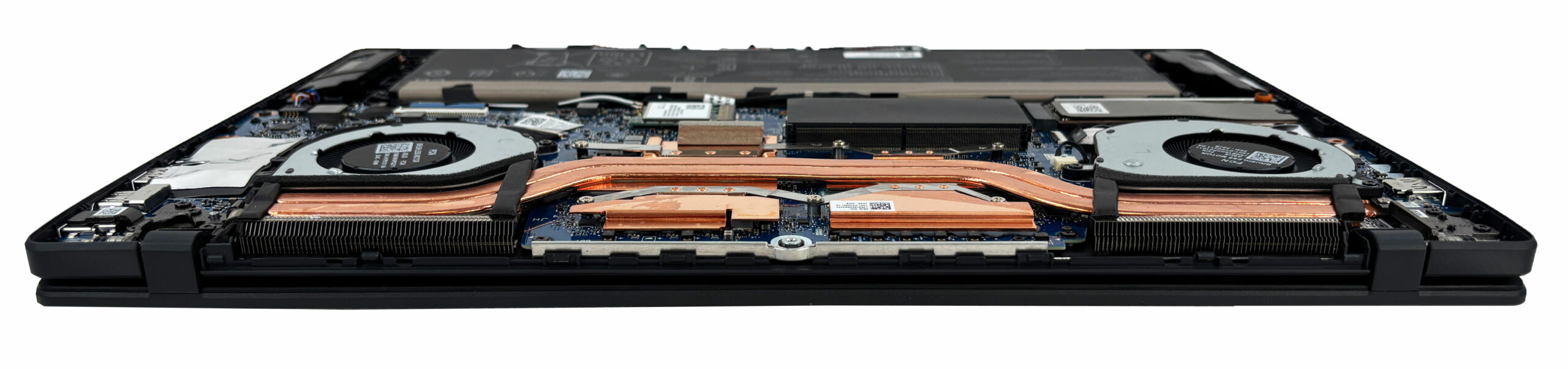
- Cooling is handled by a dual-fan design with multiple copper heat pipes feeding two fin stacks.
- The thermal plates keep the main hotspots separated, so routine upgrades don’t require disturbing the heatsink.
- Deeper maintenance (fan cleaning, repaste) is possible, but only worth doing if you have a clear reason (dust buildup, abnormal temps/noise).
Battery
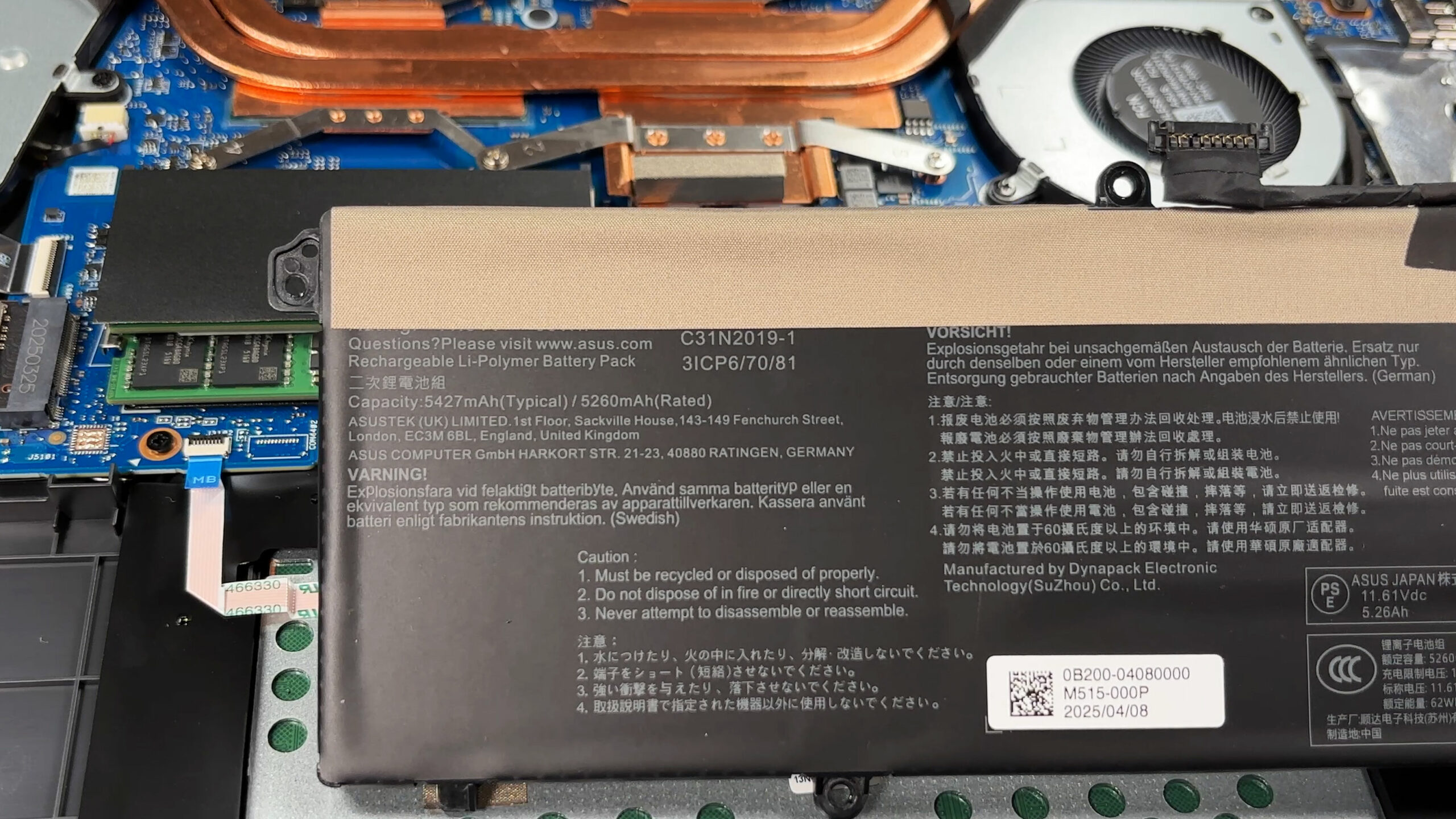
- The battery is a 3-cell pack rated at around 63 Wh typical (62 Wh on the label).
- It is secured with screws, and removal is straightforward after disconnecting the battery cable.
- Always unplug the battery first to reduce the risk of accidental shorts while servicing.
Memory upgrade
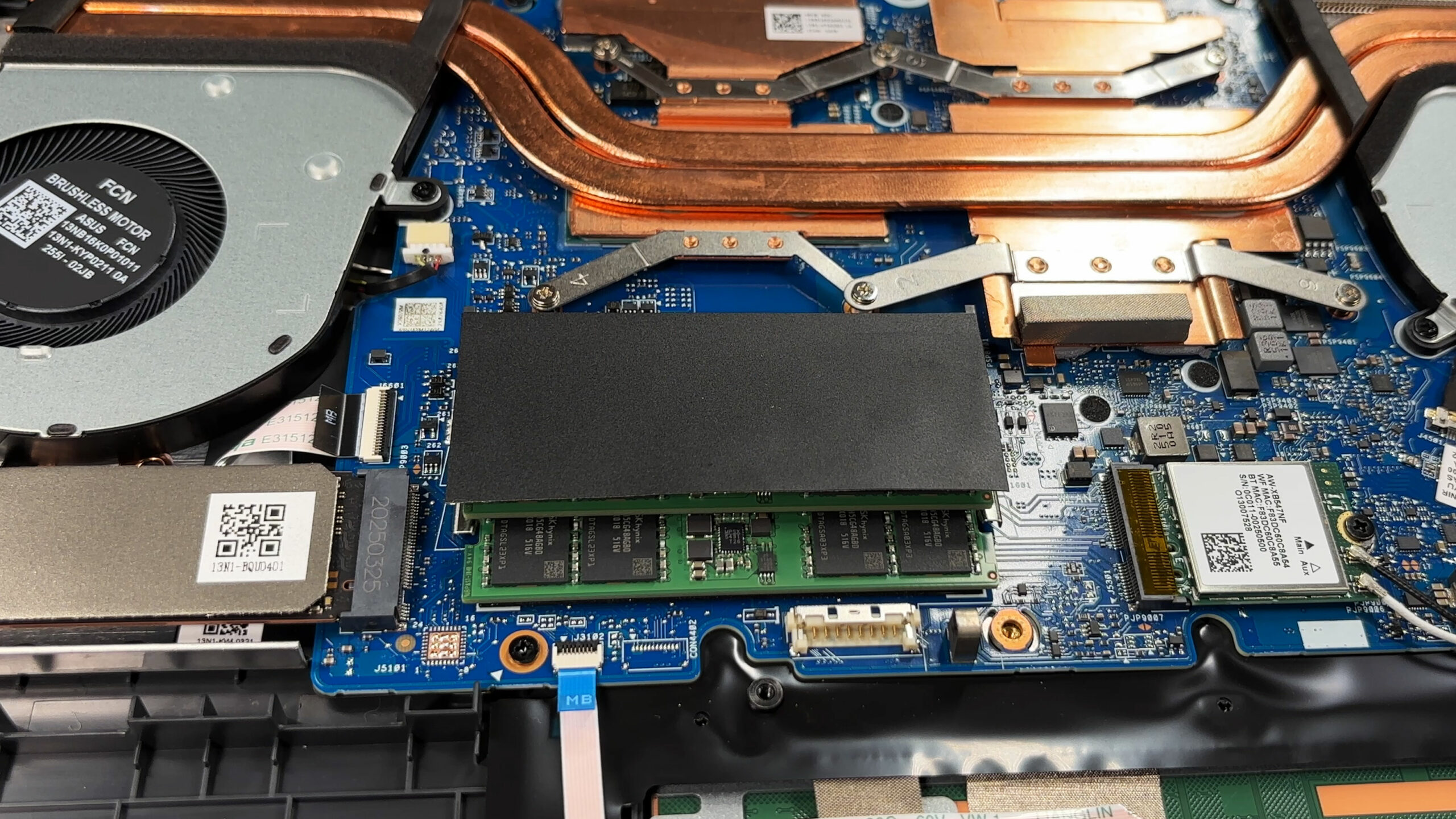
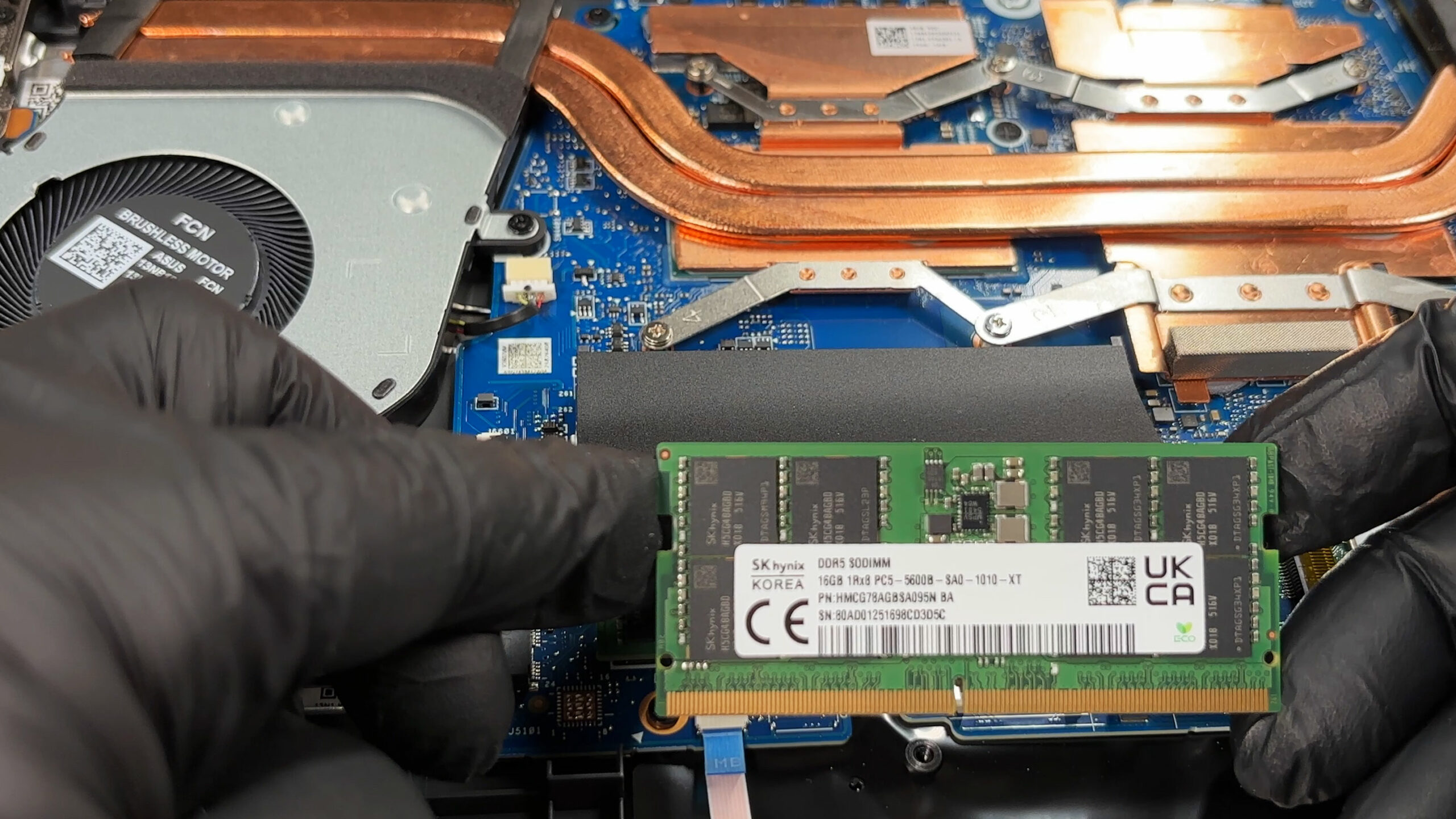
- One of the strong points here is memory: you get two DDR5 SO-DIMM slots.
- Our configuration ships with 2×16 GB SK hynix modules installed.
- Upgrading is the usual SO-DIMM routine: angle the module in, then press it down until both side clips lock.
Storage upgrade
- Storage expansion is more limited: there is one M.2 2280 slot for an NVMe SSD, wired for PCIe 4.0 x4.
- Official configurations include 512 GB and 1 TB Gen4 drives; our unit came with a Micron NVMe SSD.
- You can replace the installed drive with a larger capacity Gen4 2280 SSD, but there’s no second slot for adding another drive.
Hint: If you’re picking a replacement drive, you can cross-check options in our Top M.2 SSDs Performance Rankings.
You can buy M.2 Gen4 SSDs here: Buy from Amazon.com (#CommissionsEarned)
Wireless card
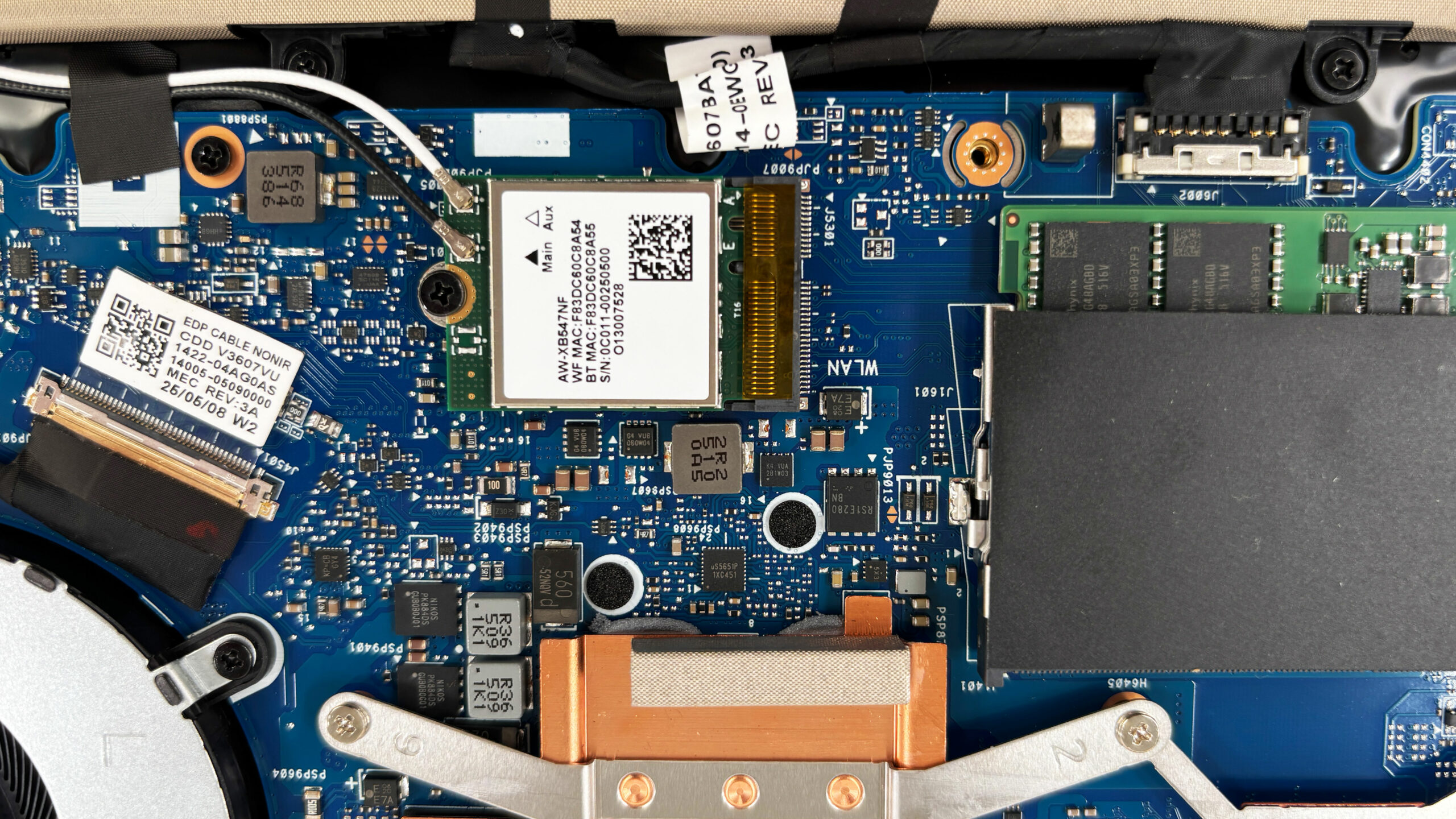
- The Wi-Fi module is replaceable: AzureWave AW-XB547NF (Wi-Fi 6 + Bluetooth 5.3) in an M.2 slot.
- If you ever swap it, remove the single screw and pop the antenna leads straight up, then press them back down firmly and squarely during reassembly.
Other serviceable parts
- Both fans, the speakers, and the battery are user-serviceable with basic tools.
- The motherboard-level components and the main cooling plates should be left alone unless you’re doing a full service session.
Summary: The ASUS V16 (V3607) is easy to maintain for routine upgrades, with excellent access to its two DDR5 SO-DIMM slots, a simple single-slot Gen4 SSD swap, a replaceable Wi-Fi card, and a screw-mounted battery—while the only notable limitation is the lack of a second M.2 bay for storage expansion.
ASUS V16 (V3607) in-depth review
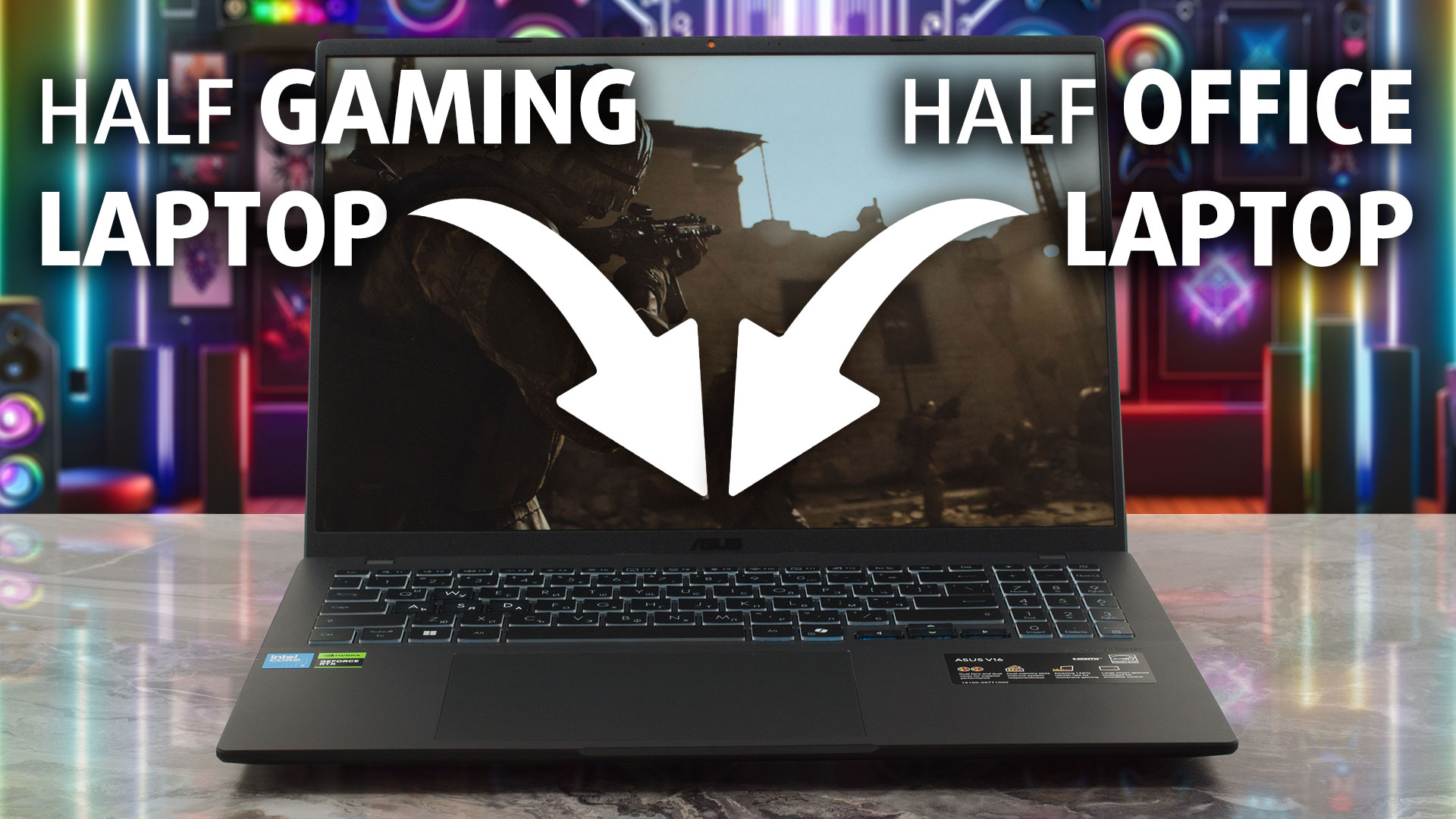
The ASUS V16 (V3607) is a master of disguise. At first glance, it looks like a sleek, professional Vivobook designed for spreadsheets and meetings. But peel back the modest exterior, and you'll find a machine with a secret: it's packing genuine gaming hardware. This is a laptop built for the user who needs a versatile daily driver for school or work but wants to jump into a game of Call of Duty or Elden Ring the moment the clock strikes five. It promises the best of both worlds on a budget, but can a machine that tries to be everything to everyone truly excel at anything?You can check [...]
Pros
- Excellent thermal management keeps the system cool and quiet
- Sleek, professional design suitable for work and play
- PWM-free display is great for eye comfort
- Two user-accessible RAM slots for easy upgrades
- Solid CPU performance for the price
- Physical privacy shutter for the webcam
Cons
- Severely power-limited GPU results in subpar gaming performance
- Base model display has poor color coverage (52% sRGB)
- Only one M.2 slot for storage
- Mediocre battery life
- Trackpad feels cheap with indistinct clicking
 Author: Dimitar Stalev

![[August 2026] Amazon Italy: Top 10 Best-Selling Laptops – Apple MacBook Neo Claims the Crown as Budget and Mid-Range Windows Machines Dominate Volume](https://laptopmedia.com/wp-content/uploads/2026/09/Best-Selling-Laptops-IT-Top-10-400x225.jpg)
![[August 2026] Amazon Italy: Top 7 Best-Selling Gaming Laptops – ASUS V16 Claims the #1 Spot Amid Strong Mid-Range Demand](https://laptopmedia.com/wp-content/uploads/2026/09/Best-Selling-Gaming-Laptops-IT-Top-10-400x225.jpg)
![[August 2026] Best-Selling Laptop Brands on Amazon Italy – Lenovo Dominates Market Share and Revenue Leadership](https://laptopmedia.com/wp-content/uploads/2026/09/IT-Best-Brands-400x225.jpg)
![[August 2026] Amazon India: Top 10 Best-Selling Laptops – Apple MacBook Neo Dominates the Charts with Massive Sales Lead](https://laptopmedia.com/wp-content/uploads/2026/09/Best-Selling-Laptops-IN-Top-10-400x225.jpg)
![[August 2026] Amazon India: Top 10 Best-Selling Gaming Laptops – HP Victus 15 Dominates the Market with Massive Unit Lead](https://laptopmedia.com/wp-content/uploads/2026/09/Best-Selling-Gaming-Laptops-IN-Top-10-400x225.jpg)

Hello, what thermal pastes does the laptop use???