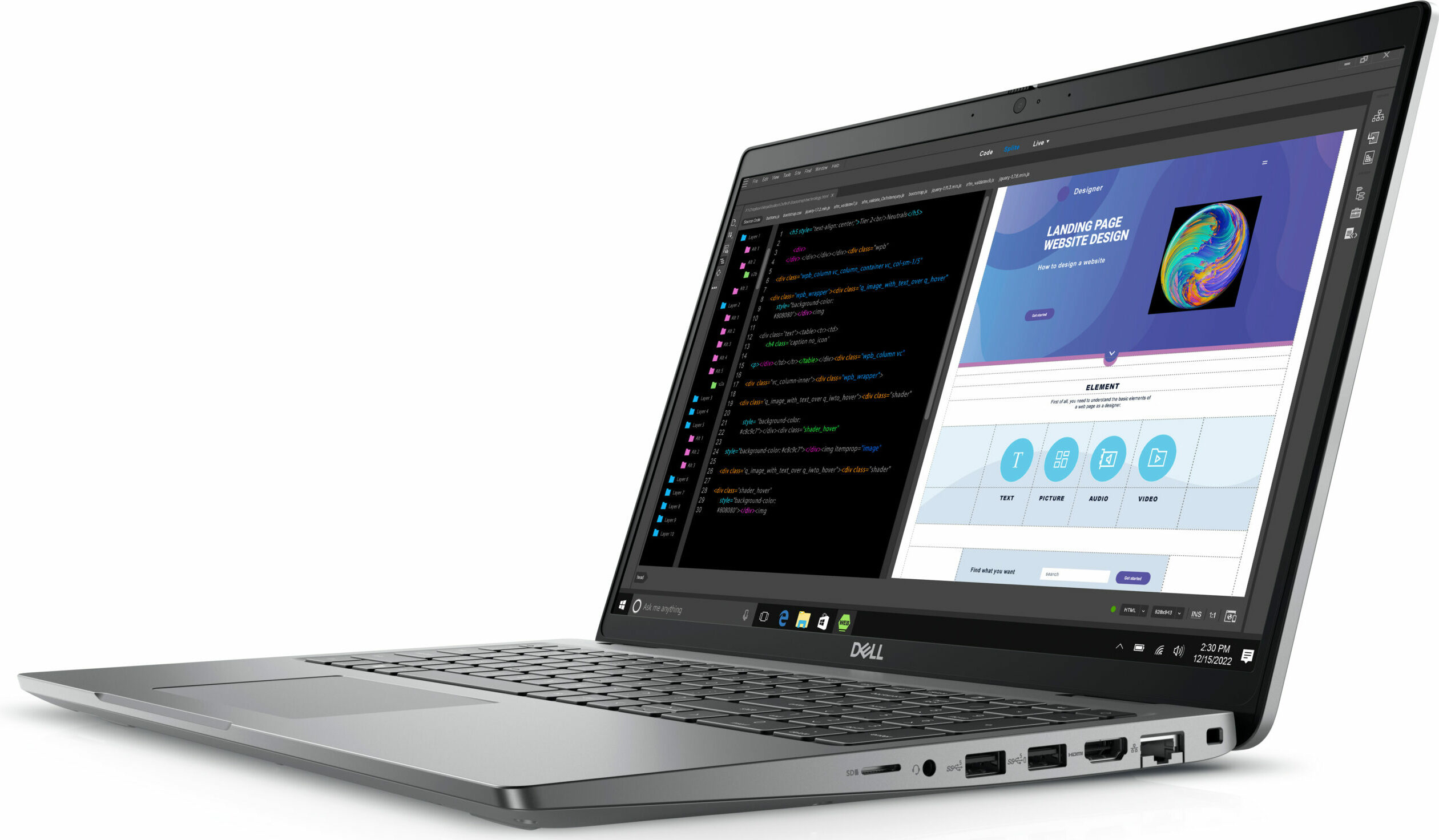
Dell Precision 3580



- Date Published: 22 May 2023
- Intel Core i5-1340P
- Intel Iris Xe Graphics G7 (80EU)
- 15.6”, Full HD (1920 x 1080), IPS
- 2000GB SSD
- 64GB DDR5
- 1.61 kg (3.5 lbs)

Review
Dell Precision 3580 in-depth review
Although it is the most affordable workstation option, the Precision 35xx series is one of Dell's best-selling pro-grade laptops. Despite being built around compromises, it does one thing better than any other workstation from the company - it matches the expectations.Today, we are going to review the Dell Precision 15 3580. There are a couple of things you need to know from the get-go. First, this is a lightweight product, that doesn't incorporate the most powerful CPUs on the market. Also, its only dedicated GPU option is the NVIDIA RTX A500.However, you get the latest and greatest from Intel's efficiency-class CPUs, like the U-series and the P-series chips. So, you have something to look forward to. Also, while your only option for display is a 1080p IPS unit, you can pick from[...]
Read the full review
Pros
- Wide I/O, which includes a MicroSD card reader
- Two Gen 4 M.2 storage slots + 2x DDR5 SODIMM slots
- Fingerprint reader embedded in the power button + optional IR face recognition
- Wi-Fi 6, Thunderbolt 4
- No PWM (BOE KVVT5-NV15N4V (BOE0A85))
- Comfortable keyboard with a backlight and a great touchpad
Cons
- Covers only 52% of sRGB (BOE KVVT5-NV15N4V (BOE0A85))
- Poor battery life
Disassembly, maintenance and upgrade options
1. Removing the Back Panel To begin the disassembly process for the Dell Precision 15 3580, start by undoing the 8 captive Phillips-head screws on the back of the laptop. Since these are captive screws, they will stay attached to the bottom panel, so you can't lose them.After unscrewing, carefully pry the bottom panel starting from the front corners to access the internal components of the laptop.Caution: Always be gentle when removing panels to avoid damaging any internal components or clips.3. Disconnecting the Battery Once inside, you'll be able to see the battery. To [...]
Read more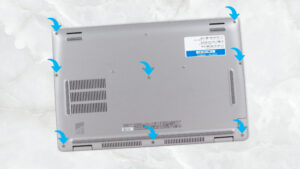


![[June 2026] Best-Selling Laptop Brands on Amazon Global – Apple’s Unrivaled Dominance in Units and Revenue](https://laptopmedia.com/wp-content/uploads/2026/07/GLOBAL-Best-Brands-400x225.jpg)
![[June 2026] Amazon Global: Top 10 Best-Selling Laptops – Apple’s New MacBook Neo Storms to #1, Reshaping the Market with Affordability](https://laptopmedia.com/wp-content/uploads/2026/07/Best-Selling-Laptops-GLOBAL-Top-10-400x225.jpg)
![[June 2026] Amazon Global: Top 10 Best-Selling Gaming Laptops – Acer’s Nitro V 16S AI Dominates Sales, While ASUS Leads Overall Revenue](https://laptopmedia.com/wp-content/uploads/2026/07/Best-Selling-Gaming-Laptops-GLOBAL-Top-10-400x225.jpg)
![[June 2026] Global Ranking of Best-Selling Laptop GPUs on Amazon – NVIDIA RTX 5060 is the Top-Selling Dedicated GPU](https://laptopmedia.com/wp-content/uploads/2026/07/Best-Selling-GPUs-GLOBAL-Top-10-400x225.jpg)
![[June 2026] Global Ranking of Best-Selling Laptop CPUs on Amazon – Apple M5 Dominates, AMD Ryzen 7 260 Gets Solid Premium Share](https://laptopmedia.com/wp-content/uploads/2026/07/Best-Selling-CPUs-GLOBAL-Top-10-400x225.jpg)