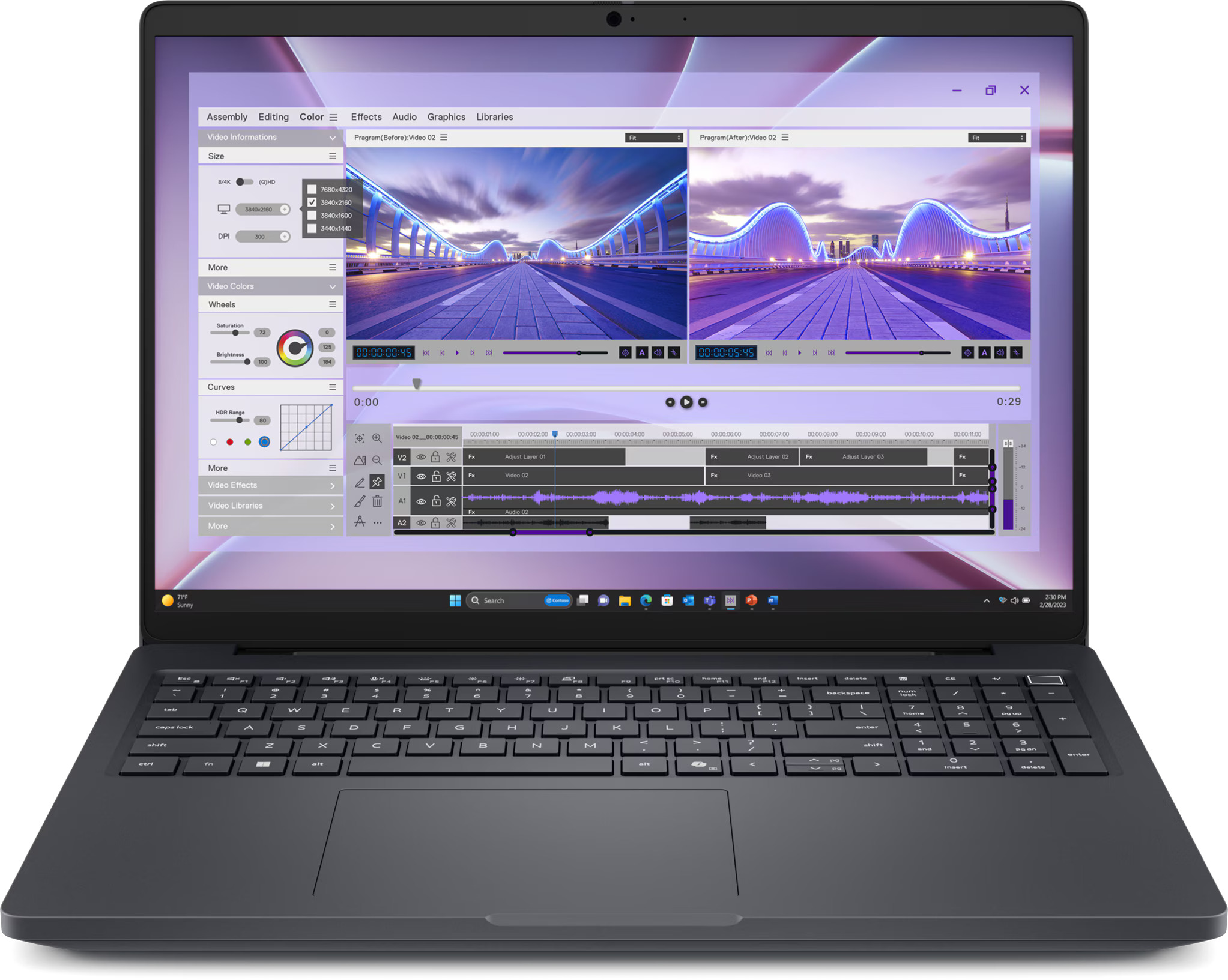
Dell Pro Max 16
- Date Published: 06 Jul 2026
- Intel Core Ultra 7 265H
- Intel Arc 140T
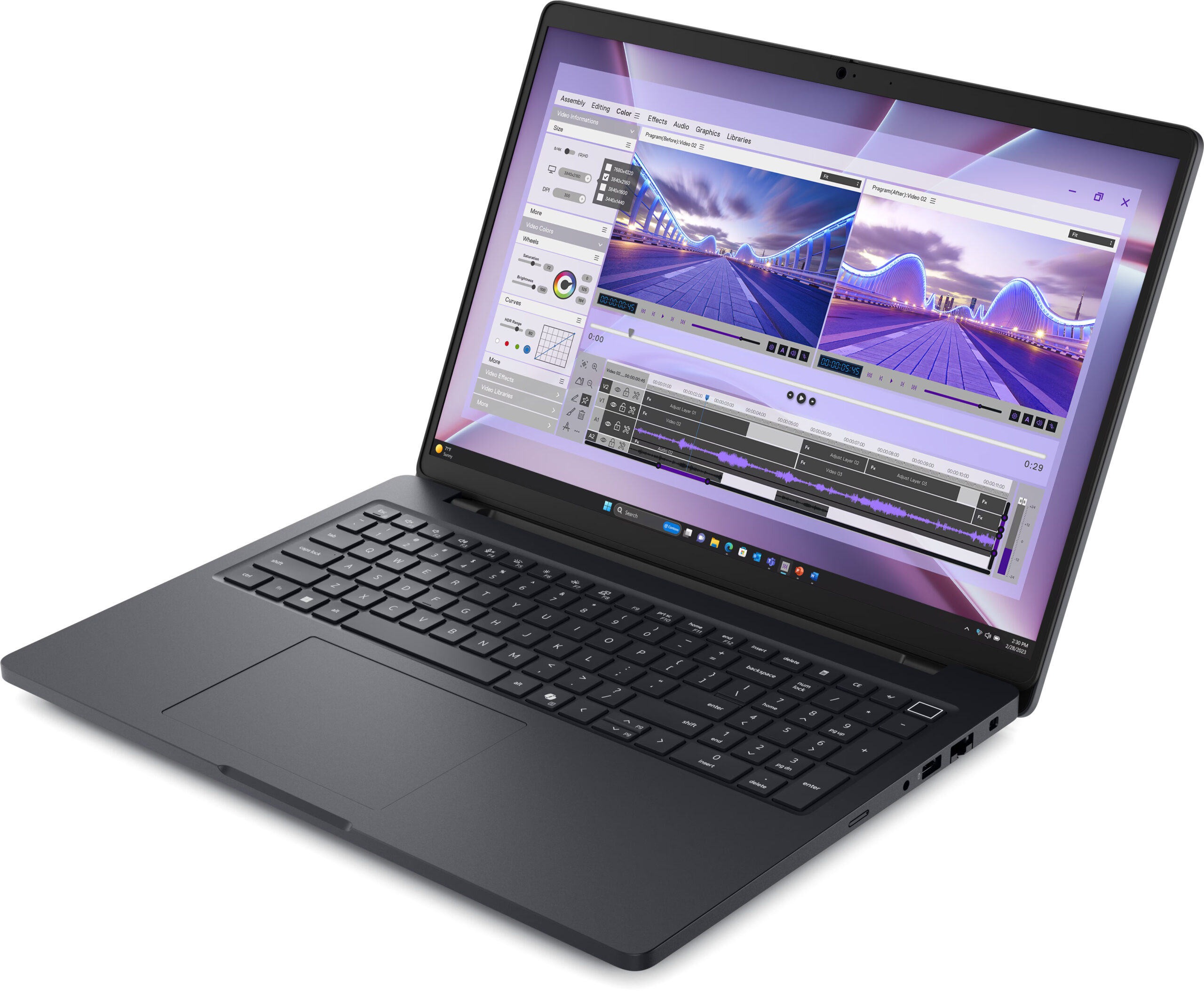
- 16.0”, WUXGA (1920 x 1200), IPS
- 512GB SSD
- 16GB RAM
- 2.20 kg (4.9 lbs)
Review
Dell Pro Max 16 in-depth review
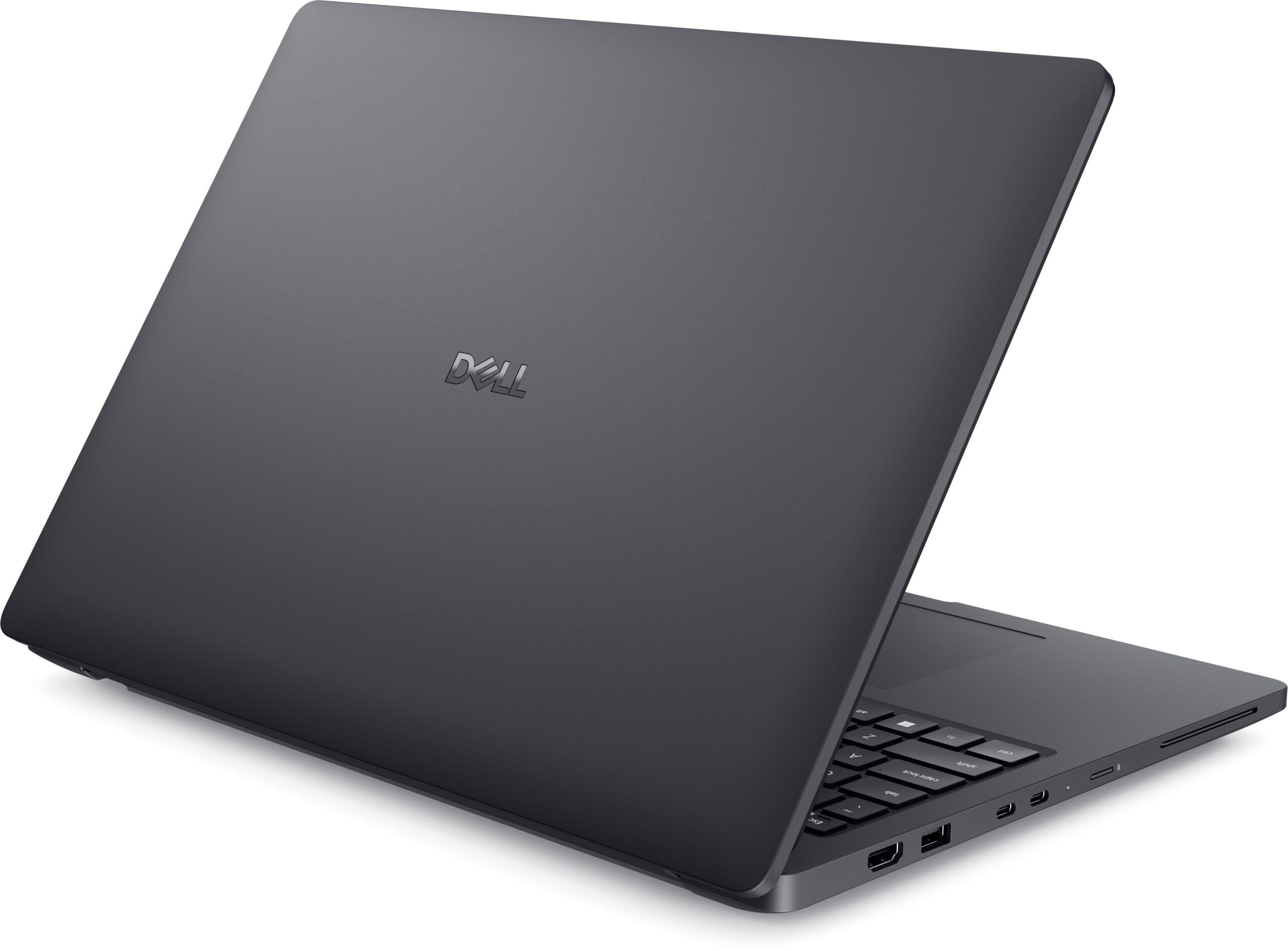
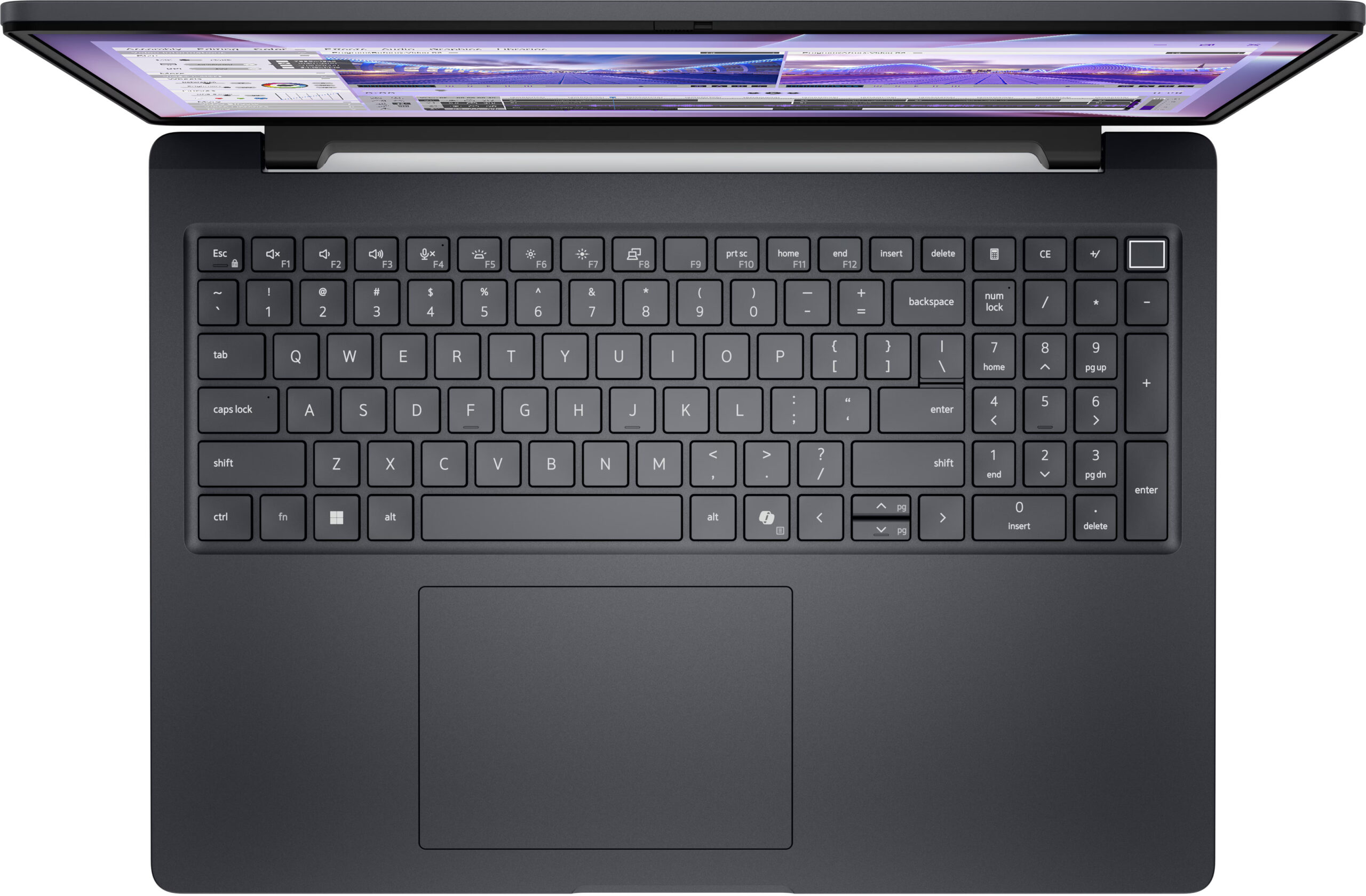
In a world of soldered RAM and sealed chassis, the Dell Pro Max 16 (MC16250) feels like a breath of fresh air for professionals. It's a serious, no-nonsense workstation that prioritizes function and longevity over fleeting trends. With a robust magnesium build, a fantastic keyboard, and a level of upgradeability that is becoming increasingly rare, it aims to be the ultimate reliable partner for the modern workforce. But does this focus on practicality come at the cost of excitement? We put it to the test to see if this workhorse has enough power to match its pro-grade features.You can check the prices and configurations in our Specs System: https://laptopmedia.com/series/dell-pro-max-16-mc16250/Specs, Drivers, What's in the boxDrivers All drivers and utilities for th[...]
Read the full review
Pros
- Excellent upgradeability with two RAM slots and two M.2 slots
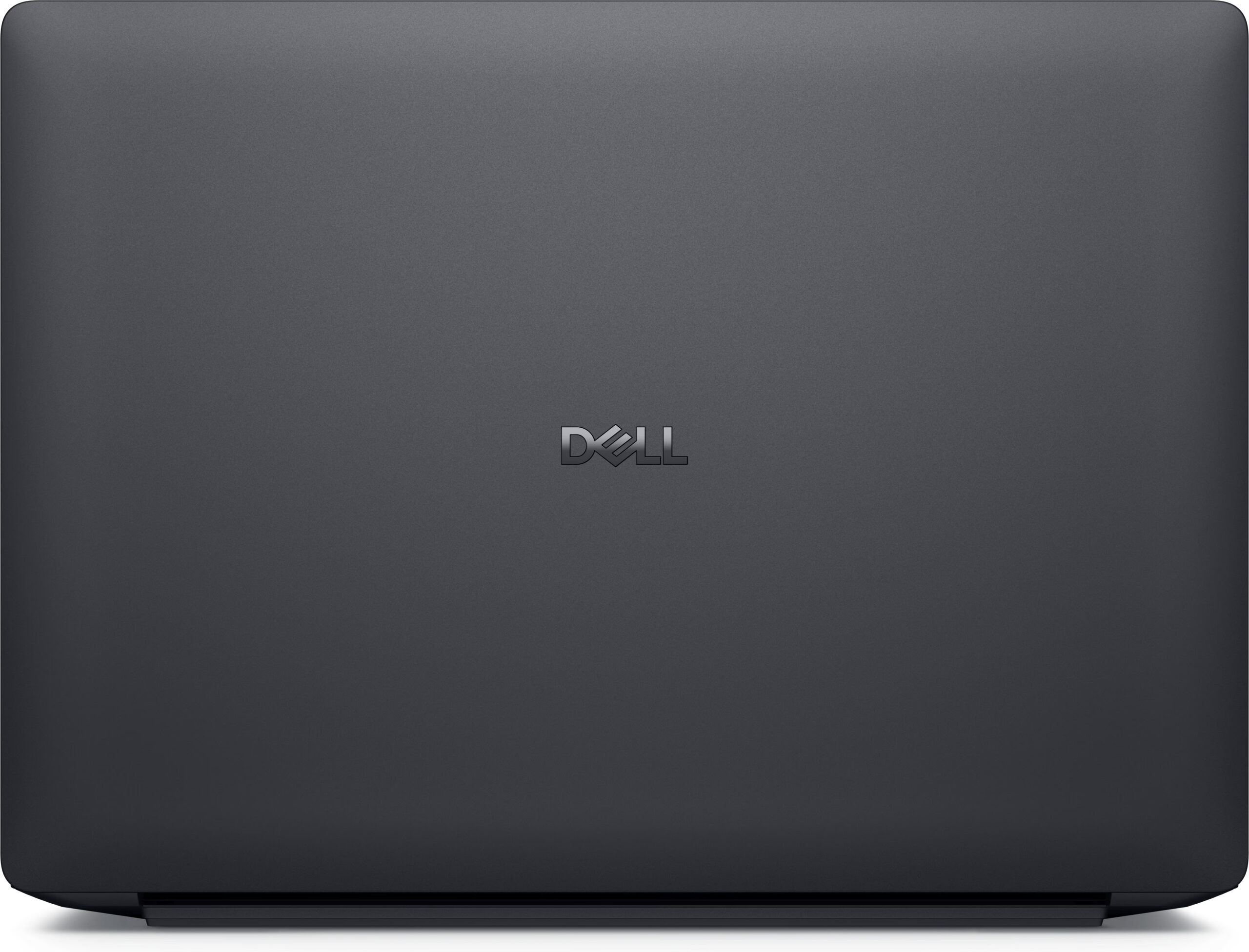
- Premium, durable build quality with 90% recycled magnesium
- Great sustained CPU performance for heavy workloads
- PWM-free display is comfortable for all-day use
- Comprehensive port selection including Thunderbolt 4 and Ethernet
- Impressive battery life (10+ hours), even with the 64Wh battery variant
Cons
- Base model display has poor color coverage (52% sRGB)
- No dedicated charging port; uses a side USB-C port
- CPU runs hot with high initial temperature spikes
- Secondary M.2 slot is limited to 2230 size (shared with WWAN)
Disassembly, maintenance and upgrade options
Before you start: Shut the laptop down completely, disconnect the charger and all peripherals, and hold the power button for a few seconds to discharge residual power. Work on a clean, non-conductive surface and, if possible, use an anti-static wrist strap. Opening the bottom panelPlace the laptop upside down with the rear vents facing away from you. Undo the nine captive Phillips-head screws that secure the bottom panel. They will remain attached to the cover, so just make sure each one is fully loosened. Insert a thin plastic pry tool between the ch[...]
Read more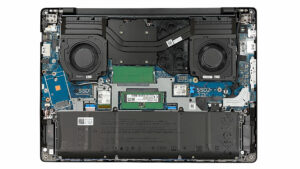


![[June 2026] Best-Selling Laptop Brands on Amazon Global – Apple’s Unrivaled Dominance in Units and Revenue](https://laptopmedia.com/wp-content/uploads/2026/07/GLOBAL-Best-Brands-400x225.jpg)
![[June 2026] Amazon Global: Top 10 Best-Selling Laptops – Apple’s New MacBook Neo Storms to #1, Reshaping the Market with Affordability](https://laptopmedia.com/wp-content/uploads/2026/07/Best-Selling-Laptops-GLOBAL-Top-10-400x225.jpg)
![[June 2026] Amazon Global: Top 10 Best-Selling Gaming Laptops – Acer’s Nitro V 16S AI Dominates Sales, While ASUS Leads Overall Revenue](https://laptopmedia.com/wp-content/uploads/2026/07/Best-Selling-Gaming-Laptops-GLOBAL-Top-10-400x225.jpg)
![[June 2026] Global Ranking of Best-Selling Laptop GPUs on Amazon – NVIDIA RTX 5060 is the Top-Selling Dedicated GPU](https://laptopmedia.com/wp-content/uploads/2026/07/Best-Selling-GPUs-GLOBAL-Top-10-400x225.jpg)
![[June 2026] Global Ranking of Best-Selling Laptop CPUs on Amazon – Apple M5 Dominates, AMD Ryzen 7 260 Gets Solid Premium Share](https://laptopmedia.com/wp-content/uploads/2026/07/Best-Selling-CPUs-GLOBAL-Top-10-400x225.jpg)