Tenda RX3 AX1800 review – Wi-Fi 6 router loaded with tons of features
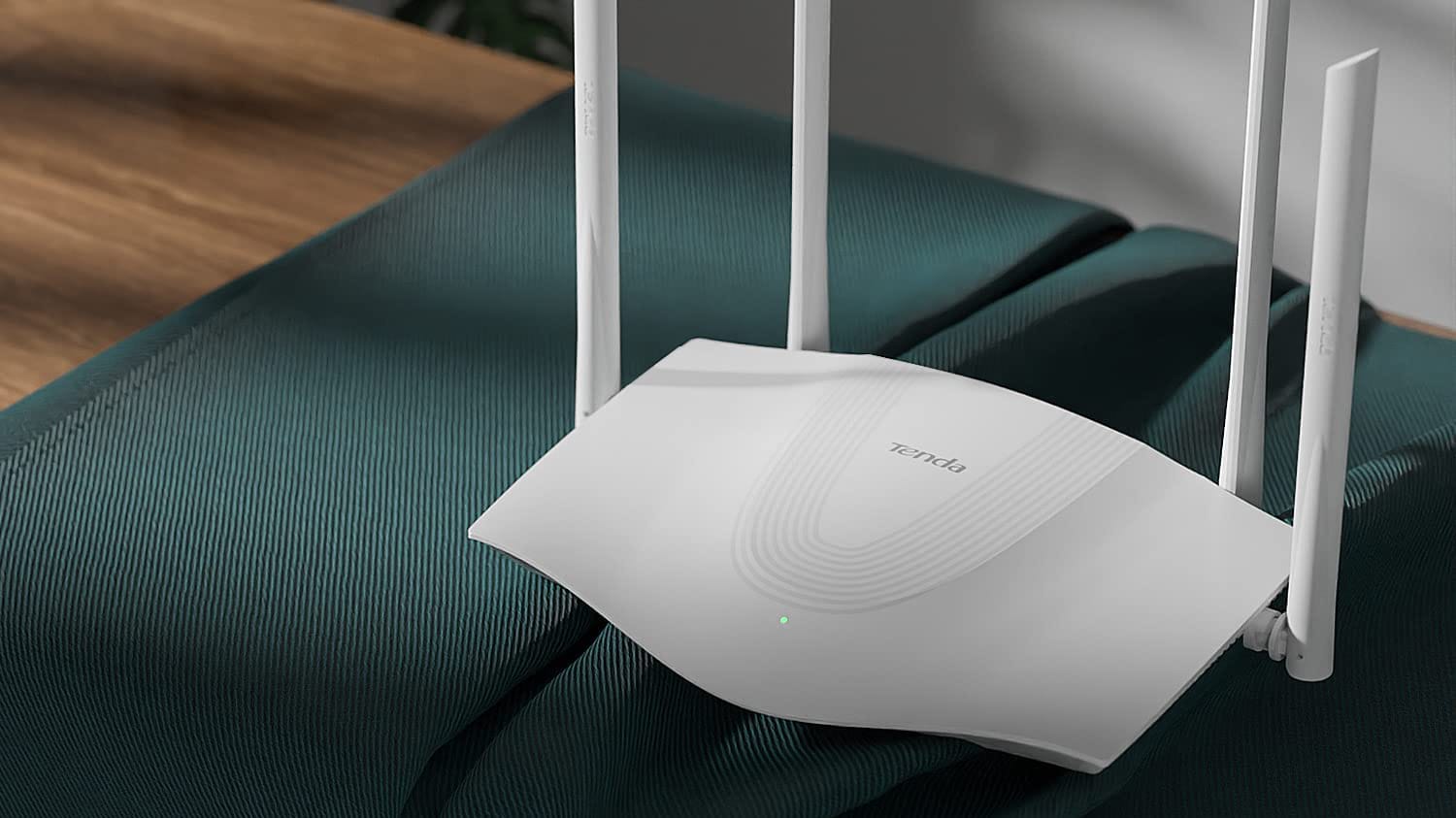 Choosing the right router for home usage can be a little tricky. Some users are buying low-end products and that automatically leads to different kinds of problems afterward. This includes unstable connection when more devices are connected to the router at the same time and low Wi-Fi speeds when the signal is going through a wall.
Sometimes spending a bit more money is a smart future investment that can save you a lot of headaches. That’s the case with the device that we’re going to show you today. It’s called Tenda RX3 AX1800 and specs-wise it’s a mid-range router that is packed with a good amount of useful features for home users and its price is pleasant.
Of course, this one supports the Wi-Fi 6 standard and some other useful technologies that can improve the overall user experience. The device setup is user-friendly but it has a lot of advanced options that can be well-accepted by the geeks out there. There is a Tenda APP for smartphones that allows you to monitor the current status of the home network in real-time. Without further ado, let’s see what Tenda RX3 AX1800 can offer for its money.
You can check the current price of Tenda RX3 AX1800 Dual Band Gigabit WiFi 6 Router here: Buy from Amazon.com (#CommissionsEarned)
Contents
Specs Sheet
| Tenda RX3 AX1800 | |
|---|---|
| Wireless Standard | IEEE 802.11ac/a/n/ax 5GHz IEEE 802.11b/g/n/ax 2.4GHz |
| Ethernet Interface | 3*10/100/1000Mbps |
| Data Rate | 5GHz: Up to 1201Mbps 2.4GHz: Up to 574Mbps |
| Antenna | 4*6dBi external antennas |
| Power supply standard | Input: AC 100-240V~50/60Hz 0.4 Output:DC 12V 1A |
| Frequency Band | Simultaneous dual-band 2.4 & 5GHz |
| Max Transmit Power | <20dBm(2.4G) <23dBm(5G) |
| Wireless Security | WPA-PSK,WPA2-PSK, WPA/WPA2-PSK WPA3-SAE/WPA2-PSK Wireless Security: Enable/Disable WPS(WiFi Protected Set-up) fast encryption |
| Operating Mode | Wireless Router Mode Universal Repeater Mode WISP Mode |
| Basic Features | SSID Broadcast: Enable/Disable Transmission Power: high, medium, low Beamforming MU-MIMO |
| Special Features | Smart Traffic Prioritisation PPPoE Username/password Clone Smart WiFi Schedule Smart LED on/off Tenda Cloud Tenda App Alexa |
| Others | Bandwidth Control Guest Network IPTV VLAN MAC Clone Static Routing System Log Backup & Restore configurations Firmware upgrade online Firmware upgradeable via browser Supports IPv6 |
| Dimensions | 9.35*6.03*1.77 in (237.6*153.1*45mm) |
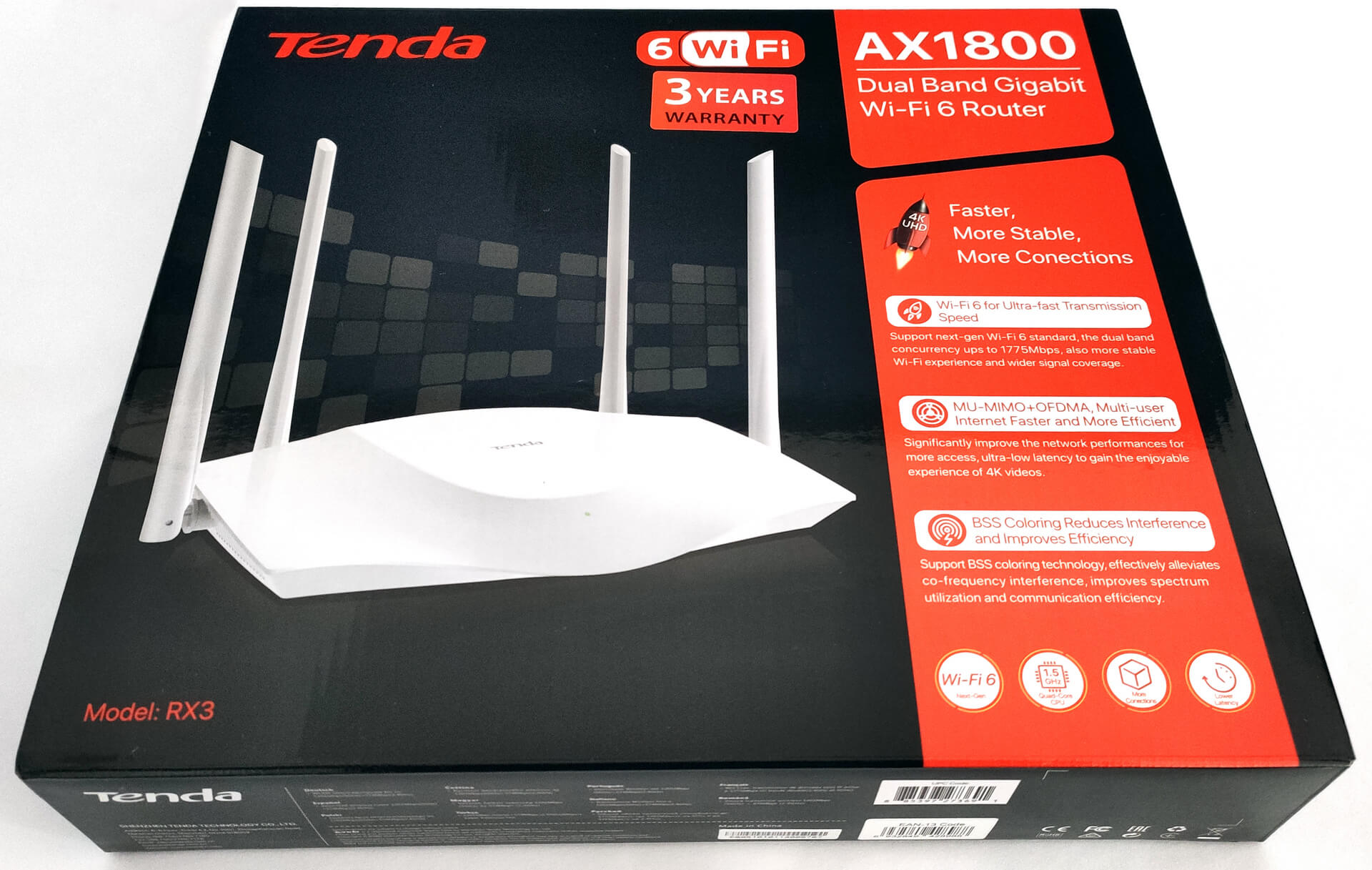
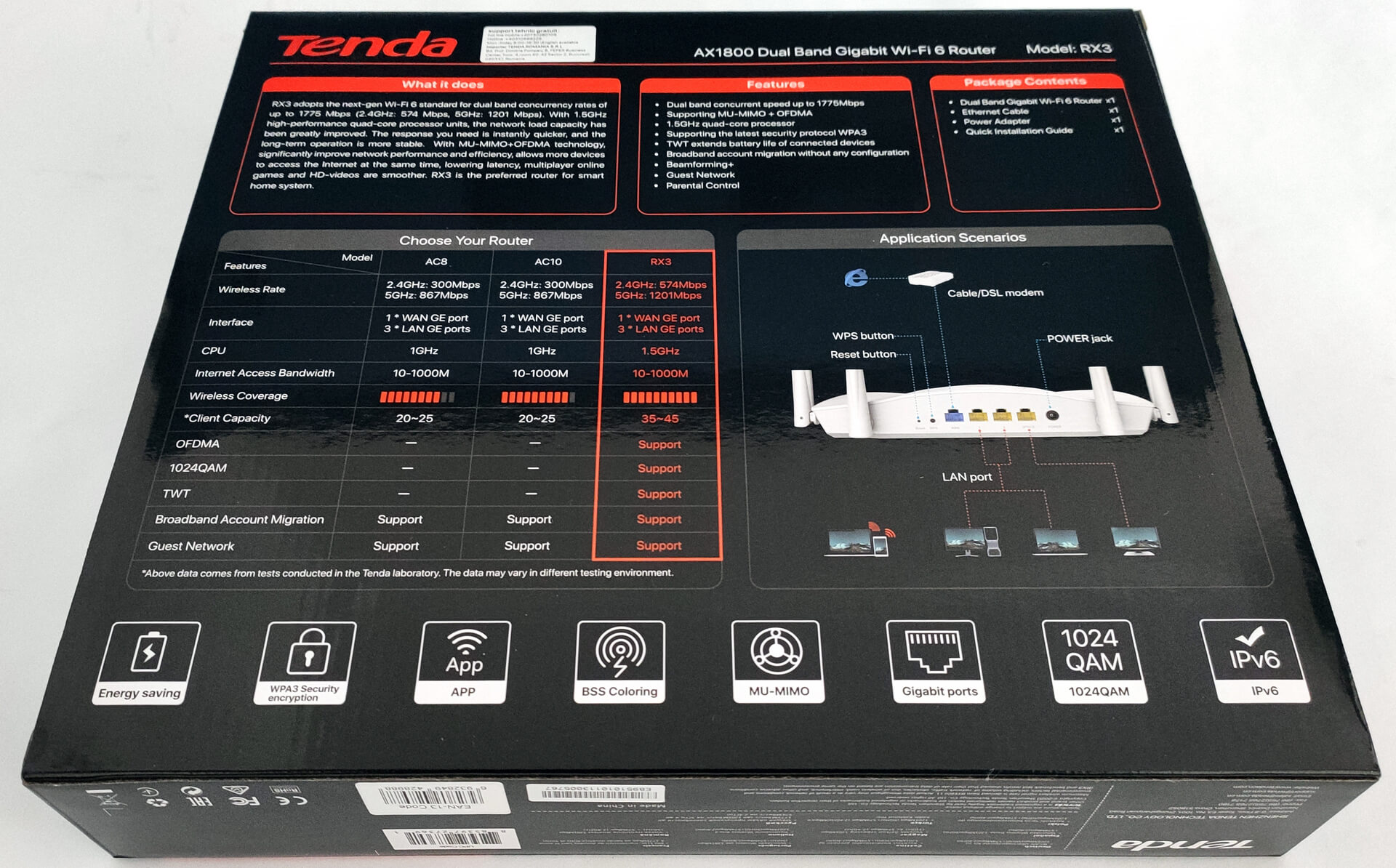
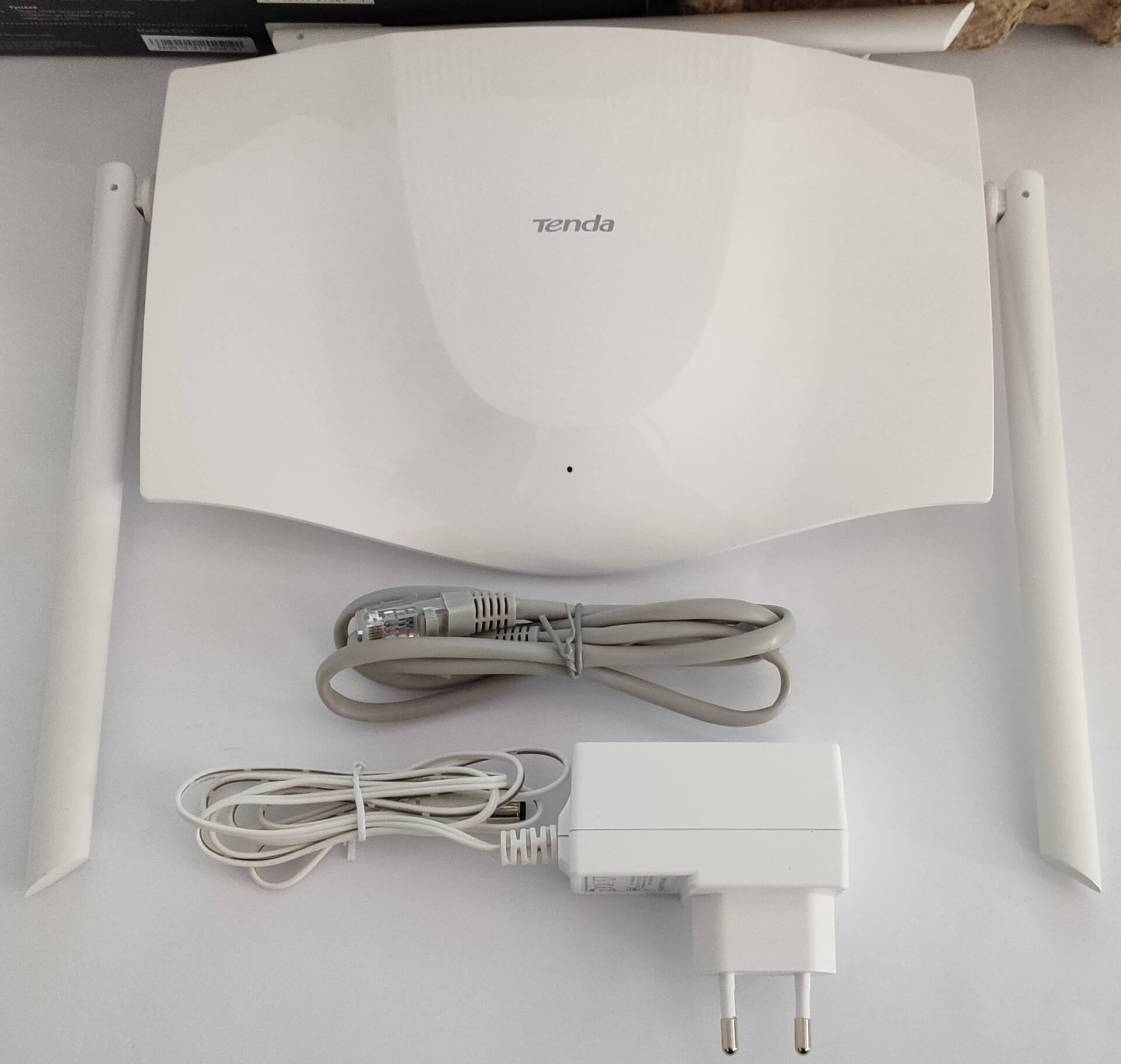
What’s in the box?
The box contains only the essentials – everything is fitted in a sturdy box. Inside, you’ll find the router itself, an AC adapter, and some manuals – that’s all.
Design and construction
Visually, the device looks up to date. The weight is on the low side so you can easily mount it on a wall. Dimensions-wise, it’s not the most compact router but we’ve seen bigger ones as well. Because of the device’s shape, it looks a bit like a spaceship when all four antennas are positioned straight.
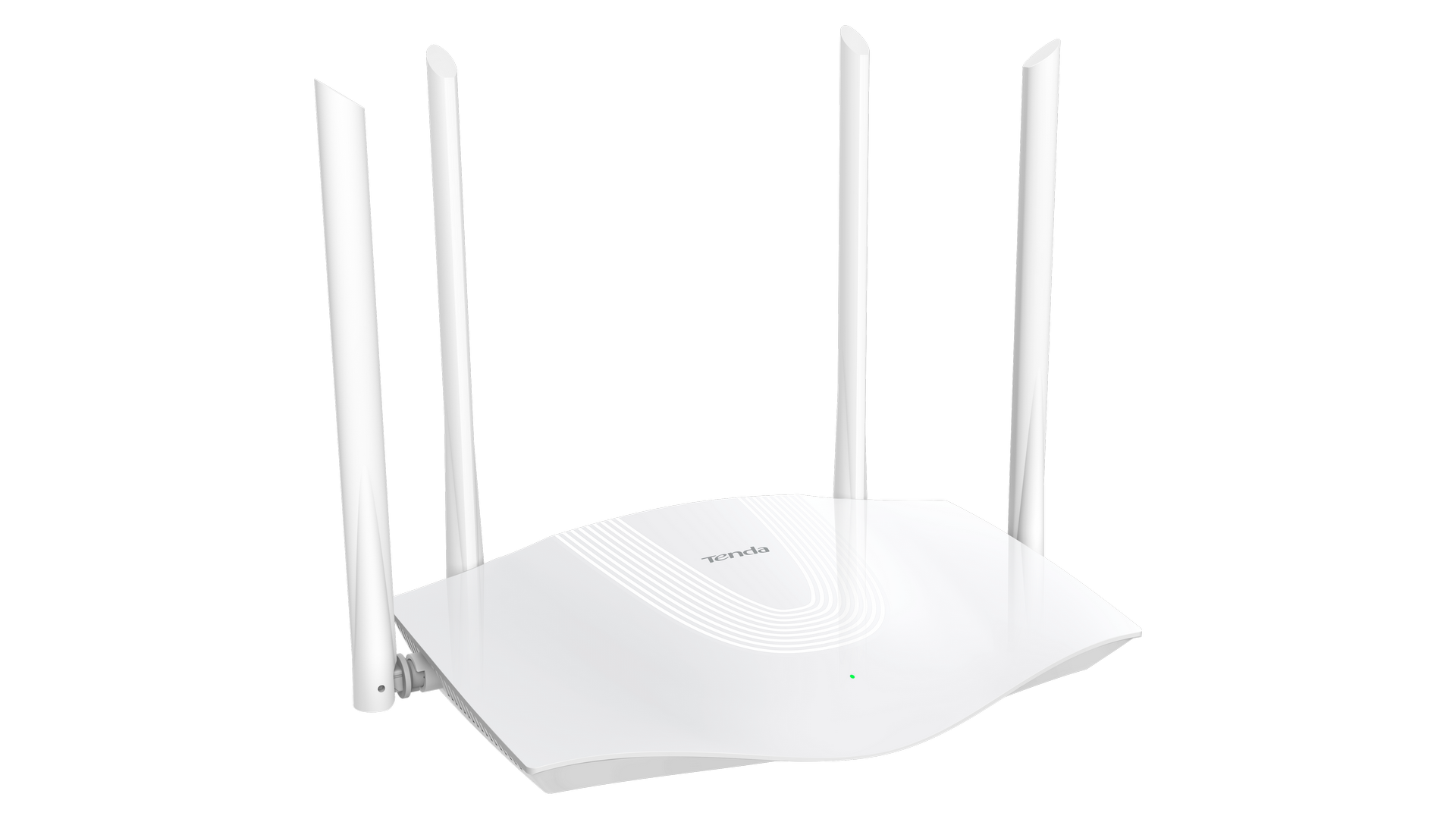
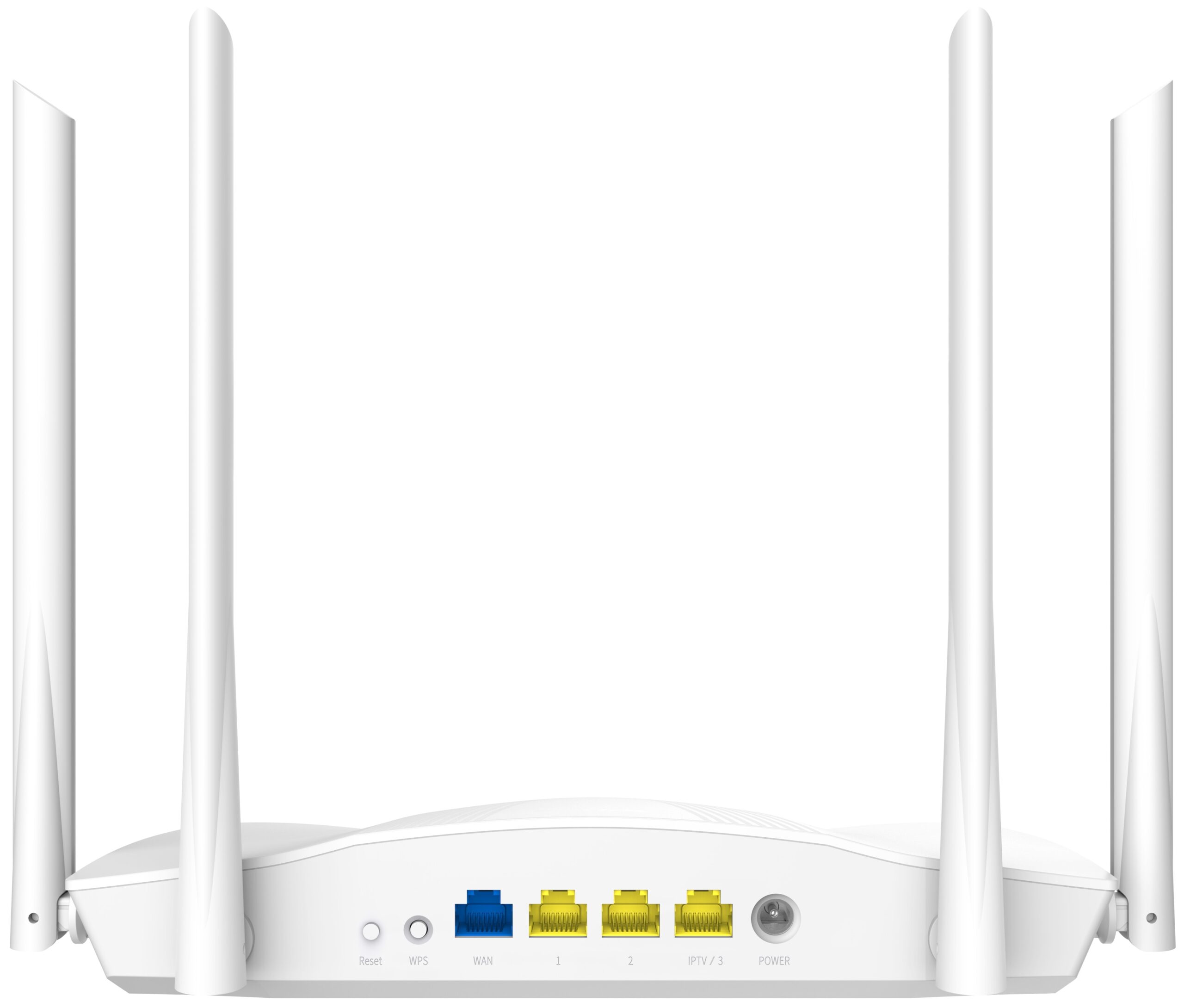
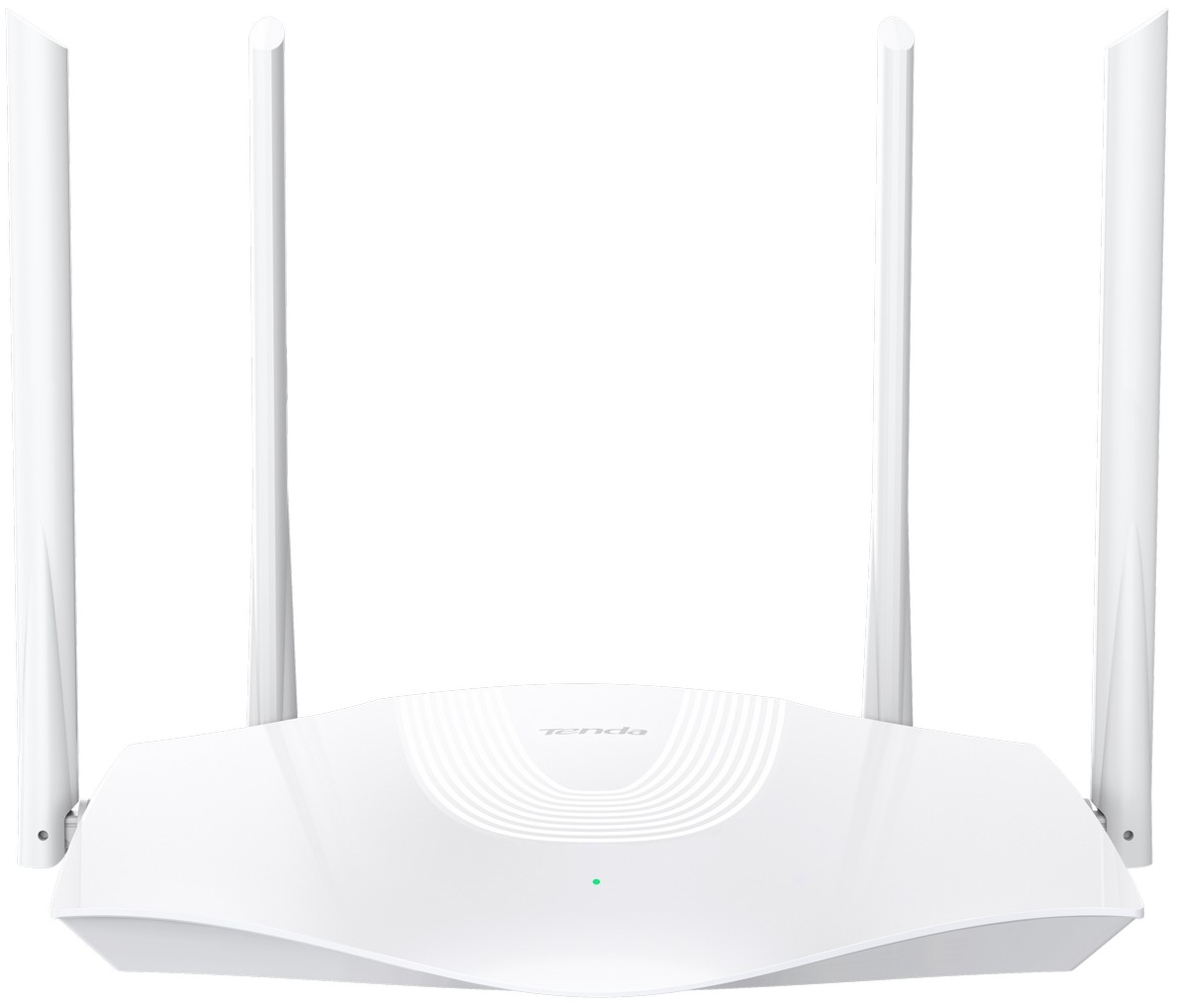

Installation, Features, Setup, and Testing
Well, the installation is an easy one. You don’t need an application installed on your computer for setting up the device. All you have to do is to plug a LAN cable (in most cases this is a cable from your ISP media converter) into the WAN port and then you have to connect a PC or a laptop with another LAN cable via some of the Ethernet ports. The next step is to type in your browser’s address bar 192.168.1.1 (or 192.168.0.1) and that is all – now you have access to your router and you can set up your new home network.
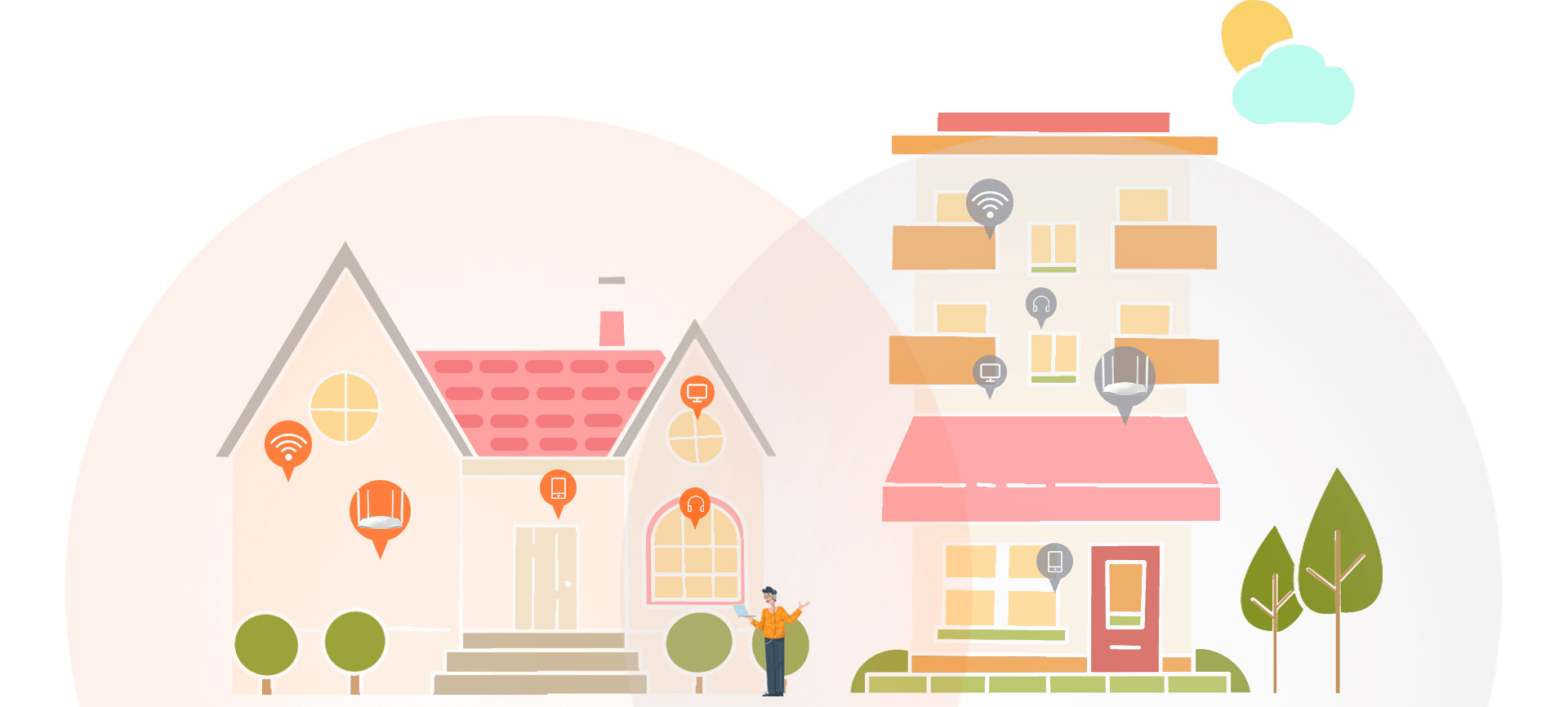
The good news is you can access 2.4 GHz and 5GHz networks and by default, they are available at the same time. This can be handy if you have some older devices in your home that don’t support the new Wi-FI ax standard. The next important step is to enter a password for your network. By the way, the default username and password are mentioned on the back of the device but we can recommend you change them as soon as possible.

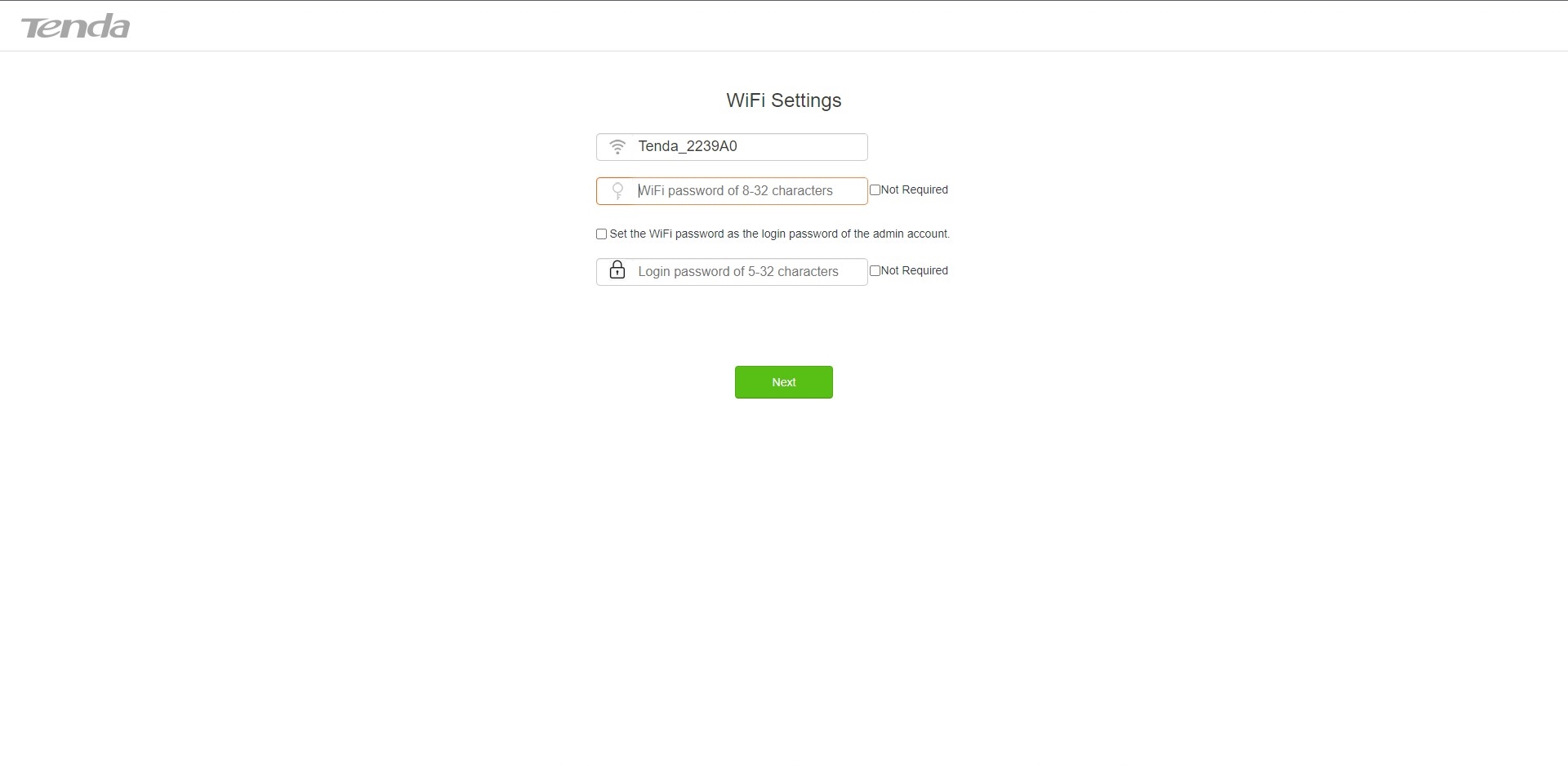
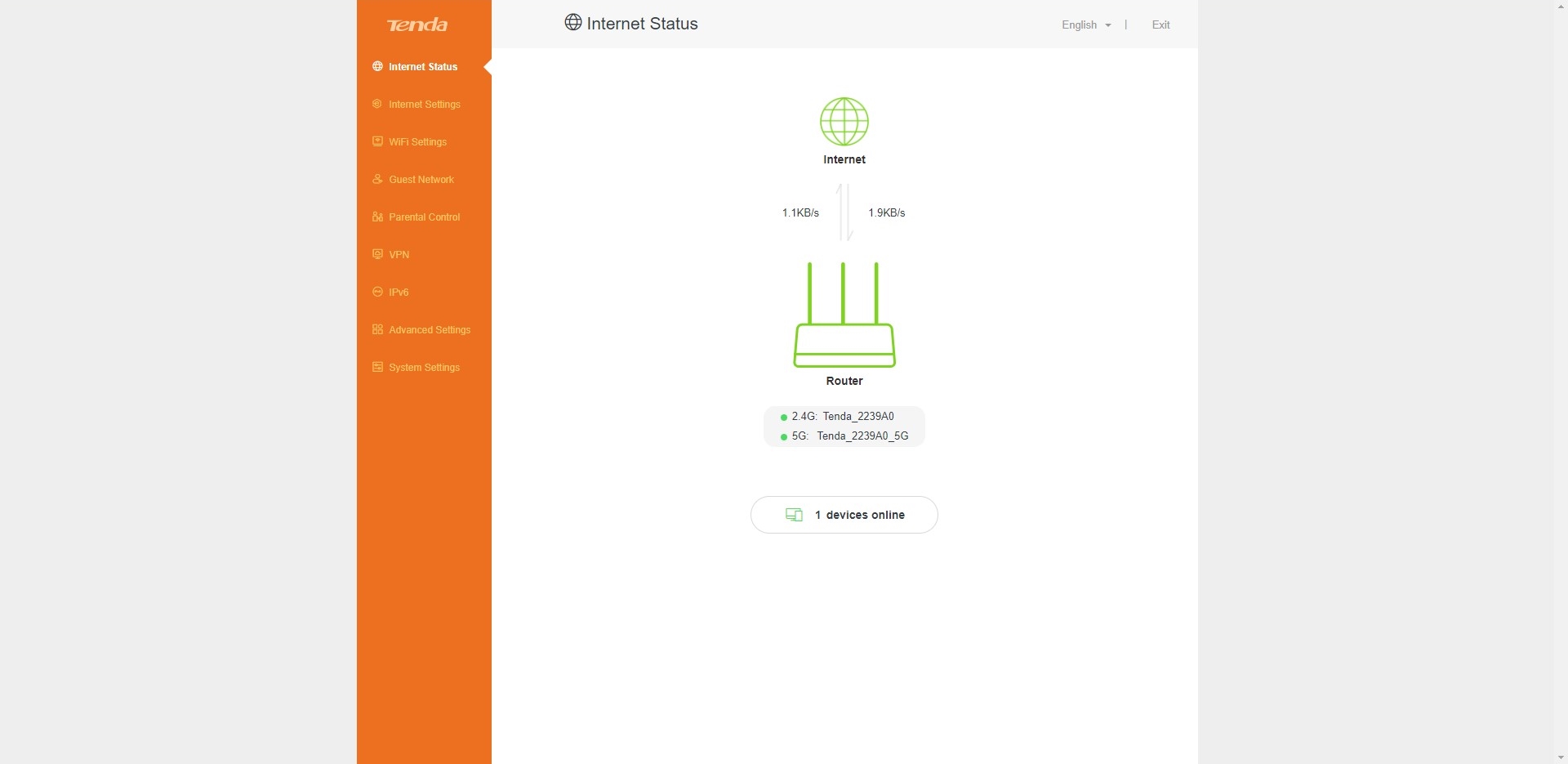
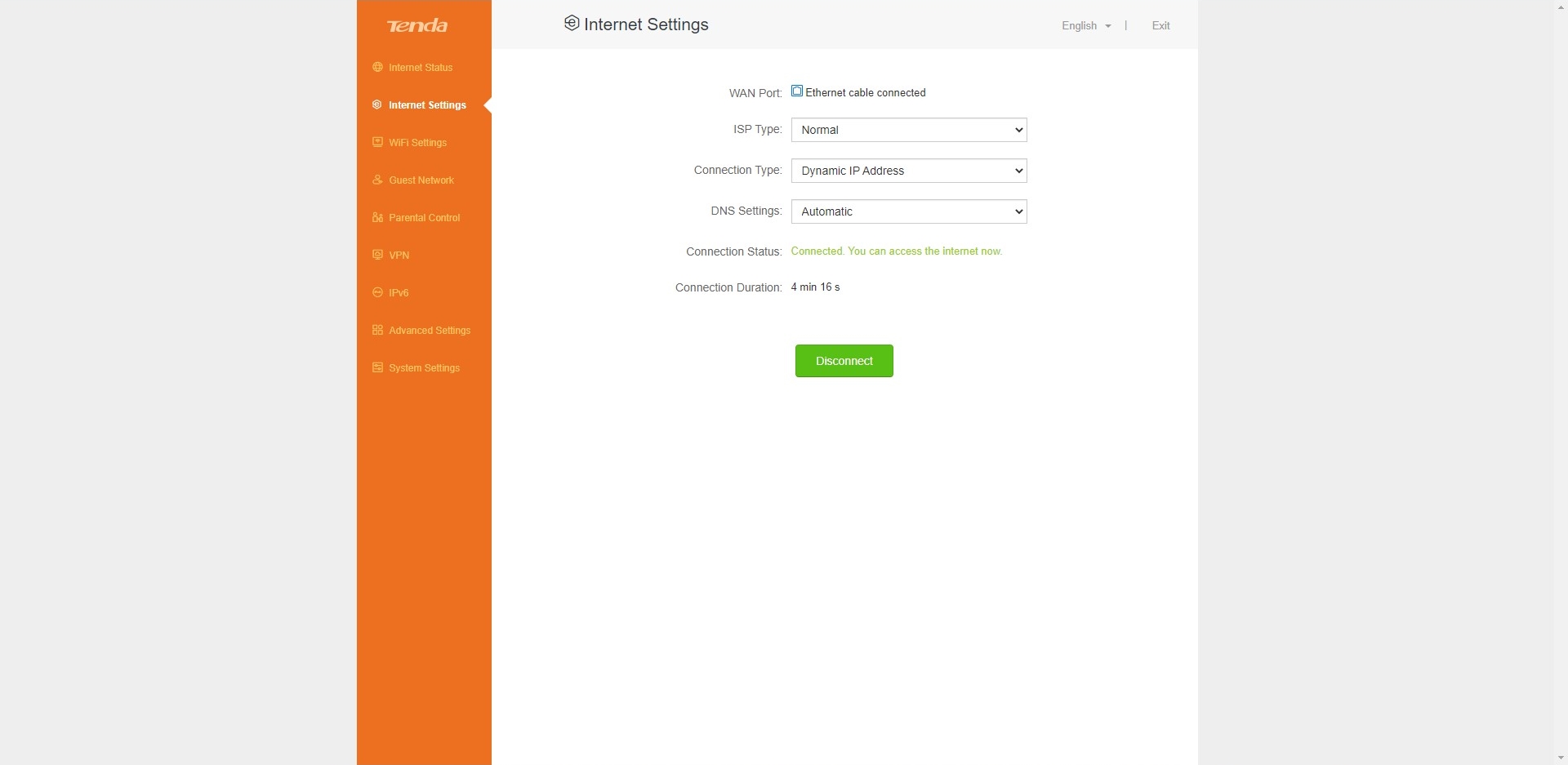
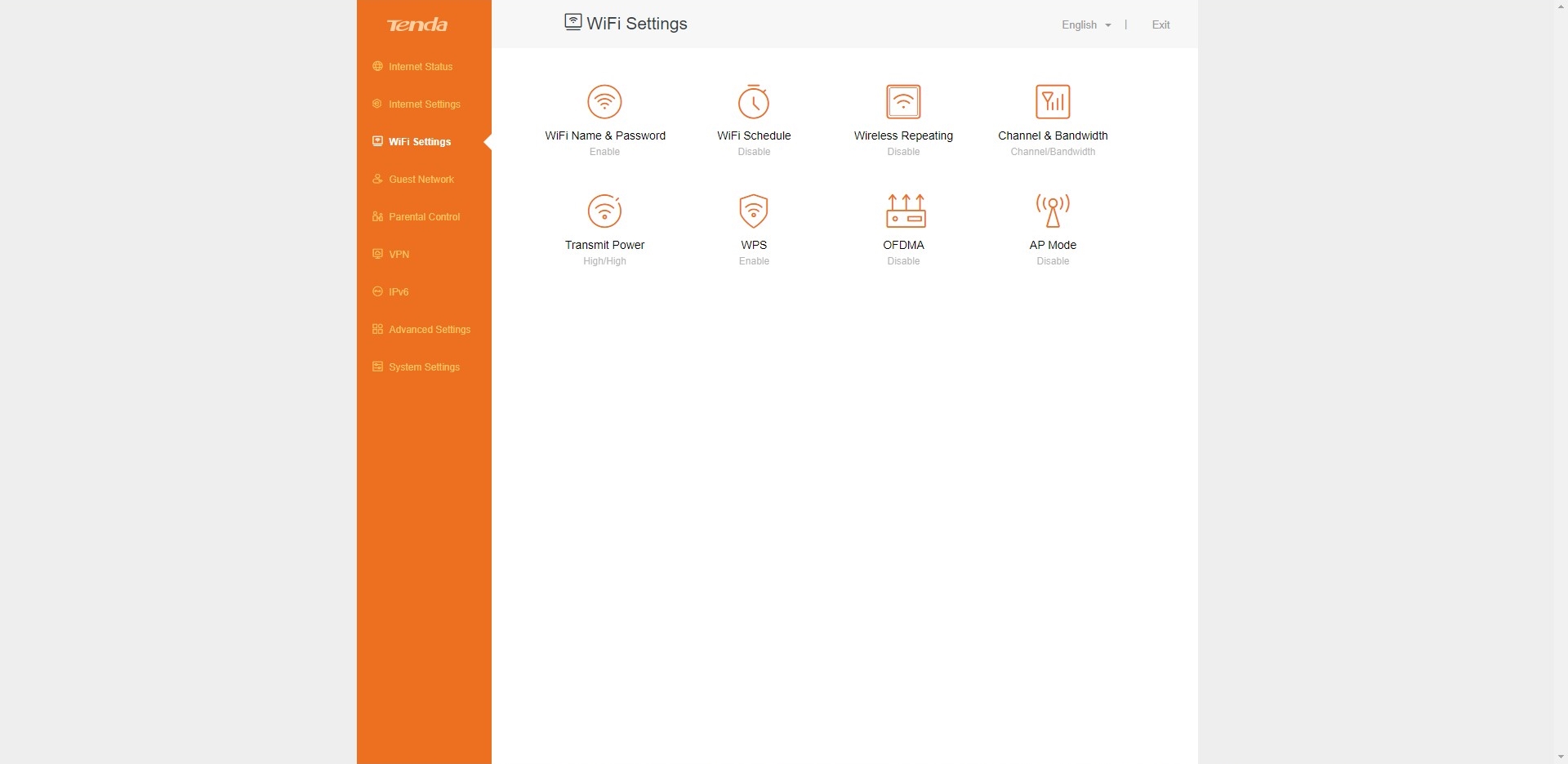
As you can see from the screenshots, you can modify a lot of things and you have access to some useful statistics as well. You can see the number of devices that are connected to this Tenda product, you can set up connection type, and there are tons of goodies. The Wi-Fi Schedule function can be quite handy – this can turn on and off the wireless connection in a desirable time period (maybe all the users can have access to the Wi-Fi network during the daytime and after midnight the Wi-Fi will become unavailable – this is just an example).
The Channel Bandwith gives you a bit more control over the 2.4GHz and 5GHz networks – you can set a network mode (the default one is “mixed” for better compatibility), and you can choose a Wi-Fi channel and a Wi-Fi bandwidth for the two networks. The Transmit Signal option gives you access to the signal strength for both networks – you can choose between three modes – Energy saving, Medium, and High. Perhaps the OFDMA extra (orthogonal frequency-division multiple access) will be probably useful for advanced users – in short, it divides the Wi-Fi channel into multiple allocations (resource units that are called RUs) so this allows simultaneous transmissions to and from multiple clients.
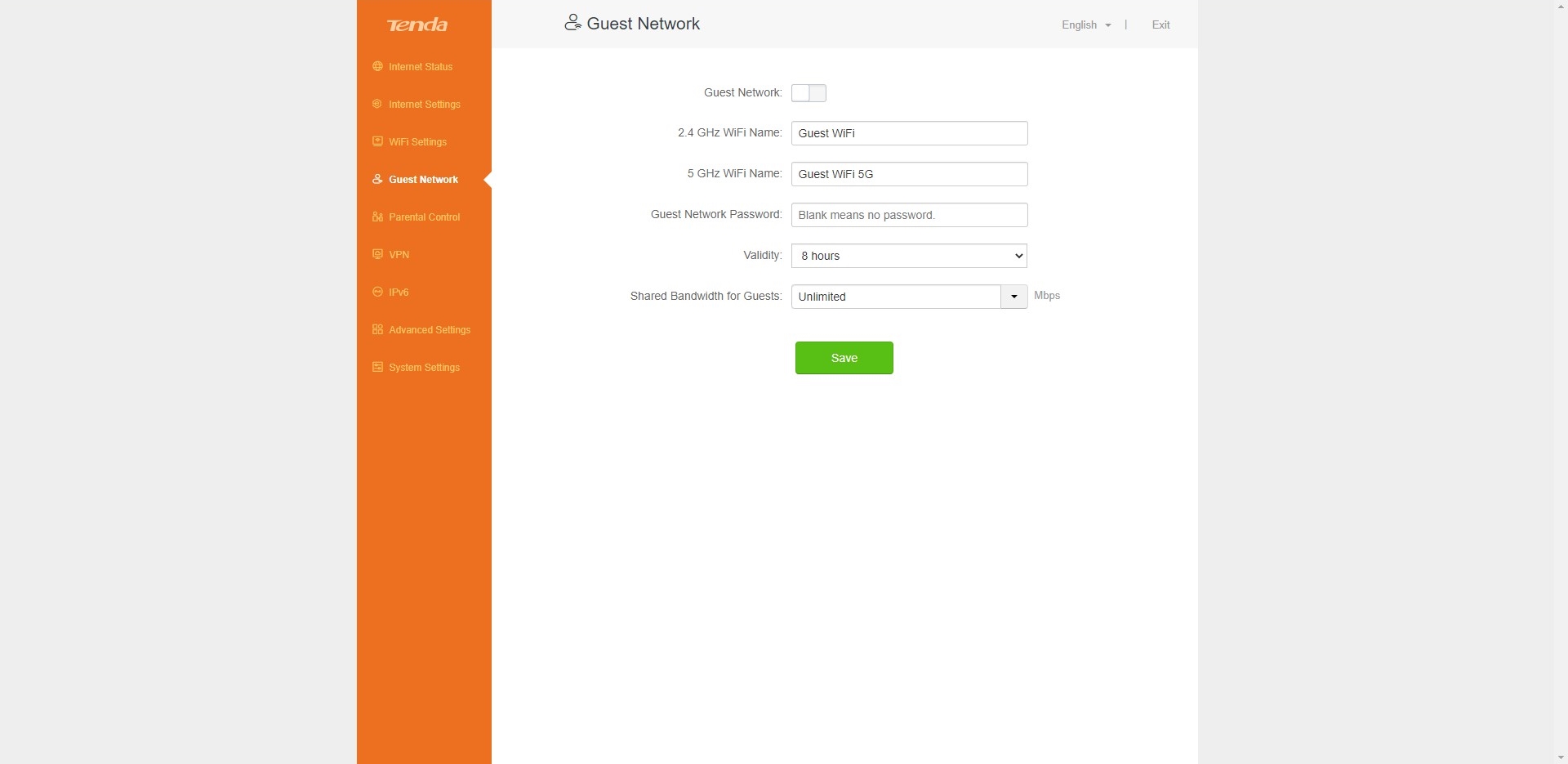
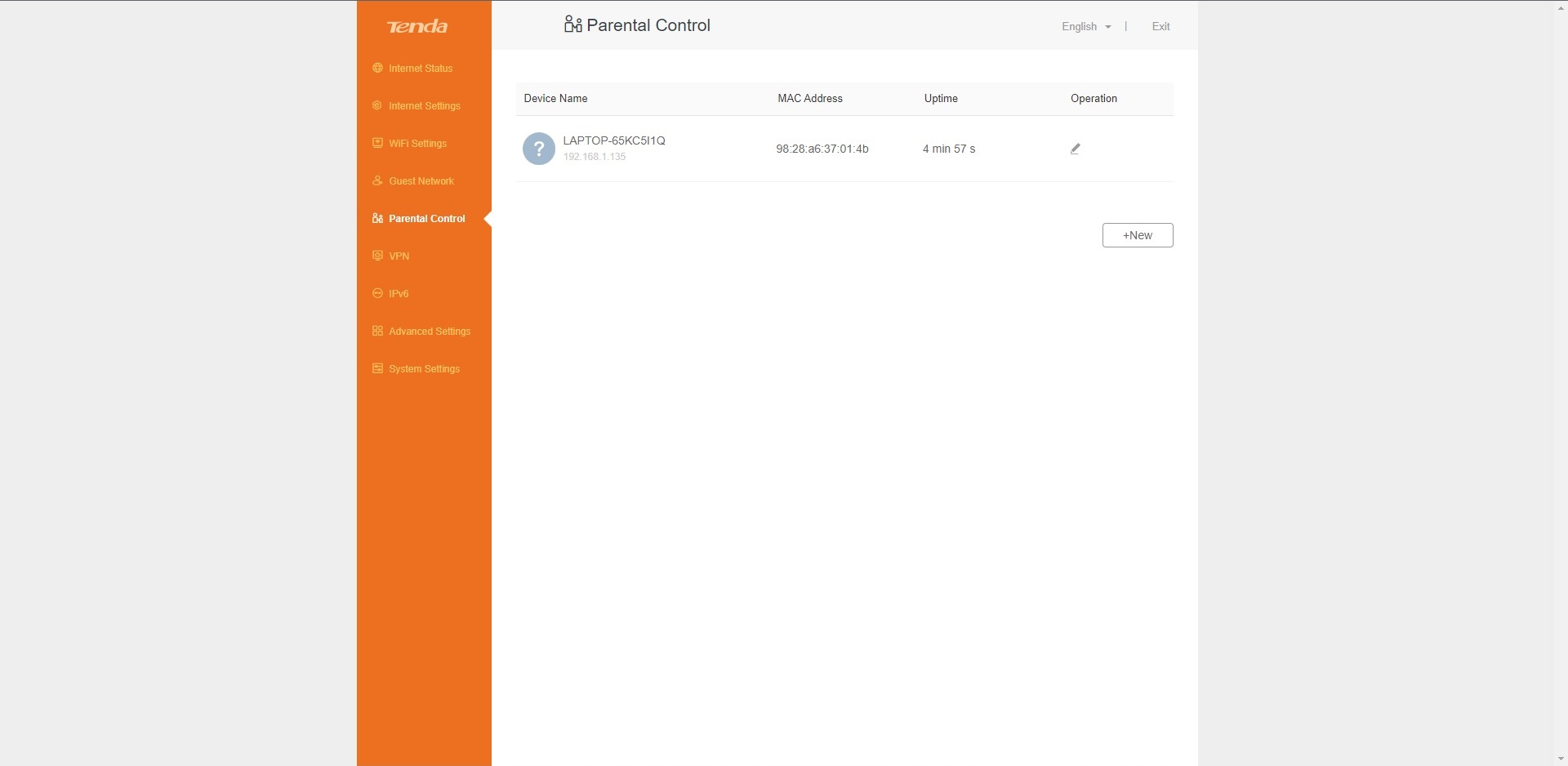
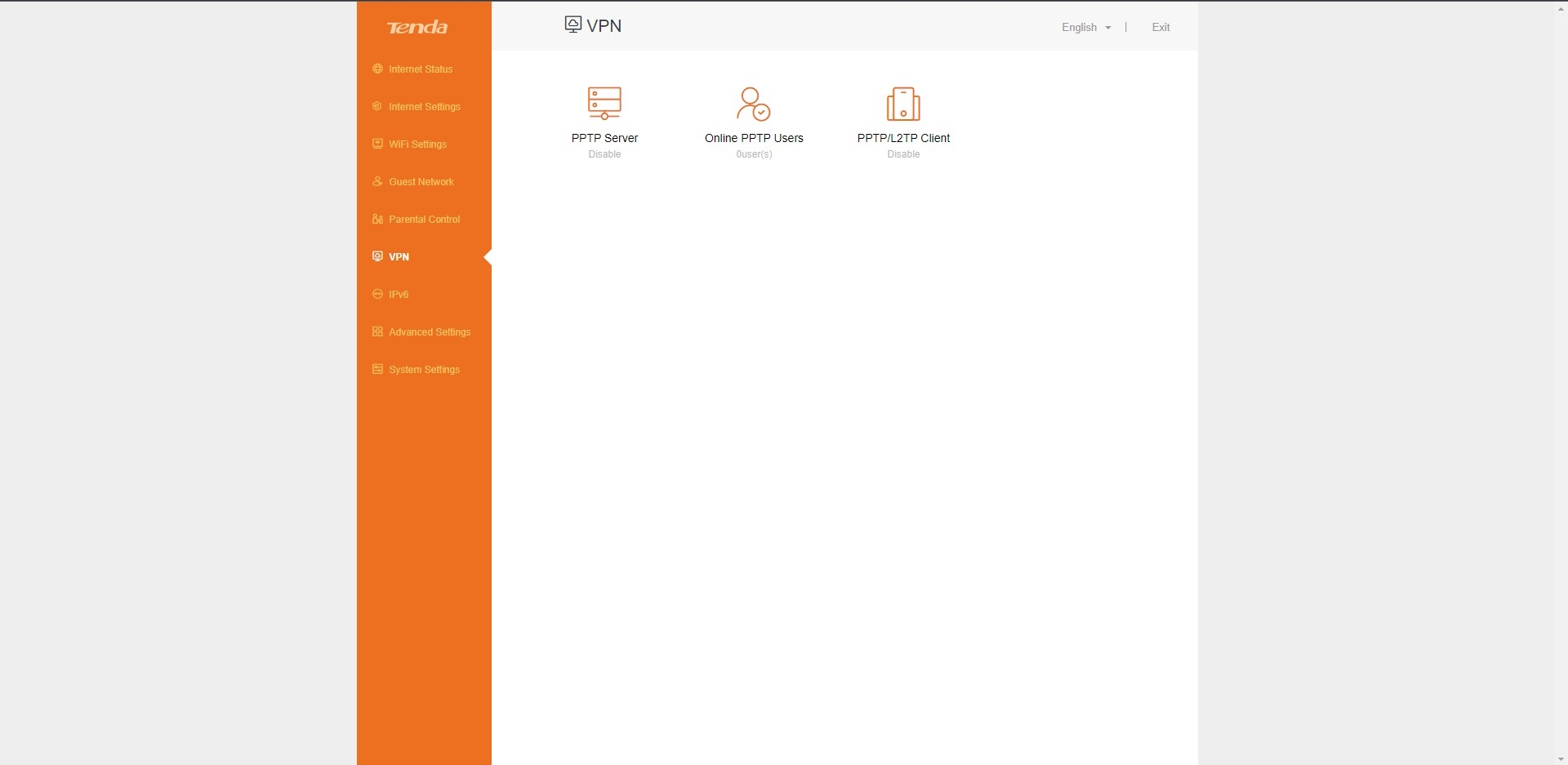
The Guest network is a nice touch – you can create a temporary network that can be used for a house party so you don’t have to share the password of your main network with other people. This leads to better privacy. The Bandwith control is a great tool – you can limit the maximum possible bandwidth of a device that is connected to the network – so if someone is downloading a movie it will not take the full bandwidth of the network and the other users can enjoy fast Wi-Fi or Ethernet connection. The built-in firewall can automatically block flood attacks and it can ignore ping packets.
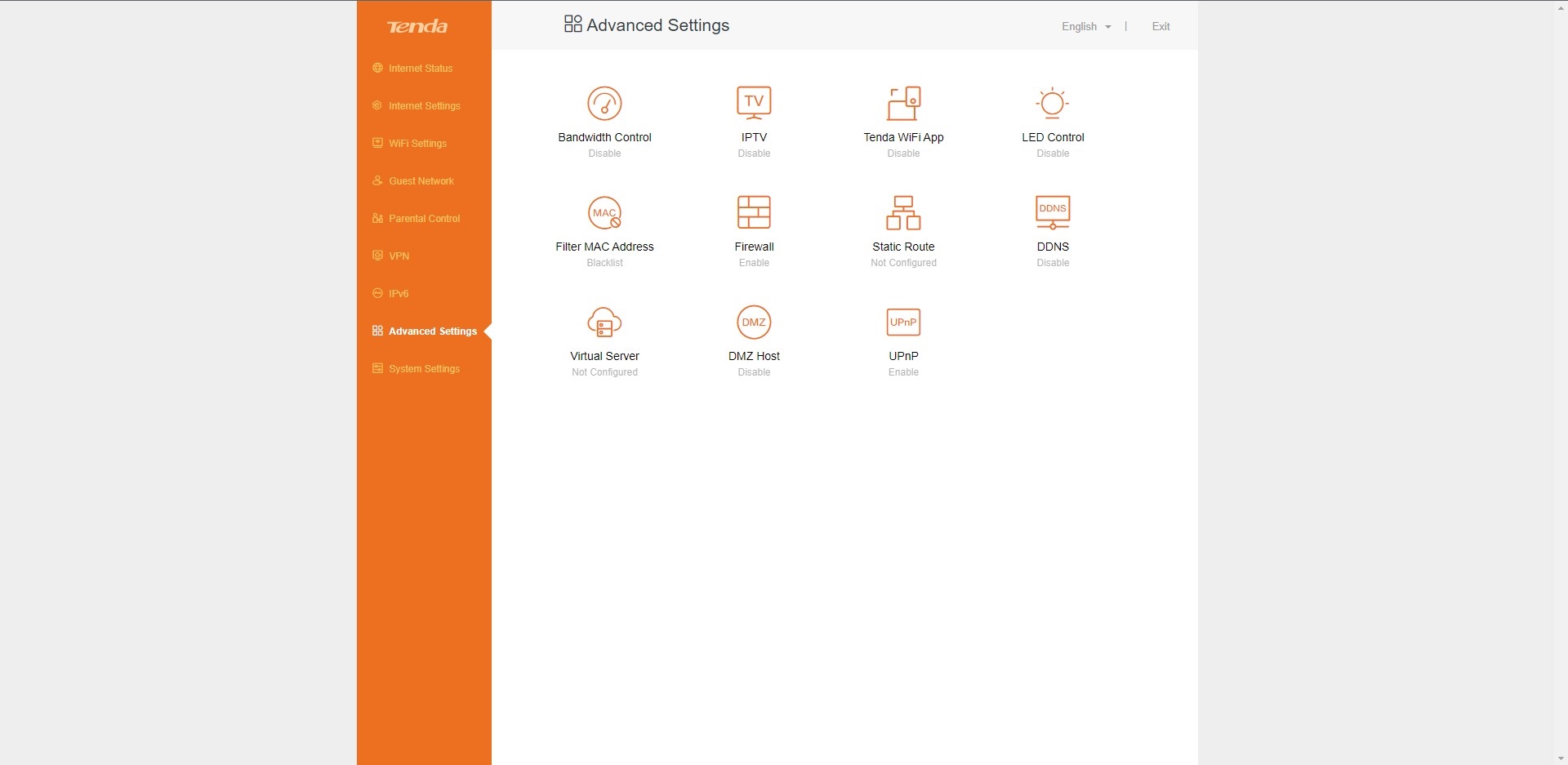
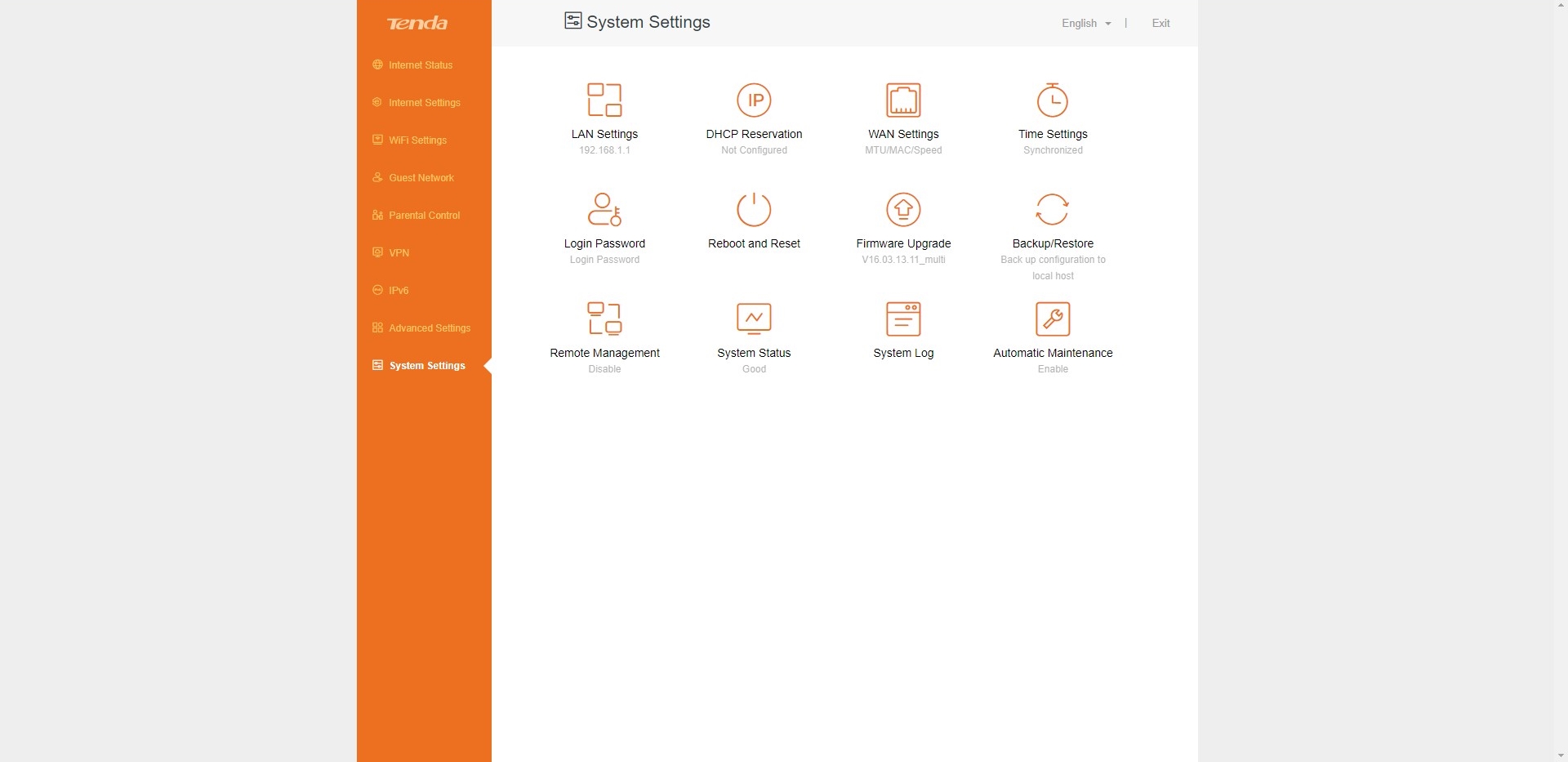
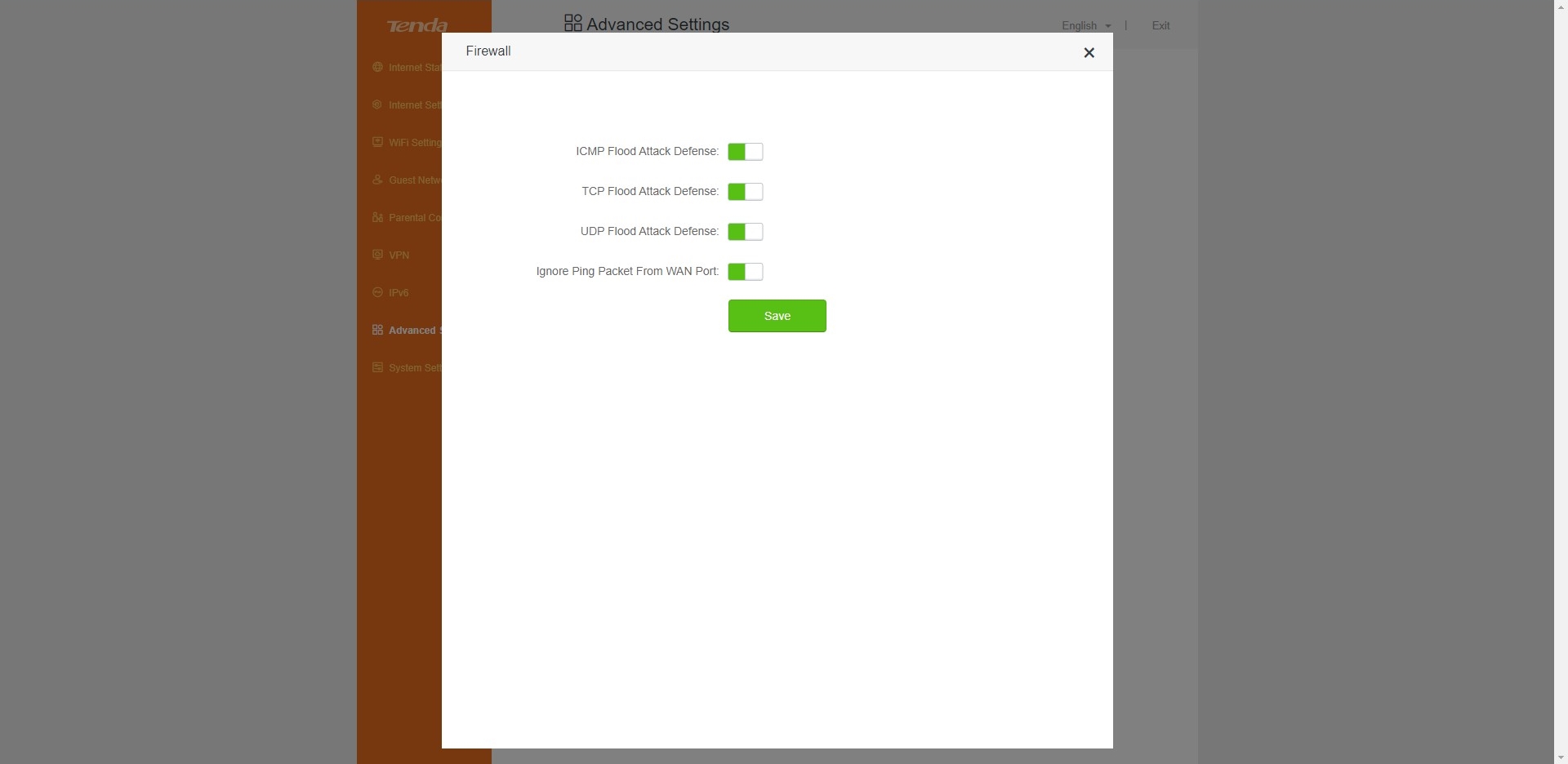
During testing, we didn’t observe any problems. Multiple devices were connected at the same – this includes smartphones, laptops, and desktop PCs. The Wi-Fi connection was stable even when the laptops were behind one or two brick walls – nice. So, yes, the Tenda RX3 AX1800 gets the job done in the right way.
Tenda mobile APP
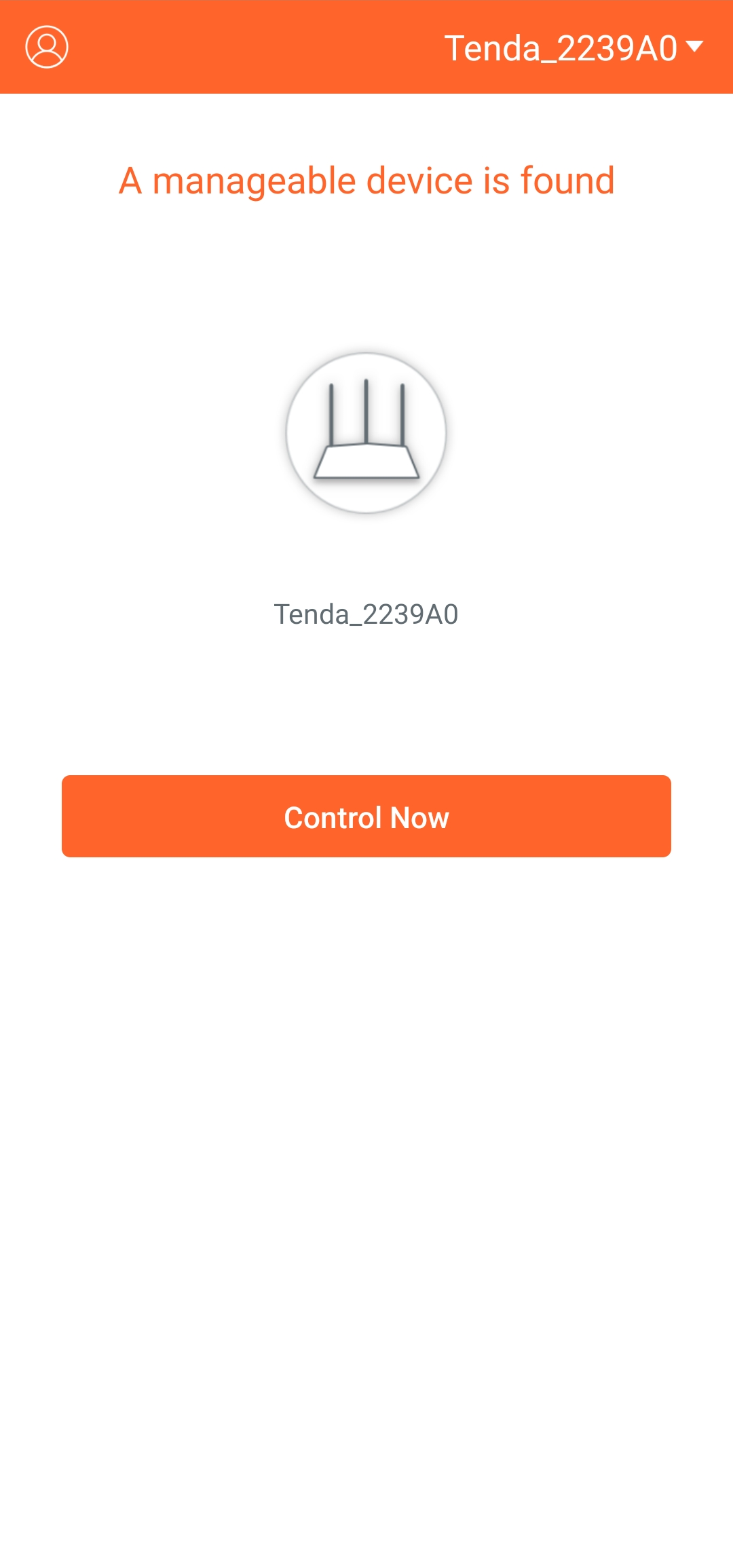
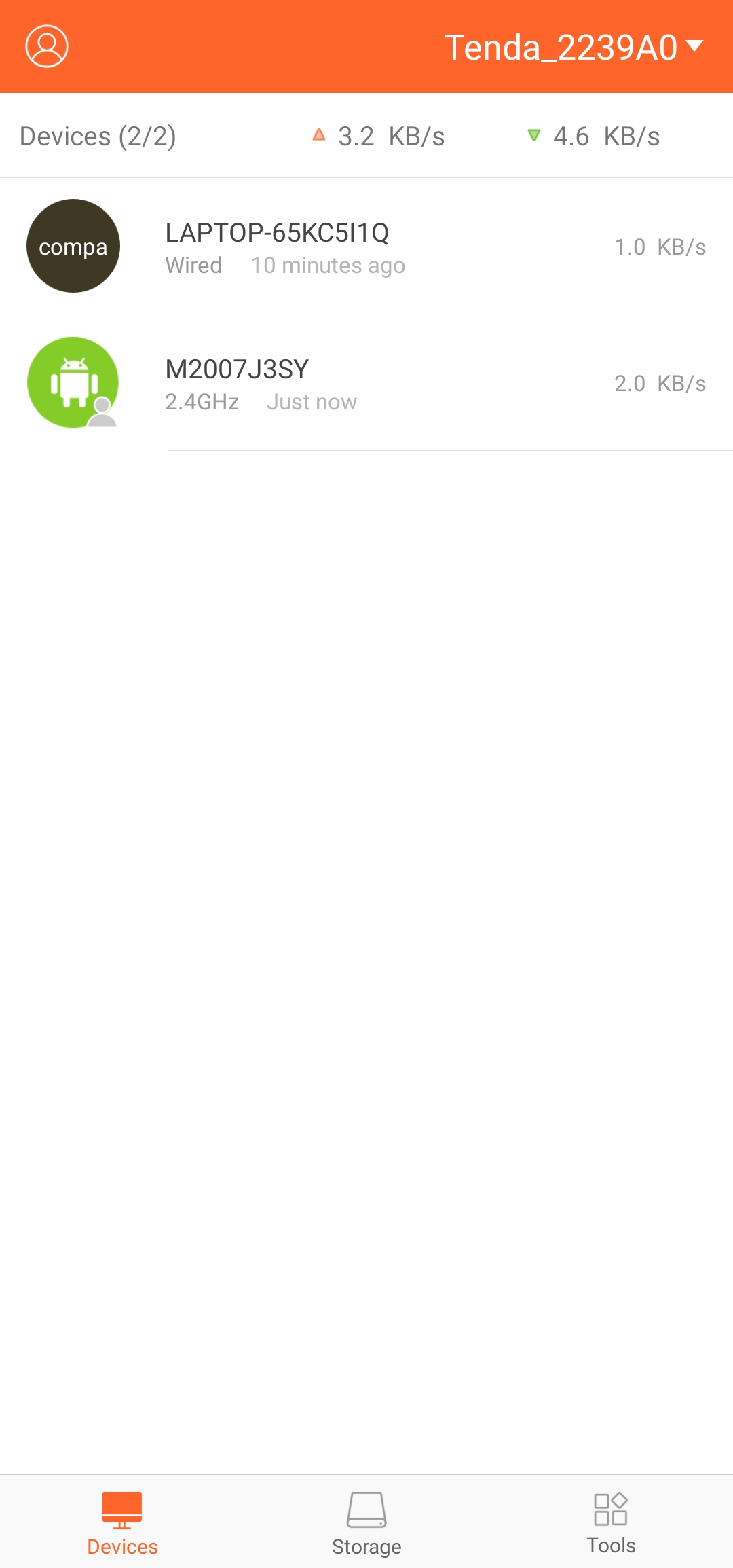
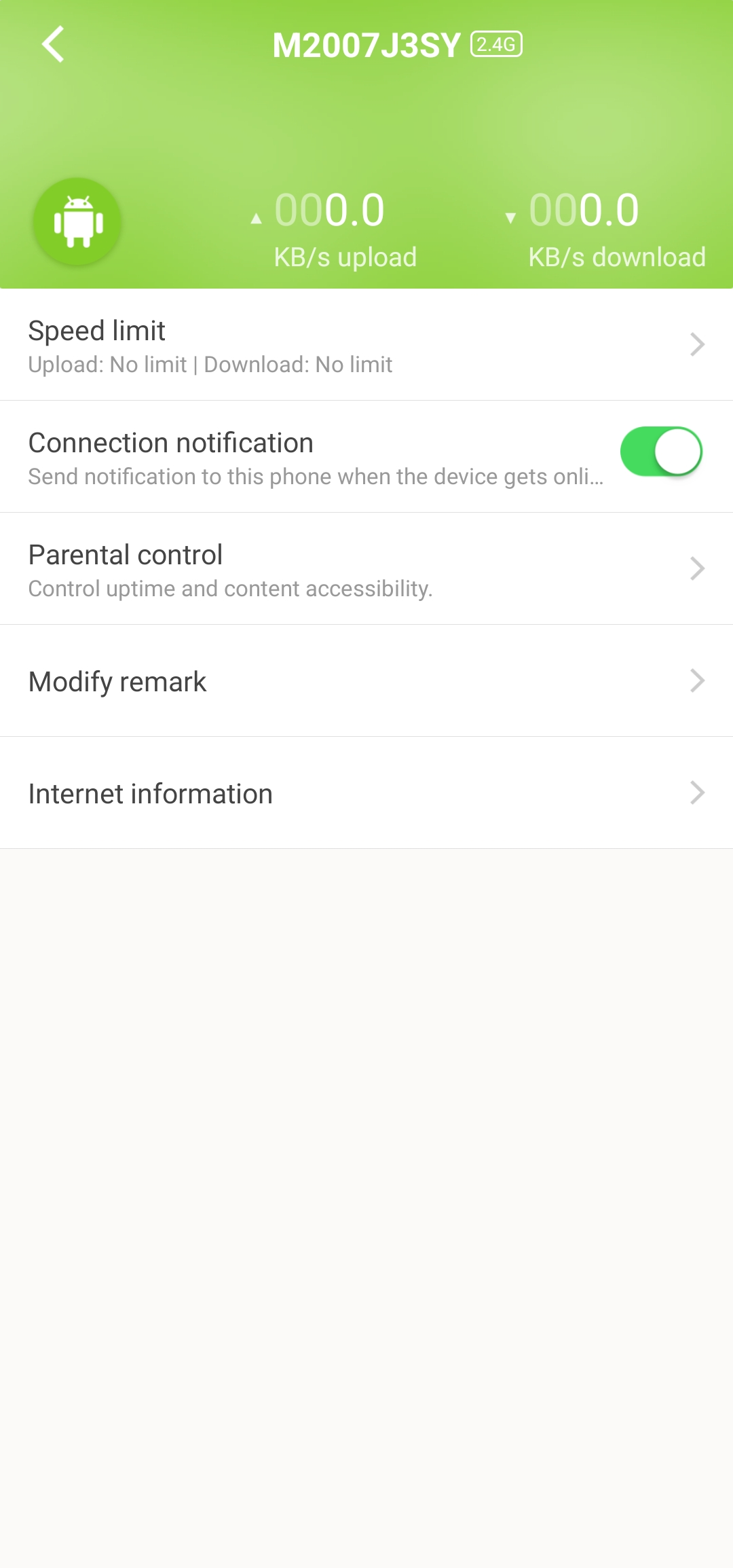
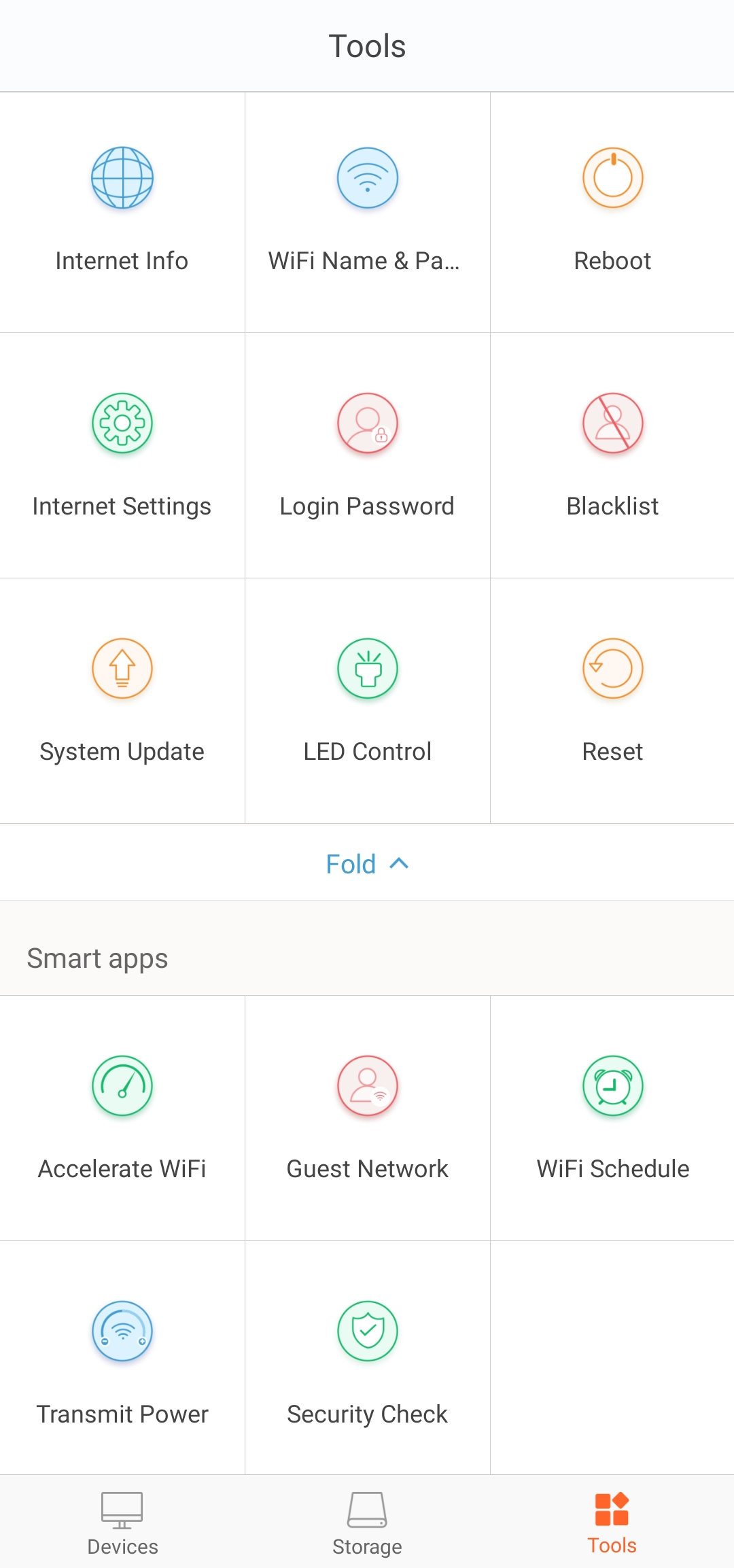
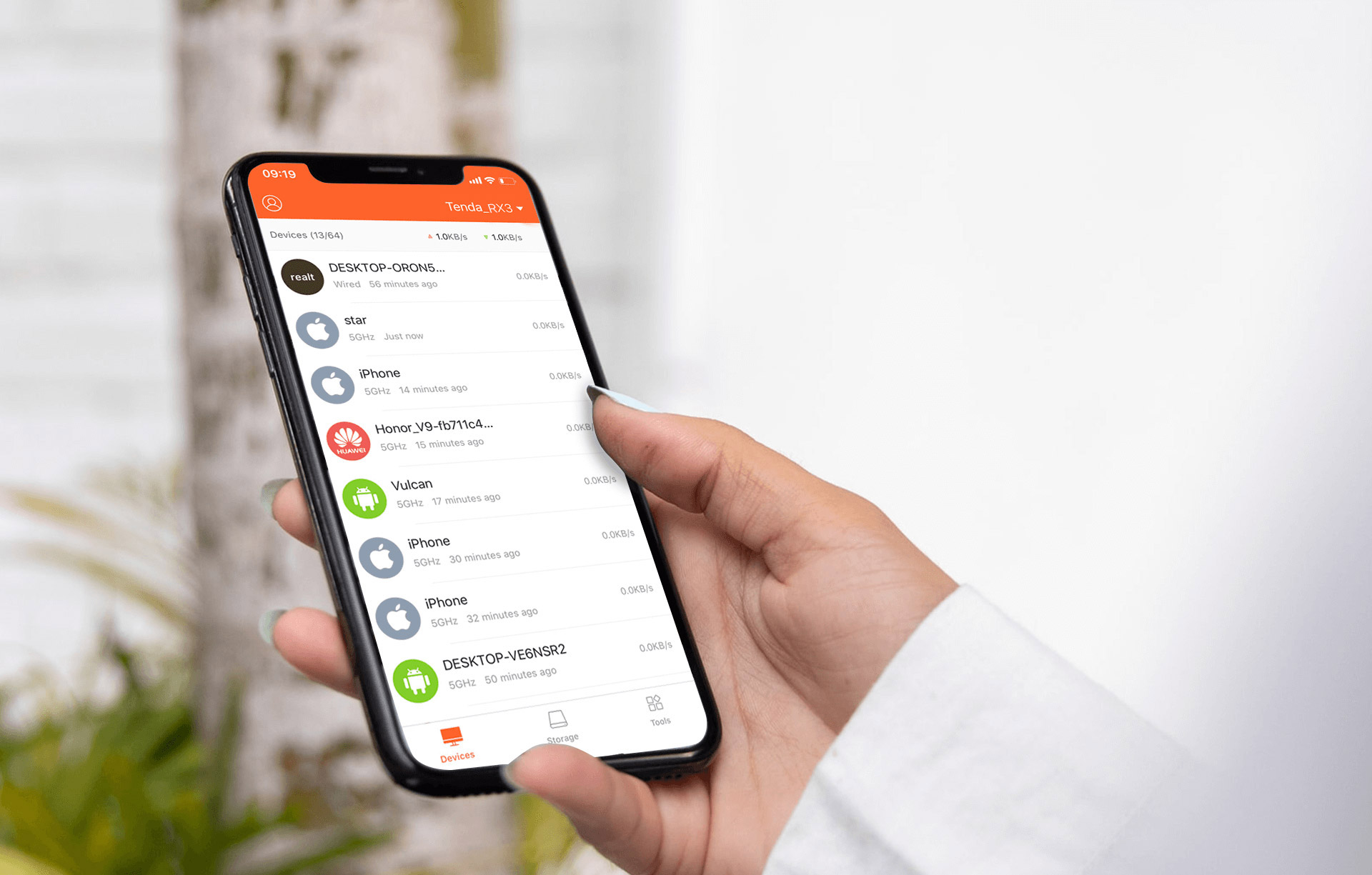
The Tenda mobile app is pretty straightforward to use and it’s providing you with some control on the go. You can monitor the connected devices and you have access to some features like “Reboot” – that’s great because you don’t have to be physically in your home for doing a simple thing like this. You can also turn off the LED light, you can reset the router, set up a Guest Network, and some other extras that are visible from the screenshots below.
Verdict
 The Tenda RX3 AX1800 is a good router that is meant for home usage. Its main pro is the price and the fact that it’s loaded with useful functions. The device looks modern, it’s light and in terms of dimensions it’s not the biggest one that we have seen. You can mount it on the wall with ease and it’ll not take additional space on your desk or somewhere else.
The package contains an AC adapter and a short LAN cable but that’s fine given the end price of this Tenda machine. Now, in terms of functions, this router offers a lot of bang for its money. The installation is easy and in a lot of cases, you can just set up a password for your network and you can leave all the other options on “Auto”. Still, if you know what your doing you can take advantage of functions like Wi-Fi Schedule so your kids will not look at their smartphone screens for the whole night because you can initiate a wireless network that is only available during the daytime.
The advanced users can set up the signal’s strength (for both 2.4Ghz and 5GHz networks) as well as the OFDMA function. The Guest network is a great tool for better privacy when you don’t want to give access to your main network to other people. Bandwidth control is another handy extra that can ensure that everyone can have access to a fast Internet connection simultaneously.
The Tends mobile app is a good companion on the go because you have access to a decent amount of controls when you are away from your home (ergo – router). You can reboot or reset the device remotely and you can monitor the network, the connected devices, you can do a system update, and set up a Guest network while taking the dog for a walk.
You can check the current price of Tenda RX3 AX1800 Dual Band Gigabit WiFi 6 Router here: Buy from Amazon.com (#CommissionsEarned)
Pros
- Pleasant price tag
- Has a Gigabit LAN port
- User-friendly installation
- Detailed manual
- The Web UI is rich in options
- Supports both 2.4 GHz and 5GHz bands
- Nice amount of security options
- Stable connection when multiple devices are connected at the same time
Cons
- Could have been a bit more compact
- The provided Ethernet cable is short
- Lacks a USB port
- Just three LAN ports
 Author: Nikolay Palaozov

![[August 2026] Best-Selling Laptop Brands on Amazon Japan – Apple Dominates Market Share and Revenue Led by Strong Unit Sales](https://laptopmedia.com/wp-content/uploads/2026/09/CO.JP-Best-Brands-1-400x225.jpg)
![[August 2026] Best-Selling Laptop Brands on Amazon USA – Apple Dominates Market Revenue and Volume Despite Lower Model Diversity](https://laptopmedia.com/wp-content/uploads/2026/09/COM-Best-Brands-1-400x225.jpg)
![[August 2026] Amazon Germany: Top 8 Best-Selling Gaming Laptops – Acer Dominates the Market as the Premium Nitro V 17 AI Takes the #1 Spot](https://laptopmedia.com/wp-content/uploads/2026/09/Best-Selling-Gaming-Laptops-DE-Top-10-1-400x225.jpg)
![[August 2026] Best-Selling Laptop Brands on Amazon France – Apple Dominates Revenue Despite Lenovo and HP Leading in Catalog Breadth and Volume](https://laptopmedia.com/wp-content/uploads/2026/09/FR-Best-Brands-1-400x225.jpg)
![[August 2026] Amazon Italy: Top 10 Best-Selling Laptops – Apple MacBook Neo Claims the Crown as Budget and Mid-Range Windows Machines Dominate Volume](https://laptopmedia.com/wp-content/uploads/2026/09/Best-Selling-Laptops-IT-Top-10-400x225.jpg)

Hola.
Es posible utilizar este equipo en modo bridge como simple punto de acceso? Es decir, conectarlo el router principal para que simplemente poporcione acceso Wi-Fi, sin que haga de router ni cree otra subred por debajo.
En la tabla de arriba se mencionan los modos de router, repetidor y WISP, pero no el de bridge/AP, y tampoco me queda claro viendo las capturas.
Gracias!