How to open Dell Latitude 14 5440 – disassembly and upgrade options
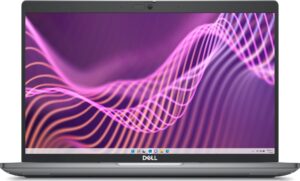
Step 1: Accessing the Internal Components
- Ensure the Dell Latitude 14 5440 is powered off and placed on a soft, clean surface to avoid damage.
- Undo the 8 captive Phillips-head screws securing the bottom panel. These screws remain attached to the panel, preventing loss.
- Lift the bottom panel near one of the hinges to create a gap, then use a thin plastic tool to pry the panel off, starting from the sides and front, finishing with the back.
Hint: Prying the back last helps to avoid damage to the clips and ports located there.
Step 2: Removing the Battery
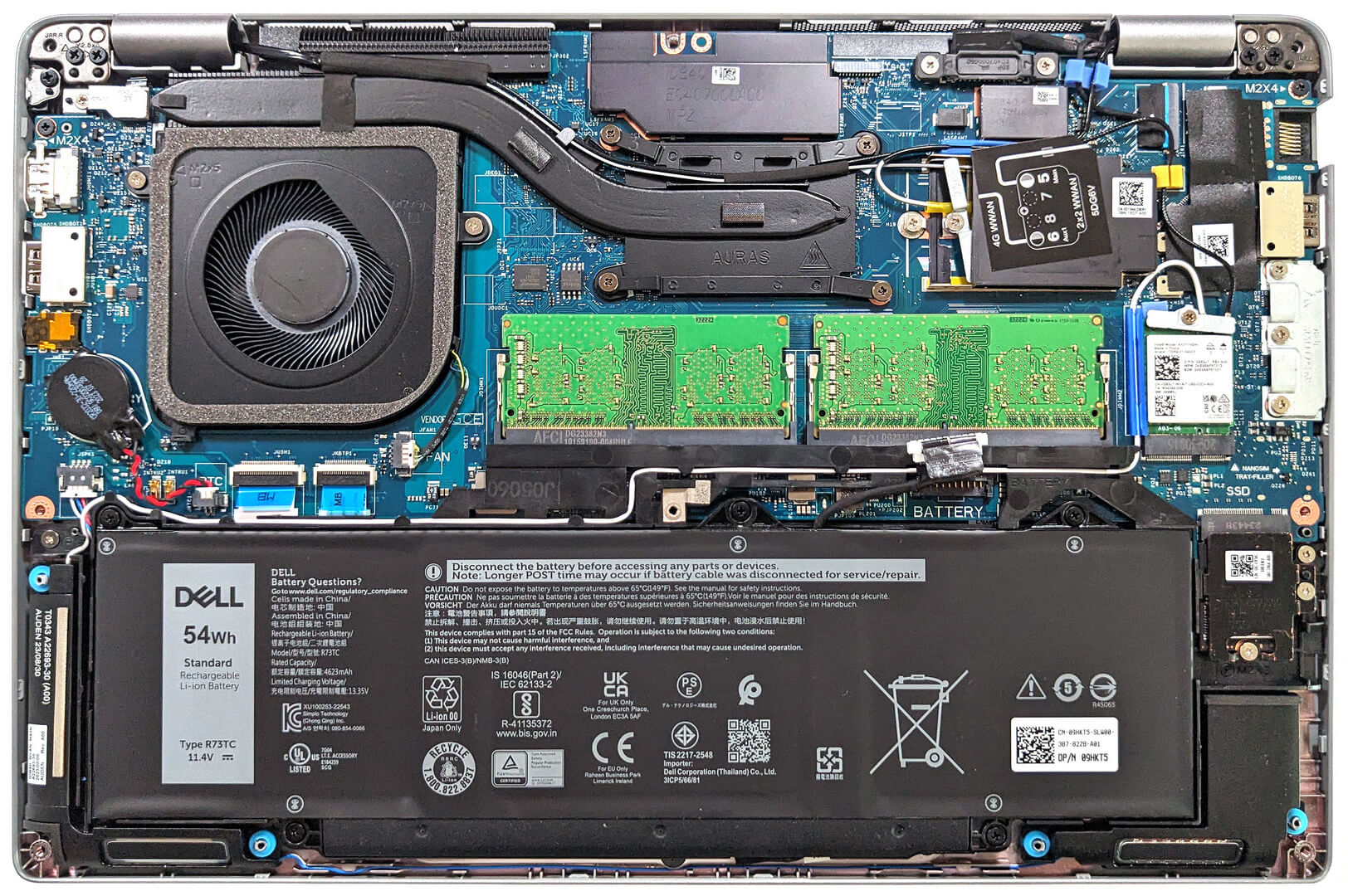
- Disconnect the battery by unplugging its connector from the motherboard.
- Remove the 5 Phillips-head screws holding the battery in place, then lift the 54Wh battery away from the laptop.
Caution: Handle the battery and its connector with care to avoid any damage.
More info: The optional 54Wh battery provides up to 14 hours and 17 minutes of web browsing, or 8 hours and 20 minutes of video playback, surpassing the base 42Wh model.
Memory Upgrades
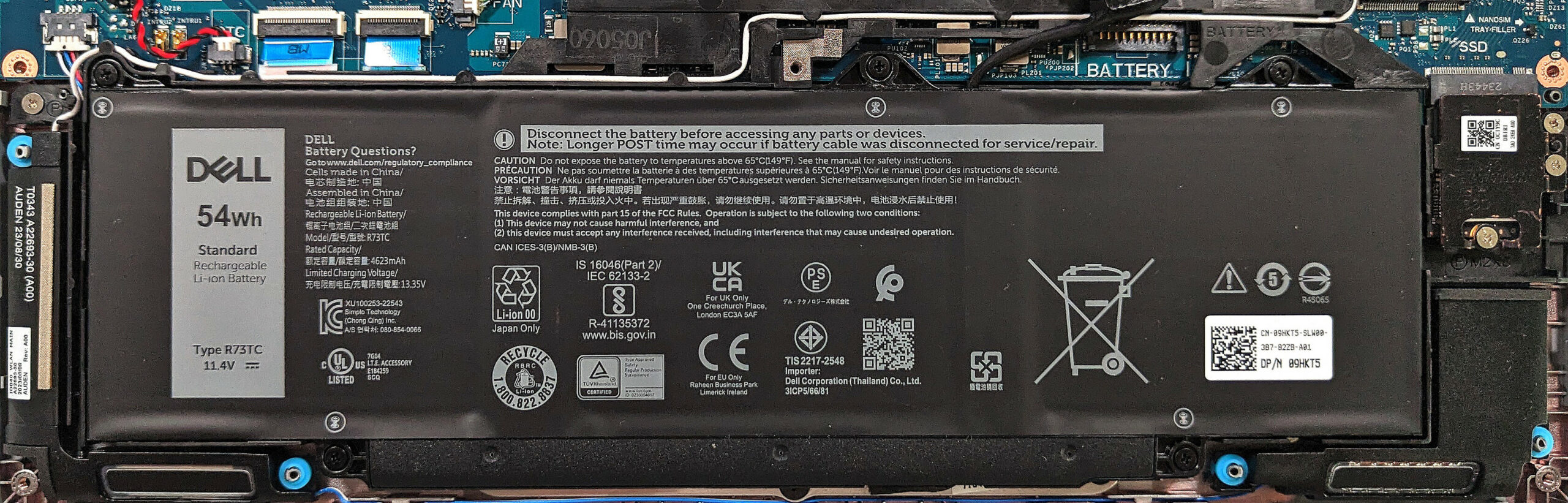
- Identify the two SODIMM slots available for memory upgrades.
- Depending on your model, the laptop supports up to 64GB of DDR4-3200MHz, or up to 96GB DDR5-4800MHz, or DDR5-5200MHz memory in dual-channel mode. Our model is equipped with DDR4 slots.
Hint: Confirm the RAM type before purchasing upgrades to ensure compatibility.
You can buy DDR4 RAM modules here: Buy from Amazon.com (#CommissionsEarned)
You can buy DDR5 RAM modules here: Buy from Amazon.com (#CommissionsEarned)

Storage Upgrades
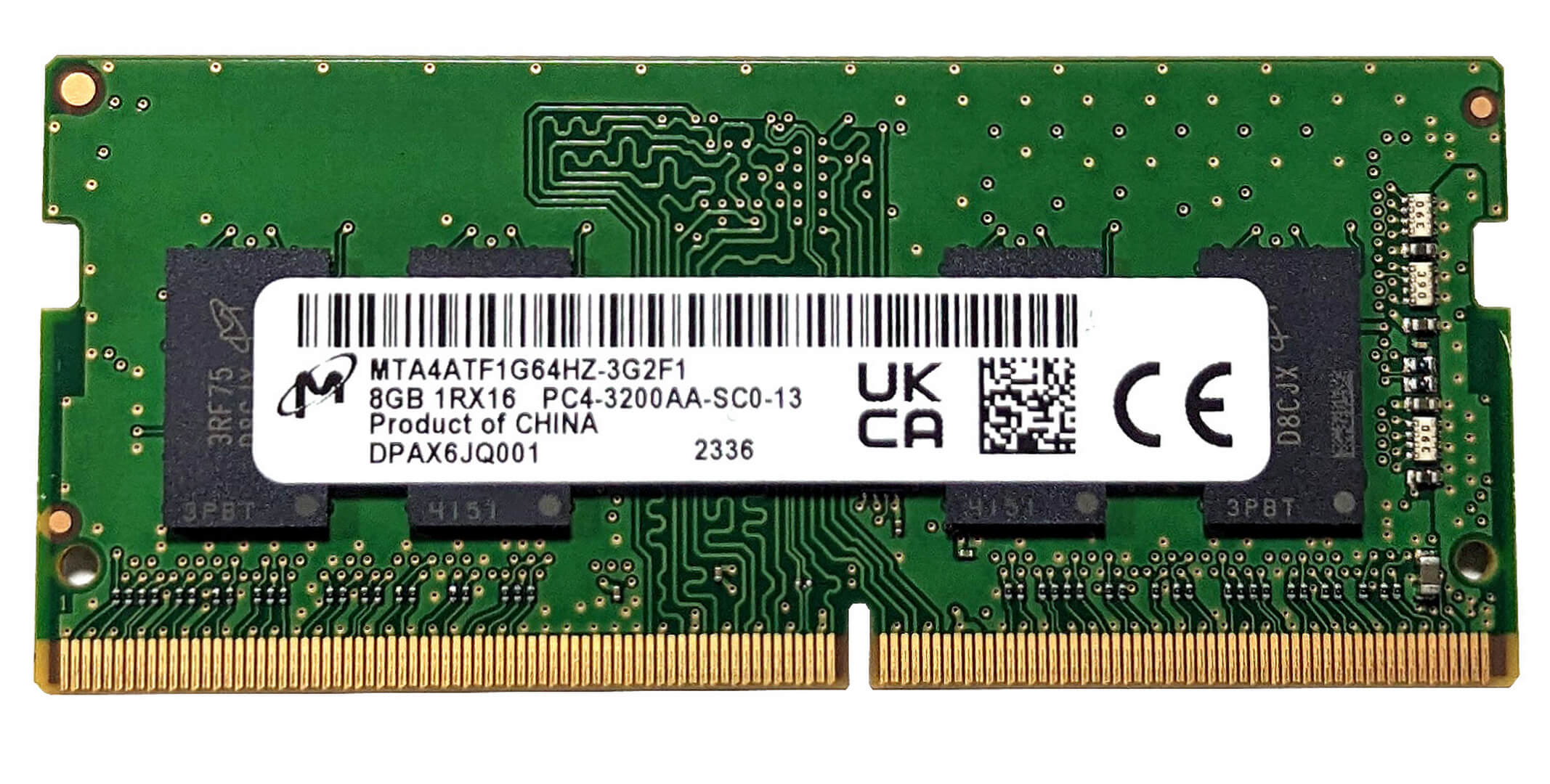
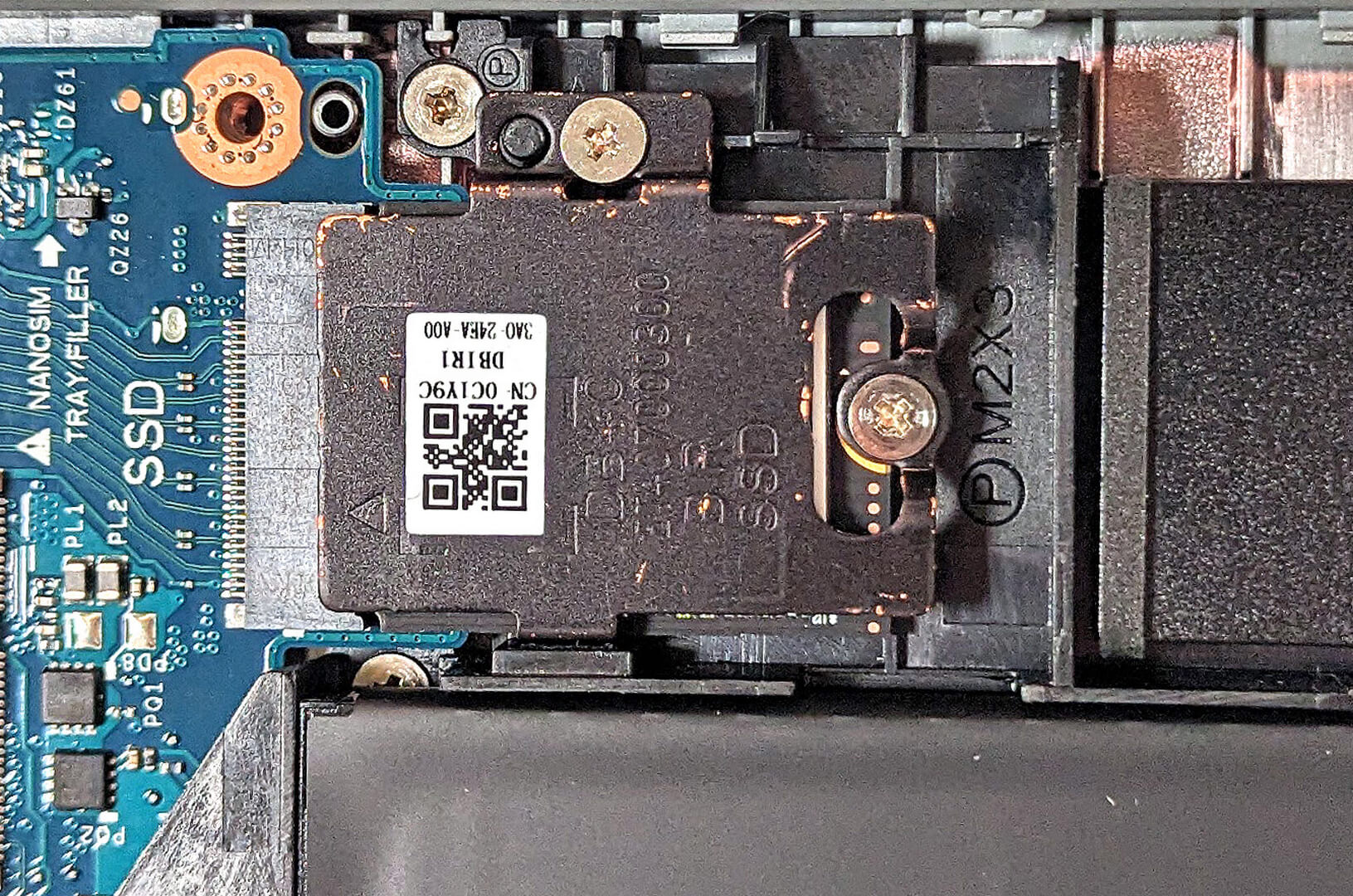
- Locate the single M.2 slot on the right side of the battery, which is compatible with 2230 Gen 4 SSDs.
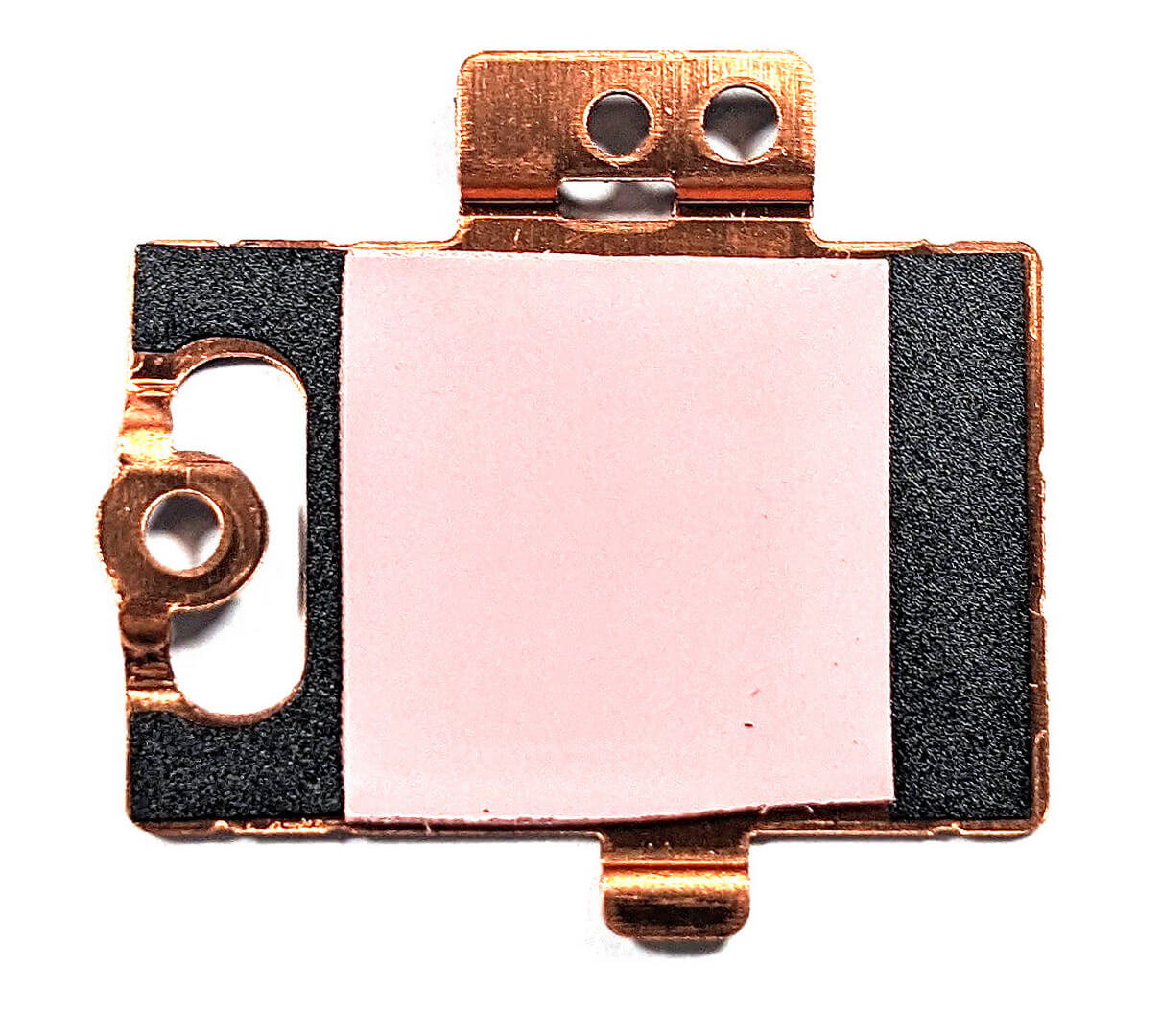
- When upgrading or replacing the NVMe SSD, ensure the metal shroud and its thermal pad are properly reattached for optimal cooling.
You can buy 2230 Gen 4 M.2 SSD modules here: Buy from Amazon.com (#CommissionsEarned)

Step 3: Examining the Cooling System
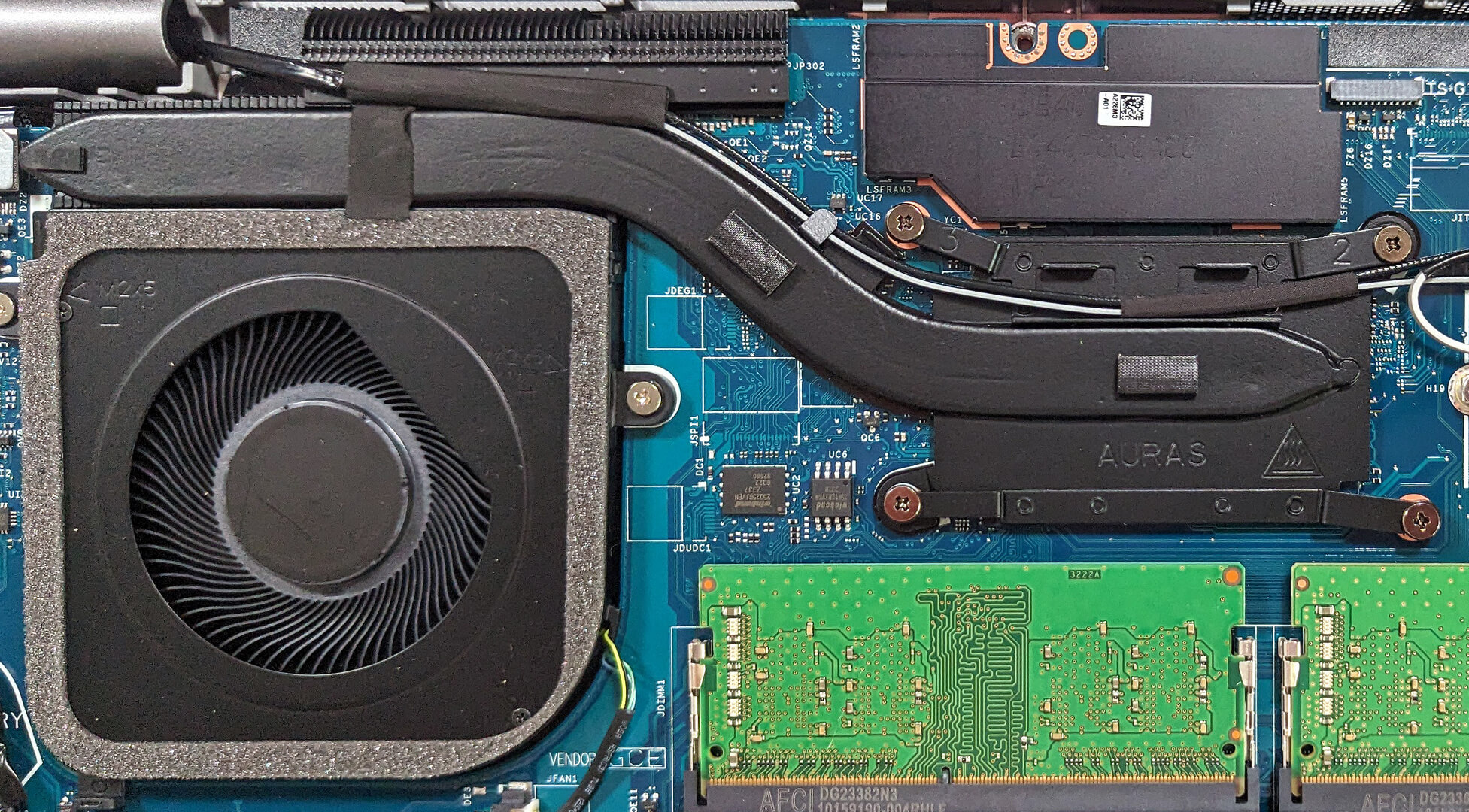
- Review the thermal system, which includes a decently sized fan, a heat sink, one heat pipe, and a heat spreader, designed to manage the laptop’s thermal output efficiently.
More info: This cooling setup ensures the Dell Latitude 14 5440 maintains optimal performance and thermal efficiency during use.
 Author: Anna Iorgova

![[August 2026] Best-Selling Laptop Brands on Amazon Japan – Apple Dominates Market Share and Revenue Led by Strong Unit Sales](https://laptopmedia.com/wp-content/uploads/2026/09/CO.JP-Best-Brands-1-400x225.jpg)
![[August 2026] Best-Selling Laptop Brands on Amazon USA – Apple Dominates Market Revenue and Volume Despite Lower Model Diversity](https://laptopmedia.com/wp-content/uploads/2026/09/COM-Best-Brands-1-400x225.jpg)
![[August 2026] Amazon Germany: Top 8 Best-Selling Gaming Laptops – Acer Dominates the Market as the Premium Nitro V 17 AI Takes the #1 Spot](https://laptopmedia.com/wp-content/uploads/2026/09/Best-Selling-Gaming-Laptops-DE-Top-10-1-400x225.jpg)
![[August 2026] Best-Selling Laptop Brands on Amazon France – Apple Dominates Revenue Despite Lenovo and HP Leading in Catalog Breadth and Volume](https://laptopmedia.com/wp-content/uploads/2026/09/FR-Best-Brands-1-400x225.jpg)
![[August 2026] Amazon Italy: Top 10 Best-Selling Laptops – Apple MacBook Neo Claims the Crown as Budget and Mid-Range Windows Machines Dominate Volume](https://laptopmedia.com/wp-content/uploads/2026/09/Best-Selling-Laptops-IT-Top-10-400x225.jpg)
