How to open ASUS ROG Strix G18 (G814, 2024) – disassembly and upgrade options
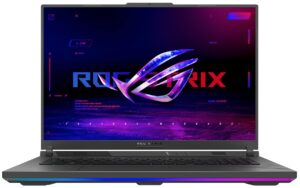
Opening the Device
Hint: Ensure the laptop is powered off and disconnected from any power source before starting.
- Undo the eleven captive Phillips-head screws on the bottom of the laptop.
- Lift the panel using the captive screw located in the bottom right corner.
- Begin prying the front panel from the lifted panel.
- Pop the plate above the LED strap carefully, avoiding the LED slash itself.
- Lift the front and the parts of the sides where the strap ends.
- Insert a thin plastic tool between the plate and the end of the LED slash to create a gap.
- Pry the sides and the back of the laptop to fully remove the back cover.
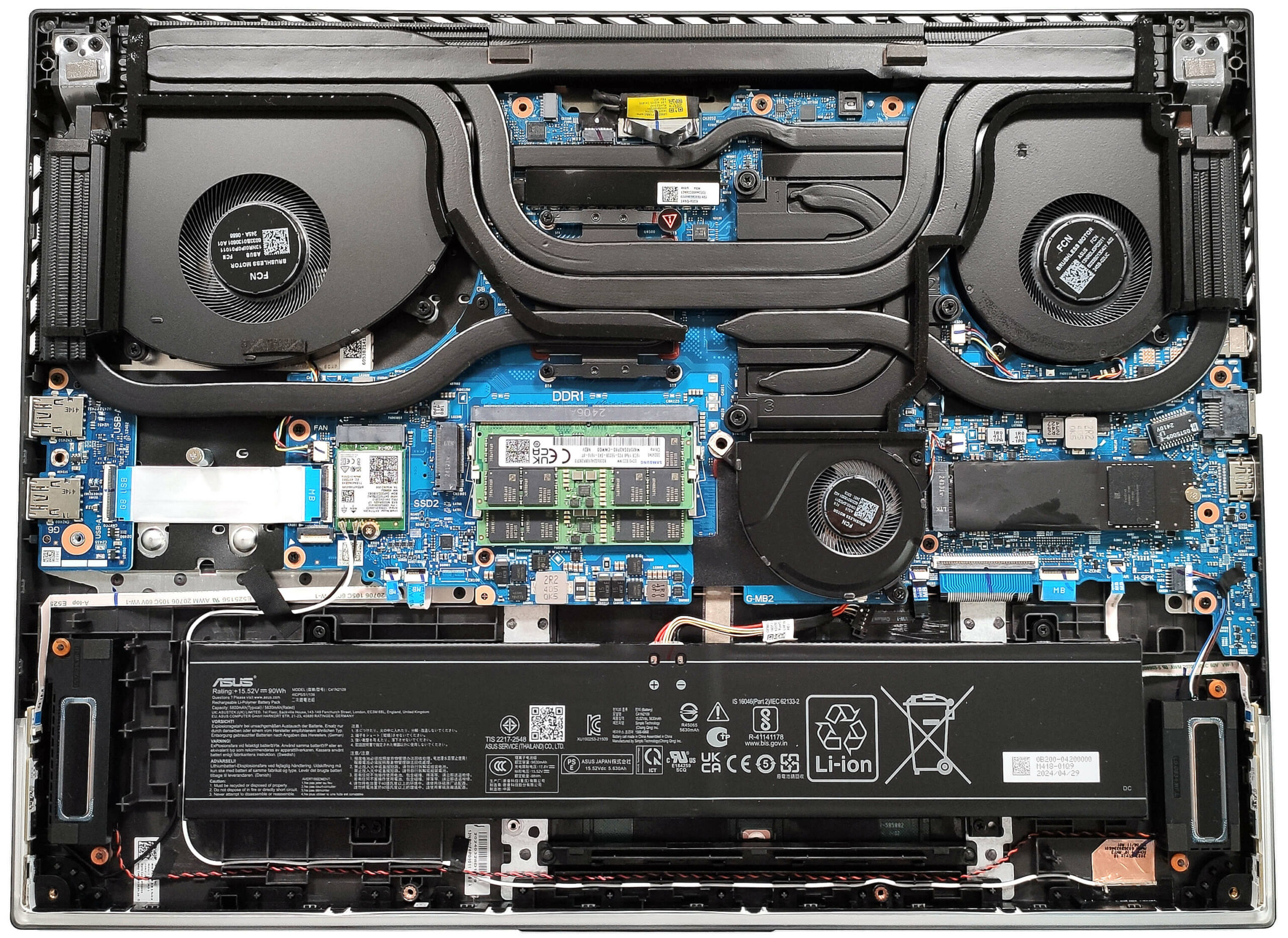
More info: The inside of the bottom plate houses numerous plastic elements to enhance internal structural support and dust filters for the fans and speakers.
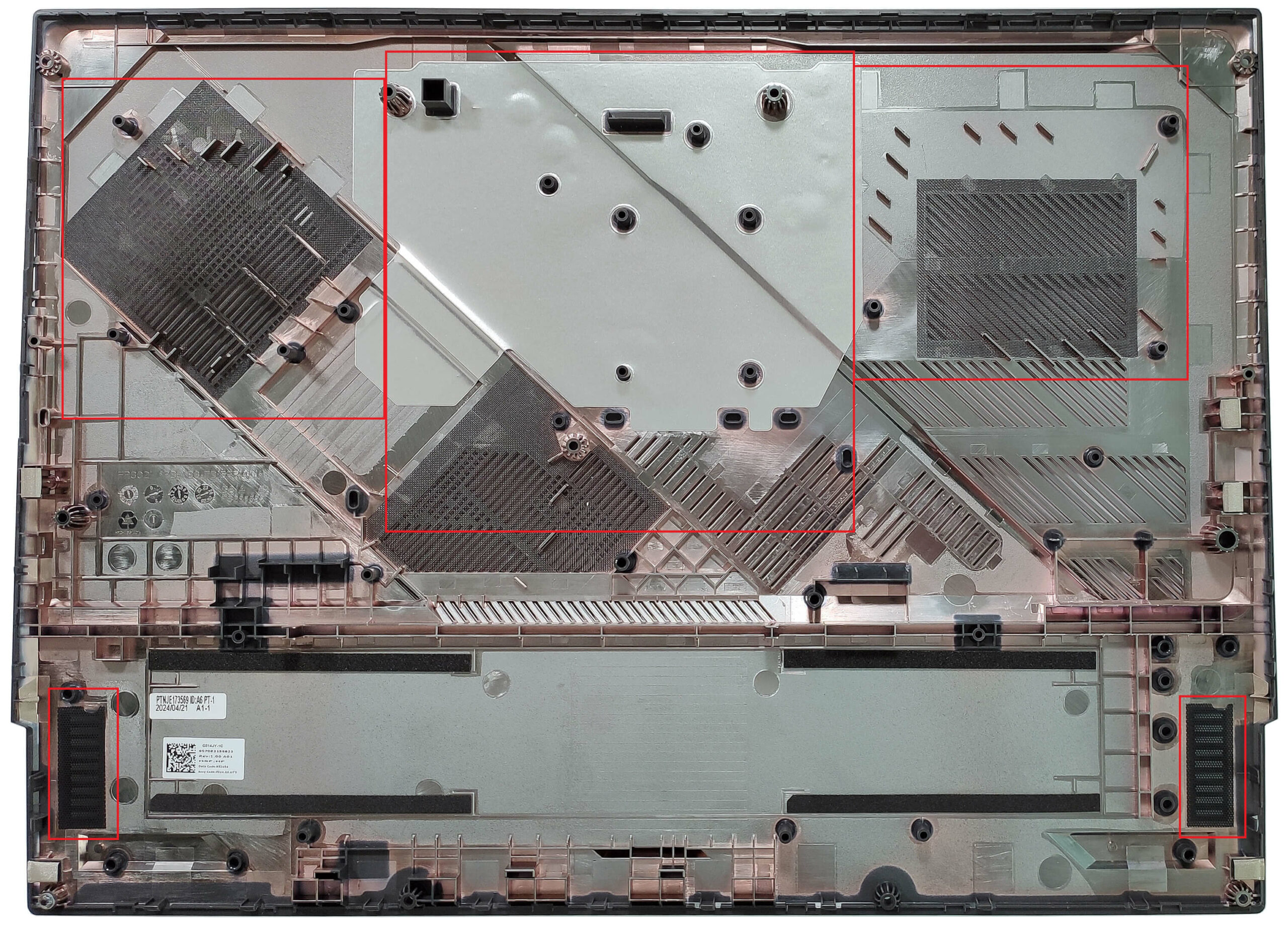
Battery Removal
Caution: Handle the battery with care to avoid damage or injury.
- Locate the 90Wh battery secured to the motherboard with four screws and undo them.
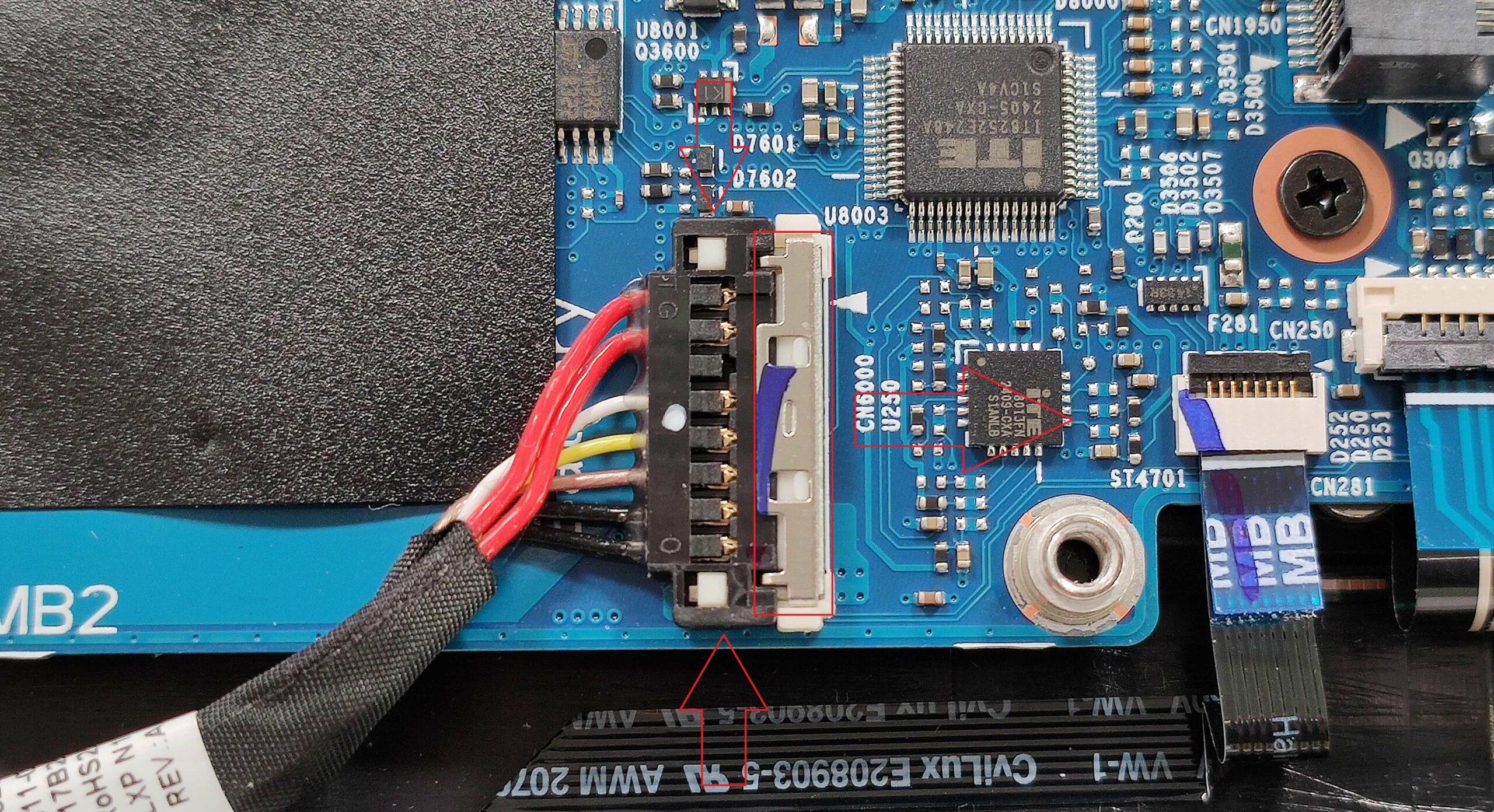
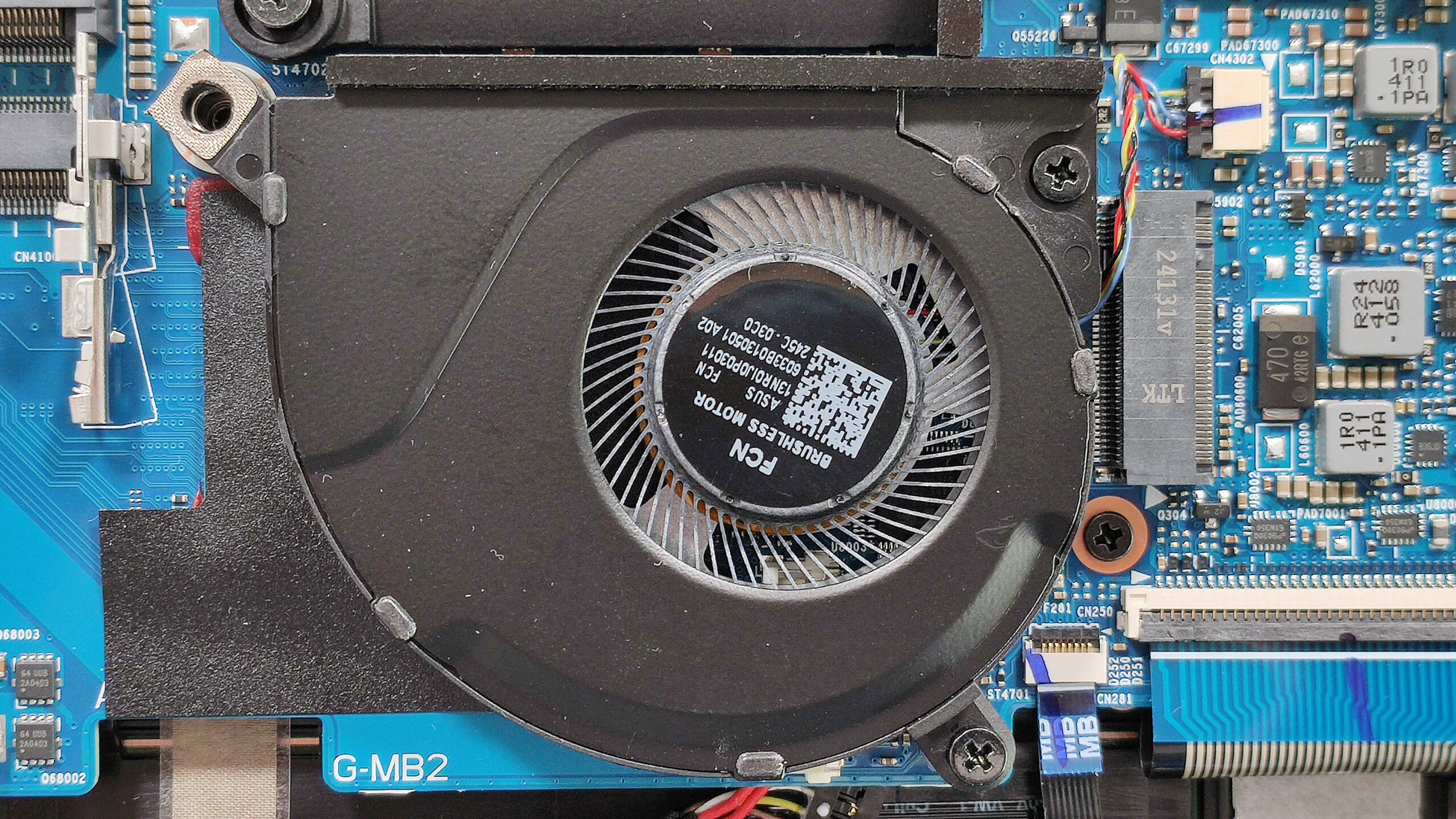
- Identify the connector hidden underneath the lower third fan, which is fixed to the base with two screws.
- Undo the two screws to access the battery connector.
- Slide the plastic shroud covering the battery connector to the right and raise it upwards to unplug it from the motherboard.
- Use a plastic tool to lift the connector on the sides carefully.
- Ensure that the bottom fan, which also cools the chipset, remains properly connected.
- Safely remove the battery from the laptop.
More info: The laptop is equipped with a 90Wh battery, providing around 8 hours of video playback.
You can buy compatible batteries here: Buy from Amazon.com (#CommissionsEarned)
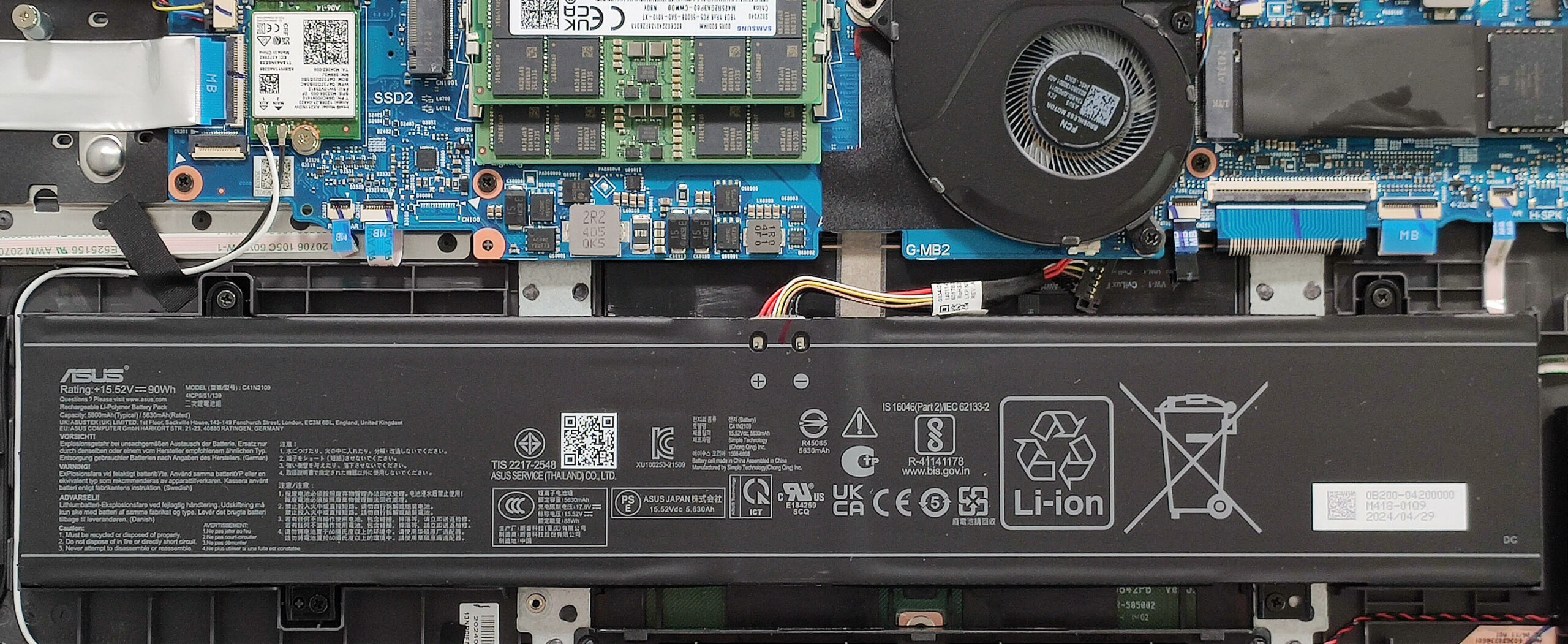
Memory and Storage Upgrade, and Wi-Fi Card Placement
Hint: Ensure you are grounded to prevent static discharge when handling memory modules.
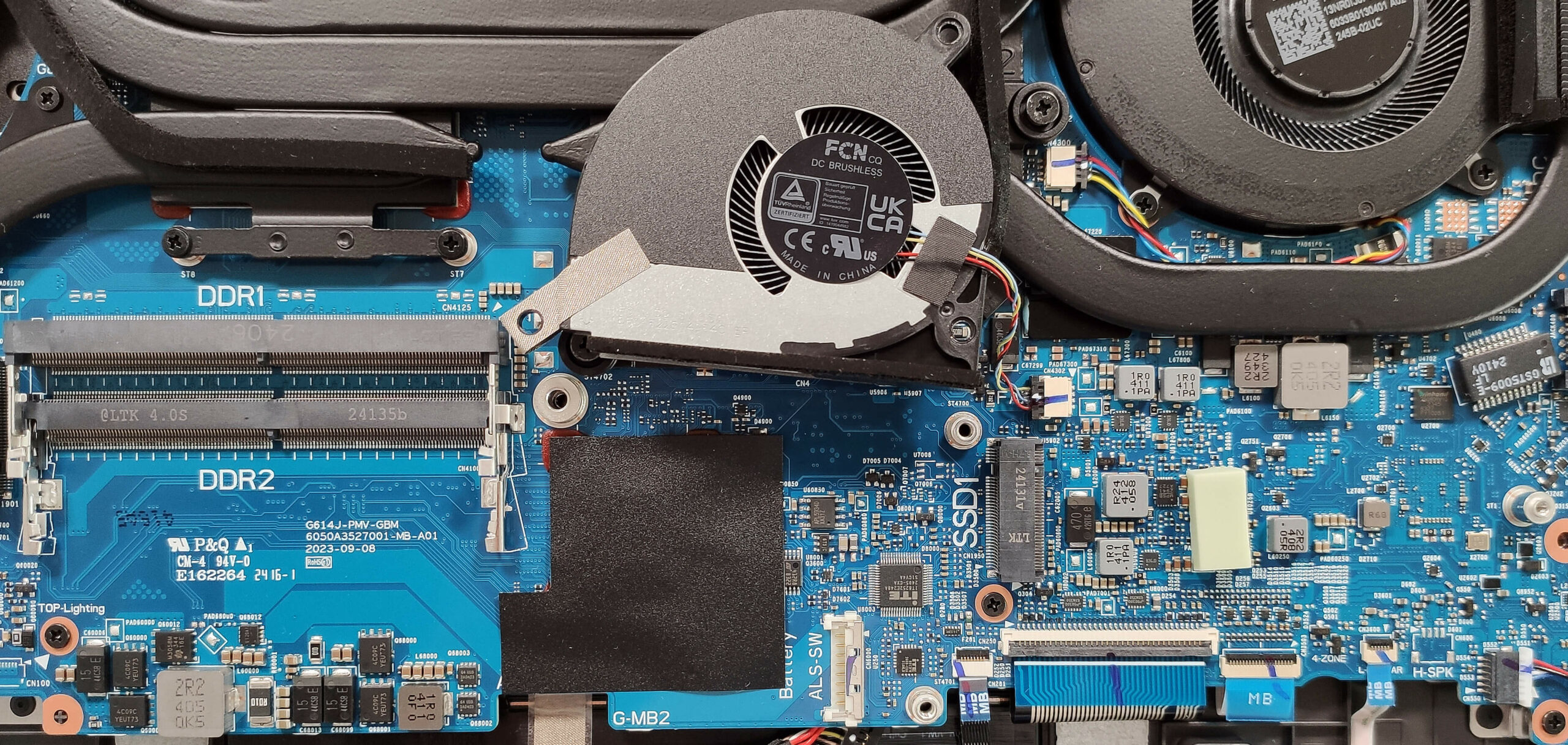
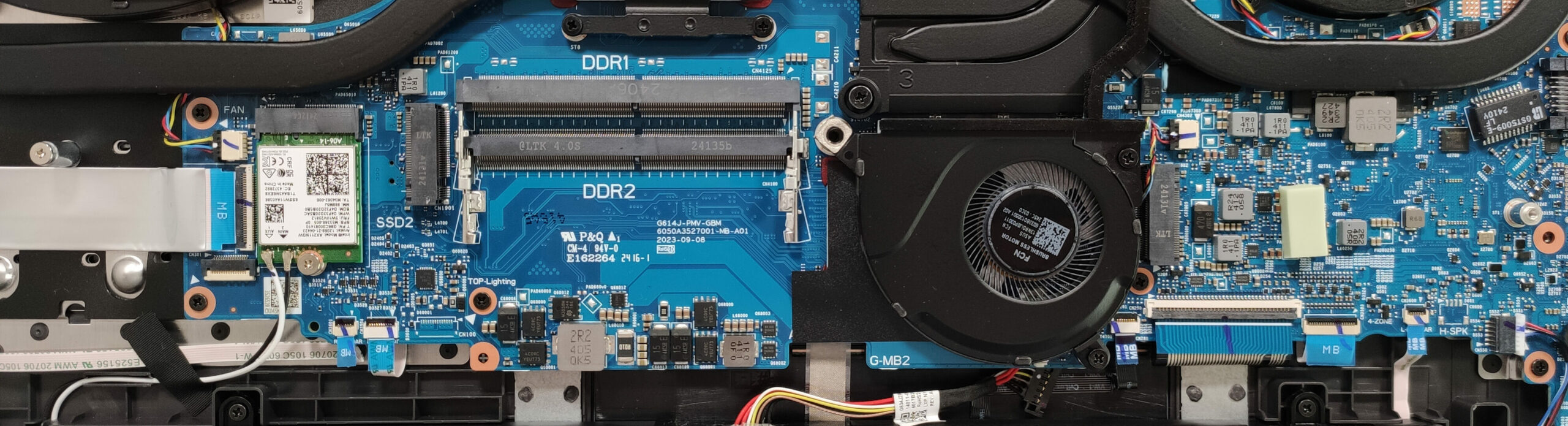
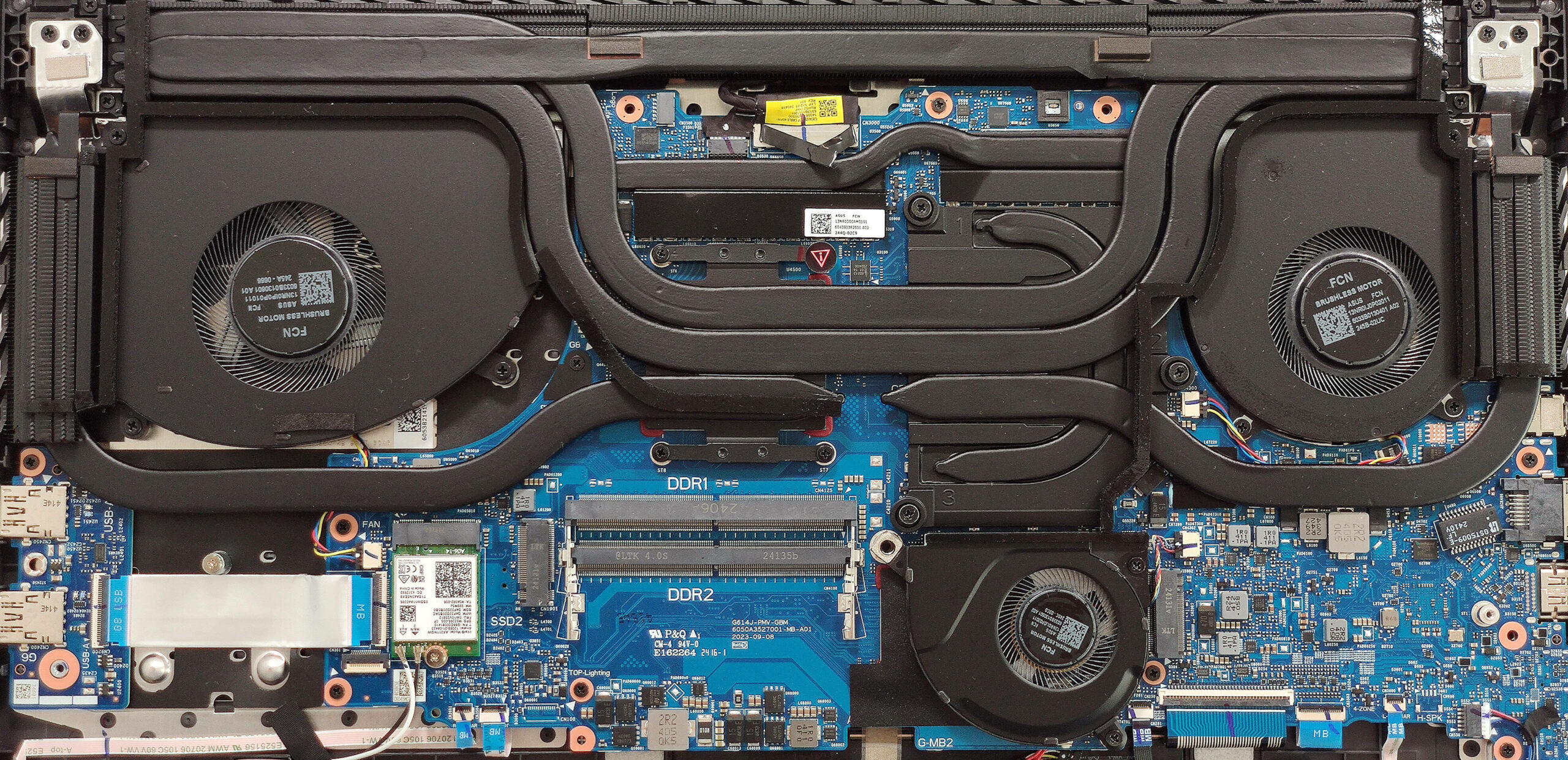
- Locate the RAM zone covered by a metal cap.
- Use a lever tool to pop open the metal cap.
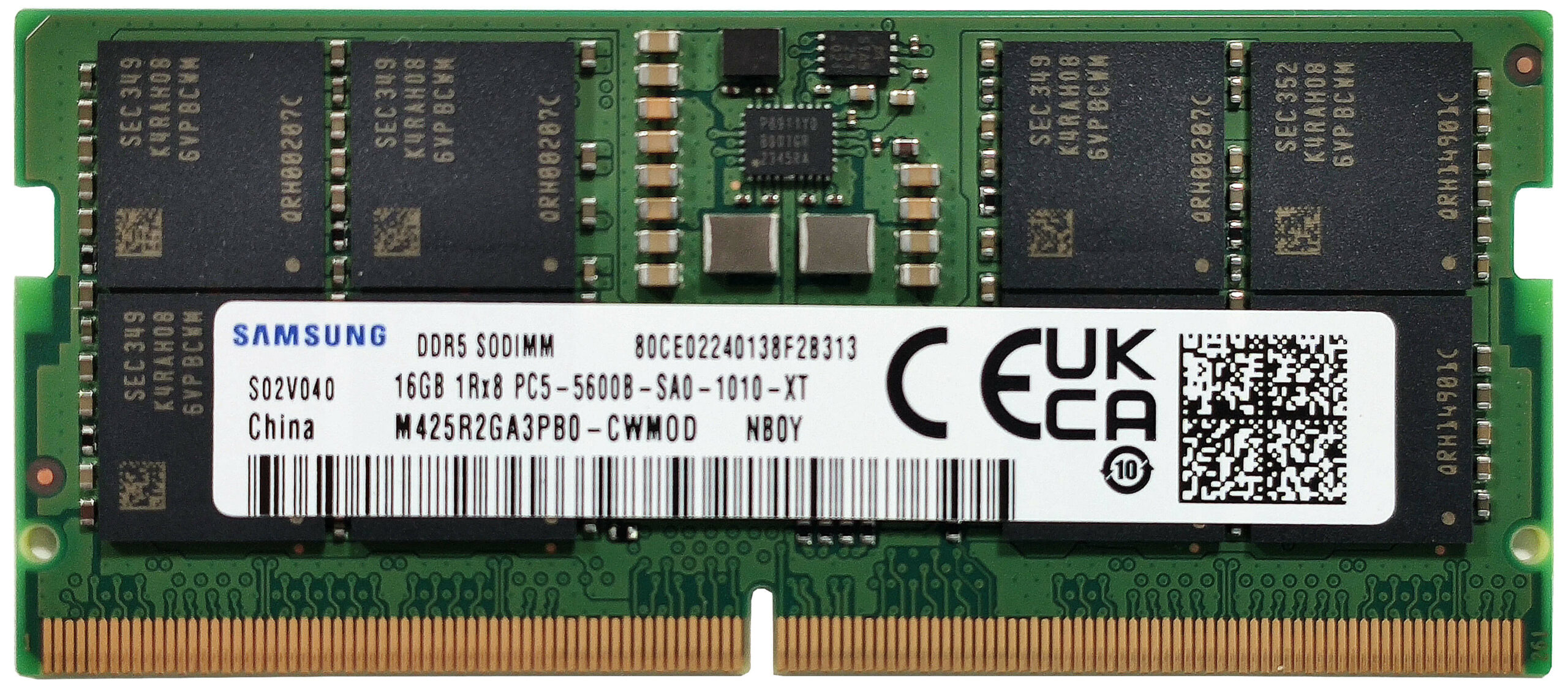
- Insert the new DDR5-5600MHz RAM modules into the SODIMM slots, ensuring they are seated properly.
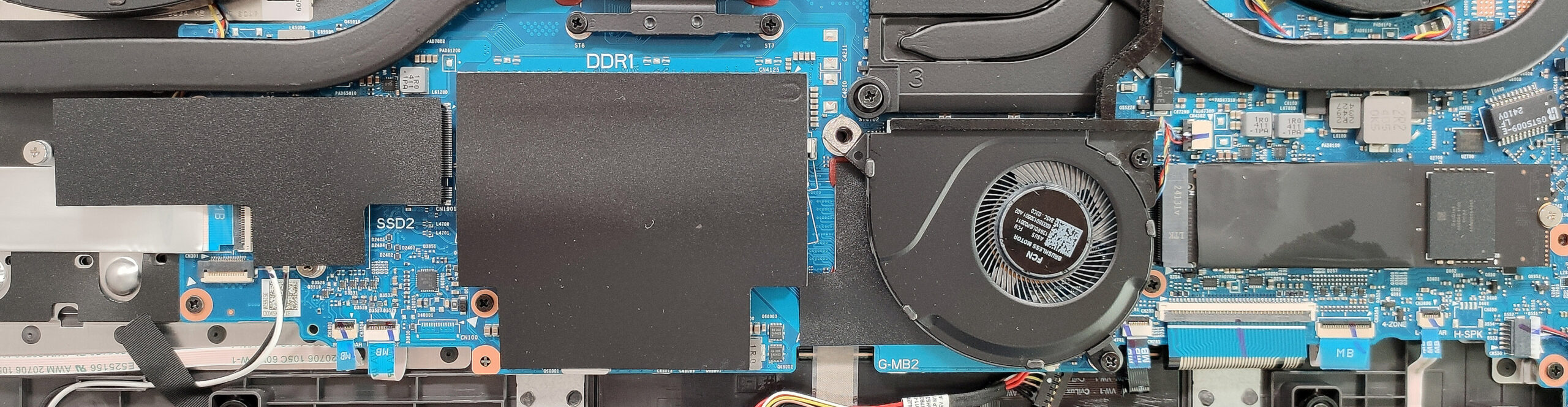
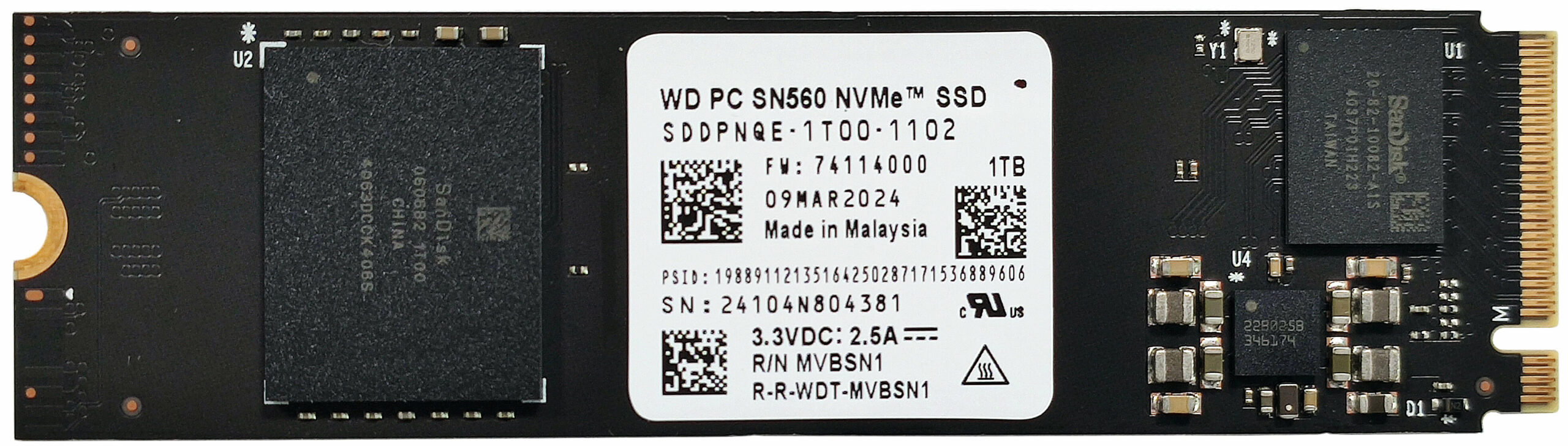
- Locate the two M.2 slots compatible with 2280 Gen 4 SSDs.
- Remove the heat shields covering the left SSD slot, the preinstalled NVMe SSD, and the RAM zone by unscrewing the securing screws.
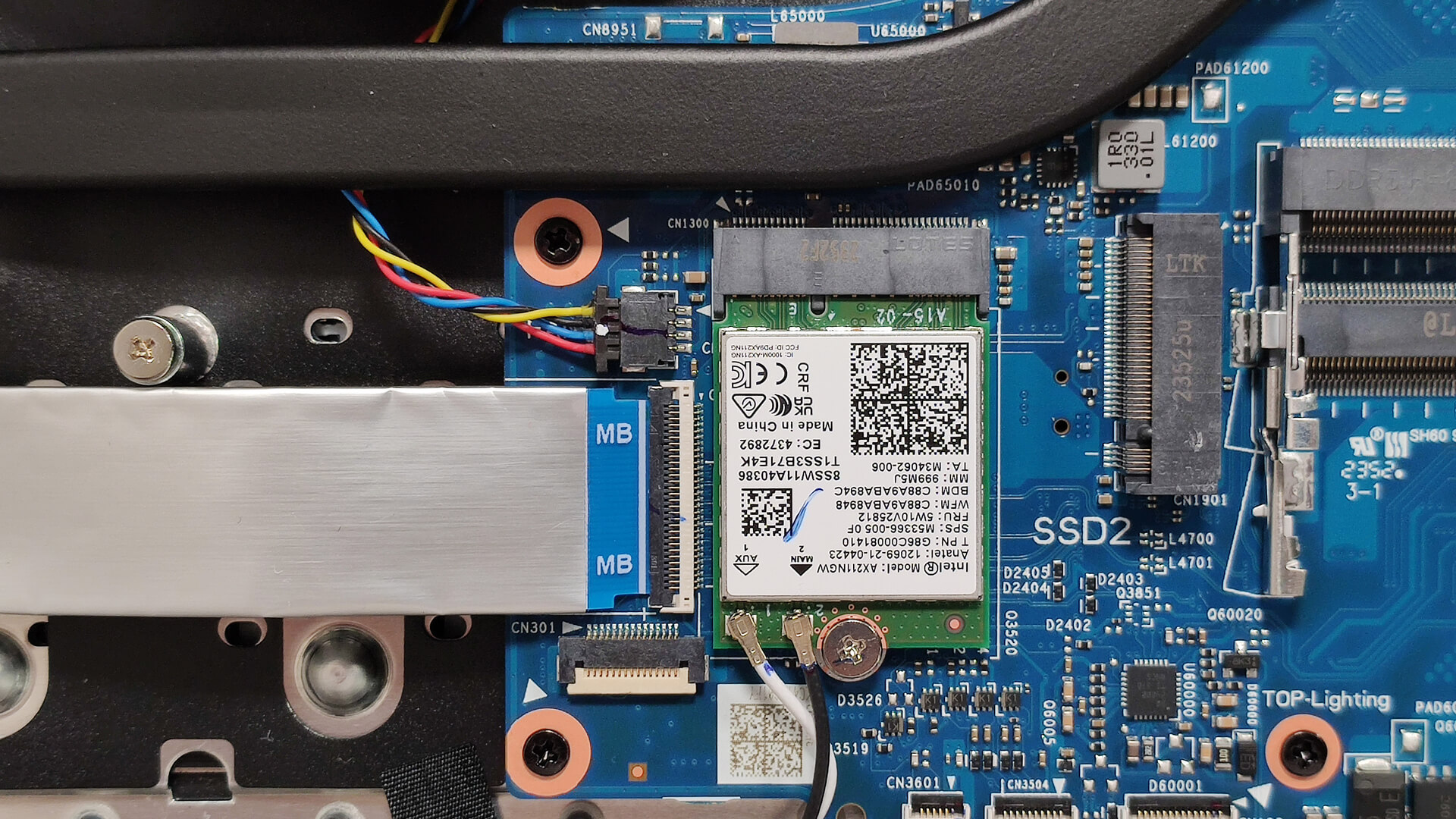
- If installing an SSD in the left slot, be cautious as it may cover the Wi-Fi card, potentially leading to connection issues.
- Insert the new Gen 4 M.2 SSD into the desired slot and secure it with the screws.
- The Wi-Fi card is positioned in front of the left NVMe slot
More info: The laptop supports up to 32GB of DDR5-5600MHz RAM in dual-channel mode. Although the CPU can support up to 192GB, it is recommended to adhere to the manufacturer’s specified limit. Unlike its premium G834 sibling, this device lacks thermal pads for the memory modules but includes a small thermal pad below the preinstalled SSD.
More info: The storage compartment includes heat shields to help manage SSD temperatures. RAID 0 is supported for enhanced storage performance.
Hint: Don’t forget to check out our Top M.2 SSDs Performance Rankings for insights on the best storage options available.
You can buy compatible RAM modules here: Buy from Amazon.com (#CommissionsEarned)
You can buy compatible SSDs here: Buy from Amazon.com (#CommissionsEarned)
Cooling System Overview
More info: The cooling system comprises three fans and four heat pipes shared between the CPU and the GPU. There is an additional long pipe for each chip. The U-shaped pipe cools the GPU’s voltage regulators and VRAM chips. Three large heat sinks are located on the top, with two more on the sides. A sizable metal plate is placed on top of the GPU, while the CPU relies on a smaller heat spreader. Liquid metal is applied to the CPU die only, whereas RTX 4080-based models also feature liquid metal on the GPU for enhanced thermal performance.
- Inspect the three fans to ensure they are free of dust and debris.
- Verify that all four heat pipes are securely connected to maintain optimal cooling performance.
- Check the U-shaped pipe for any signs of wear or damage.
- Ensure that the heat sinks on the top and sides are properly seated and not obstructed.
- Confirm that the metal plates and heat spreaders are securely in place.
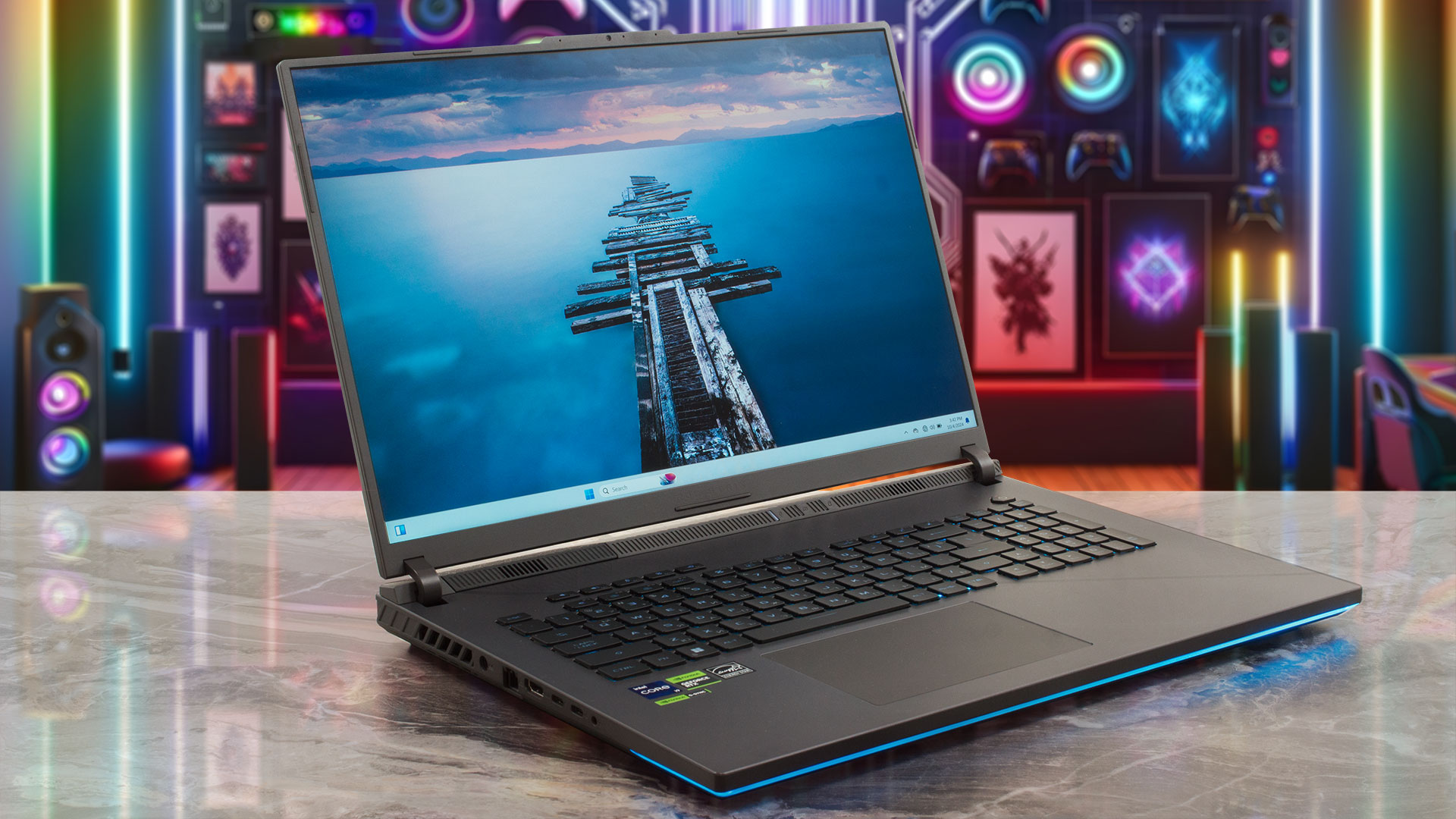
ASUS ROG Strix G18 (G814, 2024) in-depth review
The ROG Strix G18 G814 boasts similar hardware and cooling as the more expensive G834 model. Of course, the manufacturer has to cut corners here and there. That's why the G814 model isn't offered with a mini LED display and the most powerful GPU option here is the RTX 4080. "Big deal", if you ask us. The RTX 4080 performance isn't too far behind the RTX 4090 levels, especially if you undervolt and overclock the chip. The CPU is the same 32-thread Core i9-14900HX. The 3-fan cooling with seven heat pipes and five heatsinks seems identical to the one in the G834 version. Only the top-tier models [...]
Pros
- 2x SODIMMs + 2x 2280 Gen 4 slots
- Very good overall performance
- High CPU clocks and power limits during heavy stress in "Turbo" mode (3.37 GHz P-core clock + 135W)
- Capable "Performance" preset that offers lower fan noise and the 2.8 GHz P-core clock + 120W GPU TGP for the RTX 4070
- G-Sync + MUX Switch + NVIDIA Advanced Optimus
- Rich port selection
- Full sRGB and 99% DCI-P3 coverage + accurate color with our "Design and Gaming" profile (BOE0G64)
- 240Hz refresh rate and 1600p resolution (BOE0G64)
- High max brightness of 524 nits (BOE0G64)
- The Armoury crate app offers tons of customization options
- Comfortable and quiet RGB backlit keyboard + accurate glass touchpad
- Good battery life considering the thirsty hardware and the high-res panel (~8 hours of videos)
- The fans aren't that noisy even in "Turbo mode"
- Stable metal lid
- Capable 3-fan cooling
- Solid chassis
Cons
- Hefty (23.1 - 30.8 mm / 3.00 kg)
- High SSD temperatures during benchmarking
- Lacks goodies such as Wi-Fi 7, Gen 5 SSD slot, cooling pad for the memory, and bigger pads for the SSDs
- The battery connector is placed below the lower fan
- Plastic base
- The Wi-Fi card is positioned in front of the left SSD slot which is unlogical
 Author: Dimitar Stalev

![[June 2026] Best-Selling Laptop Brands on Amazon Global – Apple’s Unrivaled Dominance in Units and Revenue](https://laptopmedia.com/wp-content/uploads/2026/07/GLOBAL-Best-Brands-400x225.jpg)
![[June 2026] Amazon Global: Top 10 Best-Selling Laptops – Apple’s New MacBook Neo Storms to #1, Reshaping the Market with Affordability](https://laptopmedia.com/wp-content/uploads/2026/07/Best-Selling-Laptops-GLOBAL-Top-10-400x225.jpg)
![[June 2026] Amazon Global: Top 10 Best-Selling Gaming Laptops – Acer’s Nitro V 16S AI Dominates Sales, While ASUS Leads Overall Revenue](https://laptopmedia.com/wp-content/uploads/2026/07/Best-Selling-Gaming-Laptops-GLOBAL-Top-10-400x225.jpg)
![[June 2026] Global Ranking of Best-Selling Laptop GPUs on Amazon – NVIDIA RTX 5060 is the Top-Selling Dedicated GPU](https://laptopmedia.com/wp-content/uploads/2026/07/Best-Selling-GPUs-GLOBAL-Top-10-400x225.jpg)
![[June 2026] Global Ranking of Best-Selling Laptop CPUs on Amazon – Apple M5 Dominates, AMD Ryzen 7 260 Gets Solid Premium Share](https://laptopmedia.com/wp-content/uploads/2026/07/Best-Selling-CPUs-GLOBAL-Top-10-400x225.jpg)