How to open Dell Vostro 16 5640 – disassembly and upgrade options

Opening the Device
Hint: Ensure the laptop is powered off and disconnected from any power source before starting.
- Undo the eight Phillips-head screws on the bottom panel of the laptop. Note that the two screws in the top corners are captive and will lift up the bottom panel once unscrewed.
- Pop the zones behind the hinges using a lever tool.
- Fully pry the back using a thin plastic tool.
- Pop the sides and the front to completely remove the bottom panel.
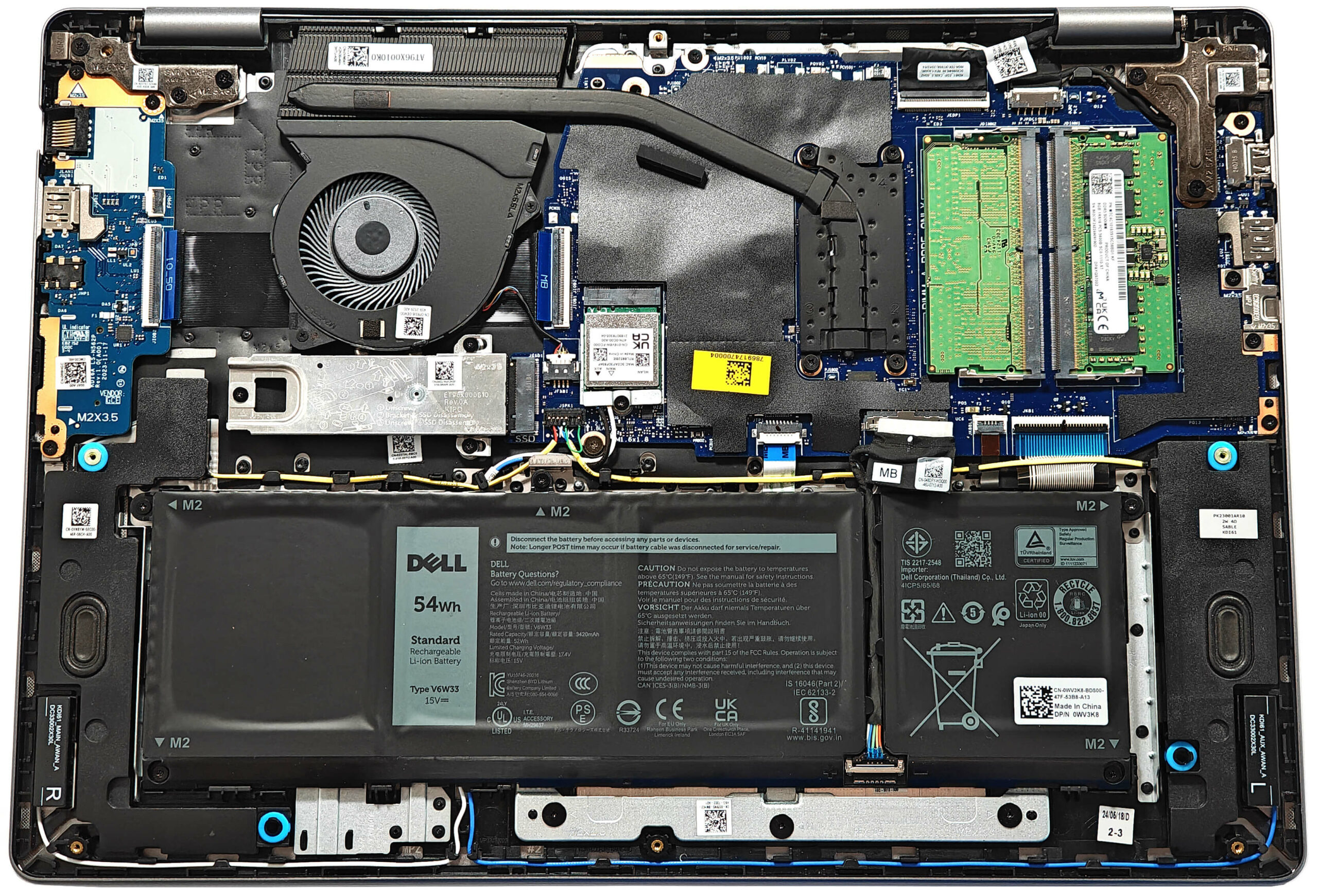
More info: Here’s how the bottom plate looks on the inside.

Battery Removal
Caution: Handle the battery with care to avoid damage or injury.
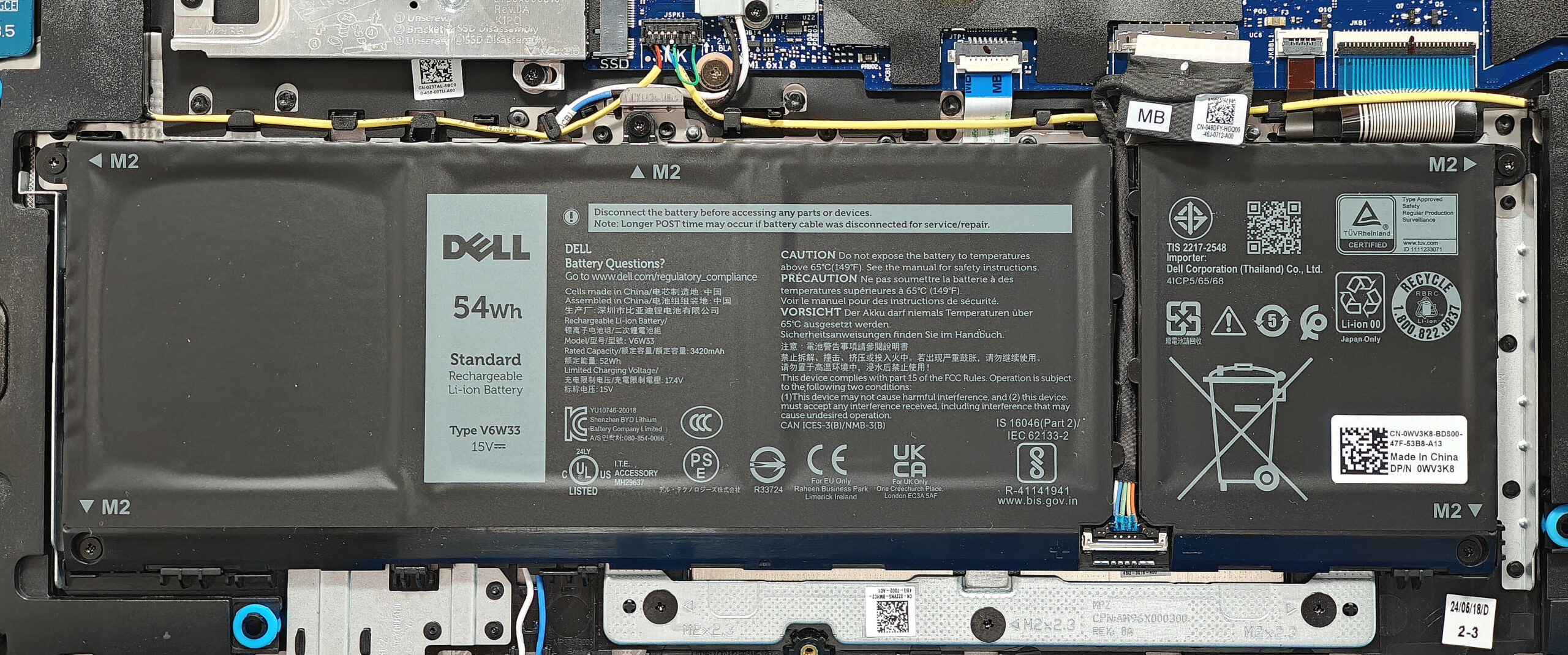
- This laptop has a 54Wh battery secured by five Phillips-head screws.
- Detach the connector from the motherboard by pulling it towards the battery.
- Undo the five screws that secure the battery in place.
- Carefully lift and remove the battery from the laptop.
More info: The battery capacity provides around 8 hours of video playback.
You can buy compatible batteries here: Buy from Amazon.com (#CommissionsEarned)
Memory Upgrade
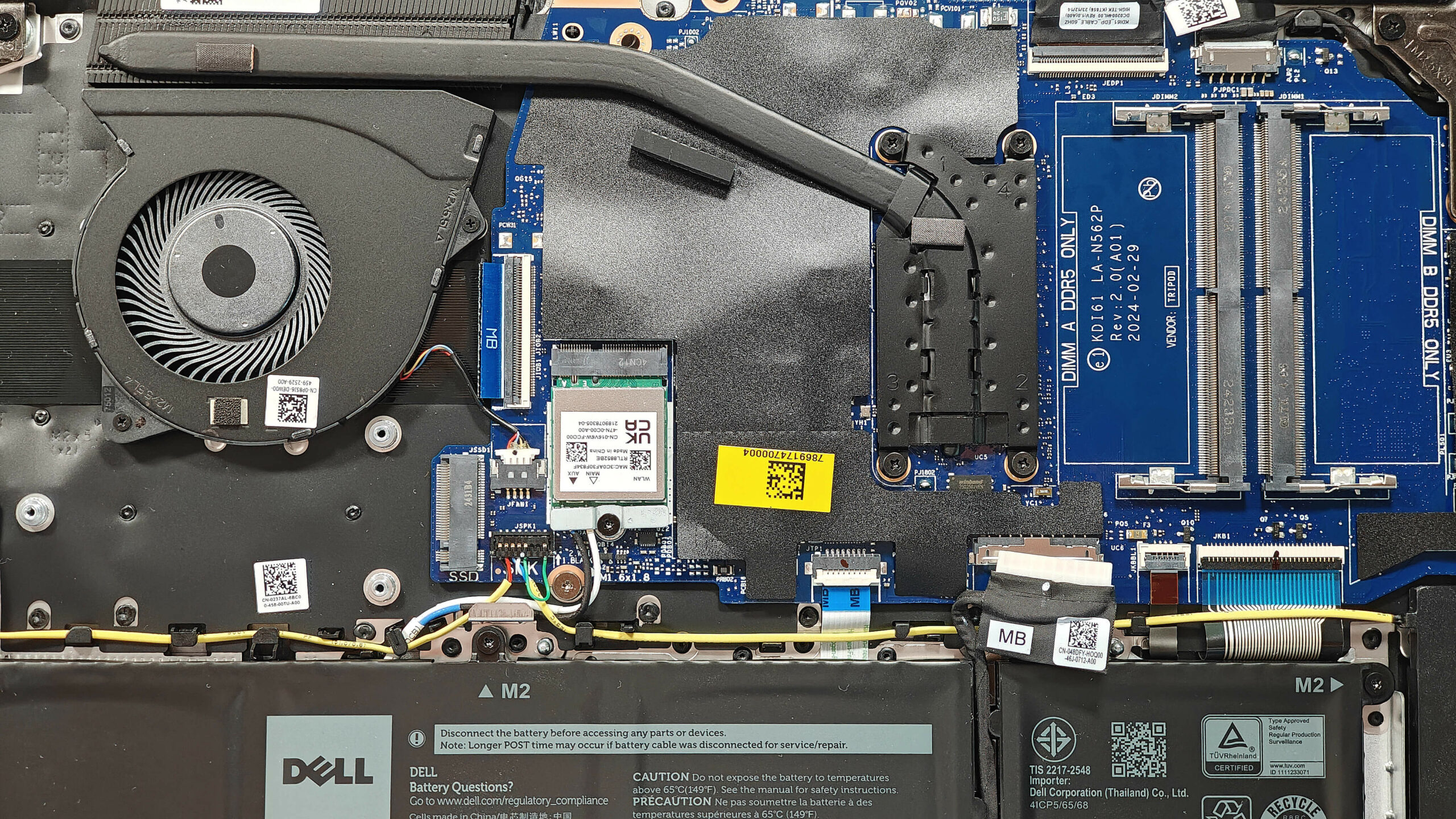
Note: The memory slots are covered with a heat shield that can be easily peeled off.
- Locate the memory slots under the heat shield.
- Carefully peel off the heat shield to expose the SODIMM slots.
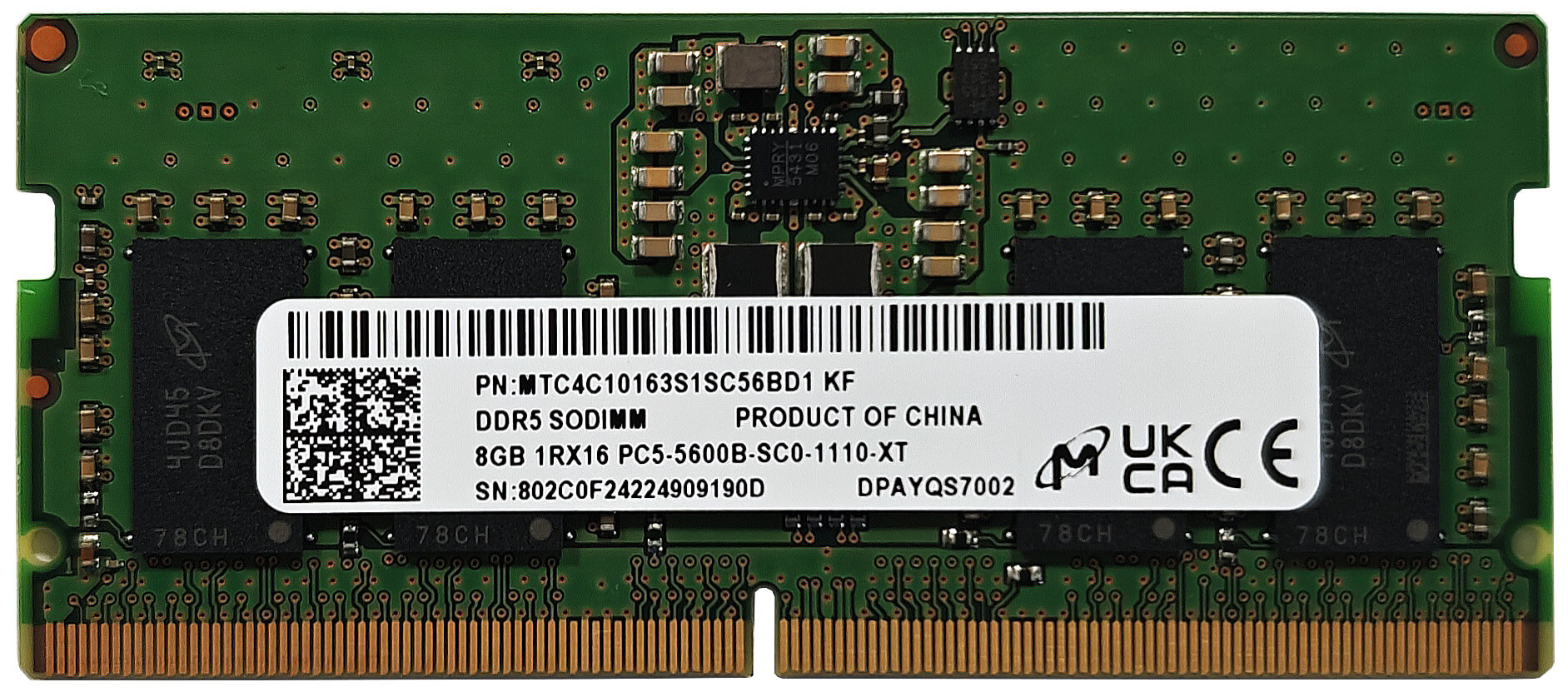
- Insert the new RAM modules into the slots, ensuring they are properly seated.
- Replace the heat shield over the memory slots.
More info: According to Dell, the two SODIMMs can handle up to 32GB of DDR5-5200MHz RAM in dual-channel mode. However, since the CPU can support up to 96GB, this laptop likely wouldn’t have issues running a larger amount of memory than the official manufacturer’s specified limit.
You can buy compatible RAM here: Buy from Amazon.com (#CommissionsEarned)
Storage Upgrade
Hint: Handle the SSD with care to avoid any data loss or damage during installation.
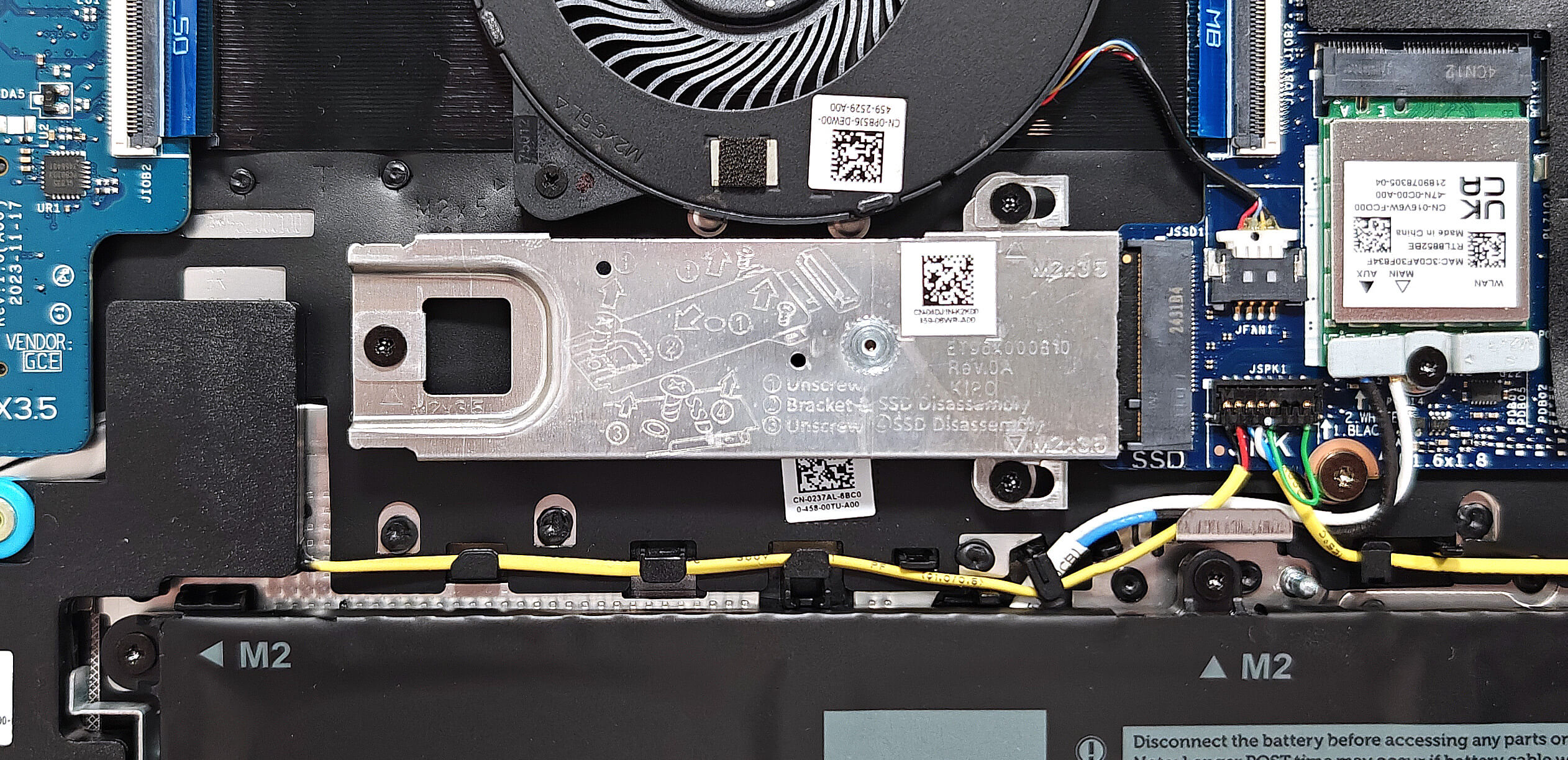
- Locate the single M.2 slot compatible with Gen 4 SSDs.
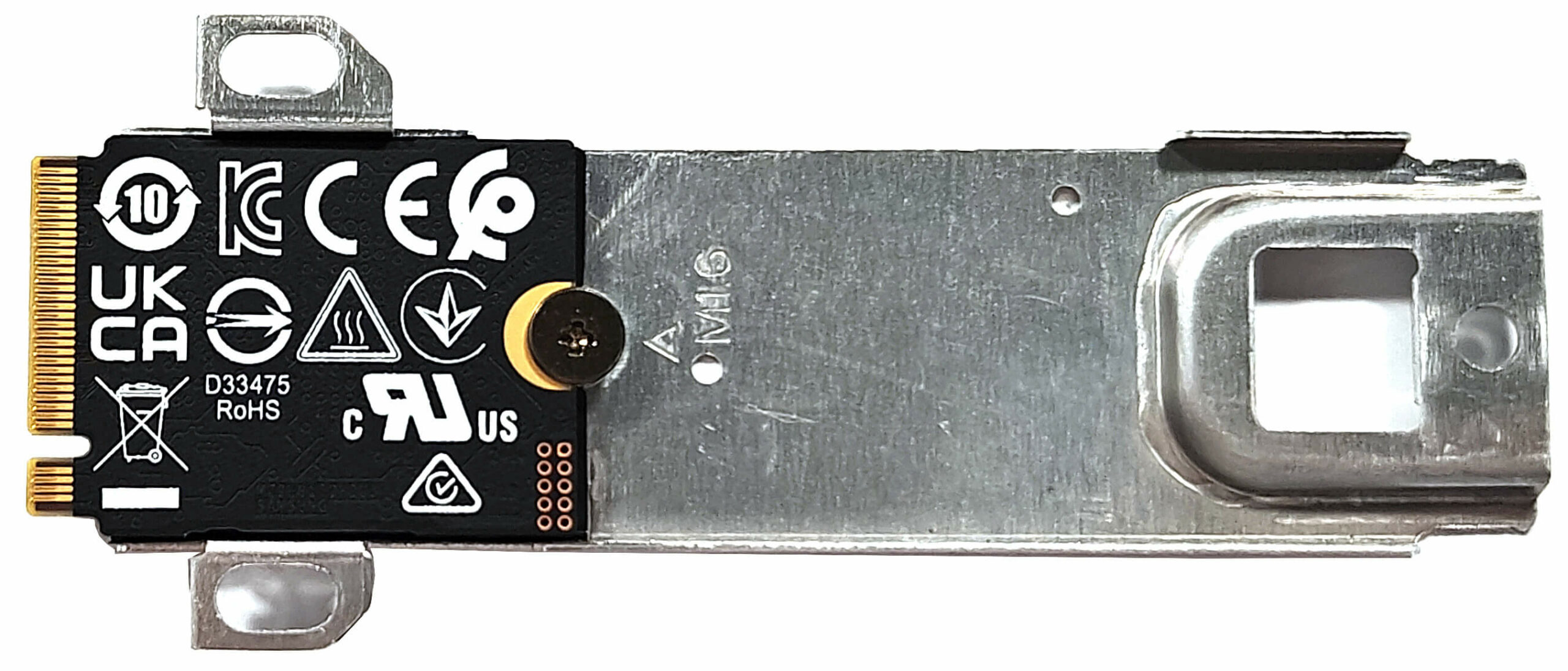
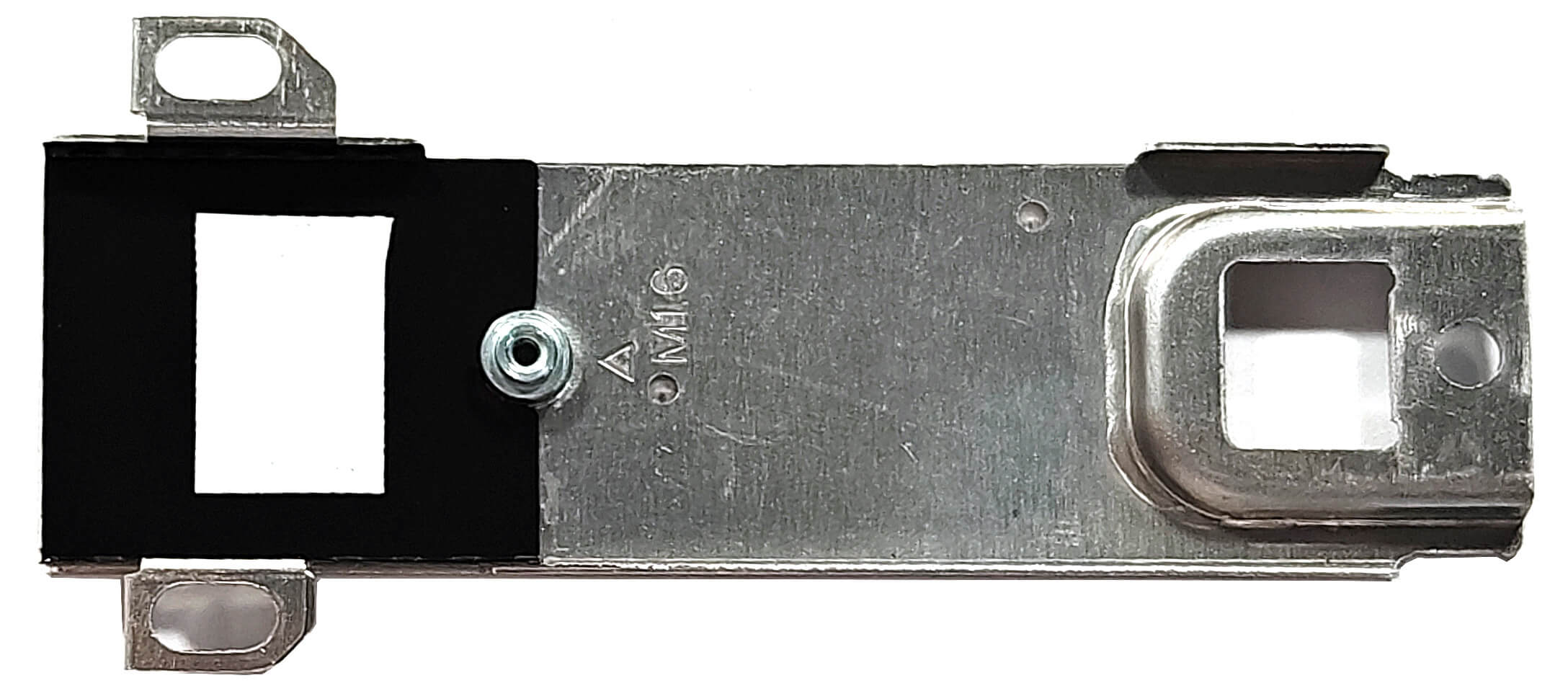
- The slot is protected by a metal plate held in place with three screws. Remove these screws to access the slot.
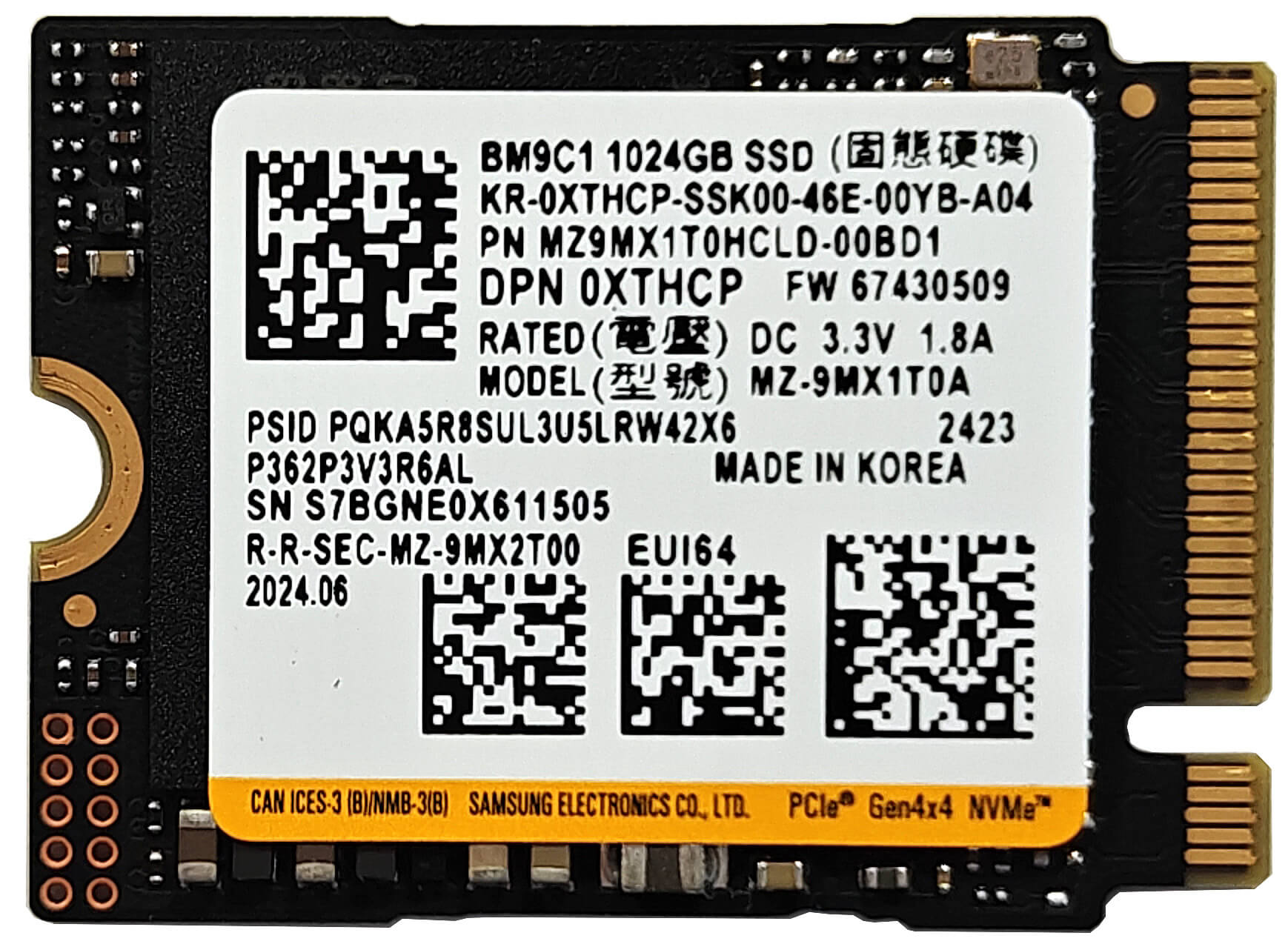
- If an SSD is already installed, carefully remove it by undoing the securing screw and gently pulling it out.
- Insert the new M.2 Gen 4 SSD into the slot at a slight angle.
- Secure the SSD with the screw and replace the metal plate.
More info: The metal plate has a tiny thermal pad underneath, which helps cool the SSD. The laptop originally comes with a small 2230 NVMe SSD.
You can buy compatible SSDs here: Buy from Amazon.com (#CommissionsEarned)
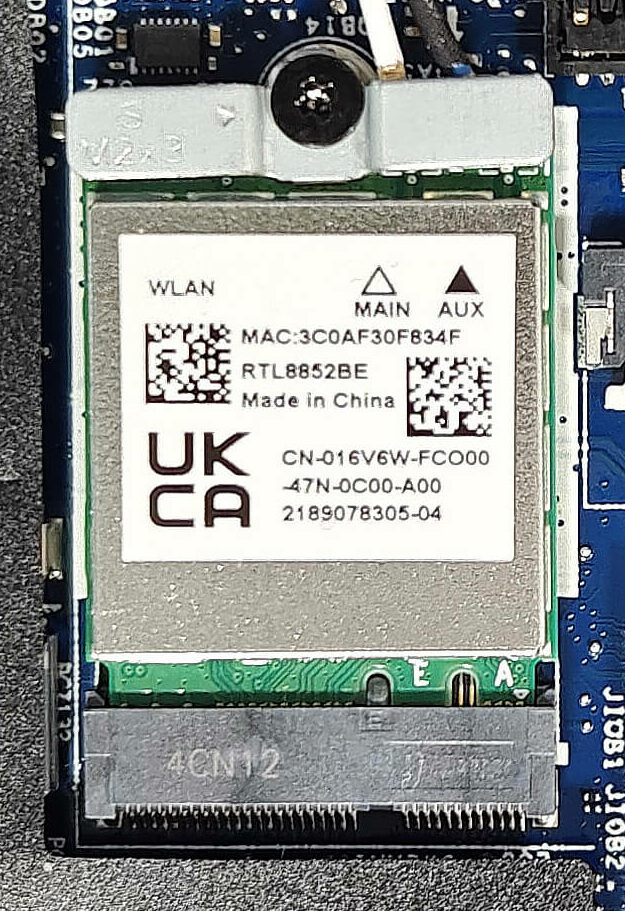
Wi-Fi Card Replacement
Note: The Wi-Fi 6 card is replaceable and located close to the fan connector.
- Locate the Wi-Fi 6 card near the fan connector.
- Carefully disconnect the antenna cables from the Wi-Fi card.
- Remove the securing screw and gently slide out the Wi-Fi card.
- Insert the new Wi-Fi card into the slot.
- Reconnect the antenna cables and secure the card with the screw.
More info: Upgrading the Wi-Fi card can enhance your wireless connectivity and network performance.
You can buy compatible Wi-Fi cards here: Buy from Amazon.com (#CommissionsEarned)
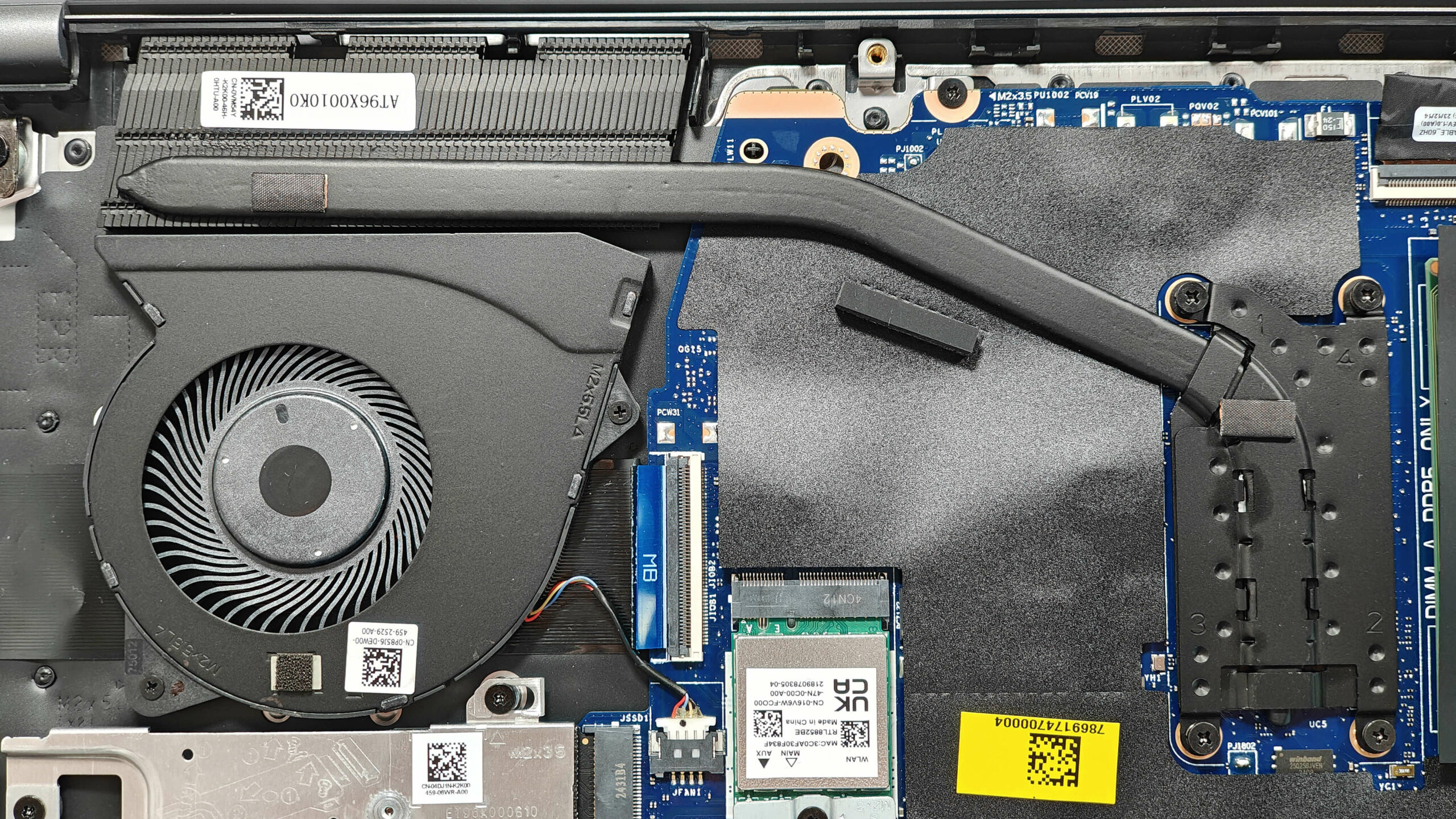
Cooling System Overview
More info: The cooling system consists of one fan, a long heat pipe, a decently sized heat sink, and a heat spreader. While the heat spreader is securely fastened with four screws, the heat sink isn’t rigidly attached to the base.
- Inspect the fan to ensure it is free of dust and debris.
- Check the heat pipe for any signs of wear or damage.
- Verify that the heat sink is properly seated, even though it isn’t rigidly attached.
- Ensure that the heat spreader is securely fastened with its four screws to maintain optimal cooling performance.
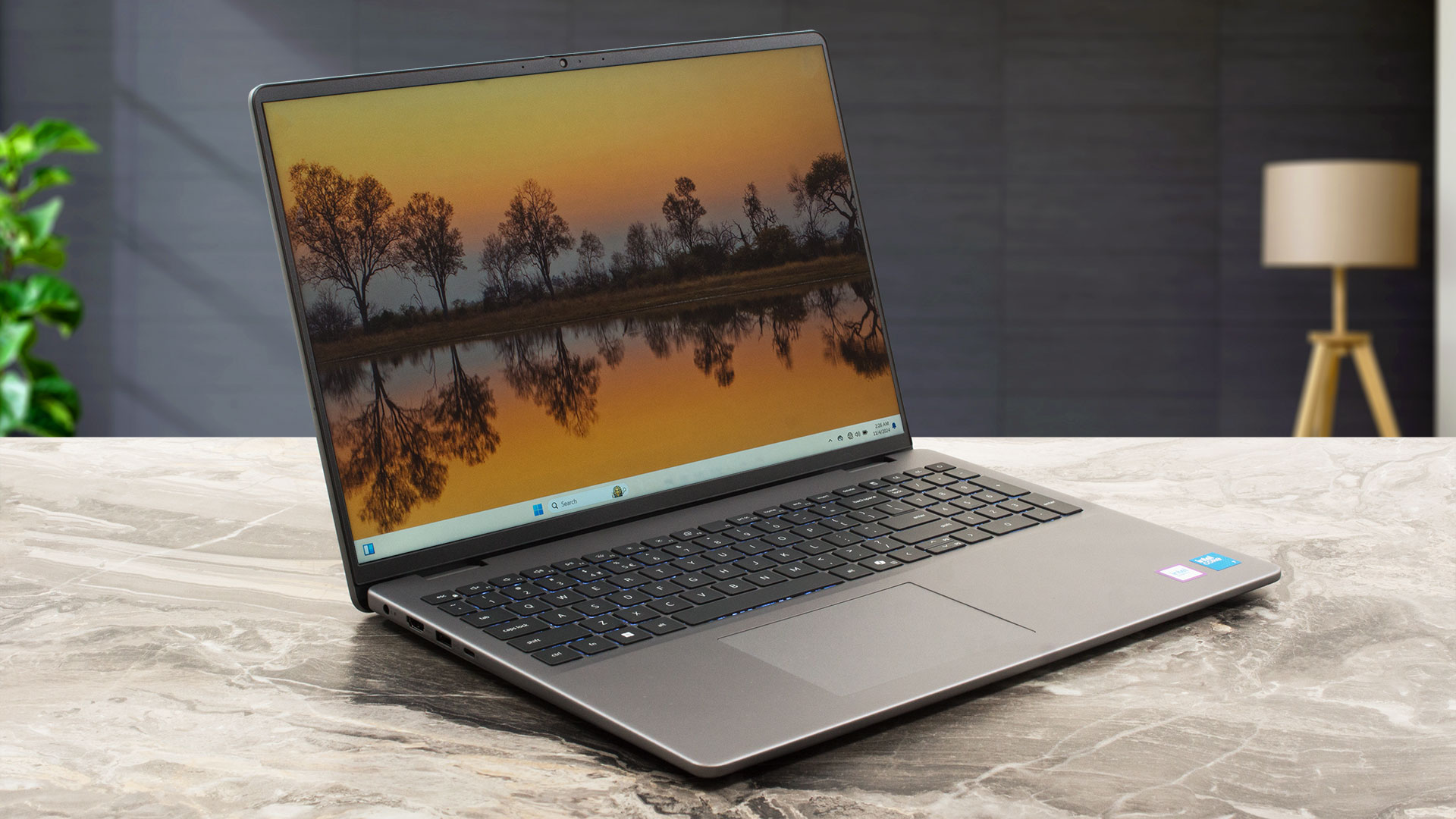
Dell Vostro 16 5640 in-depth review
The Dell Vostro 5640 looks like a typical daily driver or a standard office machine. It's powered by Raptor Lake-U / Refresh CPU options which are based on the Alder Lake architecture. The port selection is decent while the upgradability is above the average. Since that's a 16-incher, there is enough space on the main body for a full-sized keyboard with a NumPad.When it comes to security, everything looks good thanks to the Lock slot, the dTPM 2.0 chip, the privacy shutter, and the optional fingerprint reader. Given the price tag of this device, we aren't surprised that Wi-Fi 7 isn't on bo[...]
Pros
- The overall performance seems enough for normal work
- The built quality looks fine for the most part
- Lid with a lever design
- Decent input devices
- No PWM (BOE0A34)
- Wide viewing angles (BOE0A34)
- 3x USB ports + SD Card slot + LAN
- Good battery life (~ 8 hours of videos)
- 1080p Web camera with a privacy shutter
- Fingerprint reader (optional)
- The CPU can sustain 3.10 GHz / 2.42 GHz P and E-core clock in short loads
- 2x SODIMMs + replaceable Wi-Fi 6 card
- The fan isn't too noisy during max CPU stress
- Decently fast 2230 SSD (Samsung BM9C1)
Cons
- Just one M.2 slot
- Low sRGB coverage and max brightness (BOE0A34)
- Low CPU clocks in long processor stress
- High CPU temperature (94°C) in short loads
 Author: Dimitar Stalev

![[August 2026] Amazon Global: Top 10 Best-Selling Laptops – Apple MacBook Neo Dominates the Charts as Budget and Mid-Range Windows Portables Fight for Volume](https://laptopmedia.com/wp-content/uploads/2026/09/Best-Selling-Laptops-GLOBAL-Top-10-400x225.jpg)
![[August 2026] Best-Selling Laptop Brands on Amazon Global – Apple Dominates Revenue While HP Leads in Model Variety](https://laptopmedia.com/wp-content/uploads/2026/09/GLOBAL-Best-Brands-400x225.jpg)
![[August 2026] Amazon Global: Top 10 Best-Selling Gaming Laptops – HP Victus 15 Captures the Crown as Budget-Friendly Models Dominate the Charts](https://laptopmedia.com/wp-content/uploads/2026/09/Best-Selling-Gaming-Laptops-GLOBAL-Top-10-400x225.jpg)
![[August 2026] Best-Selling Laptop Brands on Amazon Japan – Apple Dominates Market Share and Revenue Led by Strong Unit Sales](https://laptopmedia.com/wp-content/uploads/2026/09/CO.JP-Best-Brands-1-400x225.jpg)
![[August 2026] Best-Selling Laptop Brands on Amazon USA – Apple Dominates Market Revenue and Volume Despite Lower Model Diversity](https://laptopmedia.com/wp-content/uploads/2026/09/COM-Best-Brands-1-400x225.jpg)
