How to open Lenovo ThinkPad X1 2-in-1 Gen 9 (14, Intel) – disassembly and upgrade options
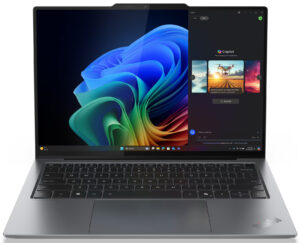
Opening the Lenovo ThinkPad X1 2-in-1 Gen 9
Hint: Ensure the laptop is powered off and unplugged before starting.
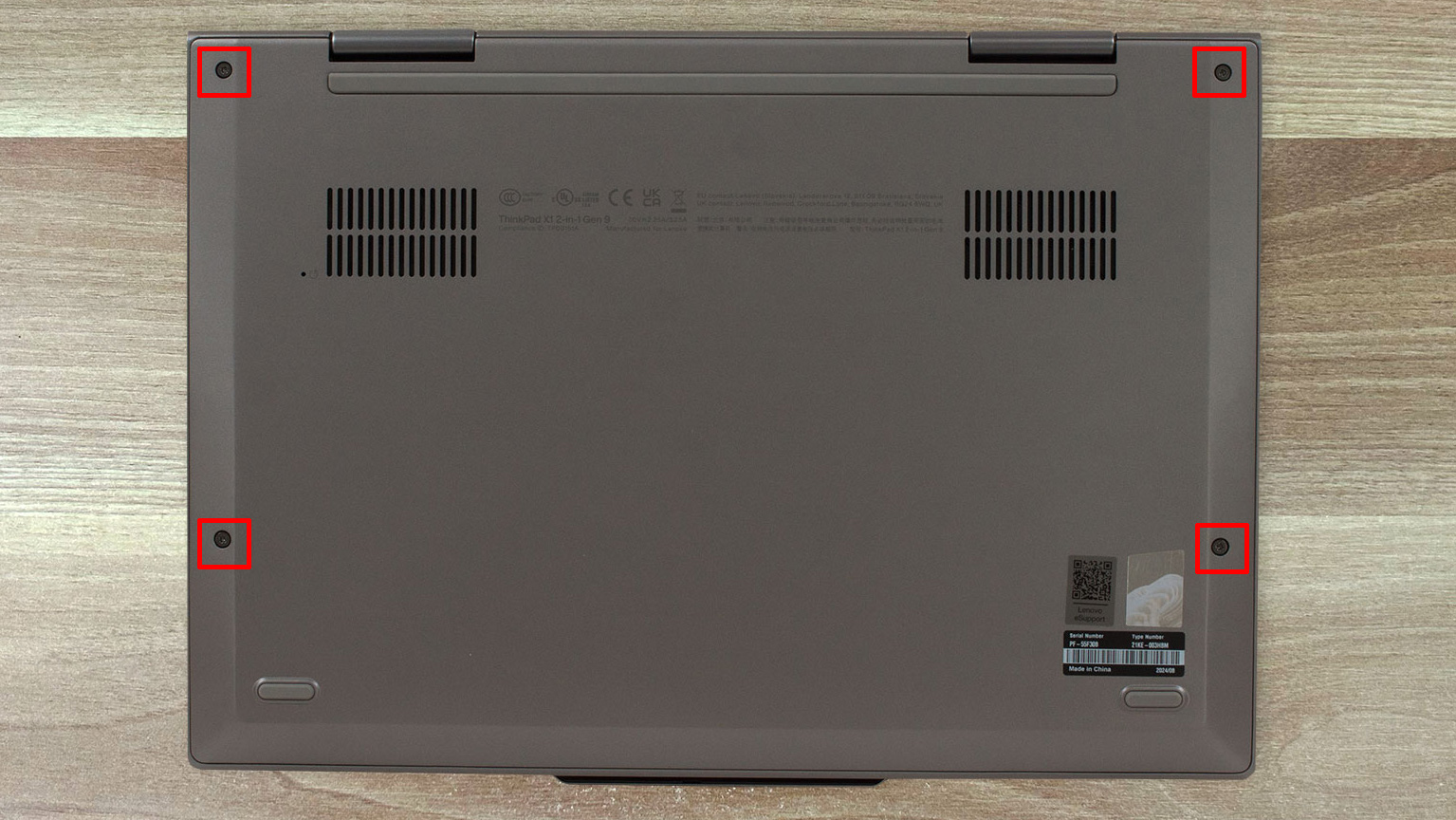
- Use a Phillips PH1 screwdriver to remove the four screws securing the bottom panel.
- With a thin plastic pry tool, begin detaching the clips starting from the hinge area.
- Carefully work around the chassis until the bottom panel is fully unclipped and lifts off smoothly.
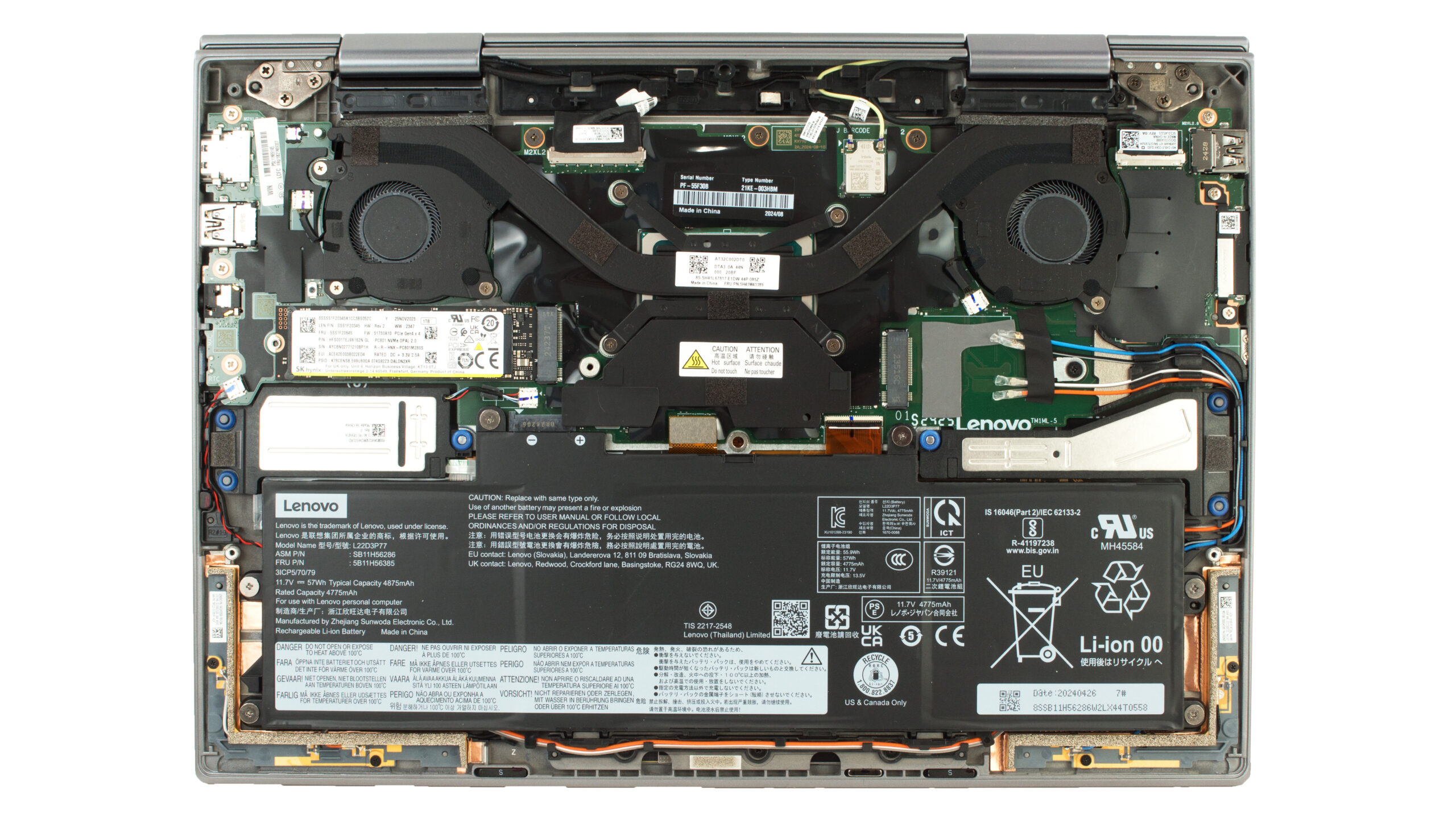
More info: This straightforward design gives quick access to the battery, SSD, Wi-Fi module, and cooling system.
Battery Removal
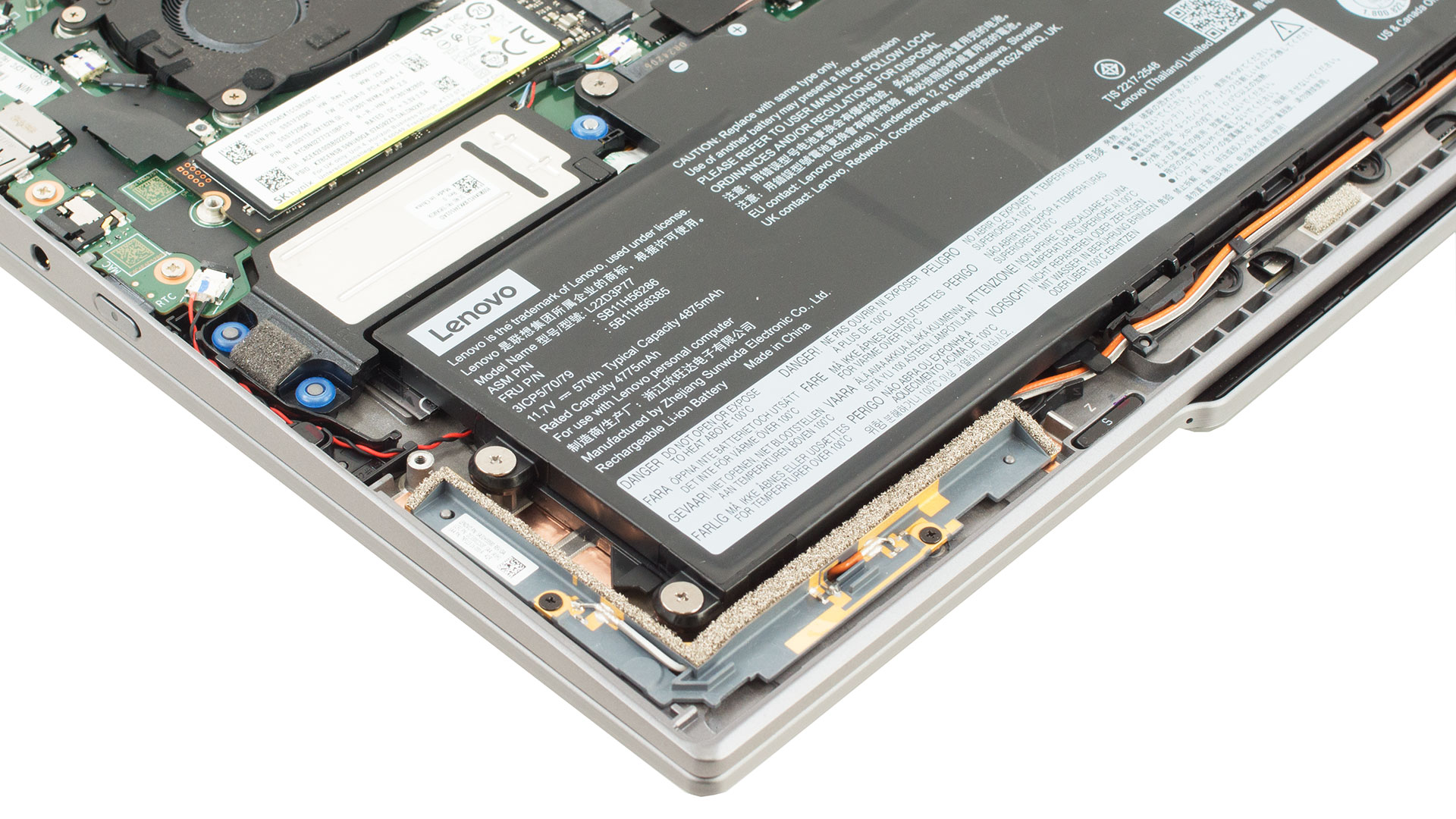
Caution: Use a PH0 screwdriver and avoid force, as the battery has a contact-only design.
- Loosen the six captive Phillips-head screws securing the internal battery (they will stay in place).
- Gently lift the 57Wh battery out of its slot—no cables are involved, only direct contacts with the motherboard.
More info: The battery model is L22D3P77 (57Wh, 11.7V). This design simplifies servicing and ensures easier alignment during reassembly.
You can find compatible batteries here: Buy from Amazon.com (#CommissionsEarned)
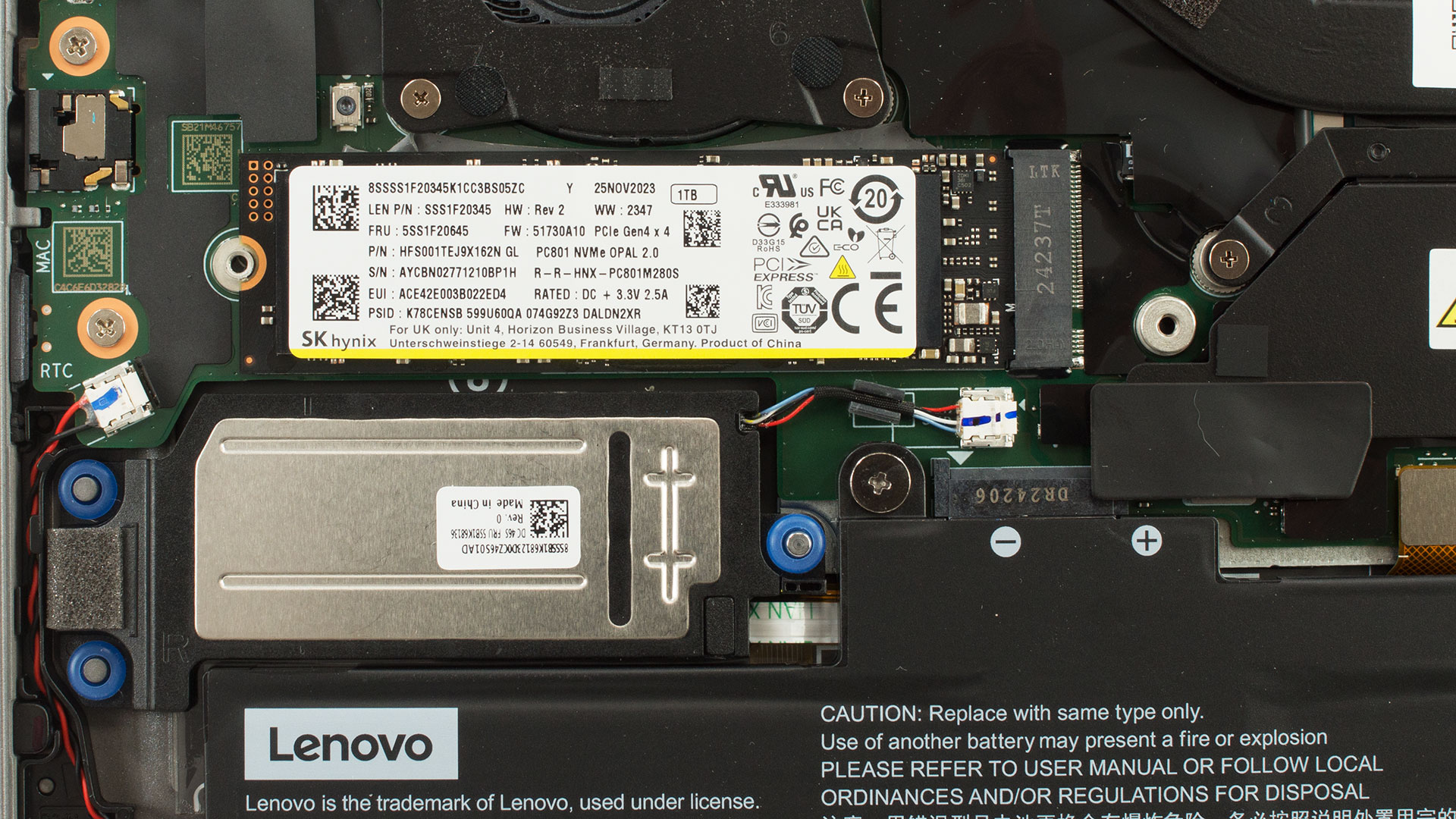
Storage Upgrade
Hint: Avoid touching the contacts on the SSD or slot during handling.
- Unscrew the two screws securing the SSD’s protective shield.
- Carefully remove the cover and pull the 1TB SK Hynix Gen 4 NVMe SSD out of the M.2 2280 slot.
More info: This system supports only one SSD, and no additional storage slots are available.
You can find compatible SSDs here: Buy from Amazon.com (#CommissionsEarned)
Memory Configuration
Note: RAM is soldered and not user-upgradeable.
More info: Some configurations ship with up to 64GB of LPDDR5x-7500 memory, but it operates at LPDDR5x-6400 due to platform limitations. The memory runs in high-efficiency 8-channel mode, offering exceptional performance for a compact convertible device.
Wi-Fi Module
More info:
- The laptop uses an Intel AX211D2W module, providing fast and reliable Wi-Fi 6E connectivity.
Cooling System Overview
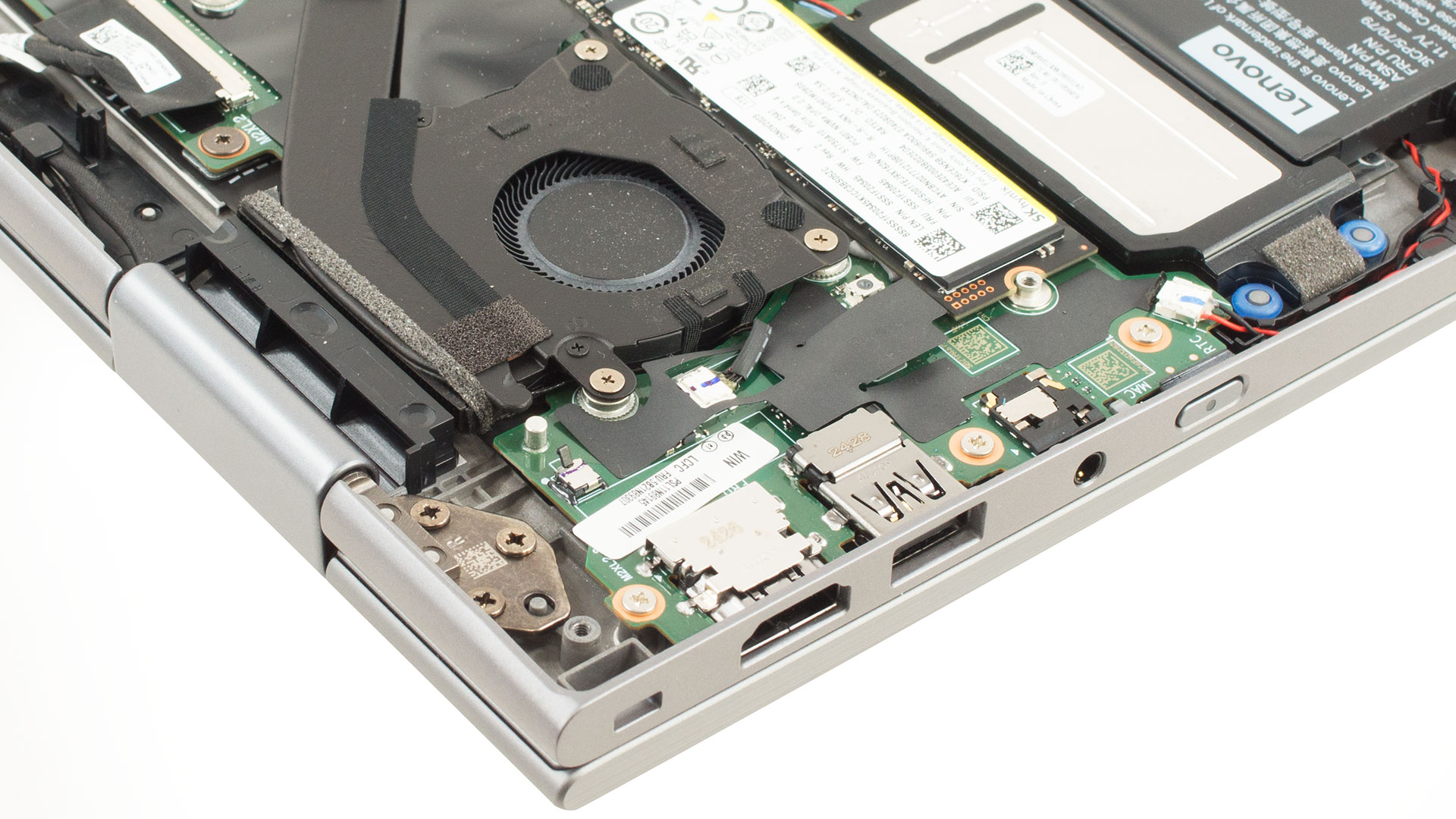
More info: The Lenovo ThinkPad X1 2-in-1 Gen 9 features an efficient and quiet thermal setup.
- Two independent fans manage airflow across the internal layout.
- They are connected by a flat, shared heat pipe that dissipates heat from both CPU and GPU (if present).
Tip: Clean the fans and vents periodically to prevent dust buildup and preserve cooling efficiency.
Lenovo ThinkPad X9-14 Gen 1 in-depth review
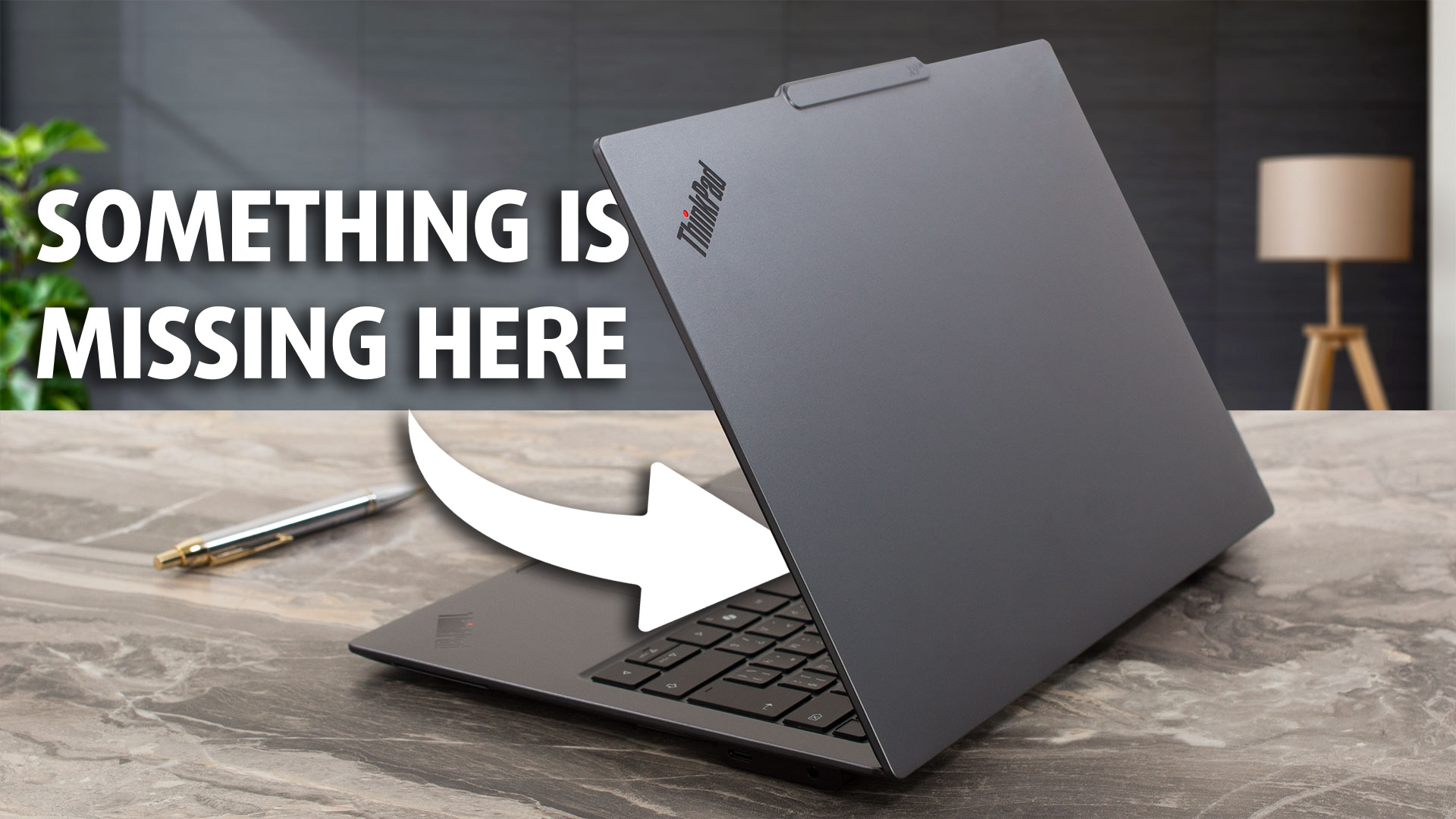
Hardcore ThinkPad fans, sit down and grab a glass of cold water - we have something to tell you: ...this ThinkPad doesn’t have a TrackPoint.We’re still recovering from the shock too, but Lenovo tries to make up for it by packing a lot of sensors and features into the new Lenovo ThinkPad X9-14 Gen 1 - one of the most interesting devices we’ve tested in a long time. It just feels different.Futuristic concepts like this rarely succeed, but we have a good feeling about this one. The X9-14 has everything we need in a business device: a rigid body, a great display, and a Core Ultra 20[...]
Pros
- Stunning, premium, and durable aluminum construction
- Exceptionally thin and lightweight design
- Gorgeous, color-accurate, and PWM-free OLED display (100% sRGB/DCI-P3)
- Outstanding battery life (17+ hours)
- Strong performance with Core Ultra 200 processors
- Capable integrated Intel Arc graphics (esp. 140V)
- Very fast NVMe SSD storage
- Cutting-edge connectivity (Dual TB4/USB4, HDMI 2.1, Wi-Fi 7)
- Excellent keyboard comfort (despite lack of TrackPoint) and large trackpad
- Advanced security features (IR Cam, Fingerprint, E-shutter, Presence Detection)
- Good sound quality
Cons
- No iconic TrackPoint (major departure for ThinkPad purists)
- Limited physical ports: No native USB-A or Ethernet (requires adapters/docks)
- CPU runs very hot under sustained heavy load
- Glossy screen is reflective, despite improvements over typical OLEDs
- Uses an electronic privacy shutter instead of a physical one
 Author: Dimitar Stalev

![[August 2026] Amazon Italy: Top 10 Best-Selling Laptops – Apple MacBook Neo Claims the Crown as Budget and Mid-Range Windows Machines Dominate Volume](https://laptopmedia.com/wp-content/uploads/2026/09/Best-Selling-Laptops-IT-Top-10-400x225.jpg)
![[August 2026] Amazon Italy: Top 7 Best-Selling Gaming Laptops – ASUS V16 Claims the #1 Spot Amid Strong Mid-Range Demand](https://laptopmedia.com/wp-content/uploads/2026/09/Best-Selling-Gaming-Laptops-IT-Top-10-400x225.jpg)
![[August 2026] Best-Selling Laptop Brands on Amazon Italy – Lenovo Dominates Market Share and Revenue Leadership](https://laptopmedia.com/wp-content/uploads/2026/09/IT-Best-Brands-400x225.jpg)
![[August 2026] Amazon India: Top 10 Best-Selling Laptops – Apple MacBook Neo Dominates the Charts with Massive Sales Lead](https://laptopmedia.com/wp-content/uploads/2026/09/Best-Selling-Laptops-IN-Top-10-400x225.jpg)
![[August 2026] Amazon India: Top 10 Best-Selling Gaming Laptops – HP Victus 15 Dominates the Market with Massive Unit Lead](https://laptopmedia.com/wp-content/uploads/2026/09/Best-Selling-Gaming-Laptops-IN-Top-10-400x225.jpg)
